How to Broadcast Configuration Data to Stores and Devices
Overview
Broadcasting is how configuration data is distributed to Target Locations of the Estate from the Web Maintenance Application of EM in which the data is centrally defined and stored. The Broadcasting functions are available under the Broadcasts Menu which can be accessed through following menu sequence

This guide describes about the following maintenance applications available under the Broadcasts Menu.
- Pre-defined Broadcast Maintenance
- Data Broadcaster
- Broadcast History
- Application Update Broadcaster
These applications provide facilities to Define, Control, Initiate and Monitor broadcasting of configuration Data to the Estate. The Application Updater, is also initiated from this Menu which distributes Application Updates to the Estate
Pre-defined Broadcast Maintenance
Predefined Broadcasts are persistent, reusable entities that define the requirements for a broadcast.
Selecting a Predefined Broadcast
The Predefined Broadcast Maintenance selection page allows the User to add view edit copy delete or schedule predefined broadcasts.
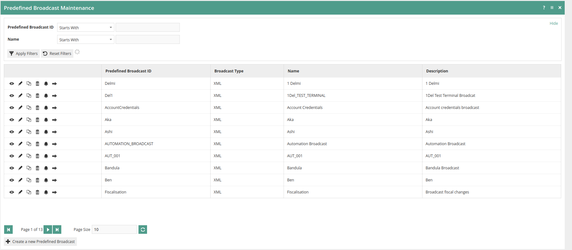
Creating a Predefined Broadcast
Select the Create a new Predefined Broadcast option to create a
new predefined broadcast.

Enter the Predefined Broadcast ID and select Create

Predefined Broadcast Details- General Tab
This screen will capture the general details of the predefined broadcast
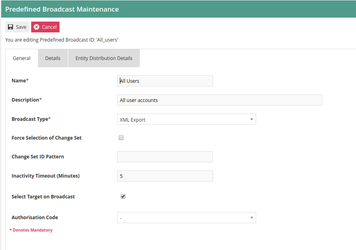
Broadcast Type
Dropdown list selection of defined Export Types, which support
broadcast. Built-in types are XML and CSV.
Select Target on Broadcast
Requires that targets for the broadcast will be specified by the user
when applying the Predefined Broadcast, not specified in the Predefined
Broadcast itself.
Send to
The target options are:
- All Stores – to send the broadcast everywhere
- All Store Servers – to send to all store servers only
- Region – to send the broadcast to a specific region
- Location – to send to a specific location (store)
- Device – to send to a specific device (POS, Mobile Server)
Predefined Broadcast Details- Details Tab
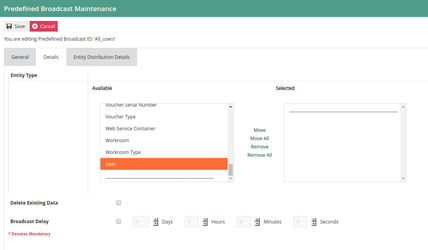
Entity Type:
The Details Tab allows the user the selection and configuration of the
Entities to broadcast. Entities for distribution are selected by
transfer from/to the left table to/from the right table.
Delete Existing Data:
If the Delete Existing Data checkbox is checked all data for the
selected Configuration Elements will be deleted from the selected Target
before the broadcast data is applied.
Broadcast Delay:
The Broadcast Delay fields optionally may be populated to defer actual
initiation of the broadcast.
Data Broadcaster
The Data Broadcaster broadcasts data based on the information specified
in the selected Predefined Broadcast.
It provides the means to apply Predefined Broadcasts to distribute the
specified Data to the Estate, managing the selection and timing of data
distribution.
Data Broadcast Select
The initial page of the Data Broadcaster page enables the User to initiate a broadcast according to a previously defined broadcast.
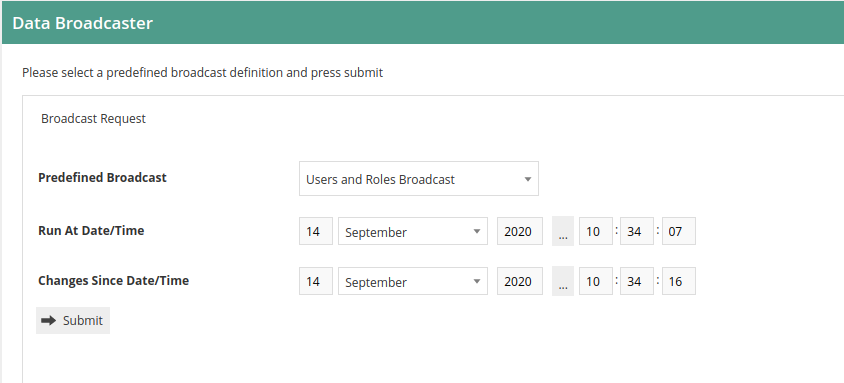
The Submit button will initiate the broadcast according to the following configuration specified on this page
Predefined Broadcast - Dropdown list selection of defined predefined
broadcasts
Run At Date/Time- Time at which broadcast is to be run
Changes Since Date/Time- Date and time from which to include any
changes.
Broadcast Target Selection
Target devices selection identifies target devices of the Estate to which the Distribution Data should be sent. This information may be predefined as part of the predefined Broadcast Definition or it may be left open, by checking the “Select Target on Broadcast” checkbox, to be defined when the Predefined Broadcast is submitted for broadcast
Send To
Specify the level in the geographical distribution hierarchy at which
individual targets for the broadcast should be selected
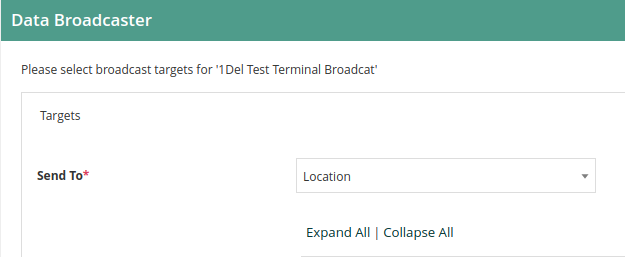
Sent to Location
Targets- Ex- If Locations is selected individual Location check boxes may be checked to select them in the Targets selection tree presented below
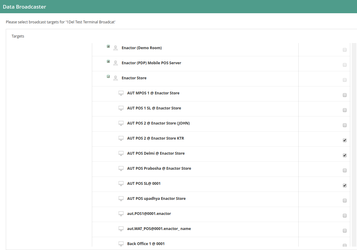
In this example “Enactor Store” is selected as the location for the data broadcast

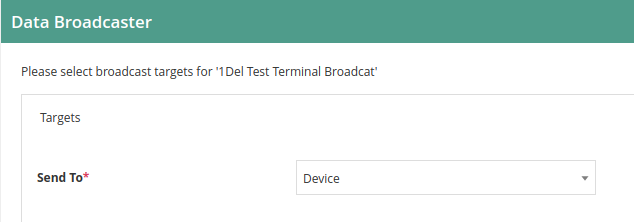
Send to Device
In the example shown above, the devices within the store cannot be selected, if the broadcast need to be targeted on a particular device, then “Device” option need to be selected
Submit the Broadcast
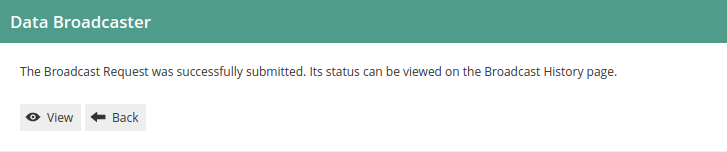
If the Broadcast is successfully submitted a success message is displayed with an option to View. The View option directly accesses the Broadcast History entry for the current Broadcast, which can also be accessed in the Broadcast History Maintenance application
Broadcast History
The status of Broadcasts may be monitored using the Broadcast History option. The initial Broadcast History page lists the broadcasts of the Broadcast History subject to filters and enables the User to select and view individual entries
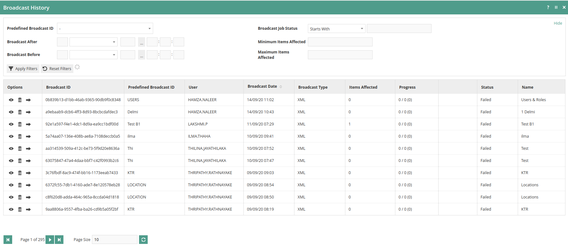
Broadcast History View
A Broadcast History entry selected using the View Icon opens a further Broadcast History View page, which provides three tabs for inspection of the Broadcast and its status; the General Tab, Progress Tab and Recipients tab
Broadcast History Progress
The Progress Tab indicates the status of preparation of the download data package to be made available for distribution to selected Target devices, which will receive the Broadcast Message and download the broadcast data from the server indicated in the Message. There are two phases of processing in this process of preparation; Exporting and Collating, each with a progress status bar shown the Overall Status region at the top of the page
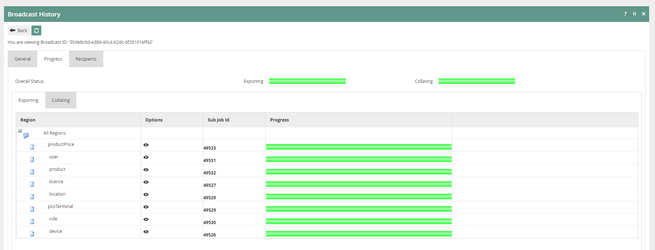
Broadcast History Progress - Exporting
The Export phase, which is shown in the Exporting Sub-Tab, initiates a process to extract data for each Entity selected for export. The progress bar indicates the status of the export; Yellow if data export in progress or Green if data Export has completed, otherwise remains Grey
Broadcast History Progress - Collating
The Collating phase processes the exported data files into a download package, usually one file for all distribution Targets, and the progress bar indicates in Green as files are being added, otherwise, yellow.
Broadcast History Recipients
The Recipients Tab presents a Status Icon for each recipient selected in the Targets list of the Pre-Defined Broadcast. Note that if the Target Device is not subscribed to any queues and cannot receive the broadcast from the Estate Manager the Icon will contain a single hyphen.
A subscribing device, on receiving the Broadcast notification, will connect to the server, download the broadcast package and process the data into its own database. On completion it will return an acknowledgement of the Broadcast request indicating either success or failure of the processing of the broadcast package.
The Icon for the individual target in the Recipients Tab reflects the returned indication in this acknowledgement; either a green tick or a red cross
