How To Configure Terminal Cash Management and Inventory via POS Header
Introduction
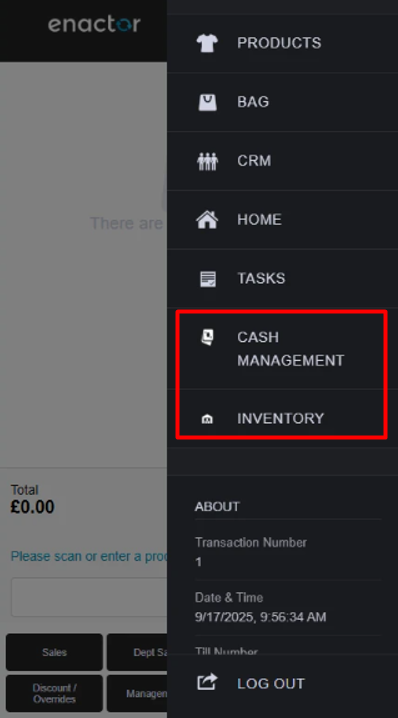
This guide outlines the introduction of additional buttons in the POS Header Menu and Mobile Burger Menu which simplify navigation, by allowing users to directly access the Terminal Cash Management and Inventory menus, avoiding longer menu flows. The configuration to add the Terminal Cash Management button and Inventory button to the POS Header Menu, and their usages in the POS will be discussed in this document.
Overview
This guide will cover the configuration for the following:
-
Privilege Definition: Activating specific functional IDs to control button visibility.
-
Role-Based Access Control: Assigning these navigation shortcuts to specific user groups (e.g., Supervisors or Store Managers).
-
UI Standardization: Ensuring a consistent navigation experience across Desktop, Tablet, and Mobile POS interfaces.
Prior Training / Experience
You should be familiar with the following:
-
Estate Manager Configuration
-
Menu Configurations
Configuration Steps
Two new privileges control the visibility of the Terminal Cash Management and Inventory buttons. These must be enabled in Estate Manager for the respective roles:
-
enactor.pos.header.ShowTerminalCashManagementButton
-
enactor.pos.header.ShowInventoryButton
Privileges should be enabled in the User Role Maintenance of the Estate Manager. The User Role Maintenance application can be accessed through:
Configuration -> HR -> User Roles
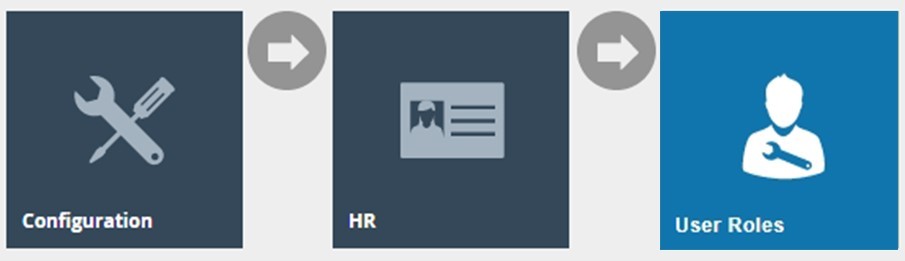
In the User Role Maintenance, select the Edit icon of the desired User to enable the privilege for.
Navigate to the Authorised Functions tab of that selected User and apply the following filters:
Application Package > Enactor POS
Process > Sale
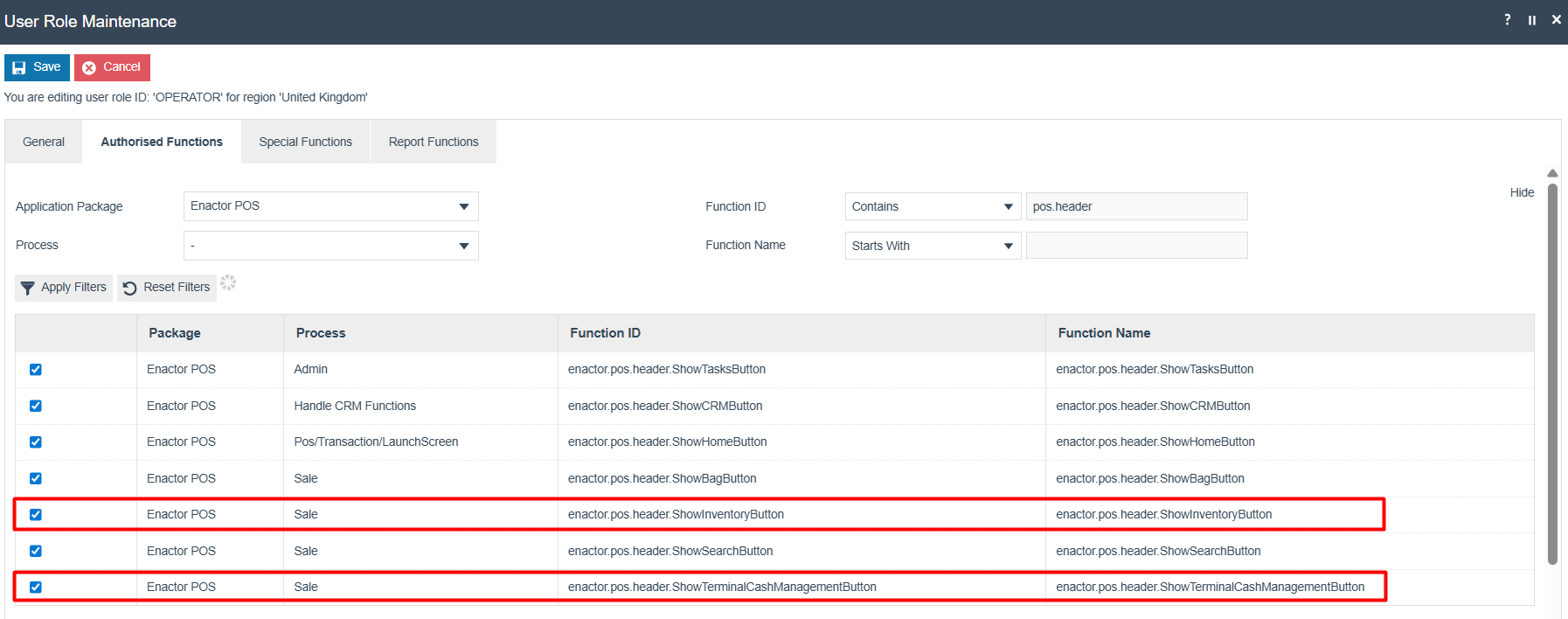
This lists the privileges that are required to access through the POS Header:
| Package | Process | Function ID | Description |
|---|---|---|---|
| Enactor POS | Sale | enactor.pos.header. ShowTerminalCashManagementButton | Enables the Terminal Cash Management button in the POS Header menu. |
| Enactor POS | Sale | enactor.pos.header. ShowInventoryButton | Enables the Inventory button in the POS Header menu. |
POS Functionality
After the above configurations have been set, the Terminal Cash Management and Inventory buttons will now display in the POS Header menu as follows:
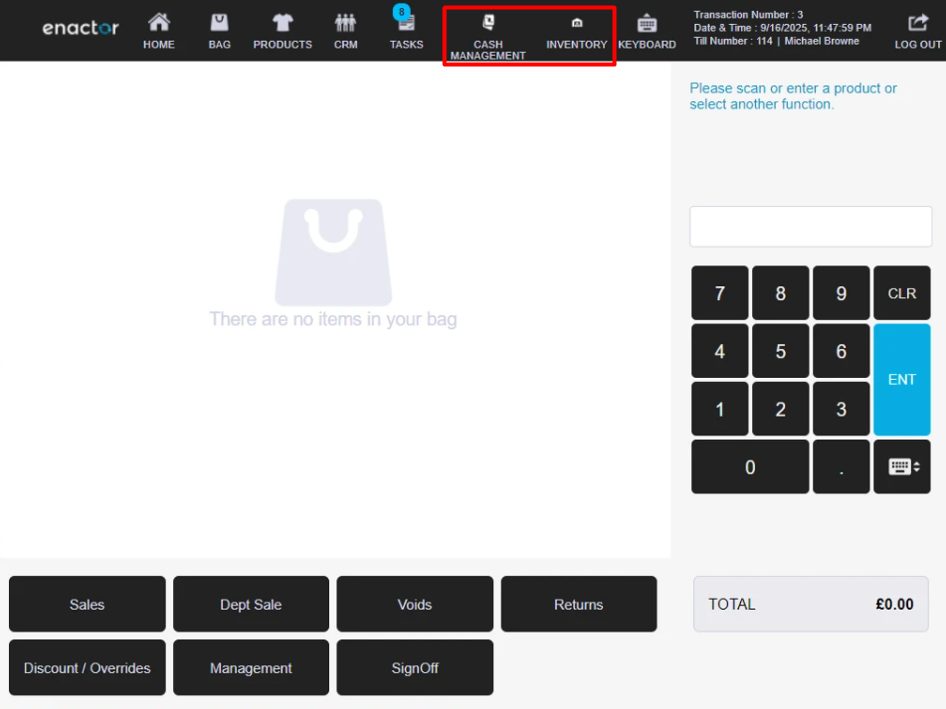
In the Mobile POS, this is displayed within the hamburger menu as
follows: