How-to Guide - Addendum 1 - Menu Layouts
The Enactor POS is comprised of 17 menus. This guide provides a reference for each menu: what it does, which functions it contains, and how it connects to other menus in the system. It is intended for operators, store managers, and system administrators who need to understand the structure of the POS interface.
The Enactor POS is comprised of 17 menus:
| Admin | Launch | Safe Cash Management |
|---|---|---|
| Credit Tender | Modifier Item | Sale |
| CRM | POS Sign On | Tender |
| Display Reports | Print Reports | Terminal Cash Management |
| Footer | Receipt Destination | Web Reports |
| HHT Admin | Rich Product |
Menus can hold folders, menu links, and functions, which allow users to perform actions in the POS:
| Type | Description |
|---|---|
| Root Folder | Enactor POS Menu - root folder that contains all menus. |
| Folder | Folder - folder containing one or more folders and/or functions. |
| Menu Link | Menu Link - navigates to a connecting menu. |
| Function | Function - initiates a function. |
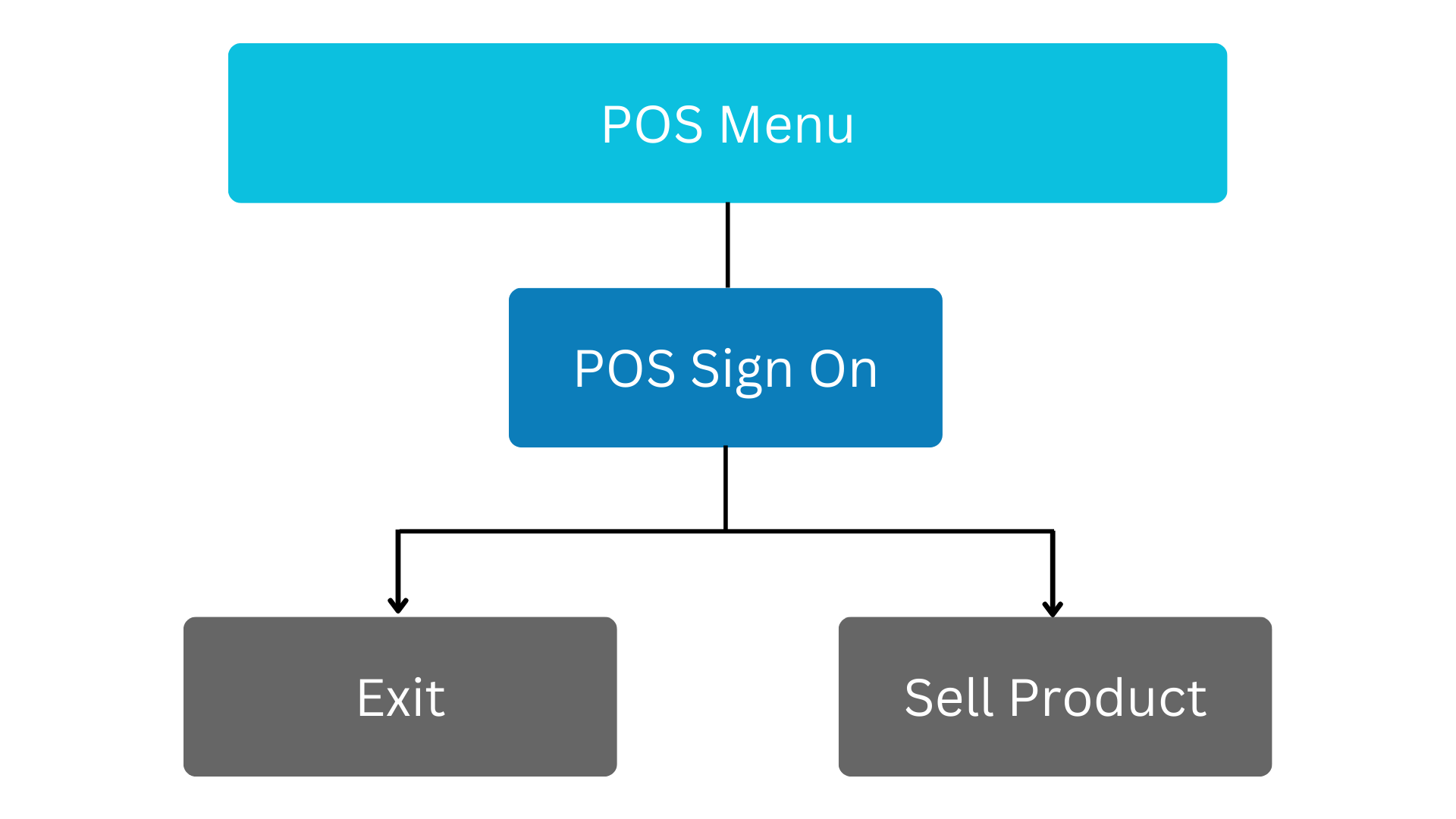
POS Sign On
The POS Sign On menu enables operators to log in to the POS system to sell products or quit the application.
It is a simple menu that provides access to the POS system's core functions.
Launch
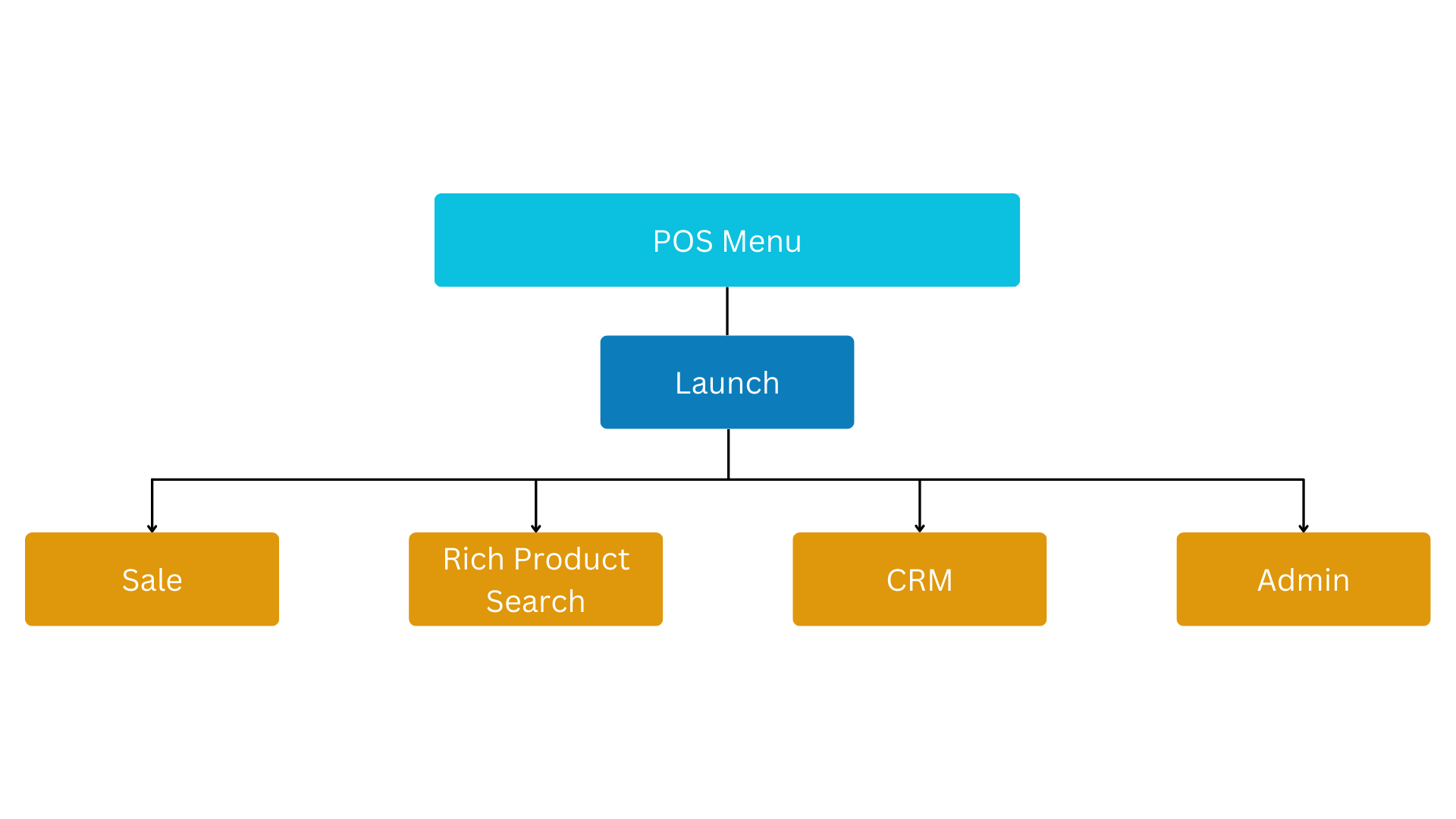
The Launch menu is presented to operators upon logging in to the POS (based on configuration).
It offers access to four other menus: Sale, Rich Product, CRM, and Admin.
This allows operators to quickly navigate to the most used menus in the POS.
The Launch menu is linked to the Sale, Rich Product, CRM, and Admin menus.
Sale
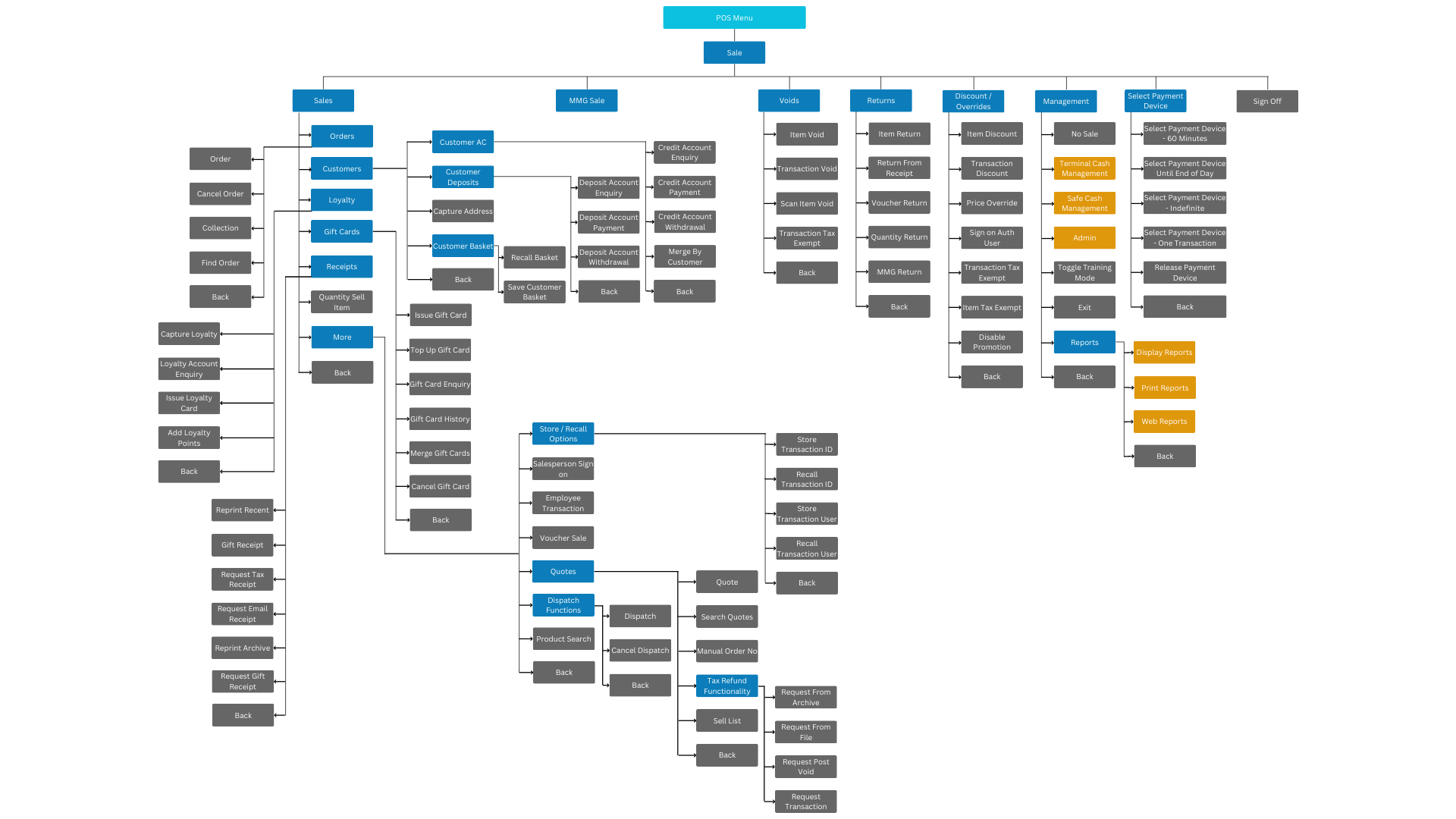
The Sale menu enables operators to manage a wide range of sales-related functions. This includes managing orders, customer accounts, and loyalty programs, as well as issuing and managing gift cards.
Operators can also reprint receipts and issue gift receipts, as well as sell MMG items, void items and transactions, and process returns for items, vouchers, and MMG items.
The Sale menu also allows operators to apply item discounts, transaction discounts, price overrides, and disable promotions.
Management functions such as terminal and safe cash management, admin functions, and training mode are also found in this menu.
Additionally, operators can also access reports from the Sale menu.
The Sale menu is linked to several other menus, including the Terminal Cash Management, Safe Cash Management, Admin, Display Reports, Print Reports, and Web Reports menus.
Rich Product
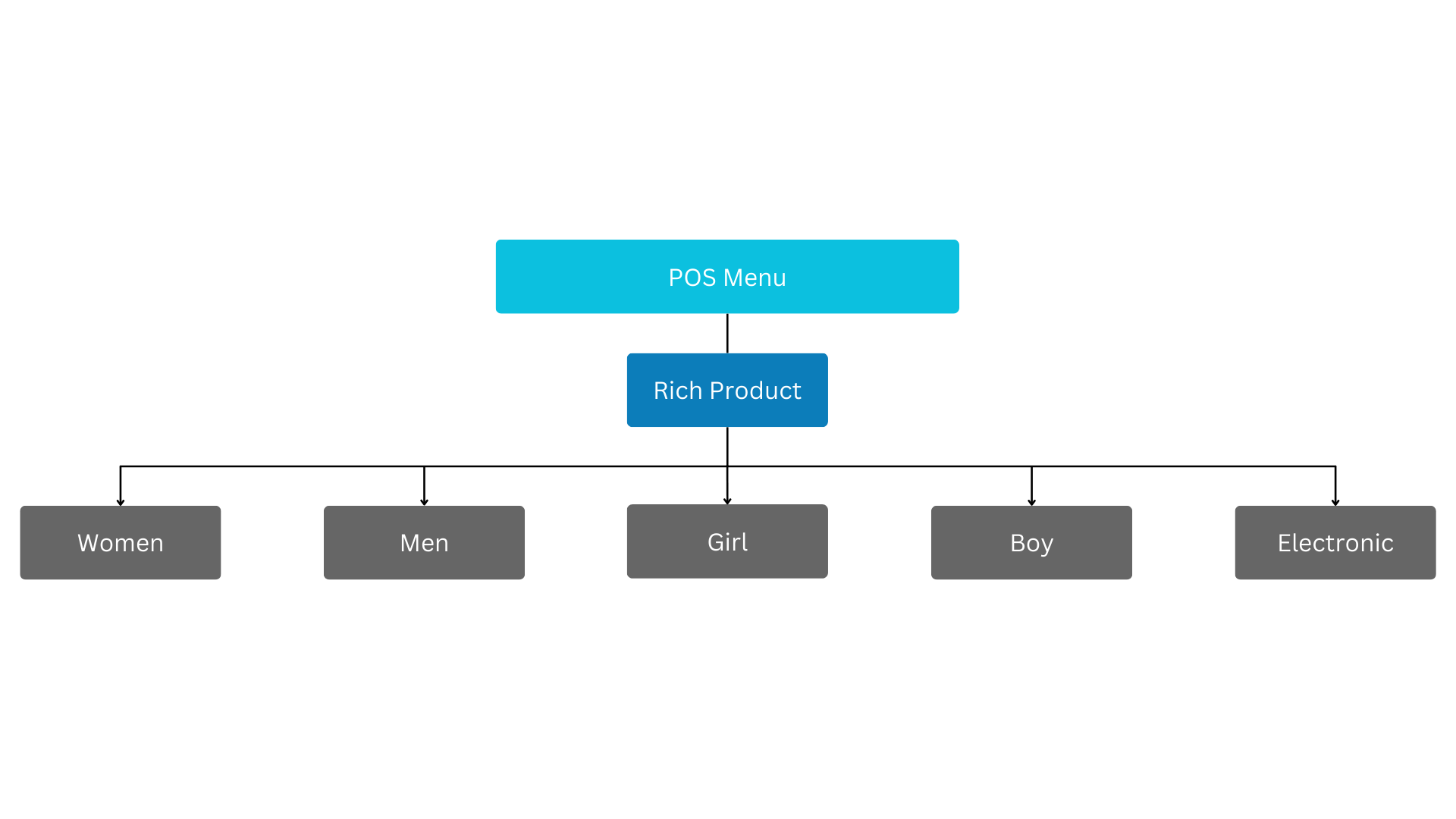
The Rich Product menu enables operators to easily find products based on their categorisation.
By default, this includes categories such as women, men, girl, boy, and electronic.
Operators can navigate the menu to quickly locate products within these categories.
Receipt Destination
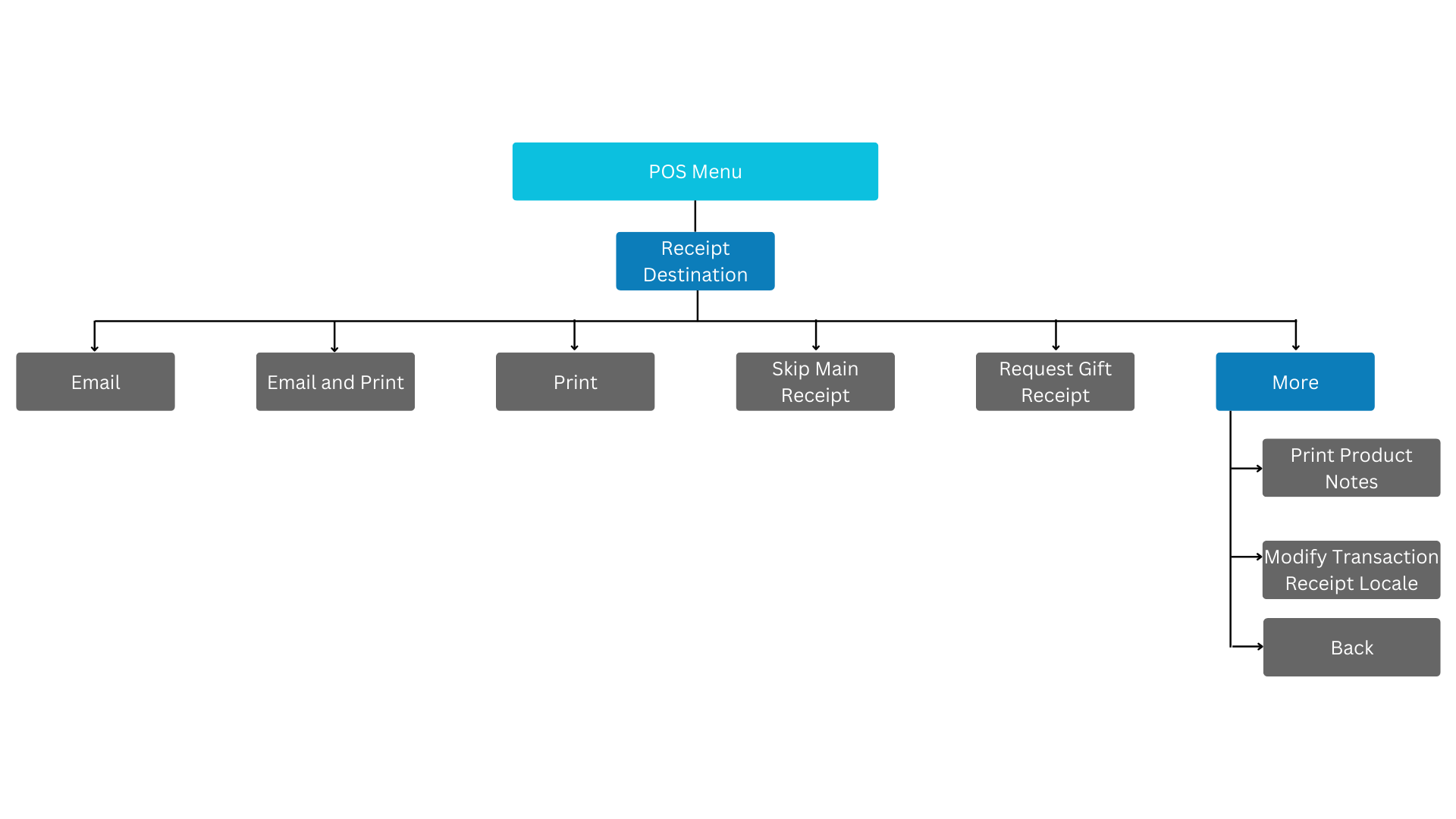
The Receipt Destination menu enables operators to choose how the receipt should be delivered to the customer.
Options include delivery via email, email and print, print only, skipping the main receipt, requesting a gift receipt, and printing product notes.
This allows operators to provide customers with receipts in their preferred format.
Tender
The Tender menu enables operators to accept various forms of payment for transactions. This includes cash, card payments, cheques, and vouchers.
Operators can also use customer credit accounts and loyalty balances to pay for items, as well as employee credit accounts.
The Tender menu is linked to the Sale menu.

Credit Tender
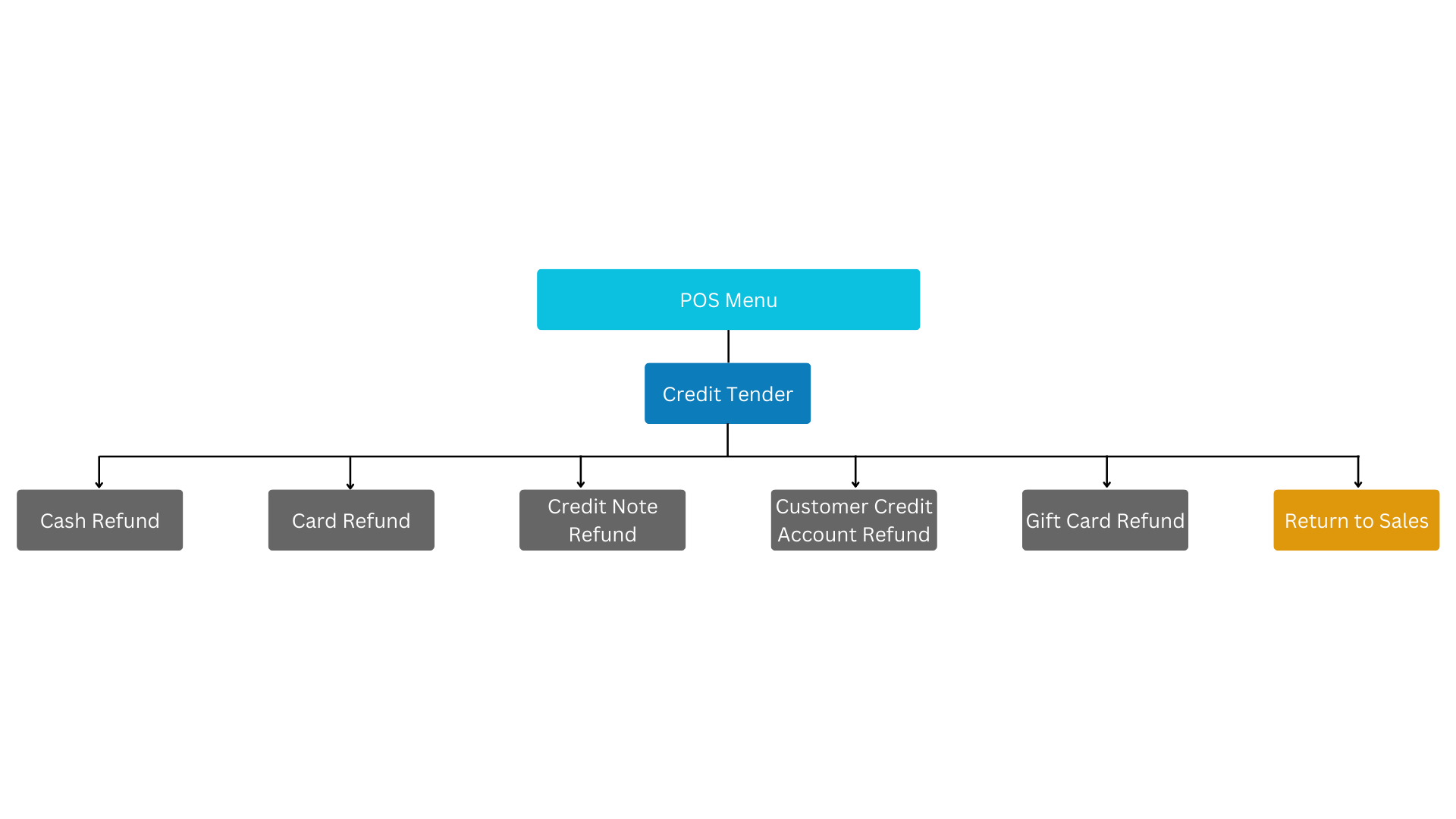
The Credit Tender menu enables operators to process various types of refunds.
This includes cash refunds, card refunds, credit note refunds, customer credit account refunds, and gift card refunds.
The Credit Tender menu is linked to the Sale menu.
Modifier Item
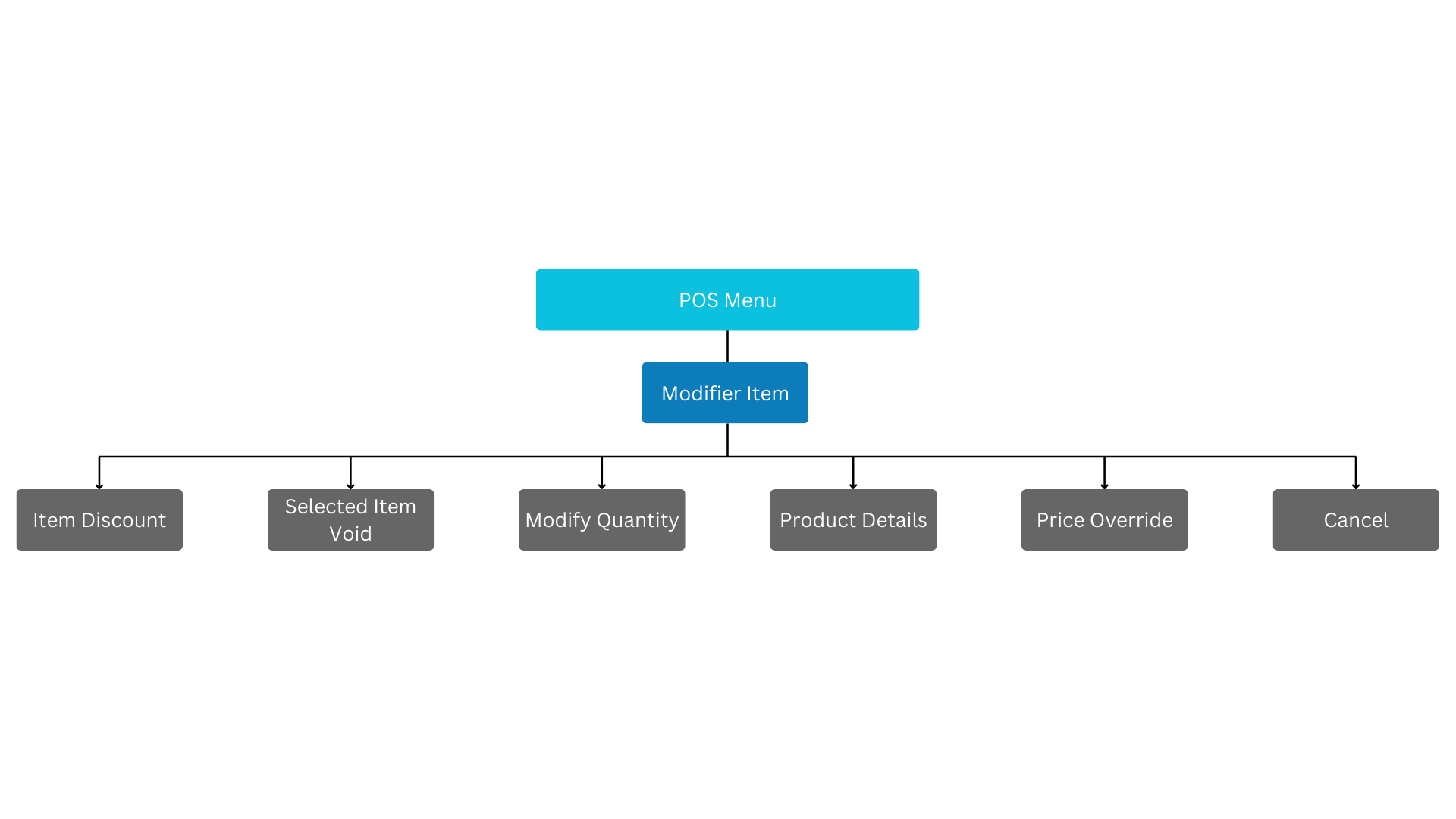
The Modifier Item menu appears when an item in the basket is selected.
It enables operators to perform a variety of actions on the selected item, including applying a discount, voiding the item, modifying its quantity, viewing more product details, and applying a price override.
This allows operators to easily make changes to items in the basket as needed.
Display Reports
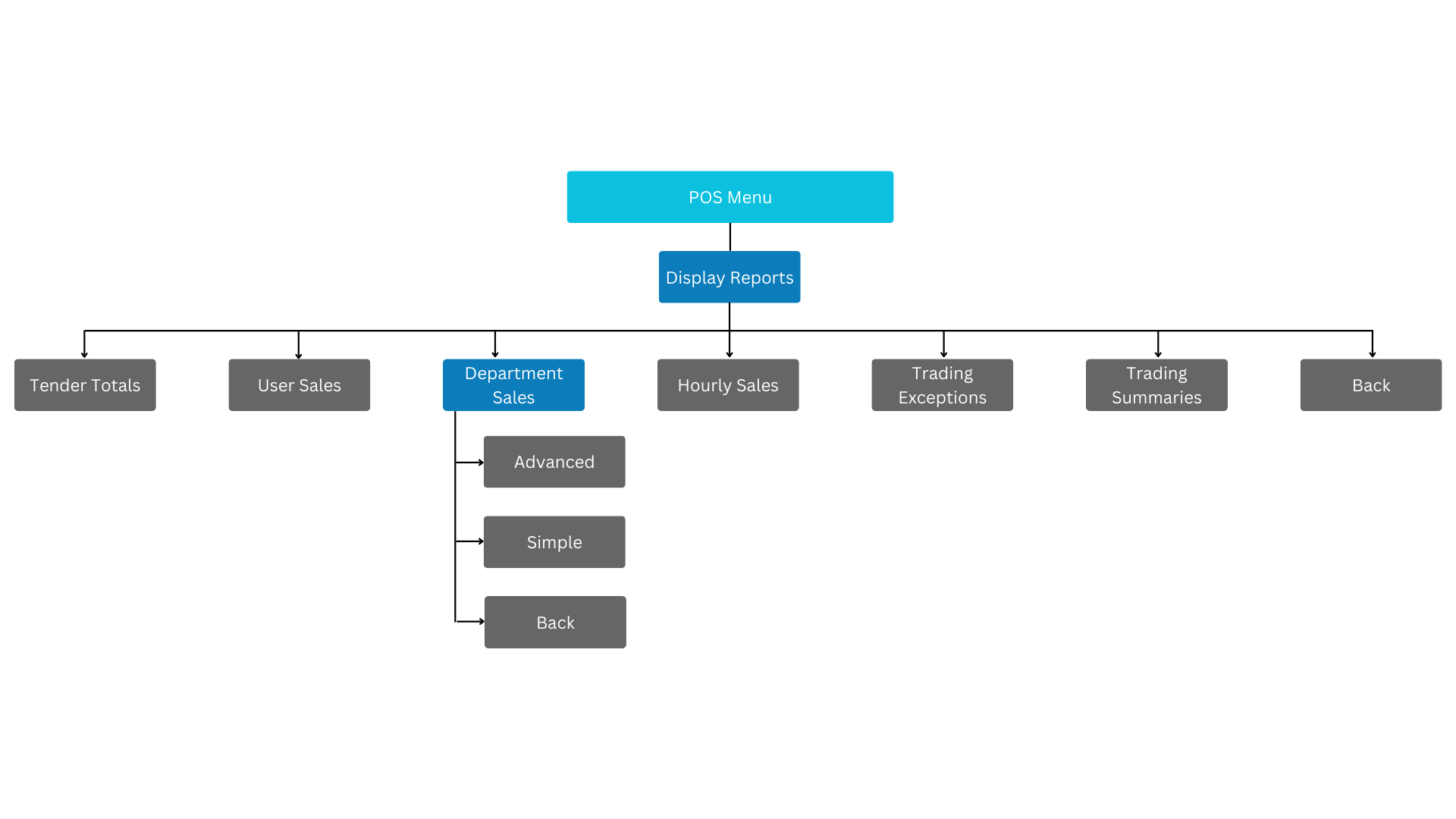
The Display Reports menu enables operators to view a variety of reports.
These reports include tender totals, user sales, department sales (both advanced and simplified), hourly sales, trading exceptions, and trading summaries.
Print Reports
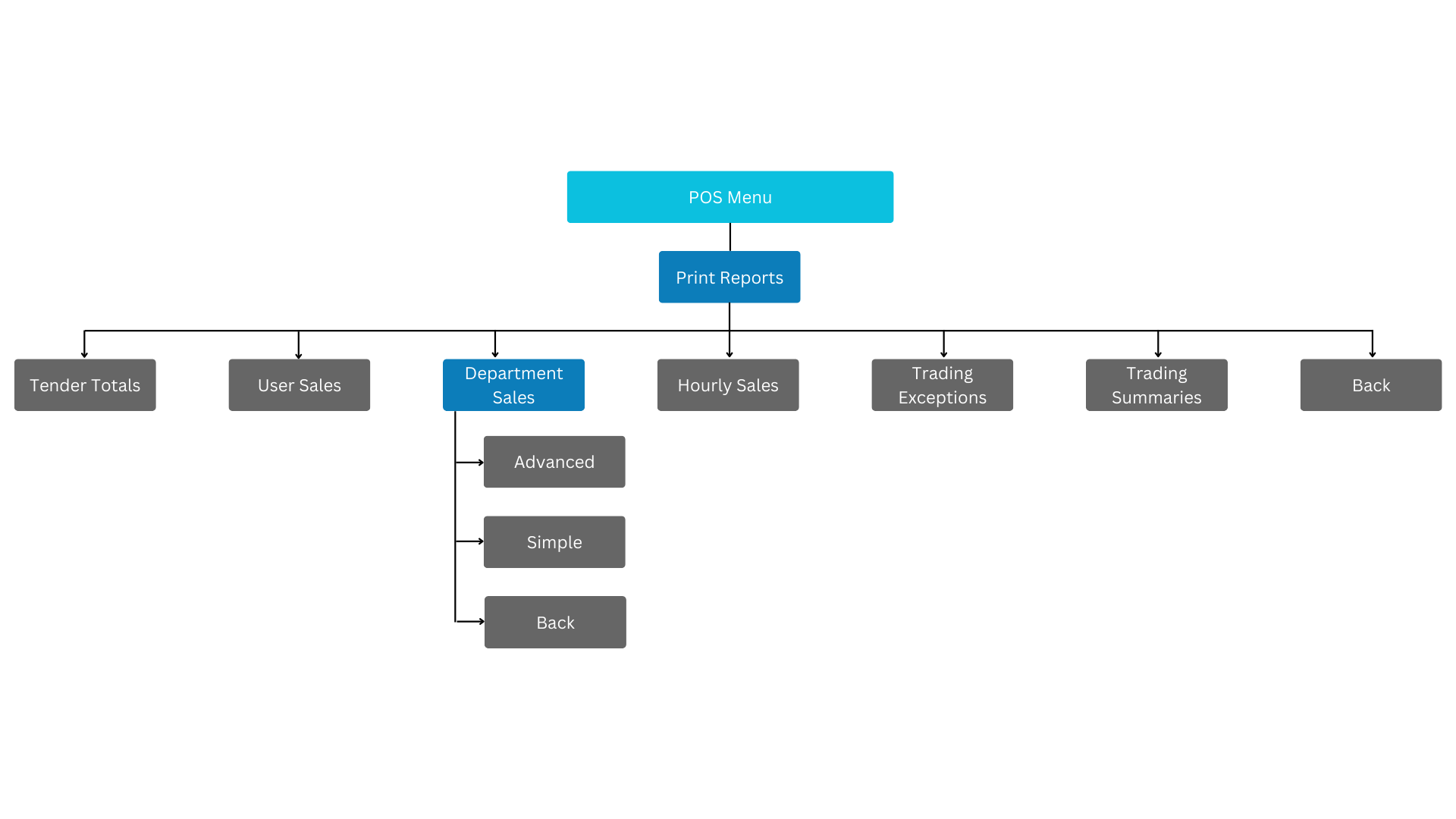
The Print Reports menu enables operators to print a variety of reports.
These reports include tender totals, user sales, department sales (both advanced and simple), hourly sales, trading exceptions, and trading summaries.
This allows operators to easily access and share important information about the business.
Web Reports
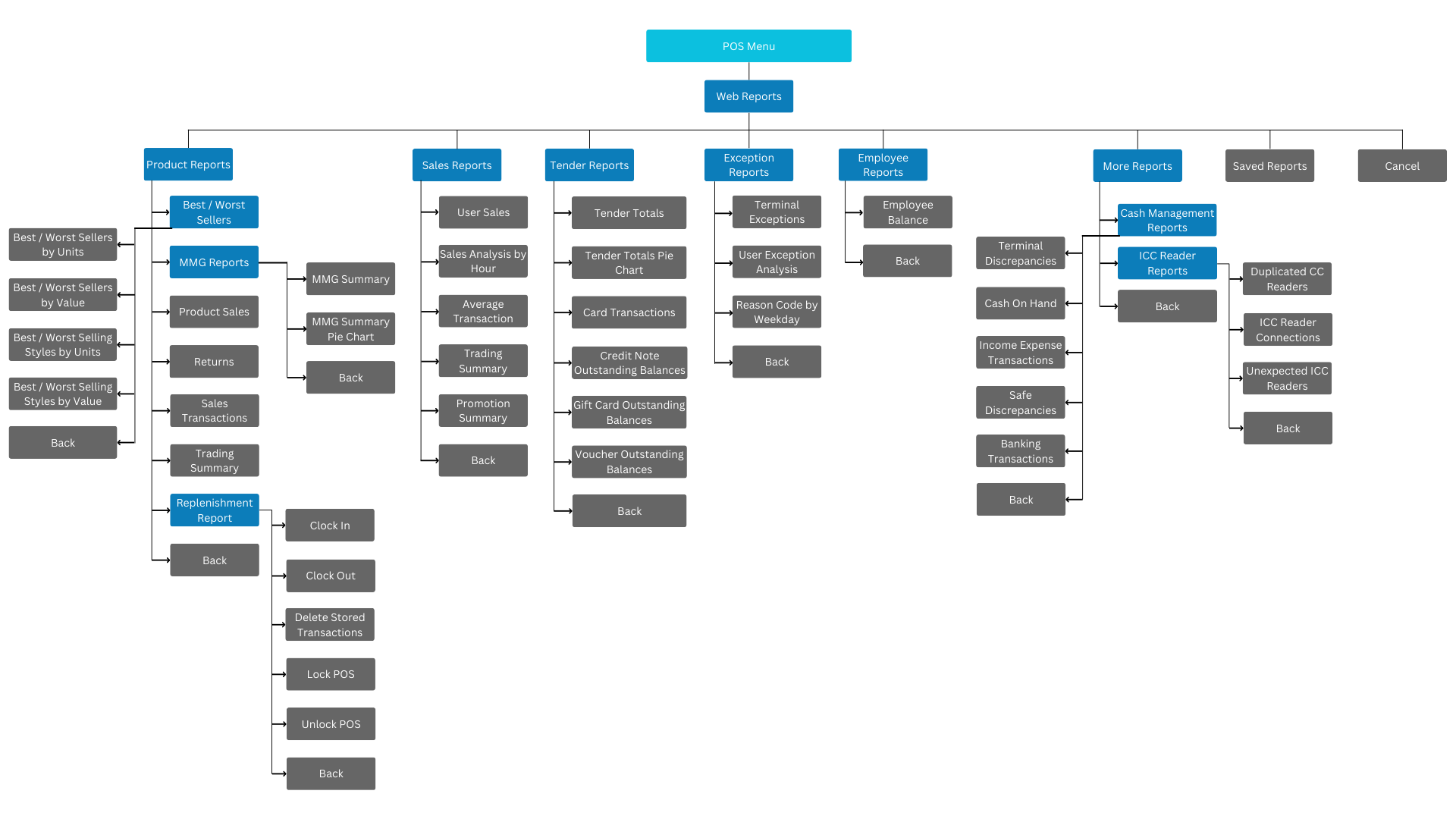
The Web Reports menu provides access to a wide range of reports.
These include product reports for checking best and worst sellers, MMG reports, product sales, returns, sales transactions, and trading summaries.
Sales reports include user sales, sale analysis by hour, average transaction value, trading summary, and promotion summary.
Tender reports include tender totals, tender totals pie chart, card transactions, as well as credit notes, gift card, and voucher balances.
Exception reports include terminal exceptions, user exceptions analysis, and reason code by weekday.
Employee reports include employee balance information.
Cash management reports include terminal discrepancies, cash on hand, income and expense transactions, safe discrepancies, and banking transactions.
ICC reader reports include duplicated ICC readers, ICC reader connections, and unexpected ICC readers.
Operators can also check saved reports previously saved against users or locations.
Terminal Cash Management
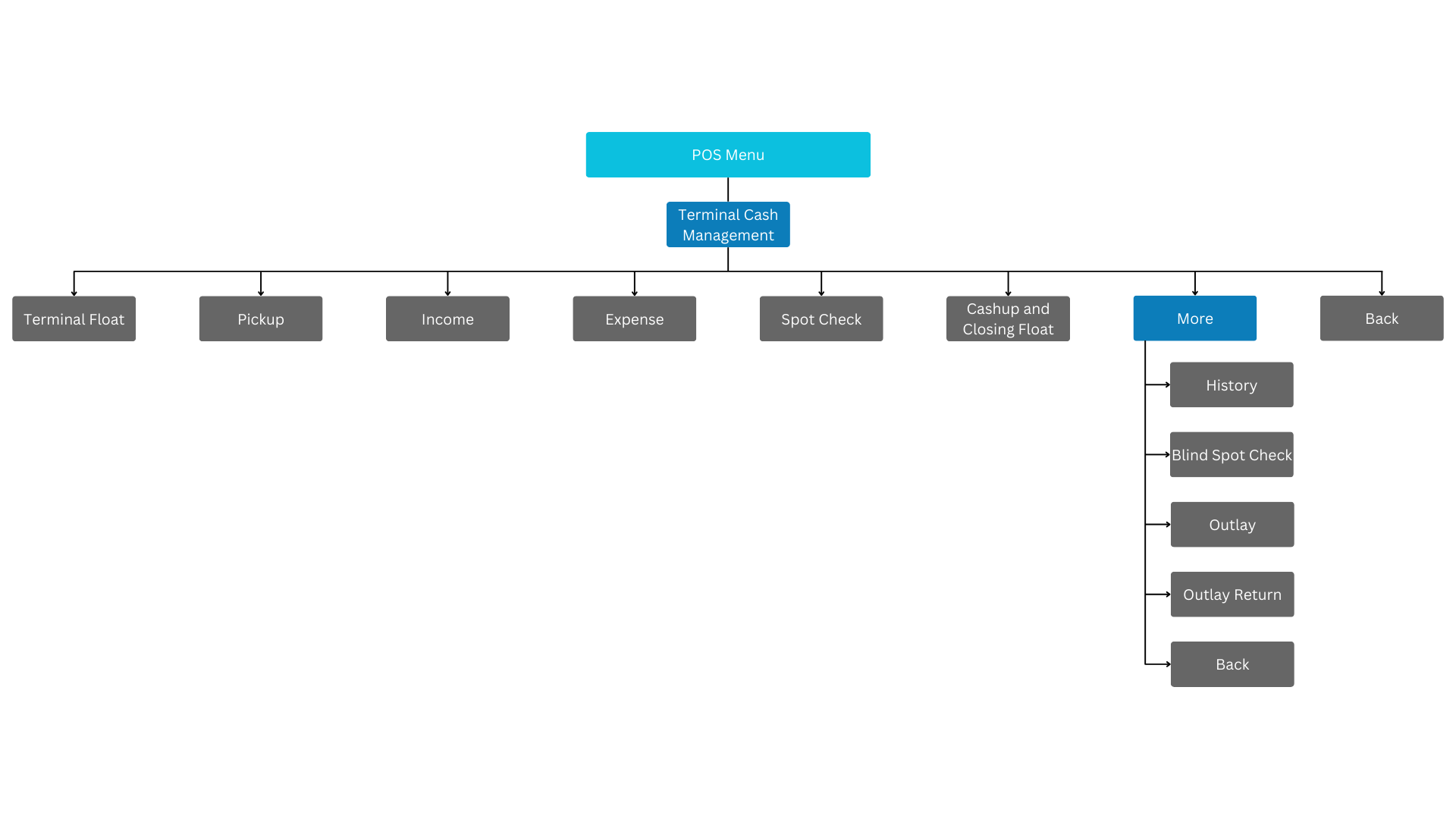
The Terminal Cash Management menu provides access to all terminal cash management functions.
Operators can perform a variety of tasks, including terminal float, pickup, income, expense, spot check, cashup, and closing float.
They can also view the history of these actions, perform blink spot checks, and manage outlays and outlay returns.
This allows operators to effectively manage the cash flow of the terminal.
Safe Cash Management
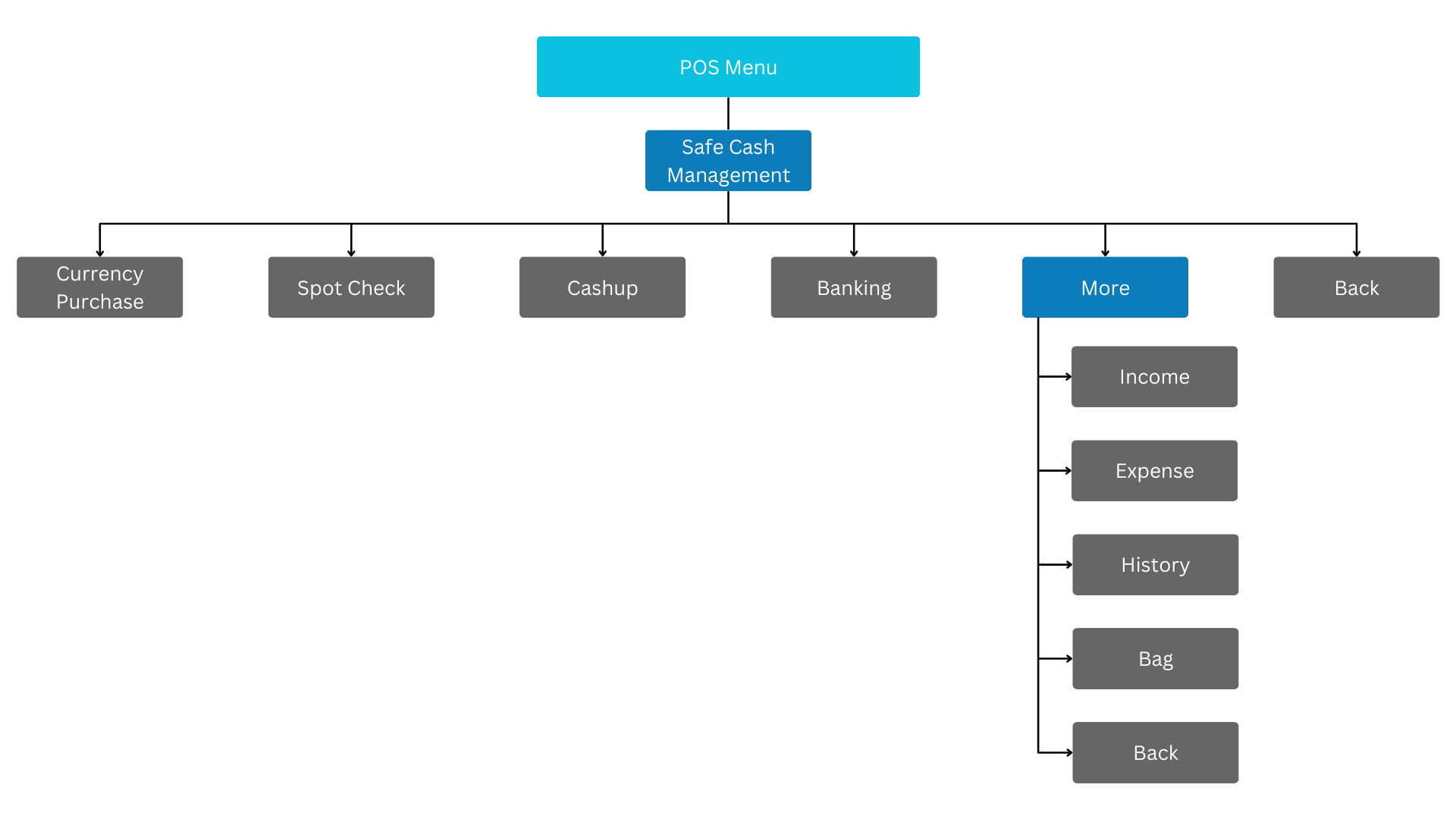
The Safe Cash Management menu provides access to all safe cash management functions.
Operators can perform tasks such as currency purchase, spot check, cashup, and banking.
They can also manage income and expenses and view the history of the safe.
This allows operators to effectively manage the cash flow of the safe.
Admin
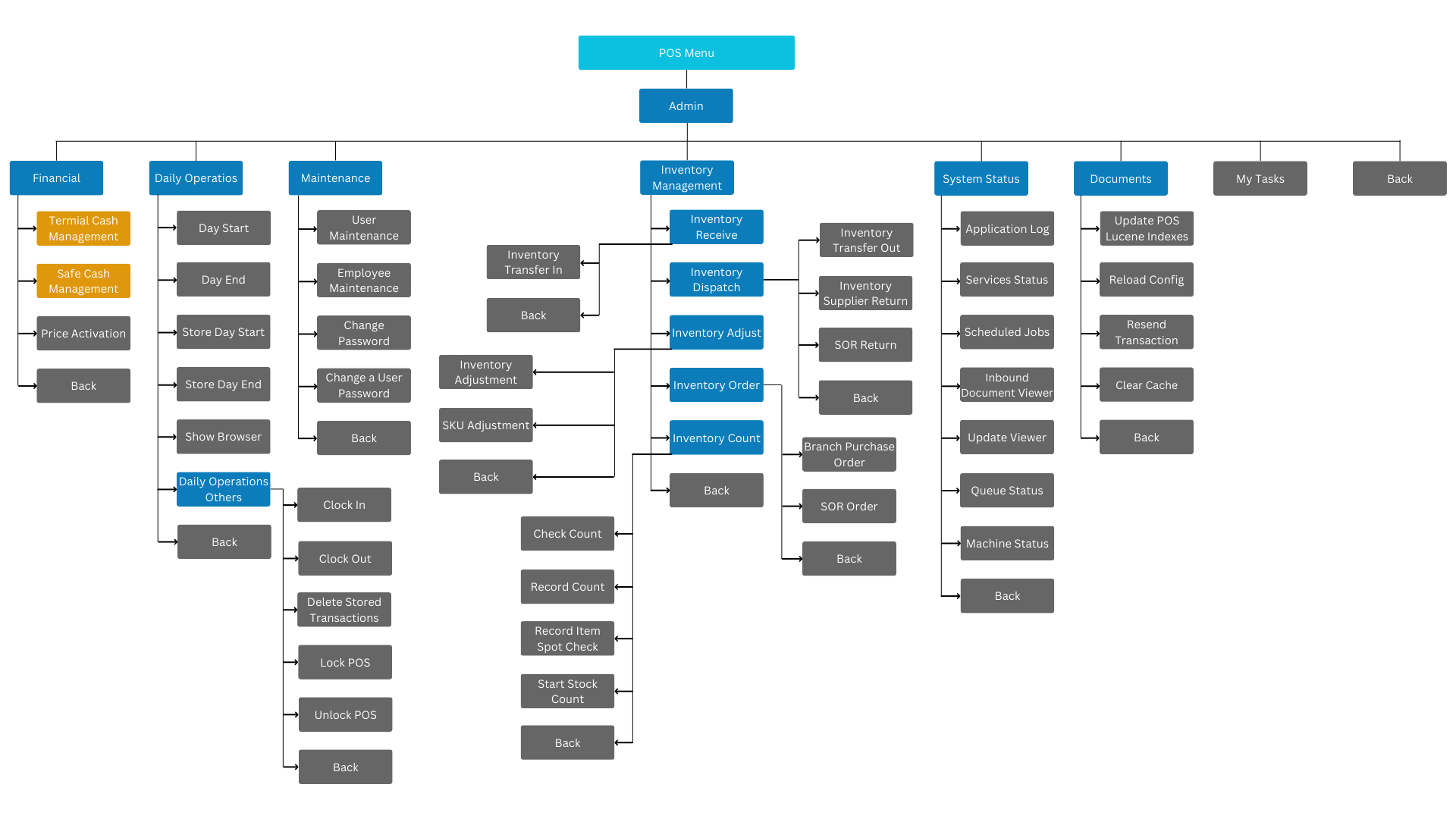
The Admin menu enables operators to access a range of administration-related functions.
These include financial management, daily operations such as setting the start and end of day for a terminal or store, user and employee maintenance (including password management and other details), inventory management, system status checks (including services and other system functions), updating POS Lucene indexes, and viewing tasks.
The Admin menu is linked to the Terminal Cash Management and Safe Cash Management menus.
CRM
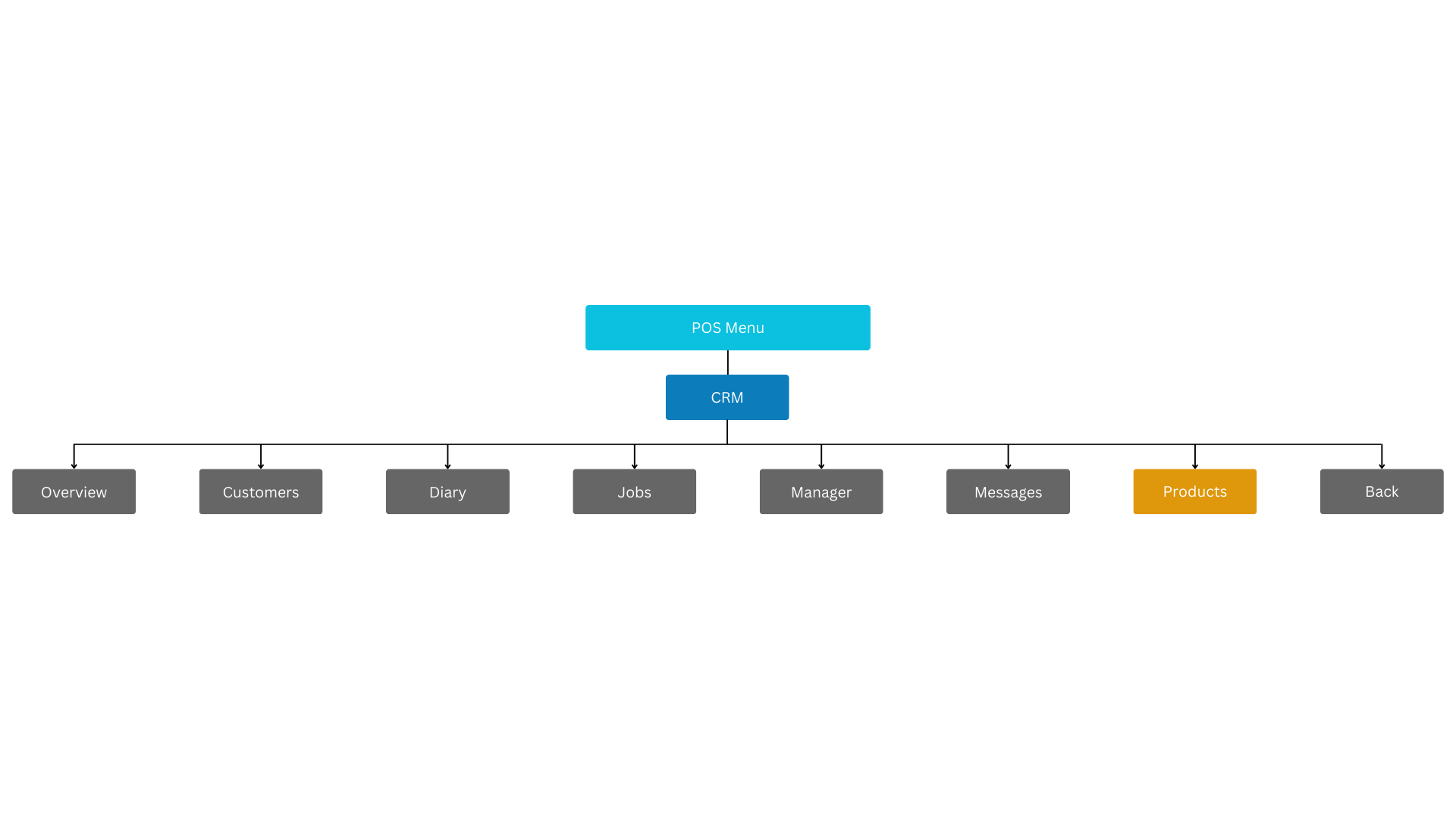
The CRM menu enables operators to access and manage customer-related data.
This includes an overview of customer information, as well as specific details such as customers, diary entries, jobs, manager information, messages, and a rich product search function.
The CRM menu is linked to the Rich Product menu.
Footer
The Footer menu provides access to common areas of the POS.
This includes functions such as scanning items, browsing items, and viewing the bag.
These functions are easily accessible from the Footer menu, allowing operators to quickly perform common tasks.

HHT Admin
The HHT Admin menu enables operators to manage tasks related to inventory and stock management, as well as order fulfilment.

About This Document
© 2023 Enactor Ltd
All documents produced by Enactor Ltd are supplied to customers subject to Copyright, commercial confidentiality, and contractual agreements and must not be copied or transferred without permission.
Document Context
This document is part of the Enactor Product Documentation Series. All Enactor products include a comprehensive documentation set designed to improve understanding of the product and facilitate ease of use.
Document Inquiries
If you find that a document is inaccurate or deficient in any way, please contact:
Email: documentation@enactor.co.uk
Document History
| Version | Status | Issue Date | Author | Reason for Issue |
|---|---|---|---|---|
| 1.0 | Completed Document | 30 September 2023 | Lucas Andres Casas | Initial Version |
| 2.0 | Updated | 27 February 2026 | Mark Harrison | Updated title; reformatted to Enactor documentation standard; figure blocks and AI metadata added |