How to Configure Big Button Menu for POS Display Reports and Web Reports
Introduction
This guide outlines the introduction of the Big Button Menu Layout for the Display Reports and Web Reports menus within the Enactor Retail POS system. Previously, both the Display Reports and Web Reports menus utilised the standard menu button layout. With this enhancement, the Big Button Menu Layout will be implemented for both Display Report and Web Report menus, aligning their appearance with other menus such as Admin and Terminal Cash Management that can already be found in the POS. These changes will be applied across all POS platforms: PageDef POS, React POS, and Mobile POS.
Overview
This guide will cover the configuration for the following:
-
Menu Maintenance Configuration: Ensuring the SALE menu includes the required buttons for Display and Web reports.
-
Report Menu Definitions: Verifying that the DISPLAY_REPORTS and WEB_REPORTS menus are populated with valid report entities.
-
POS Platform Verification: Confirming the layout renders correctly across PageDef, React, and Mobile POS platforms.
-
User Privilege Assignment: Enabling the necessary roles for users to access these report menus at the POS.
Prior Training / Experience
You should be familiar with the following:
-
Estate Manager Configuration
-
Menu Configurations
-
User Roles Configurations
-
Data Broadcasting
Configuration Steps
There is no new configuration that needs to be done.
You need to make sure that in your SALE menu, the Display Reports and Web Reports buttons are configured.
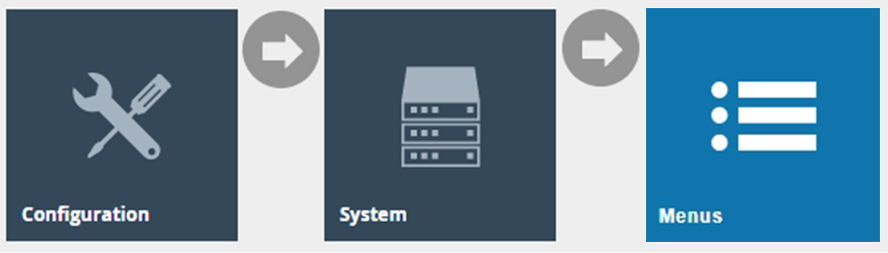
The Menu Maintenance application can be accessed through:
Configuration -> System -> Menus
Edit your SALE menu and make sure the following two menu buttons are
added:
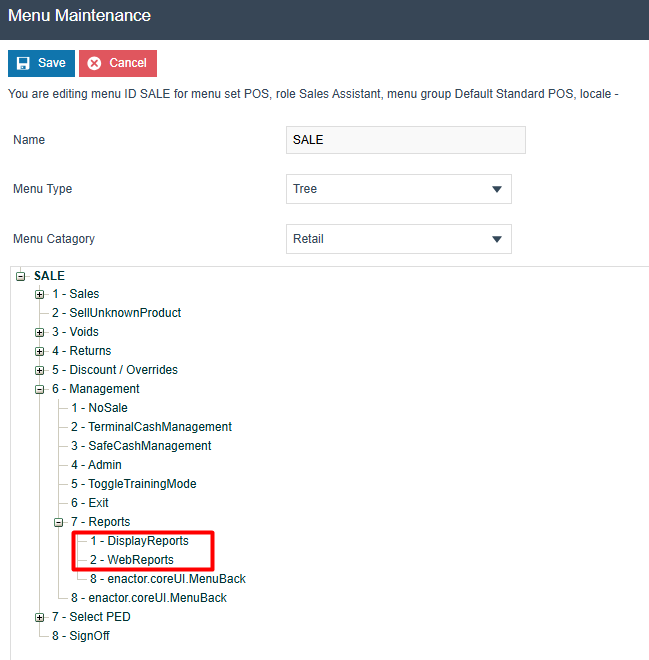
Click Save.
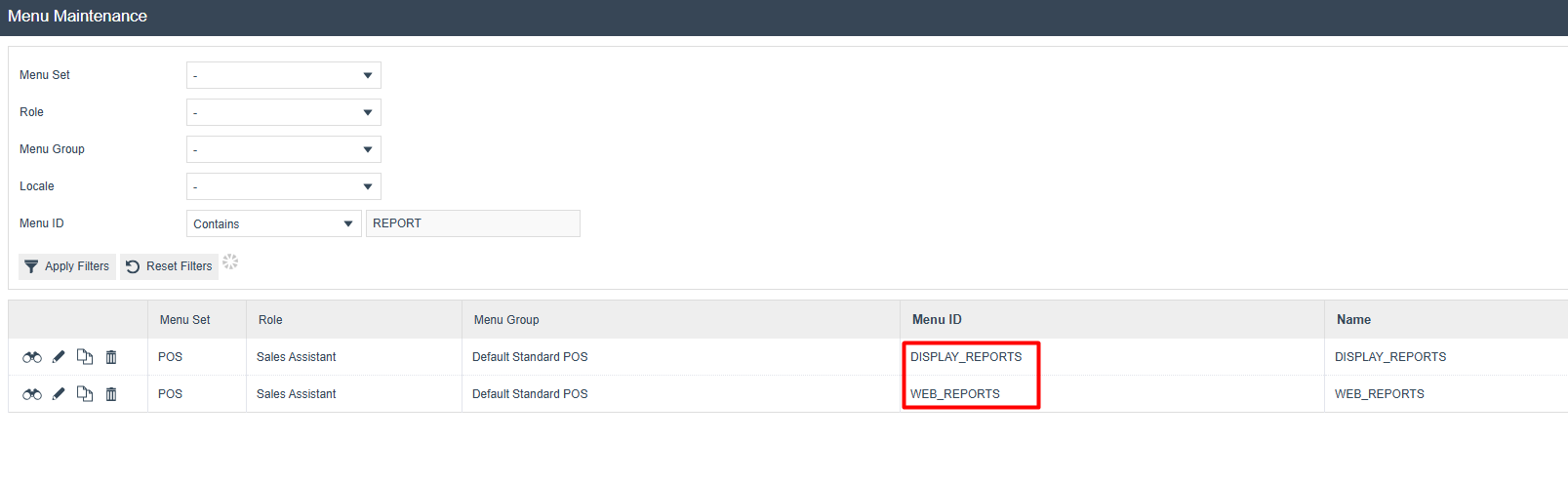
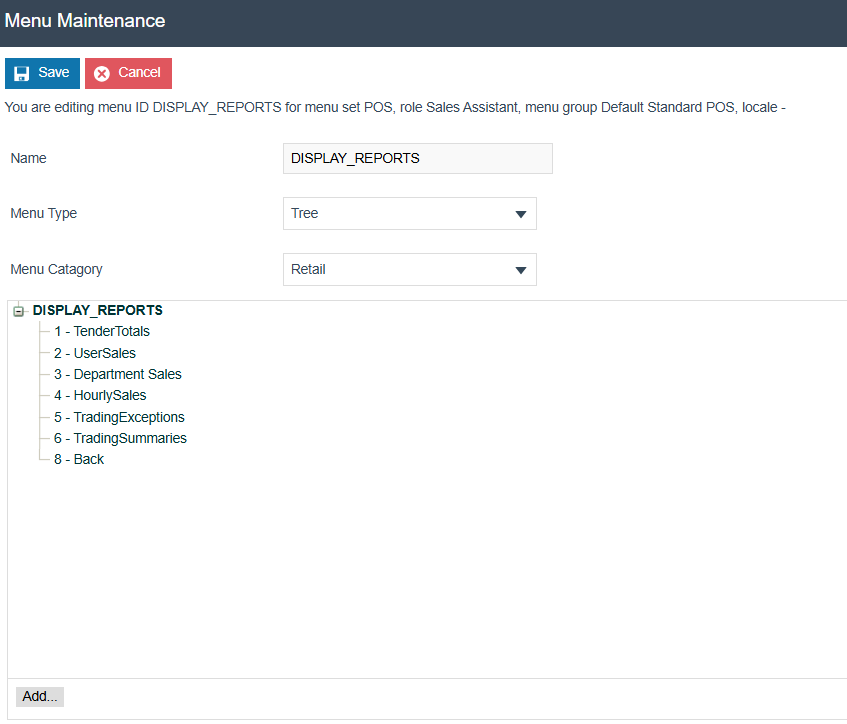
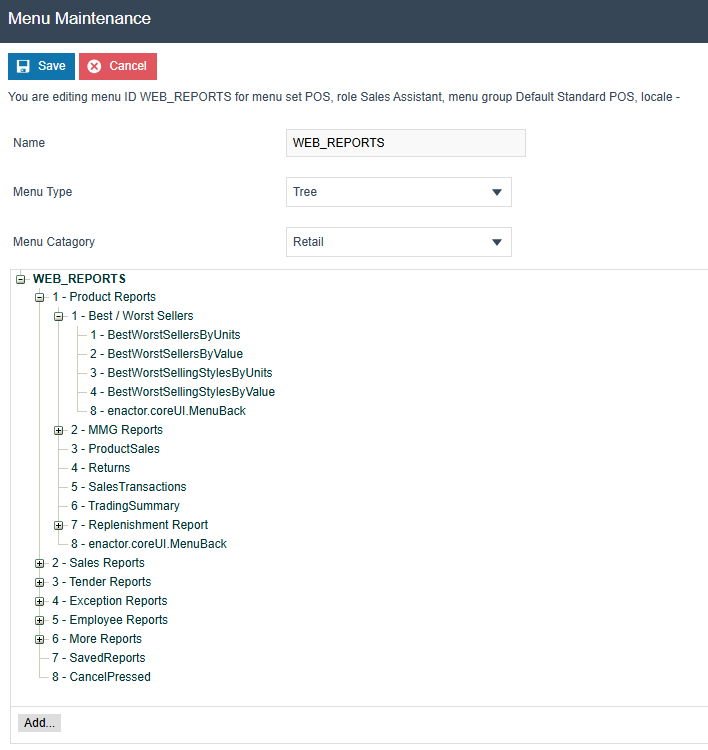
Next, make sure that the DISPLAY_REPORTS and WEB_REPORTS menus exist with the relevant reports configured within each of those menus as follows:
POS Functionality
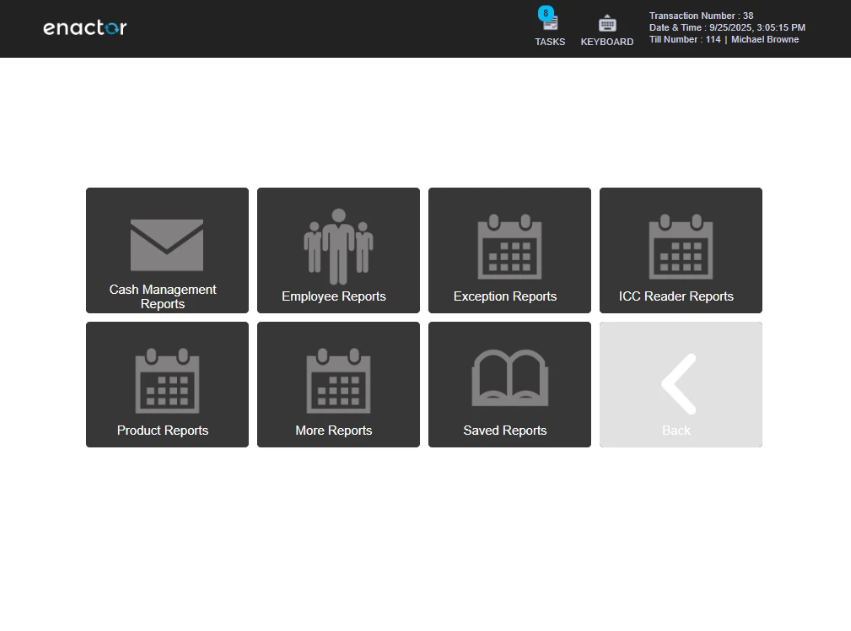
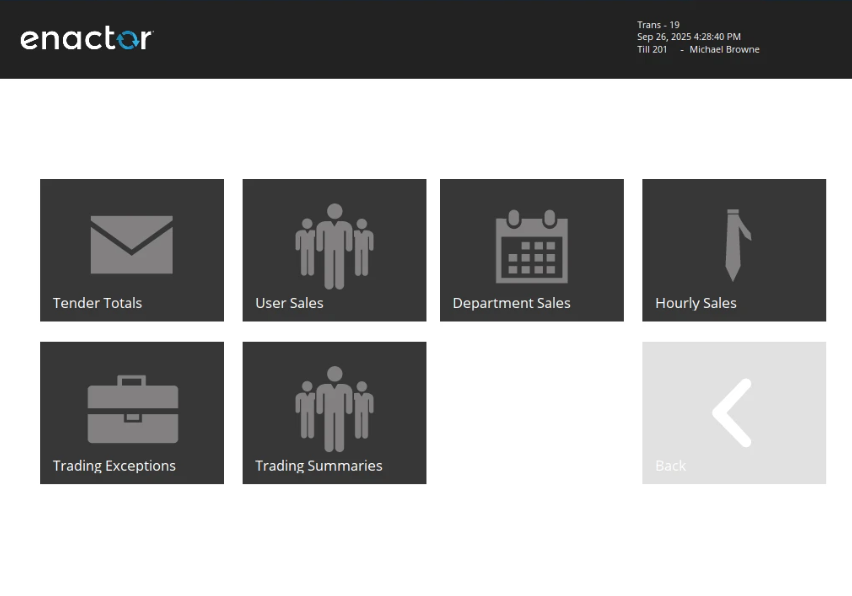
After the above configurations have been set, the Display Report button in the POS will now display the menu with the reports as follows:
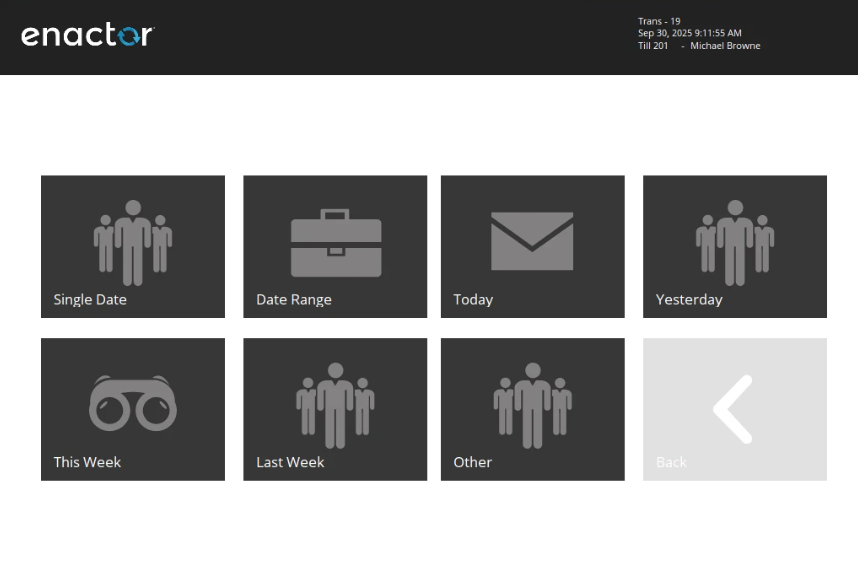
The Web Reports button in the POS will also now display the menu with the reports as follows: