How To Configure CRM POS
The purpose of this guide is to show how to configure and use the CRM POS Launch feature, which allows users to start the POS system directly in CRM mode. This setup restricts access to CRM functions only, providing a streamlined interface for customer management.
This guide covers the CRM Launch and CRM Client Search POS modes only. General CRM configuration and customer management are covered in separate guides.
Overview
This guide covers:
- CRM Launch - Restricts the POS to CRM functionalities from startup.
- CRM Client Search - Configures the POS to start up with direct access to a customer search interface.
Prerequisites
Prior Training/Experience
You should be familiar with the following:
- Estate Manager configuration
- Data broadcasting
- Menus and user roles
Configuration Steps
This section describes configuring the CRM POS Launch and CRM Client Search modes, which directly start the POS into the selected CRM functionality.
POS Terminal
The POS Terminal configuration determines how the POS operates, including which functionalities are available at start-up. This configuration could equally be applied to a POS Terminal Template.
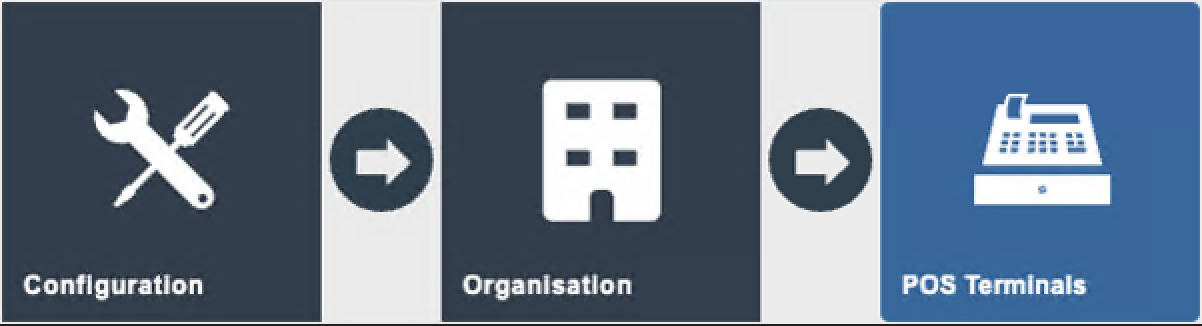
Navigate to POS Terminals using the Search or the path: Main Menu > Configuration > Organisation > POS Terminal
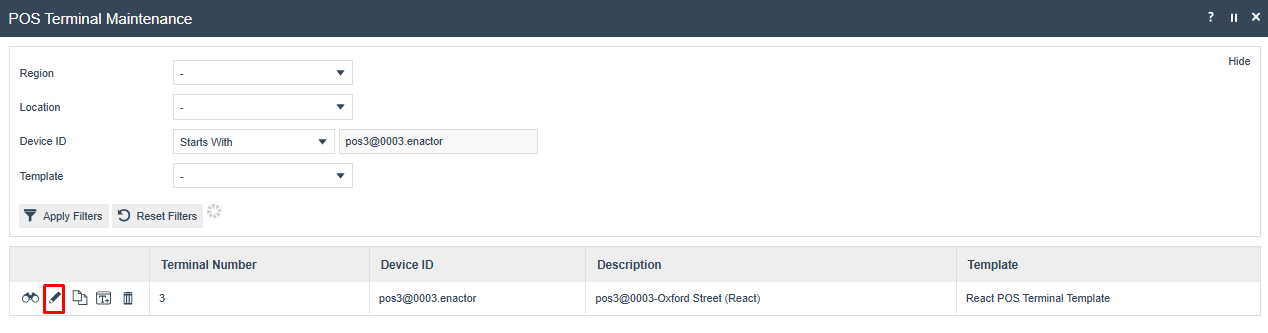
Search for the POS Terminal to configure. Select the edit icon to the left of the screen to open the terminal record.
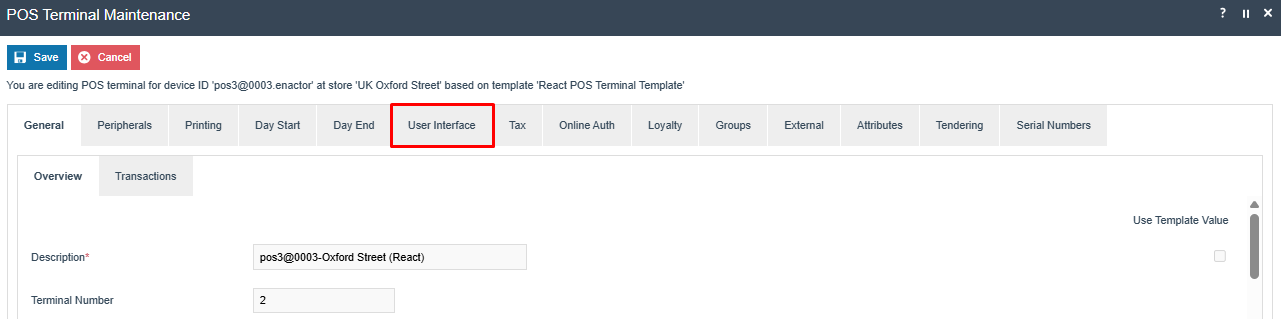
The General tab of the POS Terminal. Select the User Interface tab to configure the CRM launch settings.
User Interface Tab
On the User Interface tab, set the appropriate values to configure the CRM launch mode:

Configure the Default Launch Event and Display Launch Menu settings on the User Interface tab.
| Field | Value | Description |
|---|---|---|
| Default Launch Event | CRMSearchStart | Directs the POS to open directly in the client search interface. |
| Default Launch Event | CRMLaunchStart | Directs the POS to open directly into the CRM menu. |
| Display Launch Menu | Checked | This value is required for the default launch event to work. |
This completes the POS Terminal configuration.
Menus
To enable the CRM POS modes, an appropriate Menu must be configured.
Navigate to Menus using the Search or the path: Main Menu > Configuration > System > Menus

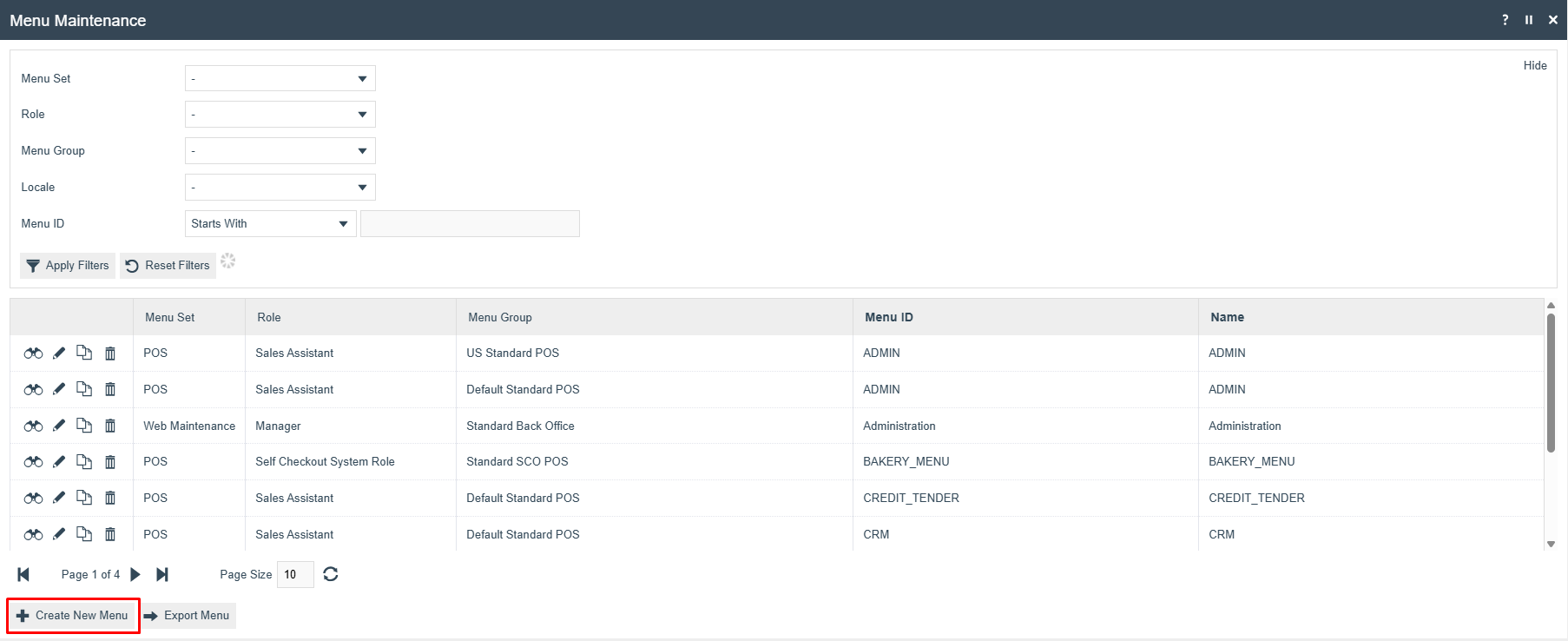
Select Create New Menu to create the CRM Launch menu.
The following parameters should be set to create the CRM menu:
| Field | Value | Description |
|---|---|---|
| Menu Set | POS | POS is selected. |
| Role | Sales Assistant | Select the appropriate role for the menu. |
| Menu Group | Default Standard POS | Select the appropriate menu group. |
| Locale | English (UK) | Select the appropriate locale. |
| Menu ID | CRM_LAUNCH | This is a fixed menu ID and must be used. |
The following menu events are supported in the CRM Launch Menu:
- Overview
- Customers
- Diary
- Jobs
- Manager
- Messages
These can be selected from the event dropdown when configuring menu buttons under the CRM_LAUNCH menu.
If you already have an existing CRM menu, you can copy it and rename the new copy to CRM_LAUNCH for use with the CRM launch features. This allows you to retain the original structure while customising it to suit your CRM functionality requirements.
Configuring Menus is further described in a separate How-to Guide.
This completes the Menu configuration.
User Templates
Navigate to User Templates using the Search or the path: Main Menu > Configuration > HR > User Templates
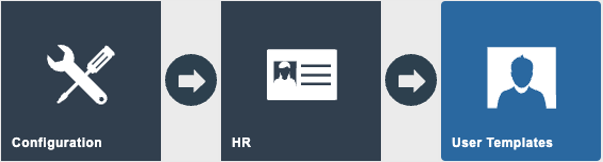
For users to successfully log onto the POS and access the CRM Launch menu, they must have the appropriate role assigned that corresponds to the role in the menu's configuration. If the user does not possess this role, they will be unable to access the CRM functionality as intended.
Most users are assigned to a User Template. Their User Template controls the User Roles that are assigned to them.
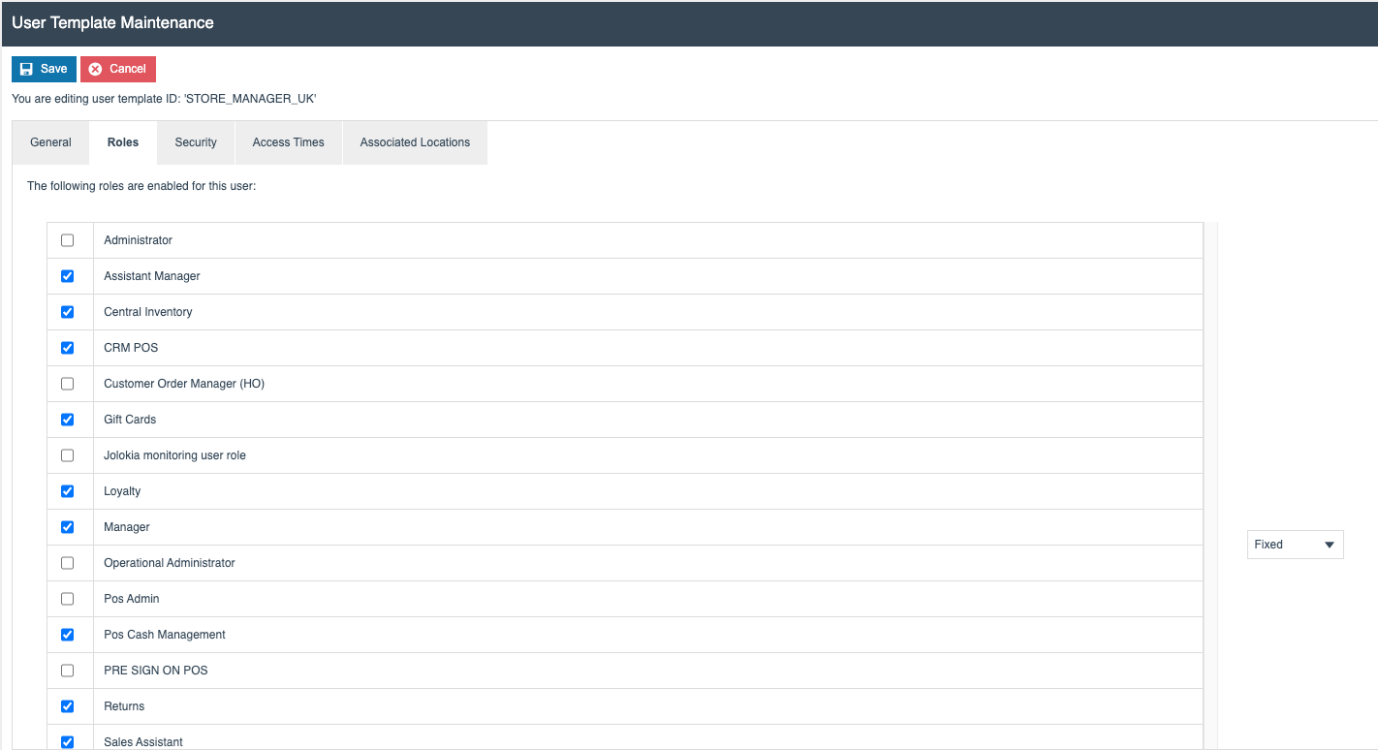
Ensure the User Template contains the User Role assigned to the CRM Launch menu.
If users are configured individually without the use of a template, the role can be assigned to each user via the User Maintenance application.
This completes the User Template configuration.
Broadcasting
To deliver the configuration changes to the POS, broadcast the following entities:
- POS Terminal / POS Terminal Template
- Menu
- Users
- User Templates
This completes the Broadcasting configuration.
POS Functionality
CRM Search Functionality
Start the POS and log in. The POS navigates directly to the CRM search screen, where the POS operator can search for customer records using the available search criteria:
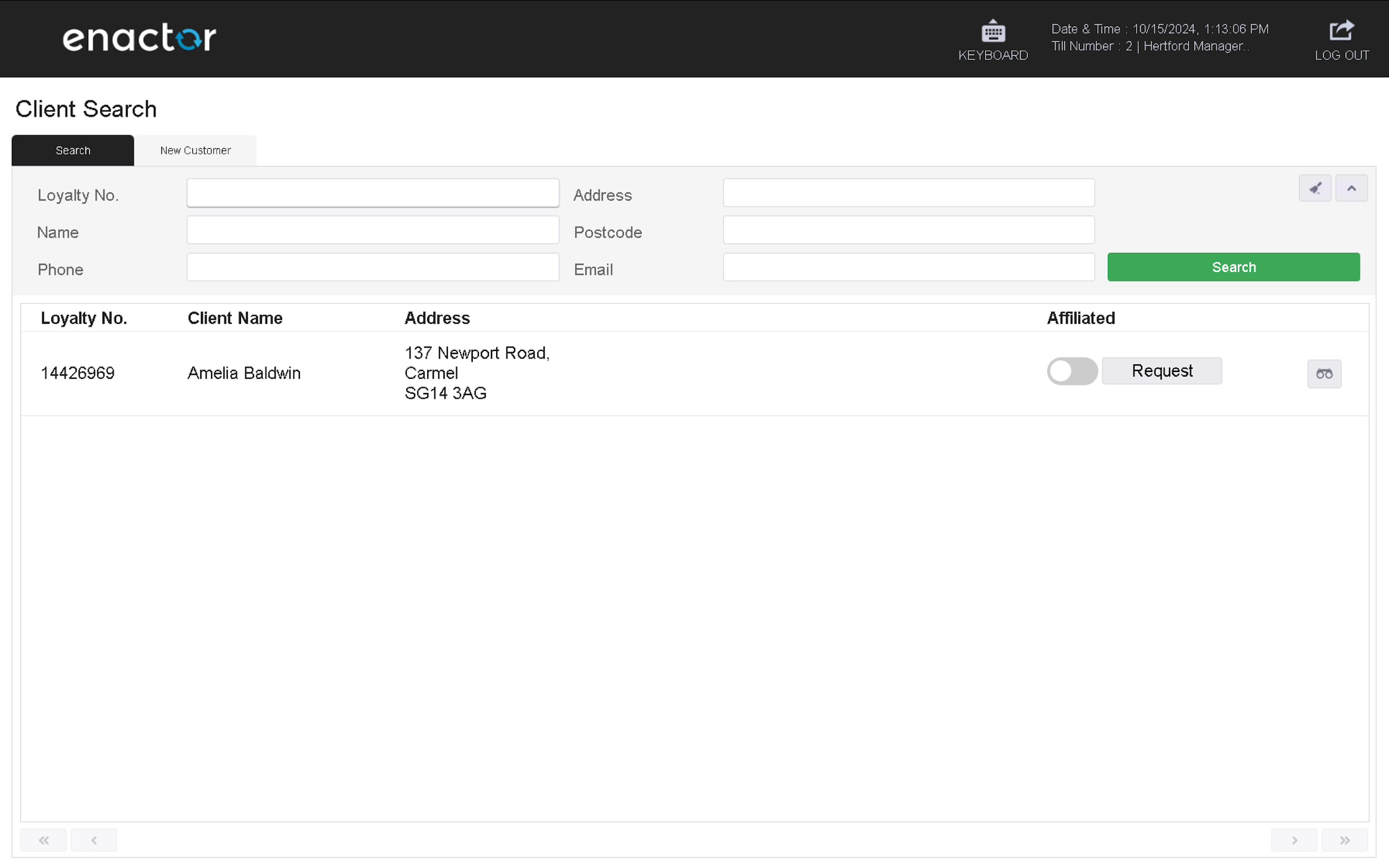
The CRM Customer Search screen is displayed when the POS starts with the CRMSearchStart launch event.
CRM Launch Functionality
Start the POS and log in. The POS navigates directly to the CRM Launch menu:
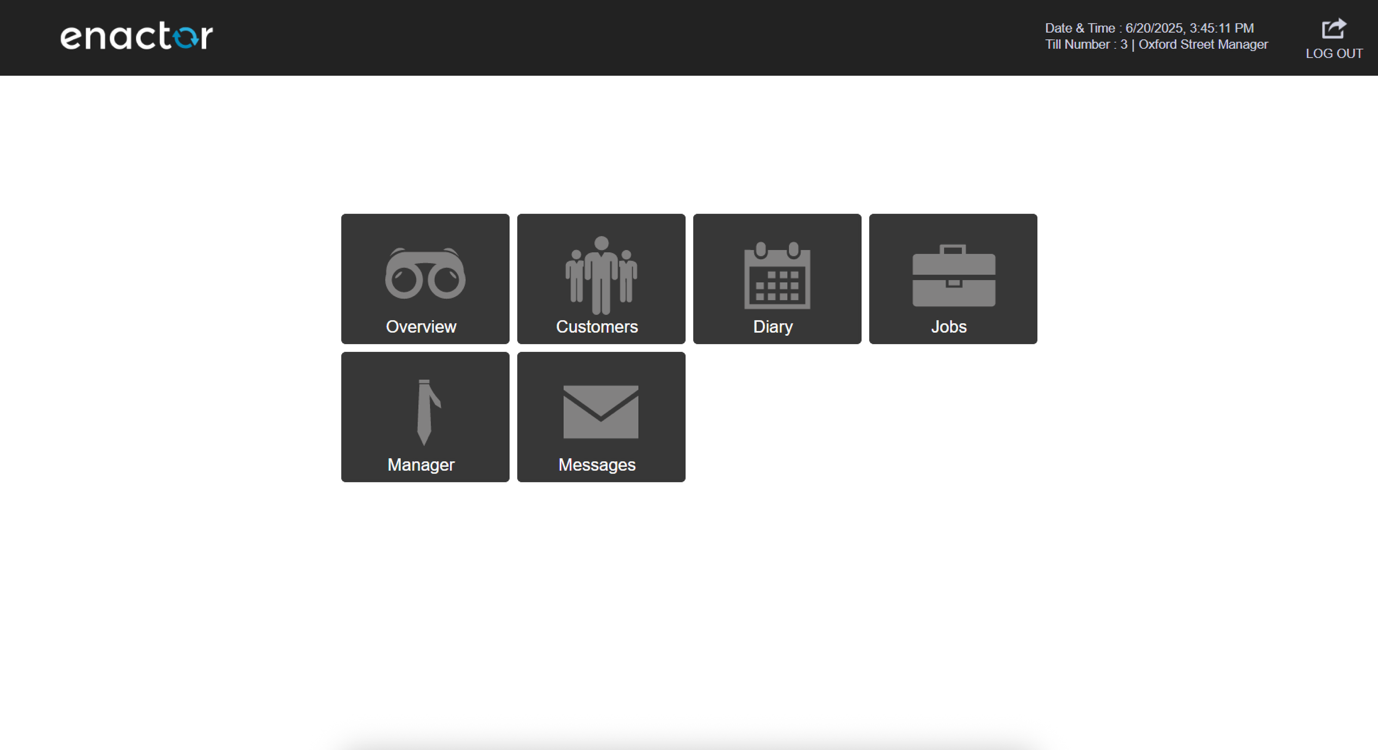
The CRM Launch menu is displayed when the POS starts with the CRMLaunchStart launch event.