How To Configure Estate Monitor
Introduction
The purpose of this guide is to provide a foundational understanding of the options and capabilities available when using the Estate Monitor. The Estate Monitor enables the user to view various information within the estate at Region, Location and Device levels. The user can utilise the tree structure to access specific regions, locations and devices and also use the Filter Options that are available, allowing the user to view exactly what needs to be monitored in the estate.
Components of Estate Monitor
This section walks through each of the components in the Estate Monitor to provide a better understanding of the interface, so that you will be able to get the broader picture on the usage of Estate Monitor.
Estate Monitor consists of the following components:
- Rows
- Columns
- Button Options
- Filter Options
To navigate to Estate Monitor, use the Search or the following path:
Estate Monitor

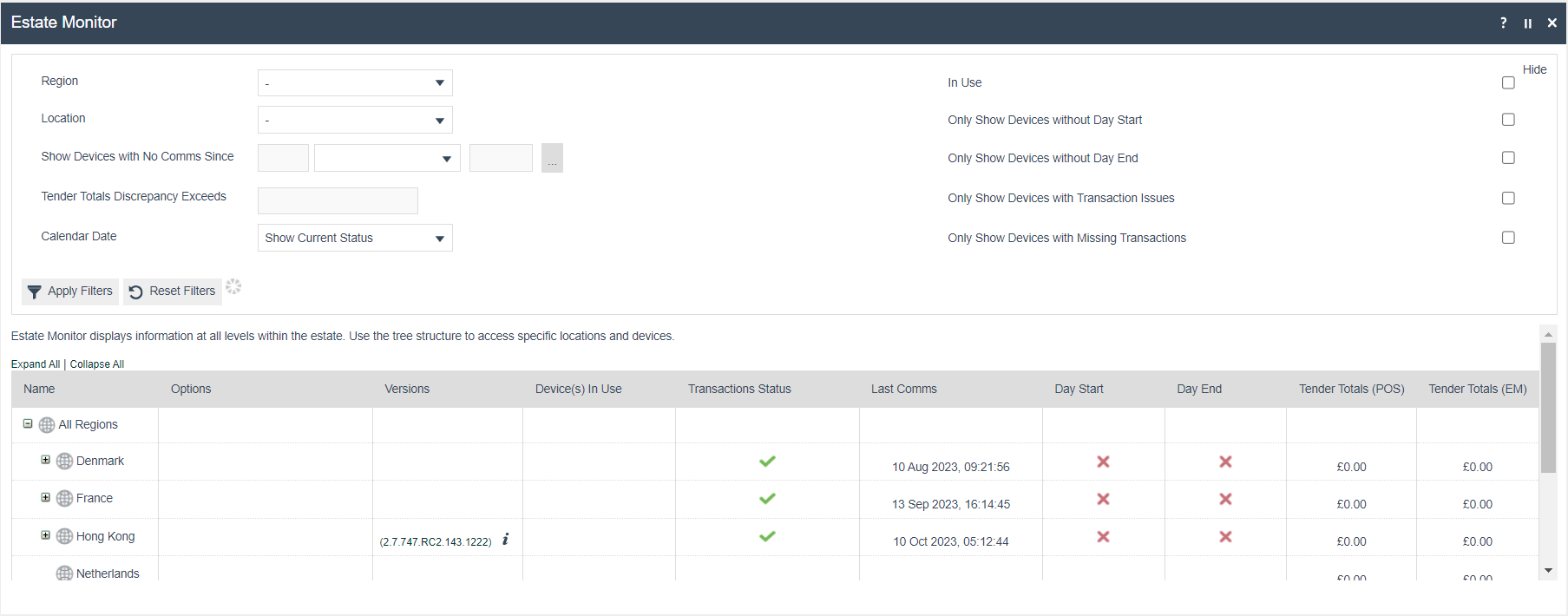
The following screenshot shows the Estate Monitor:
Rows
This section describes the rows of the Estate Monitor and the aggregation rules for region, location and device levels.
As shown below, there is a tree-structure for how the rows are arranged:

The hierarchy of the tree is arranged as follows:
 All Regions
- Regions
 Locations
 Devices
Column values aggregate upwards through the tree hierarchy. Device-level values (e.g. mpos1@0001.enactor and mpos2@0001.enactor) aggregate to the location row (e.g. UK Hertford Store), and location values aggregate to the region row (e.g. United Kingdom).
Columns
This section describes the available columns in the Estate Monitor and the aggregation rules for region, location and device levels. There are 10 columns in the Estate Monitor:
| Column | Description |
|---|---|
| Name | Uniquely identifies each row by Region, Location or Device |
| Options | Button options with specific functionalities for each row |
| Versions | Latest version of the device or location |
| Device(s) In Use | Whether devices are in use or not |
| Transaction Status | Transaction state of each device for a selected date |
| Last Comms | Date and time when the device was last seen |
| Day Start | Whether the device has completed its day start function |
| Day End | Whether the device has completed its day end function |
| Tender Totals (POS) | Tender totals from the POS |
| Tender Totals (EM) | Tender totals from the Estate Manager |
Each of these columns is described in detail below.
Name
This is the column which allows you to uniquely identify each row of the Estate Monitor according to the Region, Location or Device.
Options
This column consists of button options with specific functionalities that can be applied for each row.

Each of these button options and their functionalities are explained further in the Button Options section.
Versions
This column represents the latest version of either the device or the location. When the POS device is started and logged in, you can see the deviceStatusEvent for your POS device in the Inbound Document Viewer and here you can view the versions that are associated with this POS device. This column essentially displays these versions.
- If the row represents a location, then the version shown is the highest version from all of the devices in that location.
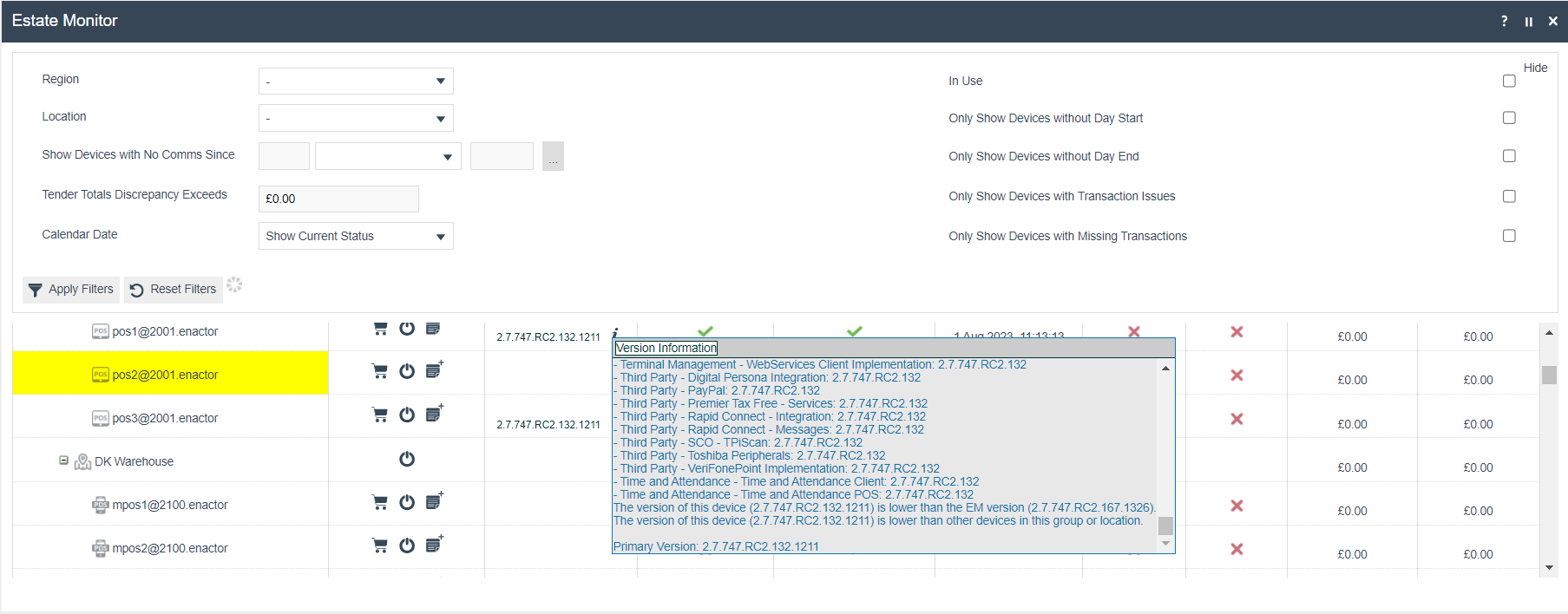
- If the row represents a device, and the version of that device is behind other devices of the same device type in the same location, then the background of the Name column for that device row is highlighted in YELLOW.
- If a location has one or more devices with version conflicts, then that aggregates to the location level and the Name column of that location row is highlighted in YELLOW.
The Versions column also gives the installed version details where you can click on the  icon. This lists the installed JARs for a particular device. This also provides information about version conflicts if there are any with the Estate Manager or the associated device in the location or group.
Device(s) In Use
This column represents the devices in each row that are either in use or not in use. It is depicted as follows:
| Icon | Description |
|---|---|
 | Device in use |
 | Device not in use |
The device status and the changes made using the Estate Manager are reflected in the Device Status maintenance against each device.
Transaction Status
This column represents the transaction state of each device for a selected date.
- If a row represents a device with the column marked by a tick (
 ), it means all transactions of this device on this date are successfully processed.
 - If a row represents a location with the column marked by a tick (), that indicates all the devices have successfully processed the transactions under this location.
- If a row represents a location and the cell has a cross (
 ) mark, that indicates there is one or more devices that have missing or failed transactions under this location.
In the case of missing and/or failed transactions, the device Name column is highlighted in RED, and the corresponding location and region Name columns are highlighted in YELLOW.

The functionalities of the missing transaction button and the failed transaction button are explained further in the Button Options section.
Last Comms
This column represents the date and time of when the device was last seen. If the row represents a region or location level, it shows the latest date and time from all the devices under that region or location.
Day Start
This column represents whether the device has completed its day start function or not.
- If a row represents a device and the day start column has a tick mark (
 ), that means the device has completed its day start. The (
 ) sign on the cell indicates that the device did not complete the day start.
 - If a row represents a location or region and the day start column has a tick mark (), that means all the devices under that location or region have completed day start. If there is a () sign, that means there may be one or more devices that have not completed day start under that location or region.
Day End
This column represents whether the device has completed its day end function or not.
- If a row represents a device and the day end column has a tick mark (), that means the device has completed its day end. The () sign on the cell indicates that the device did not complete the day end.
- If a row represents a location or region and the day end column has a tick mark (), that means all the devices under that location or region have completed day end. If there is a sign, that means there may be one or more devices that have not completed day end under that location or region.
Tender Totals (POS) and Tender Totals (EM)
These two columns represent the tender totals of the POS and EM for the respective devices, locations and regions.
- If the totals for a given node of the tree are in a single currency, the totals are summed together and displayed as a single figure with the appropriate currency symbol.

- If the node has multiple currencies, the node displays using the base currency for that node, using the exchange rate for the current time. If no appropriate base currency is available, the base currency of the EM itself is used. The node also displays a ($) icon that lists the sum of the original currencies and exchange rates used to convert to the base currency.

- Any row with a discrepancy between the POS totals and the EM totals gives a RED background to the Tender Totals (EM) column and shows an information icon next to it for the affected row. Clicking on this icon takes the user to a Tender Totals Discrepancy Report.

- The totals are aggregated up to the location and region levels, summing the totals of their child devices, locations and regions, and using the rules above to condense to a single currency.
Button Options
The following table describes the icons and buttons in the Estate Monitor and the functionality of each button.
| Button | Functionality |
|---|---|
 | Transaction Archive - Opens the Retail Transaction Archive Search Results for that respective device, filtered for the current date. |
 | Add Device Note - The + sign indicates that this device does not have device notes for the selected date. Clicking this button opens the Device Note Maintenance where a new device note can be added for that respective device. |
 | View Device Notes - This device already has device notes added to it. Clicking this button opens the Device Note Maintenance and displays all the device notes for the selected date. Device Note Maintenance is only accessible through Device Maintenance and the Estate Monitor. |
 | Toggle Device In-Use - Changes the in-use state of the device. See details below. |
 | Missing Transactions - Opens the Sequence Number Status Viewer for that respective device with the Topic filtered as Transactions. |
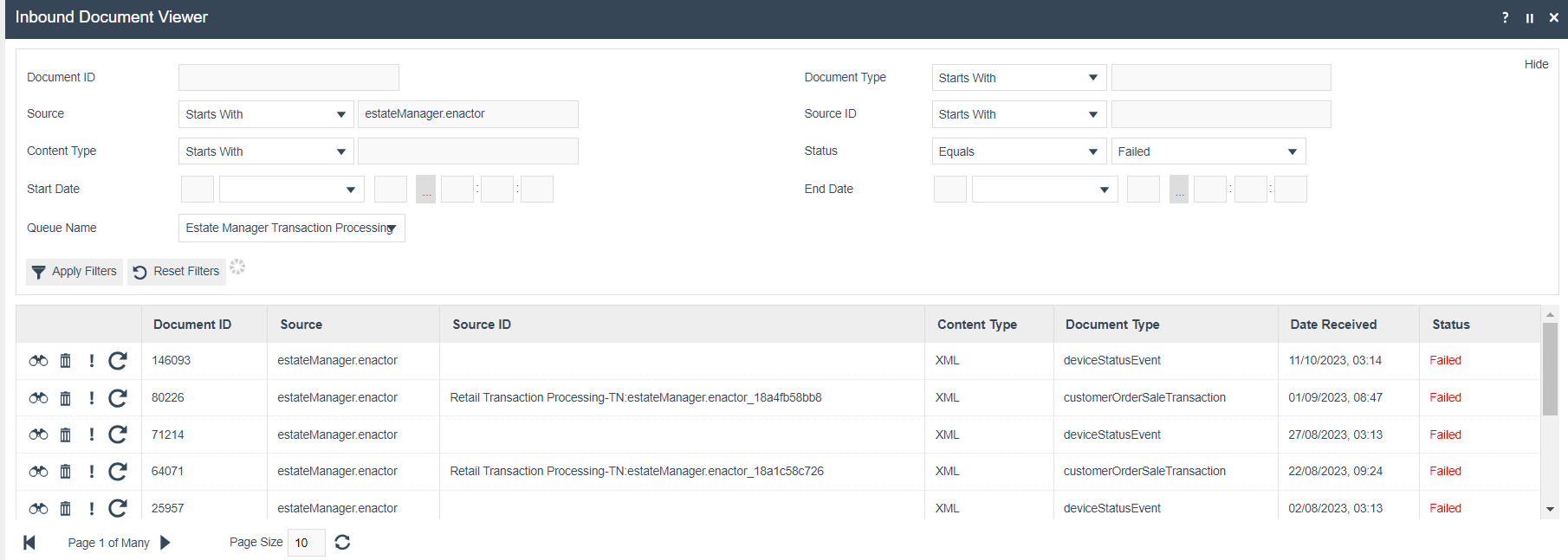
 | Failed Transactions - Opens the Inbound Document Viewer for that respective device with the status filtered to failed. Change the filter of the Queue Name to Inventory Transaction Processing to view the failed transactions for this device. |
Transaction Archive
Clicking the transaction archive button opens the Retail Transaction Archive Search Results for the device, filtered for the current date.

Add Device Note
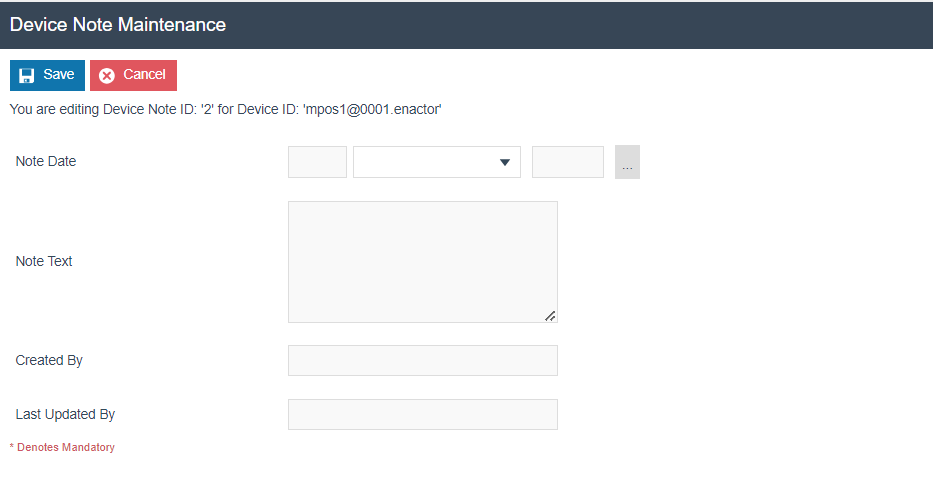
The device note button with a + sign indicates that this device does not have device notes for the selected date. Clicking this button opens the Device Note Maintenance where a new device note can be added.
View Device Notes
If a device already has device notes added to it, clicking the button opens the Device Note Maintenance and displays all the device notes for the selected date.

Device Note Maintenance is only accessible through Device Maintenance and the Estate Monitor.
Toggle Device In-Use
The toggle device in-use button changes the in-use state of the device. The change can be seen in the Device(s) In Use column of that respective row.
- If a user clicks on the toggle button of a particular device row, it changes the in-use state of that device.
- If a user clicks on the toggle button of a particular location row, it changes the in-use state of all devices under that location:
- If all the devices are in use, this toggle button makes them all not in-use.
- If all the devices are not in use, this toggle button makes them all in-use.
- If there are devices in mixed states (some in-use and some not), this toggle button makes all the devices in-use.
Missing Transactions
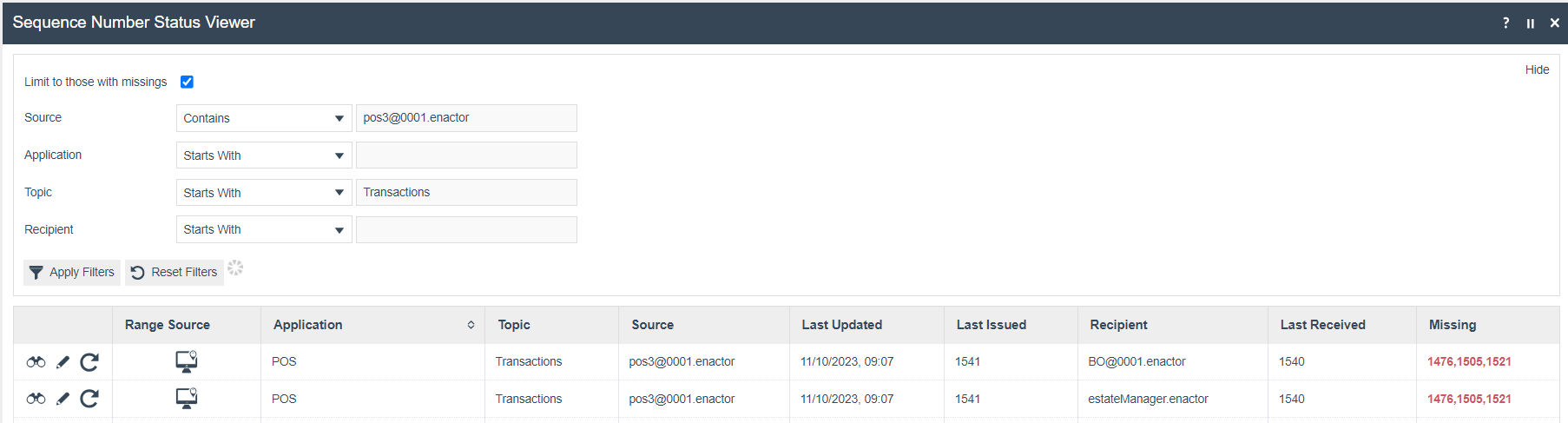
The missing transaction icon opens the Sequence Number Status Viewer for that respective device with the Topic filtered as Transactions.
Failed Transactions
The failed transaction icon opens the Inbound Document Viewer for that respective device with the status filtered to failed.
Change the filter of the Queue Name to Inventory Transaction Processing to view the failed transactions for the device.
Filter Options
In order to get a better view of exactly what needs to be monitored in the Estate Monitor, Filter Options can be used. The following filter options are available:
| Filter Option | Description |
|---|---|
| Region | Dropdown list selection of defined regions. |
| Location | Dropdown list selection of defined locations. |
| Show Devices with No Comms Since | Filters to show only devices where the Last Comms column is before the given date. |
| Tender Totals Discrepancy Exceeds | Filters to show devices which have discrepancies between the Tender Totals (EM and POS) that are larger than or equal to the amount on the selected date. |
| Calendar Date | Allows selection of the date to display in the monitor. Supports two values: Show Current Status (displays the latest status for each device) and Show a Specific Date (displays the status for each device for the selected date). Next and Previous buttons appear below the date selector to update the date forward or backwards. |
| Only Show In-Use Devices | Filters to show only devices which are or were in use on the selected date. |
| Only Show Devices without Day Start | Filters to show only devices which do not have a completed day start on the selected date. |
| Only Show Devices without Day End | Filters to show only devices which do not have a completed day end on the selected date. |
| Only Show Devices with Transaction Issues | Filters to show only devices that have issues with transactions. |
| Only Show Devices with Missing Transactions | Filters to show only devices that have missing transactions. |