How To Configure Alerts and Monitoring
Introduction
The purpose of this guide is to provide a foundational understanding of the options and capabilities available when configuring Alerts in Enactor.
Alerts allow the system to detect certain events by checking the Application Process Log, Application Log, System Log and JMX Beans. The system then sends an alert through Communication Options such as email, SMS, Application Process and Business Process.
There are a number of aspects in the system to consider in order to get alerts configured and running successfully. This guide covers all necessary configurations required to successfully send and receive alerts based on the various triggers of events in the system.
Overview
This guide covers the following configuration areas:
- Create Alert User - Creation of a dedicated user where the email configuration is defined for sending alerts via email.
- Configure Location for Email Alerts - Configuration of the Estate Manager location to send email alerts.
- Alert Services - The list of services which are required for alert configuration.
- Configure Alert Types - The various alert types which are available for configuration.
- Monitoring Alerts - Using Alert Maintenance to monitor the alerts that have been triggered.
- Alert Scenarios - Failed Transaction Processing, Failed XML Import, Failed Scheduled Job, Licence Failed and Database Connection Failed scenarios are discussed.
Configuration Steps
Create Alert User
To send alerts as an email, an Alert User has to be defined. This is where the email configuration is defined for this particular user for sending alerts via email.
To configure the Alert User, follow the steps below.
Navigate to User Maintenance using the Search or the path: Configuration > HR > Users

To create a new User, select Create a New User on the User Maintenance page.

Enter ALERTS as the unique User ID for the new User and click Create.
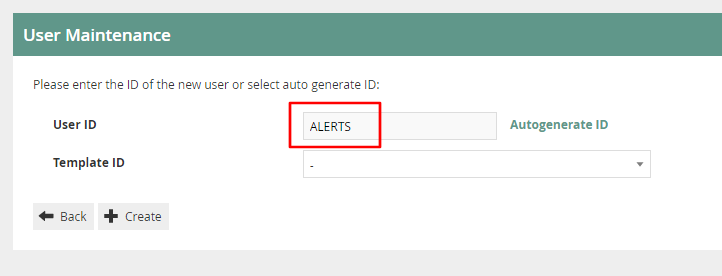
The User Maintenance screen for the newly created ALERTS User is presented. The two tabs to configure are General and Email.
User - General Tab
The General tab has all the basic information that captures the identity of the new ALERTS User.
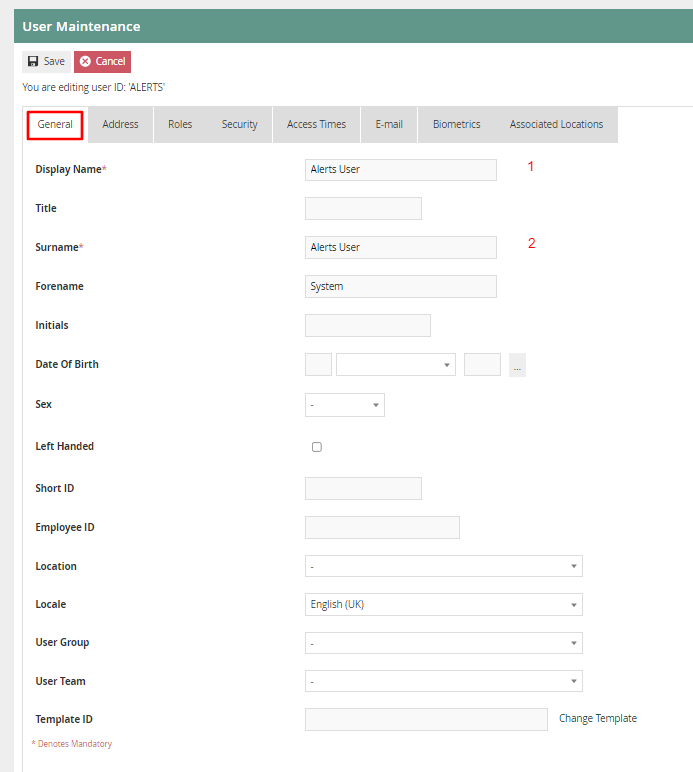
Set the appropriate values on the General tab as follows:
| Configuration | Description |
|---|---|
| Display Name | This is the name displayed in the screen after signing into the Estate Manager. Enter any identifiable name here, for example Alerts User. |
| Surname | This is the surname given to the User. Enter any appropriate surname here, for example Alerts User. |
User - Email Tab
The Email tab captures the email configuration for the new ALERTS User.
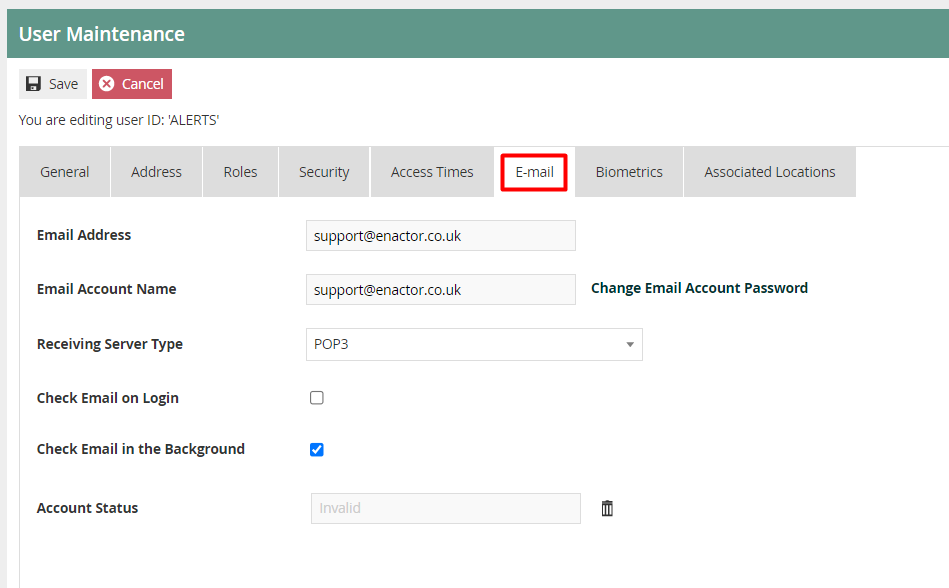
Set the appropriate values on the Email tab as follows:
| Configuration | Description |
|---|---|
| Email Address | Enter the email address which will be used to send the email alerts. |
| Email Account Name | Enter the same email address as used in the previous field. |
| Change Email Account Password | Enter the correct password of the email address that has been entered. |
| Check Email on Login | If checked, the email will be checked on login. |
| Check Email in Background | If checked, the email will be checked in the background. |
| Account Status | Shows the status of the email account. If there is an issue with the email configuration, after several tries the system will automatically set the user's email account status to Invalid. Once set to invalid the system will not try to access the user's email account. After resolving the email configuration issues, check this field and if it is Invalid then click on the bin icon to reset it to Valid. |
Be sure to set the correct email address and a valid password for the email account on this page. Without this, the alert system will not be able to send email alerts.
Configure Location for Email Alerts
The Estate Manager location should be configured to send email alerts. The following is an example of configuring the Email tab of the Estate Manager location to use IMAP and SMTP.
Navigate to Location Maintenance using the Search or the path: Configuration > Organisation > Locations

In the list of locations, search for Estate Manager and click on the corresponding edit icon to configure the Estate Manager Location.
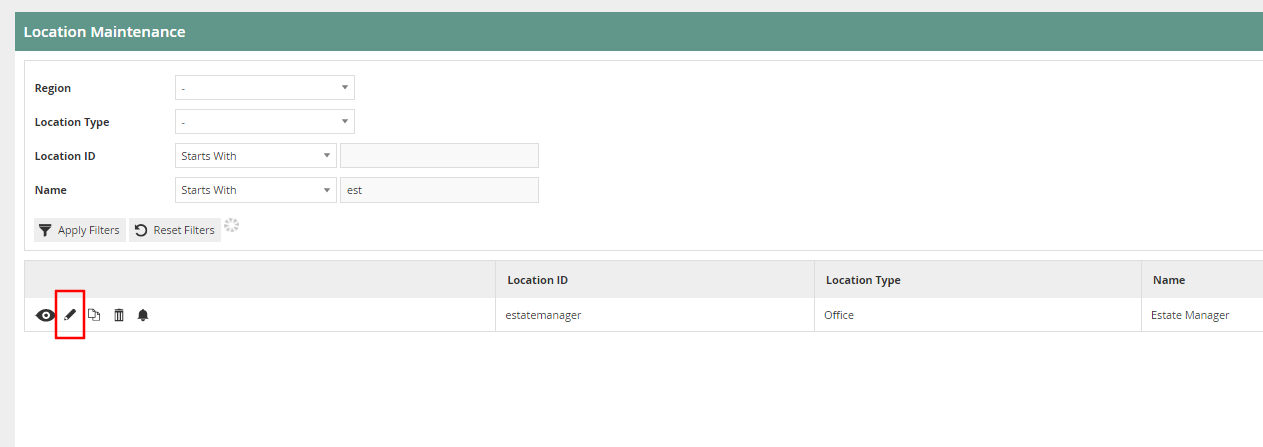
Location - Email Tab
Within the Estate Manager location, the email configuration is done via the Email tab. The System User should point to the ALERTS user created in the previous section.
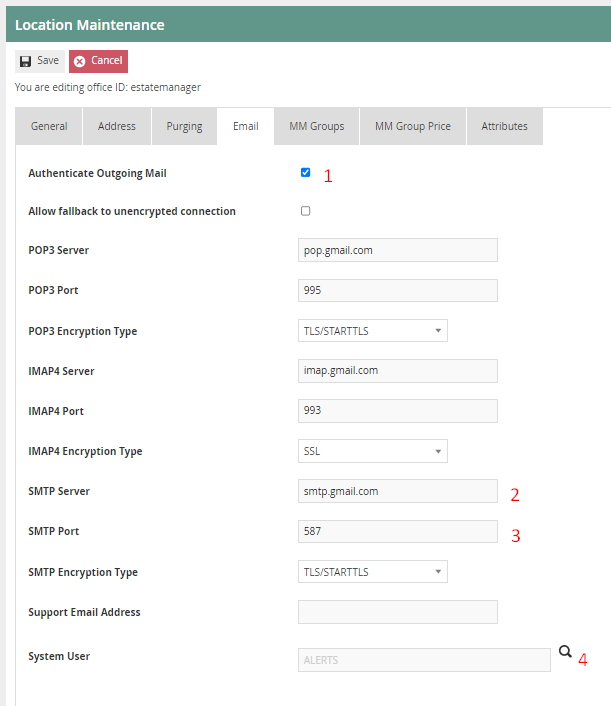
Set the appropriate values as follows:
| Configuration | Description |
|---|---|
| Authenticate Outgoing Mail | If checked, all outgoing mail will be authenticated using the User's email account and password. If this option is not selected and the SMTP server requires authentication, the outgoing email will not be sent. |
| SMTP Server | An SMTP server is a mail server that only supports the sending of emails. Enter the server address, for example smtp.gmail.com. |
| SMTP Port | Enter the SMTP port number, for example 587. |
| SMTP Encryption Type | Select the appropriate SMTP Encryption Type from the dropdown: None, SSL, or TLS/STARTTLS. |
| System User | This is the System User associated with this location who sends the email alerts. Use the search button to select the ALERTS user that was created in the previous section. |
Alert Services
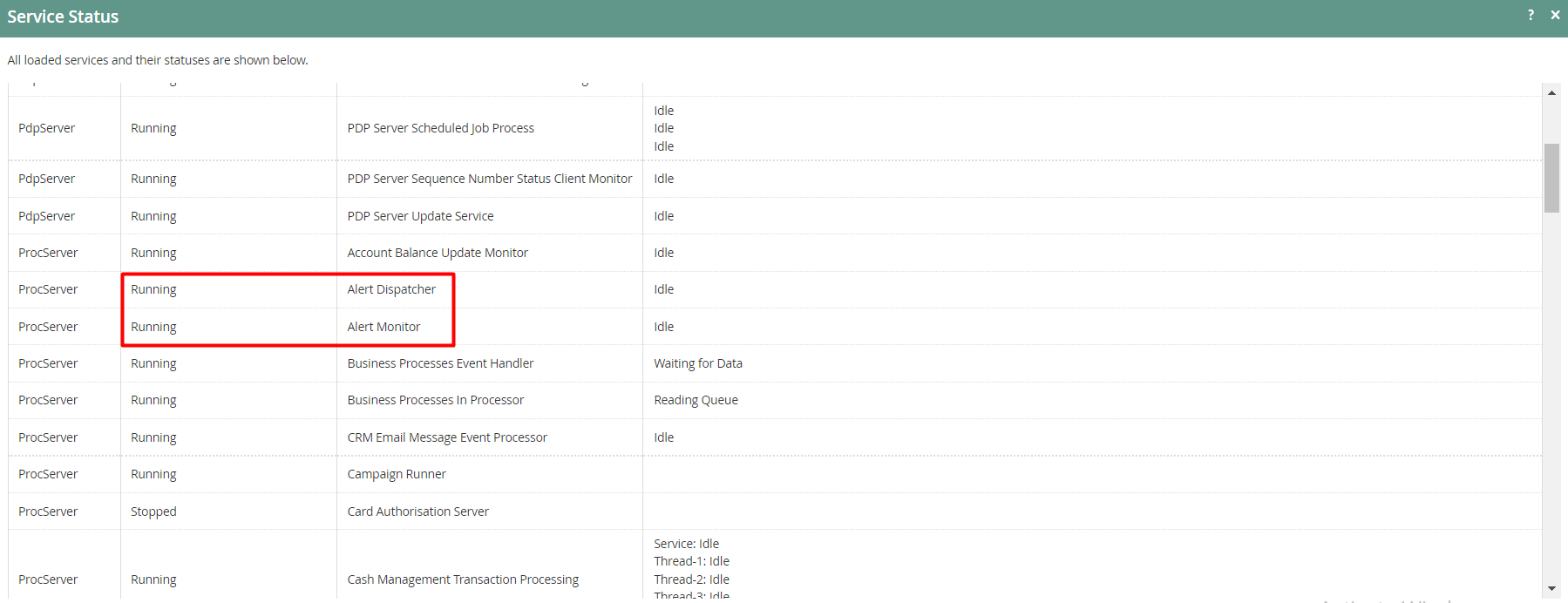
In order for alerts to work, there are a number of services that are required. The following table lists the services and their functionalities.
| Service Description | Device Type | Functionality |
|---|---|---|
| Alert Dispatcher | Estate Manager, Back Office | Dispatches alerts via email |
| Alert Monitor | Estate Manager, Back Office | Monitors Estate Manager logs for alert messages |
| Email Internal Router | Estate Manager, Back Office, Inventory Manager | Routes email internally via the application |
| Email Sender | Estate Manager, Back Office, Inventory Manager | Email sending service |
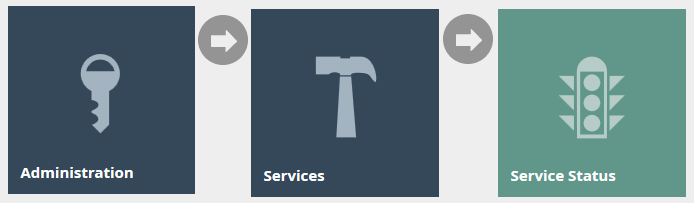
After restarting the Estate Manager, navigate to Service Status using the Search or the path: Administration > Services > Service Status
Verify that all the required services are running.

Configure Alert Types
Alert types are used to define what alerts to raise when certain events are detected in the logs, where to monitor from (Application Process Log, Application Log, System Event Log) and the communication type (for example, email) used to send the alerts.
This section is where you configure at which events (triggers) you want to send the alerts and where to send the alert if that event is triggered.
If alerts are to be defined on the Store Server, then the alert types should be broadcast down to the Store Server.
Alert types can be categorised based on the trigger:
- Application Process Log
- Application Log
- System Event Log
- JMX Bean
Configuration of JMX Bean Alerts is documented in the How To Configure MBean Alerts guide.
Communication options for sending alerts comprise:
- SMS
- Application Process
- Business Process
The following pre-loaded alert types are available in the environment:
| Alert Type ID | Description | Trigger | Log Entry Type / Log Level | Entry Type ID |
|---|---|---|---|---|
FAILED_XML_IMPORT | When File Import is used in the Estate Manager to import configs and any such import fails because it could not parse or process successfully, a Failed to import XML file alert is sent to the user. | Application Process Log | Error | xmlFileImporter |
FAILED_TRANS_PROCESS | When a Transaction fails to process, a Transaction Processing Failed alert is sent to the user. | Application Process Log | Error | document |
FAILED_SCHEDULED_JOB | When broadcasts fail to submit due to an error, a Scheduled Job Failed alert is sent to the user. | Application Process Log | Error | scheduledJob |
LICENCE_FAILED | When the Licence used is either expired or invalid, a Licence Validation Failed alert is sent to the user. | Application Log | Error | |
DATABASE_CON_FAILED | When there is a problem with connecting to the Database, a Database Connection Failed alert is sent to the user. | Application Log | Error |
To further explain the above table, take the alert type DATABASE_CON_FAILED as an example. The trigger for this alert type is Application Log and the Message Text is com.enactor.core.database.DatabaseException: Failed to get connection. If that exact Message Text exists in the Application Log, an email is sent as an alert to the recipient as configured.
For each of these alert types, you need to configure how and to whom the alerts are sent. Navigate to Alert Type Maintenance using the Search or the path: Administration > LogAlerts > Alert Types
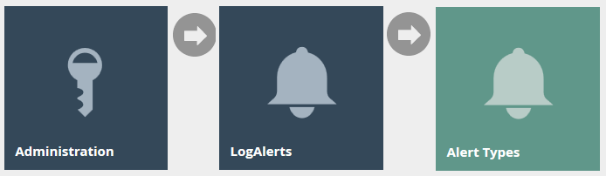
Click on the edit icon of the Alert Type that you want to configure. This will open the Alert Type Maintenance screen for that particular Alert Type. It is the Communication Options tab that needs to be configured in order to set the email for sending the alert.
Alert Type - Communication Options Tab
This is where you specify all configurations regarding which method you want to send the alert and to whom you want to send it once the alert type has been triggered.
Email, SMS, Application Process and Business Process are the Communication Option Types that are available for selection. Multiple Communication Options can be added for one Alert Type by having different devices configured.
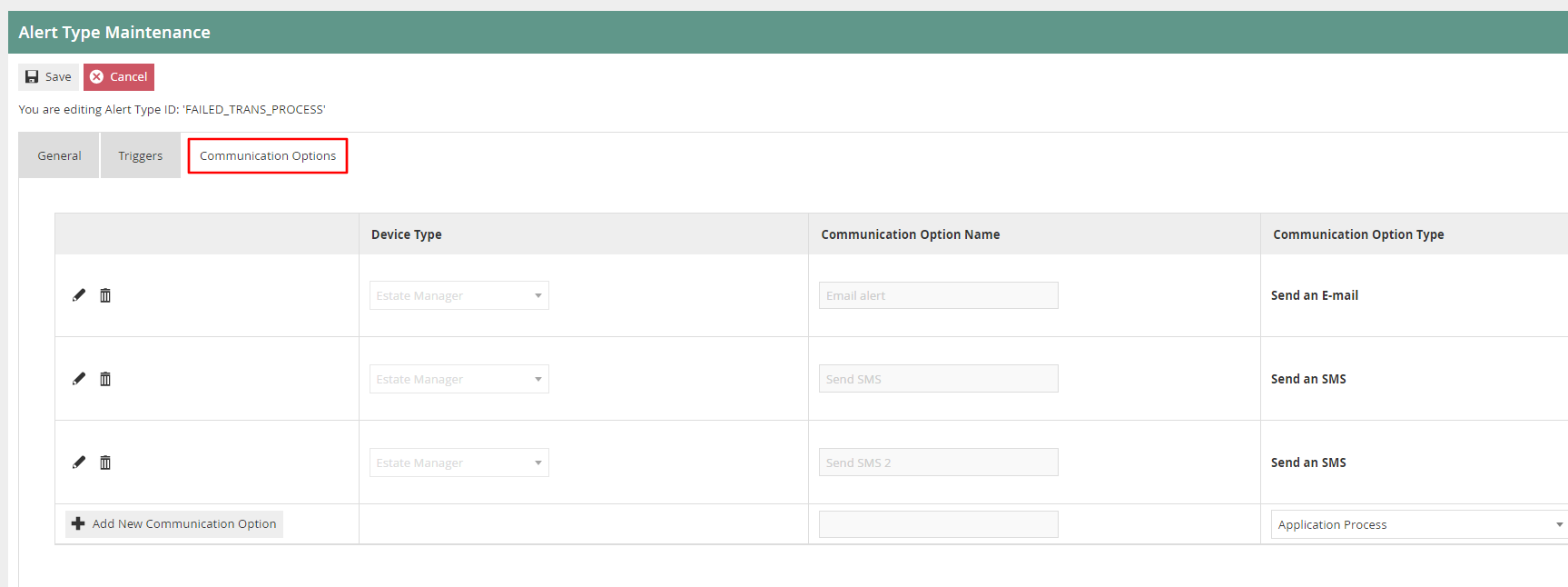
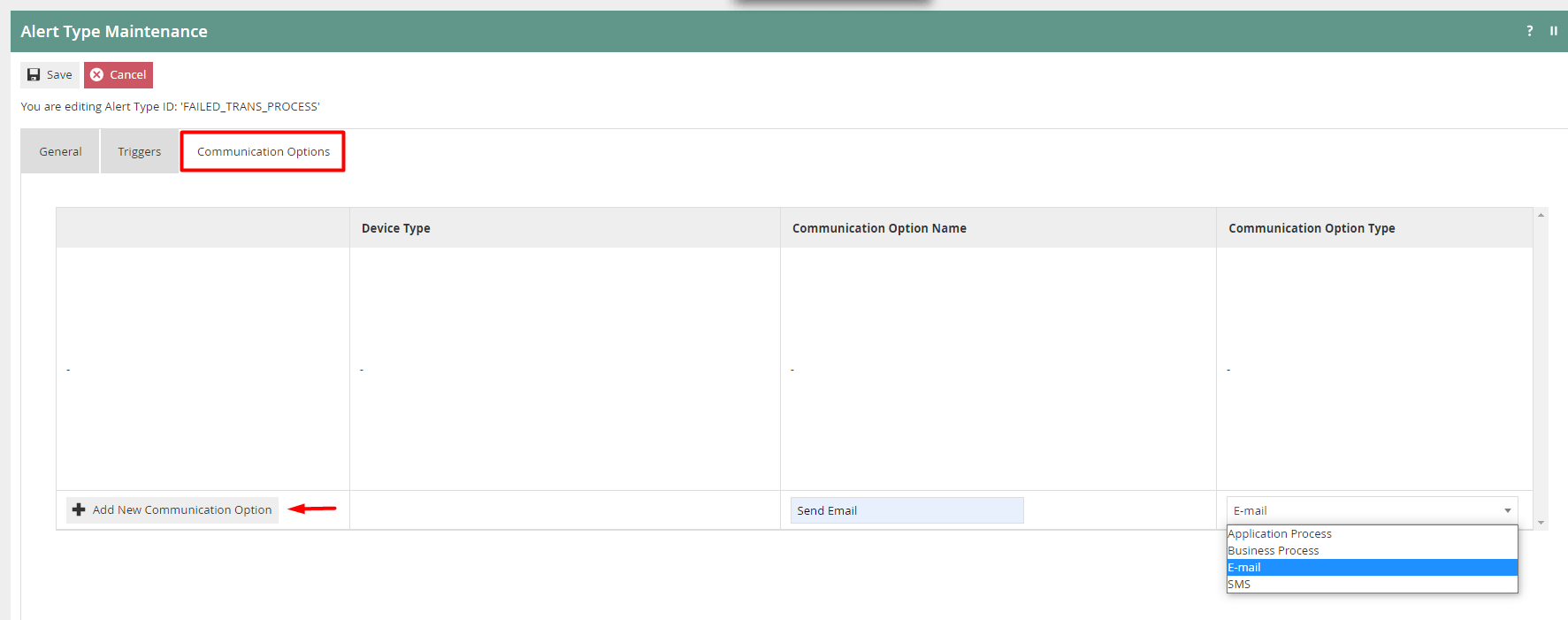
To create a new Communication Option Type, pick from the dropdown, enter an appropriate Communication Option Name and then click Add New Communication Option.
The following is an example of an Email Communication Option Type and its configurations:
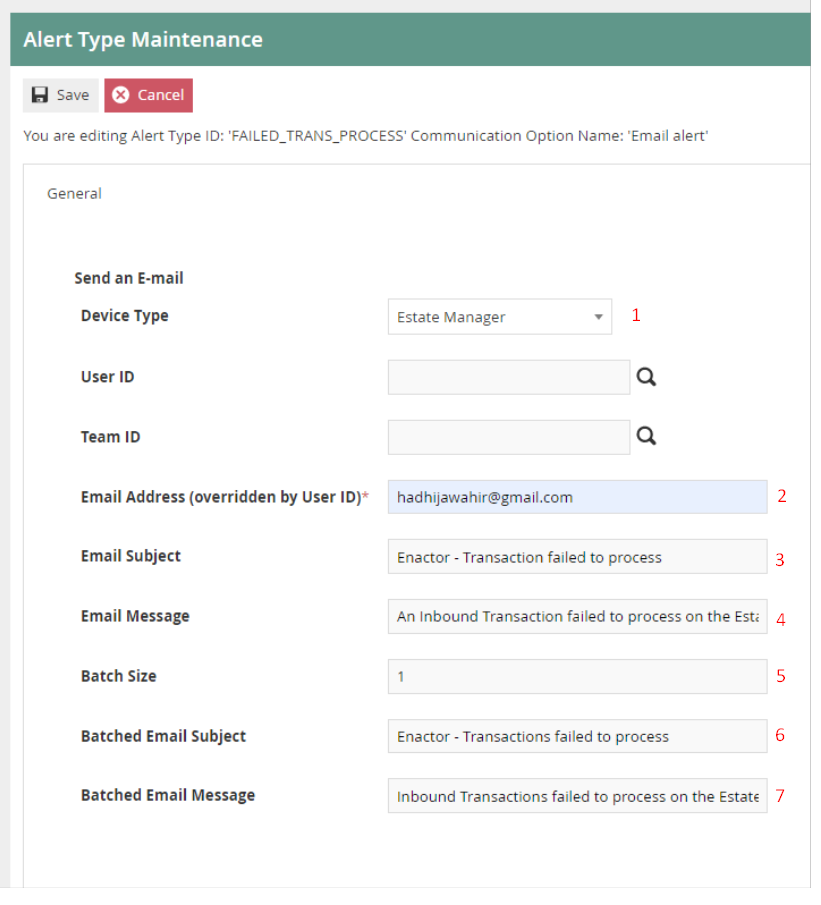
Set the appropriate values as follows:
| Configuration | Description |
|---|---|
| Device Type | Dropdown list selection of defined device types. |
| Email Address (overridden by User ID) | Enter the email address to which you want to send the alert. |
| Email Subject | Subject of the message to be sent when the alert is triggered. |
| Email Message | Message to be sent when the alert is triggered. |
| Batch Size | Numeric value. When the Alert Type has been triggered the same number of times as the batch size value, a batch email will be sent. The value set here defines after how many triggers the batch email should be sent. |
| Batch Email Subject | Subject of the message for the batch email. |
| Batch Email Message | Message to be included when the batch email is sent. |
Click Save after configuring the appropriate values.
Finally, after configuring the Communication Options tab, click Save to finish creating the Alert Type.
Monitoring Alerts
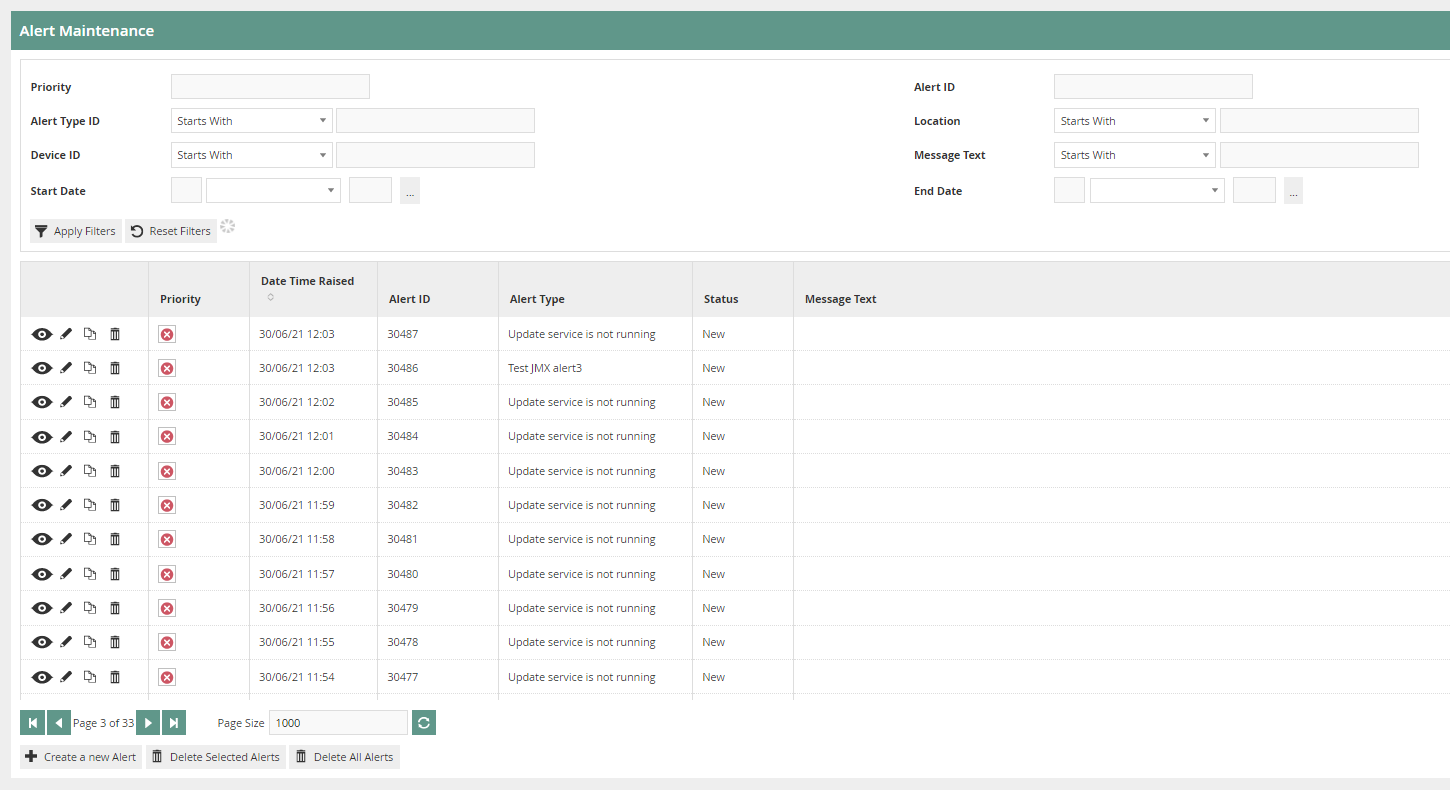
Alerts that have been triggered in the system can be viewed in Alert Maintenance.
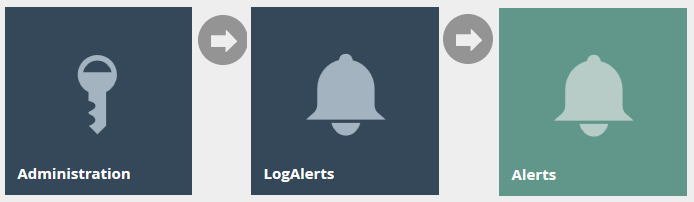
Navigate to Alert Maintenance using the Search or the path: Administration > LogAlerts > Alerts
The Alert Maintenance page lists the alerts corresponding to the events that have been logged to the nominated triggers based on the criteria and configuration defined in Alert Types.
Alert Scenarios
There are a number of situations, detailed below, where when a failure occurs the Estate Manager will send an email alert to the user. Within each category there are individual messages and batched messages which also have text specifying the type of error.
Failed Transaction Processing
This is where an Inbound Transaction has failed to process on the Estate Manager. One of the following transaction types not processing through inbound documents could cause this error:
- Normal Retail Sale Transaction
- Employee Retail Sale Transaction
- Airport Sale Transaction
- Tax Refund Request Transaction
- System Event
Whenever such a Failed Transaction Processing error occurs, an alert will be sent as an email to the user as configured. The email alert received is as follows:
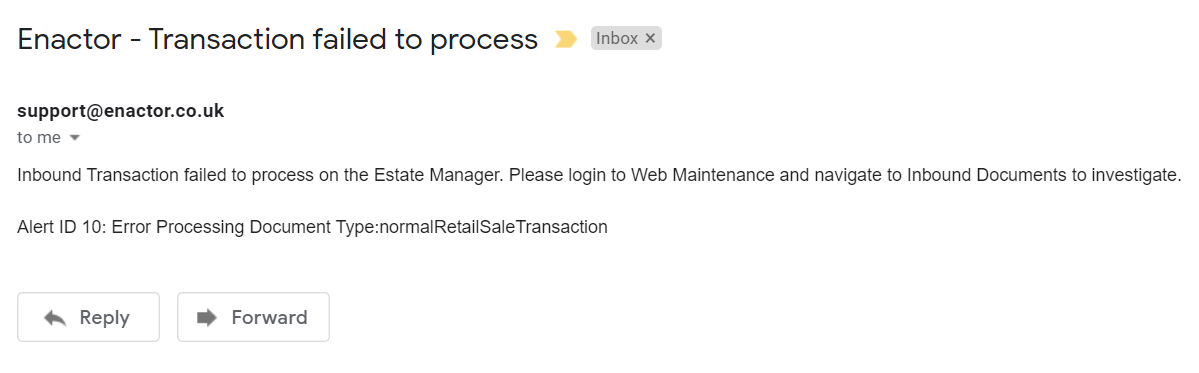
To view the alert created for this, first make a note of the Alert ID sent in the email. Then navigate to Alert Maintenance and enter the Alert ID from the email in the filter options and click Apply Filters.
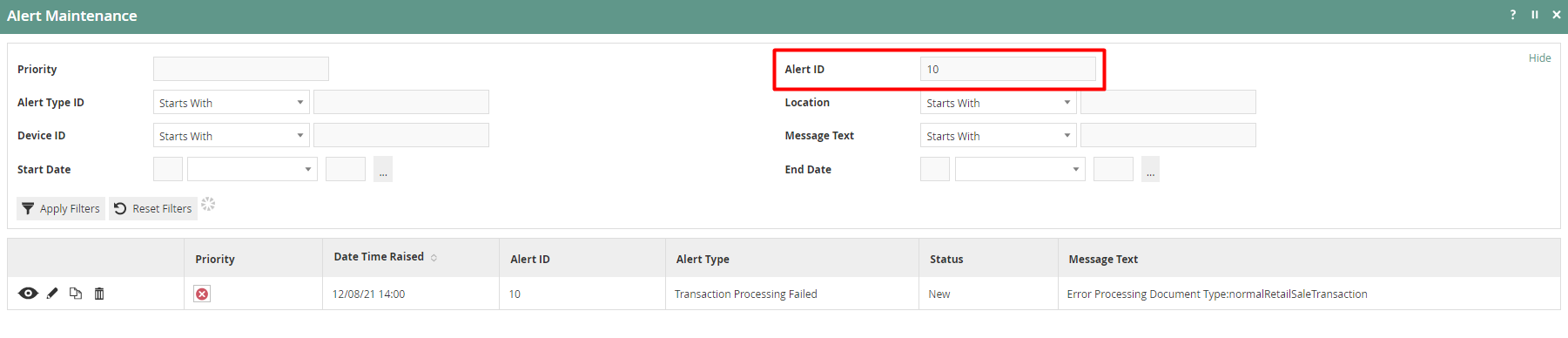
To further investigate, make a note of the Date Time that this alert was raised and navigate to Inbound Document Viewer using the Search or the path: Administration > Processing > Inbound Documents
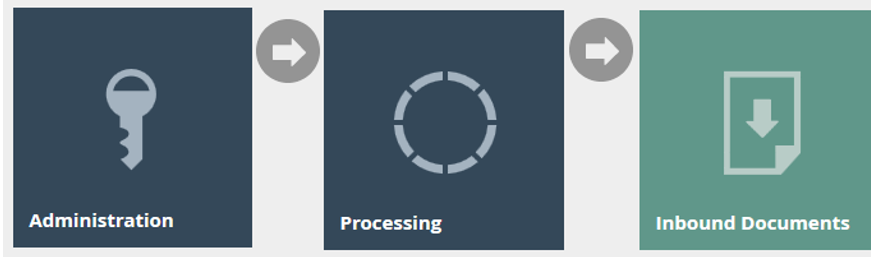
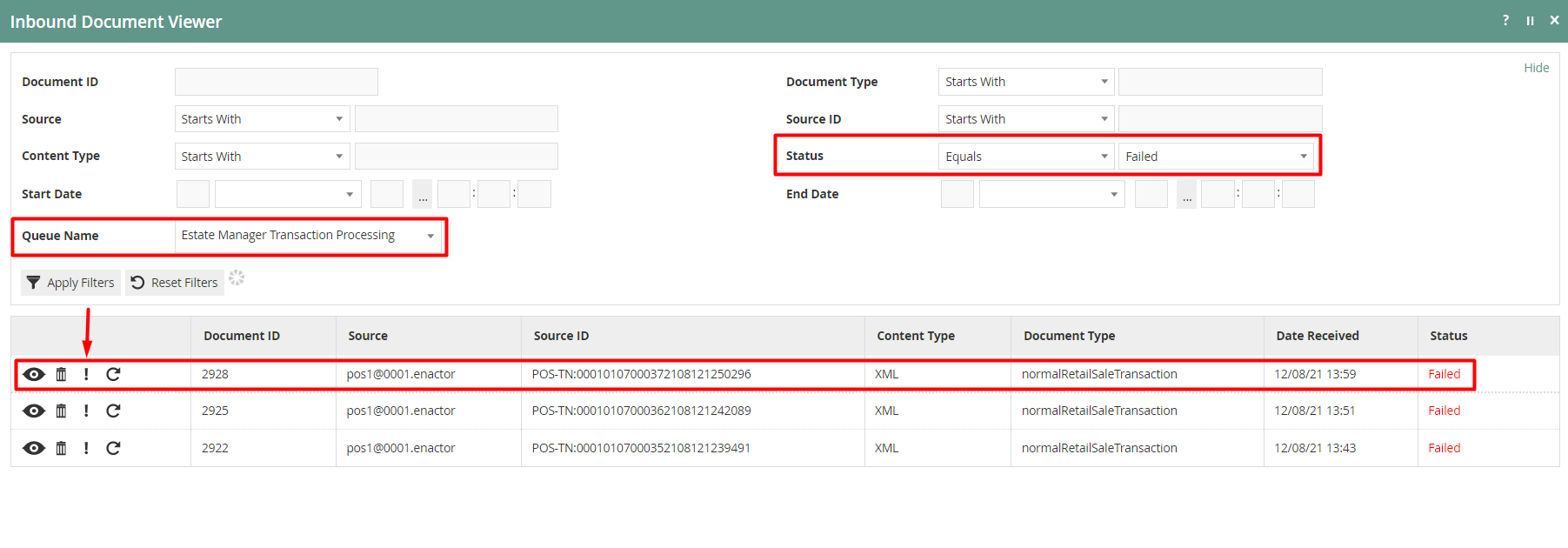
Make the following changes in the filter options:
- Queue Name - Estate Manager Transaction Processing
- Status - Failed
Click on the ! icon of the row that matches close to the time that the alert was created.
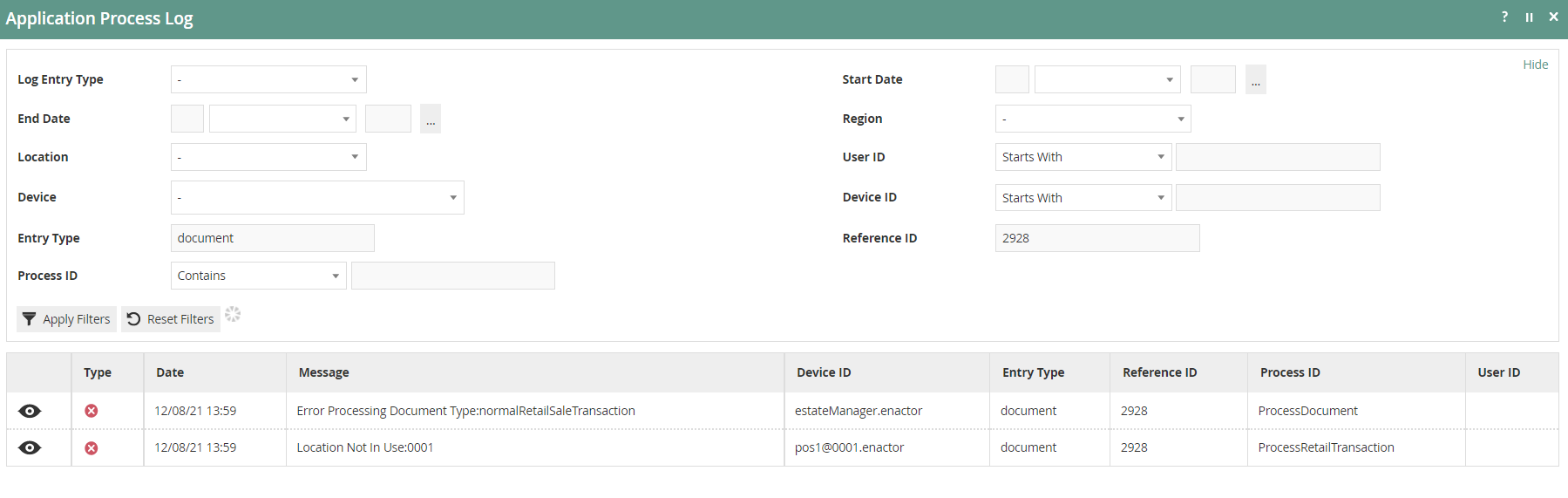
The Application Process Log of this particular failed transaction processing job is opened.
Failed XML Import
This is where XML file or files are imported directly into the Imports folder of the Estate Manager and the import fails because it could not parse or process successfully.
Whenever such a Failed XML Import error occurs, an alert will be sent as an email to the user as configured. The email alert received is as follows:
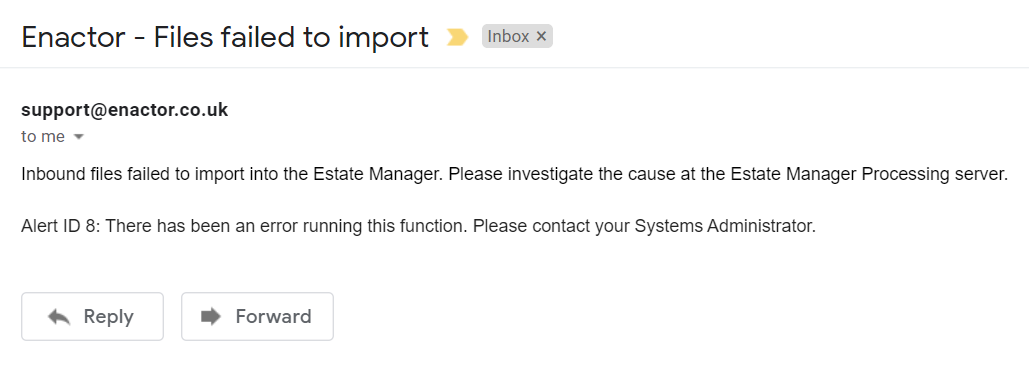
To view the alert, first make a note of the Alert ID sent in the email. Then navigate to Alert Maintenance and enter the Alert ID in the filter options and click Apply Filters.

To further investigate, make a note of the Date Time that this alert was raised and navigate to the Application Process Log. Click on the eye icon of the row that matches close to the time that the alert was created.
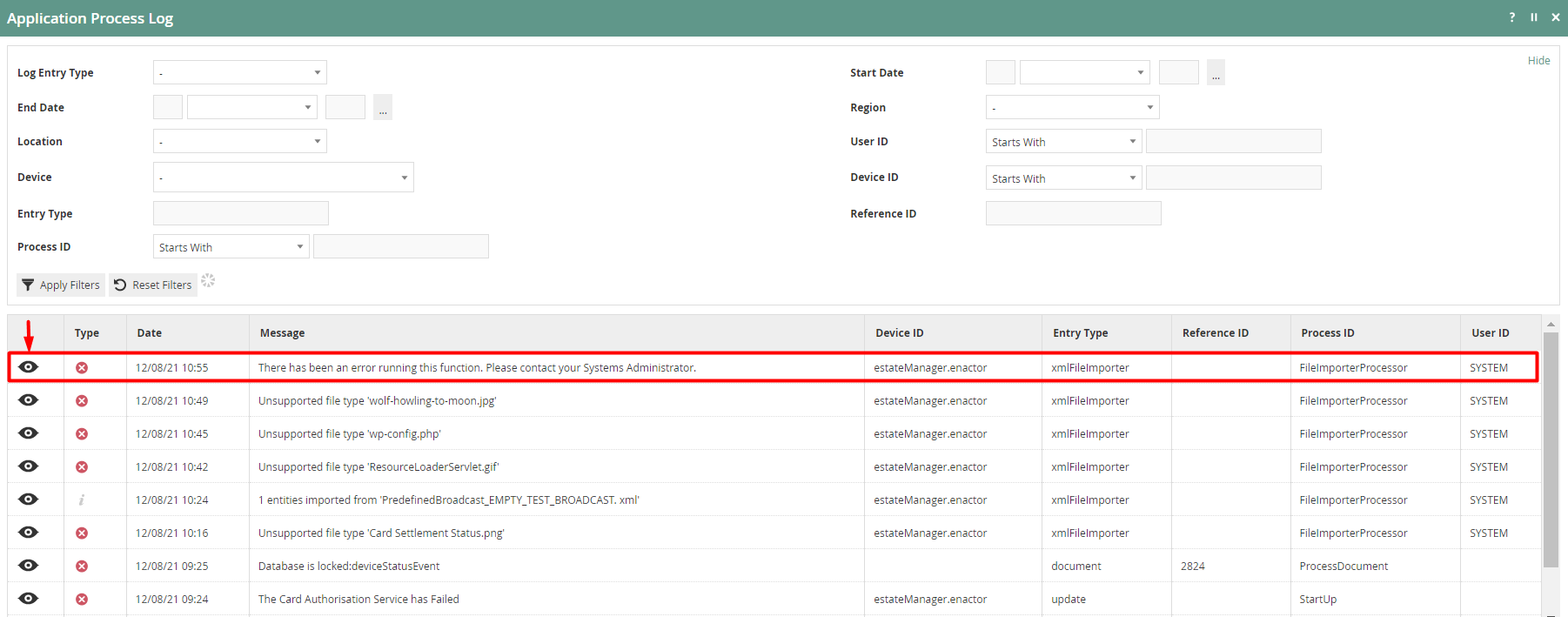
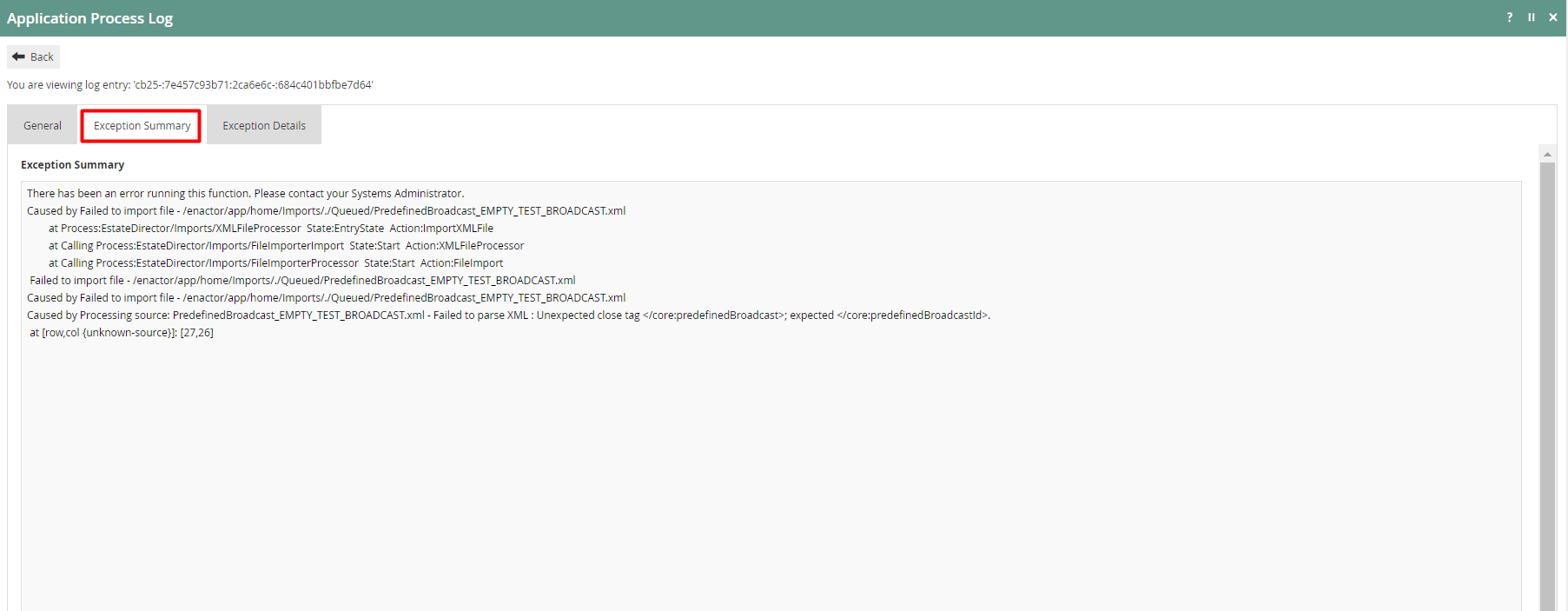
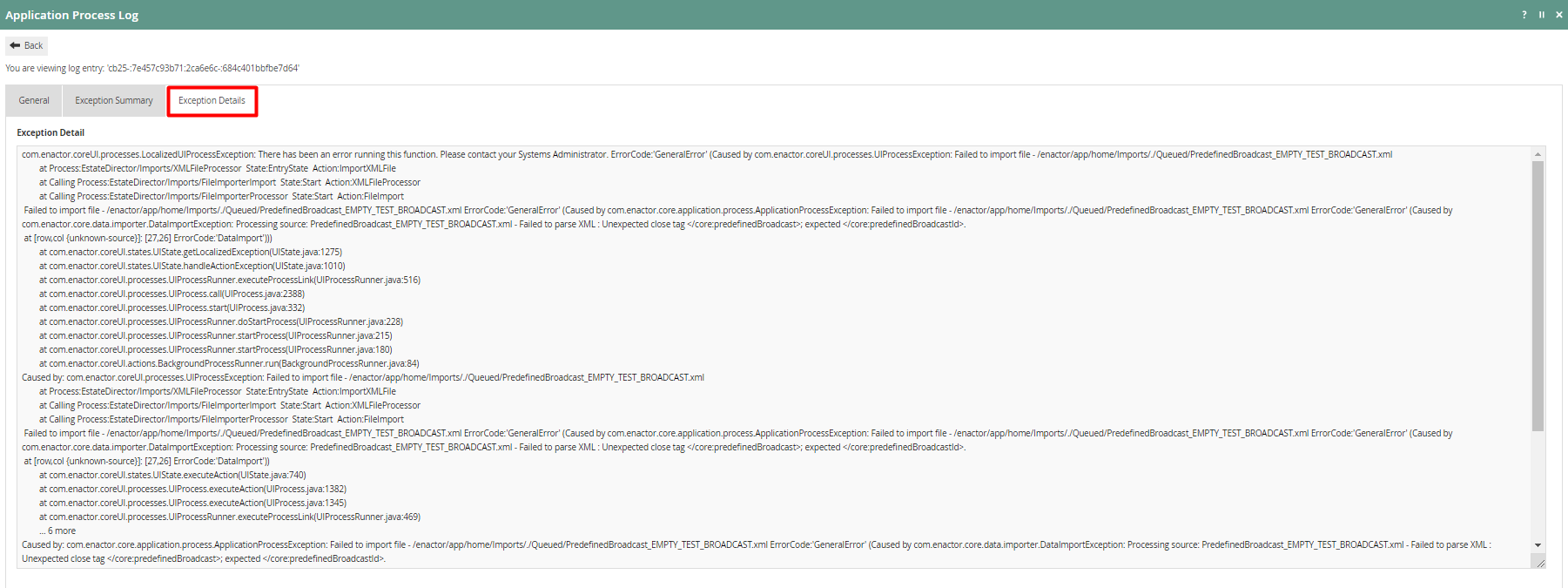
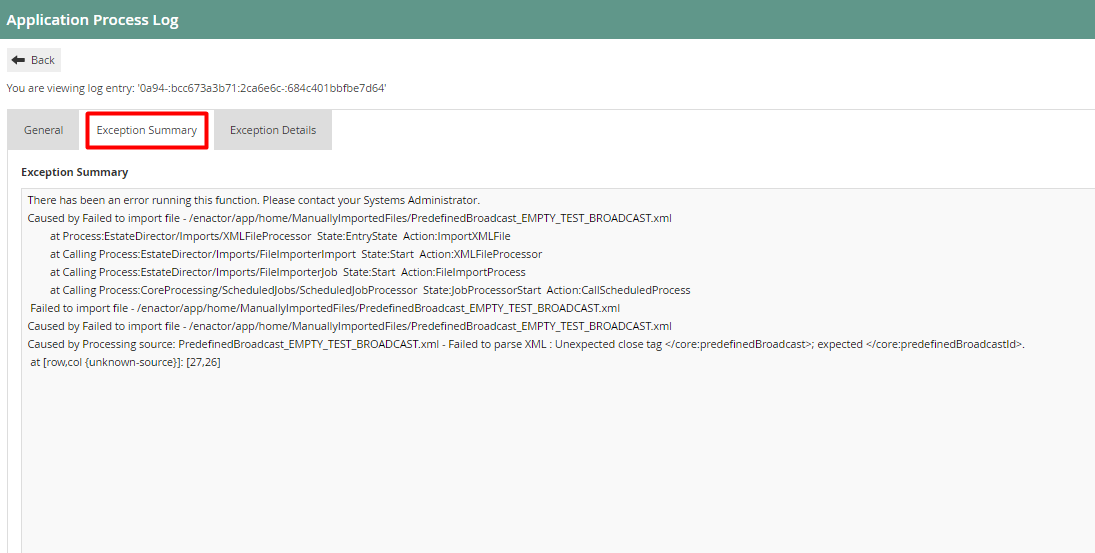
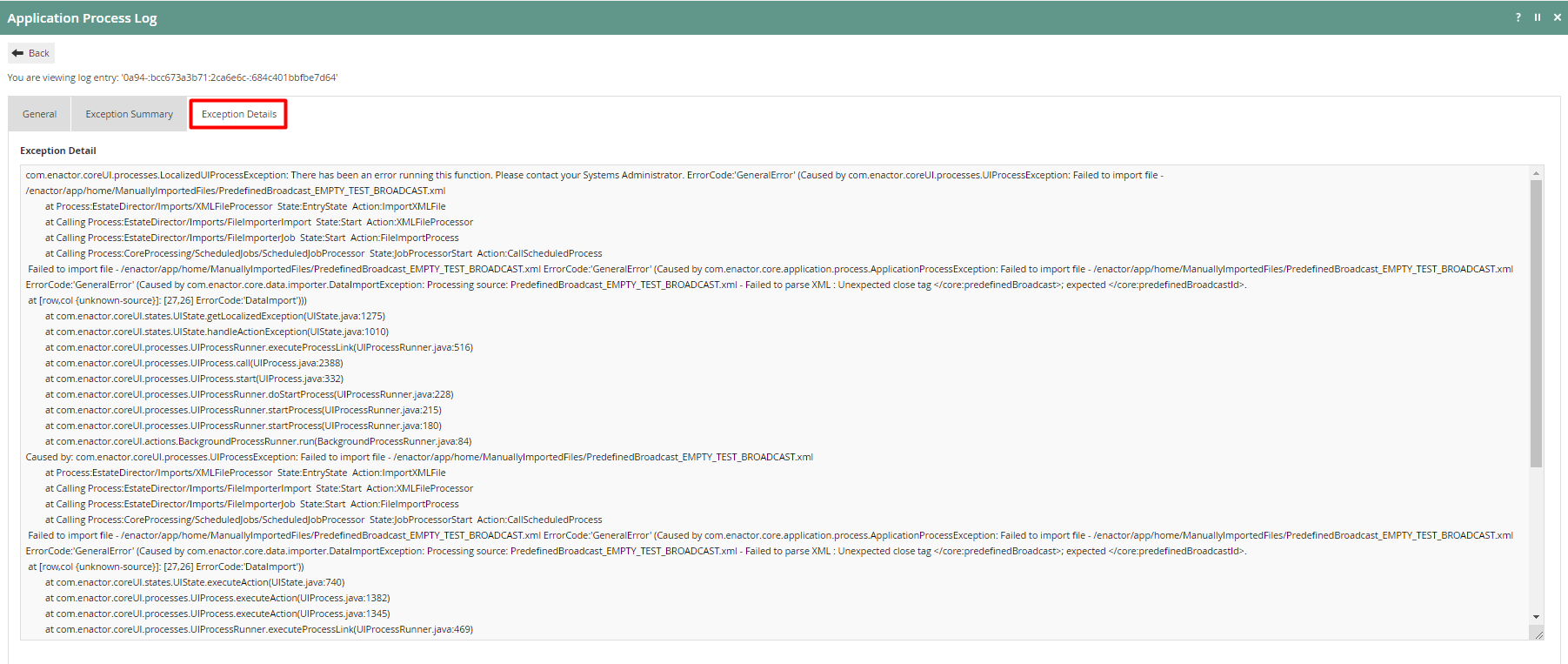
Navigate to the Exception Summary or Exception Details tab for information about the error that can assist further investigation.
Failed Scheduled Job
This is where a Scheduled Job has failed, such as a failed import using the File Import Maintenance in the Estate Manager.
Whenever such a Failed Scheduled Job error occurs, an alert will be sent as an email to the user as configured. The email alert received is as follows:
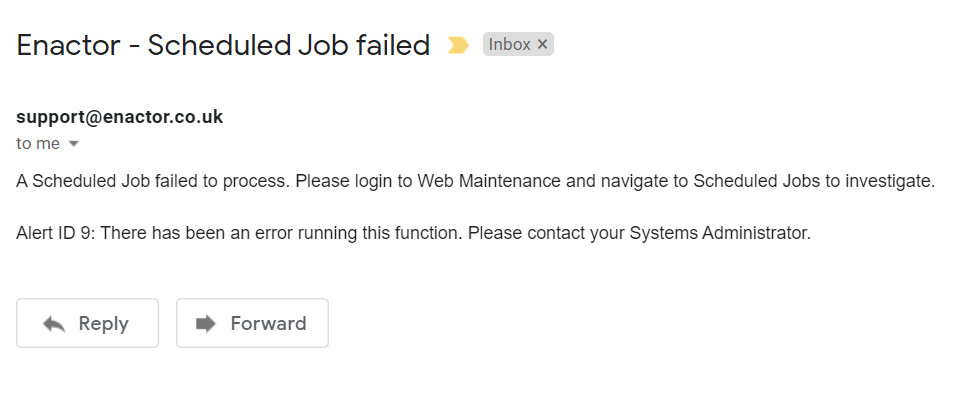
To view the alert, first make a note of the Alert ID sent in the email. Then navigate to Alert Maintenance and enter the Alert ID in the filter options and click Apply Filters.
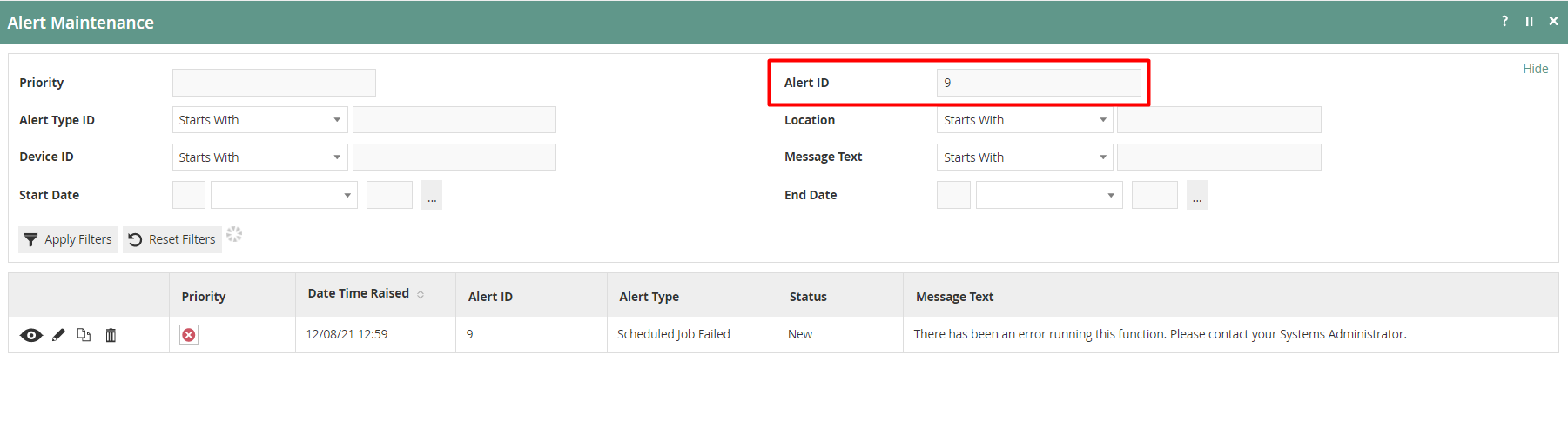
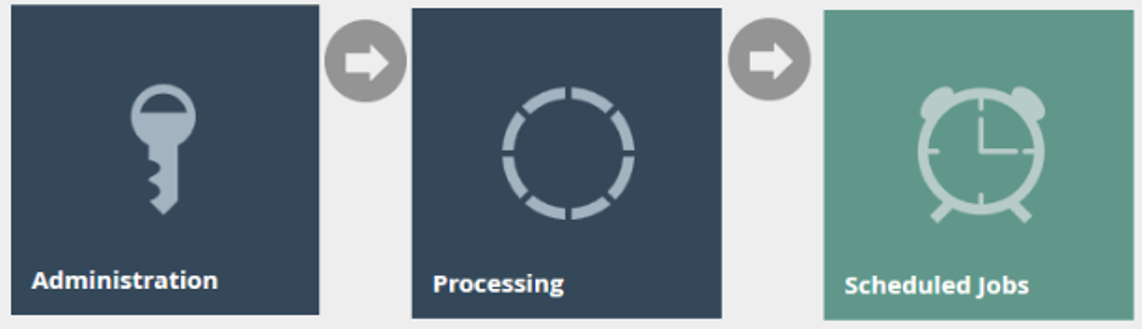
To further investigate, make a note of the Date Time that this alert was raised and navigate to Scheduled Job Maintenance using the Search or the path: Administration > Processing > Scheduled Jobs
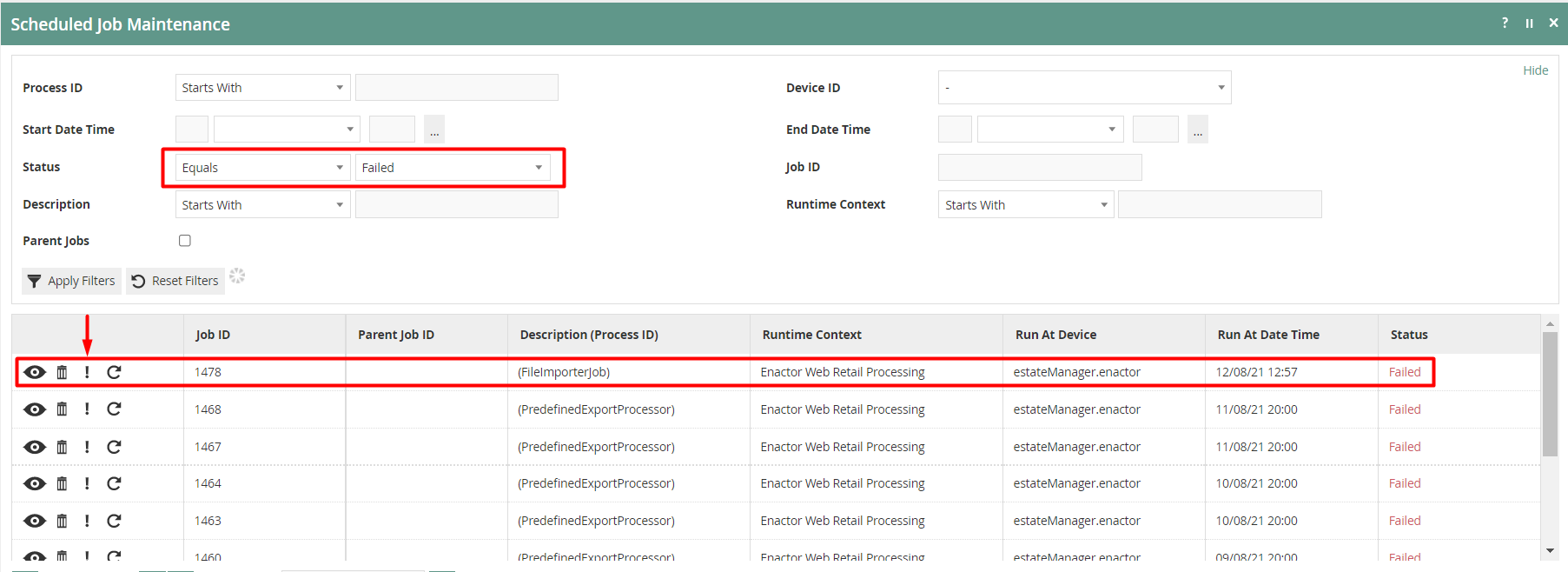
Change the filter value of Status to Failed and click on the ! icon of the row that matches close to the time that the alert was created.
The Application Process Log of this particular failed scheduled job is opened. Click on the eye icon of the row with the failed message.
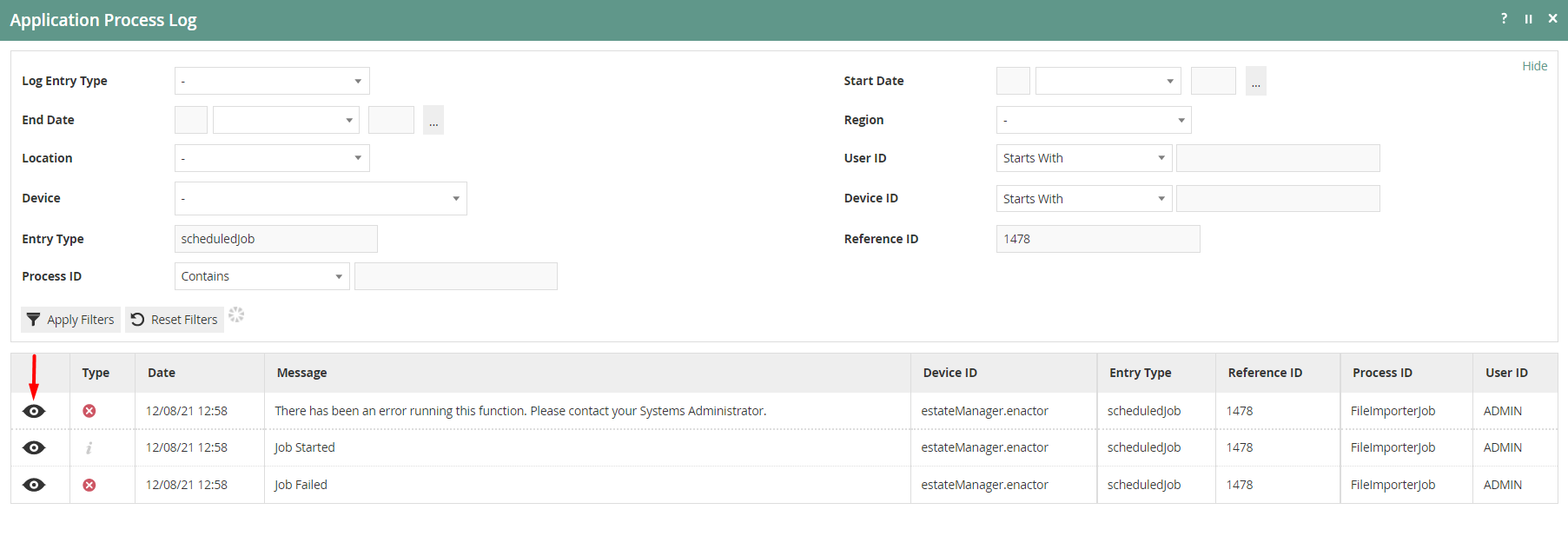
Navigate to the Exception Summary or Exception Details tab for information about the error that can assist further investigation.
Licence Failed
This is where the Licence used is either expired or invalid and a Licence Validation Failed alert is sent to the user.
Whenever such a Licence Failed error occurs, an alert will be sent as an email to the user as configured. The email alert received is as follows:
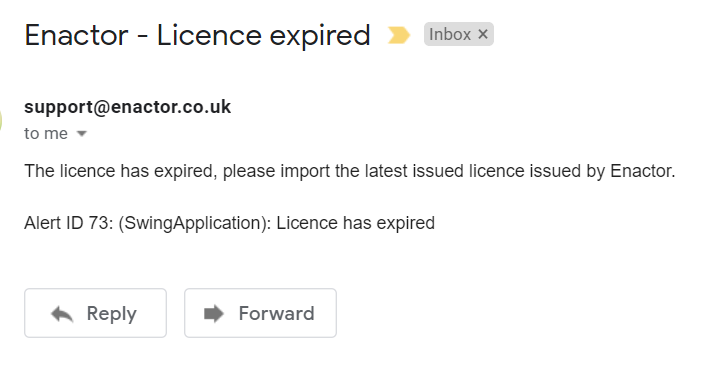
To view the alert, first make a note of the Alert ID sent in the email. Then navigate to Alert Maintenance and enter the Alert ID in the filter options and click Apply Filters.
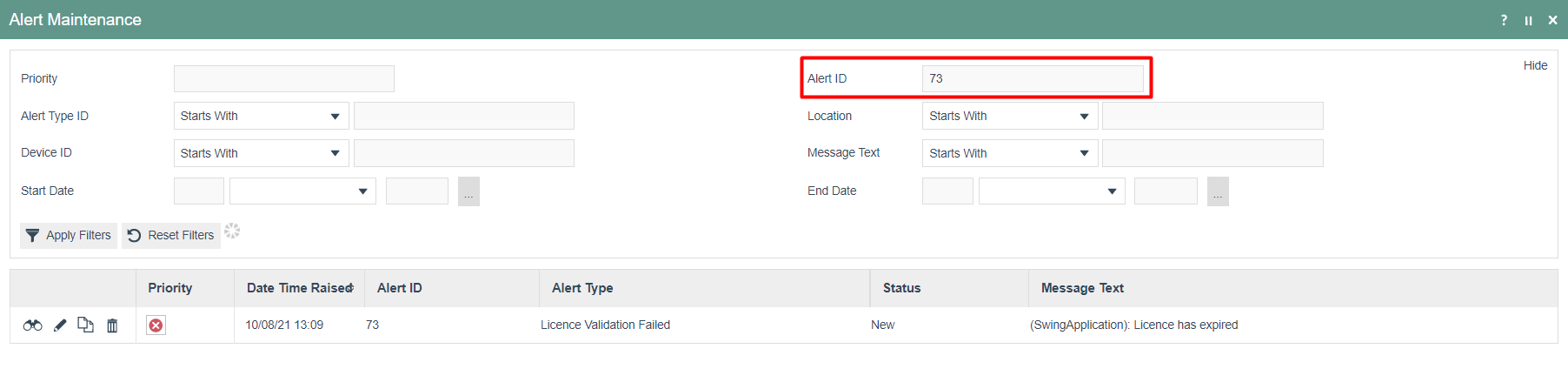
To further investigate, make a note of the time that this alert was created and navigate to the Application Log. Make the following changes in the filter options:
- Log Context Name - Estate Manager Enactor Web Retail Processing
- Event Type - Errors
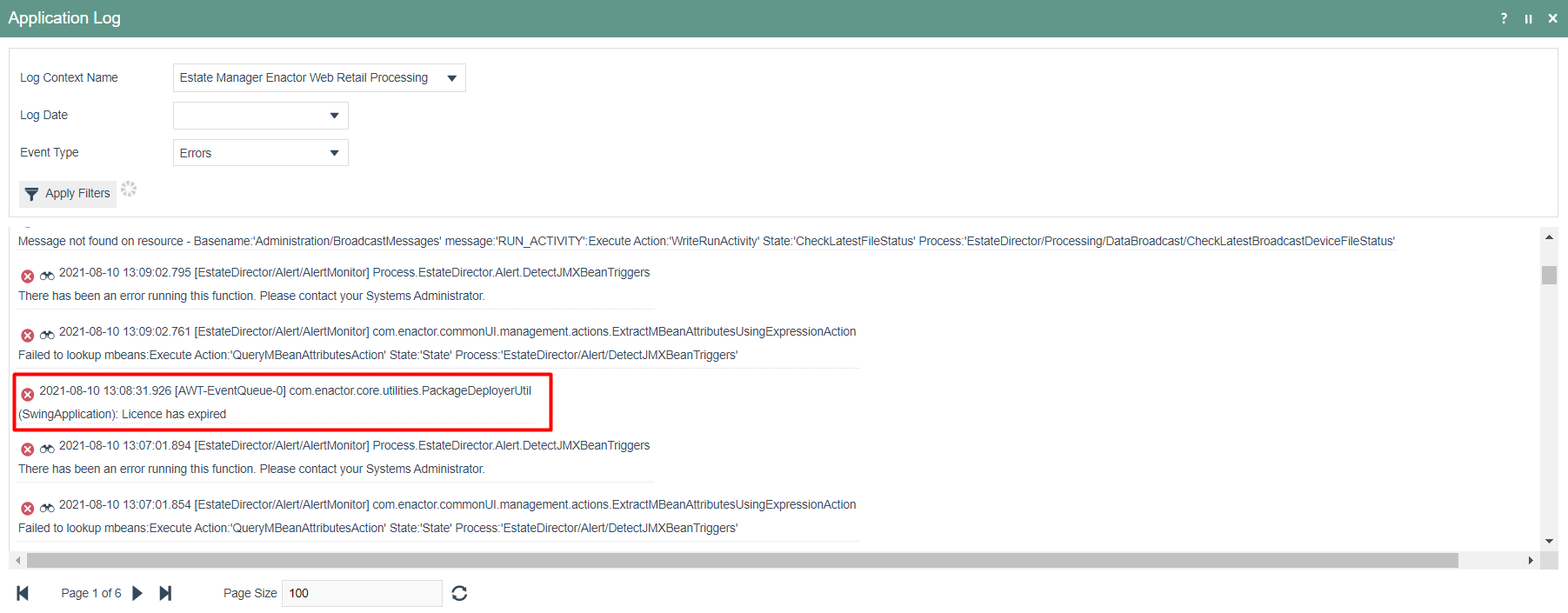
The Licence failed error will be visible in the Application Log along with other errors.
Database Connection Failed
This is where there are intermittent database connection issues and a Database Connection Failed alert is sent to the user.
Whenever such a Database Connection Failed error occurs, an alert will be sent as an email to the user as configured. The email alert received is as follows:
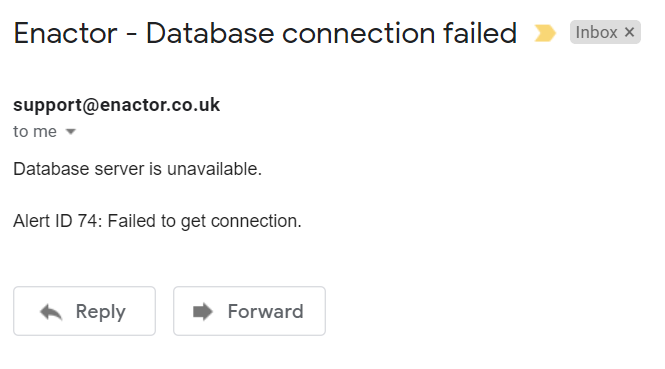
To view the alert, first make a note of the Alert ID sent in the email. Then navigate to Alert Maintenance and enter the Alert ID in the filter options and click Apply Filters.
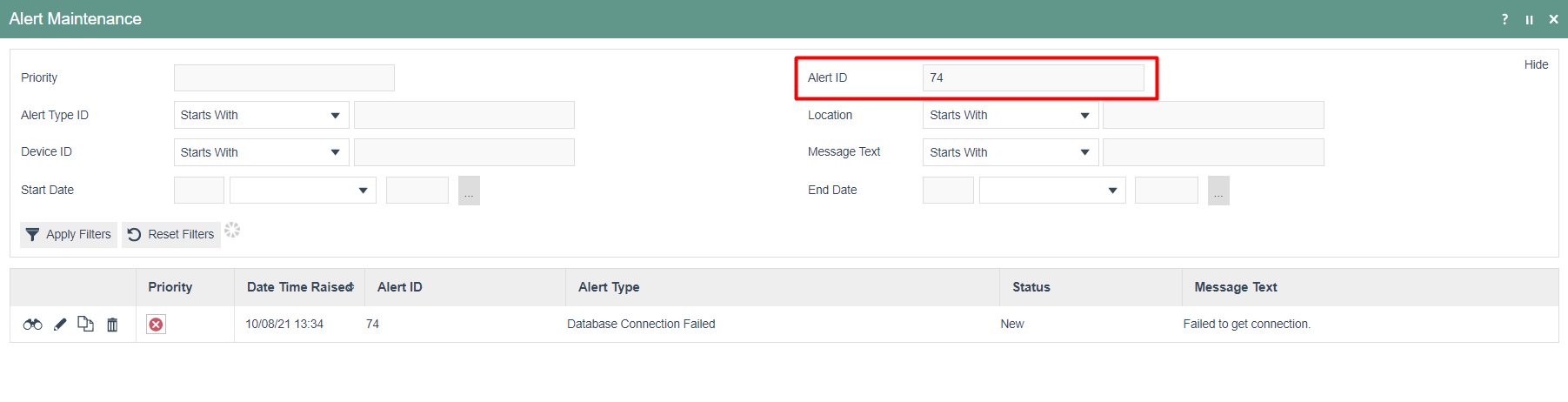
To further investigate, make a note of the time that this alert was created and navigate to the Application Log. Make the following changes in the filter options:
- Log Context Name - Estate Manager Enactor Web Retail Processing
- Event Type - Errors
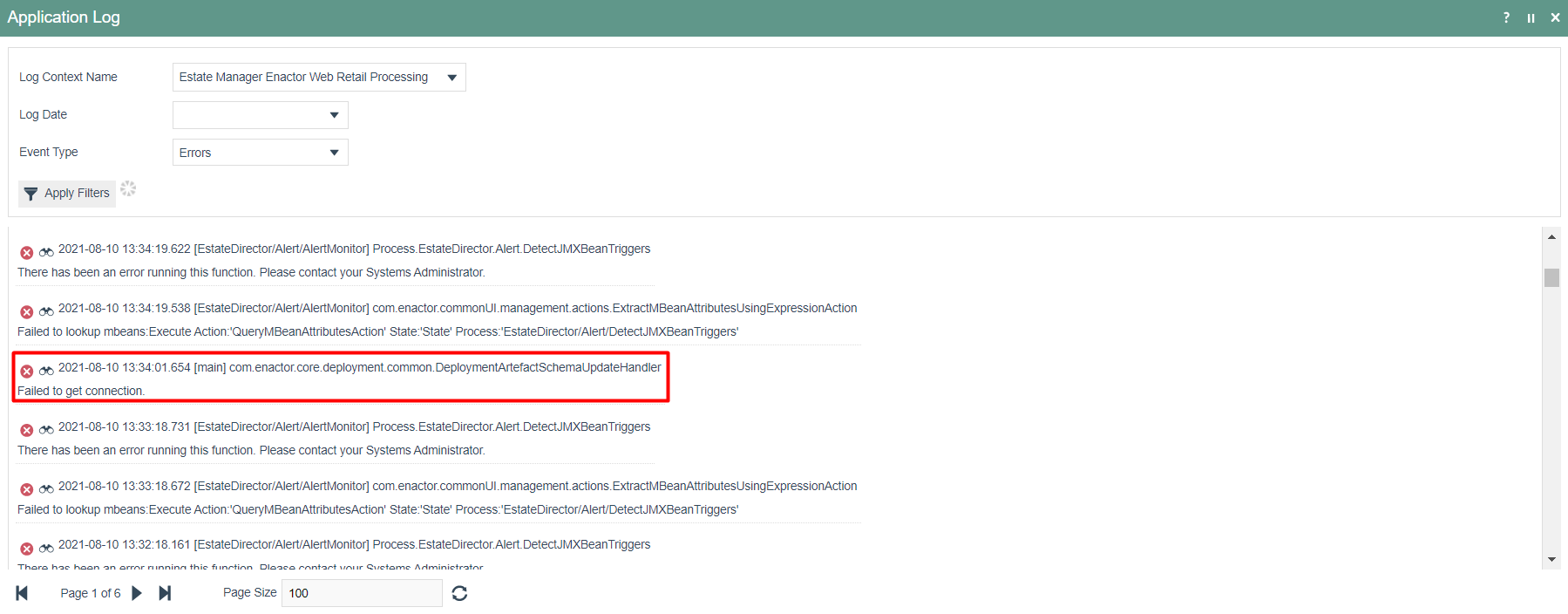
The Database Connection Failed errors that have caused the intermittent database connection failures will be visible in the Application Log along with other errors.
The above shows alerts for intermittent database connection failures, not for total database connection failures. If there is a total database connection failure, the following screen is shown to the user when the Estate Manager is opened.