How To Configure Auto Pickup Tenders Scheduled Job
Introduction
A retailer will typically end the cashup day with a manual pickup of all tenders. However, a last-minute card transaction may occur after the manual pickup has been completed. To ensure that this card transaction is included in the correct day's figures, a scheduled job can be configured to automatically pick up any tender that is marked as an auto-pickup tender.
The purpose of this guide is to demonstrate how to configure the Auto Pickup Tenders scheduled job and verify its behaviour across three test scenarios: when there is nothing to pick up, when only card tenders are present, and when cash tenders are also present.
Overview
The Auto Pickup Tenders scheduled job picks up any tender configured for automatic pickup. The job is created as a Diary entry on the store server and uses the Process ID CashManagement/AutoPickup/PickupAutoPickupTenders.
The following key points apply:
- Success with no tenders - If there are no auto-pickup tenders with a non-zero balance, the job succeeds with nothing to pick up.
- Success with card tenders only - If only auto-pickup tenders (such as card) have a non-zero balance, the job succeeds and creates a pickup entry in the cash session history.
- Failure with cash tenders - If there is a non-zero cash tender (which requires manual pickup), the job will fail and the pickup will be voided.
The job will only succeed if there are auto-pickup tenders that are non-zero. If there is a non-zero cash tender, this must be picked up manually and the job will fail.
Setting Values to Zero for the Cash Session
Before testing the automatic job, clear down any cash and card values in the till. The job will only succeed if there are only card transactions in the paypoint.
Find out how much is in the till/paypoint by performing a Spot Check.
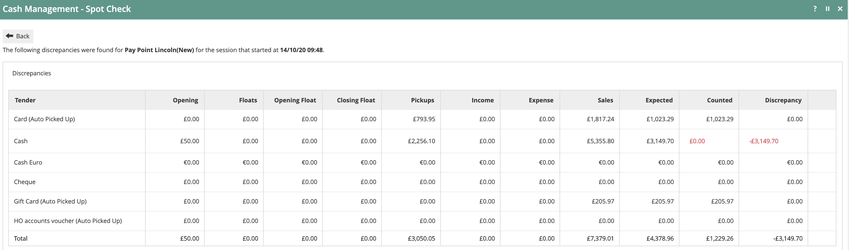
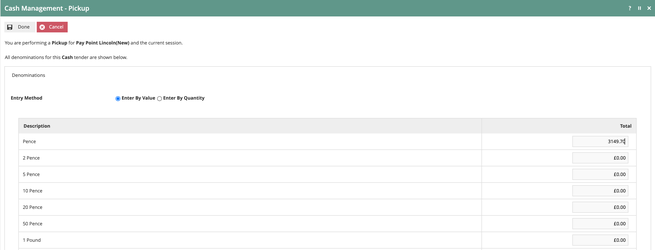
Perform a Pickup for the cash amount (3149.70). The card amount will be auto picked up.
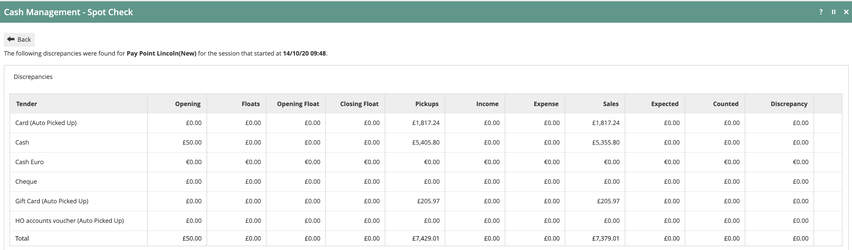
Perform another Spot Check to confirm nothing remains in the till. All tender balances should now show zero discrepancy.
Configuring the Diary Entry
Navigate to Administration > Diary and create a new diary entry to run the job on the store server.
General Tab
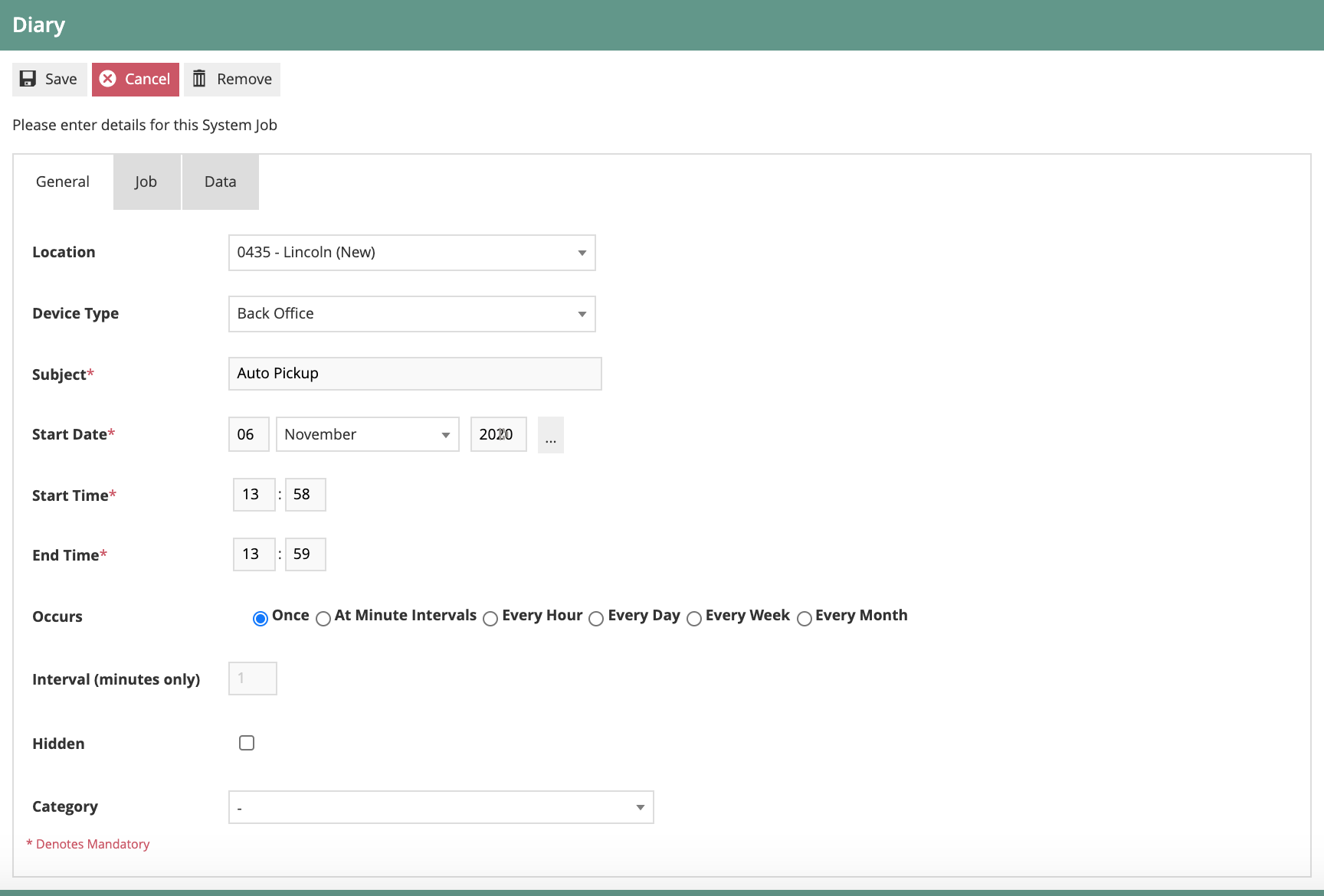
Configure the General tab with the following settings:
| Field | Value | Description |
|---|---|---|
| Location | Store location | The store where the job should run (e.g. 0435 - Lincoln) |
| Device Type | Back Office | The job runs on the back office server |
| Subject | Auto Pickup | A descriptive name for the diary entry |
| Start Date | Scheduled date | The date the job should run |
| Start Time | Scheduled time | The time the job should start |
| End Time | End time | The time window end |
| Occurs | Once / Every Day | Select Once for testing, or Every Day for production use |
Job Tab
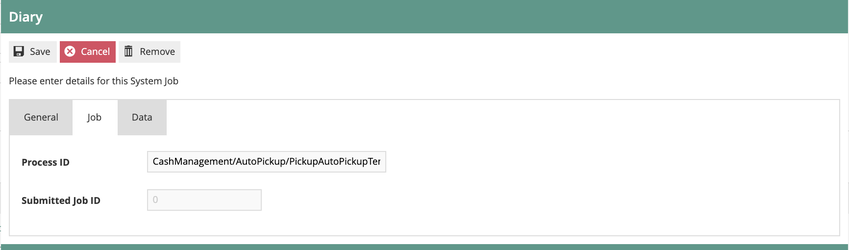
On the Job tab, set the Process ID to:
CashManagement/AutoPickup/PickupAutoPickupTenders
Data Tab
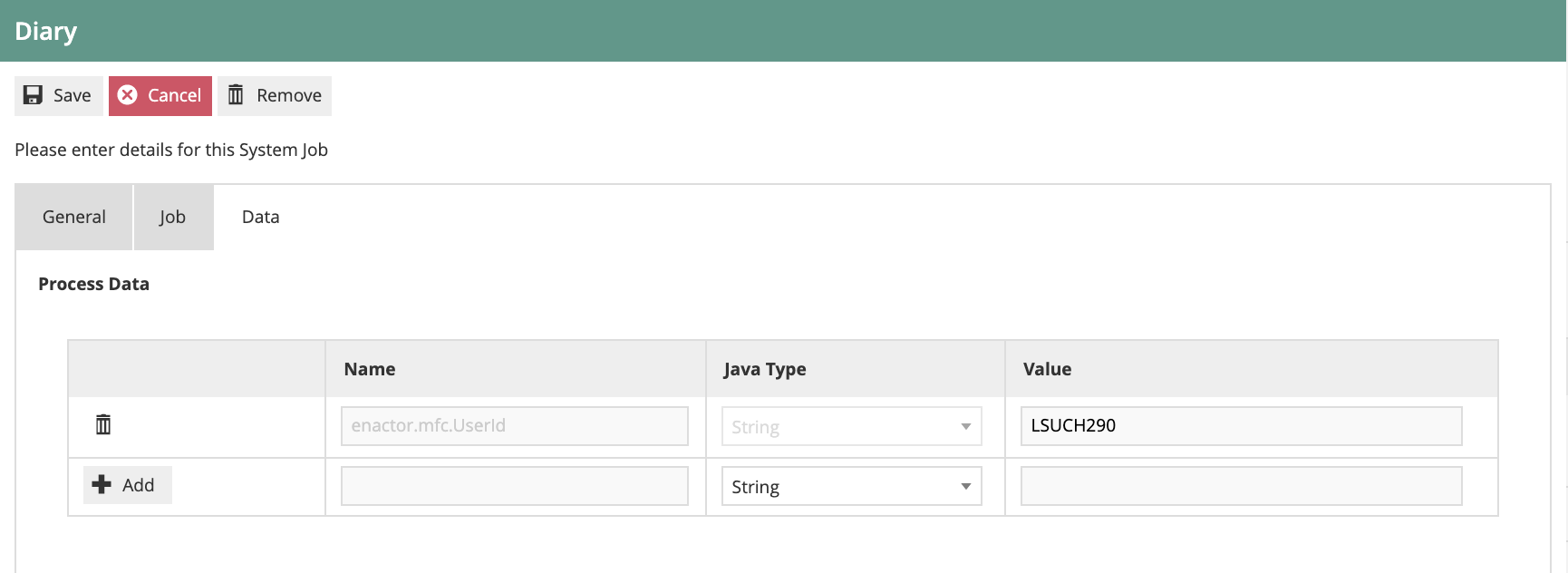
On the Data tab, add a process data entry for the user that will execute the job:
| Name | Java Type | Value |
|---|---|---|
enactor.mfc.UserId | String | Back office user ID for the store |
The user must be a real back office user for the store server where the job will run.
Click Save to create the diary entry.
Test 1 - Job Runs with Nothing to Pick Up
After the diary entry is saved, navigate to Administration > Scheduled Jobs and wait for the job to run.

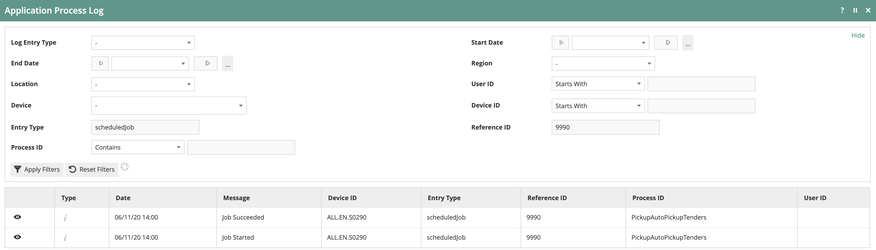
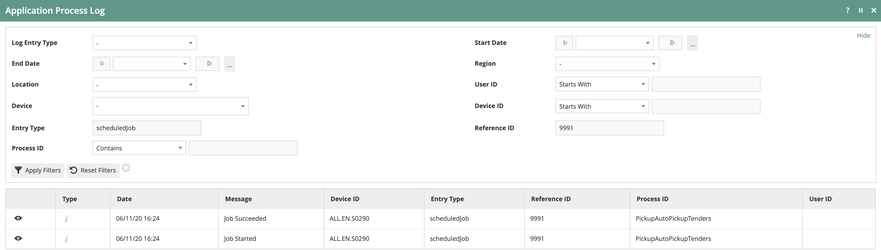
Click the job details icon to view the Application Process Log. In this case, the job succeeds as there is nothing to pick up.
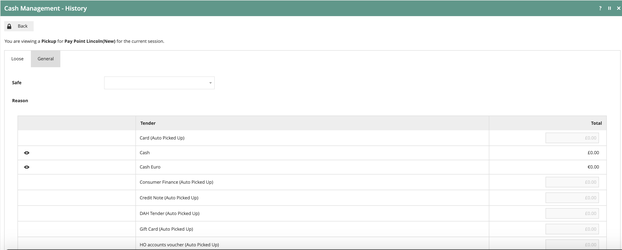
Navigate to Cash Management > Terminal Cash Management and view the History for the paypoint. The completed spot checks and manual pickup can be seen. As there was nothing in auto pickup, there will be no new entry.

Test 2 - Job Runs with Only Card Tenders
With nothing in the till from the previous test, perform a card transaction on the POS (in this example, a sale for £300).
Perform a Spot Check and the £300 card balance can be seen.
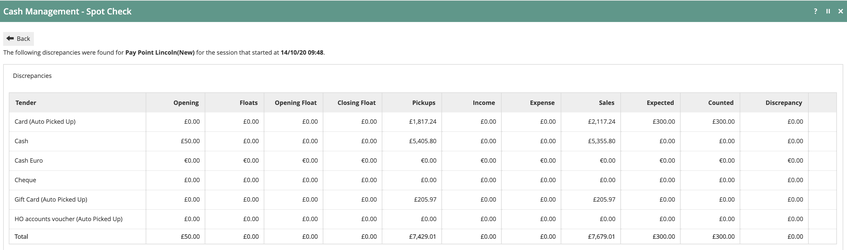
Create another diary entry for the auto pickup job to run in a couple of minutes. The job should succeed with no errors as there are only auto-pickup tenders in the till.
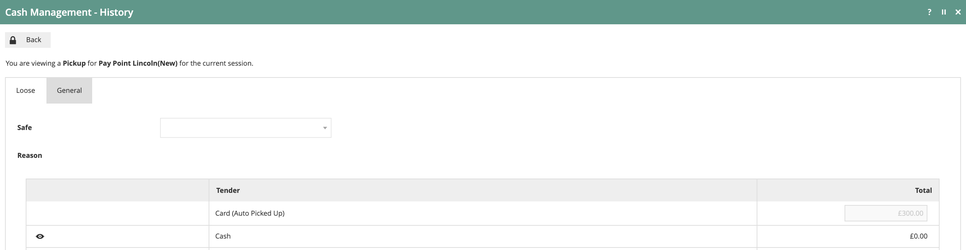
View the Cash Management History and the auto pickup containing £300 card tender can be seen.

Test 3 - Job Runs with Cash Tenders Present
This test demonstrates the failure scenario. When a non-zero cash tender is present, the job will fail and the pickup will be voided.
Make a card and cash payment of £100 each on the POS.
Perform a Spot Check and the £100 can be seen in both cash and card.
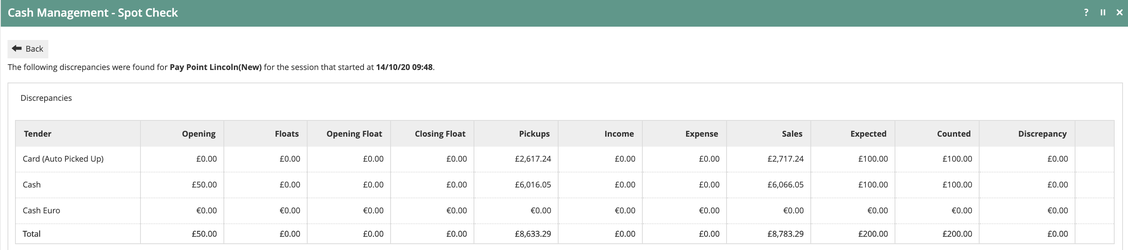
Run the scheduled job. The job will fail with errors because a non-zero cash tender is present.
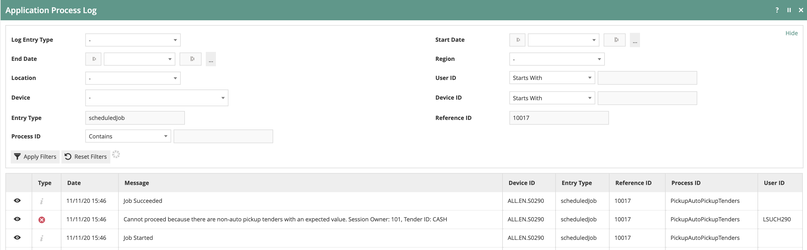
The error message reads: "Cannot proceed because there are non-auto pickup tenders with an expected value. Session Owner: 101, Tender ID: CASH". This indicates that the cash tender must be manually picked up before the auto pickup job can succeed.
View the Cash Management History and the pickup will be marked as Voided.