How To Configure Coupons
Introduction
The purpose of this guide is to provide a foundational understanding of the options and capabilities of Coupons. The use of Coupons provides the retailer a flexible method to issue a document or code that can be used as a promotion trigger on a future purchase.
Overview
The following concepts will be used to configure Coupons:
- Product Configuration - Create a Promotional Coupon Product
- Promotion Configuration - Set up promotions to issue and redeem coupons
Prerequisites
Before starting, you should have the following resources in place:
- Enactor Estate Manager
- Enactor POS (configured within the UK Region, connected to the Estate Manager)
- Standard Configuration, including:
- Base Configuration
- UK Retail (or other regional config packs)
- Regionally appropriate data including Product, Localisation, Tenders, etc.
Prior Training/Experience
You should be familiar with the following:
- Estate Manager configuration
- Enactor configuration concepts, including Locations, POS Terminals, Products, Promotions, Tenders, Discounts etc.
- Data broadcasting
- Standard POS Sales processes
Coupons
Coupons are a mechanism used to convey a discount or offer to a customer. Historically, Coupons were a printed document that were surrendered at the time of use but are now frequently issued digitally or as a short code to be used during online checkout. Coupons can be distributed externally from Enactor or issued at POS as a Promotion Reward Type. Coupon redemption is processed through the Enactor Promotions Engine where the Coupon Product is used as an item that is required to qualify for the Promotion.
Configuration
Coupon Product
To facilitate the use of the Promotions Engine for Coupon redemption, each Coupon is associated with a Promotional Coupon Product which is used as a qualifying item in the redemption offer. The basics of Promotional Coupon Product configuration mimic those of Merchandise Product configuration.
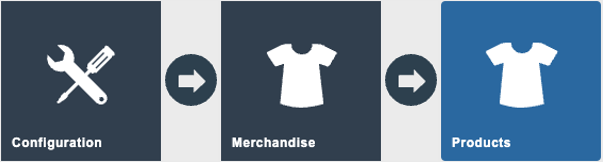
Access Product Maintenance using the Products option, obtained via the selection sequence shown at right, starting from the Main Menu:
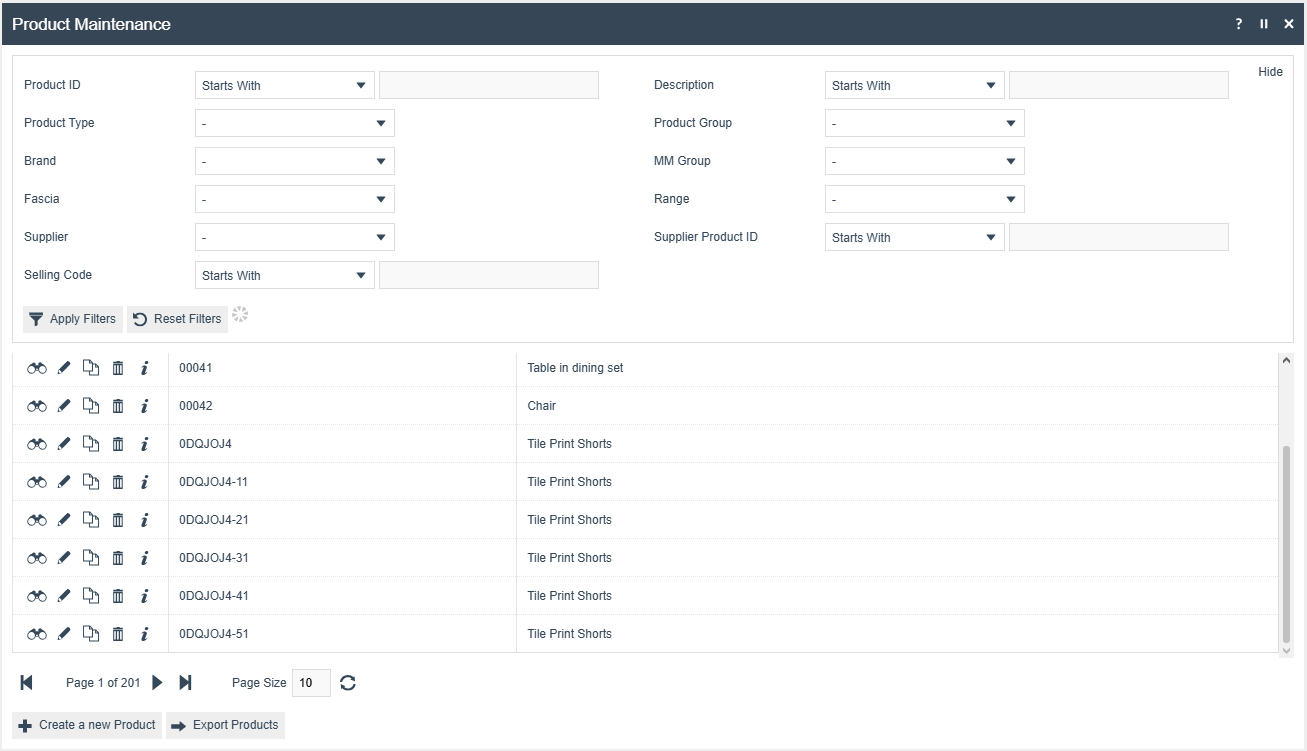
On the Product Maintenance page, select Create a new Product.

Select Promotional Coupon Product from the Product Type dropdown and enter the desired Product ID.
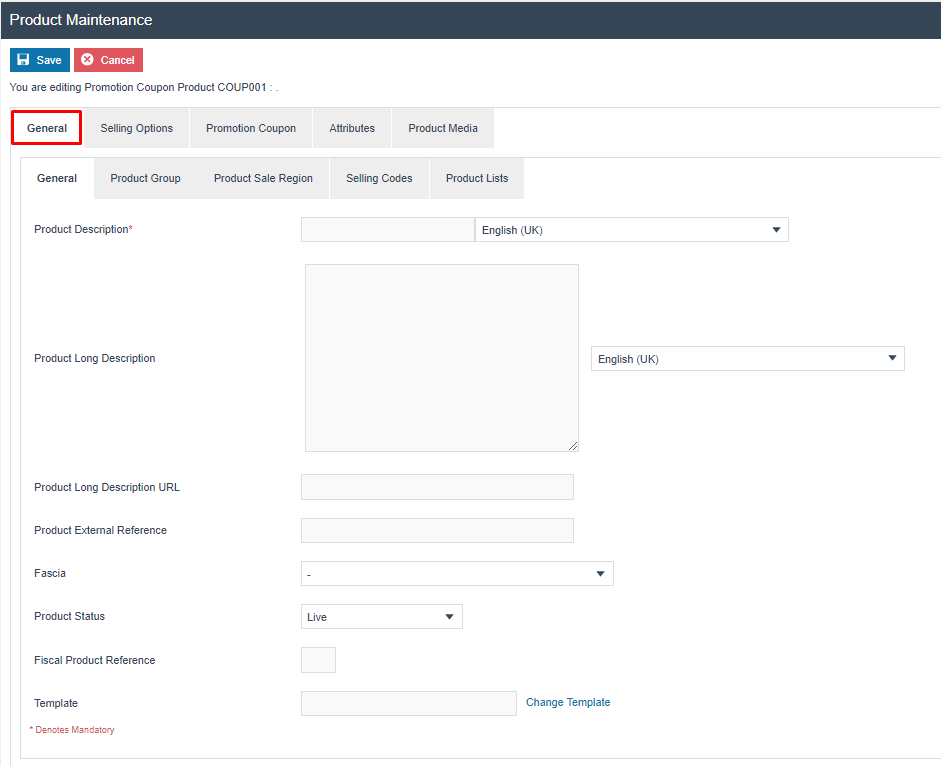
The basics of configuring a Promotional Coupon Product are the same as a Merchandise Product which are described in the configuration guide on Product setup. The only setting unique to the Promotional Coupon Product type is found on the Promotion Coupon tab. Select the desired Promotion Coupon Document from the dropdown which will be used when a Coupon is issued from POS.

No offer-related configuration is done within the Promotion Coupon Product setup.
The Promotional Coupon Product Type supports the use of multiple Selling Codes in the same manner as regular Merchandise Product. A retailer may find this especially useful when setting up a Promotion Coupon Product. While a complex Selling Code presented in the form of a barcode may be suitable for store use, a short code can also be assigned for use with e-commerce checkout. Additionally, retailers can use different selling codes to represent different distribution methodologies for the same offer. This can help the retailer understand the various response rates without creating multiple versions of the same offer.
Issuing Coupons
Coupons can be issued at the POS by creating a Promotion using the Promotion Coupon Promotion Type. The Promotion Coupon Promotion Type is available with transaction or item-based offers. Promotion qualification is configured in the same way as with other Promotion Types. Please refer to the configuration guide on Promotions for more information.
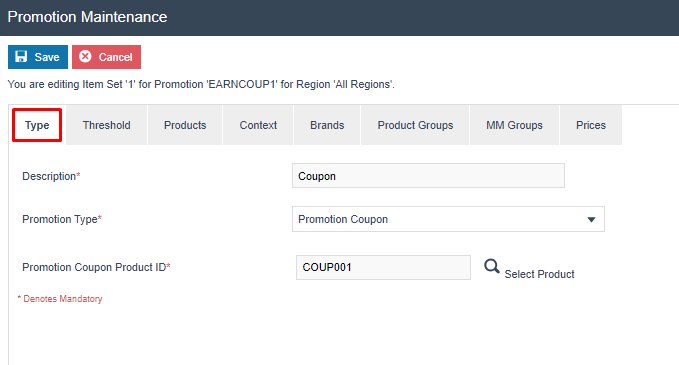
After selecting the Promotion Coupon Promotion Type, enter the Promotional Coupon Product ID. If the ID is not known, click the magnifying glass icon which will open Product Maintenance to facilitate searching for the item.
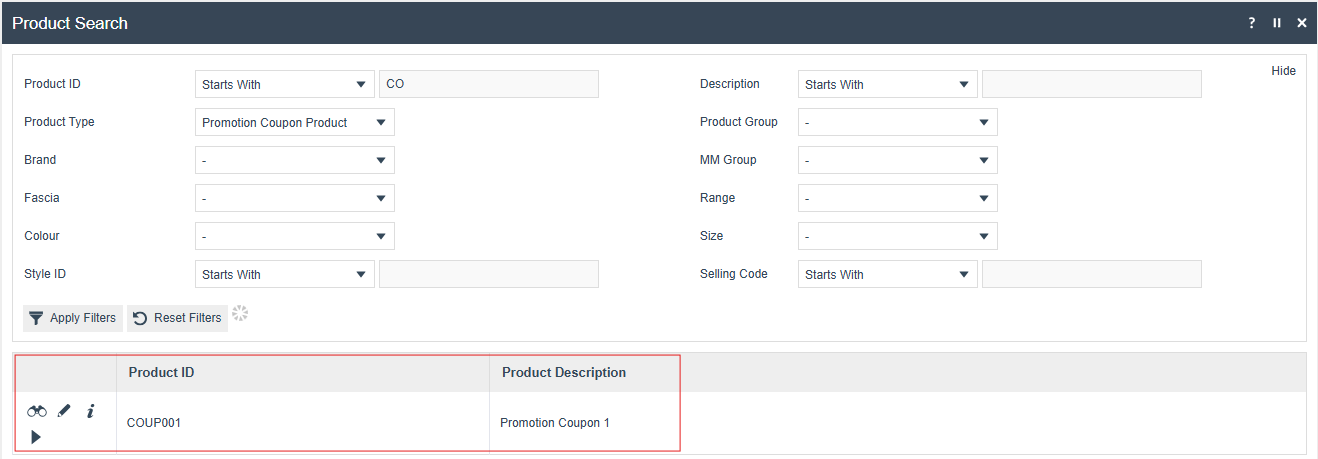
Once the Product ID has been found, click the arrow to return to the Promotion Maintenance application and complete any remaining aspects of Promotion configuration.
When the Promotion is triggered during a sale, a Coupon will be printed using the Promotion Coupon Document selected during Product setup.
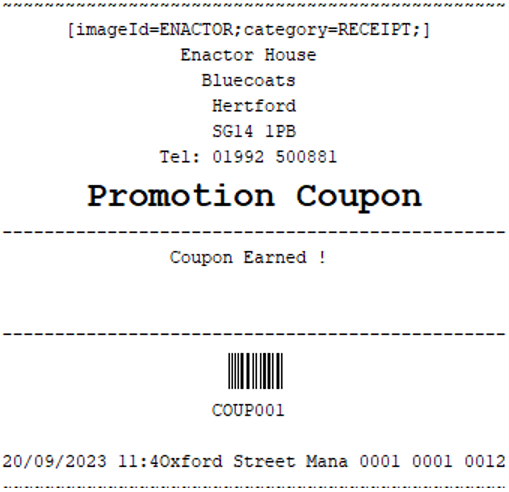
Be aware that since the Promotion Coupon Promotion Type does not modify any basket items, there is no indication within POS that the offer has been triggered. If a notification is desired, use the Force Acknowledge Triggered Alert option along with the Triggered Alert Message in Promotion setup on the General - General tab.
While Coupons are similar to Vouchers, one important difference is that Coupons do not have the ability to be tracked. Since Coupons are not tracked, they are not associated with a known Customer and will not appear on the Rewards tab of the Customer record.
Redeeming Coupons
Coupons are redeemed by using them as a qualifying condition on a Promotion. This allows the maximum flexibility in determining what types of offers can be triggered by a Coupon. A Coupon triggers an offer by adding the Promotion Coupon Product as an Item Set within the Promotion.
To set up a Promotion to be triggered by a Coupon, begin by completing the standard Promotion setup using Item Sets or Transaction Promotions. For additional information about Promotions, refer to the configuration guide on setting up Promotions.
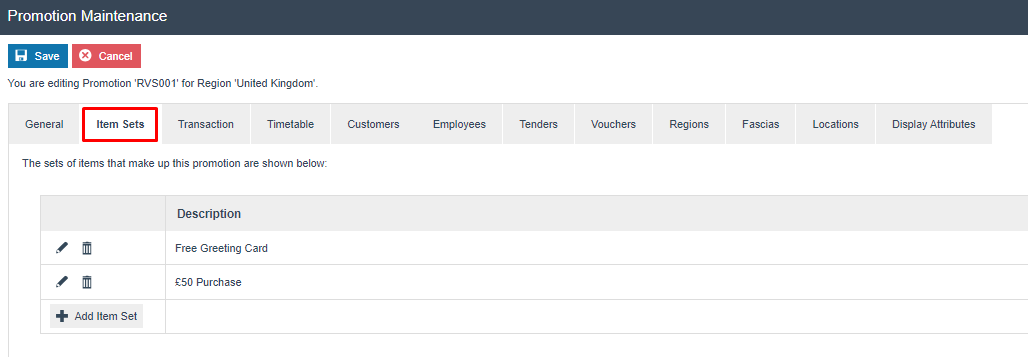
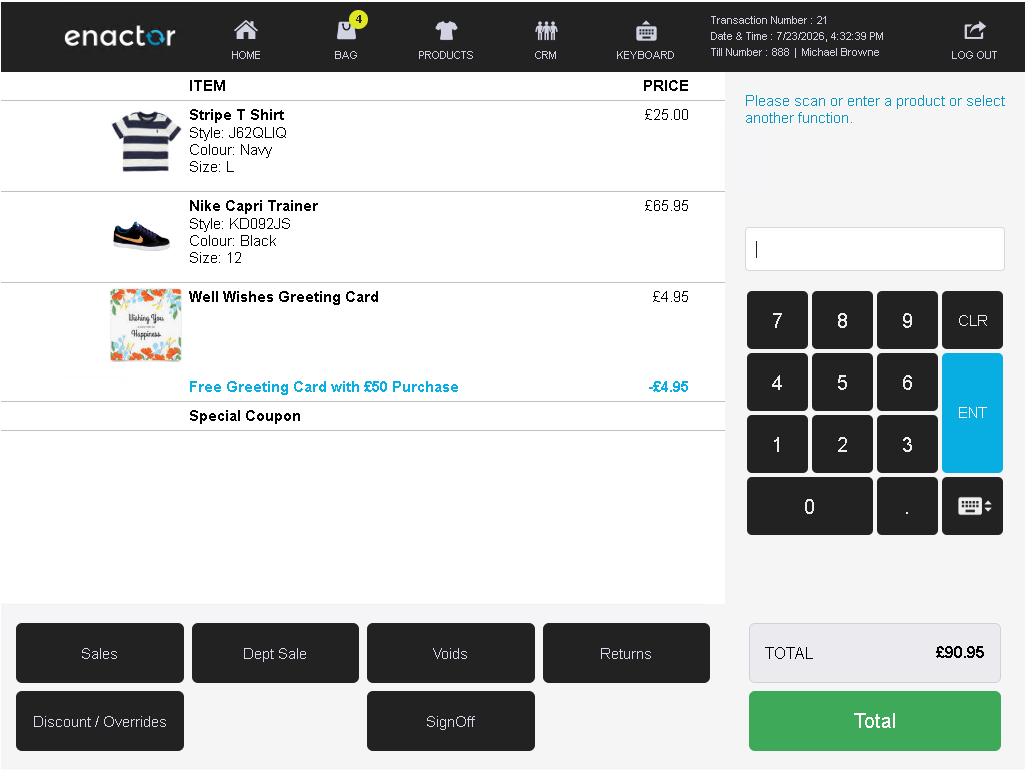
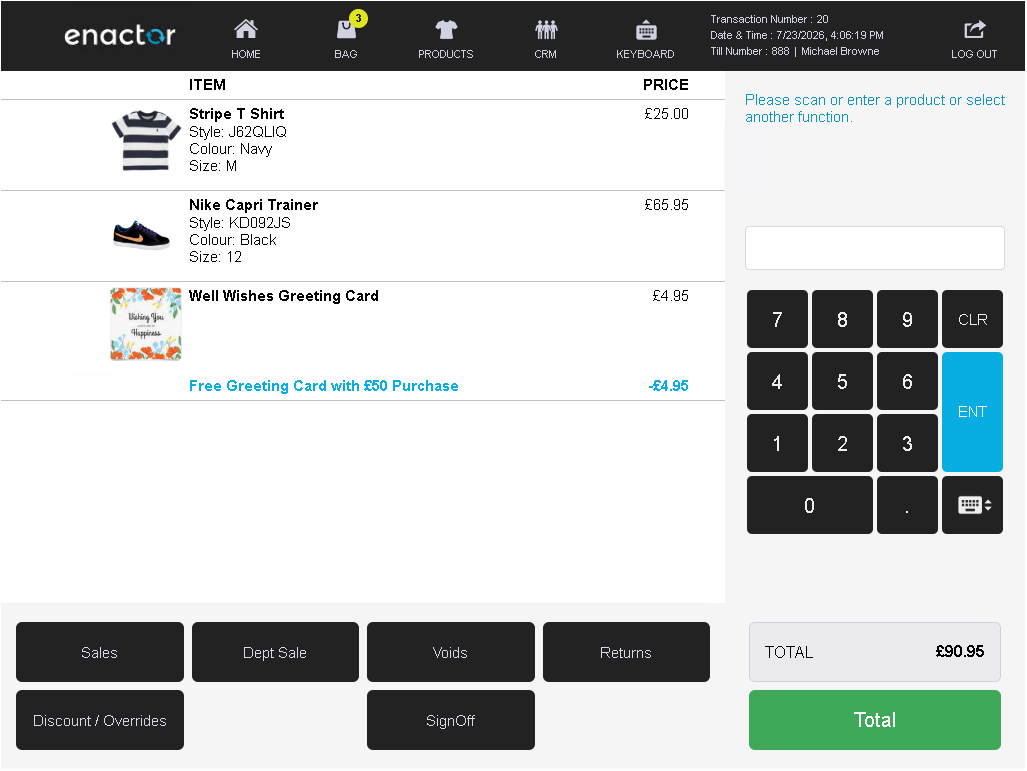
As seen in POS, the Promotion is triggered when all items are added to the basket:
To require the Coupon, an additional item set is needed.
Click Add Item Set.
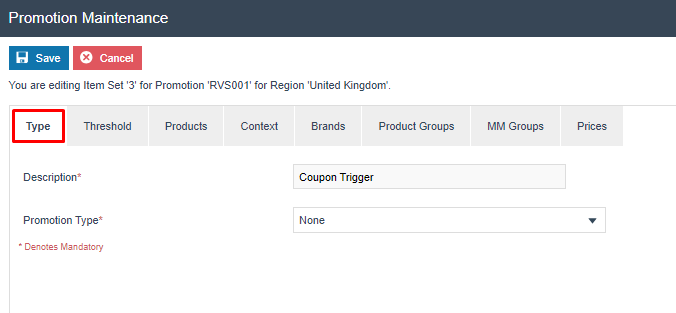
When creating the Item Set, provide a meaningful Description and leave the Promotion Type set as None.
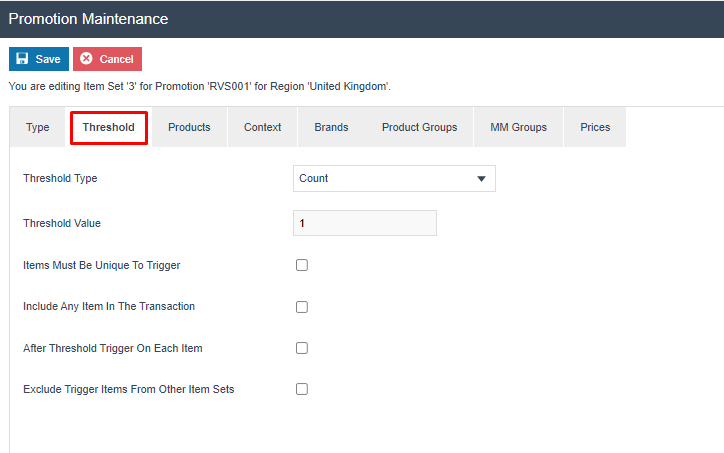
On the Threshold tab, set the Threshold Type to Count and the Threshold Value to 1.
Select the Products tab to enter the Promotion Coupon Product information.
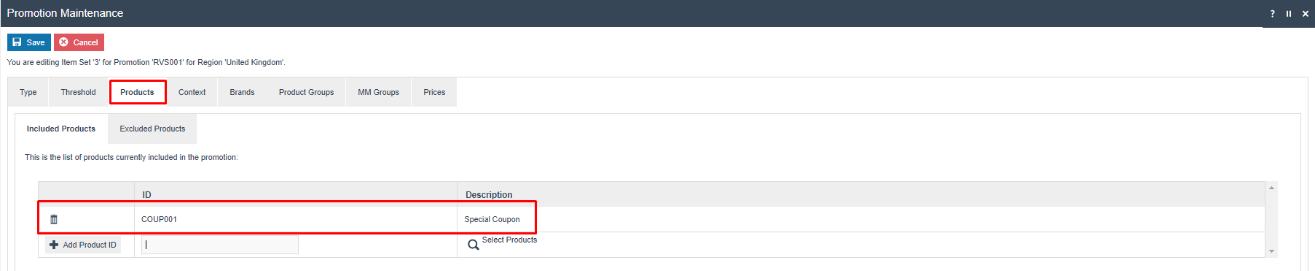
On the Included Products tab, enter the Promotion Coupon Product ID(s) and click Add Product ID. If you are unsure of the Product ID, click on the magnifying glass to open the Product Maintenance screen and search for the correct item. Save the Item Set and Promotion.
Now at POS, the Promotion is no longer triggered only by adding the items:
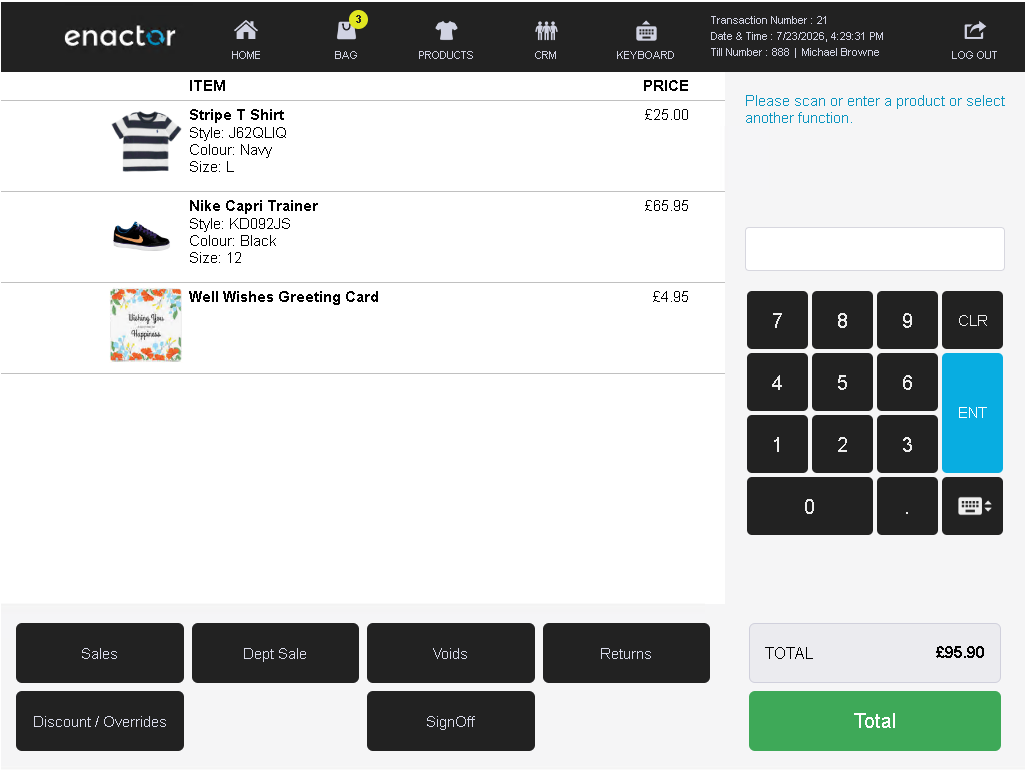
The Promotion Coupon Product specified in the Item Set must now be added to the transaction to trigger the Promotion.