How To Configure Customers
Introduction
The purpose of this guide is to describe the steps required to configure core Customer Data in Enactor such as Customer Types, Customer Groups, Customers, and Relationship Types. These entities define how customers are categorised, grouped, and associated with one another within the Enactor system.
Core Customer Data is shared across applications including Customer Loyalty, Gift Cards, Customer Orders, and Promotions. Enactor supports a rich Customer Relationship Management (CRM) capability. While the basic retail POS functionality is product-sale oriented and does not strictly require Customer Data, various optional applications including Customer Loyalty, Gift Cards, Customer Orders, and Promotions either require or provide richer functionality when Customer Data is available.
This guide covers the Core Customer Data elements that are fundamental to Enactor or shared in common by other applications, describing the steps required to configure Customer Data in the Enactor Estate Manager, including defining Customer Types and Customer Groups, maintaining Customer records, and configuring Relationship Types.
Configuring Customer Accounts and Customer Cards are covered in the Configuring Customer Accounts guide.
Overview
This guide covers the configuration for the following:
- Customer Types Configuration - Define the categories of customers being used by the business.
- Customer Groups Configuration - Define and configure Customer Groups for use in customer pricing, promotions, and reporting.
- Customer Configuration - Create and maintain core customer records including name, address, contact details, personal details, identities, attributes, and relationships.
- Relationship Types - Define the types of relationships that may exist between customers.
Prerequisites
Before starting, you should be familiar with the following:
- Estate Manager Configuration
- Data Broadcasting
- Enactor Organisation Structure (Regions, Locations)
Configuration Steps - Customer Types
Customer Types define user-defined categories of customers recognised by the business. In a standard system, Customer Types include Business and Retail. The Customer Type is selected when creating a new Customer record and defaults to Retail if unspecified. Custom Customer Types may be defined to meet specific business requirements.
Accessing Customer Type Maintenance
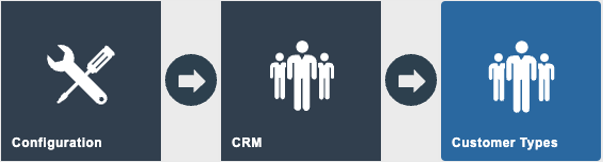
Navigate to Customer Type Maintenance using the path:
Main Menu > Configuration > CRM > Customer Types
Creating a New Customer Type
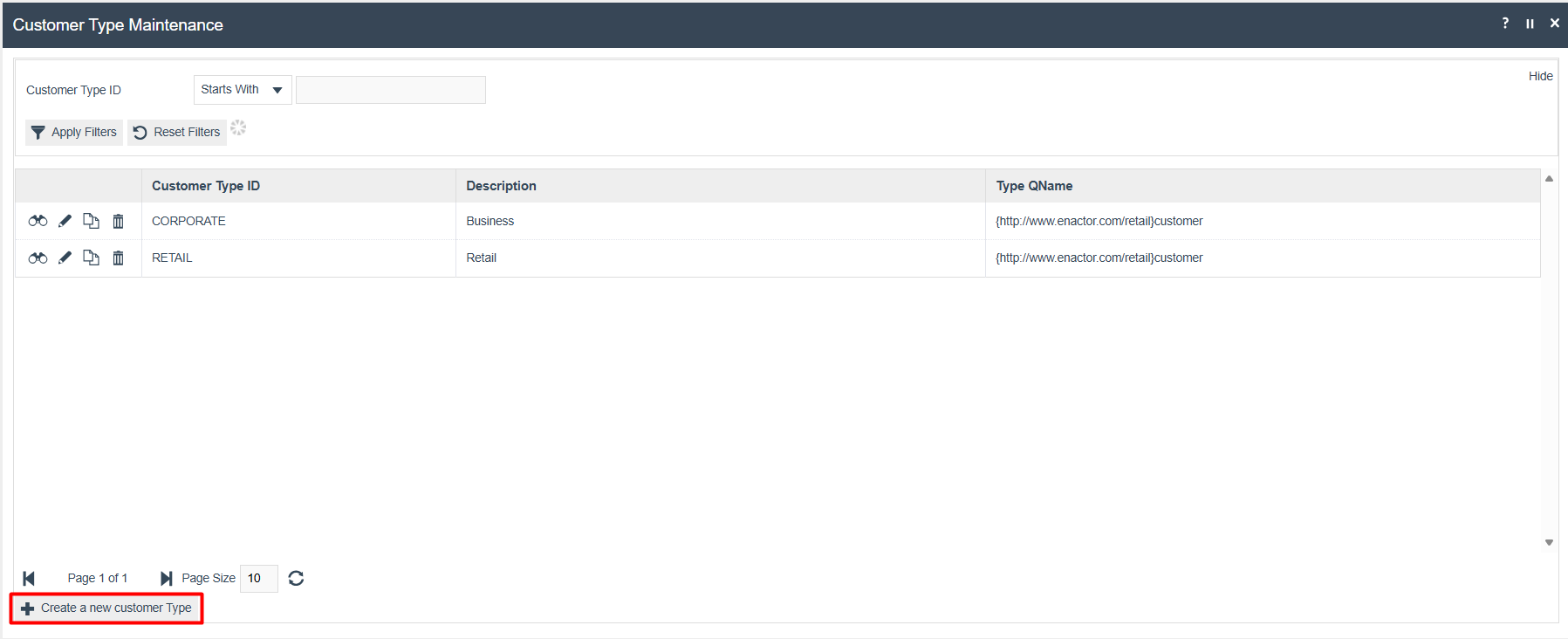
To create a new Customer Type:
- Select Create a new Customer Type on the Customer Type Maintenance page.
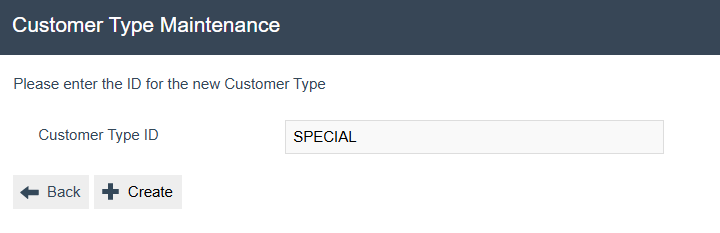
- Enter a unique Customer Type ID and select Create.
Customer Types - General Tab
The General Tab is where all the details of the new Customer Type are configured.
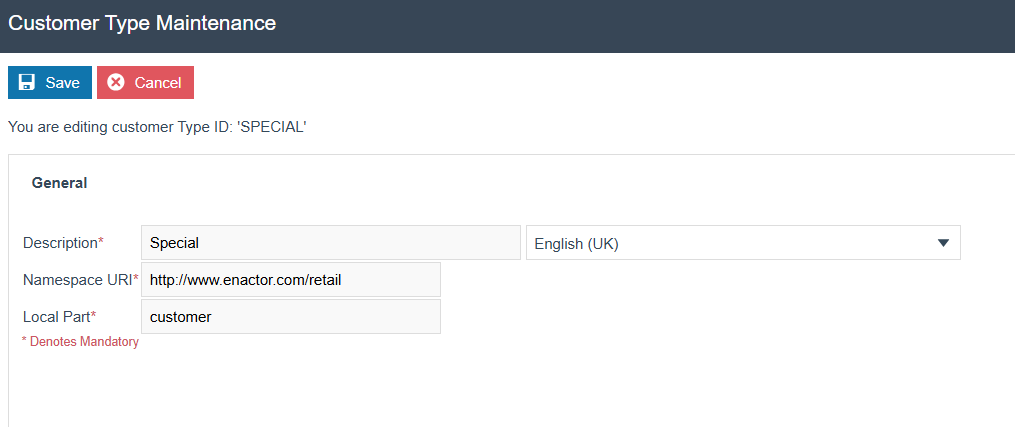
Set the appropriate values as follows:
| Property | Description |
|---|---|
| Description | A user-friendly name for the Customer Type displayed in dropdown lists throughout the system. |
| Namespace URI | Unless explicitly customising the Enactor Application to use different entities, always retain the default Namespace URI (http://www.enactor.com/retail). |
| Local Part | Retain the default value customer unless customising the entity type. |
Select Save to save the Customer Type record.
This completes the Customer Types configuration.
Configuration Steps - Customer Groups
Customer Groups are used to organise customers into named groupings. A Price Group may be associated with a Customer Group to implement customer-specific product pricing for defined ranges of products. When customer data is available to a transaction, product prices are preferentially sought in the Price Group associated with the Customer or their Customer Group, taking precedence over other pricing. A Price Group directly associated with an individual Customer takes precedence over any associated with their Customer Group.
Customer Groups may also be referenced in Promotion configuration as Included or Excluded Customer Groups, enabling promotions to be targeted at or excluded from specific customer segments. Customer Groups may additionally be used for reporting purposes.
Accessing Group Hierarchy Maintenance
Navigate to Group Hierarchy Maintenance using the path:
Main Menu > Configuration > Organisation > Groups
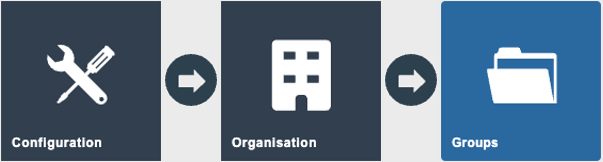
Creating a New Customer Group
To create a new Customer Group:
-
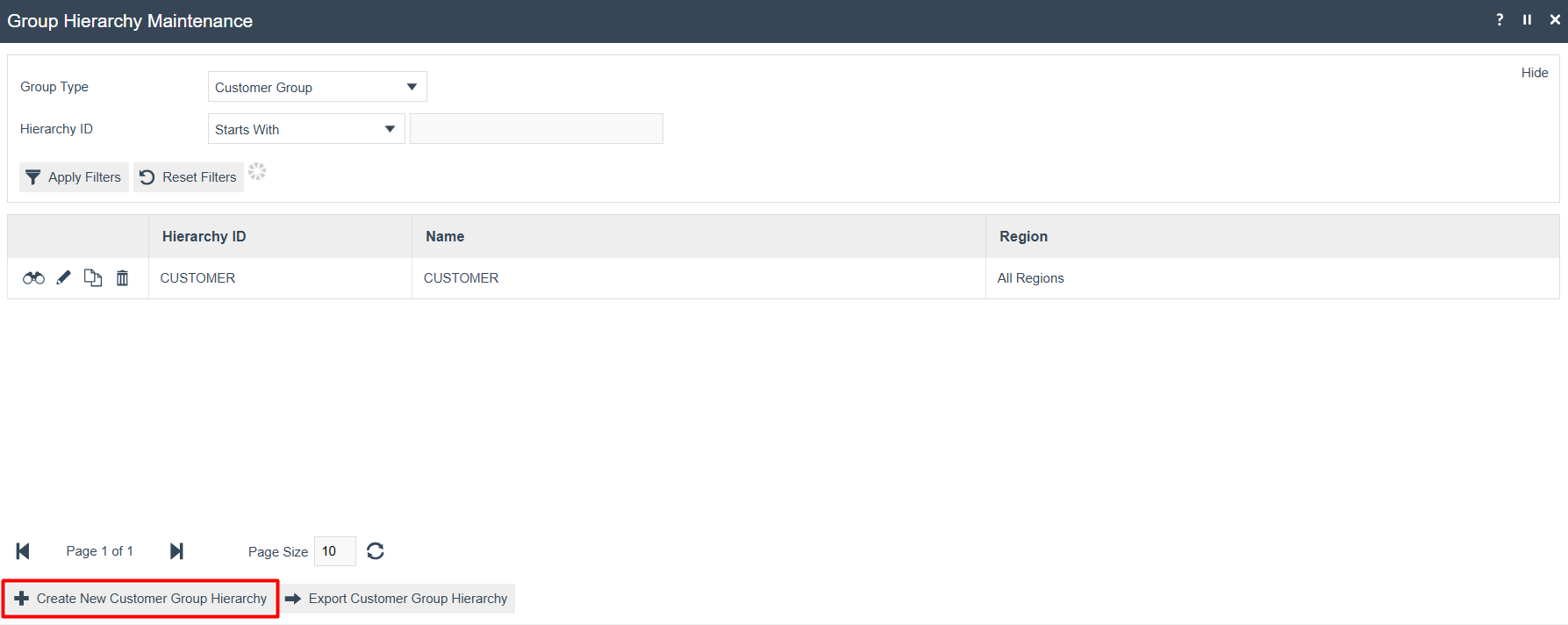
On the Group Hierarchy Maintenance page, select Customer Group from the Group Type dropdown list and select Apply Filters.
-
Select Create New Customer Group Hierarchy.
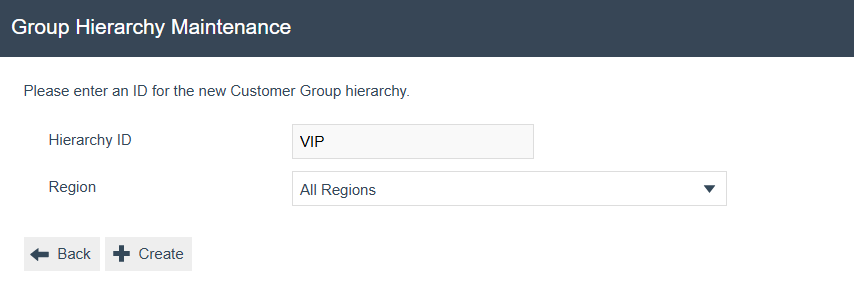
- Specify a unique Hierarchy ID (maximum 20 alphanumeric characters) and the Region that this should be applicable to, then select Create.
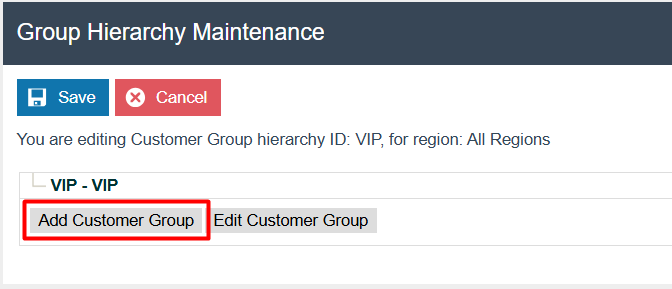
- With the hierarchy selected, select Add Customer Group to add a new group.
- Specify a unique Group ID (maximum 20 alphanumeric characters) and a Name for the new Customer Group, then select Create. The Group ID must differ from the Hierarchy ID.
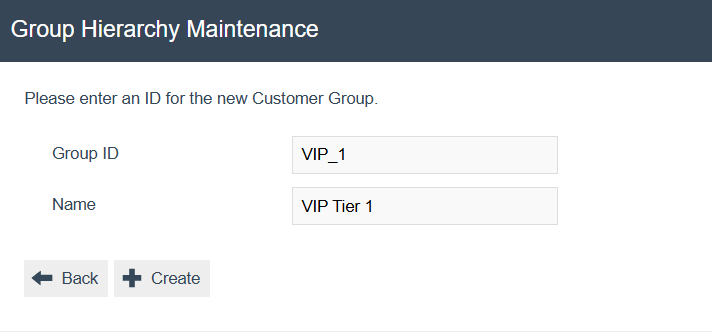
- With the new Customer Group selected, use the Edit Customer Group option to specify the group properties.
Customer Groups - General Tab
The General Tab is where all the details of the Customer Group are configured.
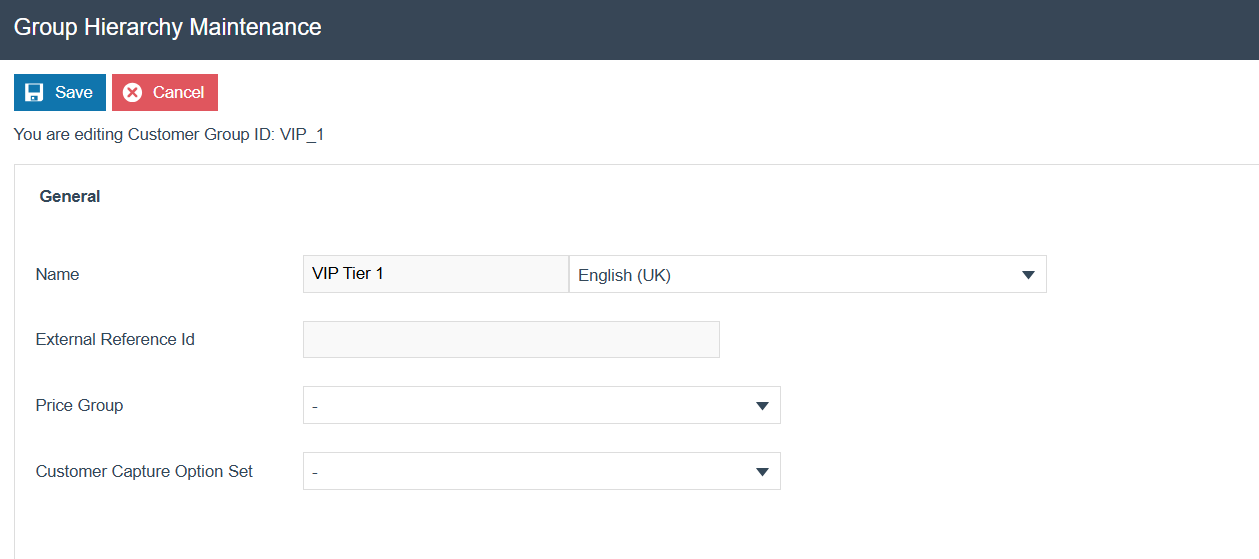
Set the appropriate values for the Customer Group as follows:
| Property | Description |
|---|---|
| Name | A user-friendly name for the Customer Group (maximum 40 alphanumeric characters). Used to identify the group in Customer Maintenance and other configuration functions. |
| External Reference ID | Optional. A reference string (alphanumeric, maximum 40 characters) that identifies the entity when imported from or exported to an external system. |
| Price Group | Optional. A Price Group to associate with the Customer Group, enabling customer-specific product pricing. A Price Group associated directly with an individual Customer takes precedence over one associated with their Customer Group. |
| Customer Capture Option Set | Optional. A Customer Capture Option Set to associate with the Customer Group, defining additional data capture options applicable to customers in this group. |
Select Save to save the Customer Group record.
This completes the Customer Groups configuration.
Configuration Steps - Configuring Customers
Customer configuration defines the core Customer Data and captures information required to maintain the business relationship with the customer. Customer information may also be required by the POS and is made available via the Broadcast, XML download process, and through Enactor's APIs.
Accessing Customer Maintenance
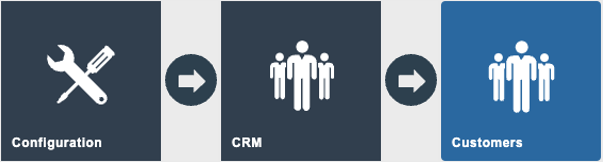
Navigate to Customer Maintenance using the path:
Main Menu > Configuration > CRM > Customers
Creating a New Customer
To create a new Customer:
- Select Create New Customer on the Customer Maintenance page.
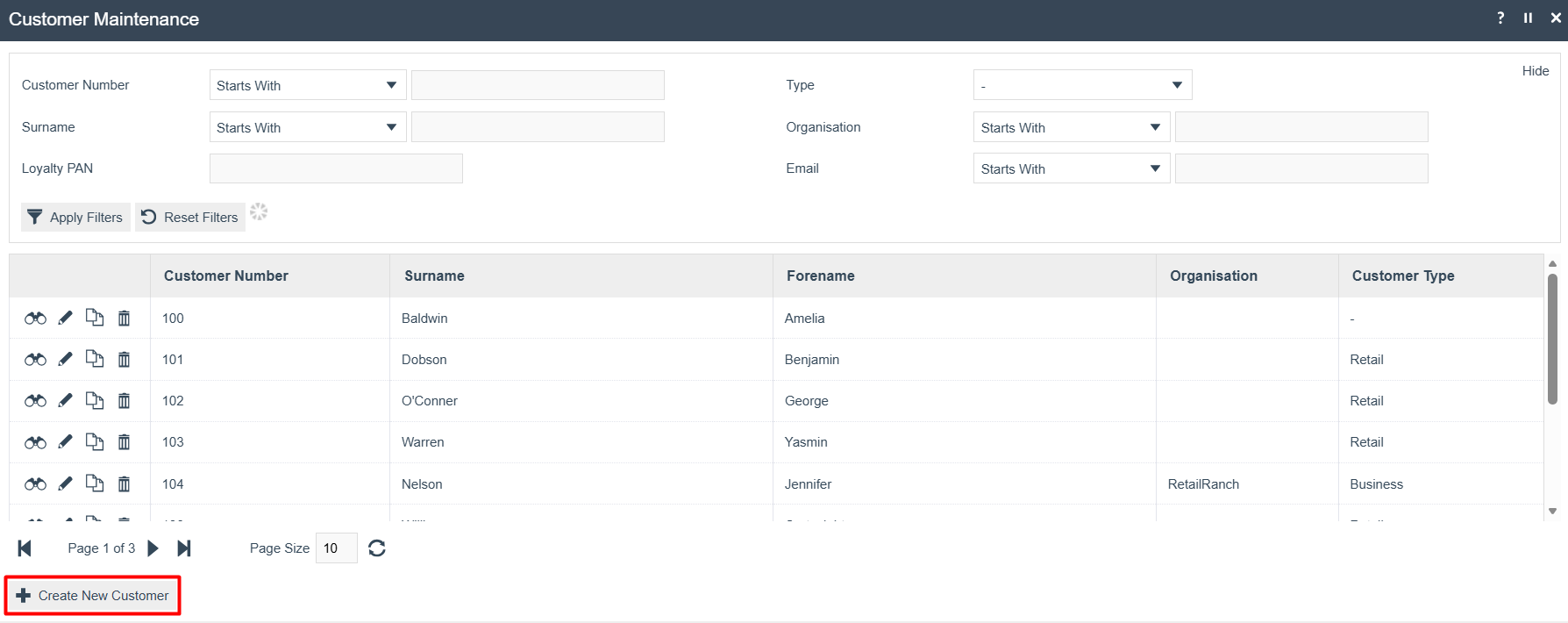
- Enter a unique Customer Number (maximum 20 alphanumeric characters) and optionally select a Customer Type, then select Create.
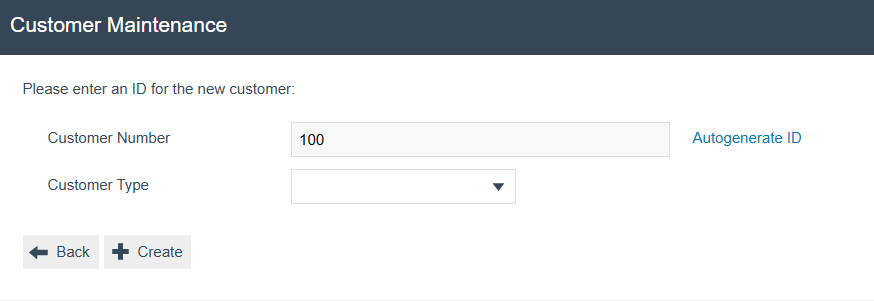
The auto-generate facility may optionally be applied to the Customer Number. The Customer Type defaults to Retail if unspecified.
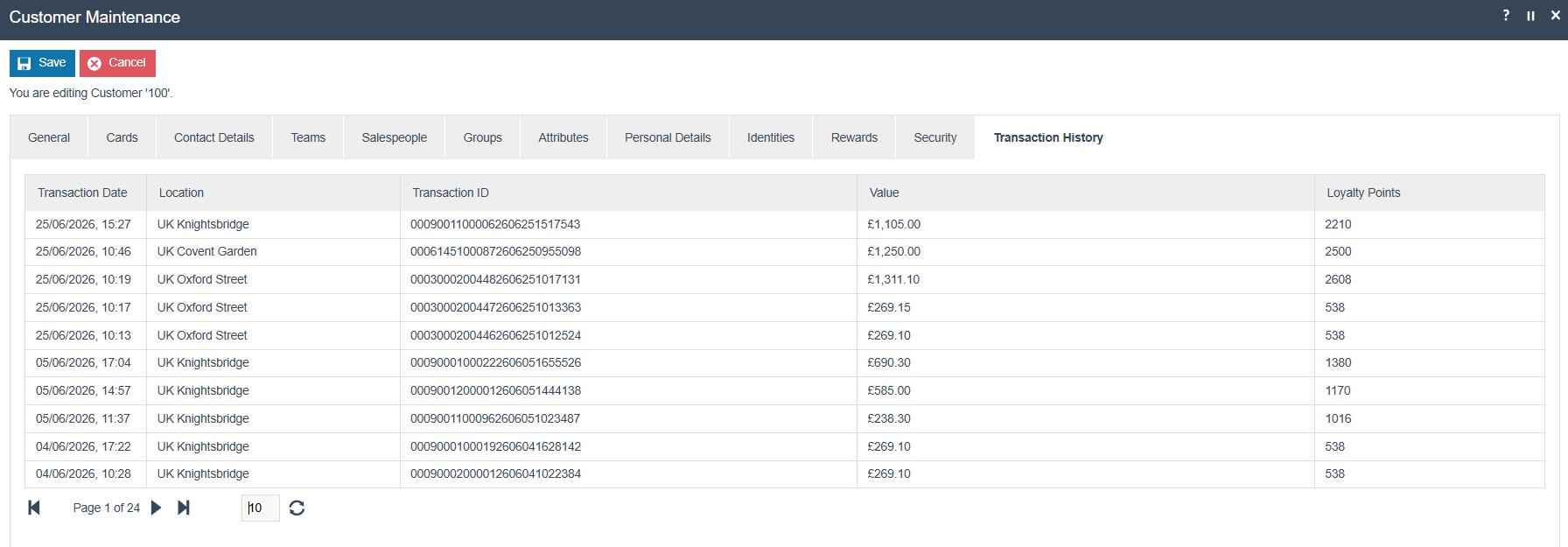
The Customer Maintenance page contains several tabs: General, Cards, Contact Details, Teams, Salespeople, Groups, Attributes, Personal Details, Identities, Rewards, Security, and Transaction History. Only the Surname field on the General Tab is mandatory to create a customer.
Customers - General Tab
The General Tab captures identifying information about the Customer.
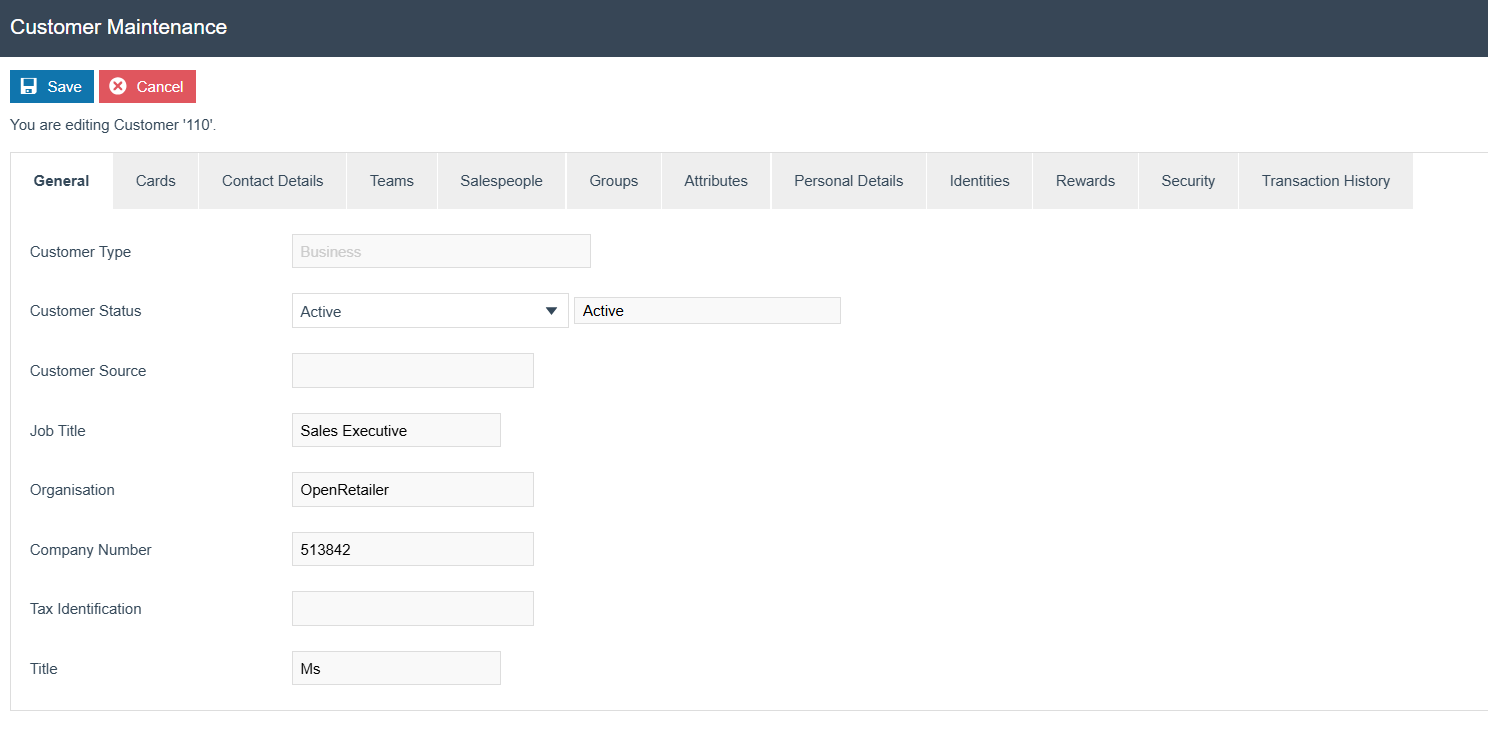
Set the appropriate values as follows:
| Property | Description |
|---|---|
| Customer Type | Dropdown of configured Customer Types. Defaults to Retail if unspecified. |
| Customer Status | Dropdown: New, Captured, Active, or Inactive. Controls usage of the customer data. |
| Customer Source | Source of the Customer data (optional). |
| Organisation | Organisation to which a business Customer belongs. |
| Company Number | Company Number of the Organisation to which a business Customer belongs. |
| Tax Identification | Tax Identification of the Organisation to which a business Customer belongs. |
| Title | Customer's title. |
| Surname* | Customer's surname. This is the only mandatory property. |
| Forename | Customer's forename. |
| Initials | Customer's initials. |
| Date Of Birth | Customer's date of birth. |
| Sex | Customer's gender. |
| Employee Id | If the Customer is also an Employee, the Customer's Employee ID. |
| Employee Name | If the Customer is also an Employee, the Customer's Employee Name. |
| Price Group | A Price Group applied directly to this customer, taking precedence over any Price Group associated with their Customer Group. |
| Privacy Level | A value in the range 0 to 100 defining the threshold level required for access to this customer's data. |
Customers - Cards Tab
The Cards Tab is read-only, providing visibility of card details (PAN, Type, and Balance) for all Cards associated with the selected Customer. These details are maintained using the Customer Card maintenance application.

Customers - Contact Details Tab
The Contact Details Tab provides access to sub-tabs for Addresses, Phones, and Emails contact information for the Customer, each allowing multiple entries to be viewed and added. In all sub-tabs, entries may be typed, subject to Status and Restricted Reason qualifiers, and effective-dated using Type, Status, Restricted Reason, Valid From, and Valid To.
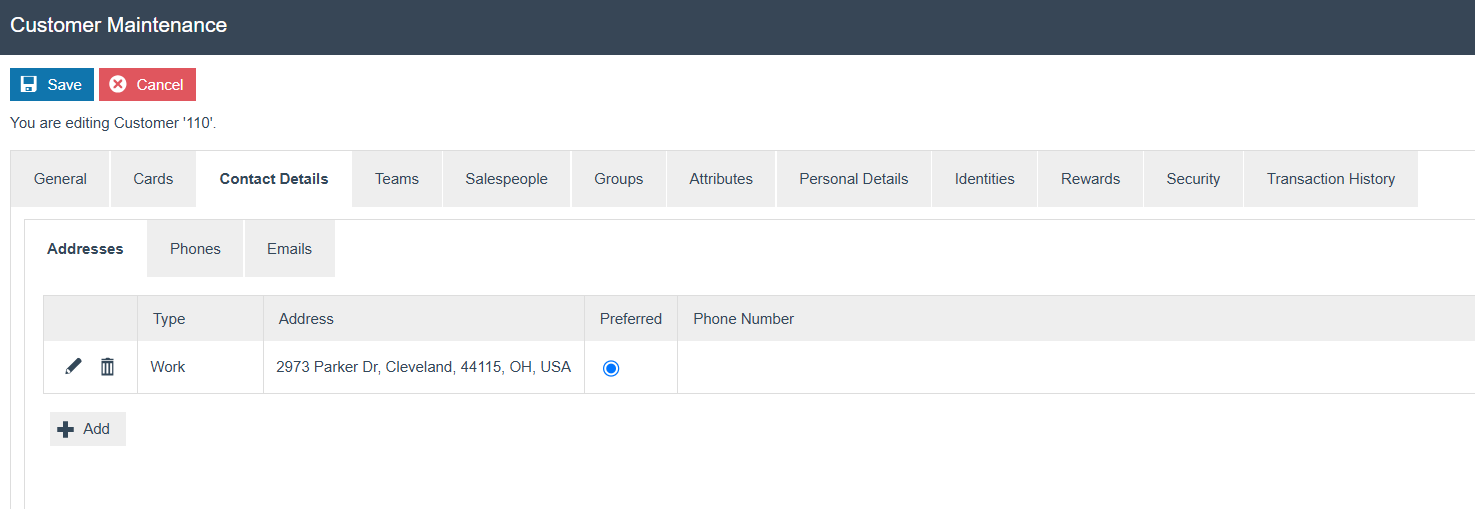
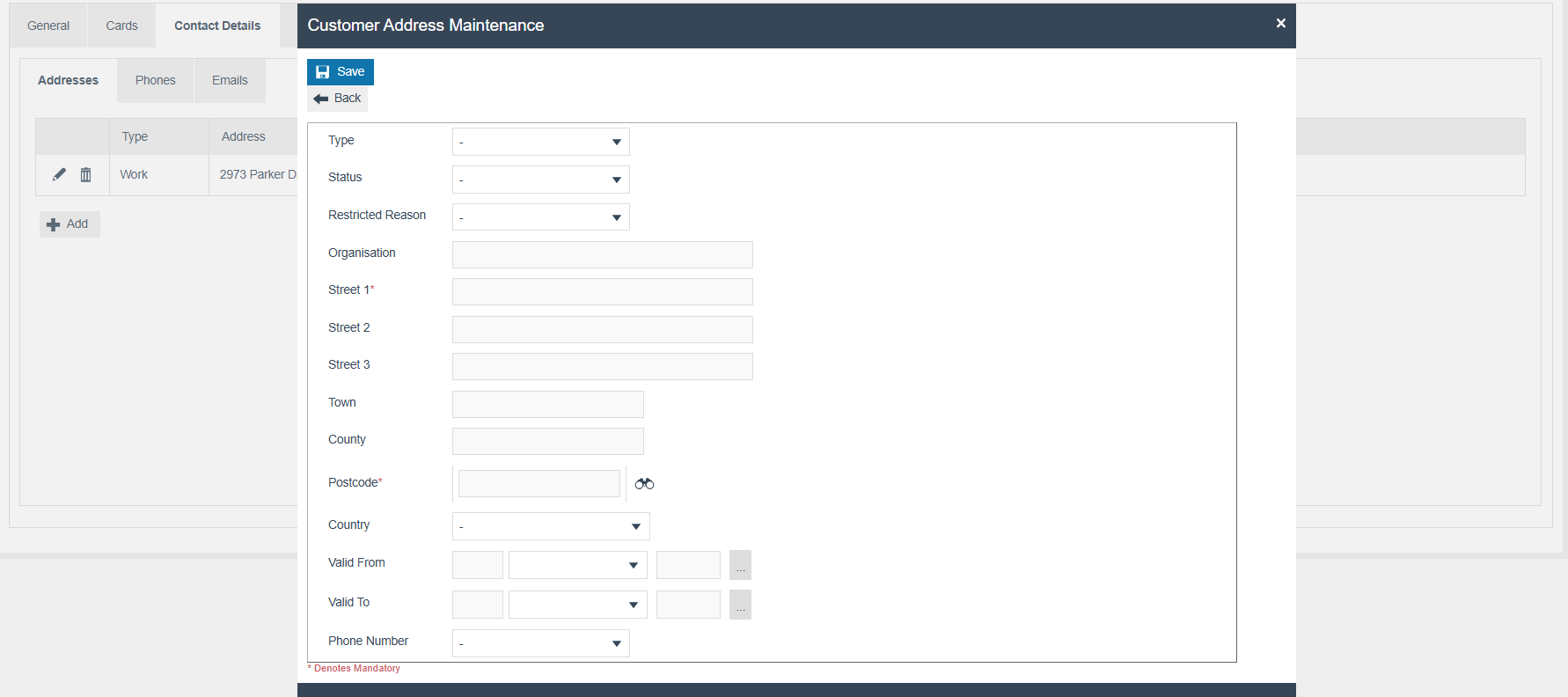
Select Add to add a new address. The Customer Address Maintenance form captures Type, Status, Restricted Reason, street address fields, Town, County, Postcode, Country, and effective date range.
Customers - Teams and Salespeople Tabs
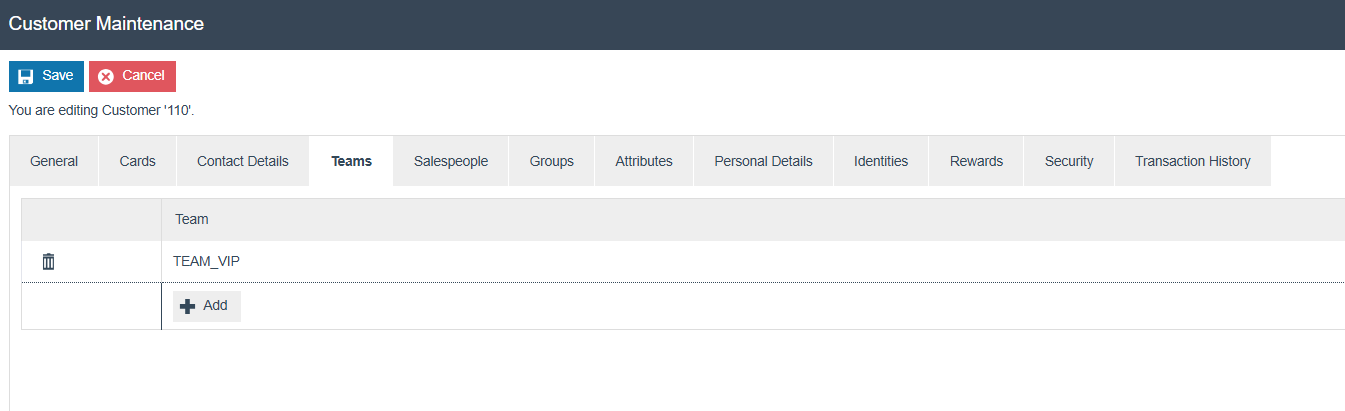
The Teams and Salespeople Tabs support Staff-Customer Association, allowing specific staff members or teams to be linked to a customer for personalised in-store service.

| Tab | Description |
|---|---|
| Teams | Associates one or more teams of staff with the customer. New Teams may also be created from within this tab. |
| Salespeople | Associates individual members of staff (Salespersons) with the customer. |
Customers - Groups Tab
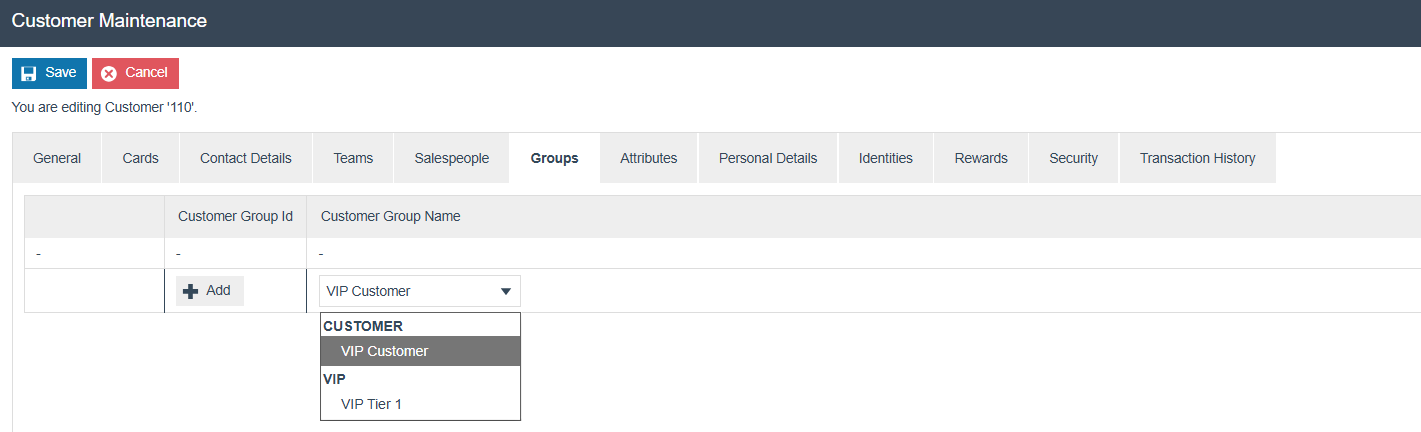
The Groups Tab allows the customer to be assigned to one or more Customer Groups, selected from a dropdown list of all Customer Groups defined in configuration.
Customers - Attributes Tab
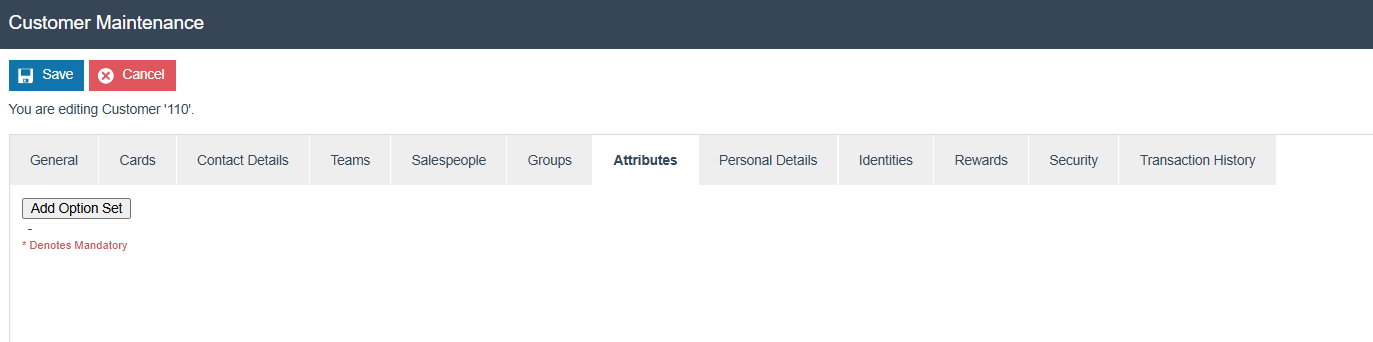
The Attributes Tab provides for customer-defined extensions to configuration data using the Enactor Option Set infrastructure. If no additional attributes have been configured, the tab will offer only the Add Option Set option.
Customers - Personal Details Tab
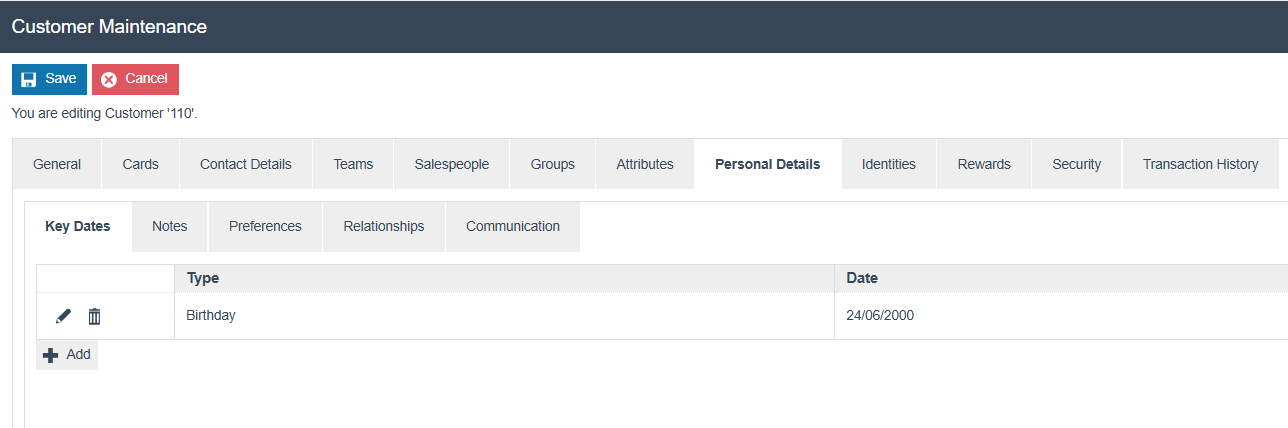
The Personal Details Tab is divided into five sub-tabs:
| Sub-Tab | Description |
|---|---|
| Key Dates | Dates of interest, such as birthdays and anniversaries. Each Key Date is assigned a Customer Key Date Type that may generate automatic reminders. |
| Notes | Free-format information associated with the customer. Notes flagged as Private are accessible only to associated Salesperson or Team staff members. |
| Preferences | Customer-specific preference values using Option Sets. |
| Relationships | Associations with other customers of a defined Relationship Type (e.g. Parent-Child). Types are configured in Relationship Types maintenance. |
| Communication | Read-only. Assigned Customer Communication is displayed here. |
Customers - Identities Tab
The Identities Tab captures information from identifying documents (e.g. NIC, passport, driving licence), relevant for businesses dealing with Currency Type Products to support Money Laundering legislative compliance.
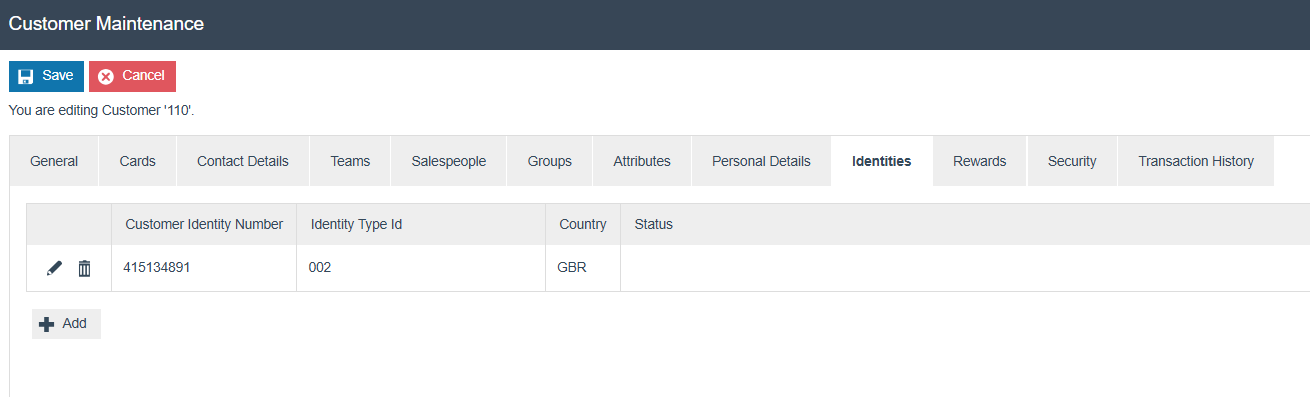
Select Add to add a new identity. The Customer Identity Maintenance form captures the following fields:
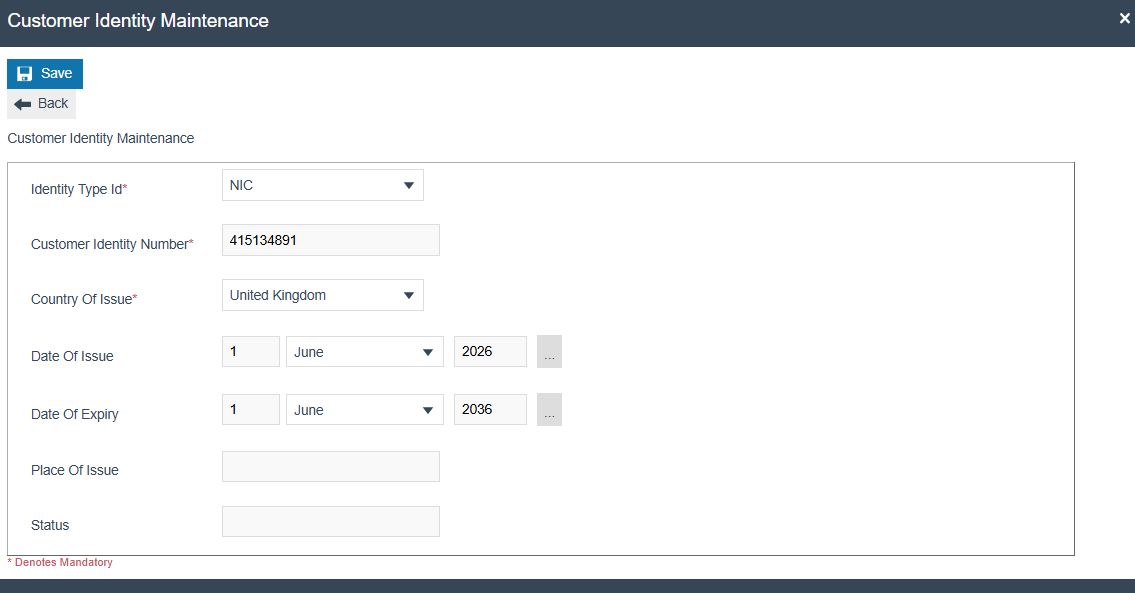
| Property | Description |
|---|---|
| Identity Type ID* | Mandatory. Selected from a dropdown list of pre-defined Customer Identity Types. |
| Customer Identity Number* | Mandatory. The document number or identifier. |
| Country of Issue* | Mandatory. The country that issued the document. |
| Date of Issue | The date the document was issued. |
| Date of Expiry | The expiry date of the document. |
| Place of Issue | The place the document was issued. |
| Status | The current status of the identity document. |
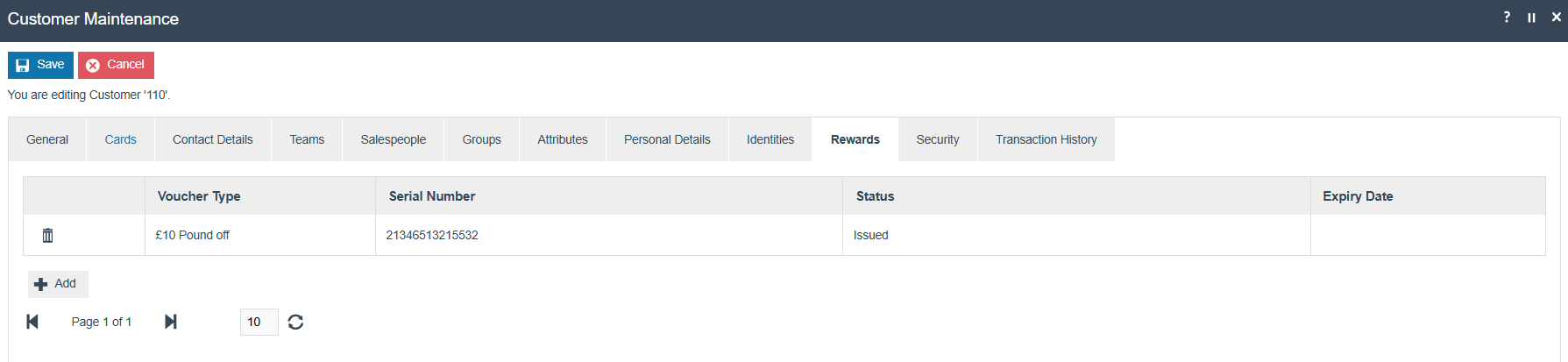
Customers - Rewards Tab
The Rewards Tab allows you to view and add vouchers provided to the Customer and their status. For each voucher issued to the Customer, the page displays Voucher Type, Serial Number, Status, and Expiry Date.
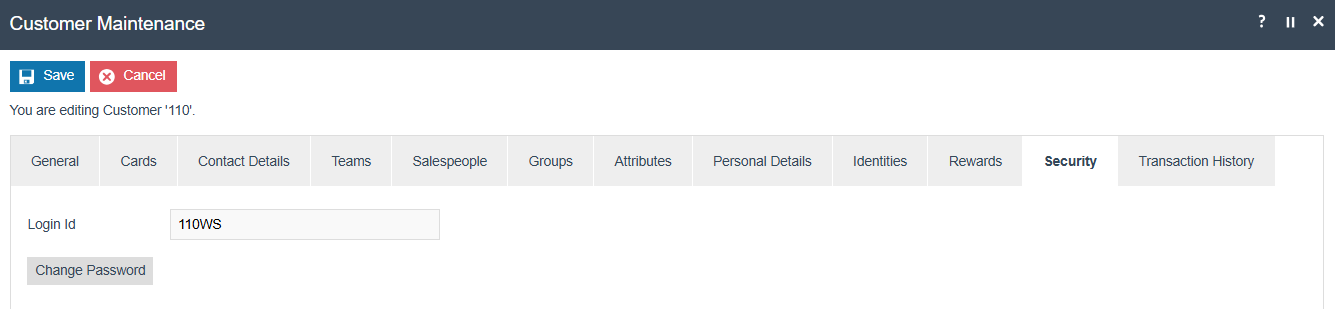
Customers - Security Tab
The Security Tab allows you to manage a customer's login and authentication credentials, including Login Id and password. This is used primarily for Web Shop login.
Customers - Transaction History Tab
The Transaction History Tab is a read-only tab that displays all transaction details for this customer, including Transaction Date, Location, Transaction ID, Value, and Loyalty Points.
Select Save to save the Customer record.
This completes the Customer configuration.
Configuration Steps - Relationship Types
Relationship Type configuration defines the types of relationships that may exist between customer records. Relationships are typically bidirectional (e.g. Parent-Child) and are defined separately in each direction.
Accessing Relationship Type Maintenance
Navigate to Relationship Type Maintenance using the path:
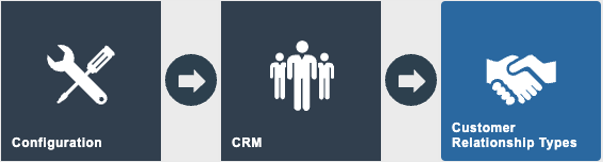
Main Menu > Configuration > CRM > Relationship Types
Creating a New Relationship Type
To create a new Relationship Type:
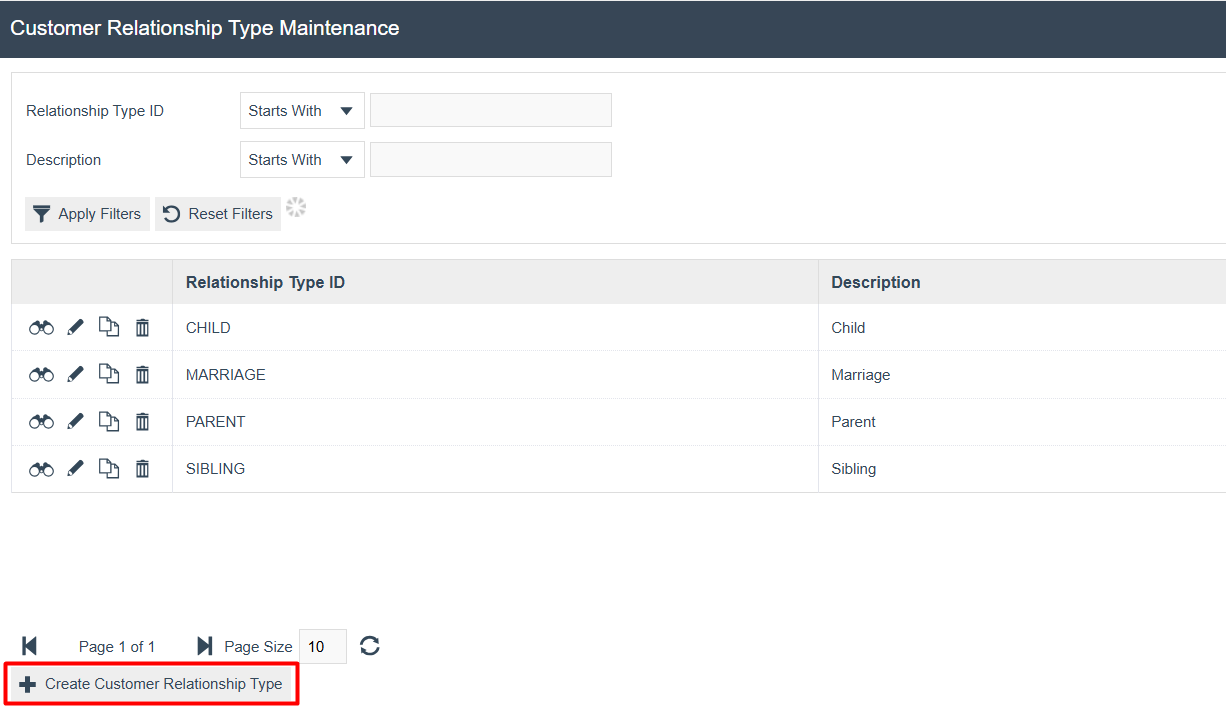
- Select Create Relationship Type on the Relationship Type Maintenance page.
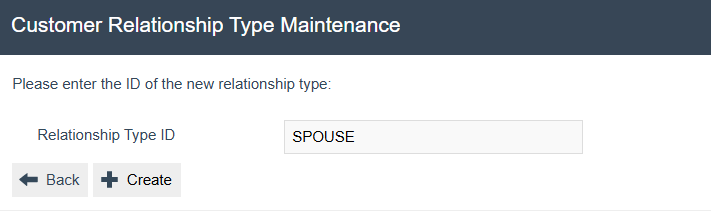
- Enter a unique Relationship Type ID and select Create.
Relationship Types - General Tab
The General Tab is where the details of the Relationship Type are configured.
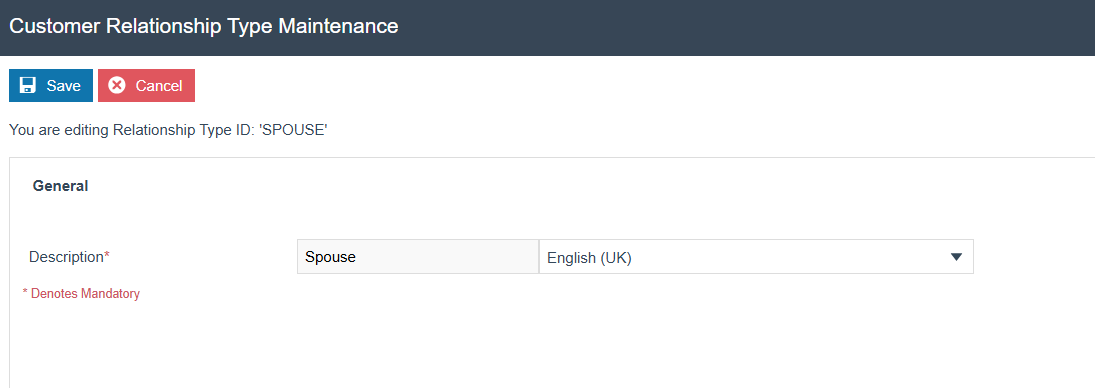
Set the appropriate values as follows:
| Property | Description |
|---|---|
| Description* | Mandatory. A user-friendly description, e.g. "Parent", "Child", "Spouse". |
Relationships are typically defined in pairs (e.g. "Parent" and "Child") to represent the same relationship from each direction.
Select Save to save the Relationship Type record.
This completes the Relationship Types configuration.
Broadcasting
To deliver the configuration changes to the POS, broadcast the following entities from the Estate Manager:
- Customer Types
- Customer Groups
- Customers
- Relationship Types
This completes the Broadcasting configuration.
Further Reading
Supporting Guides and Further Information
For additional information and further reading on Customers, please see the following guides:
| Document | Description |
|---|---|
| How To Guide: Configuring Loyalty | Configuring Customer Loyalty |
Related APIs
Enactor provides extensive API support for Customer, Loyalty and Account Balance operations. Full API documentation, including endpoint details and request/response examples, is available in the following guides:
| Document | Description |
|---|---|
| REST API: Customers, Loyalty and Account Balances | REST API How-to Guide: REST API - Customers, Loyalty and Account Balances |
| SOAP API: Customers, Loyalty and Account Balances | SOAP API How-to Guide: SOAP API - Customers, Loyalty and Account Balances |