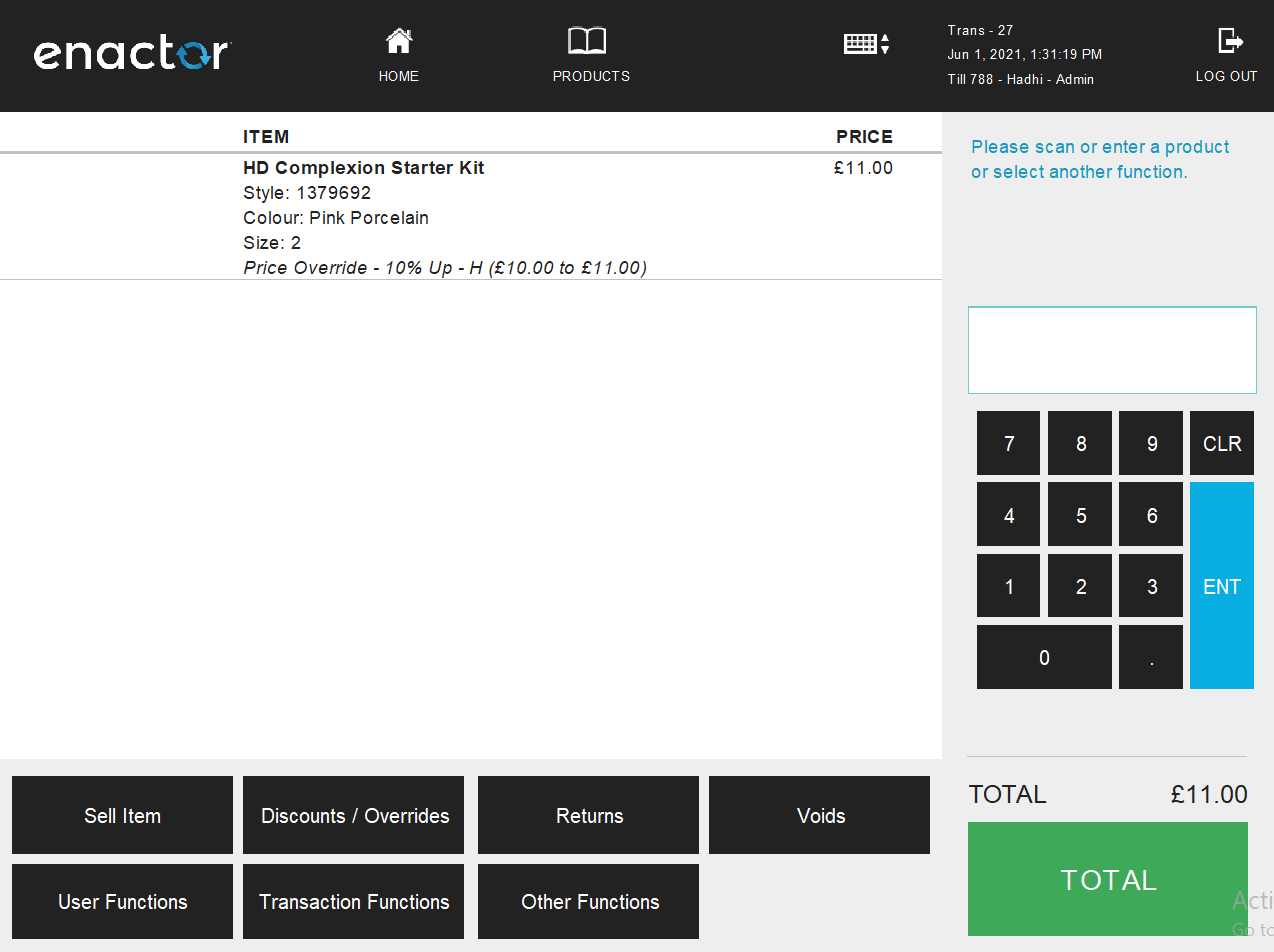
How To Configure Discount Reasons
Introduction
The purpose of this guide is to provide a foundational understanding of the options and capabilities available when configuring Discount Reasons. Discount Reasons consist of Item Discounts, Transaction Discounts, and Price Overrides. Reasons are configured based on a Reason Type and are associated with a Region in which they are applicable.
Discount Reasons are Reasons for which either a particular item or an entire transaction is enabled for discounts at the checkout.
Overview
This guide covers the configuration of the following:
- Item Discounts - Allows setting a discount for a particular item in a transaction.
- Transaction Discounts - Allows setting a discount for the entire transaction.
- Price Overrides - Allows changing the existing price of a selected item in a transaction.
Item Discounts
Item Discount Reason allows setting a discount for a particular item in a transaction. This governs how manual discounts are handled at the POS. Generally, an Item Discount Reason does not directly impact how a promotional discount is treated.
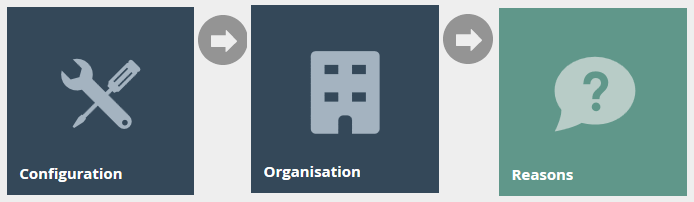
Navigate to Reason configuration using the Search or the path:
Main Menu > Configuration > Organisation > Reasons
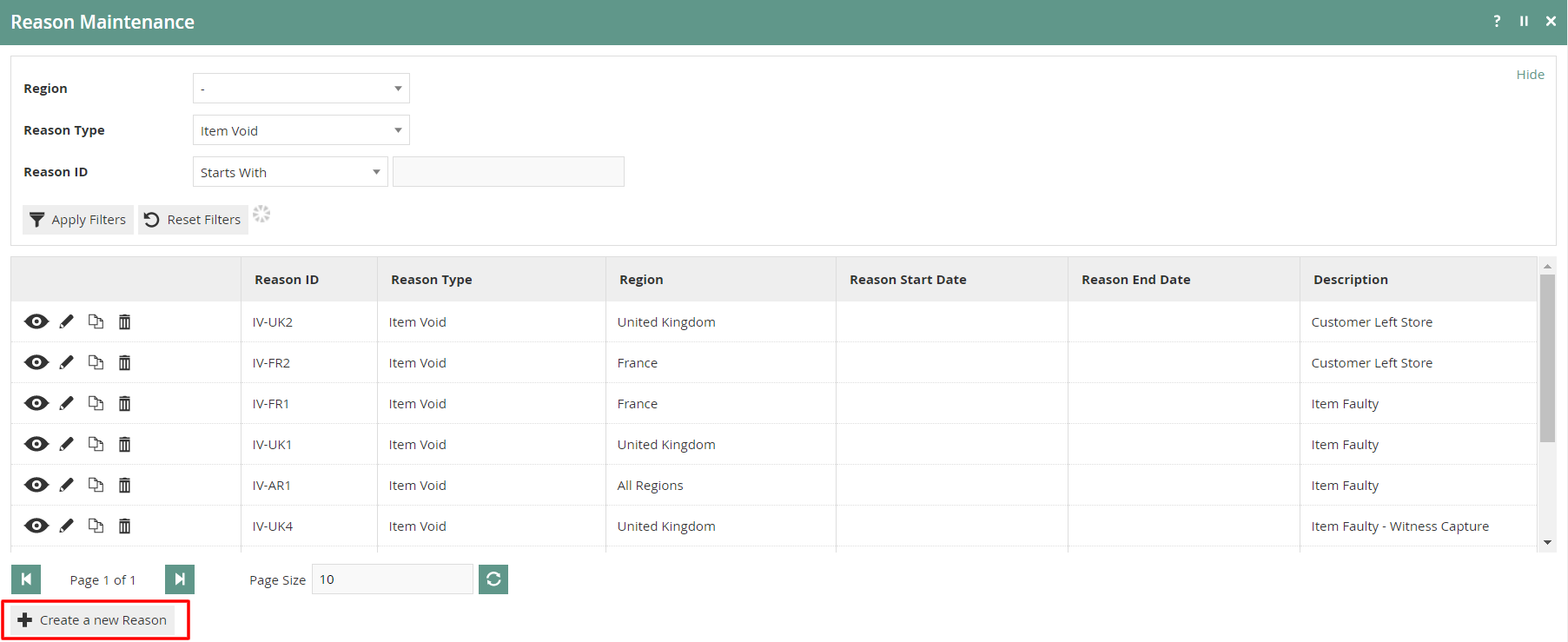
To create a new Reason, select Create a New Reason on the Reason Maintenance page.
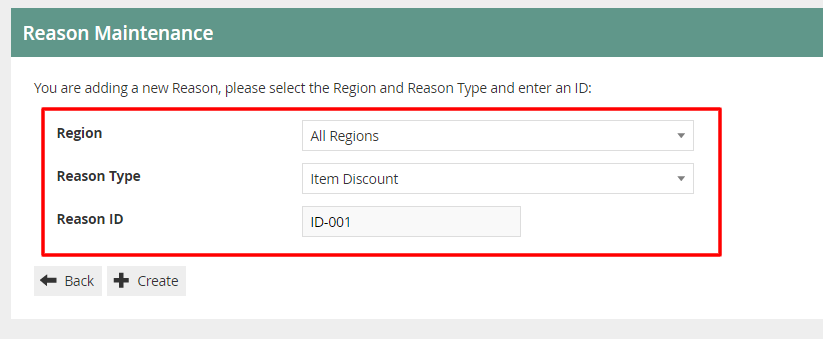
Select the appropriate Region from the Region drop-down. Select Item Discount from the Reason Type drop-down. Enter a unique Reason ID for the new Item Discount Reason. The ID can be alphanumeric and contain a maximum of 20 characters.
Reason - General Tab
The General tab has all the basic information that captures the identity of the Item Discount Reason.
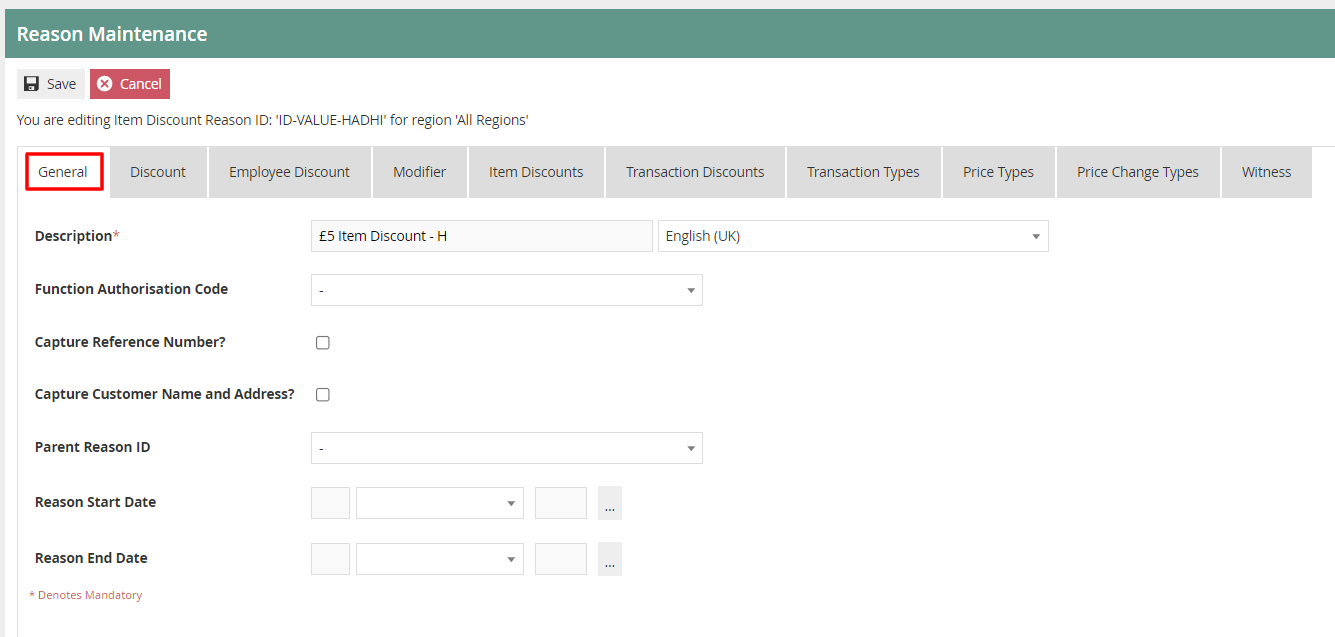
Set the appropriate values on the General tab as follows:
| Configuration | Description |
|---|---|
| Description | Enter a user-friendly, meaningful description for the Reason (alphanumeric, maximum 50 characters). Select the locale from the drop-down list of all configured Locales. |
| Function Authorisation Code | Select the applicable Function Authorisation Code from the drop-down list. These are defined and configured in Role Maintenance and applicable only if the reason selection requires authorisation. |
| Capture Reference Number | Select checkbox if the User should be prompted to enter a reference number when using this Reason. |
| Capture Customer Name and Address | Select checkbox if the User should be prompted to capture the Customer's Name and Address when using this Reason. |
| Parent Reason ID | If the reason requires a parent reason, select the relevant parent reason from the drop-down list of all configured Reasons of the same Reason Type. |
| Reason Start Date | Enter a Reason Start Date. |
| Reason End Date | Enter a Reason End Date. |
Reason - Discount Tab
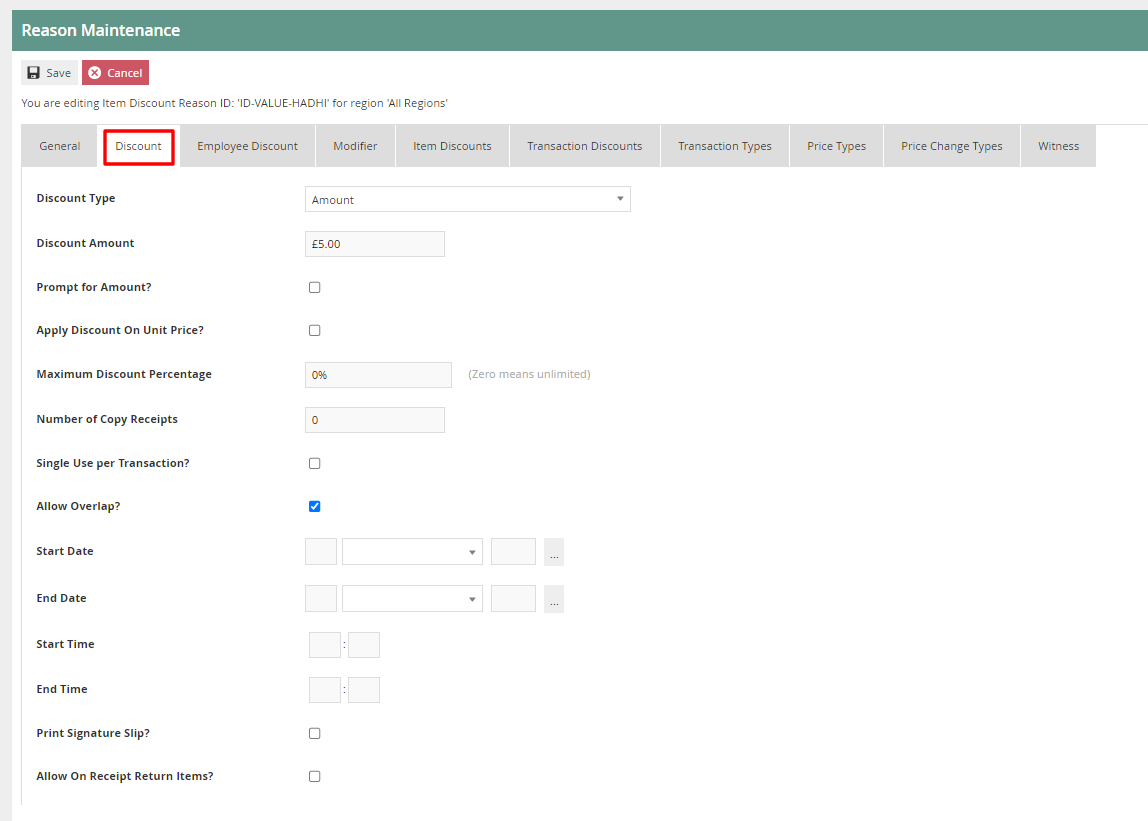
The Discount tab provides a comprehensive list of properties for configuration of the Item Discount Reason that captures different characteristics of the Discount to be applied.
| Configuration | Description |
|---|---|
| Discount Type | Select an appropriate discount type from the drop-down list: Percentage - Allows setting a percentage value to be discounted from the total price of the item. Amount - Allows setting a fixed value to be discounted from the total price of the item. New Price - Allows setting a new price to the item. |
| Discount Amount/Percentage | Depending on the Discount Type selected, enter either an amount (numeric value) or a percentage (ranging from 0-100). |
| Rounding Rule | Select an appropriate rounding rule for percentage values: Down, Nearest, or Up. |
| Prompt for Amount? | Select checkbox if the User should be prompted to enter the discount amount when using this Reason. |
| Apply discount on Unit Price? | Select checkbox if the discount should be applied on Unit Price. |
| Maximum Discount Percentage | Enter a numeric value (0-100) to determine the maximum discount percentage applicable. Setting the value to 0 determines an unlimited discount percentage. |
| Number of Copy Receipts | Enter a numeric value (0-5) to determine the number of copy receipts. |
| Single Use per Transaction? | Select checkbox if this Reason can be used only once in the transaction. |
| Allow Overlap? | Select checkbox to indicate that this Reason can be available for selection even if another discount has already been applied. |
| Start Date | Enter a date from when this Discount is valid. |
| End Date | Enter a date until when this Discount is valid. |
| Start Time | Enter a time from when this Reason is valid. |
| End Time | Enter a time until when this Reason is valid. |
| Print Signature Slip? | Select checkbox to indicate that a signature slip will be printed when this Reason is used. |
| Allow On Receipt Return Items? | Select checkbox to indicate that this Reason is available for selection on receipt return items. |
Select Save.
Multiple Reasons can be created for the Item Discount Reason Type as required. These Reasons will be presented to the operator to select from when performing an Item Discount.
This completes the Item Discount Reason configuration.
Transaction Discounts
Transaction Discount Reason allows setting a discount for an entire transaction. Both Item Discount and Transaction Discount Reason Types capture the same properties in the same set of tabs, with the one exception of the Include Subsequent Items property, applicable only to Transaction Discount Reason Types and captured in the Modifier Tab.
To create a new Reason, select Create a New Reason on the Reason Maintenance page.
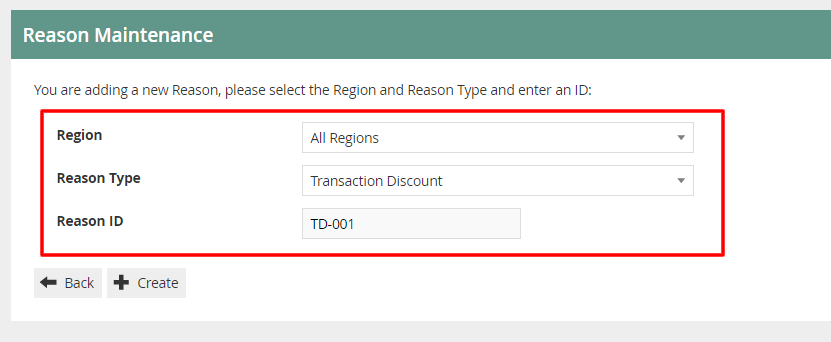
Select the Region from the Region drop-down. Select Transaction Discount from the Reason Type drop-down. Enter a unique Reason ID for the new Transaction Discount Reason.
Reason - General Tab
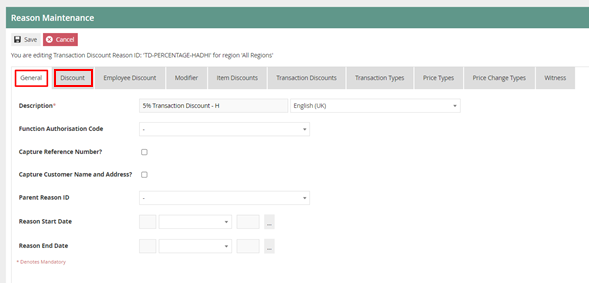
The General tab has all the basic information that captures the identity of the Transaction Discount Reason.
Set the appropriate values on the General Tab as per the sample on configuring Item Discount Reason.
Reason - Discount Tab
The Discount tab provides a comprehensive list of properties for configuration of the Transaction Discount Reason.
Set the appropriate values on the Discount Tab as per the sample on configuring Item Discount Reason.
Reason - Modifier Tab
The Modifier Tab captures a set of flags that determine the applicability of the Discount in diverse circumstances and item and transaction types.
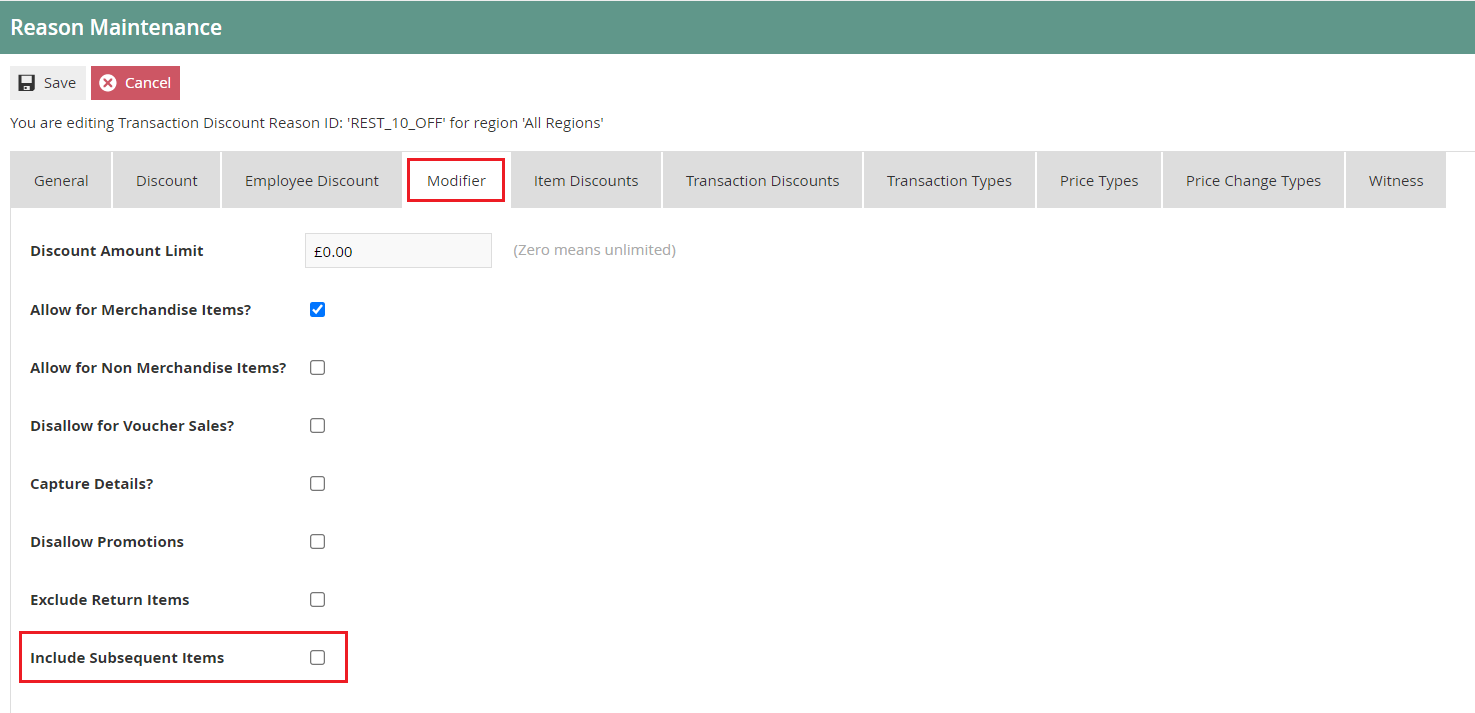
If the checkbox against Include Subsequent Items is selected, it indicates that after a Discount is applied to the Transaction with this Reason Code, when/if further Items are added to the Transaction, the Discount amount will be re-calculated to include the items added.
Select Save.
Multiple Reasons can be created for the Transaction Discount Reason Type as required. These Reasons will be presented to the operator to select from when performing a Transaction Discount.
This completes the Transaction Discount Reason configuration.
Price Overrides
Price Override Reason allows the operator to change the existing price of a selected item in a transaction.
To create a new Reason, select Create a New Reason on the Reason Maintenance page.
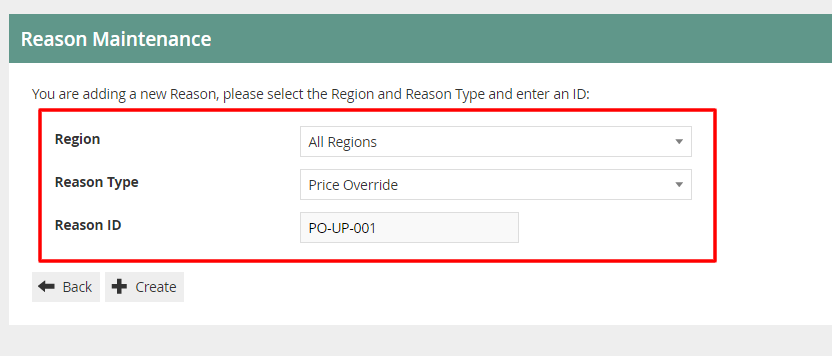
Select the Region from the Region drop-down. Select Price Override from the Reason Type drop-down. Enter a unique Reason ID for the new Price Override Reason.
Reason - General Tab
The General tab has all the basic information that captures the identity of the Price Override Reason.
Set the appropriate values on the General Tab as per the sample on configuring Item Discount Reason.
Reason - Price Override Tab
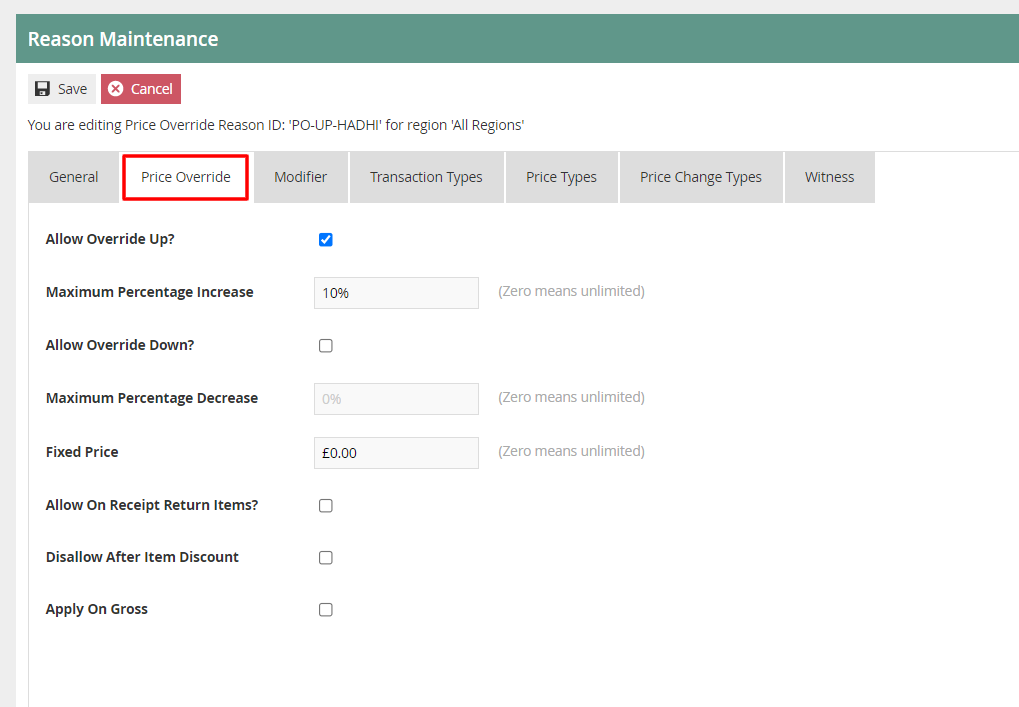
The Price Override tab provides properties for setting values and constraints on the specific Price Override Reason.
| Configuration | Description |
|---|---|
| Allow Override Up? | Select checkbox to determine that the price can be overridden and increased when this reason is used. |
| Maximum Percentage Increase | Enter a numeric value (0-100) to determine the maximum percentage increase applicable. Setting the value to 0 determines an unlimited percentage. |
| Allow Override Down? | Select checkbox to indicate that the price can be reduced when this reason is used. |
| Maximum Percentage Decrease | Enter a numeric value (0-100) to determine the maximum percentage decrease applicable. Setting the value to 0 determines an unlimited percentage. |
| Fixed Price | Allows setting a fixed price. Set a fixed numeric value that will be applied whenever this reason is selected, regardless of the product price. If set to 0 the fixed price is not applicable. |
| Allow On Receipt Return Items? | Select checkbox to indicate that this Reason is available for selection on receipt return items. |
| Disallow After Item Discount | Select checkbox to indicate that this Reason cannot be selected after an item discount is already applied. |
| Apply on Gross | Select checkbox to indicate that this price override reason is applied on the gross transaction amount. |
Reason - Modifier Tab
| Configuration | Description |
|---|---|
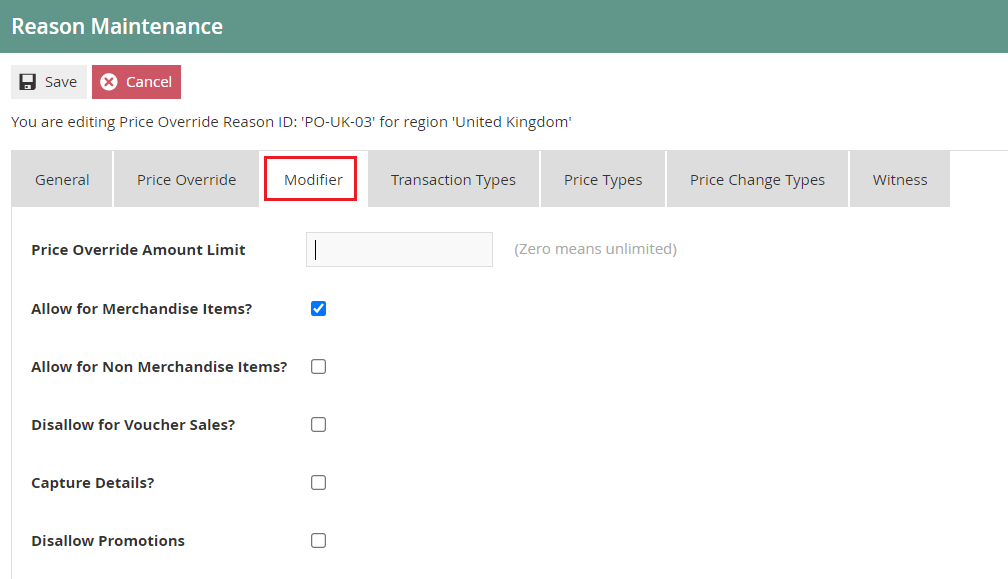
| Price Override Amount Limit | Enter a numeric value that will indicate the maximum amount by which the price can be overridden. Setting the value to 0 determines an unlimited amount. |
| Allow for Merchandise Items? | Select checkbox to indicate that this Reason is applicable to Merchandise Items. |
| Allow for Non Merchandise Items? | Select checkbox to indicate that this Reason is applicable to Non-Merchandise Items. |
| Disallow for Voucher Sales? | Select checkbox to indicate that this Reason is not allowed for Voucher Sales. |
| Capture Details | Select checkbox to prompt the User to capture details when using this Reason. |
| Disallow Promotions | Select checkbox to indicate that promotions are not allowed when using this Reason. |
Select Save.
Multiple Reasons can be created for the Price Override Reason Type as required. These Reasons will be presented to the operator to select from when performing a Price Override.
This completes the Price Override Reason configuration.
Menus
To enable the use of the above reasons, appropriate Menu and Role privileges should be configured separately.
Navigate to Menu configuration using the Search or the path:
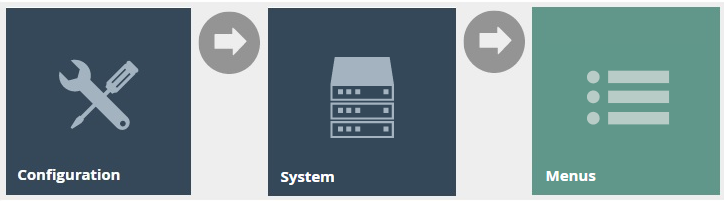
Main Menu > Configuration > System > Menus
The Sale Menu contains most of the functions that will be required by a retailer. Most of the customisation work will involve restructuring the hierarchy of the menu, removing unnecessary items, or potentially adding new items.
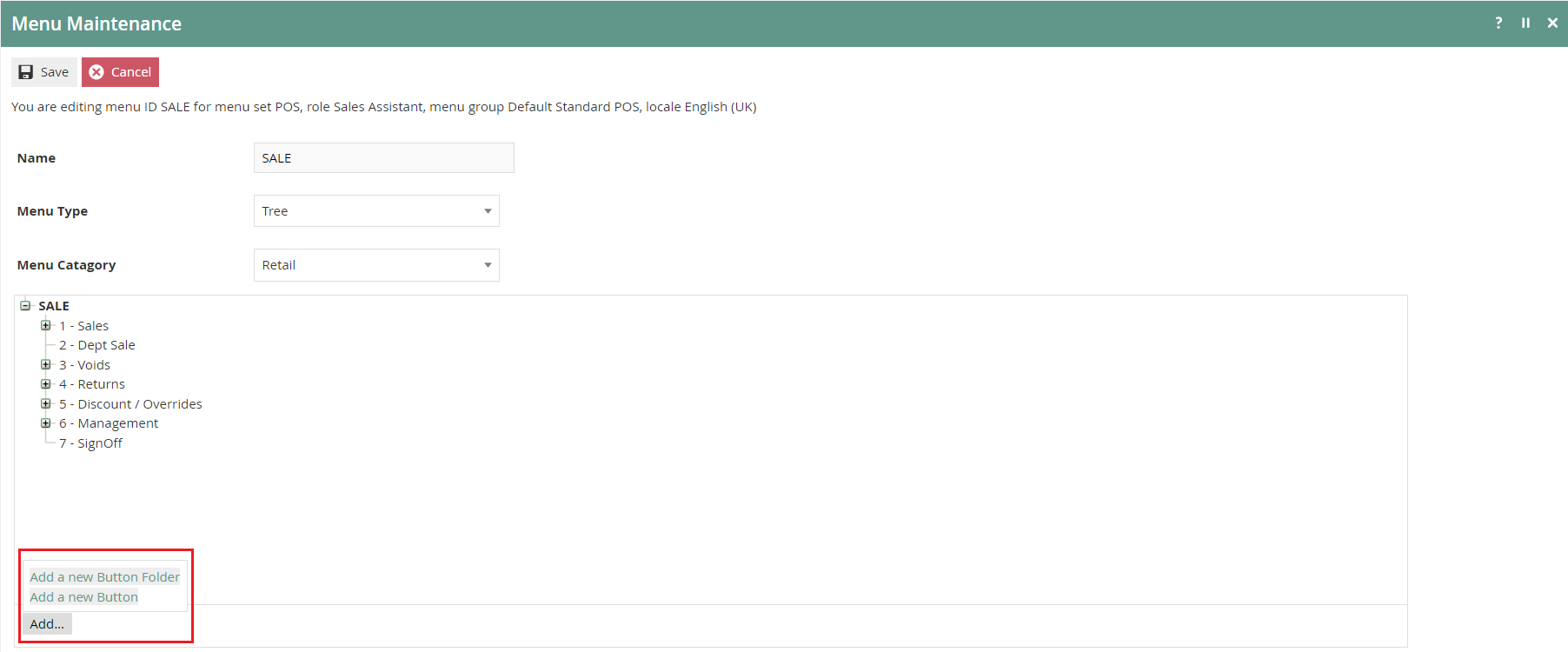
The following events can be configured in the Sale Menu for Discount Reasons:
| Reason Type | Event Name | Event ID |
|---|---|---|
| Item Discount | Item Discount | ItemDiscount |
| Transaction Discount | Transaction Discount | TransactionDiscount |
| Price Override | Price Override | PriceOverride |
This completes the Menu configuration.
Roles
Navigate to Role configuration using the Search or the path:
Main Menu > Configuration > HR > User Roles

Authorisation to run the specific functionality documented here is controlled with privileges maintained in Roles.
Select the appropriate Role to edit - the example here uses SALES_ASSISTANT.
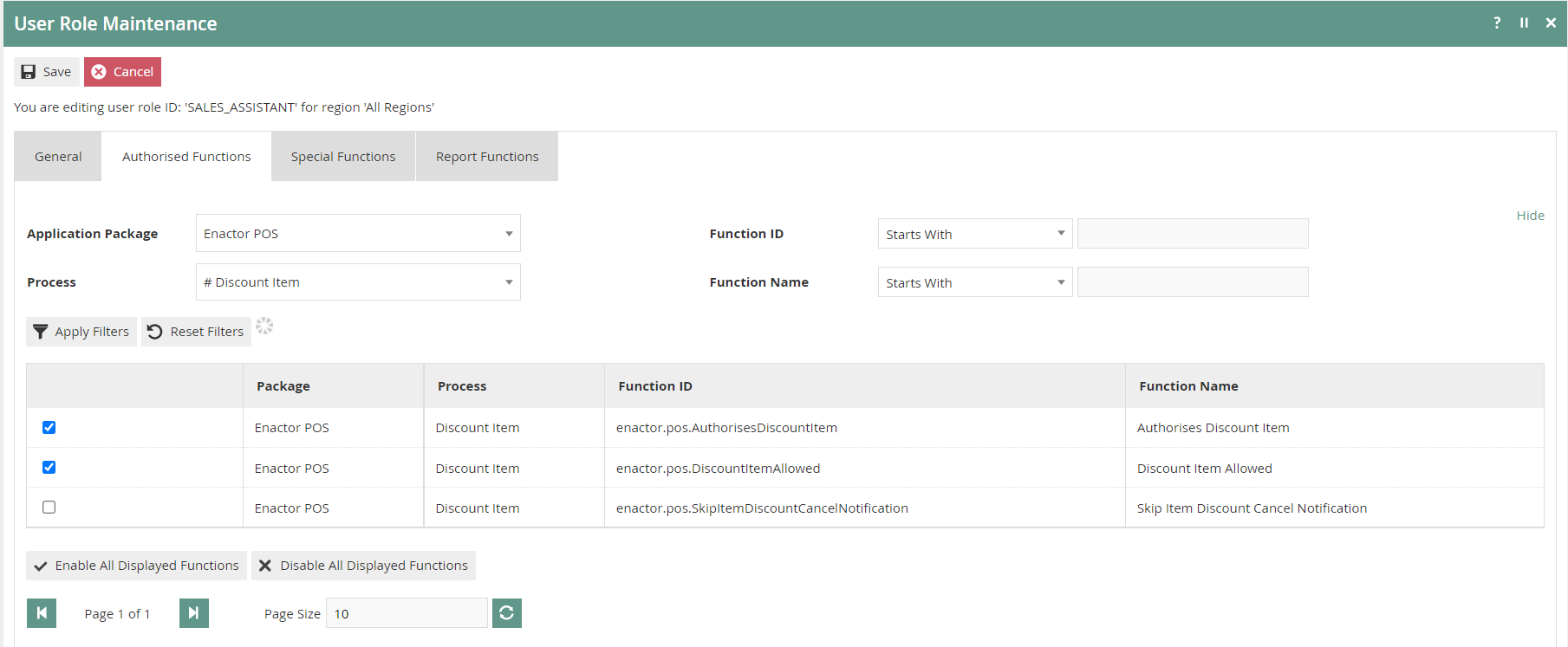
Select the Enactor POS package and configure the following privileges as required:
| Reason Type | Package | Function ID |
|---|---|---|
| Item Discount | Enactor POS | enactor.pos.AuthorisesDiscountItem |
| Item Discount | Enactor POS | enactor.pos.DiscountItemAllowed |
| Transaction Discount | Enactor POS | enactor.pos.AuthorisesTransactionDiscount |
| Transaction Discount | Enactor POS | enactor.pos.TransactionDiscountAllowed |
| Price Override | Enactor POS | enactor.pos.AuthorisesPriceOverride |
| Price Override | Enactor POS | enactor.pos.PriceOverrideAllowed |
This completes the Roles configuration.
Broadcasting
To deliver the configuration changes to the POS, broadcast the following entities: Reasons, Menus, Roles.
This completes the Broadcasting configuration.
POS Functionality
Item Discount
On adding products to the bag, the operator will be presented with screen 1.
Select a product as shown on screen 2 to view all applicable functions for the product displayed in the bottom pane.
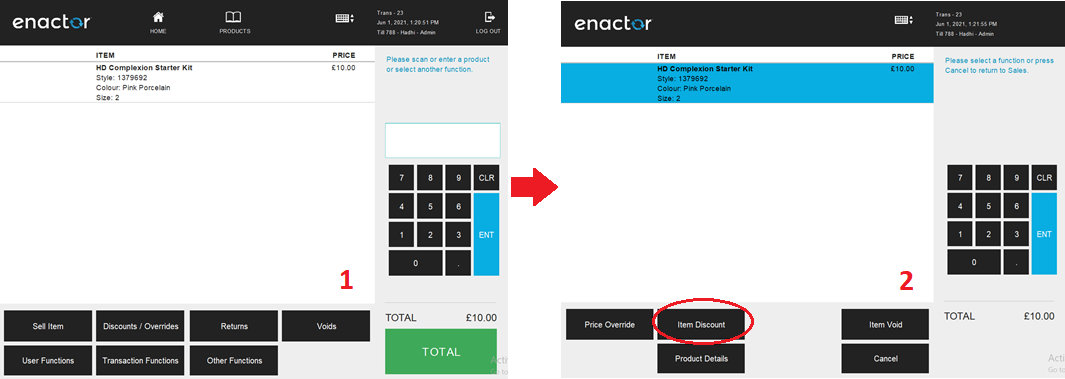
Select Item Discount and a set of configured Item Discount Reasons are displayed to the operator as shown on screen 3.
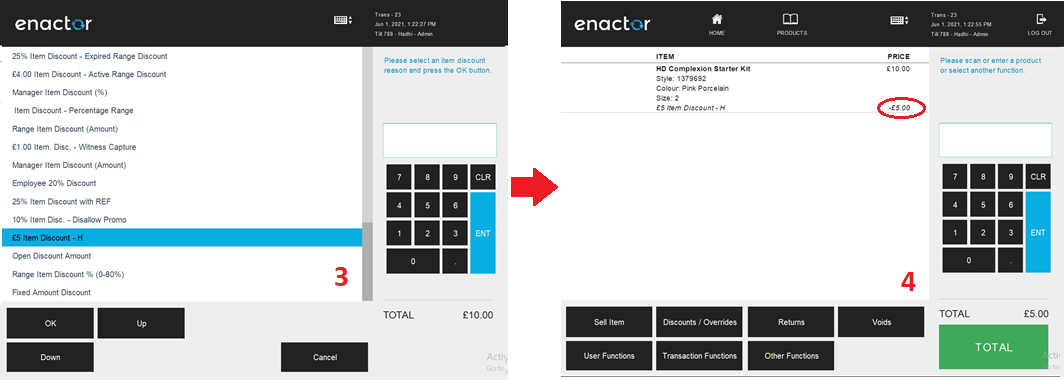
The operator can then select the applicable Reason and click OK to apply the Item Discount to the selected product.
Transaction Discount
On adding products to the bag, the operator will be presented with screen 1.
Select Discounts / Overrides and the operator will be navigated to screen 2.
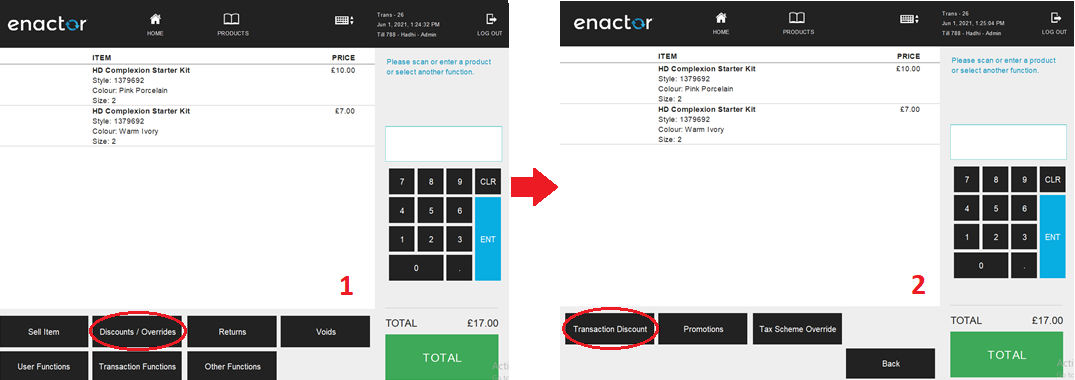
Select Transaction Discount and a set of configured Transaction Discount Reasons are displayed to the operator as shown on screen 3.
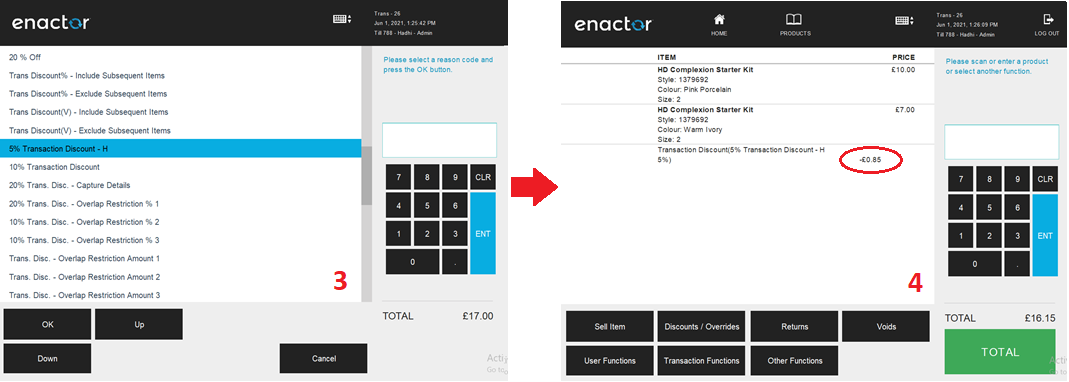
The operator can then select the applicable Reason and click OK to apply the Transaction Discount to the selected transaction.
Price Override
On adding products to the bag, the operator will be presented with screen 1.
Select a product as shown on screen 2 to view all applicable functions for the product displayed in the bottom pane.
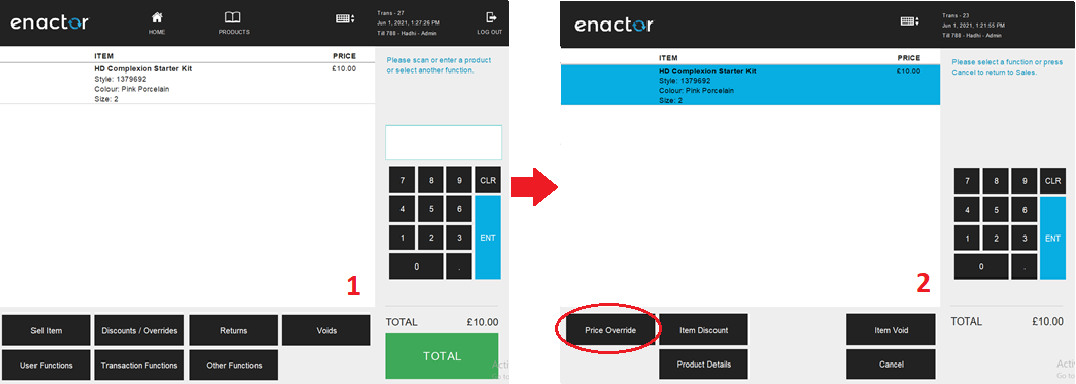
Select Price Override and a set of configured Price Override Reasons are displayed to the operator as shown on screen 3. The operator can then select the applicable Reason and click OK to apply the Price Override function to the selected product. As shown on screen 4, the operator will be prompted to enter the new price applicable.
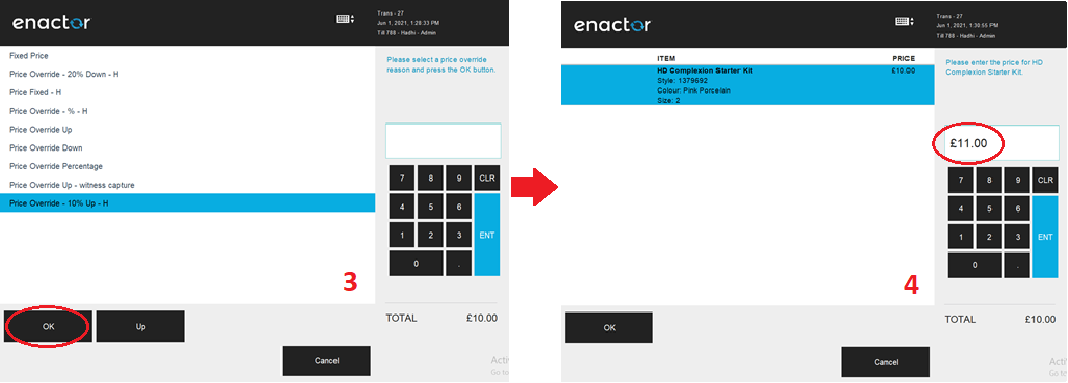
Select OK to apply the desired Price Override Reason to the selected product.