How To Configure Example Product Data
Introduction
This guide covers the manual entry of product information in Enactor Estate Manager. While product, price and supporting data is usually imported from external sources, it is useful to configure example product information directly in the Enactor system for testing and to provide templates for the integration process.
This guide explains how to configure different types of products and how to structure product and price data in Enactor. It covers the creation of MM Groups and Price Groups as supporting structures, uploading product images, configuring Merchandise Products with pricing, setting up Colour Ranges and Size Ranges, and creating Style Size, Style Colour Size and SKU product types.
This guide provides basic guidance on configuration including required and the most common options. Refer to the full Enactor solution documentation for a detailed explanation of all available settings.
Overview
The following steps are required to configure example product data:
- MM Groups - Create merchandise management group hierarchies to categorise products
- Price Groups - Create price group hierarchies to manage pricing by region
- Images - Upload product images for use in the POS basket and product information views
- Merchandise Product - Create products with descriptions, selling options, pricing and media
- Colour and Size Ranges - Define colour and size ranges for style and SKU products
- Style Size Product - Configure products with size variations
- Style Colour Size Product - Configure products with colour and size variations
- SKU Product - Create individual SKU products linked to style products
Configuration
Groups
Prior to configuring product information, it is recommended to have the supporting structure in place in the form of MM and Price Groups. General Group maintenance is discussed in the Organisation Structure guide.
Configuring MM Groups
To create or modify Groups of type MM Group, access the Group Hierarchy Maintenance page and select the MM Group Group Type. To create a new Hierarchy select Create New MM Group Hierarchy. In the initial page of the Create option specify the Hierarchy ID and select a Region from the Regions dropdown list to associate it with, then select Create.
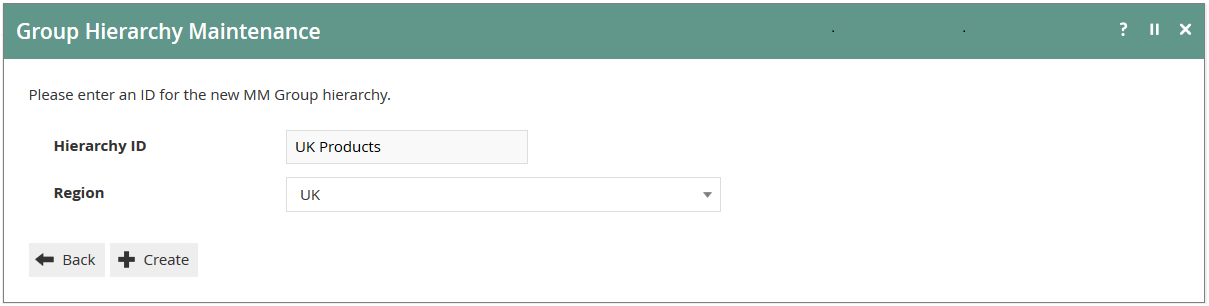
Having created the Hierarchy you enter an edit mode in which MM Groups may be added, modified or removed. The hierarchy itself may also be modified as an MM Group. Select Add MM Group to add a new MM Group to the hierarchy.
The hierarchy itself is also functionally an MM Group.

In the subsequent Add MM Group page, specify an ID for the new MM Group. The IDs are business-defined but must be unique. Select Create.

Upon adding a new MM Group (or selecting Edit MM Group for an existing MM Group) you enter a subordinate edit mode applying to the MM Group. This page has four tabs, each described below.
General Tab
In the General Tab the MM Group may be given a meaningful Name (it defaults to the value of the MM Group ID). Several other properties of the MM Group may be specified in this tab. No additional entries on the General Tab are required.
Refer to the full Enactor documentation to determine if any of the additional properties are appropriate to be controlled at the MM Group level in your situation.
User and MMG Product Attributes Tabs
Both the User and MMG Product Attributes tabs provide for the optional extension of the range of properties of a configuration entity. Both tabs use this functionality to provide for customer-defined extensions to the range of configuration properties which do not relate to any existing software functionality other than to capture and access their values. Both tabs provide access to the Options/Attributes Maintenance page in which the Option Set and its set of properties may be defined or modified.
Tax Tab
In the Tax Tab the MM Group may be universally associated with a Tax Group by selecting from the dropdown list for the Tax Group field. Alternatively (not both) the MM Group may be associated with Tax Groups on a regional basis by specifying the Tax Region and Tax Group using the dropdown lists in the Tax Groups by Tax Region option and selecting Add.
For further information about the Tax Group and application of Tax, see the how-to guides on configuring VAT and US taxes.
Configuring Price Groups
To create or modify Groups of type Price Group, access the Group Hierarchy Maintenance page and select the Price Group Group Type. To create a new Hierarchy select Create New Price Group Hierarchy. In the initial page of the Create option specify the Hierarchy ID and select a Region from the Regions dropdown list to associate it with, then select Create.
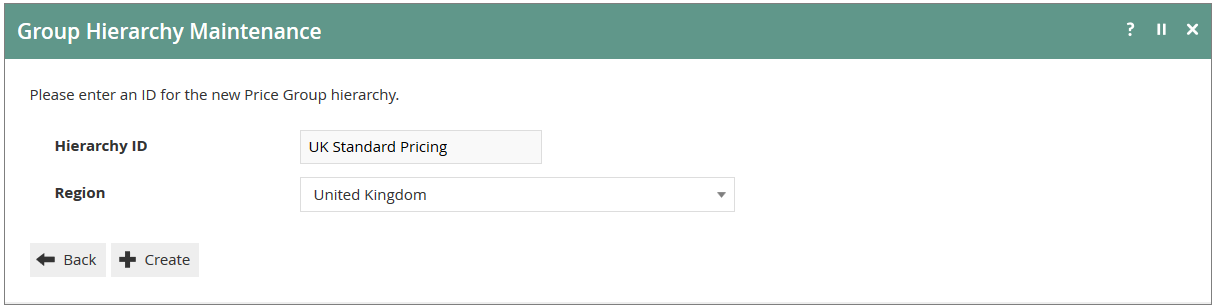
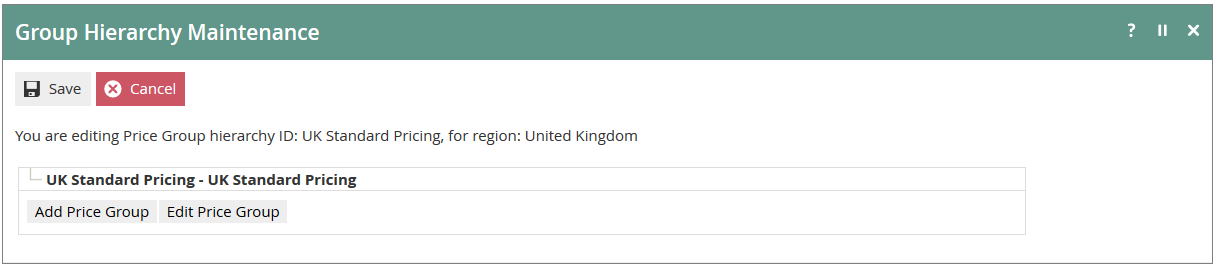
Having created the Hierarchy you enter an edit mode in which Price Groups may be added, modified or removed. The hierarchy itself may also be modified as a Price Group. Select Add Price Group to add a new Price Group to the hierarchy.
The hierarchy itself is also functionally a Price Group.
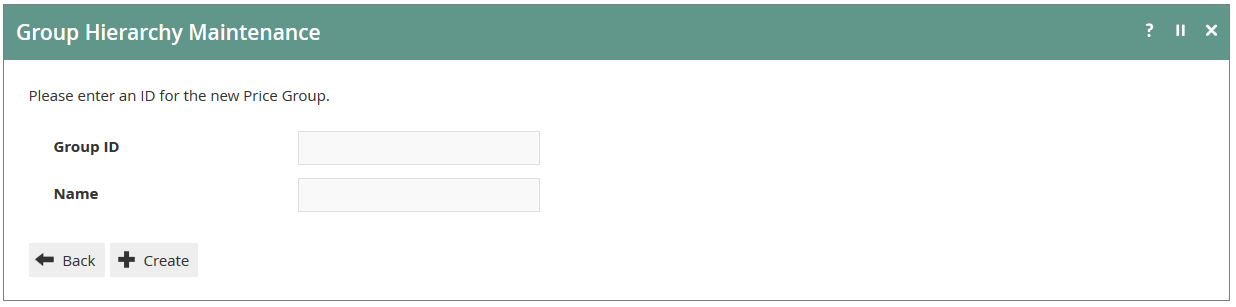
In the subsequent Add Price Group page, specify a Group ID and Name for the new Price Group. The IDs are business-defined but must be unique. Select Create. The Name given to a Price Group may later be modified by selecting Edit Price Group for an existing Price Group. All Price Groups are associated (for selection in a Location or POS Terminal) with the Region associated with the Price Group hierarchy.
Images
Enactor has the capability of displaying product images in the basket as well as within the product information views. The images can be stored locally on POS or retrieved as needed from a centralised repository. Both methods have their own advantages. In the event that images are to be stored locally on POS, the images should be uploaded prior to product configuration.
Accessing Images
Navigate to Images Maintenance using the Search or the path: Main Menu > Configuration > Media > Images
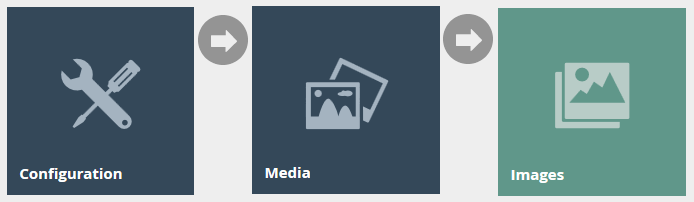
Image Select
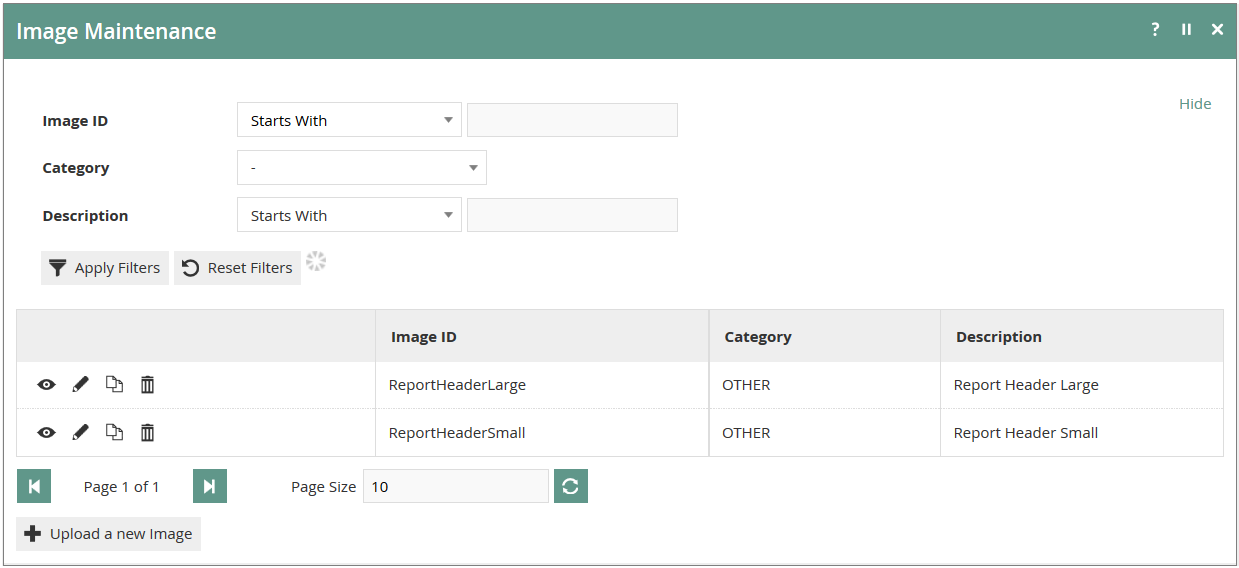
The Images option invokes the Images Maintenance select page. The select page lists currently configured images and enables the user to add, view, edit, copy or delete images.
New Image
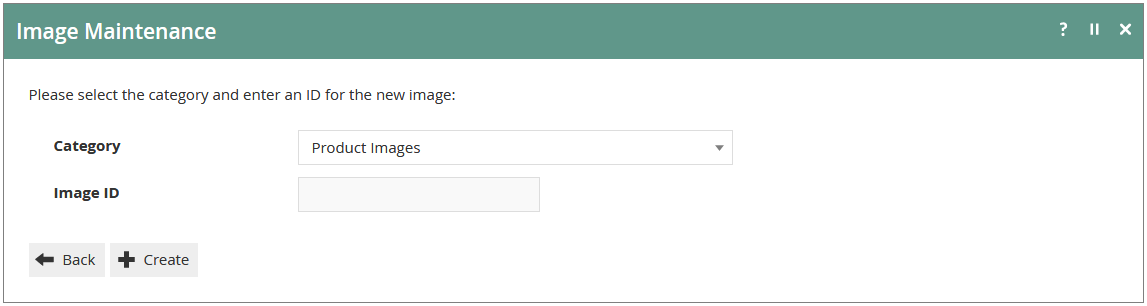
In the Images Maintenance select page, select the Upload a new Image option. This presents an initial page to capture an Image Category and Image ID.
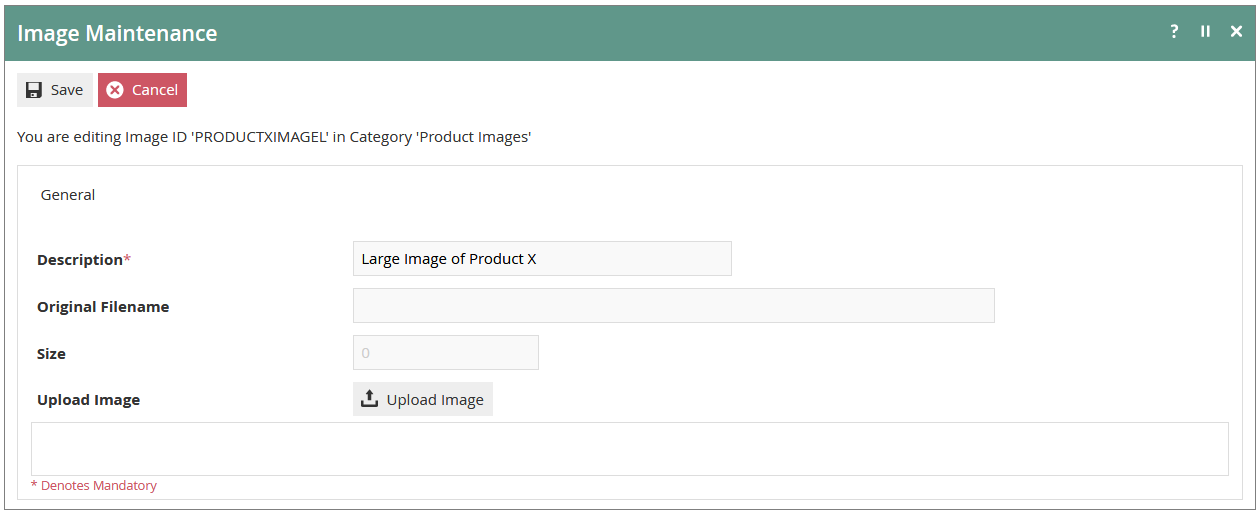
The General Tab of Images Maintenance captures general details of the selected image and provides for optional upload of the image itself.
Product Configuration
Merchandise Product
Enactor Retail provides a variety of functionally and configurationally distinct Product Types. This guide focuses on Merchandise Product types including Style/Size, Style/Colour/Size and SKU products.
For details around configuring other types of products, refer to the full Enactor documentation.
Accessing Products
Navigate to Product Maintenance using the Search or the path: Main Menu > Configuration > Merchandise > Products

Product Select
The Products option invokes the Product Maintenance select page. The select page lists currently configured products and enables the user to add, view, edit, copy or delete products.
New Merchandise Product
In the Product Maintenance select page, select the Create a new Product option. This presents an initial page to capture a Product Type and unique Product ID. Select Merchandise Product for the Product Type and enter the appropriate Product ID for the product.

Once the product has been created, only a minimum amount of data is required to make it sellable: Product Description and a Price.
A significant number of options exist when setting up a product, and many are used only under infrequent circumstances. This guide covers the most commonly used options while the remainder are explained within the full Enactor documentation.
General Tab - General Sub-Tab
The General tab is broken down into many different sub-tabs. The first sub-tab is also labelled General. The first field, Product Description, is the only mandatory field and is designed for a short (30 character) description of the product. The Product Long Description provides additional space for a more complete description of the product and is displayed when viewing the item through Product Search.
Alternatively, a URL can be specified for the Long Description as well as additional product information if the preference is to retrieve from a centralised source as needed. To associate an image with the product, select the image from the dropdown list if it has been preloaded. The image URL should also be specified. If the image was preloaded this represents the path (from Enactor home) to the image on POS. If the image is being retrieved from a centralised repository, this would be the URL for the centrally stored image.

| Configuration | Description |
|---|---|
| Product Description | Short description of the product (up to 30 characters) - mandatory |
| Product Long Description | Extended description displayed in Product Search |
| Image | Pre-loaded product image selected from dropdown |
| Image URL | Path to the image on POS or URL for a centrally stored image |
Product Label Sub-Tab
The Product Label Sub-Tab provides for capture of a text description of the Product suitable for printing in labels to identify the product on shelves, in cartons and so on.
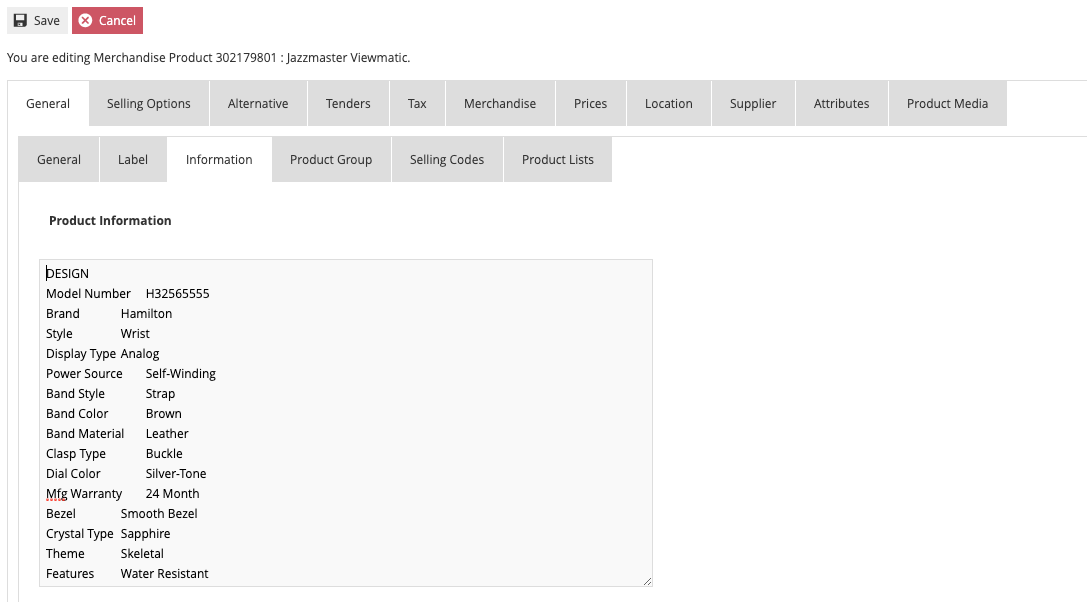
Product Information Sub-Tab
The Product Information Sub-Tab provides for capture of an extended body of text information about the product such as technical specifications and distinctive characteristics.
Product Group Sub-Tab
The Product Group Sub-Tab allows the product to be associated with one or more user-defined Product Groups. Product Groups allow similar products to be grouped together that may be from different categories in the merchandise hierarchy.
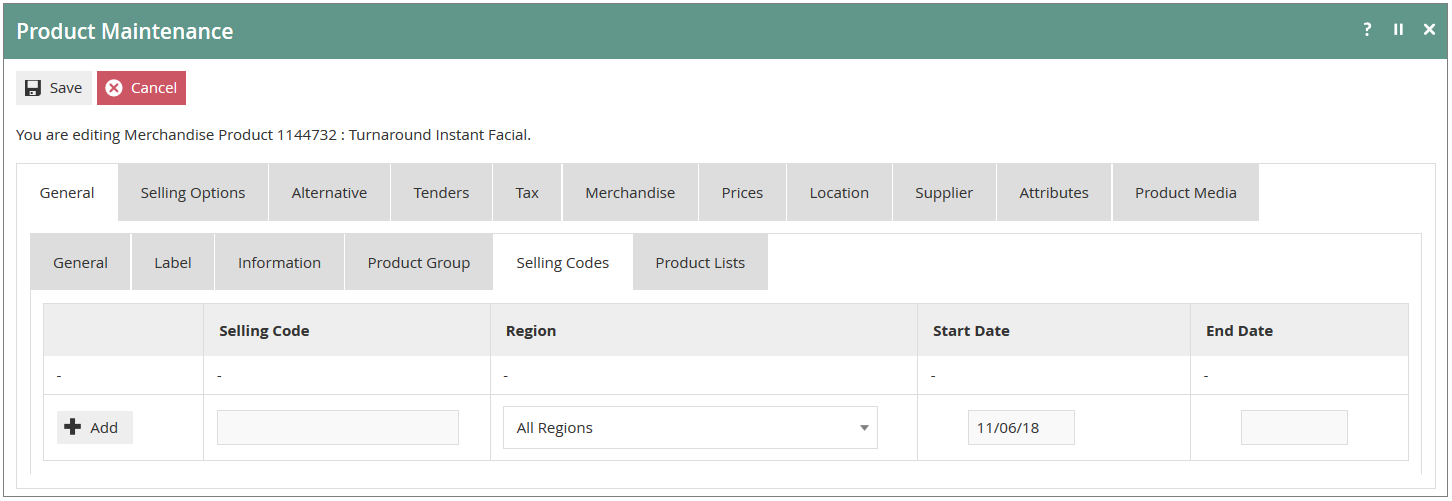
Selling Codes
Selling Codes provide an alternative identifier (or alias) by which the product may be known. A Selling Code for a product may be applicable to a specific Region and may also be effective dated. The product may be associated with one or more Selling Codes in a list. Add a new Selling Code by specifying the Code and selecting the Add option.
Selling Options Tab - General Sub-Tab
The Selling Options tab is broken down into several sub-tabs. Properties captured in the General sub-tab describe the operator-evident behaviour and constraints applicable to the POS during transactions for the product. Options include special messages that can be displayed to the cashier, customer or printed to the receipt when selling the product. The General sub-tab is also where customer and cashier age restrictions for the product can be specified. If the item has limits regarding discounts, returns or quantities that differ from what is configured for the store, they can be specified on this tab.

Prompts Sub-Tab
The POS application is capable of presenting, capturing and processing a variety of prompts at specific stages during the sale of a product in a transaction. The requirement for presenting, capturing and processing individual prompts depends on the product and is configurable in the Prompts sub-tab. The processing of input from certain prompts may also require configuration, which is also captured in this sub-tab.
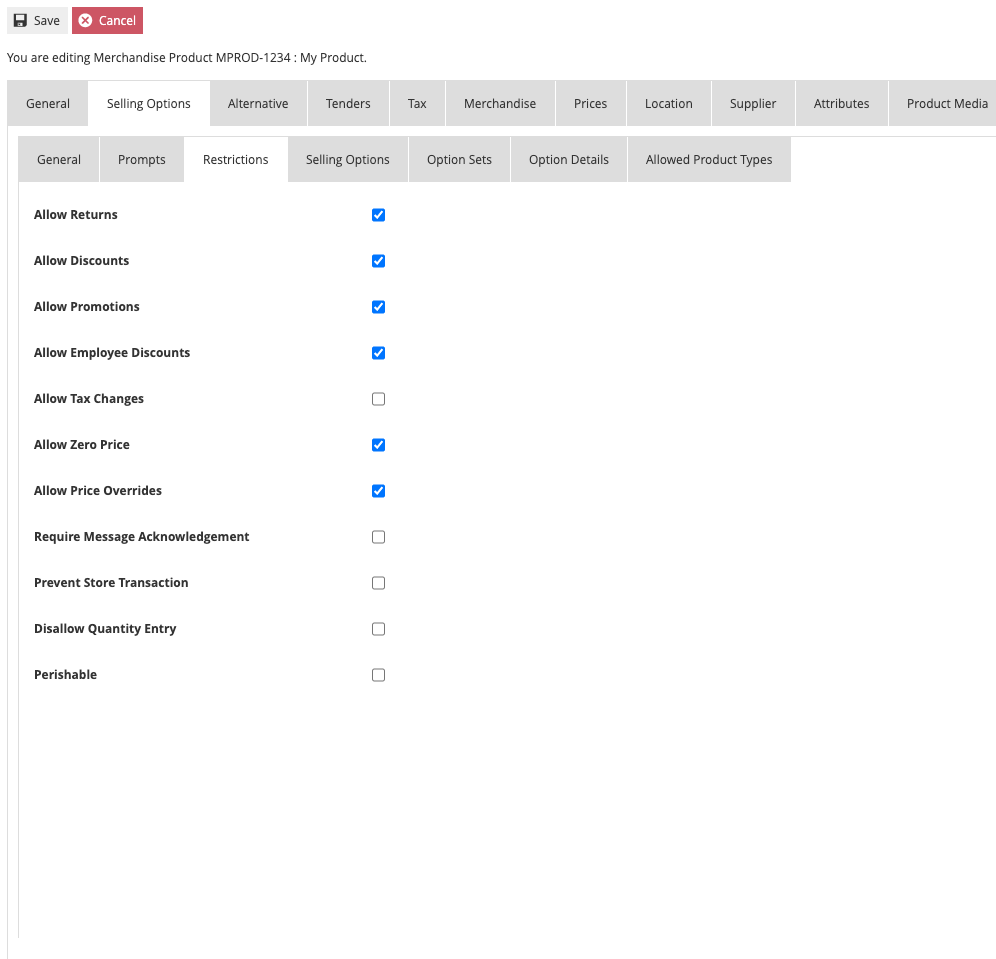
Restrictions Sub-Tab
The Restrictions sub-tab captures properties for enabling or disabling certain processing features for the individual product. The settings for these properties will be driven by the business process.
Selling Options Sub-Tab
The Selling Options sub-tab captures properties for enabling or disabling aspects of processing the sale of the product on the POS. These options are used in unique cases. For a full description, refer to the full Enactor documentation.
Option Sets
Option Sets are separate configurable entities which identify a set of options that can be associated with the product. The Option Sets and Option Details sub-tabs are used to configure the behaviour of the Option Sets. The configuration and use of Option Sets is covered in a separate guide.
Allowed Product Types Sub-Tab
The Allowed Product Types sub-tab provides for restriction of the Product Types that may be sold along with the current product in the same transaction. A list of one or more Product Types may be associated with the product. If no Product Types are explicitly specified in the list, then all Product Types are available to be sold in the same transaction.
Alternative Tab
The Alternative Tab of the Product Maintenance page maintains a list of products as alternatives to the current product.
Tenders Tab
The Tenders Tab provides for restriction of the tenders that may be used to purchase the product. A list of one or more allowed tenders may be associated with the product. If no tenders are explicitly specified in the list of allowed tenders, then all tenders may be used. If any tender is specified in the list, then only this (and any other tenders added to the list) may be used.
Tax Tab
The Tax Tab of Product Maintenance applies only to taxable product types and provides for capture of product-level configuration of tax provisions for alternative methods of ascertaining a tax rate.
Tax configuration is described in the how-to guides for configuring VAT and configuring US Taxes.
Merchandise Tab - General Sub-Tab
The Merchandise tab only applies to merchandise items and is broken into several sub-tabs.
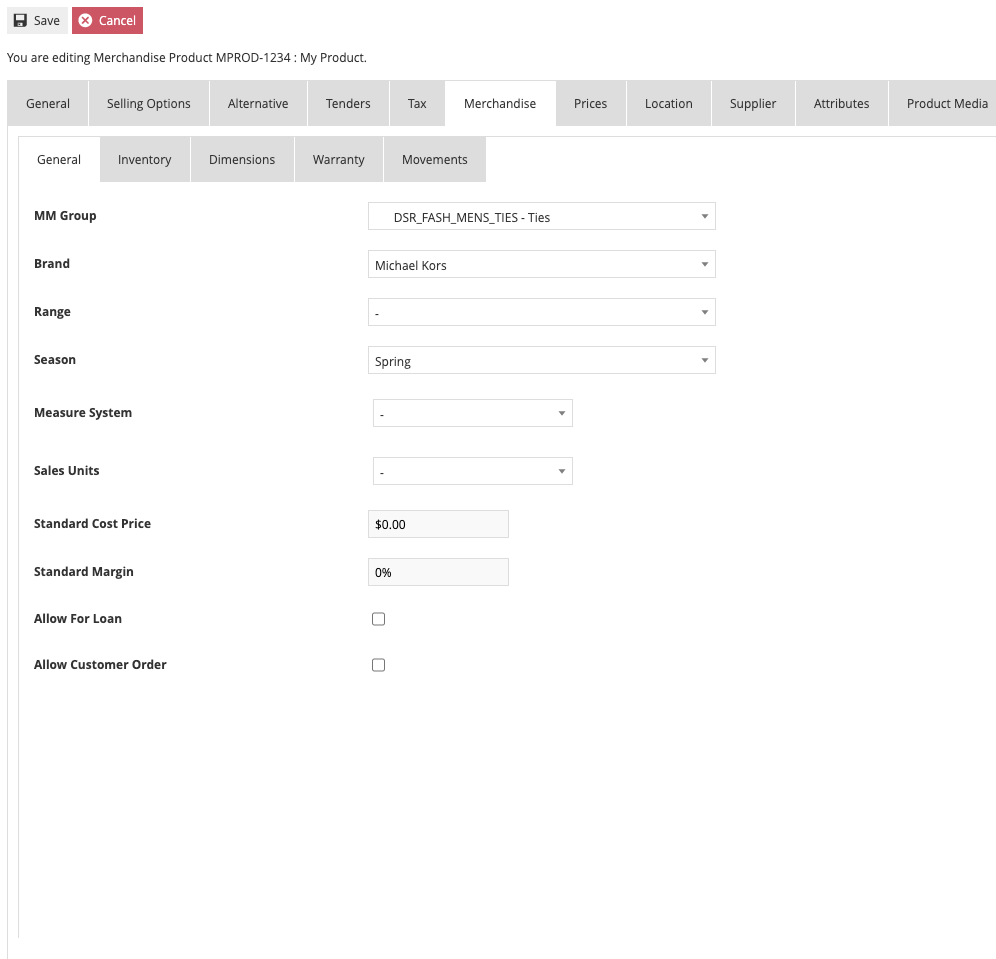
The General Sub-Tab provides for capture of properties defining high-level merchandising aspects of the product. The MM Group is selected from a dropdown list of groups created (described earlier in this document). The General sub-tab also permits designation of a Brand, Range and Season if options have been created. The Sales Unit option allows you to specify an alternative unit of sale for the item if "each" is not appropriate.
By default, an item is not available for Loan or to be Ordered unless the option is enabled on this tab.
| Configuration | Description |
|---|---|
| MM Group | Associates the product with a merchandise management group (selected from dropdown) |
| Brand | Optional brand designation for the product |
| Range | Optional range designation for the product |
| Season | Optional season designation for the product |
| Sales Unit | Alternative unit of sale if "each" is not appropriate |
| Loan | Enable to allow the item to be loaned (disabled by default) |
| Order | Enable to allow the item to be ordered (disabled by default) |
The sub-tabs for Inventory, Dimensions, Warranty and Movements are discussed in the how-to guide on Inventory Management.
Prices Tab
The Prices Tab displays and provides access to price details of the selected product via Product Price Maintenance.

When creating a new price, you must specify either a Location (if location-based price) or a Price Group (if group-based price) and a Currency. The Start Date for the price will default to the current date. An End Date can be specified for the price but the system assumes no end.
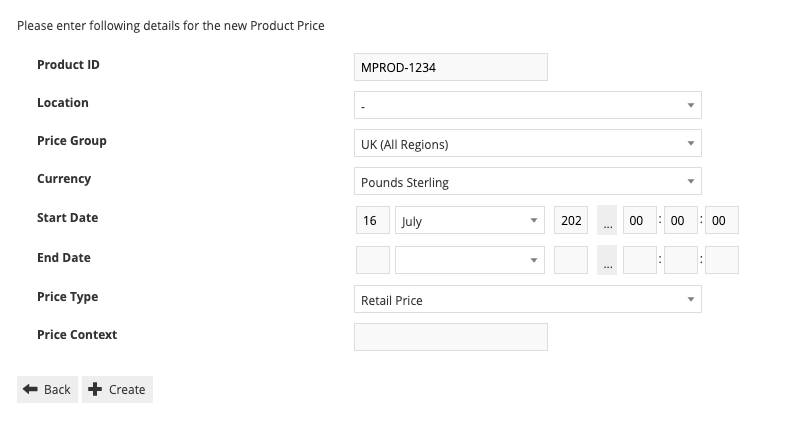
| Configuration | Description |
|---|---|
| Location | The location for a location-based price (use this or Price Group, not both) |
| Price Group | The price group for a group-based price (use this or Location, not both) |
| Currency | The currency for the price |
| Start Date | The date from which the price is effective (defaults to current date) |
| End Date | Optional end date for the price (if blank, the price has no end) |
After creating the price record, enter the Price along with additional details if applicable.

Location Tab
The Location Tab captures properties relating to the product at a selected location. Properties are captured after selecting a location in the left-hand column of the tab and are captured in four sub-tabs: Inventory, Minimum Stock Quantities, Costs and Current Stock. These options are discussed in the how-to guide on Inventory Management.
Supplier Tab
The Supplier Tab provides for selection and configuration of one or more of the available suppliers to the business, to supply the current product. These options are discussed in the how-to guide on Inventory Management.
Attributes Tab
The Attributes Tab of the Product entity provides for the configuration of Option Set extension attributes of the product entity.
Product Media Tab
Product media (currently images of various sub-types, accessed either directly or via URL) may be used by the POS if available. While the General Tab permitted the selection of a single image for the product, the Product Media Tab allows additional images to be associated. This is particularly helpful in functions like Product Search.
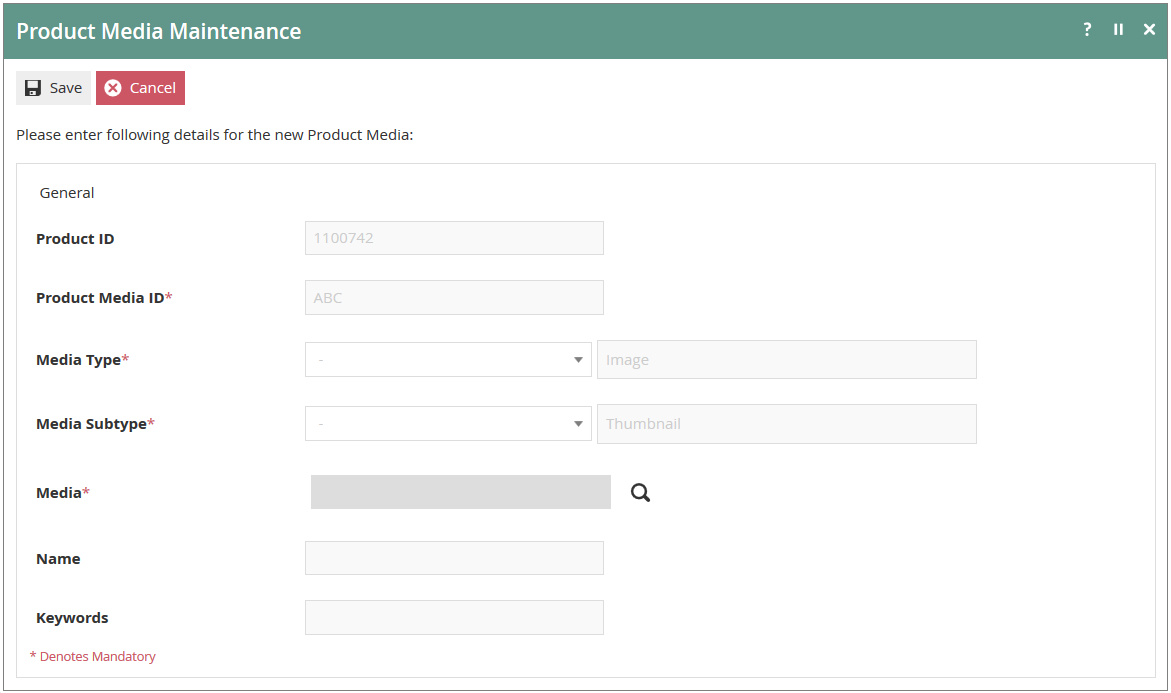
To add media elements to the list, specify values for the properties and select the Add option. Create a Product Media ID, select the Media Type (image or URL) and the Media Subtype from the dropdown.

When the Add option is selected the UI proceeds to the Product Media Maintenance page. If the Media Type property is selected as Image, the Product Media Maintenance page requires specification of a stored image which has been previously uploaded in the PRODUCT category using the Estate Manager function Configuration > Media > Images. The user may enter the ID manually or use the Search icon to search the list of uploaded images. If the Media Type property is selected as Image URL, the user may enter a URL that references the required image.
Colour and Size Ranges
Style Size and Style Colour Size products make use of pre-defined Colour and Size Ranges as part of their configuration. Prior to configuring that type of product, review the following sections for guidance on how to manage and create Colour and Size Ranges.
Colour Range Maintenance
The Colour Range is defined as a text identifier with which can be associated a set of text elements that identify colours in the range. The identifiers of the range and the colours within it are specified in the Colour Range Maintenance function described below.
Accessing Colour Ranges
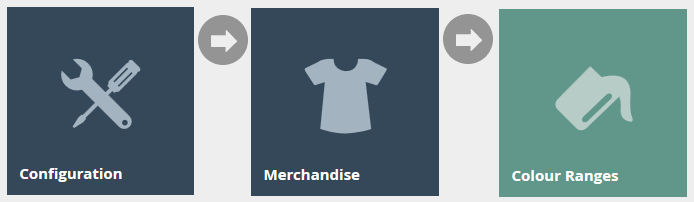
Navigate to Colour Range Maintenance using the Search or the path: Main Menu > Configuration > Merchandise > Colour Ranges
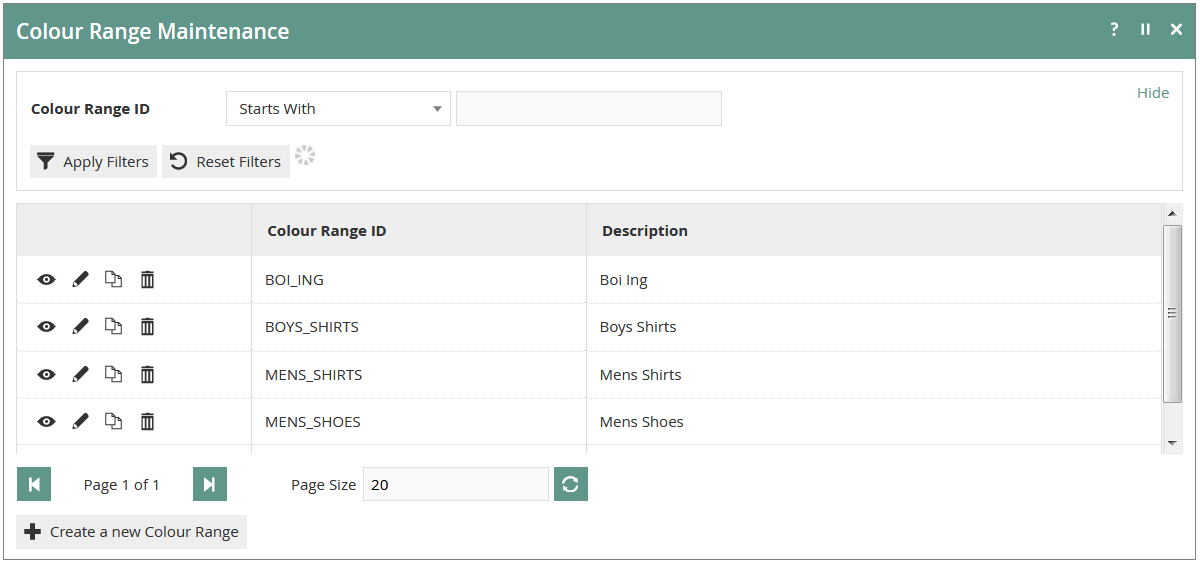
The Colour Ranges option invokes the Colour Ranges Maintenance select page. The select page lists currently configured Colour Ranges and enables the user to add, view, edit, copy or delete Colour Ranges.
New Colour Range
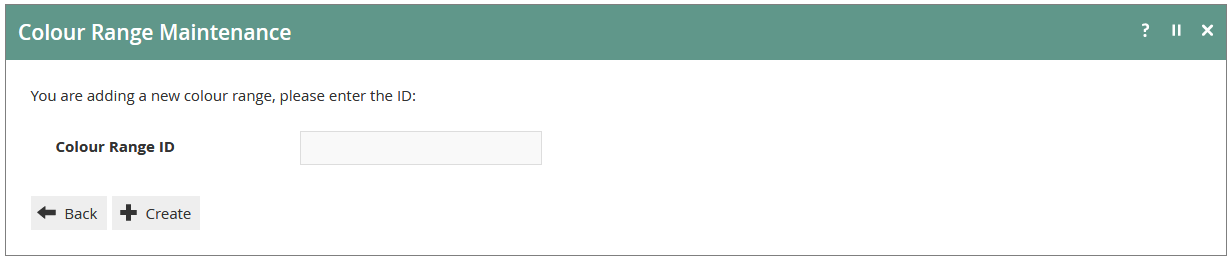
In the Colour Range Maintenance select page, select the Create a new Colour Range option. This presents an initial page to capture a Colour Range ID.
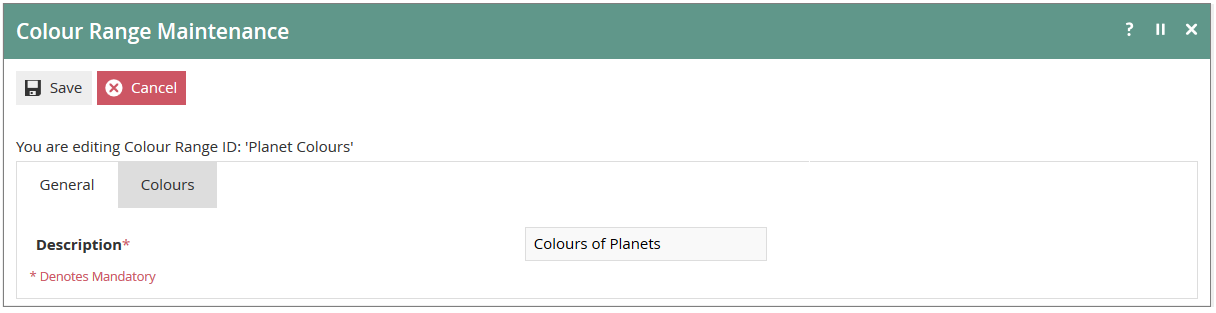
A mandatory Description for the Colour Range is provided in the General Tab and a Name is provided for each colour of the range in the Colours Tab.
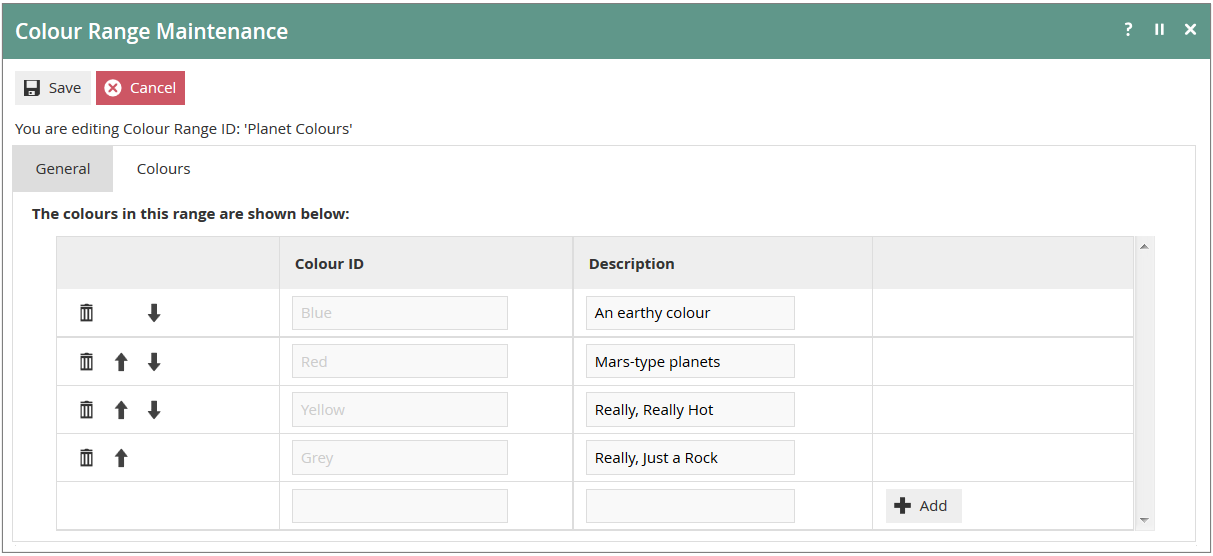
In the Colours Tab, an ordered list of colours may be accumulated by entering a Colour ID and Description then selecting the Add option. Colours may also be deleted from the list or shifted up or down in the order using the associated Delete, Up and Down icons.
Size Range Maintenance
The Size Range is defined as a text identifier with which can be associated a set of text elements that identify sizes in the range. The identifiers of the range and the sizes within it are specified in the Size Range Maintenance function described below.
Accessing Size Ranges
Navigate to Size Range Maintenance using the Search or the path: Main Menu > Configuration > Merchandise > Size Ranges

The Size Ranges option invokes the Size Ranges Maintenance select page. The select page lists currently configured Size Ranges and enables the user to add, view, edit, copy or delete Size Ranges.

New Size Range
In the Size Range Maintenance select page, select the Create a new Size Range option. This presents an initial page to capture a Size Range ID.
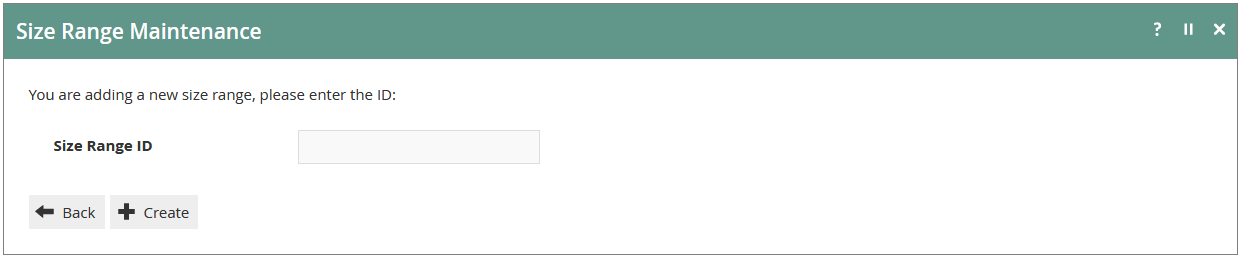
A mandatory Description for the Size Range is provided in the General Tab and a Name is provided for each size of the range in the Sizes Tab.
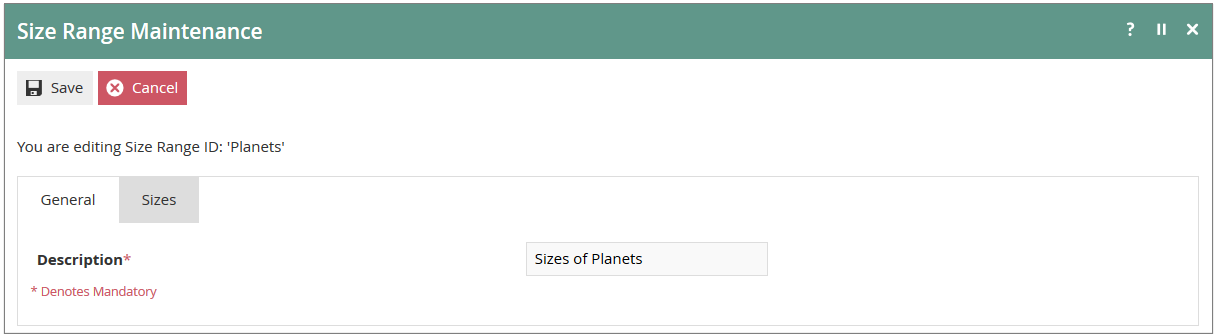
In the Sizes Tab, an ordered list of sizes may be accumulated by entering a Size ID and Description then selecting the Add option. Sizes may also be deleted from the list or shifted up or down in the order using the associated Delete, Up and Down icons.

Style Size Product
The process to configure a Style Size Product type follows all of the steps described for a standard Merchandise Product type. The Style Size Product type has an additional Sizes / Colours Tab. When a Size Range is selected, the list of configured sizes in the range is presented with checkboxes to select the available sizes for this product.
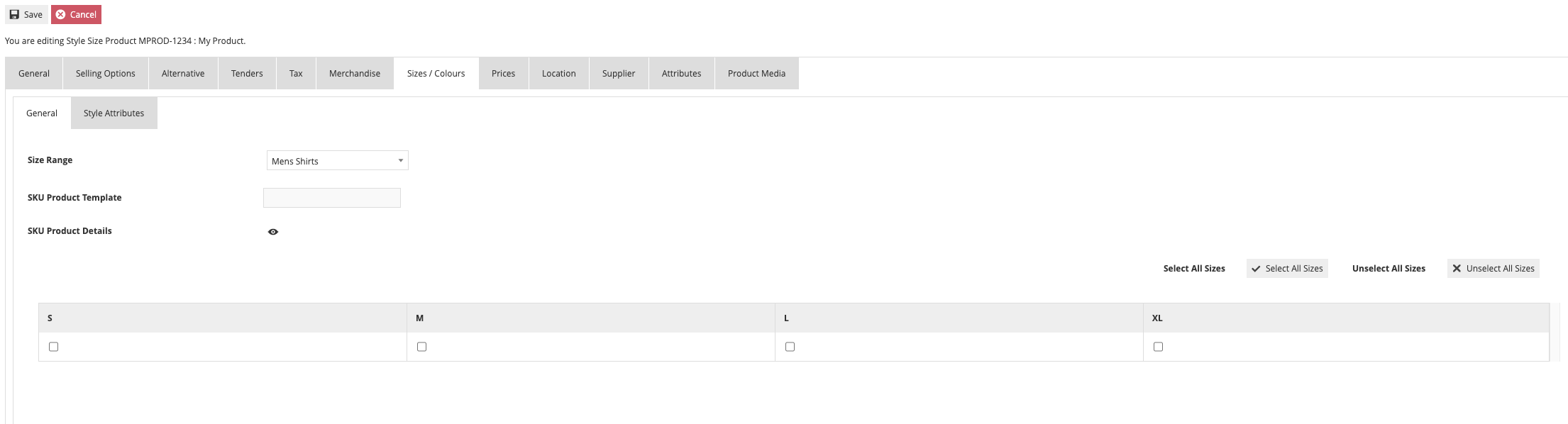
When creating or modifying a Style Product, having selected a Size Range and the specific sizes available for the product using the checkboxes provided, after the user selects Save, a further Product Maintenance page may be displayed to list any of the required, related SKU Products that have not already been created. The page includes options to create them.
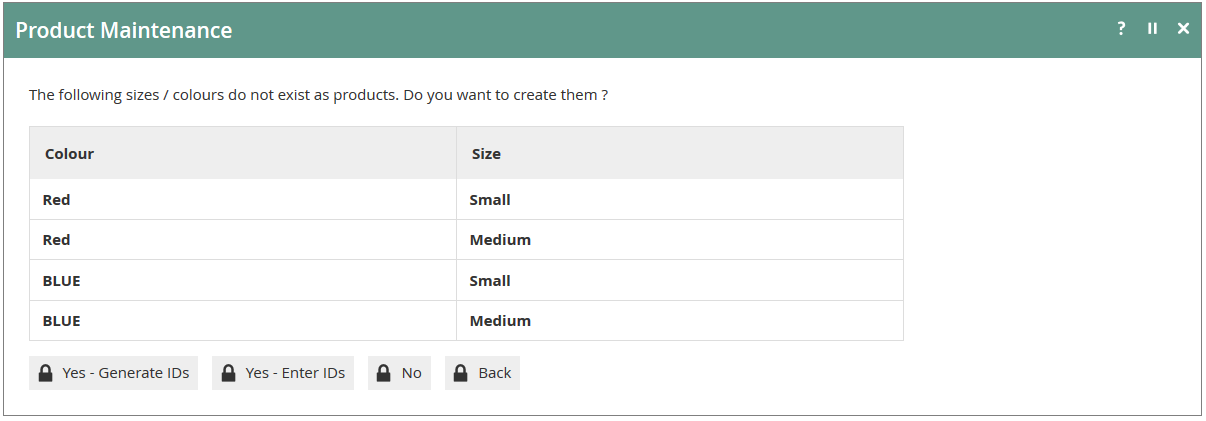
The user has four options:
- No - The Style Product will be created and the maintenance function will conclude without creating the missing SKU products.
- Back - The maintenance function will return to the edit function for the Style Product.
- Yes - Generate IDs - The Style Product will be created and the missing SKU Products will be created with generated Product IDs.
- Yes - Enter IDs - The Style Product will be created and the missing SKU Products will be created, prompting the user for manual input of their Product IDs.
Style Colour Size Product
The process to configure a Style Colour Size Product type follows all of the steps described for a standard Merchandise Product type. The Style Colour Size Product type has an additional Sizes / Colours Tab. When the Size and Colour Ranges are selected, the matrix of colour-size options from the ranges is presented with checkboxes to select the available colour-size combinations for this product.
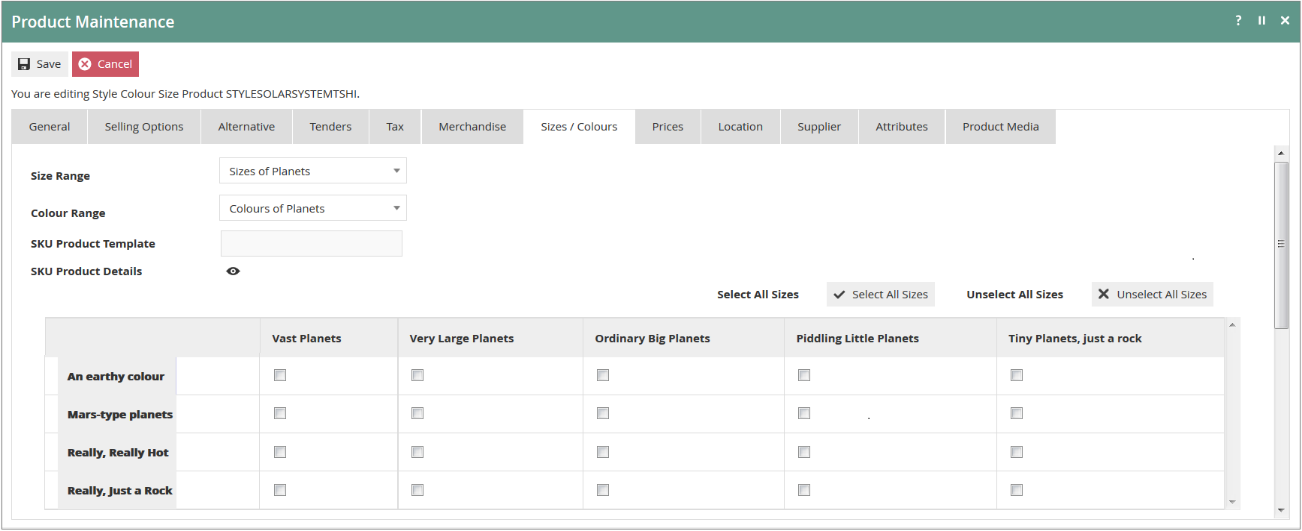
When creating or modifying a Style Product, having selected a Size Range and/or Colour Range and the specific colour and size combinations available for the product using the checkboxes provided, after the user selects Save, a further Product Maintenance page may be displayed to list any of the required, related SKU Products that have not already been created.
The user has the same four options as for the Style Size Product:
- No - The Style Product will be created and the maintenance function will conclude without creating the missing SKU products.
- Back - The maintenance function will return to the edit function for the Style Product.
- Yes - Generate IDs - The Style Product will be created and the missing SKU Products will be created with generated Product IDs.
- Yes - Enter IDs - The Style Product will be created and the missing SKU Products will be created, prompting the user for manual input of their Product IDs.
SKU Product
SKU Products based on a specific Style ID may also be created manually and directly in the Product Maintenance page. SKU Products may be created independent of any Style Product. To create a SKU Product, select the Create a new Product option in the Product Maintenance select page and select the SKU Product value for the Product Type property.
As with Style Products, the distinctive feature of the SKU Product Type is the size and/or colour information, which is captured in the Sizes/Colours Tab.
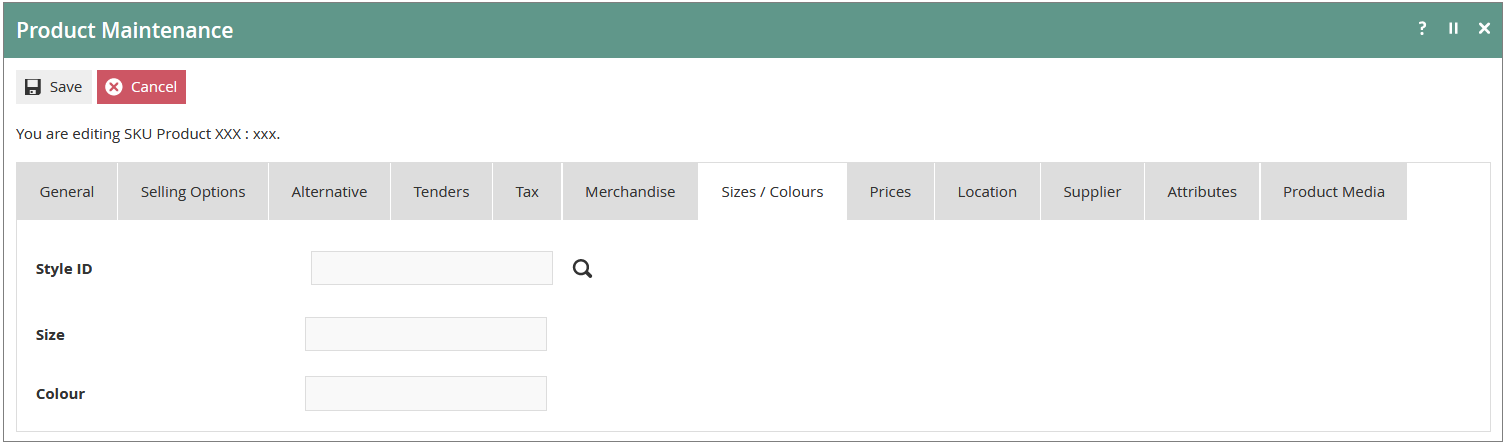
A Style ID may be manually entered or the Search icon may be used to access the Product Search, in which the Product Type may be used as a filter. Elements are presented for selection by using the Select-and-Return icon, which returns the Product ID of the selected Style Product to the Style ID field.
If no Style Product Style ID is selected, the SKU Product will remain independent of any Style and the Size and Colour properties may be individually, independently and explicitly specified. However, if a Style Product Style ID is selected, depending on the Product Type of the Style Product selected, the Size and/or Colour Range property values are presented in read-only fields.
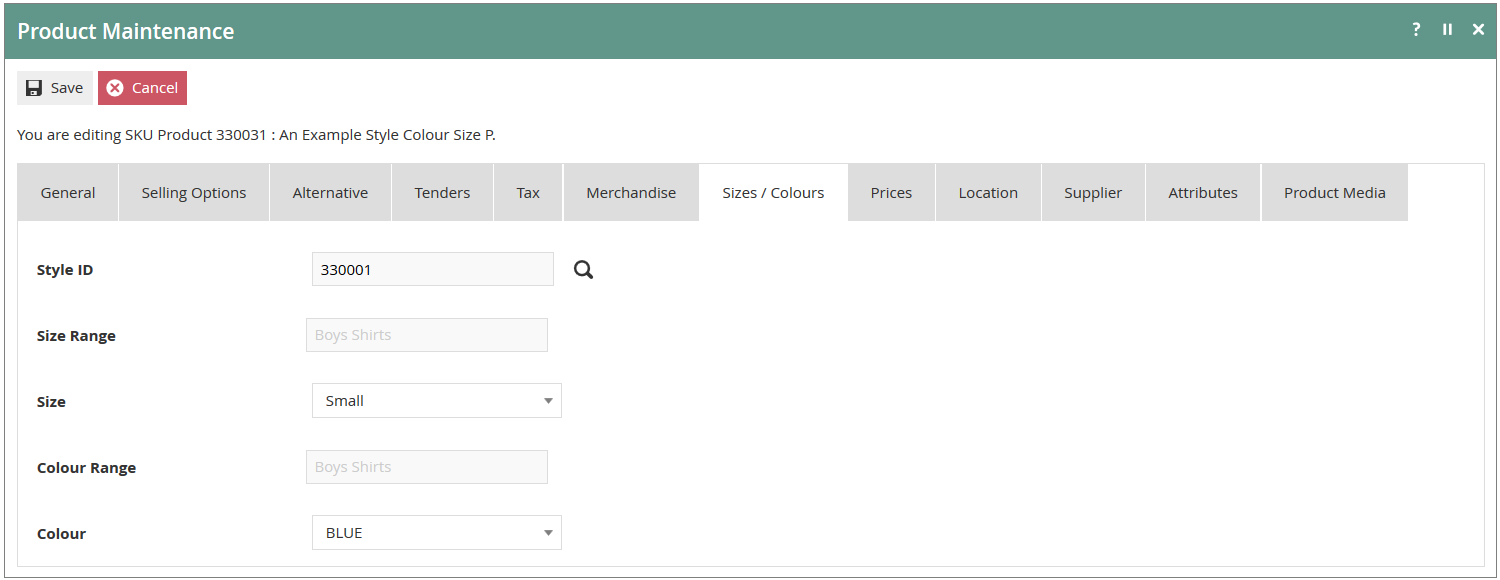
In this case, the Size and Colour properties are restricted to and selected from a dropdown list of the configured options of the respective range selected for the Style Product.