How To Configure Givex Gift Cards
Introduction
There are numerous elements involved in configuring the gift card solution. This guide describes the configuration that will enable identification and authorisation of gift cards using the external service provider Givex.
The purpose of this guide is to demonstrate the steps required to configure the Enactor Estate Manager so that gift cards can be authorised through the Givex gift card service. The guide covers Acquirer setup, Acquirer Connection, Authorisation Server Config, Service Definition, Card Type, Gift Card Type, and IIN Range configuration.
This guide does not cover the complete configuration of gift cards. For full gift card configuration, refer to the Enactor Gift Card configuration guide.
Pre-requisites
The following must be in place before starting this configuration:
- The Enactor Web Card Authorisation service must be deployed and configured on the Estate Manager.
- The
enactor.xmlon the POS must be configured to use the Enactor EFT authorisation service. - Enactor Standard Configuration has been imported into the Estate Manager and has been broadcast to the POS.
Overview
For gift cards to operate successfully in the POS application, the following entities must be configured in this order:
- Acquirer - Define a Givex Gift Card acquirer for each country.
- Acquirer Connection - Link the acquirer to the Givex host with connection protocols and timeouts.
- Authorisation Server Config - Assign the Givex acquirer to the authorisation server.
- Service Definition - Enable the Card Authorisation Server service.
- Card Type - Create a Gift Card card type.
- Gift Card Type - Configure the gift card type with region, currency, and acquirer.
- IIN Ranges - Define the card number ranges used to identify Givex gift cards at the POS.
Configuration
Acquirer
Within the standard configuration, several gift card acquirers are already defined. For the purposes of this guide, we will define a new acquirer for Givex Gift Cards.
Navigate to Configuration > Financial > Acquirers and the Acquirer Maintenance application will open.
Select Create a new Acquirer.

Here the Region, Type, and ID of the acquirer can be defined.
A new acquirer should be defined for each country. The simplest way to complete this task is to copy an existing acquirer and modify it for each new country that is required.
The following parameters should be set:
| Field | Value |
|---|---|
| Region | Select from defined regions (Groups - Region) |
| Acquirer Type | Gift Card |
| Acquirer ID | GIVEX_UK |
Then select the Create button.
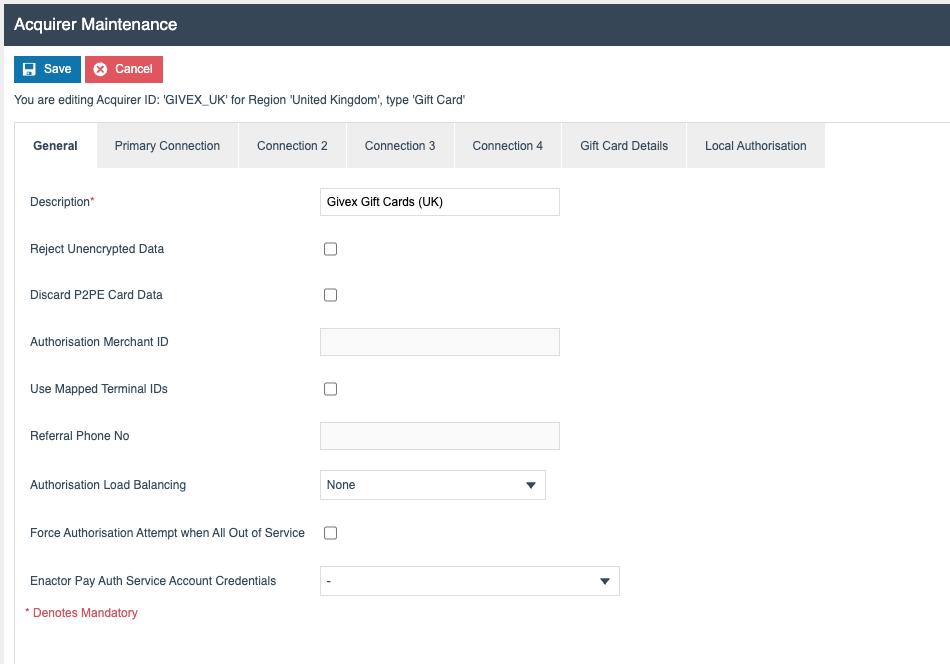
Select the General tab. Set the Description field to 'Givex Gift Cards (UK)'. Set the Authorisation Merchant ID, if provided.
Select the Gift Card Details tab. Check the box for Validate Online on Issue or TopUp. Check the box for Check Balance Online on Redemption. Set the Server User Name. Select the Change Server Password button and provide the Givex user's password.
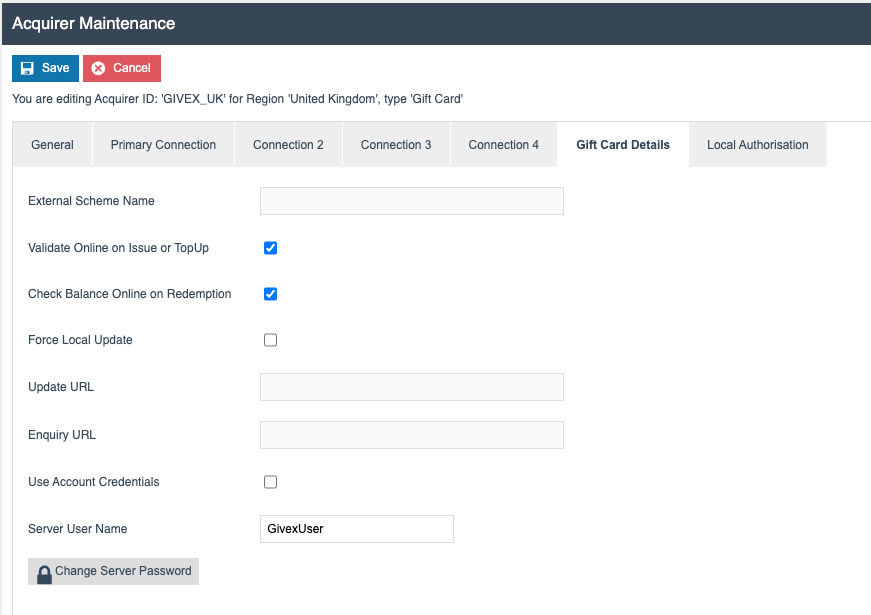
| Field | Description |
|---|---|
| Validate Online on Issue or TopUp | Ensures gift card issue and top-up operations are validated with Givex online |
| Check Balance Online on Redemption | Checks the card balance with Givex before allowing redemption |
| Server User Name | The Givex user account for authentication |
| Change Server Password | Sets the password for the Givex user account |
Select the Save button.
Acquirer Connection
Acquirer Connections link the Acquirer to the host and define connection protocols and timeouts.
Navigate to Configuration > Financial > Acquirer Connections and the Acquirer Connections Maintenance application will open.
Select Create a new Acquirer Connection.
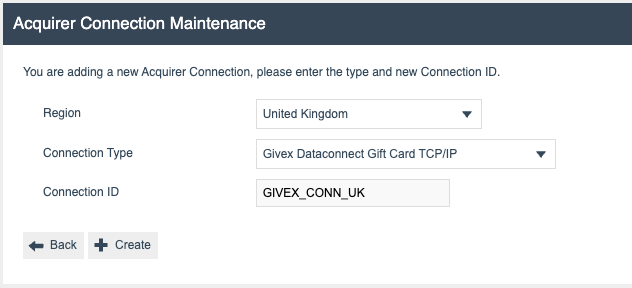
An Acquirer Connection should be defined for each country. The simplest way to complete this task is to copy an existing Acquirer Connection and modify it for each new country that is required.
The following parameters should be set:
| Field | Value |
|---|---|
| Region | Select from defined regions (Groups - Region) |
| Acquirer Type | Givex Dataconnect Gift Card TCP/IP |
| Acquirer ID | GIVEX_CONN_UK |
Then select the Create button.
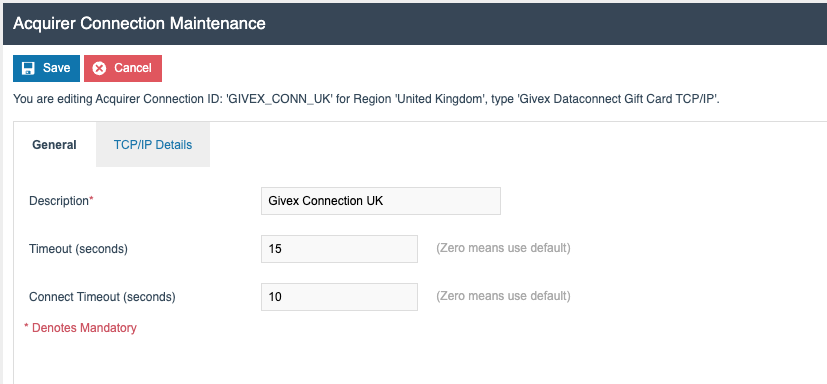
Select the General tab. Set the Description. Set the Timeout. Set the Connect Timeout.
Select the TCP/IP Details tab. Set the Max Connections. Uncheck the Add Header box. Check the Use SSL box. Select KeyStore Type = JKS. Provide a KeyStore File Name and password.
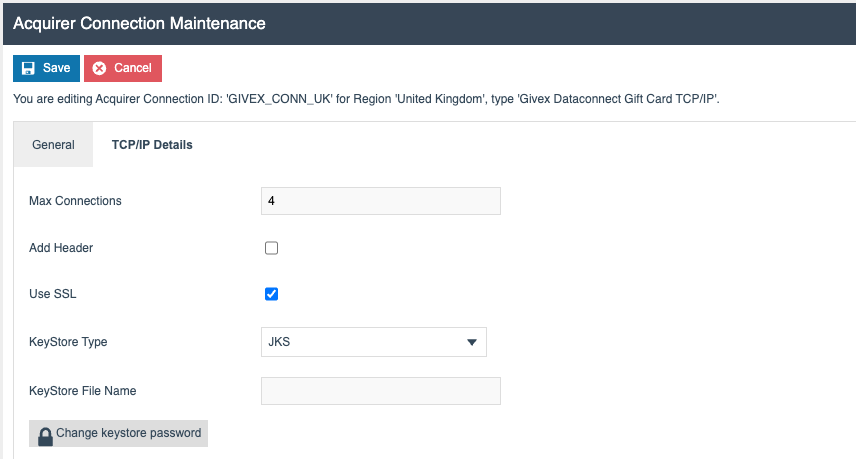
| Field | Description |
|---|---|
| Max Connections | Maximum number of concurrent connections to the Givex host |
| Add Header | Whether to add a header to the connection request (uncheck for Givex) |
| Use SSL | Enables SSL encryption for the connection |
| KeyStore Type | The type of SSL keystore (JKS) |
| KeyStore File Name | Path to the SSL keystore file |
Select Save.
Authorisation Server Config
Authorisation Server configuration is provided as part of the Enactor standard configuration. The application can be accessed from Configuration > Financial > Authorisation Server Config.
Select the Edit icon against your defined server configuration. This page allows numerous Acquirers to be assigned to an Authorisation Server.

Select the Givex Gift Card (UK) acquirer defined earlier and select the + icon.
The connection configuration page will display.
Select the Primary Connection tab. Select Givex Connection UK from the Acquirer Connections. Enter the hostname and port for your Givex service.
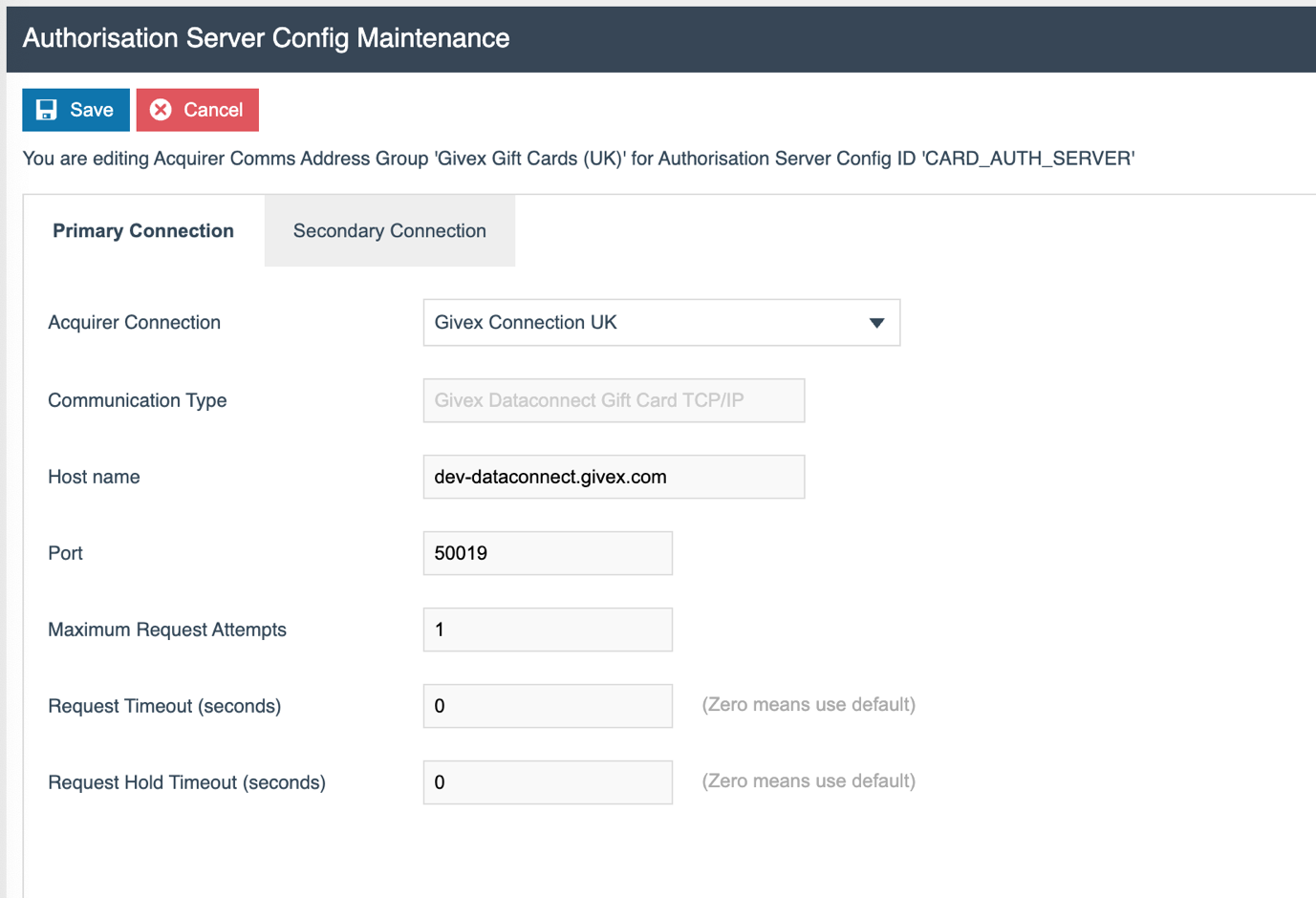
If you have a secondary Givex server, select the Secondary Connection tab and set the same details for the backup host.
Select Save to save the Givex Gift Card (UK) acquirer to the supported acquirers list.
Select Save to save the CARD_AUTH_SERVER configuration.
Service Definition
Included in the Enactor reference configuration is a Service Definition for 'Card Authorisation Server'. This defines the service that will process card requests from the POS.
Navigate to Administration > Services > Service Definitions.
Select 'Card Authorisation Server' from the Service Type. Select 'Card Authorisation Server' from Device Type. Select Apply Filters.

Select the Edit icon against the service that is displayed.
This shows various parameters which are defined when the Service Definition is created. Only the following parameters are editable:
| Field | Description |
|---|---|
| Disabled | Selecting this parameter will disable the service (takes effect on next restart) |
| Name | Allows the name description of the service to be changed |
| Auto Start | Defines whether the service will automatically start when the Enactor services are started |
Check/tick Auto Start.
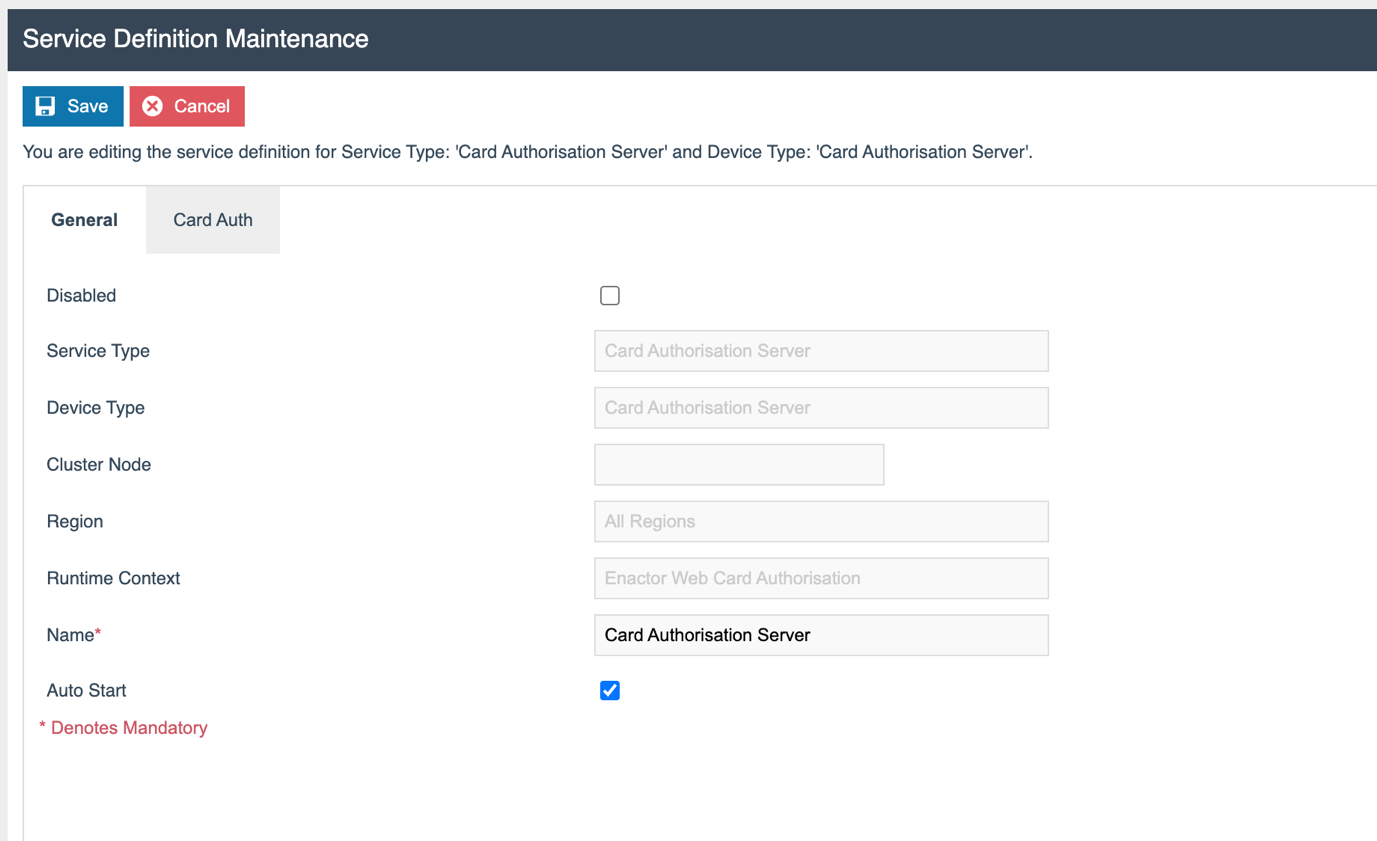
Select the Card Auth tab.

Queue Name and Server Configuration should only be specified when it is necessary to override the defaults, for example if running more than one authorisation service on one machine. The default queue name is enactor.cardAuthorisation.RequestResponseQueue. Server configuration is normally obtained from AuthorisationServer or POSTerminal devices. Number of Threads represents the number of requests the service can handle simultaneously.
In the case of gift card configuration, it is not necessary to amend either the Queue Name or Server Configuration.
Number of Threads may be increased as required, depending on the size of the estate and number of requests.
Select Save.
Card Type
Navigate to Configuration > Financial > Card Types.
Select Create a new Card Type.
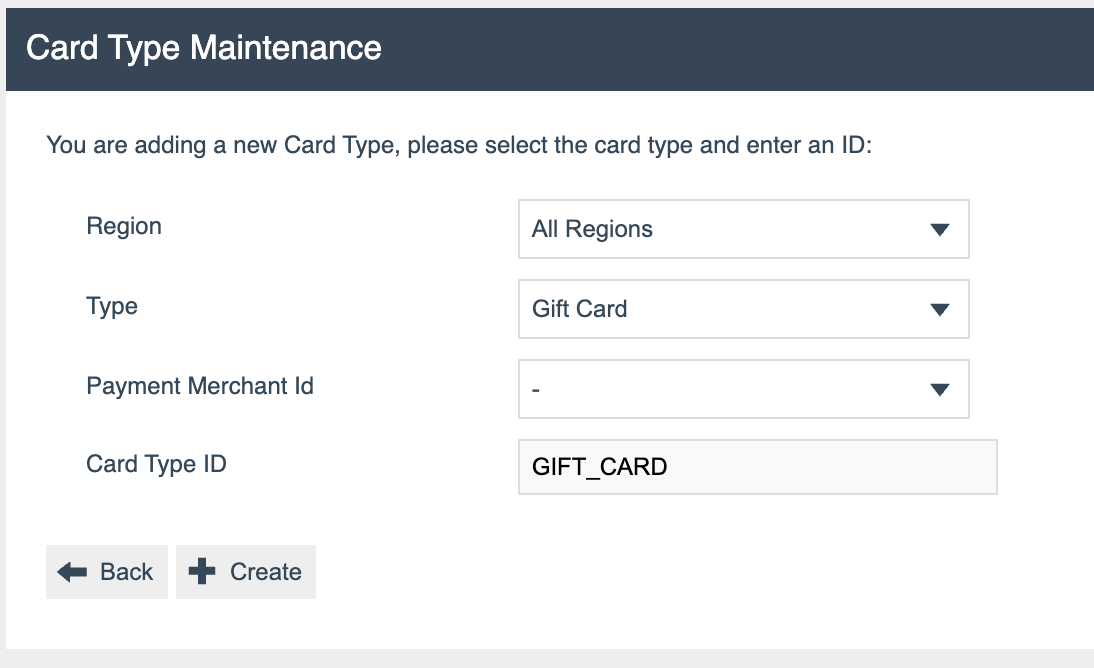
The following parameters should be set:
| Field | Value |
|---|---|
| Region | All Regions |
| Type | Gift Card |
| Card Type ID | GIFT_CARD |
A single Card Type is defined for Gift Card for all regions.
Select Create.

Set Description to 'Givex Gift Card'. No other fields are required.
Select Save.
Gift Card Type
Gift Card Type can be accessed from Configuration > Financial > Gift Card Types.
Select Create a new Gift Card Card Type.
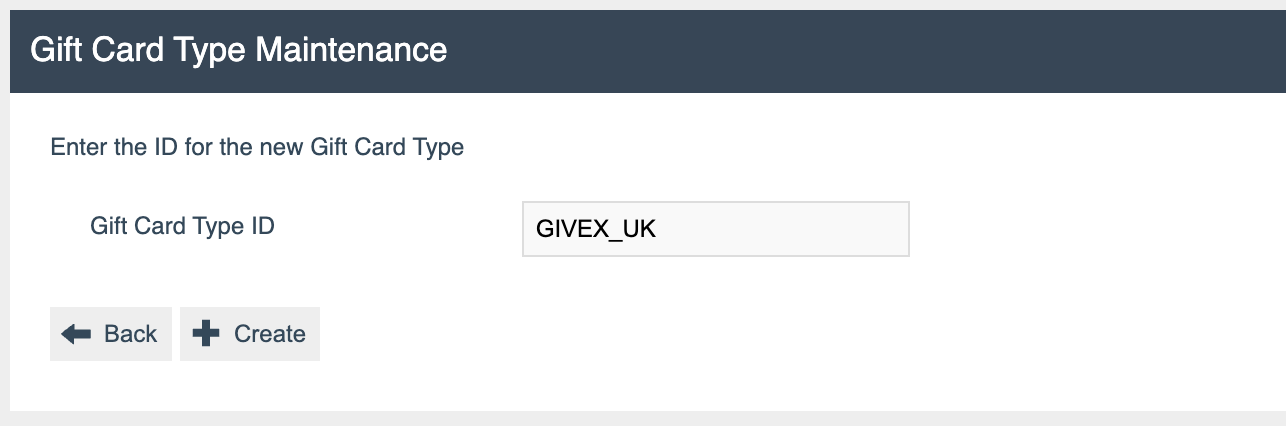
Set Gift Card Type ID to GIVEX_UK.
Select Create.
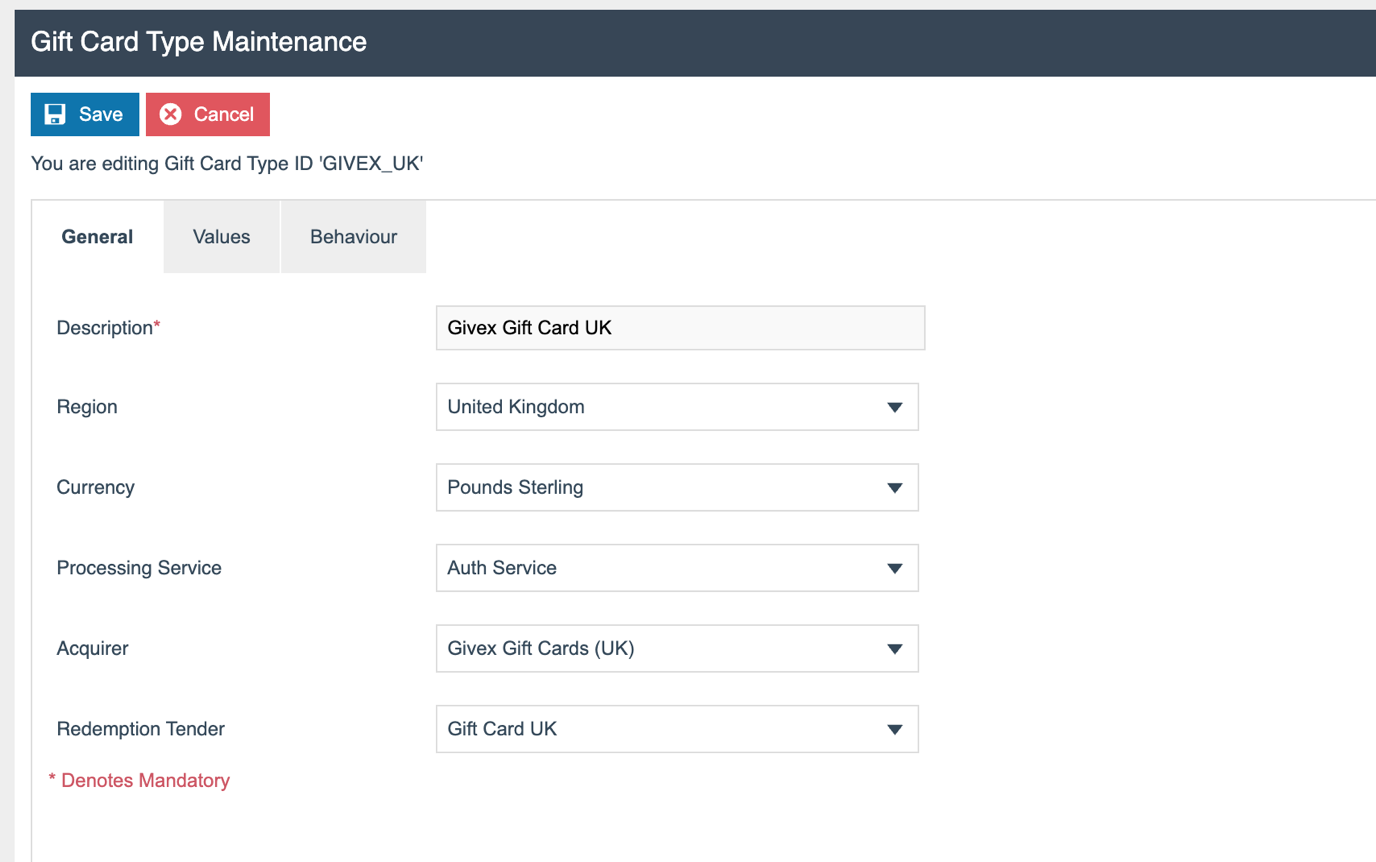
| Field | Description |
|---|---|
| Description | A descriptive name for this gift card type |
| Region | The region this gift card type applies to |
| Currency | The currency used for this gift card |
| Processing Service | Set to 'Auth Service' |
| Acquirer | Set to 'Givex Gift Cards (UK)' created in the earlier steps |
| Redemption Tender | The gift card tender configured for this region |
Select the Values tab.
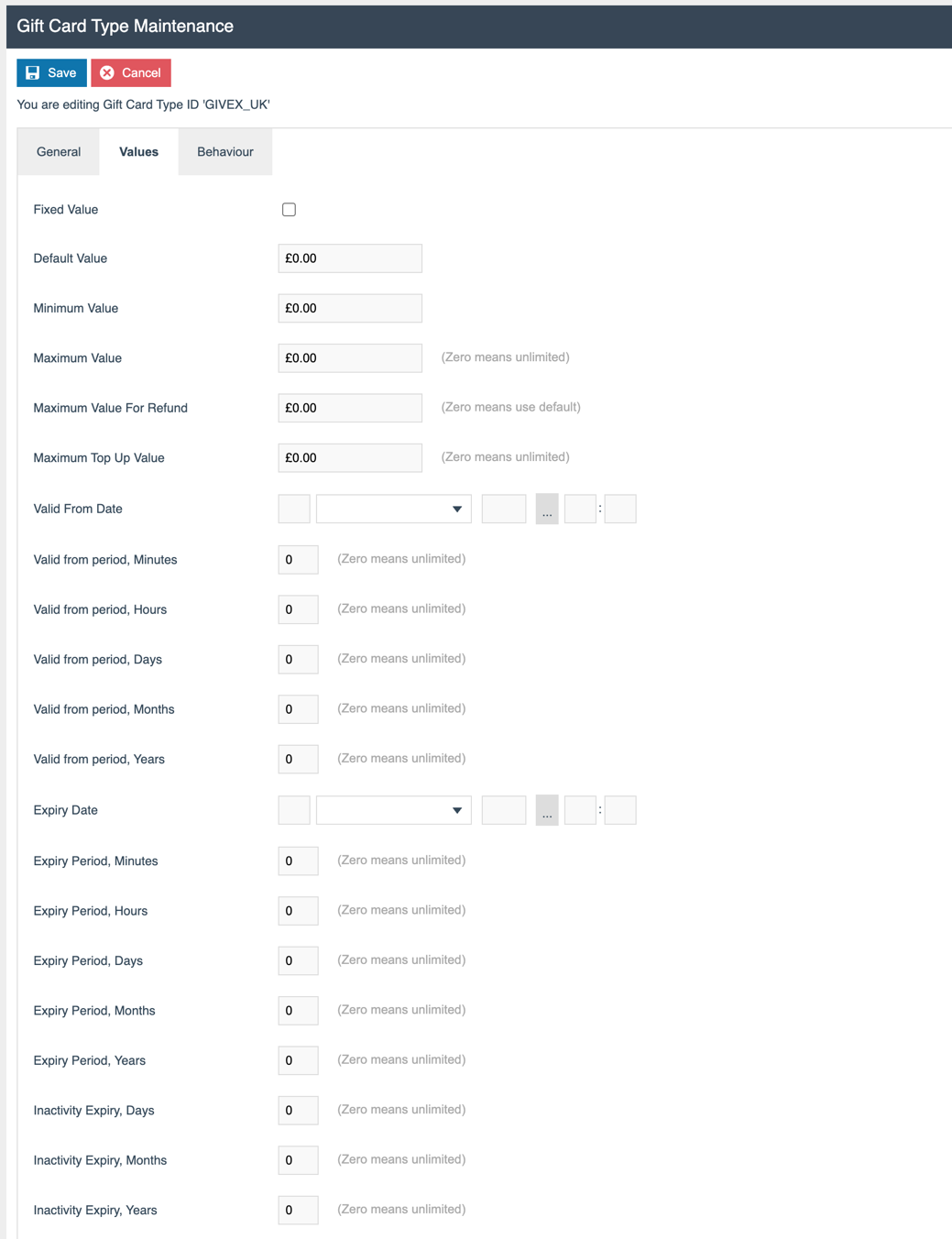
There are numerous gift card configuration options presented in this tab. These are self-explanatory per their descriptions.
Select the Behaviour tab.
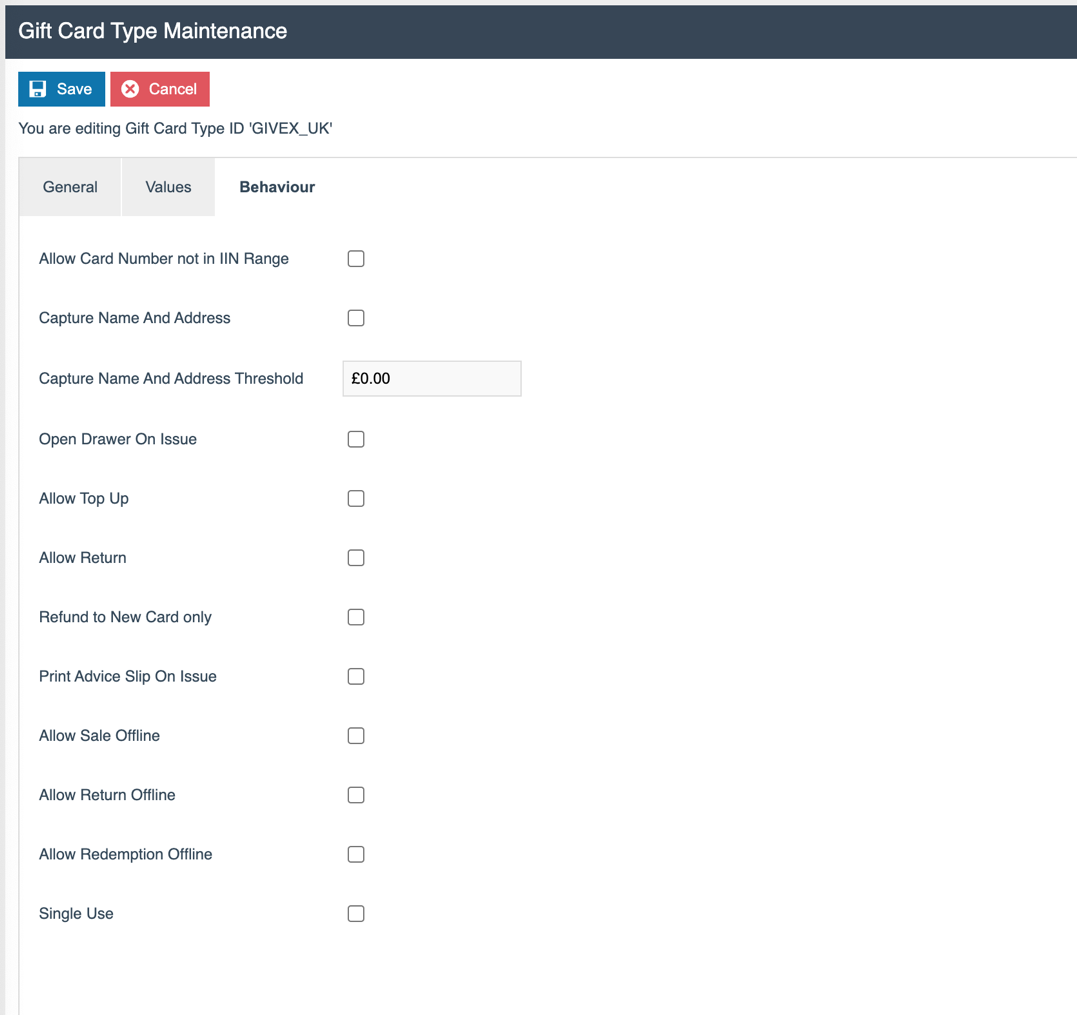
There are numerous gift card configuration options presented in this tab. These are self-explanatory per their descriptions.
Use caution when enabling the redemption offline option. In an offline scenario, this could enable a tender greater than the value of credit held on the card.
If additional regional gift cards are needed, the Gift Card Type above can be copied, and the Region, Currency, Acquirer, and Redemption Tender amended.
IIN Ranges
IIN (Issuer Identification Number) ranges allow the POS to identify what type of card is being captured. Generally, the first six or eight digits of the card range is specified - for example, one of the IIN ranges for American Express is 340000 to 349999 with a PAN (Primary Account Number) length of 15.
This functionality is also used for gift cards, and some example IIN ranges are included as part of Enactor's standard configuration. Many of the available options in IIN ranges are not applicable or used for gift cards.
Navigate to Configuration > Financial > IIN Ranges.
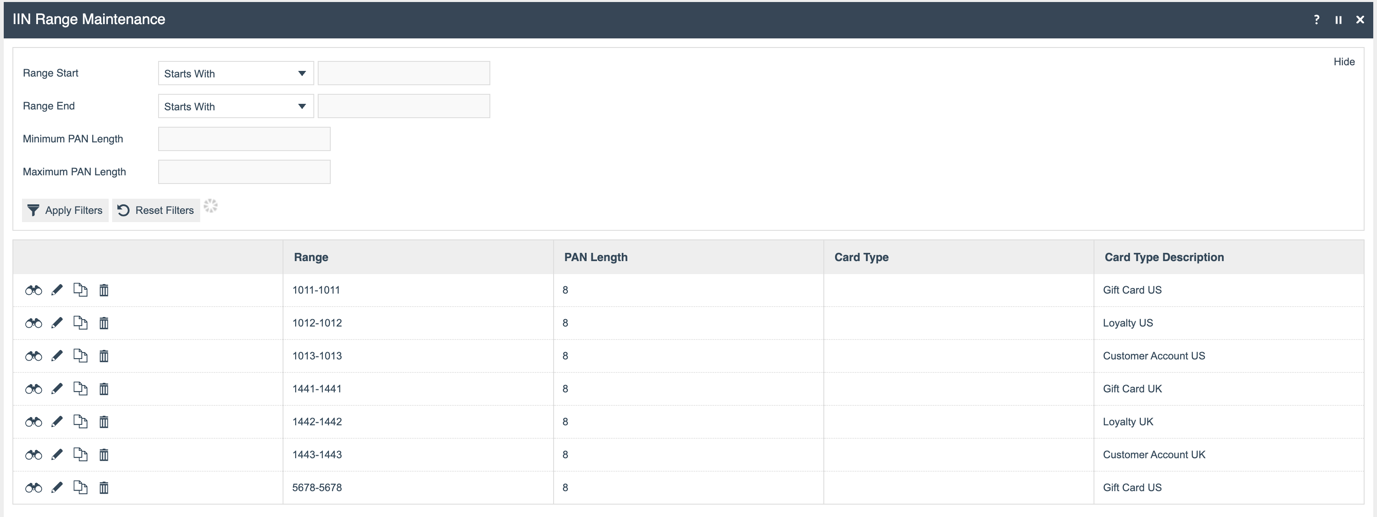
The IIN Range Maintenance application will open, showing some of the pre-defined IIN ranges.
The example range provided for Givex Gift Card UK is 633887 to 633887.
Select Create a new IIN Range.
The following parameters should be set:
| Field | Value |
|---|---|
| Range Start | 633887 |
| Range End | 633887 |
| Minimum PAN Length | 22 |
| Maximum PAN Length | 22 |
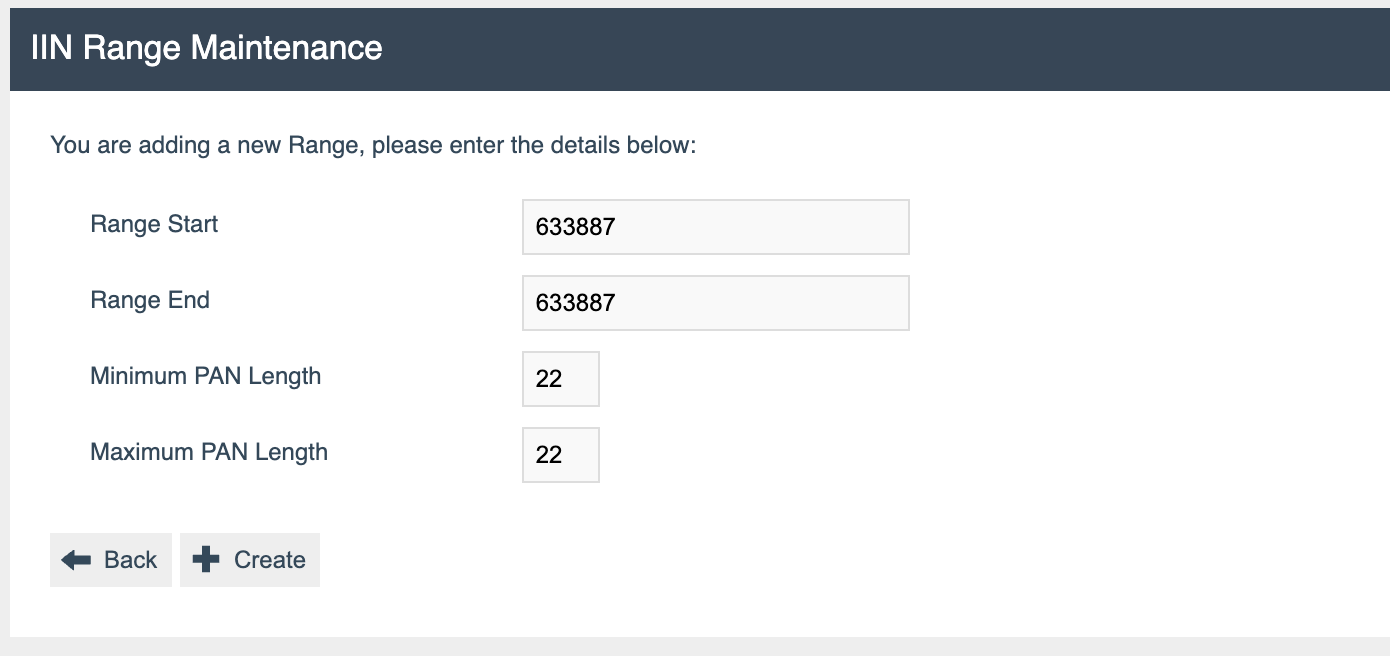
Select Create.
Set Card Description to 'Givex Gift Card UK'. Check/tick No Luhn Check Digit. Set Country. Set Currency.
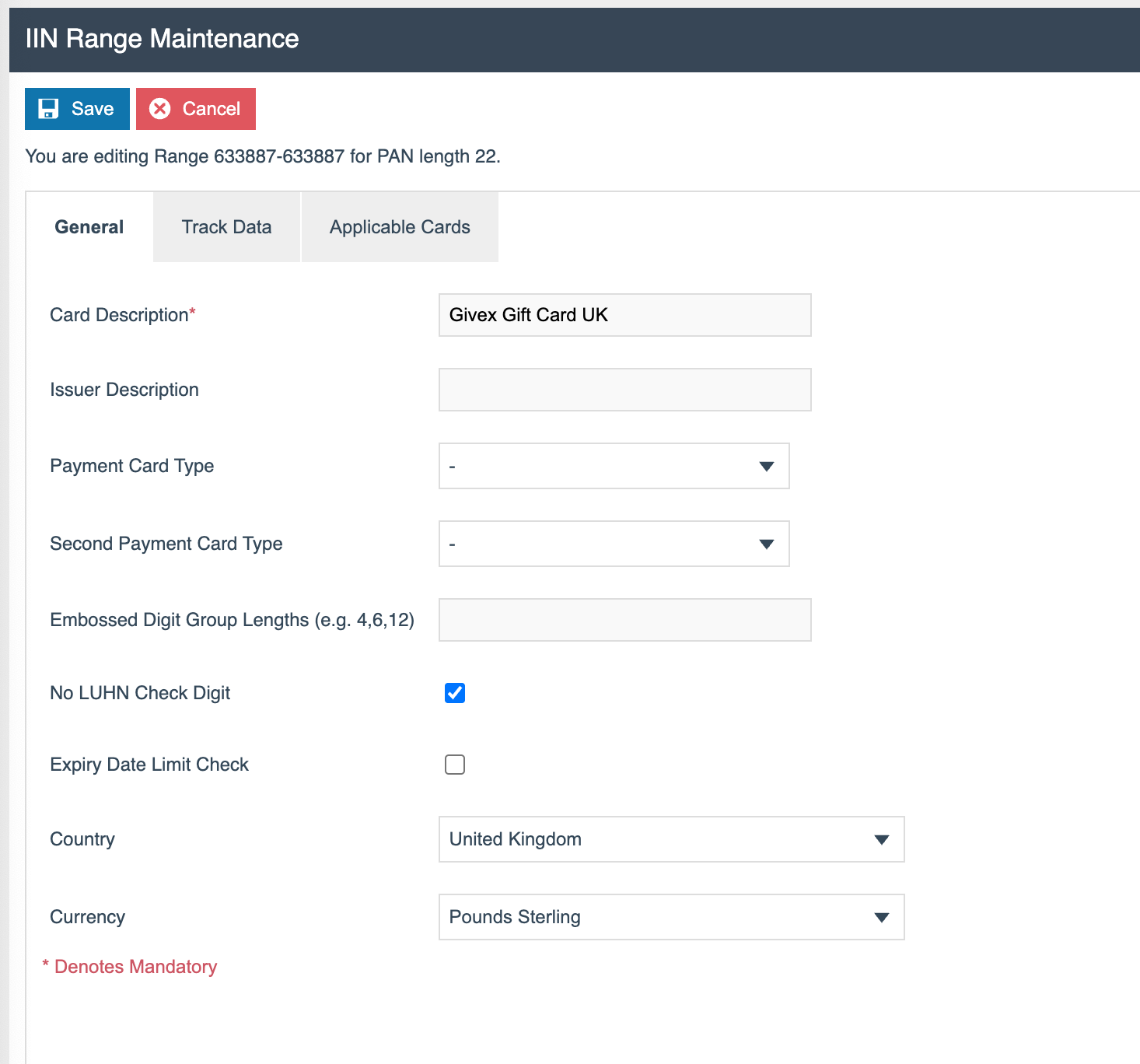
| Field | Description |
|---|---|
| Card Description | Descriptive name for this IIN range |
| No Luhn Check Digit | Disables Luhn algorithm validation for this card range |
| Country | The country this IIN range applies to |
| Currency | The currency for this IIN range |
Select the Track Data tab.
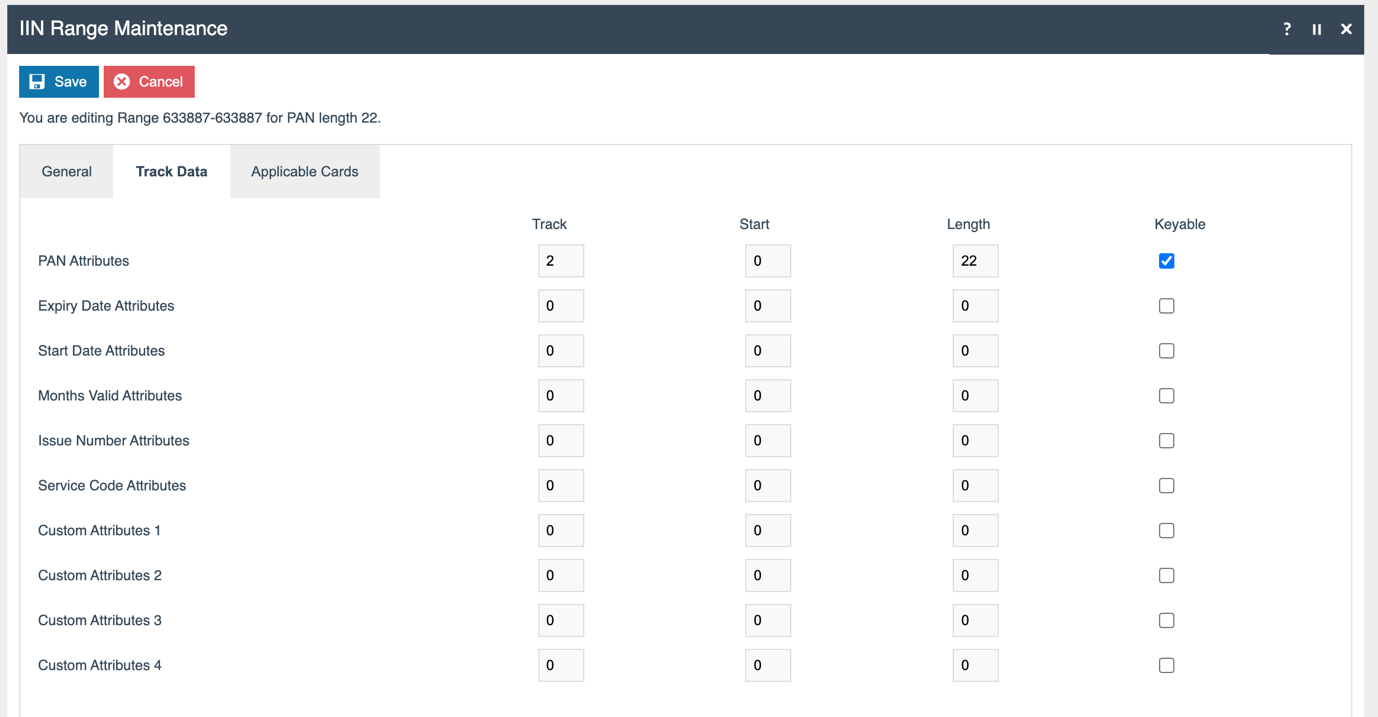
On the PAN Attributes field, Track is defined as 2. For almost all mag cards, the PAN is stored on track 2. The track length is also defined here, as is whether the card number is allowed to be keyed.
Select the Applicable Cards tab.
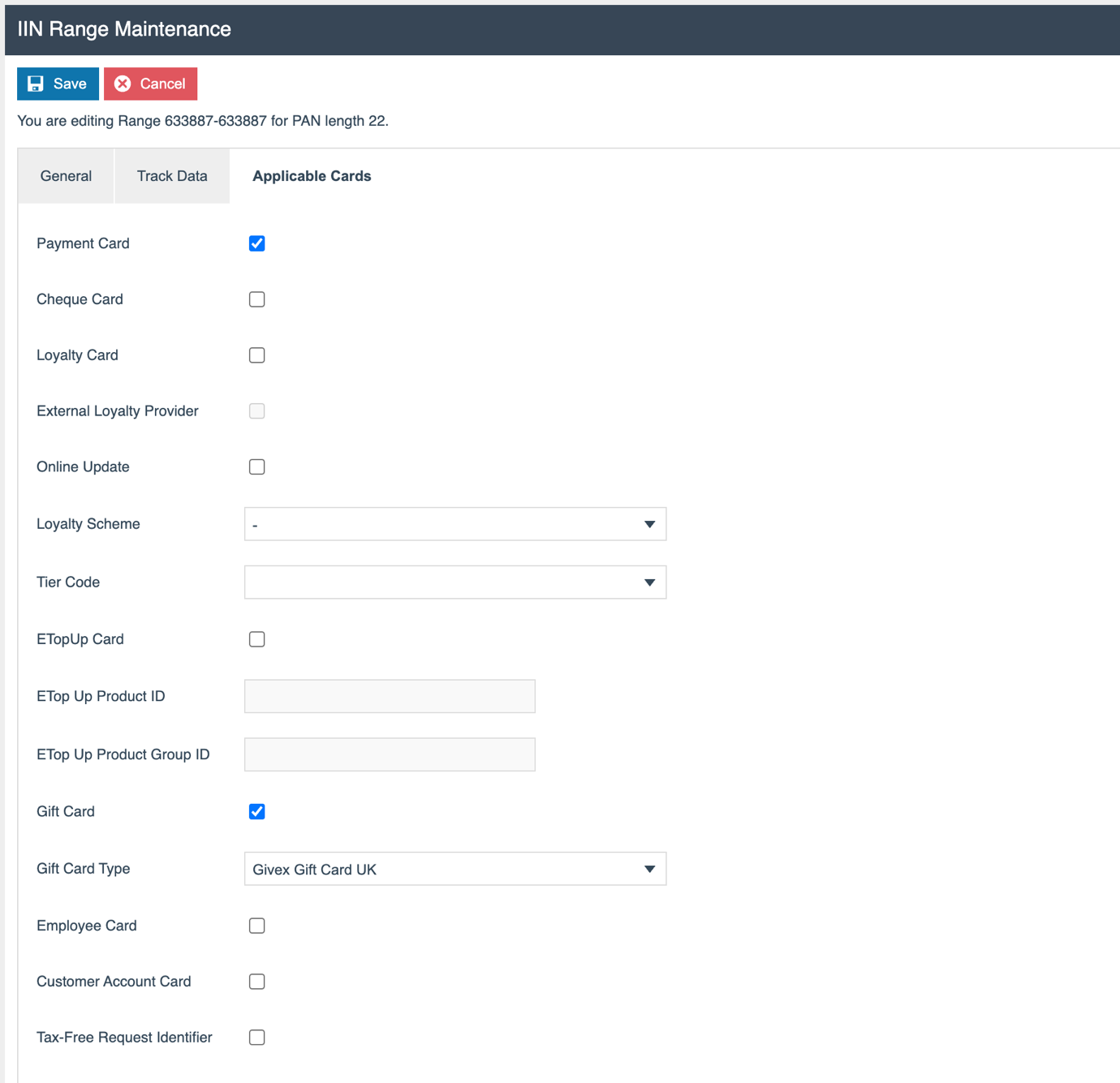
Check/tick Payment Card. Check/tick Gift Card. Set Gift Card Type to 'Givex Gift Card UK' which was created earlier.
For additional countries, copy this IIN range, and set the Card Description, Country, Currency, and Gift Card Type.
Select Save.