How To Configure Loyalty
The purpose of this guide is to provide a foundational understanding of how to configure Loyalty in the Enactor Estate Manager and POS. This guide covers defining and configuring a new Loyalty Scheme, creating new customers, customer loyalty accounts, and issuing loyalty cards. It also demonstrates how to carry out loyalty-based transactions - capturing and redeeming points - based on the configured Loyalty Scheme.
Overview
This guide covers the configuration for the following:
-
Loyalty Schemes Configuration - Setting up loyalty tiers and the rules associated with them for loyalty-based transactions.
-
Role Configuration - Enabling privileges and configuring the Sale and Tender menus to run Loyalty-based functions in the POS.
-
Customer Loyalty Configuration - Setting up an IIN range, customer accounts, customer loyalty accounts, and loyalty cards to carry out loyalty-based transactions based on the Loyalty Scheme configuration.
-
Capturing of Loyalty Points - Using a loyalty customer to earn points from a basic sales transaction.
-
Redeeming of Loyalty Points - Using the available points of a loyalty customer as a tender option.
Prerequisites
Resources
Before starting, the following resources should be in place:
- Enactor Estate Manager
- Enactor POS (configured and connected to the Estate Manager)
- Standard Configuration (Base Configuration and appropriate regional config pack)
- Regionally appropriate data including Products, Tenders, and Discount Reasons
Prior Training/Experience
You should be familiar with the following:
- Estate Manager configuration
- Enactor configuration concepts: Products, Tenders, User Roles, Menu Maintenance
- Data broadcasting
- Standard POS Sales processes
Configuration
The Loyalty Scheme Configuration function provides the option to create Loyalty Schemes that allow users to define different Loyalty Tiers and the rules associated with them when carrying out loyalty-based transactions. Examples of rules configured in the Loyalty Scheme include: the rate at which loyalty customers earn loyalty points, the rate at which points are redeemed, the promotion strategy used for calculation of loyalty, and the number of points or total value spent required for a customer to advance to the next Tier.
Loyalty Schemes are associated with individual customer loyalty accounts and the POS terminal. A diverse number of Loyalty Schemes may be defined based on requirements.
Create a new Loyalty Scheme
Navigate to Loyalty Scheme using Search or the menu path:
Main Menu > Configuration > Financial > Loyalty Scheme
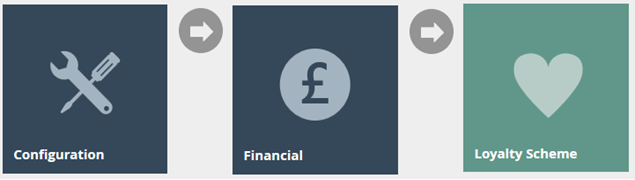
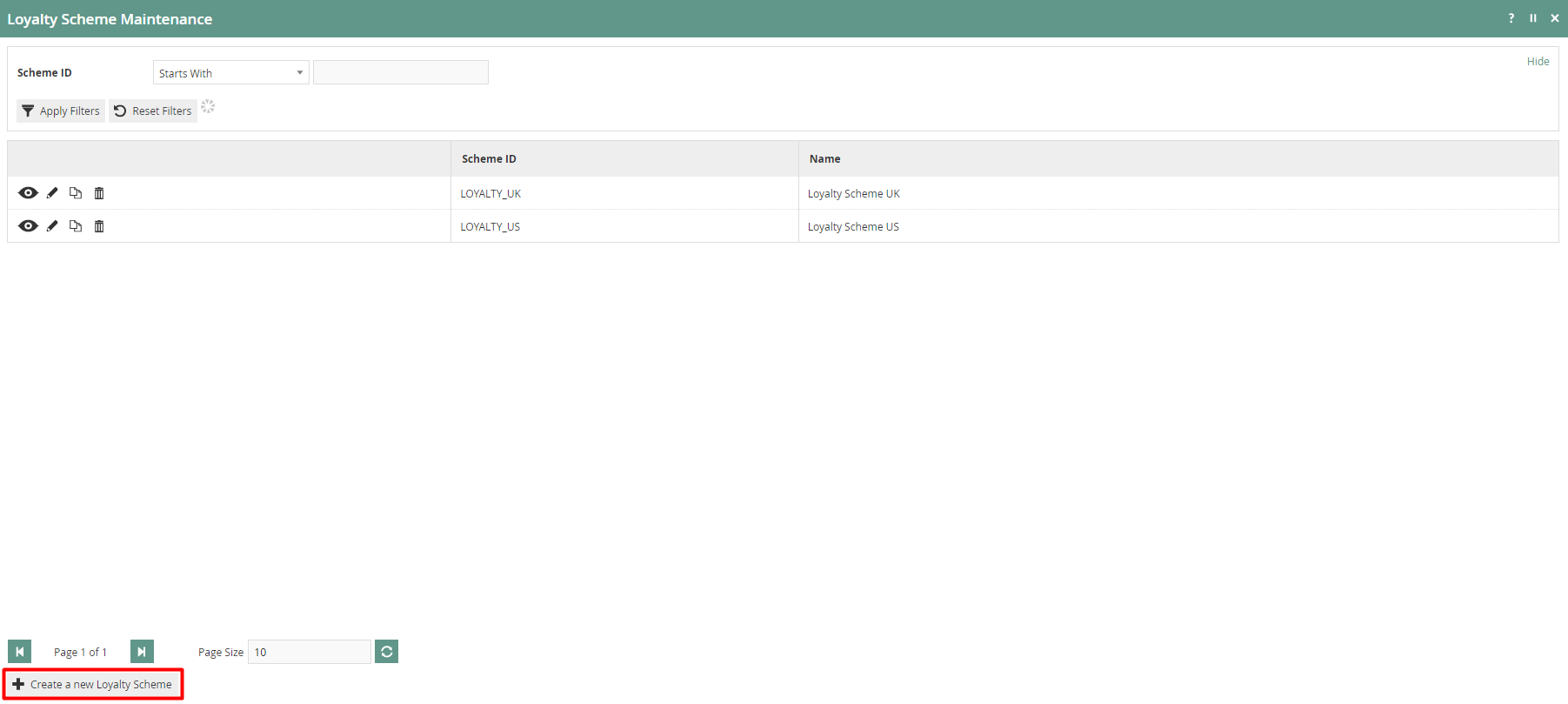
Select Create a new Loyalty Scheme. Enter a unique Scheme ID for the new Loyalty Scheme. The ID can be alphanumeric and contain a maximum of 20 characters, and will be used to uniquely identify this Loyalty Scheme.

Select Create.
Loyalty Scheme - General Tab
The General tab is the most important tab in configuring the Loyalty Scheme, where the Name, Tier Promotion Strategy, and Loyalty Tiers are defined.
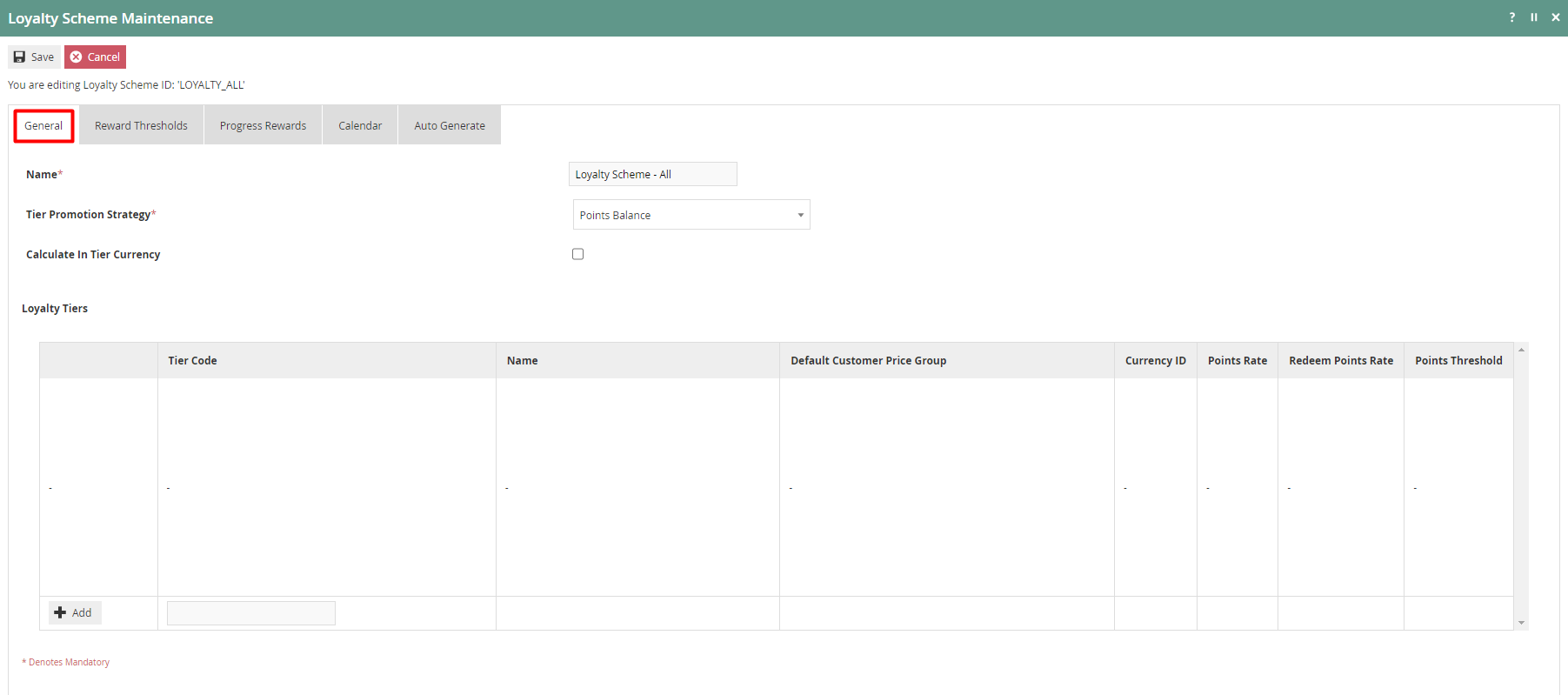
Set the appropriate values on the General tab as follows:
| Configuration | Description |
|---|---|
| Name | Enter a user-friendly, meaningful name by which users will be able to identify and select the Loyalty Scheme in other locations of the Estate Manager. The use of a systematic and business-specific naming convention is recommended. Maximum 30 alphanumeric characters. |
| Tier Promotion Strategy | Select an applicable Tier Promotion Strategy from the dropdown list of four available options as follows:
|
| Calculate In Tier Currency | Select the checkbox to consider all calculations of this Loyalty Scheme to be done using the Currency that is defined in the Loyalty Tiers. |
| Loyalty Tiers | Discussed in detail below. |
To add Loyalty Tiers for this Loyalty Scheme, enter a suitable Tier Code and select Add.
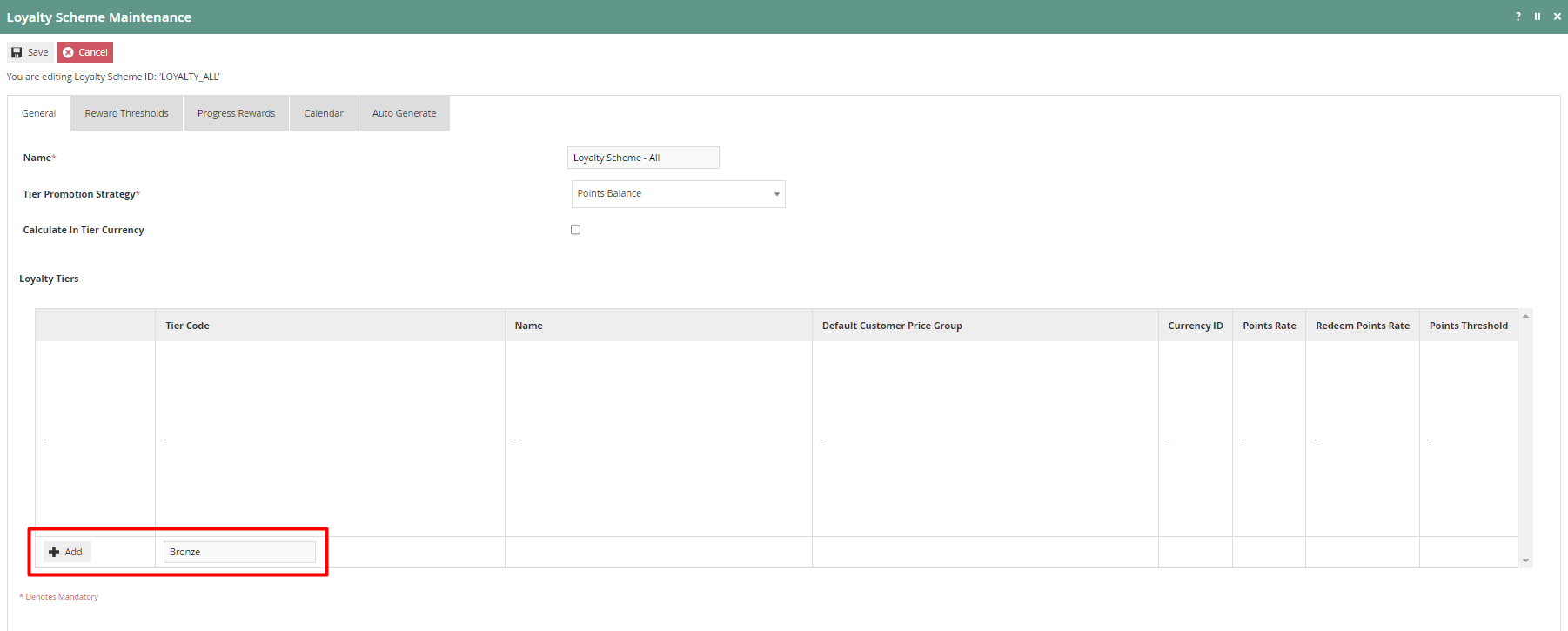
This will navigate the user to the Loyalty Scheme Maintenance screen for the new Loyalty Tier that was just added.
Loyalty Scheme - Loyalty Tier - General Sub-tab
On the General sub-tab, enter a name for this Loyalty Tier. Optionally, a Default Customer Price Group can be selected if required.
Configure the different values for the Loyalty Tier in each column as shown below:
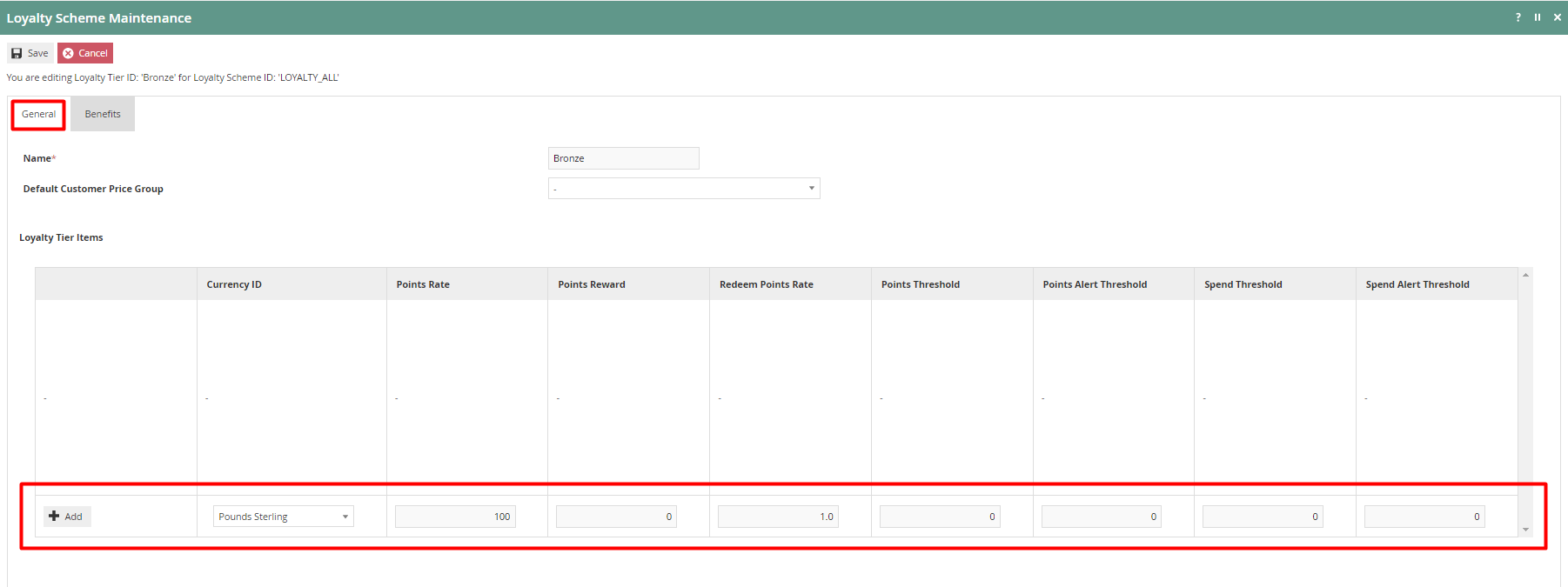
The following table details the properties of a Loyalty Tier item:
| Configuration | Description |
|---|---|
| Currency ID | Select from a dropdown list of configured Currencies. This identifies the association with a specific Currency. |
| Points Rate | Specify the number of basic units of the applicable currency (e.g. if Pounds Sterling, then pence) required to accrue one Point to the Customer Loyalty Account. (e.g. 100 yields one Point per Pound; 50 yields two Points per Pound.) |
| Points Reward | Specify the number of Loyalty Points accrued to the Customer Account per Transaction. |
| Redeem Points Rate | Specify the number of Loyalty Points to redeem to contribute one basic unit of the applicable currency (e.g. one Penny). |
| Points Threshold | Specify the number of Points accumulated in total required for Promotion to the next Tier. |
| Points Alert Threshold | Specify the number of Points accumulated in total at which the Customer may be alerted of imminent Promotion to the next Tier. |
| Spend Threshold | Specify the amount of total Spend accumulated by the Customer required for Promotion to the next Tier. |
| Spend Alert Threshold | Specify the amount of total Spend accumulated by the Customer at which the Customer may be alerted of imminent Promotion to the next Tier. |
The values will be added as follows for the below example:
- 100 for Points Rate - sets this Bronze Tier to award 1 loyalty point for each 100 pence spent.
- 1 for Redeem Points Rate - sets this Bronze Tier to be able to redeem points at a rate where 1 loyalty point is equal to 1 penny.
Enter the appropriate values to the new Loyalty Tier and select Add.
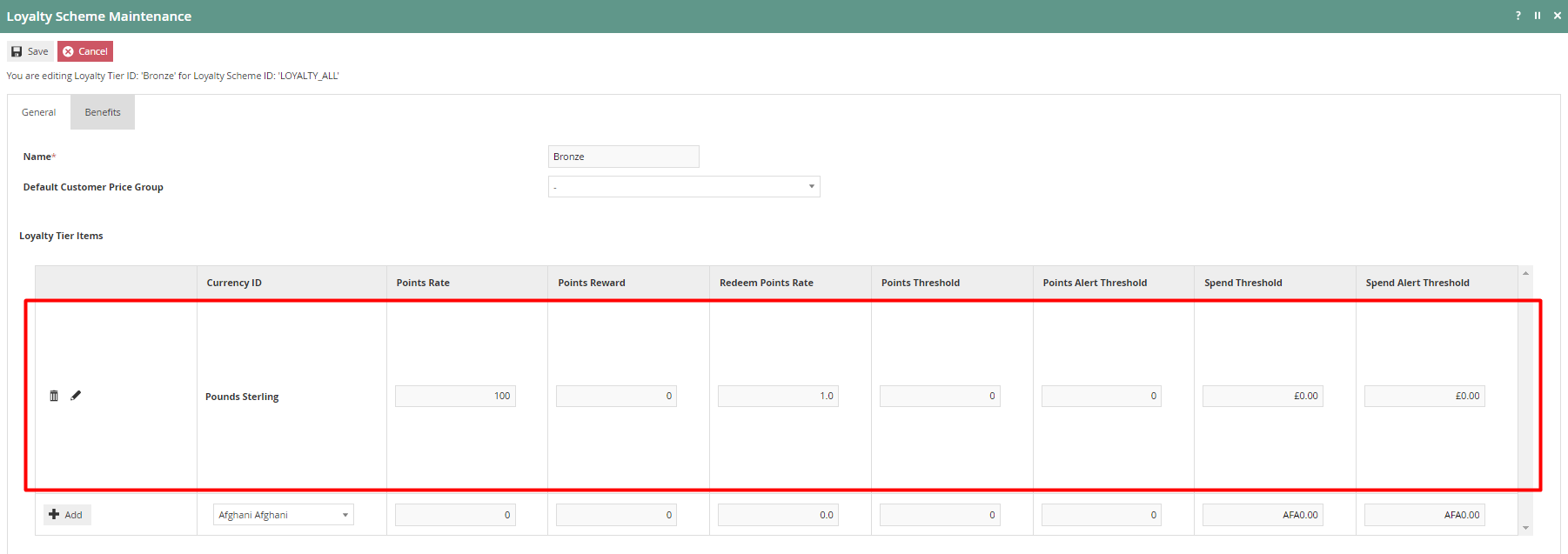
Select Save.
The new Bronze Tier has been successfully added to the Loyalty Scheme as shown below:
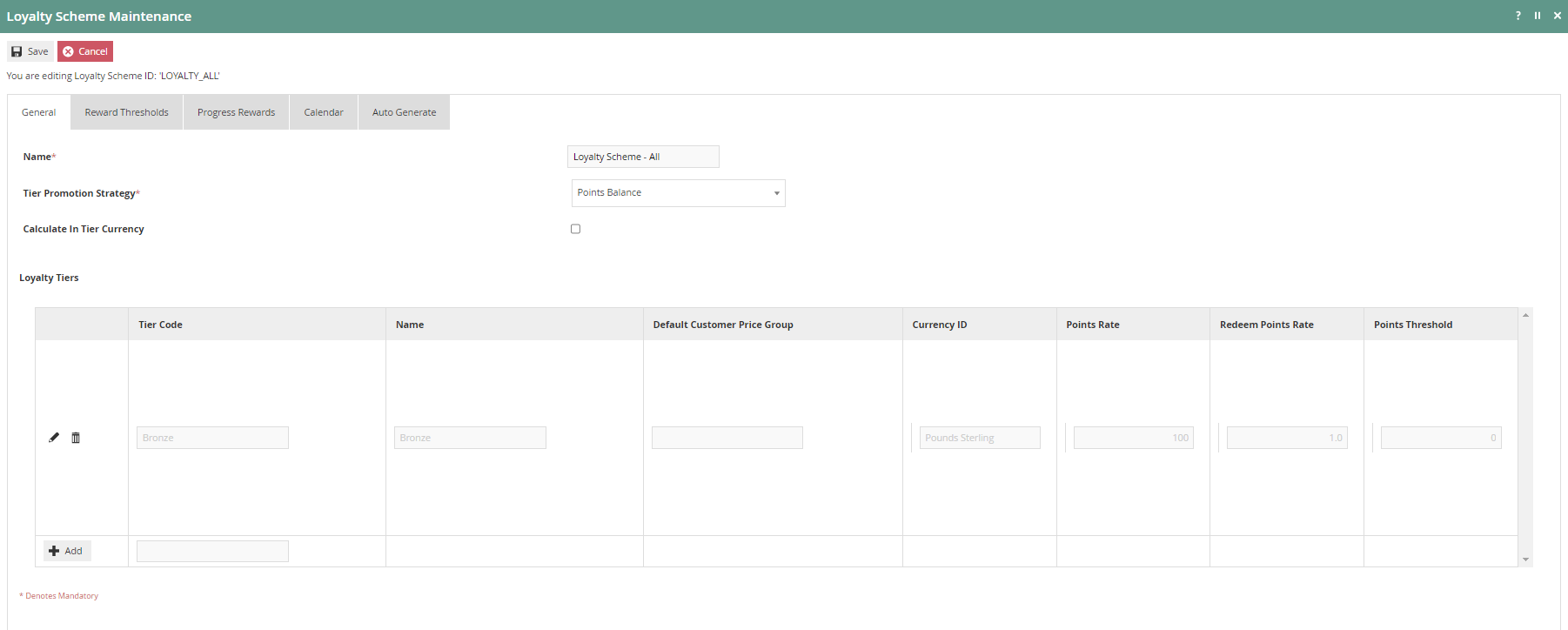
More Tiers can be added to the Loyalty Scheme using the same method, and will display as multiple tiers as shown below:
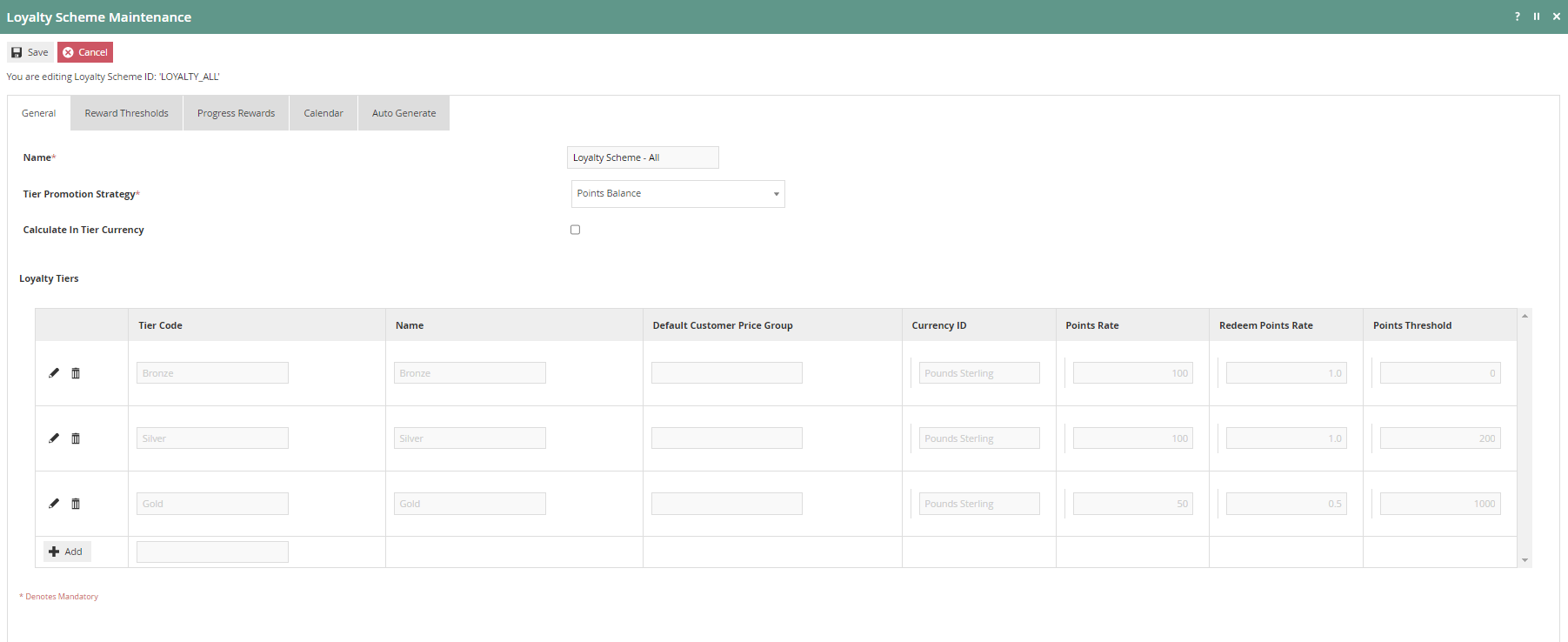
The values of the Points Threshold column should be different for each Tier, as it is necessary for the customer to have accumulated the required number of points to qualify for promotion to the next Tier. The Points Rate and Redeem Points Rate may also differ - for example, customers in a higher loyalty Tier may receive more favourable rates.
Select Save to successfully save the new Loyalty Scheme.
Broadcast the Loyalty Scheme entity to the applicable device(s) to use this new Loyalty Scheme.
This completes the Create a new Loyalty Scheme configuration.
Configure Loyalty Scheme in the POS Terminal
Loyalty-based configurations can be made in the POS Terminal to increase the efficiency of using Loyalty-based functions in the POS. These configurations are added to the POS Terminal in the POS Terminal Maintenance application.
Navigate to POS Terminals using Search or the menu path:
Main Menu > Configuration > Organisation > POS Terminals
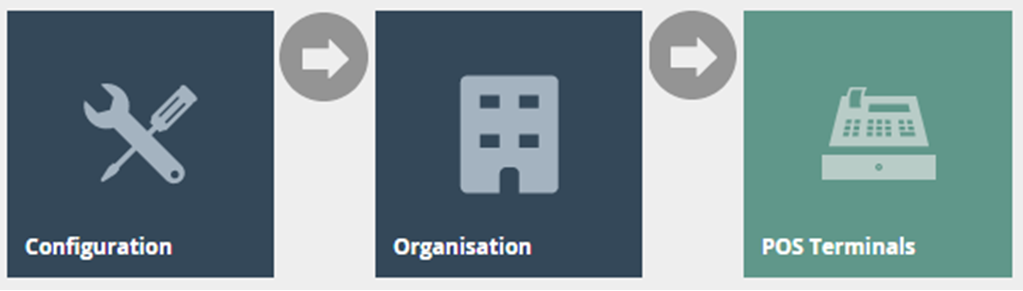
In the POS Terminal Maintenance page, select the Edit icon of the desired POS Terminal.
POS Terminals - Loyalty Tab
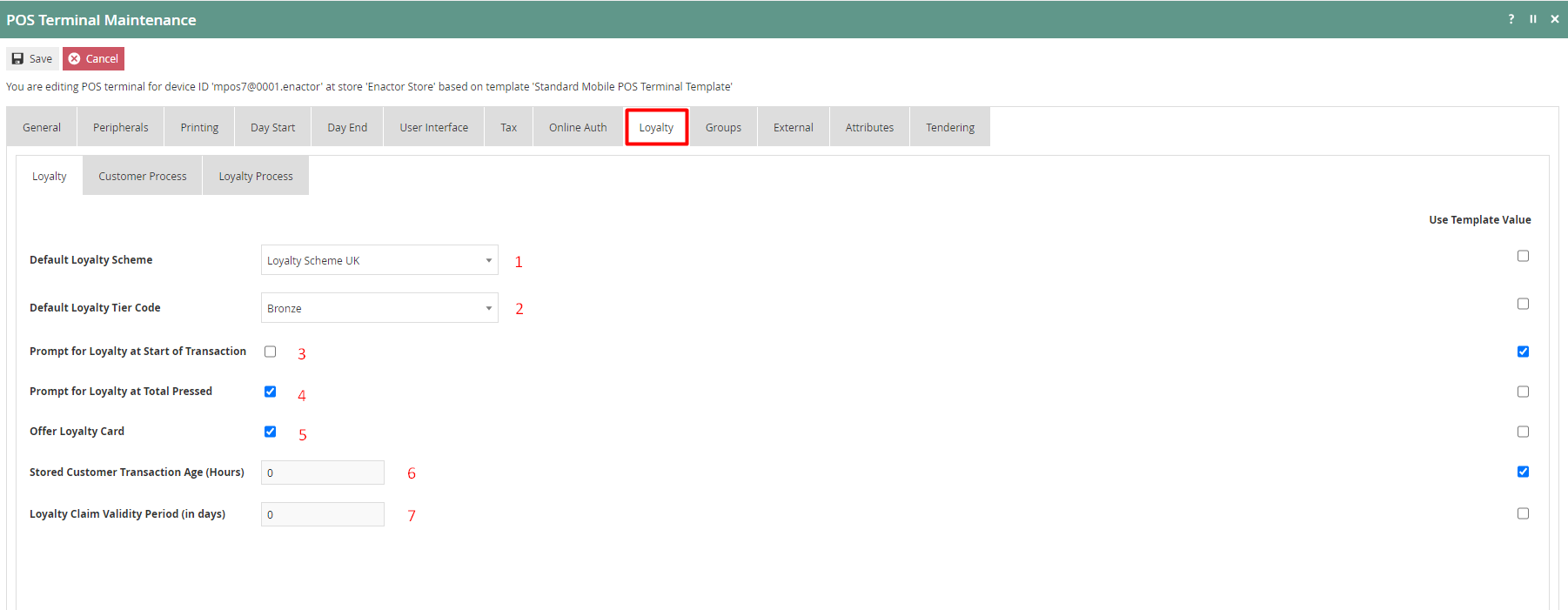
Set the appropriate values on the Loyalty tab as follows:
| Configuration | Description |
|---|---|
| Default Loyalty Scheme | Select the desired Loyalty Scheme from the dropdown list of defined Loyalty Schemes. |
| Default Loyalty Tier Code | Select the desired Loyalty Tier Code from the dropdown list of defined Loyalty Tier Codes. These are defined in Loyalty Scheme Maintenance. |
| Prompt for Loyalty at Start of Transaction | Select checkbox to prompt the operator to enter loyalty information at the start of a transaction for loyalty capture on this POS Terminal. |
| Prompt for Loyalty at Total Pressed | Select checkbox to prompt the operator to enter loyalty information at the Total Pressed stage of a transaction for loyalty capture on this POS Terminal. |
| Offer Loyalty Card | Select checkbox to indicate that a Loyalty Card should be offered at the Total Pressed stage of a Transaction, if there is no Loyalty Customer captured. |
Select Save.
Broadcast the POS Terminal entity to the desired device(s) to use the above Loyalty functions on POS.
This completes the Configure Loyalty Scheme in the POS Terminal configuration.
Role Configuration
For users of Loyalty functions, specific Loyalty-based privileges and menu configurations must be set up to allow access to Loyalty functions in the POS. This section lists the privileges and menu functions that are specific to Loyalty.
Privileges Configuration
Navigate to User Roles using Search or the menu path:
Main Menu > Configuration > HR > User Roles

In the User Role Maintenance, select the Edit icon of the desired User Role to enable the privilege for.
Navigate to the Authorised Functions tab of the selected User Role and apply the following filters:
- Application Package: Enactor POS
- Function ID: Contains, loyalty
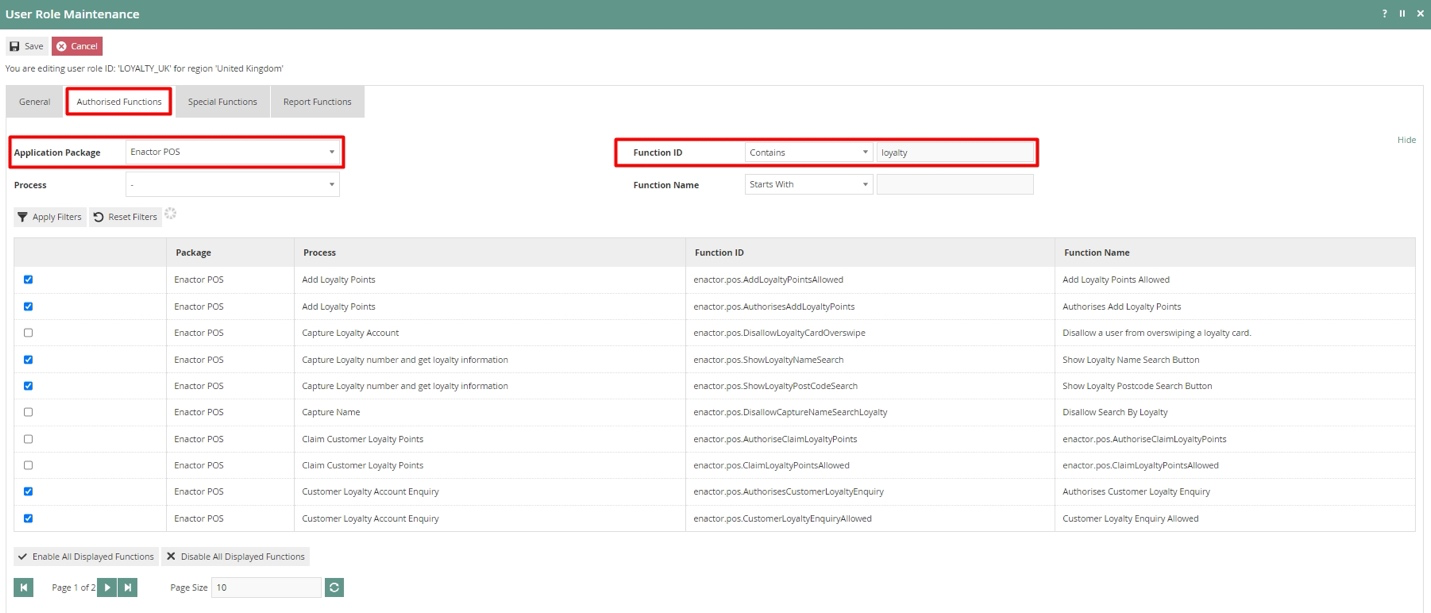
The following privileges are required to access Loyalty-based functions:
| Package | Process | Function ID | Function Name |
|---|---|---|---|
| Enactor POS | Add Loyalty Points | enactor.pos.AddLoyaltyPointsAllowed | Add Loyalty Points Allowed |
| Enactor POS | Add Loyalty Points | enactor.pos.AuthorisesAddLoyaltyPoints | Authorises Add Loyalty Points |
| Enactor POS | Claim Customer Loyalty Points | enactor.pos.ClaimLoyaltyPointsAllowed | Claim Loyalty Points Allowed |
| Enactor POS | Claim Customer Loyalty Points | enactor.pos.AuthoriseClaimLoyaltyPoints | Authorise Claim Loyalty Points |
| Enactor POS | Display Loyalty Account | enactor.pos.AllowLoyaltyDetailsPrint | Allow loyalty details print |
| Enactor POS | Do Capture Loyalty Account | enactor.pos.VoucherRedeemInCaptureLoyaltyAllowed | Redeem Customer Voucher in Capture Loyalty Allowed |
| Enactor POS | Issue New Loyalty Card | enactor.pos.LoyaltyGenerateCardNumberAllowed | Loyalty Generate Card Number Allowed |
| Enactor POS | Issue New Loyalty Card | enactor.pos.LoyaltyIssueNewCardAllowed | Issue New Loyalty Card Allowed |
| Enactor POS | Issue New Loyalty Card | enactor.pos.AuthorisesLoyaltyIssueNewCard | Authorises Issue New Loyalty Card |
| Enactor POS | Loyalty Account Tender | enactor.pos.LoyaltyAccountTenderAllowed | Loyalty Account Tender Allowed |
| Enactor POS | Loyalty Account Tender | enactor.pos.AuthorisesLoyaltyAccountTender | Authorises Loyalty Account Tender |
Ensure that the selected User Role has the required privileges enabled by ticking the necessary functions.
Select Save.
This completes the Privileges configuration.
Menu Configuration
To run Loyalty-based functions in the POS, the menu must be configured with the functions required by the user.
Navigate to Menu Maintenance using Search or the menu path:
Main Menu > Configuration > System > Menus

Select the appropriate menu (e.g. Sales Menu) that the Loyalty-based functions are to be added to.
Loyalty Basic Menu Functions
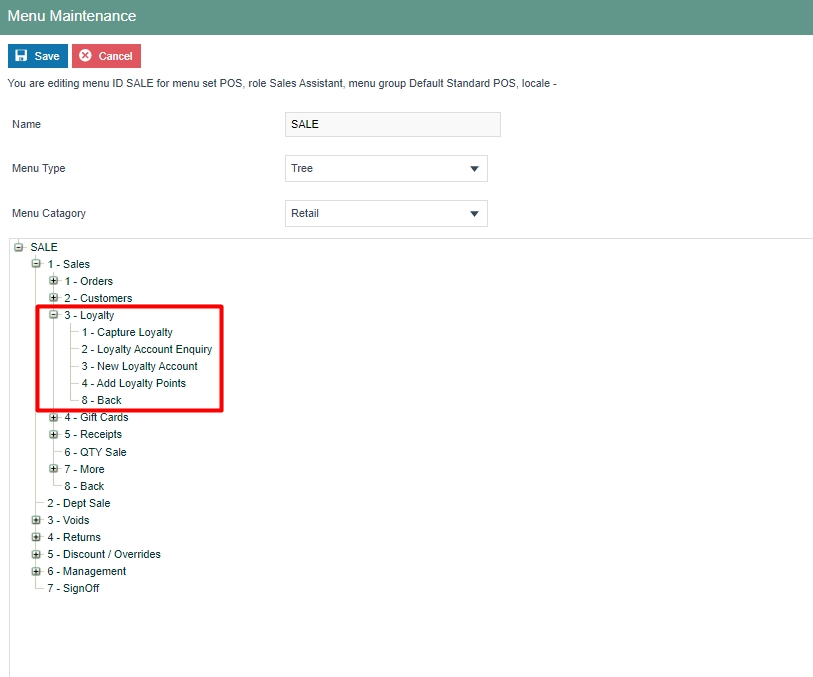
The basic functions of Loyalty can be configured in the existing Sales menu by adding a new folder named Loyalty and configuring the menu functions as required under this folder.
The following is an example of a configured Sales Menu containing all the basic Loyalty functions:
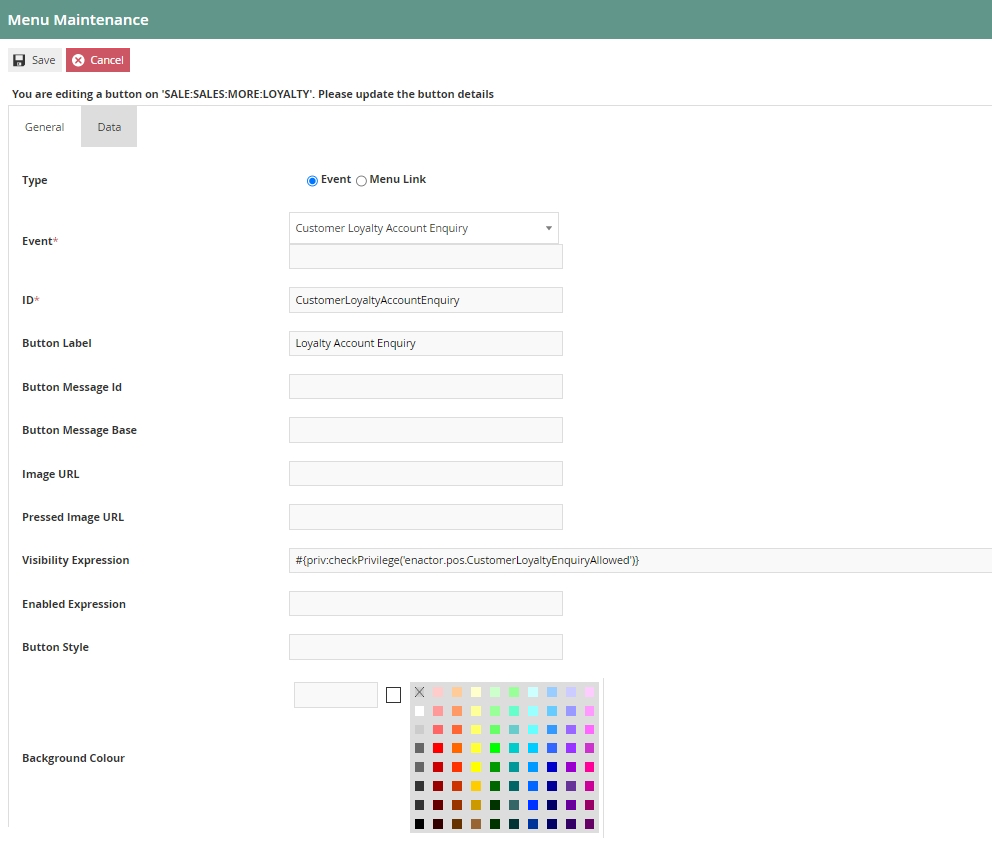
The following is an example of the Customer Loyalty Account Enquiry event configuration:
The following table details the Loyalty-based menu events that can be configured:
| Event Name | Description | Privileges |
|---|---|---|
| Capture Loyalty | Allows the user to capture the customer as a Loyalty customer in the current transaction. | No privileges required. |
| Customer Loyalty Account Enquiry | Allows the user to enquire the details of an existing customer Loyalty account. | enactor.pos.CustomerLoyaltyEnquiryAllowed |
| New Loyalty Account | Allows the user to create a new Customer Loyalty account using the POS. | enactor.pos.LoyaltyIssueNewCardAllowed |
| Add Loyalty Points | Allows the user to manually add Loyalty Points for the current transaction using the POS, using configured Add Loyalty Points reasons. | enactor.pos.AddLoyaltyPointsAllowed |
This completes the Loyalty Basic Menu Functions configuration.
Loyalty Tender Menu Functions
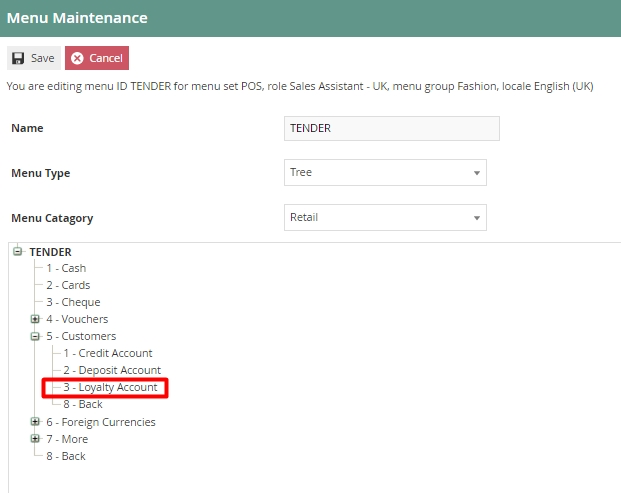
Redemption of Loyalty points can be done as a Tender option in the POS by configuring the Tender menu. Before making configurations in the menu itself, a Tender for this purpose must be configured. Configuring Tenders is covered in a separate How-to guide. Once a Tender is configured, navigate to the Menu Maintenance application and select the Tender menu that you wish to add the Loyalty tender option to.
The following is an example of a configured Tender Menu containing a Customer Loyalty option:
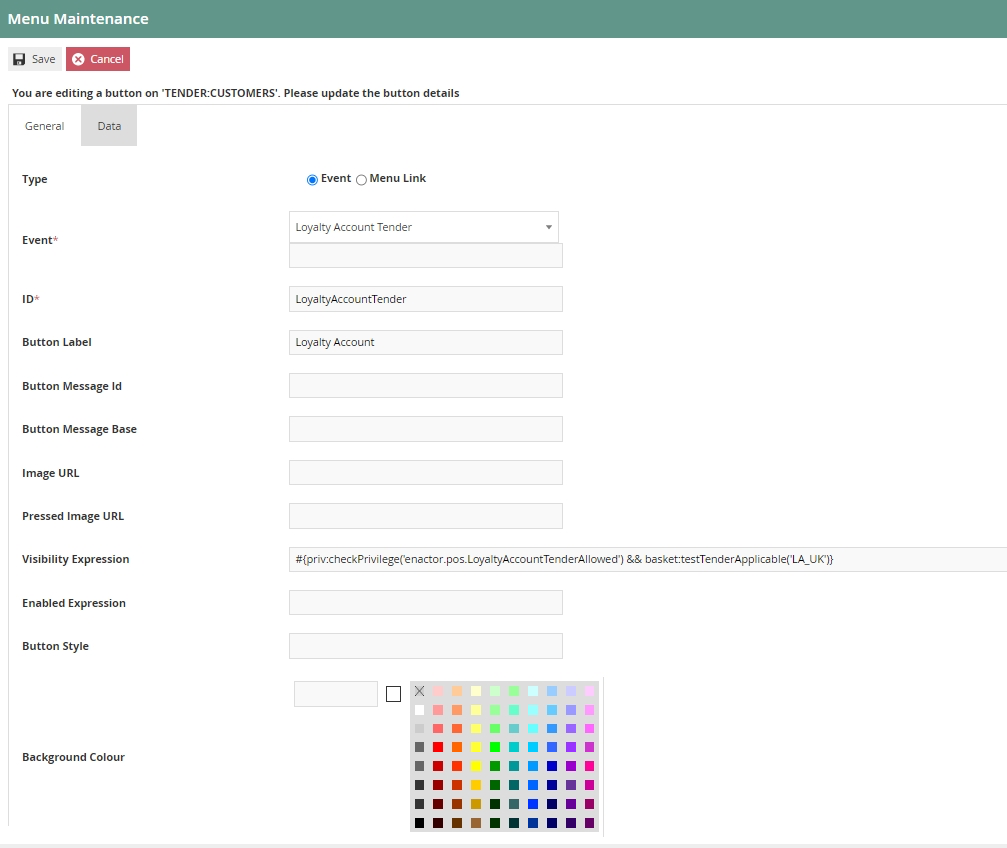
The following is an example of the Loyalty Account tender event configuration:
Once the Loyalty Tender has been configured in Tender Maintenance, the Loyalty Account Tender button must be configured to use that Loyalty Tender. To do this, click on the Data tab of the Loyalty Account Tender button and select the Loyalty Tender from the dropdown that was configured in Tender Maintenance, then click Add:
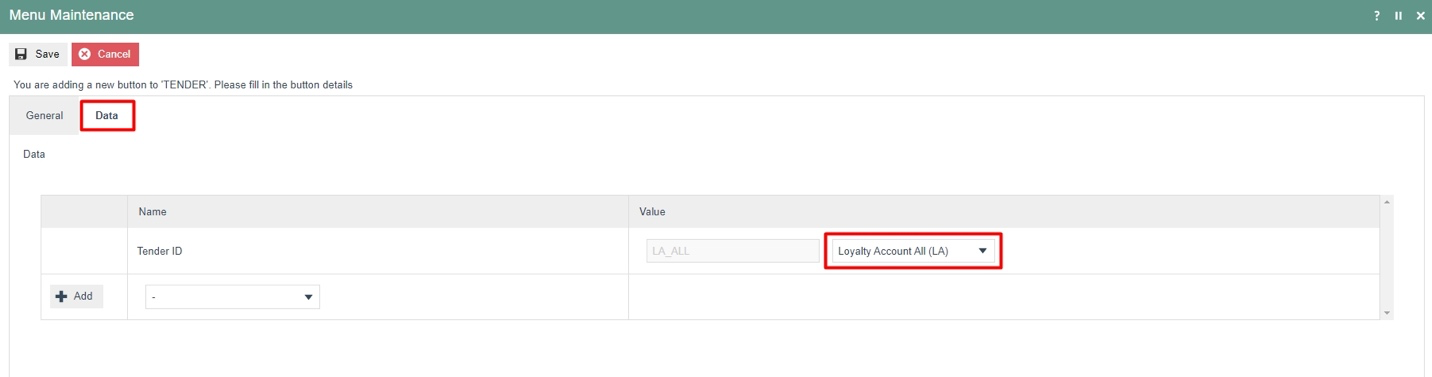
This will allow the user to select the option of using loyalty points to redeem as a tender option in the Tender menu.
Ensure that the enactor.pos.LoyaltyAccountTenderAllowed privilege has been assigned to the user to allow Loyalty Account Tender.
This completes the Menu Configuration.
Customer Loyalty Configuration
To use the configured Loyalty Scheme, a customer, a customer loyalty account, and a customer loyalty card must be created. Before creating a customer loyalty card, the IIN range for the customer loyalty card must be configured to ensure that the card is identified as a loyalty card associated with the loyalty scheme.
Create a new IIN Range
Navigate to IIN Ranges using Search or the menu path:
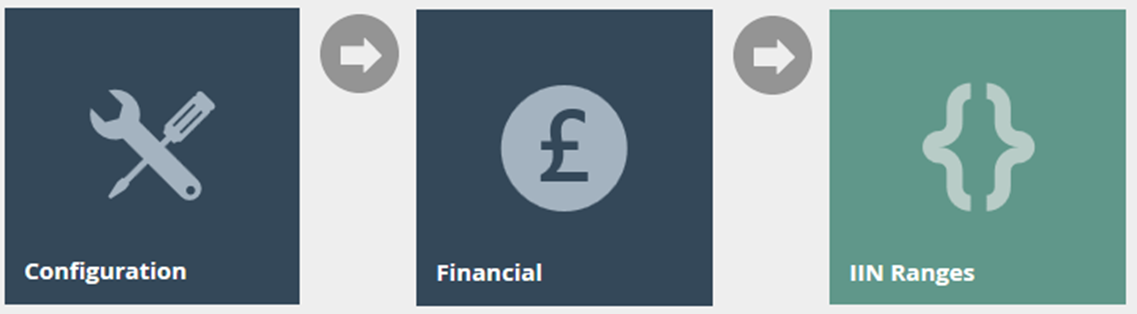
Main Menu > Configuration > Financial > IIN Ranges
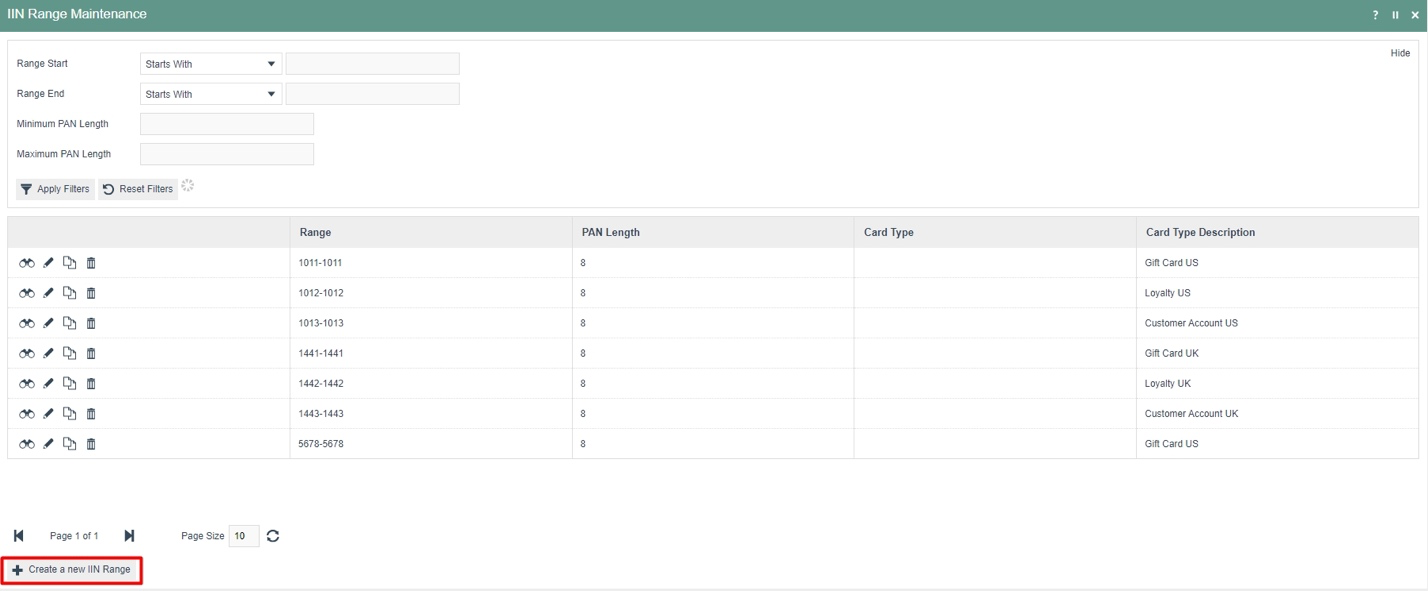
Select Create a new IIN Range. Enter a Start and End IIN Range for the new customer loyalty card - this is a fixed value that indicates the card type. Enter the Minimum and Maximum PAN Length of the card.
In the example below, a card starting with the four digits "1212" and having a length of 8 digits is configured as a Customer Loyalty Card (e.g. 12120001):
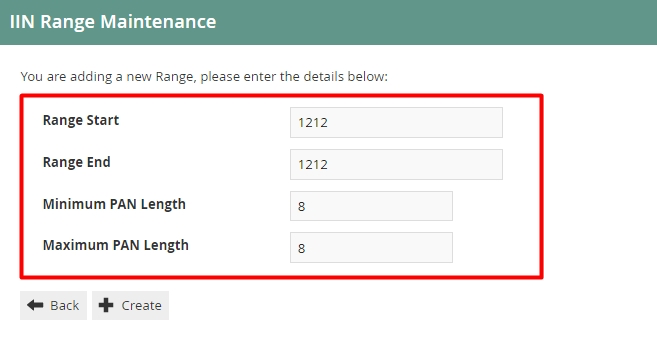
Select Create.
IIN Range - General Tab
The General tab captures the basic information of the new IIN Range.
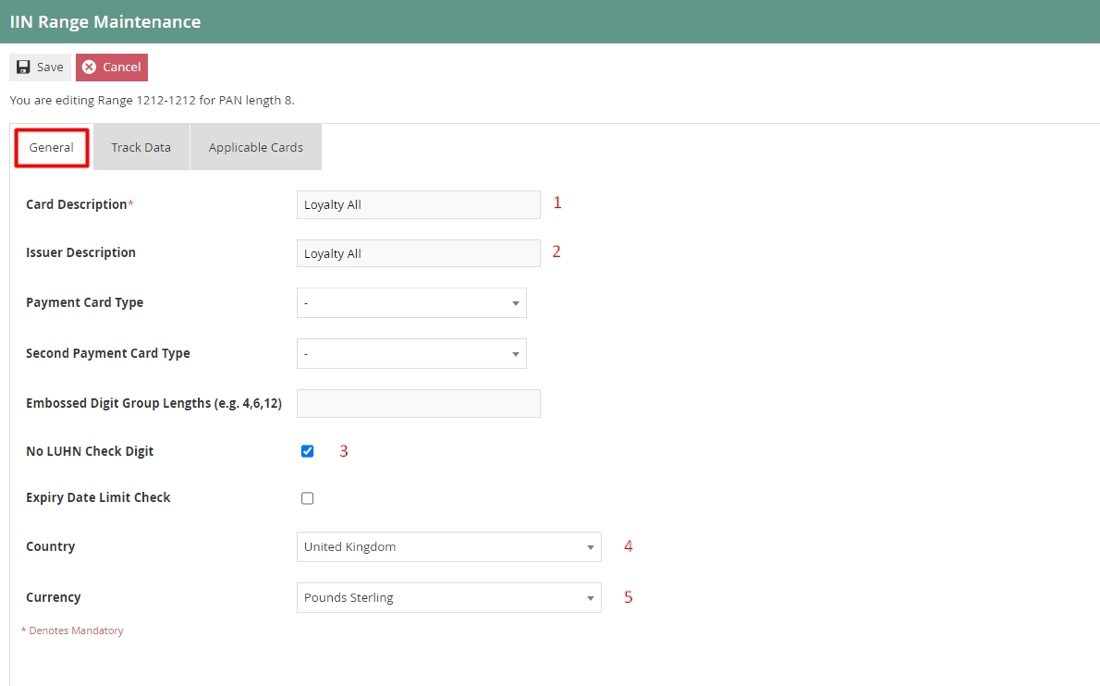
Set the appropriate values on the General tab as follows:
| Configuration | Description |
|---|---|
| Card Description | Enter a user-friendly, meaningful description by which to identify the Card Range in other locations of the Estate Manager. Maximum 40 alphanumeric characters. |
| Issuer Description | Enter a user-friendly identification of the Card Issuer. Maximum 40 alphanumeric characters. |
| No LUHN Check Digit | Checkbox - if selected, indicates that no LUHN check should be applied to this IIN Range (the last digit must otherwise conform to the LUHN Check calculation). |
| Country | Select from a dropdown list of all configured Countries. |
| Currency | Select from a dropdown list of all configured Currencies. |
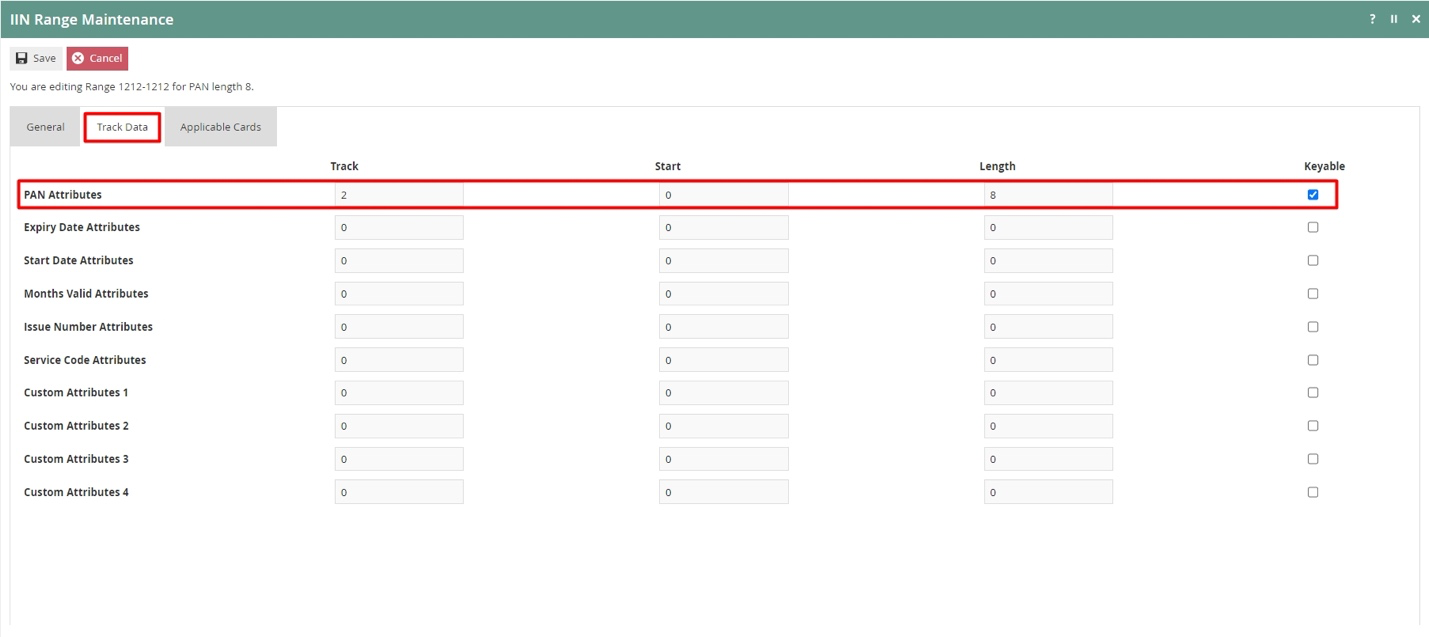
IIN Range - Track Data Tab
The Track Data tab is used to configure how the data on the card is read.
Enter the value 2 for the Track Field, enter the PAN Length for the Length field, and tick the Keyable option as shown below:
IIN Range - Applicable Cards Tab
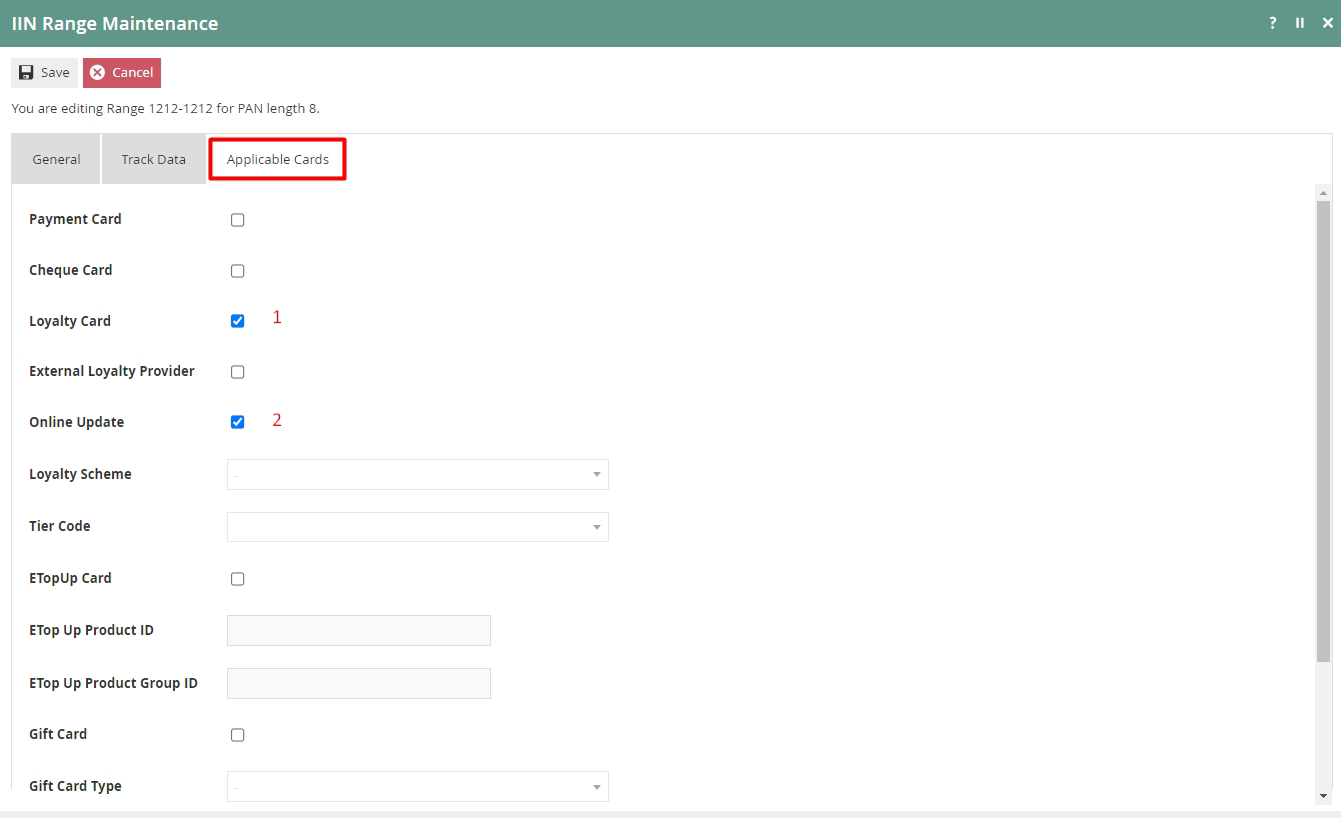
The Applicable Cards tab is used to configure card-related settings for this IIN Range.
Ensure the Loyalty Card and Online Update checkboxes are ticked as shown below:
Set the appropriate values on the Applicable Cards tab as follows:
| Configuration | Description |
|---|---|
| Loyalty Card | Select checkbox to enable the card for use as a Loyalty Card. |
| Online Update | Select checkbox to enable online update of loyalty accounts. Defaults to true. |
Select Save to successfully add the new IIN Range.
Broadcast the IIN Range entity to the desired device(s) to use this new IIN Range when creating Customer Loyalty Cards.
This completes the Create a new IIN Range configuration.
Create a new Customer, Customer Loyalty Account, and Customer Loyalty Card
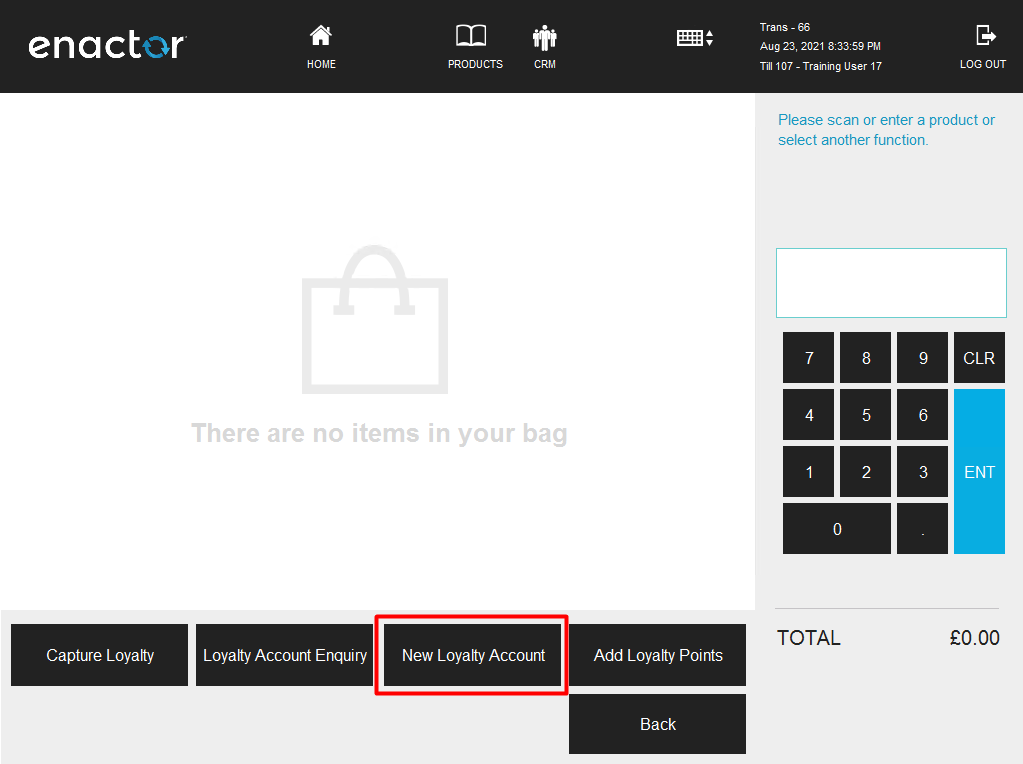
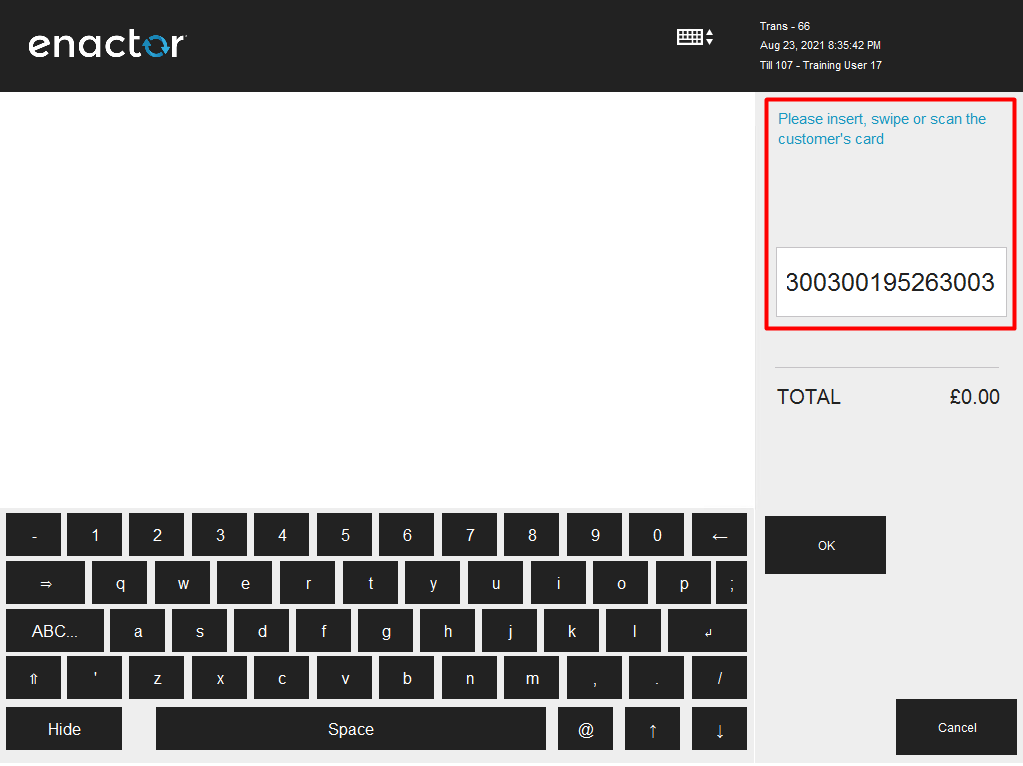
Following the setup of a Loyalty Scheme and an IIN Range for the customer loyalty card, a customer, a customer loyalty account, and a customer loyalty card must be created. This can be done using the New Loyalty Account function in the POS:
-
Navigate to Sales > More > Loyalty and use the New Loyalty Account function in the menu.
-
Enter a new Customer Loyalty Card number within the IIN range configured in the previous section (e.g. 12120001, 12120002). This will be the new loyalty card issued for the new loyalty customer, associated with both the new customer account and the customer loyalty account.
-
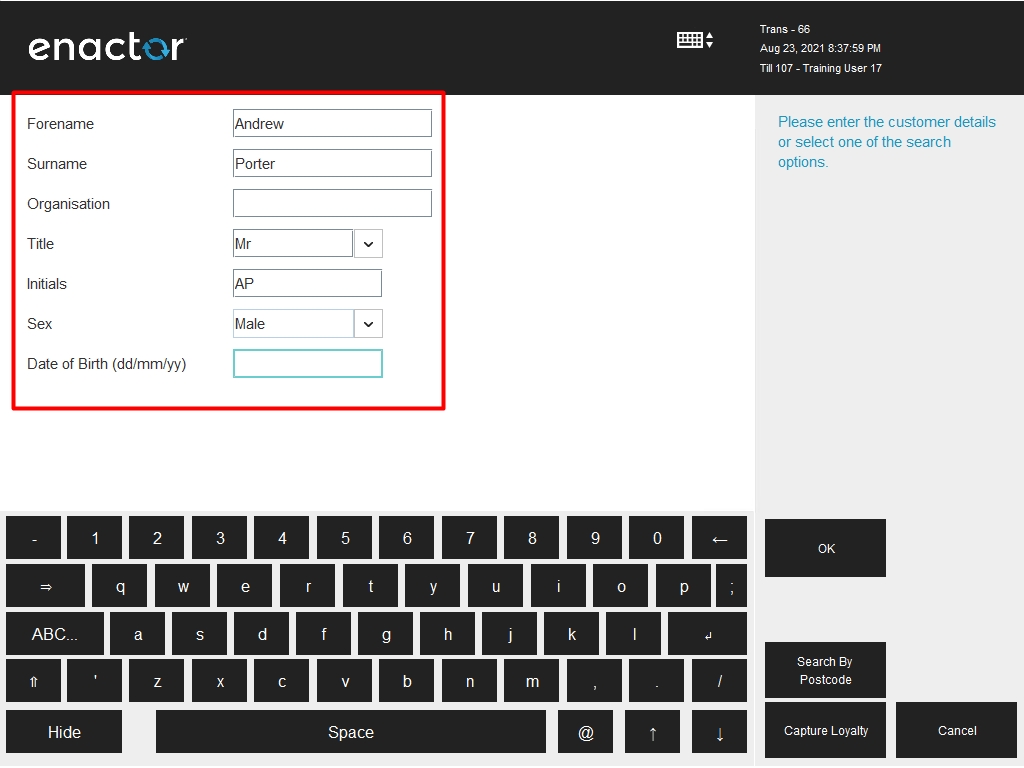
Enter the basic identification details of the new customer account and select OK.
-
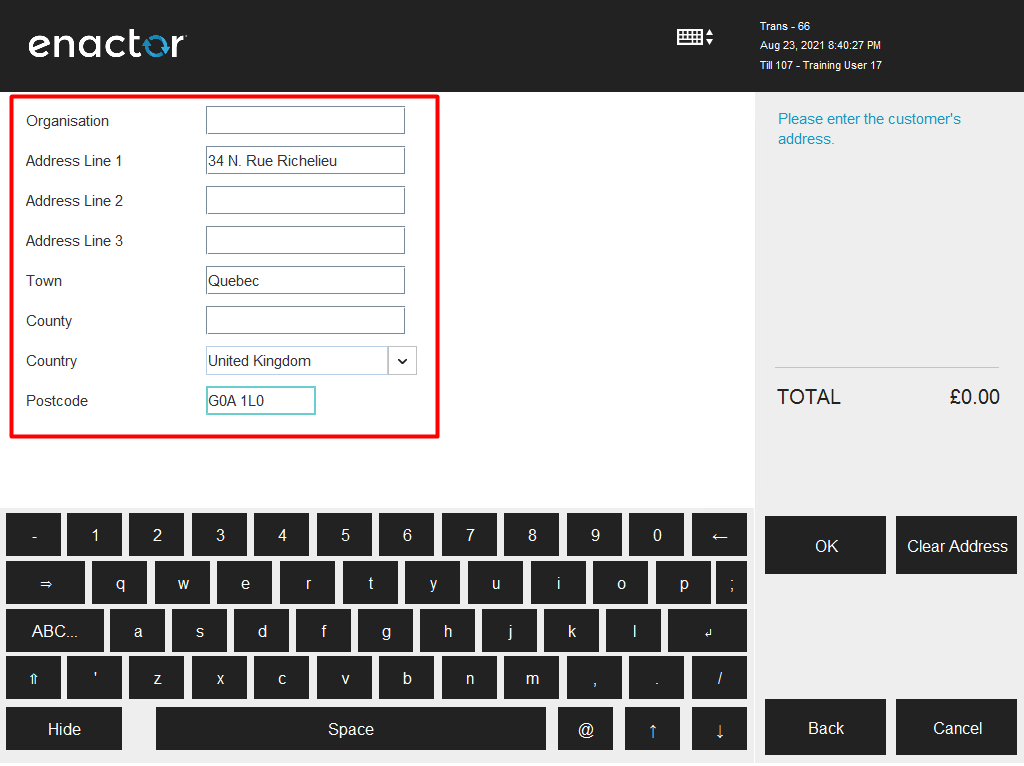
Enter the address details of the new customer account and select OK.
-
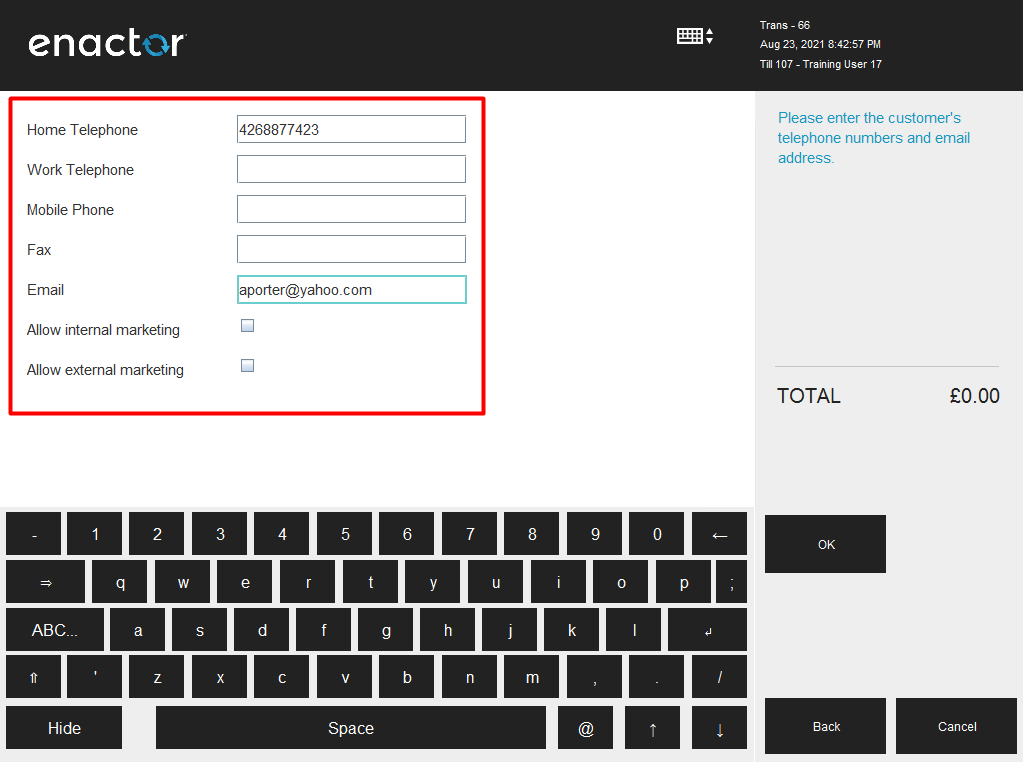
Enter the contact details of the new customer account and select OK.
-
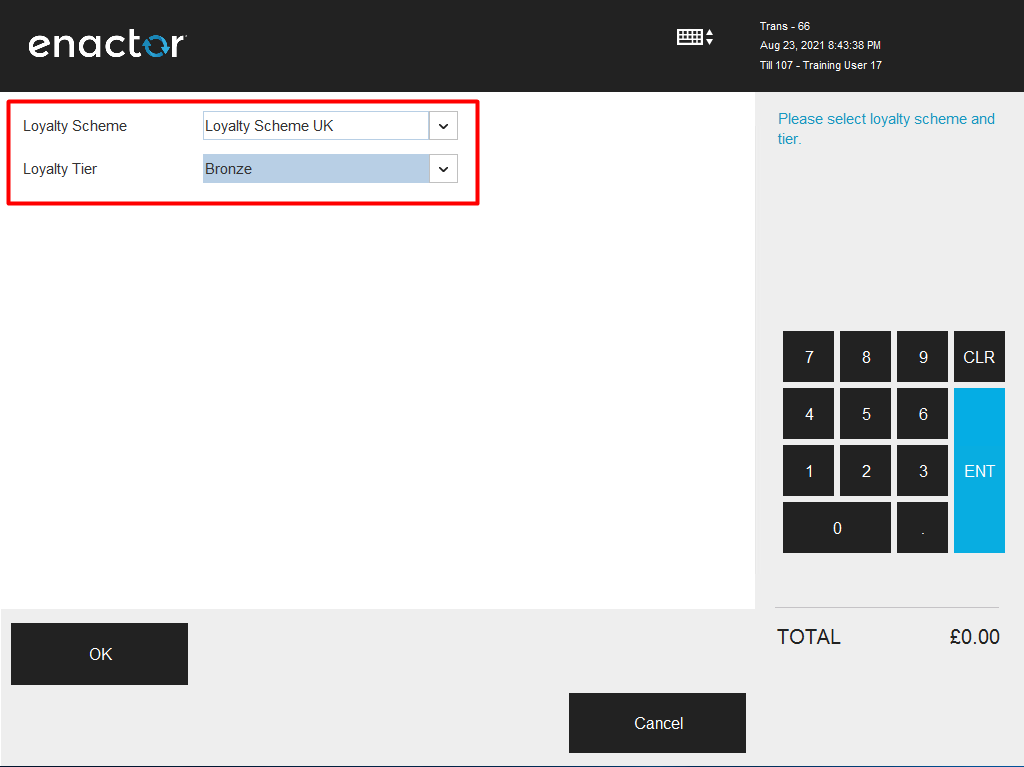
Select the Loyalty Scheme and the Loyalty Tier to be applied to this customer and select OK.
-
If the new customer, customer loyalty account, and loyalty card have been successfully created, the loyalty customer's details will be displayed.
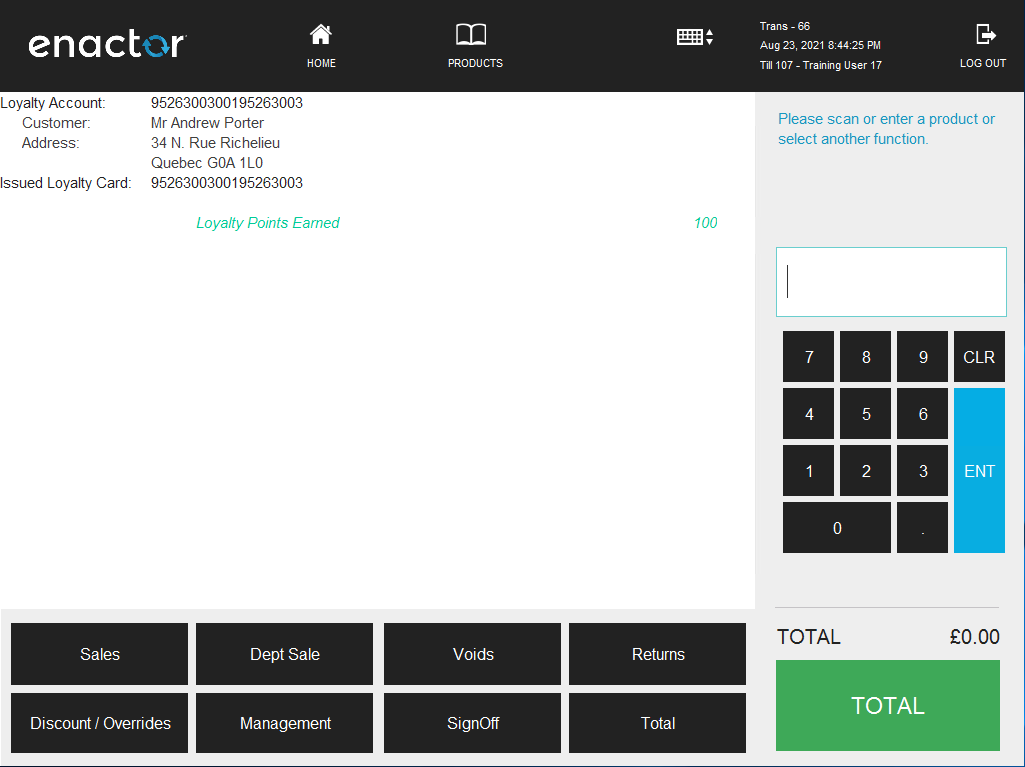
This new Loyalty Customer is now ready to carry out Loyalty-based transactions such as capturing and redeeming Loyalty points.
This completes the Customer Loyalty Configuration.
Capturing of Loyalty Points
Once a new customer has been created and associated with both a customer loyalty account and a loyalty card, sales transactions can be performed to capture loyalty points based on the defined Loyalty Scheme.
Before or after adding products to the basket, the loyalty customer must be captured to earn points.
-
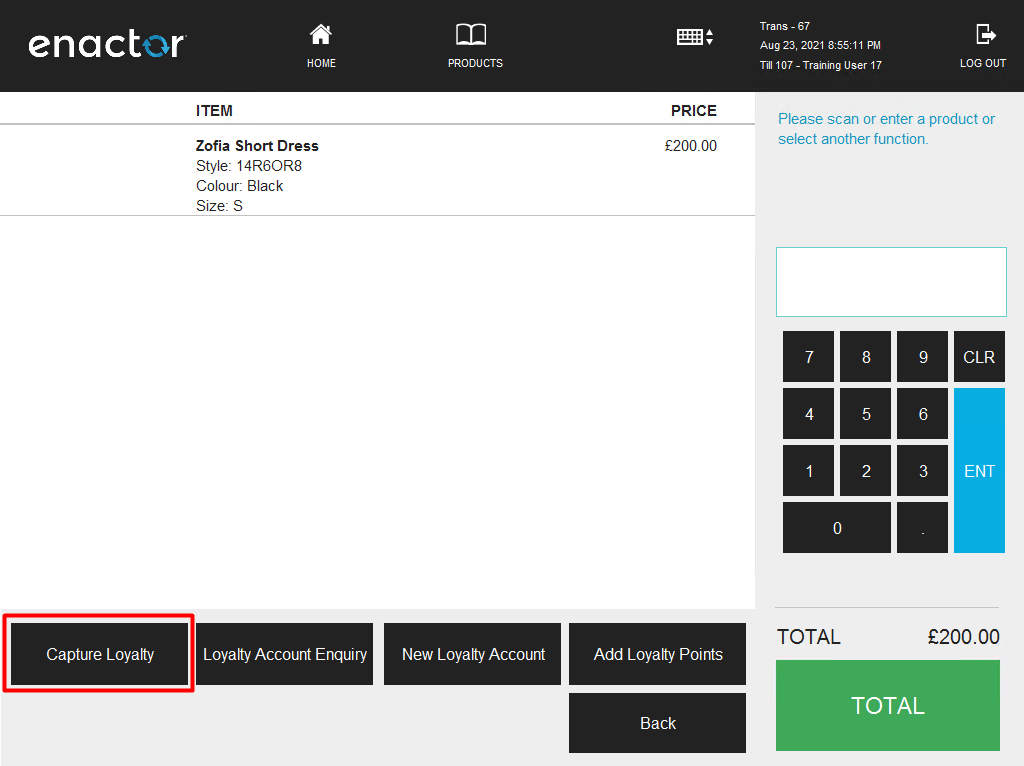
Navigate to Sales > More > Loyalty and use the Capture Loyalty function in the menu.
-
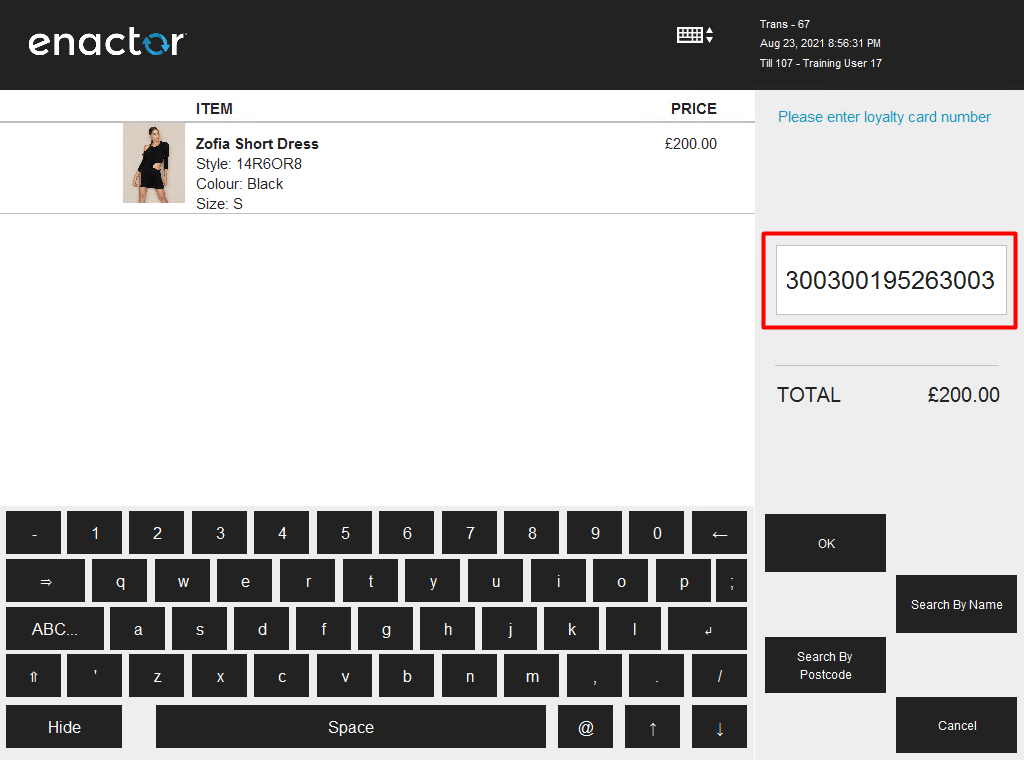
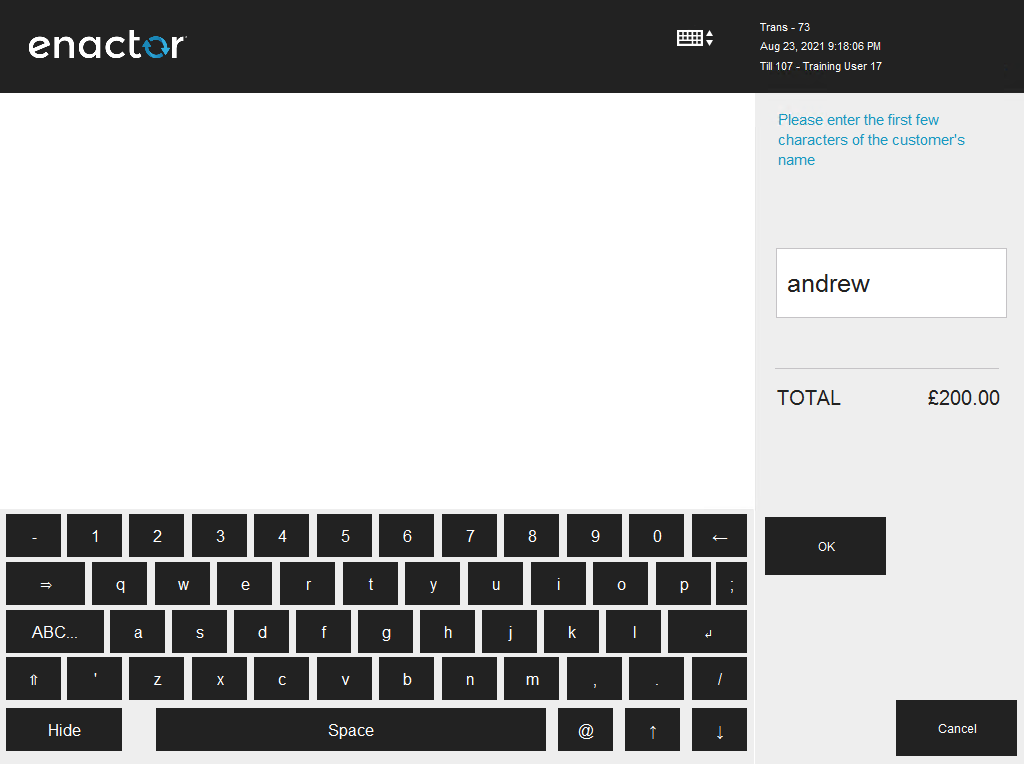
The user will be prompted to enter a loyalty card number. Enter the loyalty card number and select OK.
-
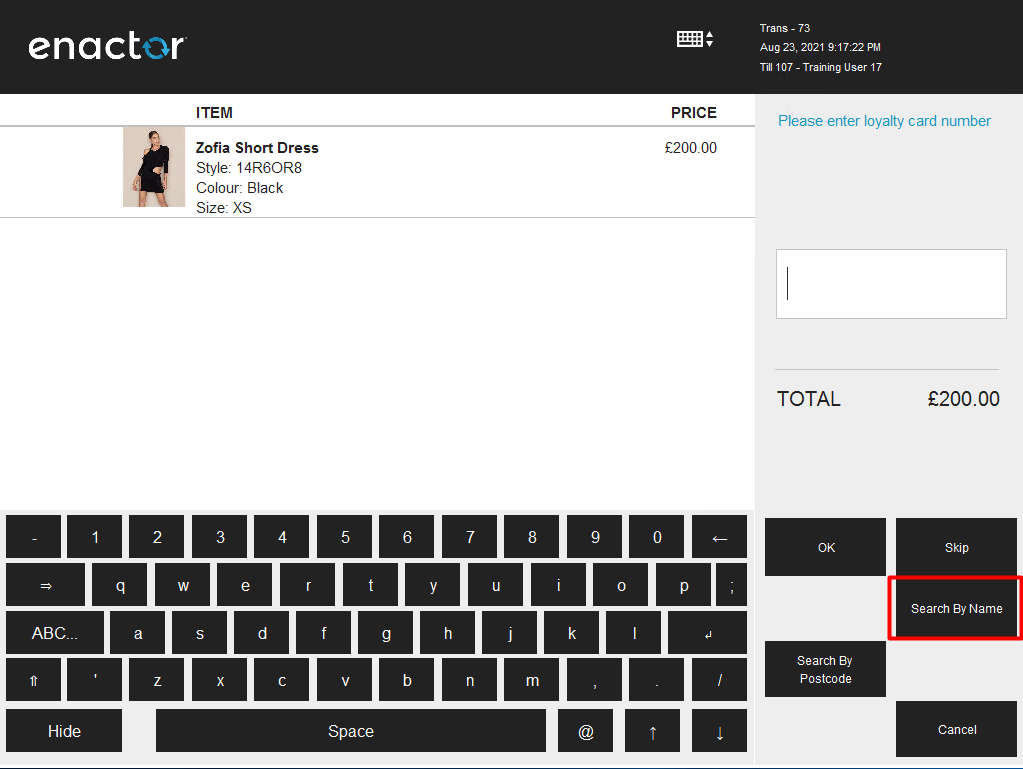
Alternatively, select the Search By Name button to find the customer by name.
-
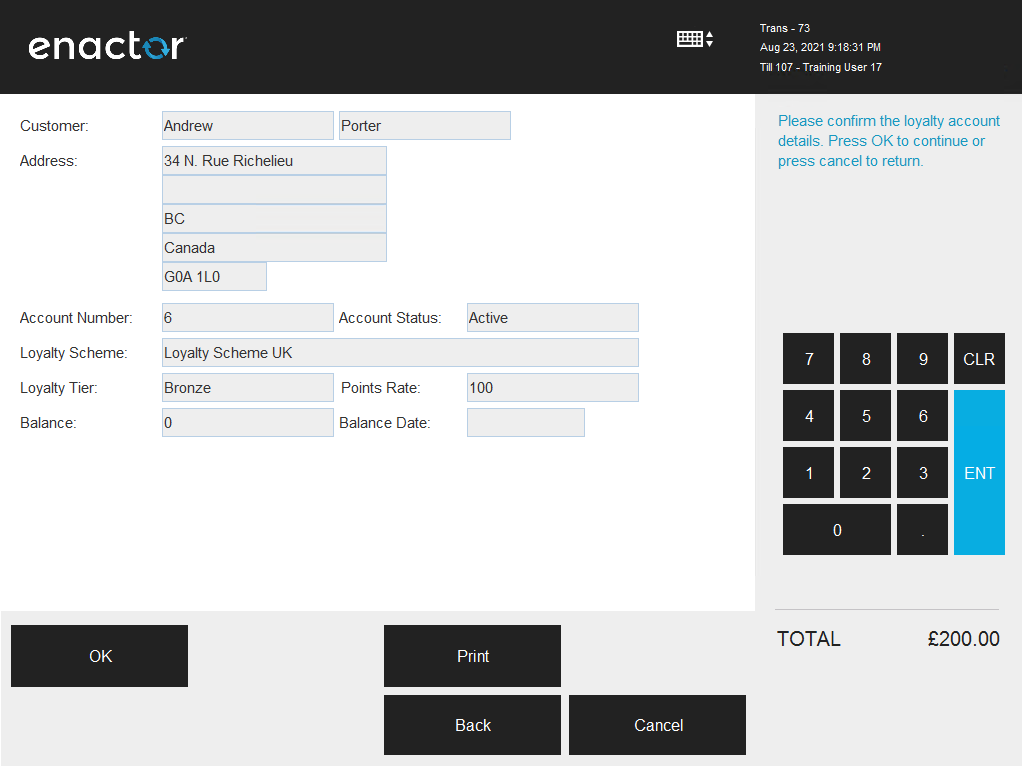
The screen will display a summary of the Loyalty account. Select OK to confirm.
-
If the Loyalty account is successfully captured, the loyalty customer's details will be displayed along with the points earned from the products in the basket.
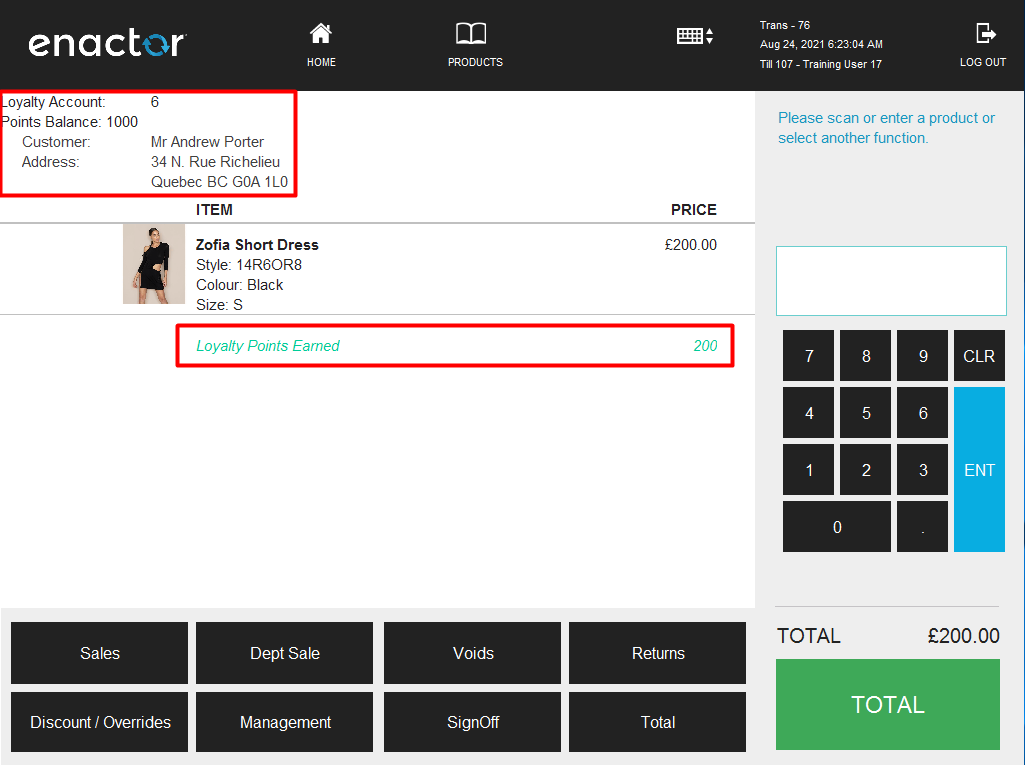
- Select Total and complete the tender for this transaction. The customer loyalty account details will also be visible on the receipt:
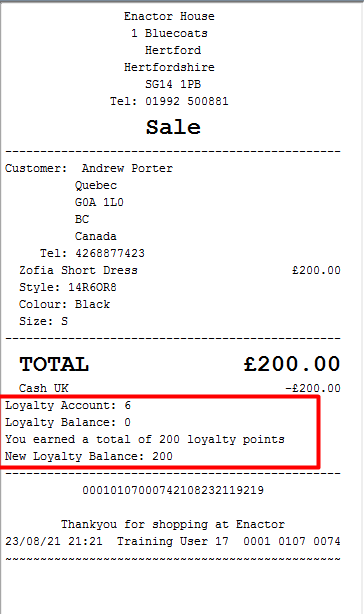
This completes the Capturing of Loyalty Points configuration.
Redeeming of Loyalty Points
After Loyalty Customers have earned points, they can redeem their available points as a tender option to contribute towards payment for transactions. The rate at which points can be redeemed is configured in the Loyalty Scheme.
-
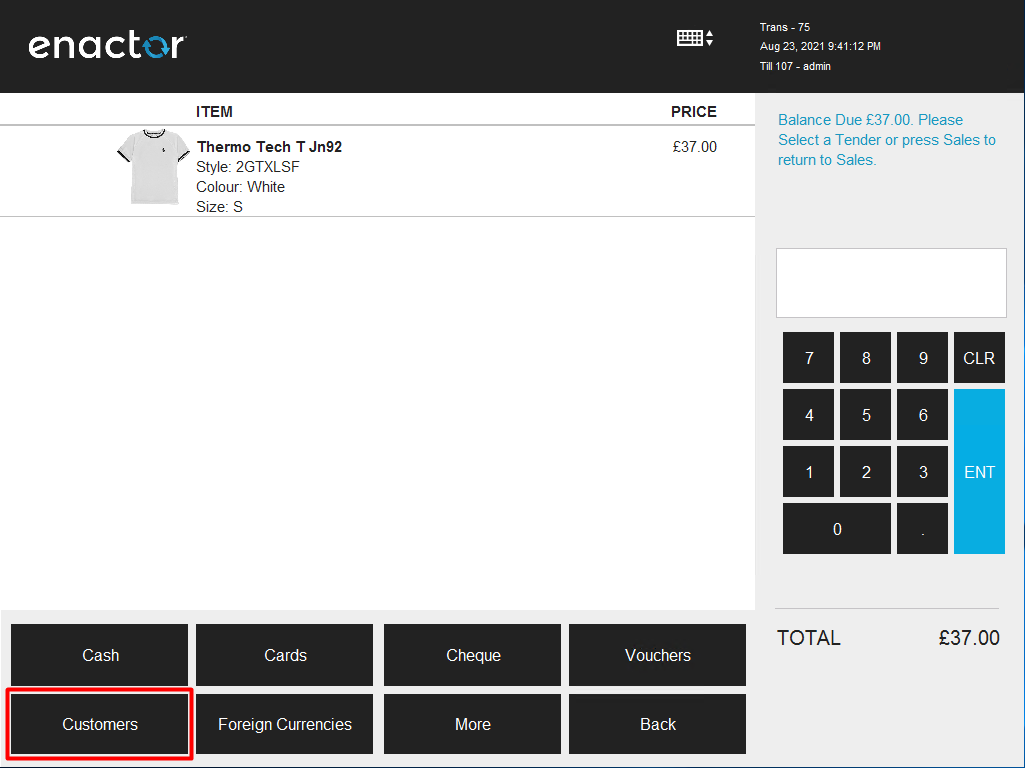
After adding the products to the basket, select Total to navigate to the Tender menu. Select Customers from the available tender options.
-
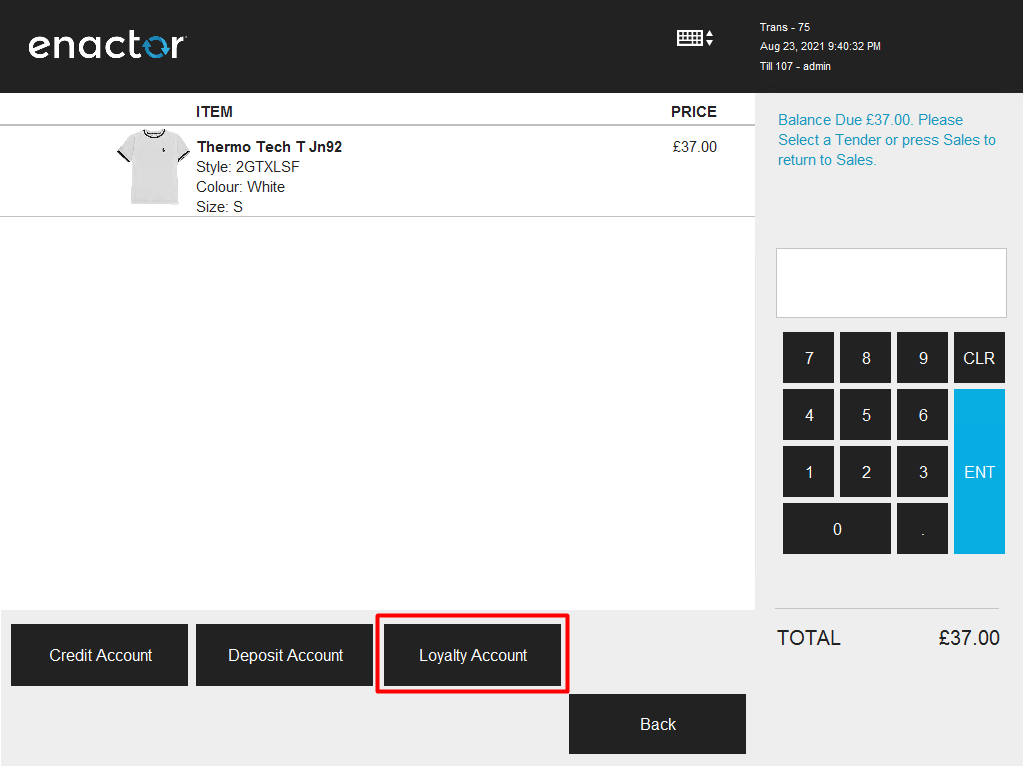
Select the Loyalty Account button to select the loyalty account from which the customer wishes to redeem points.
-
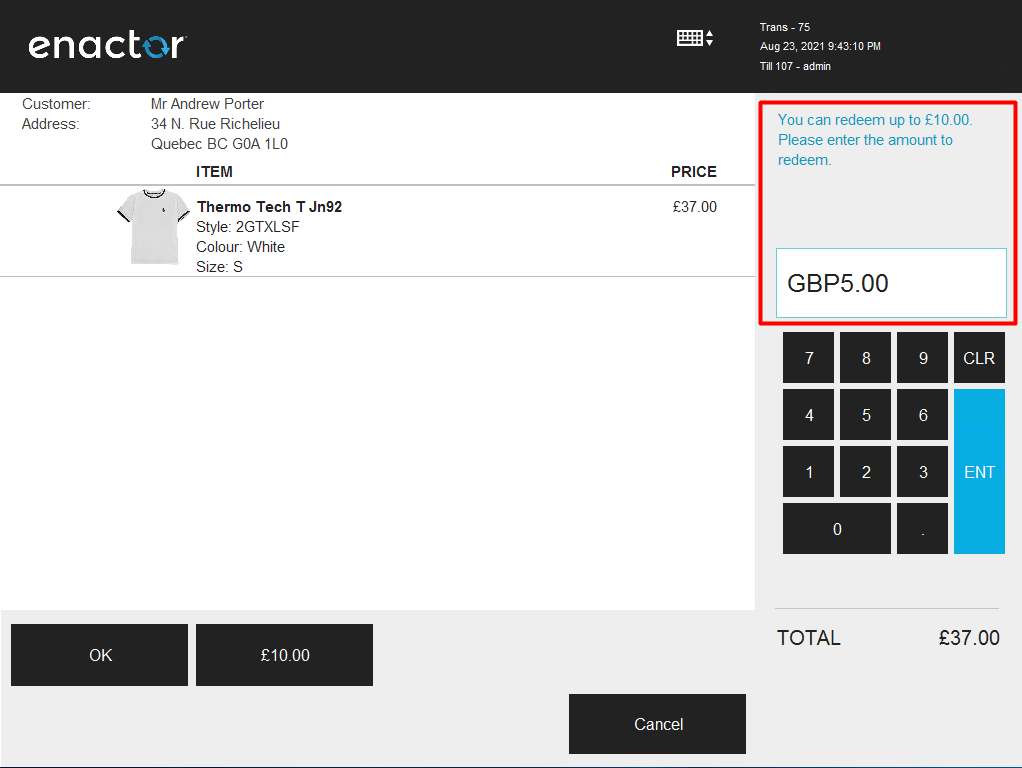
The user will be asked to enter a loyalty card number. Enter the loyalty card number or use Search by Name as when capturing loyalty. Select OK. The user will then be navigated to a screen requesting the amount to redeem from the loyalty account. Enter the amount and select OK.
-
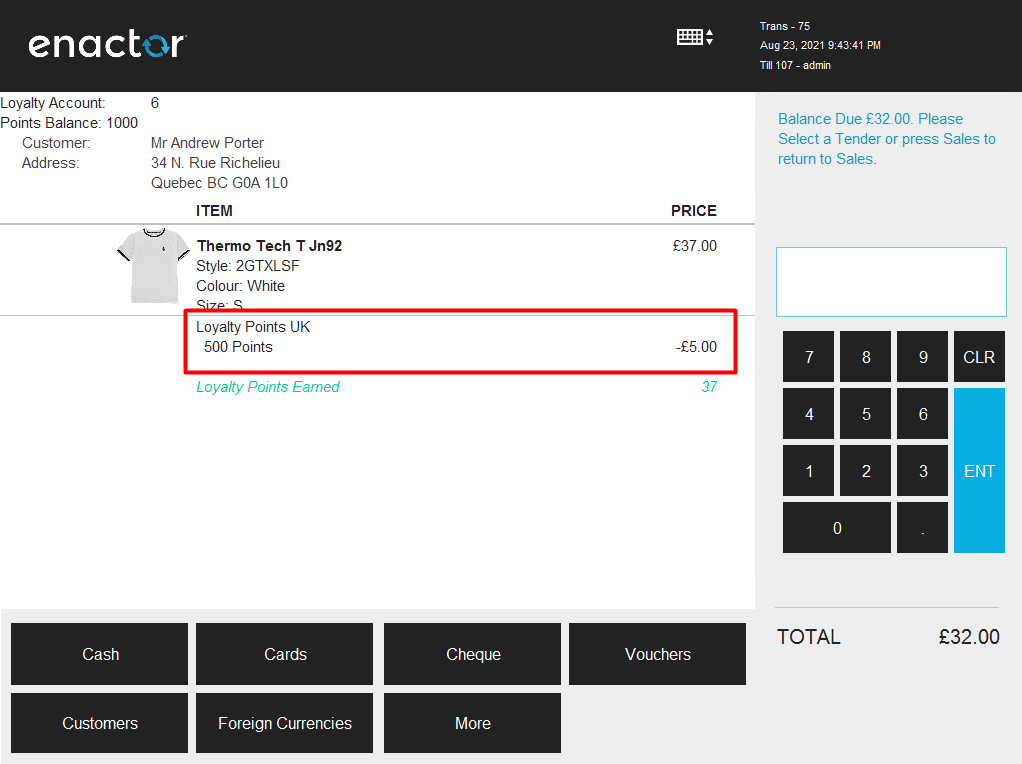
If the loyalty account has been successfully applied and the points redeemed, the loyalty customer's details will be displayed along with the points redeemed.
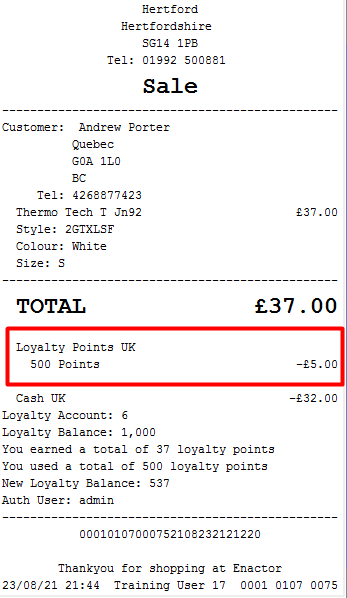
- Once Cash or any other tender option is selected to complete the transaction, the customer loyalty account details will also be displayed on the receipt:
This completes the Redeeming of Loyalty Points configuration.
About This Document
©2026 Enactor Ltd
All documents produced by Enactor Ltd are supplied to Customers subject to Copyright, commercial confidentiality and contractual agreements and must not be copied or transferred without permission.
Document Context
This document is part of the Enactor Product Documentation Series. All Enactor products include a comprehensive documentation set designed to improve understanding of the product and facilitate ease of use.
Document Inquiries
At Enactor we aspire to producing the highest quality documentation to reflect and enhance the quality of our Product. If you find that the document is inaccurate or deficient in any way, please assist us in improving our standard by letting us know.
For matters of document quality or any other enquiries regarding this document, please contact:
By Email: documentation@enactor.co.uk
Document History
The following versions of this document have been produced:
| Version | Status | Issue Date | Author | Reason for Issue |
|---|---|---|---|---|
| 1.0 | Initial Draft | - | - | Initial version. |
| 2.0 | Updated | 2026-02-28 | Mark Harrison | Reformatted to Docusaurus format; screenshots updated. |