How To Configure Mobile Client Application on Android
Introduction
This guide describes the Mobile Client Configuration process in the Enactor Retail System from an operational perspective. Client Configuration Sets contain device-specific configuration data, such as identity information, that is required by some device types at install time. For most devices, such as Fixed POS, this data is installed to the device during installation.
However, some devices, such as Mobile POS, require more convenient and reliable means. The preferred method is for the device to connect to a web service to download the configuration directly from the central configuration repository at install time. By entering a Registration Serial Number obtained against a device, a Mobile POS is enabled to access the service, identify itself, and receive the device-specific configuration download stored in the Client Configuration Set. The Client Configuration Set identifies a specific Operating System, Device Type, and an Option Set. Option Sets are configuration entities used to define extension properties of an entity.
The purpose of this guide is to demonstrate the steps to configure the Enactor Mobile POS client application on an Android device.
Overview
This guide covers the configuration for the following:
- Attribute / Option Sets - Allows maintaining the available settings used to configure Mobile POS devices.
- Client Configuration Sets - Allows setting device-specific configurations that bind an operating system, device type and option set together.
- Devices - Devices are mapped to the appropriate client configuration set and assigned a registration serial number.
- Mobile POS App Functionality - Starting the app on the mobile device and registering it using a serial number.
Prior Training / Experience
You should be familiar with the following:
- Estate Manager configuration
- Data broadcasting
Configuration Steps
Attribute / Option Set
Option Sets are used to create user-configurable data entry fields. The purpose and function of the option set is defined by the Option Set Type. Example Client Configuration sets for Android devices are already provided. These can be maintained and added as required. The configured options provide the properties required for the mobile device (Android) when installing a new device.
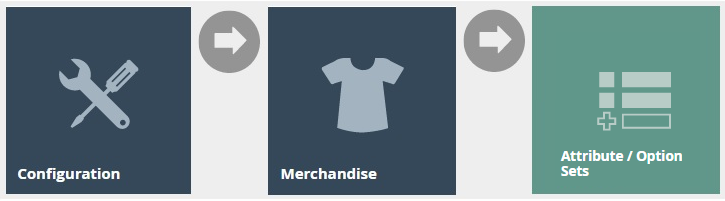
Navigate to Attribute / Option Set Maintenance using the path: Configuration > Merchandise > Attribute / Option Sets
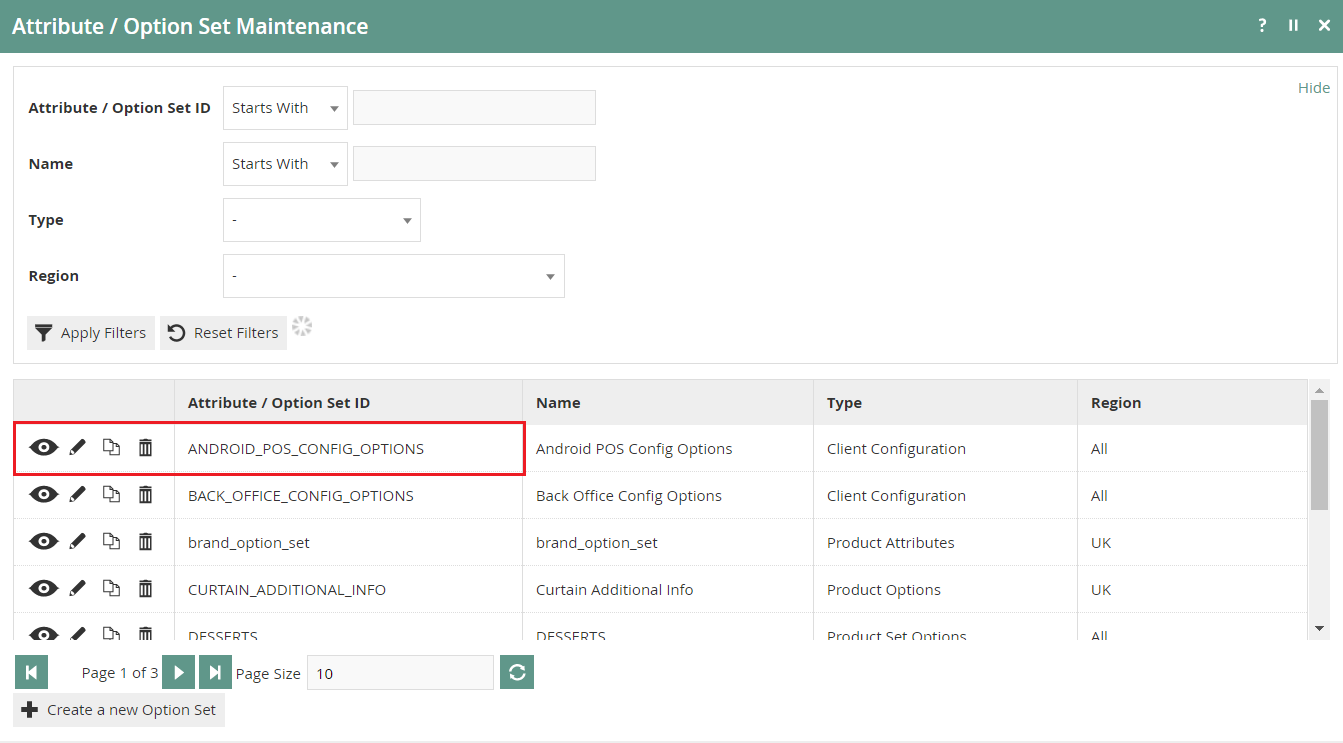
The following guide uses ANDROID_POS_CONFIG_OPTIONS as the use case.
Select Edit on the Android POS Config Options entry.
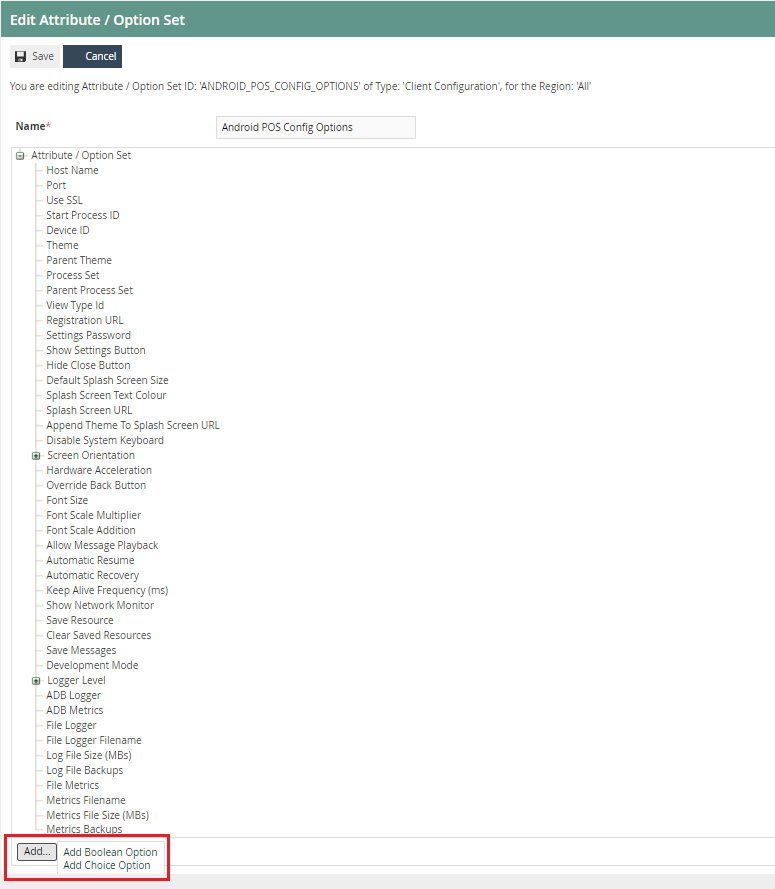
Data types can be added as Boolean checkboxes, String drop-down, text, or numeric fields.
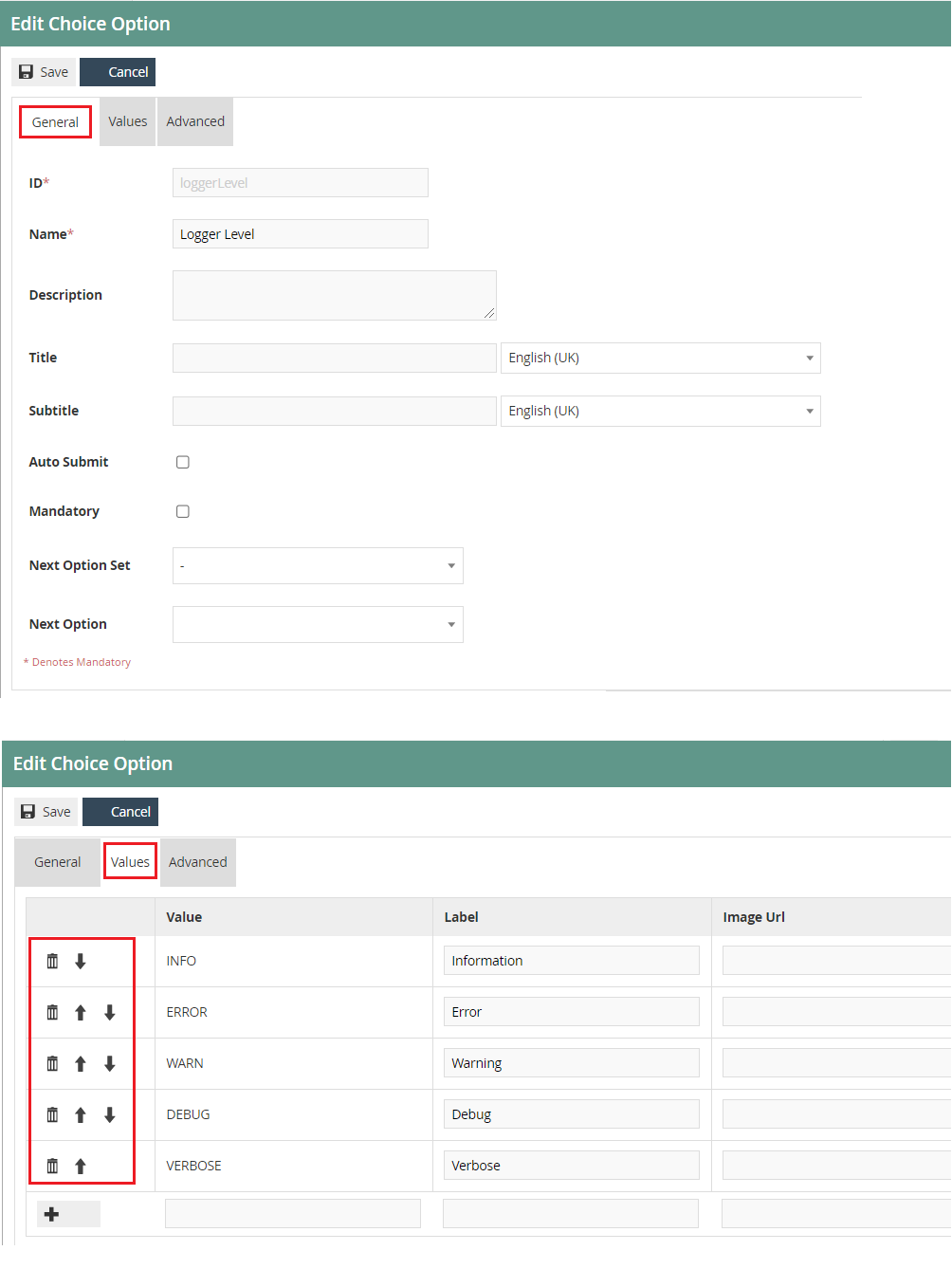
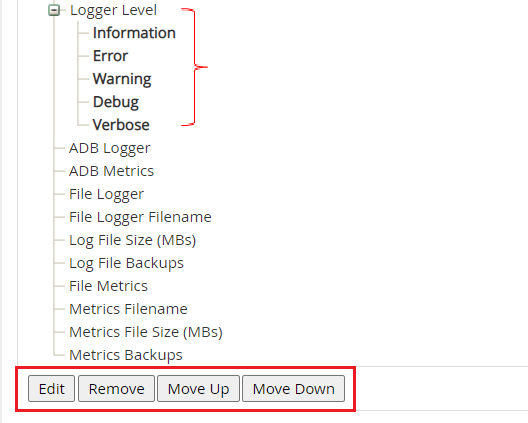
Properties are added to the ordered list and are available for individual selection. Properties with associated value sets are displayed with an expand/collapse option to show or hide the values. While the Option Set is selected, further properties may be added. When individual properties are selected, options are available to Edit, Remove, or Change the position of the property in the list.
Client Configuration Set
The Client Configuration Set identifies a specific Operating System, Device Type, and an Option Set. Create a new client configuration using the Client Configuration Option Set created above.
Navigate to Client Configuration Set Maintenance using the path: Administration > Devices > Client Configuration Sets
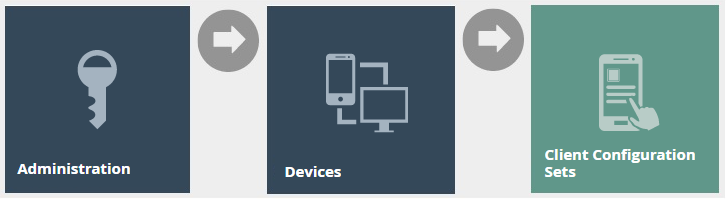
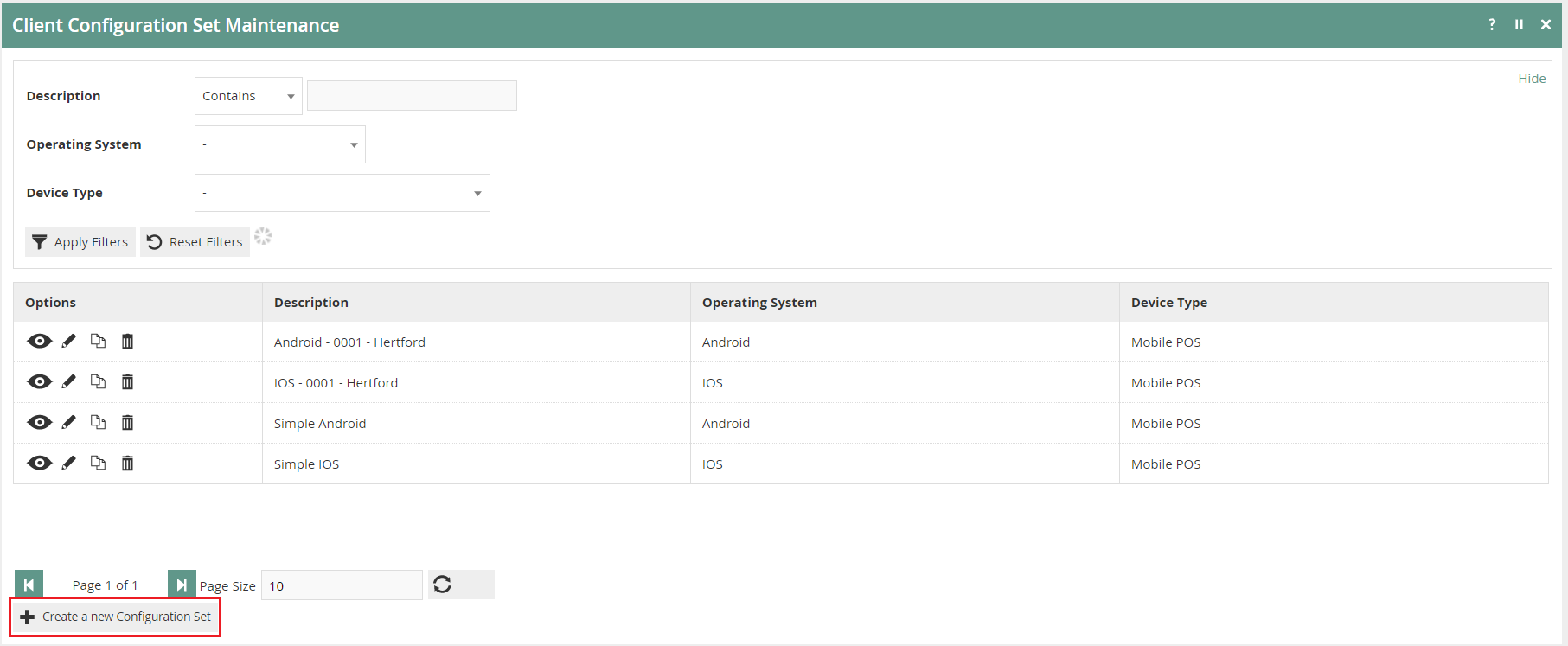
To create a new Client Configuration Set, select Create a new Configuration Set on the Client Configuration Set Maintenance page.
Client Configuration Set - General Tab
The General tab captures the basic identity information of the Client Configuration Set.
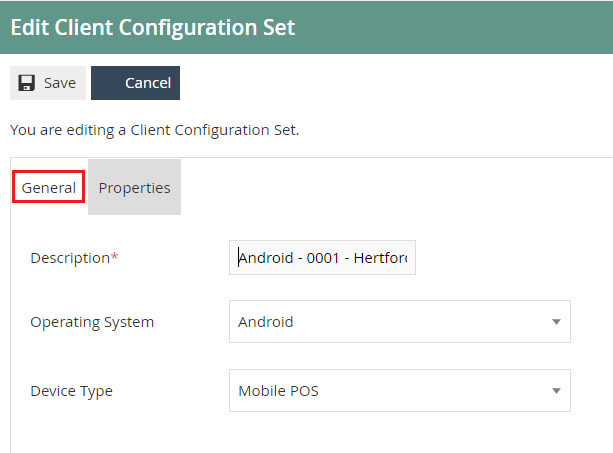
Set the appropriate values on the General tab as follows:
| Configuration | Description |
|---|---|
| Description | Enter a user-friendly identifier for the Client Configuration Set (alphanumeric, maximum 40 characters). You may enter the store ID for easy identification. |
| Operating System | Select Android from the dropdown list of configured operating systems. |
| Device Type | Select Mobile POS from the dropdown list of configured device types. |
Client Configuration Set - Properties Tab
The Properties tab captures all properties defined in the Property Set from Attribute / Option Set maintenance.
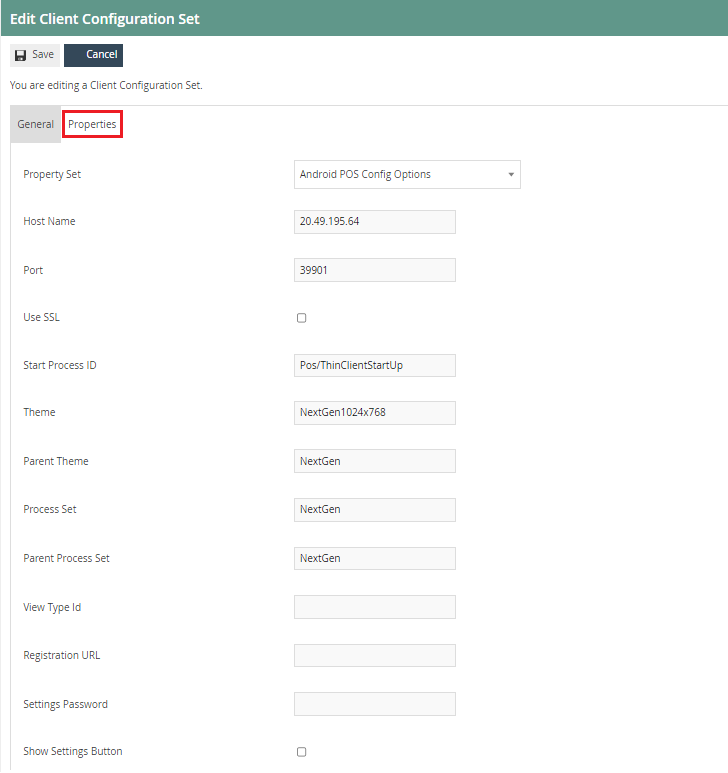
Set the appropriate values on the Properties tab as follows:
Common Settings
Properties listed under common settings are the mandatory properties that should be set by the user.
Server Connection Properties
| Entry | Example Value | Description |
|---|---|---|
| Property Set | Android POS Config Options | Select the desired Property Set from the dropdown list of predefined Option Sets. |
| Host Name | 20.49.195.64 | Enter the hostname or IP address of the PDP server the client will connect to. |
| Port | 39901 | Enter the port of the PDP server the client will connect to. |
| Use SSL | Tick to indicate the device should use SSL when connecting. | |
| Start Process ID | Pos/ThinClientStartUp | Identifies the Application Process that will implement data exports using this export type. |
| Theme | NextGen1024x768 | Set the POS application view theme from the available theme options (Standard, NextGen, or Gold). |
| Parent Theme | NextGen | Set the parent theme in line with the Theme, Process Set, and Parent Process Set. |
| Process Set | NextGen | Set the process set in line with the Theme, Parent Theme, and Parent Process Set. |
| Parent Process Set | NextGen | Set the parent process set in line with the Theme, Process Set, and Parent Theme. |
| View Type ID | HTMLPosPDP | This is applicable only for users of HTML (React) POS. |
User Interface Properties
| Entry | Description |
|---|---|
| Disable System Keyboard | Tick to disable the system keyboard. This is mostly applicable for HTML (React) POS users to avoid overlapping of physical and system keyboards. |
| Screen Orientation | Select the desired screen orientation from the dropdown list: Portrait, Landscape, Reverse Portrait, Reverse Landscape, Sensor Portrait, or Sensor Landscape. |
Additional Settings
Additional settings may be applied as required.
Registration Properties
| Entry | Description |
|---|---|
| Registration URL | Enter the registration URL the client will use to retrieve configuration data. |
Security Properties
| Entry | Description |
|---|---|
| Settings Password | Set a password required to access the settings of the application. |
| Show Settings Button | Tick to make the Settings button visible in the reconnection dialog. |
| Hide Close Button | Tick to hide the Close button in the reconnection dialog. |
User Interface Properties
| Entry | Description |
|---|---|
| Default Splash Screen Size | Set a numeric value to define the default splash screen size. |
| Splash Screen Text Colour | Set a value to define the splash screen text colour. |
| Splash Screen URL | Enter a URL for a background image to appear on the splash screen. |
| Append Theme To Splash Screen URL | Tick if the background image should be appended to the theme. |
| Hardware Acceleration | Tick to enhance hardware performance when using the app. |
| Override Back Button | Tick to enable back button override. |
| Font Size | Enter a numeric value to define the font size. |
| Font Scale Multiplier | Enter a numeric value to define the font scale multiplier. |
| Font Scale Addition | Enter a numeric value to define the font scale addition. |
| Allow Message Playback | Tick to enable message playback. |
Network Properties
| Entry | Description |
|---|---|
| Automatic Resume | Tick to enable automatic resume. |
| Automatic Recovery | Tick to enable automatic recovery. |
| Keep Alive Frequency (ms) | Enter a numeric value for the milliseconds between keep-alive messages. Set to zero to disable keep-alive. |
| Show Network Monitor | Tick to make the network monitor visible. |
Caching Properties
| Entry | Description |
|---|---|
| Save Resource | Tick to save resources in the document directory. |
| Clear Saved Resources | Tick to delete saved resources in the document directory every time the app restarts. |
Developer Options
| Entry | Description |
|---|---|
| Save Messages | Tick to save messages into local storage. |
| Development Mode | Tick to run the application in development mode. |
Logging Properties
| Entry | Description |
|---|---|
| Logger Level | Select the log level from the dropdown list: Information, Error, Warning, Debug, or Verbose. This defines the minimum severity for messages to be logged. |
| ADB Logger | Tick to send log messages to ADB. |
| ADB Metrics | Tick to send metrics to ADB. |
| File Logger | Tick to enable logging to a file. |
| File Logger Filename | Enter the name of the log file. |
| Log File Size (MBs) | Enter a numeric value for the maximum log file size. A new file is created when the size is exceeded. |
| Log File Backups | Enter a numeric value for the number of backup log files to keep. |
Select Save.
Devices
Devices, each with a unique Device ID, are differentiated functionally by the software services offered based on Device Type and individually by the specific instance executing on a given Host Name. Each device is defined in association with a Device Type and a specific Client Configuration Set.
Navigate to Device Maintenance using the path: Administration > Devices > Devices

Using the search filter options, select the Location and set Type to Mobile POS.
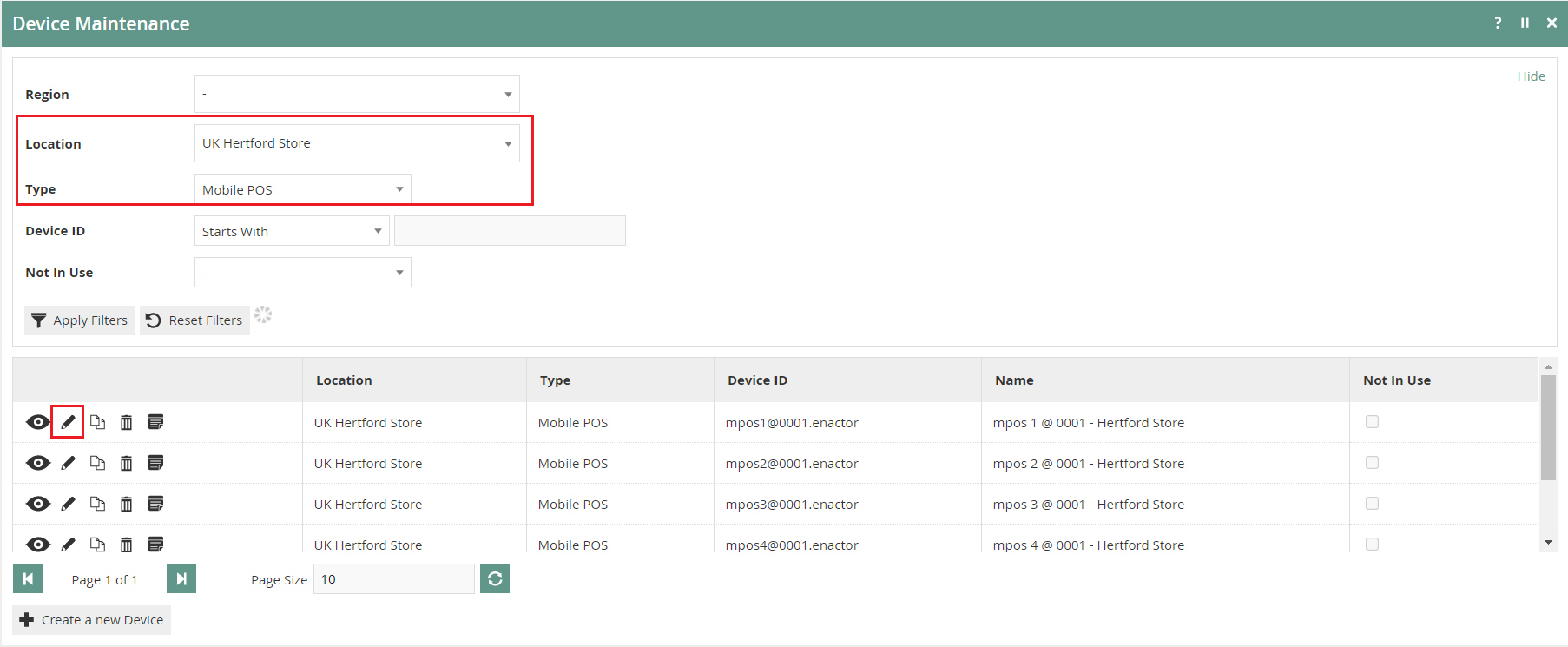
Edit the Mobile POS device to which you need to add the registration.
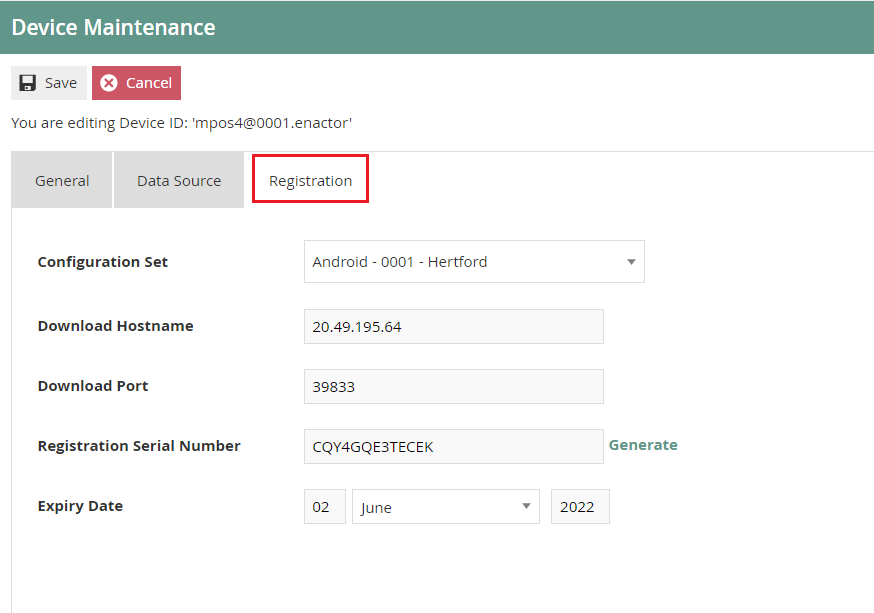
Set the appropriate values on the Registration tab as follows:
| Entry | Example Value | Description |
|---|---|---|
| Configuration Set | Android - 0001 - Hertford | Select the store configuration set from the dropdown list. This should match the location associated with the device. |
| Download Host Name | 20.49.195.54 | Enter the host address for the Retail EM services server. |
| Download Port | 39833 | Enter the download port for the Retail EM services server. |
| Registration Serial Number | Click Generate to create a registration serial number for configuring the app on the mobile device. | |
| Expiry Date | Set an expiry date for the registration serial number. |
Select Save.
Mobile POS App Functionality
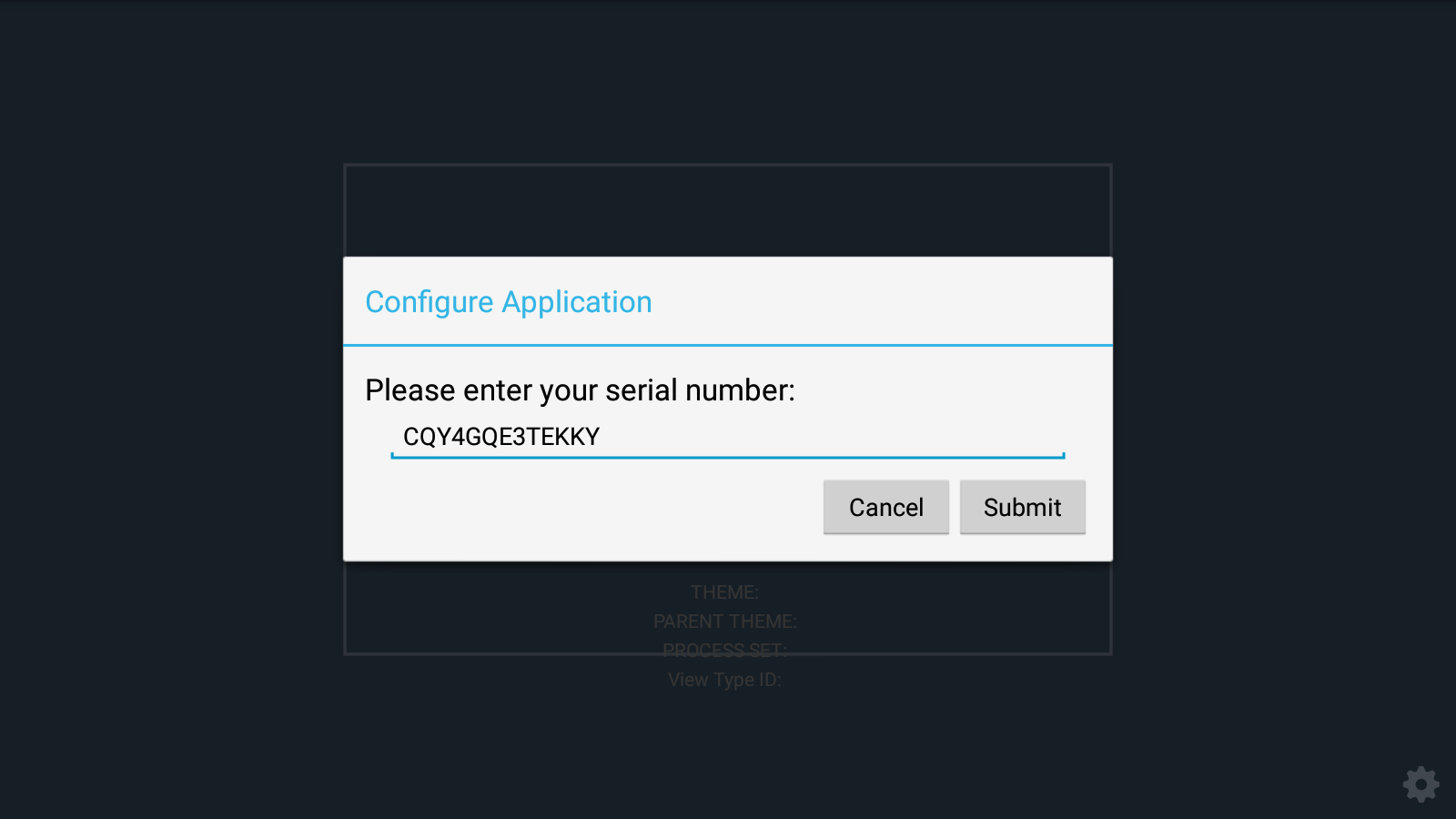
On first-time startup, the mobile app prompts you to select how you would like to configure the application.
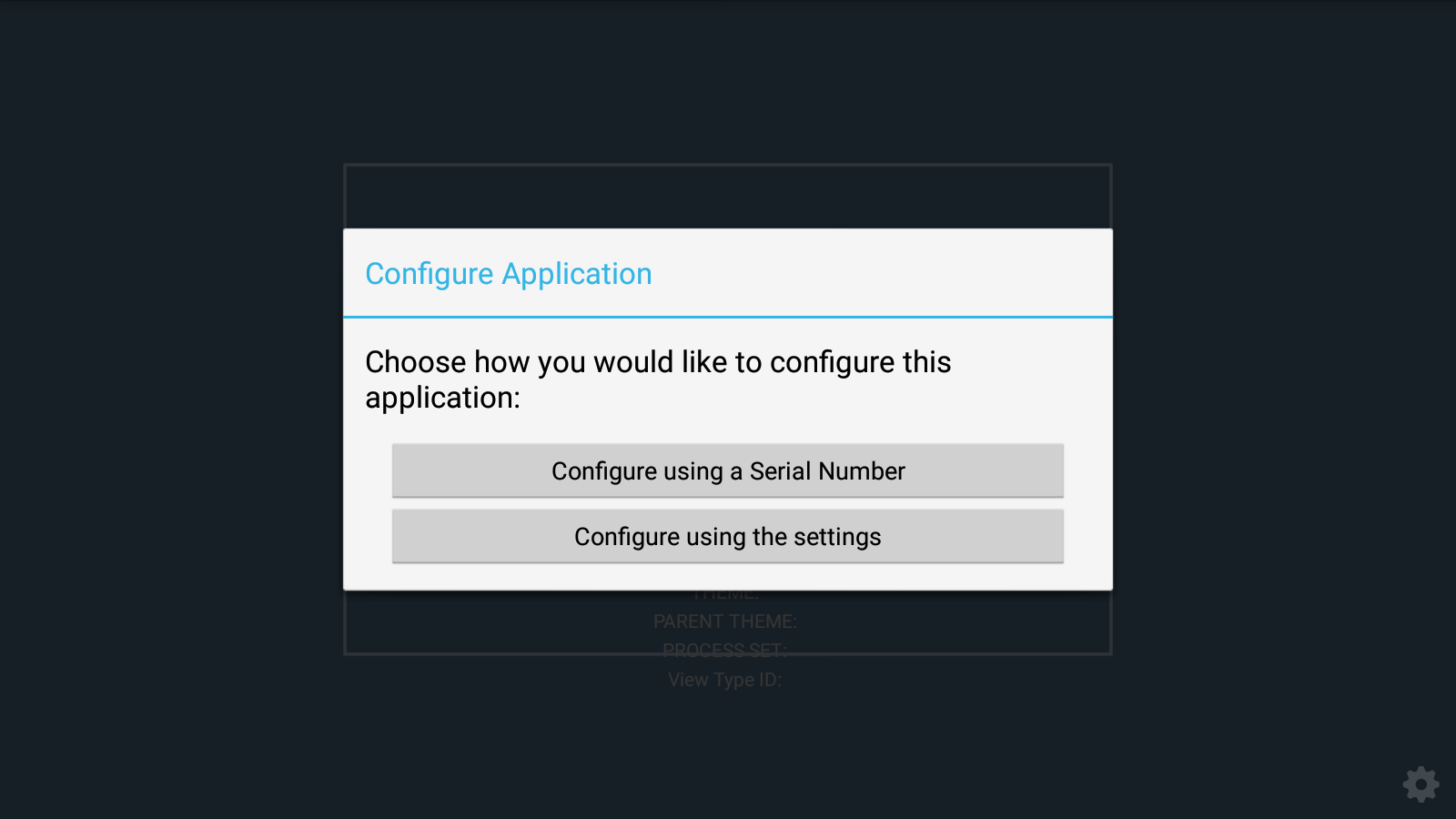
Select Configure using a Serial Number and enter the serial number generated in the Device Registration step.
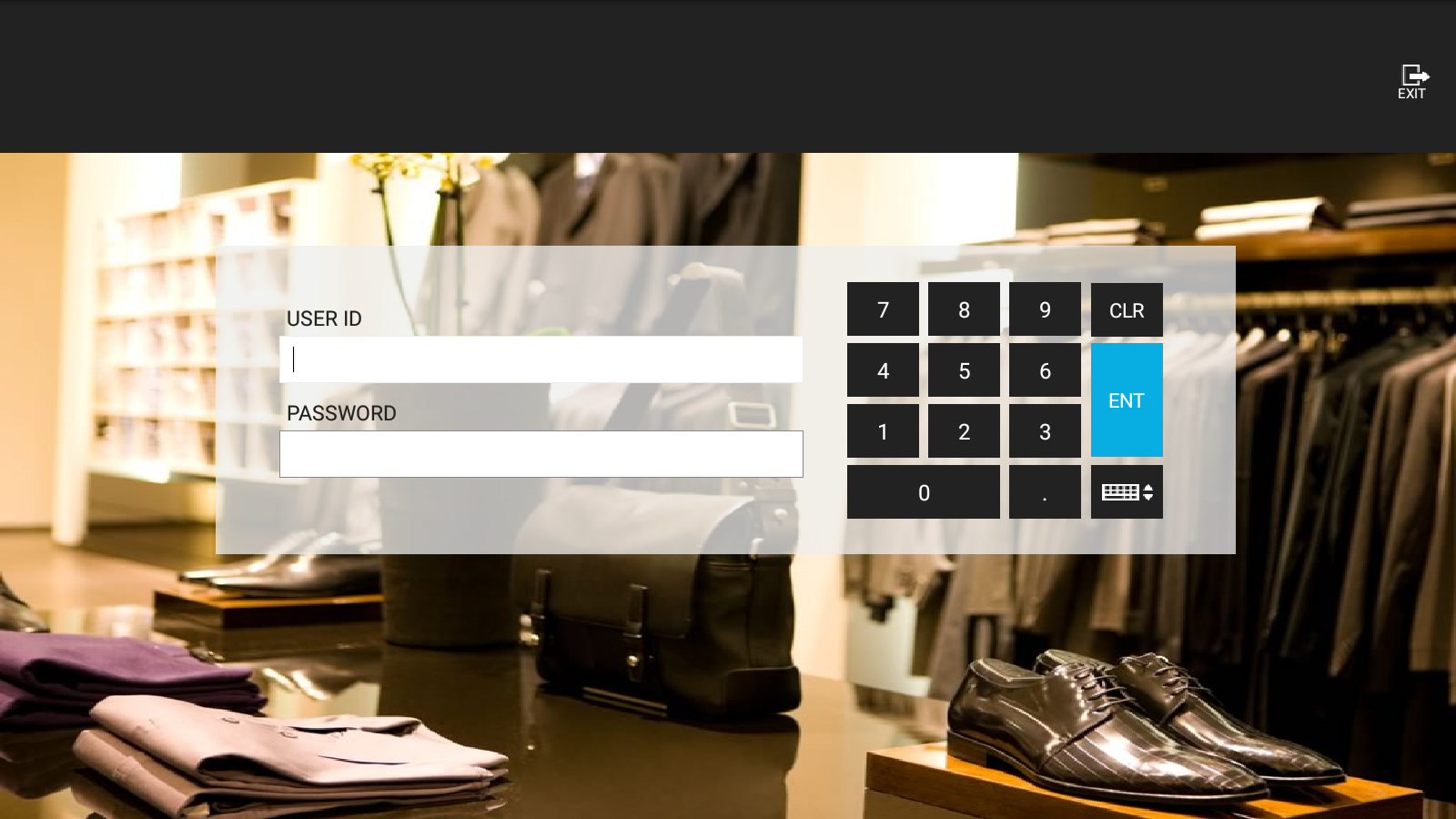
The device will now download the relevant configuration and the app will prompt for a logon.
Broadcasting
If Option Set updates have been made that alter the Client Configuration Sets, broadcast the following entities to deliver the configuration changes to the POS:
- Device
- Option Set
- Registration Serial Number
After making changes to Client Configuration Sets or Option Sets, you must broadcast the updated entities for the changes to take effect on the POS devices.
Document History
| Version | Status | Issue Date | Author | Reason for Issue |
|---|---|---|---|---|
| 1.0 | Initial Draft | 05/07/2021 | Thilini Sayakkara | Initial version |
| 2.0 | Reviewed | 09/07/2021 | Kevin Charlesworth | Format and content changes |
| 3.0 | Released | 2026-03-16 | Mark Harrison | Standards conversion and AI metadata |