How To Configure POS Behaviour - Menus
Introduction
Enactor Retail Applications that present User Interfaces (UIs) use Menus as the principal means to navigate and access application functionality. Menu configuration provides the first level of retailer control over what application functionality individual users and groups of users may access, and how they navigate to the functions they require.
The purpose of this guide is to provide practical guidance on configuration of POS Menus. This guide specifically covers the POS Sale Menu and Tender Menu, the New Launch Screen Menu (including CRM Launch and Inventory Launch), Terminal Cash Management and Inventory POS Header shortcuts, and the Big Button Menu layout for Display Reports and Web Reports.
Refer to the full Enactor solution documentation and other how-to guides for detailed information on additional menu types and advanced configuration options.
Overview
The following topics are covered in this guide:
- Menu Configuration Fundamentals - Understanding Menu Sets, Roles, Menu Groups, Locales and Menu IDs
- Accessing and Creating Menus - Navigating to Menu Maintenance, creating and copying menus
- Menu Construction - Adding, removing and reordering menu elements
- POS Sale Menu - Configuring the main sale menu displayed during basket view
- POS Tender Menu - Configuring tender buttons and linking them to Tender IDs
- New Launch Screen Menu - Configuring direct access to functional areas from the POS launch screen
- CRM Launch Menu - Starting the POS directly in CRM mode
- Inventory Launch Menu - Starting the POS directly in Inventory mode
- Terminal Cash Management and Inventory POS Header Menu - Adding shortcut buttons to the POS header
- Big Button Menu for Display Reports and Web Reports - Enabling big button layout for report menus
Menu Configuration Fundamentals
Menus are associated with a Locale, User Role and Menu Group. These relationships must be understood, and the related configuration elements defined before proceeding to create menu configurations. From the POS user perspective, some POS menu options select other menus or invoke software functions. These are the POS menus for which the action behind the menu option is an Event - a function or process defined within the constraint of the Menu Set.
Accessing Menus
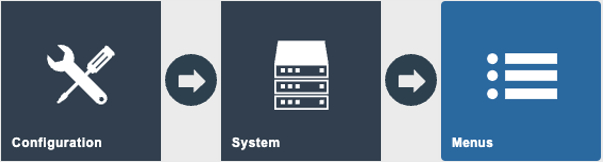
Access menus using the Menus option in Estate Manager.
Navigate to Menu Maintenance using the Search or the path: Main Menu > Configuration > System > Menus
Select Menu
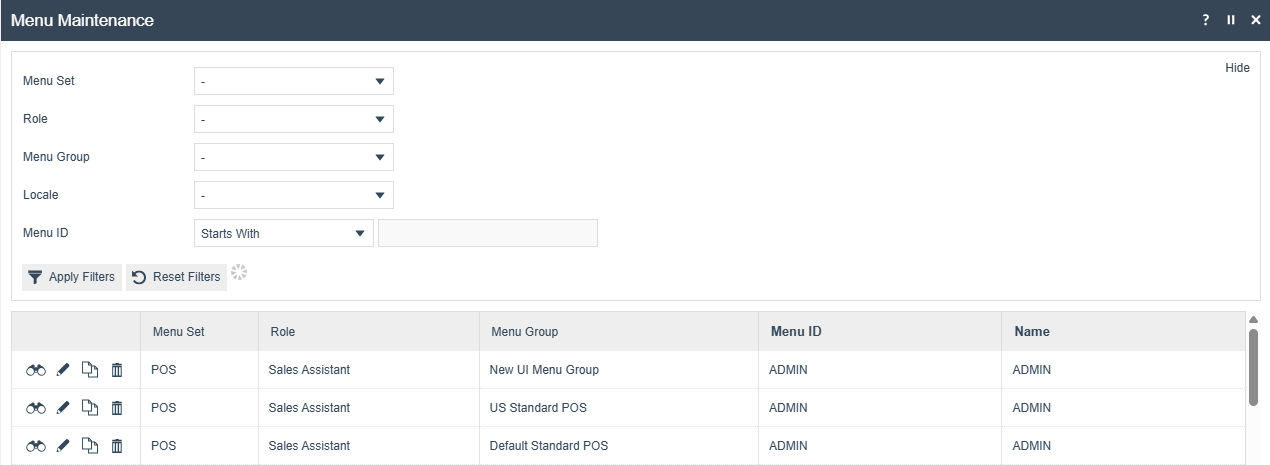
The Menus option opens the Menu Maintenance select page. The select page lists currently configured menus and enables the user to Add, View, Edit, Copy or Delete menus.
Creating a New Menu
In the Menu Maintenance select page, select the Create a new Menu option. This presents an initial page to capture a Menu Set, Role, Menu Group, Locale and Menu ID, all of which serve to uniquely identify a menu. Enter the required values and select Create.

Menu Creation Options
The Create New Menu option initiates the creation of a new menu from scratch. However, menus may also be created by copying existing menus, including the supplied example menus. To copy an existing menu, click the Copy icon ( ) associated with it in the Menu Maintenance list. The initial page shown above, which captures the mandatory elements that uniquely identify the new menu, is common to both methods.
Using the Copy method is the recommended starting point for menu construction. It provides a ready-built menu structure which can be customised to your requirements.
Specifying Menu Set
The Menu Set is specific to each application and is associated, in the Estate Manager database, with all the events of the application that are available to be referenced by options in menus. The Menu Sets available to the Estate Manager appear in the dropdown list field. There are two fundamental Enactor Retail Application Menu Sets: Web Maintenance and POS.
Specifying Locale
Locale is configured using Configuration > Organisation > Locales. Equivalent menus for different locales may be created by copying the first-created menu and applying different locale values. These copied menus may remain equivalent in all respects other than locale if the menu option labels are specified based on a Message Resource, since the Message Resource will be dynamically selected based on the locale of the user. Alternatively, locale-specific labels may be explicitly specified as text in the menu configuration.
Specifying Menu ID
For supplied Enactor Retail Applications, the set of Menu IDs applicable to the software associated with the Menu Set is available as a dropdown list for selection. Without any customisation using the Enactor Toolset, the Menu ID should only ever be selected from the dropdown list, since these are the only menus that the software will request and load.
Editing the Menu
An individual menu, once created or selected for editing, presents in the edit window of the Menu Maintenance page in an expandable tree structure. Sub-menu nodes have an Expand/Collapse icon ( ) by which the user may navigate and view the menu. The menu edit page captures identifying properties of the menu and allows manipulation of its structure and content.

Menu Construction
Menu options shown in the edit window that have an Expand/Collapse icon () are sub-menu nodes (folders) to which new options may be added. When such options, including the root configuration menu itself, are selected (shown highlighted in bold), the Add option will be available to add new options to them.
Menus are internally hierarchical - Folder options may be added to the main root menu, which appear in the user interface as sub-menus. Further options may be added to these folders, including other folder options.
Although the Create New Menu option provides a starting point for creating menus, using the Copy method described above is the ideal starting point. It has the advantage of providing a ready-built menu structure which may be customised using the editing options described below.
Adding Menu Elements
New menu options may be added using the Add option. When selected, the user is presented with a popup menu of the types of menu items that may be added. In all cases, when one of these options is selected, the Menu Maintenance function opens in the General Tab of the Menu Element Maintenance page to capture details of the new element.
Only two of the add options should ever be required for the creation of Restaurant and POS menus: Add a new Button and Add a new Button Folder.
POS Sale and Tender Menus
This section covers the POS Sale Menu and the Tender Menu. While there are other menus in the POS Menu Set, these are most likely to require some level of customisation to suit the retailer.
In the standard NextGen UI, the menu is represented as 2 rows of 4 buttons at the bottom of the screen, or a single column of 8 buttons on the right side depending on the theme resolution. The Sale Menu is displayed while in the basket view. Once the transaction has been tendered, the menu switches to the Tender Menu.
Example menu configurations are available in Estate Manager. It is recommended to start by copying an existing menu and making modifications rather than starting from scratch.
Sale Menu
In the Menu Maintenance view, use the filters to help locate an existing Sale Menu. In the example below, the filters are set to POS as the Menu Set, Sales Assistant as the Role and Standard POS as the Menu Group.
Locate the Sale Menu and click the copy icon to create a duplicate.

Select the desired Role, Menu Group, Locale and assign a Menu ID. Click Create to create the new menu which is now ready to be edited.

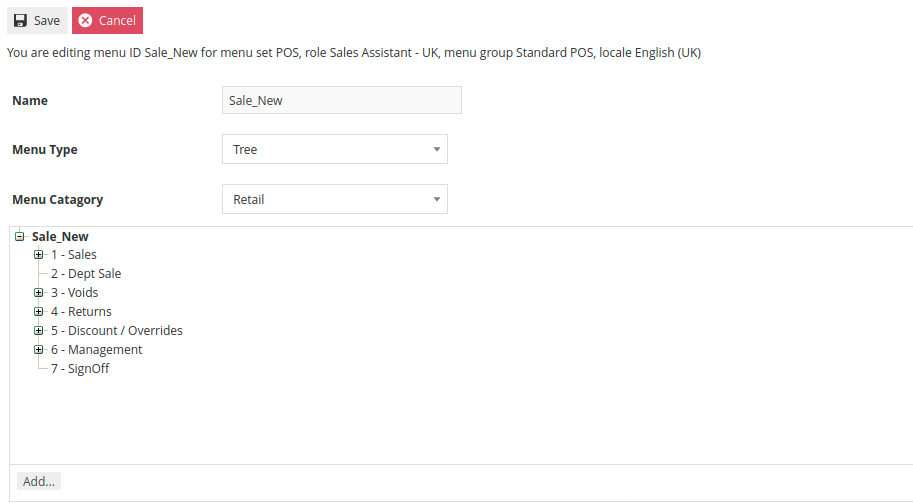
The Sale Menu contains most of the functions that will be required by a retailer. Most customisation work involves restructuring the hierarchy of the menu, removing unnecessary items or potentially adding new items.
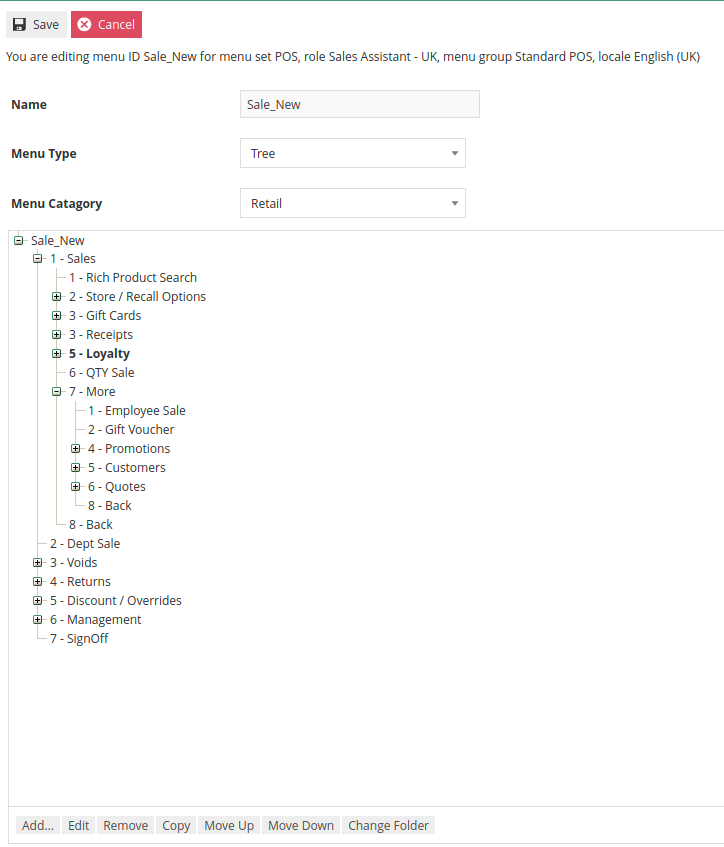
The numbers in the menu tree represent the button position for the item. In the above example, the main Sales Menu only has 7 buttons defined so the eighth button will not appear. To change the order in which the functions appear, select the button that needs to be moved and then use the Move Up or Move Down buttons until the order is corrected. This can be done at any level of the hierarchy.

Removing an item is done by selecting the item and then clicking Remove.
The Remove action can be used on individual functions as well as folders. If used on a folder, it removes the folder and all contents within it.
Buttons and folders can be added by selecting the containing folder first, then clicking Add and selecting either Add a new Button Folder or Add a new Button.
If Add a new Button Folder is selected, a prompt appears to collect the folder name and button position.

As the style of the button is already defined within the UI, the only information required is the Folder Label (the text displayed on the button) and the button Position.
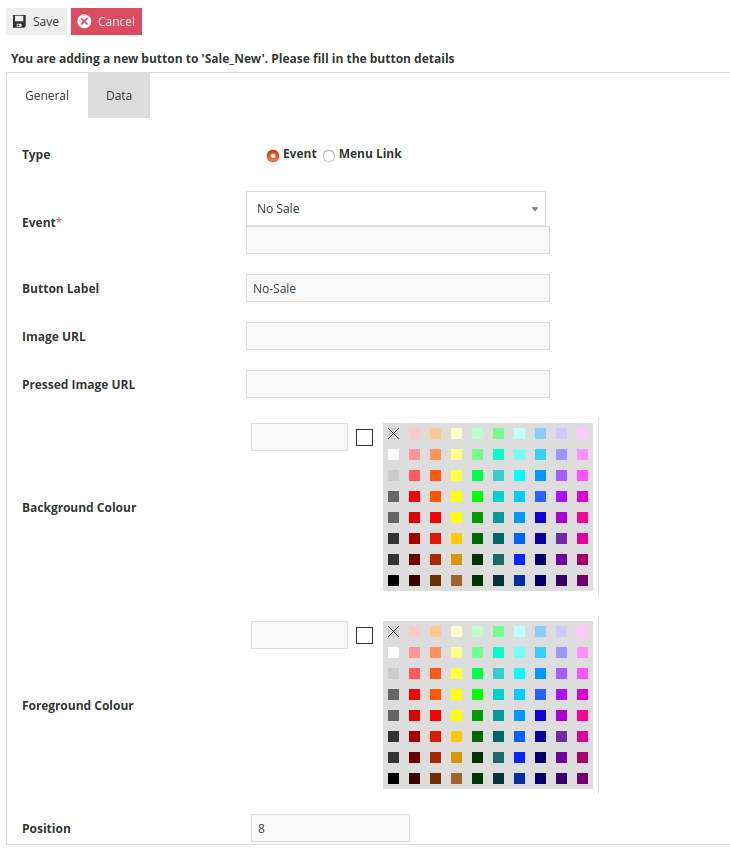
When Add a new Button is selected, a similar form is presented. This form requires the Event that is to be triggered by the button to be selected. In this example, a button is being added that will trigger a No Sale. Enter the desired button text as the Button Label and specify the button Position.
In addition to changing the order of appearance, the structure of the hierarchy can also be adjusted. Using the Change Folder option, it is possible to move a function or folder to a different location or level of the hierarchy. For example, to move the Loyalty Folder from the second level of the Sales Folder up to the first level, click on the Loyalty Folder and select Change Folder.
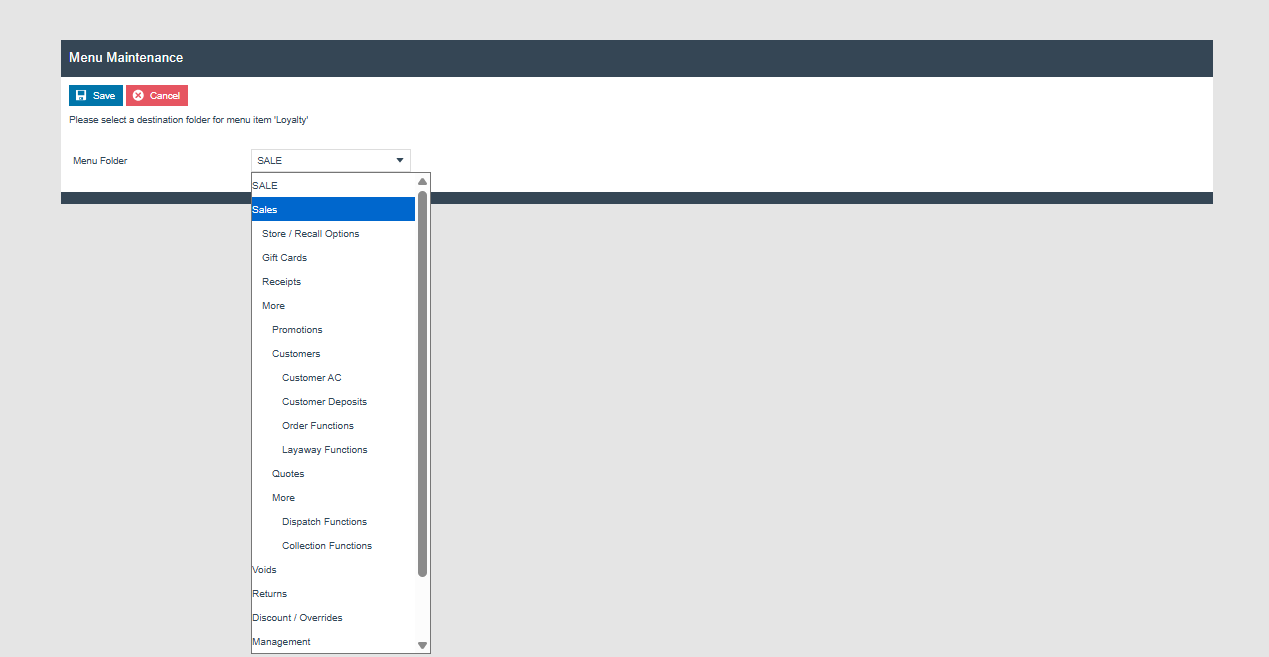
A dropdown appears to select the desired target folder from the menu hierarchy. In this case, select the Sales Folder.

After saving the change, the Loyalty Folder now appears in the top level of the Sales Folder.
Once the Sale Menu is completely revised it can be saved. If additional variations of the menu are to be created for different Roles, Locales or Menu Groups, this process can be repeated using the newly created menu as the source for the working copy.
Tender Menu
In the Menu Maintenance view, use the filters to help locate an existing Tender Menu. In the example below, the filters are set to POS as the Menu Set, Sales Assistant as the Role and Standard POS as the Menu Group.
Locate the Tender Menu and click the copy icon to create a duplicate.
Select the desired Role, Menu Group, Locale and assign a Menu ID. Click Create to create the new menu which is now ready to be edited.
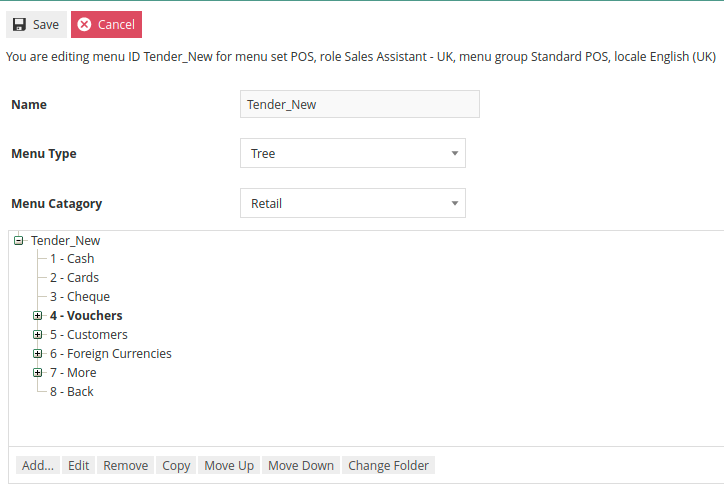
The process to reorder, add and remove items from the Tender Menu is the same as described for the Sale Menu. What is different about the Tender Menu is that each tender represented on the menu must be linked to a tender that has already been configured.
It is recommended to complete tender configuration prior to modifying the Tender Menu. Each tender button must be linked to a configured tender, and the Event triggered must be properly selected.
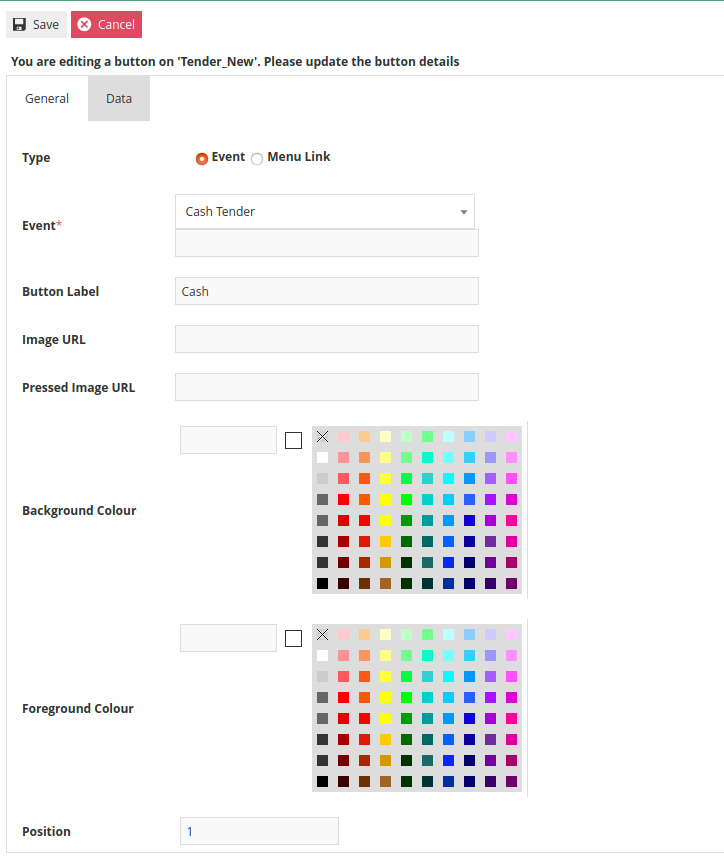
In the above example, Cash is the first button in the menu. By editing the button, the General Tab shows that the Event is set to Cash Tender, the Button Label is Cash and the Position is 1.

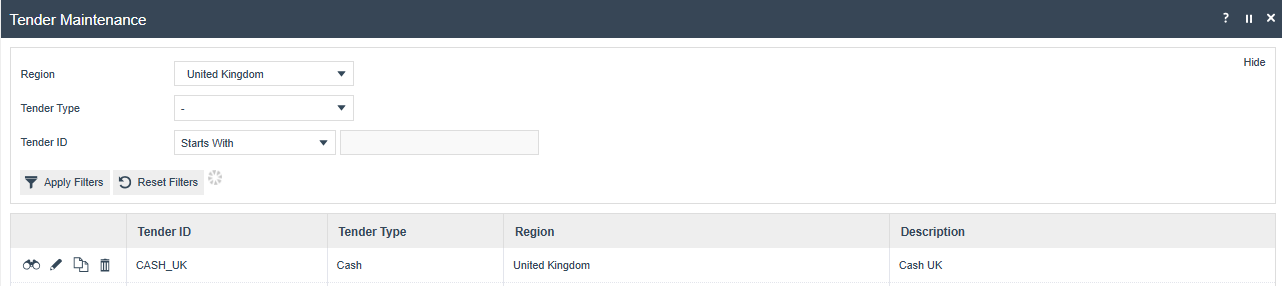
The Data Tab is where the button is linked to the correct tender. In the Tender Maintenance view, the Cash Tender has a Tender ID of CASH-UK.
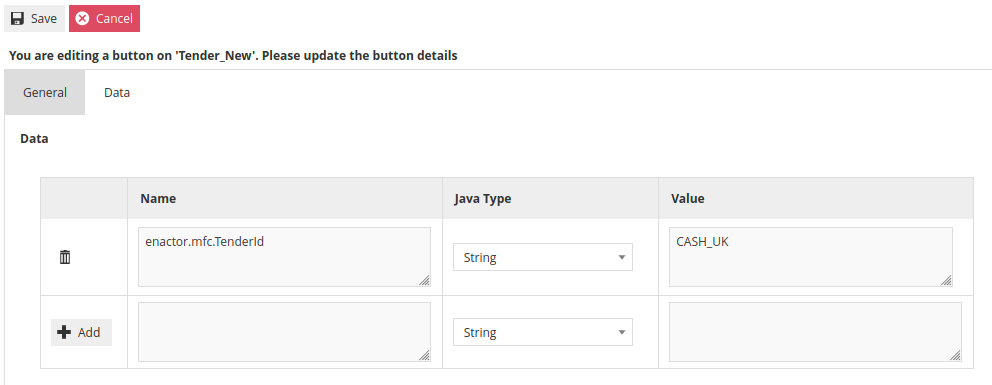
enactor.mfc.TenderID must have the correct Tender ID specified in the Value field. In this example, the correct value is CASH_UK. If the value is incorrect, change it to match the desired Tender ID.
If a new Menu Button is being added, there will be no pre-existing entry on the Data Tab. In this scenario, enter enactor.mfc.TenderId in the Name field and the appropriate Tender ID in the Value field. After entering the information, press the +Add button before leaving the page.
All options on the Tender Menu must be linked to the appropriate Tender ID. Failure to link a tender button to a valid Tender ID will result in the button not functioning correctly on the POS.
New Launch Screen Menu
The new launch screen configuration provides access to the following functional areas:
- Sell
- Products
- Order
- CRM
- Task
- Inventory
- Cash Management
- Administration
This enhancement allows customers to configure and access key application functions directly from the launch screen, improving usability and navigation.
Configuration
To enable the new launch screen, the following configurations must be added to the POS Terminal or POS Terminal Template under the User Interface tab.
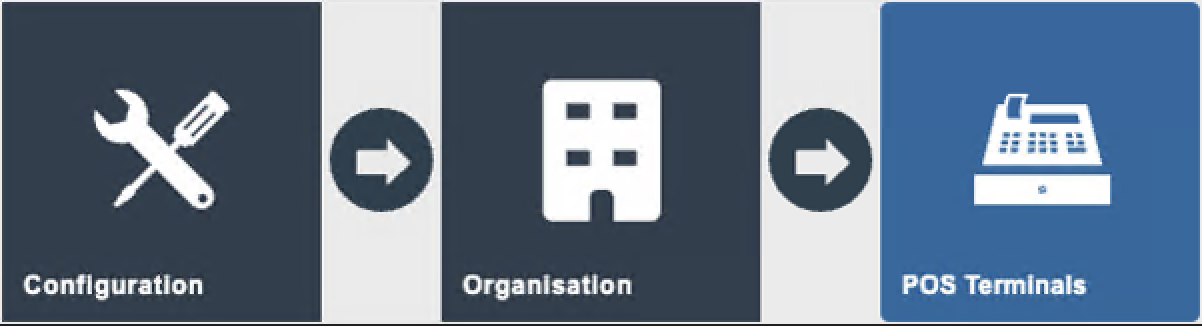
Navigate to POS Terminal Maintenance using the Search or the path: Main Menu > Configuration > Organisation > POS Terminal
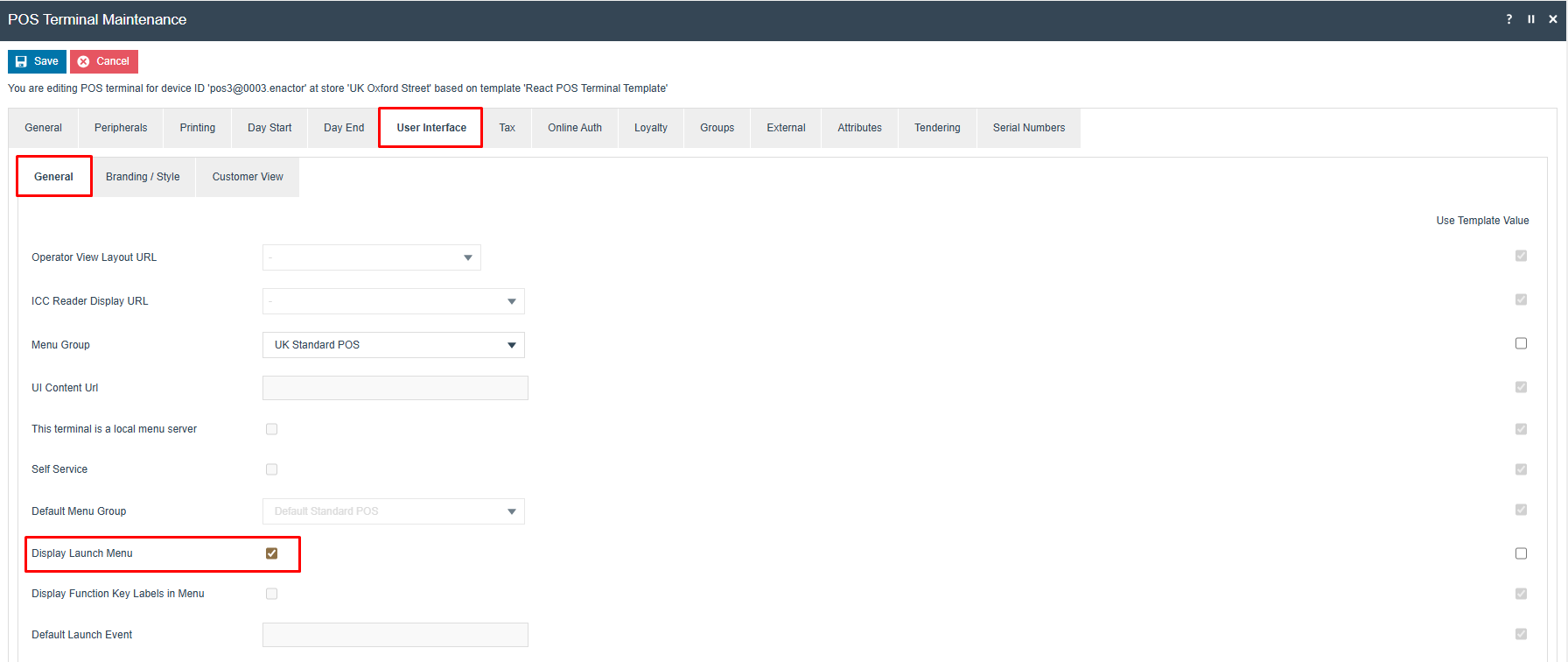
| Configuration | Value | Description |
|---|---|---|
| Default Launch Event | Leave empty for default launch menu | Directs the POS to open directly in the new launch menu. |
| Display Launch Menu | Tick box selected | This value is required for the default launch event to work. |
CRM Launch Menu
This section details how to configure and use the CRM POS Launch feature, which allows users to start the POS system directly in CRM mode. This setup restricts access to CRM functions only, providing a streamlined interface for customer management.
CRM Launch - POS Terminal
The POS Terminal configuration determines how the POS operates, including which functionalities are available at start-up. This configuration can equally be applied to a POS Terminal Template.
Navigate to POS Terminal Maintenance using the Search or the path: Main Menu > Configuration > Organisation > POS Terminal
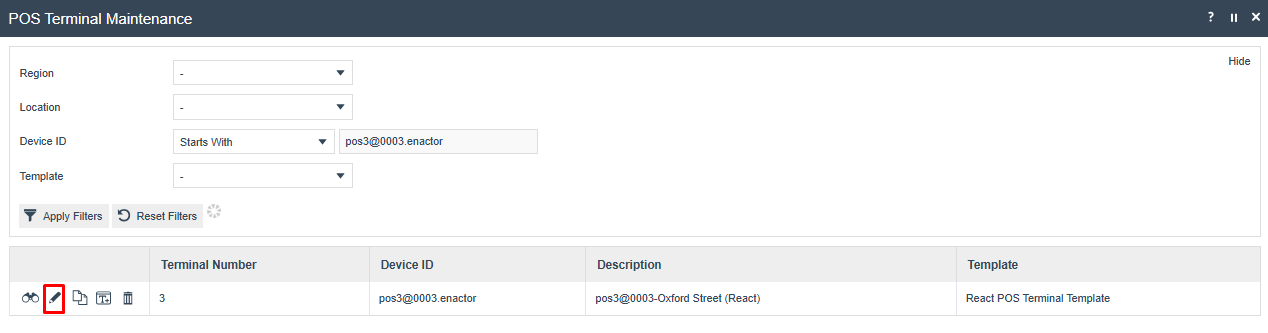
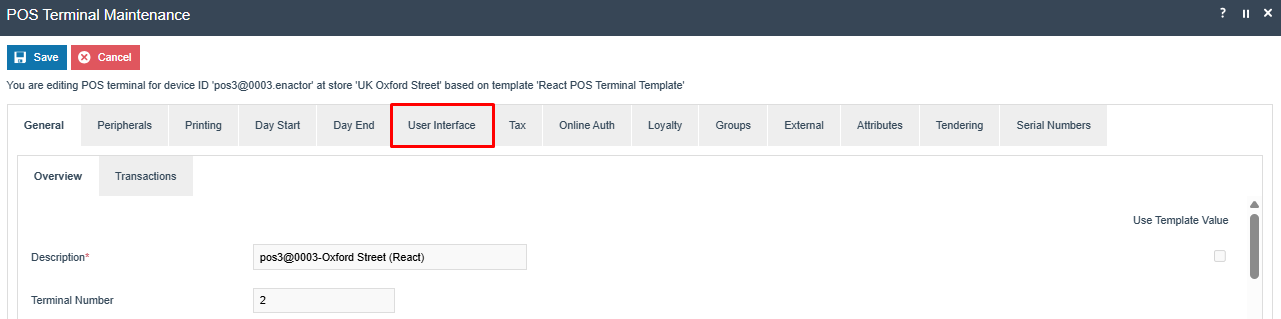
Select the User Interface tab.

Set the appropriate values on the User Interface tab as follows:
| Configuration | Value | Description |
|---|---|---|
| Default Launch Event | CRMSearchStart | Directs the POS to open directly in the client search interface. |
| Default Launch Event | CRMLaunchStart | Directs the POS to open directly into the CRM menu. |
| Display Launch Menu | Tick box selected | This value is required for the default launch event to work. |
CRM Launch - Menus
To enable the CRM POS modes, appropriate menus should be configured.
Navigate to Menu Maintenance using the Search or the path: Main Menu > Configuration > System > Menus

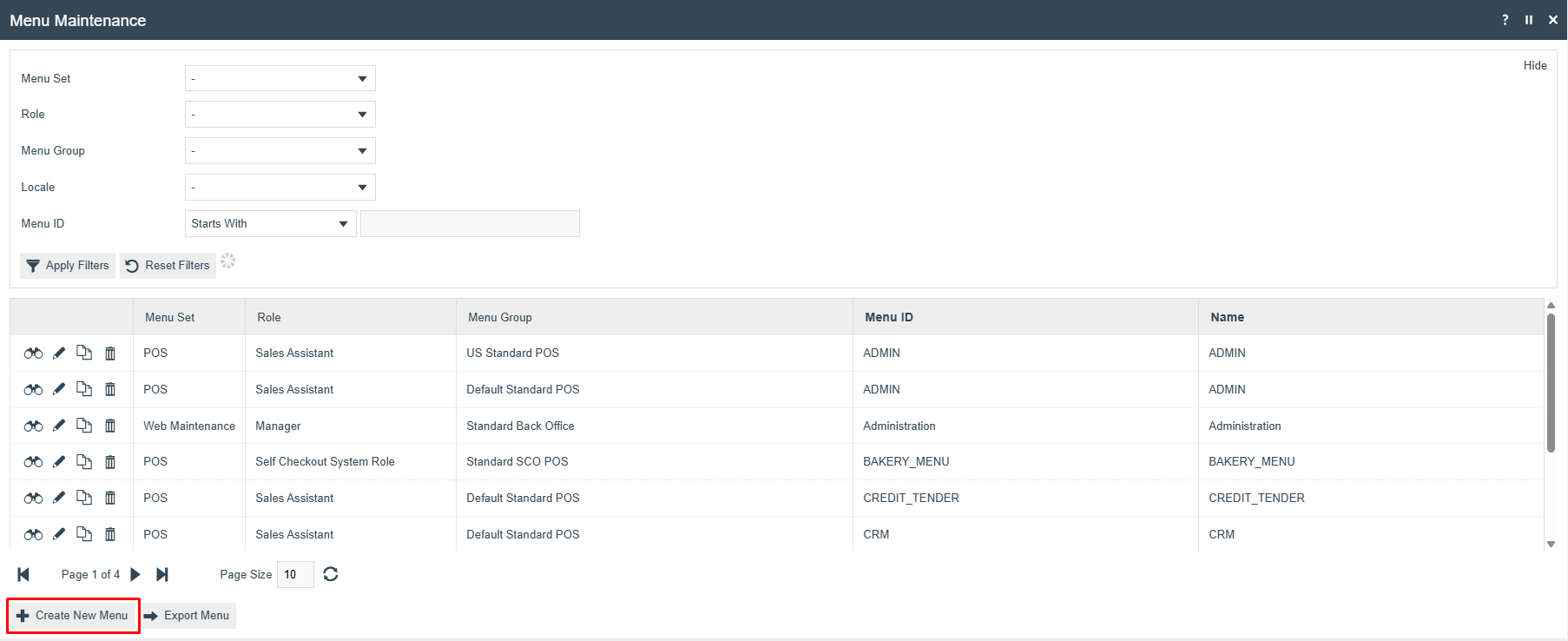
The following parameters should be set to create the CRM menu:
| Configuration | Value | Description |
|---|---|---|
| Menu Set | POS | POS is selected. |
| Role | Sales Assistant | Select the appropriate role for the menu. |
| Menu Group | Default Standard POS | Select the appropriate menu group. |
| Locale | English (UK) | Select the appropriate locale. |
| Menu ID | CRM_LAUNCH | This is a fixed menu ID and must be used. |
The following menu events are supported in the CRM Launch Menu:
- Overview
- Customers
- Diary
- Jobs
- Manager
- Messages
These can be selected from the event dropdown when configuring menu buttons under the CRM_LAUNCH menu.
If you already have an existing CRM menu, you can copy it and rename the new copy to CRM_LAUNCH for use with the CRM launch features. This retains the original structure while allowing customisation.
CRM Launch - User Templates
Navigate to User Template Maintenance using the Search or the path: Main Menu > Configuration > HR > User Templates
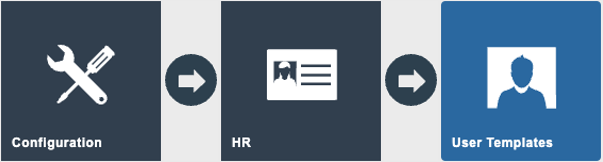
Authorisation to run the functionality documented here is controlled with privileges maintained in roles. For users to successfully log onto the POS and access the CRM Launch menu, they must have the appropriate role assigned that corresponds to the role in the menu's configuration.
Most users are assigned to a User Template. The User Template controls the User Roles that are assigned to them.
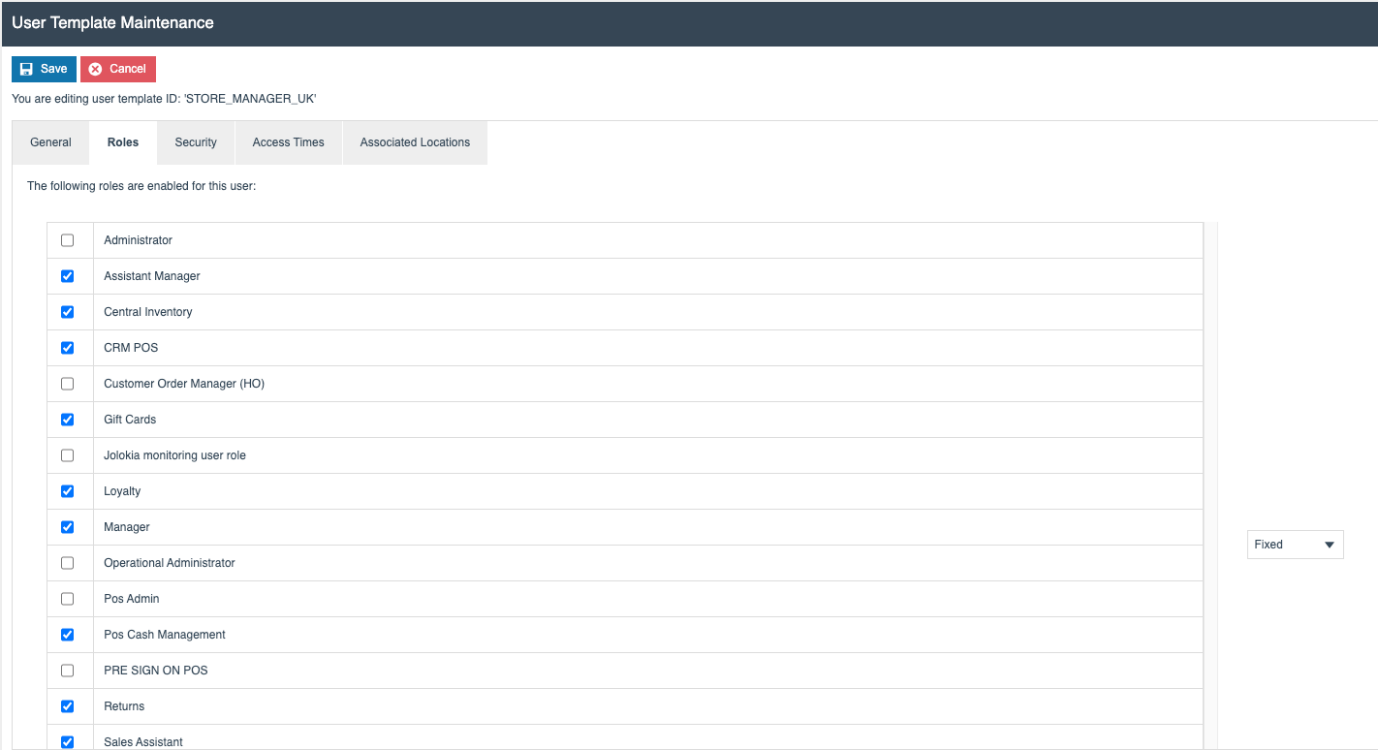
If users are configured individually without the use of a template, the role can be assigned to each user via the User Maintenance application.
CRM Launch - Broadcasting
To deliver the configuration changes to the POS, broadcast the following entities:
- POS Terminal / POS Terminal Template
- Menu
- Users
- User Templates
CRM Launch - POS Functionality
CRM Search Functionality
Start the POS and log in. The POS navigates directly to the CRM search screen, where the POS operator can search for customer records using the available search criteria.
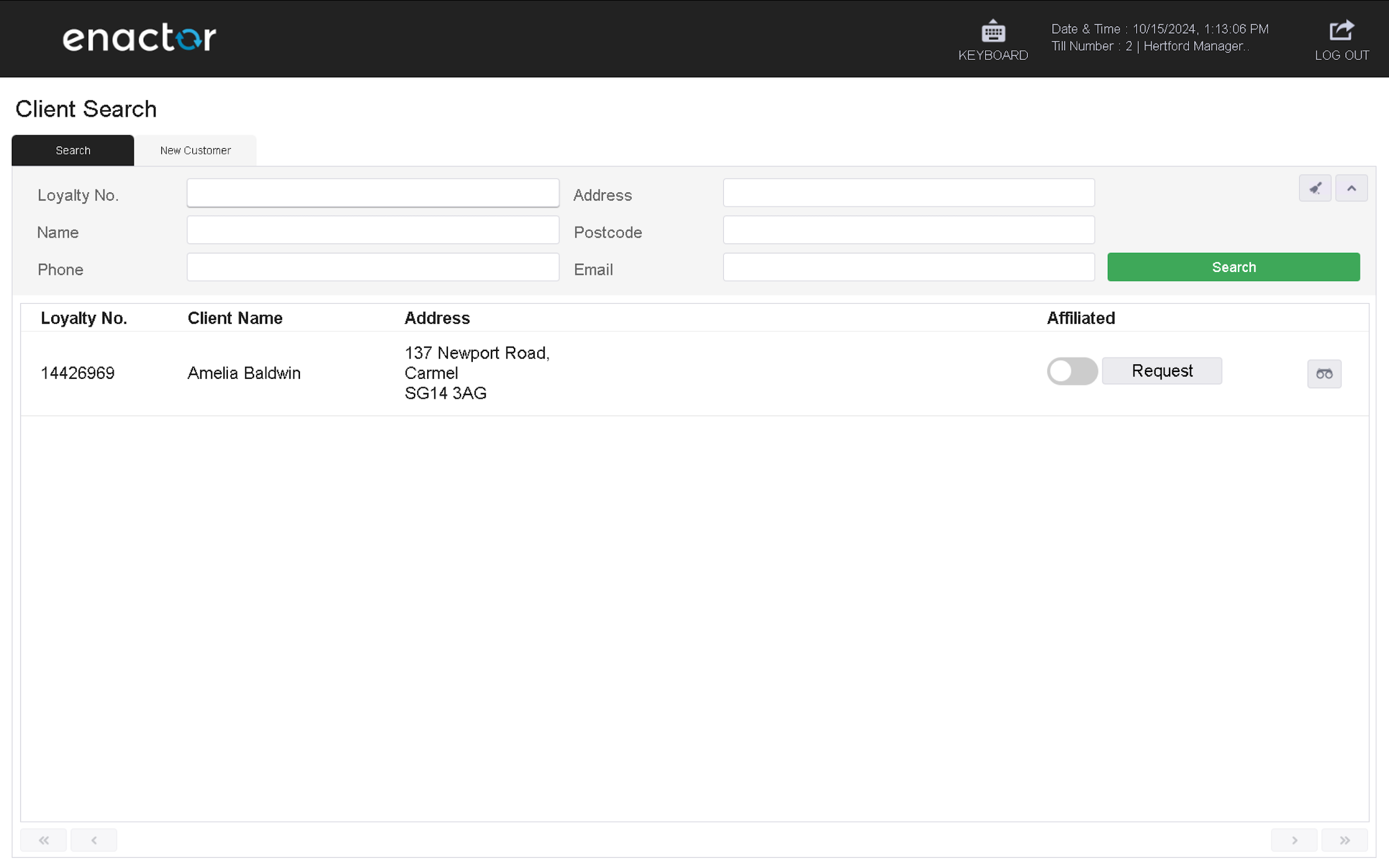
CRMSearchStart configured, the POS opens directly to the CRM customer search screen.
CRM Launch Functionality
Start the POS and log in. The POS displays the CRM Launch menu.
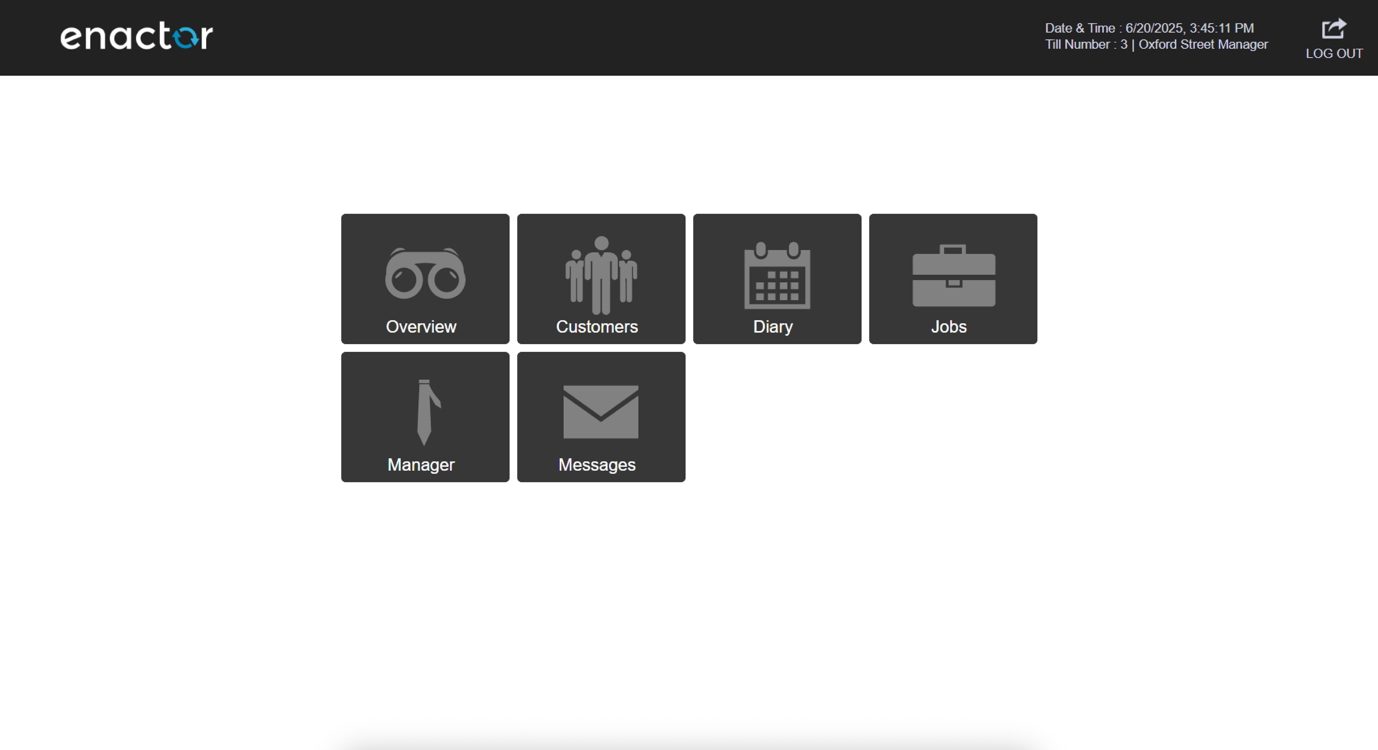
CRMLaunchStart configured, the POS opens directly to the CRM Launch menu.
Inventory Launch Menu
This section details how to configure and use the Inventory POS Launch feature, which allows users to start the POS system directly in Inventory mode. This setup restricts access to Inventory functions only, providing a streamlined interface for inventory management.
Inventory Launch - POS Terminal
The POS Terminal configuration determines how the POS operates, including which functionalities are available at start-up. This configuration can equally be applied to a POS Terminal Template.
Navigate to POS Terminal Maintenance using the Search or the path: Main Menu > Configuration > Organisation > POS Terminal
Select the User Interface tab.
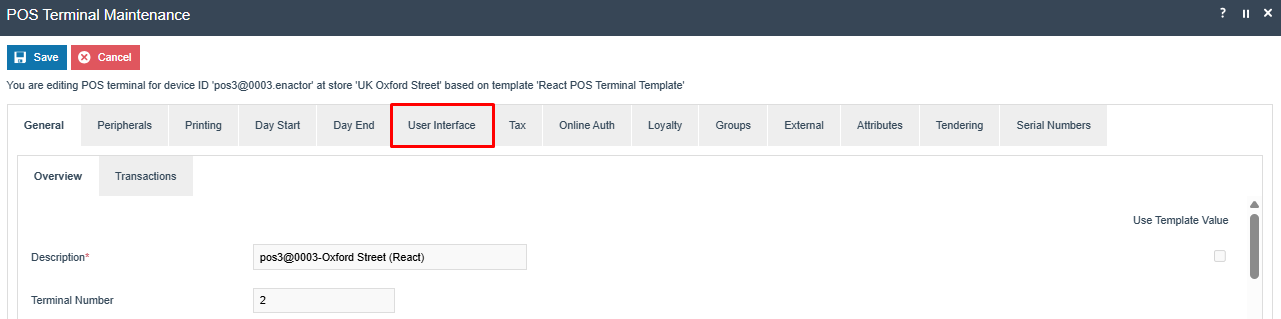
Set the appropriate values on the User Interface tab as follows:
| Configuration | Value | Description |
|---|---|---|
| Default Launch Event | InventoryLaunchStart | Directs the POS to open directly in the Inventory interface. This is a fixed value. |
| Display Launch Menu | Tick box selected | This value is required for the default launch event to work. |
Inventory Launch - Menus
To enable the Inventory POS mode, appropriate menu and role privileges should be configured separately.
Navigate to Menu Maintenance using the Search or the path: Main Menu > Configuration > System > Menus
The following parameters should be set to create the Inventory menu:
| Configuration | Value | Description |
|---|---|---|
| Menu Set | POS | POS is selected. |
| Role | Sales Assistant | Select the appropriate role for the user. |
| Menu Group | Default Standard POS | Select the appropriate menu group. |
| Locale | English (UK) | Select the appropriate locale. |
| Menu ID | INVENTORY_LAUNCH | This is a fixed menu ID and must be used. |
The following events are supported for the Inventory Menu:
- Transfer In
- Transfer Out
- Return to Supplier
- Adjust Stock
- Branch Purchase Order
- Check Counts
- Record Count
- Item Spot Check
These can be selected from the event dropdown when configuring menu buttons under the INVENTORY_LAUNCH menu.
If you already have an existing Inventory menu, you can copy it and name the new copy as INVENTORY_LAUNCH for use with the Inventory launch features. This retains the original structure while allowing customisation.
Inventory Launch - User Templates
Navigate to User Template Maintenance using the Search or the path: Main Menu > Configuration > HR > User Templates
Authorisation to run the functionality documented here is controlled with privileges maintained in roles. For users to successfully log onto the POS and access the Inventory Launch menu, they must have the appropriate role assigned that corresponds to the role in the menu's configuration.
Most users are assigned to a User Template. The User Template controls the User Roles that are assigned to them.
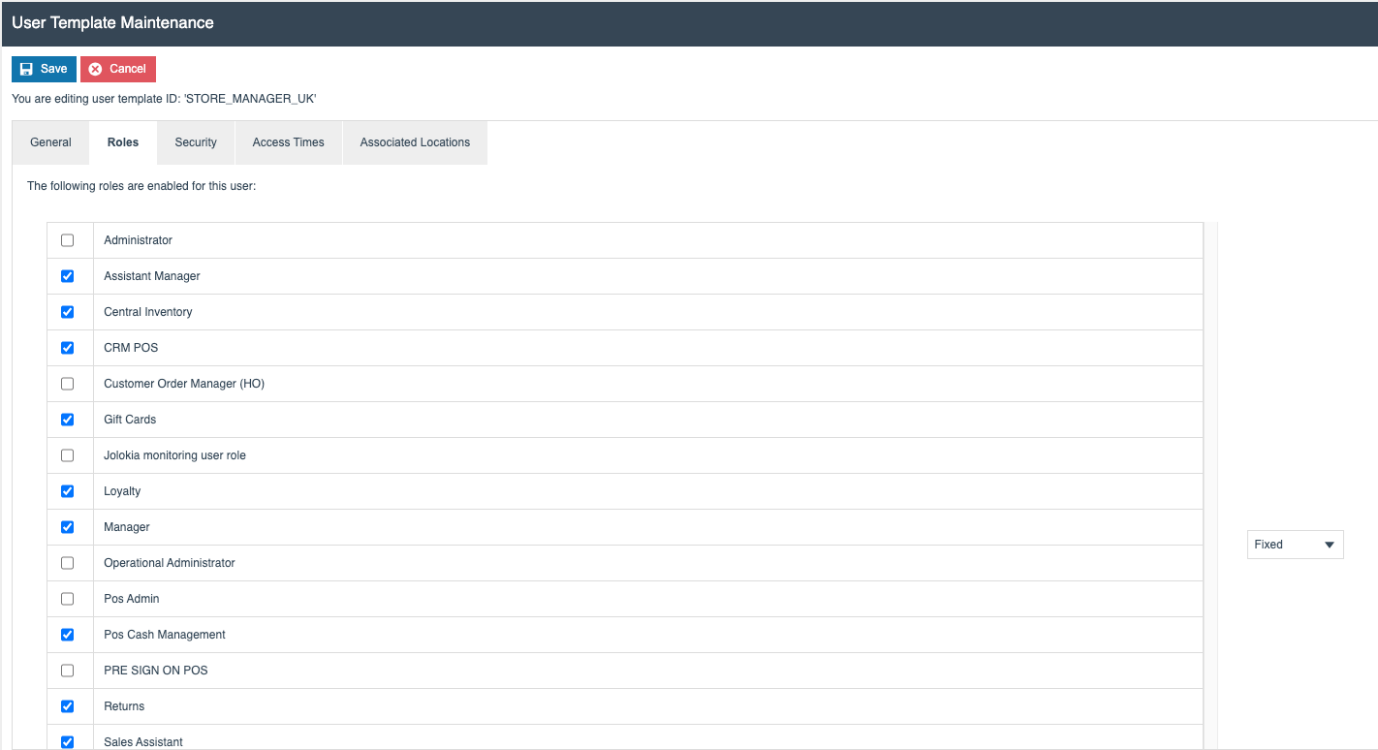
If users are configured individually without the use of a template, the role can be assigned to each user via the User Maintenance application.
Inventory Launch - Broadcasting
To deliver the configuration changes to the POS, broadcast the following entities:
- POS Terminal / POS Terminal Template
- Menu
- Users
- User Templates
Inventory Launch - POS Functionality
Start the POS and log in. The POS displays the Inventory Launch menu. It is not possible to access any other POS functions except for those defined on this menu.
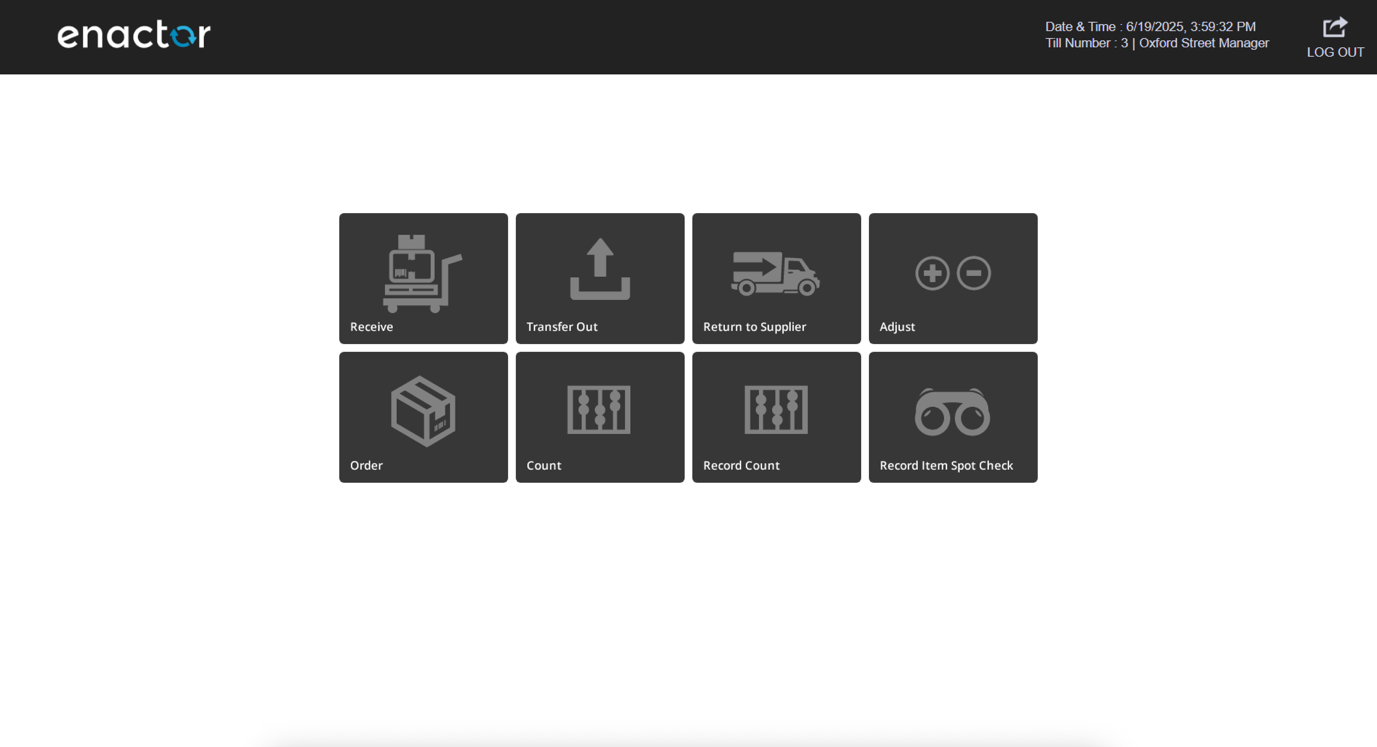
InventoryLaunchStart configured, the POS opens directly to the Inventory Launch menu. Only the functions defined on this menu are accessible.
Terminal Cash Management and Inventory POS Header Menu
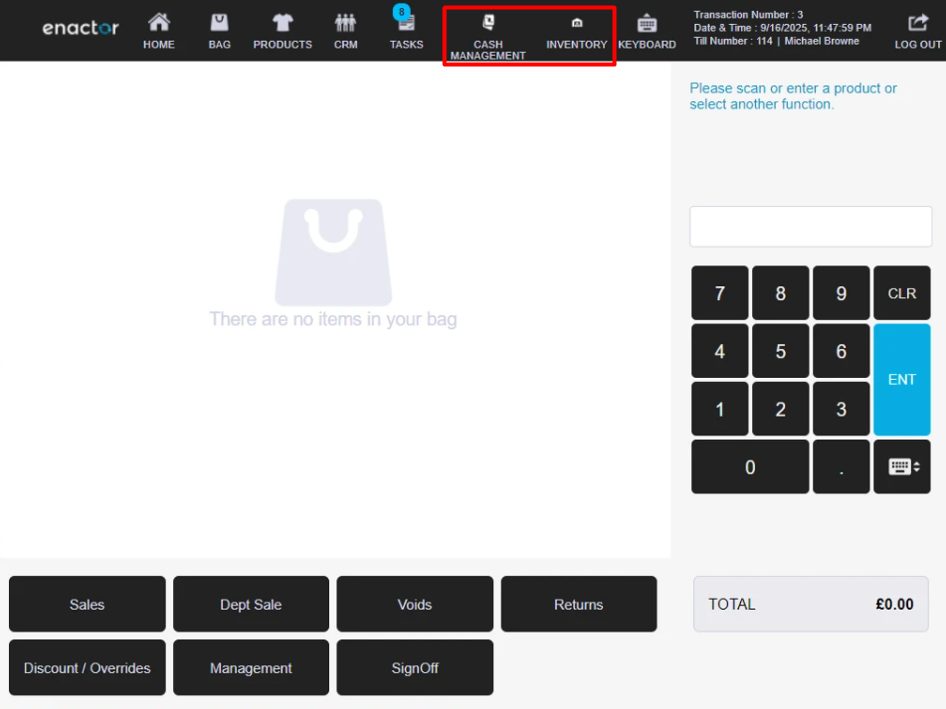
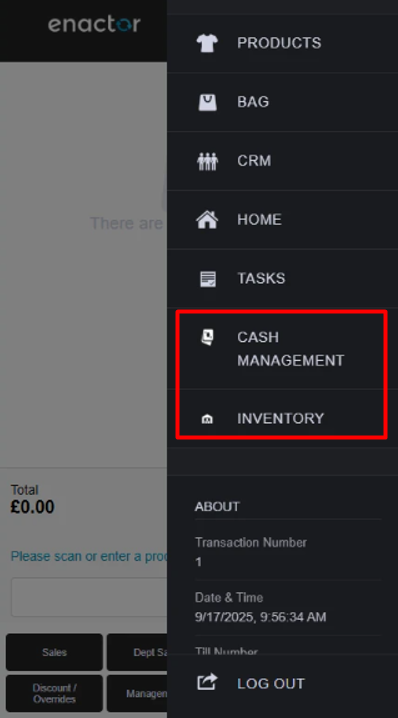
This section outlines additional buttons in the POS Header Menu and Mobile Burger Menu which simplify navigation by allowing users to directly access the Terminal Cash Management and Inventory menus, avoiding longer menu flows.
Configuration Steps
Two new privileges control the visibility of the Terminal Cash Management and Inventory buttons. These must be enabled in Estate Manager for the respective roles:
enactor.pos.header.ShowTerminalCashManagementButtonenactor.pos.header.ShowInventoryButton
Privileges should be enabled in the User Role Maintenance of the Estate Manager.
Navigate to User Role Maintenance using the Search or the path: Main Menu > Configuration > HR > User Roles
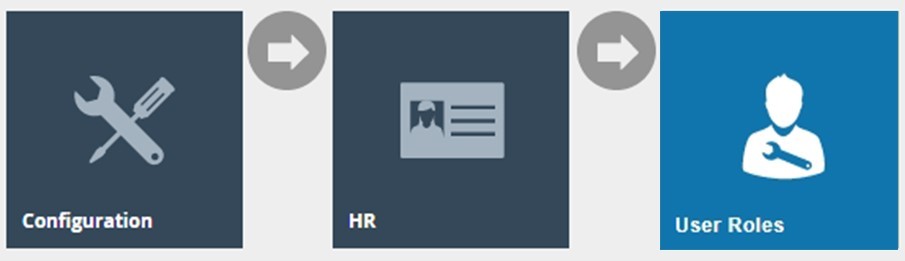
In the User Role Maintenance, select the Edit icon of the desired user role to enable the privilege for.
Navigate to the Authorised Functions tab of that selected user role and apply the following filters:
Application Package > Enactor POS
Process > Sale
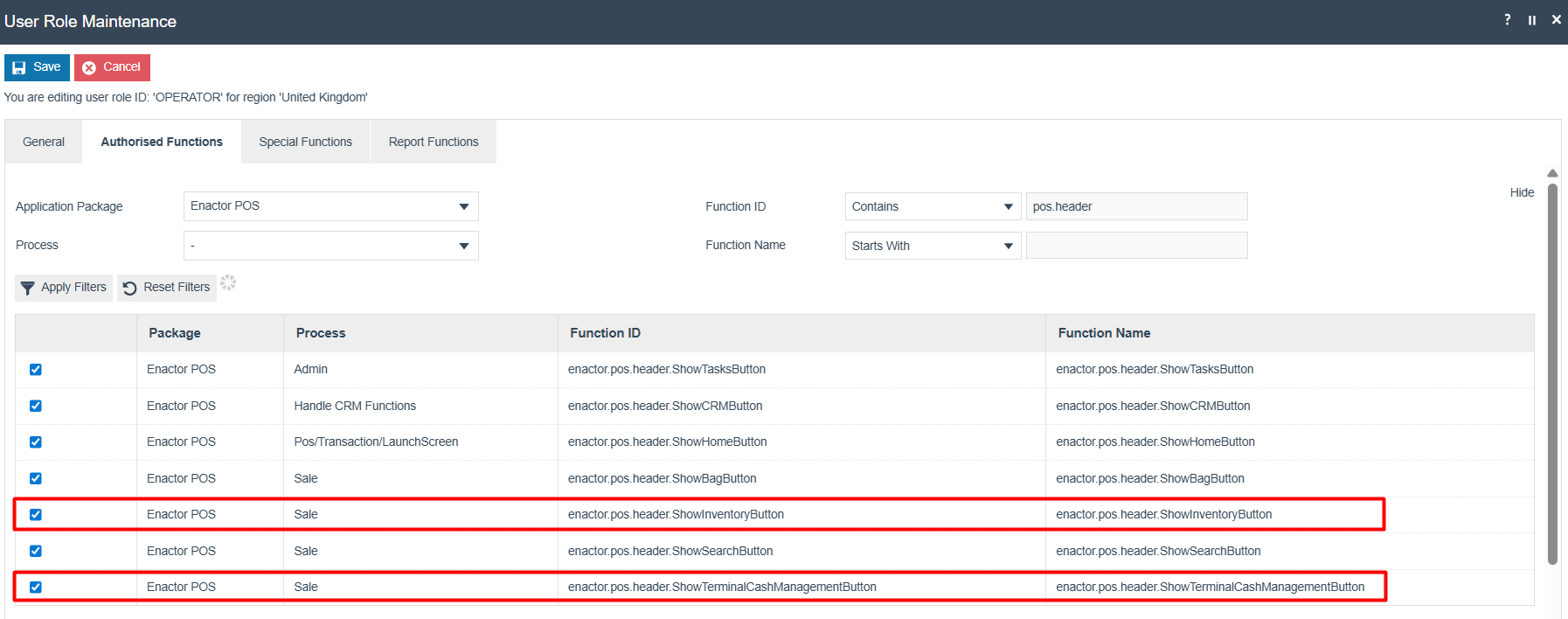
This lists the privileges required to access through the POS Header:
| Package | Process | Function ID | Description |
|---|---|---|---|
| Enactor POS | Sale | enactor.pos.header.ShowTerminalCashManagementButton | Enables the Terminal Cash Management button in the POS Header menu. |
| Enactor POS | Sale | enactor.pos.header.ShowInventoryButton | Enables the Inventory button in the POS Header menu. |
POS Header Functionality
After the above configurations have been set, the Terminal Cash Management and Inventory buttons display in the POS Header menu as follows:
In the Mobile POS, the buttons are displayed within the hamburger menu:
Big Button Menu for POS Display Reports and Web Reports
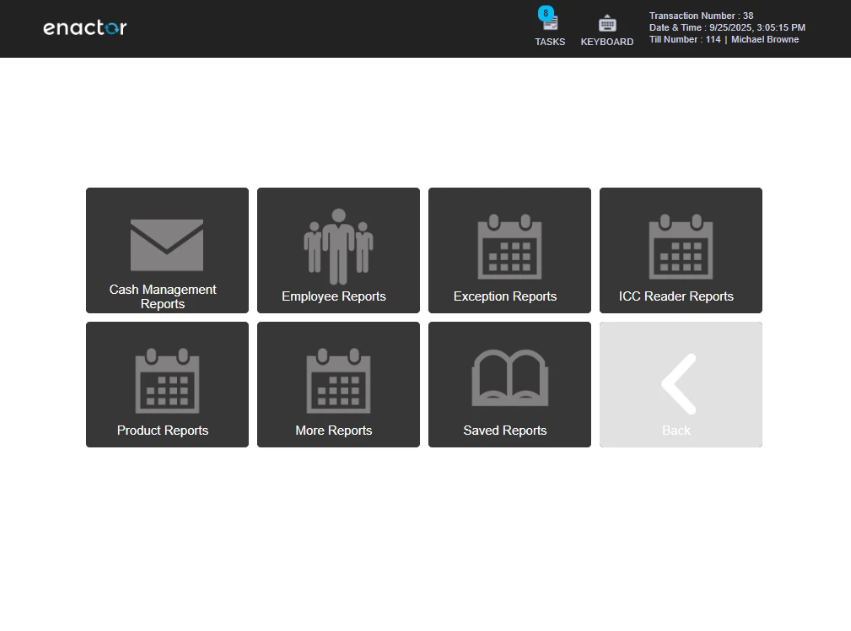
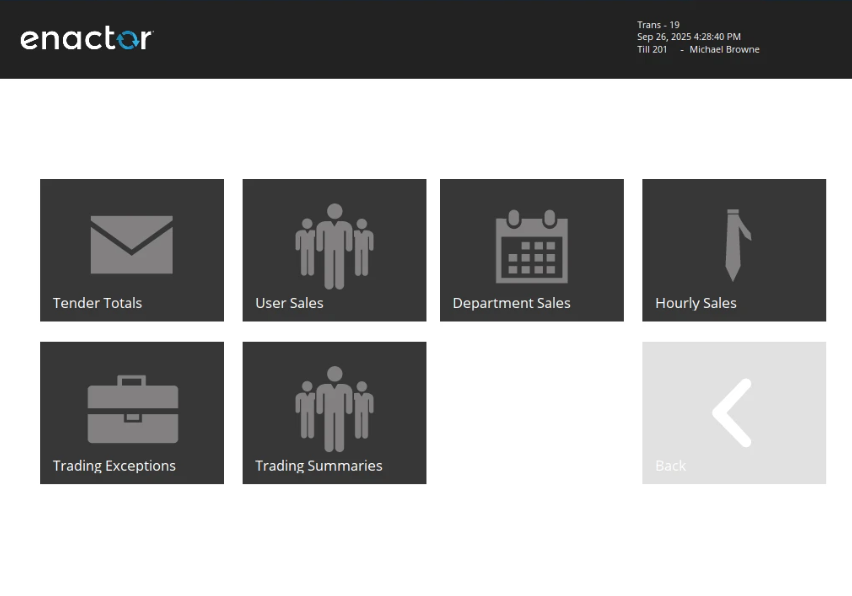
This section outlines the Big Button Menu Layout for the Display Reports and Web Reports menus within the Enactor Retail POS system. Previously, both menus used the standard menu button layout. With this enhancement, the Big Button Menu Layout is applied to both, aligning their appearance with other menus such as Admin and Terminal Cash Management. These changes apply across all POS platforms: PageDef POS, React POS and Mobile POS.
Configuration Steps
There is no new configuration required. Ensure that in the SALE menu, the Display Reports and Web Reports buttons are configured.
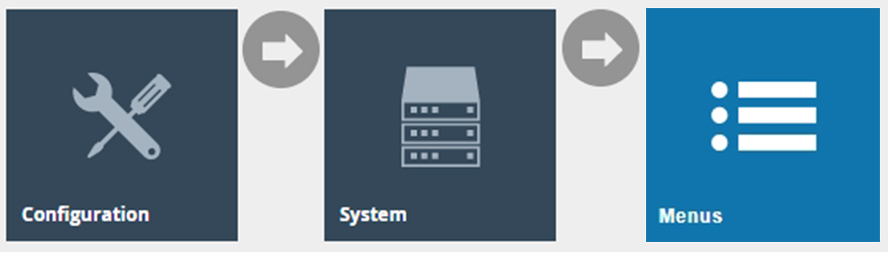
Navigate to Menu Maintenance using the Search or the path: Main Menu > Configuration > System > Menus
Edit the SALE menu and ensure the following two menu buttons are added:
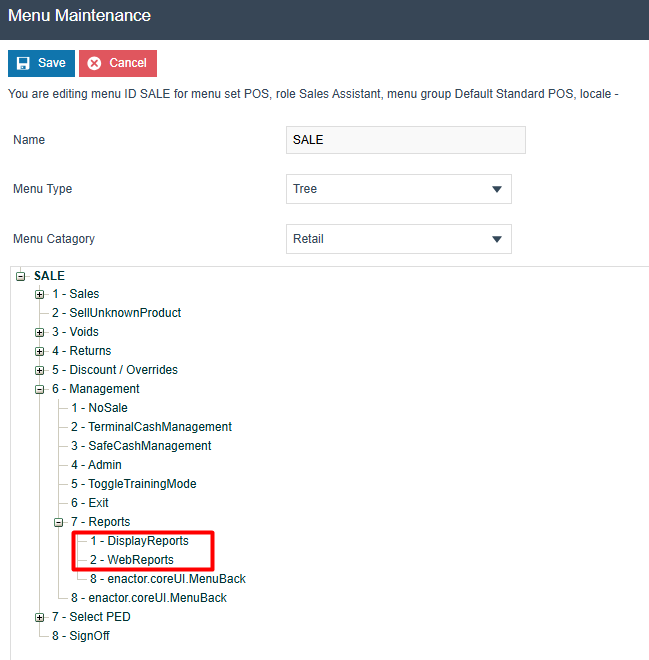
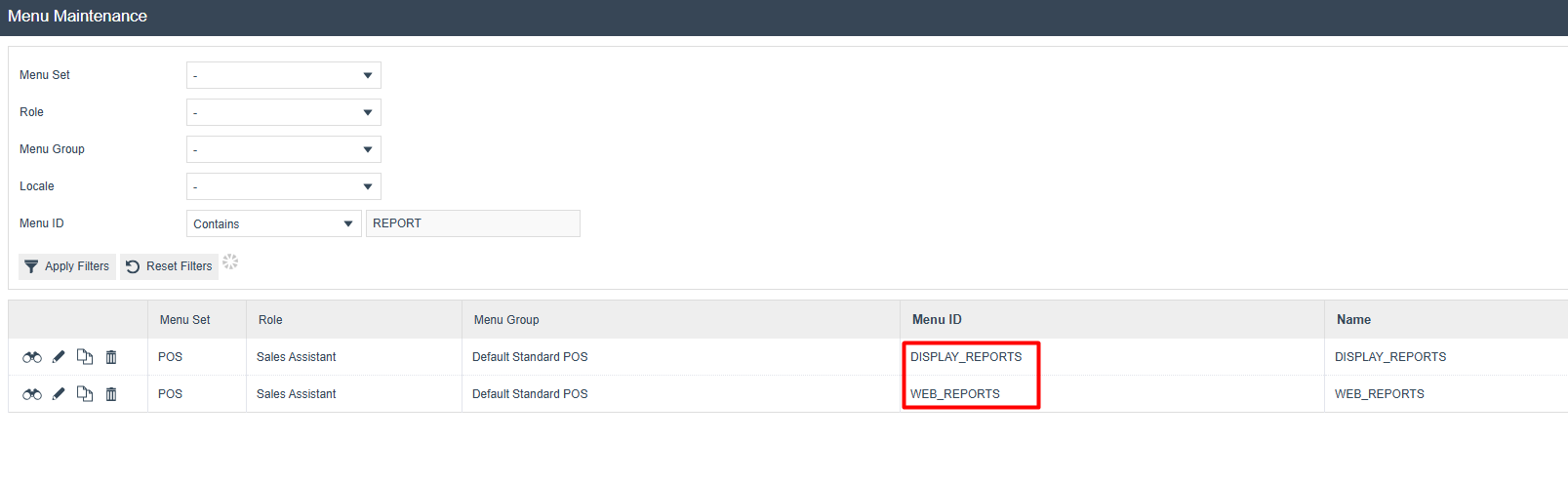
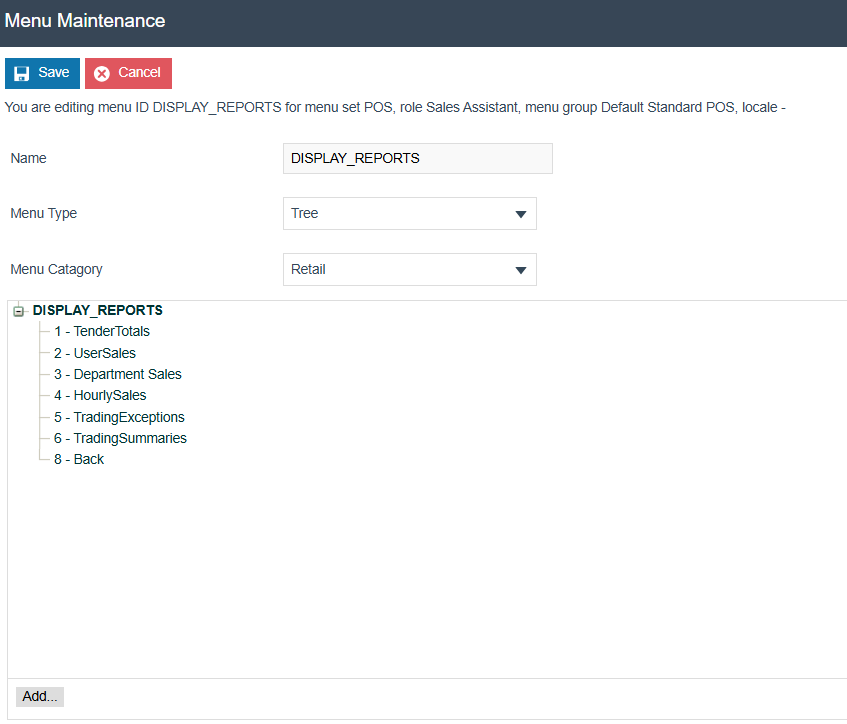
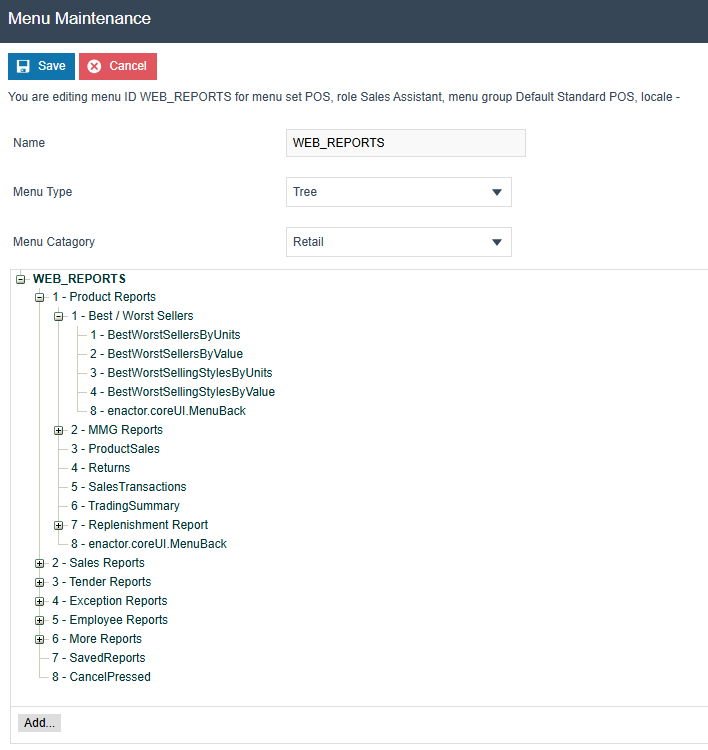
Next, ensure that the DISPLAY_REPORTS and WEB_REPORTS menus exist with the relevant reports configured within each:
DISPLAY_REPORTS menu with the relevant reports configured as menu items.
WEB_REPORTS menu with the relevant reports configured as menu items.
POS Report Functionality
After the configurations have been set, the Display Reports button in the POS displays the menu with reports using the big button layout:
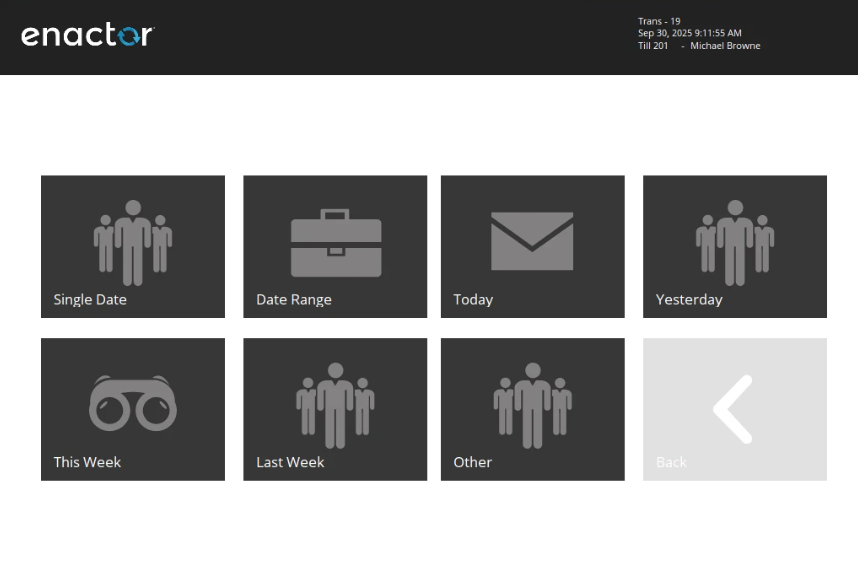
The Web Reports button in the POS also displays the menu with reports using the big button layout: