How To Configuring POS Behaviour - Reason Codes
Overview
This guide covers the configuration of core Reason Codes. Reason configuration provides a means to control access to specific aspects of application functionality. Values for other properties, subject to the Reason Type, may be specified for individual Reasons, which influence processing at runtime.
The intent of this guide is to provide basic guidance on configuration including required and the most common options for the core Reason Types. Please refer to the full solution documentation for a detailed explanation of all available settings for all Reason Types.
Reasons are created based on a pre-defined Reason Type. Each Reason Type is associated with a set of configuration properties requiring values to be specified for each Reason instance of that type. These values, assigned when the Reason is configured, serve to influence application processing according to the Reason selected at runtime.
A Reason Type may have multiple Reasons associated with it. For example, the Item Return Reason Type could have multiple Reasons based on why the customer is returning the item - such as the customer changed their mind, the item was defective, or the item did not fit. Even though each of these is associated with the same Reason Type, they can each be configured with different properties to drive different behaviour at the POS based on the situation.
Reason Maintenance
Reasons are configured based on a Reason Type and associated with a Region in which they are applicable. The properties of a Reason configuration depend on the Reason Type.
Accessing Reasons
Navigate to or use the path:
Main Menu > Configuration > Organisation > Reasons
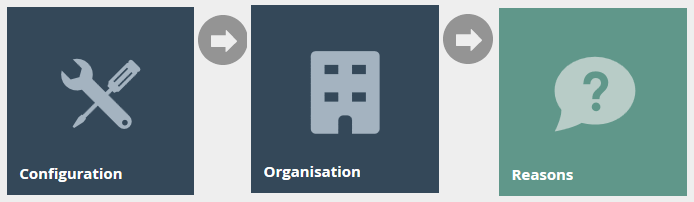
Select Reason
The Reasons option invokes the Reason Maintenance page. The user may Add, View, Edit, Copy or Delete Reasons.
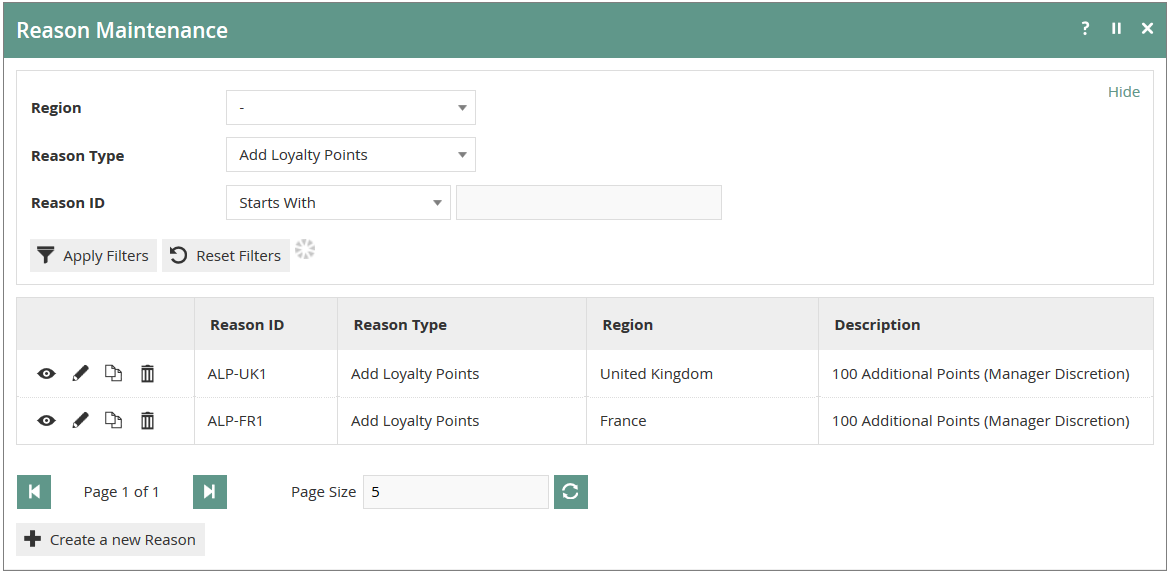
New Reason
In the Reason Maintenance select page, select the Create a new Reason option. The initial page of Reason creation captures the Reason ID that uniquely identifies the Reason, the Region in which it is applicable, and the Reason Type associated with the software function that will capture the Reason.
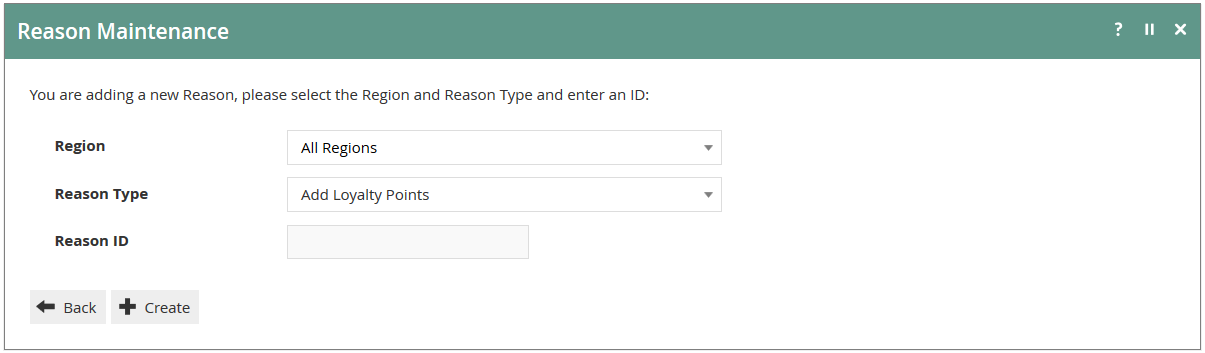
Core Reason Types
There are numerous different Reason Types, configured built-in, recognised, and used by the standard Enactor Retail Applications. Many of the Reason Types relate to Application-Specific built-in functionality such as Cash Management or optional supplementary Applications such as Customer Loyalty or Inventory. A smaller number relate to the core Retail Store functionality; the basic configuration management of these Reason Types is discussed in this guide.
Numerous tabs are applied in the capture of Reason properties in the Reason maintenance page. The tabs applicable depend on the Reason Type and some tabs are applicable to multiple Reason Types.
General Tab
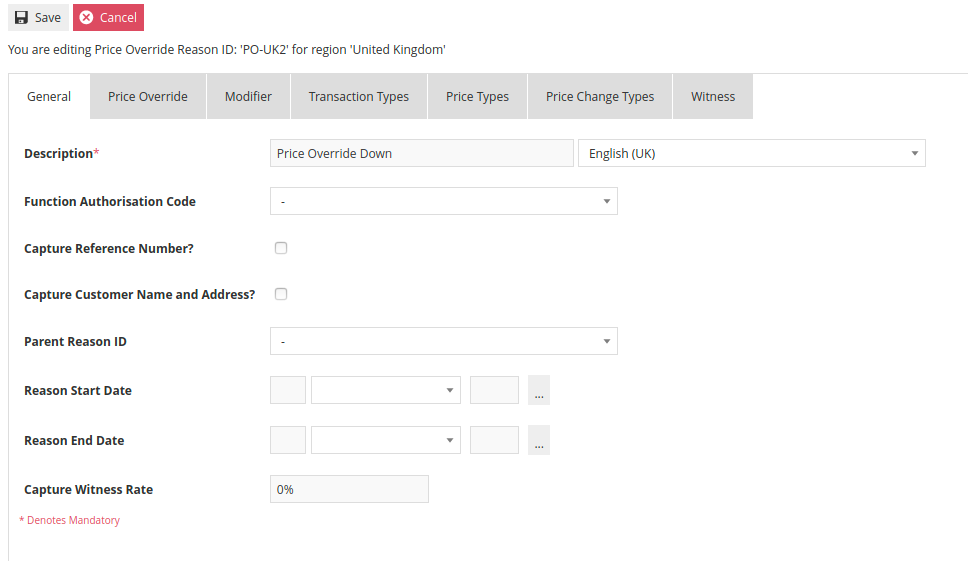
Properties of the General Tab provide for identification of the Reason Type, access permission and other generally applicable properties. The General Tab always includes a user-friendly Description (Mandatory), the Function Authorisation Code required to use this Reason (i.e. User Authorisation control) and the Parent Reason ID property, which controls the nesting of Reasons. Other properties depend on the Reason Type.
The Description will be seen on the POS and receipts when the reason is used.
Item Void
An Item Void Reason is divided into three tabs: General, Transaction Types and Witness. In addition to the properties described above, the General Tab for Item Void also includes the ability to specify the rate at which the user will be prompted for a Witness.
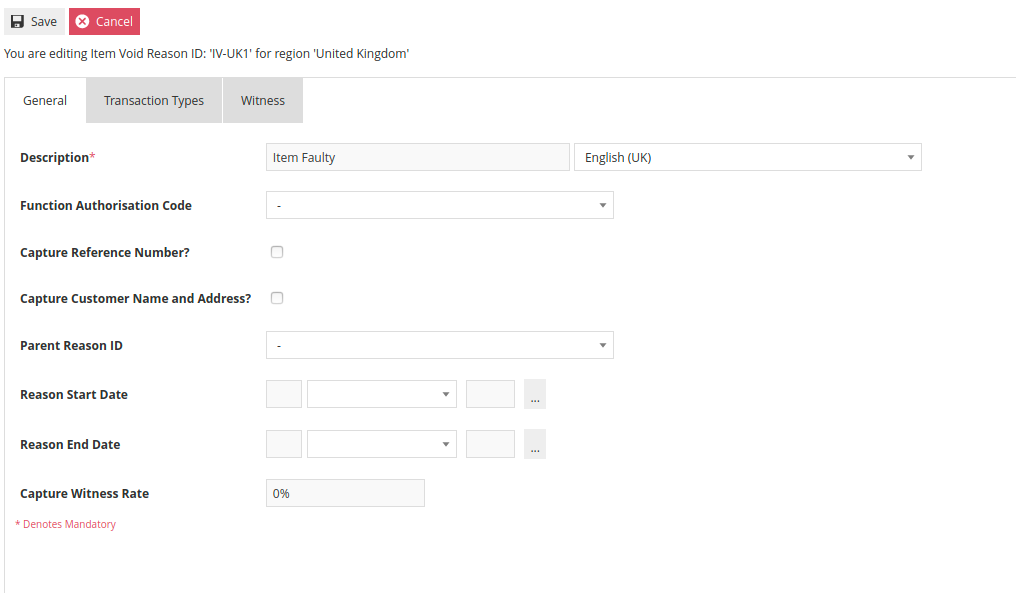
If the Reason is only valid for certain transaction types, they can be specified on the Transaction Types Tab. If no transaction types are selected, it is assumed that the Reason is valid for all transaction types.
Selecting the option on the Witness Tab will result in the associate being prompted for a witness whenever the Reason is selected.
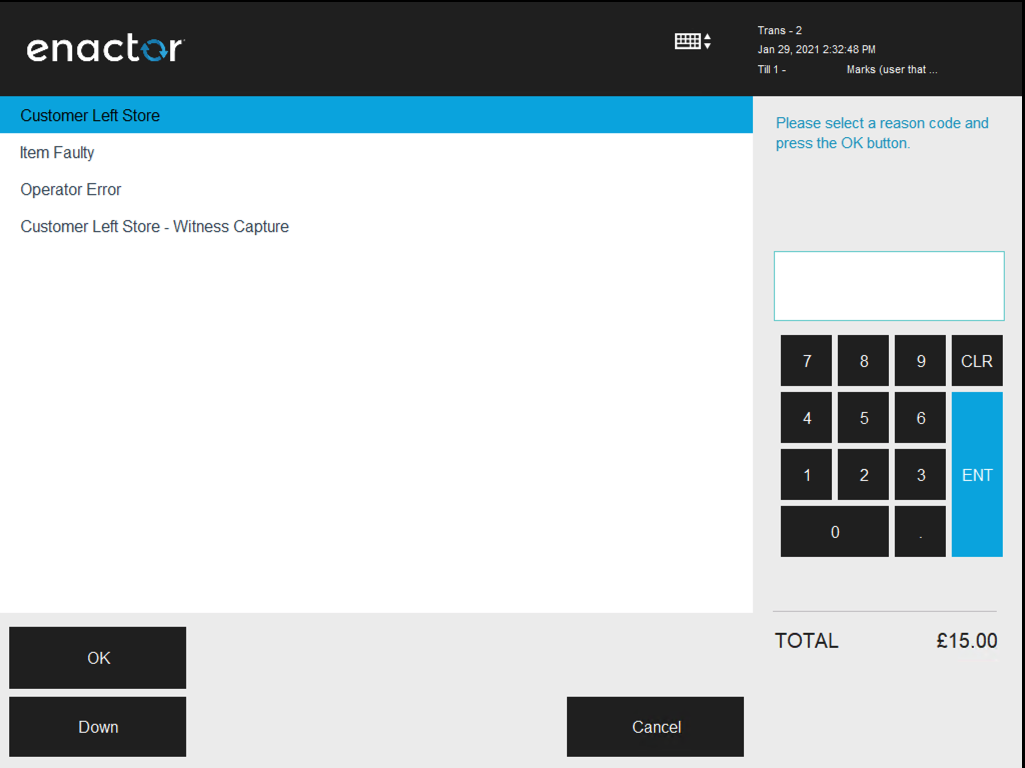
Multiple Reasons can be created for the Item Void Reason Type if desired. This will present the cashier with a list of Reasons to select from when performing an Item Void.
Transaction Void
The tabs and fields for a Transaction Void Reason are identical to an Item Void Reason. The only exception is that a Transaction Void Reason does not permit the specification of valid transaction types, so it does not display a Transaction Types Tab.
Item Return
An Item Return Reason is divided into six tabs: General, Return, Return Price, Applicable Tenders, Transaction Types and Witness. In addition to the properties described above, the General Tab for Item Return also includes the ability to specify the rate at which the user will be prompted for a Witness.
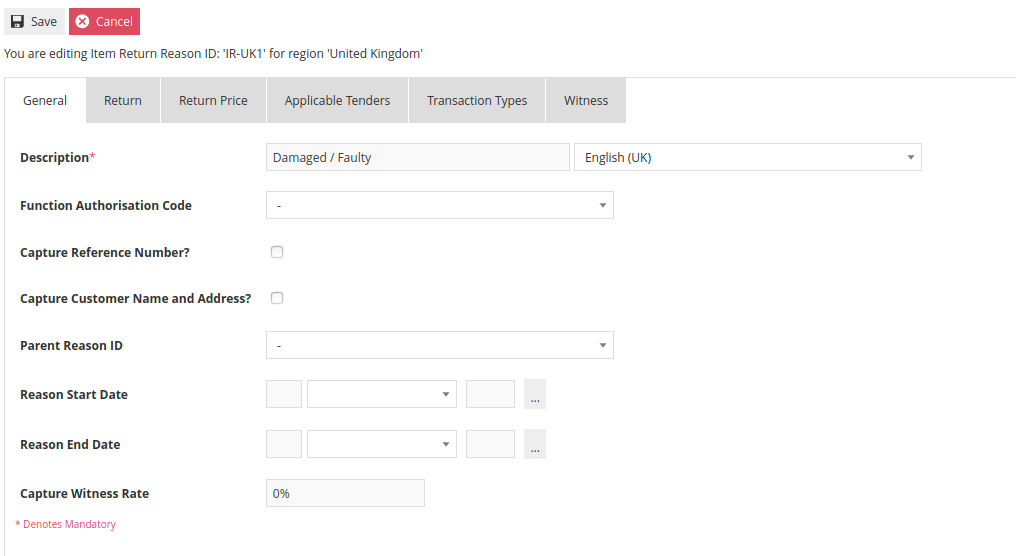
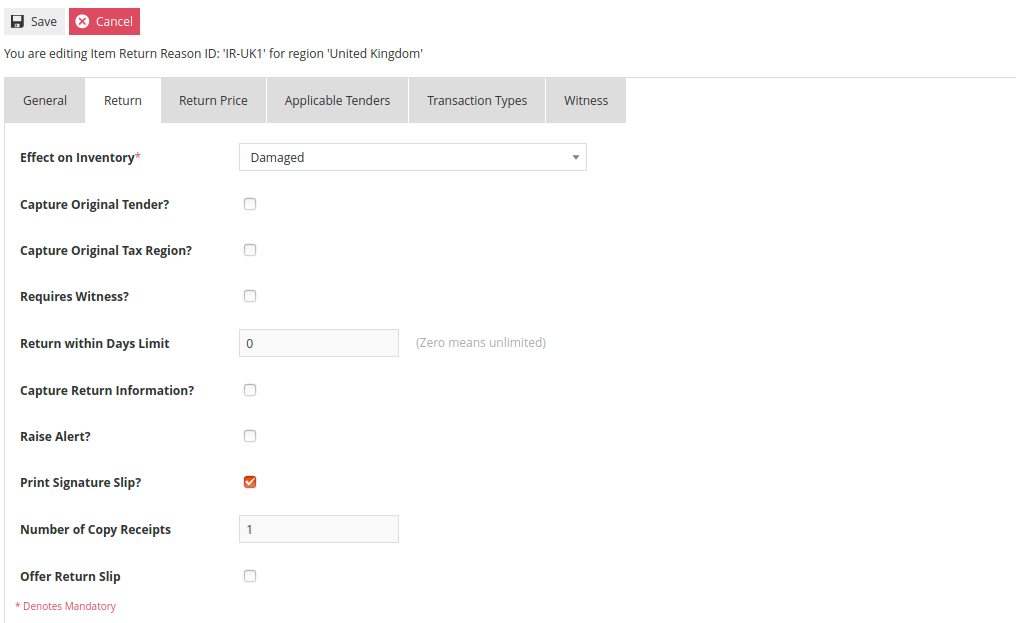
The Return Tab includes many options around inventory, data capture and receipt handling during the return transaction. These options should be selected as needed to match the retailer's business process. The Effect on Inventory option is mandatory and requires the selection of a specific inventory state from a drop-down list. The Return Tab also enables the specification and enforcement of a limit on how long a customer has to return an item by setting the Return within Days Limit.
The Return Tab can also be configured to capture customer information, which will prompt on the POS for customer details.
When an item is being returned without a receipt (Item Return), there are options for calculating the return price of the item. By default, the system will return the current selling price at the time of the return. Alternatively, the Return Price Tab contains options that would either require the cashier to manually enter a price or have the system return the lowest historical selling price for a particular item.
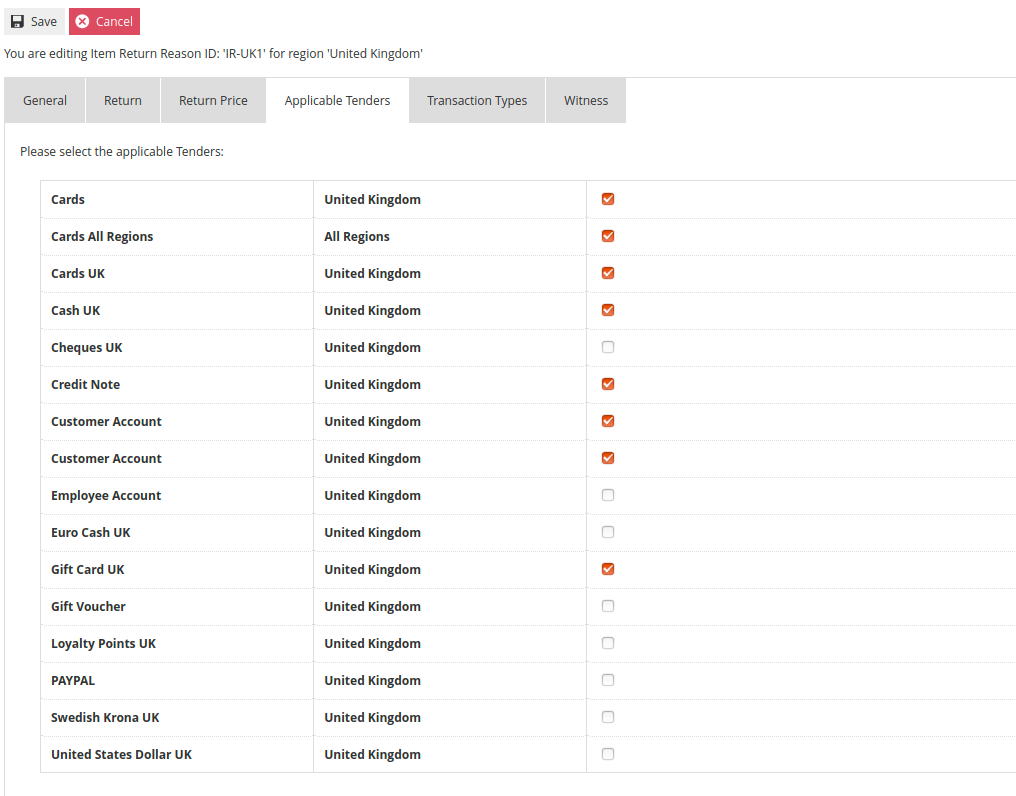
Valid return tenders are based on tender configuration by default. On the Applicable Tenders Tab, it is possible to specify which return tenders are available specific to the Reason being configured.
If the Reason is only valid for certain transaction types, they can be specified on the Transaction Types Tab. Selecting the option on the Witness Tab will result in the associate being prompted for a witness whenever the Reason is selected.
Receipt Return
The available options for a Receipt Return Reason are identical to those discussed for an Item Return Reason. While the available options are the same, a Receipt Return Reason will typically have some options configured differently, such as Applicable Tenders, Return Price and Return within Days Limit.
Item Discount
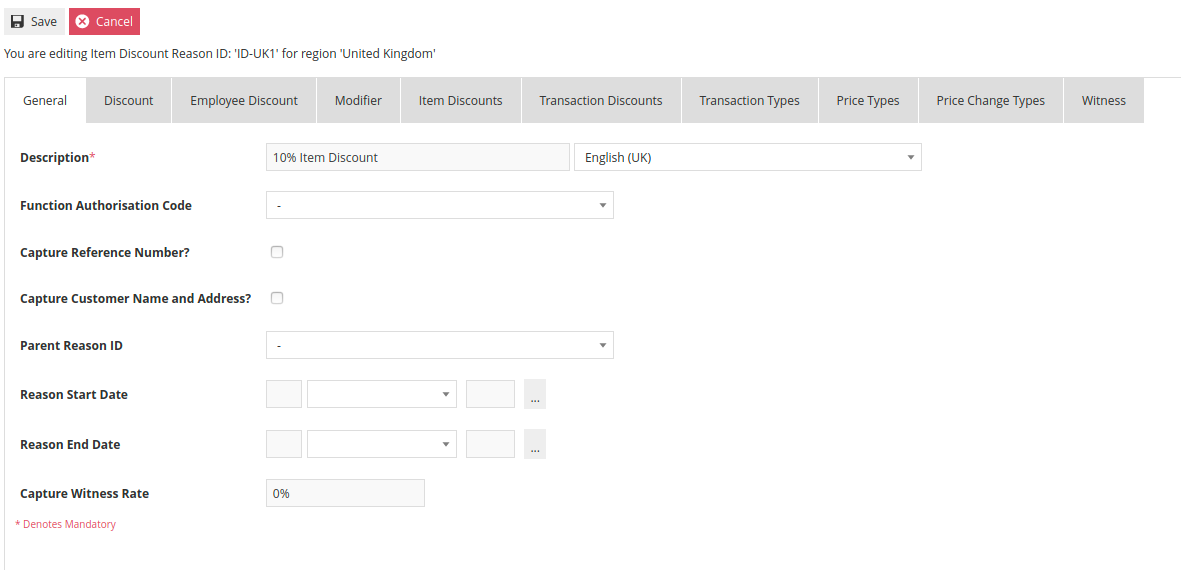
An Item Discount Reason governs how manual discounts are handled at the POS. Generally, an Item Discount Reason does not directly impact how a promotional discount is treated. The Item Discount Reason configuration is divided into ten tabs: General, Discount, Employee Discount, Modifier, Item Discounts, Transaction Discounts, Transaction Types, Price Types, Price Change Types and Witness.
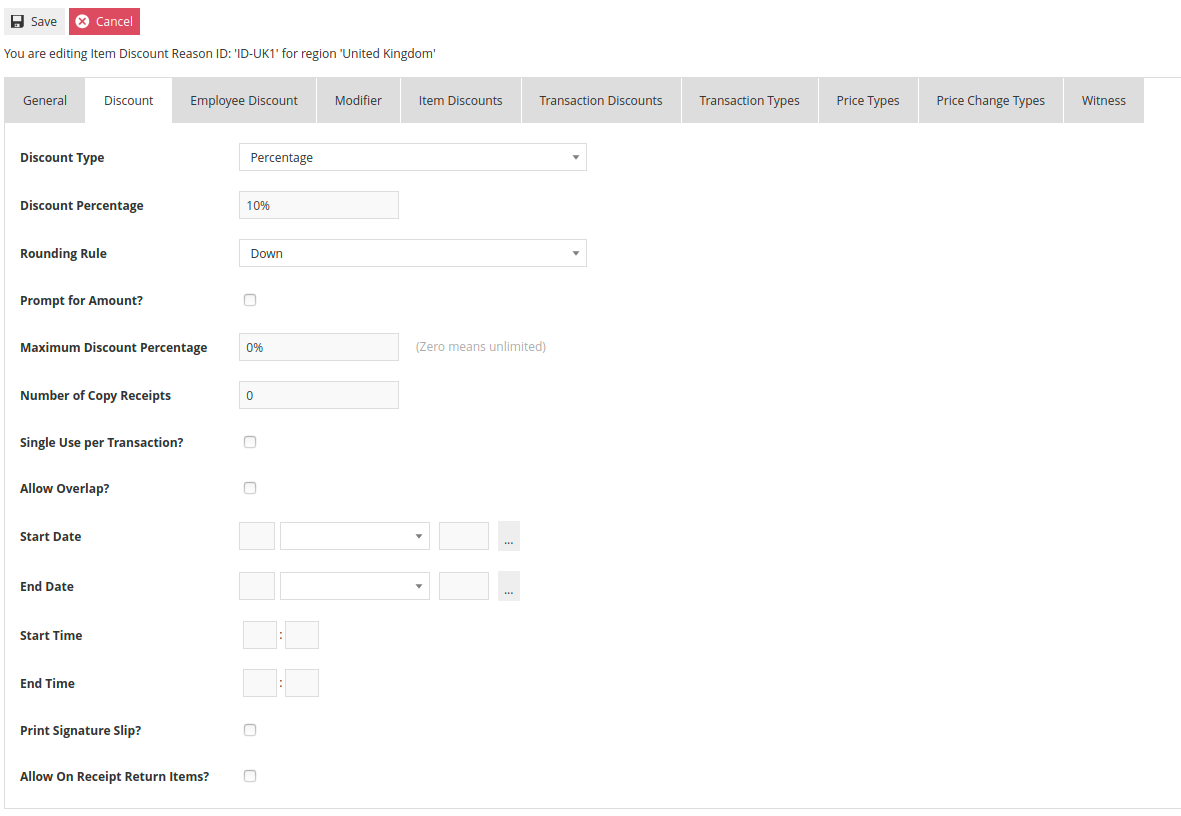
The Discount Tab provides for the capture of the type and characteristics of a Discount to be applied. The Discount Type is selected from the drop-down. A Discount Percentage/Amount can be specified, or the system can Prompt for Amount. If the Prompt for Amount option is selected, a Maximum Discount can also be specified. Further options exist to restrict a discount to Single Use per Transaction and to Allow Overlap with other discounts.
The Employee Discount Tab controls the behaviour when using a manual discount for employee sales.
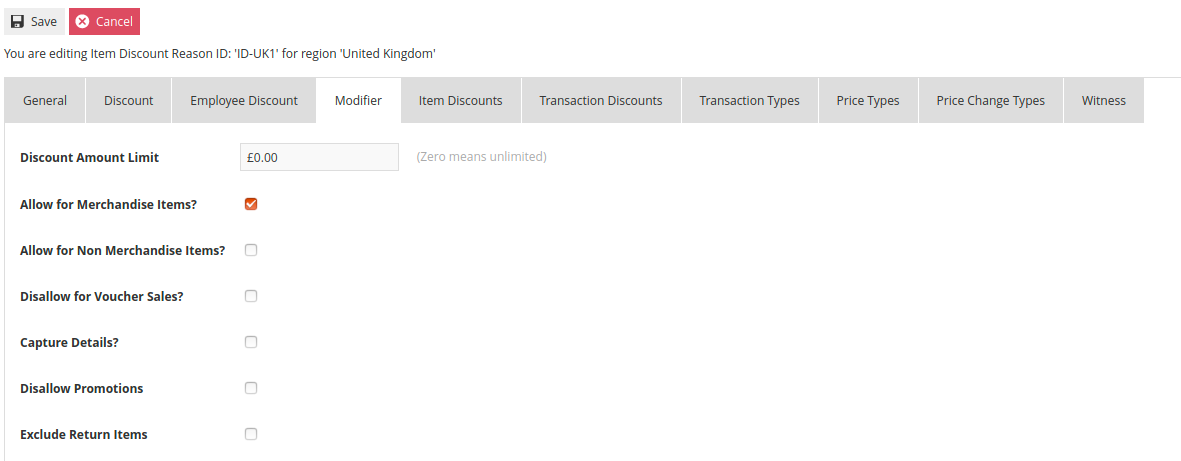
The Modifier Tab may be used to apply additional constraints on the applicability and data capture options. The Discount Amount Limit permits the specification of a maximum discount amount even when the discount type is defined as a percentage. Options are also available to restrict the use to only Merchandise Items or Non-Merchandise items, as well as preventing the discount from being applied in combination with Voucher Sales. Selecting the Disallow Promotions option will prevent a valid promotion from being added to an item that has been discounted using this reason.
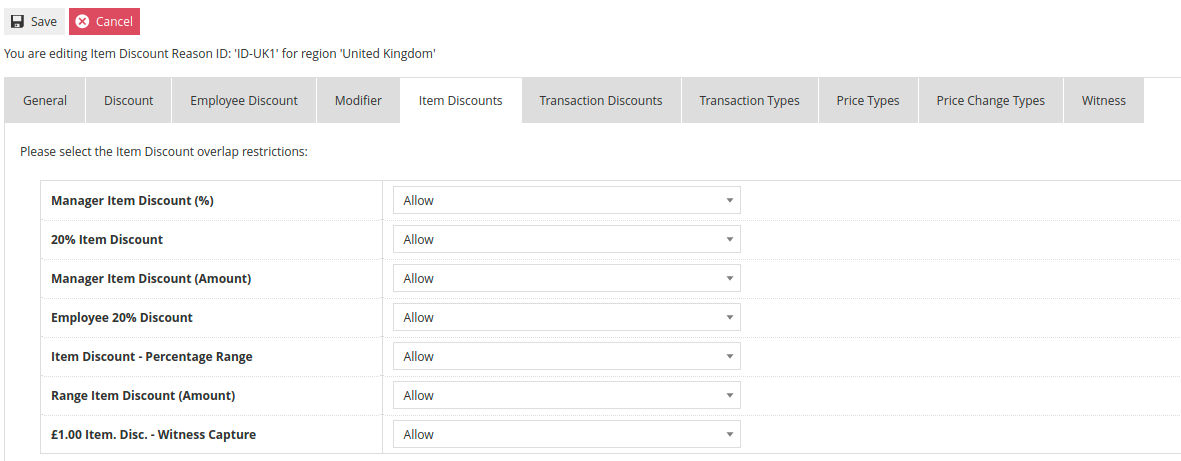
The Item Discounts Tab and the Transaction Discounts Tab provide individual control over which manual discount Reasons are or are not allowed to overlap. Each Reason defined for Item and Transaction Discounts will appear along with a drop-down to select whether discounts should be allowed to overlap.
An Item Discount Reason can also be restricted from being used in certain transaction types, against certain price types, or against certain price change types. By default, an Item Discount is not restricted from any of these options. If necessary, the applicable options can be selected on the Transaction Types, Price Types or Price Change Types tabs.
Selecting the option on the Witness Tab will result in the associate being prompted for a witness whenever the Reason is selected.
Transaction Discount
The options presented for a Transaction Discount Reason are identical to those presented for an Item Discount Reason.
Price Override
The Price Override Reason is configured similarly to the other discount Reasons. The Price Override Reason configuration is divided into seven tabs: General, Price Override, Modifier, Transaction Types, Price Types, Price Change Types and Witness.
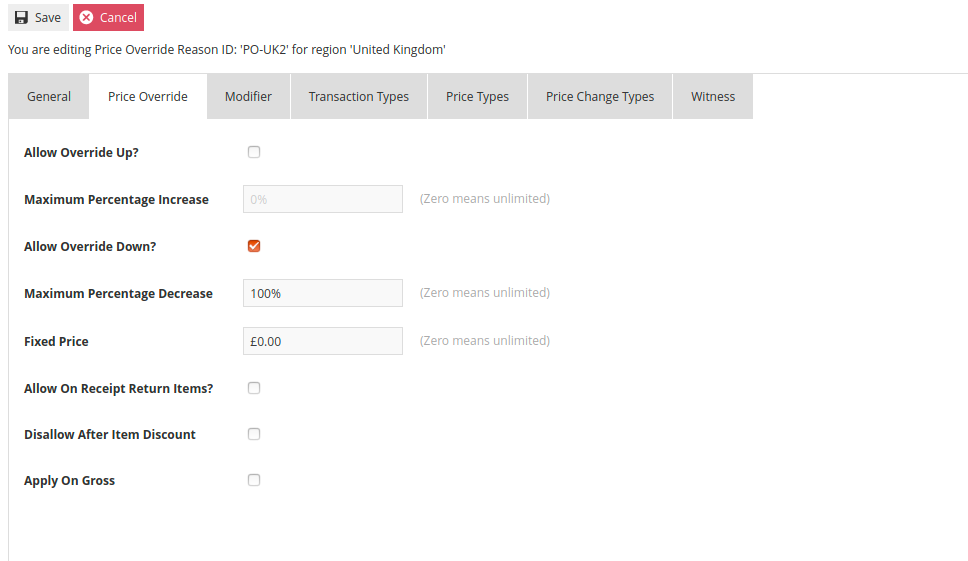
The Price Override Tab provides for the capture of the type and characteristics of the new Price to be applied. Through the options on this tab, it is possible to specify if the reason can be used to Override Up or Override Down. In either scenario, it is possible to specify a maximum percentage of Increase and/or Decrease if desired. The Price Override Tab also includes an option to prevent a price override if the item has already received an Item Discount.
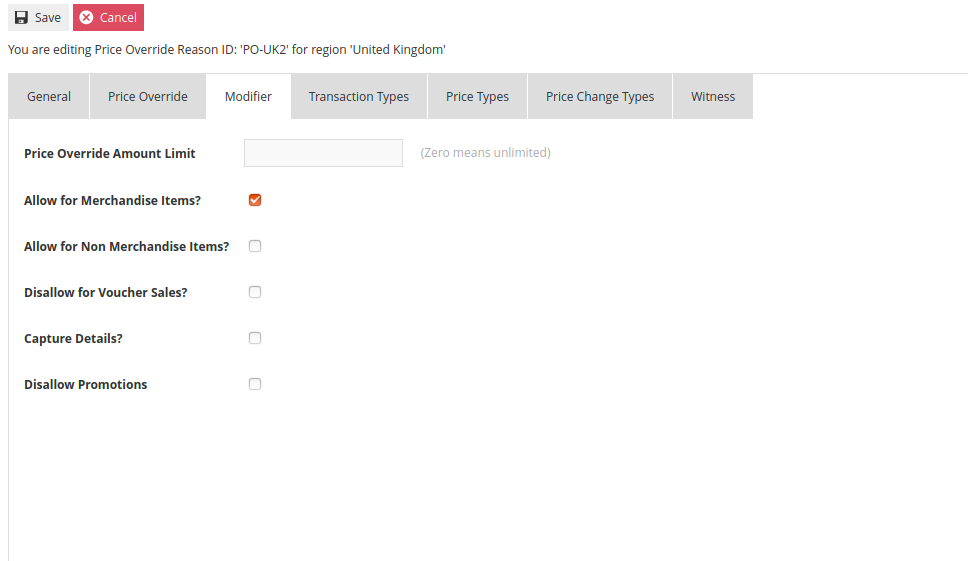
The Modifier Tab may be used to apply additional constraints on the applicability and data capture options. The Price Override Amount Limit permits the specification of a maximum override amount separate from the Maximum Percentage options on the Price Override Tab. Options are also available to restrict the use to only Merchandise Items or Non-Merchandise items, as well as preventing the discount from being applied in combination with Voucher Sales. Selecting the Disallow Promotions option will prevent a valid promotion from being added to an item that has been discounted using this reason.
A Price Override Reason can also be restricted from being used in certain transaction types, against certain price types, or against certain price change types. By default, a Price Override is not restricted from any of these options. If necessary, the applicable options can be selected on the Transaction Types, Price Types or Price Change Types tabs.
Selecting the option on the Witness Tab will result in the associate being prompted for a witness whenever the Reason is selected.
About This Document
©2020 Enactor Ltd
All documents produced by Enactor Ltd are supplied to customers subject to Copyright, commercial confidentiality and contractual agreements and must not be copied or transferred without permission.
Current Document Version
Document Version 1.0 Product Version 2.6
Document Inquiries
For matters of document quality or any other inquiries regarding this document, please contact:
By Email: documentation@enactor.co.uk