How-to Guide - Configuring Promotions
Introduction
The Enactor Promotions Engine is a powerful and flexible system for defining promotional offers within the Enactor Retail System. It supports a wide range of offer types, qualification criteria, and reward mechanisms while remaining easy to manage through the Estate Manager.
In the Enactor Retail System, all promotions fall into one of two categories: Transaction Level promotions, where the reward is applied against the entire transaction, and Item Level promotions, where the reward is applied to specific items or groups of items. The Promotions Engine uses Best Deal Logic to automatically select the combination of promotions that gives the customer the highest discount.
The purpose of this guide is to provide a foundational understanding of the options and capabilities available when designing and configuring Promotions in the Enactor Estate Manager.
Overview
The following steps are required to configure Promotions:
- Promotion Fundamentals - Understand the nature of promotions, triggers, rewards, and timetables
- Creating a Promotion - Access Promotion Maintenance and create a new promotion record
- Manner of Application - Configure how the promotion reward is applied, including overlap and return behaviour
- Promotion Timetable - Define when the promotion is active
- Inclusion/Exclusion Criteria - Control which customers, employees, tenders, vouchers, regions, fascias, and locations the promotion applies to
- Transaction or Item Set Configuration - Define the promotion type, reward, and qualification threshold
- Broadcasting - Deliver the promotion configuration to the POS and store server
Prerequisites
Before starting, you should have the following resources in place:
- Enactor Estate Manager
- Enactor POS (configured within the appropriate region, connected to the Estate Manager)
- Standard Configuration, including base configuration and regionally appropriate data
- Product, Localisation, Tenders, Vouchers, and Customer configuration complete
You should be familiar with the following:
- Estate Manager configuration
- Enactor configuration concepts, including Locations, POS Terminals, Products
- Data broadcasting
- Standard POS Sales processes
Configuration Steps - Promotion Fundamentals
Before creating a promotion, it is important to understand the key concepts that define how promotions work in the Enactor system.
Nature of the Promotion
The Enactor Promotions Engine categorises all promotions into one of two types:
- Transaction Level - The reward is applied against the entire transaction when the transaction meets the qualifying threshold
- Item Level - The reward is applied to specific items or groups of items within the transaction when those items meet the qualifying threshold
Promotion Trigger
Transaction Level Promotions are triggered by the entire transaction meeting a qualifying threshold (value, quantity, points, etc.). Additional inclusion/exclusion rules can be imposed for attributes such as Loyalty Membership, Customer Segment, Regions, Location, and more.
Item Level Promotions are triggered by meeting the qualifying threshold of a particular item or group of items within the transaction. As with Transaction Level Promotions, additional inclusion/exclusion rules can also be applied.
Promotion Reward
When a Promotion is triggered, a Reward is provided. The specific type and value of the Reward are defined as part of the Promotion Configuration. A large number of Reward types are supported including Discounts, Vouchers, Free Items, Fee Override, Gift Cards, and others.
Manner of Application
The manner in which a Reward is applied is defined through configuration and is specific to the Promotion. This includes the ability to define how the Reward behaves during returns and how it interacts with other Promotions, Discounts, and Overrides.
Promotion Timetable
Promotions are typically effective over a specific range of dates. Beginning and ending dates can be specified for each offer. Promotions can also be limited to being active only during specific times of the day and/or on specific days of the week.
This completes the Promotion Fundamentals overview.
Configuration Steps - Accessing Promotion Maintenance
All activity required to define and configure a new promotion is completed within the Promotions Maintenance application.
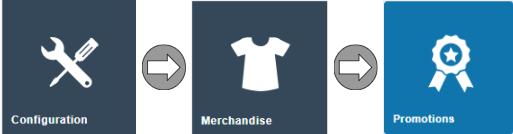
Navigate to Promotions using the Search or the path:
Main Menu > Configuration > Merchandise > Promotions
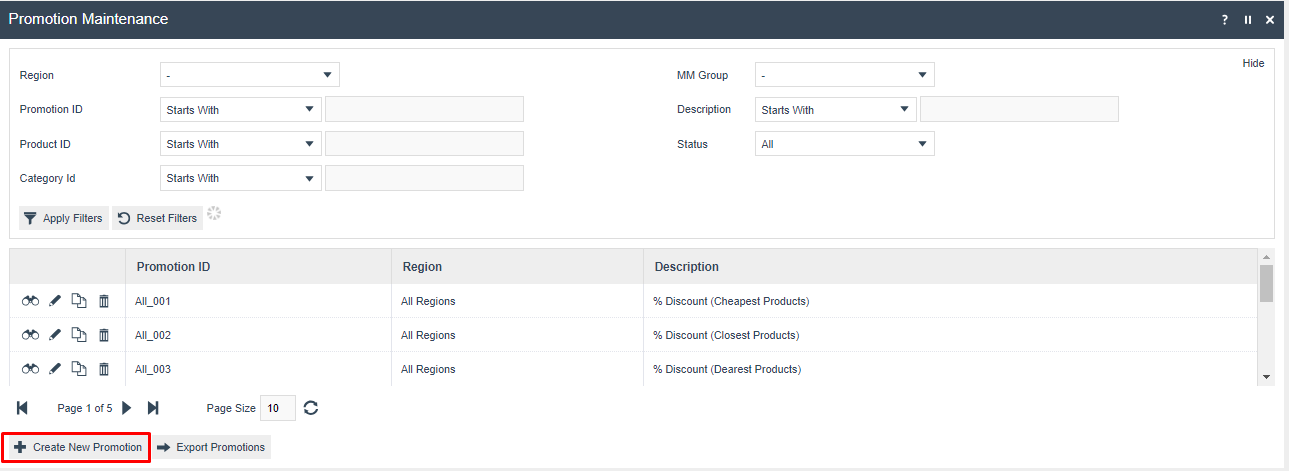
The Promotion Maintenance list is displayed, showing all configured promotions with their Promotion ID, Region, and Description.
This completes the Accessing Promotion Maintenance section.
Configuration Steps - Creating a New Promotion
Select Create New Promotion from the Promotion Maintenance list. The new promotion screen is displayed:

| Field | Description |
|---|---|
| Region | The region this promotion applies to. Select a specific region from the dropdown or leave as All Regions. |
| Promotion ID | A unique identifier for the promotion within the selected region. Can be manually entered or auto-generated. |
This completes the Creating a New Promotion section.
Configuration Steps - Manner of Application
Numerous tabs are displayed within Promotion Maintenance. The options on the General tabs primarily impact how the Promotion is applied.
General - General Tab
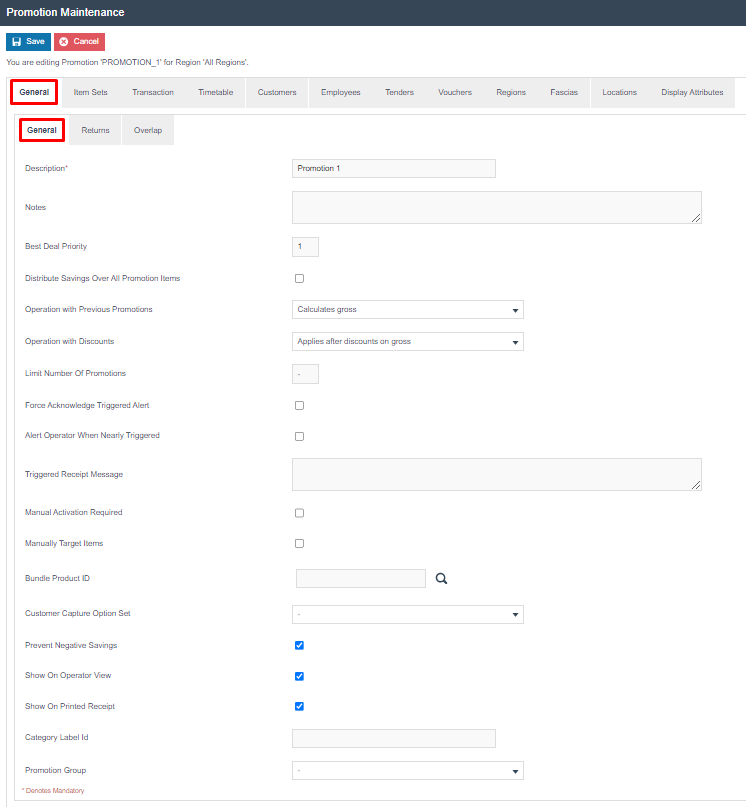
| Field | Description |
|---|---|
| Description | The promotion description shown on the operator display and receipt when triggered. Required. |
| Notes | Internal reference notes for the promotion. Not visible to the cashier or customer. |
| Best Deal Priority | Overrides the automatic Best Deal Logic to force certain promotions to be chosen over others. Use only when absolutely necessary as it may produce unexpected results. |
| Distribute Savings Over All Promotion Items | When ticked, distributes the total discount proportionally across all items involved in the promotion (including qualifying items), for accounting purposes. Has no impact on the discount amount given. |
| Operation with Previous Promotions | Controls whether the promotion calculates using gross or net price when overlapping with other promotions. |
| Operation with Discounts | Controls how the promotion interacts with manual discounts. |
| Limit Number Of Promotions | Limits how many times the promotion can trigger within a single transaction. Leave blank for unlimited. |
| Force Acknowledge Triggered Alert | When ticked, displays a pop-up message to the operator when the promotion triggers, requiring acknowledgement. |
| Alert Operator When Nearly Triggered | When ticked, alerts the operator when the customer is close to qualifying for the promotion. |
| Triggered Receipt Message | The message printed on the receipt when the promotion triggers. |
| Manual Activation Required | When ticked, the promotion must be manually activated by the operator rather than triggering automatically. |
| Prevent Negative Savings | When ticked, prevents the promotion from resulting in a negative saving (i.e. increasing the price). |
| Show On Operator View | When ticked, the promotion is displayed on the operator screen. |
| Show On Printed Receipt | When ticked, the promotion is printed on the receipt. |
When Force Acknowledge Triggered Alert is selected, an additional Triggered Alert Message field is displayed to specify the message sent to the operator.


General - Returns Tab
The Returns tab controls atypical Promotion behaviour during return transactions. These settings do not need to be changed to accommodate normal receipted return transactions.
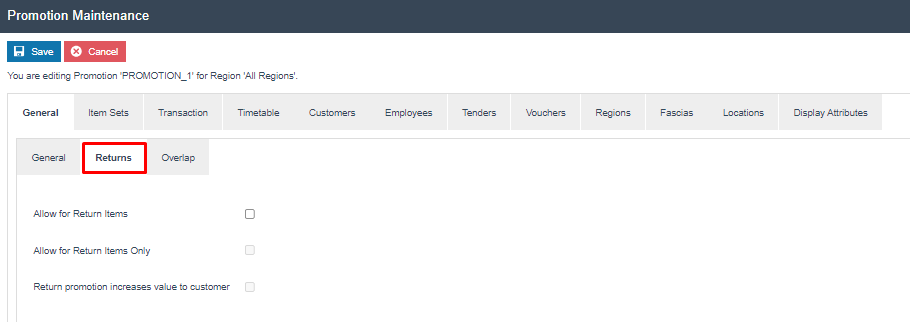
| Field | Description |
|---|---|
| Allow for Return Items | When ticked, the promotion is valid for return items as well as sale items. |
| Allow for Return Items Only | When ticked, the promotion is valid for return items only. |
| Return promotion increases value to customer | When ticked, the sign of the reward is changed for return items. |
General - Overlap Tab
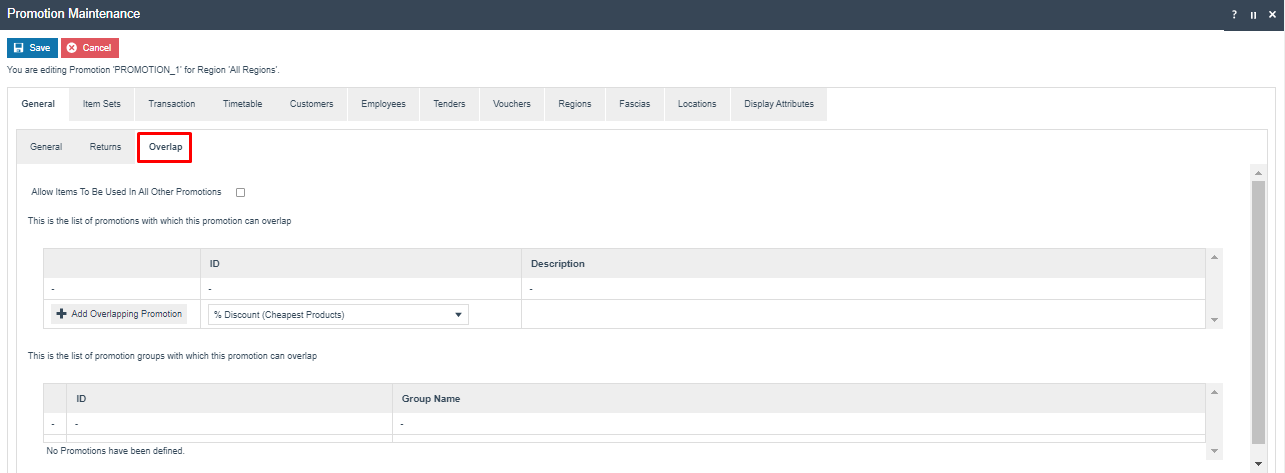
The Overlap tab permits full control of how promotions interact when items qualify for multiple promotions.
| Field | Description |
|---|---|
| Allow Items To Be Used In All Other Promotions | When ticked, items involved in this promotion can be used to qualify for all other eligible promotions. When unticked, only promotions in the overlap list are permitted. |
| Add Overlapping Promotion | Select a specific promotion from the dropdown and click to add it to the list of promotions that may overlap with this one. |
This completes the Manner of Application configuration.
Configuration Steps - Promotion Timetable
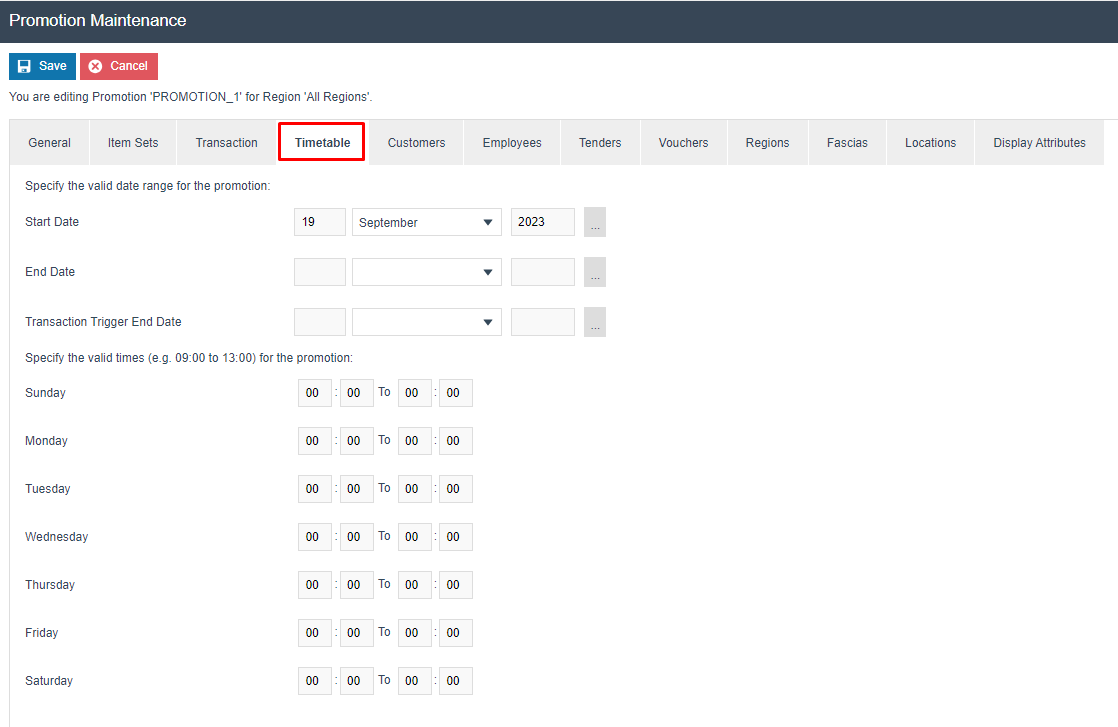
The Timetable tab controls when the promotion is active.
| Field | Description |
|---|---|
| Start Date | The first day the promotion is active. Promotions can be set up and broadcast in advance of this date. |
| End Date | The last day the promotion is active. |
| Transaction Trigger End Date | Stops the promotion from triggering automatically but keeps it available for manual activation. |
| Valid Times (per day) | Restricts the promotion to specific times of day for each day of the week. Leave at 00:00 To 00:00 for all day. |
If no dates are specified, a Promotion will be active immediately upon broadcast and remain active until an End Date is supplied or the Promotion is removed.
This completes the Promotion Timetable configuration.
Configuration Steps - Additional Inclusion/Exclusion Criteria
In addition to the Timetable, several other factors can influence the validity of a Promotion. These are configured across the Customers, Employees, Tenders, Vouchers, Regions, Fascias, and Locations tabs.
Customers Tab
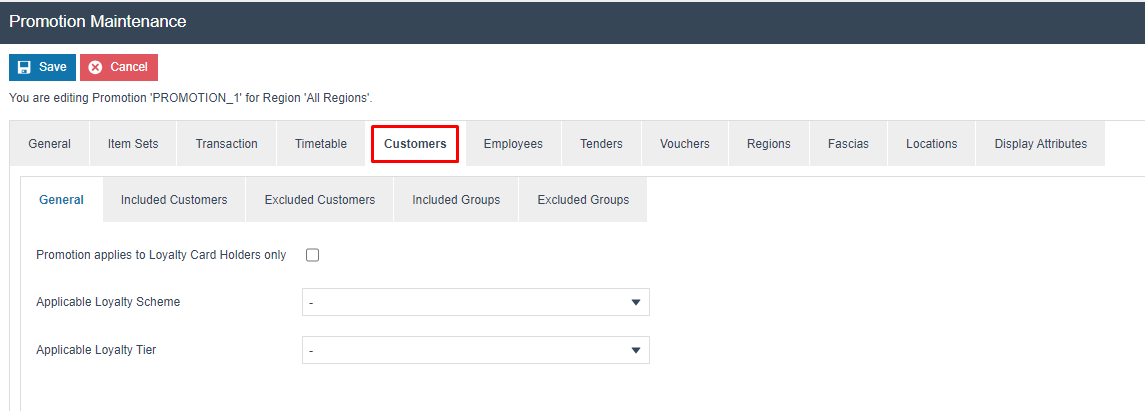
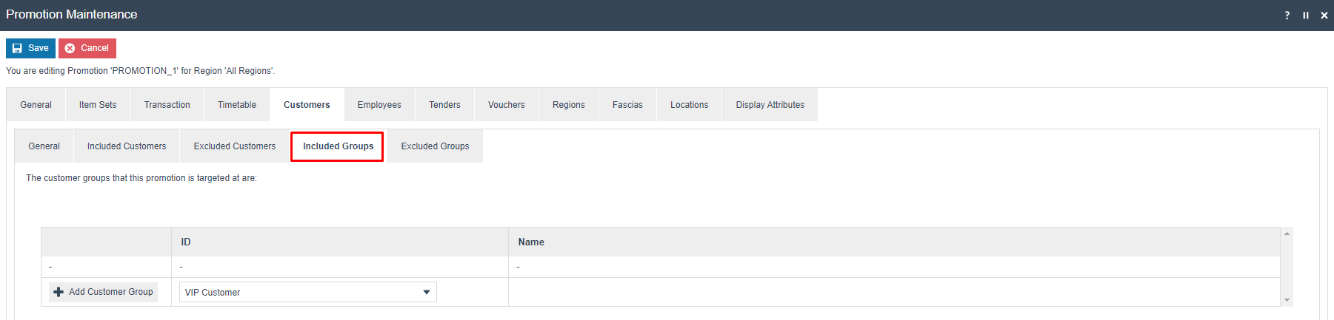
The Customers tab provides inclusion/exclusion options based on Customer attributes.
Customers - General
| Field | Description |
|---|---|
| Promotion applies to Loyalty Card Holders only | When ticked, only customers with a loyalty card can qualify for the promotion. |
| Applicable Loyalty Scheme | Restricts the promotion to a specific loyalty scheme. |
| Applicable Loyalty Tier | Restricts the promotion to a specific loyalty tier within the selected scheme. |
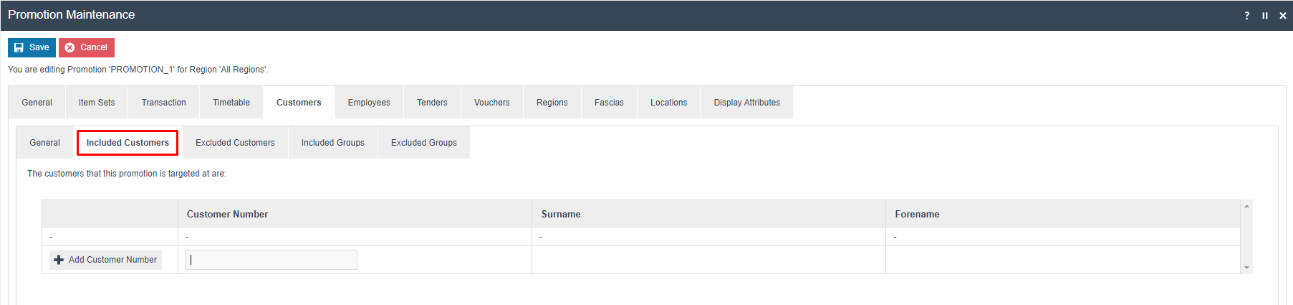
Customers - Included/Excluded Customers
Customers - Included/Excluded Groups
Employees Tab
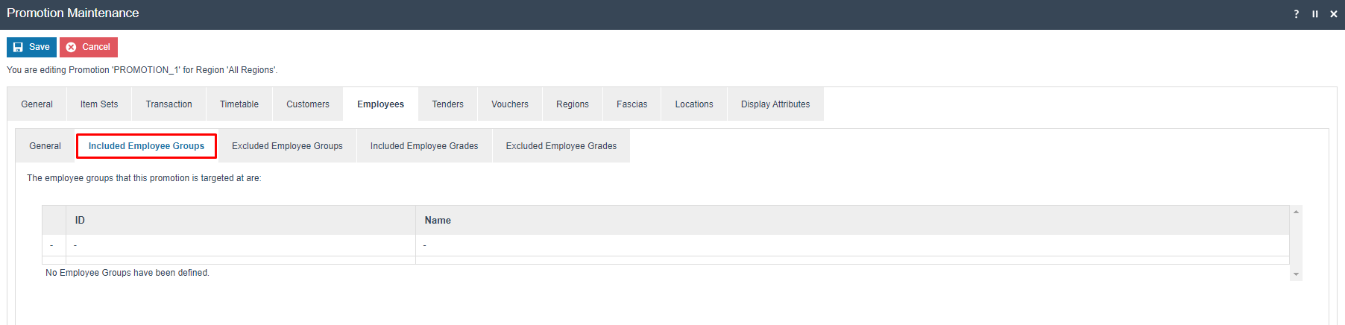
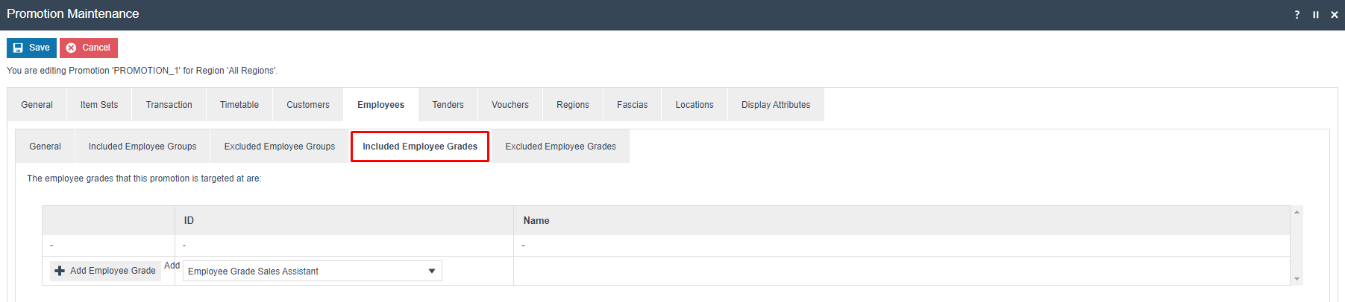
The Employees tab controls a promotion's validity within Employee Sale Transactions.
Employees - General
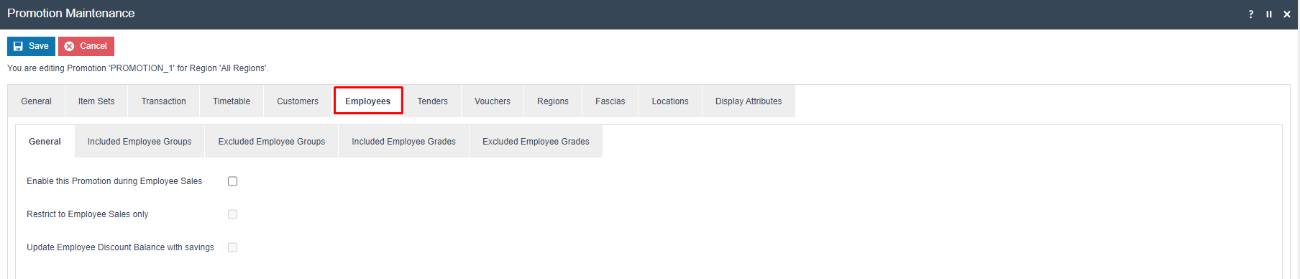
| Field | Description |
|---|---|
| Enable this Promotion during Employee Sales | When ticked, the promotion is valid within Employee Sale Transactions. |
| Restrict to Employee Sales only | When ticked, the promotion is only valid within Employee Sale Transactions. |
| Update Employee Discount Balance with savings | When ticked, promotional discounts count towards the employee's discount balance limit. |
Employees - Included/Excluded Employee Groups
Employees - Included/Excluded Employee Grades
Tenders Tab
Promotions can be linked to the use of a specific Tender. Since the Promotion is not triggered until the tender has been selected, the transaction flow is slightly different from standard promotions.
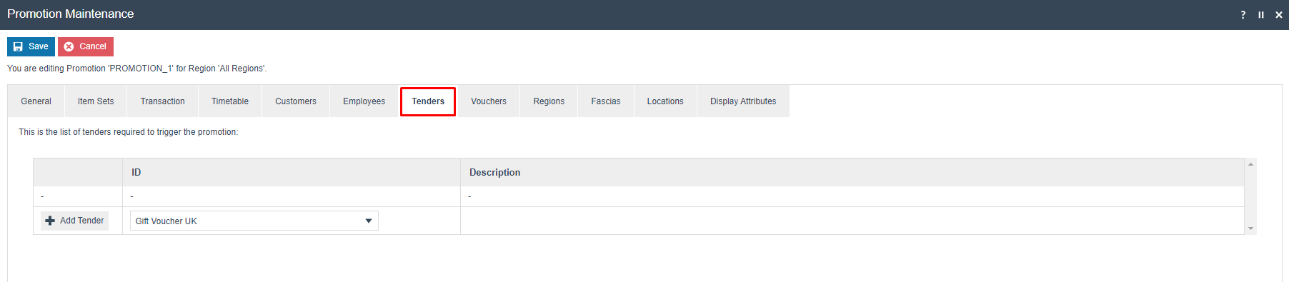
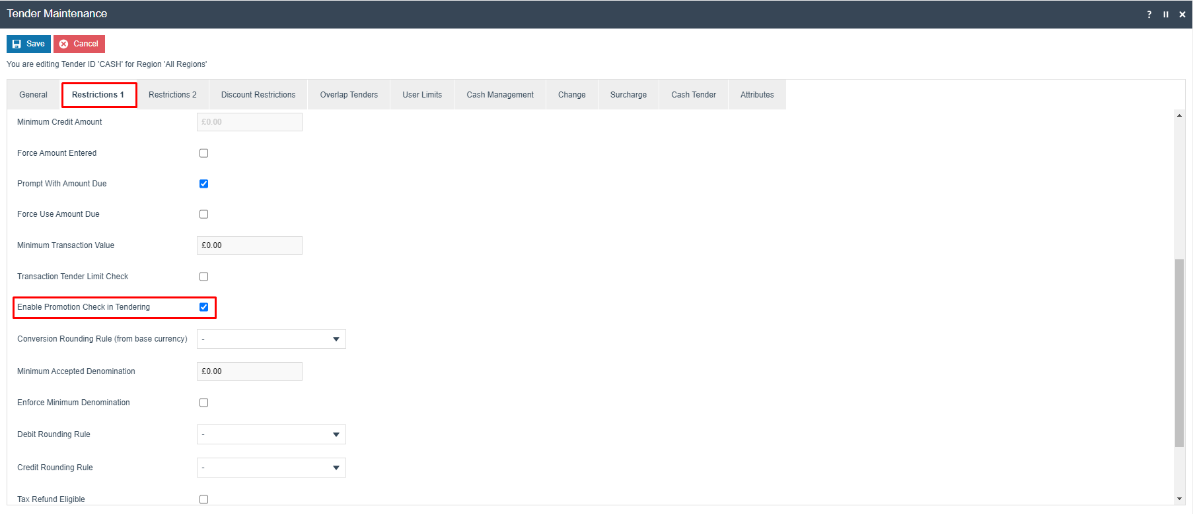
By default, the Promotions Engine stops basket evaluation once the tendering process has been initiated. If a Tender is being used as a promotion trigger, the Enable Promotion Check in Tendering option must be ticked for that specific Tender in the Tender Maintenance application.
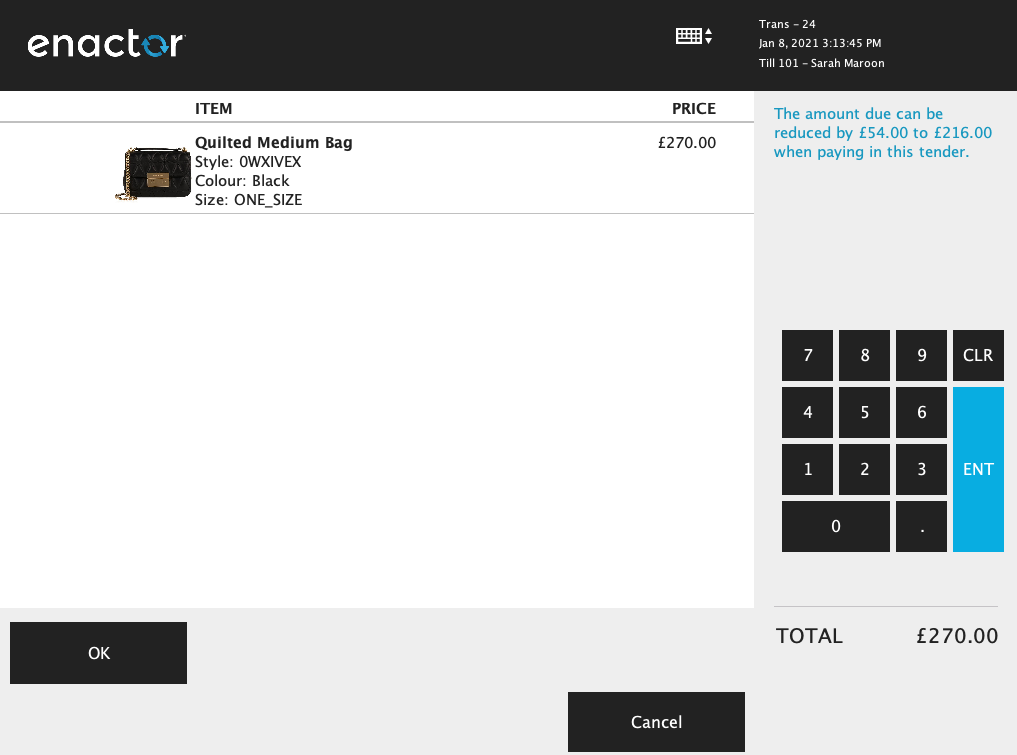
When a tender-triggered promotion activates, the operator receives a message on the POS terminal informing them of the new total:
Vouchers Tab
Promotions can be triggered through the use of Vouchers.

Regions Tab
Fascias Tab
Retailers that operate more than one Fascia can include or exclude promotions at the Fascia level.
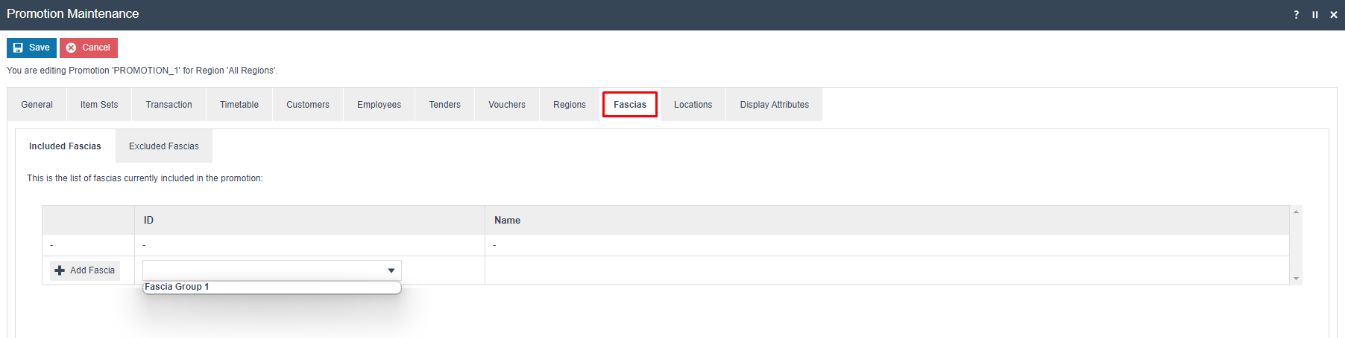
Fascias are tied to regions. For a Fascia to appear as an option, it must be within the same Region hierarchy as the Promotion and at the same level or below.
Locations Tab
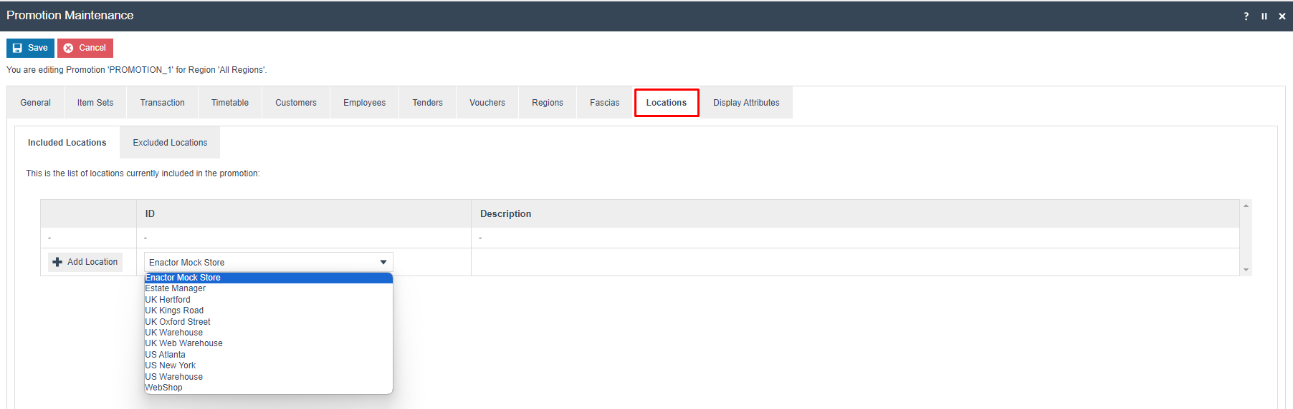
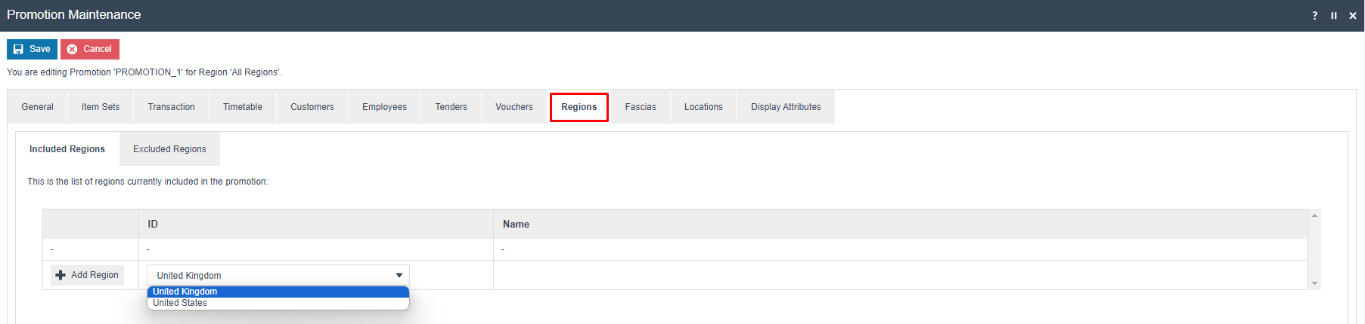
If the Promotion was created for All Regions, any Location can be added to the Include or Exclude list. If the Promotion was created for a Region at the lowest level of the hierarchy, no further Regions or Locations will be available for selection.
This completes the Additional Inclusion/Exclusion Criteria configuration.
Configuration Steps - Transaction Promotion Types
In a Transaction Promotion, qualification is evaluated at the Transaction Level and the Reward is applied at the Transaction Level. Select the Transaction tab to define the qualifiers and rewards.
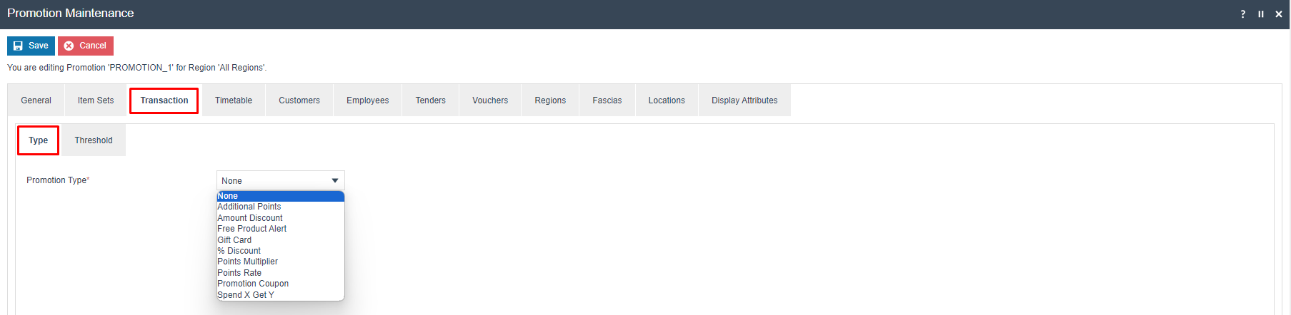
There are 9 Transaction Promotion Types. The reward definition fields vary based on the selected type:
Additional Points
Rewards the customer with Additional Points deposited into their Loyalty account.
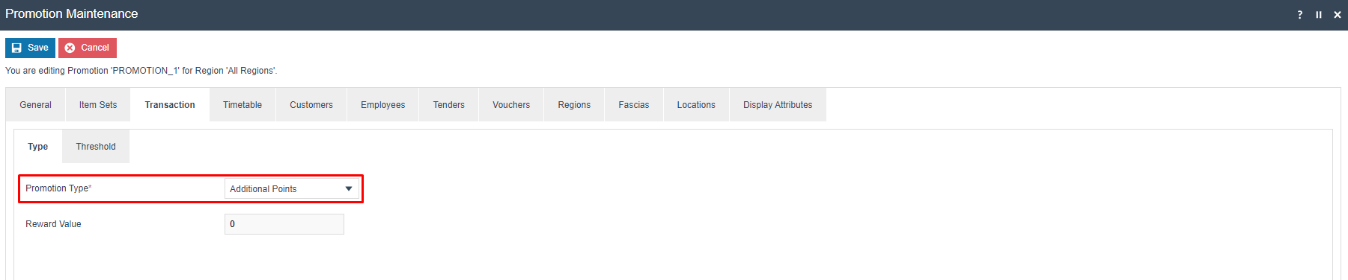
| Field | Description |
|---|---|
| Reward Value | The number of Additional Points to be deposited into the customer's Loyalty account. |
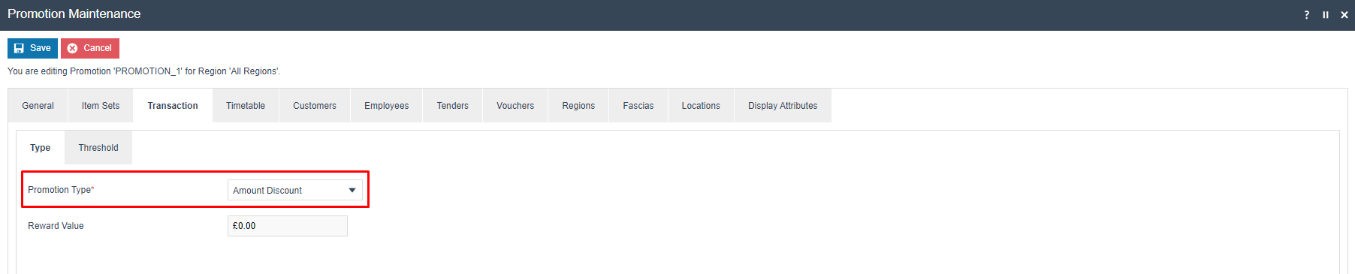
Amount Discount
Rewards the customer with a currency Amount Discount applied to the transaction.
| Field | Description |
|---|---|
| Reward Value | The currency discount amount to be applied to the transaction. |
Free Product Alert
Rewards the customer with a Free Product given by the operator upon qualification.

| Field | Description |
|---|---|
| Free Product ID | The product ID of the free item to be given to the customer upon qualification. |
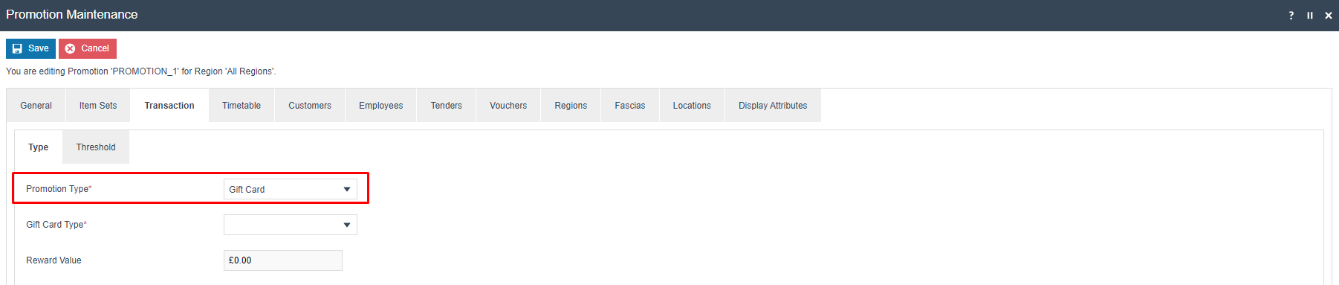
Gift Card
Rewards the customer with a Gift Card to be used on a future purchase.
| Field | Description |
|---|---|
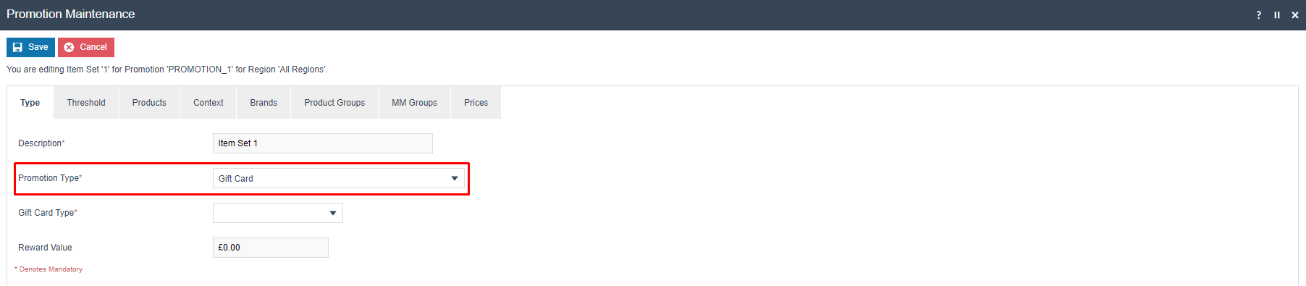
| Gift Card Type | The type of gift card to be activated. Select from the dropdown. |
| Reward Value | The currency amount to be loaded onto the gift card. |
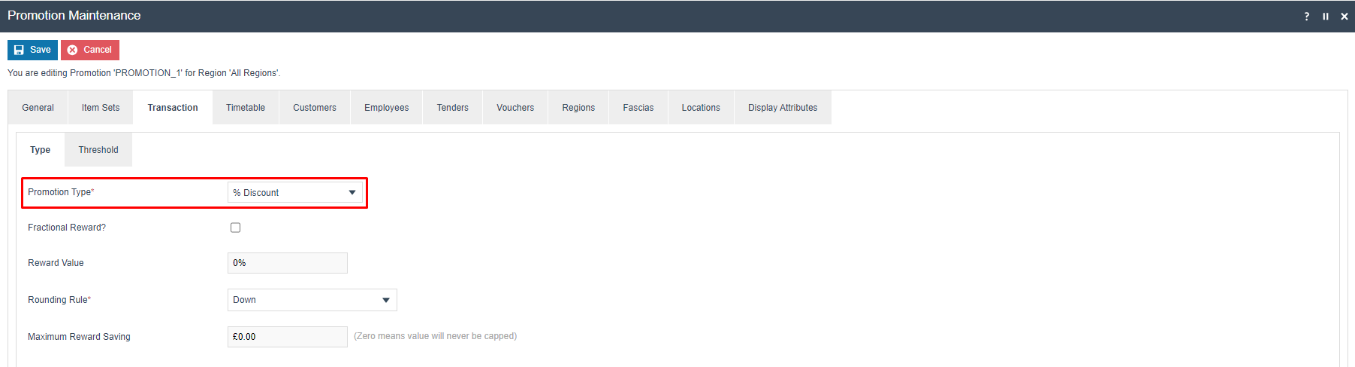
% Discount
Rewards the customer with a Percentage-based Discount applied to the transaction.
| Field | Description |
|---|---|
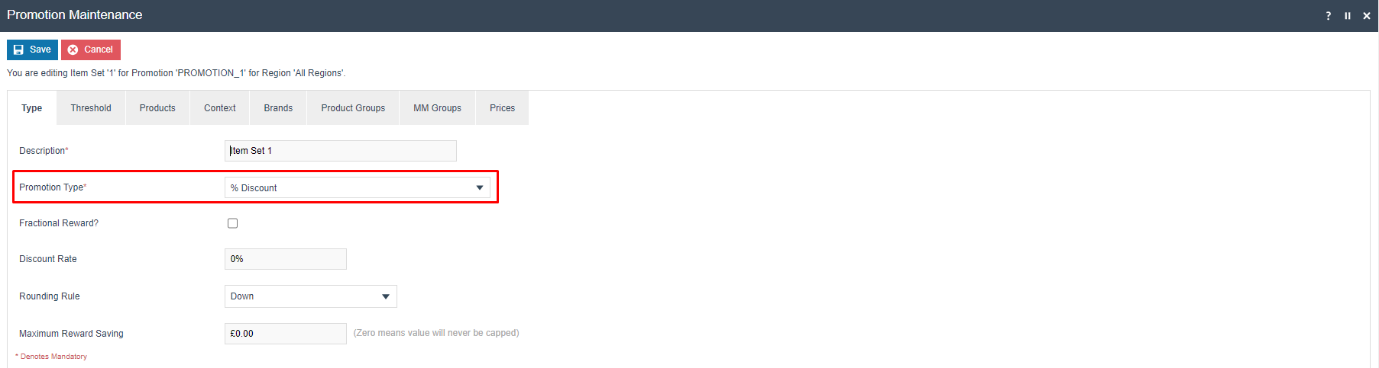
| Fractional Reward | When ticked, allows fractional reward calculations. |
| Reward Value | The discount percentage to be applied to the transaction. |
| Rounding Rule | Determines rounding direction: Up, Down, or Closest. |
| Maximum Reward Saving | The maximum currency discount amount. Enter 0.00 for no cap. |
Points Multiplier
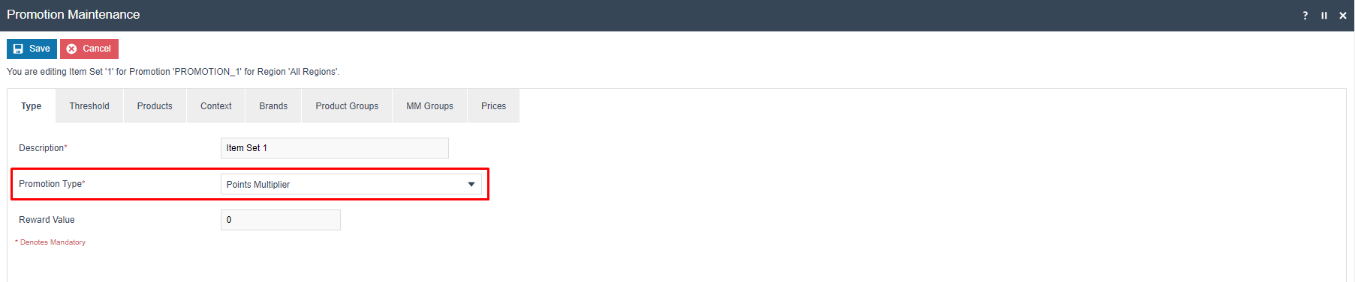
Rewards the customer with Additional Points determined by multiplying the points earned in the transaction by the Reward Value.

| Field | Description |
|---|---|
| Reward Value | The multiplier applied to the points earned in the transaction. |
Points Rate
Rewards the customer with Additional Points calculated by adding points at an alternative rate to those already earned.

| Field | Description |
|---|---|
| Reward Value | The alternative points rate used to calculate additional points for the transaction. |
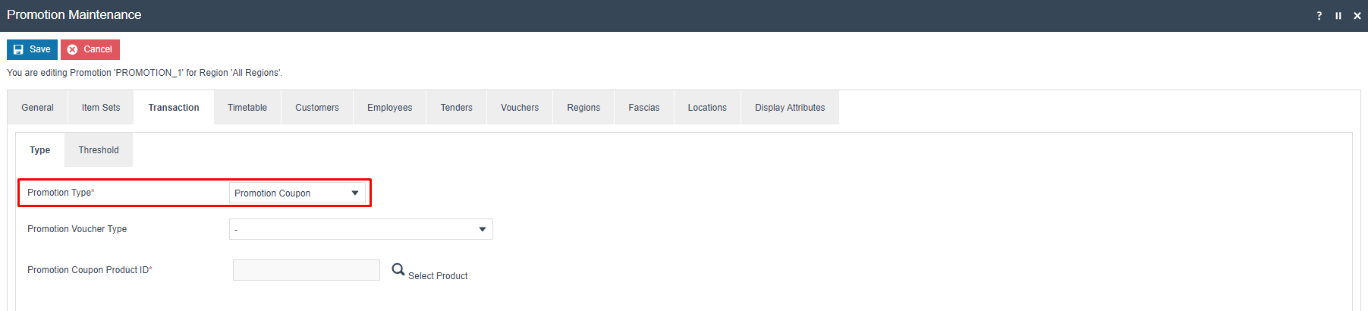
Promotion Coupon
Rewards the customer with a printed Coupon to use on a future purchase.
| Field | Description |
|---|---|
| Promotion Voucher Type | The voucher type that defines the information to be printed on the coupon. |
| Promotion Coupon Product ID | The product ID used as a qualifier when the coupon is redeemed. |
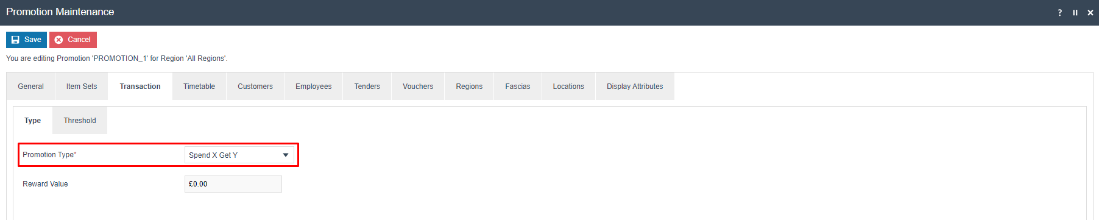
Spend X Get Y
Rewards the customer with a currency Amount Discount that applies every time the threshold is met.
| Field | Description |
|---|---|
| Reward Value | The currency discount amount applied each time the threshold is met. |
The key difference between Spend X Get Y and Amount Discount is that Spend X Get Y applies the reward repeatedly each time the threshold is met, while Amount Discount applies the reward only once.
This completes the Transaction Promotion Types configuration.
Configuration Steps - Transaction Threshold Types
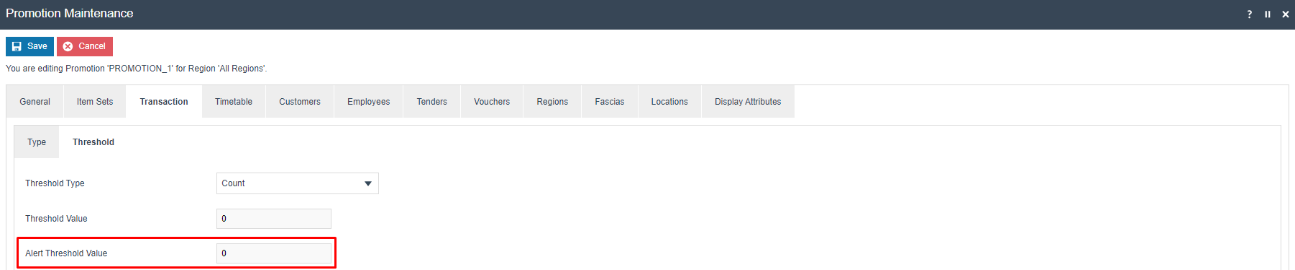
All Transaction Promotions use the same form to define qualification thresholds. Select the Threshold sub-tab on the Transaction tab.

There are 4 Threshold Types for Transaction Promotions:
| Threshold Type | Description |
|---|---|
| Count | The number of items in the transaction. |
| Value | The currency value of all items in the transaction. |
| Points | The number of loyalty points earned in the transaction. |
| Points Balance | The customer's current loyalty points balance. |
If the Promotion has been configured to Alert Operator When Nearly Triggered, an additional Alert Threshold Value field is shown:
This completes the Transaction Threshold Types configuration.
Configuration Steps - Item Sets
Item Sets are used to trigger Promotions based on specific items or groups of items within the transaction. By using Item Sets, it is also possible to confine the Reward to a particular item or group of items.
Select the Item Sets tab and click Add Item Set to create a new Item Set.
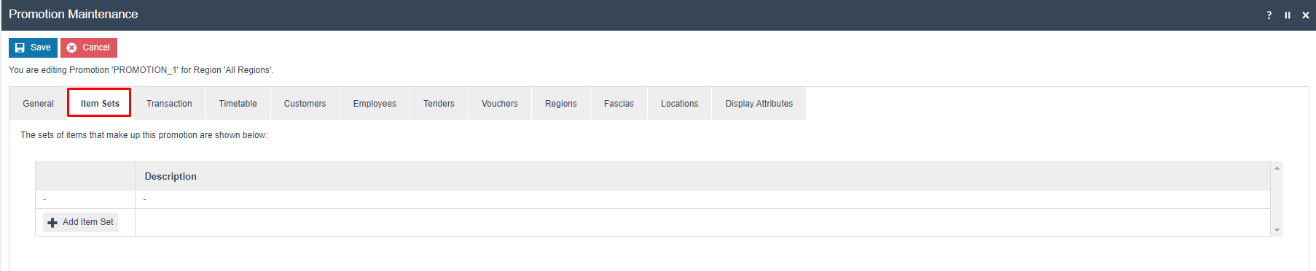
It is possible and common to create more than one Item Set within a Promotion. When more than one Item Set exists, all item sets must be satisfied for the Promotion to be triggered.
Defining Item Set Products
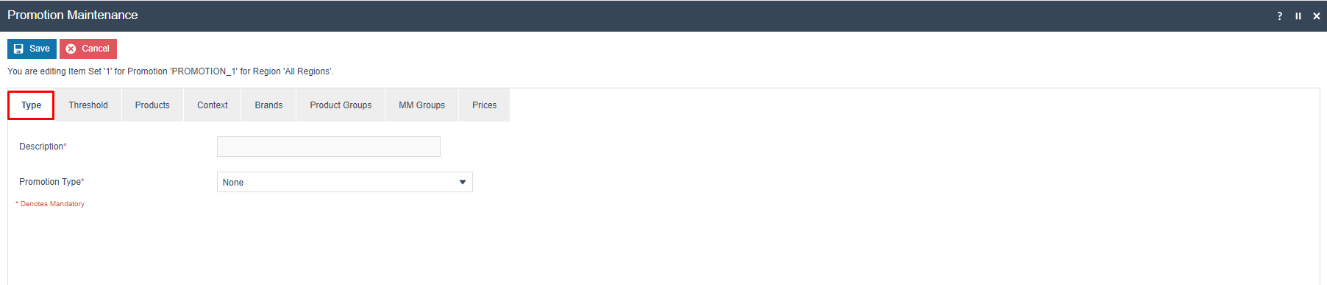
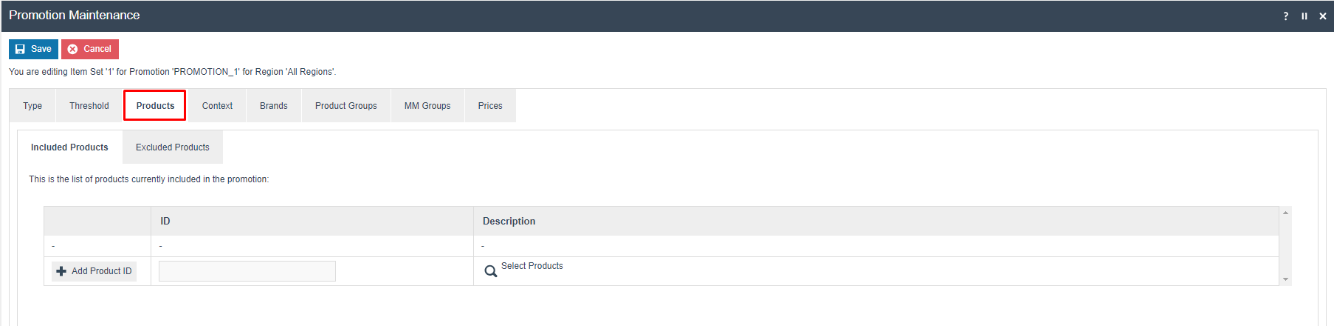
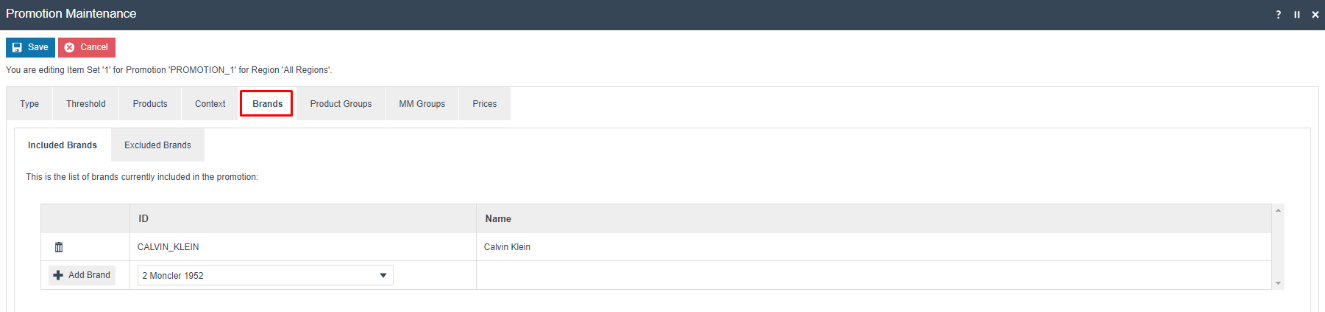
After adding an Item Set, the Item Set editing screen is displayed with tabs for Type, Threshold, Products, Context, Brands, Product Groups, MM Groups, and Prices.
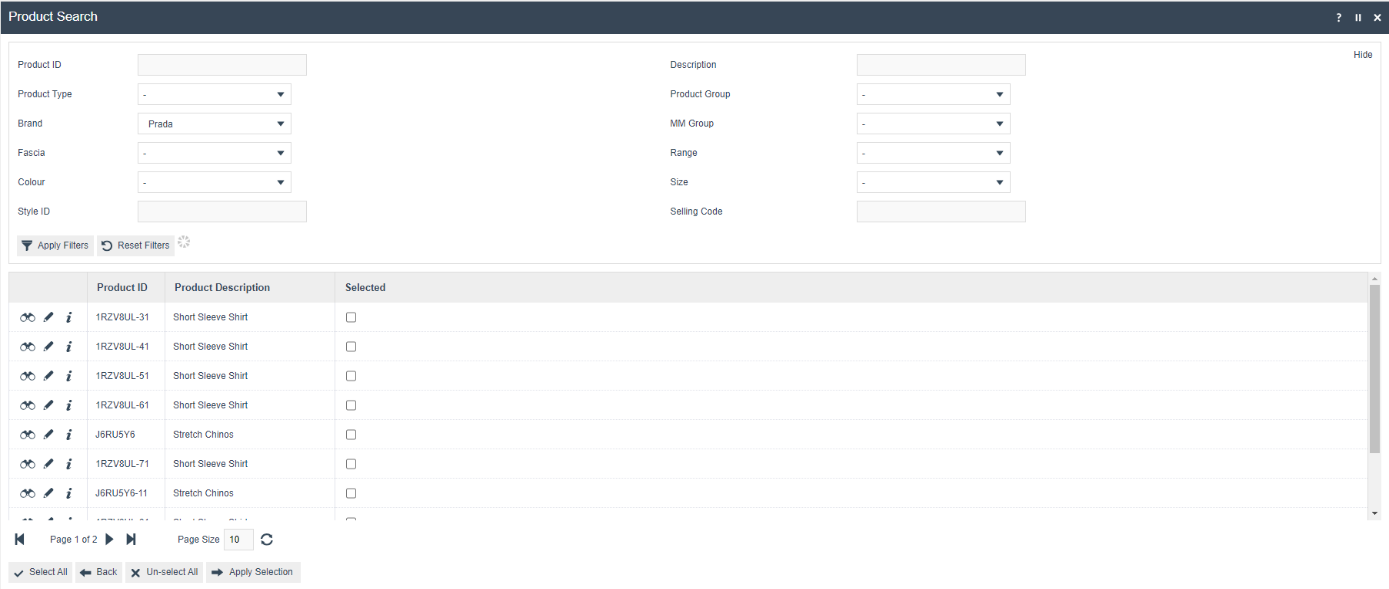
Products Tab - Include/Exclude by Product ID
Brands Tab
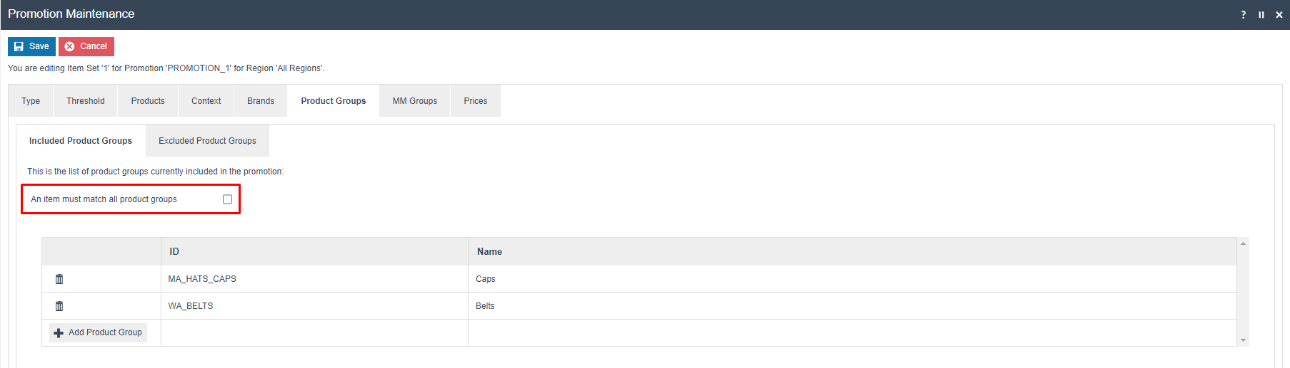
Product Groups Tab
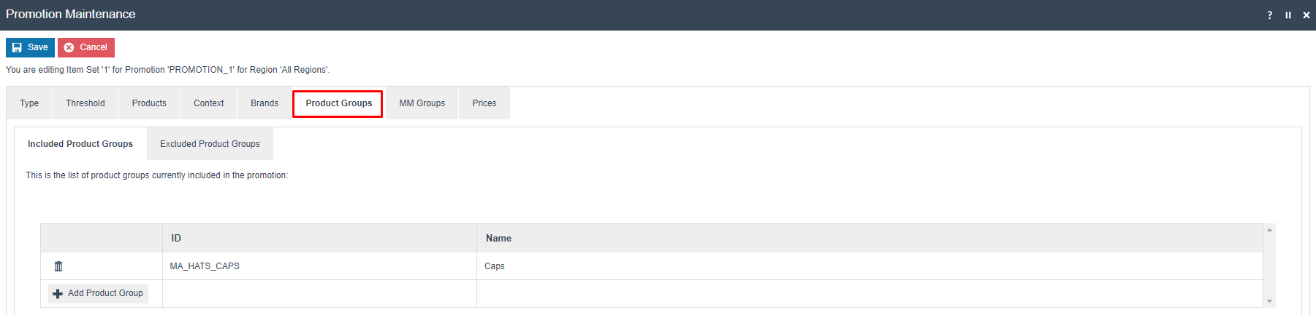
When multiple Product Groups are included, an additional option becomes available:
MM Groups Tab
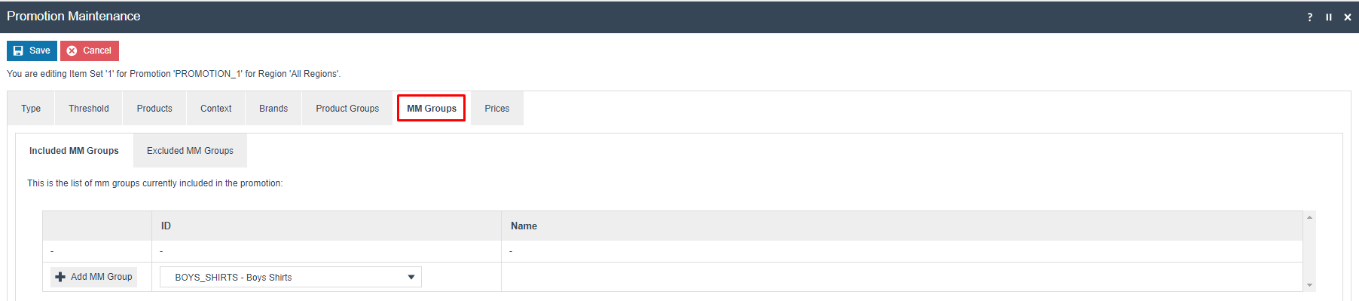
When defining Item Sets using Brands, Product Groups, and MM Groups, the criteria can be combined with AND logic. For example, you can include a specific MM Group but exclude items of a specific Brand within that group.
This completes the Item Sets configuration.
Configuration Steps - Item Set Promotion Types
There are 19 base Item Set Promotion Types. As with Transaction Promotions, the reward fields vary based on the selected type. Item Sets support all Transaction Promotion Types plus several additional types.
None
An Item Set with Promotion Type None is used when the items are required for qualification but no reward is applied to them. This is common in multi-item-set promotions where one set qualifies and another receives the reward.

Additional Points

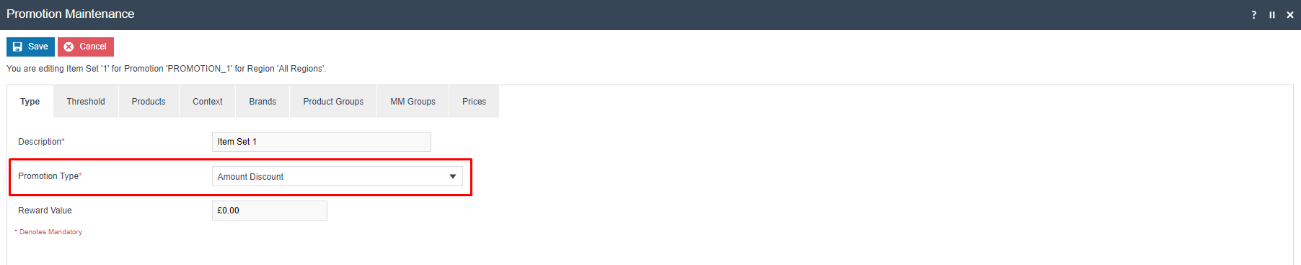
Amount Discount
Rewards the customer with a currency Amount Discount applied once to the items defined by the Item Set.
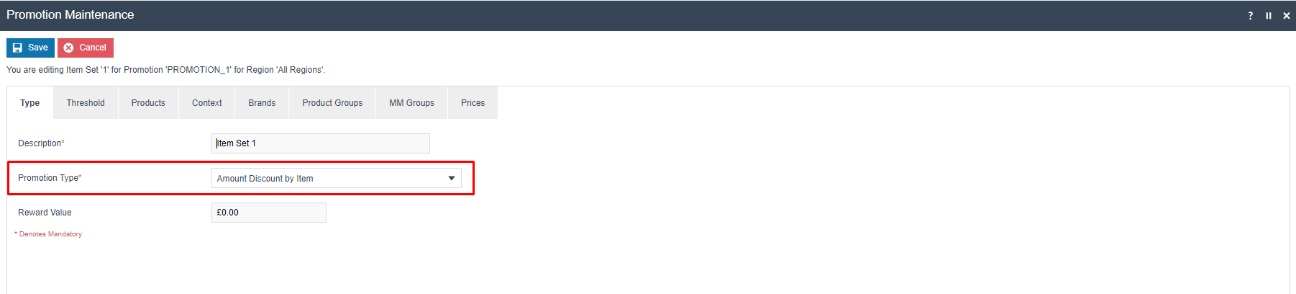
Amount Discount by Item
Rewards the customer with a currency Amount Discount applied to each item in the Item Set.
Cheapest/Closest/Dearest Products Free
Rewards the customer by fully discounting a designated number of items in the Item Set. Variants control which items are discounted.
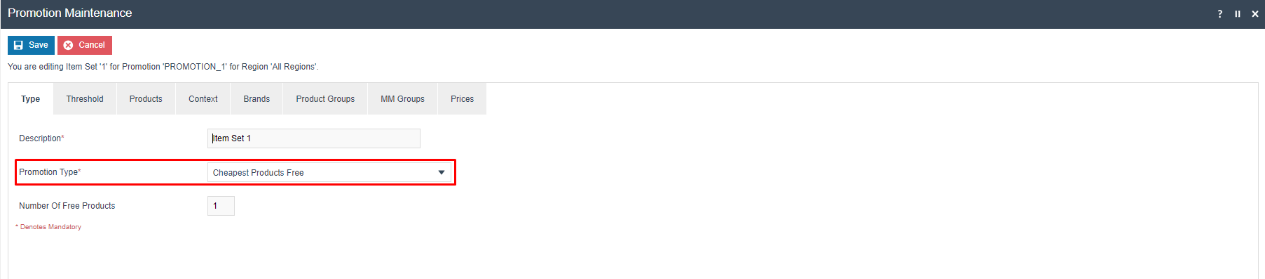
| Field | Description |
|---|---|
| Number Of Free Products | The number of items in the Item Set to be fully discounted. |
% Discount (Cheapest/Closest/Dearest Products)
Applies a percentage discount to a designated number of items in the Item Set.
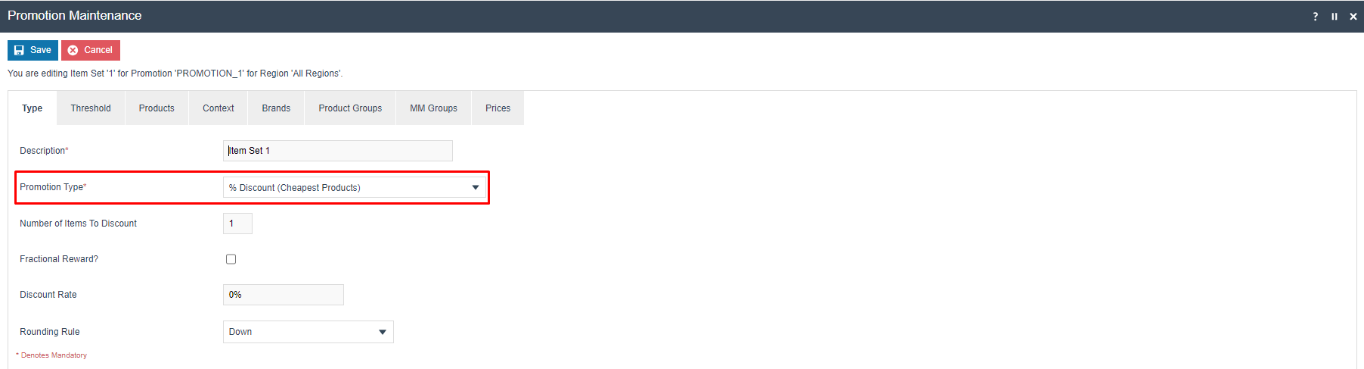
| Field | Description |
|---|---|
| Number of Items To Discount | The number of items to receive the discount. |
| Discount Rate | The percentage discount to apply. |
| Rounding Rule | Rounding direction: Up, Down, or Closest. |
Fixed Price
Applies a Fixed Price to a group of items as defined in the Item Set (e.g. buy any shirt and tie for 100).
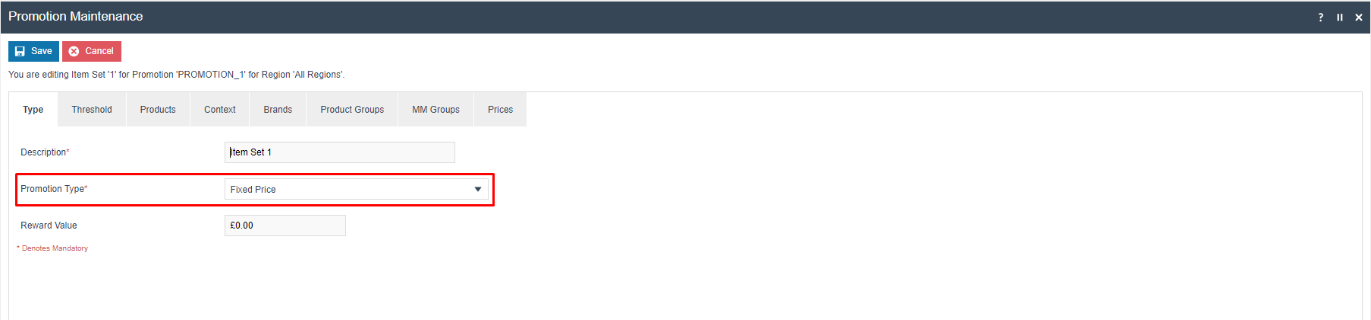
Fixed Price by Item
Applies a Fixed Price to each individual item in the Item Set.
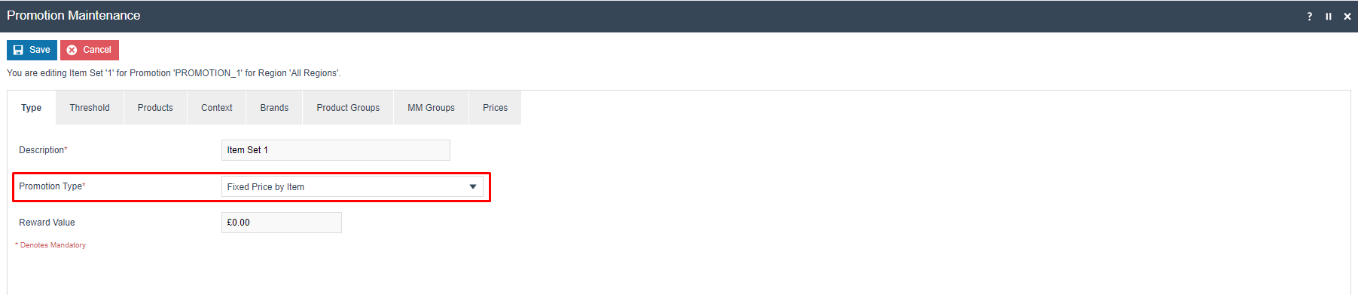
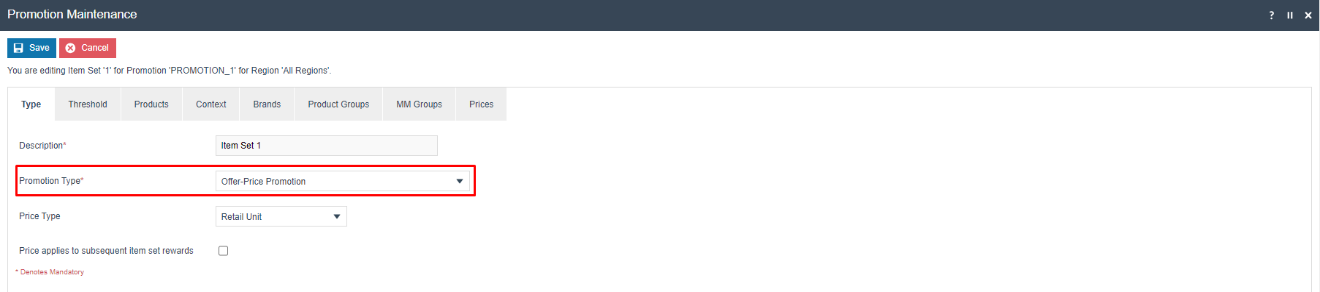
Offer-Price Promotion
Applies an alternative Price Type for the items in the Item Set.
| Field | Description |
|---|---|
| Price Type | The alternative price type to use for qualifying items. |
| Price applies to subsequent item set rewards | When ticked, the alternative price is applied to rewards in subsequent item sets. |
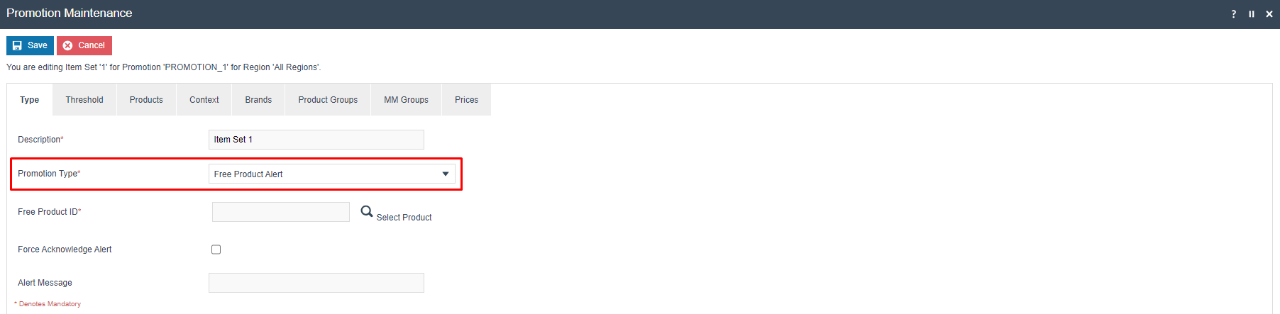
Free Product Alert
Gift Card
% Discount
Applies a Percentage-based Discount to the items defined by the Item Set.
Points Multiplier
Voucher
Rewards the customer with a Voucher to be used on a future purchase.

Promotion Coupon

Within Product Maintenance, there is a special Product Type of Promotional Coupon Product. By creating a Product to represent a Promotional Coupon, that Product ID can be included in an Item Set of the Promotion it is designed to trigger. This is a simple way of issuing coupons when single use or serial number tracking is not required.
Spend X Get Free Product
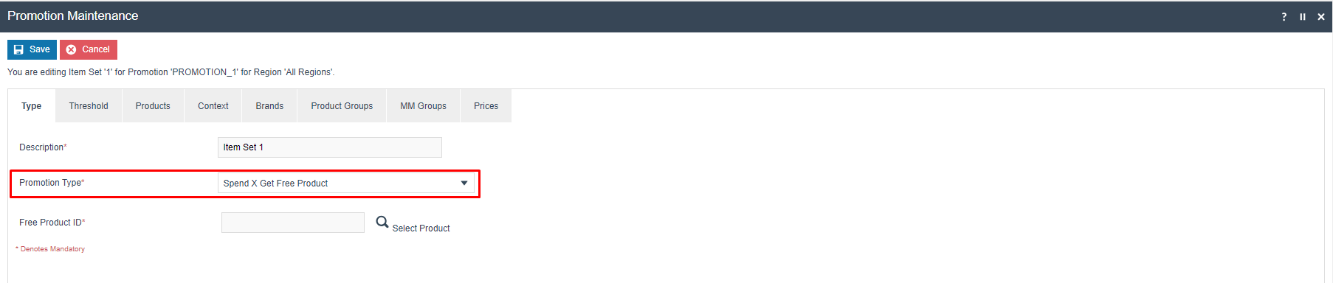
Spend X Get Y

Fee Override
Applies a promotional fixed selling price or discount percentage to a Fee Product Item (e.g. shipping, delivery, or installation fees).
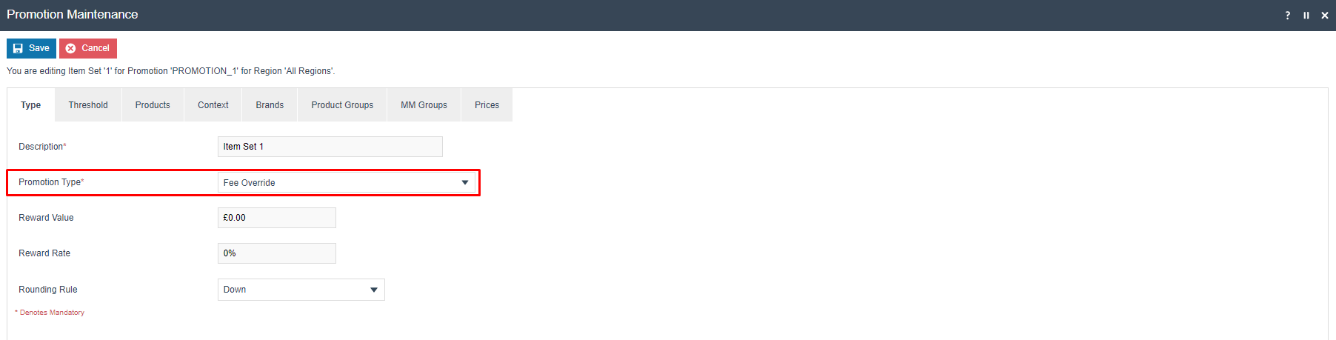
| Field | Description |
|---|---|
| Reward Value | A promotional fixed selling price for the Fee Product Item. |
| Reward Rate | A discount percentage to apply to the Fee Product Item. |
| Rounding Rule | Rounding direction for percentage discounts: Up, Down, or Closest. |
This completes the Item Set Promotion Types configuration.
Configuration Steps - Item Set Threshold Types
All Item Set Promotions use the same form to define qualification thresholds. Select the Threshold tab within the Item Set editing screen.
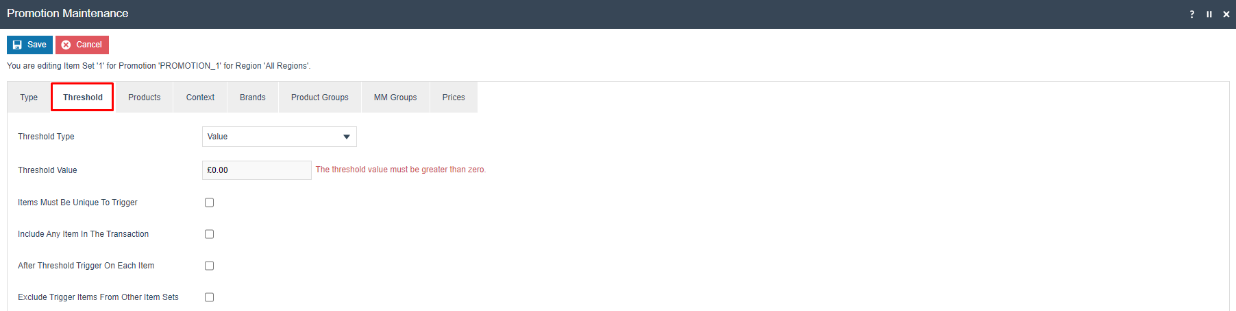
There are 3 Threshold Types for Item Set Promotions:
| Threshold Type | Description |
|---|---|
| Count | The number of items in the Item Set. |
| Value | The currency value of all items in the Item Set. |
| Points | The number of loyalty points earned by items in the Item Set. |
Additional Threshold Options
| Field | Description |
|---|---|
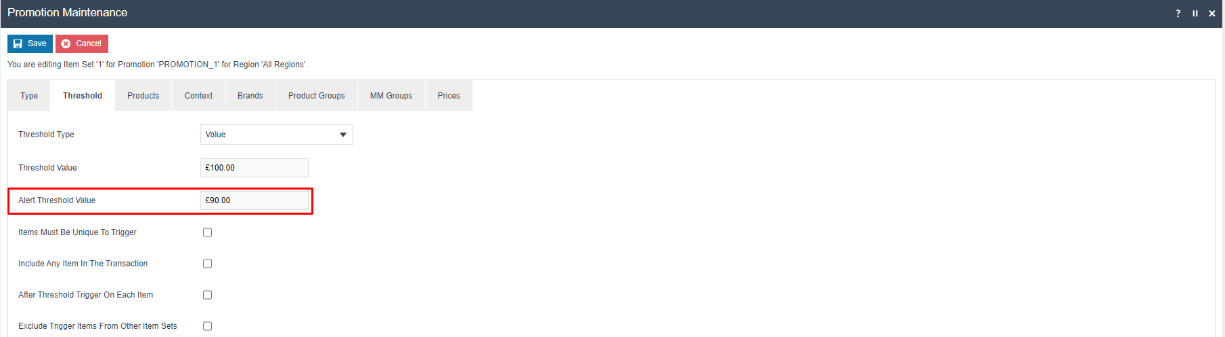
| Items Must Be Unique To Trigger | When ticked, a specific product can only be used once for qualification regardless of how many times it appears in the transaction. |
| Include Any Item In The Transaction | When ticked, all products are included by default. This removes the Include tabs from Products, Brands, Product Groups, and MM Groups (Exclude tabs remain available). |
| After Threshold Trigger On Each Item | When ticked, the reward continues to trigger for each additional qualifying item after the threshold is initially met. |
| Exclude Trigger Items From Other Item Sets | When ticked, prevents items used to satisfy this threshold from being used for qualification in other Item Sets, without affecting reward overlap. |
If the Promotion has been configured to Alert Operator When Nearly Triggered, an additional Alert Threshold Value field is shown:
This completes the Item Set Threshold Types configuration.
Configuration Steps - Broadcasting
To deliver the promotion configuration to the POS and store server, broadcast the following entities:
- Promotions
Promotions must be broadcast to POS terminals for them to take effect. Promotions can be set up and broadcast in advance of their active dates by using the Start Date on the Timetable tab.
Select Save to save the completed promotion, then broadcast the promotion entity to the relevant devices.
This completes the Broadcasting configuration.
About This Document
(c) 2026 Enactor Ltd
All documents produced by Enactor Ltd are supplied to customers subject to Copyright, commercial confidentiality, and contractual agreements and must not be copied or transferred without permission.
Document Context
This document is part of the Enactor Product Documentation Series. All Enactor products include a comprehensive documentation set designed to improve understanding of the product and facilitate ease of use.
Document Inquiries
If you find that a document is inaccurate or deficient in any way, please contact:
Email: documentation@enactor.co.uk
Document History
| Version | Status | Issue Date | Author | Reason for Issue | Software Version |
|---|---|---|---|---|---|
| 1.0 | Initial Draft | 11 Jan 2021 | Michael Tolson | Initial Version | |
| 1.1 | Reviewed | 20 Sep 2023 | Dilpa Sirimanna | Changed to new themes | |
| 2.0 | Revised | 30 March 2026 | Shenol Silva | Reformatted to standard | 2.7.1724 |