How To Configure Return Reasons
Introduction
The purpose of this guide is to provide a foundational understanding of the options and capabilities available when configuring Return Reasons. Return Reasons mainly consist of Item Return, Receipt Return, Item Exchange, MMG Return, and Non-Merchandise Return. Reasons are configured based on a Reason Type and are associated with a Region in which they are applicable.
Return Reasons are Reasons for which either a particular item or receipt is enabled for return following checkout.
Overview
This guide covers the configuration of the following:
- Item Return - Allows return of a particular item in a transaction.
- Receipt Return - Allows return of the entire receipt.
- Item Exchange - Allows exchange of a particular item in a transaction.
- MMG Return - Allows return of an item from a department sale.
- Non-Merchandise Return - Allows return of a non-merchandise item.
Item Return
Item Return Reason allows setting the option to return a particular item in a transaction. This governs how manual returns (also referred to as Non-receipt Returns) are handled at the POS. Generally, an Item Return Reason can directly impact Tenders and Inventory.
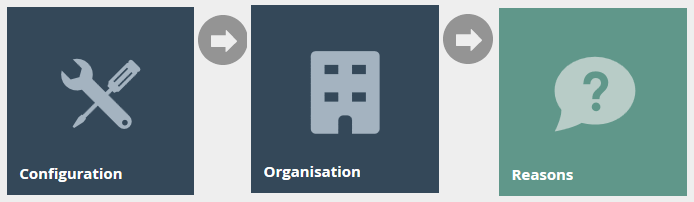
Navigate to or use the path:
Main Menu > Configuration > Organisation > Reasons
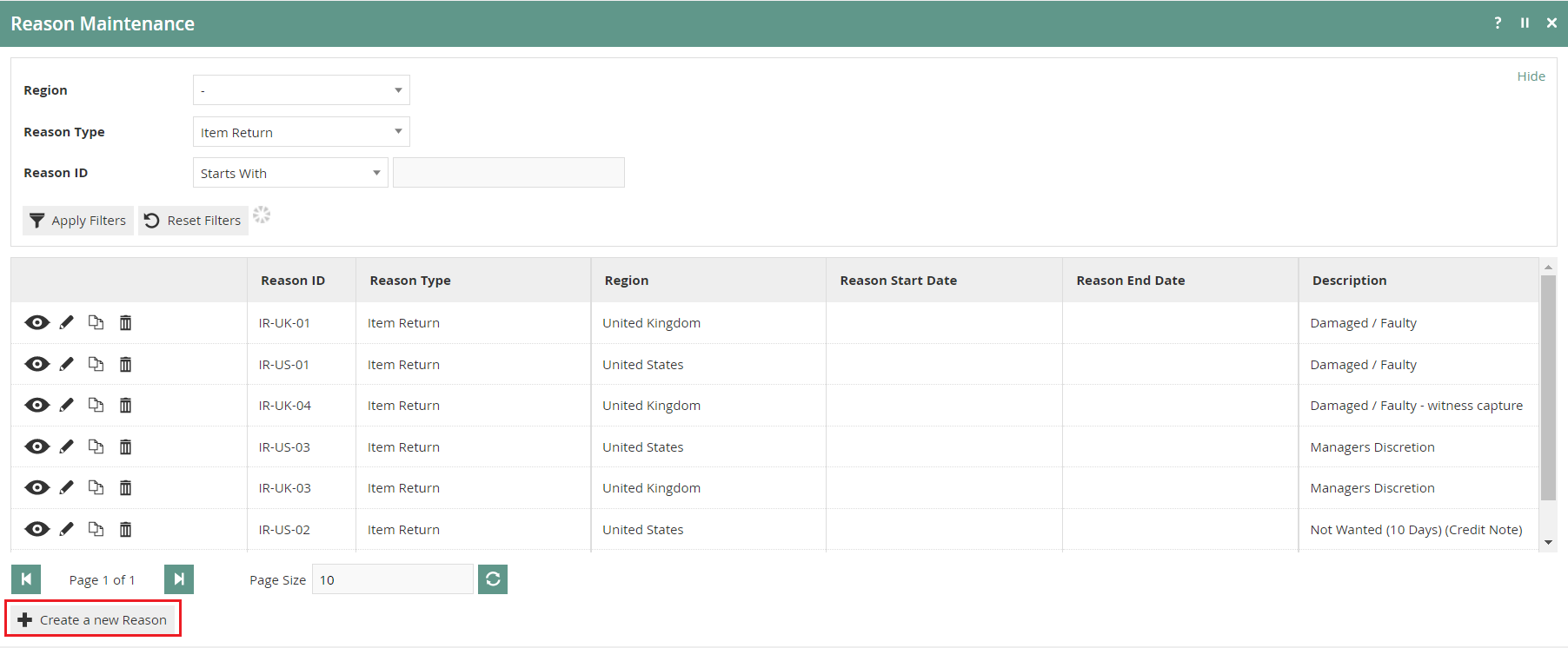
To create a new Reason, select Create a New Reason on the Reason Maintenance page.
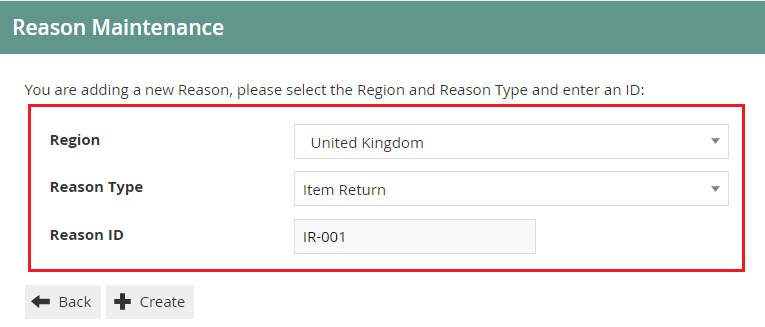
Select the appropriate Region from the Region drop-down. Select Item Return from the Reason Type drop-down. Enter a unique Reason ID for the new Item Return Reason. The ID can be alphanumeric and contain a maximum of 20 characters.
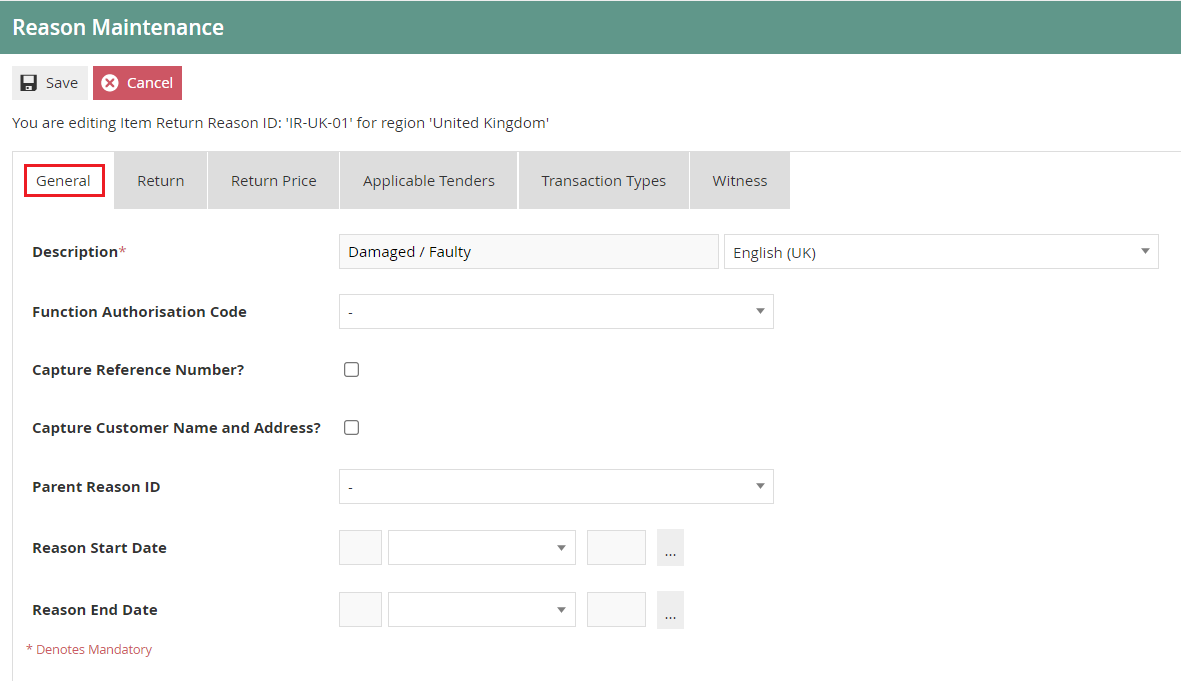
Reason - General Tab
The General tab has all the basic information that captures the identity of the Item Return Reason.
| Configuration | Description |
|---|---|
| Description | Enter a user-friendly, meaningful description for the Reason (alphanumeric, maximum 50 characters). Select the locale from the drop-down list of all configured Locales. |
| Function Authorisation Code | Select the applicable Function Authorisation Code from the drop-down list. Applicable only if the reason selection requires authorisation. |
| Capture Reference Number | Select checkbox if the User should be prompted to enter a reference number when using this Reason. |
| Capture Customer Name and Address | Select checkbox if the User should be prompted to capture the Customer's Name and Address when using this Reason. |
| Parent Reason ID | If the reason requires a parent reason, select the relevant parent reason from the drop-down list. |
| Reason Start Date | Enter a Reason Start Date. |
| Reason End Date | Enter a Reason End Date. |
Reason - Return Tab
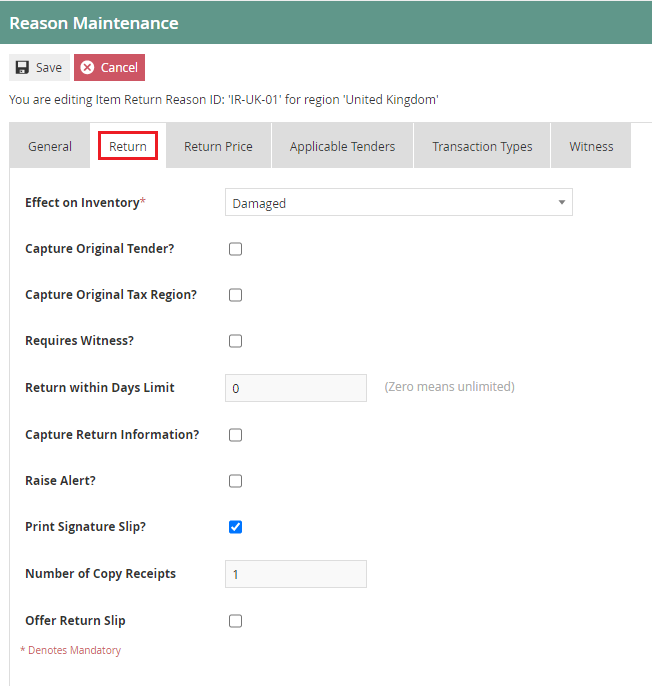
The Return tab provides a comprehensive list of properties for configuration of the Item Return Reason, defining permissible options and handling of Returns.
| Configuration | Description |
|---|---|
| Effect On Inventory | Select an appropriate type from all configured Inventory Types that will determine the effect on inventory when using this Reason. |
| Capture Original Tender? | Select checkbox if the User must be prompted to capture the original tender details when using this Reason. |
| Capture Original Tax Region? | Select checkbox if the User must be prompted to capture the original Tax Region when using this Reason. |
| Requires Witness? | Select checkbox to indicate if the User must obtain a witness when using this Reason. |
| Return within Days Limit | Enter a numeric value (0-365) to determine the period within which an item may be returned. Setting the value to 0 determines an unlimited number of days. |
| Capture Return Information? | Select checkbox if the User must be prompted to capture any required return information when using this Reason. |
| Raise Alert? | Select checkbox if an alert must be raised when this Reason is used. |
| Print Signature Slip? | Select checkbox if a customer signature slip will be printed when this Reason is used. |
| Number of Copy Receipts | Enter a numeric value (0-5) to determine the number of extra receipts to be printed. |
| Offer Return Slip | Select checkbox if the User must be prompted to offer a product return slip when using this Reason. |
Reason - Return Price Tab
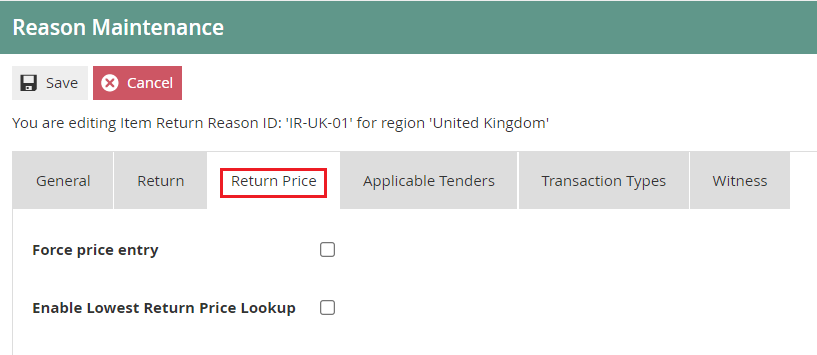
The Return Price tab provides properties relating to the return price of the Item Return Reason.
| Configuration | Description |
|---|---|
| Force Price Entry | Select checkbox if the User is enabled to force a price entry that is different to the price shown when using this Reason. |
| Enable Lowest Return Price Lookup | Select checkbox if the User is enabled to look up the lowest Return price of a product when using this Reason. |
Reason - Applicable Tenders Tab
The Applicable Tenders Tab is available for Reason Types that have a Tenders dependency. This Reason will be available for the operator to select only if the Tender of the Transaction permits.
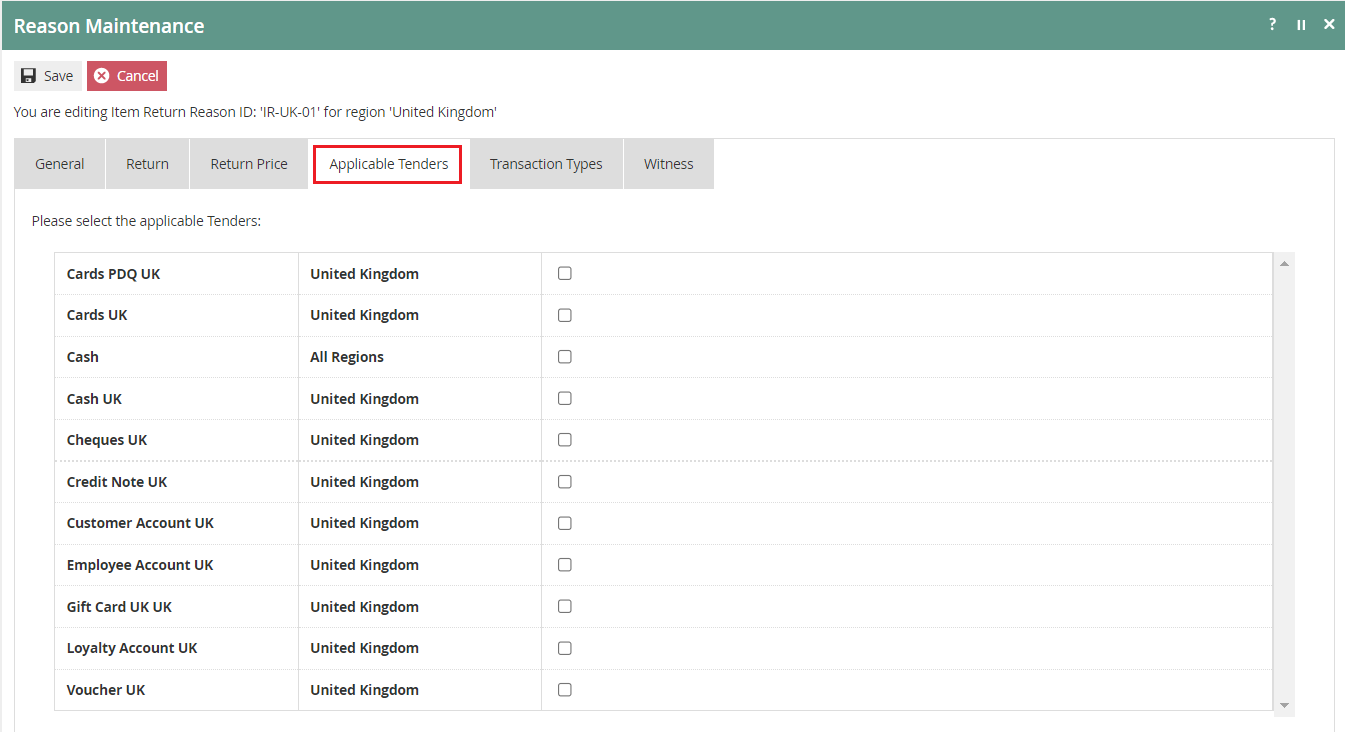
All Tenders that may be applicable to this Reason Type are listed with a checkbox. Select the desired tender type(s) to indicate the applicable tender type(s) when using this Reason.
Reason - Transaction Types Tab
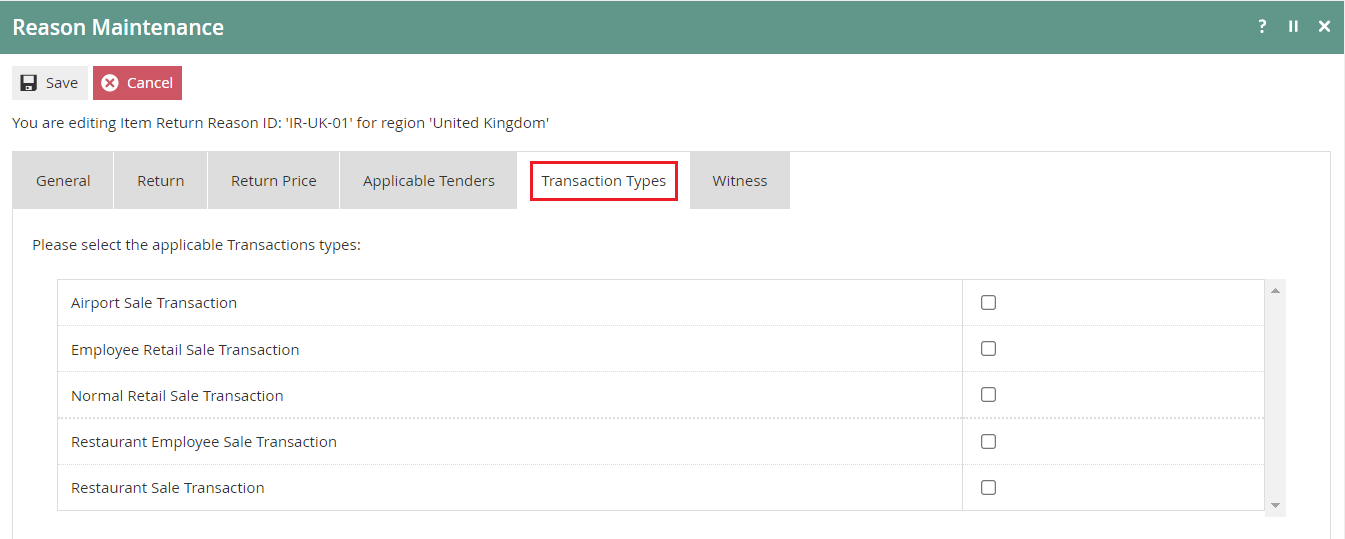
The Transaction Types tab is available for Reasons which are only valid for certain transaction types. If no transaction types are selected, it is assumed that the Reason is valid for all.
Reason - Witness Tab
The Witness tab is available for Reasons which require the User to obtain a witness. If checked, the user will be prompted for a witness whenever the Reason is selected.
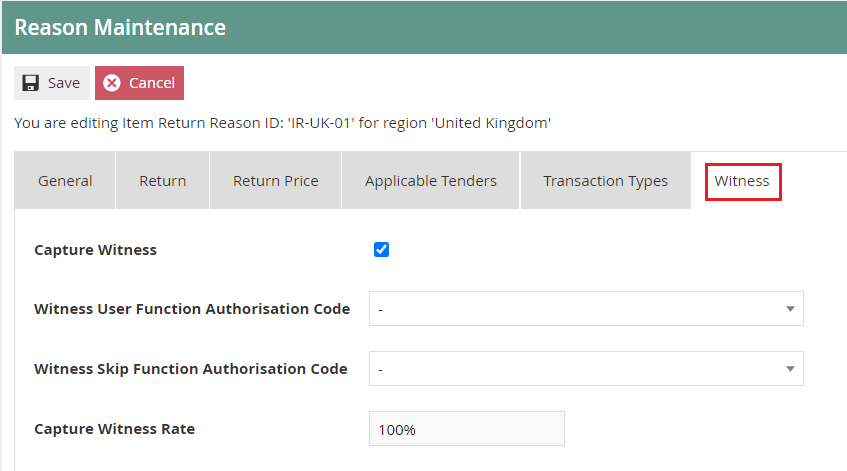
If checked, additional configuration options will appear:
| Configuration | Description |
|---|---|
| Witness User Function Authorisation Code | Select from the drop-down list to determine this as a Manager Authorised Function. |
| Witness Skip Function Authorisation Code | Select from the drop-down list to determine this as a Manager Authorised Function. |
| Capture Witness Rate | Enter a numeric value to define a percentage for the capture witness rate (the percentage of times the user will be prompted to capture a witness). |
Select Save to complete creating the Item Return Reason.
Multiple Reasons can be created for the Item Return Reason Type as required. These Reasons will be presented to the operator to select from when performing an Item Return.
This completes the Item Return Reason configuration.
Receipt Return
Receipt Return Reason allows setting the option to return one or more items in a transaction. Both Item Return and Receipt Return Reason Types capture the same properties in the same set of tabs, except for differences in the properties captured in the Return Tab. Receipt Return Reason can also directly impact Tenders and Inventory.
To create a new Reason, select Create a New Reason on the Reason Maintenance page.
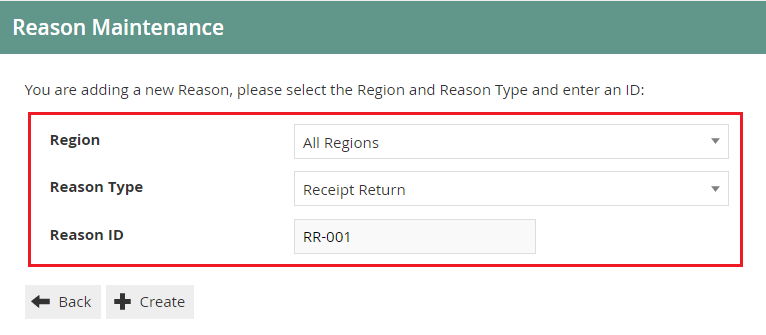
Select the Region from the Region drop-down. Select Receipt Return from the Reason Type drop-down. Enter a unique Reason ID for the new Receipt Return Reason.
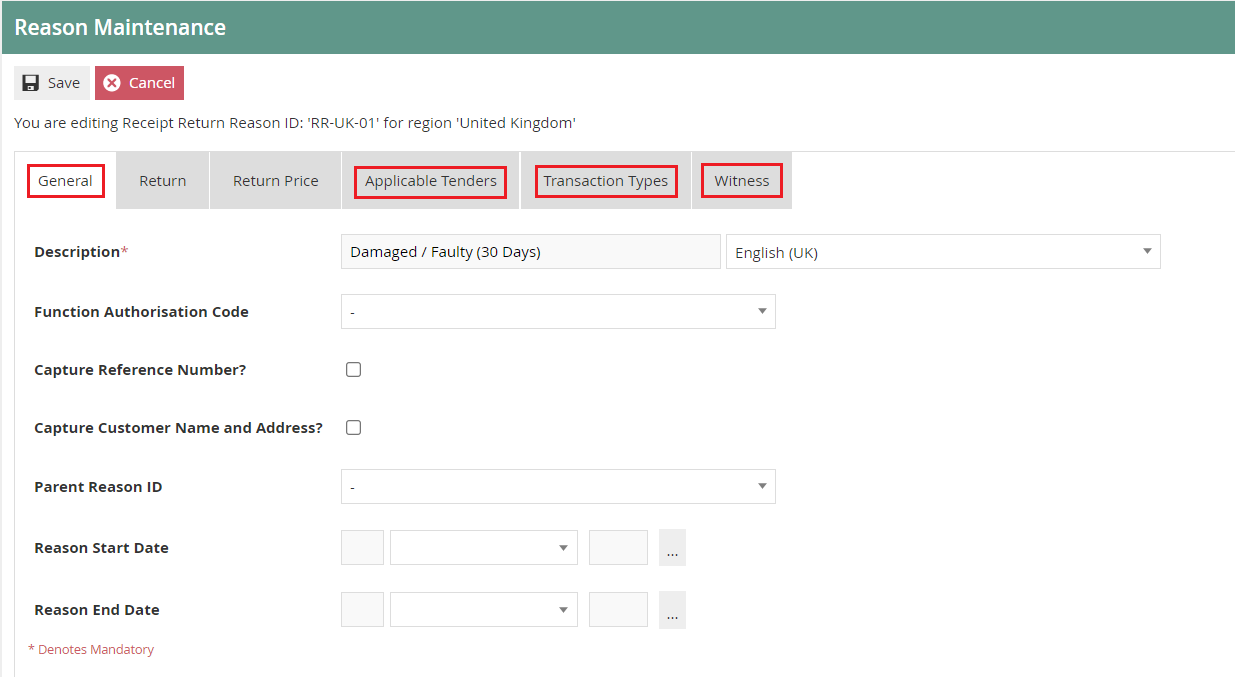
Reason - General Tab
Set the appropriate values on the General Tab as per the sample on configuring Item Return Reason.
Reason - Applicable Tenders Tab
Set the appropriate values on the Applicable Tenders Tab as per the sample on configuring Item Return Reason.
Reason - Transaction Types Tab
All Transaction Types for this Reason can be selected here. If no transaction types are selected, it is assumed that the Reason is valid for all.
Reason - Witness Tab
Set the appropriate values on the Witness Tab as per the sample on configuring Item Return Reason.
Reason - Return Tab
The Return tab for a Receipt Return Reason provides similar options to Item Return, with some additional properties.

| Configuration | Description |
|---|---|
| Effect On Inventory | Select an appropriate type from all configured Inventory Types that will determine the effect on inventory. |
| Requires Witness? | Select checkbox to indicate if the User must obtain a witness when using this Reason. |
| Return within Days Limit | Enter a numeric value (0-365) to determine the period within which an item may be returned. |
| Minimum Return Days Limit | Enter a numeric value (0-365) to determine the minimum period within which an item may be returned. |
| Capture Return Information? | Select checkbox if the User must be prompted to capture any required return information. |
| Raise Alert? | Select checkbox if an alert must be raised when this Reason is used. |
| Print Signature Slip? | Select checkbox if a customer signature slip will be printed when this Reason is used. |
| Number of Copy Receipts | Enter a numeric value (0-5) to determine the number of extra receipts to be printed. |
| Offer Return Slip | Select checkbox if the User must be prompted to offer a product return slip. |
| Don't force original Tenders during return | Select checkbox if the User must be prompted to force the original tender when using this Reason (i.e. one of the applicable tenders can be used instead). |
Reason - Return Price Tab
The Return Price tab only captures the Force Price Entry property when configuring a Receipt Return Reason. Select the checkbox if the User is enabled to force a price entry that is different to the price shown.
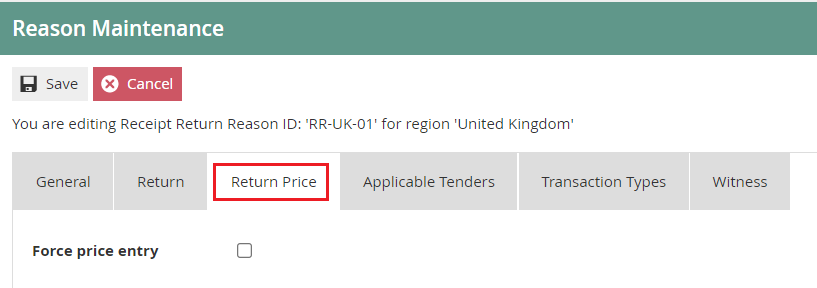
Select Save.
Multiple Reasons can be created for the Receipt Return Reason Type as required. These Reasons will be presented to the operator to select from when performing a Receipt Return.
This completes the Receipt Return Reason configuration.
Item Exchange
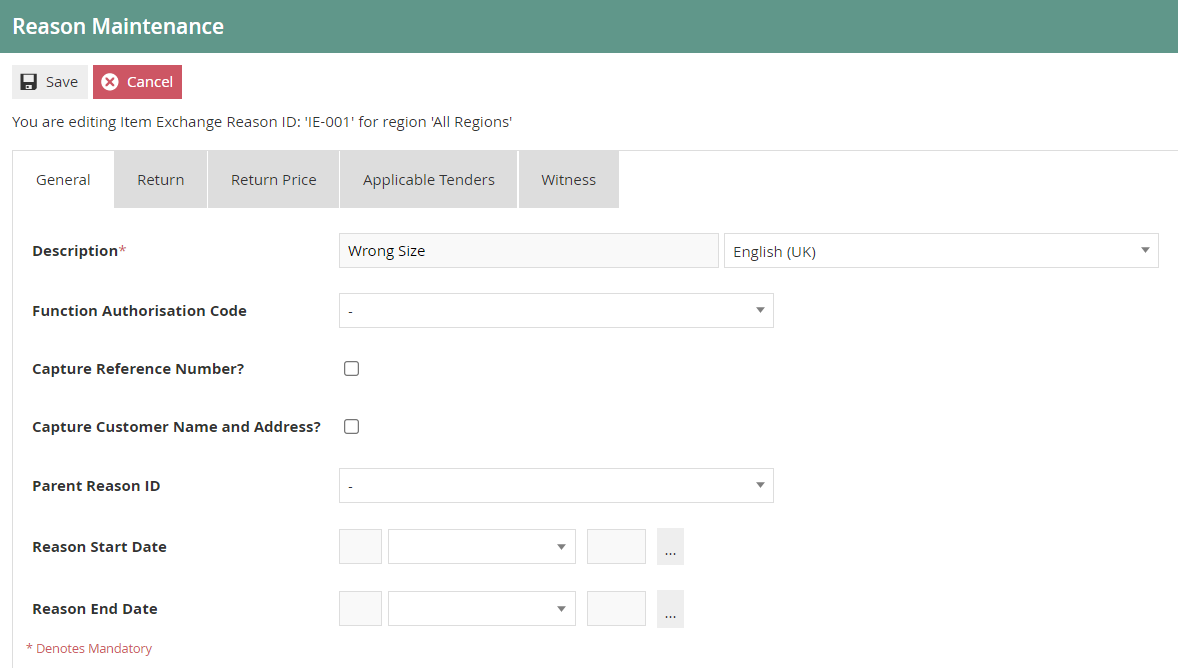
Item Exchange Reason allows setting the option to exchange an item for another one of the same item type. Both Item Return and Item Exchange Reason Types capture the same properties in the same set of tabs.
To create a new Reason, select Create a New Reason on the Reason Maintenance page.
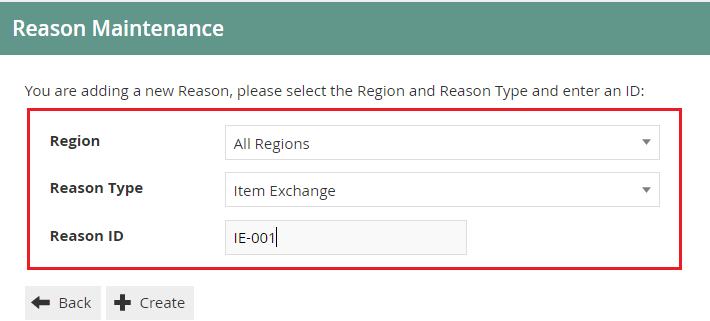
Select the Region from the Region drop-down. Select Item Exchange from the Reason Type drop-down. Enter a unique Reason ID for the new Item Exchange Reason.
Reason - General Tab
Set the appropriate values on the General Tab as per the sample on configuring Item Return Reason.
Reason - Return Tab
Set the appropriate values on the Return Tab as per the sample on configuring Item Return Reason.
Reason - Return Price Tab
Set the appropriate values on the Return Price Tab as per the sample on configuring Item Return Reason.
Reason - Applicable Tenders Tab
Set the appropriate values on the Applicable Tenders Tab as per the sample on configuring Item Return Reason.
Reason - Witness Tab
Set the appropriate values on the Witness Tab as per the sample on configuring Item Return Reason.
Select Save.
Multiple Reasons can be created for the Item Exchange Reason Type as required.
This completes the Item Exchange Reason configuration.
MMG Return
MMG Return Reason allows setting the option to make a department return of an item. A department return occurs when the operator is unable to locate the return item in the POS. Through MMG Return Reason, the operator is enabled to register a price against a department to proceed with the return of a product that is not available in the POS at the time of return.
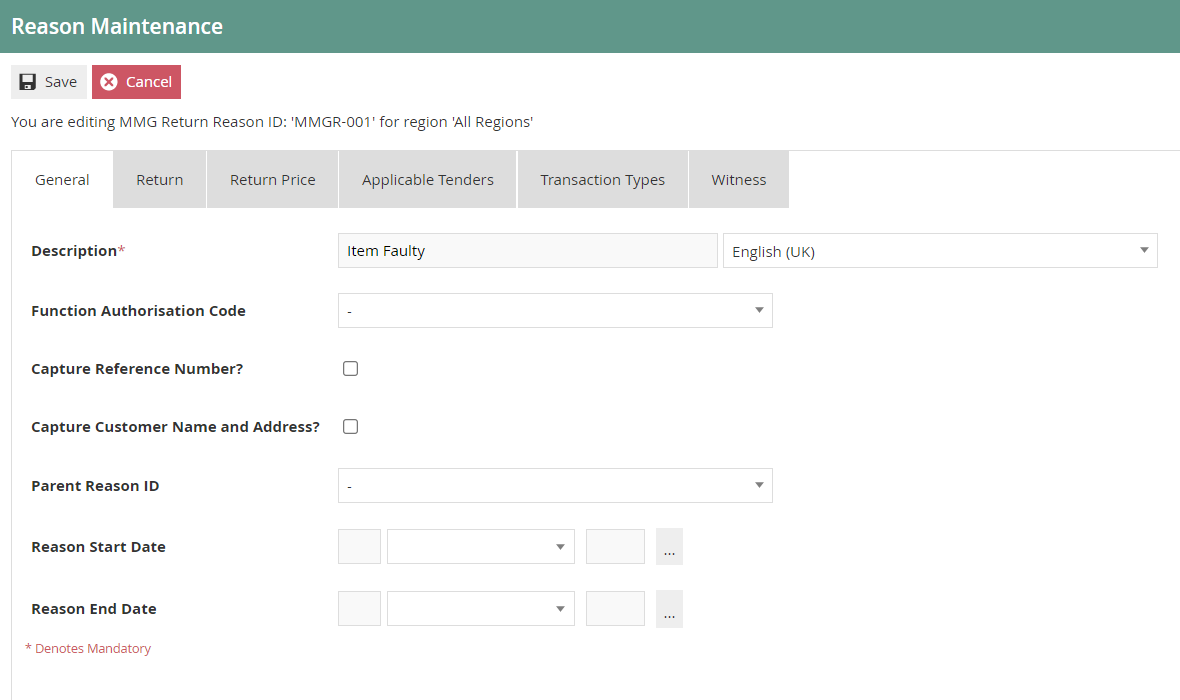
MMG Return captures the same properties as Item Return in the same set of tabs of the Reason Maintenance page.
To create a new Reason, select Create a New Reason on the Reason Maintenance page.
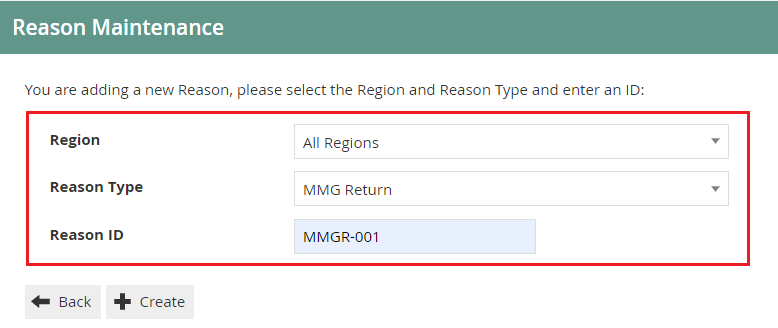
Select the Region from the Region drop-down. Select MMG Return from the Reason Type drop-down. Enter a unique Reason ID for the new MMG Return Reason.
Reason - General Tab
Set the appropriate values on the General Tab as per the sample on configuring Item Return Reason.
Reason - Return Tab
Set the appropriate values on the Return Tab as per the sample on configuring Item Return Reason.
Reason - Return Price Tab
Set the appropriate values on the Return Price Tab as per the sample on configuring Item Return Reason.
Reason - Applicable Tenders Tab
Set the appropriate values on the Applicable Tenders Tab as per the sample on configuring Item Return Reason.
Reason - Transaction Types Tab
All Transaction Types for this Reason can be selected here. If no transaction types are selected, it is assumed that the Reason is valid for all.
Reason - Witness Tab
Set the appropriate values on the Witness Tab as per the sample on configuring Item Return Reason.
Select Save.
Multiple Reasons can be created for the MMG Return Reason Type as required.
This completes the MMG Return Reason configuration.
Non-Merchandise Return
Non-Merchandise items are products or materials utilised in the process but not offered for sale by the store, such as carrier bags, hangers, and equipment. Non-Merchandise Return Reason allows setting the option to return such items.
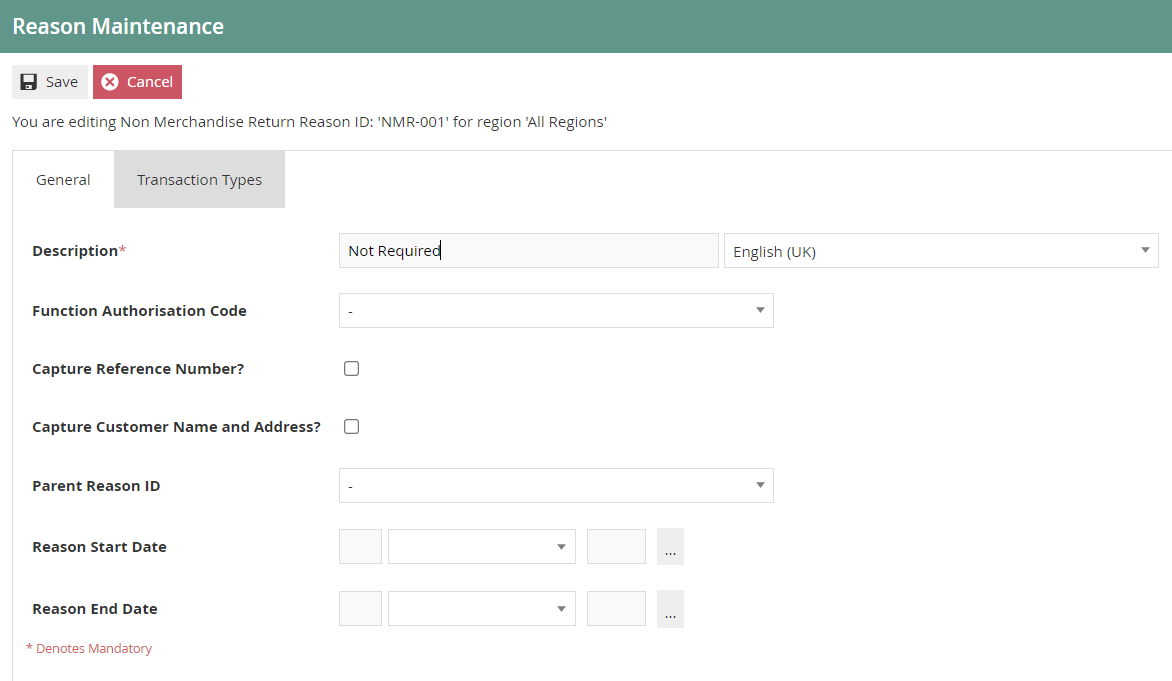
Non-Merchandise Return captures the same properties as Item Return in the General and Transaction Types tabs of the Reason Maintenance page.
To create a new Reason, select Create a New Reason on the Reason Maintenance page.
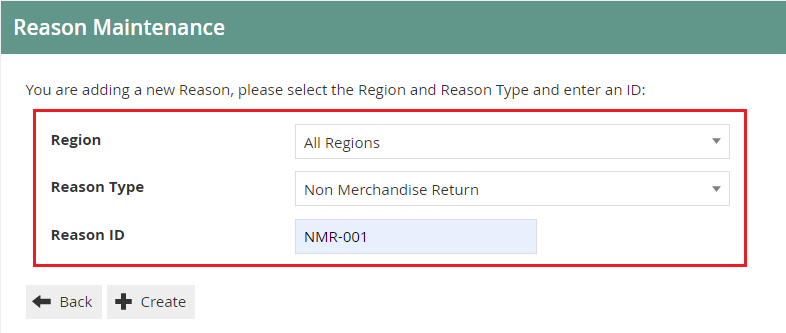
Select the Region from the Region drop-down. Select Non Merchandise Return from the Reason Type drop-down. Enter a unique Reason ID for the new Non-Merchandise Return Reason.
Reason - General Tab
Set the appropriate values on the General Tab as per the sample on configuring Item Return Reason.
Reason - Transaction Types Tab
All Transaction Types for this Reason can be selected here. If no transaction types are selected, it is assumed that the Reason is valid for all.
Select Save.
Multiple Reasons can be created for the Non-Merchandise Return Reason Type as required.
This completes the Non-Merchandise Return Reason configuration.
Menus
To enable the use of the above reasons, appropriate Menu and Role privileges should be configured separately.
Navigate to or use the path:
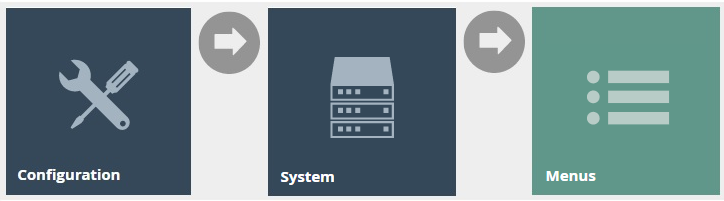
Main Menu > Configuration > System > Menus
The Sale Menu contains most of the functions that will be required by a retailer.
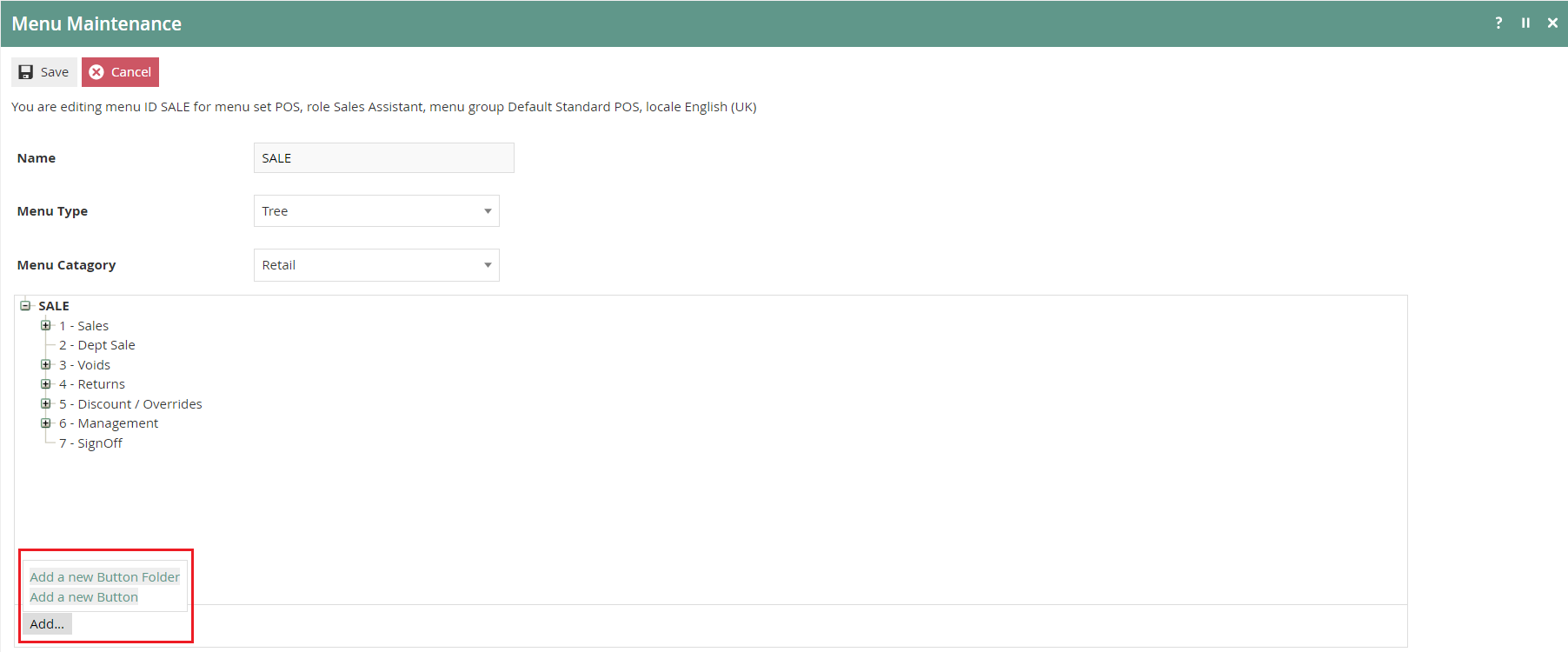
The following events can be configured in the Sale Menu for Return Reasons:
| Reason Type | Event Name | Event ID |
|---|---|---|
| Item Return | Item Return | ItemReturn |
| Receipt Return | Return From Receipt | ReturnFromReceipt |
| Item Exchange | Item Exchange | ItemExchange |
| MMG Return | Return Unknown Product | ReturnUnknownProduct |
This completes the Menu configuration.
Roles
Navigate to or use the path:
Main Menu > Configuration > HR > User Roles

Authorisation to run the specific functionality documented here is controlled with privileges maintained in Roles.
Select the appropriate Role to edit - the example here uses SALES_ASSISTANT.
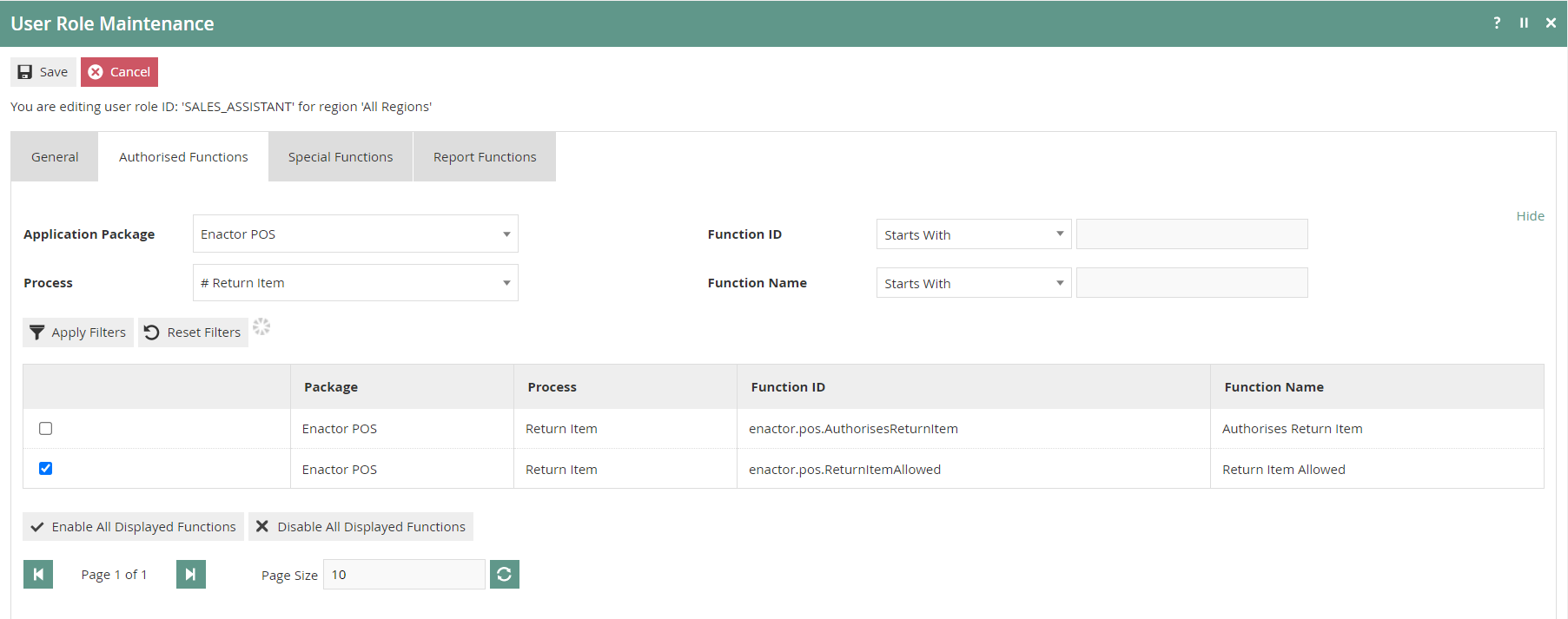
Select the Enactor POS package and configure the following privileges as required:
| Reason Type | Package | Function ID |
|---|---|---|
| Item Return | Enactor POS | enactor.pos.AuthorisesReturnItem |
| Item Return | Enactor POS | enactor.pos.ReturnItemAllowed |
| Receipt Return | Enactor POS | enactor.pos.AuthorisesReturnFromReceipt |
| Receipt Return | Enactor POS | enactor.pos.ReturnFromReceiptAllowed |
| Item Exchange | Enactor POS | enactor.pos.ExchangeItemAllowed |
| Item Exchange | Enactor POS | enactor.pos.AuthorisesExchangeItem |
| MMG Return | Enactor POS | enactor.pos.AllowUnknownProductReturn |
This completes the Roles configuration.
Tender
Tender configuration provides the means to enable and control the conduct of payment options for returns.
Navigate to or use the path:
Main Menu > Configuration > Financial > Tenders

Edit the appropriate Tenders that should be included in the Return Reason configuration process. The example shown uses the CASH_UK tender.
Tender - Restrictions 1 Tab
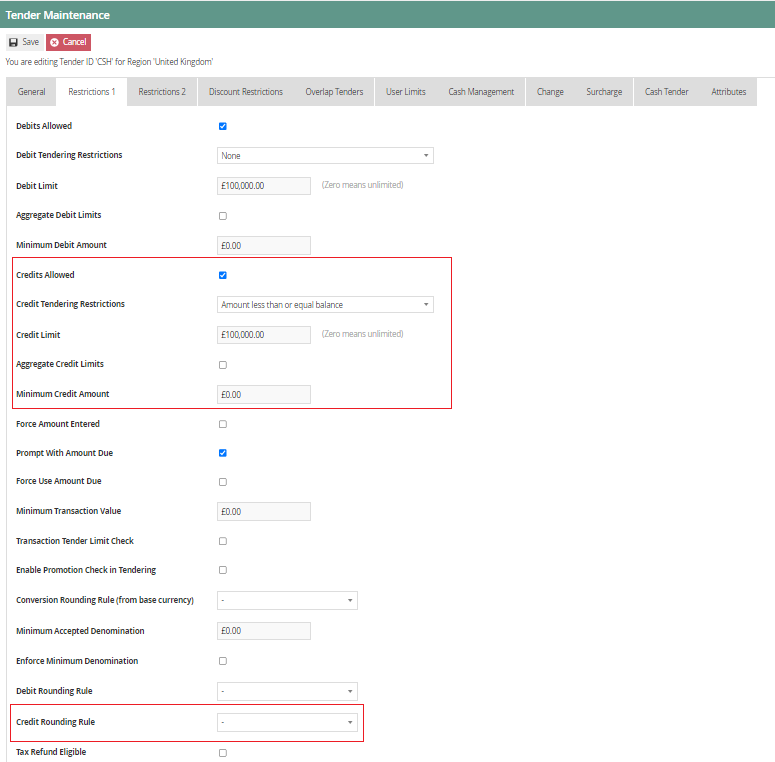
| Configuration | Description |
|---|---|
| Credits Allowed | Select checkbox to indicate if the customer can receive a return amount using this tender. |
| Credits Tendering Restrictions | Select the applicable option from the drop-down list to set constraints on the amount to be paid in the return using this Tender option. Amount less than or equal balance is generally applicable. |
| Credit Limit | Enter a numeric value to determine the maximum amount that may be paid back using this Tender (0.00 indicates unlimited). |
| Aggregate Credit Limits | Select checkbox to indicate that, in a multi-part payment, the amounts paid with Tenders of this type should be accumulated to apply the Credit Limit restriction. |
| Minimum Credit Amount | Enter a numeric value to determine a threshold amount below which this Tender type cannot be used for full or part return. |
| Credit Rounding Rule | Select the applicable option from the drop-down list to determine the minimum accepted denomination for credits. |
Tender - Restrictions 2 Tab
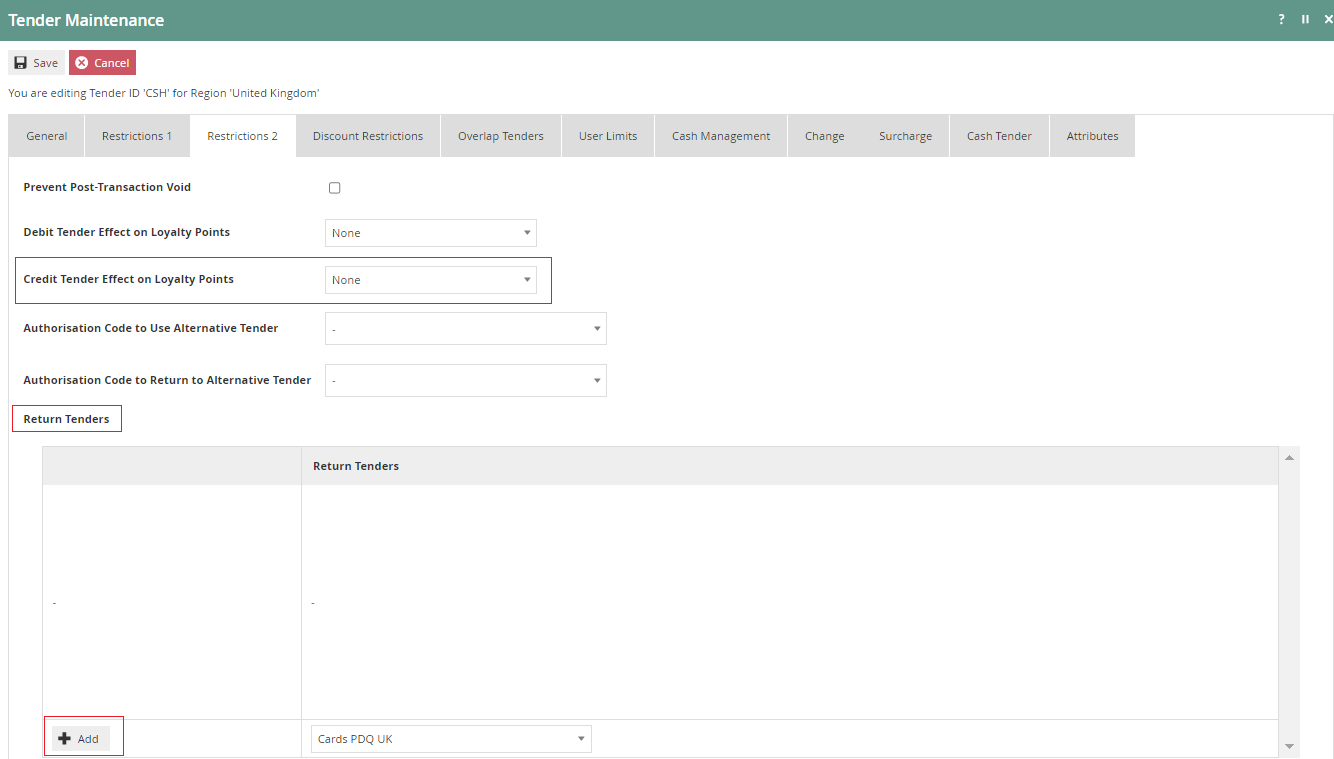
| Configuration | Description |
|---|---|
| Credit Tender Effect on Loyalty Points | Select from the drop-down list the effect a return or refund will have on customers' Loyalty points. Either None or Deduct Loyalty points are generally applicable. |
| Return Tenders | Select the applicable return tender type(s) from the drop-down list of all configured Tenders. This enables the definition of allowed return tenders. Multiple options may be added. |
This completes the Tender configuration.
Broadcasting
To deliver the configuration changes to the POS, broadcast the following entities: Reasons, Menus, Roles, Tenders.
POS Functionality
Item Return
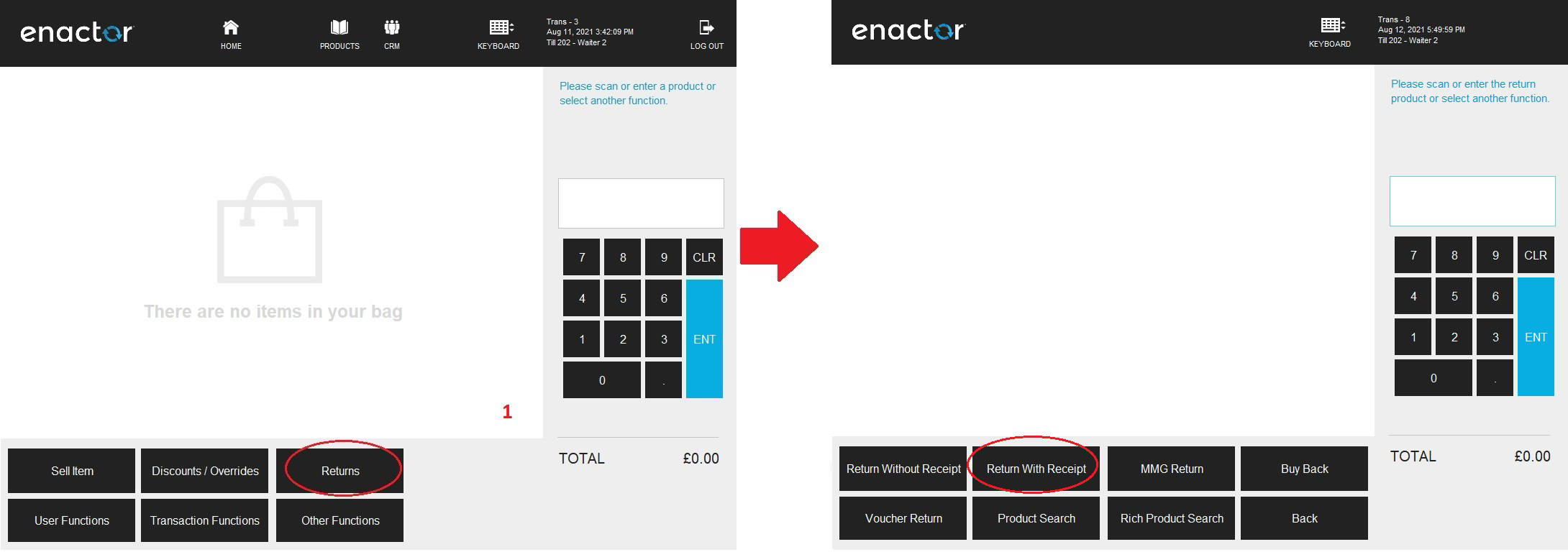
Select the Return option as shown on screen 1. Select Return Without Receipt as shown on screen 2. The operator may either scan a barcode, enter the product code, or use product search to identify the product that requires returning.
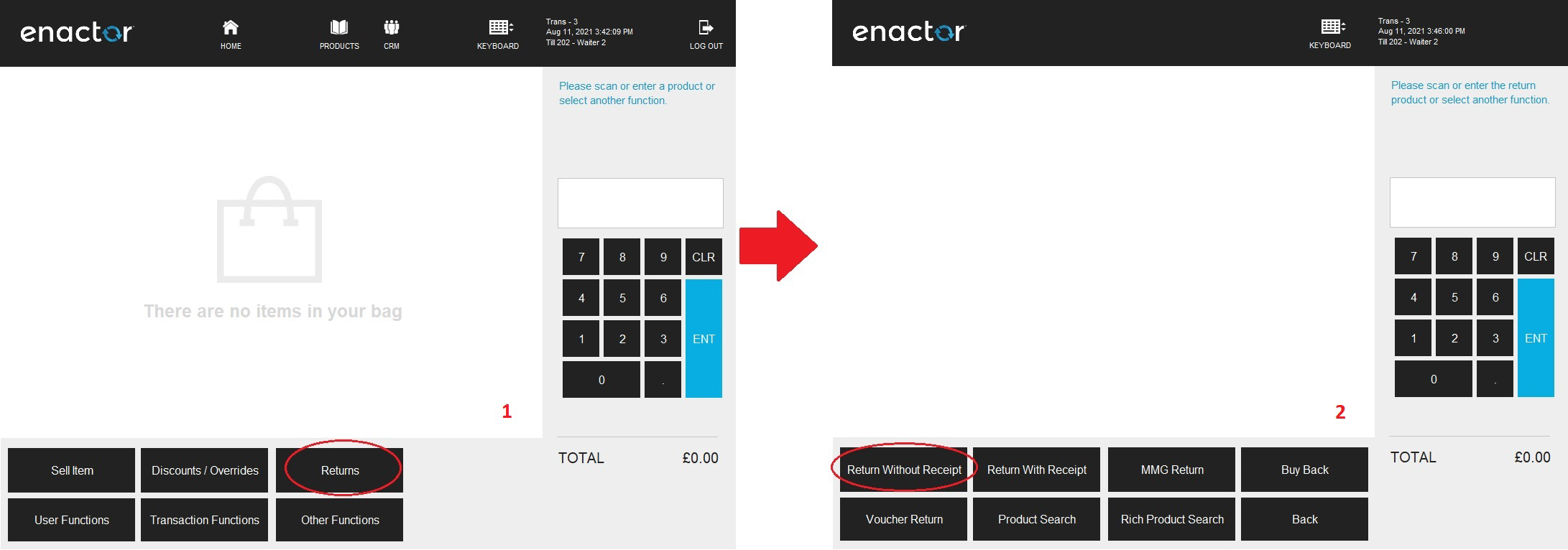
On entering the product code, the operator will be presented with the option to Return Item as shown on screen 3. The operator will then be prompted to select product details (Size, Colour etc.) as shown on screen 4. On selection of accurate details, select OK to proceed.
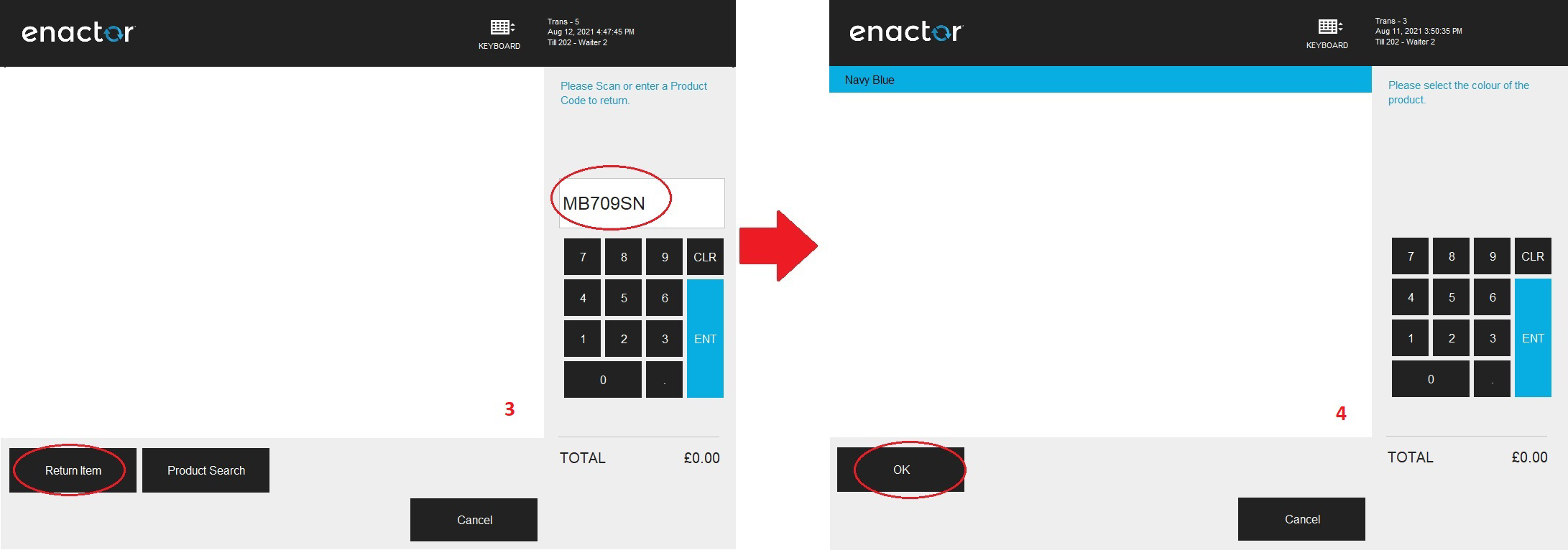
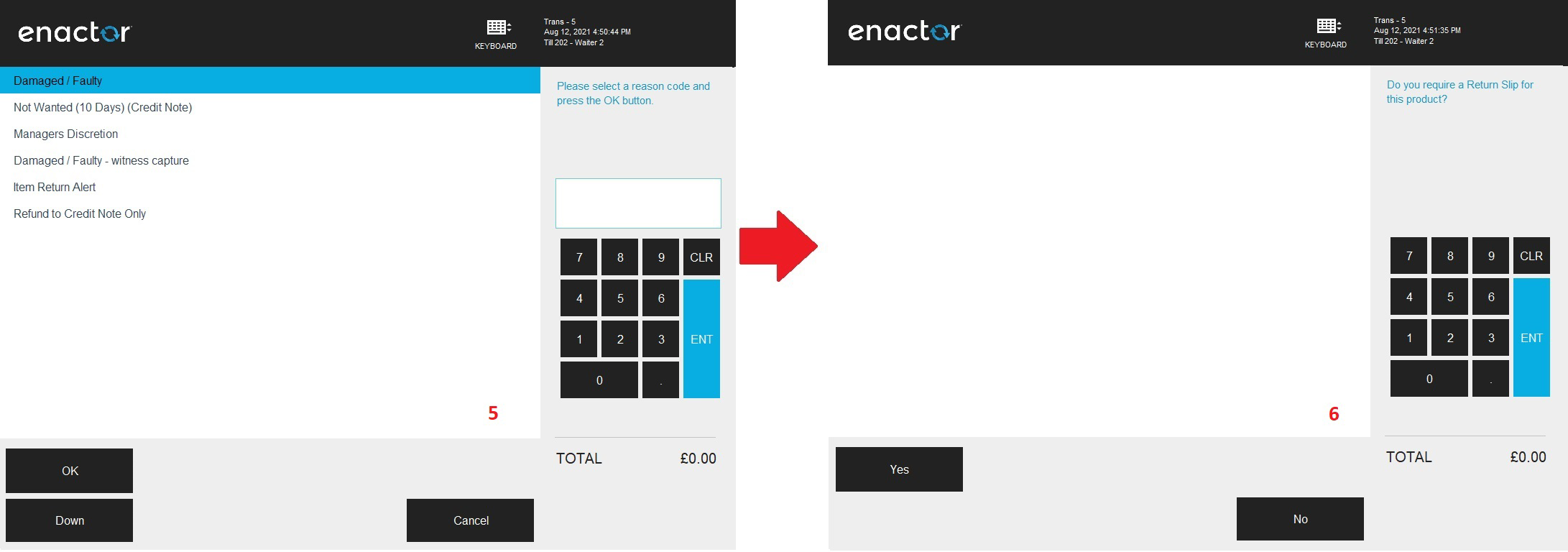
The operator can then select the applicable Reason and click OK to apply the Item Return function to the selected product. As shown on screen 4, the operator will be promoted to select whether a return slip is required for this Item Return.
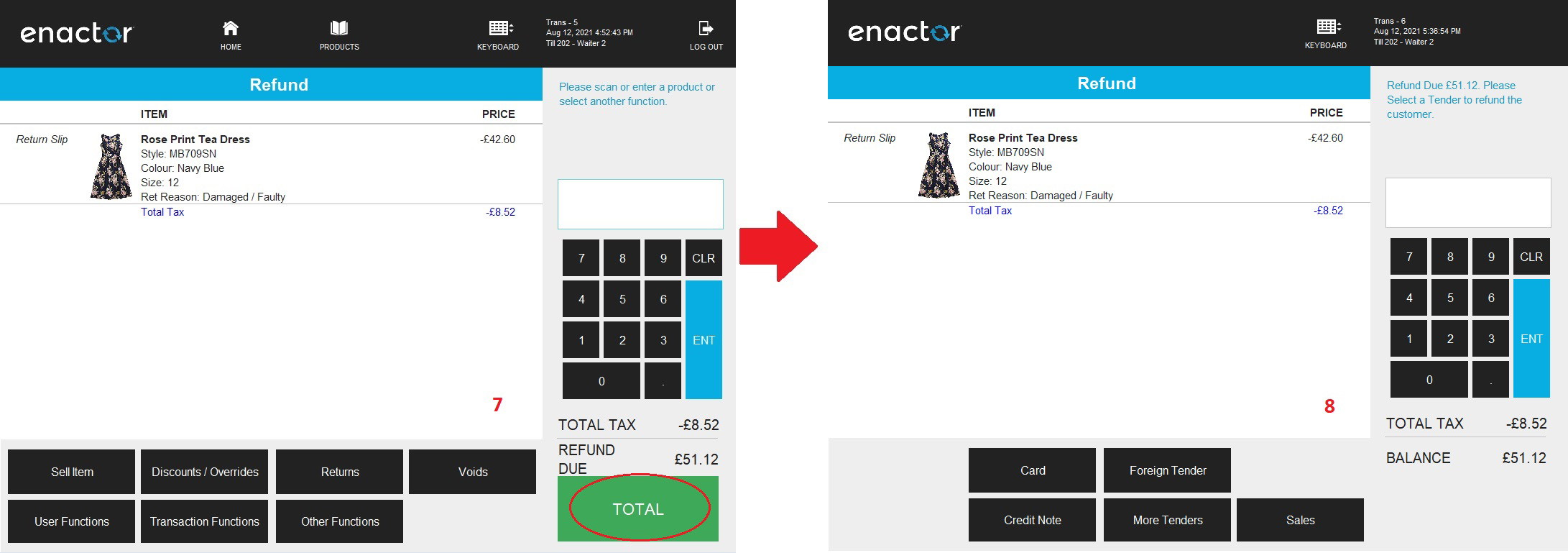
Select Total as shown on screen 7. On confirmation of the balance due, select the applicable tender as shown on screen 8 to refund the customer and complete the Item Return.
Receipt Return
Select the Returns option as shown on screen 1. Select Return With Receipt as shown on screen 2.
The operator may either scan a barcode, enter the product code, or select the Return With Receipt button as shown on screen 3 to search using the original transaction details. Enter transaction details as shown on screen 4 and select Search.
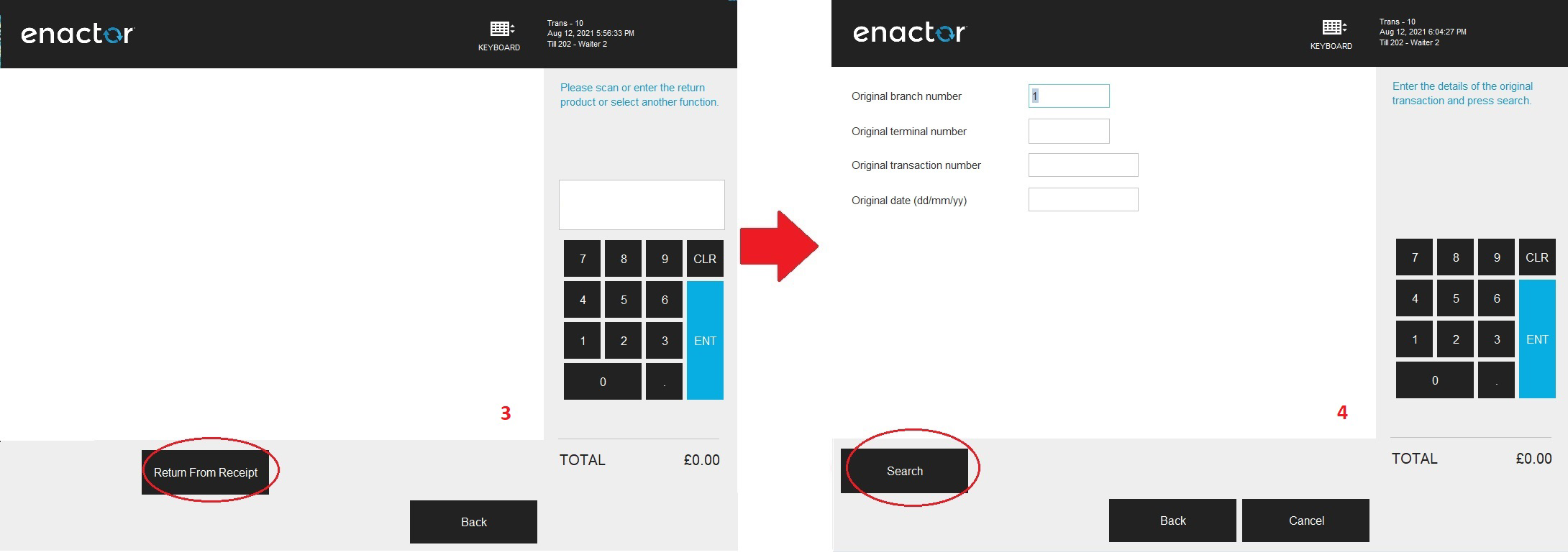
Select the transaction from the list and select the Select button as shown on screen 5. As shown on screen 6, all transaction details will be shown for the operator to select from. If there are multiple products, select an individual product to return (it will be highlighted in blue), or select Return Entire Receipt to perform a return of the entire transaction. Select Finish to proceed.
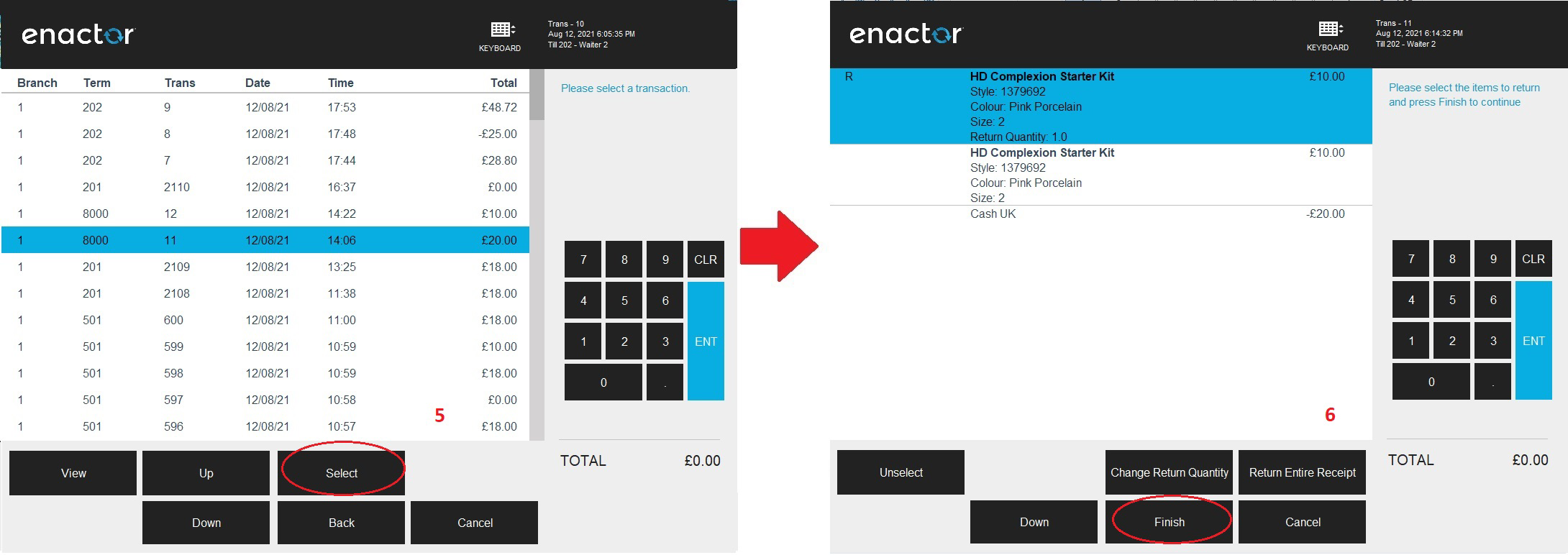
The operator can then select the applicable Reason and click OK as shown on screen 7. Select Total as shown on screen 8 to confirm the total refund amount due.
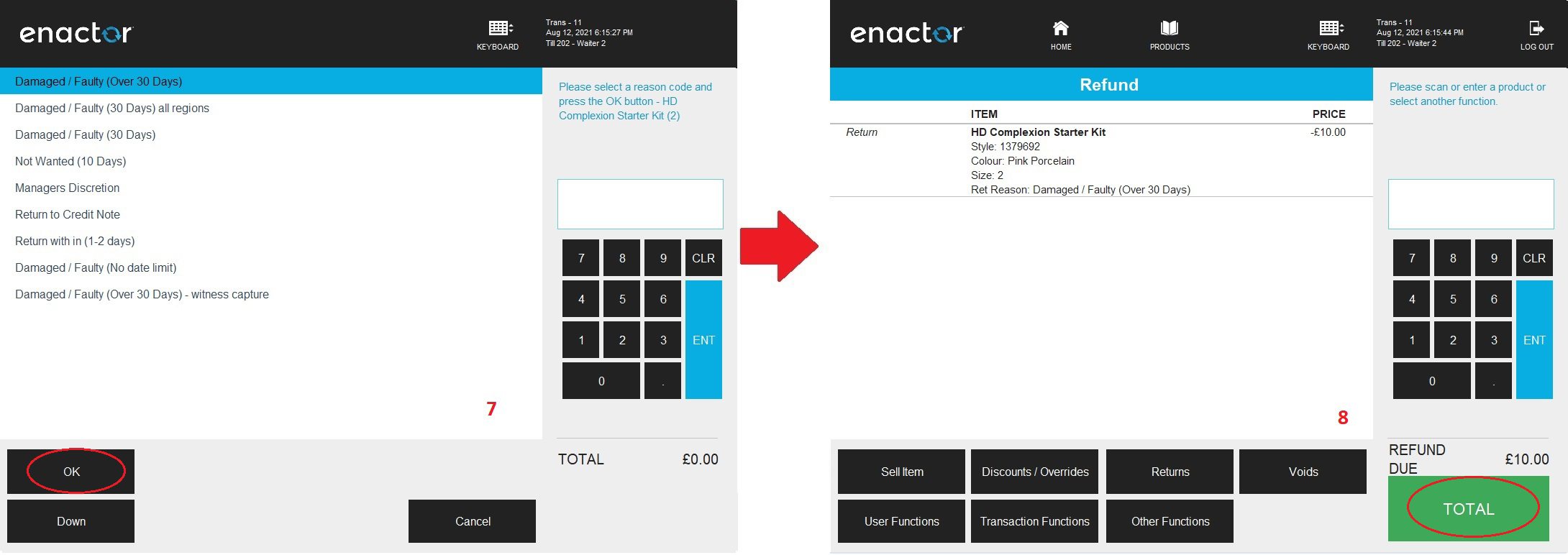
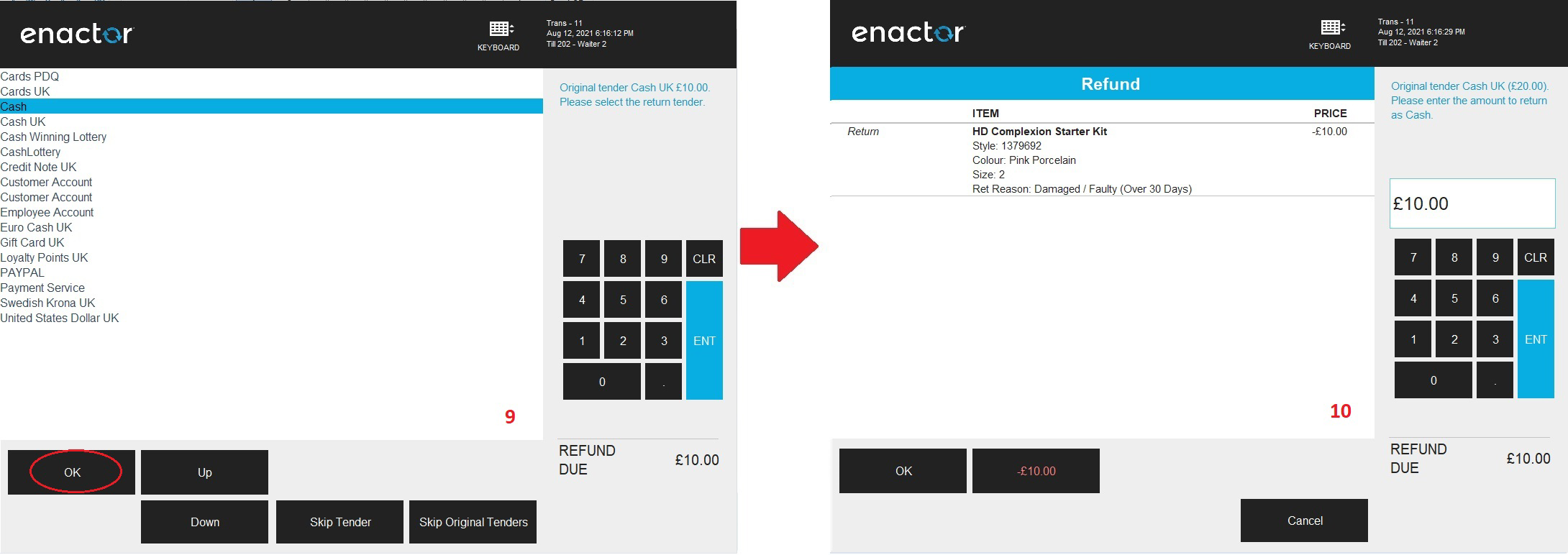
Select the applicable Tender type as shown on screen 9 and select OK to proceed. Based on the tender chosen, the operator will be prompted to proceed with the receipt return.
MMG Return
Select the Returns option as shown on screen 1. Select MMG Return as shown on screen 2.
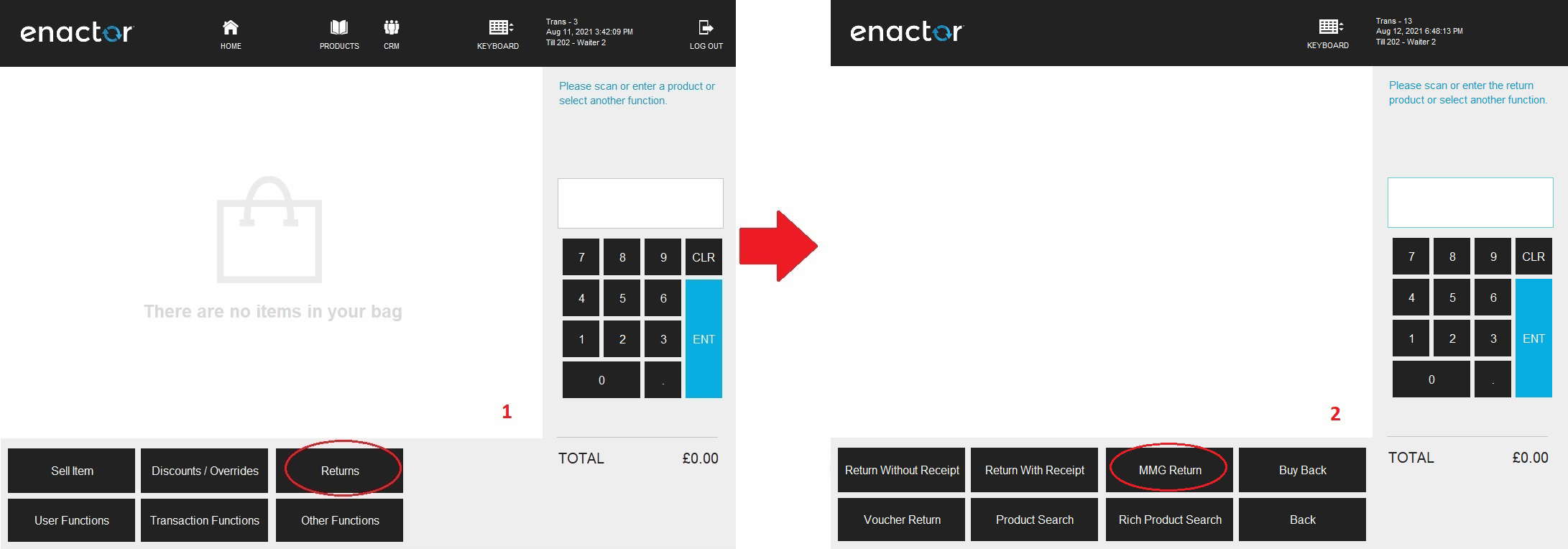
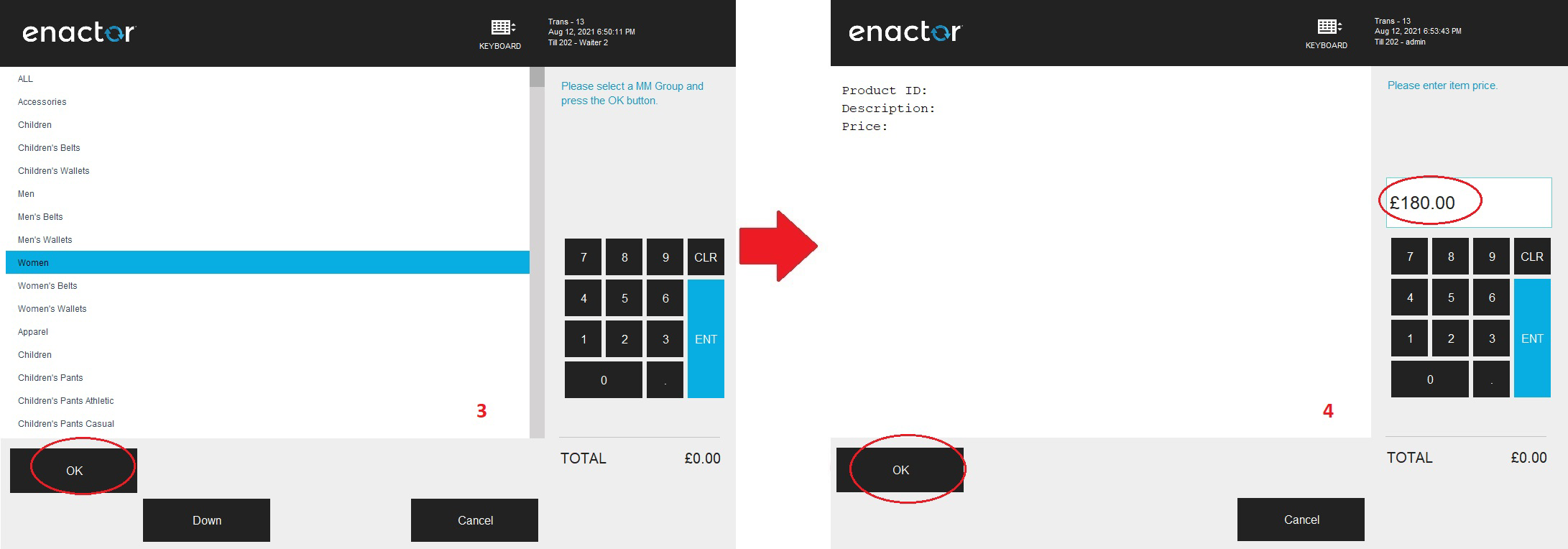
Select the MM Group as shown on screen 3 and select OK. Only operators with the required privileges can perform MMG Returns.
If the operator has the required privileges, as shown on screen 4 they will be prompted to enter a price against the product that the customer wishes to return. Enter the product price and select OK to proceed.
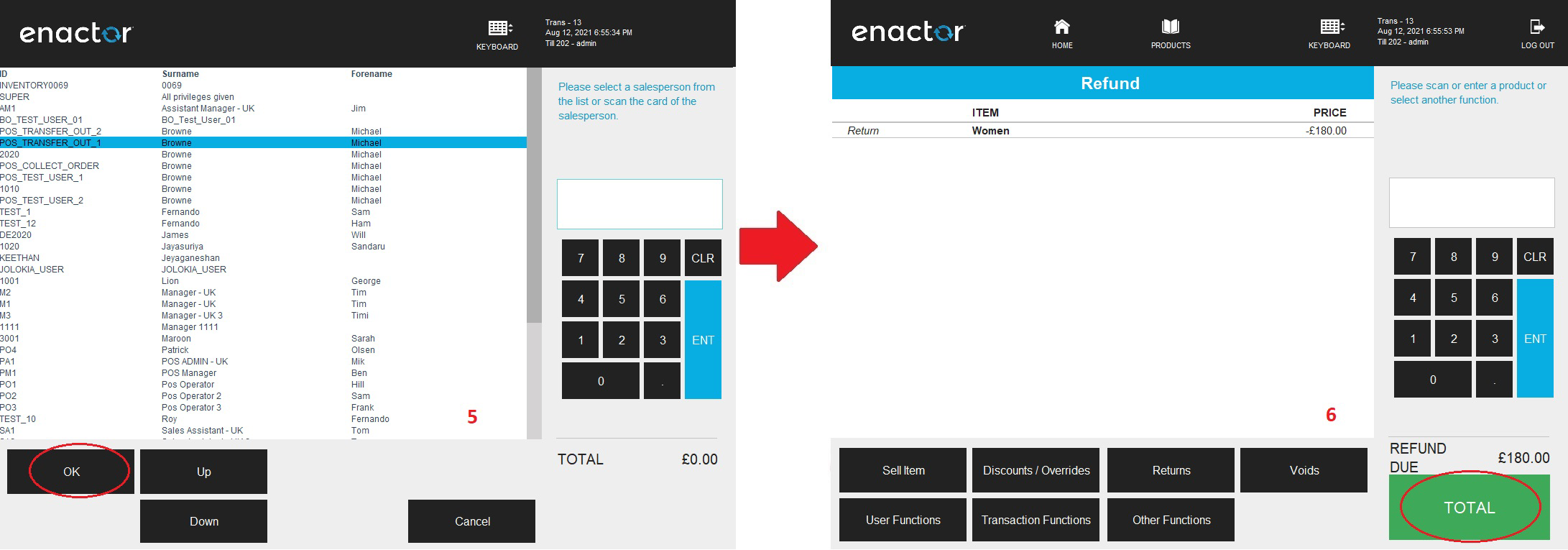
Select a salesperson from the list as shown on screen 5 and select OK to proceed. Complete the MMG Return and refund the due amount to the customer after selecting the applicable tender type.
About This Document
©2021 Enactor Ltd
All documents produced by Enactor Ltd are supplied to customers subject to Copyright, commercial confidentiality and contractual agreements and must not be copied or transferred without permission.
Current Document Version
Document Version 1.0 Product Version 2.6
Document Inquiries
For matters of document quality or any other inquiries regarding this document, please contact:
By Email: documentation@enactor.co.uk