How To Configure Tax - UK
Introduction
The purpose of this guide is to show how to configure the Enactor Estate Manager and POS to calculate Tax correctly. This guide uses UK VAT as the model, but other tax regimes can be equally well supported with the appropriate configuration.
In the Enactor Retail System, tax is managed through a set of interrelated entities: Tax Regions define geographical areas, Tax Schemes act as containers for tax rules, Tax Rates define percentage values, Tax Groups categorise products, and Tax Group Tax Methods link everything together. Each Location is then assigned a Tax Region and Tax Scheme to determine which rules apply at that store.
The purpose of this guide is to demonstrate the steps required to configure all of these entities for UK VAT, assign them to products and locations, and broadcast the configuration to the POS.
Overview
The following steps are required to configure UK Tax:
- Tax Region Configuration - Create a Tax Region group for the United Kingdom
- Tax Scheme Configuration - Create a Tax Scheme to contain the UK VAT rules
- Tax Rate Configuration - Define the Standard (20%), Reduced (5%), and Zero (0%) VAT rates
- Tax Group Configuration - Create Tax Groups to categorise products by tax treatment
- Product Configuration - Assign Tax Groups to products
- Tax Group Tax Method Configuration - Link Tax Groups, Tax Regions, Tax Schemes, and Tax Rates together
- Location Configuration - Apply the Tax Region and Tax Scheme to each store location
- Broadcasting - Deliver the configuration to the POS and store server devices
Prerequisites
Before starting, you should have the following resources in place:
- Enactor Estate Manager
- Enactor POS (configured within the UK Region, connected to the Estate Manager)
- Standard Configuration, including:
- Base Configuration
- UK Retail (if UK Retail configurations are imported, the tax configuration described will already exist - this guide explains all the tax configurations required)
- Examples of data to be used as models, particularly product data
You should be familiar with the following:
- Estate Manager configuration
- Enactor configuration concepts, including Locations, POS Terminals, Products etc.
- Data broadcasting
- Standard POS sales processes
Configuration Steps - Tax Region Configuration
The first step is to configure the Tax Region to which the Tax Scheme will be applied. A Tax Scheme is the container for all the tax rules applicable to a sales tax regime such as UK VAT. Tax Regions allow the same Tax Scheme to be applied in different geographical regions, with applicable rates for each region. However, they are frequently used with a one-to-one relationship to Tax Schemes.
Tax Region is an example of a Group configuration, so it is accessed using Group Maintenance.
Accessing Group Maintenance
Navigate to Group Maintenance using the Search or the path:
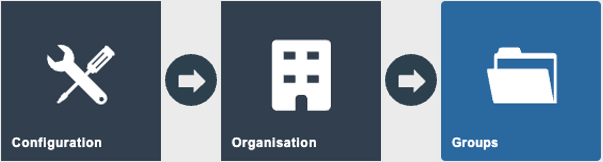
Main Menu > Configuration > Organisation > Groups
Select the Group Type of Tax Region from the drop-down.

A single Tax Region hierarchy is usually used for all regions. Click on the Edit icon by the existing "All Regions" hierarchy.
This will then display the regions within the hierarchy:

To add a new region under the "All Regions" top-level group, select ALL (this will make the text bold) and then click on Add Tax Region.
Set the Group ID to UK and the Name to United Kingdom and click Create.

The hierarchy will show the new group in the list:

Click on Save.
This completes the Tax Region configuration.
Configuration Steps - Tax Scheme Configuration
The next step is to configure the Tax Scheme. The Tax Scheme is the "container" for all the configuration settings that relate to that scheme. Multiple Tax Schemes can be maintained in the same Enactor solution. Each Tax Scheme will be relevant for specific area(s) of the Enactor estate (e.g. geographic regions).
Accessing Tax Scheme Maintenance
Navigate to Tax Scheme Maintenance using the Search or the path:
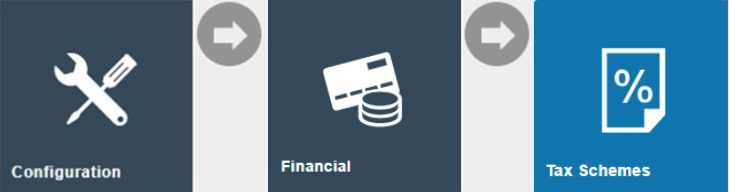
Main Menu > Configuration > Financial > Tax Schemes
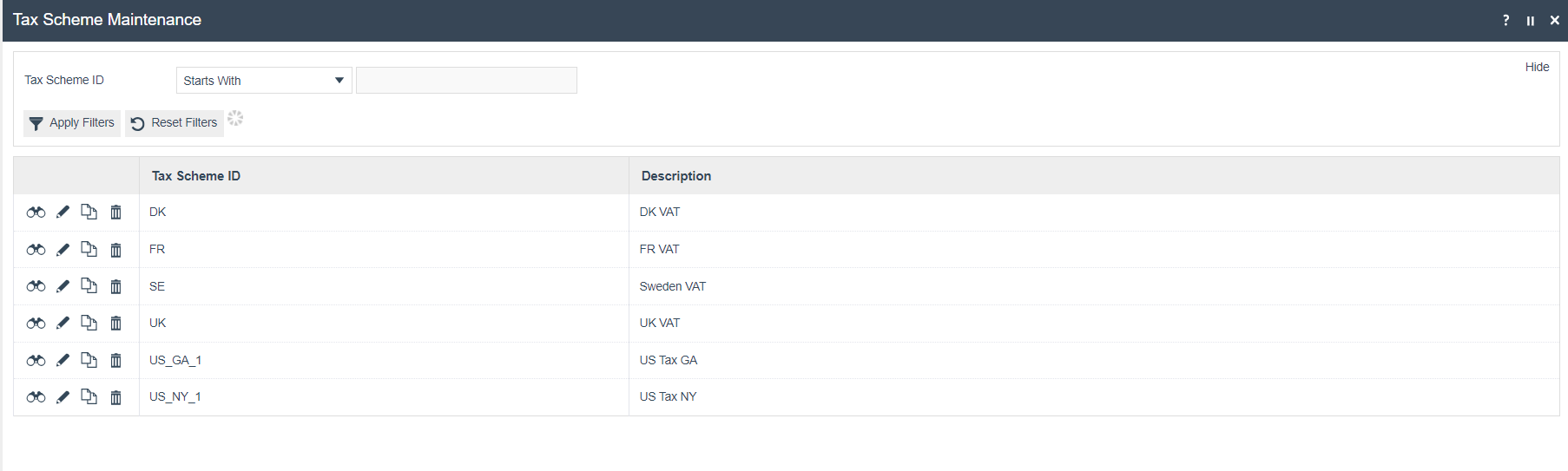
The set of existing Tax Schemes will be shown:
Creating a New Tax Scheme
Click on Create a New Tax Scheme. The Tax Scheme ID field is shown:

For UK VAT, use an ID of UK.
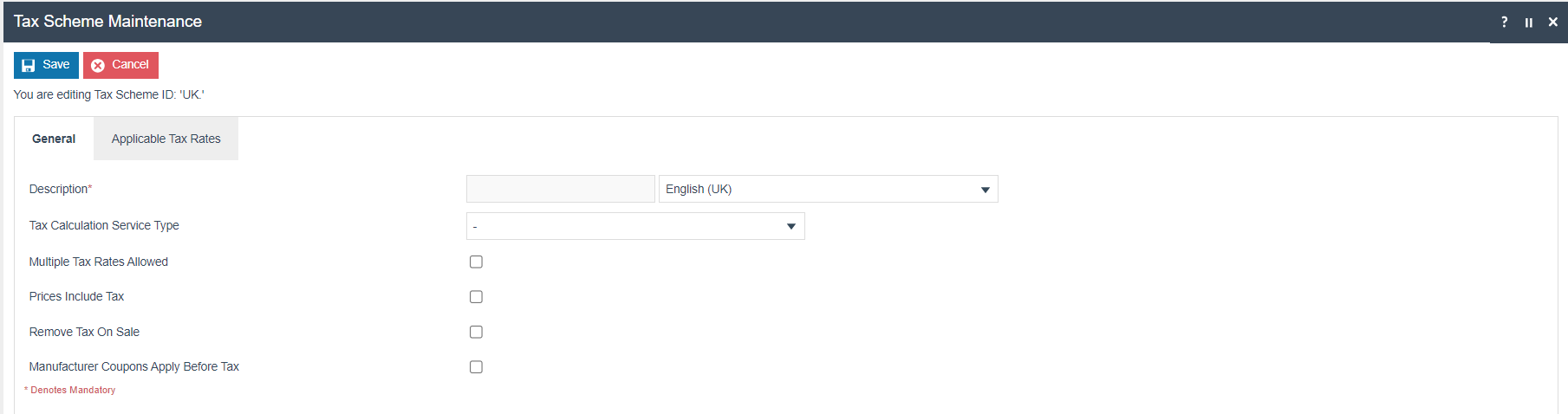
The Tax Scheme details page will be displayed:
Tax Scheme Fields
Set the appropriate values on the General tab as follows:
| Field | Description |
|---|---|
| Description | Alphanumeric; maximum 30 characters. A user-friendly, meaningful description by which users will identify the Tax Scheme and select in other contexts. Select the Locale in the second field from the dropdown list. |
| Tax Calculation Service Type | For UK, a Tax Calculation Service is not used. Leave this blank (implying that the Enactor solution will calculate the VAT). |
| Multiple Tax Rates Allowed | If checked, multiple tax rates may be applied from this Tax Scheme. UK does not use multiple tax rates. Leave this unchecked. |
| Prices Include Tax | If checked, prices normally include tax. Otherwise, tax is shown as a separate item on receipts. |
| Remove Tax On Sale | If checked, the tax portion of the price will be removed when the item is sold. |
| Manufacturer Coupons Apply Before Tax | Not relevant for UK VAT configuration. |
Click on Save to save the Tax Scheme configuration.
This completes the Tax Scheme configuration.
Configuration Steps - Tax Rate Configuration
Tax Rates are used for the various percentage rates of tax to be applied within the Tax Scheme. For UK VAT there are three rates:
| Rate ID | Rate Name | Percentage | Applies To |
|---|---|---|---|
| UKS | Standard Rate | 20% | Most products |
| UKR | Reduced Rate | 5% | Takeaway food, children's car seats etc. |
| UKZ | Zero Rate | 0% | Food, books, children's clothes etc. |
Three rates need to be created for the UK VAT Tax Scheme.
Accessing Tax Rate Maintenance
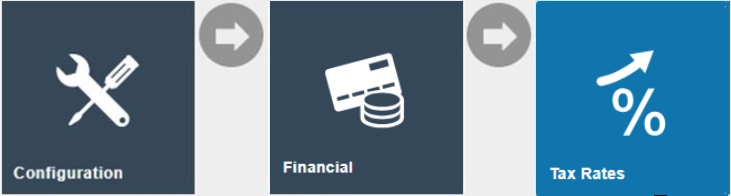
Navigate to Tax Rate Maintenance using the Search or the path:
Main Menu > Configuration > Financial > Tax Rates
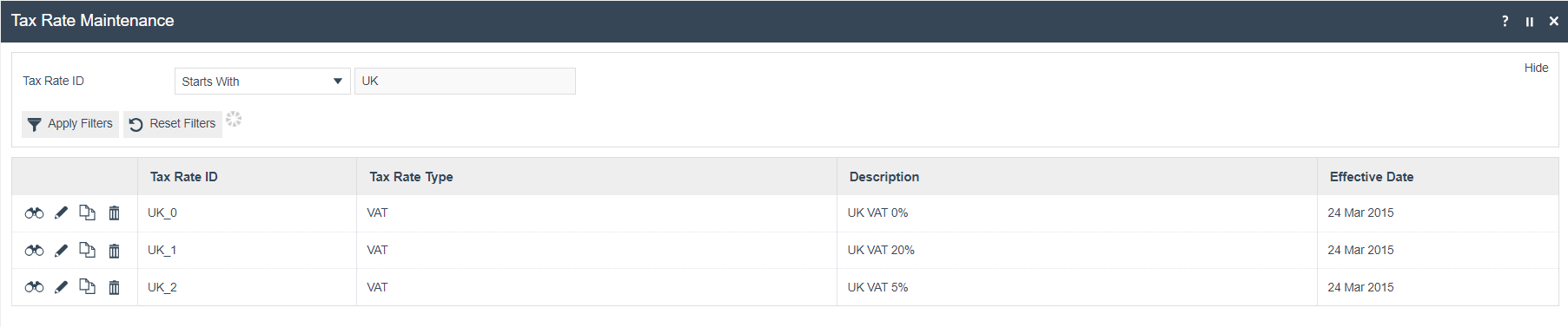
The list of currently configured Tax Rates is shown:
Creating a New Tax Rate
Click on Create a new Tax Rate. The initial Tax Rate Maintenance screen is then shown:

The Tax Rate Type defines how the tax will be calculated. Use VAT for simple schemes such as UK and EU countries. For countries with more complex rules where the rate is dependent on the value of the transaction, Tax Value or Tax Percentage tables can be used. Composite rates are used when multiple rates are applicable to each item.
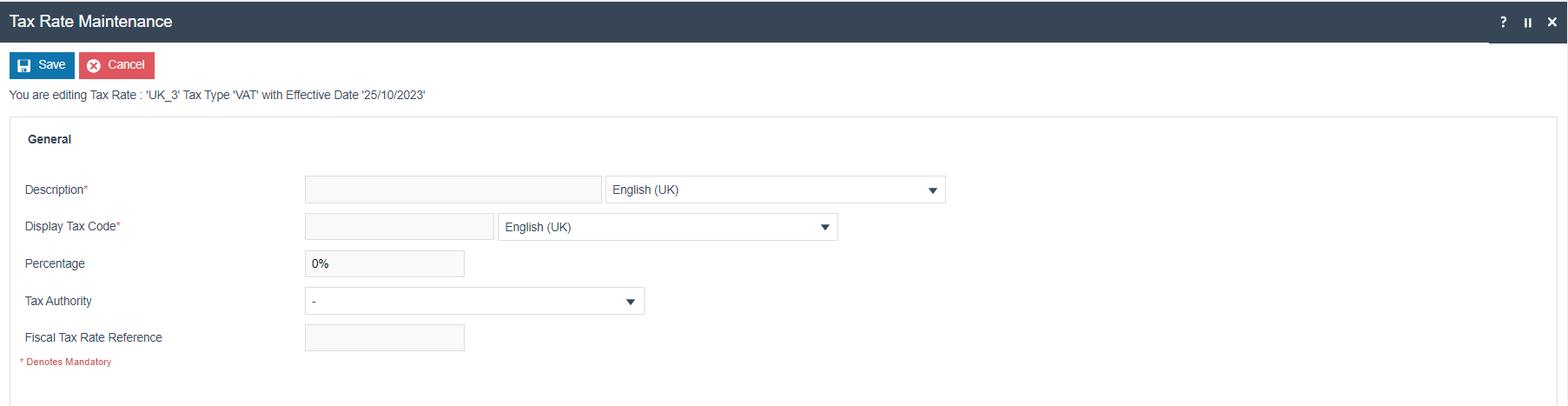
The Tax Rate Maintenance details page is then shown:
Tax Rate Fields
| Field | Description |
|---|---|
| Description | A meaningful name for the rate, e.g. UK Standard VAT. Select the locale from the dropdown. |
| Display Tax Code | A short code displayed on the POS receipt, e.g. S for Standard. |
| Percentage | The tax percentage to apply, e.g. 20% for the standard rate. |
| Tax Authority | Not relevant for UK tax. |
| Fiscal Tax Rate Reference | Not relevant for UK tax. |
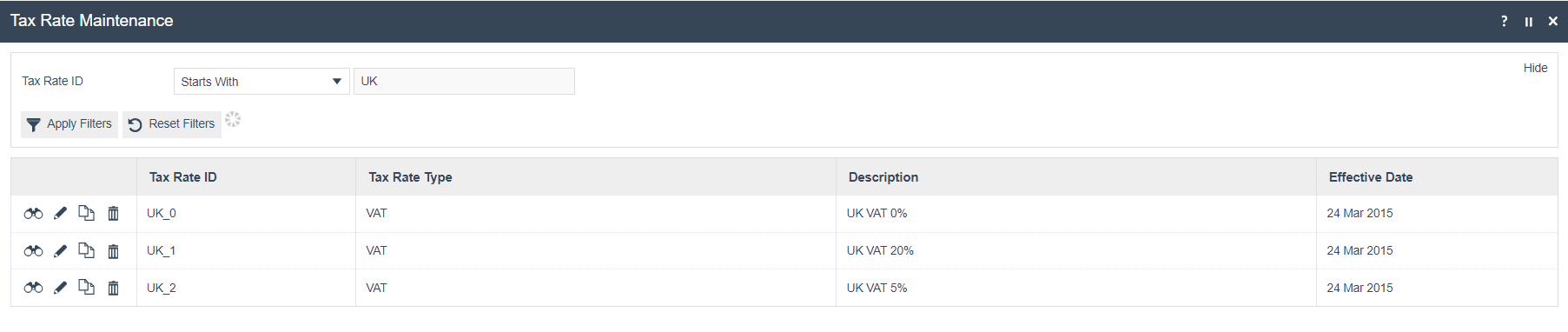
Save the rate. Repeat for the other two UK rates. This will create a set of three rates applicable for UK VAT:
If there is a new percentage for the same rate (e.g. the standard rate changes to 21%), create an additional rate with the same Tax Rate ID and a new effective date. This new rate will automatically take effect from that date.
Assigning Tax Rates to the Tax Scheme
The tax rates need to be assigned to the Tax Scheme. Edit the UK VAT Scheme in Tax Scheme Maintenance and click on the Applicable Tax Rates tab:
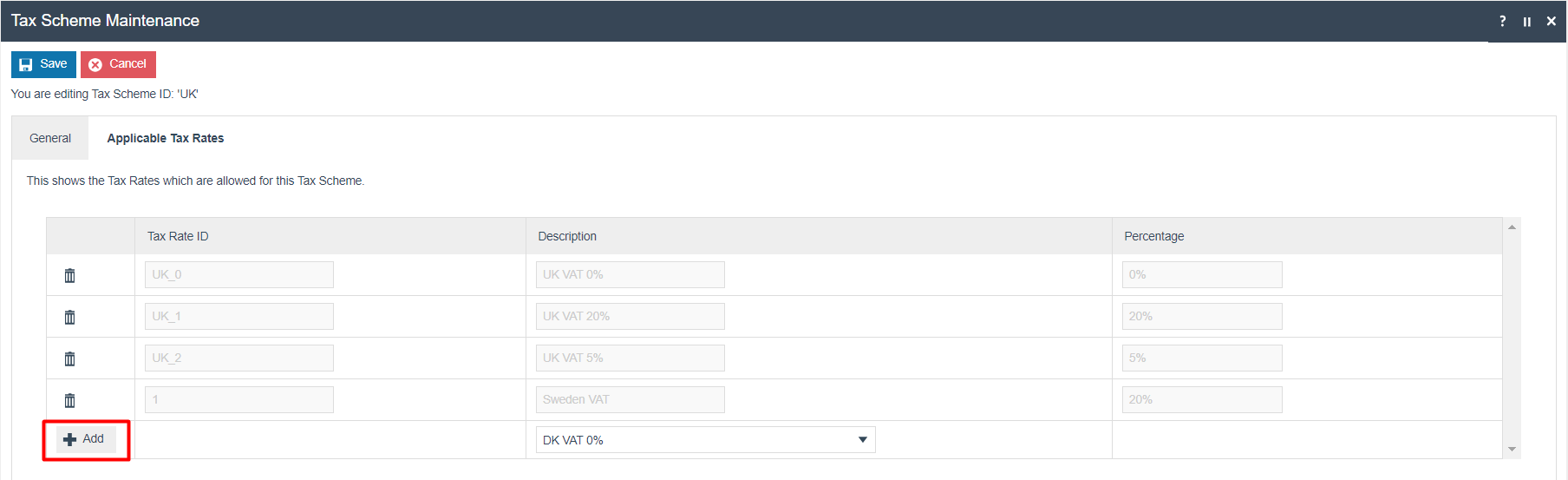
Select the rate from the drop-down and click on Add to add each of the three rates to the scheme.
The Tax Scheme will have three rates:
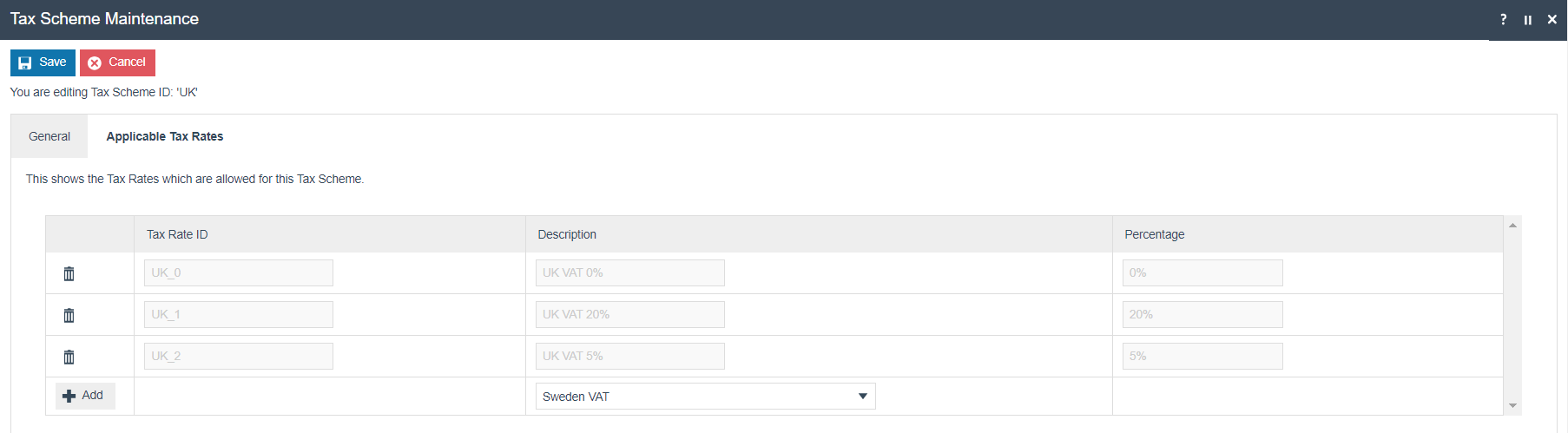
Then save the Tax Scheme.
This completes the Tax Rate configuration.
Configuration Steps - Tax Group Configuration
Tax Groups identify the products and categories that attract different levels of tax. For a retailer operating just in the UK, example groups might include General Merchandise, Food, Books, and Children's Clothes. If the retailer operates in multiple territories, more granular categories may be needed to set applicable rates in each territory.
For this example, the following Tax Groups will be set up:
| Tax Group ID | Tax Group Name | Applicable UK VAT Rate |
|---|---|---|
| A | Apparel | UKS (20%) |
| F | Food | UKZ (0%) |
| G | General Merchandise | UKS (20%) |
| T | Takeaway Food | UKR (5%) |
| B | Books | UKZ (0%) |
Accessing Tax Group Maintenance
Navigate to Tax Group Maintenance using the Search or the path:
Main Menu > Configuration > Financial > Tax Groups
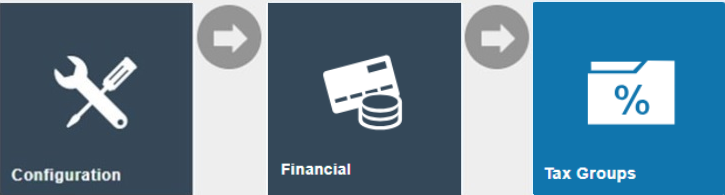
Tax Groups is a specific maintenance utility. It is not the same as the Groups maintenance utility.

Creating Tax Groups
For each group required, click on Create a new Tax Group.

Enter the Tax Group ID and click Create.

Tax Group Fields
| Field | Description |
|---|---|
| Tax Group ID | A unique identifier for the tax group, e.g. A, F, G. |
| Description | A meaningful name for the group, e.g. Apparel, Food, General Merchandise. |
| External Tax Group | Optional. For mapping to a third-party system if required. |
Enter the description and save. Repeat for the other groups:
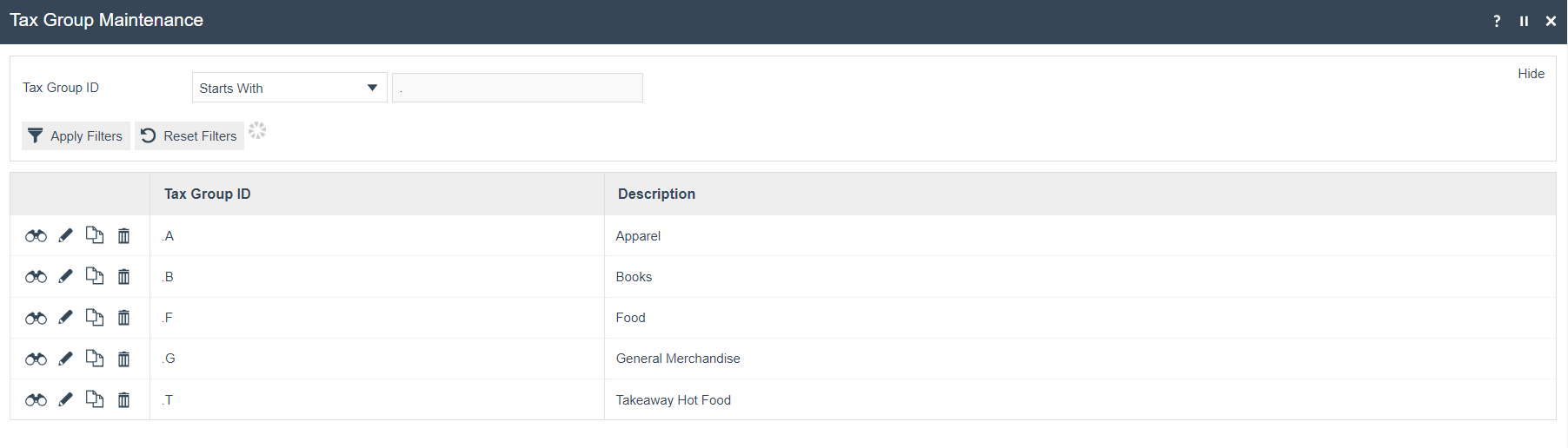
This completes the Tax Group configuration.
Configuration Steps - Product Configuration
The created Tax Groups need to be assigned to the relevant products.
This will normally be carried out externally to Enactor, using the system of record for product data (usually an ERP or PIM), and then imported via an integration process. Products will be configured manually within Enactor as examples.
Accessing Product Maintenance
Navigate to Product Maintenance using the Search or the path:
Main Menu > Configuration > Merchandise > Products
Edit an example product and navigate to the Tax tab:
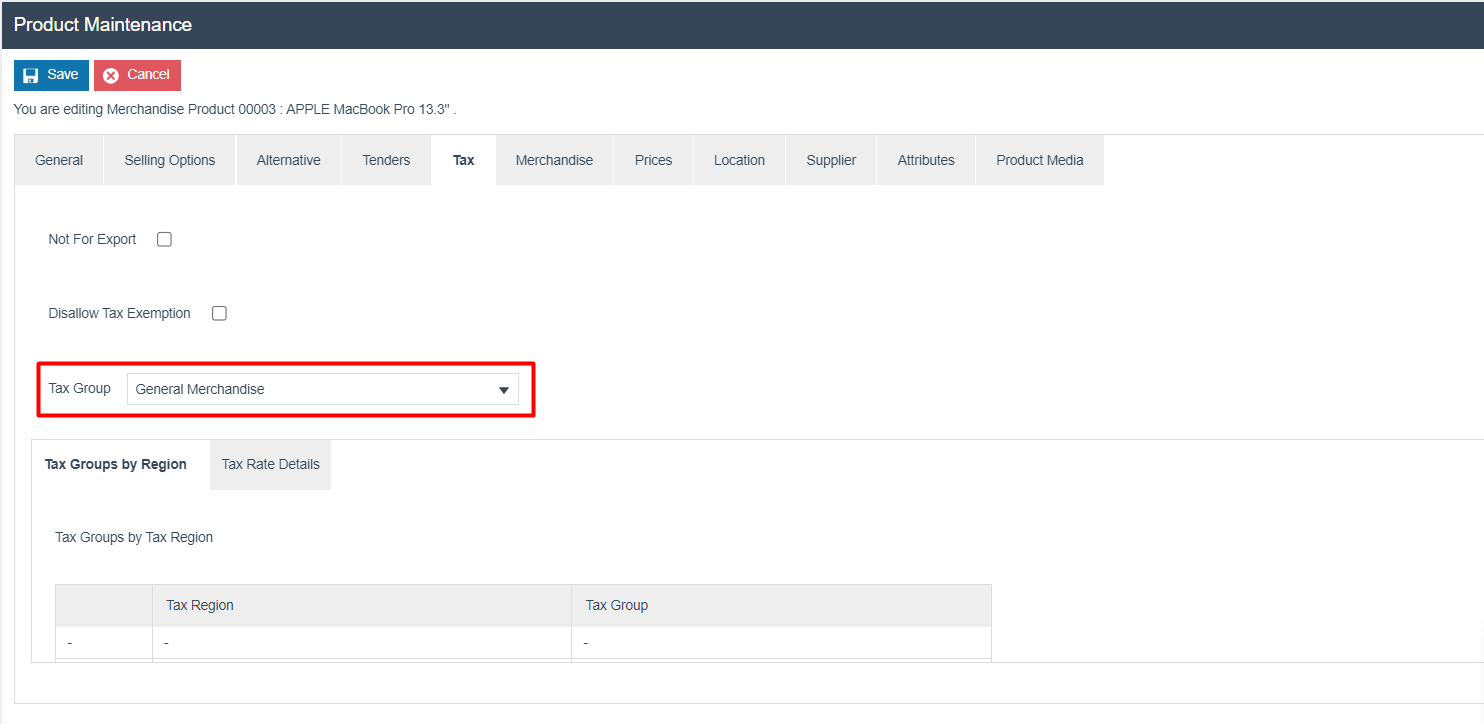
Product Tax Fields
| Field | Description |
|---|---|
| Not For Export | Not relevant for this example. |
| Disallow Tax Exemption | Not relevant for this example. |
| Tax Group | Select the appropriate Tax Group from the dropdown list. This applies the Tax Group globally (in all Tax Regions unless overridden). |
| Tax Groups by Region | Used when the Tax Group for this product is different in various regions. Set an alternative Tax Group for specific Tax Region(s). |
This completes the Product configuration.
Configuration Steps - Tax Group Tax Method Configuration
The configured Tax Regions, Schemes, Rates, and Groups need to be brought together so that the application can apply the rules in the right way. The Tax Group Tax Method mapping configuration is used for this purpose.
Accessing Tax Group Tax Method Maintenance
Navigate to Tax Group Tax Method Maintenance using the Search or the path:
Main Menu > Configuration > Financial > Tax Group Tax Method
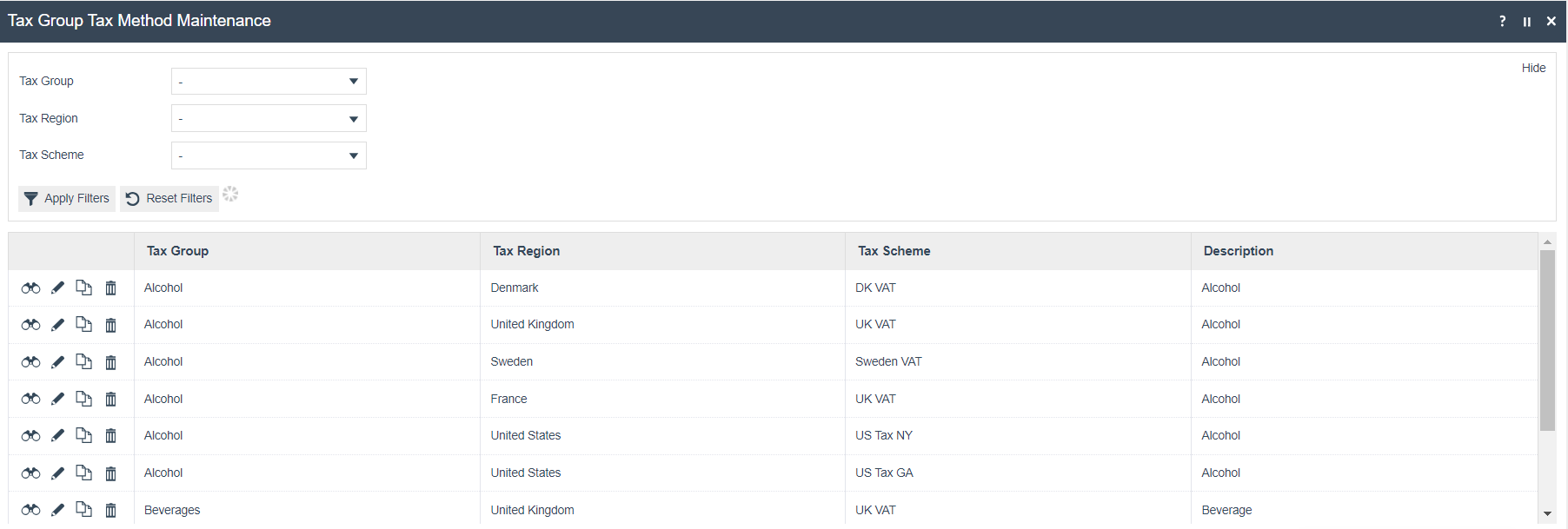
First, filter the list to the Tax Region relevant (United Kingdom). Then create the set of mapping records for each Tax Group.
Creating a Tax Group Tax Method
Click on Create a new Tax Group Tax Method.

Select the appropriate values for each of the three dropdowns. Choose each Tax Group in turn. The Tax Region should be United Kingdom. The Tax Scheme should be UK VAT. Then click Create.

Enter a description and choose the applicable Tax Rate from the dropdown. Then click Save.
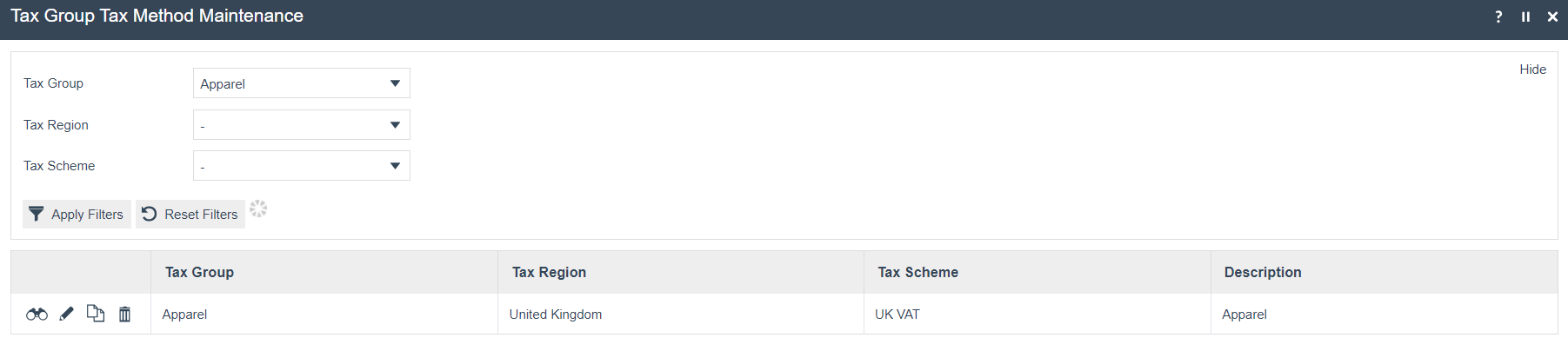
Repeat for each of the Tax Groups in the region. Apply the appropriate rate for each group.
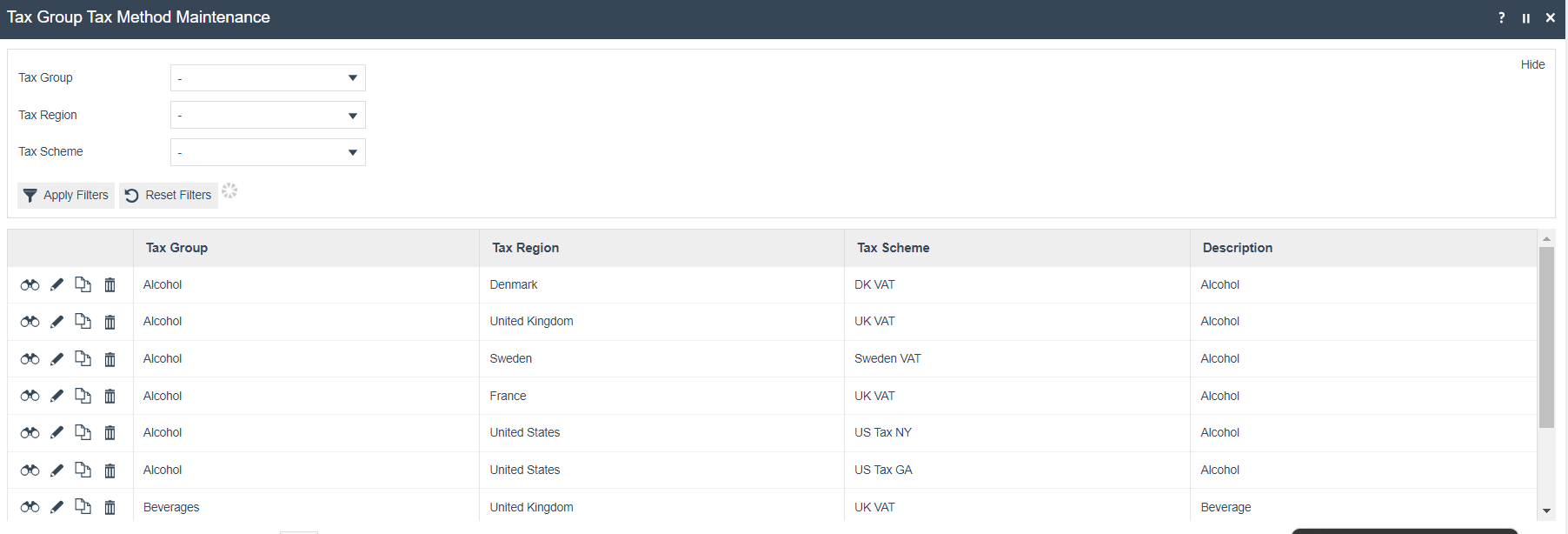
This completes the Tax Group Tax Method configuration.
Configuration Steps - Location Configuration
The final configuration step is to apply the Tax Region and Tax Scheme to each applicable location. This tells the application what tax rules to apply at each store.
As well as configuring tax directly using Location Maintenance, it is possible to use Location Templates (e.g. a UK Location template may be used to set UK VAT rules for all UK stores).
Accessing Location Maintenance
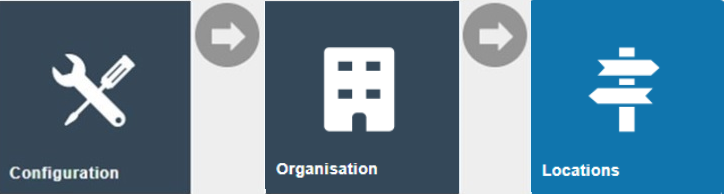
Navigate to Location Maintenance using the Search or the path:
Main Menu > Configuration > Organisation > Locations
Edit a UK store location and choose the General > Tax tab:
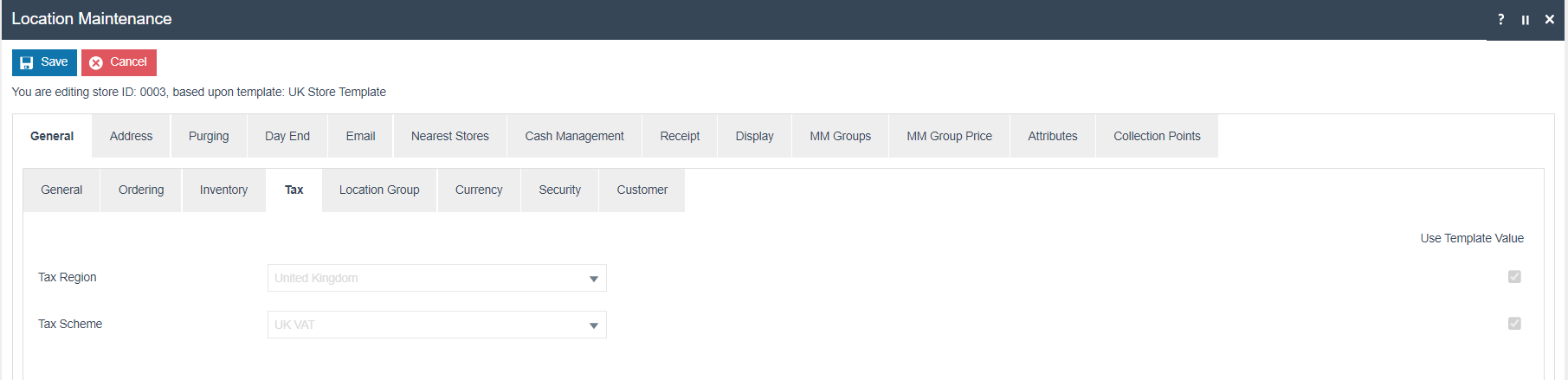
Location Tax Fields
| Field | Description |
|---|---|
| Tax Region | Select the Tax Region applicable to this store location, e.g. United Kingdom. |
| Tax Scheme | Select the Tax Scheme applicable to this store location, e.g. UK VAT. |
It is also possible to configure VAT rules at POS Terminal level. This would normally only be used where there are "special" POS Terminals within a store with non-standard tax rules. Generally the tax settings on the POS Terminal would be left blank, which causes the POS to fall back to the store location-level settings.
This completes the Location configuration.
Configuration Steps - Broadcasting and Testing
At this stage all the tax rules that have been configured should be broadcast to the applicable stores and devices. The Retail Static Data predefined broadcast configuration can be used for this.
Once all the rules have been broadcast, the till should be restarted to ensure it has applied the latest settings to all applicable entities.
Then transactions may be processed to confirm the configuration is working as expected.
If the POS is configured to display the tax breakdown on the receipt (in the POS Terminal Printing > Flags configuration), this can be immediately checked.
Example of a receipt with tax details included:
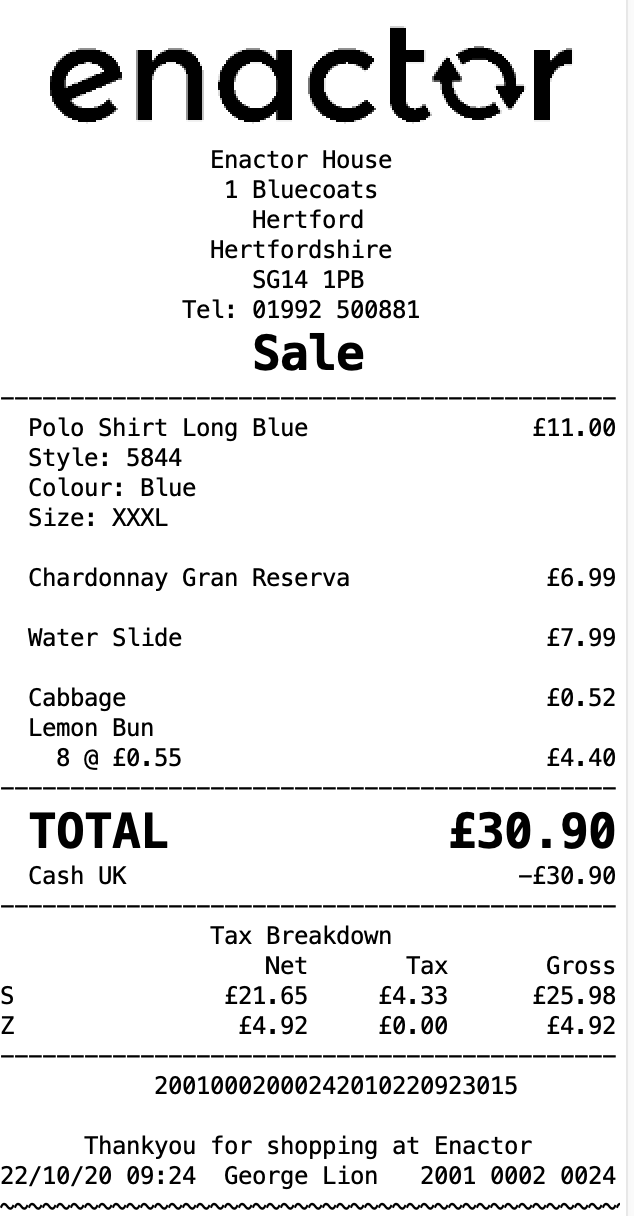
If the tax breakdown is not required on the receipt, the XML Transaction basket may be reviewed to check the tax calculation details.
This completes the Broadcasting and Testing configuration.