How To Configure Time Series Alerts
Introduction
The purpose of this document is to provide an overall guide on how to configure time series alerts. The time series alert feature is an update added to the existing alerting functionality. It allows the input of a threshold time and a count when creating a new alert. All existing alert types have been updated with this feature. Therefore, the time series alert feature can be used to configure the frequency of an alert trigger for every existing alert type.
Time series alerts allow the input of Threshold Count and Threshold Time when creating an alert for the existing logs (Application Process Log, Application Log, or System Event Log). Generally, alerts are triggered when an individual event in a log is matched, but there could be instances where an alert needs to be raised for repeated events within a short interval or after an event is maintained for a prolonged time period.
This functionality has the ability to trigger an alert only if the event is matched a certain number of counts in a given period of time. It contains the number of alerts triggered until the threshold time expires and does not send an email unless the count within an interval is matched.
Overview
The following parameters are required to configure time series alerts:
- Threshold Count - the minimum number of matching events required to trigger an alert
- Threshold Time - the time window (in minutes) during which the threshold count must be reached
- Run Interval - how frequently (in minutes) the system checks for matching log entries
Prerequisites
Resources
Before starting, you should have the following resources in place:
- Enactor Estate Manager
- Alert Configuration
- Standard Configuration, including:
- Test Alert configs
- Test Empty broadcast
Prior Training/Experience
You should be familiar with the following:
- Estate Manager configuration
- Enactor configuration concepts, including Locations, Users, and Logs
- Creating alerts for Application, Application Process, and System Logs
Configuration Steps
Setup Alert Configurations
It is expected that the following initial alert configurations are completed prior to configuring the time series feature:
- An alert user is created
- Location is configured for email alerts
- Alert and Email Services are running
- An alert type is created
Time series functionality has been added to all existing alert types. The main demonstration below shows how the Application Process Logs Trigger functions with time series alerts.
Creating a New Alert
After the initial alert configurations are in place:
- Log in to Estate Manager and navigate to Alert Type Maintenance.

-
Click Create a new alert type.
-
Enter the Alert Type ID -
TEST_IMPORT_ALERT- and click Create.

- Enter a description in the General tab and navigate to the Triggers tab.
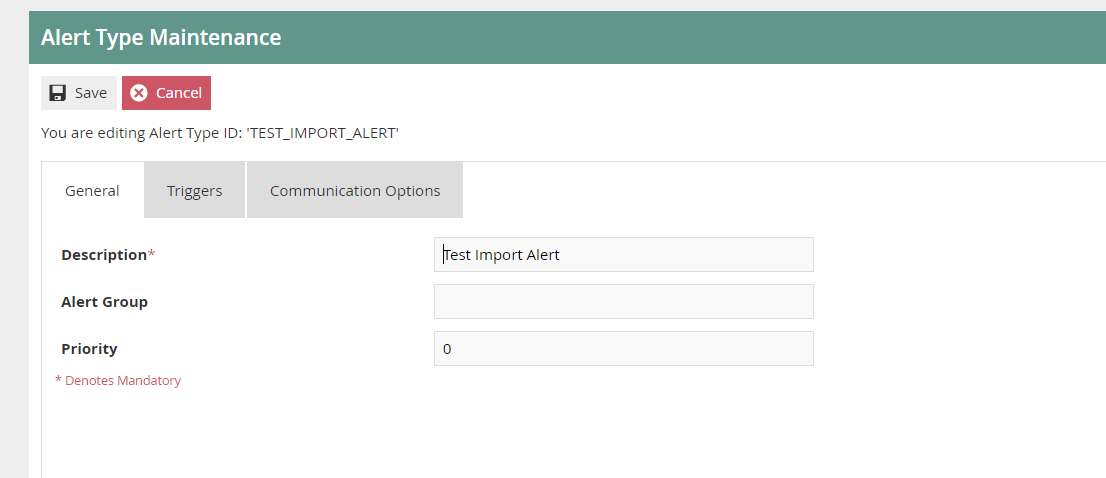
- Select Application Process Logs from the drop-down and add the alert type.
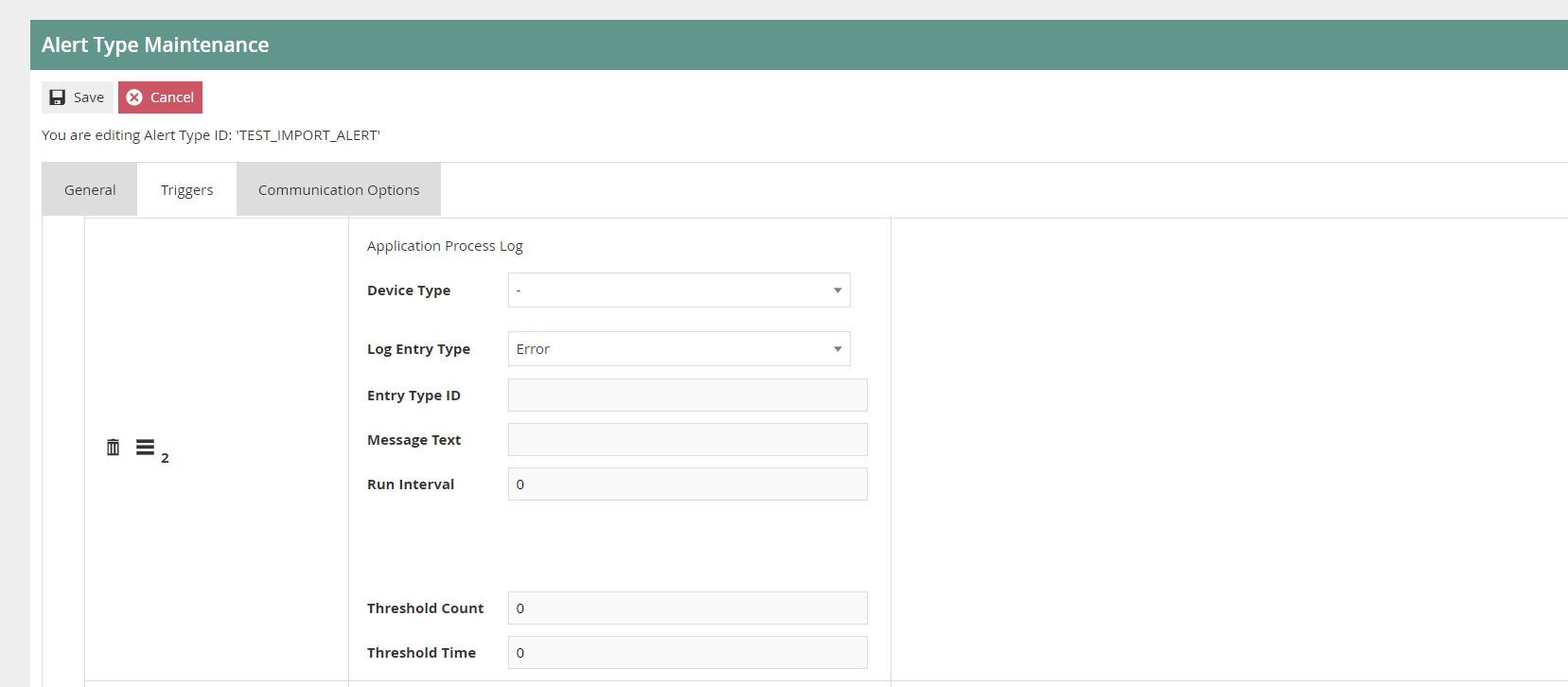
Once these steps are complete, the alert trigger will be added as follows:
-
Choose Estate Manager, Information, and scheduledJob as the Device Type, Log Entry Type, and Entry Type ID respectively.
-
Set the Message Text to:
1 entities imported from 'PredefinedBroadcast_EMPTY_TEST_BROADCAST.xml' -
Set the following values:
- Run Interval -
2 - Threshold Time -
5 - Threshold Count -
2
- Run Interval -

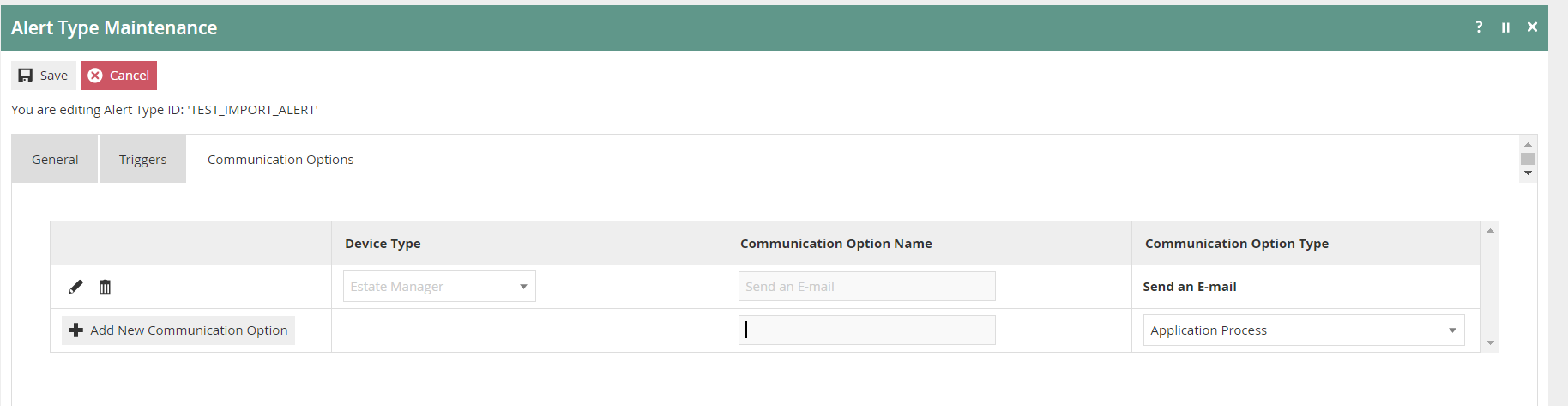
- Go to the Communication Options tab and select Email. Set the recipient email address in the configuration.

-
Click Save.
-
Import two empty broadcasts within 5 minutes.
-
Restart the alerting services.
-
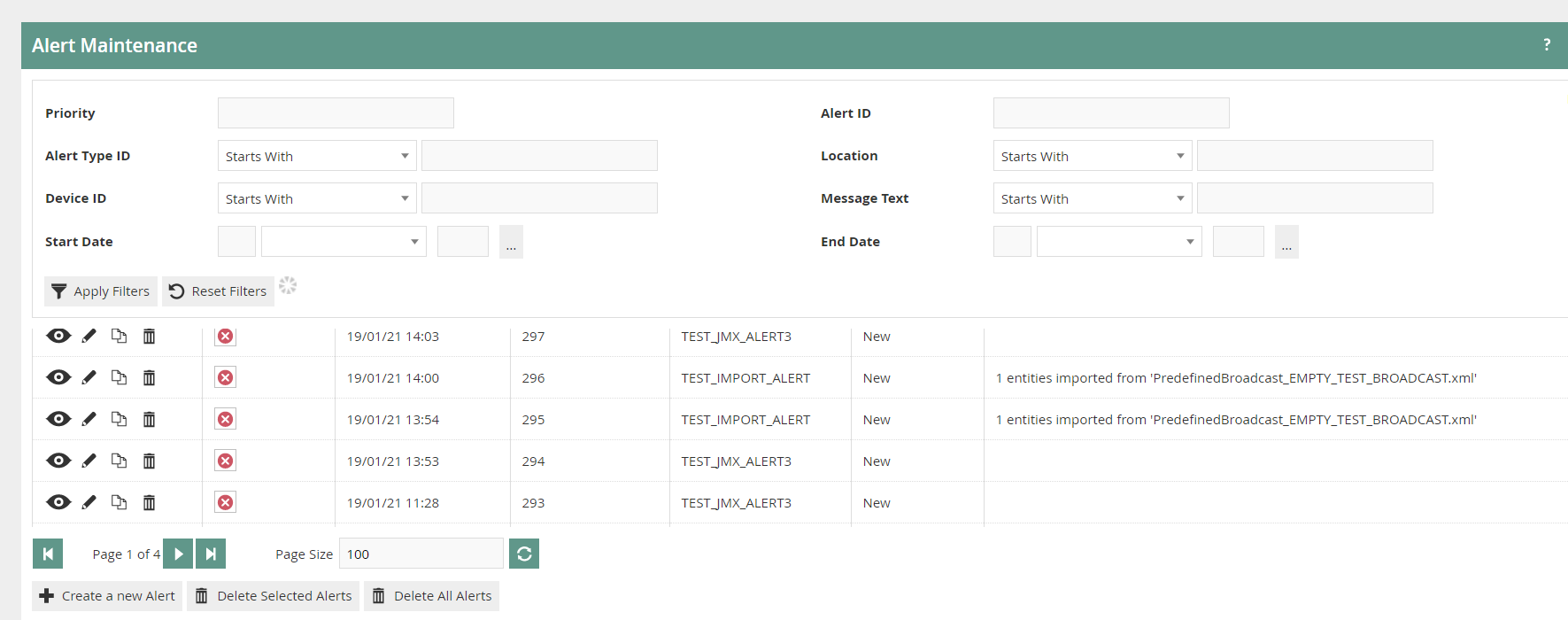
An alert will be triggered in Alert Maintenance when 2 application process logs are created during the 5-minute window defined.
Setup Run Interval
The Run Interval is provided in the alert trigger to define how frequently the system checks whether an alert needs to be triggered. This functionality already existed, but for time series alerts it checks backwards in time to verify whether any matching logs were created during the run interval period.
For example, if the run interval is 2, every two minutes the system checks whether matching logs have been created.
The Run Interval functionality is available only for Application Process Log triggers. For other alert types, this step can be skipped.
Setup Threshold Count
The Threshold Count refers to the minimum number of matching logs required for an alert to be triggered. Once this count is matched, an alert is created instantly. However, if the count is matched more times than the threshold count, the alert will not be triggered again until the defined Threshold Time passes.
For example, if Threshold Count is 2, when 2 matching logs are created an alert will trigger.
Setup Threshold Time
During the Threshold Time window, only one alert will be created. If the Threshold Count is met more than once during the Threshold Time period, the second alert will not be triggered until the previous time window has completed.
For example, if Threshold Count is 2 and Threshold Time is 5, when 2 or more matching logs are created during 5 minutes only one alert will trigger.
Conditions of Time Series Alerts
There are several conditions to consider when setting the threshold count and time (in minutes):
- The alert will be triggered only when the given count of events matches within the given time duration
- If the number of events matched equals or exceeds the given count, only one alert will be triggered after the time completes
- If the Threshold Count is
0, no alert will be triggered - If the Threshold Time is
0, no alert will be triggered - If both Threshold Time and Threshold Count are
0, no alert will be triggered
Setting either Threshold Count or Threshold Time to zero will prevent alerts from being triggered entirely. Both values must be greater than zero for time series alerting to function.
Adhering to the above conditions, an alert type can be set according to the alert triggering frequency required.
Test Examples
Application Process Logs
- Import the following configuration using File Import:
retail:alertType
<?xml version="1.0" encoding="UTF-8" standalone="yes"?>
<retail:alertType xmlns:core="http://www.enactor.com/core" xmlns:hta="http://docs.oasis-open.org/ns/bpel4people/ws-humantask/api/200803" xmlns:htd="http://docs.oasis-open.org/ns/bpel4people/ws-humantask/200803" xmlns:htt="http://docs.oasis-open.org/ns/bpel4people/ws-humantask/types/200803" xmlns:ns10="http://www.enactor.com/retail/storedRestaurantSaleTransaction/service" xmlns:ns11="http://www.enactor.com/crm/customerLoyalty/service" xmlns:ns6="http://www.enactor.com/retail/restaurantTableStatus/service" xmlns:ns7="http://www.enactor.com/crm" xmlns:ns8="http://www.enactor.com/addressLookup/service" xmlns:ns9="http://www.enactor.com/retail/storedRetailTransaction/service" xmlns:retail="http://www.enactor.com/retail" xmlns:sref="http://docs.oasis-open.org/wsbpel/2.0/serviceref" xmlns:tools="http://www.enactor.com/tools" xmlns:xsi="http://www.w3.org/2001/XMLSchema-instance">
    <retail:alertGroup></retail:alertGroup>
    <retail:alertTypeId>TEST_IMPORT_ALERT</retail:alertTypeId>
    <retail:description>Test Import Alert</retail:description>
    <retail:communicationOptions>
        <retail:emailAlertCommunicationOption>
            <retail:teamId></retail:teamId>
            <retail:userId>ALERTS</retail:userId>
            <retail:alertCommunicationOptionId>Send an E-mail</retail:alertCommunicationOptionId>
            <retail:deviceTypeId>ESTATE_MANAGER</retail:deviceTypeId>
            <retail:emailAddress>test@enactor.co.uk</retail:emailAddress>
            <retail:batchSize>10</retail:batchSize>
            <retail:emailSubject>sub: Test Import Succeeded</retail:emailSubject>
            <retail:emailMessage>*Test Import Succeeded*</retail:emailMessage>
            <retail:batchedEmailSubject></retail:batchedEmailSubject>
            <retail:batchedEmailMessage></retail:batchedEmailMessage>
        </retail:emailAlertCommunicationOption>
    </retail:communicationOptions>
    <retail:triggers>
        <retail:applicationProcessLogAlertTrigger>
            <retail:alertTriggerId>1</retail:alertTriggerId>
            <retail:deviceTypeId>ESTATE_MANAGER</retail:deviceTypeId>
            <retail:runInterval>2</retail:runInterval>
            <retail:thresholdCount>2</retail:thresholdCount>
            <retail:thresholdTime>5</retail:thresholdTime>
            <retail:entryType>scheduledJob</retail:entryType>
            <retail:logEntryType>2</retail:logEntryType>
            <retail:messageText>1 entities imported from 'PredefinedBroadcast_EMPTY_TEST_BROADCAST.xml'</retail:messageText>
        </retail:applicationProcessLogAlertTrigger>
    </retail:triggers>
    <retail:triggerCounter>1</retail:triggerCounter>
    <retail:lastUpdated>2020-11-30T20:19:24.629+05:30</retail:lastUpdated>
    <retail:priority>0</retail:priority>
</retail:alertType>
The original XML contained -+*01 after the closing </retail:communicationOptions> tag. This has been removed as it appears to be a data entry error. If your import fails, verify the XML is well-formed.
-
Go to Alert Types and edit the one with ID =
TEST_IMPORT_ALERT. -
Go to the Communication Options tab and edit the entry there.
-
Update the Email Address to the address you want the test email to go to and click Save.
-
To reload this configuration, stop and restart the Alert and Email Services.
-
Import the following broadcast twice within 5 minutes (to create 2 application process logs):
XML Example
<?xml version="1.0" encoding="UTF-8" standalone="yes"?>
<Batch>

<core:predefinedBroadcast xmlns:core="http://www.enactor.com/core" xmlns:hta="http://docs.oasis-open.org/ns/bpel4people/ws-humantask/api/200803" xmlns:htd="http://docs.oasis-open.org/ns/bpel4people/ws-humantask/200803" xmlns:htt="http://docs.oasis-open.org/ns/bpel4people/ws-humantask/types/200803" xmlns:ns10="http://www.enactor.com/addressLookup/service" xmlns:ns11="http://www.enactor.com/retail/storedRestaurantSaleTransaction/service" xmlns:ns12="http://www.enactor.com/retail/storedRetailTransaction/service" xmlns:ns13="http://www.enactor.com/crm/customerLoyalty/service" xmlns:ns14="http://www.enactor.com/retail/restaurantTableStatus/service" xmlns:ns4="http://www.enactor.com/crm" xmlns:ns5="http://www.enactor.com/tms" xmlns:retail="http://www.enactor.com/retail" xmlns:sref="http://docs.oasis-open.org/wsbpel/2.0/serviceref" xmlns:tools="http://www.enactor.com/tools" xmlns:xsi="http://www.w3.org/2001/XMLSchema-instance">
    <core:broadcastDetails>
        <core:broadcastName>Empty Test Broadcast</core:broadcastName>
        <core:broadcastType>XML</core:broadcastType>
        <core:topics>
            <core:topic>
                <core:connectionPointId>Device</core:connectionPointId>
                <core:variables>
                    <core:ignoreInvalidSerialization>false</core:ignoreInvalidSerialization>
                </core:variables>
            </core:topic>
        </core:topics>
        <core:selectTargetOnBroadcast>true</core:selectTargetOnBroadcast>
        <core:manuallyActivated>false</core:manuallyActivated>
        <core:interactive>false</core:interactive>
        <core:inactivityTimeout>5</core:inactivityTimeout>
        <core:deleteExistingData>false</core:deleteExistingData>
        <core:selectedEntityDistributionKeysMap/>
        <core:useChangeSet>false</core:useChangeSet>
    </core:broadcastDetails>
    <core:description>Empty Test Broadcast - used for testing alerts</core:description>

    <core:predefinedBroadcastId>EMPTY_TEST_BROADCAST</core:predefinedBroadcastId>
</core:predefinedBroadcast>

</Batch>
-
An alert will be created in Alert Maintenance.
-
An email will be sent to the configured email address.
System Logs
- Import the following configuration using File Import:
retail:alertType
<?xml version="1.0" encoding="UTF-8" standalone="yes"?>
<retail:alertType xmlns:core="http://www.enactor.com/core" xmlns:hta="http://docs.oasis-open.org/ns/bpel4people/ws-humantask/api/200803" xmlns:htd="http://docs.oasis-open.org/ns/bpel4people/ws-humantask/200803" xmlns:htt="http://docs.oasis-open.org/ns/bpel4people/ws-humantask/types/200803" xmlns:ns10="http://www.enactor.com/addressLookup/service" xmlns:ns13="http://www.enactor.com/crm/customerLoyalty/service" xmlns:ns4="http://www.enactor.com/crm" xmlns:ns6="http://www.enactor.com/retail/storedRetailTransaction/service" xmlns:ns8="http://www.enactor.com/retail/storedRestaurantSaleTransaction/service" xmlns:ns9="http://www.enactor.com/retail/restaurantTableStatus/service" xmlns:retail="http://www.enactor.com/retail" xmlns:sref="http://docs.oasis-open.org/wsbpel/2.0/serviceref" xmlns:tools="http://www.enactor.com/tools" xmlns:xsi="http://www.w3.org/2001/XMLSchema-instance">
    <retail:alertGroup></retail:alertGroup>
    <retail:alertTypeId>TEST_SYS_ALERT</retail:alertTypeId>
    <retail:description>Test system alert</retail:description>
    <retail:communicationOptions>
        <retail:emailAlertCommunicationOption>
            <retail:teamId></retail:teamId>
            <retail:userId>ALERTS</retail:userId>
            <retail:alertCommunicationOptionId>Send an E-mail</retail:alertCommunicationOptionId>
            <retail:deviceTypeId>ESTATE_MANAGER</retail:deviceTypeId>
            <retail:emailAddress>test@enactor.co.uk</retail:emailAddress>
            <retail:batchSize>10</retail:batchSize>
            <retail:emailSubject>sub: Test SignOn Succeeded</retail:emailSubject>
            <retail:emailMessage>*Test SignOn Succeeded*</retail:emailMessage>
            <retail:batchedEmailSubject></retail:batchedEmailSubject>
            <retail:batchedEmailMessage></retail:batchedEmailMessage>
        </retail:emailAlertCommunicationOption>
    </retail:communicationOptions>
    <retail:triggers>
        <retail:systemEventLogAlertTrigger>
            <retail:alertTriggerId>1</retail:alertTriggerId>
            <retail:runInterval>0</retail:runInterval>
            <retail:thresholdCount>2</retail:thresholdCount>
            <retail:thresholdTime>5</retail:thresholdTime>
            <retail:eventTypeId>SignOn</retail:eventTypeId>
            <retail:information></retail:information>
            <retail:deviceId>estateManager.enactor</retail:deviceId>
        </retail:systemEventLogAlertTrigger>
    </retail:triggers>
    <retail:triggerCounter>1</retail:triggerCounter>
    <retail:lastUpdated>2020-12-02T11:18:16.278+05:30</retail:lastUpdated>
    <retail:priority>0</retail:priority>
</retail:alertType>
-
Go to Alert Types and edit the one with ID =
TEST_SYS_ALERT. -
Go to the Communication Options tab and edit the entry there.
-
Update the Email Address to the address you want the test email to go to and click Save.
-
To reload this configuration, stop and restart the Alert and Email Services.
-
Sign on to Estate Manager, sign out, and sign on again within 5 minutes (to create 2 System Event logs related to event ID
SignOn). -
An alert will be created in Alert Maintenance.
-
An email will be sent to the configured email address.
Application Logs
- Import the following configuration using File Import:
retail:alertType
<?xml version="1.0" encoding="UTF-8" standalone="yes"?>
<retail:alertType xmlns:core="http://www.enactor.com/core" xmlns:hta="http://docs.oasis-open.org/ns/bpel4people/ws-humantask/api/200803" xmlns:htd="http://docs.oasis-open.org/ns/bpel4people/ws-humantask/200803" xmlns:htt="http://docs.oasis-open.org/ns/bpel4people/ws-humantask/types/200803" xmlns:ns11="http://www.enactor.com/retail/storedRestaurantSaleTransaction/service" xmlns:ns13="http://www.enactor.com/retail/storedRetailTransaction/service" xmlns:ns4="http://www.enactor.com/crm" xmlns:ns7="http://www.enactor.com/crm/customerLoyalty/service" xmlns:ns8="http://www.enactor.com/addressLookup/service" xmlns:ns9="http://www.enactor.com/retail/restaurantTableStatus/service" xmlns:retail="http://www.enactor.com/retail" xmlns:sref="http://docs.oasis-open.org/wsbpel/2.0/serviceref" xmlns:tools="http://www.enactor.com/tools" xmlns:xsi="http://www.w3.org/2001/XMLSchema-instance">
    <retail:alertGroup></retail:alertGroup>
    <retail:alertTypeId>LICENCE_FAILED</retail:alertTypeId>
    <retail:description>Licence Validation Failed</retail:description>
    <retail:communicationOptions>
        <retail:emailAlertCommunicationOption>
            <retail:teamId></retail:teamId>
            <retail:userId></retail:userId>
            <retail:alertCommunicationOptionId>Email alert</retail:alertCommunicationOptionId>
            <retail:deviceTypeId>ESTATE_MANAGER</retail:deviceTypeId>
            <retail:emailAddress>test@enactor.co.uk</retail:emailAddress>
            <retail:batchSize>1</retail:batchSize>
            <retail:emailSubject>sub: Enactor - Licence expired</retail:emailSubject>
            <retail:emailMessage>The licence has expired, please import the latest issued licence issued by Enactor.</retail:emailMessage>
            <retail:batchedEmailSubject>sub: Enactor - Licence expired</retail:batchedEmailSubject>
            <retail:batchedEmailMessage>The licence has expired, please import the latest issued licence issued by Enactor.</retail:batchedEmailMessage>
        </retail:emailAlertCommunicationOption>
    </retail:communicationOptions>
    <retail:triggers>
        <retail:applicationLogAlertTrigger>
            <retail:alertTriggerId>1</retail:alertTriggerId>
            <retail:runInterval>0</retail:runInterval>
            <retail:thresholdCount>1</retail:thresholdCount>
            <retail:thresholdTime>5</retail:thresholdTime>
            <retail:logLevel>error</retail:logLevel>
            <retail:className></retail:className>
            <retail:message>Running Process ID:'EstateDirector/Alert/AlertMonitor'</retail:message>
        </retail:applicationLogAlertTrigger>
    </retail:triggers>
    <retail:triggerCounter>1</retail:triggerCounter>
    <retail:lastUpdated>2020-12-01T19:14:45.115+05:30</retail:lastUpdated>
    <retail:priority>0</retail:priority>
</retail:alertType>
-
Go to Alert Types and edit the one with ID =
LICENCE_FAILED. -
Go to the Communication Options tab and edit the entry there.
-
Update the Email Address to the address you want the test email to go to and click Save.
-
To reload this configuration, stop and restart the Alert and Email Services.
-
Add the following line (updating the date/time) to the WebRetailProcessing logs:
2020-12-01 19:22:31.496 [AWT-EventQueue-0] ERROR com.enactor.core.utilities.PackageDeployerUtil - (SwingApplication): Licence has expired
-
An alert will be created in Alert Maintenance.
-
You should receive an email alert with subject
sub: Enactor - Licence expired.