How To Configure Enhanced Reports
Introduction
This guide explains the web reports enhancements introduced with the Enactor Q1.26 release, focusing on performance and maintainability improvements to key operational reports. Report generation time has been reduced significantly as the primary enhancement.
The document lists all enhanced reports and provides the menu configuration required to enable them.
The data used to generate these enhanced reports will only contain data generated since the Q1.26 release was deployed into your system. Previous data from before the deployment will not be used for the improved reports. The old reports can still be used side-by-side with the improved reports.
Enhanced Reports List
The following table lists all 22 enhanced reports and indicates whether each requires menu configuration to enable it.
| Report | Requires Menu Configuration? |
|---|---|
| Banking Transactions | No |
| Cash On Hand | Yes |
| Cash Up Summary | Yes |
| Daily Sales Summary | No |
| MMG Summary | Yes |
| MMG Summary Pie Chart | Yes |
| Product Sales | Yes |
| Promotion Summary | No |
| Reason Code By Weekday | Yes |
| Replenishment | Yes |
| Rolling Replenishment | Yes |
| Sales Analysis By Hour | No |
| Tender Totals | No |
| Tender Totals Pie Chart | Yes |
| Terminal Discrepancies | No |
| Terminal Exceptions | No |
| Terminal X | Yes |
| Trading Summary | Yes |
| Transaction Totals | Yes |
| Transaction Voids | No |
| User Exception Analysis | No |
| User Sales | Yes |
All of the above are enhanced reports. Reports marked "Yes" require new menu items to be added. Reports marked "No" will use the existing menu events and do not require any menu changes.
Overview
This guide covers the configuration for the following tasks:
- Identify which reports have been enhanced and require menu configuration
- Access the Menu Maintenance application
- Add or update menu items for enhanced reports as needed
- Assign the correct Report Definition IDs to each menu item
- Save changes and restart your session to activate the new reports
Prior Training and Experience
You should be familiar with the following before proceeding:
- Estate Manager configuration
- Report Definitions and their usage
- User roles and permissions within the system
- Operational and sales reporting
Configuration Steps
This section covers the steps for configuring the enhanced reports that require new menu items.
Navigate to Menu Maintenance
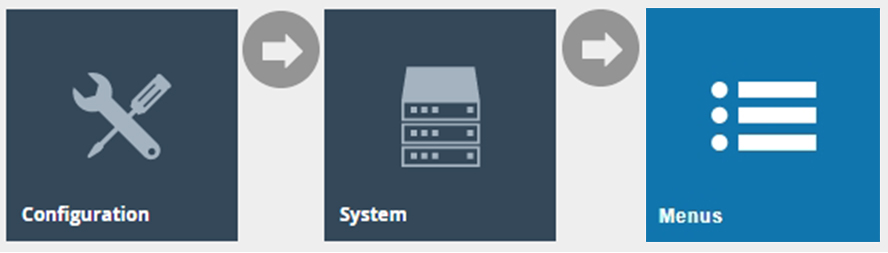
The Menu Maintenance application can be accessed through the following path:
Configuration > System > Menus
Edit the Menu
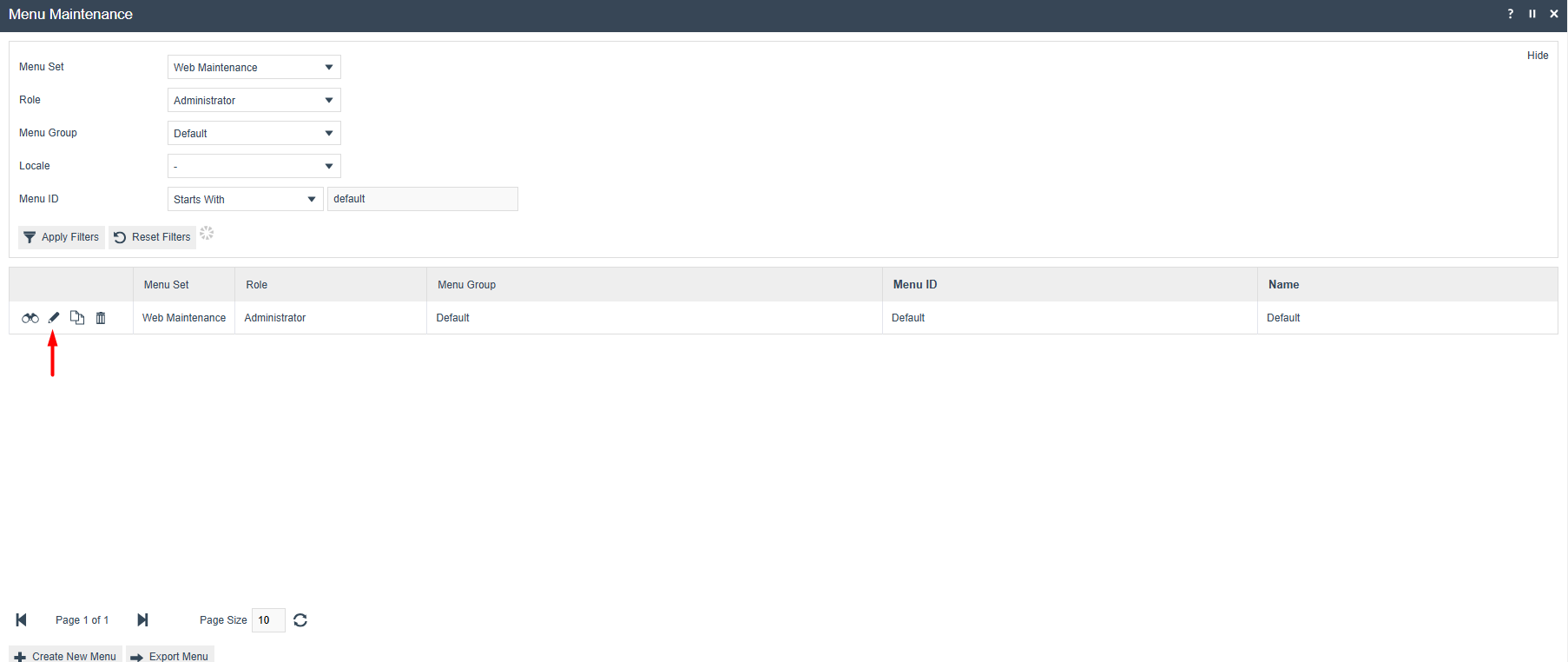
The following example demonstrates adding the Product Sales enhanced report. Edit the EM or Back Office menu where you want to add the new enhanced reports.
Edit the General Tab
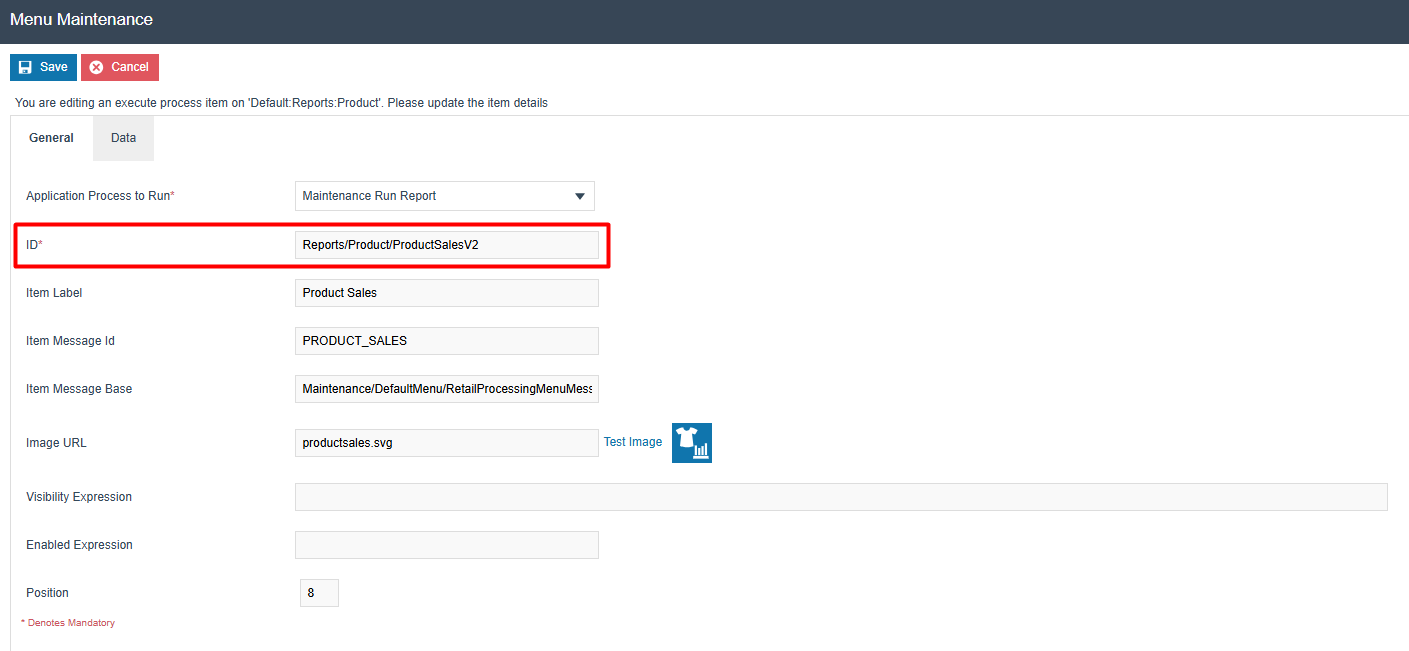
Edit the Product Sales report menu item. In the General tab, append V2 to the end of the ID field (for example, Reports/Product/ProductSalesV2).
Edit the Data Tab
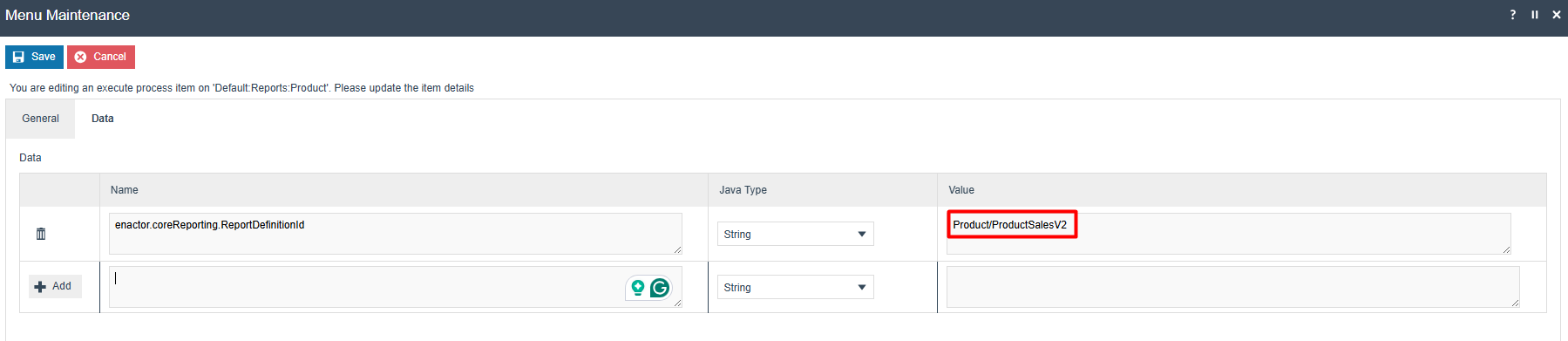
Go to the Data tab and set the correct ReportDefinitionId value (for example, Product/ProductSalesV2).
Report Definition Reference
A full list of the enhanced Report Definitions can be found in the Report Definition Maintenance application. Filter by Report ID containing "V2" to see all enhanced report definitions.
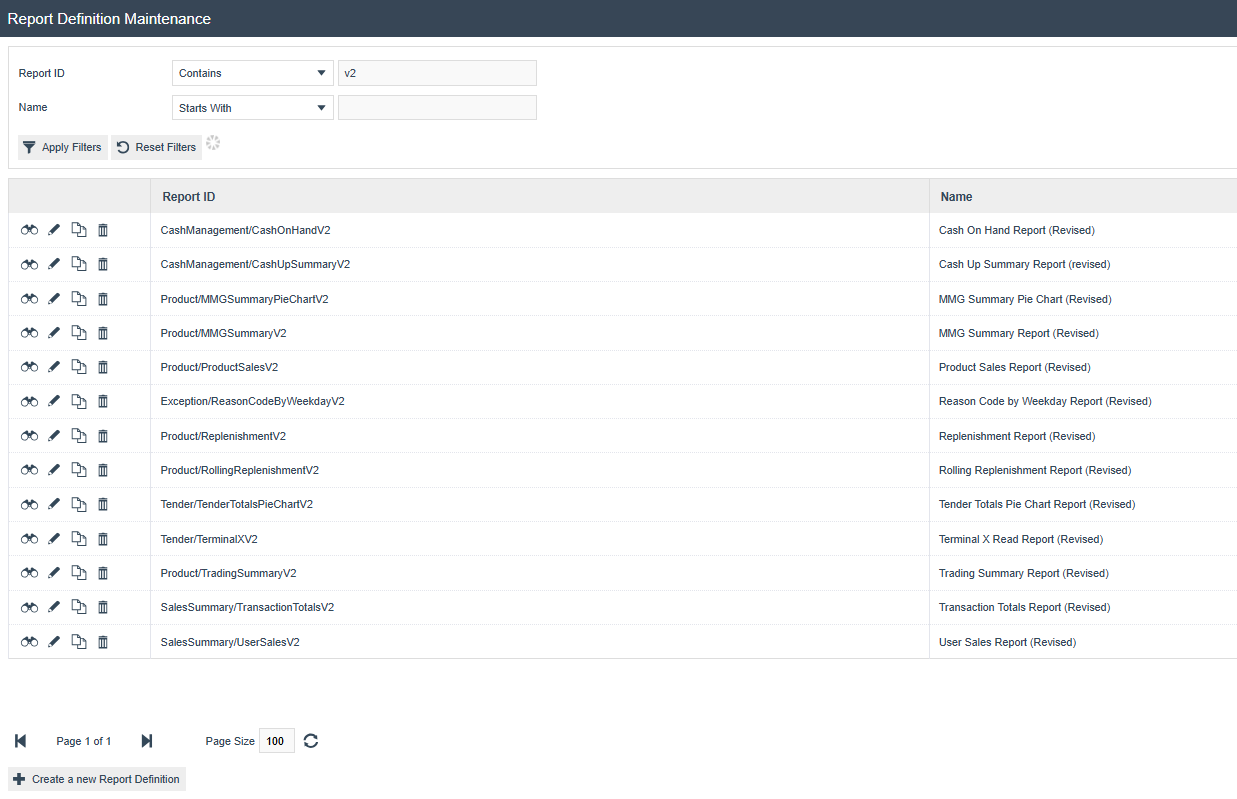
The following table lists each enhanced Report Definition ID and its corresponding report name, as shown in the Report Definition Maintenance application:
| Report Definition ID | Report Name |
|---|---|
| CashManagement/CashOnHandV2 | Cash On Hand Report (Revised) |
| CashManagement/CashUpSummaryV2 | Cash Up Summary Report (Revised) |
| Product/MMGSummaryPieChartV2 | MMG Summary Pie Chart (Revised) |
| Product/MMGSummaryV2 | MMG Summary Report (Revised) |
| Product/ProductSalesV2 | Product Sales Report (Revised) |
| Exception/ReasonCodeByWeekdayV2 | Reason Code by Weekday Report (Revised) |
| Product/ReplenishmentV2 | Replenishment Report (Revised) |
| Product/RollingReplenishmentV2 | Rolling Replenishment Report (Revised) |
| Tender/TenderTotalsPieChartV2 | Tender Totals Pie Chart Report (Revised) |
| Tender/TerminalXV2 | Terminal X Read Report (Revised) |
| Product/TradingSummaryV2 | Trading Summary Report (Revised) |
| SalesSummary/TransactionTotalsV2 | Transaction Totals Report (Revised) |
| SalesSummary/UserSalesV2 | User Sales Report (Revised) |
Save and Activate
- Click Save to complete adding the new enhanced report menu item.
- Click Save again to save the menu itself.
- Sign out and sign back in for the changes to take effect.
Repeat the above steps for each enhanced report that requires menu configuration (those marked "Yes" in the Enhanced Reports List table). Each report follows the same pattern - append V2 to the menu item ID and set the corresponding ReportDefinitionId on the Data tab.