How To Exception Reports
Introduction
Enactor includes multiple forms of reporting for various purposes. Among these reports, Exception Reports can be used to analyse and identify unusual or unexpected patterns of data in POS Transactions. Exception Reports are located under the Reports section of the Estate Manager.
Navigate to the Exception Reports using the path:
Main Menu > Reports > Exception

Overview
The following exception reports are discussed in this document:
- Terminal Exceptions - identify unusual and unexpected events on POS terminals
- Reason Code by Weekday - review the frequency of each Reason Code and associated amounts by weekday
- Transactions Void - analyse reasons and values associated with voided transactions
- User Exception Analysis - analyse and identify the types of exception transactions per user
- Activity Statistics - review activity statistics filtered by location, terminal, user, and date range
Exception Reports
Terminal Exception Report
Summary
This report enables users to identify unusual and unexpected events that occur on the POS. It allows the user to sort and view data based on specific, user-defined criteria.
Navigate to the Terminal Exceptions report using the path:
Main Menu > Reports > Exception > Terminal Exceptions

Filter Criteria
Enactor provides the following filter criteria to customise and obtain reports based on the user's requirements.
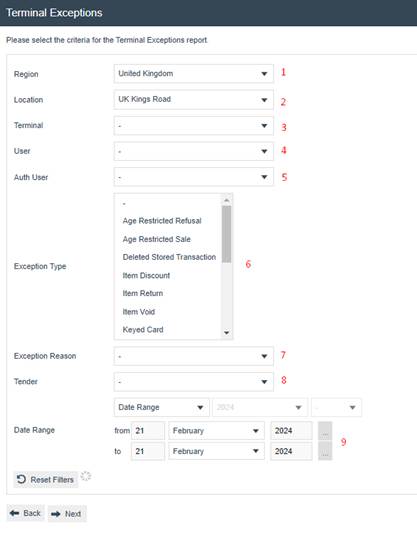
| Filter Criteria | Description |
|---|---|
| Region | Dropdown list selection of defined Regions. |
| Location | Dropdown list selection of defined Locations. |
| Terminal | Dropdown selection from a list of all Terminals at the Location specified in a previous field. If no Location is specified all Safes and Terminals configured are shown. |
| User | Dropdown list selection of defined Users at the Location specified in a previous field. If no Location is specified all Users configured are shown. |
| Auth User | Dropdown list selection of defined Users at the Location specified in a previous field. If no Location is specified all Users configured are shown. |
| Exception Type | Dropdown list selection of applicable exception reason types. Multiple exception types can be selected by holding down the control key when selecting. |
| Exception Reason | Dropdown selection from a list of reasons for the exception type specified in the previous field. If no exception is specified, the list will be of all relevant terminal exception reasons configured. |
| Tender | Dropdown list selection of defined Tenders. |
| Date Range | The date range required is selected according to the following fields: the first three fields are the type of Date Range (Date Range, Month in Year, Week in Year, Season, or Quarter), the year (if required), and the period according to the type selected. The from/to dates default to the current date and are only applicable if Date Range is selected in the first field. |
The Reset button resets all filters to their default values. The Back button returns to the previous screen. The Next button creates a Scheduled Job to run the report.
Wait For Report
When a report is submitted, the system displays a progress screen indicating the report is in a queue. Several self-explanatory messages can appear at this point with options to Cancel, Don't Wait, or Refresh.

| Button | Description |
|---|---|
| Cancel | Cancels the report job. |
| Don't Wait | Allows the user to continue working. The report will be available from saved reports when complete. |
| Refresh | Refreshes the report status if it seems to be taking a long time to display. |
Report Output
Once the filter criteria have been entered, the report is generated as follows.

The header section of the report indicates the filters that were selected on the criteria screen. The following table describes each column in the report.
| Column Header | Description |
|---|---|
| Location | The Location(s) selected on the criteria page. |
| User | The User(s) selected on the criteria page. |
| Auth User | The Authorising User(s) selected on the criteria page. |
| Exception Type | The type of exception, for example keyed item, keyed card. |
| Exception Reason | The description of the associated reason for the exception if applicable. |
| Terminal | The number of the terminal on which the exception occurred. |
| Original Transaction | The original transaction reference if applicable. |
| Transaction | The number of the transaction containing the exception. |
| Date/Time | The date and time at which the exception occurred. |
| Customer ID | The ID of the Customer associated with the Transaction. |
| Customer Surname | The Surname of the Customer. |
| MMG | The MMG description associated with the exception if applicable. |
| Product ID | The ID of the product associated with the exception if applicable. |
| Description | The Description of the Product represented in the previous field. |
| Qty | The quantity of the product associated with the exception. A positive value indicates a sale, a negative value indicates a return. |
| Original Price | The original price of the item, used for price overrides only. |
| Value | The value of the exception. |
| New Price | The new price of the item, used for price overrides only. |
| Card Number | The card number used for the exception if applicable. This column only applies for card payments. |
| Card Type | The card type used for the exception if applicable. This column only applies for card payments. |
| Entry Method | The type of entry method, for example keyed, swiped. This column only applies for card payments. |
Report Actions
In addition to the report, the following actions are available.
| Button | Description |
|---|---|
| View PDF | View the report in PDF format. |
| Save XLS | Save the report in Excel spreadsheet format. |
| Save DOC | Save the report in Word format. |
| Back | Return to the previous screen. |
| Send a copy of the report to an attached printer. |
This completes the Terminal Exception Report.
Reason Code by Weekday Exception Report
Summary
This report enables the user to easily access and review the frequency of each Reason Code being used and the amounts associated with it.
Navigate to the Reason Code by Weekday report using the path:
Main Menu > Reports > Reason Code by Weekday

Filter Criteria
Enactor provides the following filter criteria to customise and obtain reports based on the user's requirements.
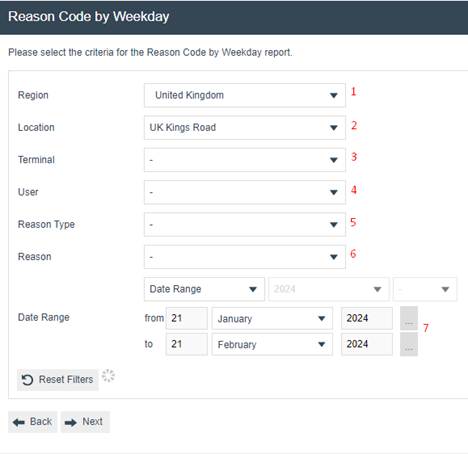
| Filter Criteria | Description |
|---|---|
| Region | Dropdown list selection of defined Regions. |
| Location | Dropdown list selection of defined Locations. |
| Terminal | Dropdown selection from a list of all Terminals at the Location specified in a previous field. If no Location is specified all Safes and Terminals configured are shown. |
| User | Dropdown list selection of defined Users at the Location specified in a previous field. If no Location is specified all Users configured are shown. |
| Reason Type | Dropdown list selection of applicable reason types. |
| Reason | Dropdown selection from a list of reasons for the reason type specified in the previous field. If no Reason is specified all Reasons configured are shown. |
| Date Range | The date range required is selected according to the following fields: the first three fields are the type of Date Range (Date Range, Month in Year, Week in Year, Season, or Quarter), the year (if required), and the period according to the type selected. The from/to dates default to the current date and are only applicable if Date Range is selected in the first field. |
The Reset button resets all filters to their default values. The Back button returns to the previous screen. The Next button creates a Scheduled Job to run the report.
Wait For Report
When a report is submitted, the system displays a progress screen indicating the report is in a queue. Several self-explanatory messages can appear at this point with options to Cancel, Don't Wait, or Refresh.
| Button | Description |
|---|---|
| Cancel | Cancels the report job. |
| Don't Wait | Allows the user to continue working. The report will be available from saved reports when complete. |
| Refresh | Refreshes the report status if it seems to be taking a long time to display. |
Report Output
This report shows reason code information broken down by weekday according to the criteria selected. Based on the input, the report is generated as follows.
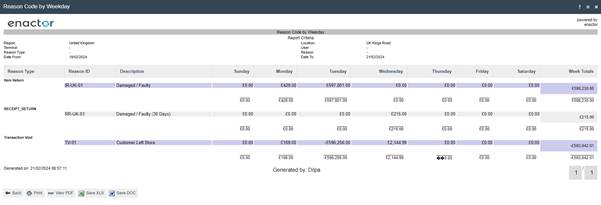
The header section of the report indicates the filters that were selected on the criteria screen. The following table describes each column in the report.
| Column Header | Description |
|---|---|
| Reason Type | The type of reason. |
| Reason ID | The ID of the reason. |
| Description | The description of the reason. The information is displayed in a table with a column for each day of the week. There is a total value for each reason in the last right-hand column and a daily total at the bottom of the column for each reason. |
Report Actions
In addition to the report, the following actions are available.
| Button | Description |
|---|---|
| View PDF | View the report in PDF format. |
| Save XLS | Save the report in Excel spreadsheet format. |
| Save DOC | Save the report in Word format. |
| Back | Return to the previous screen. |
| Send a copy of the report to an attached printer. |
This completes the Reason Code by Weekday Exception Report.
Transactions Void Exceptions Report
Summary
This report enables users to analyse and identify the reasons and values associated with voided transactions that occurred across terminals.
Navigate to the Transactions Void report using the path:
Main Menu > Reports > Transactions Void

Filter Criteria
Enactor provides the following filter criteria to customise and obtain reports based on the user's requirements.

| Filter Criteria | Description |
|---|---|
| Region | Dropdown list selection of defined Regions. |
| Location | Dropdown list selection of defined Locations in the Region specified in the previous field. |
| Terminal | Dropdown selection from a list of all Terminals at the Location specified in a previous field. If no Location is specified all Safes and Terminals configured are shown. |
| User | Dropdown list selection of defined Users at the Location specified in a previous field. If no Location is specified all Users configured are shown. |
| Auth User | Dropdown list selection of defined Users at the Location specified in a previous field. If no Location is specified all Users configured are shown. |
| Exception Reason | Dropdown selection from a list of Reasons for the Exception Reasons. |
| Tender | Dropdown list selection of defined Tenders. |
| Date Range - From | The starting date for the report range. |
| Date Range - To | The ending date for the report range. |
The Reset button resets all filters to their default values. The Back button returns to the previous screen. The Next button creates a Scheduled Job to run the report.
Wait For Report
When a report is submitted, the system displays a progress screen indicating the report is in a queue. Several self-explanatory messages can appear at this point with options to Cancel, Don't Wait, or Refresh.
| Button | Description |
|---|---|
| Cancel | Cancels the report job. |
| Don't Wait | Allows the user to continue working. The report will be available from saved reports when complete. |
| Refresh | Refreshes the report status if it seems to be taking a long time to display. |
Report Output
Once the filter criteria have been entered, the report is generated as follows.
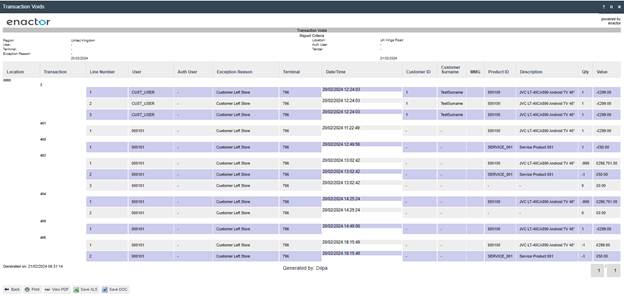
The header section of the report indicates the filters that were selected on the criteria screen. The following table describes each column in the report.
| Column Header | Description |
|---|---|
| Location | The Location(s) selected on the criteria page. |
| Transaction | The transaction number containing the void. |
| Line Number | The number of the line under each Transaction. |
| User | The User(s) selected on the criteria page. |
| Auth User | The Authorising User(s) selected on the criteria page. |
| Exception Reason | The description of the associated reason for the exception if applicable. |
| Terminal | The number of the terminal on which the exception occurred. |
| Date/Time | The date and time at which the exception occurred. |
| Customer ID | The ID of the Customer associated with the Transaction. |
| Customer Surname | The Surname of the Customer. |
| MMG | The MMG description associated with the exception if applicable. |
| Product ID | The ID of the product associated with the exception if applicable. |
| Description | The Description of the Product represented in the previous field. |
| Qty | The quantity of the product associated with the exception. |
| Value | The value of the exception. |
Report Actions
In addition to the report, the following actions are available.
| Button | Description |
|---|---|
| View PDF | View the report in PDF format. |
| Save XLS | Save the report in Excel spreadsheet format. |
| Save DOC | Save the report in Word format. |
| Back | Return to the previous screen. |
| Send a copy of the report to an attached printer. |
This completes the Transactions Void Exceptions Report.
User Exception Analysis Report
Summary
This report enables users to analyse and identify the types of exception transactions that occurred for each user.
Navigate to the User Exception Analysis report using the path:
Main Menu > Reports > User Exception Analysis

Filter Criteria
Enactor provides the following filter criteria to customise and obtain reports based on the user's requirements.
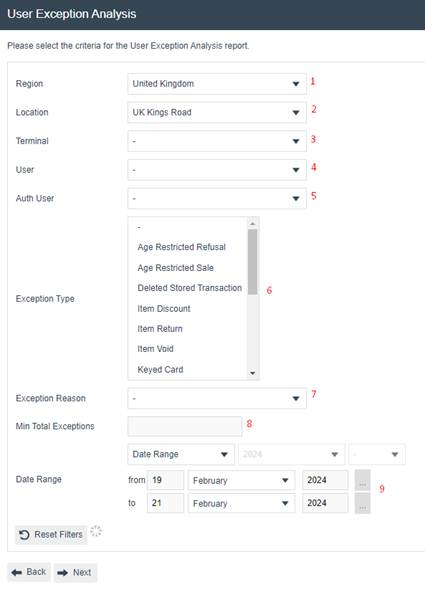
| Filter Criteria | Description |
|---|---|
| Region | Dropdown list selection of defined Regions. |
| Location | Dropdown list selection of defined Locations. |
| Terminal | Dropdown selection from a list of all Terminals at the Location specified in a previous field. If no Location is specified all Safes and Terminals configured are shown. |
| User | Dropdown list selection of defined Users at the Location specified in a previous field. If no Location is specified all Users configured are shown. |
| Auth User | Dropdown list selection of defined Users at the Location specified in a previous field. If no Location is specified all Users configured are shown. |
| Exception Type | Dropdown list selection of applicable exception reason types. Multiple exception types can be selected by holding down the control key when selecting. |
| Exception Reason | Dropdown selection from a list of reasons for the exception type specified in the previous field. If no exception is specified, the list will be of all relevant terminal exception reasons configured. |
| Min. Total Exceptions | The minimum total number of exceptions to include in the report results. |
| Date Range | The date range required is selected according to the following fields: the first three fields are the type of Date Range (Date Range, Month in Year, Week in Year, Season, or Quarter), the year (if required), and the period according to the type selected. The from/to dates default to the current date and are only applicable if Date Range is selected in the first field. |
The Reset button resets all filters to their default values. The Back button returns to the previous screen. The Next button creates a Scheduled Job to run the report.
Wait For Report
When a report is submitted, the system displays a progress screen indicating the report is in a queue. Several self-explanatory messages can appear at this point with options to Cancel, Don't Wait, or Refresh.
| Button | Description |
|---|---|
| Cancel | Cancels the report job. |
| Don't Wait | Allows the user to continue working. The report will be available from saved reports when complete. |
| Refresh | Refreshes the report status if it seems to be taking a long time to display. |
Report Output
Once the filter criteria have been entered, the report is generated as follows.
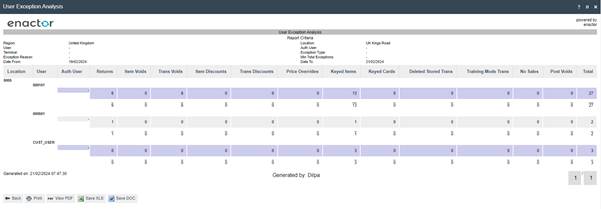
The header section of the report indicates the filters that were selected on the criteria screen. The following table describes each column in the report.
| Column Header | Description |
|---|---|
| Location | The Location(s) selected on the criteria page. |
| User | The User(s) selected on the criteria page. |
| Auth User | The Authorising User(s) selected on the criteria page. |
| Returns | The number of transactions in the Returns category. |
| Item Voids | The number of transactions in the Item Voids category. |
| Trans Voids | The number of transactions in the Transaction Voids category. |
| Item Discounts | The number of transactions in the Item Discounts category. |
| Trans Discounts | The number of transactions in the Transaction Discounts category. |
| Price Overrides | The number of transactions in the Price Overrides category. |
| Keyed Items | The number of transactions in the Keyed Items category. |
| Keyed Cards | The number of transactions in the Keyed Cards category. |
| Deleted Stored Trans | The number of transactions in the Deleted Stored Transactions category. |
| Training Mode Trans | The number of transactions in the Training Mode Transactions category. |
| No Sales | The number of transactions in the No Sales category. |
| Post Voids | The number of transactions in the Post Voids category. |
| Total | The total number of exception transactions conducted by each terminal user. |
Report Actions
In addition to the report, the following actions are available.
| Button | Description |
|---|---|
| View PDF | View the report in PDF format. |
| Save XLS | Save the report in Excel spreadsheet format. |
| Save DOC | Save the report in Word format. |
| Back | Return to the previous screen. |
| Send a copy of the report to an attached printer. |
This completes the User Exception Analysis Report.
Activity Statistics Exception Report
Summary
The Activity Statistics Exception Report provides statistical analysis of terminal and user activity based on configurable criteria.
Navigate to the Activity Statistics report using the path:
Main Menu > Reports > Activity Statistics

Filter Criteria
Enactor provides the following filter criteria to customise and obtain reports based on the user's requirements.
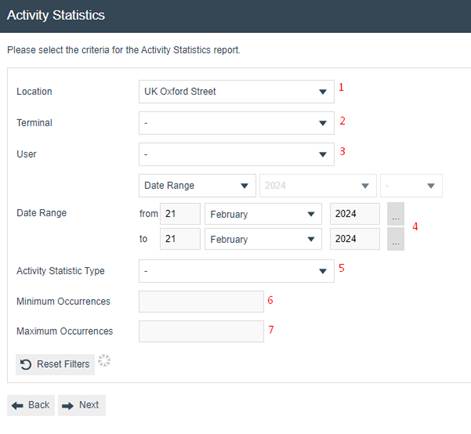
| Filter Criteria | Description |
|---|---|
| Location | Dropdown list selection of defined Locations. |
| Terminal | Dropdown selection from a list of all Terminals at the Location specified in a previous field. If no Location is specified all Safes and Terminals configured are shown. |
| User | Dropdown list selection of defined Users at the Location specified in a previous field. If no Location is specified all Users configured are shown. |
| Date Range | The dates from/to which the information is required. It defaults to the current date. |
| Activity Statistics Type | Dropdown list selection of the type of activity statistics to report on. |
| Minimum Occurrences | The minimum number of occurrences to include in the report results. |
| Maximum Occurrences | The maximum number of occurrences to include in the report results. |
The Reset button resets all filters to their default values. The Back button returns to the previous screen. The Next button creates a Scheduled Job to run the report.
Wait For Report
When a report is submitted, the system displays a progress screen indicating the report is in a queue. Several self-explanatory messages can appear at this point with options to Cancel, Don't Wait, or Refresh.
| Button | Description |
|---|---|
| Cancel | Cancels the report job. |
| Don't Wait | Allows the user to continue working. The report will be available from saved reports when complete. |
| Refresh | Refreshes the report status if it seems to be taking a long time to display. |
Report Output
Once the filter criteria have been entered, the report is generated.
The Activity Statistics report output format varies depending on the Activity Statistics Type selected in the filter criteria.
Report Actions
In addition to the report, the following actions are available.
| Button | Description |
|---|---|
| View PDF | View the report in PDF format. |
| Save XLS | Save the report in Excel spreadsheet format. |
| Save DOC | Save the report in Word format. |
| Back | Return to the previous screen. |
| Send a copy of the report to an attached printer. |
This completes the Activity Statistics Exception Report.