How To Configure Keonn RFID Reader
Introduction
The purpose of this document is to describe the necessary configuration needed to enable the Keonn RFID reader at the POS.
Overview
This guide will cover the configuration for the following:
-
POS Terminal - Defines the RFID reader as a scanner and sets the IP address
-
Product - Configures the Product so the serial number can be (optionally) captured
-
Field Validator Set - Contains the configuration to extract the Serial Number from an RFID tag
-
Field Validator Definition - Allows decoding the RFID EPC to differentiate between the product ID and the serial number
Prior Training / Experience
You should be familiar with the following:
-
Estate Manager Configuration
-
Data Broadcasting
Configuration Steps
This guide will configure a POS to use the Keonn RFID reader to read product RFID tags. It also covers the basic configuration of the Keonn device.
POS Terminal
The POS Terminal is configured to use the Keonn RFID Reader as a Scanner.
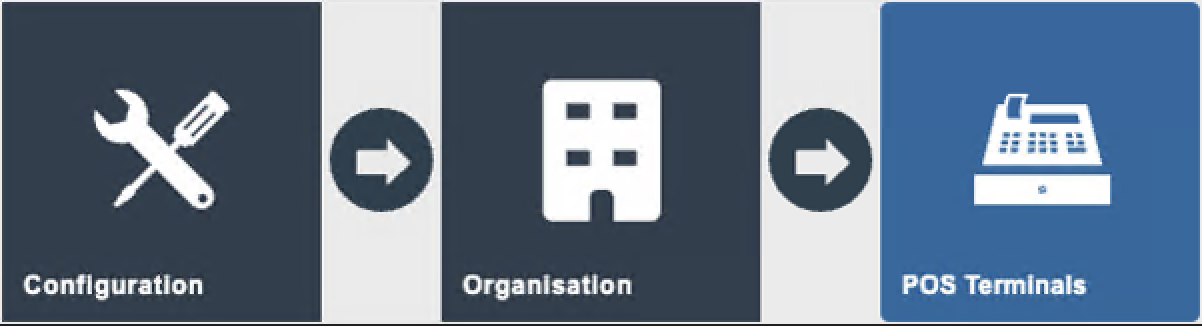
The POS Terminal maintenance application can be accessed through:
Configuration > Organisation > POS Terminals
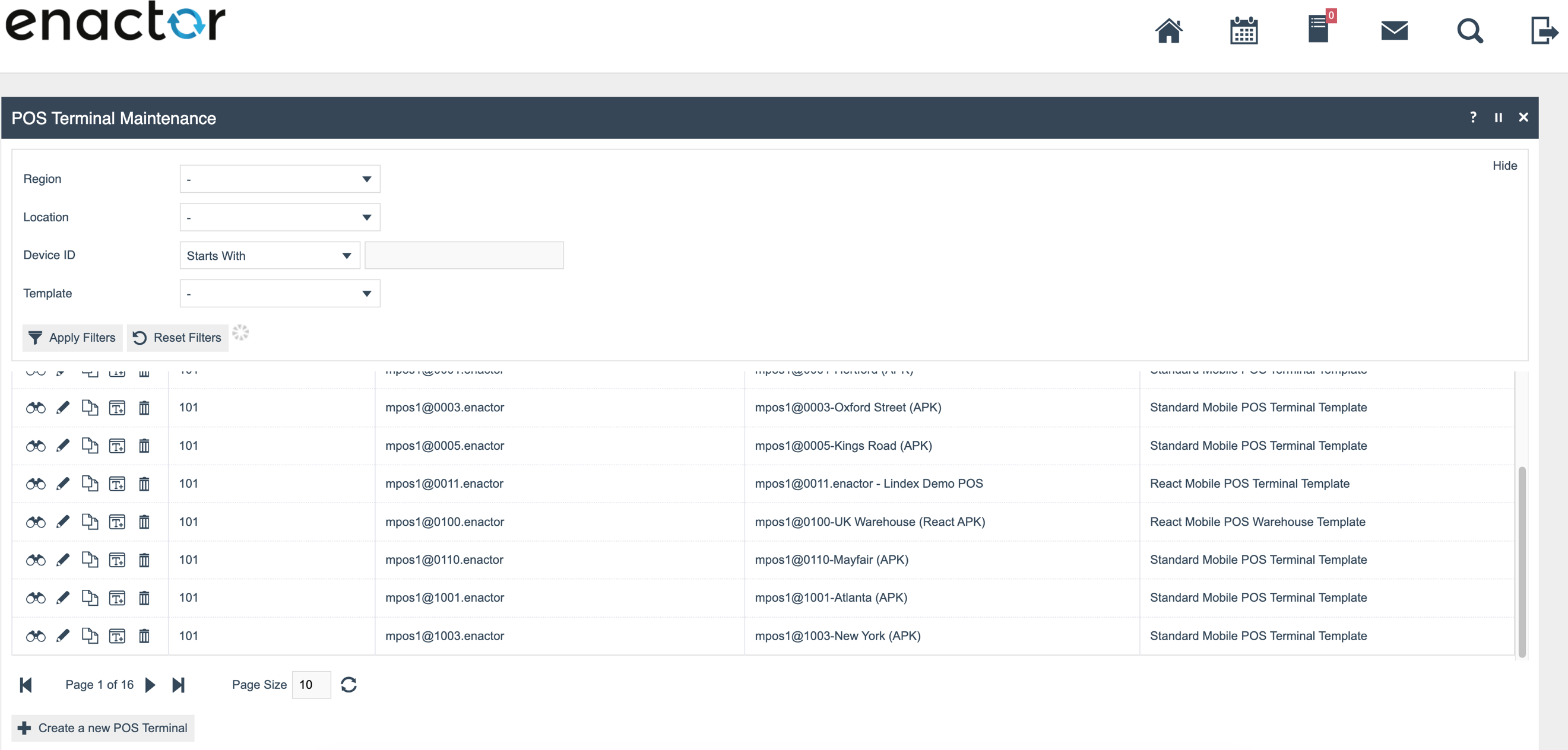
Edit the POS Terminal where the RFID reader is to be configured and select the Peripherals > Input tab.
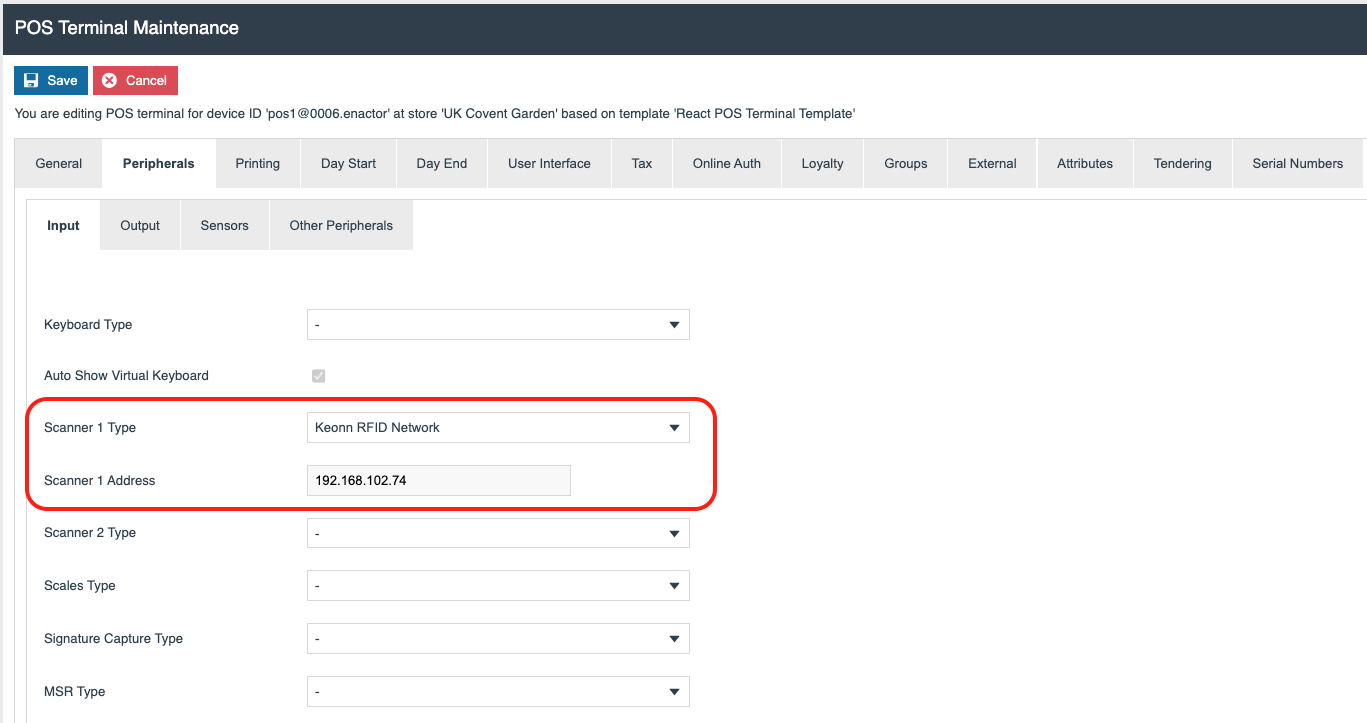
Configure the following values:
| Configuration | Description |
|---|---|
| Scanner 1 Type | Keonn RFID Network |
| Scanner 1 Address | IP address of the RFID reader |
Field Validator Set and Field Validator Definition
These will be provided by an Enactor representative and should be imported into the Estate Manager via the File Importer application.
This application can be accessed through:
Administration > Data Management > Imports > File Import

Once the configuration has been imported, it should be broadcast to the POS (a full list of entities to be broadcast is detailed later in the document).
Products
If it is a requirement to capture and record the serial number from an RFID tag, then this is configured on a per-product basis.
Navigate to Product Maintenance at the following path:
Configuration > Merchandise > Products

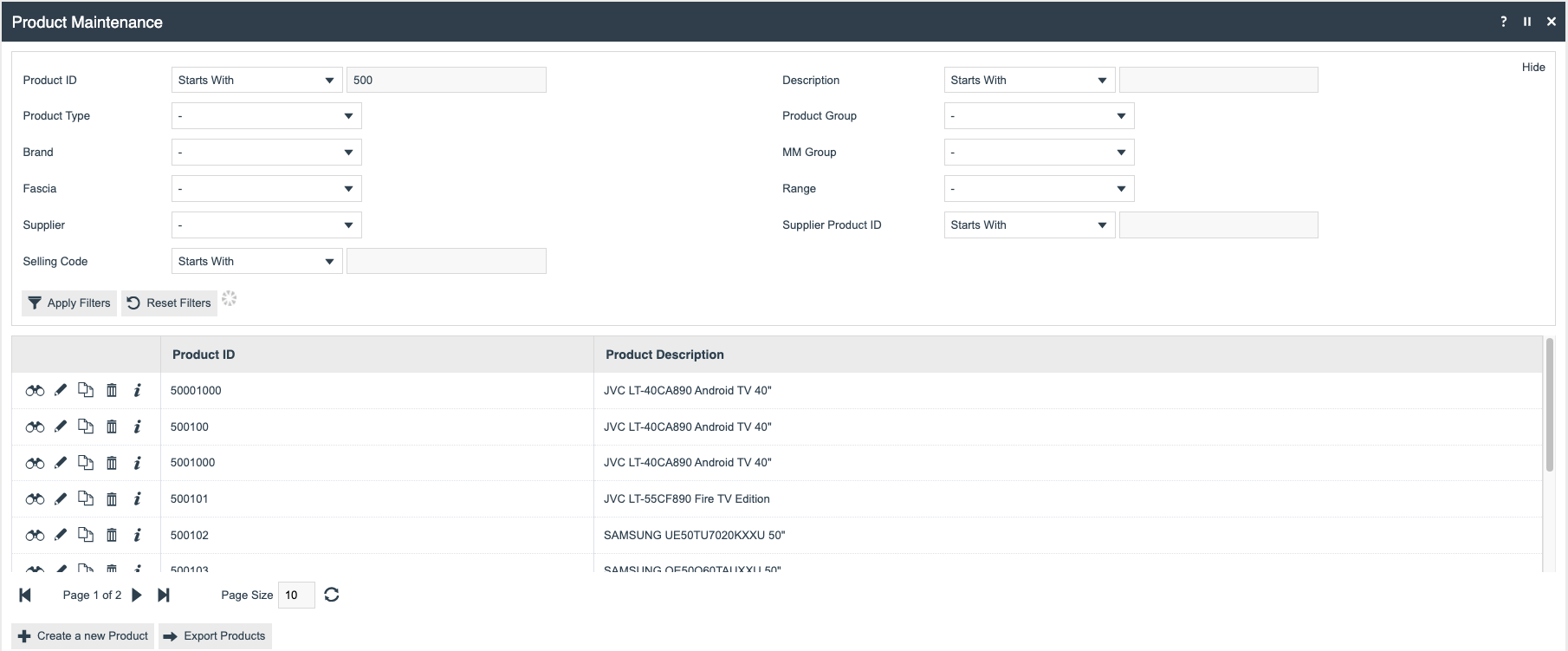
Select the Edit function against the relevant product, then navigate to the Selling Options > Prompts tab.
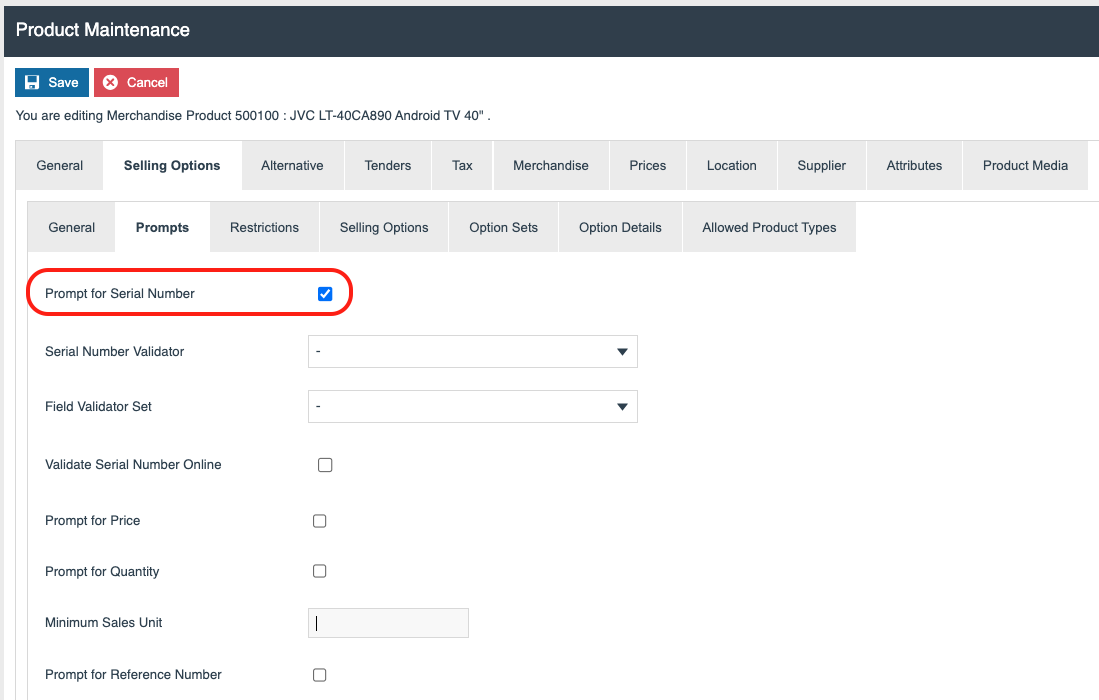
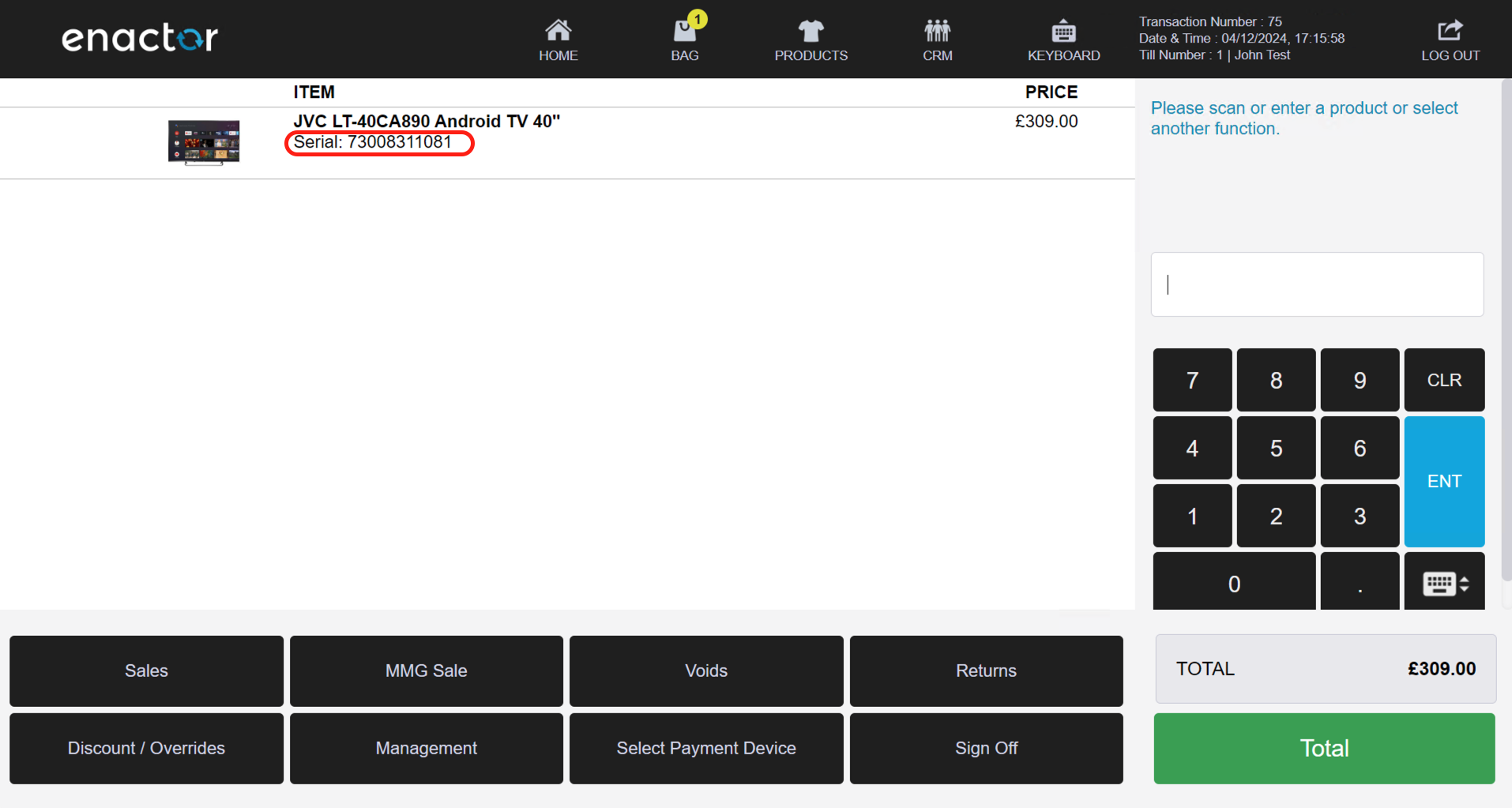
The 'Prompt for Serial Number' option should be checked - when this product's RFID tag is read, the serial number from it is captured and added to the transaction.
Broadcasting
To deliver the configuration changes to the POS, broadcast the following entities:
-
POS Terminal
-
Field Validator Set
-
Field Validator Definition
-
Product
Restart the POS application for the POS Terminal configuration change to take effect.
Configuring the Keonn RFID Reader
Enter the IP address of the Keonn Reader into a browser to open its web interface.
The following configuration should be set in the Keonn Setup Wizard:
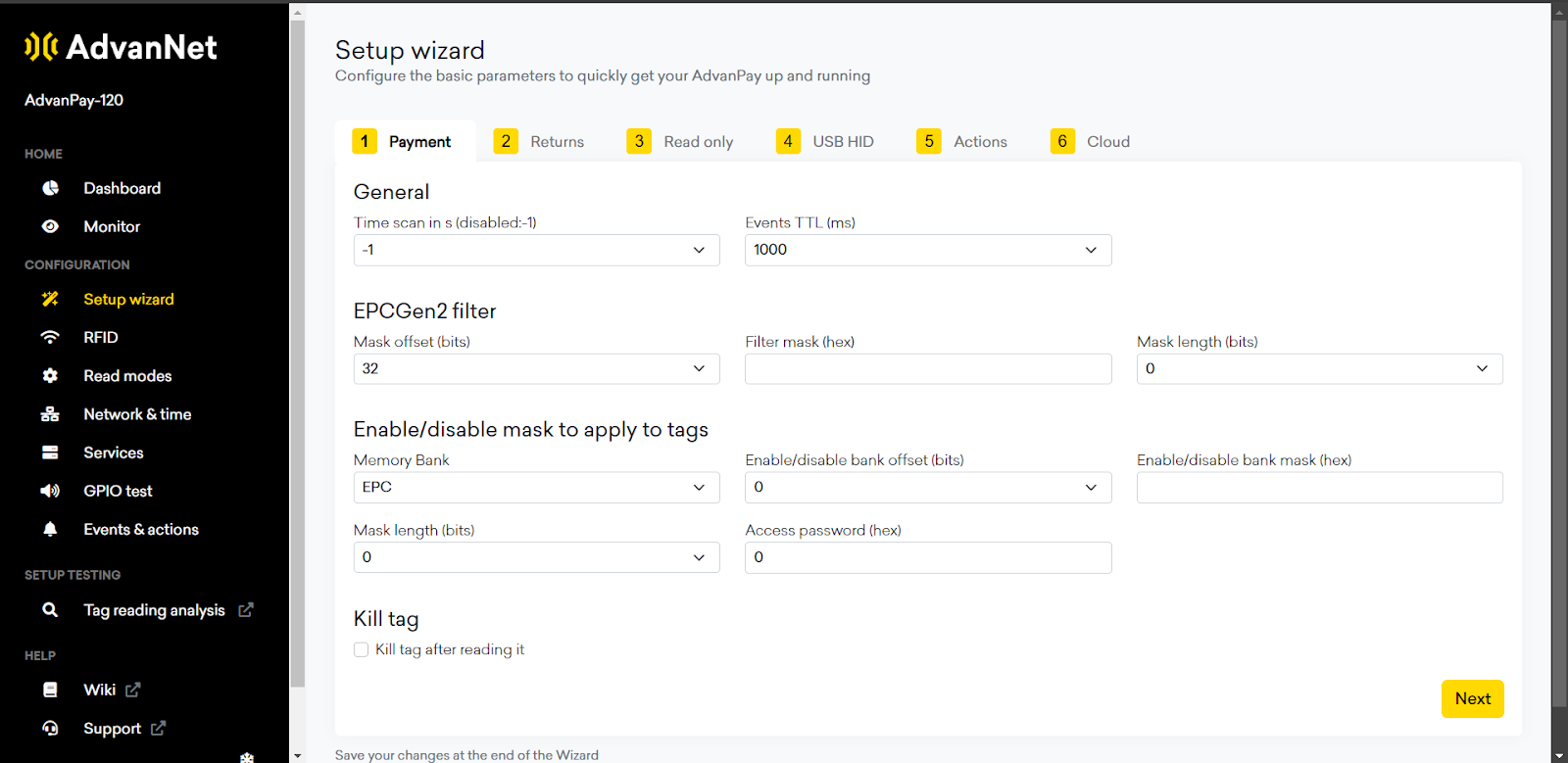
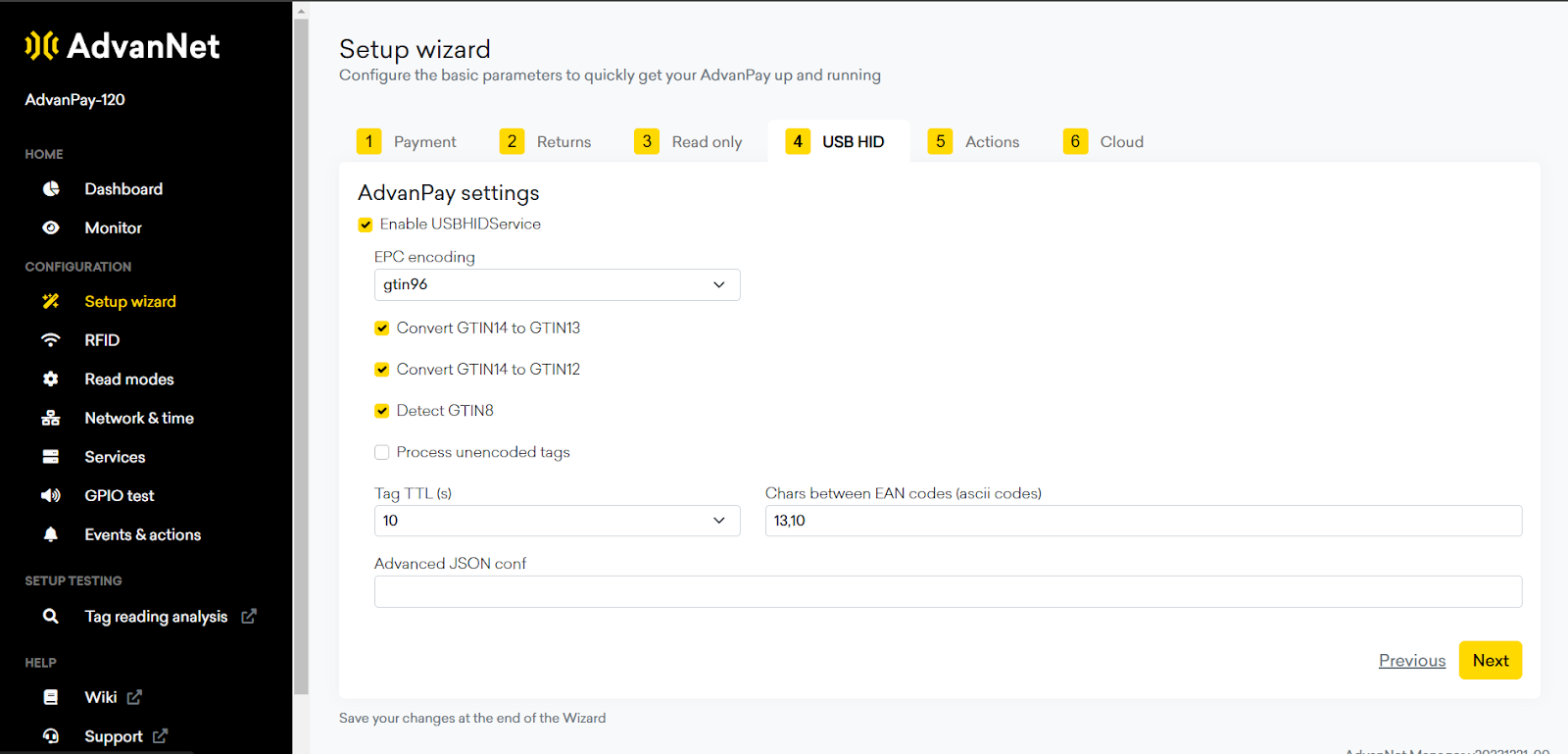
In the RFID section:
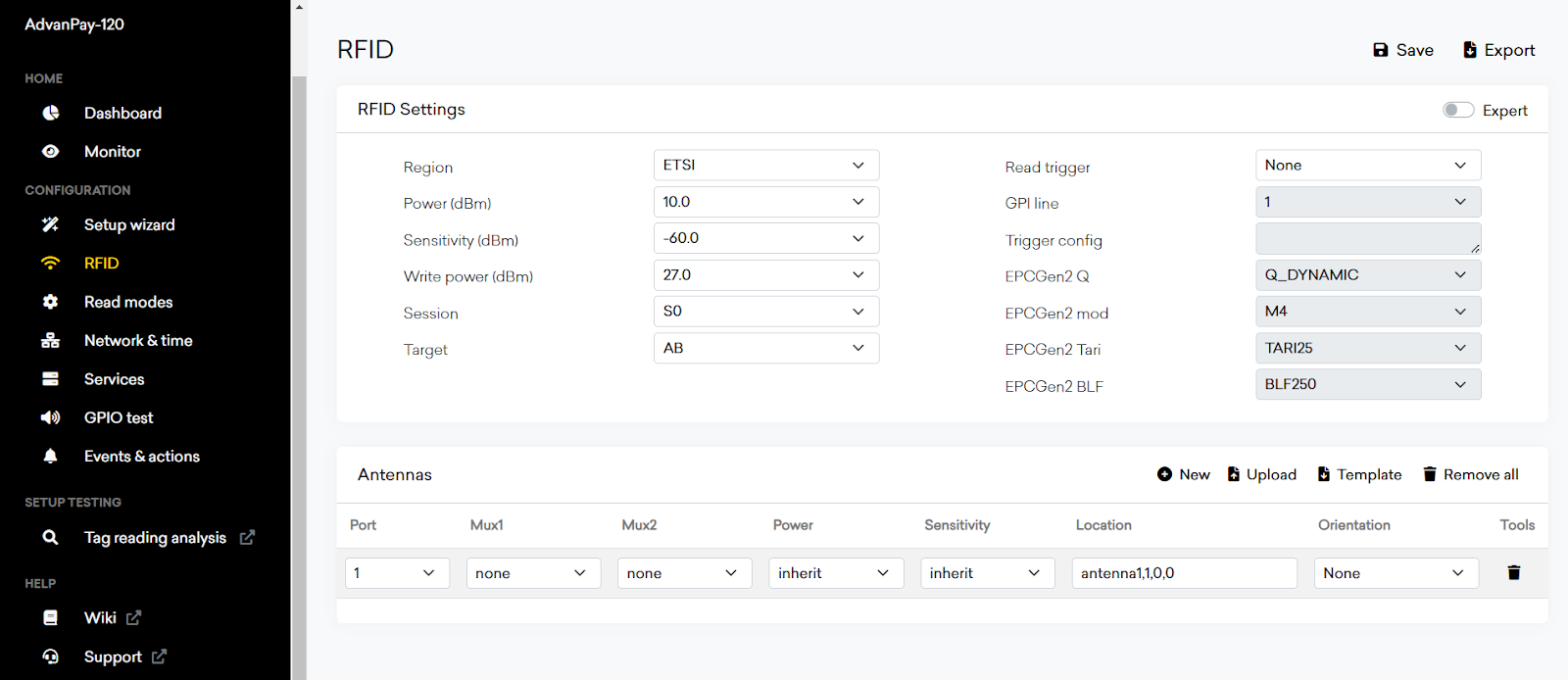
Read Modes:
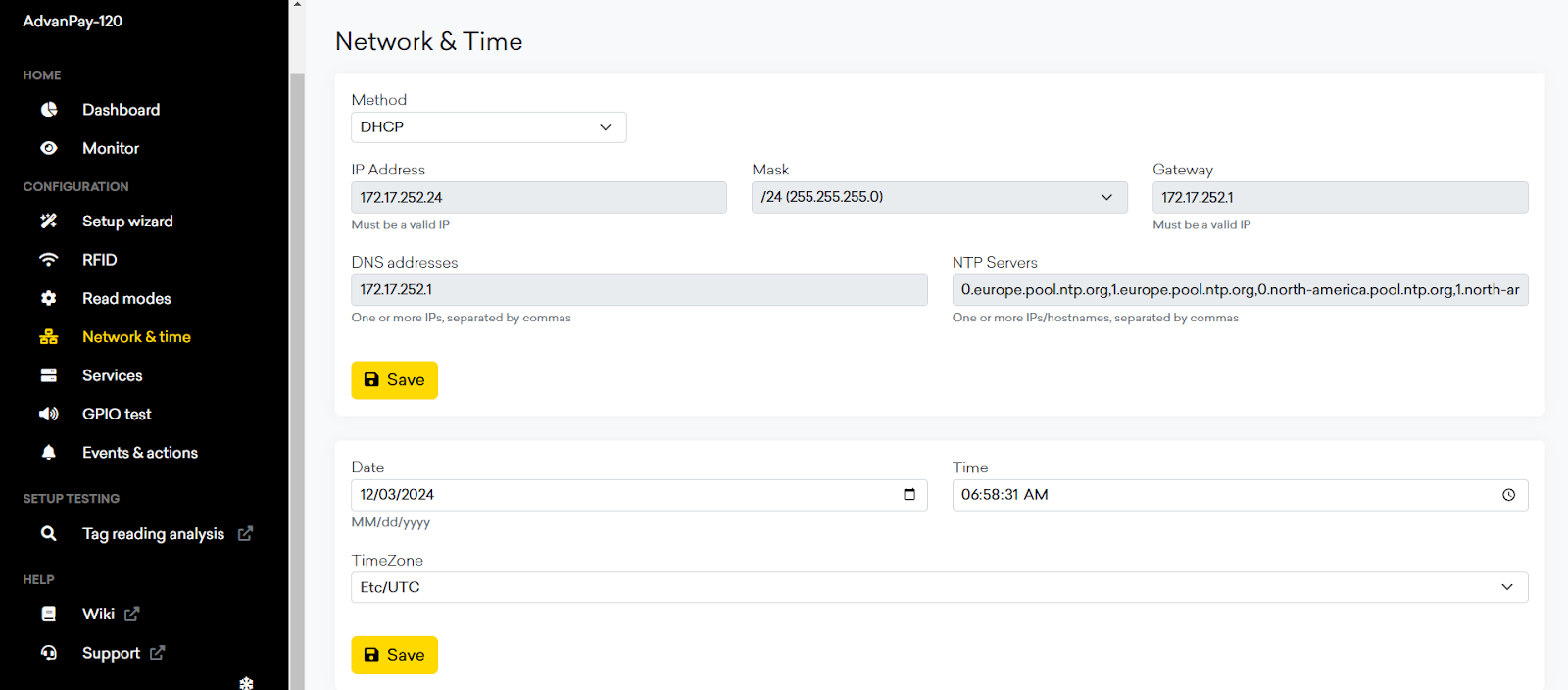
Network - use either DHCP or set a fixed IP address:
Services - AdvanNetRestService
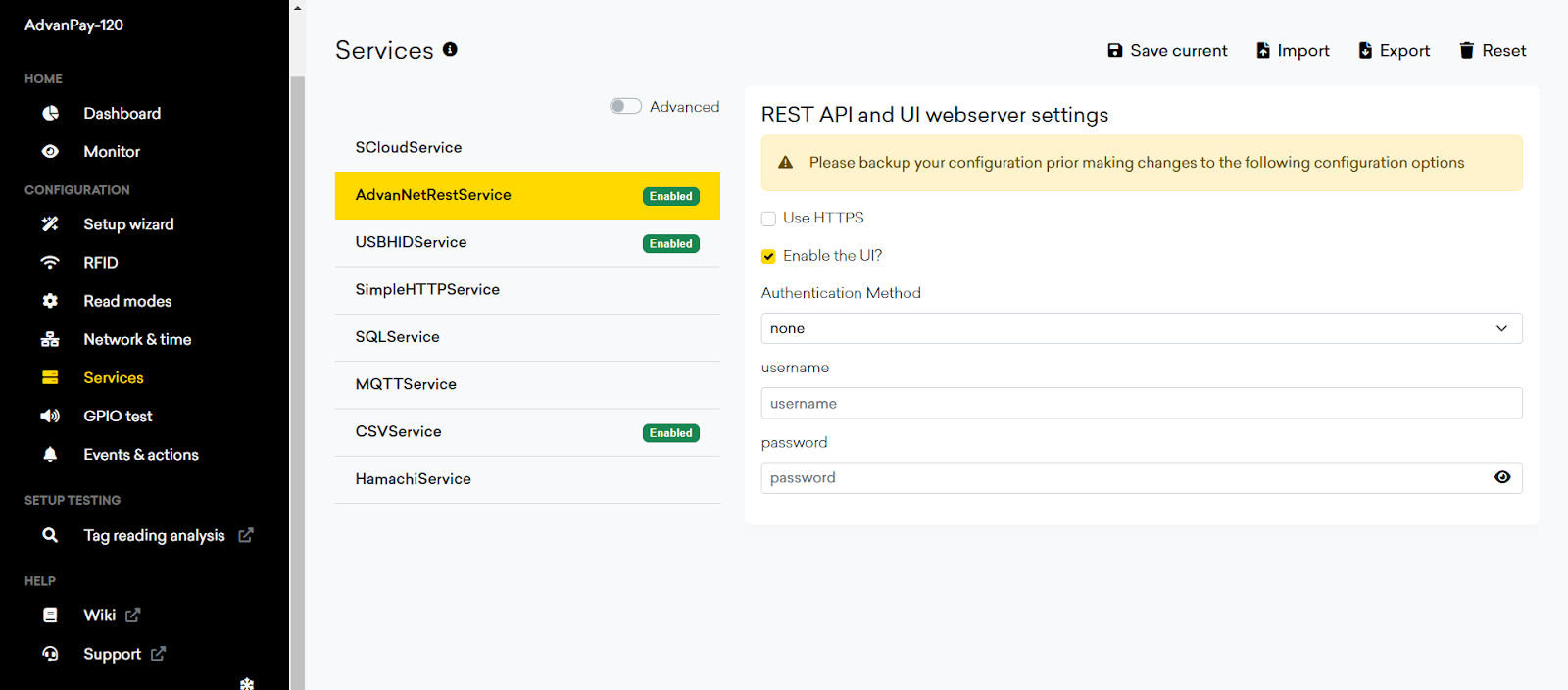
Services - USBHIDService
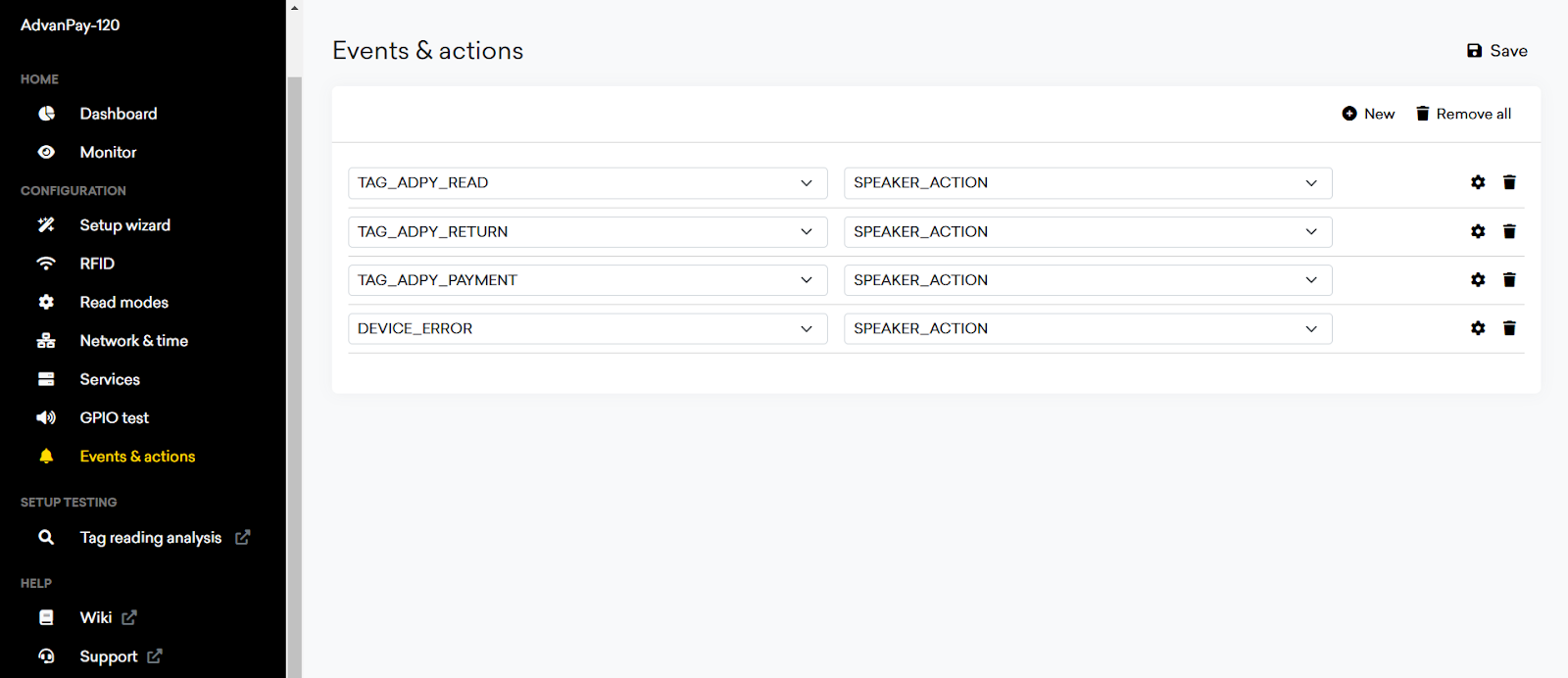
Events & actions: