How-to Guide - Estate Manager Navigation
Introduction
The Enactor Estate Manager is a web-based application that serves as the central repository for data across all Enactor Retail Applications and provides Web Services to those applications. The Web Maintenance Application is a browser-based user interface that provides menu options to:
- Maintain and distribute configuration
- Perform administrative tasks
- Perform operational tasks
- Monitor the estate
The purpose of this guide is to provide basic guidance on navigating the Estate Manager interface, including the menu system, search functionality, favourites, and online help. Please refer to additional how-to guides and the full solution documentation for more detailed information on specific topics.
Overview
This guide covers the following areas of Estate Manager navigation:
- Navigation Methods - The three ways to find functions: menu tiles, search, and favourites/recent items
- Home Page - The layout and features of the Estate Manager landing page
- Main Menu - The six top-level menu areas and their purpose
- Enactor Online Help - The context-sensitive help system available on every page
Prerequisites
Before starting, you should have the following in place:
- Enactor Estate Manager accessible via a web browser
- A valid user account with appropriate permissions
- URL for the Estate Manager provided by your system administrator
Navigation Methods
The Enactor Estate Manager Web Maintenance Application provides a user interface accessible using a standard internet web browser. Users are provided a URL to access the Estate Manager either on the web or, more typically, the customer's intranet. The Estate Manager is the central point of control providing access to data maintenance, administrative, and operational functions.
There are three main methods of navigating to the required function:
- Menu - All functions are available by navigating through the menu structures (the blue tiles)
- Search - Search for keywords in the title of any function
- Favourites and Recent Items - These are populated automatically as the user accesses various Estate Manager functions
Home Page
Once successfully signed on, the user is presented with the Home Page, which displays the Main Menu and dynamic sub-menus:
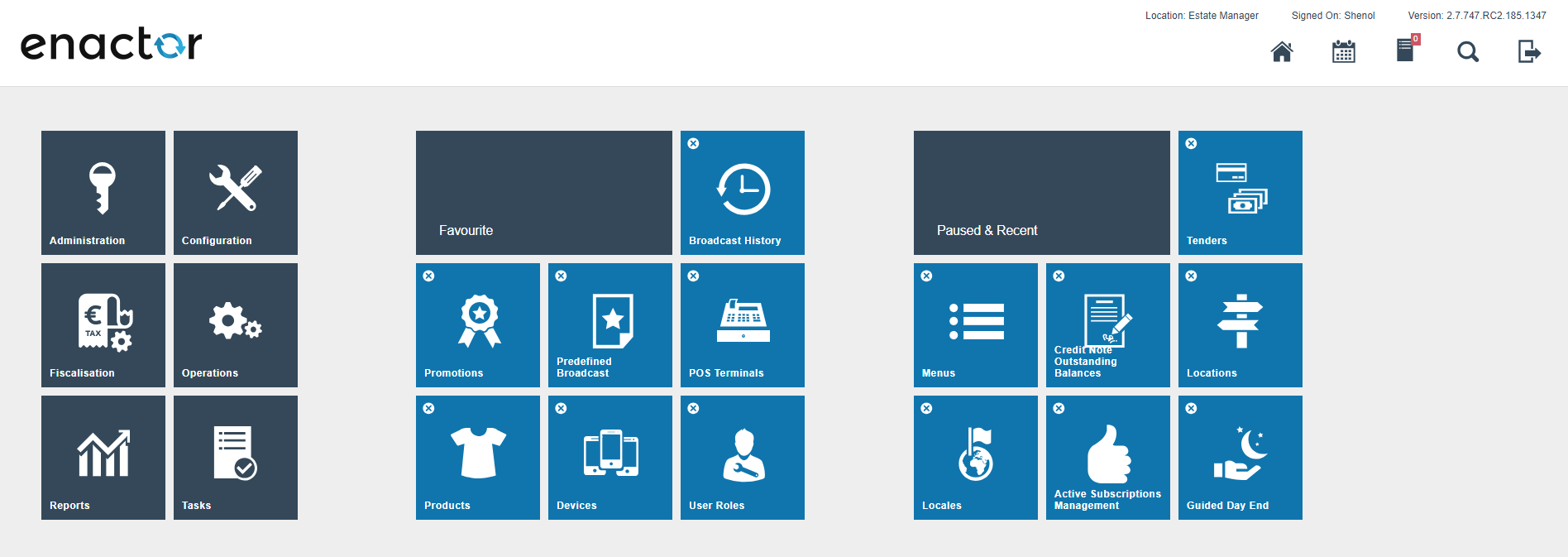
Menu options are represented by named, iconised tiles that are configured to appear only if the user has the necessary permissions. The Favourite and Paused and Recent menu groups are dynamic elements that provide quick access to frequently, recently, or currently accessed menu options.
The following points are helpful when using the menu system:
- The Main Menu (dark blue tiles) is displayed at the left of all menu pages
- The Main Menu is displayed alongside two dynamic sub-menus: Favourites (automatically defined by usage) and Paused and Recent selected options
- Dark blue tiles always lead to a sub-menu
- All sub-menus are represented by light blue tiles
- The Search icon allows direct access to menu options based on a title search
- The Home icon returns to the Main Menu
- The Sign Off button exits the application
Main Menu
The Main Menu provides six top-level areas of functionality:
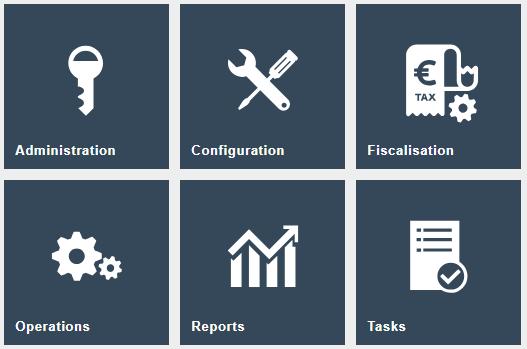
Administration
Sub-menus and options of the Administration menu serve to obtain information or initiate actions typically required in the course of estate management. Certain configuration elements such as devices, service types, and definitions are also maintained via the Administration menu, as these are considered estate management responsibilities.
This completes the Administration overview.
Configuration
Sub-menus and options of the Configuration menu serve to maintain configuration stored centrally within the Estate Manager database but applicable to the estate as a whole.
This completes the Configuration overview.
Fiscalisation
Sub-menus and options of the Fiscalisation menu are used to keep track of transaction reports and allow for the export of additional tax and other relevant data.
This completes the Fiscalisation overview.
Operations
Day-to-day operational tasks related to cash management, customer relationship, reporting, and inventory functions are organised under the sub-menus and options of the Operations menu. These may be undertaken as responsibilities more widely distributed than estate management.
This completes the Operations overview.
Reports
Enactor includes an assortment of reports accessed through the Reports menu. The reports are organised into multiple categories.
Reports are presented in a standard user interface that typically includes capture of report parameters. Once initiated, the user is presented with the report queue page:
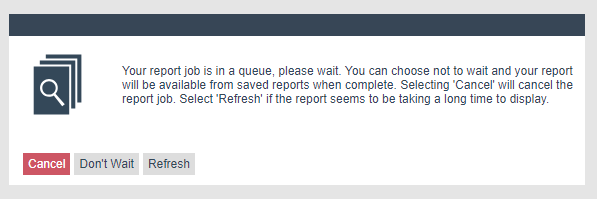
If the user chooses not to wait, the report continues to generate in the background. The completed report can be accessed later using the Saved Reports option.
This completes the Reports overview.
Tasks
The Tasks menu provides access to the user's task list and available business processes. The My Tasks option presents a search and select page with separate tabs for Pending and Completed tasks. Business processes can also be initiated via the Launch Business Process option.
This completes the Tasks overview.
Enactor Online Help
Almost all pages of the Estate Manager offer a body of online help in a Help Point, accessed using the Help icon in the top-right-hand region of the page title banner.
Accessing Help
Selecting the Help Point opens a new Help Panel within the current page:
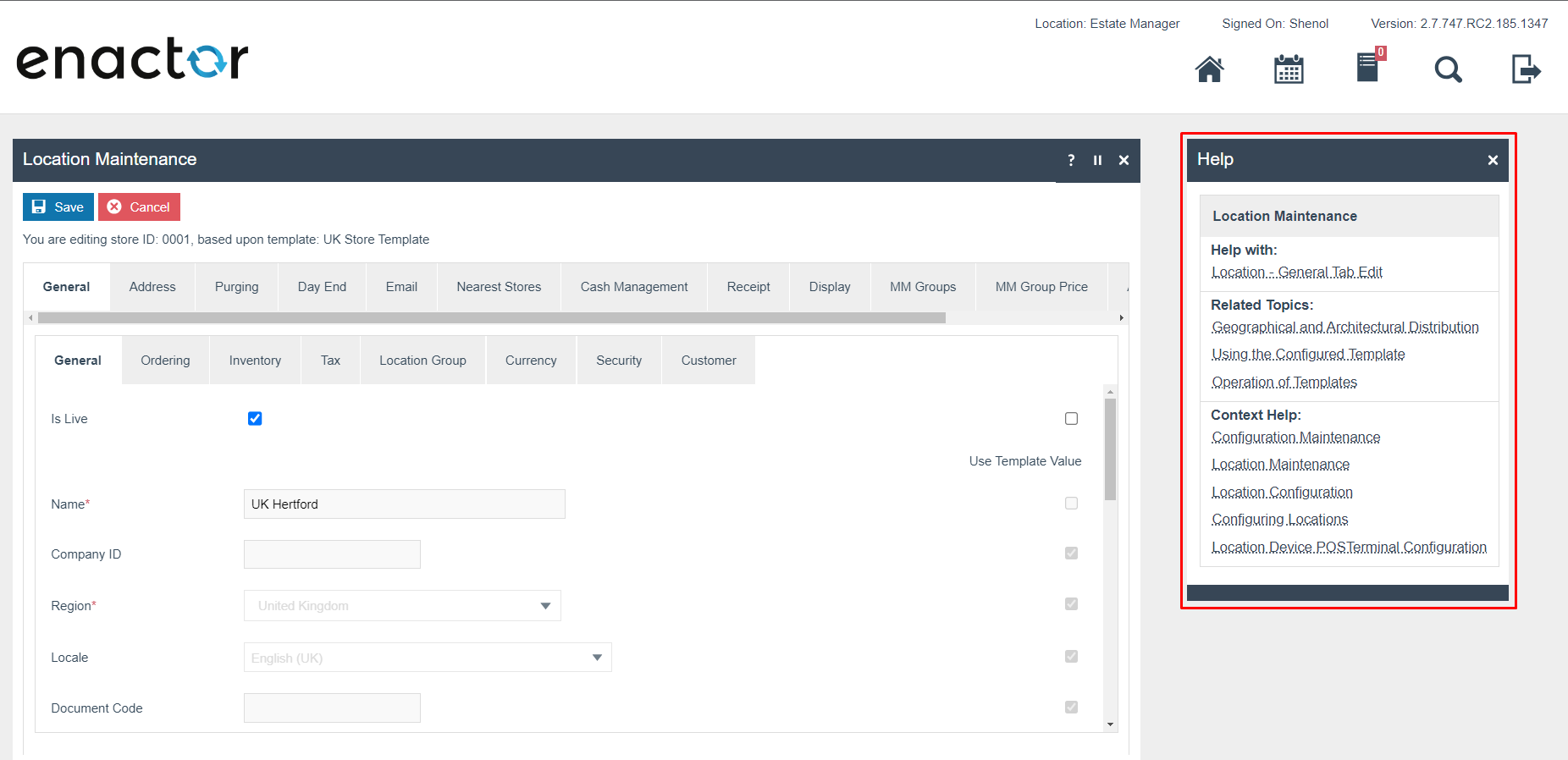
If left open, the Help Panel persists and is context-sensitive, presenting help options appropriate to the current Web Maintenance page as the user navigates among tabs and options.
The Help Panel
The Help Panel offers links to help information in three categories:
| Category | Description |
|---|---|
| Help With | Provides access to help content that directly relates to the current application page. |
| Related Topics | Provides access to help information on topics related to the current page. |
| Context Help | Provides access to help content about the wider context of the application and the function of the current page. |
These links bring together direct access to various sections of the Enactor Books Content relevant to the current page.
This completes the Enactor Online Help overview.
About This Document
(c) 2023 Enactor Ltd
All documents produced by Enactor Ltd are supplied to customers subject to Copyright, commercial confidentiality, and contractual agreements and must not be copied or transferred without permission.
Document Context
This document is part of the Enactor Product Documentation Series. All Enactor products include a comprehensive documentation set designed to improve understanding of the product and facilitate ease of use.
Document Inquiries
If you find that a document is inaccurate or deficient in any way, please contact:
Email: documentation@enactor.co.uk
Document History
| Version | Status | Issue Date | Author | Reason for Issue | Software Version |
|---|---|---|---|---|---|
| 1.0 | Initial Draft | 22 July 2020 | Michael Tolson | Initial version | |
| 2.0 | Updated | 01 November 2023 | Shenol Silva | Document update - most recent themes and configurations | |
| 3.0 | Revised | 31 March 2026 | Shenol Silva | Converted to standards-compliant format | 2.7.1724 |