How To Promotion Summary Report
Introduction
The Enactor application generates a wide variety of reports for various users and purposes. These integrated reports available from the Enactor Retail System can be enhanced by custom reports produced by the company, which are then easily incorporated into the Reports User Interface.
The purpose of this guide is to demonstrate how to generate and interpret the Promotion Summary Report in the Enactor Estate Manager.
Overview
This document will guide you through the following integrated report available from the Enactor Retail System:
- Promotion Summary Report - displays a summary of sales figures from receipts where a promotion was applied at the POS
Promotion Summary Report
The Promotion Summary Report displays a summary of sales figures from receipts where a promotion was selected in POS. This report shows promotion summary information according to the criteria selected.
Navigate to the Promotion Summary Report using the path: Reports > Promotion Reports > Promotion Summary

To populate data in the Promotion Summary Report, a product that triggers a promotion must have been tendered at the POS. Refer to the How To Configure Promotions guide for more information on configuring promotions.
The report displays summary data about promotions based on the selected filter criteria.
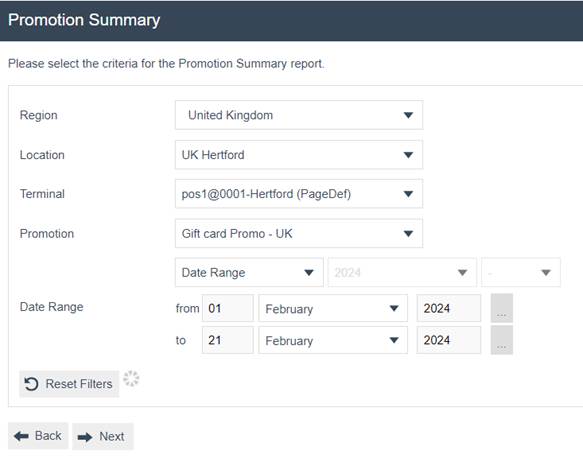
Set the appropriate values on the Search Filters as follows:
| Filter Criteria | Description |
|---|---|
| Region | Dropdown list selection of configured Regions. |
| Location | Dropdown list selection of configured Locations in the Region specified. If no Region is specified, all configured Locations are shown. |
| Terminal | Dropdown selection from a list of all Terminals at the Location specified. If no Location is specified, all configured Terminals are shown. |
| Promotion | Dropdown list selection of configured Promotions. |
| Date Range | The date range required to generate the report. |
Then click on the Next button which will create a Scheduled Job to run the report.
Wait For Report
When a report is submitted, the system displays a progress screen indicating the report is in a queue. Several self-explanatory messages can appear at this point with options to Cancel, Don't Wait, or Refresh.

| Button | Description |
|---|---|
| Cancel | Cancels the report job. |
| Don't Wait | Allows the user to continue working. The report will be available from saved reports when complete. |
| Refresh | Refreshes the report status if it seems to be taking a long time to display. |
Viewing Report Results
Once the report has been generated the following screen will be displayed.

The report shows promotion summary information according to the criteria selected. The information is displayed in a table with the following columns:
| Column Header | Description |
|---|---|
| Location | The ID of the location. |
| Promotion | The ID of the promotion. |
| Description | The description of the promotion. |
| Reward Type | The type of promotional reward. |
| Quantity | The total quantity from triggers. |
| Hits | The total number of hits for the promotion. |
| Value | The reward value or points from triggers depending on the reward type. The grand totals for Quantity, Hits, and Value are shown at the bottom of the page. |
Report Actions
In addition to the report output, the following actions are available:
| Button | Description |
|---|---|
| Back | Returns the user to the previous screen. |
| Sends a copy of the report to an attached printer. | |
| View PDF | Enables the user to view the report in PDF format. |
| Save XLS | Saves the report in Excel spreadsheet format. |
| Save DOC | Saves the report in Word format. |
The functionality of the buttons displayed above is the same for all promotion reports.
This completes the Promotion Summary Report guide.