How To Navigate POS Getting Started
Introduction
This guide is part of the POS Functionality series, which documents the standard behaviour of the Enactor Point of Sale (POS) in Standard Configuration (SC) for Version 2.7.747.RC2.
The Enactor POS is a touch-screen retail point-of-sale application used by store operators to conduct transactions including sales, returns, voids, tenders, and a wide range of other retail functions. The POS is configured with two user roles - Sales Assistant and Manager - each with a defined set of privileges that determine which functions the operator can initiate and/or authorise.
The purpose of this guide is to introduce the foundational elements of the POS: the default user credentials supplied with the Standard Configuration, the full function and privilege matrix, and the POS menu structure.
This guide covers the POS as experienced by the operator at the till. It does not cover Estate Manager configuration. All screens shown are POS terminal screens.
Overview
This guide covers the following topics:
- User Credentials - The default users included with the Standard Configuration, including User IDs and passwords.
- POS Functions/User Template Matrix - A complete listing of all POS functions and the privilege level assigned to each user role.
- Menus - The 17 menus that make up the Enactor POS and their layout structure.
For POS sign-on and log-out procedures, see How-to Guide - POS Functionality - 02 - Sign On.
User Credentials
These are the users included with the Standard Configuration.
| User ID | Forename | Surname | Password |
|---|---|---|---|
| 000101 | 000101 | Hertford Manager | 000101 |
| 000102 | 000102 | Hertford Sales Asst | 000102 |
In the Standard Configuration, each user's User ID is also used as both their forename and password. In a production deployment, operators should be assigned individual credentials with secure passwords.
POS Functions/User Template Matrix
This table explains the colour scheme used to indicate the level of privilege that a user has when triggering a function.
| Colour | Meaning |
|---|---|
| Green | User can initiate and authorise the function. |
| Amber | User can initiate the function but requires authorisation from a user with higher privileges. |
| Red | User cannot initiate nor authorise the function. |
All functions covered in this document are listed in the table below, indicating the privilege level of each user role for every function.
The matrix below covers all POS functions documented across the full POS Functionality series. Functions beyond the scope of this guide (such as Sale, Returns, Tenders, etc.) are covered in subsequent guides in the series.
| Function | Sales Assistant | Manager |
|---|---|---|
| Log In/Out | ||
| Log In | Green | Green |
| Log Out | Green | Green |
| Sale | ||
| Key-Entered Item | Green | Green |
| Scanned Item | Green | Green |
| Unknown Item Sale | Red | Green |
| Rich Product Search (RPS) | Green | Green |
| Quantity Sell Item | Green | Green |
| Returns | ||
| Receipt Return | Green | Green |
| Item Return (Non-Receipt) | Green | Green |
| Voucher Return | Green | Green |
| Quantity Return | Green | Green |
| MMG Return | Green | Green |
| Discounts / Overrides | ||
| Item Discounts | Green | Green |
| Transaction Discounts | Green | Green |
| Price Override | Green | Green |
| Voids | ||
| Item Void | Green | Green |
| Item Discount Void | Green | Green |
| Transaction Void | Green | Green |
| Tender Void | Red | Green |
| Scan Item Void | Green | Green |
| Promotions | ||
| Disable Promotion | Green | Green |
| Store & Recall | ||
| Store by Receipt | Green | Green |
| Store by User | Green | Green |
| Recall by Receipt | Green | Green |
| Recall by User | Green | Green |
| Receipts | ||
| Reprint Recent | Green | Green |
| Reprint Archive | Green | Green |
| Select Items for Gift Receipt | Green | Green |
| Request Gift Receipt Transaction | Green | Green |
| Request Tax Receipt | Amber | Green |
| Request Email Receipt | Green | Green |
| Tenders | ||
| Cash | Green | Green |
| Card Payment Service | Green | Green |
| Cheque | Green | Green |
| Voucher | Green | Green |
| Credit Note | Green | Green |
| Gift Card | Green | Green |
| Vouchers | ||
| Issue Voucher | Green | Green |
| Credit Notes | ||
| Issue Credit Note | Green | Green |
| Gift Cards | ||
| Gift Card - Issue | Green | Green |
| Gift Card - Top Up | Green | Green |
| Gift Card - Enquiry | Green | Green |
| Gift Card - History | Green | Green |
| Gift Card - Merge Gift Cards | Green | Green |
| Gift Card - Cancel Gift Card | Green | Green |
| Customers | ||
| Customer Account - Enquiry | Green | Green |
| Customer Account - Payment | Green | Green |
| Customer Account - Withdrawal | Green | Green |
| Customer Deposits - Enquiry | Green | Green |
| Customer Deposits - Payment | Green | Green |
| Customer Deposits - Withdrawal | Green | Green |
| Capture Address | Green | Green |
| Loyalty | ||
| Capture Loyalty | Green | Green |
| Loyalty Account Enquiry | Green | Green |
| Issue Loyalty Card | Green | Green |
| Add Loyalty Points | Green | Green |
| Employee Sales | ||
| Employee | Green | Green |
| Employee Spend | Green | Green |
| Employee Grade | Green | Green |
| Employee Grade by MMG | Green | Green |
| Modifier Menu | ||
| Modify Product | Green | Green |
| Reports | ||
| POS Reports - Display Reports | Red | Green |
| POS Reports - Print Reports | Red | Green |
| Store Web Reports | Red | Green |
| Training Mode | ||
| Toggle Training Mode | Red | Green |
| No Sale | ||
| Open Cash Drawer | Red | Green |
| Exit | ||
| Exit POS | Red | Green |
| User Maintenance | ||
| Users | Red | Green |
| Change Your Password | Red | Green |
| Change User Password | Red | Green |
| Terminal Cash Management | ||
| Float | Red | Green |
| Pickup | Red | Green |
| Income | Red | Green |
| Expense | Red | Green |
| Spot Check | Red | Green |
| Cashup and Closing Float | Red | Green |
| History | Red | Green |
| Blind Spot Check | Red | Green |
| Outlay | Red | Green |
| Outlay Return | Red | Green |
| Safe Cash Management | ||
| Currency Purchase | Red | Green |
| Spot Check | Red | Green |
| Cashup | Red | Green |
| Banking | Red | Green |
| Income | Red | Green |
| History | Red | Green |
| Admin | ||
| Daily Operations - Day Start | Red | Green |
| Daily Operations - Day End | Red | Green |
| Daily Operations - Store Day Start | Red | Green |
| Daily Operations - Store Day End | Red | Green |
| Daily Operations - Estate Manager | Red | Green |
| System Status - Background Services | Red | Green |
| System Admin - Update Indexes | Red | Green |
Menus
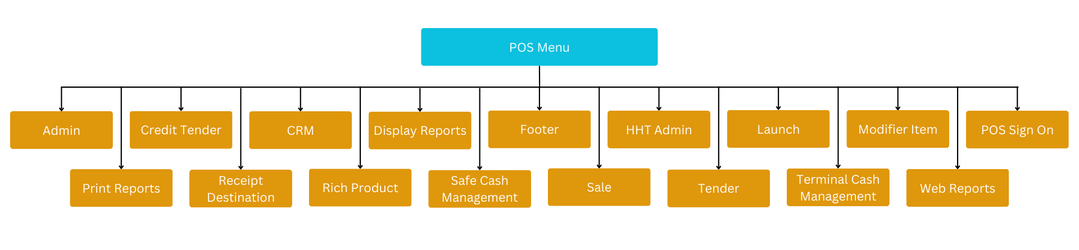
The Enactor POS is comprised of 17 menus:
| Admin | Launch | Safe Cash Management |
| Credit Tender | Modifier Item | Sale |
| CRM | POS Sign On | Tender |
| Display Reports | Print Reports | Terminal Cash Management |
| Footer | Receipt Destination | Web Reports |
| HHT Admin | Rich Product |
Menu Layouts
Menus can include folders and functions, which allow users to perform actions in the POS.
As menus can have complex structures, the Menu Layouts addendum provides a visual representation of each menu. The diagram below shows the top-level structure of the POS Menu hierarchy.
This completes the Menus section.