How To Navigate POS Sign On
Introduction
This guide is part of the POS Functionality series, which documents the standard behaviour of the Enactor Point of Sale (POS) in Standard Configuration (SC) for Version 2.7.747.RC2.
The purpose of this guide is to document the POS sign-on and log-out procedures: how operators log in to the POS using their User ID and Password, what happens when credentials are not recognised, and how to log out once a session is complete.
This guide covers the POS as experienced by the operator at the till. It does not cover Estate Manager configuration. All screens shown are POS terminal screens.
For the default user credentials (User IDs and Passwords) included with the Standard Configuration, see How-to Guide - POS Functionality - 01 - Getting Started.
Overview
This guide covers the following topics:
- Log In - Step-by-step procedure for logging in to the POS using the numeric keypad, including unsuccessful and successful login outcomes.
- Log Out - Step-by-step procedure for logging out once a session is complete.
Log In
Operators can log in by manually keying in their individual Enactor User ID and Password using the numeric keypad on the POS sign-on screen.
- If the login is unsuccessful, the operator is prompted with an on-screen message.
- If the login is successful, the operator is presented with the Sale screen and has access to the functions permitted by their role.
Path: Enactor POS Sign On > Sale
Unsuccessful Login
If an incorrect User ID or Password is entered, the POS displays an error dialog. The operator must acknowledge the message and re-enter their credentials.
- On the POS sign-on screen, enter your User ID using the keypad.
- Enter your Password.
- Press ENT to submit.
- If the credentials are not recognised, the error dialog is displayed.
- Press OK to dismiss the dialog and return to the sign-on screen.
- Re-enter the correct credentials.


This completes the Unsuccessful Login procedure.
Successful Login
Upon successful login, the operator is presented with the Sale screen. The function buttons displayed will vary depending on the operator's role and privileges.
- On the POS sign-on screen, enter your User ID using the keypad.
- Enter your Password.
- Press ENT to submit.
- If the credentials are valid, the Sale screen is displayed.

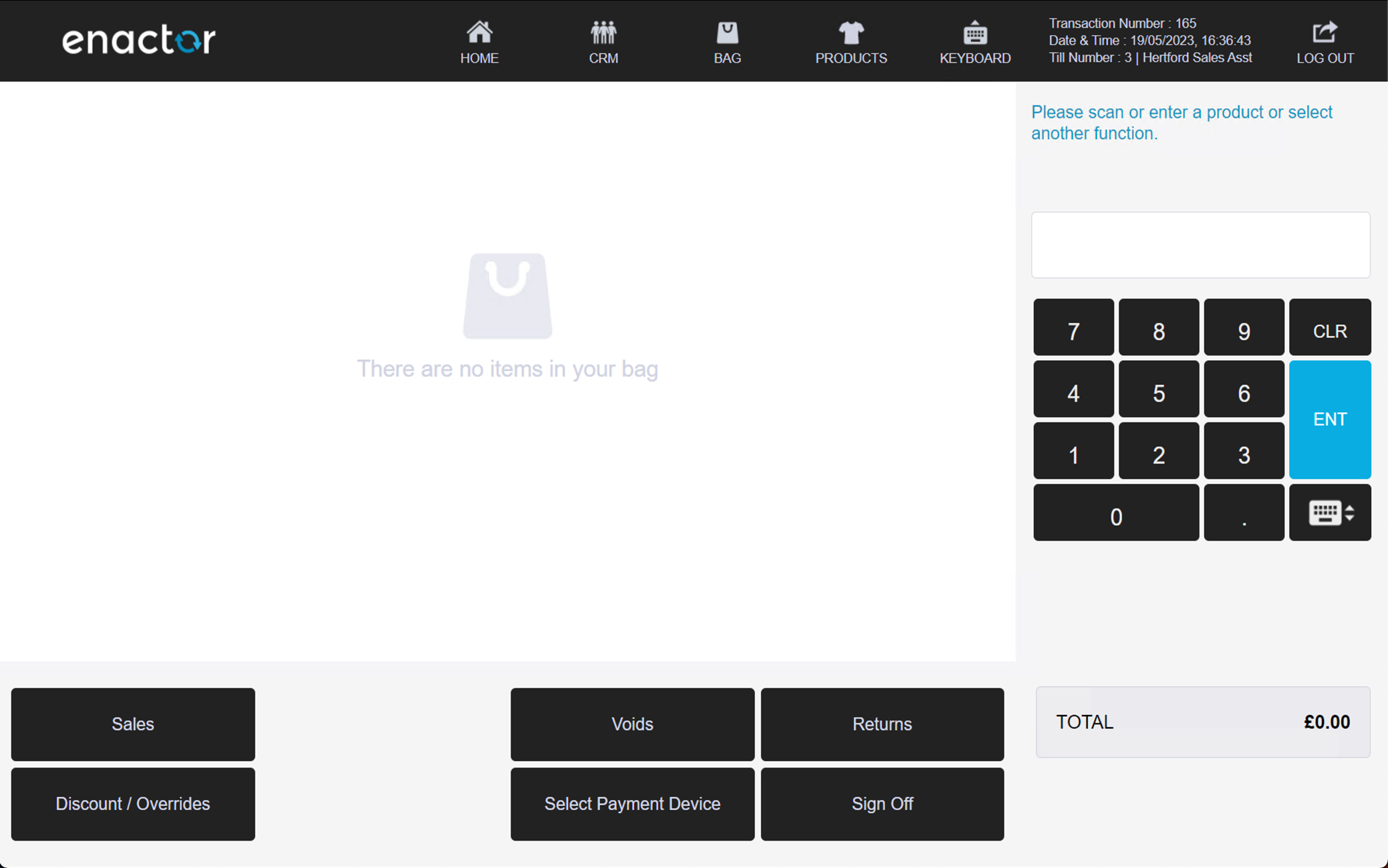
This completes the Successful Login procedure.
Log Out
Once logged in, operators can log out using the LOG OUT button displayed in the top right-hand corner of the screen.
For left-handed users, the LOG OUT button is displayed in the top left-hand corner of the screen.
The logout can also be completed after products have been added to the basket. The transaction will be stored against the operator, and the same transaction will be recalled automatically at next login.
Path: Sale > Enactor POS Sign On
Successful Log Out
- From the Sale screen, press the LOG OUT button in the top right-hand corner (or top left for left-handed mode).
- The POS returns to the sign-on screen, ready for the next operator.


This completes the Successful Log Out procedure.