How To Configure Web POS URL Parameters
Introduction
The purpose of this document is to describe the necessary configuration needed to enable and use URL parameters with Web POS. These URL parameters allow for specific configurations, such as device ID and process sets, to be applied directly through the URL, bypassing the need for manual input on the Web POS configuration screen.
Overview
This guide will cover the configuration for the following:
- URL Parameters - Allows pre-configured URLs needed to bypass the Web POS configuration page.
Prior Training / Experience
You should be familiar with the following:
- Estate Manager Navigation
- POS Parameters
- Web POS setup
Configuration
The Web POS can be configured using URL parameters to automatically apply settings without manual input on the configuration screen. Below is a list of supported URL parameters, each allowing customization of the Web POS experience:
Web POS URL Parameters
| Parameter Name | Example Value | URL Syntax | Description | Character Limit |
|---|---|---|---|---|
deviceId | mpos1@0001.enactor | ?deviceId=[DEVICE_ID] | Specifies terminal ID. Skips configuration screen. | 40 |
ProcessSet | HTMLPos | &ProcessSet=[PROCESS_SET] | Defines the set of processes executed. | 100 |
ParentProcessSet | NextGen | &ParentProcessSet=[PARENT_SET] | Defines the parent process set. Default is NextGen. | 100 |
Theme | NextGen1024x768 | &Theme=[THEME] | The Theme defined for the POS. | 250 |
ParentTheme | NextGen1024x768 | &ParentTheme=[PARENT_THEME] | The Parent Theme defined for the POS. | 250 |
Web POS URL
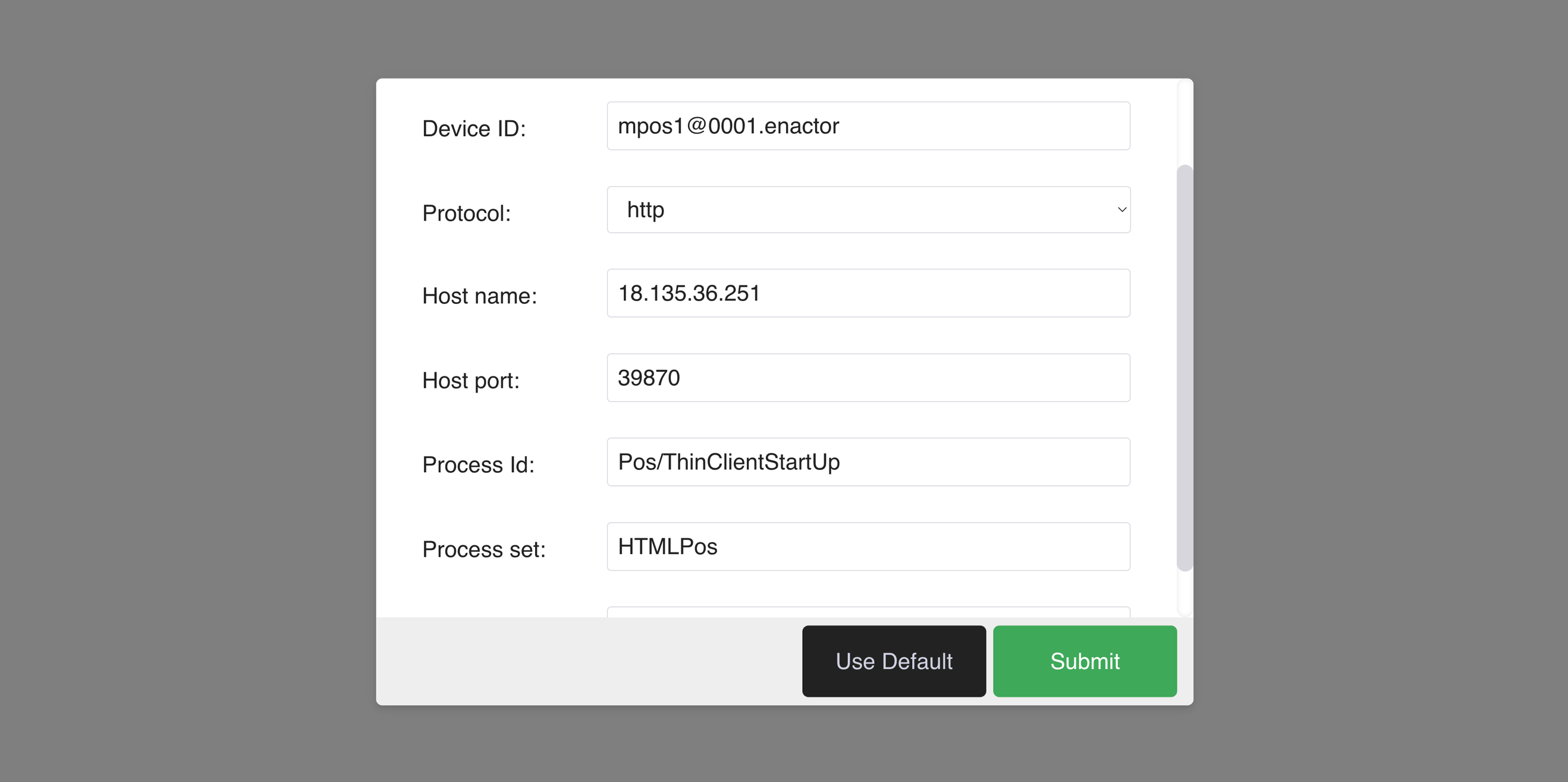
The standard Web POS URL takes users to the configuration page of the Web POS, where they can manually configure the device settings. An example of a Web POS using a standard URL is shown below:
http://xx.xx.xx.xxx/WebPos/apps/react-pos-all-app/index.html
To bypass the Web POS configuration screen and streamline the user experience, the URL must be edited to include specific parameters that the Web POS needs.
When you use the standard URL, you are directed to the configuration screen, where various settings must be manually entered. By including essential parameters, such as the device ID, process set, and theme directly in the URL, users can skip this step and go straight to the sign-on screen.
This approach not only simplifies the process but also enhances efficiency, allowing for quicker access to the POS system.
How to Customize the URL
-
Custom URL Start: After the base URL, use a
?to signify the start of the custom parameters. -
Parameter Format: After the
?, each parameter is added in the formatparameterName=parameterValue. -
Additional Parameters: Each additional parameter is separated by an ampersand
&. -
Order Flexibility: The order of parameters is flexible; however, they must be separated correctly by
&. -
Test the URL: Enter the complete URL in a web browser to verify that it launches the POS correctly. You should not be shown the Web POS Configuration screen. Below is an example Web POS URL with all the parameters entered.
Example:
http://xx.xx.xx.xxx/WebPos/apps/react-pos-all-app/index.html?deviceId=mpos1@0001.enactor&processSet=HTMLPos&parentProcessSet=NextGen&theme=NextGen1024x768&parentTheme=NextGen1024x768
About This Document
This guide describes how to configure Web POS URL parameters to bypass the configuration screen and launch the POS with pre-defined settings.
Document History
| Version | Date | Author | Description |
|---|---|---|---|
| 1.0 | 2026-03-14 | Mark Harrison | Initial version - applied Enactor documentation standards |