How To Navigate Estate Manager
Introduction
This guide covers the basic use and navigation of the Enactor Estate Manager application.
The Enactor Estate Manager is a web-based application that serves as the central repository for data across all Enactor Retail Applications, and provides web services to those applications. The web maintenance application is a browser-based user interface providing menu options to:
- Maintain and distribute configuration
- Perform administrative tasks
- Perform operational tasks
- Monitor the estate
Please refer to the additional how-to guides and the full solution documentation for more detailed information on specific topics.
Navigating Estate Manager
The Estate Manager web maintenance application is accessible using a standard internet web browser. Users are provided a URL to access the Estate Manager menu, either on the web or more typically via the customer's intranet. The Estate Manager is the central point of control for data maintenance, administrative, and operational functions.
There are three main methods of navigating to the required function:
- Menu - all functions are available by navigating through the menu structures (the blue icons)
- Search - search for keywords in the title of the function using the search icon in the header bar
- Favourites and Recent Items - these panels are automatically populated as the user makes use of the various Estate Manager functions
Home Page
Once successfully signed on, the user is presented with the Estate Manager Home Page.
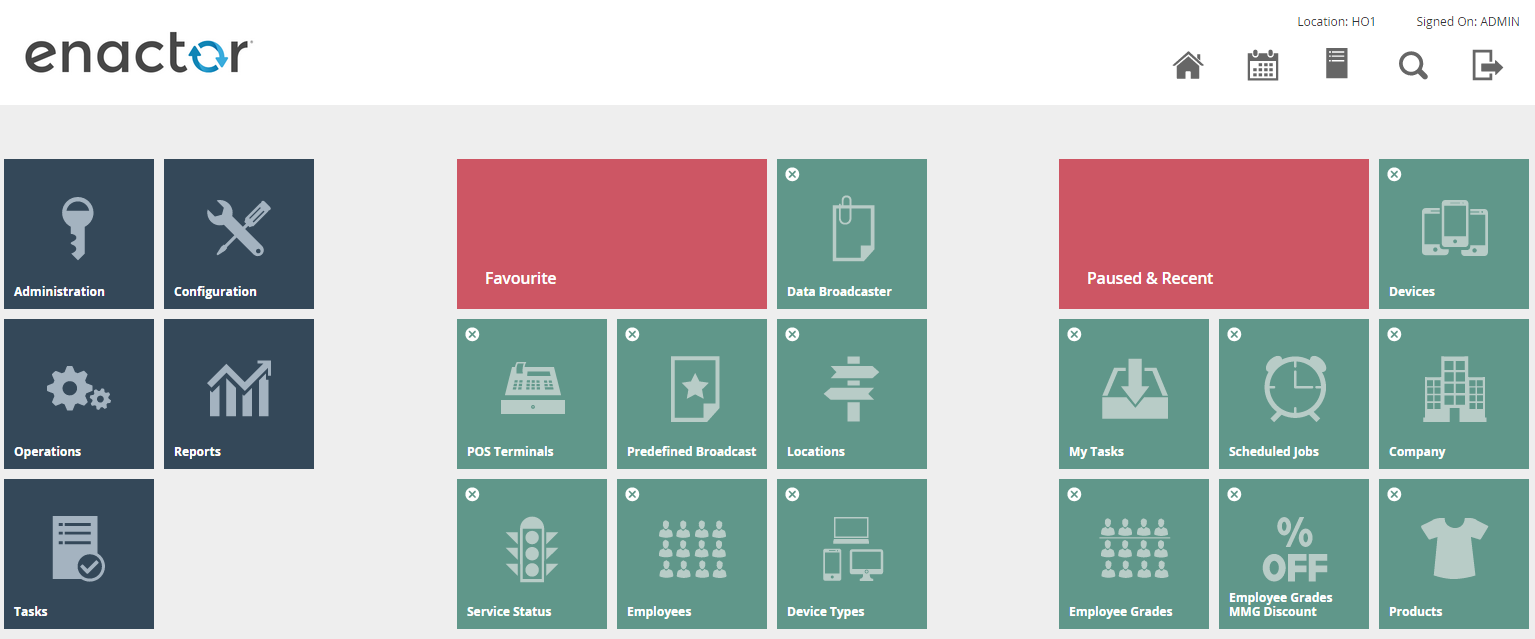
The following points are helpful when using the home page:
- The Main Menu (dark grey tiles) is displayed on the left of all menu pages
- Menu options shown with grey icons always lead to a sub-menu
- The currently selected sub-menu is indicated with a red icon
- Menu options shown with green icons always lead to a data input page
- The Search
 icon in the header allows direct access to any menu option by title search
 - The Home
 icon returns to the Main Menu from any page
 - The Exit icon logs out of the application
Main Menu
The Main Menu provides access to five top-level functional areas of the Estate Manager.
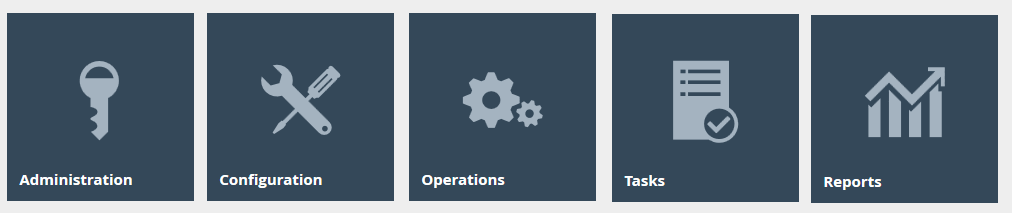
Administration
Sub-menus and options of the Administration menu are used to obtain information or initiate actions typically required in the course of estate management. Certain configuration elements - such as Devices, Service Types and Definitions - are also maintained here, as these are considered estate management responsibilities.
Configuration
Sub-menus and options of the Configuration menu are used to maintain configuration stored centrally within the Estate Manager database and applicable to the estate as a whole.
Operations
Day-to-day operational tasks related to cash management, customer relationship management, reporting, and inventory functions are organised under the Operations menu. These functions may be undertaken by users with responsibilities more widely distributed than estate management.
Tasks
The Tasks menu provides access to the user's task list and available business processes. The My Tasks option presents a search and select page with separate tabs for Pending and Completed Tasks. Business processes can also be initiated via the Launch Business Process option.
Reports
Enactor includes an assortment of reports accessed through the Reports menu, organised into multiple categories. Reports are presented in a standard user interface that captures report parameters before running.
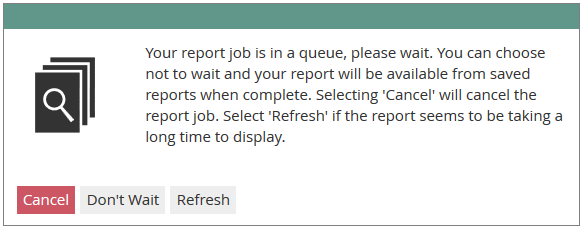
Once initiated, the user is presented with the Wait for Report page:
Online Help
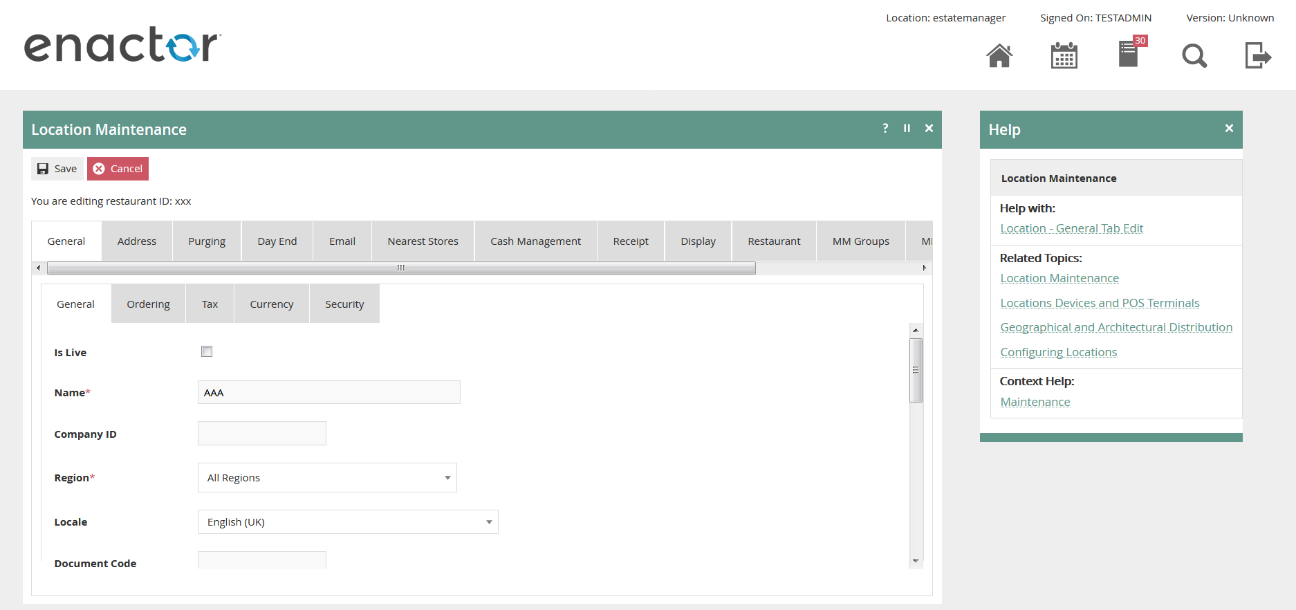
Almost all pages of the Estate Manager include a Help Point, accessed using the Help icon  in the top-right corner of the page title banner.
Accessing Help
Selecting the Help Point opens a Help Panel within the current page. The panel can be closed using the close icon  in its top-right corner.
If left open, the Help Panel persists as the user navigates between tabs and options on the current page, automatically updating to present help content relevant to the current screen.
The Help Panel
The Help Panel provides links to help information in three categories:
Help With
Provides access to help content that directly relates to the current application page. This is the most specific help available for the page you are viewing.
Related Topics
A set of links to help information on topics related to the current application page. Useful for understanding the wider context of the configuration area.
Context Help
Links to help content covering the broader context and function of the current page within the Enactor application.