How To Configure POS Extensions
Introduction
The purpose of this document is to describe the steps required to deploy a POS Extension to an Enactor POS system using Estate Manager.
Overview
This guide outlines the essential steps involved in deploying a POS Extension to a POS system.
Pre-requisites
Before proceeding, ensure the following requirements are met:
- You have a POS Extension Update ZIP package ready for deployment.
note
When you build the Extension, Update Zip will be generated.
- You are familiar with the extension creation process. Refer to Create Extensions.
- You have a basic understanding of Custom Upgrades.
Deploying a POS Extension
To deploy the extension, we need to broadcast the POS Extension Update as a Custom Upgrade using Application Updates.
-
Broadcast the POS Extension
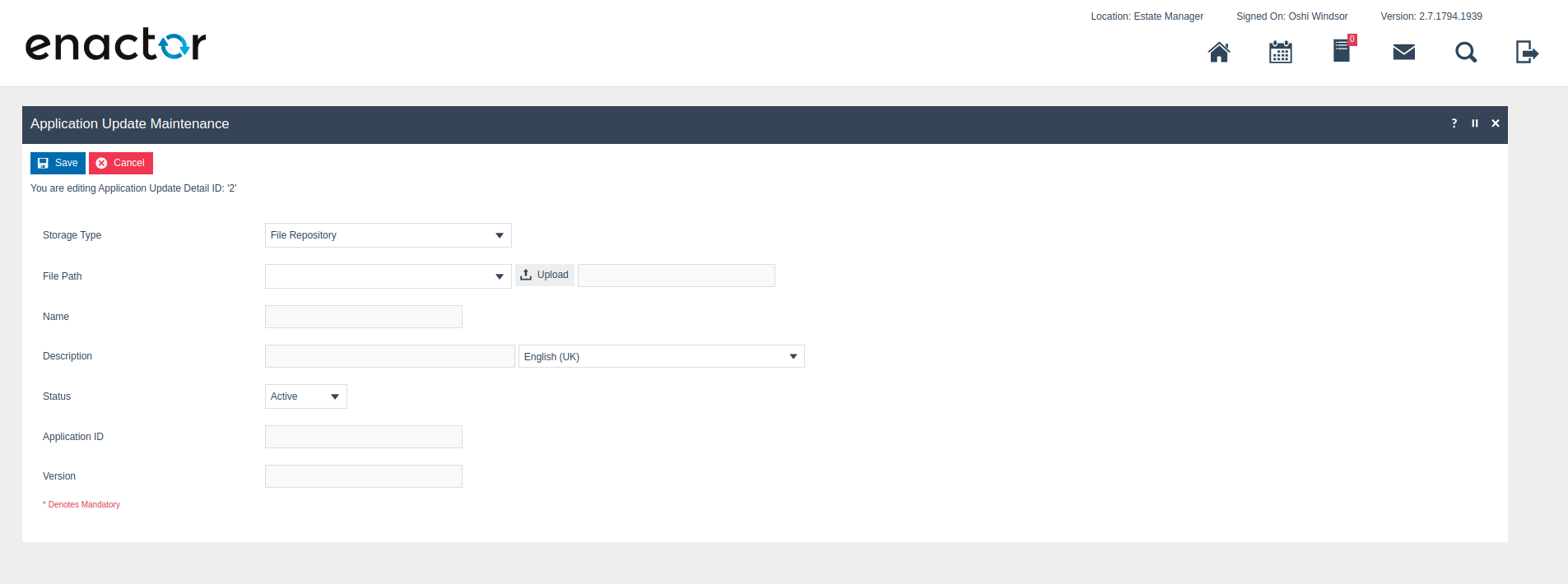
Go to Application Update Detail Maintenance in EM and upload the generated update zip file.
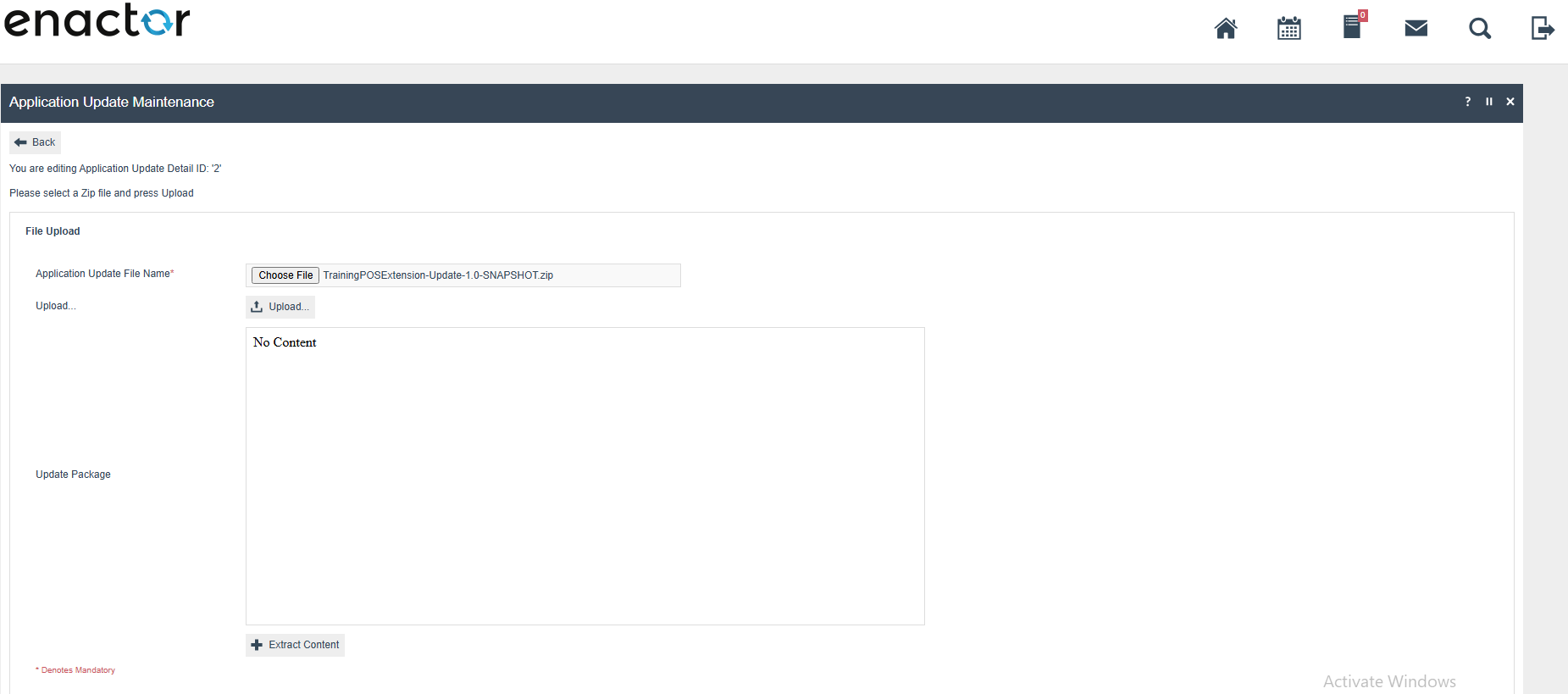
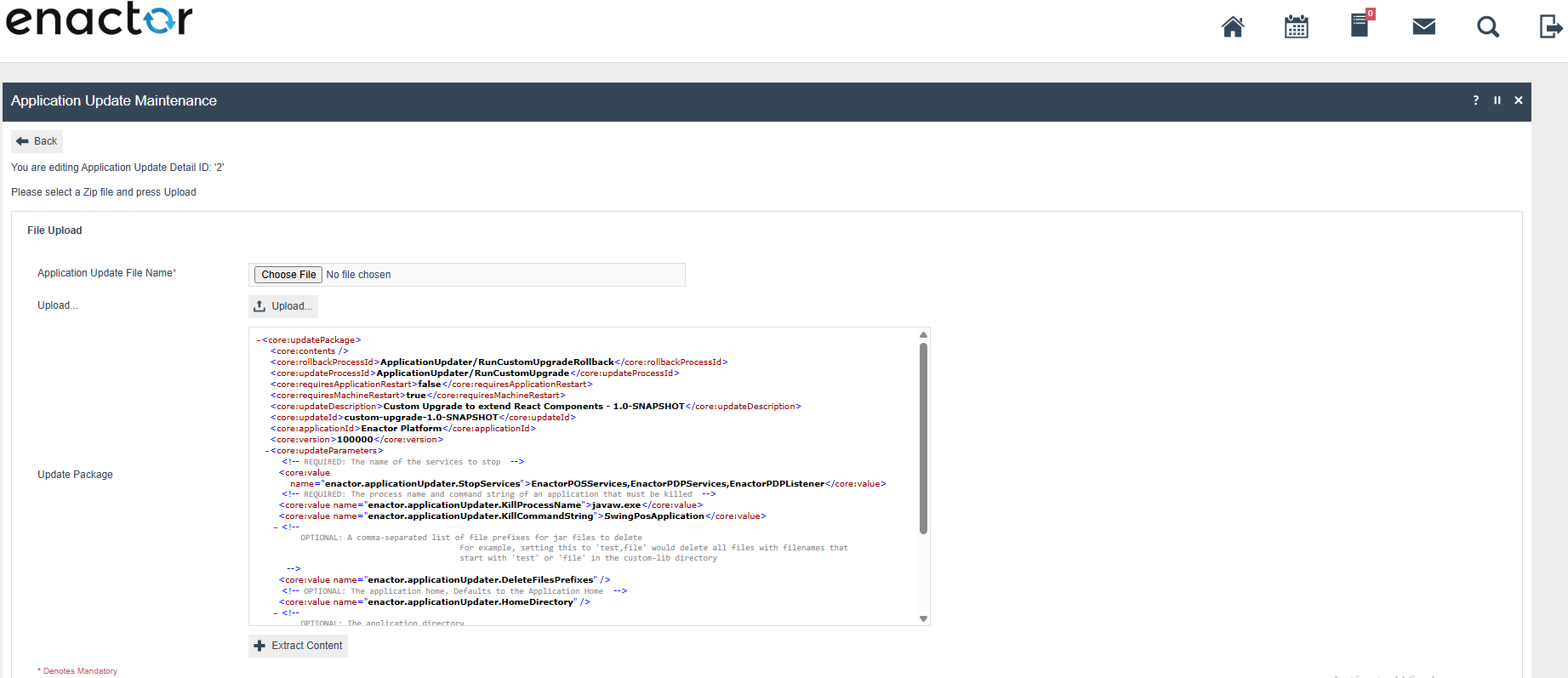
Click Extract Content.
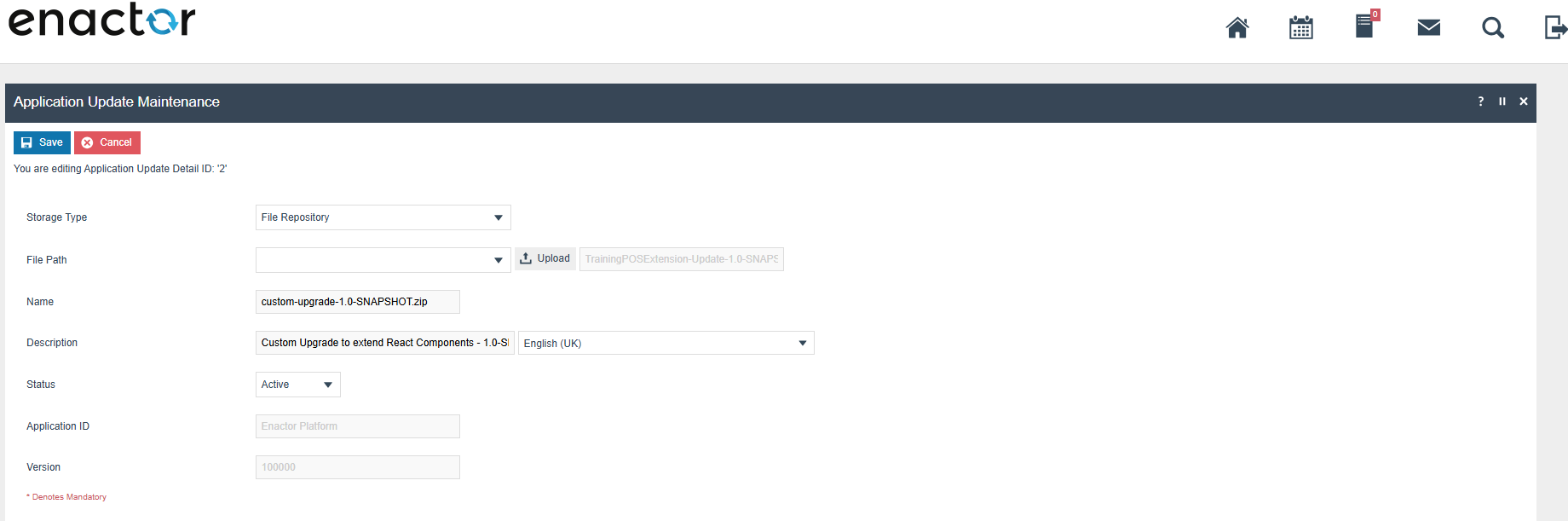
Click Save.
Go to Application Update Broadcast Maintenance and Select the above update and broadcast to your device.
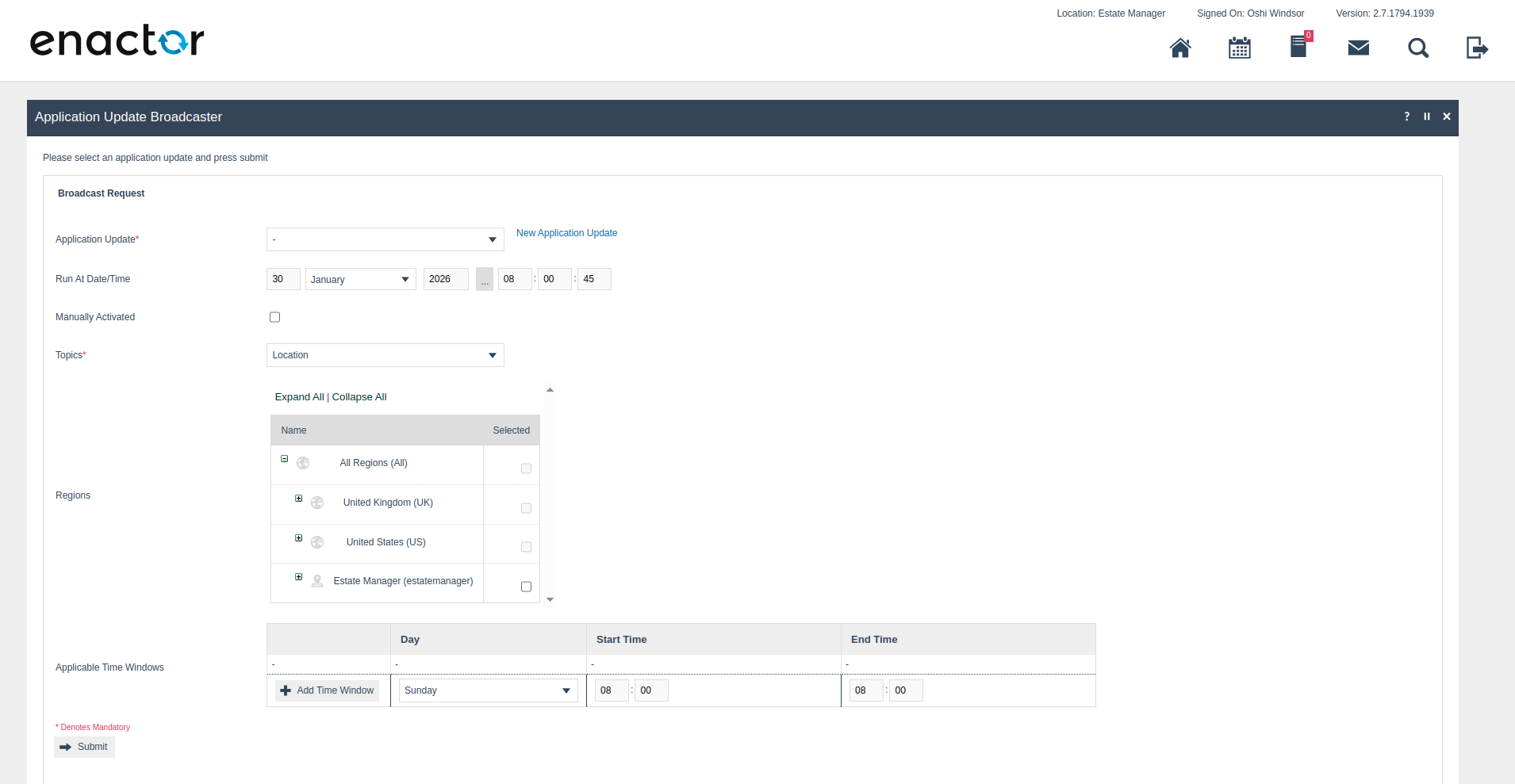
Once the broadcast is received and applied, the POS device will restart automatically to apply the extensions.
infoWhen sending consecutive updates after making changes to the extension, ensure that the version property in the UpdatePackage.xml file is incremented.