How To Configure POS Transaction And Sequence Number Recovery
Introduction
The purpose of this document is to describe the necessary configuration needed to enable POS Transaction and Sequence Number Recovery.
As the POS sends transactions to a Back Office or Estate Manager there are two important numbers that are included in the message:
-
The Transaction Number.
-
The Transaction Sequence Number.
These are typically "owned" and managed by the POS itself but are used by the receiving devices to detect duplicate and missing messages. If the POS database is lost, these numbers must currently either be "reset" on the receiving device (by editing the Back Office or Estate Manager database), or the POS must be configured to start with the previous Transaction and Sequence numbers (using the POS enactor.xml).
To make this process more streamlined we have enhanced the POS to include the ability to automatically detect if it is running on an "empty" database, and then automatically attempt to recover these numbers from its Back Office or Estate Manager.
Overview
This guide will cover the configuration for the following:
-
Outlines the steps to configure automatic recovery of POS Transaction and Sequence Numbers.
-
Enables the POS to detect when it is running on an empty database.
-
Allows the POS to automatically retrieve the latest transaction and sequence numbers from the Back Office or Estate Manager.
-
Streamlines recovery after database loss by reducing manual intervention.
-
Minimizes the risk of duplicate or missing transactions.
Prior Training / Experience
You should be familiar with the following:
-
Estate Manager Configuration
-
Data Broadcasting
Configuration Steps
Step 01 - Add the Required Command Line Argument
To configure the POS, add the required command-line argument by updating the SetEnv.cmd file which is located in [ENACTOR_HOME]\pos\scripts:
Tag to use: -skipDeviceInitialisationCheck
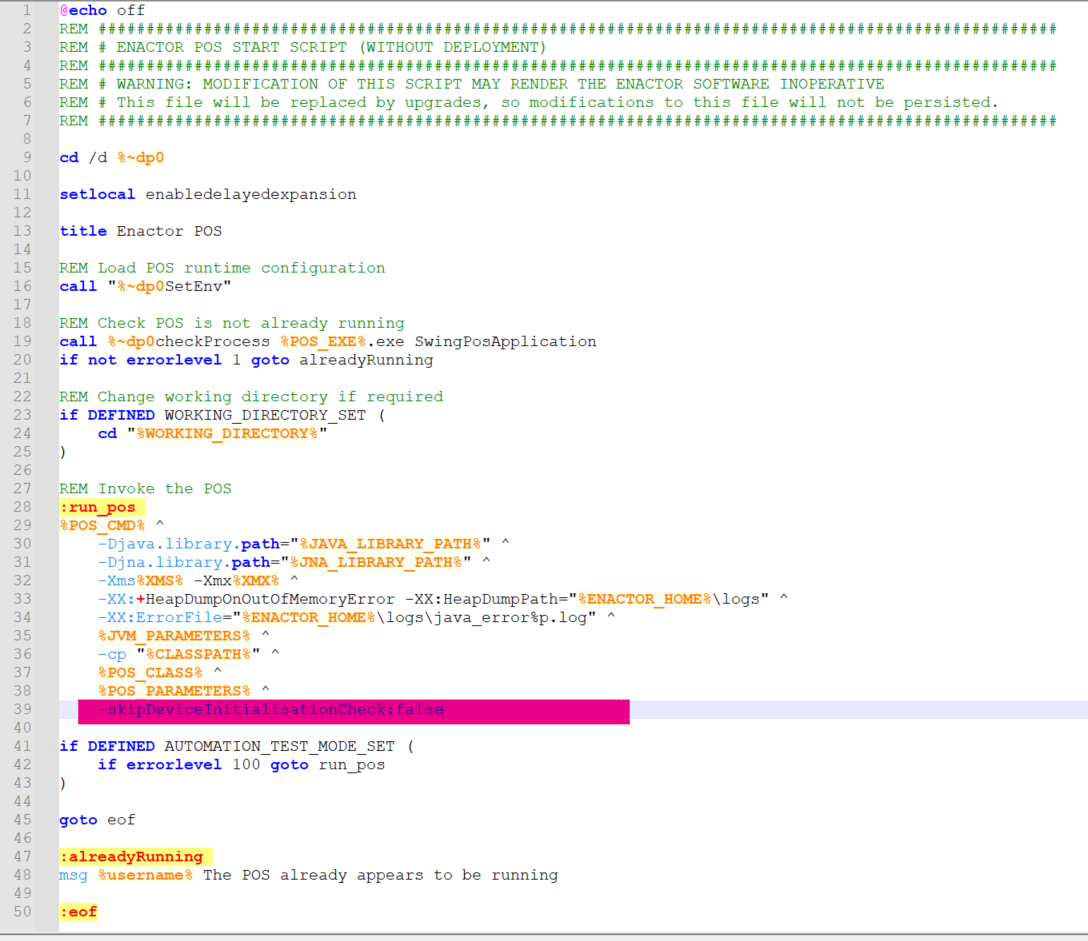
Without the tag: The POS starts normally.
With the tag:
-
If -skipDeviceInitialisationCheck is set to true, the POS starts normally.
-
If -skipDeviceInitialisationCheck is set to false, the device initialisation check will be enforced.
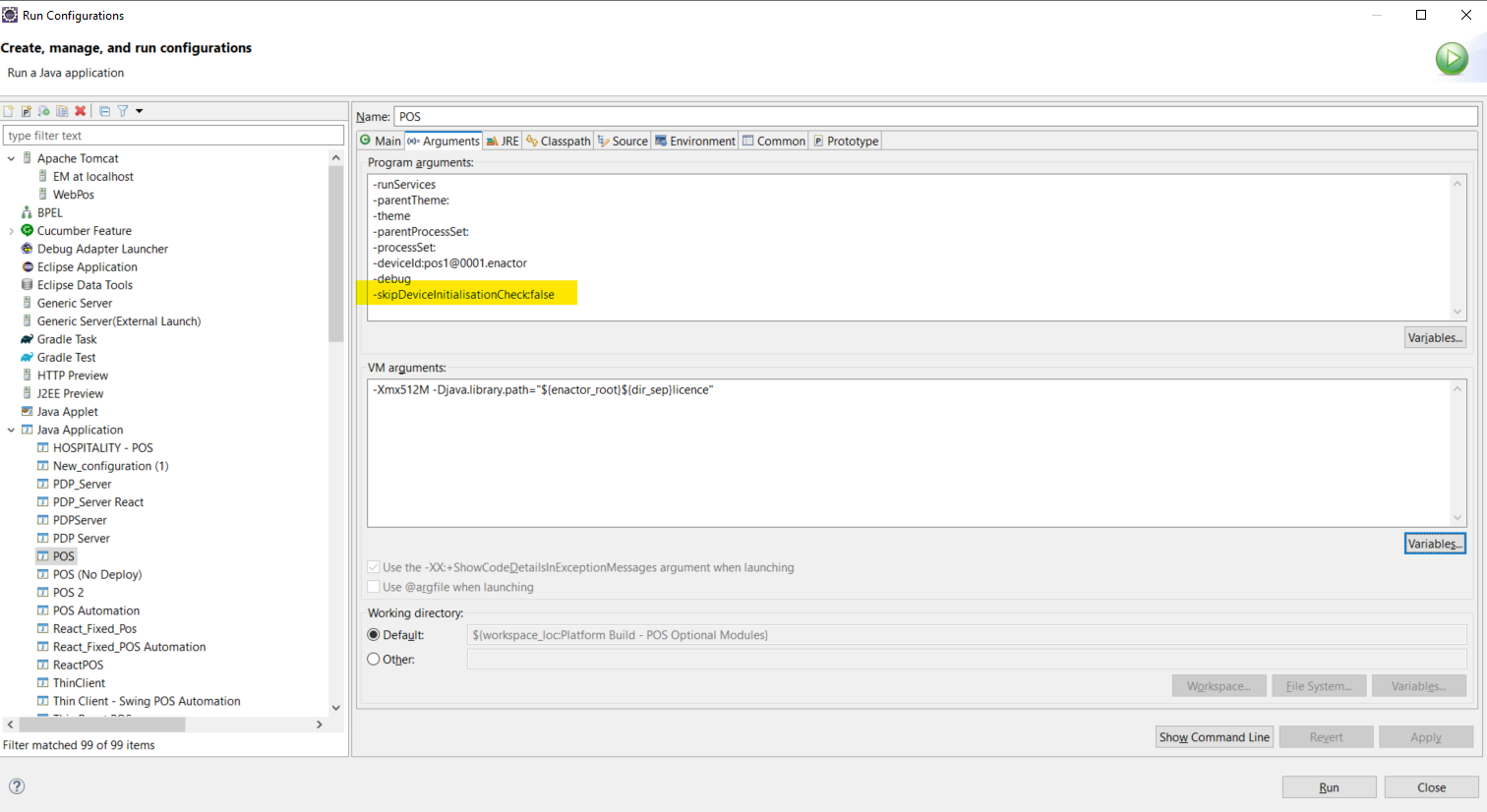
To test this in the development environment, add these tag values to the program arguments in the launcher properties.
Step 02 - Start the POS using the enactor.xml property values
After adding the above tag to the POS application, the POS initialisation process begins. Once started, verify if the database tables issuedsequencenumbers and transactionnumbers contain records corresponding to the device initiating the POS.
If no records exist in either table, the POS proceeds with the initialisation process.
Next, check the following properties in the enactor.xml file and set the appropriate values.
<core:coreProperty name="Common.MinimumTransactionSequenceNumber" value="100"/>
<core:coreProperty name="Pos.TransactionNumber.StartValue" value="511"/>
Step 03 - Call REST Services
If the database records do not exist, and one or both properties in the enactor.xml are missing, proceed to the service-based initialisation process.
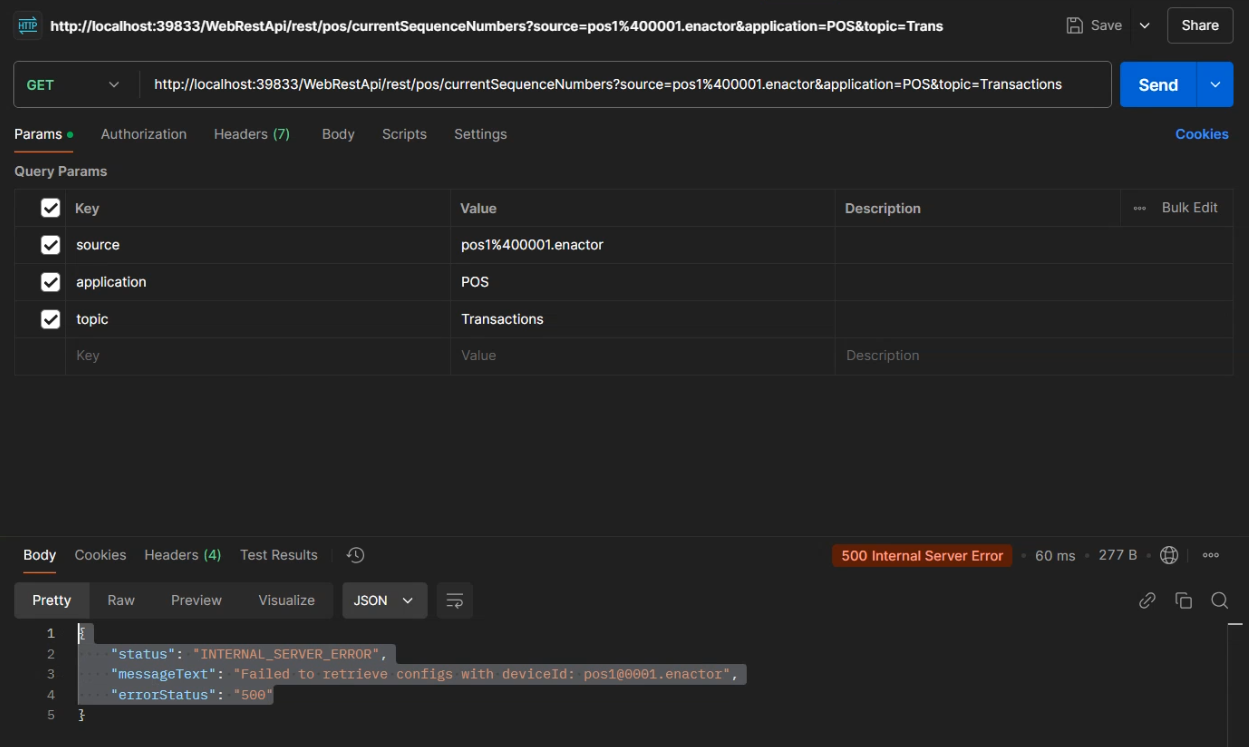
In this process, the POS makes a REST API call using the following endpoint:
GET
{BASE_URL}/WebRestApi/rest/pos/currentSequenceNumbers?{source}&{application}&{topic}
This request retrieves the last updated values from the EM database after the transaction has been processed.
To support this service invocation, we have added a new process connection diagram extension. Relevant attachments are included below:
View Pos Initialisation Connections XML
View Process Connection Type XML
Before proceeding, import the two configuration files into EM and broadcast them to the local database. Verify whether the updates to the processconnectionstypes and processconnections tables, including the new connection diagram, have been received.
Based on the service response display the necessary message prompts and update the sequence number and transaction number values accordingly.
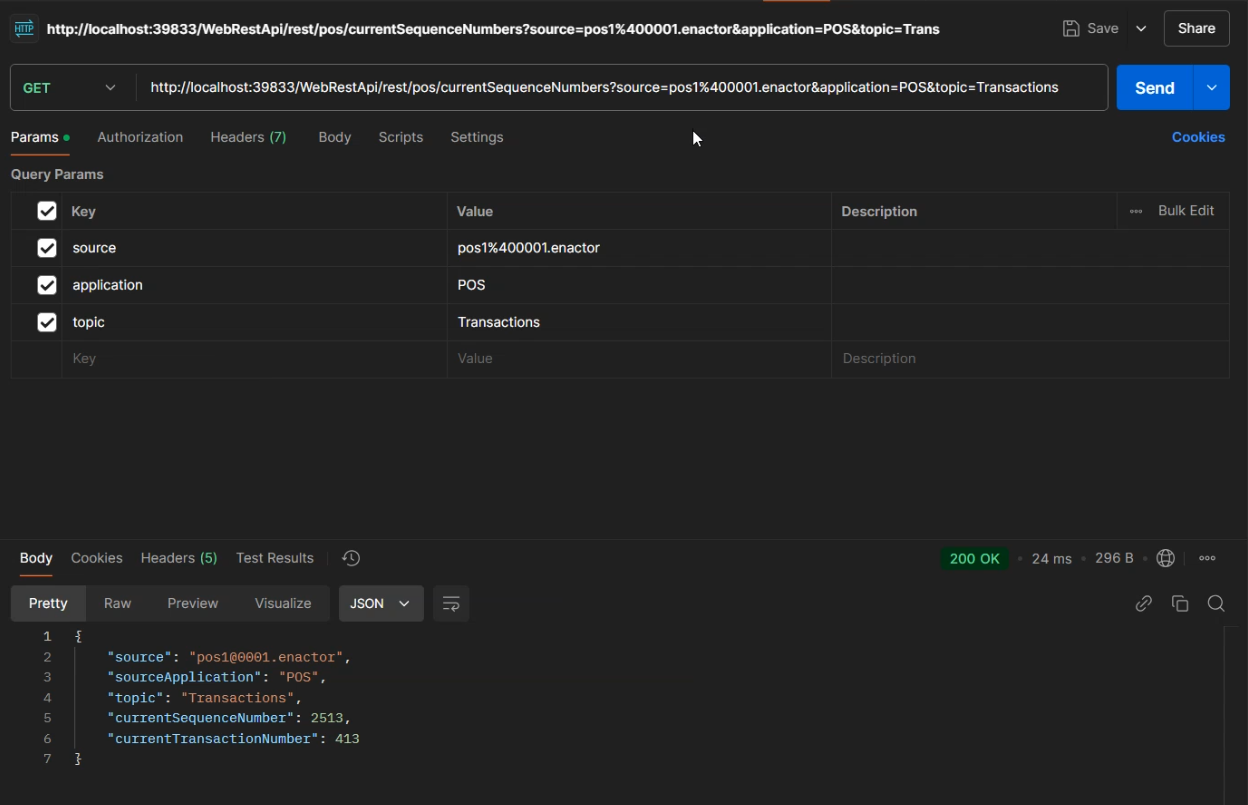
200 OK response where one value is from the enactor.xml and the other value is from the currentSequenceNumber service call:
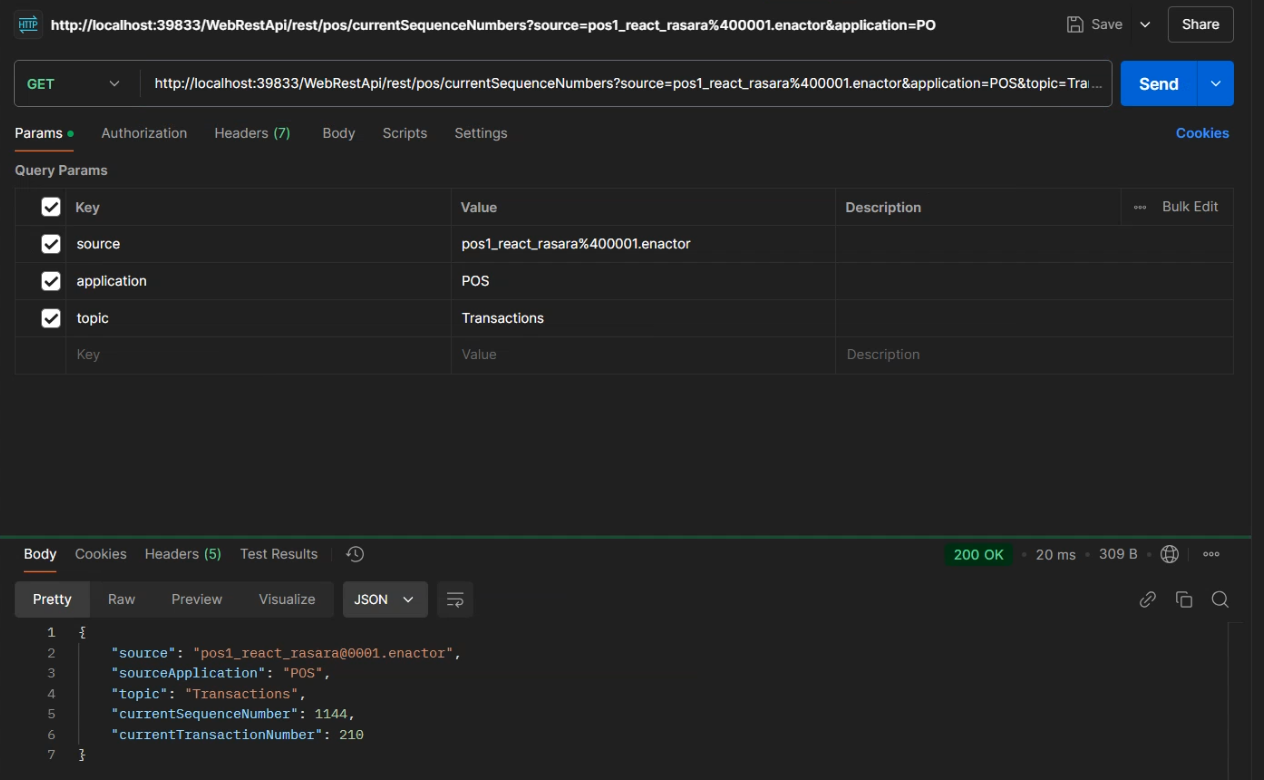
200 OK response where both values are set using the currentSequenceNumber service call:
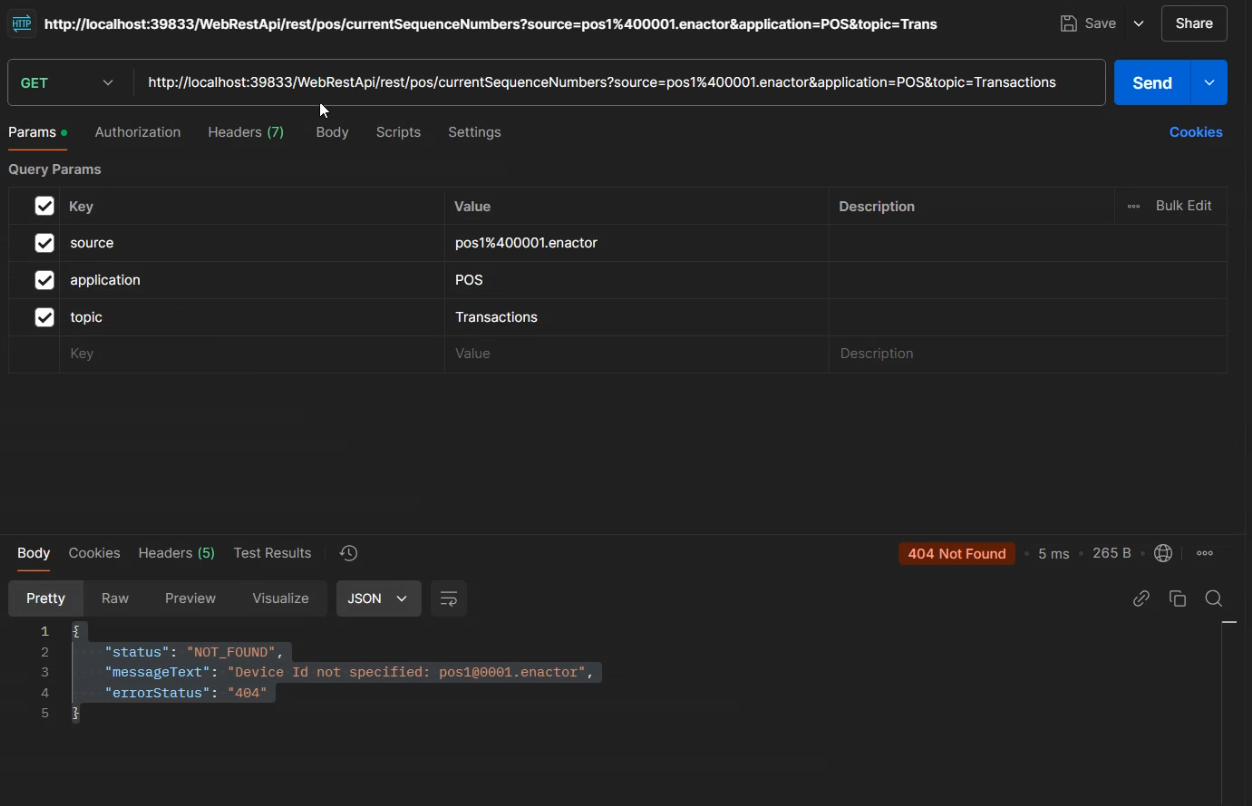
404 Not Found response when not found:
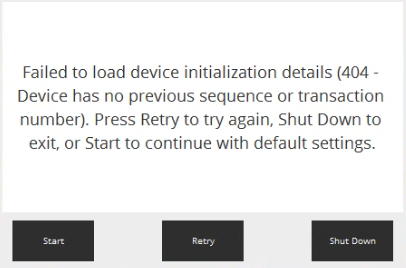
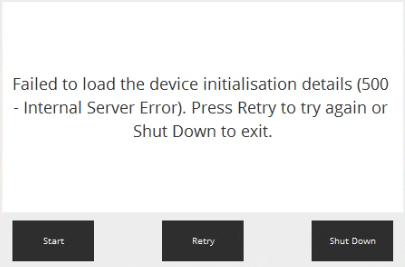
5xx Service Failure responses: