How To Configure Fiscal Bulgaria
Fiscal Overview
For shared background, see Fiscal Overview.
Introduction to Fiscal Bulgaria
The Enactor POS system requires an update to comply with Bulgarian fiscal regulations, which mandate the use of certified fiscal devices approved by the Bulgarian Institute of Metrology (BIM) and the National Revenue Agency (NRA). The current system does not meet these requirements, as Bulgaria enforces hardware-based fiscalisation. To streamline compliance and eliminate the need for direct POS certification, the solution integrates the SIS Fiscal Printer from SIS Technology AD, a pre-certified and maintained system that adheres to Bulgarian regulations.
These requirements are well documented in BG_POSSW_requirements_2024_v1_final external document provided by SIS Technology AD.
The SIS Fiscal Printer used with the Enactor POS system supports the following receipts:
-
Fiscal Receipts
-
Standard Sale Receipt
-
Invoice Receipt
-
Standard Return Receipt
-
Credit Memo
-
-
Non-Fiscal Receipts
-
Cash-In
-
Cash-Out
-
Duplicate Fiscal Receipt -- For audit purposes (a one-time copy of the previous receipt if it is a fiscal receipt)
-
X Report
-
Z Report
-
Reports from MFMEM
-
Further, the Bulgarian VAT Act requires support for certain non-fiscal receipts. For these, customers should use a document printer connected to the POS:
-
Non-Fiscal (Document Printer Required)
-
A4 Invoice
-
A4 Credit Memo
-
A4 Return Receipt
-
System Introduction
The enactor system is distributed, there is a central component called the Estate Manager (EM) where configuration is performed and which is the master data store for the system configuration. Configuration performed on the EM must be broadcast to the POS devices before it takes effect. The system is extremely configurable but only a small subset of this configuration is required to ensure that the Bulgarian Fiscal legislation is complied with. This required configuration is described later in this document and there are further how to guides available which described the other configuration options available see https://insights.enactor.co/. The critical configuration option for Bulgaria is the fiscalisation type on the POS terminal, when this is set to Bulgaria, the rules of the Bulgarian fiscal legislation will be applied on that device (POS). In case the EM is used to configure the system in a way that would not be compliant in Bulgaria, the POS will be prevented from starting where its fiscalisation type is set to Bulgaria. Once a POS has been configured as a Bulgarian fiscal POS it is not possible to change or remove the fiscalisation type.
As well as being the master data store for configuration the EM is also the master data store for the transactions that are performed on the POS. Transactions are also stored on the POS and the store server at the time of the sale. However the purging of the data on the store server and the POS databases is usually relatively short, days/weeks rather than the years, data would be retained on the EM. Although transaction data is purged from the POS this would not be done until it had been transmitted to the EM and a Z report has been run for any transactions being purged.
At the time transactions are performed on the POS, they are fiscalised in real time through the Bulgarian-approved fiscal printer MF-P1200DN, in accordance with the requirements of the Bulgarian National Revenue Agency (NRA). Each transaction is registered, processed, and fiscally validated by the printer, which applies the mandatory fiscal controls, including assignment of a fiscal receipt number, date and time, device identification, and storage in the printer's fiscal memory and electronic journal.
The POS system stores the transaction data together with the fiscal information returned by the MF-P1200DN (such as fiscal receipt number, device number, and other NRA-mandated attributes) in a commercially available SQL database. Multiple database platforms are supported to accommodate existing retailer licensing agreements, including Oracle, MySQL, Microsoft SQL Server, and MariaDB. In all cases, standard database authentication and access-control mechanisms are used to ensure that access is restricted to authorised users only, and that stored transaction data and fiscal references cannot be deleted or altered by unauthorised parties, preserving auditability and compliance with Bulgarian fiscal legislation.
The method and structure used to retain and protect data on the store server and the EM is the same as that on the POS. When transactions are transmitted from the POS to the Store Server and then from the Store Server to the EM they are protected by SSL. Data is submitted to the Store Server and then to the EM in near real time and would expect to be processed into the database within minutes in a normally operating system. Queues are used to ensure that data is still retained in the case of abnormal operation, such as network outages. The application also uses a system of invoice sequence numbers to identify invoice scenarios and issue invoice numbers to the relevant Fiscal or non Fiscal documents.
Deployment Overview
Use enactor Fiscal application updater and follow its standard deployment guidelines to deploy Fiscal to a POS system.
Configuration Overview
The following configuration changes are needed and should be broadcasted to all Bulgarian devices in preparation for go live. IDs below follow the enactor naming convention, but each retailer is free to use their own naming conventions to match configuration used in other counties.
Estate Manager Prerequisites
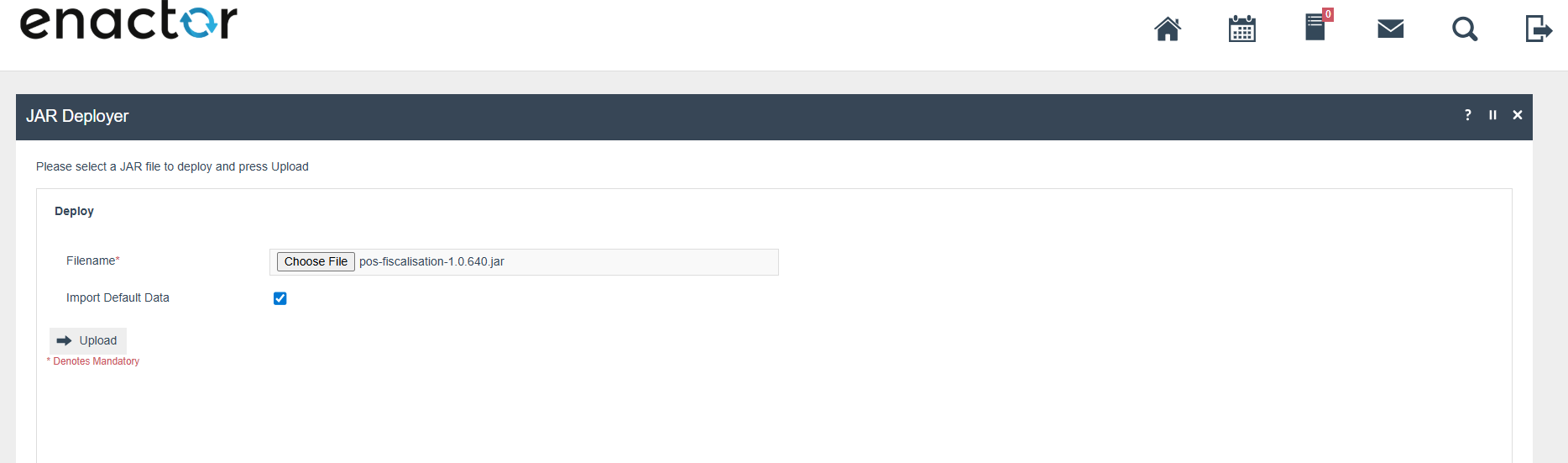
Deploy the pos-fiscalisation-1.0.xxx jar to the EM using Jar Deployer
Maintenance.
Have the "Import Default Data" checkbox checked.
Region
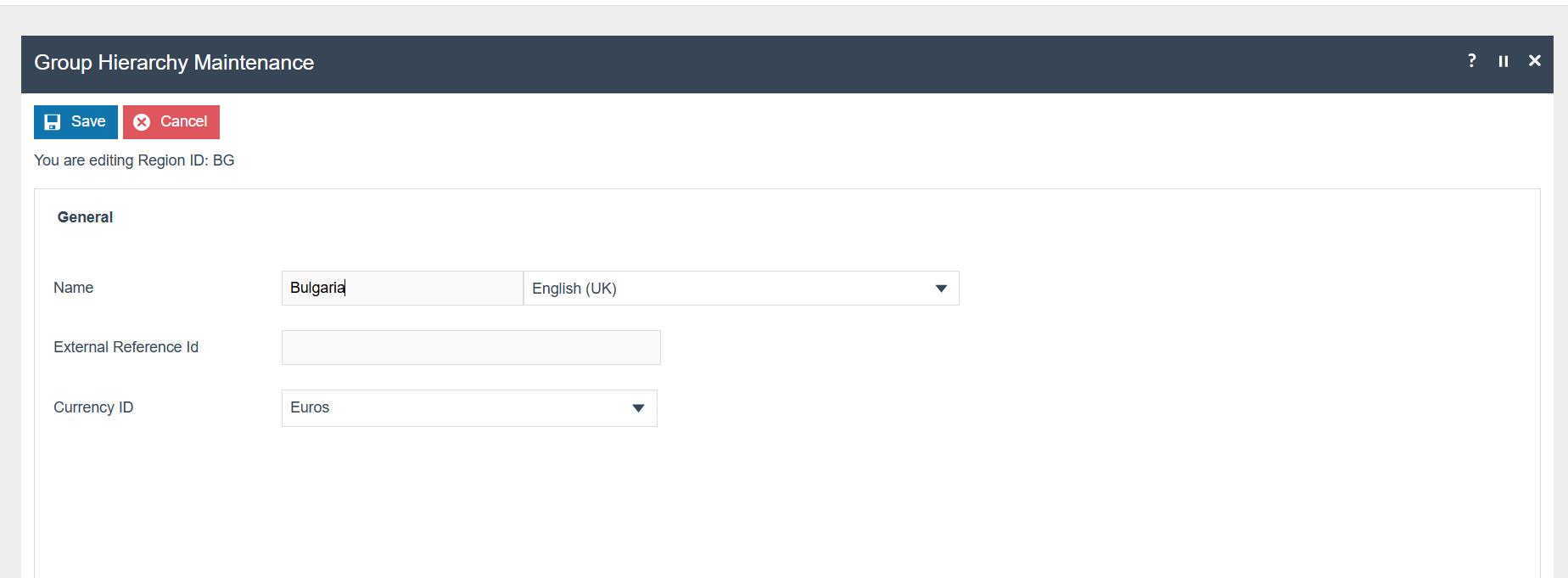
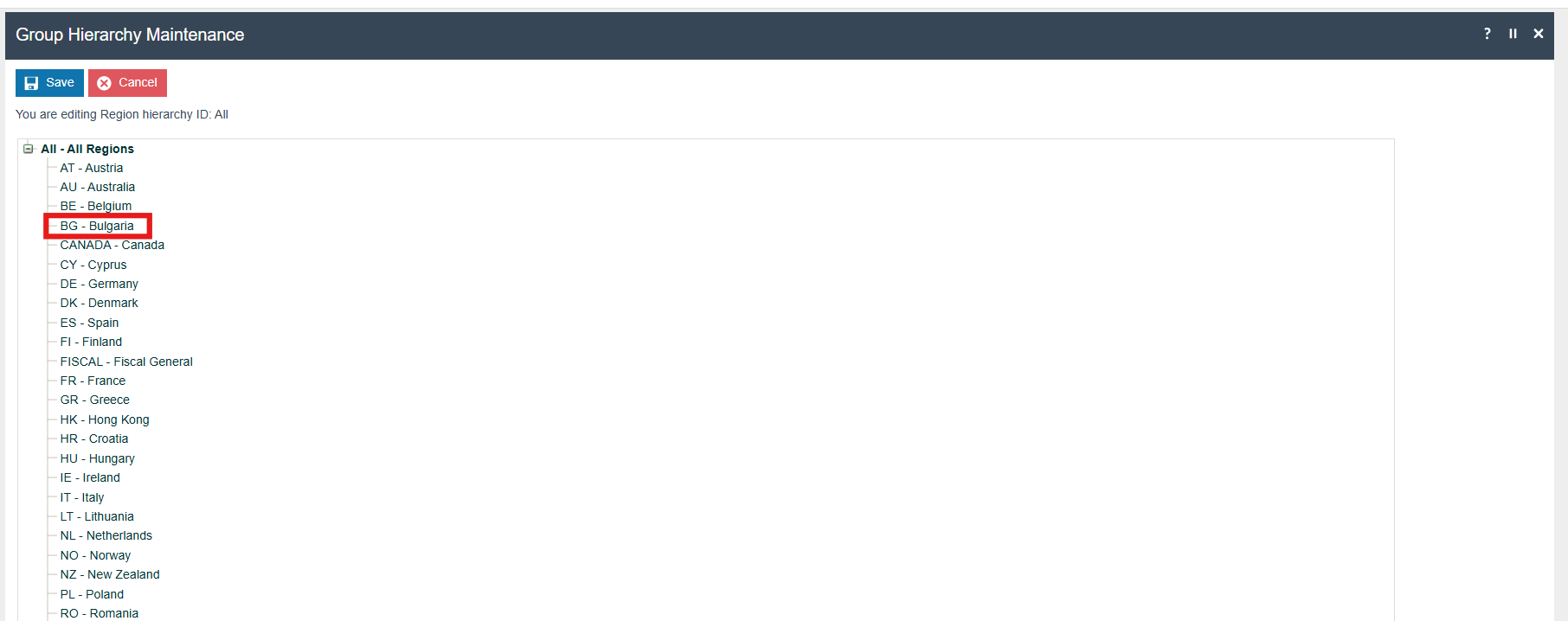
The region must be configured to continue the other configurations related to the fiscalisation. The region for Bulgaria should be created within the Region Group Hierarchy.
Price Group
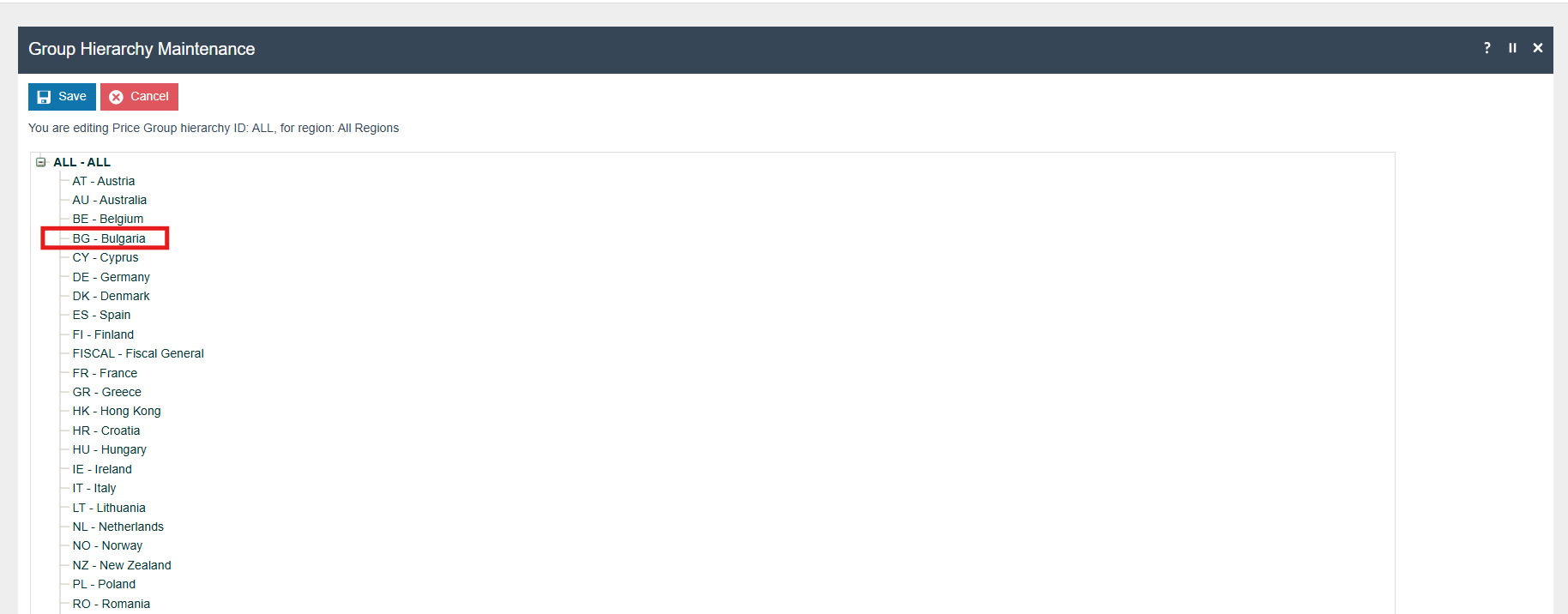
If it does not already exist, a price group for Bulgaria should be created within the Price Group Hierarchy.


Tax Region
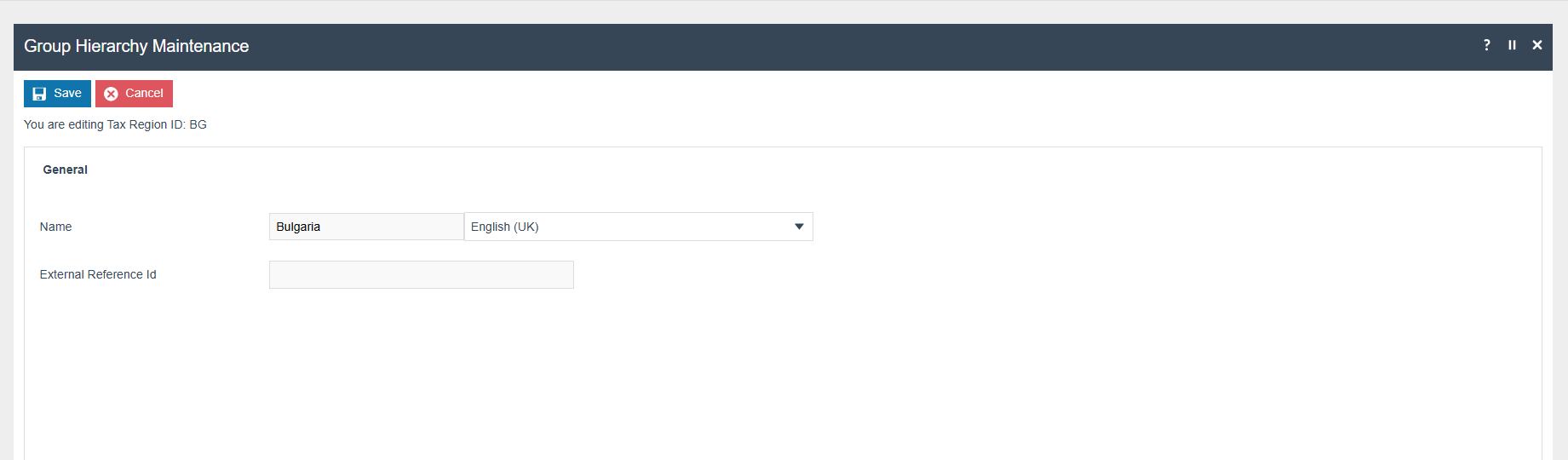
If it does not already exist, a Tax Region for Bulgaria should be created within the Tax Region Group Hierarchy. It should have the ID: "BG" and the Name: "Bulgaria ", it is not necessary to configure an External Reference ID.


Tax Configuration
Tax Groups
The following tax groups should be configured and broadcast to the devices.
| Tax Group ID | Description |
|---|---|
| BG_1 | BG Tax Group A |
| BG_2 | BG Tax Group B |
| BG_3 | BG Tax Group C |
| BG_4 | BG Tax Group D |
Tax Rates
The following tax rates should be configured and broadcast to the Bulgarian devices.
| Tax Rate ID | Description | Display Code | Percentage | Fiscal Tax Rate Reference |
|---|---|---|---|---|
| BG-1 | BG Zero Tax A | A | 0% | 0 |
| BG-2 | BG 20 Percent Tax B | B | 20% | 1 |
| BG-3 | BG 20 Percent Tax C | C | 20% | 2 |
| BG-4 | BG 9 Percent Tax D | D | 9% | 3 |
Tax Schema
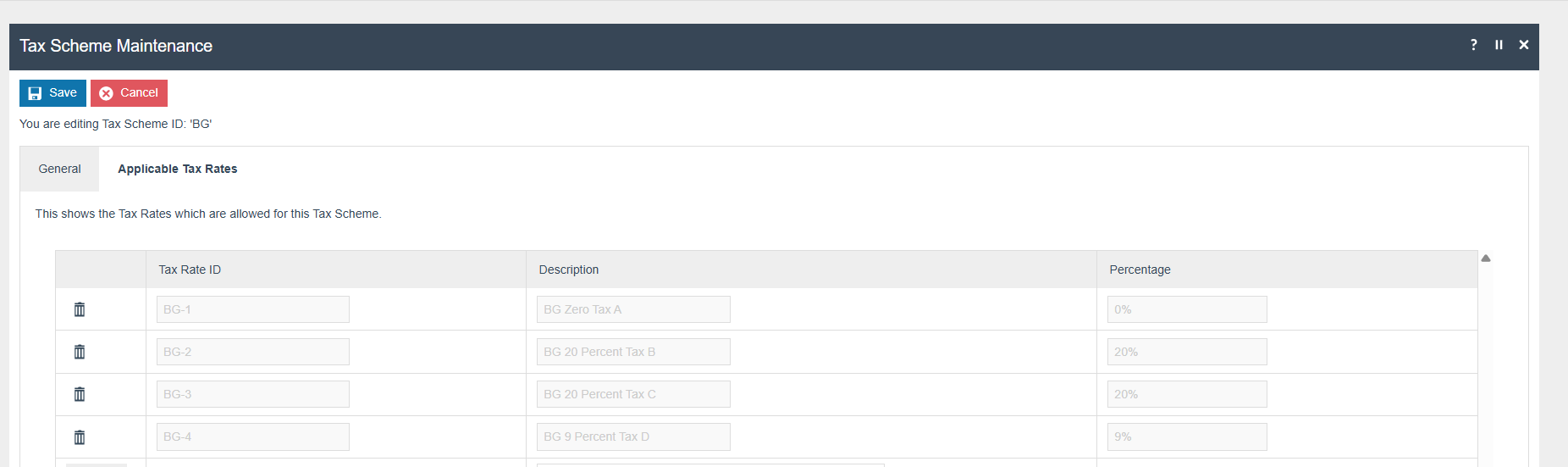
The following tax schema should be configured and broadcast to the Bulgarian devices.Make sure to add all the Tax Rates related to Bulgaria as well.
| Tax Schema ID | Description | Price Include Tax |
|---|---|---|
| BG | Bulgaria VAT | TRUE |
Tax Group Tax Methods
The following tax group tax methods should be configured and broadcast to the appropriate Bulgarian devices.
| Tax Group ID | Tax Scheme ID | Description | Tax Rate |
|---|---|---|---|
| BG Tax Group A | Bulgaria | TGTMBG1 | BG Zero Tax A |
| BG Tax Group B | Bulgaria | TGTMBG2 | BG 20 Percent Tax B |
| BG Tax Group C | Bulgaria | TGTMBG3 | BG 20 Percent Tax C |
| BG Tax Group D | Bulgaria | TGTMBG4 | BG 9 Percent Tax D |
Location
The VAT number should be configured to the retailers VAT number.
Location address also have to be configured in order to be displayed on
Receipts as store address.
| Location ID | Name | Region | Price Group | Base Currency |
|---|---|---|---|---|
| BG0001 | Enactor Store Bulgaria | Bulgaria | Bulgaria | Euros |
Device
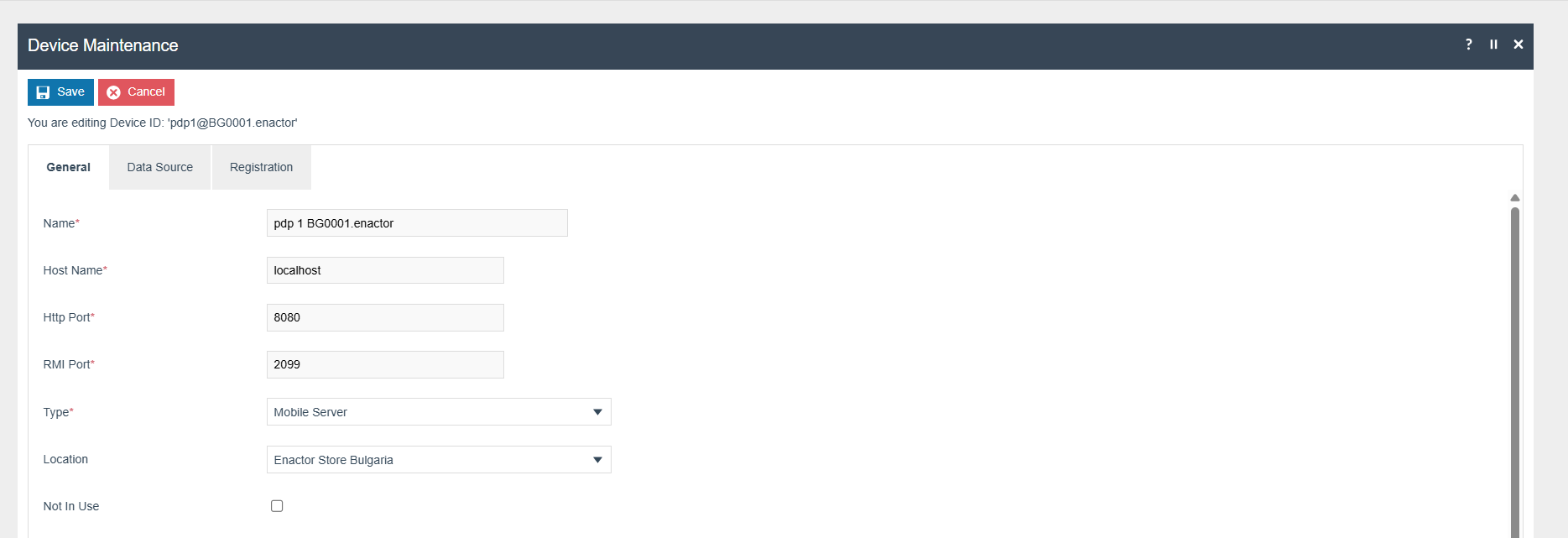
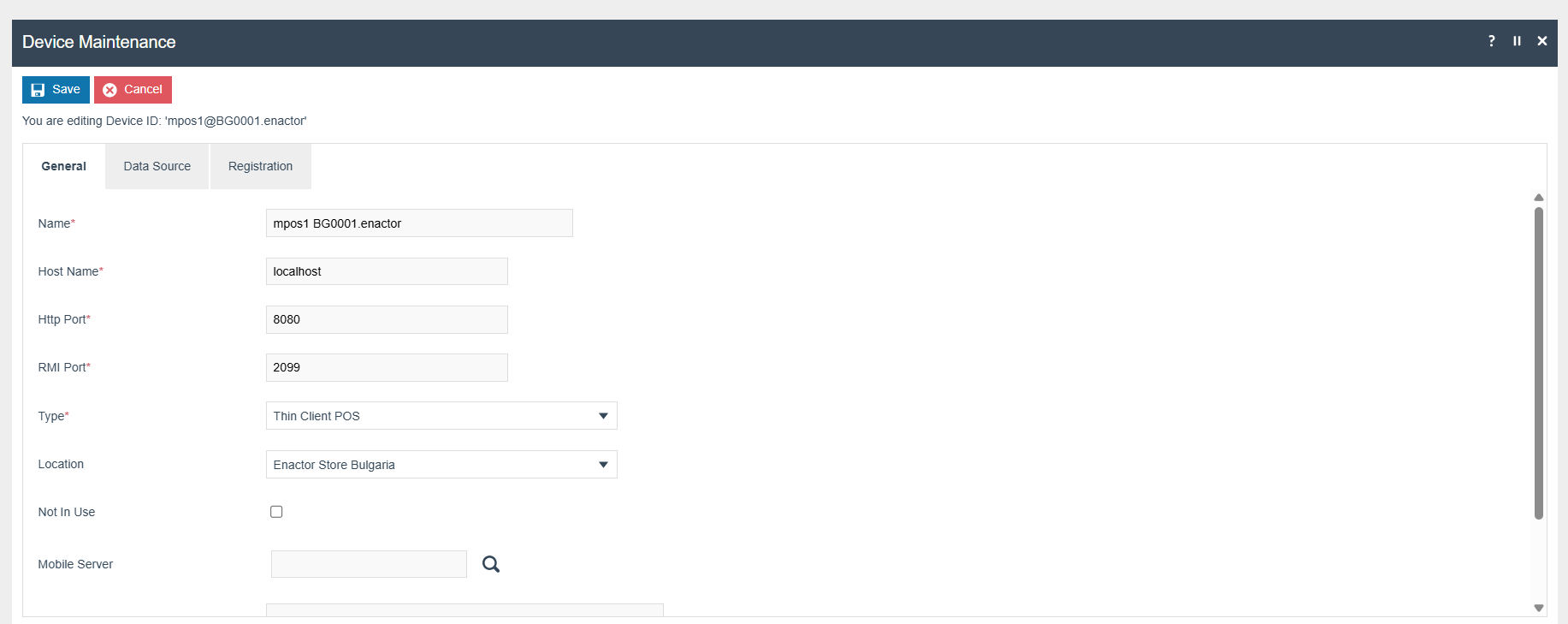
The devices used in Bulgaria must be configured with the device type set to POS or PDP, configured the Bulgarian location, and broadcast to the appropriate Bulgarian devices.
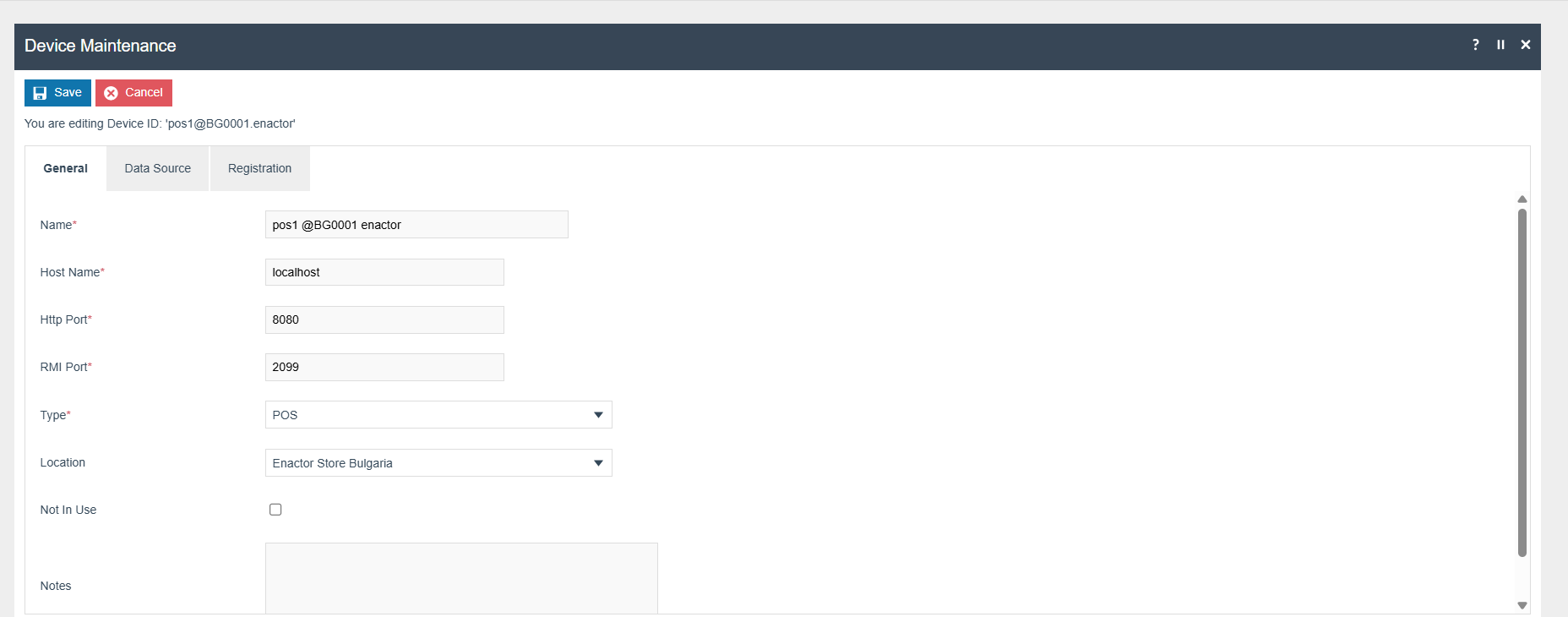
The following Devices for PDP Server and Mobile POS should be configured and broadcast to the appropriate Bulgarian devices.
Select the Device type as Mobile Server
Select Device type as Thin Client POS
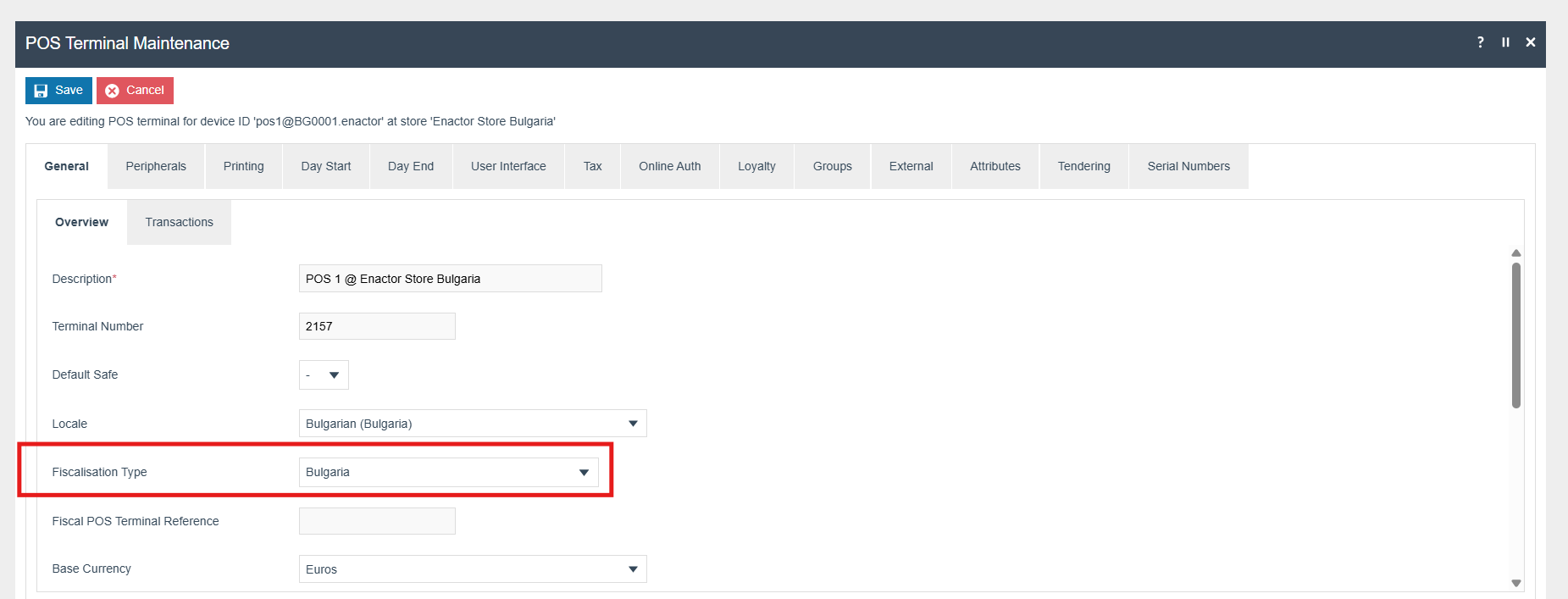
POS Terminal
The POS Terminals used by all devices in Bulgaria must be configured to have the Fiscalisation Type set to Bulgaria . Currency should be set to Euros. If a POS terminal configuration with the fiscalisation type set to Bulgaria is broadcast to a POS device that does not have the Bulgaria fiscal module installed the POS may fail to start. Similarly if a POS device with the Bulgaria fiscal module installed is configured with anything but the Bulgaria fiscalisation type the POS will also fail to start. This is to ensure that only versions of the enactor solution that have been certified for use in Bulgaria are used in Bulgaria.
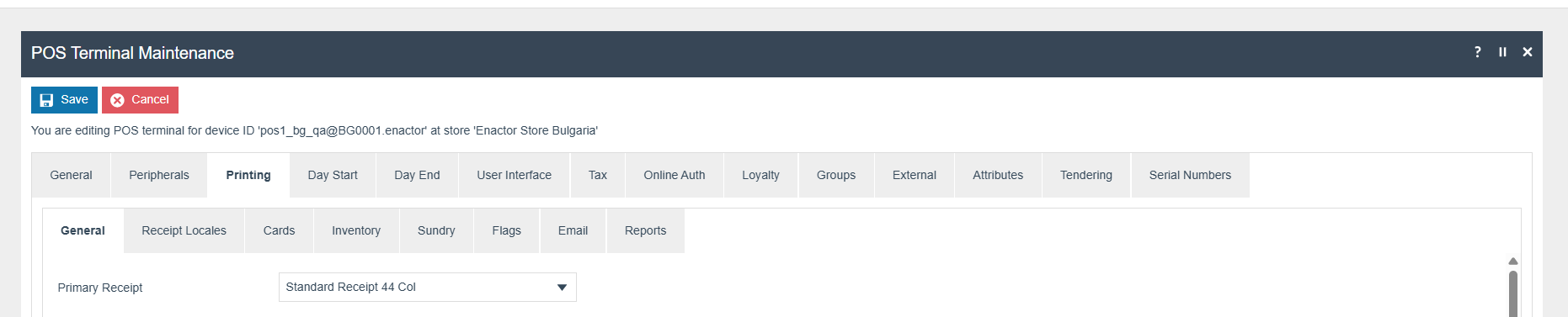
The Peripherals tab should be configured as below.

The primary Receipt should be set to Standard Receipt 44 Col or not set is also applicable.
The 'Print Tax Details on Receipt' flag within the printing -> flags tab should be ticked.

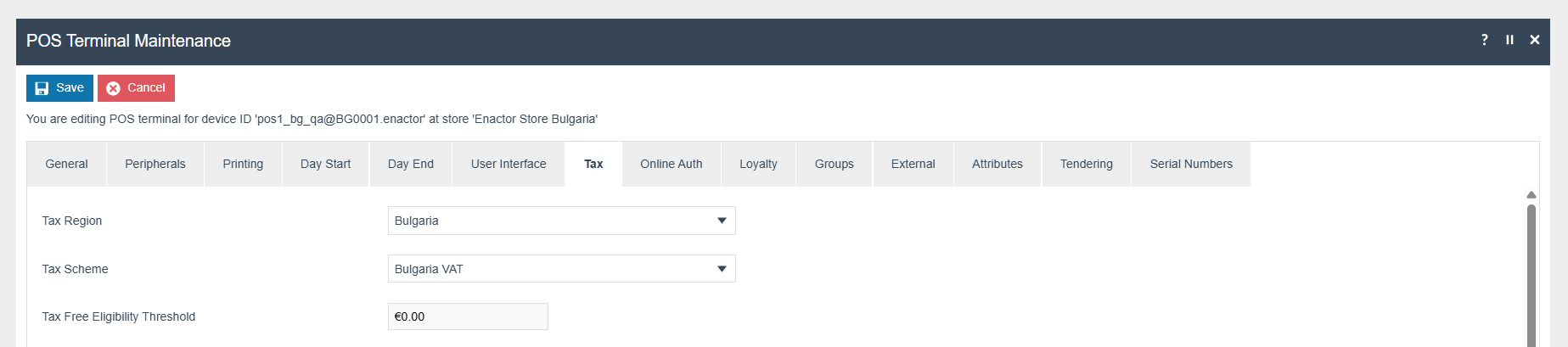
Within the Tax section the Tax region should be set to Bulgaria and the tax scheme to the Bulgaria VAT configured in the previous section.
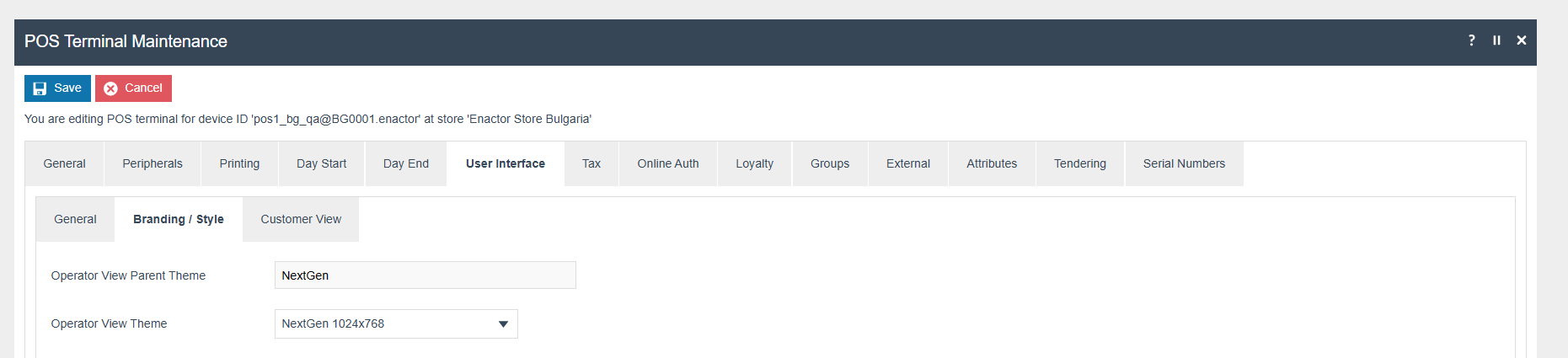
Branding/Style should be set.
Option Set/ Attribute configurations
In the POS terminal maintenance click on Create a new Option Set Button and set the fields as mentioned below.
Attribute / Option Set ID : BULGARIA_FISCAL
Type : Fiscal POS Terminal Attributes
Region : Bulgaria
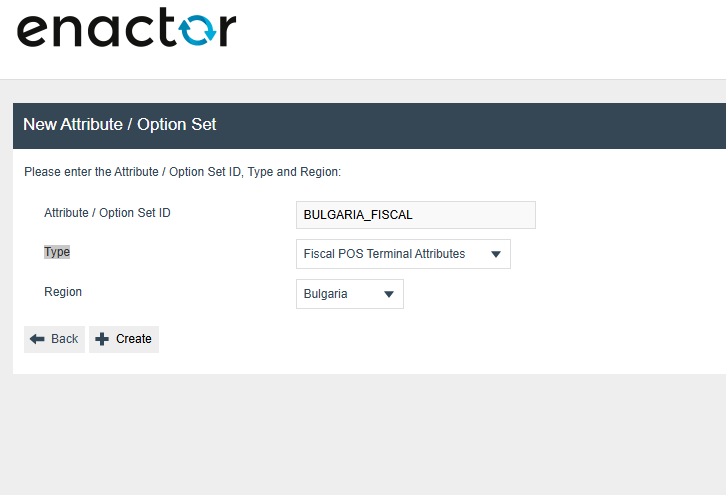
Then click on the create button to create a new option set.
Then Enter the name as Bulgaria Fiscal and click on Add... button and select Add text Option.
In the edit Text Option View enter the details as mentioned below in the General tab.\
ID : INVOICE_NO_PREFIX
Name : Invoice Prefix
Description : Invoice Prefix Bulgaria
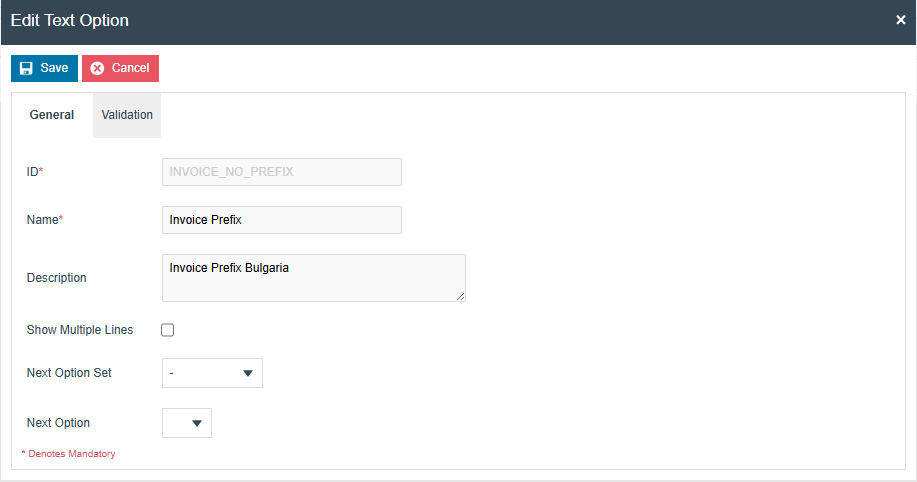
In the Validation tab enter below validation fields.
Validation type : String
Minimum Length : 4
Maximum Length : 4
Format : Number

Click on save and click again save button in Edit Attribute / Option Set page to fully save the option set details.
Fiscal POS Terminal Configurations
Move to the Fiscal POS Terminal Maintenance, and click on Create a New Fiscal POS Terminal button. Select your Device Id in the list of Device ID Field and click on Create button.
Then in the General tab add a proper description for the Description field and and click on Attributes tab. In this tab you should be able to see the previously created option set.
Then enter the 5628 value for the INVOICE_NO_PREFIX field and Save the changes.

Deploy Jars For Fiscal A4 Templates
Move to the JAR Deployer and select the pos-fiscalisation jar file. Then, check the Import Default data check box and upload the jar file. This will help to get the Bulgaria specific A4 receipt templates for the input fields.
Currency
The following Currency should be configured and broadcast to the appropriate Bulgaria devices.
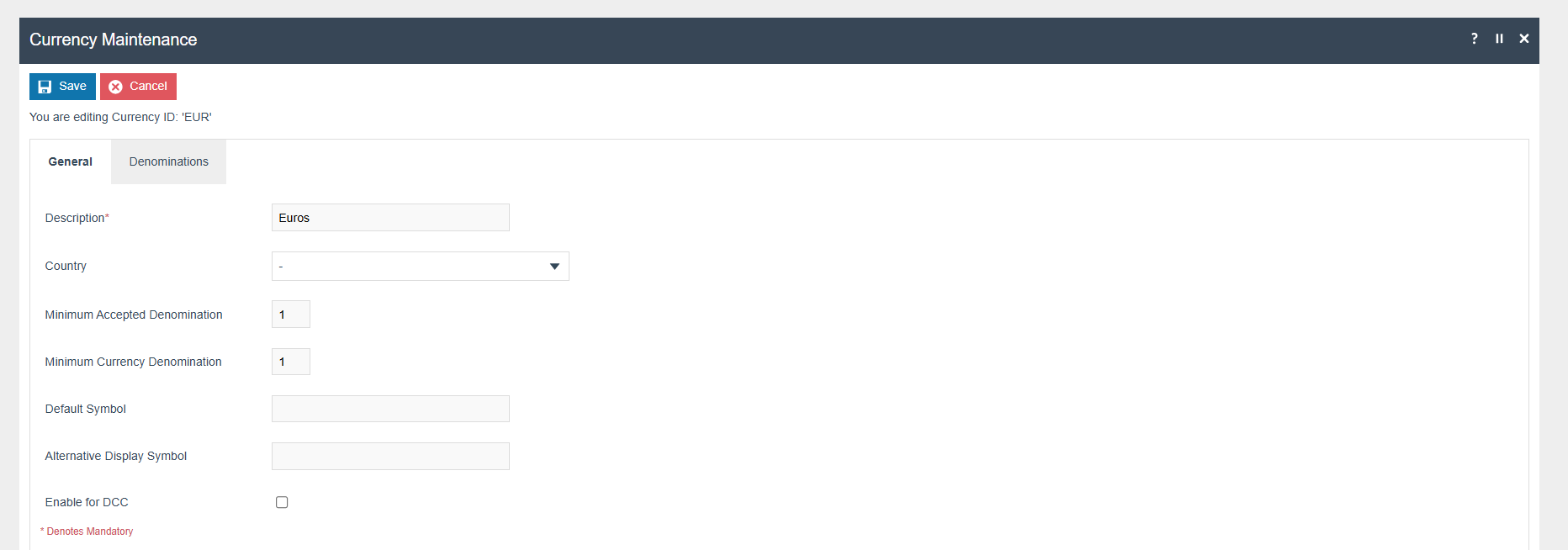
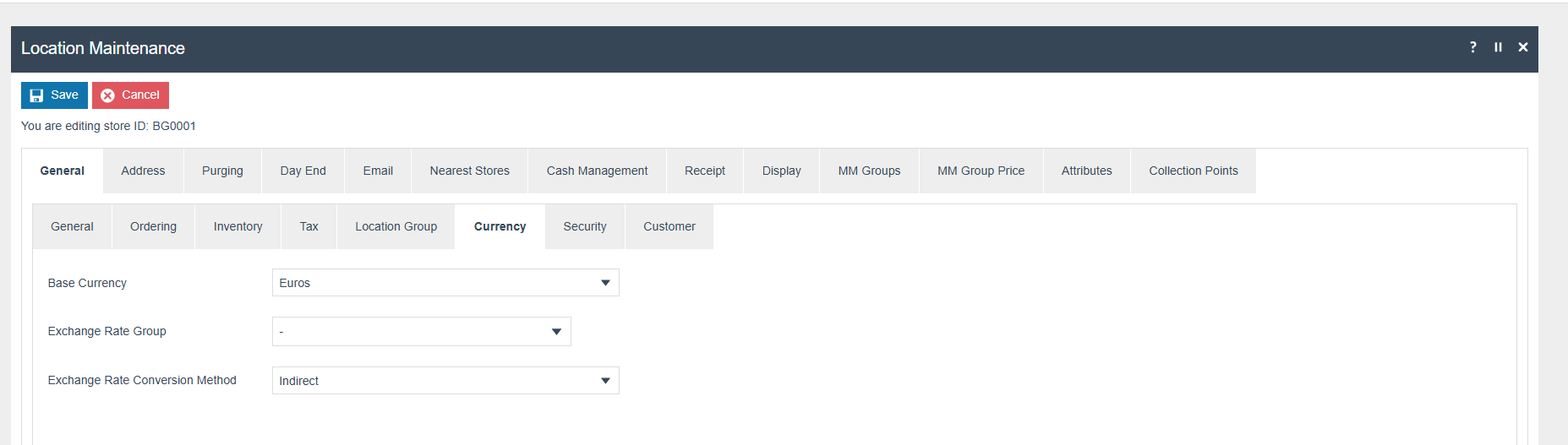
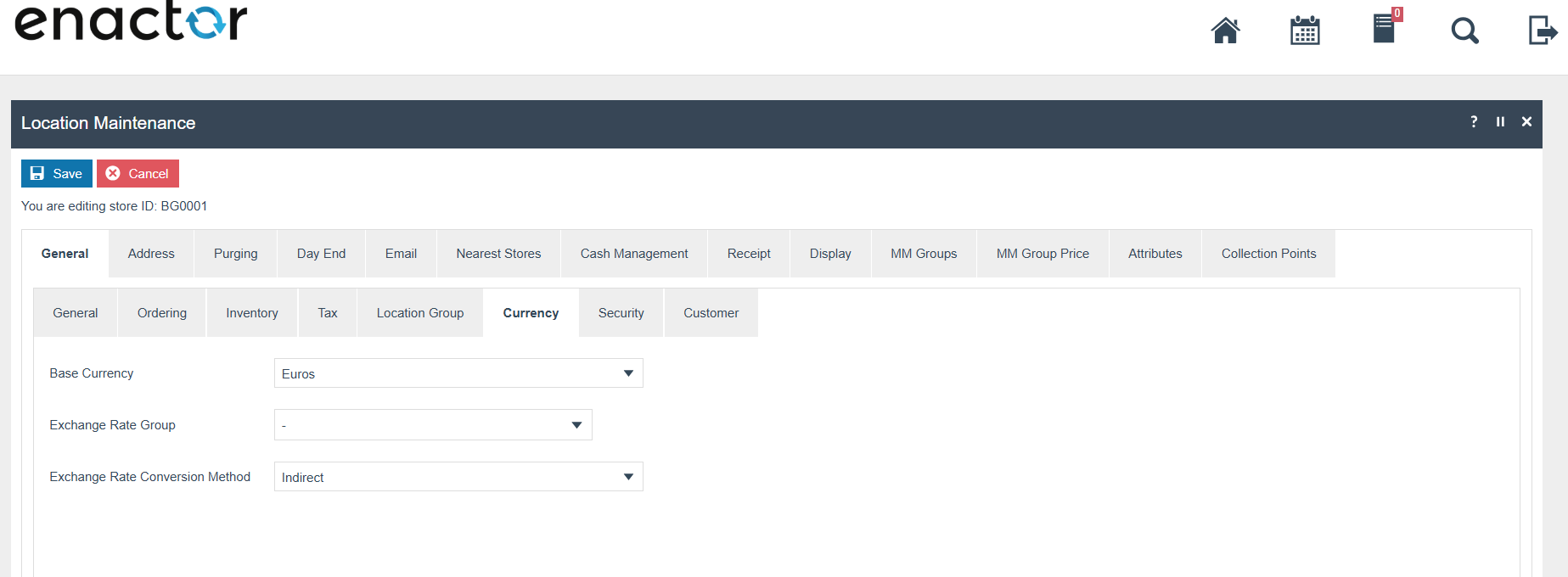
Then move to the Location Maintenance, and select the location that your Device located for editing. Then select the Currency tab under the General tab. Change the Base currency to Euros.
Product Tax
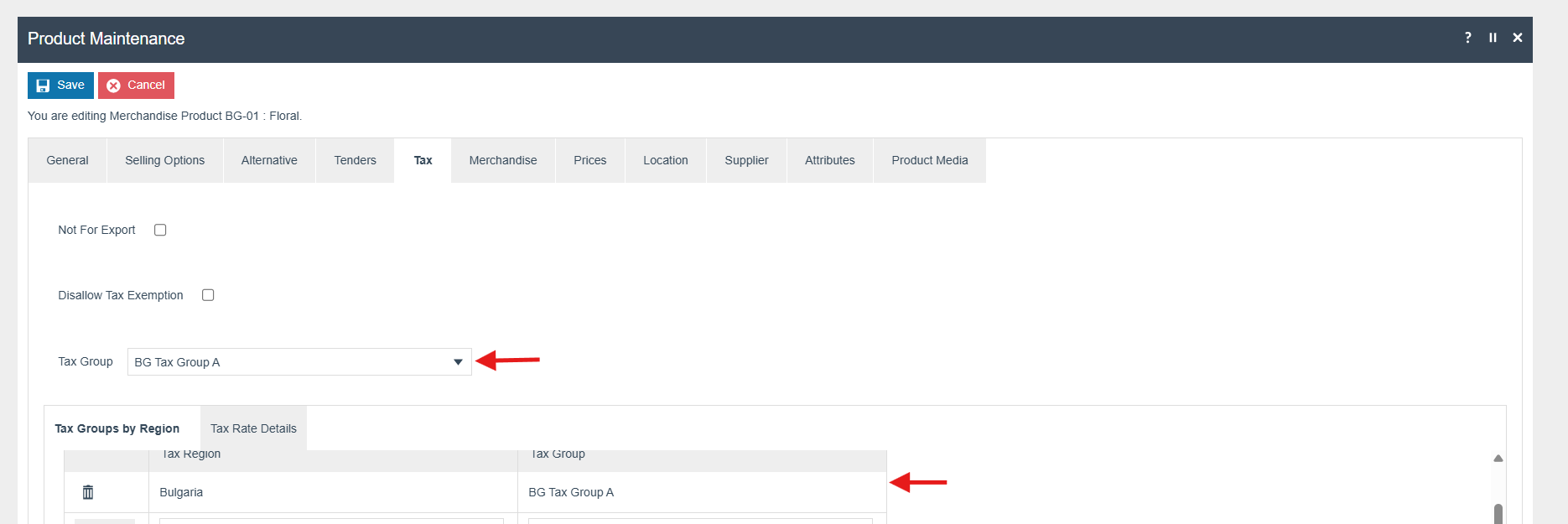
The following tax configurations should be applied to the products and broadcast to the appropriate Bulgarian devices. A tax group can be defined either by configuring the tax group directly or by assigning a tax group based on the tax region.
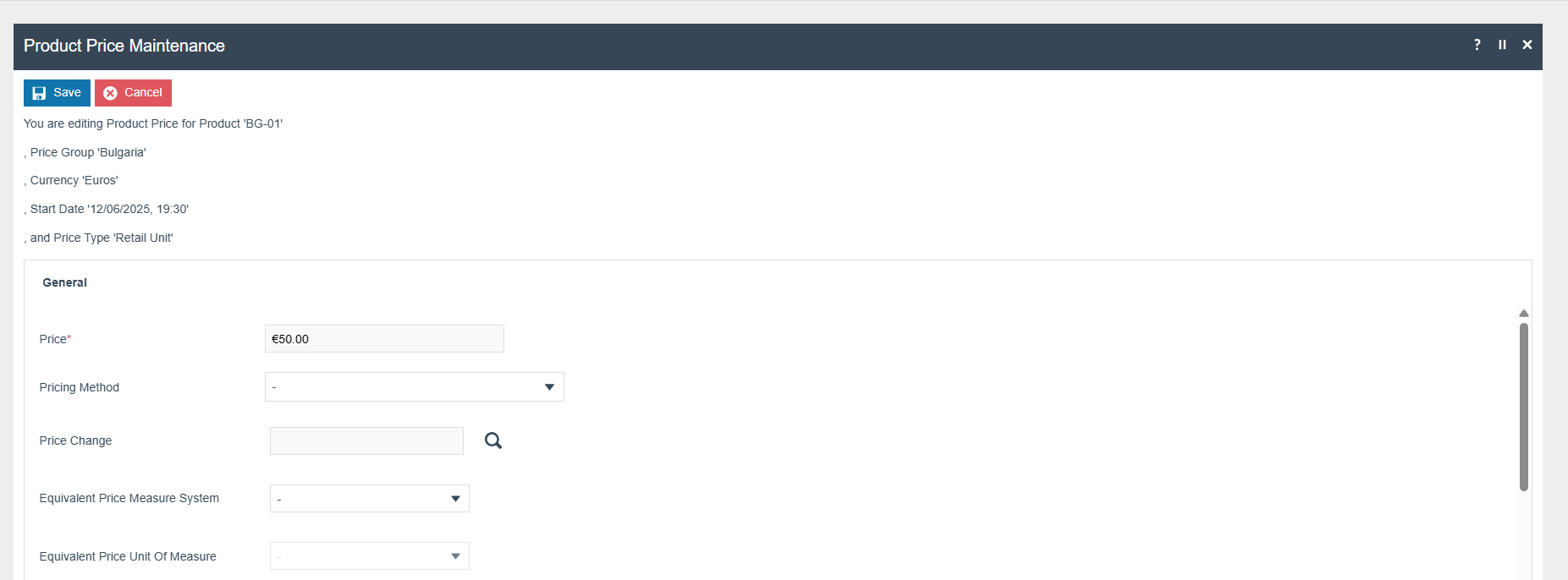
Product Price
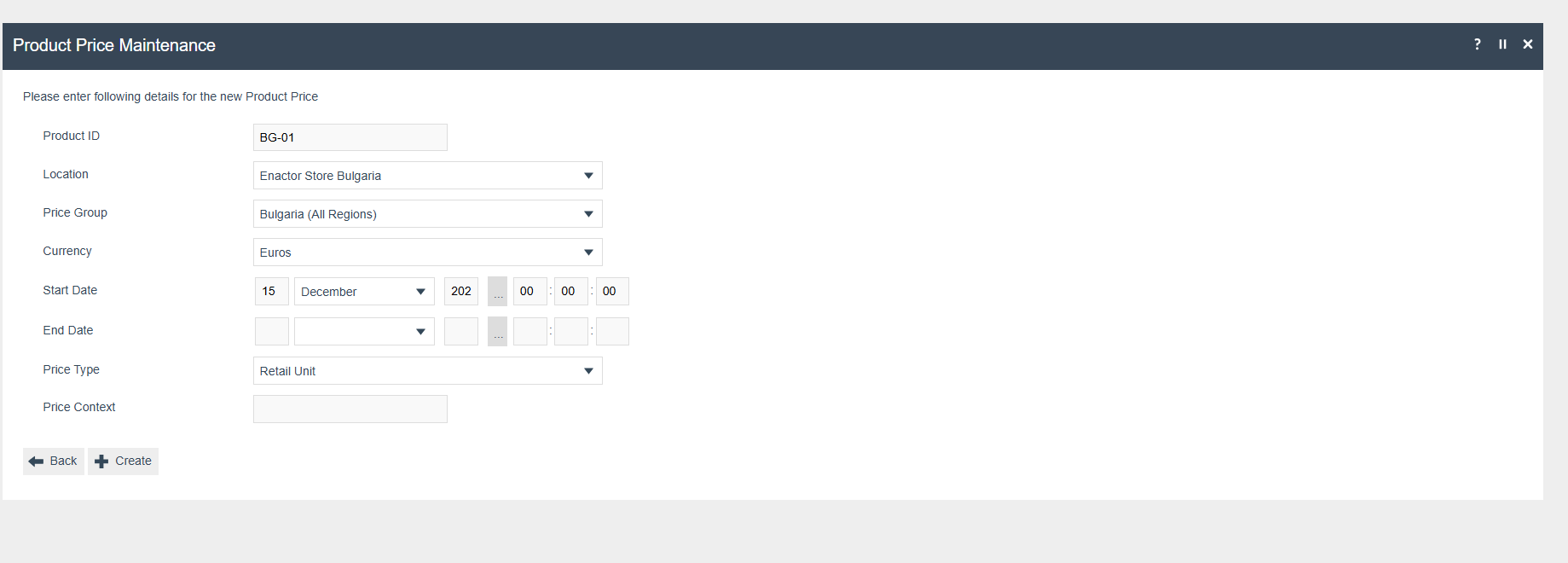
Set the Price for each product (Currency : Euros)
Tenders
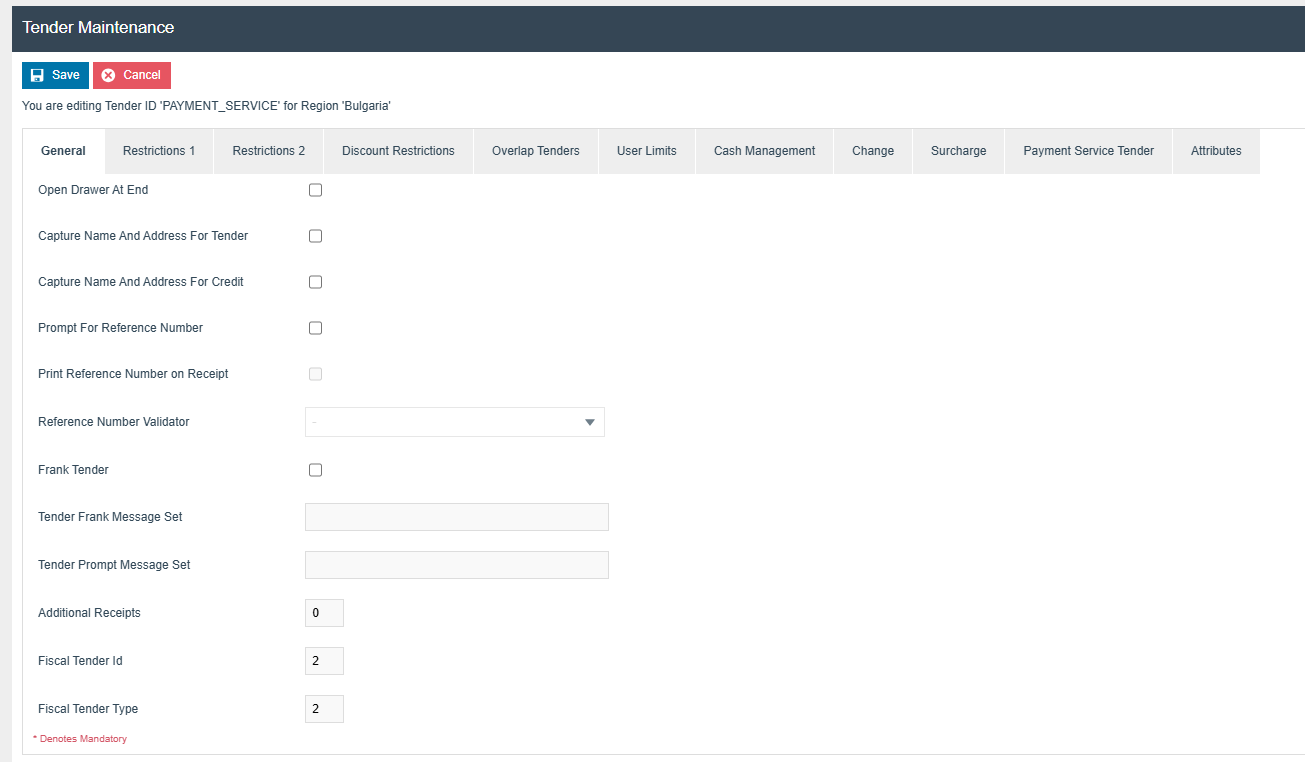
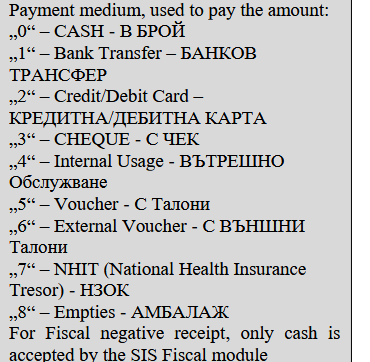
The following Tender Types should be configured and broadcast to the appropriate Bulgaria devices. When setting up tenders, you need to specify the Fiscal Tender Id and Fiscal Tender Type as shown below.
- Cash Tender (Tender ID and cash value : 0)
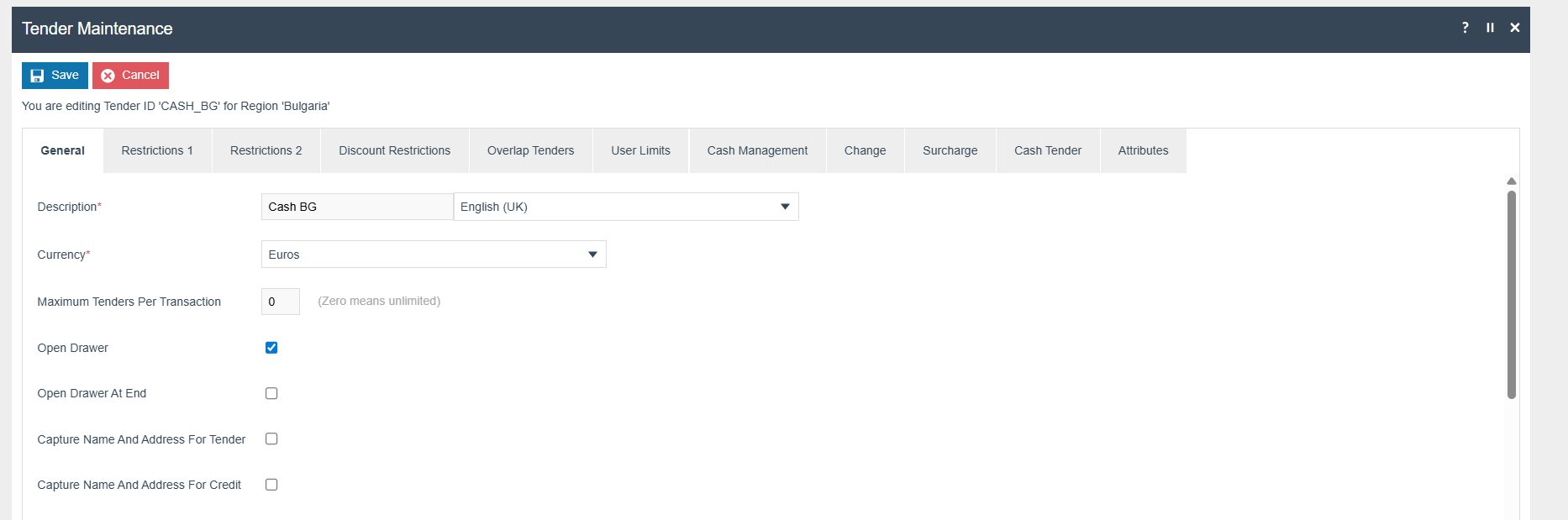
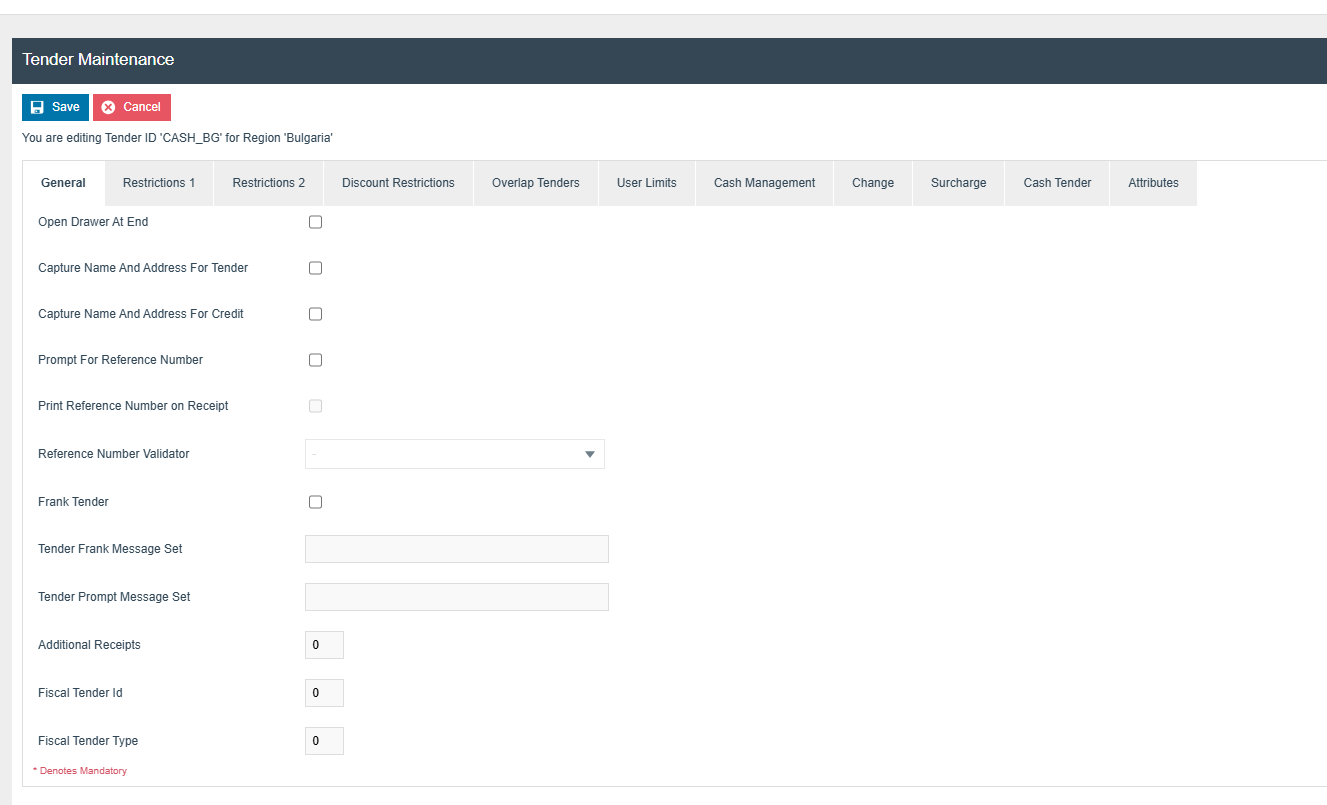
- Card Tender (Tender ID and cash value: 2)

- Voucher Tender (Tender ID and cash value : 5)
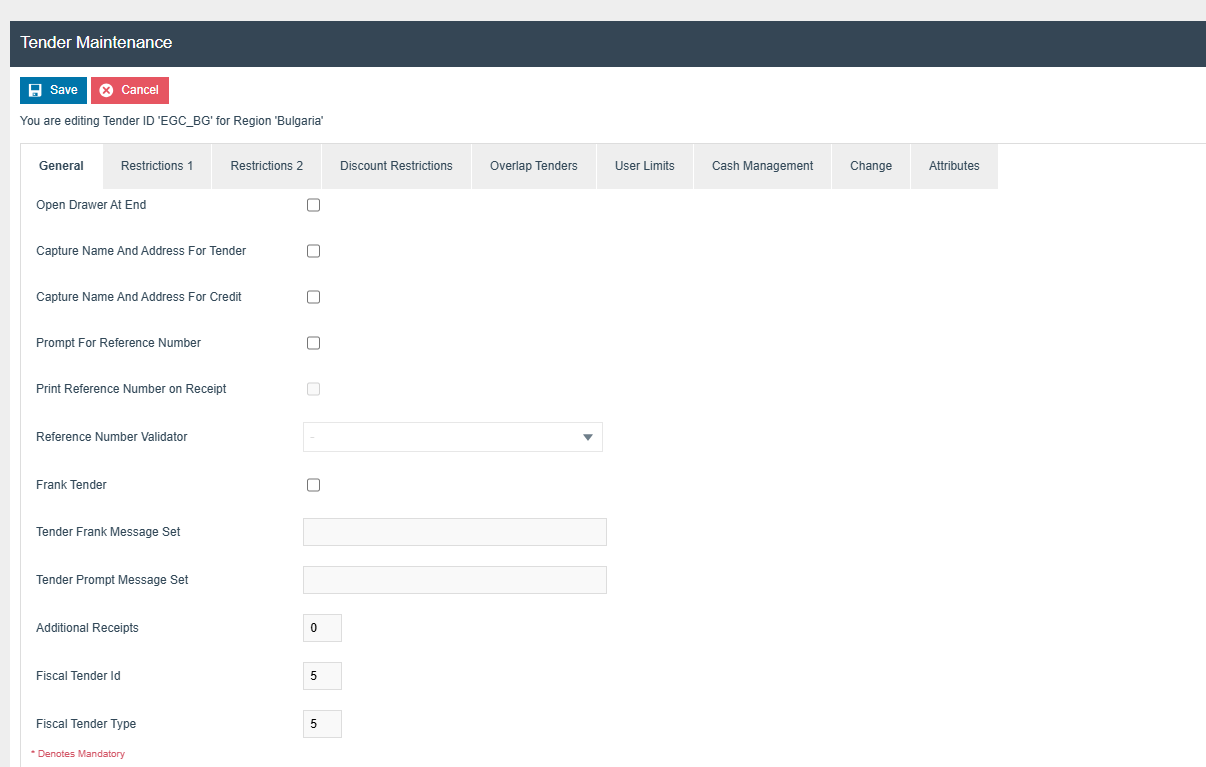
- Gift Card Tender (Tender ID and cash value : 5)
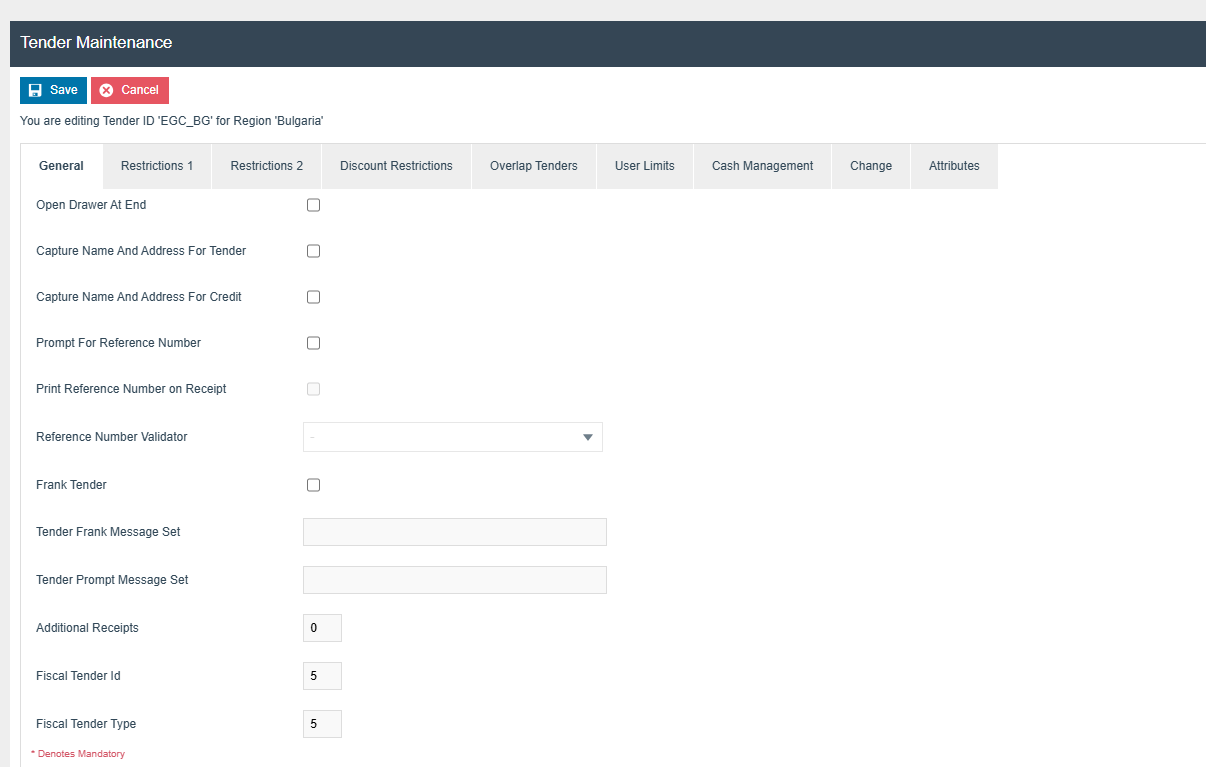
- Payment Service Tender (Adyen card payment : Tender ID and cash value : 2)
Here are the legal documentation requirements related to the Fiscal Tender Type.
Privileges
The following additional privileges will need to be configured against the appropriate roles and broadcast to the Bulgaria devices. Consideration should be given to whether it is desirable for all operators to have all of these privileges or if some should only be granted to managers. For more detail on Privileges and roles refer to the How-To Guide Configuring User, User Roles and User Templates
| Privilege ID | Application Package |
|---|---|
| enactor.pos.AllowReturnTaxRefundItemAlreadyRedeemed | Enactor POS |
| enactor.pos.AuthorisesReturnItem | Enactor POS |
| enactor.pos.ReturnItemAllowed | Enactor POS |
| enactor.pos.GiftCardTenderAllowed | Enactor POS |
| enactor.pos.VoidTransactionDiscountAllowed | Enactor POS |
| enactor.admin.Run | Enactor POS |
| enactor.pos.ReprintRecentReturnToTransaction | Enactor POS |
| enactor.pos.VoucherRedeemAllowed | Enactor POS |
| enactor.pos.ReturnFromReceiptAllowed | Enactor POS |
| enactor.pos.AuthorisesVoidCardTenderItem | Enactor POS |
| enactor.pos.AuthoriseDayEndBeforeEarliest | Enactor POS |
| enactor.pos.AuthorisesVoidTenderItem | Enactor POS |
| enactor.pos.CashRefundAllowed | Enactor POS |
| enactor.dayStart.AuthorisesDayStart | Enactor POS |
| enactor.pos.AllowEmployeeReturnIfUserInvolved | Enactor POS |
| enactor.pos.fiscal.AuthorisesGetVat | POS Fiscalisation |
| enactor.pos.fiscal.GetVatRatesAllowed | POS Fiscalisation |
| enactor.pos.fiscal.AuthorisesFiscalA4Invoices | POS Fiscalisation |
| enactor.pos.fiscal.AuthorisesPrintInvoiceFromArchive | POS Fiscalisation |
| enactor.pos.fiscal.PrintInvoiceFromArchiveAllowed | POS Fiscalisation |
| enactor.pos.fiscal.AllowMultipleOriginalA4Invoices | POS Fiscalisation |
The privileges listed below must not be selected for any roles associated with Bulgaria POS users.
| Privilege ID | Application Package |
|---|---|
| enactor.pos.SKipPagePrinterReceiptPrint | Enactor POS |
User
| Field Description | Value | Comment |
|---|---|---|
| User Id | BG1010 | User Id of the User |
| Location | Enactor Store Bulgaria | General Tab, update field |
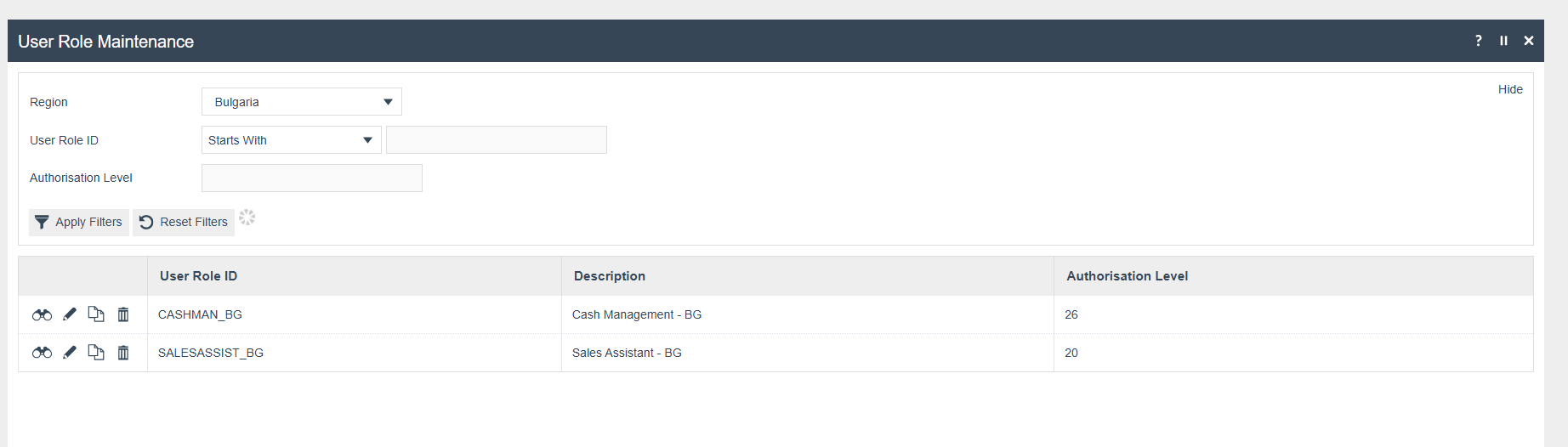
| Role | Sales Assistant - BG | Roles Tab, update field |
| Fiscal User Reference | Numeric value (Max 4, Min 1 Digits) | General Tab, Fiscal User Reference field |
Above User Id is a default value. Any applicable value can be used instead.
User Roles
Create user roles for Bulgaria as follows.
Menu
Create menus for Sales Assistant Bulgaria as follows.
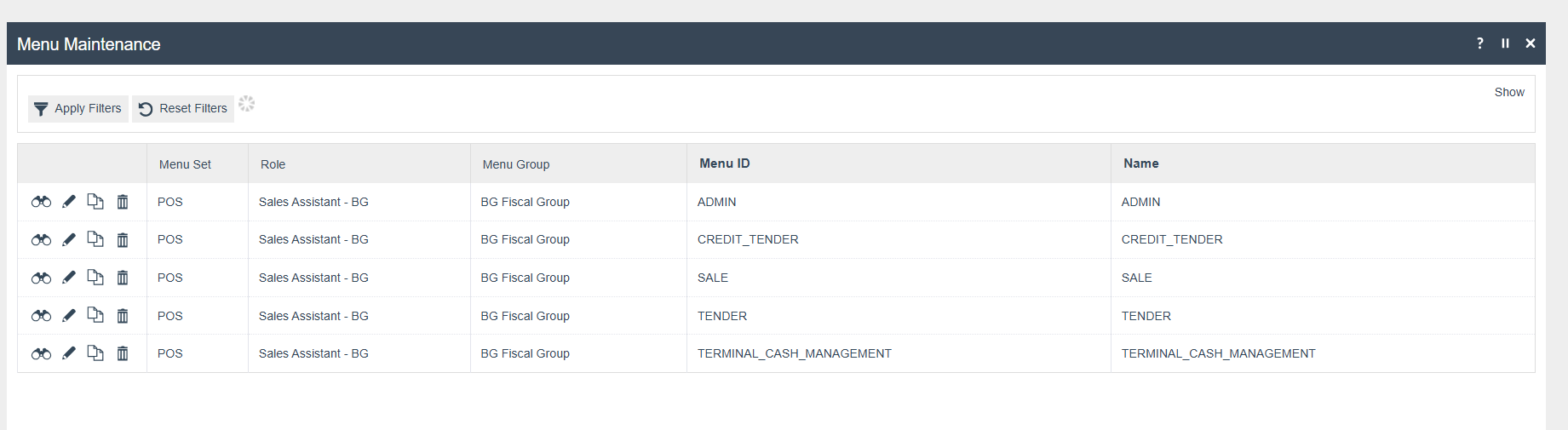
For more detail on menu creation refer to the [How-to Guide Configure POS Behaviour (Menus)]
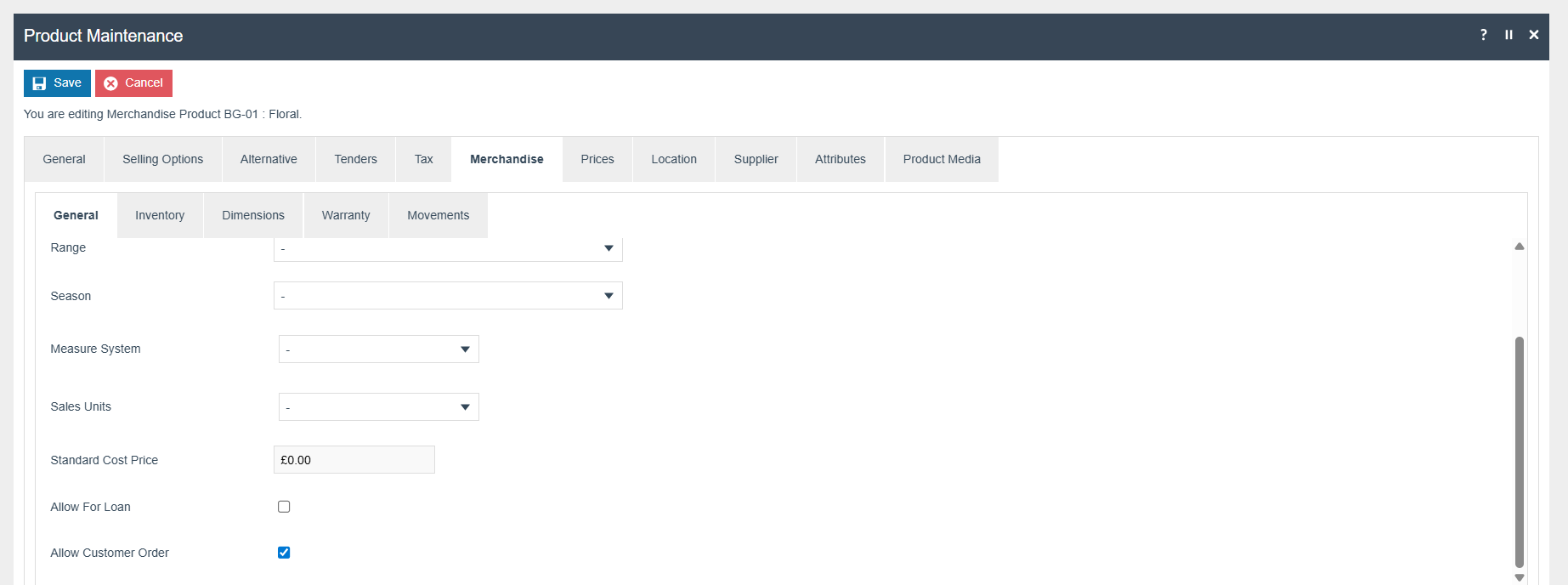
Orders related Configurations
Products should be orderable.
Reports related Configurations
The following privileges must be configured for the appropriate roles and broadcast to the Bulgaria devices. These privileges enable the report printing.
| Privilege ID | Application Package |
|---|---|
| enactor.pos.PrintFiscalReportsAllowed | POS Fiscalisation |
| enactor.pos.AuthorisesPrintFiscalReports | POS Fiscalisation |
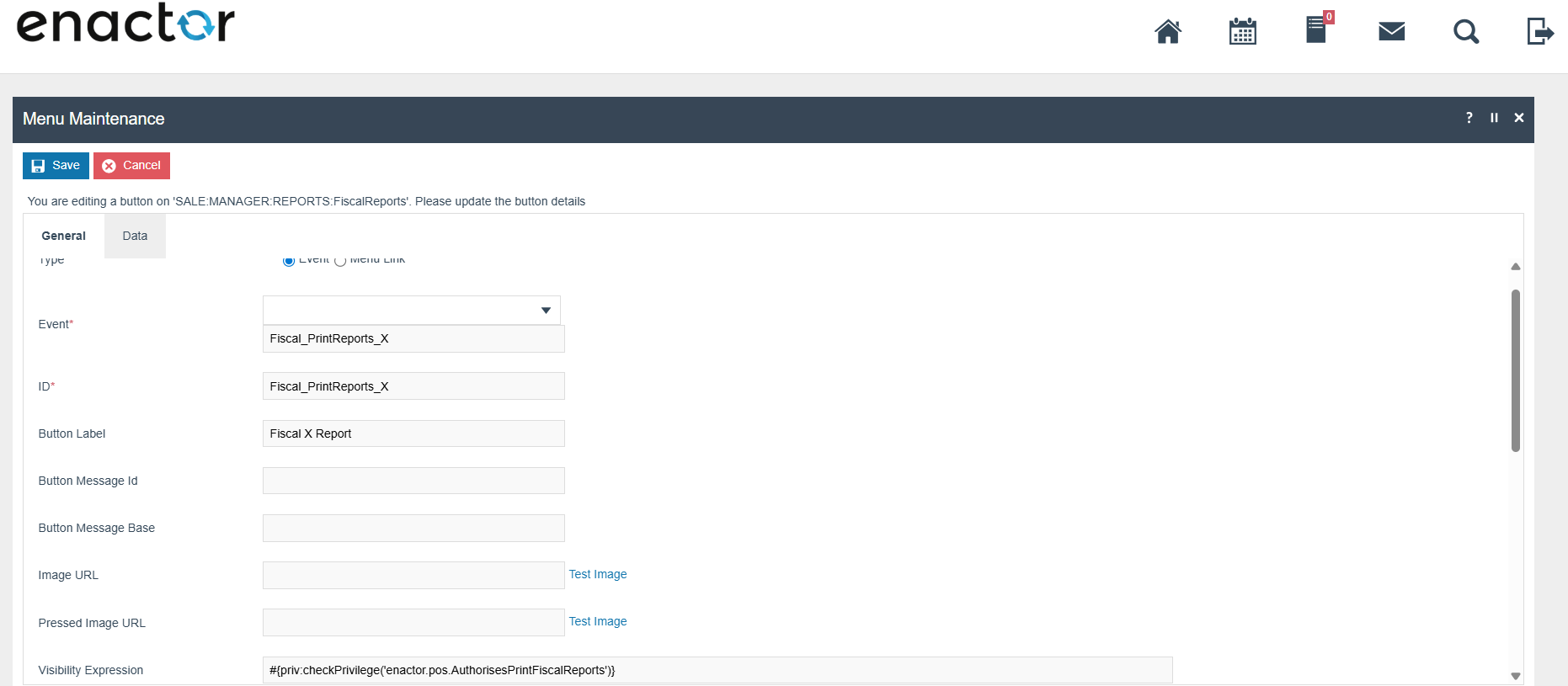
The menu should have the following button events.
-
Fiscal_PrintReports_X
-
Fiscal_PrintReports_Z
-
Fiscal_PrintReports_Full_Periodic_ByZRNumber
-
Fiscal_PrintReports_Short_Periodic_ByZRNumber
-
Fiscal_PrintReports_Full_Periodic_ByDate
-
Fiscal_PrintReports_Short_Periodic_ByDate
-
Fiscal_PrintReports_EJ
X Report
Include the "Fiscal_PrintReports_X" button event in the menu.
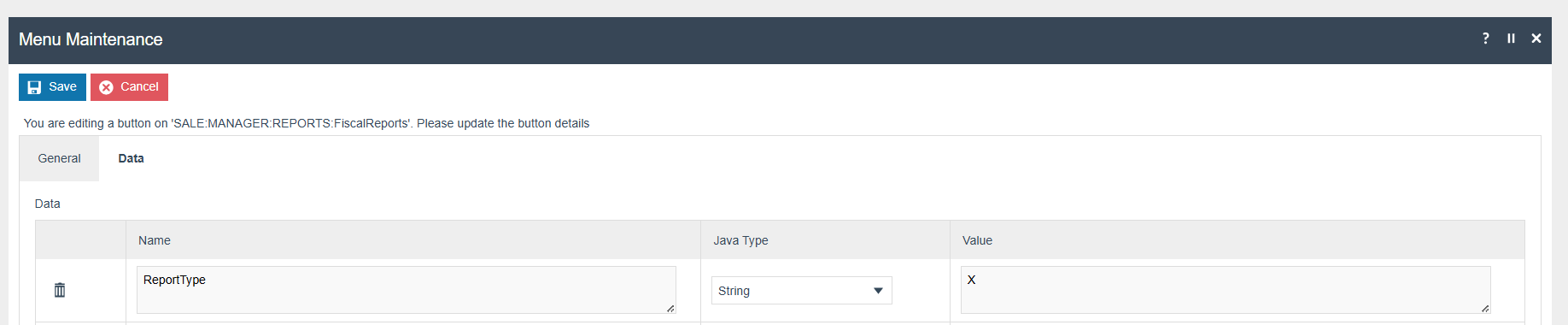
Also add "ReportType" as "X" in the Data field.
Z Report
Include the "Fiscal_PrintReports_Z" button event in the menu.
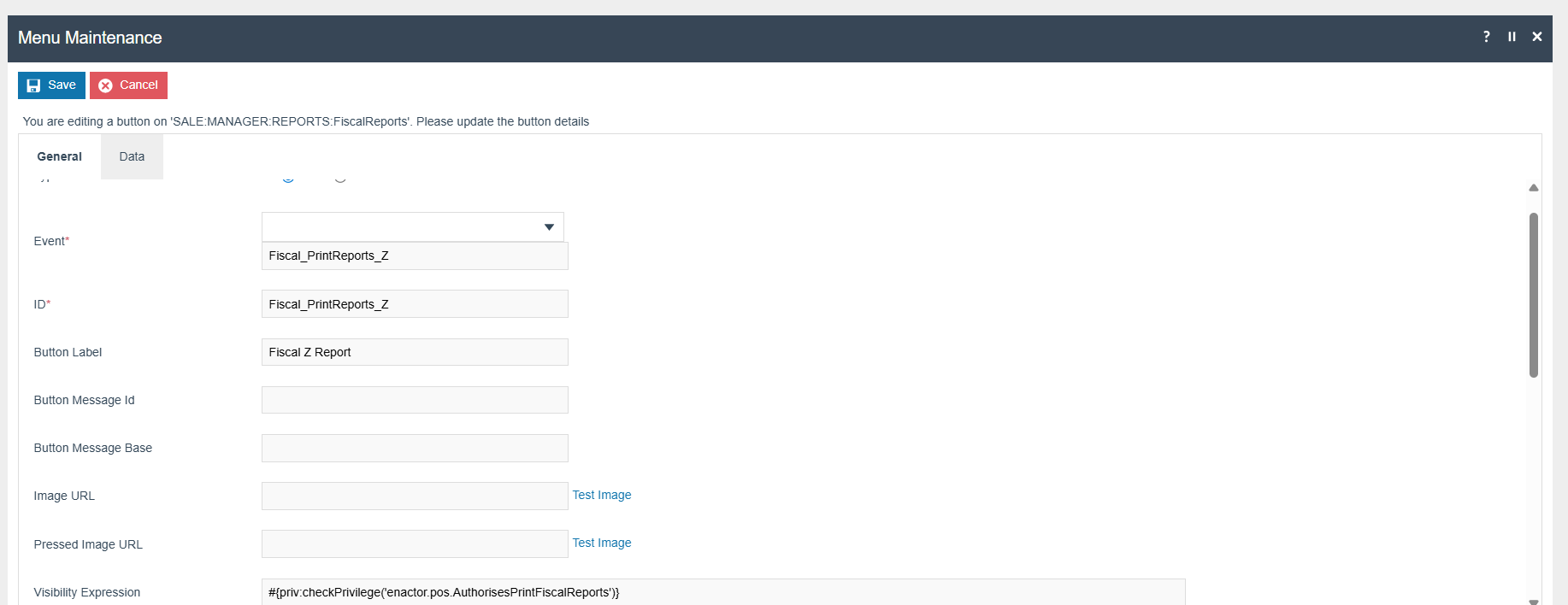
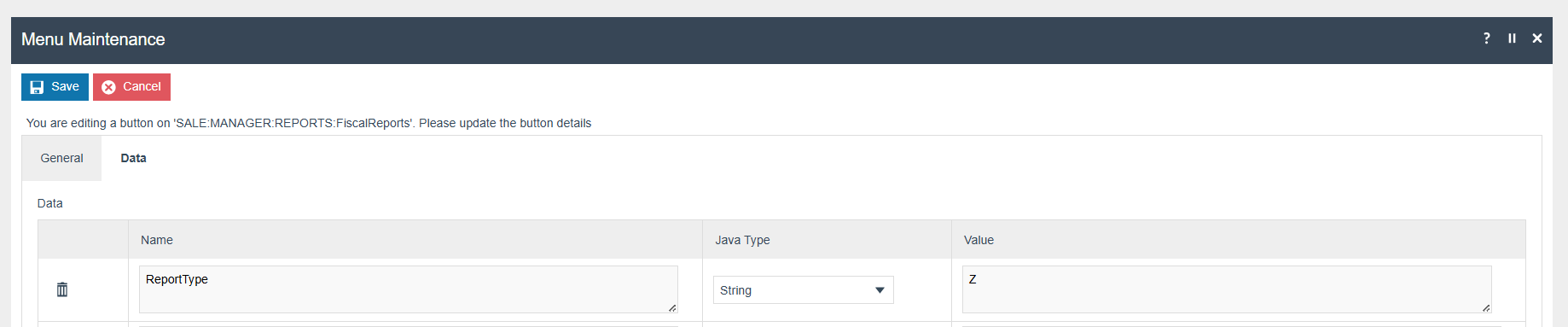
Also add "ReportType" as "Z" in the Data field.
Periodic Report
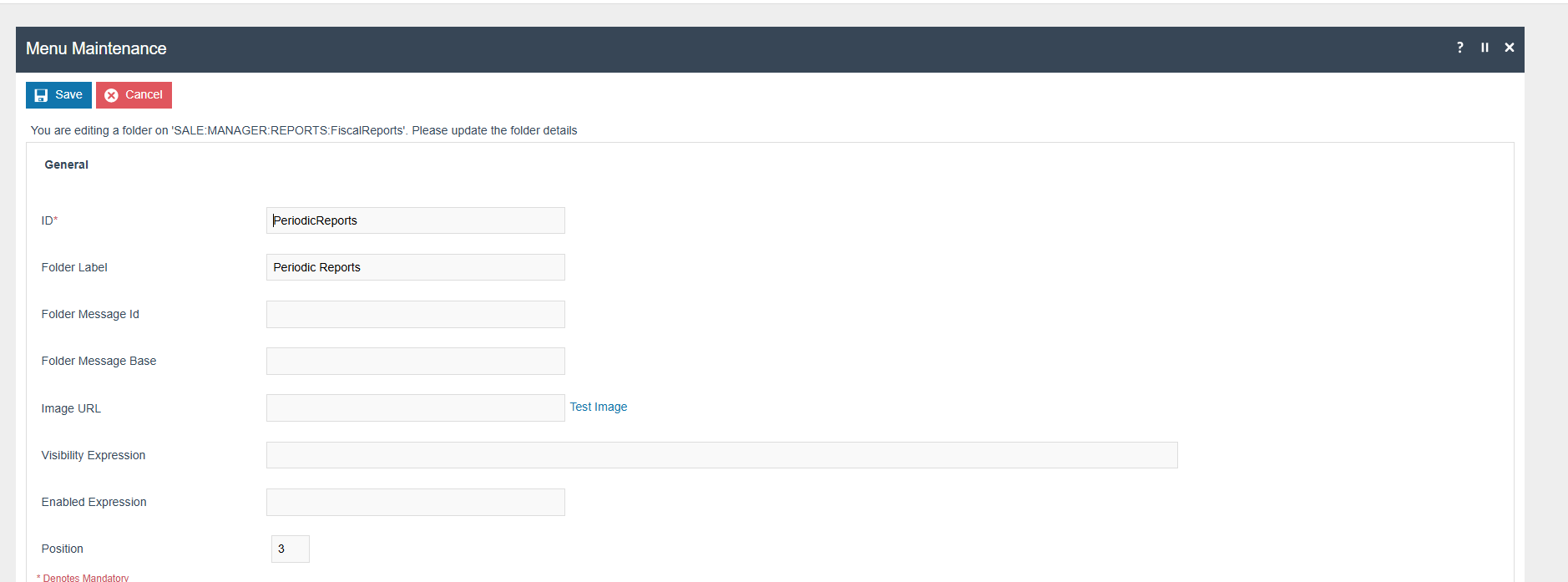
Create a "Periodic report" folder in the menu.
Add new buttons to the Fiscal Reports Folder for the following:
| Event | ID | Button Label |
|---|---|---|
| Fiscal_PrintReports_Full_Periodic_ByZRNumber | Fiscal_PrintReports_Full_Periodic_ByZRNumber | FFM by Z Report |
| Fiscal_PrintReports_Short_Periodic_ByZRNumber | Fiscal_PrintReports_Short_Periodic_ByZRNumber | SFM By Z Report |
| Fiscal_PrintReports_Full_Periodic_ByDate | Fiscal_PrintReports_Full_Periodic_ByDate | FFM by Date |
| Fiscal_PrintReports_Short_Periodic_ByDate | Fiscal_PrintReports_Short_Periodic_ByDate | SFM By Date |
EJ Report
Include the "Fiscal_PrintReports_EJ" button event in the menu.
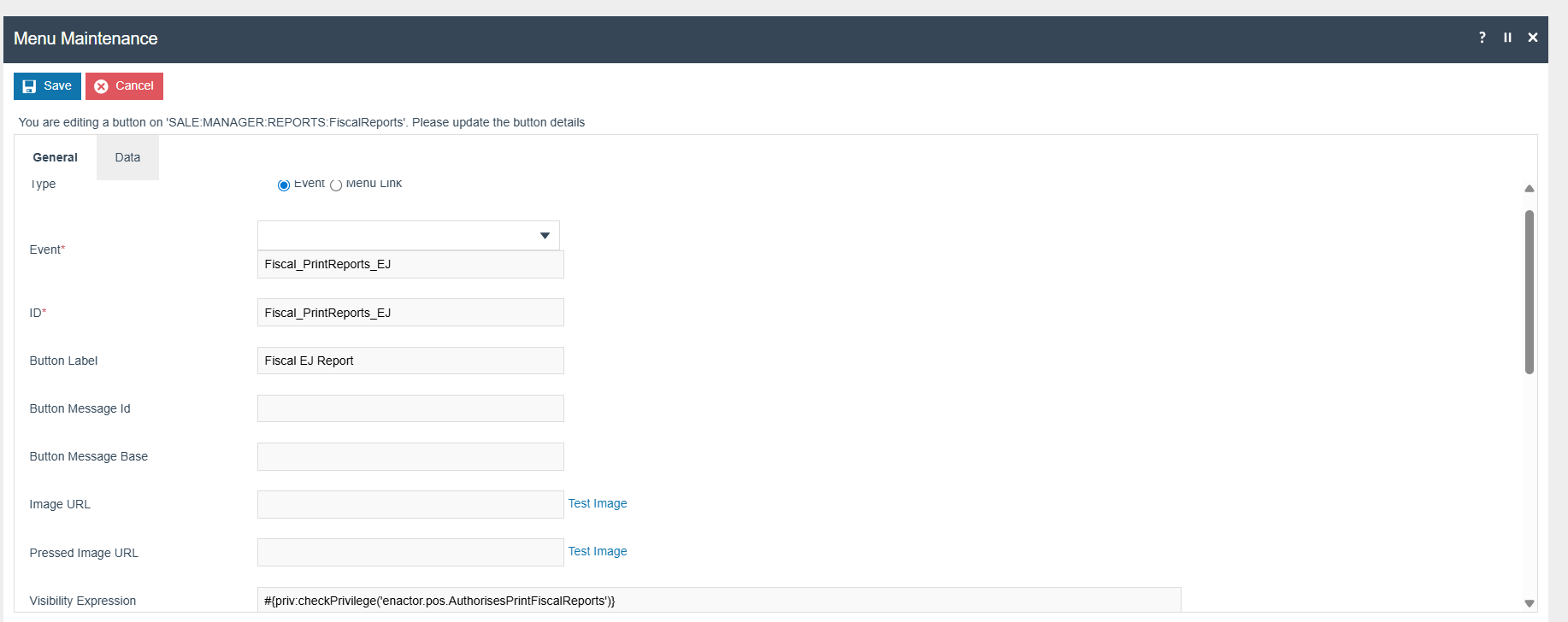
Also, add "ReportType" as "EJ_REPORT" in the Data field.
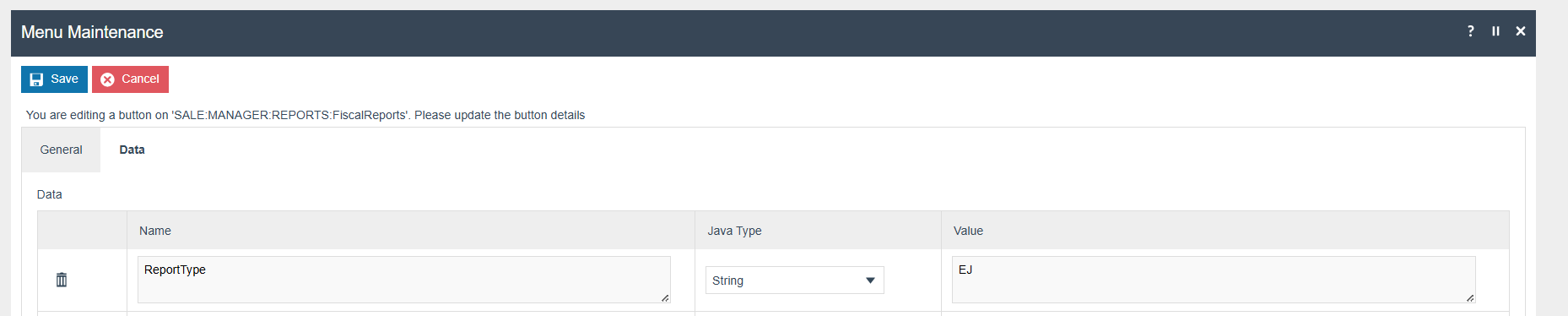
Location Printers and Document Printer Mappings Related Configurations for A4 Receipts
Location Printer Configurations
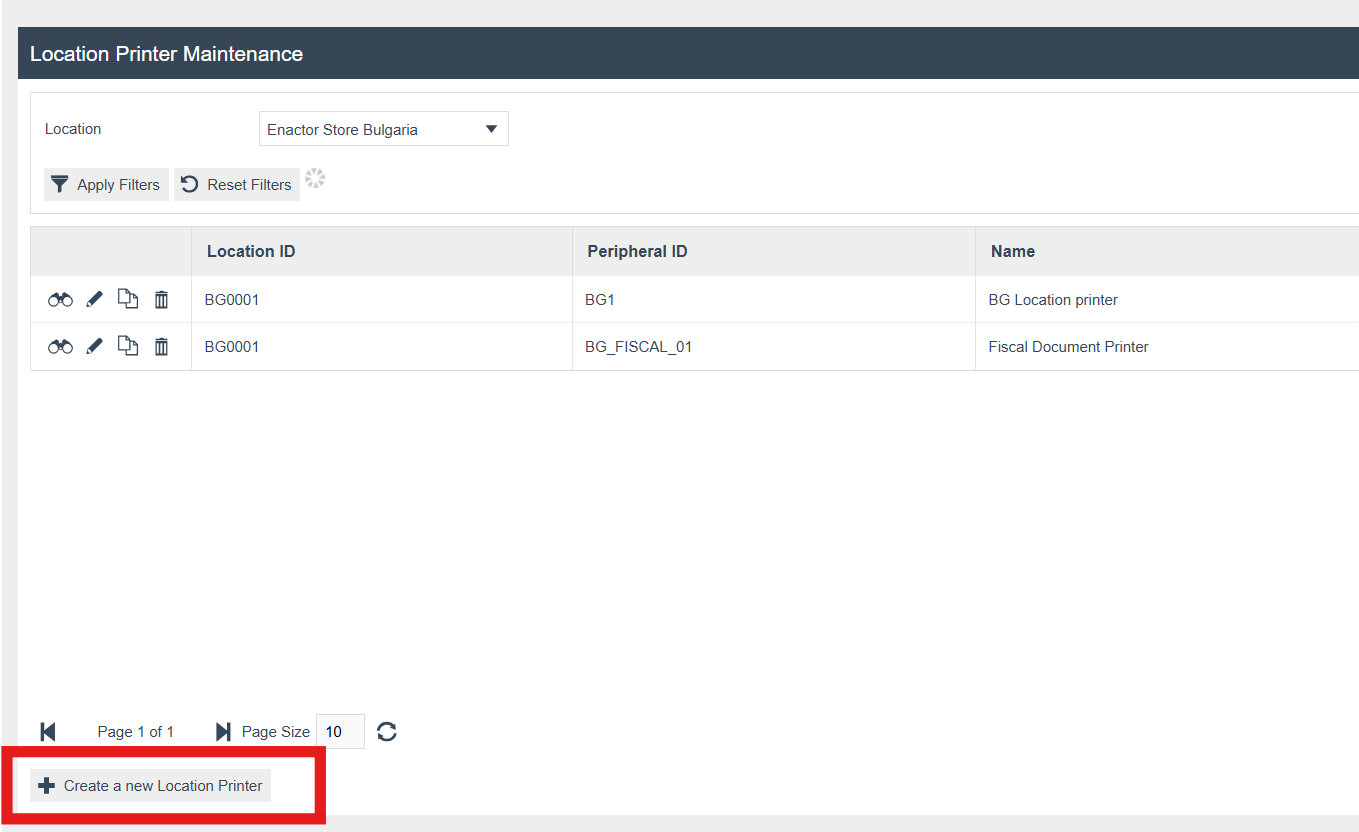
Move to the Location Printer Maintenance, and select the required location in the location filter field, and check whether the printer is available for document printing. If not, click on Create a new Location Printer button.
Then select the location you need, and then give a proper peripheral ID for the printer.
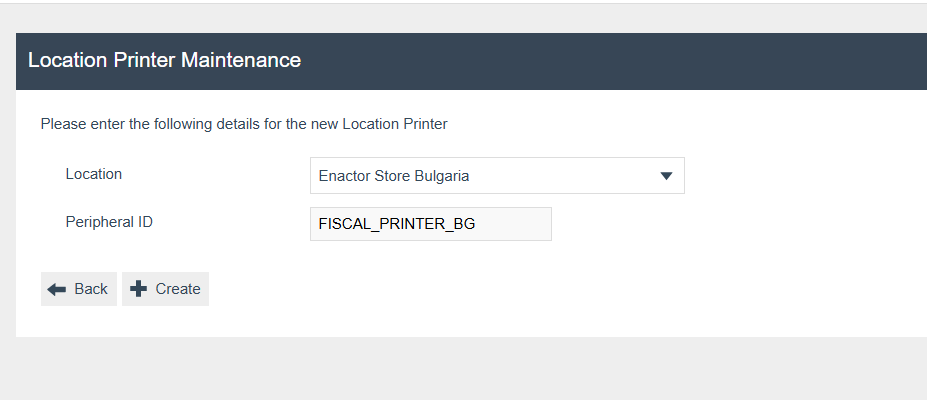
Then click on the Create button, and then select Receipt and Document Printer as Printer Category, and enter a proper name for the printer.

Document Printer Mapping Maintenance
Move to the Document Printer Mapping Maintenance and click on Create a new Document Printer Mapping button.
Then select the details as mentioned below.
-
Function: Print Receipt
-
Location: <select your Location>
-
Device: <select your device name>
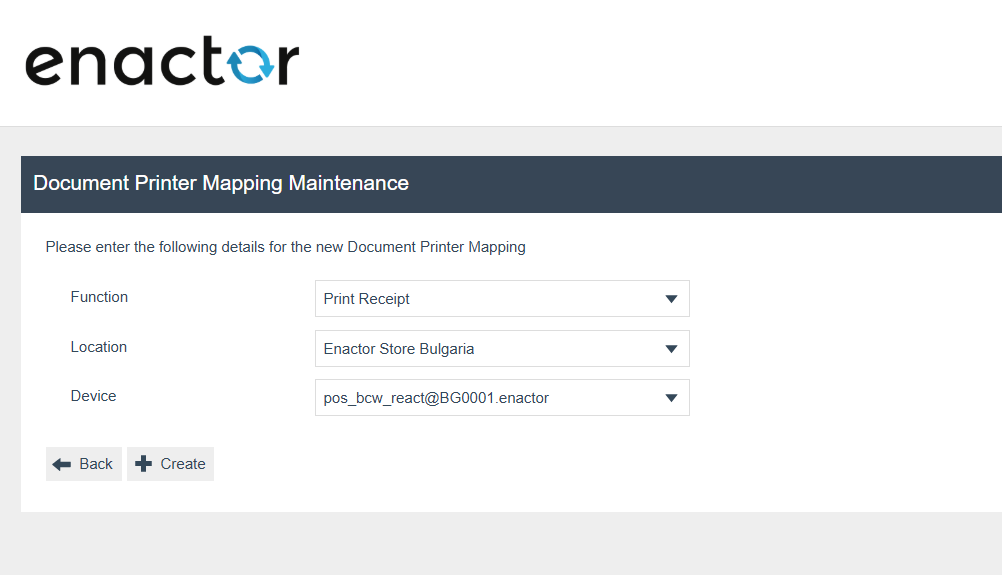
Then click the Create Button.
A4 Invoices and Credit Memo Related Configurations
Menu Configurations
Move to the Menu Maintenance and select to edit the relevant sale menu for Bulgaria by selecting the Bulgaria sales assistant user role.
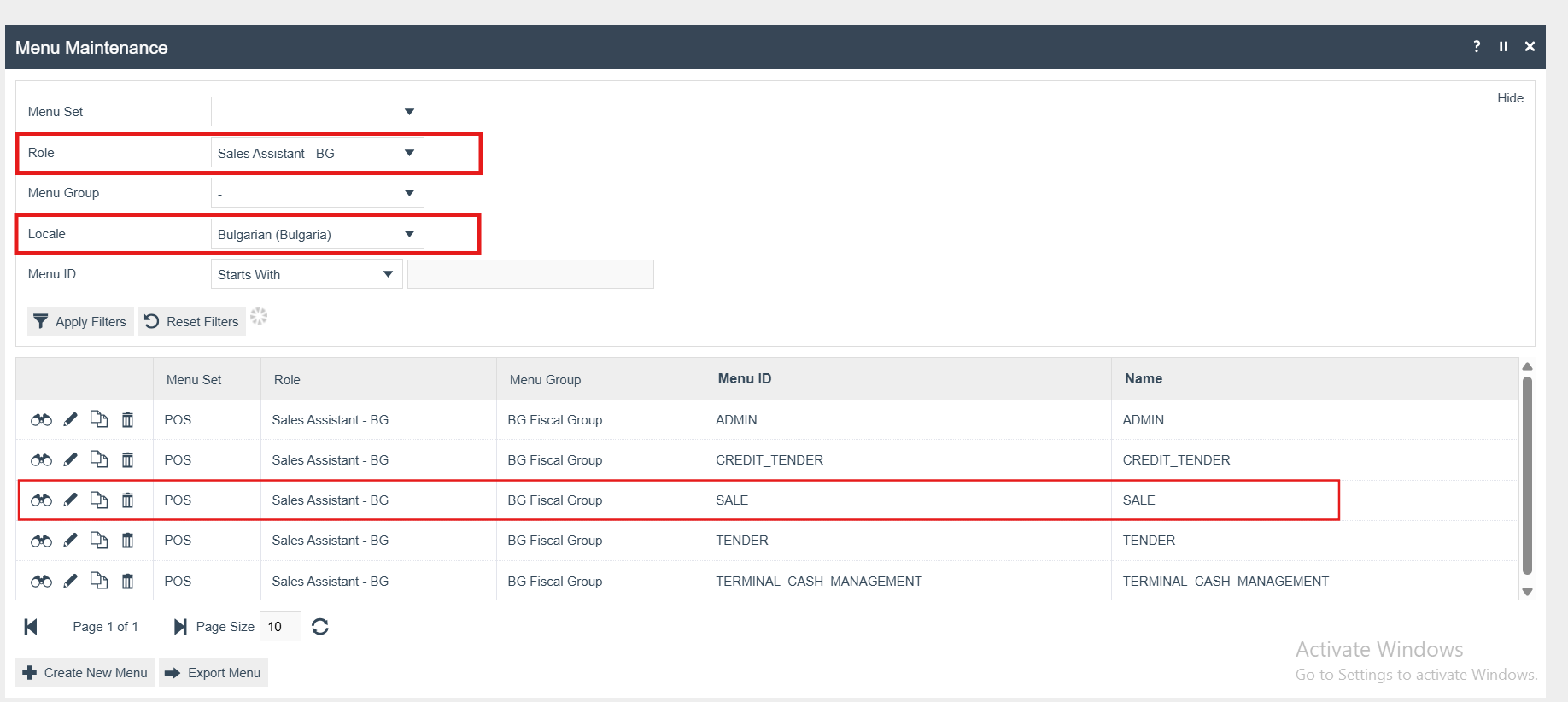
-
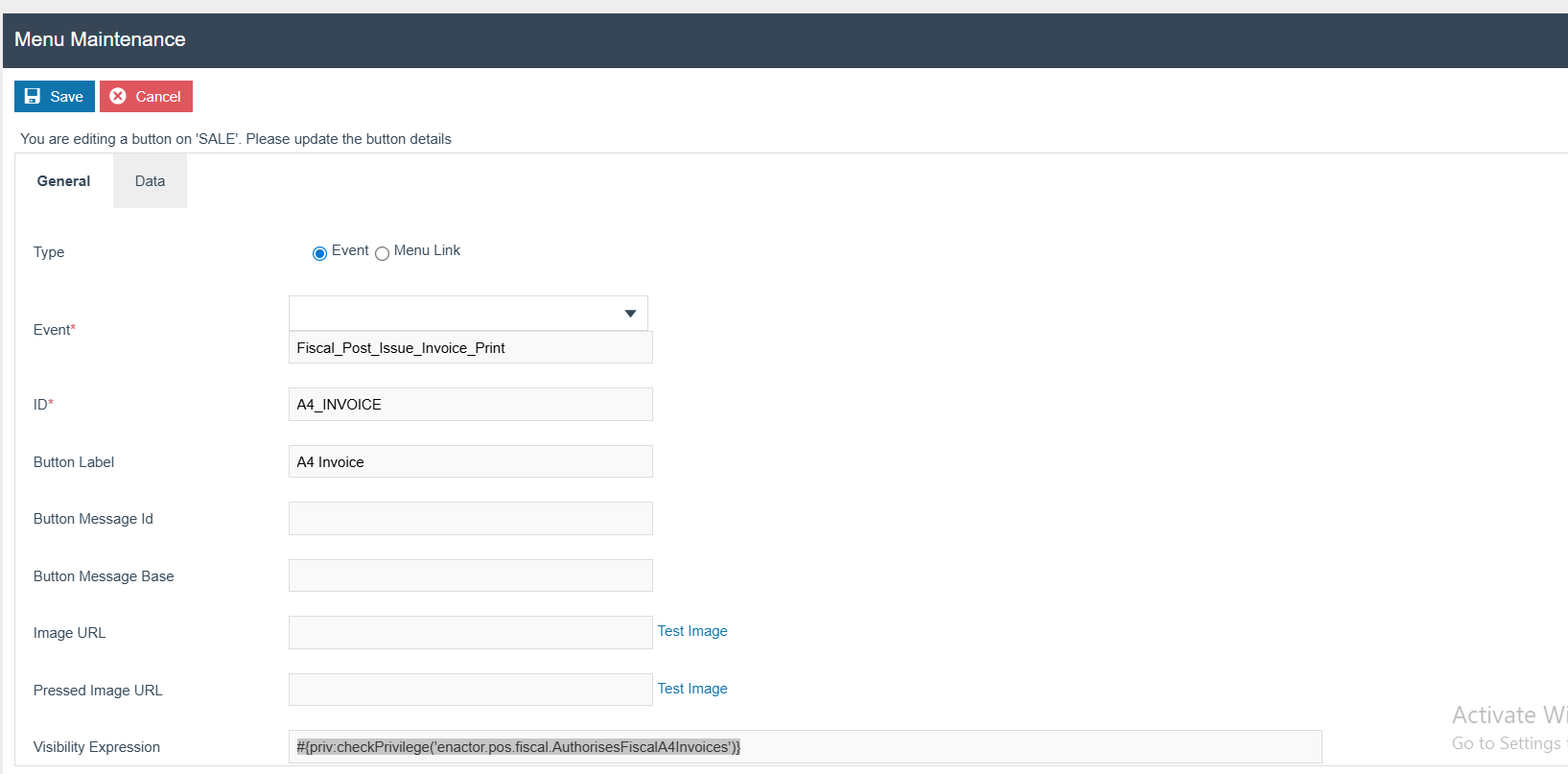
In the sale menu, select the SALE button folder and select the Add... button to add a new button for A4 Invoice generation. (Add.. -> Add a new Button)
-
In adding new button view change these fields as mentioned,
-
Event: Fiscal_Post_Issue_Invoice_Print
-
ID: A4_INVOICE
-
Button Label: A4 Invoice
-
Visibility Expression:
-
User Role configurations
Move to the User Role maintenance. Then select the Bulgaria region and select the Bulgaria Related Sales Assistant for editing.
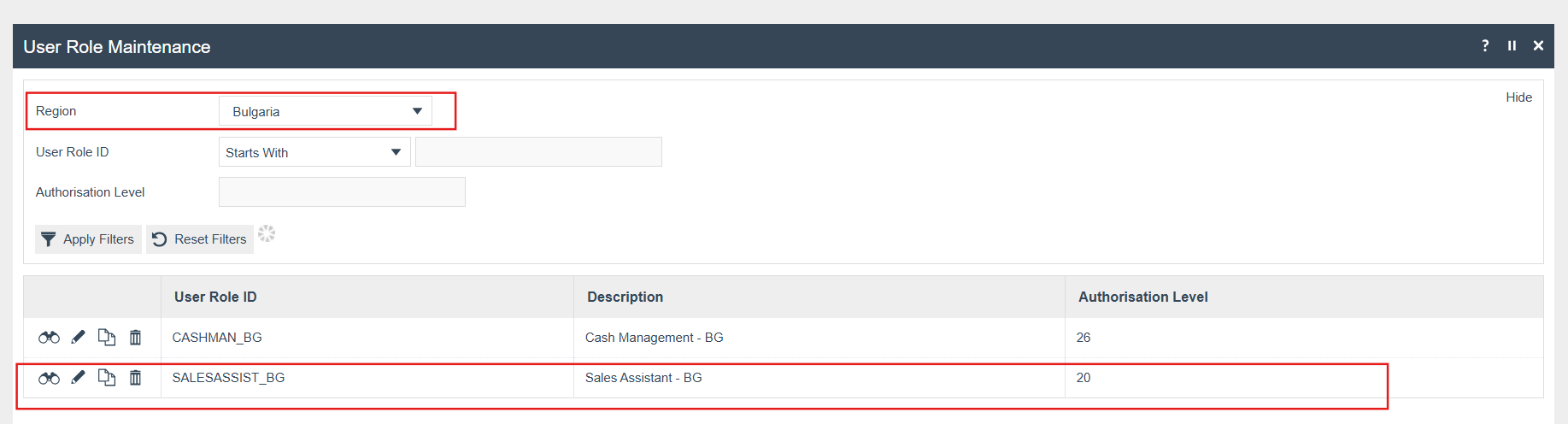
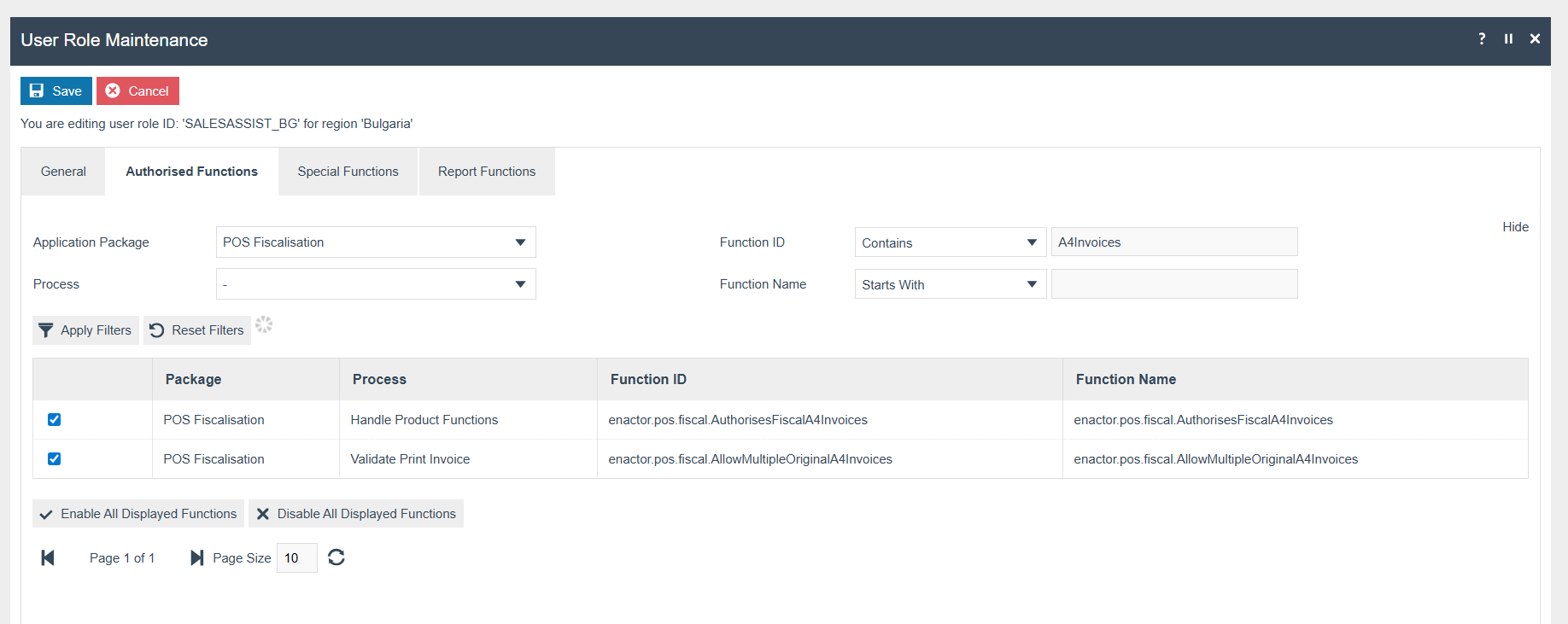
Then select the Authorised Functions tab. Filter the roles by applying the following filters.
-
Application Package: POS Fiscalisation (Select from the selection list)
-
Function Id: A4 Invoices (filter condition change to Contains)
-
Apply Filters and allow the couple of roles named below, and save changes.
-
enactor.pos.fiscal.AuthorisesFiscalA4Invoices
-
enactor.pos.fiscal.AllowMultipleOriginalA4Invoices
-
enactor.pos.fiscal.AuthorisesPrintInvoiceFromArchive
-
enactor.pos.fiscal.PrintInvoiceFromArchiveAllowed
-
POS terminal Changes
Go to the Pos terminal Maintenance and select the relevant pos terminal for Bulgaria to edit the pos terminal.
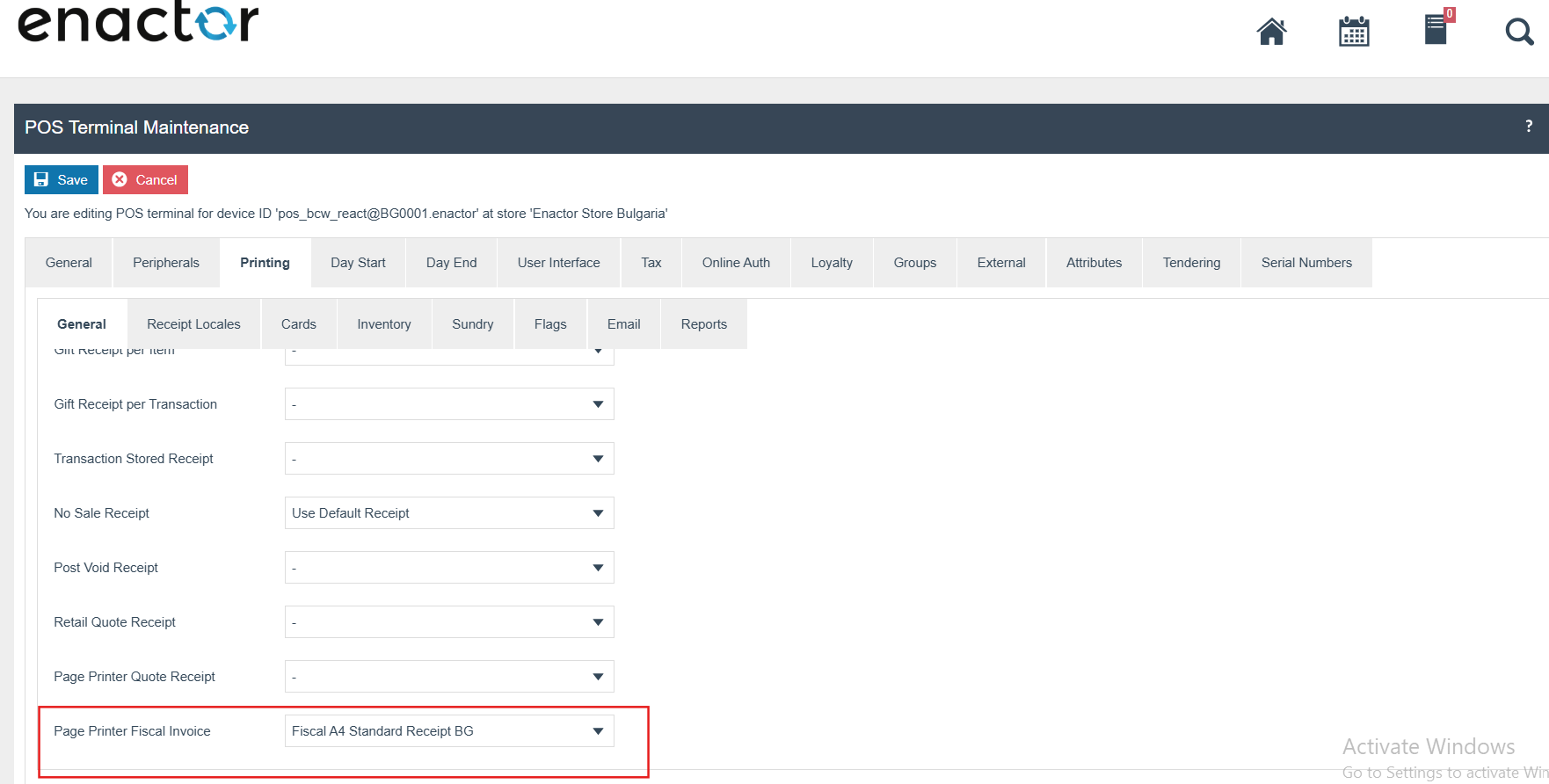
Select the Printing tab and stay on the General tab. Then select the Fiscal A4 Standard Receipt BG for the Page Printer Fiscal Invoice field as the invoice template and save the changes.
Customer Signature Slip Configuration
Go to the Pos terminal Maintenance and select the relevant pos terminal for Bulgaria to edit the pos terminal.
Select the Sundry tab under the Printing tab. Then select the Fiscal A4 Signature Slip BG for the Customer Signature Slip field as the Customer signature receipt template and save the changes.
Warranty Slip Configuration
Go to the Pos terminal Maintenance and select the relevant pos terminal for Bulgaria to edit the pos terminal.
Select the Sundry tab under the Printing tab. Then select the Fiscal A4 WarrantySlip for the Warranty Slip field as the warranty slip template and save the changes.
Gift Card Configuration
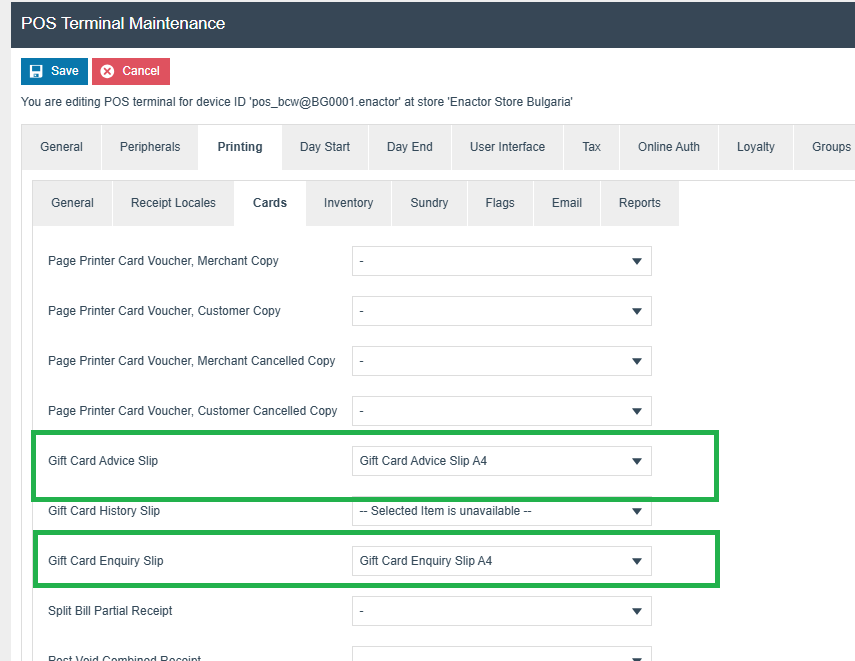
Set the templates in the POS terminal maintenance for the Gift Card Enquiry and Advice slips.
Fiscal Detail Mapping
| Fiscal Details Attributes | What it has been mapped to |
|---|---|
fiscalTransactionId | Unique identifier generated by the fiscal device for the fiscal transaction |
operatorCode | Fiscal operator/user reference associated with the transaction |
serialNumber | Terminal number of the POS terminal where the transaction was performed |
endTime | Date and time when the fiscal transaction was completed |
processType | The return reason which is associated with Returns and Credit Memo |
fiscalIdentificationCode | Fiscal memory identification number assigned to the fiscal printer |
fiscalReceiptType | Fiscal receipt type of the transaction |
machineReadableCode | Fiscal device number of the printer, used for machine-readable identification |
fiscalDay | Z-report number of the fiscal printer for the transaction day |
originalDocumentType | Type of document associated with the original transaction |
originalDocumentNumber | Fiscal document number of the original transaction |
| Additional Data | |
receiptTimestamp | Timestamp indicating when the fiscal receipt was generated |
invoiceNumber | Invoice number associated with the transaction |
enumStornoType | Storno type indicator (value 1 represents return/refund transactions) |
originalTransactionMemNumber | Memory number of the printer associated with the original transaction |
originalDocumentDate | Date on which the original transaction was performed |
invoiceDate | Date on which the invoice was issued |
externalFiscalResponseContentType | Content type of the fiscal printer response data before encoding |
externalFiscalResponseEncoding | Encoding method used for the fiscal printer response data |
externalFiscalResponseValue | Encoded response payload received from the external fiscal device |
originalTransactionFDNumber | Fiscal device number of the printer used for the original transaction |
originalFiscaltransactionId | Fiscal transaction identifier of the original transaction |
originalTerminalNumber | Terminal number where the original transaction was processed |
isReturn | Flag indicating whether the transaction is a return (true for return transactions) |
originalFiscMemNumber | Fiscal memory number of the printer used for the original transaction |
returnReceiptQRDetails | QR code details of the original receipt that is referenced for the return transaction |
Translations
Unsupported characters by the Printer will be printed as "?" characters.
Functional Overview
Once these steps are completed successfully, POS transaction operations can proceed as normal.