How To Configure Fiscal Romania
Fiscal Overview
For shared background, see Fiscal Overview.
Romania Fiscalisation Introduction
In Romania, POS fiscalisation is a legal requirement for businesses to ensure accurate and transparent financial reporting.
It is important for businesses in Romania to select a certified fiscal solution and ensure proper installation and configuration of the system to meet fiscalisation requirements. Failure to comply with POS fiscalisation regulations can result in penalties, fines, or legal consequences.
Overall, POS fiscalisation in Romania aims to enhance transparency, combat tax evasion, and streamline the process of tax collection by leveraging electronic recording and reporting of sales transactions.
The Enactor solution works with the new Epson T810 printer supplied by Sintezis, approved by the Romania Tax Authority for fiscalisation. This avoids the need for the POS solution to be certified, instead relying on the certification obtained by Sintezis. At the time of writing the Sintezis solution is unique in the market in this respect. All other solutions would require a POS certification in addition to the hardware certification and it is for this reason that the Sintezis solution was selected.
Deployment Overview
-
Send 'application updater update.zip' file first.
-
Wait until it succeeds.
-
Then send the 'update POS min.zip' file.
-
Wait until it succeeds.
-
Finally, send the Fiscal Module Update.
-
Once it has succeeded, the POS is ready with the new POS Fiscal Module.
Configuration Overview
The following configuration changes are required and must be broadcast to all Romania devices in preparation for go live. Detailed steps for how to do this are contained in supplementary How to Guides available on the Enactor Insights portal, as well as being covered in the Introduction to Enactor training course. Although steps have been taken to ensure that the POS will not start or perform transactions without a valid configuration it is the retailer's responsibility to ensure a valid configuration is present and not to try to circumnavigate any of the requirements of the Romania Fiscal Legislation through misconfiguration of the solution.
Region
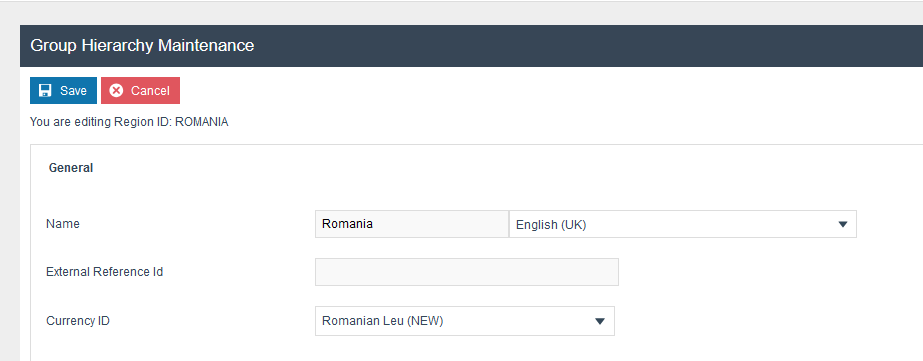
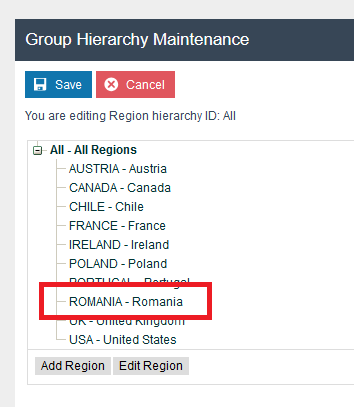
Region must be configured to continue the other configurations related to the fiscalisation. Region for Romania should be created within the Region Group Hierarchy.
Tax Region
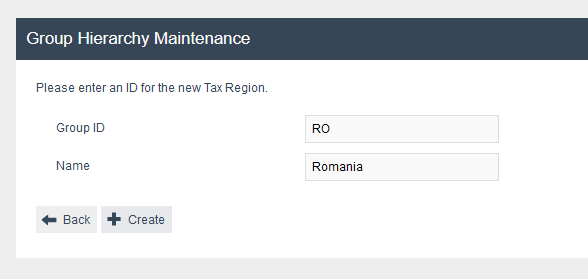
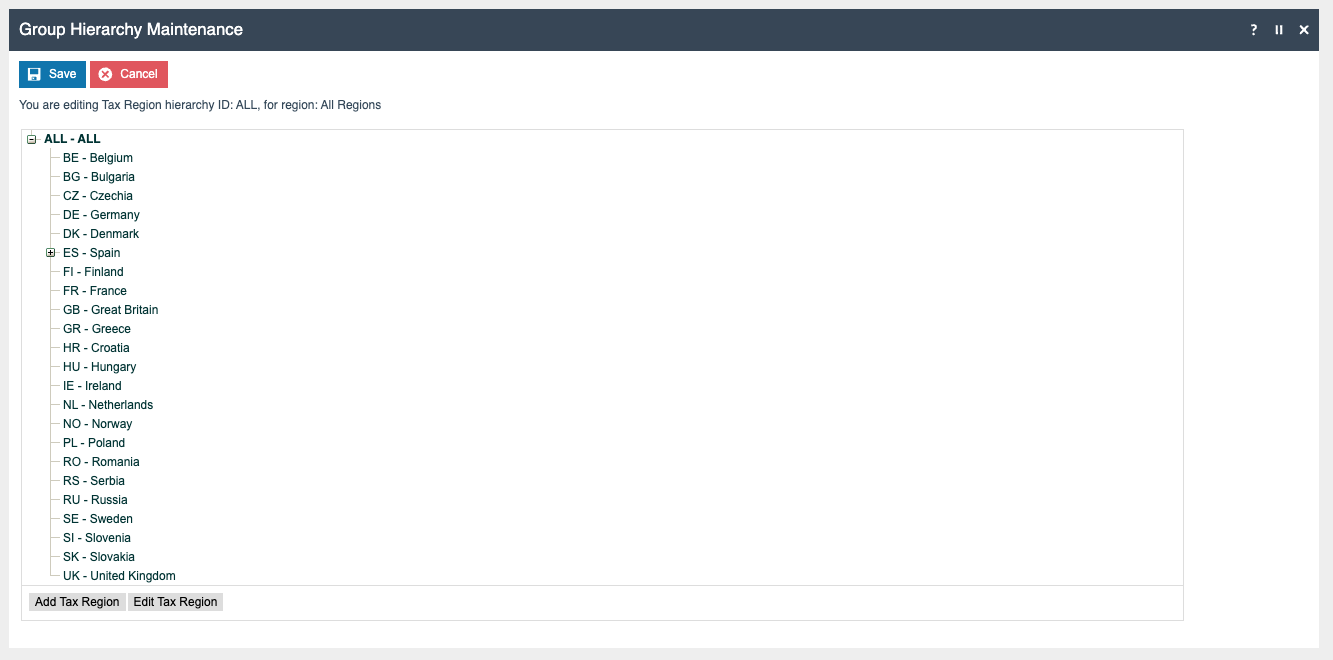
If it does not already exist, a Tax Region for Romania should be created within the Tax Region Group Hierarchy. It should have the ID: "RO" and the Name: "Romania", it is not necessary to configure an External Reference ID.
Price Group
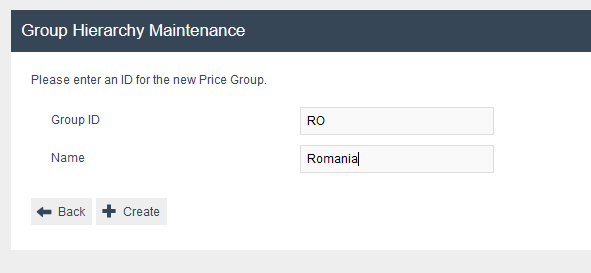
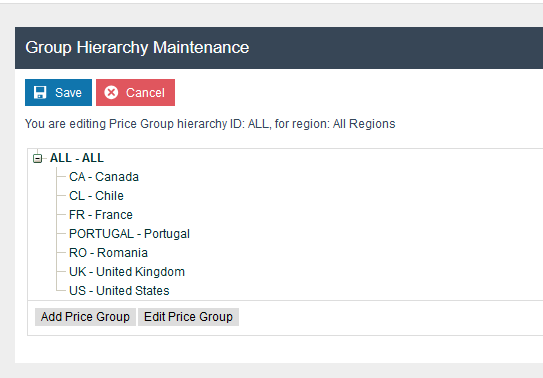
If it does not already exist, a price group for Romania should be created within the Price Group Hierarchy.
Tax Groups
The following tax groups should be configured and broadcast to the appropriate Romania devices.
| Tax Group ID | Description |
|---|---|
| RO1 | RO Standard 19% |
| RO2 | RO Reduced 9% |
| RO3 | RO Reduced 5% |
| RO4 | RO Zero |
Tax Rates
The following tax rates should be configured and broadcast to the appropriate Romania devices.
| Tax Rate ID | Description | Display Code | Percentage | Fiscal Tax Rate Reference |
|---|---|---|---|---|
| R0 | RO Standard 19% | A | 19% | 1 |
| R1 | RO Reduced 9% | B | 9% | 2 |
| R2 | RO Reduced 5% | C | 5% | 3 |
| R3 | RO Zero | D | 0% | 4 |
Tax Scheme
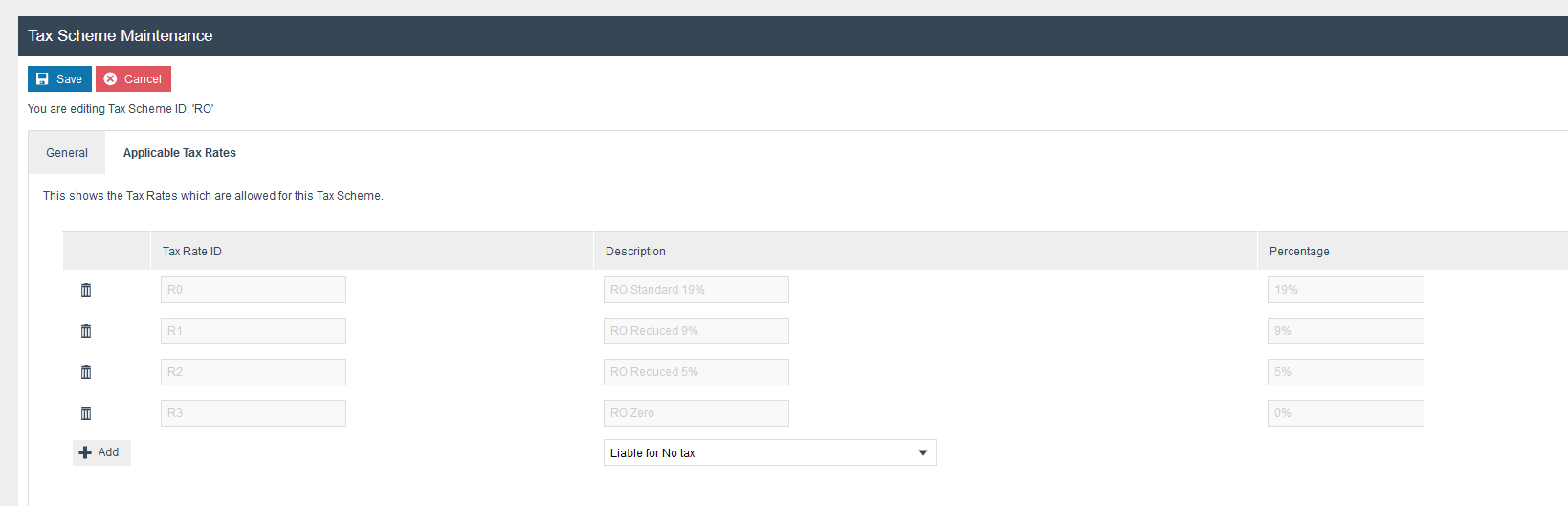
The following tax scheme should be configured and broadcast to the appropriate Romania devices. Make sure to add all the Tax Rates related to Romania as well.
| Tax Scheme ID | Description | Price Include Tax |
|---|---|---|
| RO | Romania Tax Scheme | TRUE |
Tax Group Tax Methods
The following tax group tax methods should be configured and broadcast to the appropriate Romania devices.
| Tax Group ID | Tax Scheme ID | Description | Tax Rate |
|---|---|---|---|
| RO Standard 19% | Romania | RO Standard 19% | RO Standard 19% |
| RO Reduced 9% | Romania | RO Reduced 9% | RO Reduced 9% |
| RO Reduced 5% | Romania | RO Reduced 5% | RO Reduced 5% |
| RO Zero | Romania | RO Zero | RO Zero |
Location
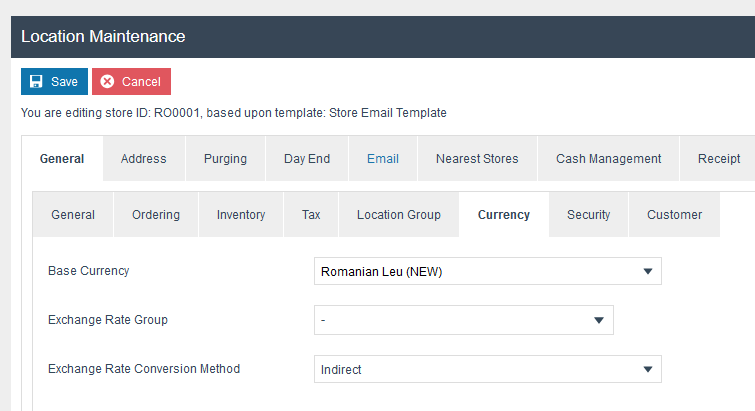
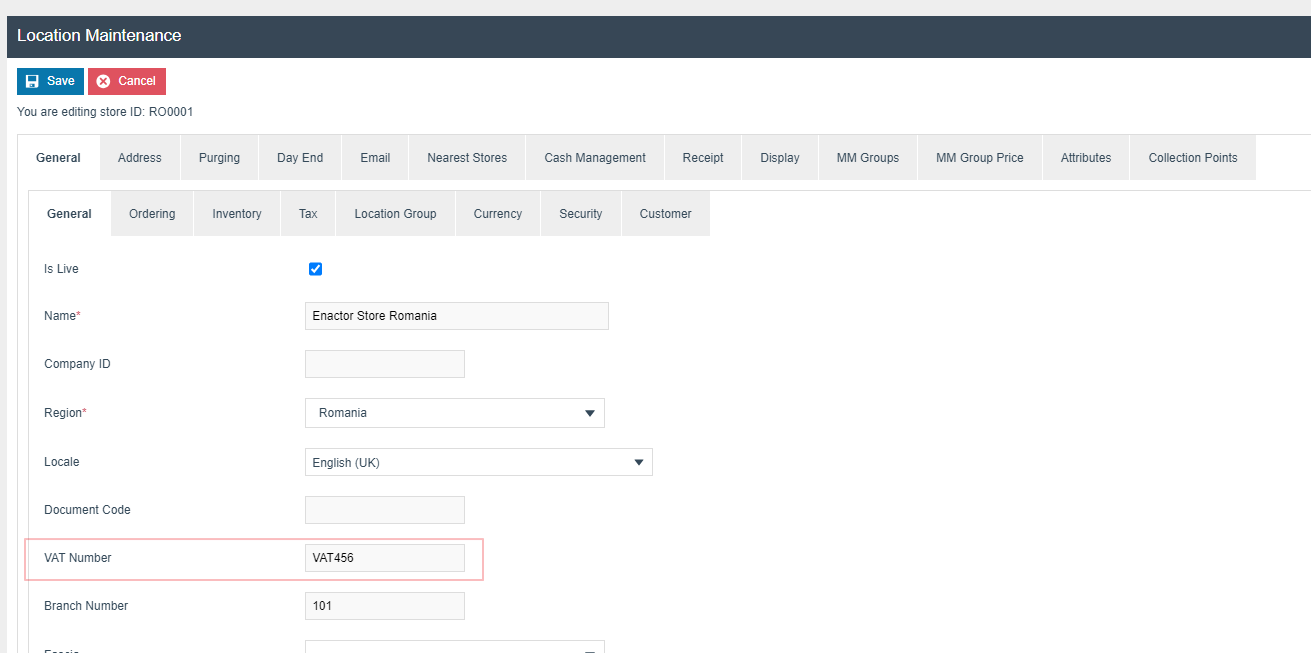
The VAT number should be configured to the retailer's VAT number.
| Location ID | Name | Region | Price Group | Base Currency |
|---|---|---|---|---|
| RO0001 | Enactor Store Romania | Romania | Romania | Romanian Leu (NEW) |
Device
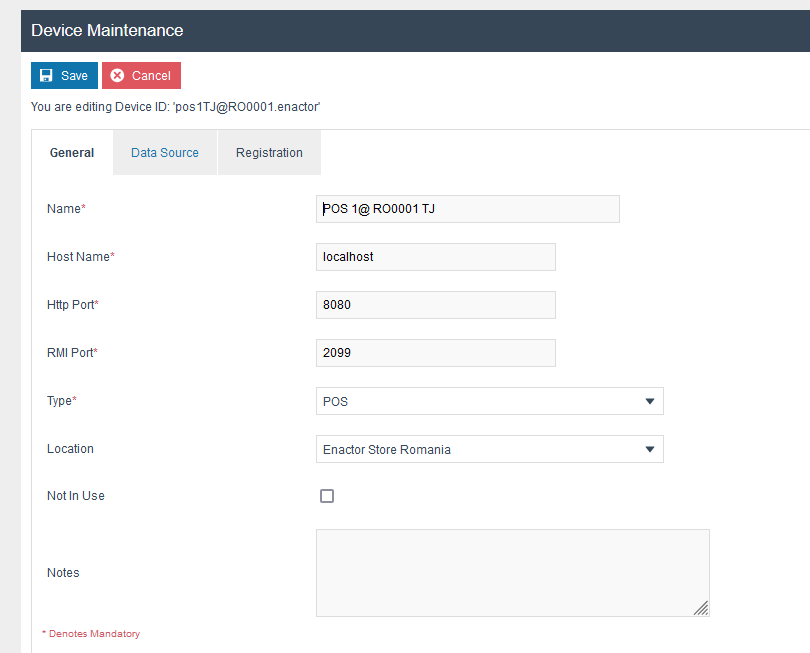
The following Device should be configured and broadcast to the appropriate Romania devices.
POS Terminal
The POS Terminal Template used by all devices in Romania must be configured to have the fiscalisation Type set to Romania. Currency should be set to LEI and Locale to Romania. If a POS terminal configuration with the fiscalisation type set to Romania is broadcast to a POS device that does not have the Romania fiscal module installed the POS will fail to start. Similarly if a POS device with the Romania fiscal module installed is configured with anything but the Romania fiscalisation type the POS will also fail to start. This is to ensure that only versions of the Enactor solution that have been certified for use in Romania are used in Romania.
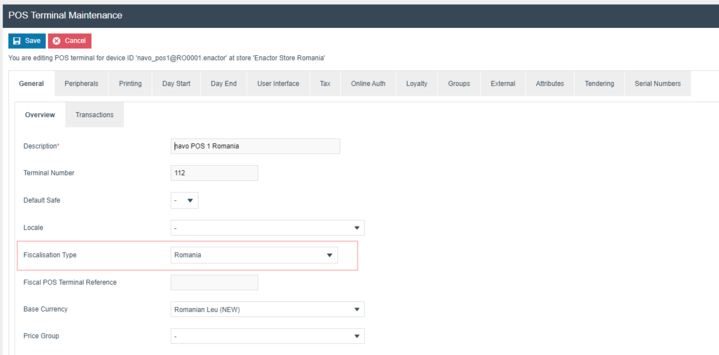
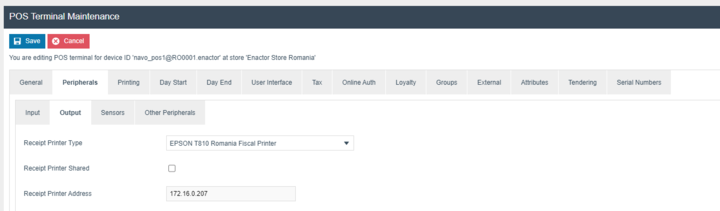
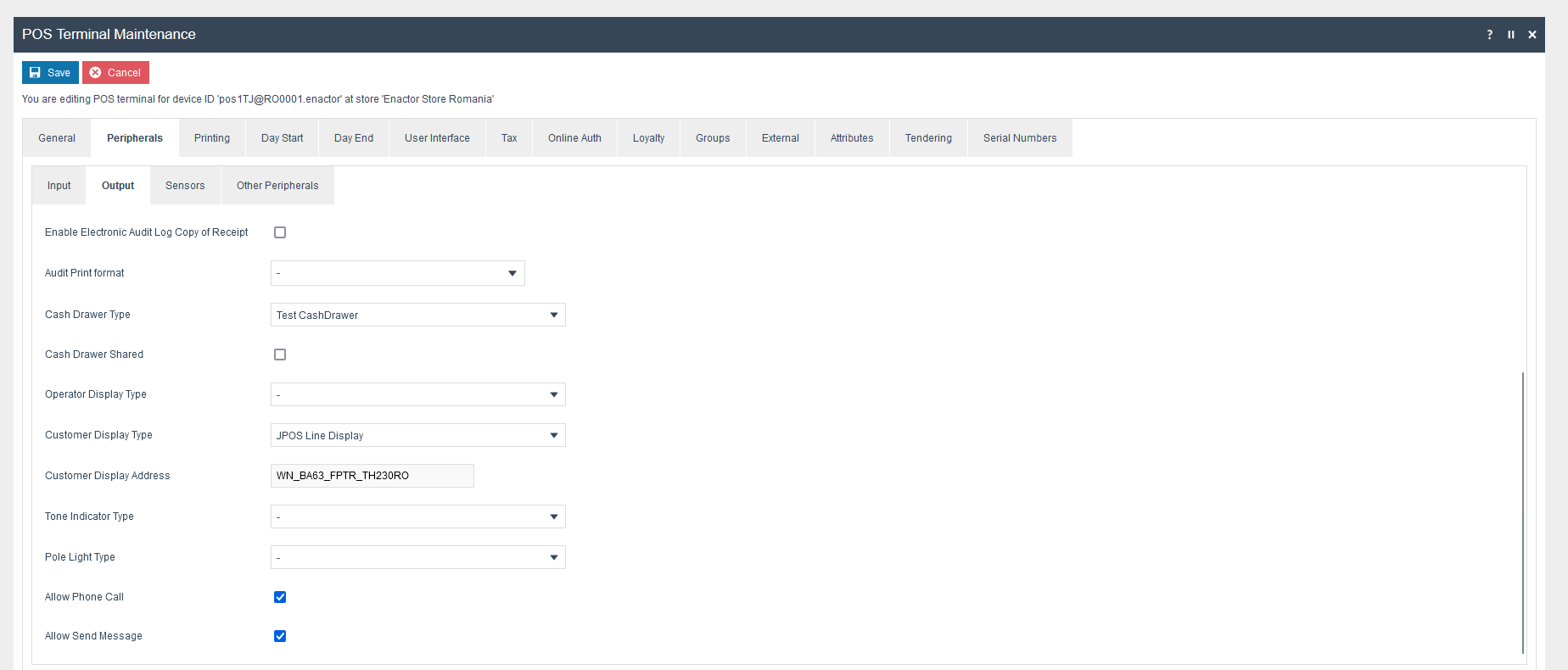
The Peripherals tab should be configured as below.
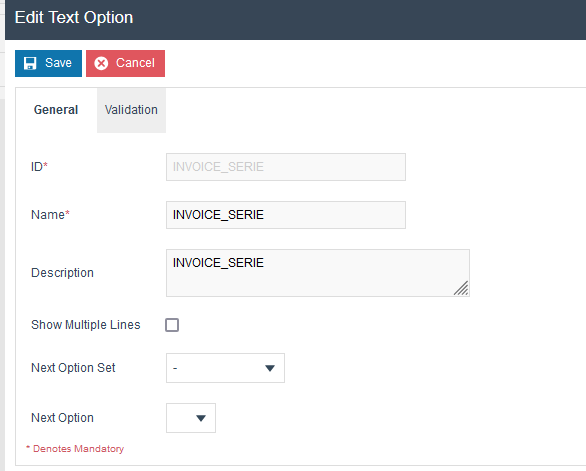
The Attributes tab should be configured as below.



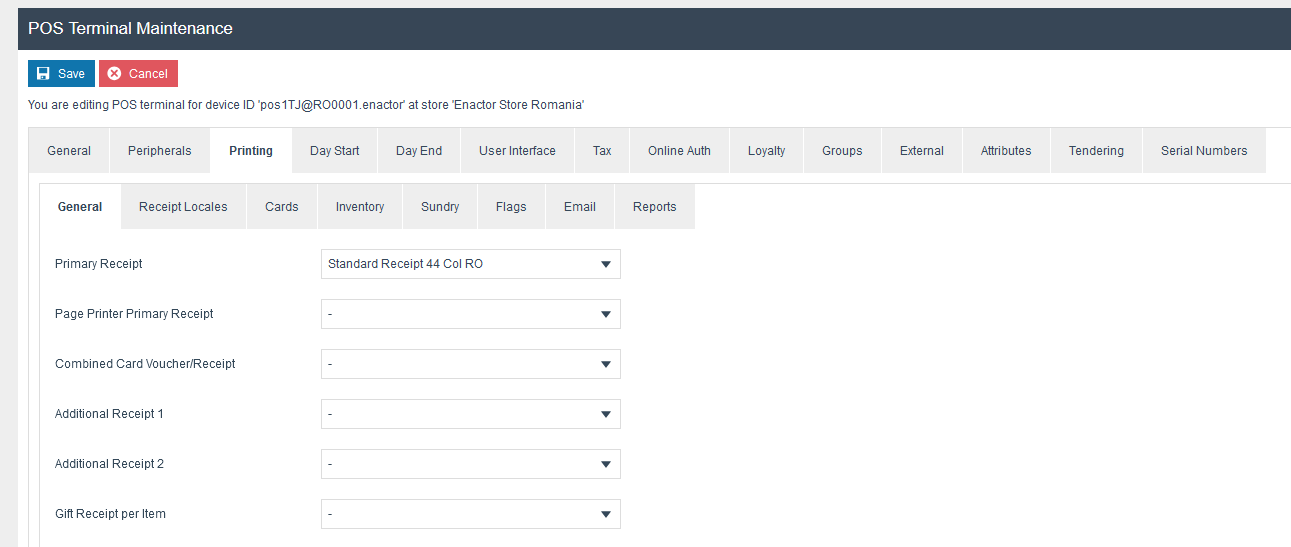
The primary Receipt should be set to Standard Receipt 44 Col RO.
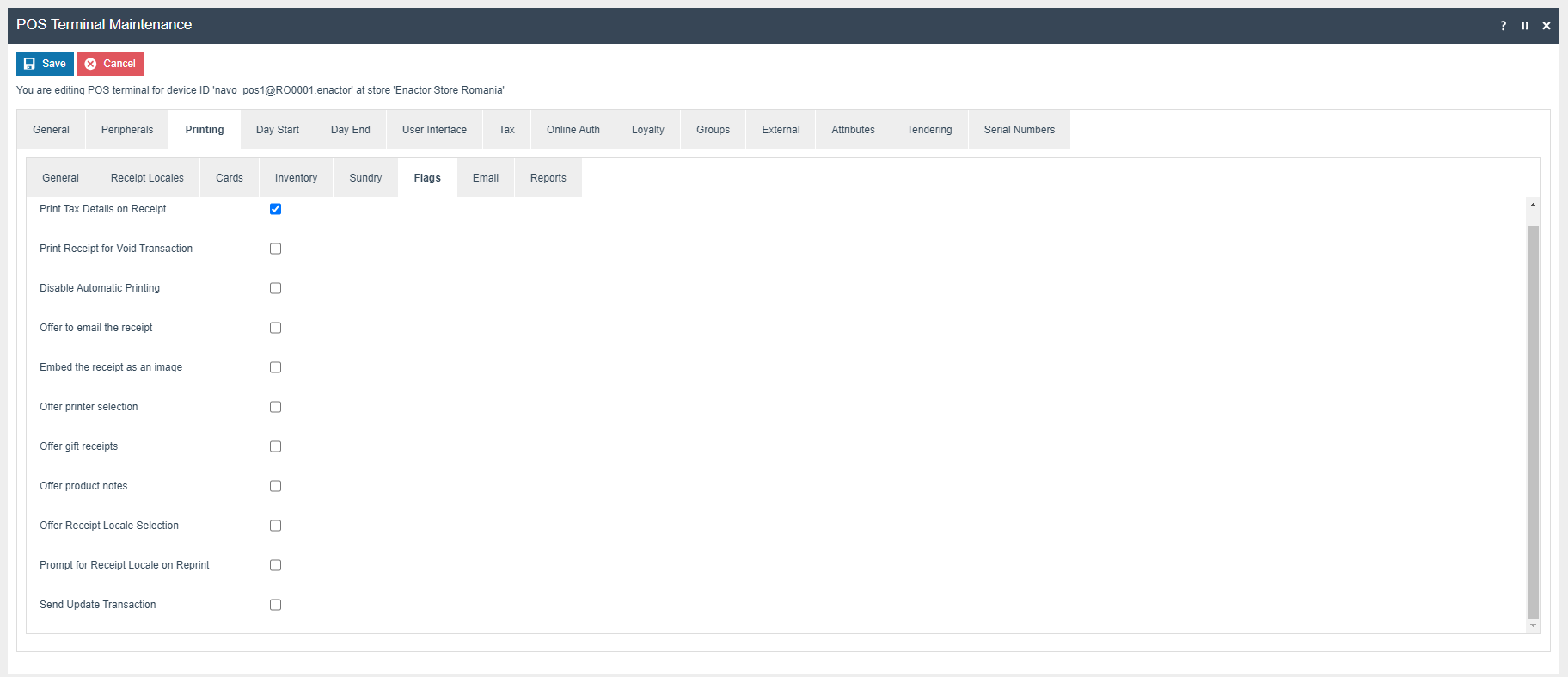
The Print Tax Details on Receipt flag within the Printing > Flags tab should be ticked.
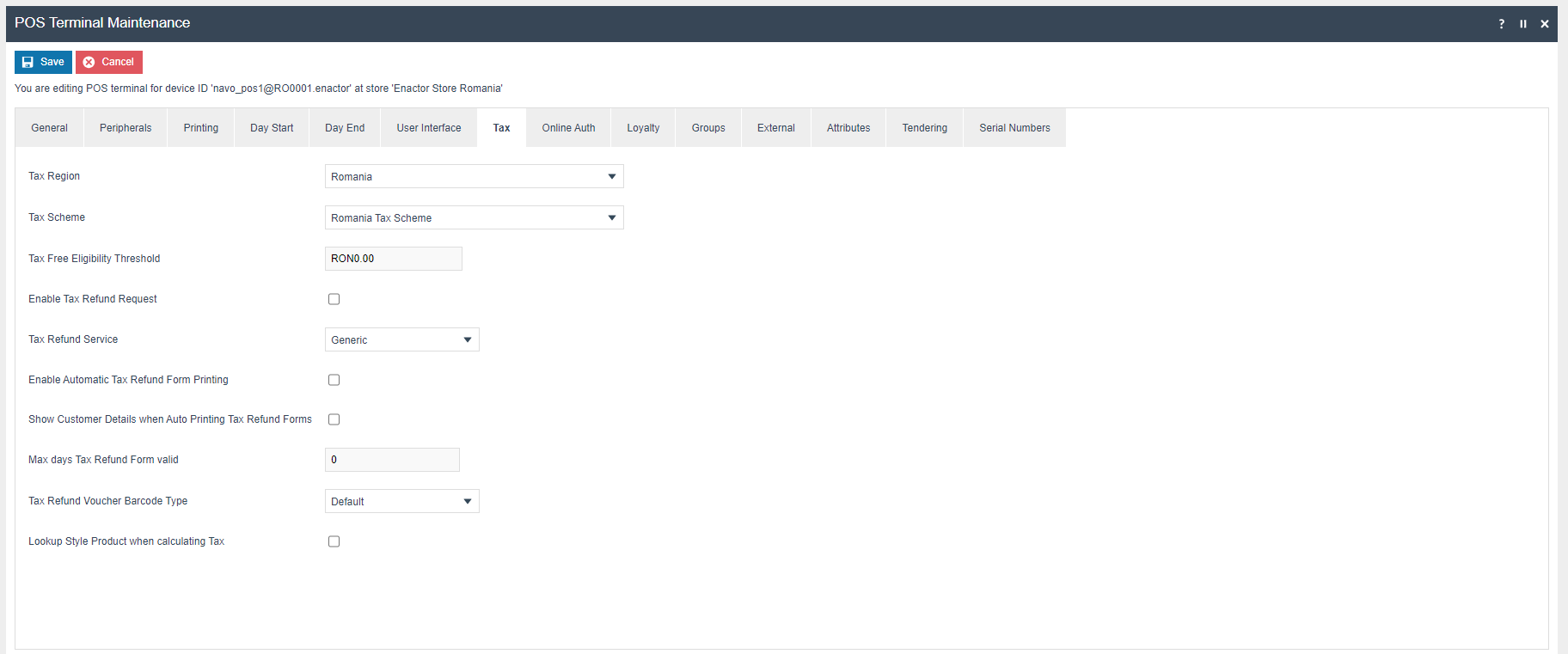
Within the Tax section the Tax region should be set to Romania and the tax scheme to the Romania tax scheme configured in the previous section.
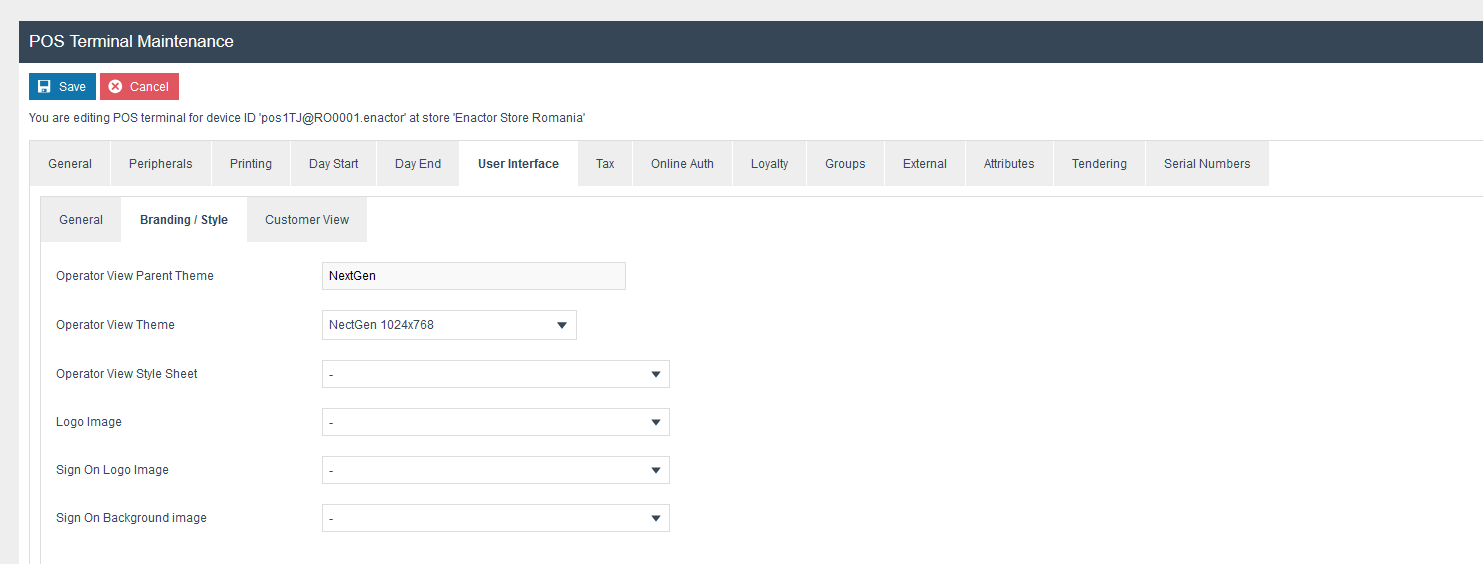
Branding/Style should be set.
Currency
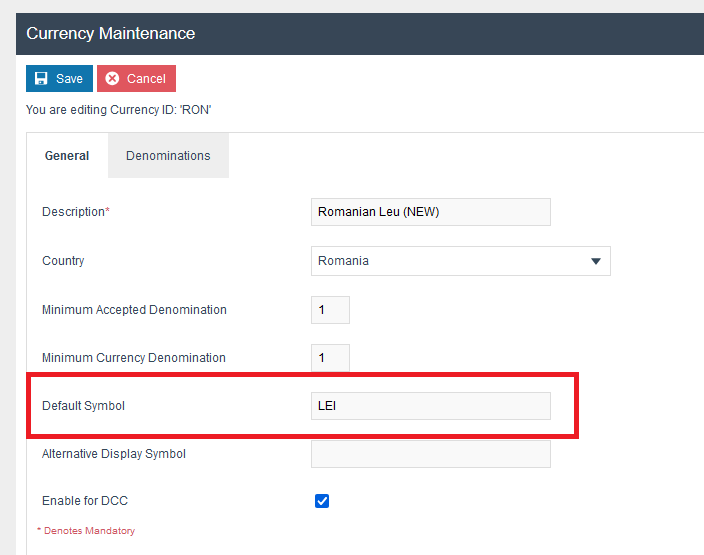
The following Currency should be configured and broadcast to the appropriate Romania devices. Make sure to set the Default Symbol as "LEI".
Product Tax
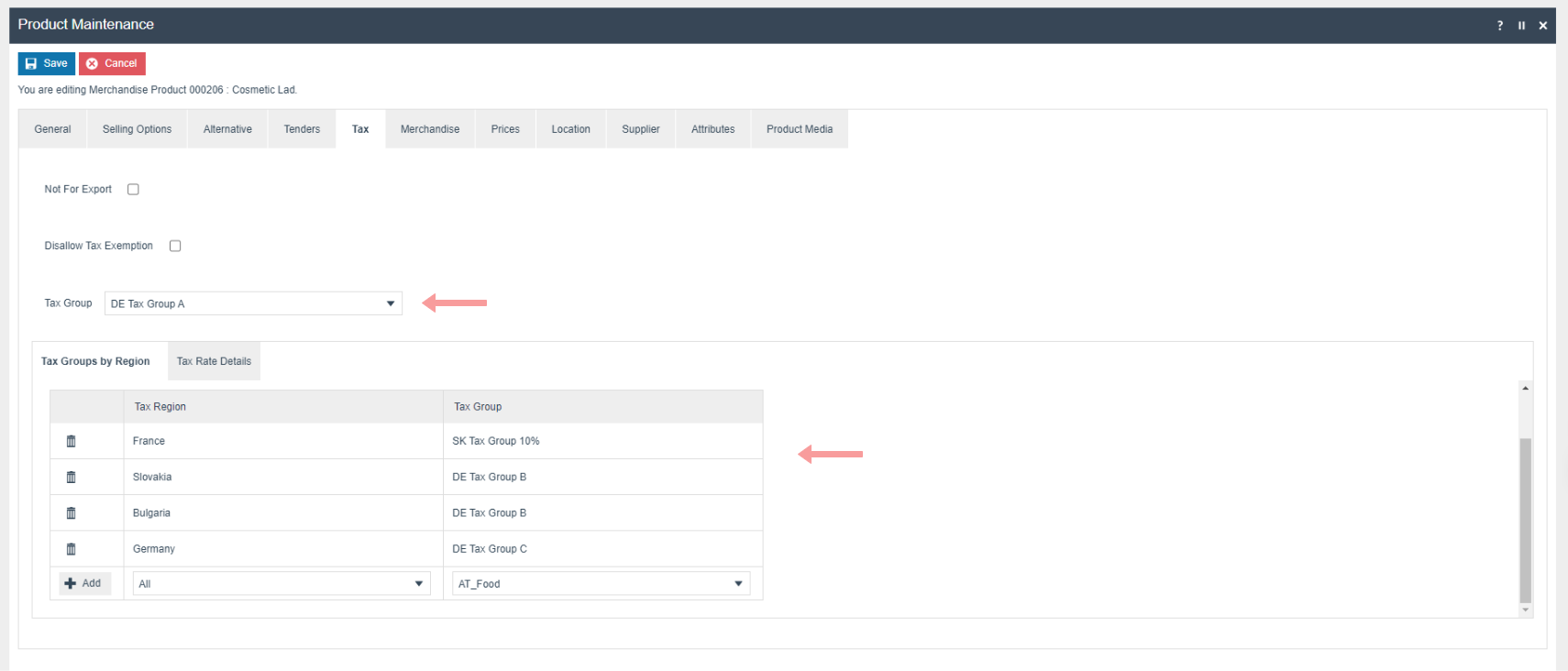
The following tax configurations should be configured against the products and broadcast to the appropriate Romania devices. Tax group can be defined to either configure the tax group or have a tax group by tax region.
Tenders
The following Tender Types should be configured and broadcast to the appropriate Romania devices.
- Cash Tender
- Card Tender
- Voucher Tender
- Gift Card Tender
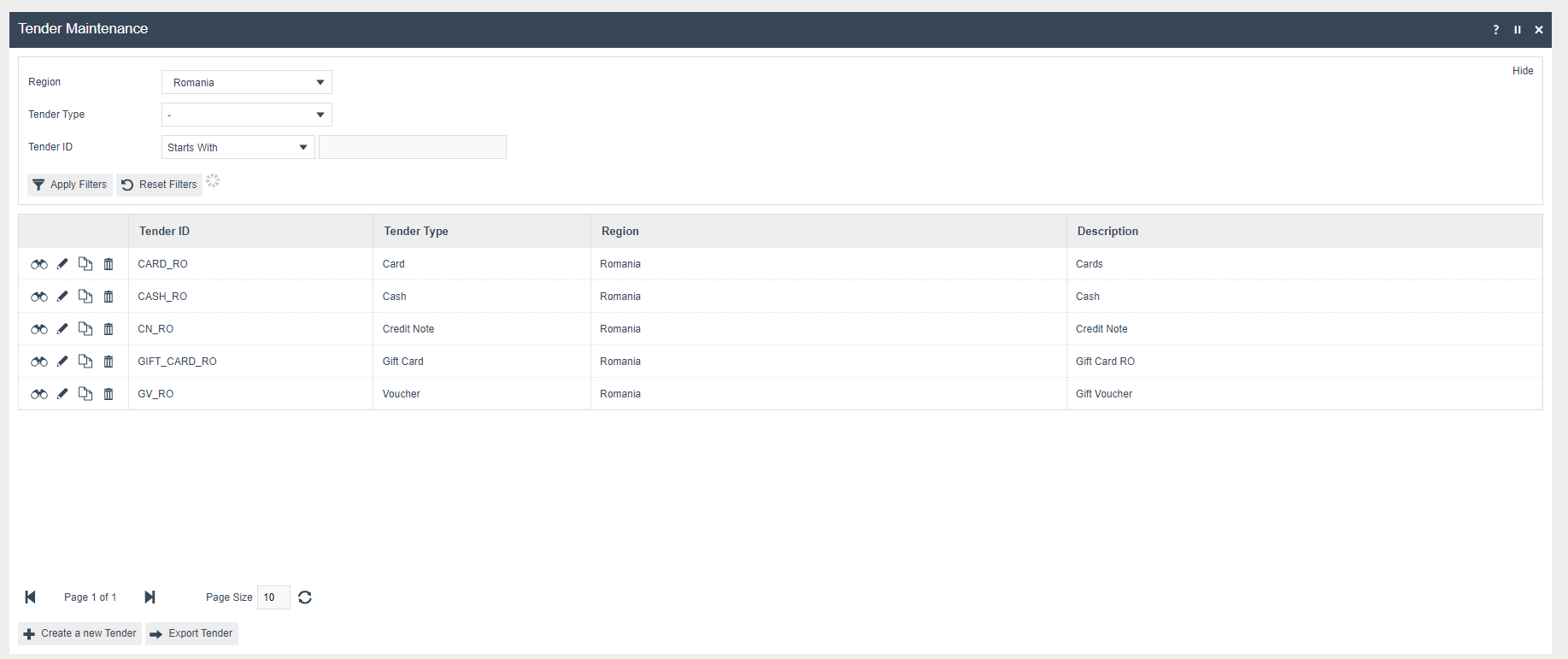
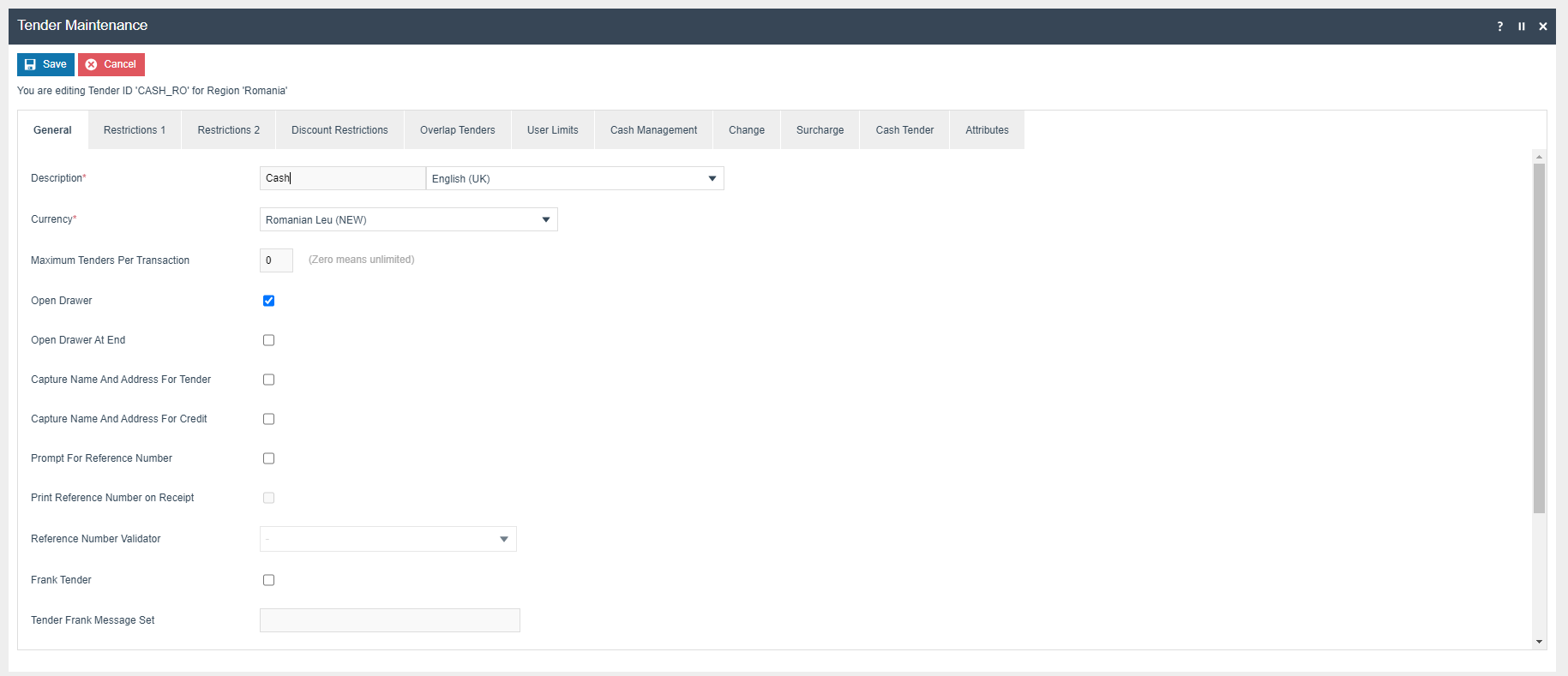
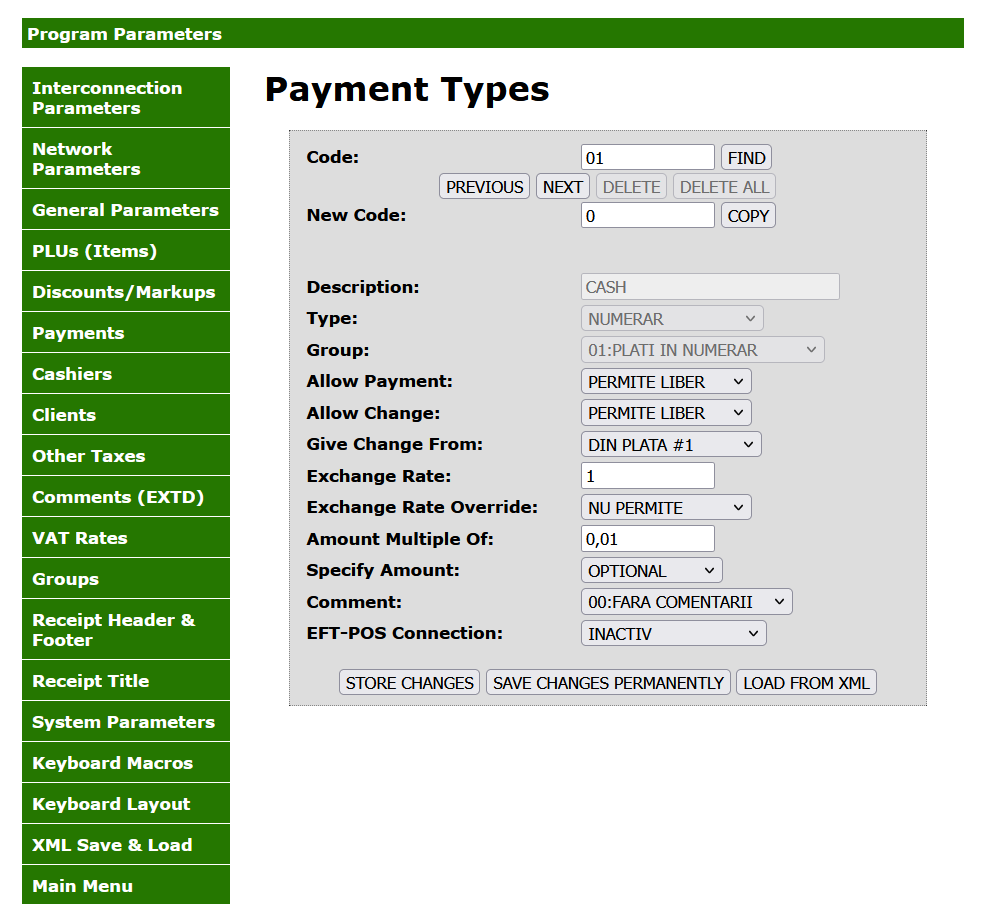
Tender Configuration on Printer
| Tender | Payment Code |
|---|---|
| Cash Tender | 01 |
| Card Tender | 02 |
| Voucher Tender | 03 |
| GiftCard Tender | 04 |
Privileges
The following privileges will need to be configured against the appropriate roles and broadcast to the Romania devices. Consideration should be given to whether it is desirable for all operators to have all of these privileges or if some should only be granted to managers. For more detail on Privileges and roles refer to the How To Configuring Users, User Roles and User Templates.
| Privilege ID | Application Package |
|---|---|
| enactor.pos.AllowReturnTaxRefundItemAlreadyRedeemed | Enactor POS |
| enactor.pos.AuthorisesReturnItem | Enactor POS |
| enactor.pos.ReturnItemAllowed | Enactor POS |
| enactor.pos.GiftCardTenderAllowed | Enactor POS |
| enactor.pos.PrintFiscalReports | Enactor POS |
| enactor.pos.VoidTransactionDiscountAllowed | Enactor POS |
| enactor.admin.Run | Enactor POS |
| enactor.pos.ReprintRecentReturnToTransaction | Enactor POS |
| enactor.pos.VoucherRedeemAllowed | Enactor POS |
| enactor.pos.ReturnFromReceiptAllowed | Enactor POS |
| enactor.pos.AuthorisesVoidCardTenderItem | Enactor POS |
| enactor.pos.AuthoriseDayEndBeforeEarliest | Enactor POS |
| enactor.pos.AuthorisesVoidTenderItem | Enactor POS |
| enactor.pos.CashRefundAllowed | Enactor POS |
| enactor.dayStart.AuthorisesDayStart | Enactor POS |
| enactor.pos.ContinueWithDrawerOpen | Enactor POS |
| enactor.pos.AllowEmployeeReturnIfUserInvolved | Enactor POS |
User
| Field Description | Value | Comment |
|---|---|---|
| User Name | RO1010 | User name of the User |
| Password | RO1010 | Password of the User |
| Location | Enactor Store Romania | General Tab, update field |
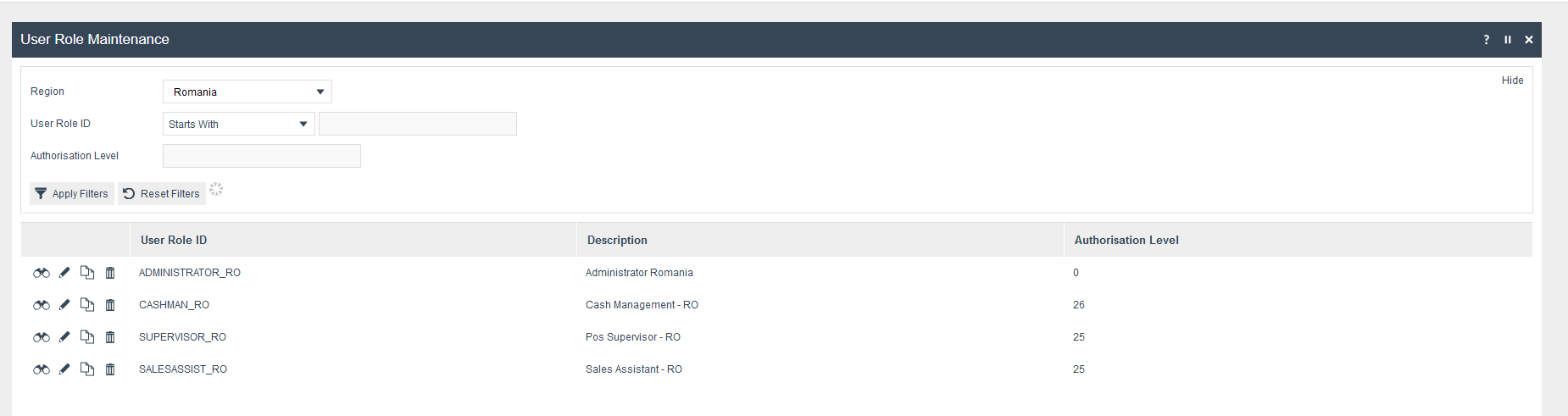
| Role | Sales Assistant-RO | Roles Tab, update field |
User Roles
Create user roles for Romania as follows.
Menu
Create menus for Sales Assistant Romania as follows.
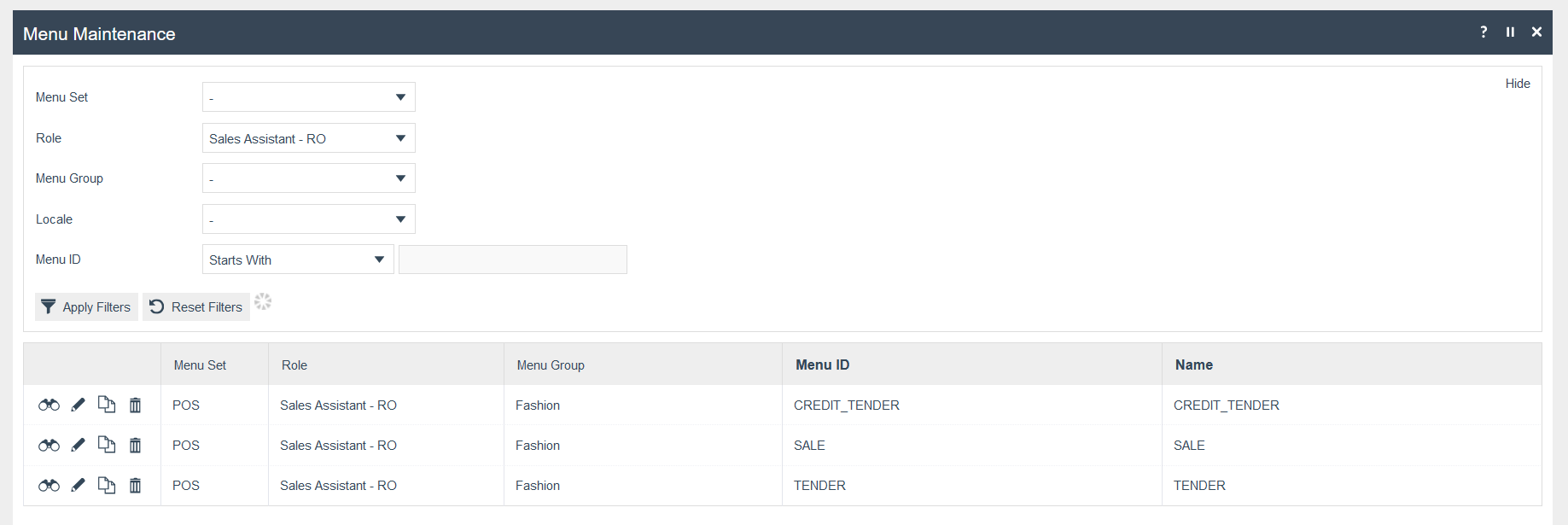
For more detail on menu creation refer to the How To Configure POS Behaviour (Menus).
Account Credentials
The account credentials will be used to obtain the connection credentials necessary to connect to the Sintezis printer service. For completeness below is included a description of all the properties this account credential record will contain.

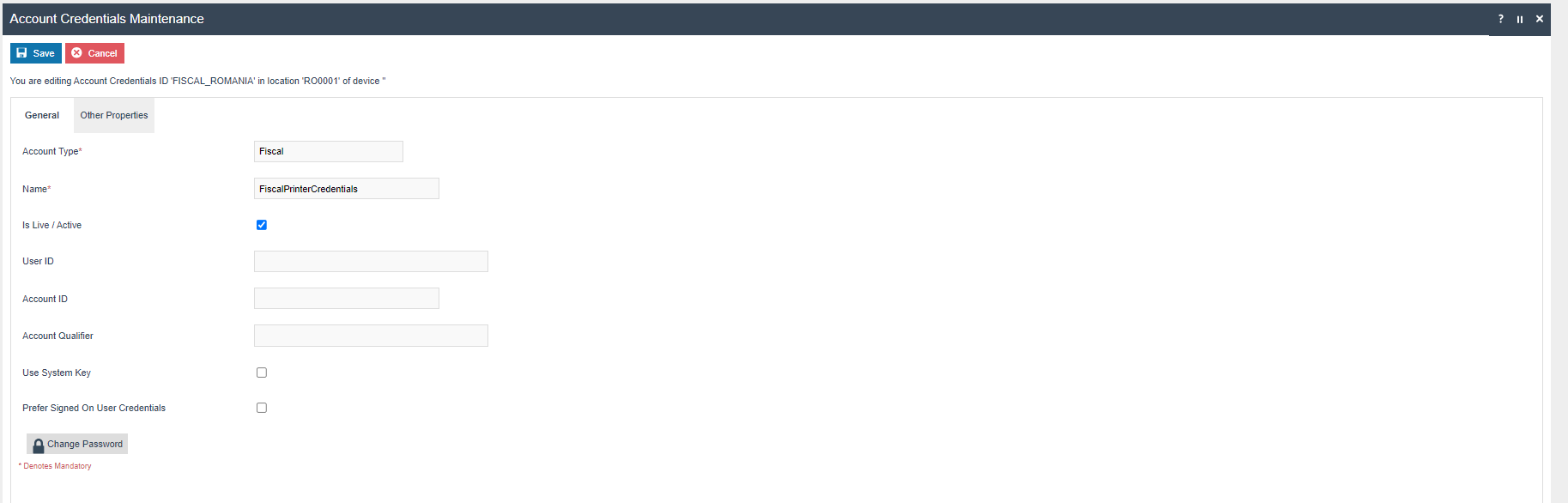

| Value | Description | Comments |
|---|---|---|
| USER_NAME | User Name | This username is used to connect the printer services with the Enactor application, and it needs to be collected from the Sintezis team. |
| PASSWORD | Password | This password is used to connect the printer services with the Enactor application, and it needs to be collected from the Sintezis team. |
Products
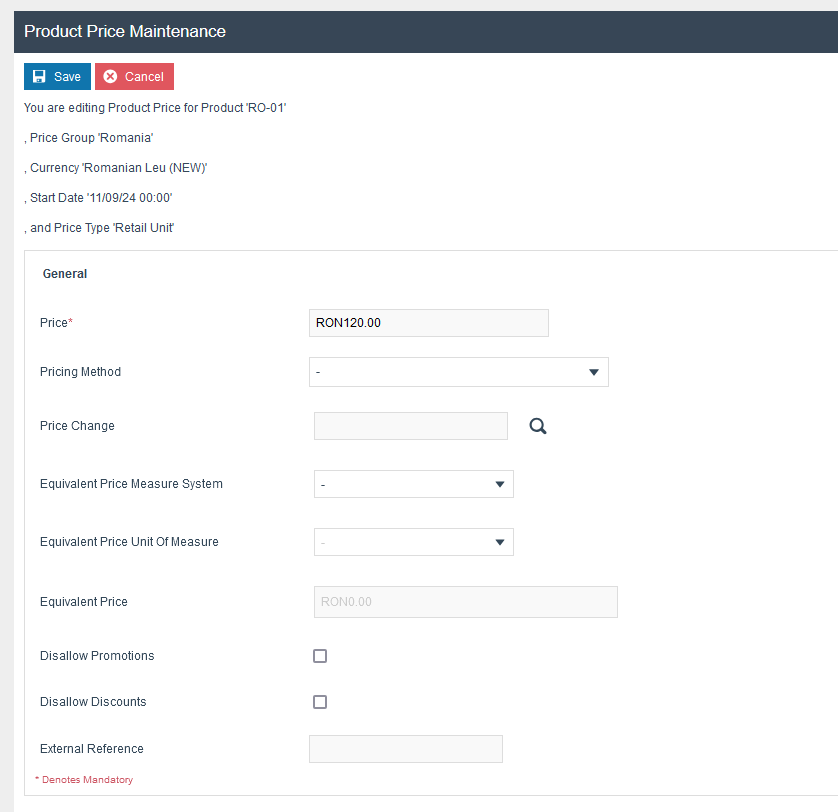
Set the Tax group and Price for each product (Currency: Romanian Leu (NEW)).
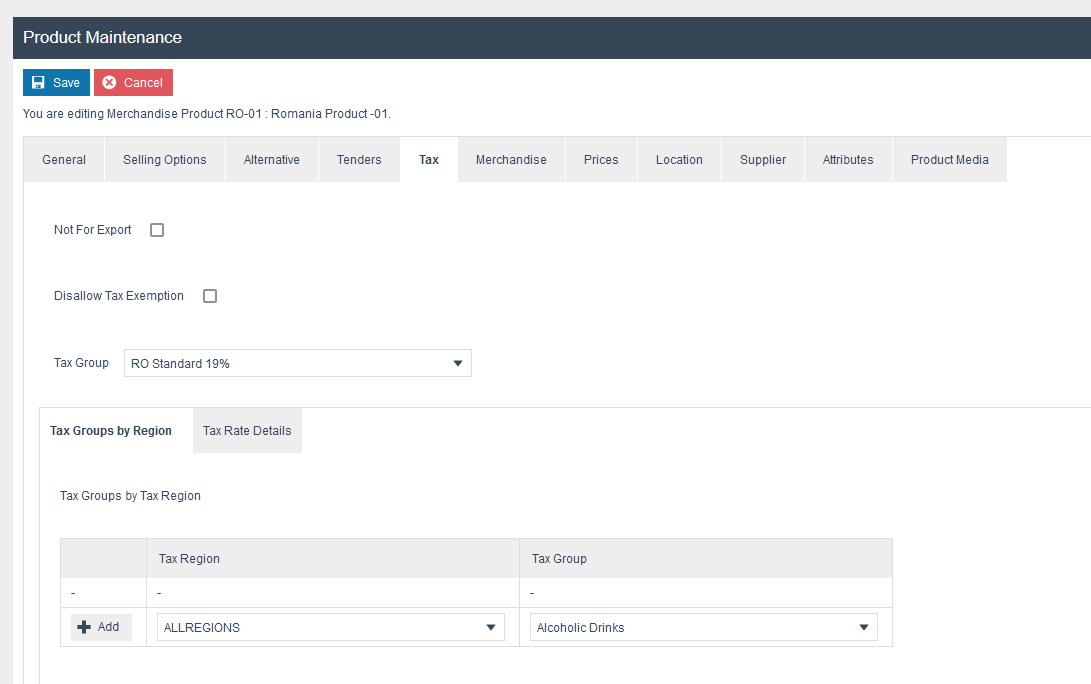
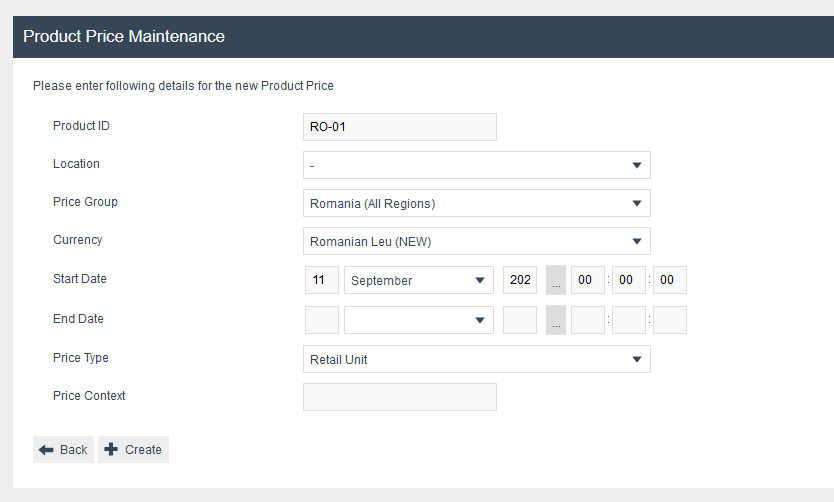
Exchange Rates
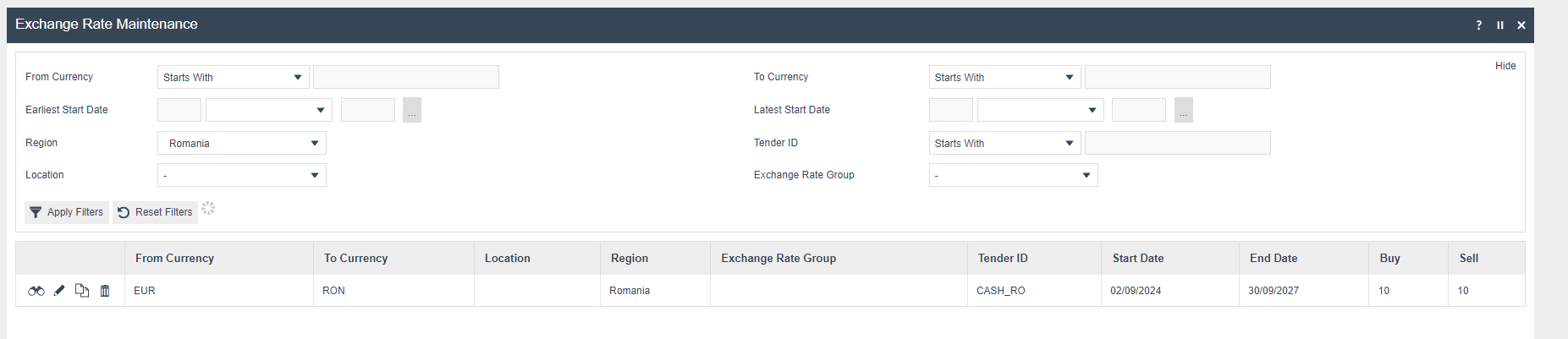
The following Exchange Rates should be configured and broadcast to the appropriate Romania devices.
Fiscal Detail Mapping
| Fiscal Details Attributes | What it has been mapped to |
|---|---|
serialNumber | Serial number of the Fiscal printer associated with the transaction |
fiscalTransactionId | Unique identifier generated by the fiscal device for the fiscal transaction |
fiscalReceiptType | Fiscal receipt type of the transaction |
| Additional Data | |
CURRENT_DATE_TIME | Date and time when the fiscal transaction was completed |
CURRENT_Z_NO | Z-report number of the fiscal printer for the transaction day |
DAY_FISCAL_RECEIPT_COUNT | Total number of fiscal receipts issued by the printer for the current fiscal day |
DAY_NON_FISCAL_RECEIPT_COUNT | Total number of non-fiscal receipts issued by the printer for the current fiscal day |
PRINTER_RECEIPT_TYPE | The receipt type of the transaction as determined by the fiscal printer |
CLIENT_VAT_ID | VAT identification number of the customer associated with the transaction |