How To Install Native Android POS
This guide is a work in progress.
Introduction
The purpose of this document is to describe the necessary configuration needed to install the Enactor Native POS application on Android.
Overview
This guide will cover the installation of the Enactor Native POS application on Android.
The Estate Manager must be installed and configured before you install the Native POS application. Additionally, the following entities should be configured prior to installation: Device, Location, and POS Terminal.
The Enactor Native POS application can be downloaded and installed from the Google Play Store. When the Enactor Native POS is launched for the first time, the application initialises without any device-specific configuration. During serial number registration, the device specific configuration will be downloaded based on the configurations set in the Estate Manager.
Prerequisites
To complete the installation, you need:
-
An Android device which utilises a minimum of 64GB is recommended.
-
Android version 14 and above is recommended.
-
Estate Manager on version 2.7.1529 or greater.
-
The following configuration present in the Estate Manager:
-
Option set - NATIVE_POS_CONFIG_OPTIONS
-
User - BROADCAST_USER
-
Predefined broadcast - NATIVE_POS_PDB
-
Process detail - PingExtension
-
-
Network connectivity to the Estate Manager.
-
Network connectivity to the Store Server (v2.7.1529 or greater), if applicable.
Contact your Enactor CSM to receive any of these.
If the Embedded PDC is used, you will also need the following payment configuration:
-
Device (for the PDC)
-
Payment Device (for the PED)
-
Payment Device Host (for the PDC)
-
EFT Merchant ID (for the location)
-
EFT Terminal ID (for the PDC)
Deployment Models
The Native POS configuration will depend on the deployment model. Specifically, will the store server be deployed or will the Native POS connect directly to the Estate Manager.
Store Server
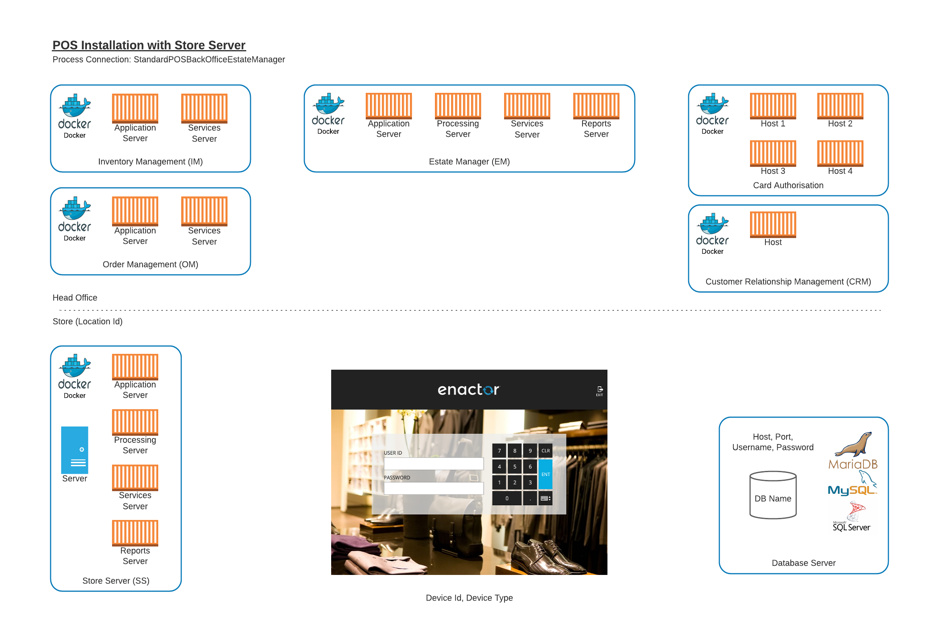
When a store server is deployed for a location, the Native POS will need additional information about the store server hostname for each of the component servers - application, processing, services, and reports.
The process connection will be StandardPosBackOfficeEstateManager.
No Store Server
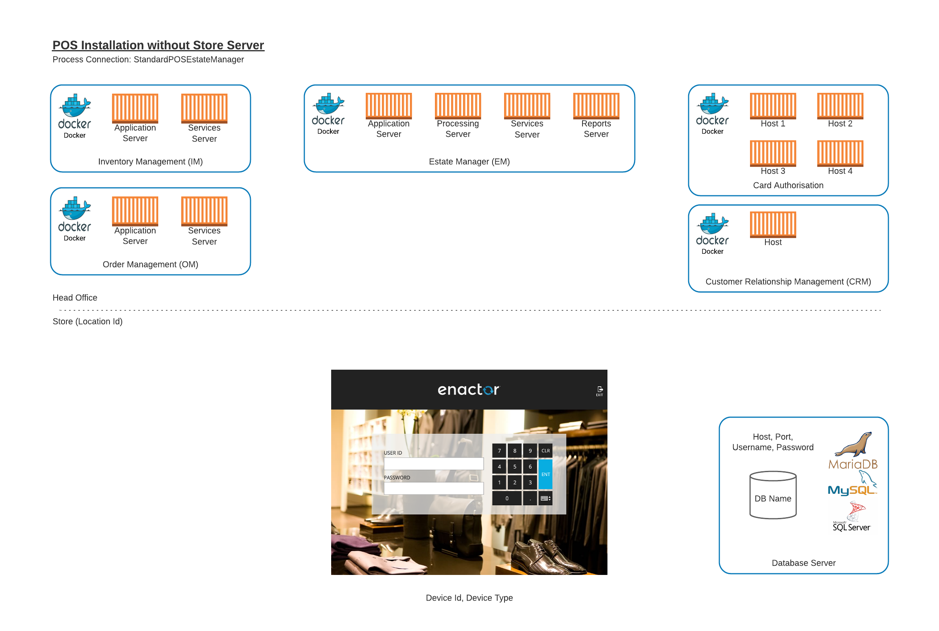
When the store server is not deployed for a location, the Native POS will connect to the Estate Manager for the component servers - application, processing, services, and reports. Use the Estate Manager hostnames for the store server component server hostnames.
The process connection will be StandardPosEstateManager.
Configuration Steps
The following steps outline how to configure the Option Set, Client Configuration Set, and Device to enable serial registration for a Native POS device.
Attribute / Option Sets
Option Sets are typically used to create user-configurable data entry fields, for which Value options may also be supplied. The Option Set described in this step contains all the necessary properties used by the Enactor Native POS application.
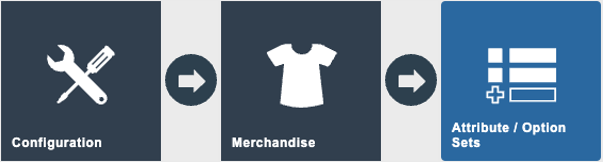
The Attribute / Option Set maintenance application can be accessed
Configuration > Merchandise > Attribute / Option Sets
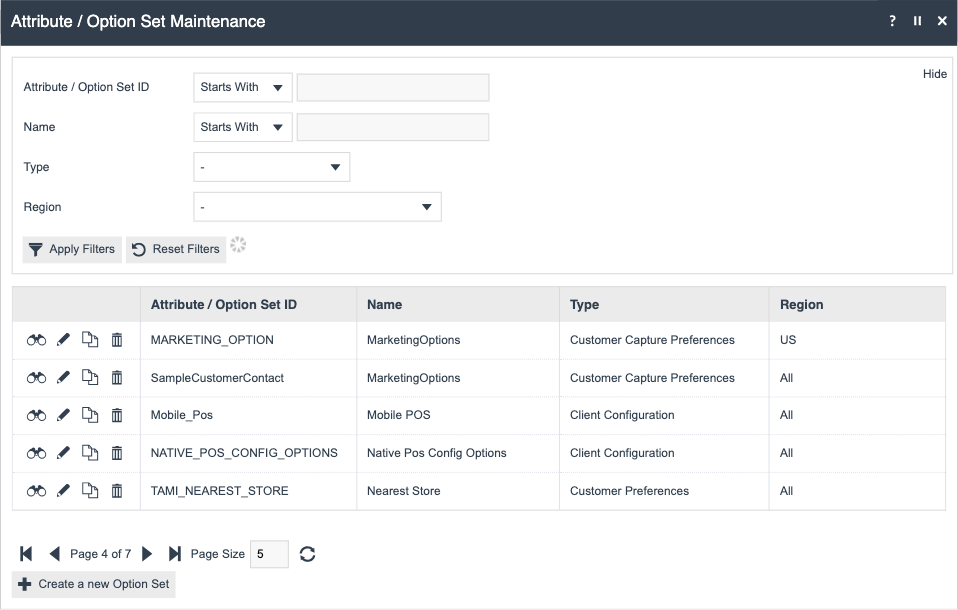
Find and press View on the NATIVE_POS_CONFIG_OPTIONS entry to view its contents. This Option Set is included in the Standard Configuration 2 bundle.

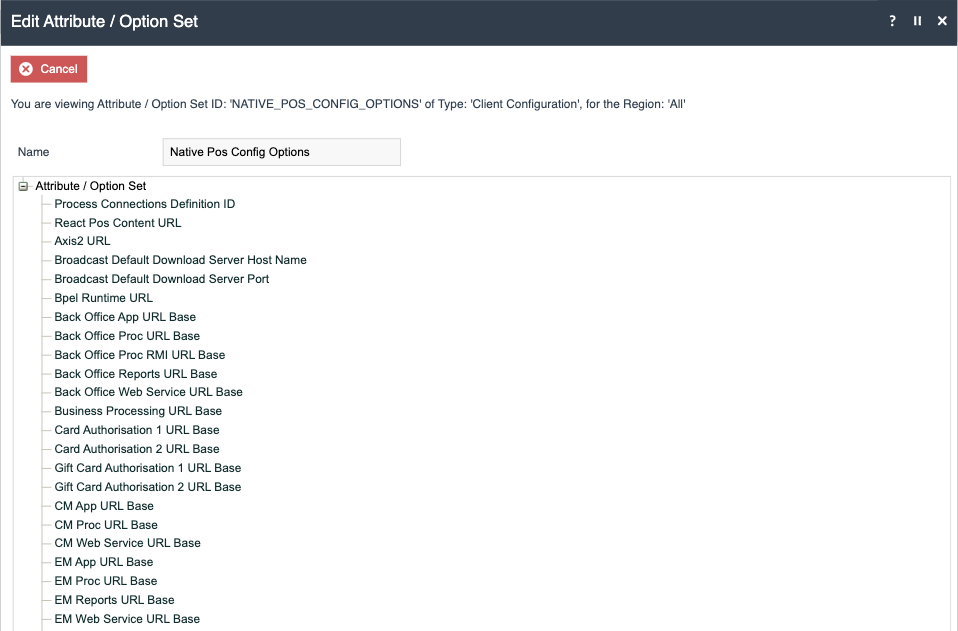
This entry is of type 'Client Configuration' for the Region 'All' and is already populated with core, additional, and payment configuration options.
Core Configuration
| Name | ID |
|---|---|
| Process Connections Definition ID | ProcessConnections.DefinitionId |
| React Pos Content URL | ReactPos.contentUrl |
| Axis2 URL | axis2.url |
| Broadcast Default Download Server Host Name | Broadcast.DefaultDownloadServerHostName |
| Broadcast Default Download Server Port | Broadcast.DefaultDownloadServerPort |
| Bpel Runtime URL | Bpel.RuntimeURL |
| Back Office App URL Base | Server.BOApp.URL.Base |
| Back Office Proc URL Base | Server.BOProc.URL.Base |
| Back Office Proc RMI URL Base | Server.BOProcRMI.URL.Base |
| Back Office Reports URL Base | Server.BOReports.URL.Base |
| Back Office Web Service URL Base | Server.BOWS.URL.Base |
| Business Processing URL Base | Server.BP.URL.Base |
| Card Authorisation 1 URL Base | Server.CardAuth1.URL.Base |
| Card Authorisation 2 URL Base | Server.CardAuth2.URL.Base |
| Gift Card Authorisation 1 URL Base | Server.GiftCardAuth1.URL.Base |
| Gift Card Authorisation 2 URL Base | Server.GiftCardAuth2.URL.Base |
| CM App URL Base | Server.CMApp.URL.Base |
| CM Proc URL Base | Server.CMProc.URL.Base |
| CM Web Service URL Base | Server.CMWS.URL.Base |
| EM App URL Base | Server.EMApp.URL.Base |
| EM Proc URL Base | Server.EMProc.URL.Base |
| EM Reports URL Base | Server.EMReports.URL.Base |
| EM Web Service URL Base | Server.EMWS.URL.Base |
| IM Proc URL Base | Server.IMProc.URL.Base |
| IM WS URL Base | Server.IMWS.URL.Base |
| OM WS URL Base | Server.OMWS.URL.Base |
| PM URL Base | Server.PM.URL.Base |
| Payment Portal Host | Server.PP.Host |
| RRS URL Base | Server.RRS.URL.Base |
| Enable Run Services | Common.Manage.EnableRunServices |
| Background Services Supported | BackgroundServices.Supported |
| Synchronous Retail Queue Connector Module | ServiceModules.SynchronousRetailQueueConnectorModule |
| Synchronous Scheduled Job Feeder Module | ServiceModules.SynchronousScheduledJobFeederModule |
Additional Configuration
| Name | ID |
|---|---|
| Automatic Purging | Module.AutomaticPurging.Enabled |
| Broadcast ID | Broadcast.Predefined.BroadcastID |
| Broadcast Changes Last x Years | Broadcast.ChangesPeriod |
| Keep Screen On | Common.KeepScreenOn |
| Customer Collections Module | Modules.CustomerCollectionsModule |
| Order Module | Modules.OrderModule |
| Time Attendance Module | Modules.TimeAttendanceModule |
| Re-Register Password | Application.Settings.Password |
Payments Configuration
| Name | ID |
|---|---|
| Embedded PDC | Pdc.EmbeddedPdcEnabled |
| PDC Company Name | Pdc.CompanyName |
| PDC Datasource Name | Pdc.DatasourceName |
| PDC Database Location | Pdc.DatabaseLocation |
| PDC Primary PDMS URL | Pdc.PrimaryTmsUrl |
| PDC Secondary PDMS URL | Pdc.SecondaryTmsUrl |
Press Cancel as no configuration changes are needed here.
Adding Additional Options to Option Sets
The NATIVE_POS_CONFIG_OPTIONS Option Set, referenced in this document, provides a baseline of common properties for configuration.
Please note that this set is not exhaustive; it does not contain every possible property available in the enactor.xml file. If your implementation requires a property that is not already listed, you must add it.
The following steps will guide you through adding any new properties to the Option Set.
Edit the Option Set.

Select Add.
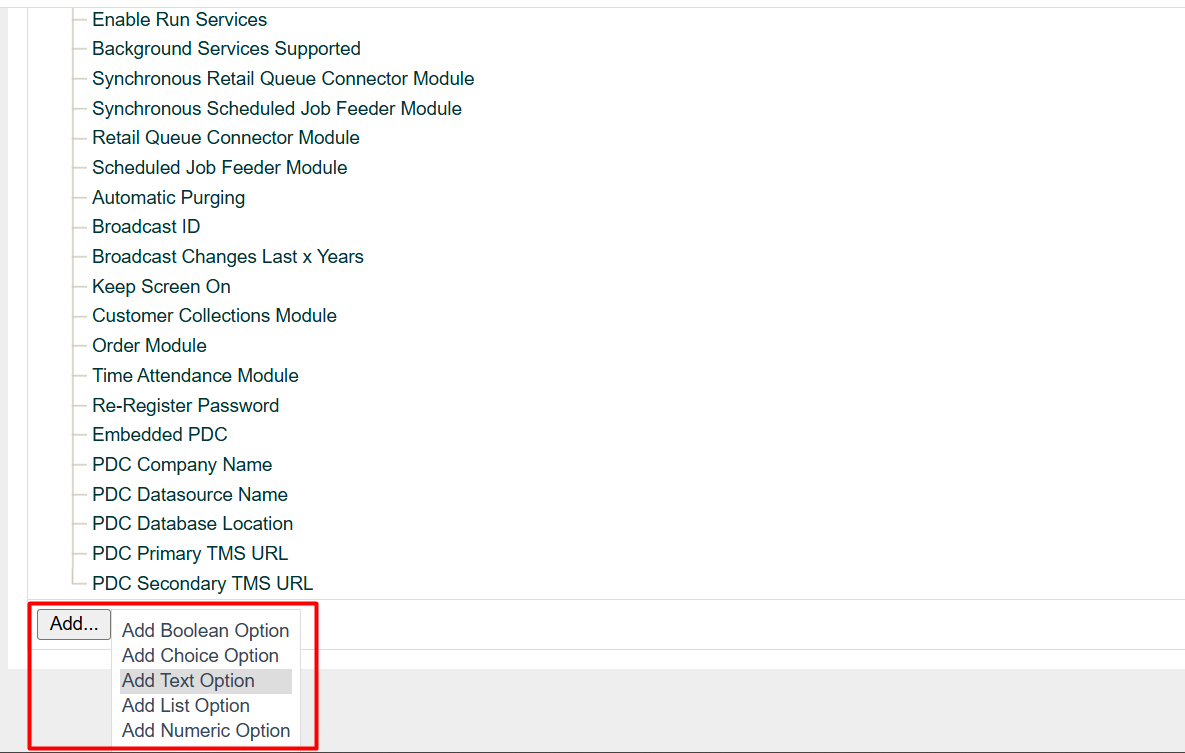
Select the appropriate option type (such as 'Add Boolean Option' for true/false or 'Add Text Option' for text) that matches the kind of data this property will store.
Fill in the Option ID with the exact property ID (e.g., Broadcast.Predefined.BroadcastID) and then enter a friendly Name (e.g., 'Predefined Broadcast ID') that will be used as the display label.
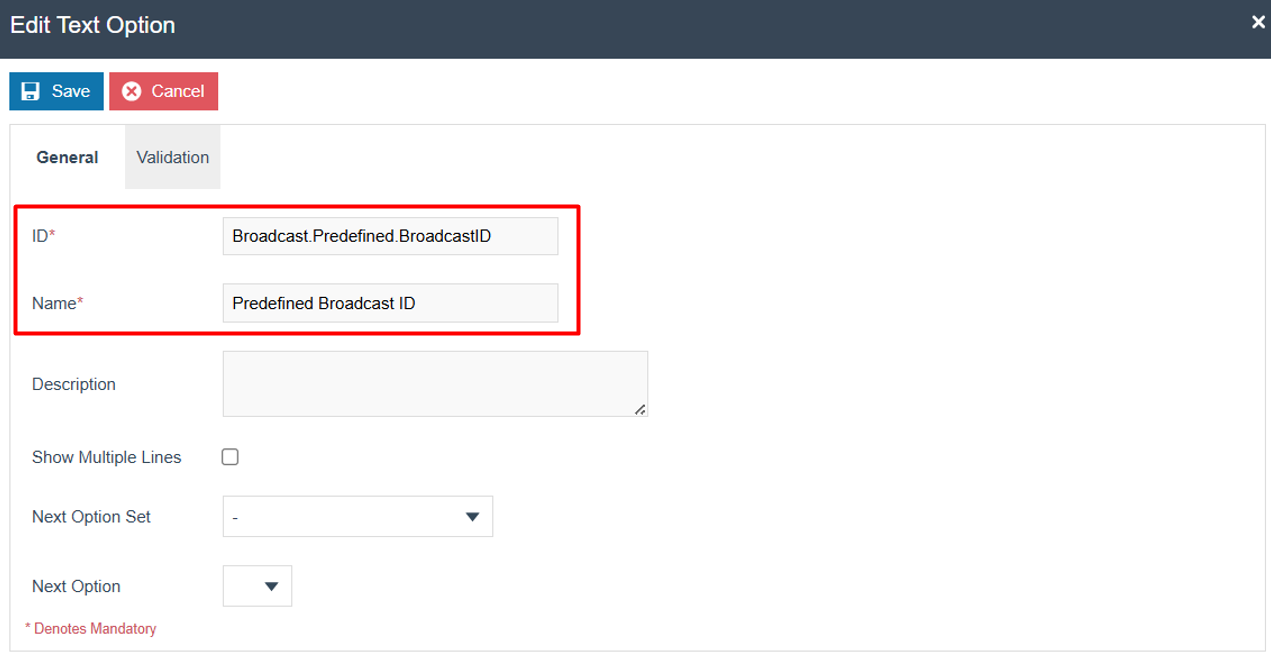
Press Save.
Client Configuration Set
To enable the use of the previously viewed Option Set, a Client Configuration Set must be configured with the appropriate values for each property. These values will be used during the serial registration step to generate the enactor.xml file used by the application.
The Client Configuration Set maintenance application can be accessed through:
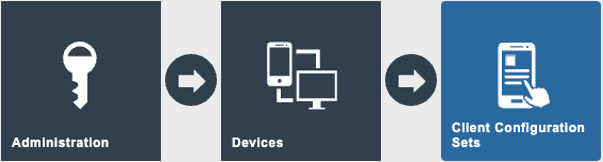
Administration > Devices > Client Configuration Sets
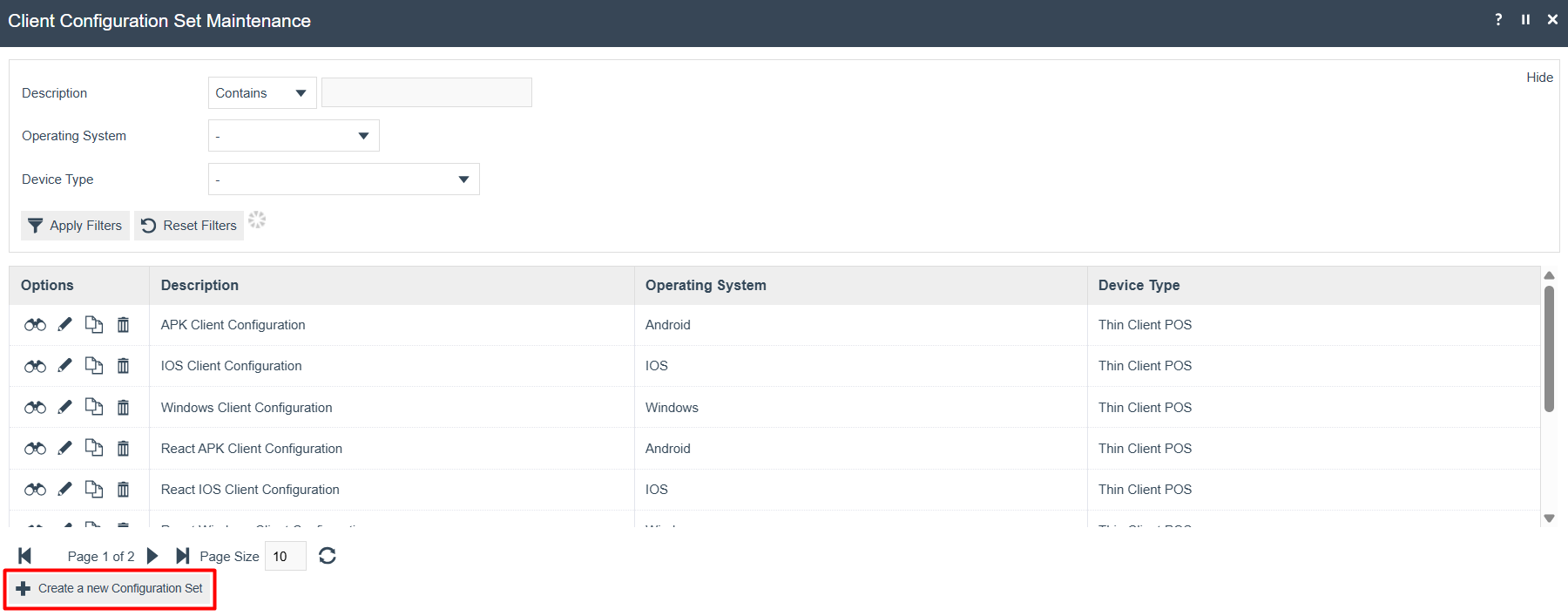
Click on the Create a new Configuration Set button.
General tab
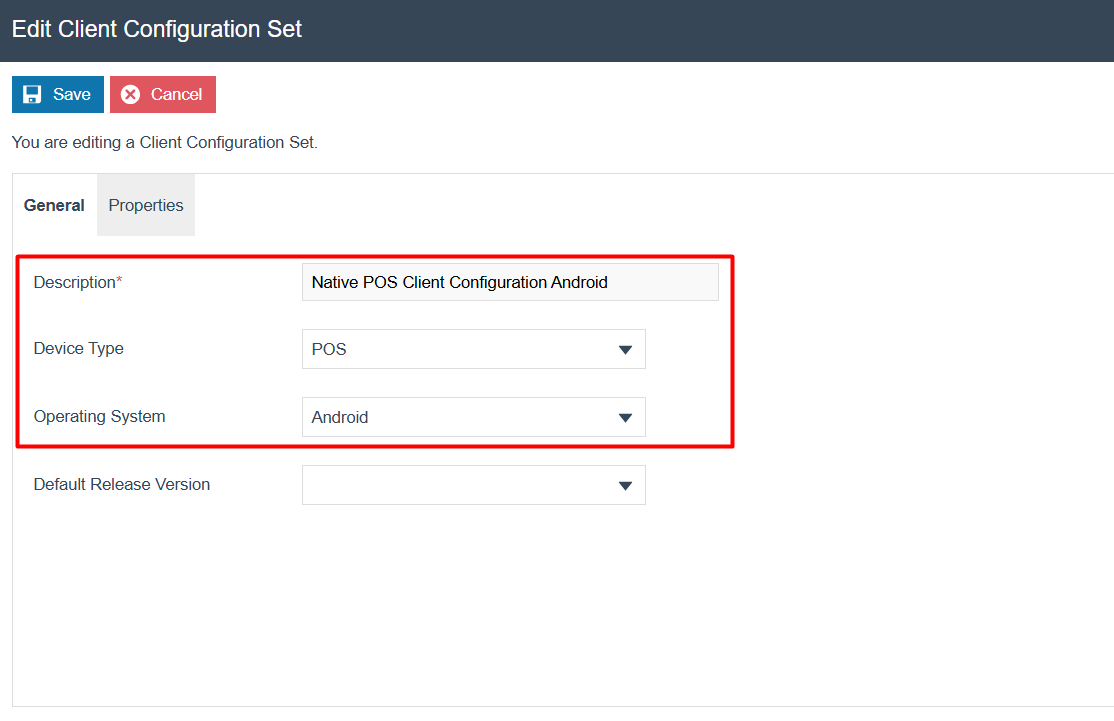
Configure these properties as follow:
| Name | Value | Description |
|---|---|---|
| Description | Native POS Client Configuration Android | Provide a name for the Client Configuration Set. |
| Device Type | POS | Select the device type. |
| Operating System | Android | Select the operating system. |
Select the Properties tab.
Properties tab
Select Native Pos Config Options from the Property Set drop down list.
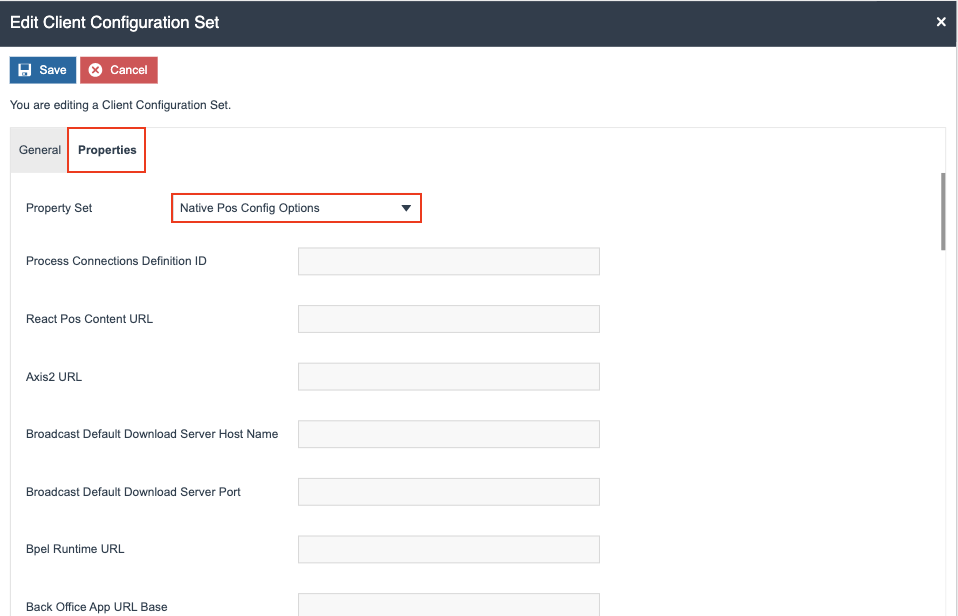
Values for each property can be entered here. These values will be used to generate the enactor.xml file during the registration process using a serial number.
All available properties are described below, along with sample values. The properties are categorized into Core, Additional, and Payments groups.
Core Configuration
Configure these properties as follow, replacing xx.xxx.xx.xxx with your Estate Manager IP address:
| Name | Value | Description |
|---|---|---|
| Process Connections Definition ID | StandardPosBackOfficeEstateManager | Set the process connection diagram based on your deployment model: StandardPosEstateManager or StandardPosBackOfficeEstateManager. |
| React Pos Content URL | apps/react-pos-all-app/index.html | Set the UI content URL. |
| Axis2 URL | http://xx.xxx.xx.xxx:39833/axis2 | Set the axis 2 URL. |
| Broadcast Default Download Server Host Name | xx.xxx.xx.xxx | Set the broadcast default download server host name. |
| Broadcast Default Download Server Port | 39832 | Set the broadcast default download server port. |
| Bpel Runtime URL | http://xx.xxx.xx.xxx:39832/WebCore | Set the bpel runtime URL. |
| Back Office App URL Base | http://xx.xxx.xx.xxx:39848 | Set the back office app URL. |
| Back Office Proc URL Base | http://xx.xxx.xx.xxx:39848 | Set the back office proc URL. |
| Back Office Proc RMI URL Base | http://xx.xxx.xx.xxx:39848 | Set the back office proc RMI URL. |
| Back Office Reports URL Base | http://xx.xxx.xx.xxx:39848 | Set the back office reports URL. |
| Back Office Web Service URL Base | http://xx.xxx.xx.xxx:39848 | Set the back office web service URL. |
| Business Processing URL Base | http://xx.xxx.xx.xxx:39832 | Set the business processing URL. |
| Card Authorisation 1 URL Base | http://xx.xxx.xx.xxx:39856 | Set the first card auth server URL. |
| Card Authorisation 2 URL Base | http://xx.xxx.xx.xxx:39856 | Set the second card auth server URL. |
| Gift Card Authorisation 1 URL Base | http://xx.xxx.xx.xxx:39856 | Set the first gift card auth server URL. |
| Gift Card Authorisation 2 URL Base | http://xx.xxx.xx.xxx:39856 | Set the second gift card auth server URL. |
| CM App URL Base | http://xx.xxx.xx.xxx:39830 | Set the CM app URL. |
| CM Proc URL Base | http://xx.xxx.xx.xxx:39832 | Set the CM proc URL. |
| CM Web Service URL Base | http://xx.xxx.xx.xxx:39833 | Set the CM web service URL. |
| EM App URL Base | http://xx.xxx.xx.xxx:39830 | Set the EM app URL. |
| EM Proc URL Base | http://xx.xxx.xx.xxx:39832 | Set the EM proc URL. |
| EM Reports URL Base | http://xx.xxx.xx.xxx:39831 | Set the EM reports URL. |
| EM Web Service URL Base | http://xx.xxx.xx.xxx:39833 | Set the EM web service URL. |
| IM Proc URL Base | http://xx.xxx.xx.xxx:39832 | Set the IM proc URL. |
| IM WS URL Base | http://xx.xxx.xx.xxx:39833 | Set the IM web service URL. |
| OM WS URL Base | http://xx.xxx.xx.xxx:39837 | Set the OM web service URL. |
| PM URL Base | http://xx.xxx.xx.xxx:39833 | Set the PM URL. |
| Payment Portal Host | Set the payment portal host. | |
| RRS URL Base | http://xx.xxx.xx.xxx:39833 | Set the RRS URL. |
| Enable Run Services | Enabled | Enable the background services. |
| Background Services Supported | Enabled | Enable the background services. |
| Synchronous Retail Queue Connector Module | Enabled | Enable the Synchronous Retail Queue Connector module. |
| Synchronous Scheduled Job Feeder Module | Enabled | Enable the Synchronous Scheduled Job Feeder module. |
The ports specified above are Enactor's default values - if alternative port numbers are used, they should be updated accordingly.
Additional Configuration
| Name | Value | Description |
|---|---|---|
| Automatic Purging | Enabled | Toggle automatic purging, which contain rules to purge certain entities and files from tables and directories. This is independent of your location purging configuration. |
| Broadcast ID | NATIVE_POS_PDB | Predefined Broadcast ID used to automatically request data from the Estate Manager during the application's first startup. |
| Broadcast Changes Last x Years | 5 | Specify the number of years to filter the data sent by the automatic broadcast, ensuring only data from the last 'x' years is included. |
| Keep Screen On | Disabled | Prevent the device from sleeping. Not required on Swing. |
| Customer Collections Module | Enabled | Enable or disable the Customer Collections Module. |
| Order Module | Enabled | Enable or disable the Order Module. |
| Time Attendance Module | Enabled | Enable or disable the Time Attendance Module. |
| Re-Register Password | 12345 | Expected PIN to allow Re-Registering the device via the Context Menu. |
Payments Configuration
Configure these properties as follow, replacing xx.xxx.xx.xxx with your PDMS IP address:
| Name | Value | Description |
|---|---|---|
| Embedded PDC | Enabled | Enable or disable the embedded PDC. This is a separate application that runs in conjunction with the Native POS. |
| PDC Company Name | Enactor Ltd | The company name. |
| PDC Datasource Name | enactorpdc | The data source name of the PDC. |
| PDC Database Location | /data/user/0/com.enactor.pos/files/PDC/db/pdc | The path to the PDC database location. |
| PDC Primary PDMS URL | http://xx.xxx.xx.xxx/PaymentDevicemanagementService | IP address of the primary PDMS. |
| PDC Secondary PDMS URL | http://xx.xxx.xx.xxx/PaymentDevicemanagementService | IP address of the secondary PDMS. |
Press Save to save the configuration.
POS Terminals
This step is only necessary if you plan to use the Embedded PDC instead of an external one. The Embedded PDC functions like any standard PDC and is bundled directly with the Native POS application.
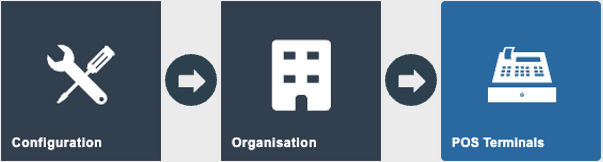
The POS Terminal maintenance application can be accessed through:
Configuration > Organisation > POS Terminals
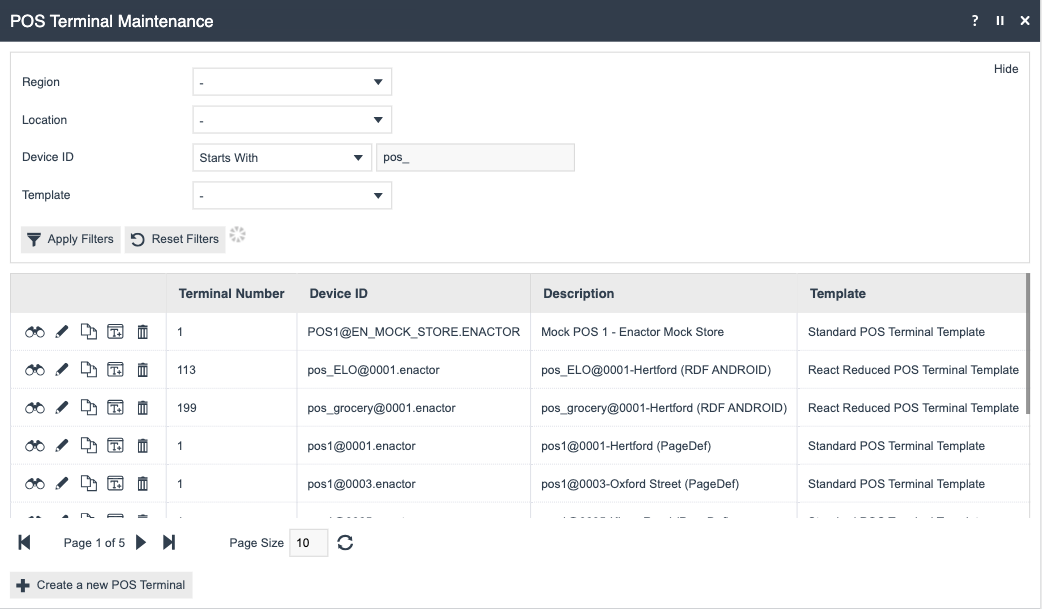
Edit the designated POS Terminal and select the Peripherals tab.
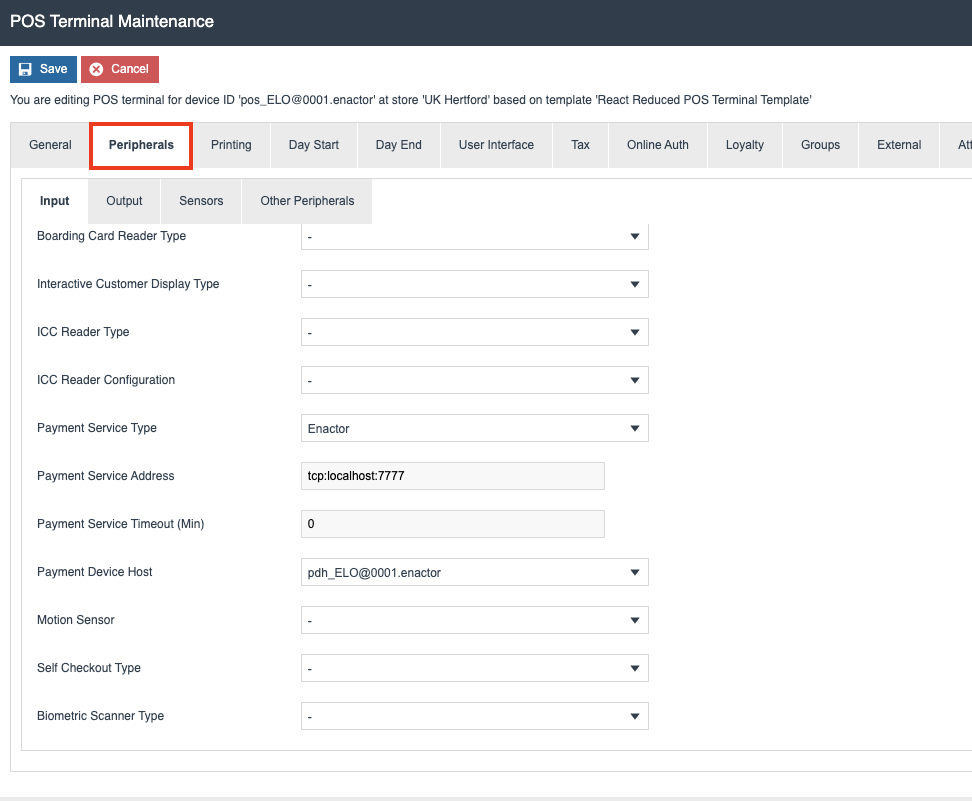
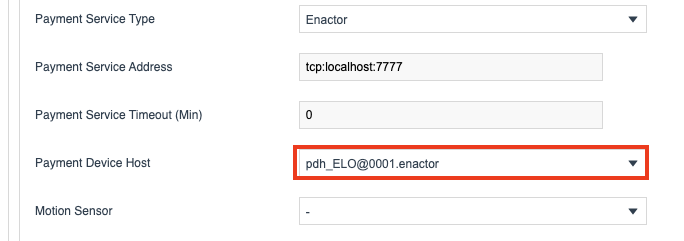
Select the Payment Device Host that the Embedded PDC should use.
Lastly, press Save.
Devices
The Device entity of a Native POS requires additional configuration to enable serial number registration. This step covers selecting the appropriate Configuration Set and the necessary values to generate a serial number.
The Devices maintenance application can be accessed through:
Administration > Devices > Devices

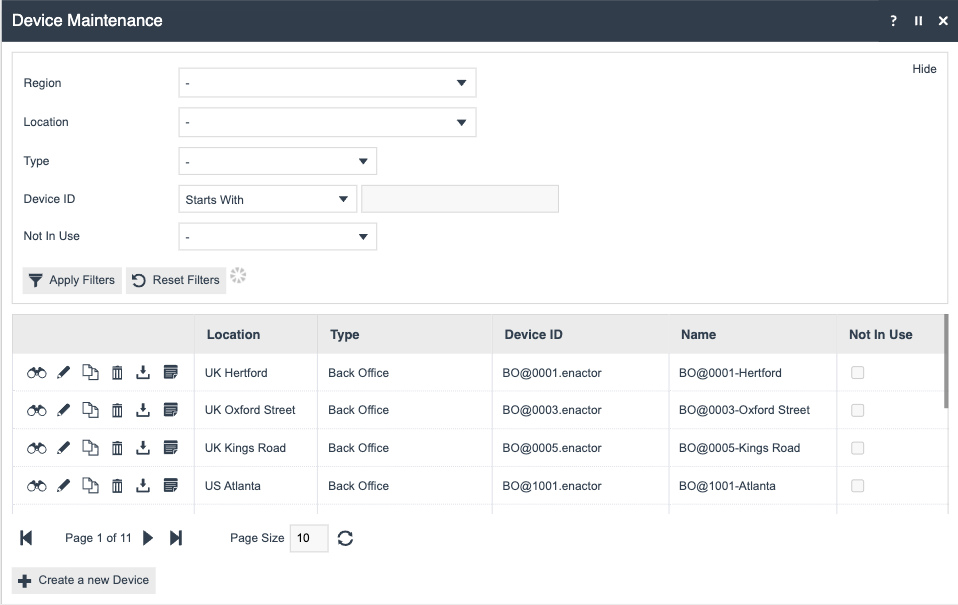
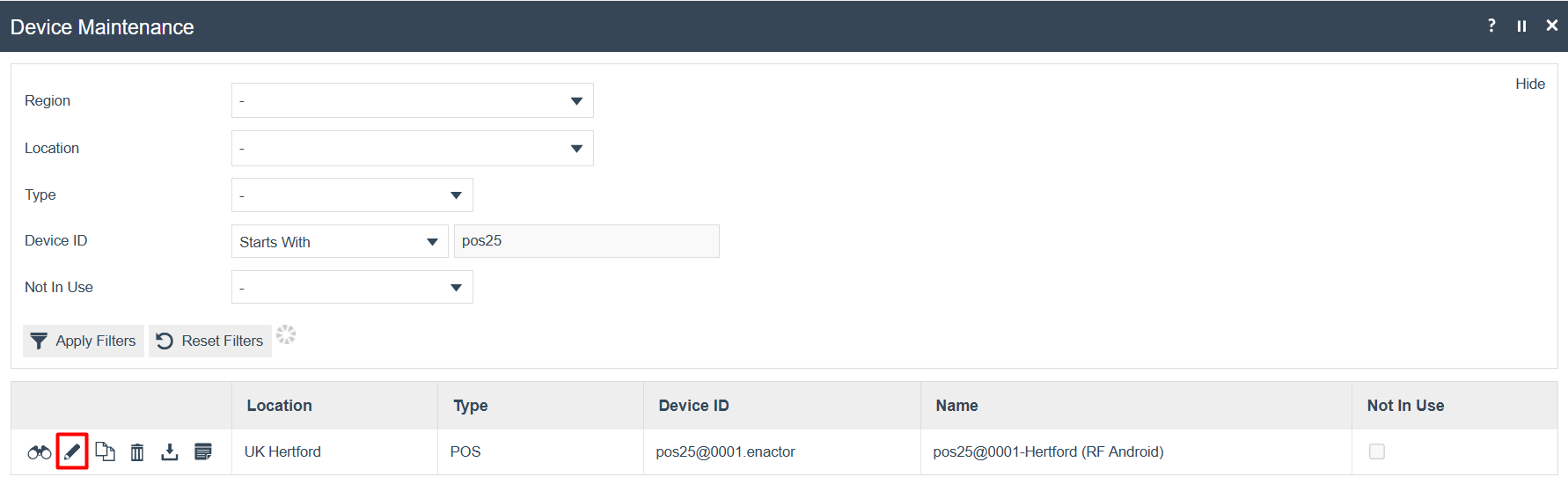
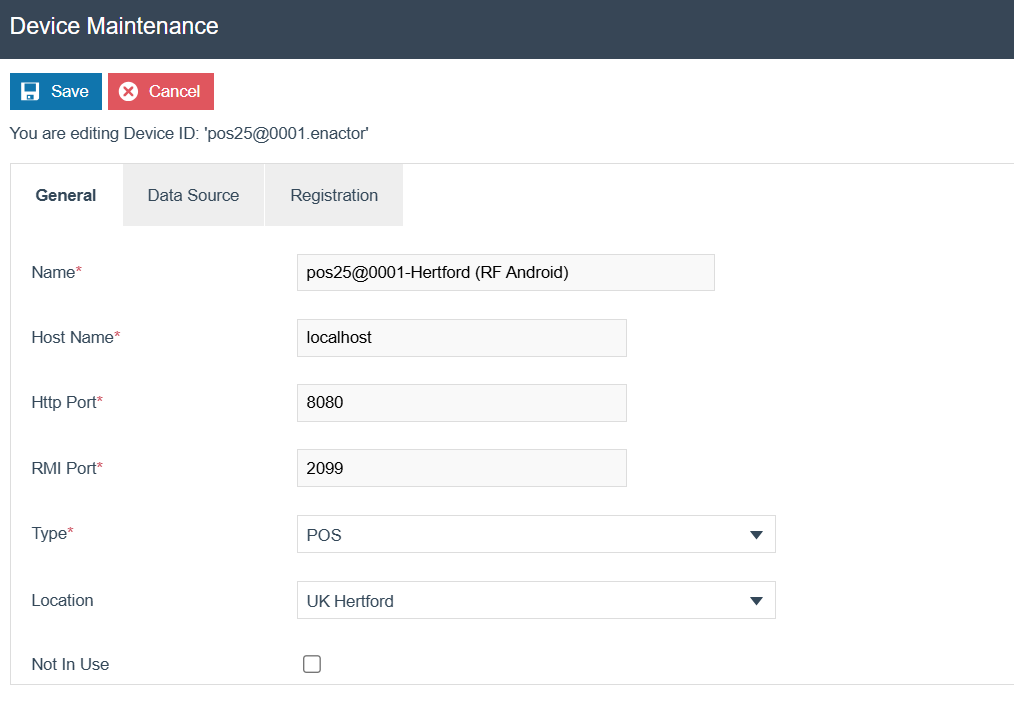
If a Device record for the Native POS has already been created, find and Edit it. Alternatively, a new Device record can be created.
Select the Registration tab.
This is the tab where details are entered for serial number registration.
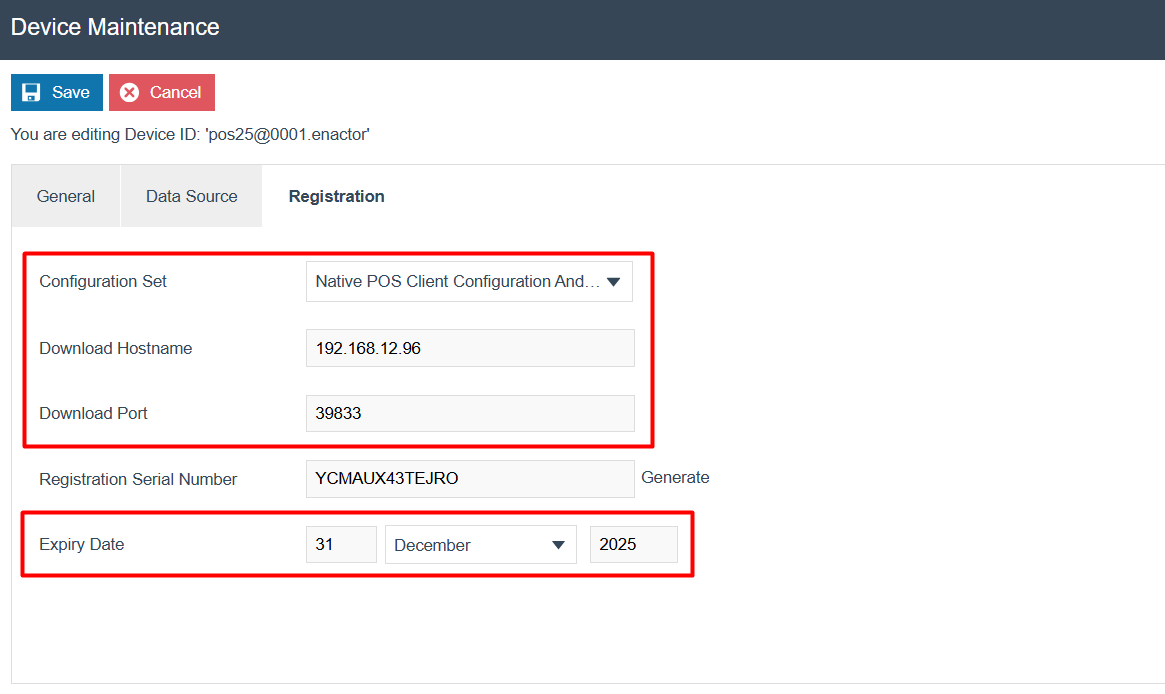
Configure these properties as follow, replacing xx.xxx.xx.xxx with your Estate Manager IP address:
| Name | Value | Description |
|---|---|---|
| Configuration Set | Native POS Client Configuration Android | Select the Client Configuration Set to use. |
| Download Hostname | xx.xxx.xx.xxx | IP address of the Estate Manager to download the configuration settings. |
| Download Port | 39833 | EM Server port. |
| Expiry Date | Date of expiry of the serial number. |
Once configured, press the Generate button next to the Registration Serial Number field. This will generate the new serial number needed to register the Native POS device.

Take note of the serial number and press Save.
Native POS Registration
The Enactor Native POS Application should be downloaded from Google Play Store. When the Enactor Native POS is launched for the first time, the application initialises without any device-specific configuration. The download of such data is deferred to the serial number registration step.
Serial Number Registration
Launch the Enactor Native POS application.
This action creates the database tables and the initial data.
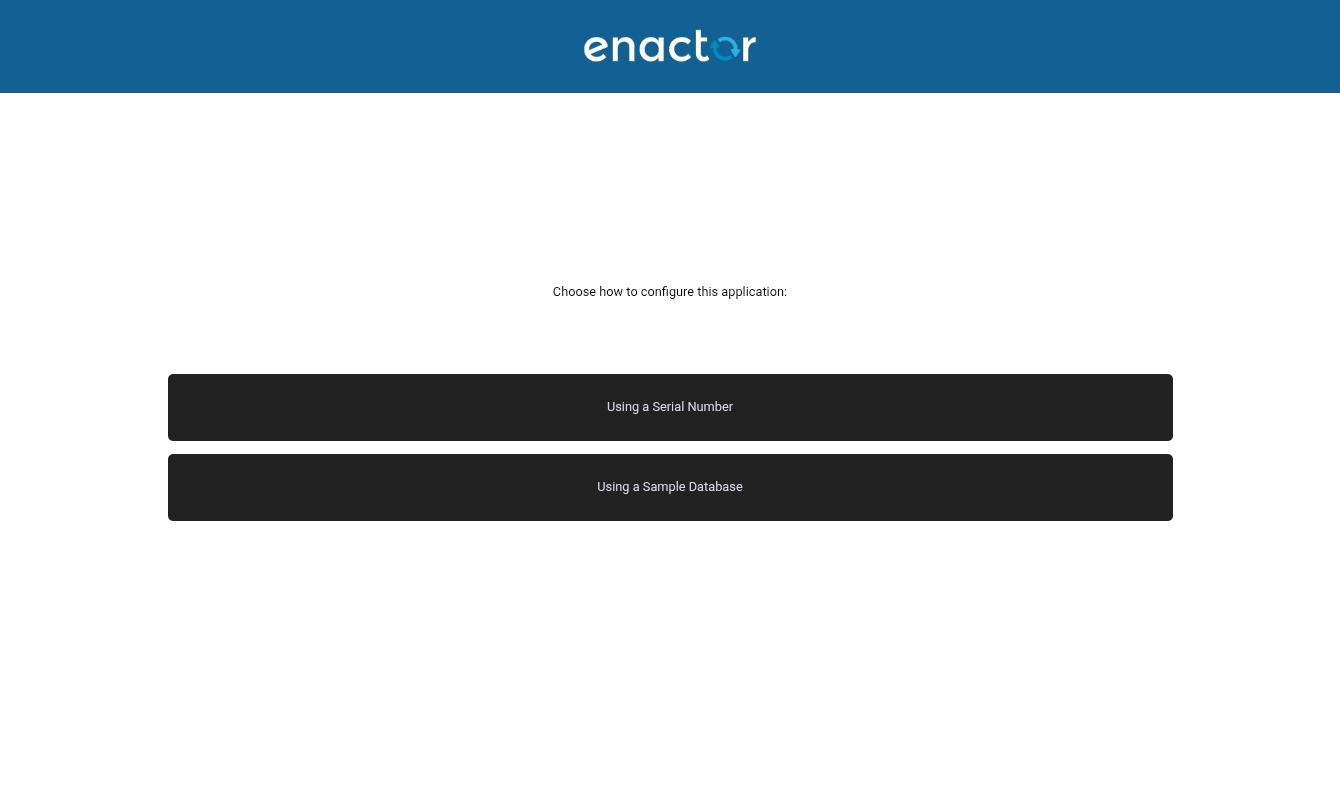
Select the Using a Serial Number option.
Enter the device's registration serial number, then press Continue.
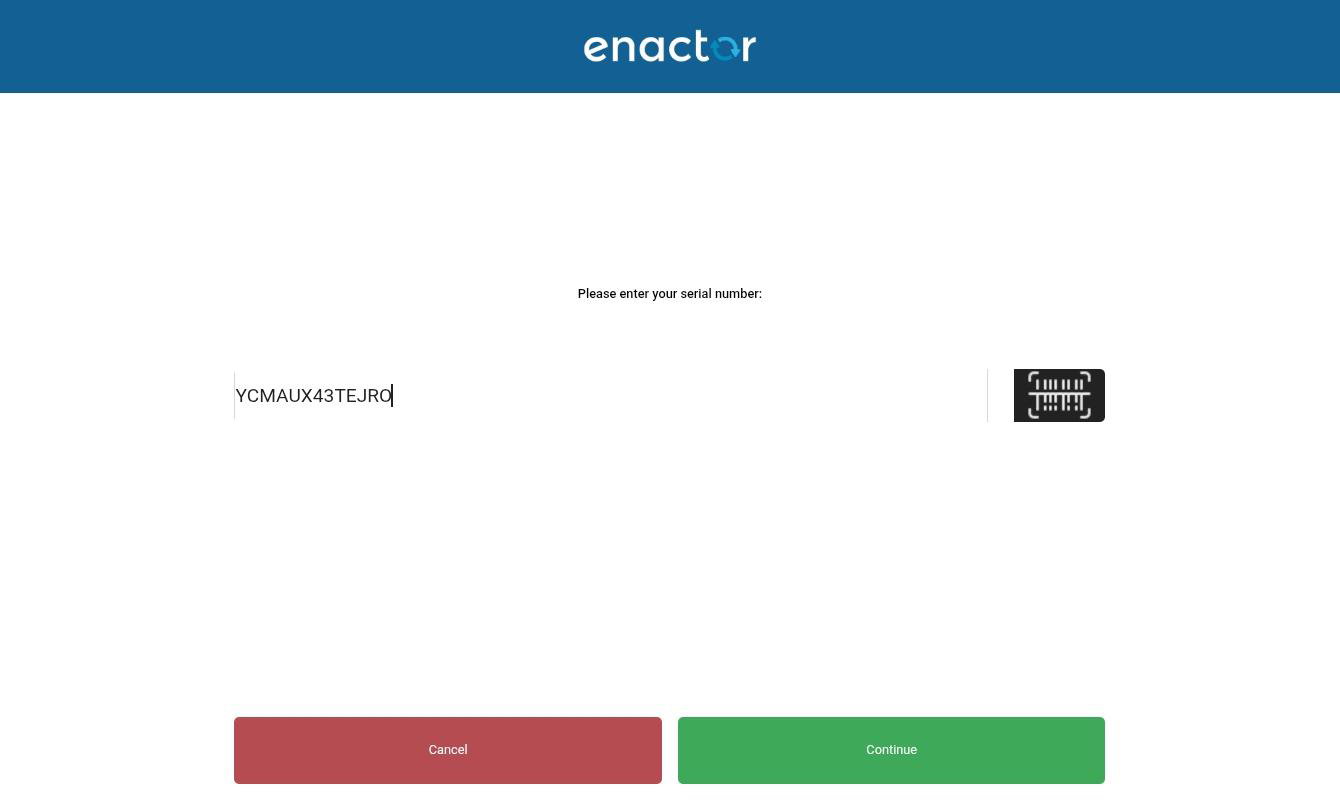
A call is then made to the Estate Manager to identify the POS device being configured.
If successful, a pop-up message appears asking for confirmation to register the device.
Press OK to confirm.
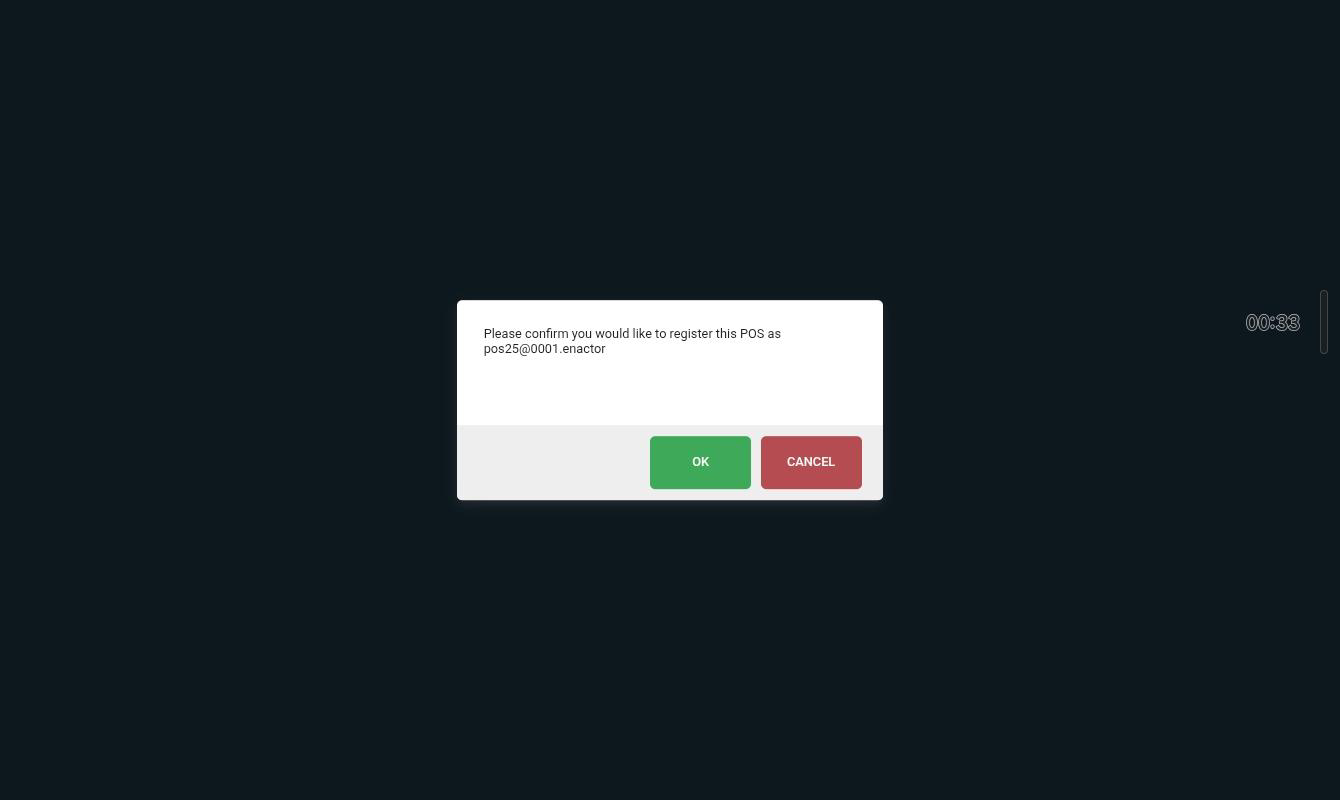
This action automatically sends a request to the Estate Manager to download static data using the predefined broadcast NATIVE_POS_PDB by the user BROADCAST_USER.
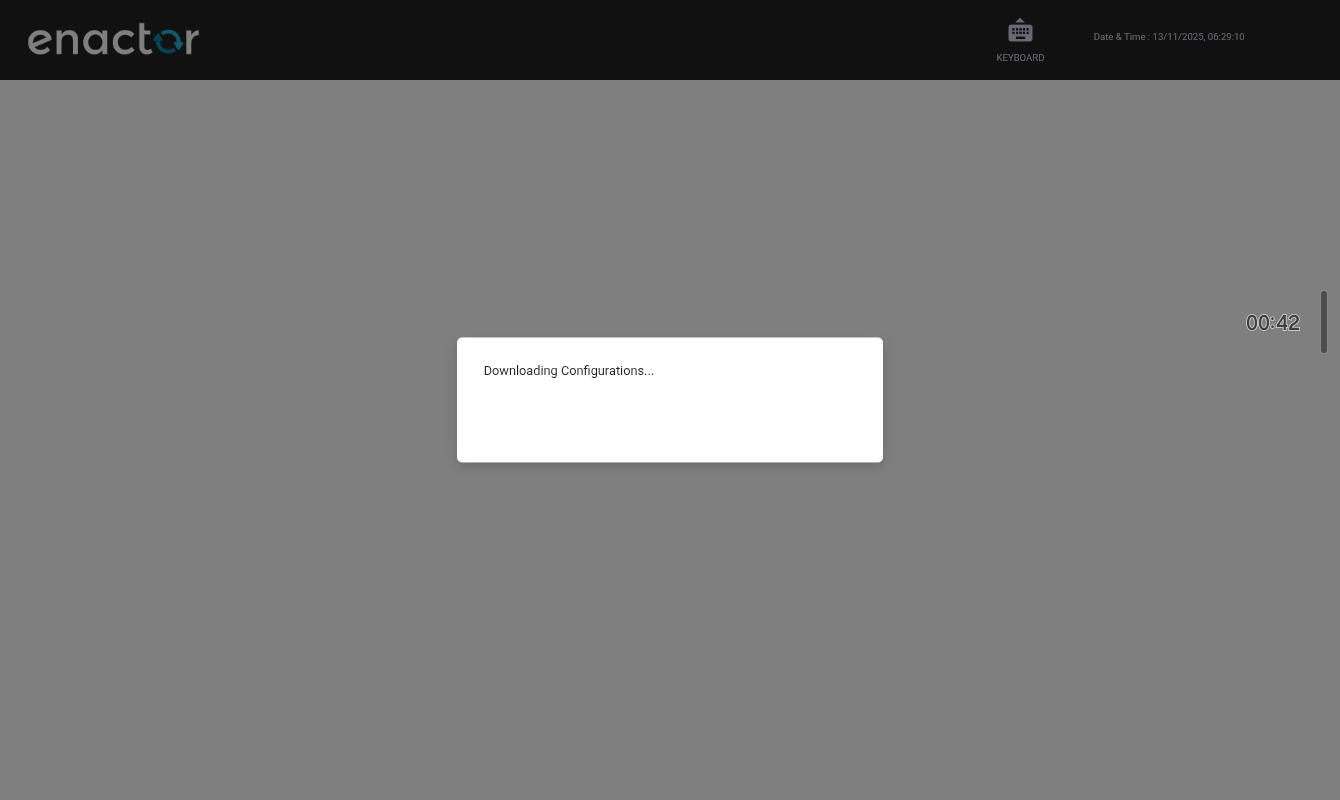
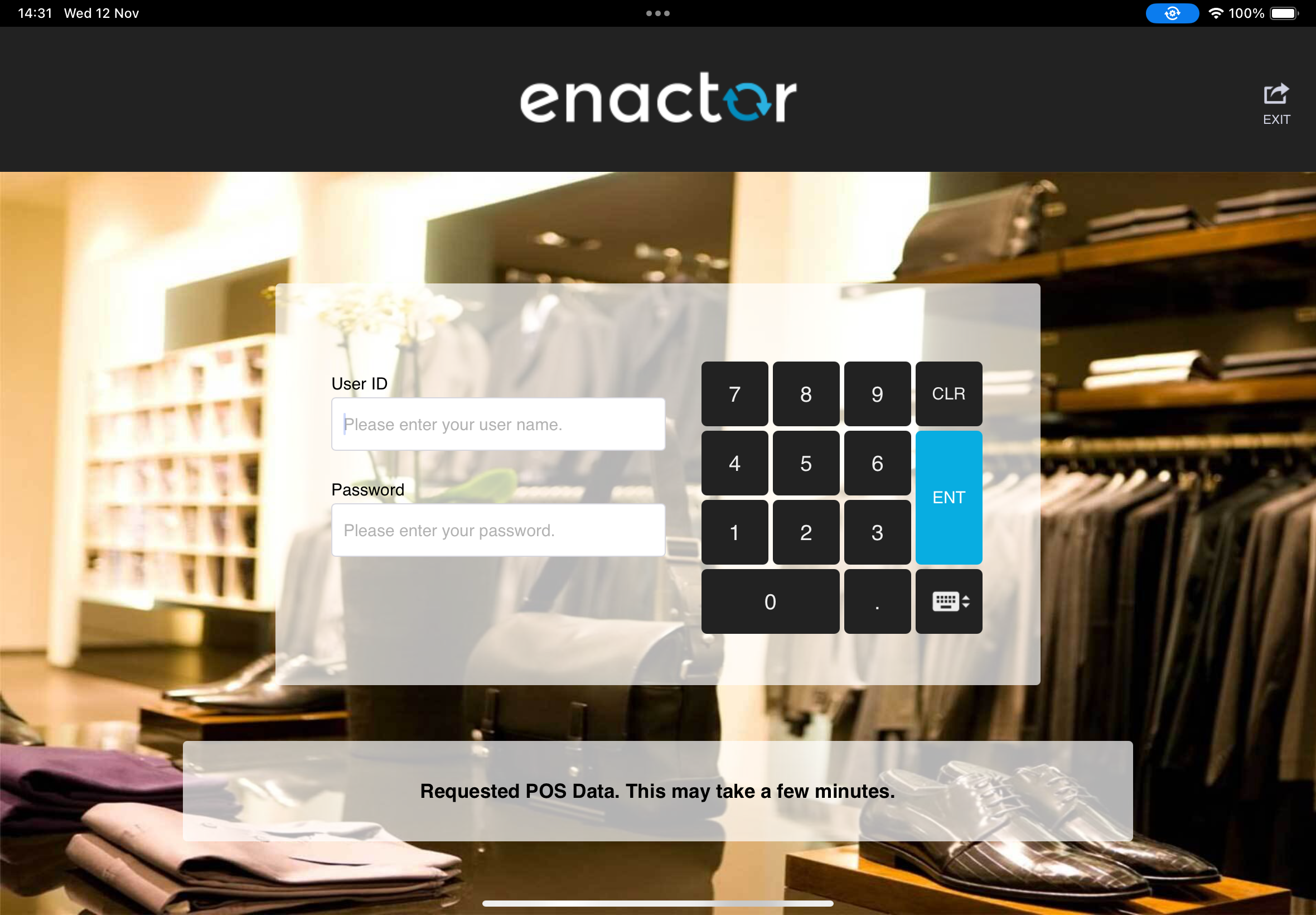
A series of messages indicate the progress and stages of the broadcast.
The first message reads: 'Requesting POS Data. This may take a few minutes.'
Once the request is acknowledged by the Estate Manager, the message updates to: 'Requested POS Data. This may take a few minutes.'
In the Estate Manager's Broadcast History Maintenance, the following broadcast record can be seen:

The broadcast request is then processed, exported, and sent to the POS.
When the POS receives the instructions to download the broadcast .zip file, the toast message updates to: 'Notification received. Downloading and importing data.'
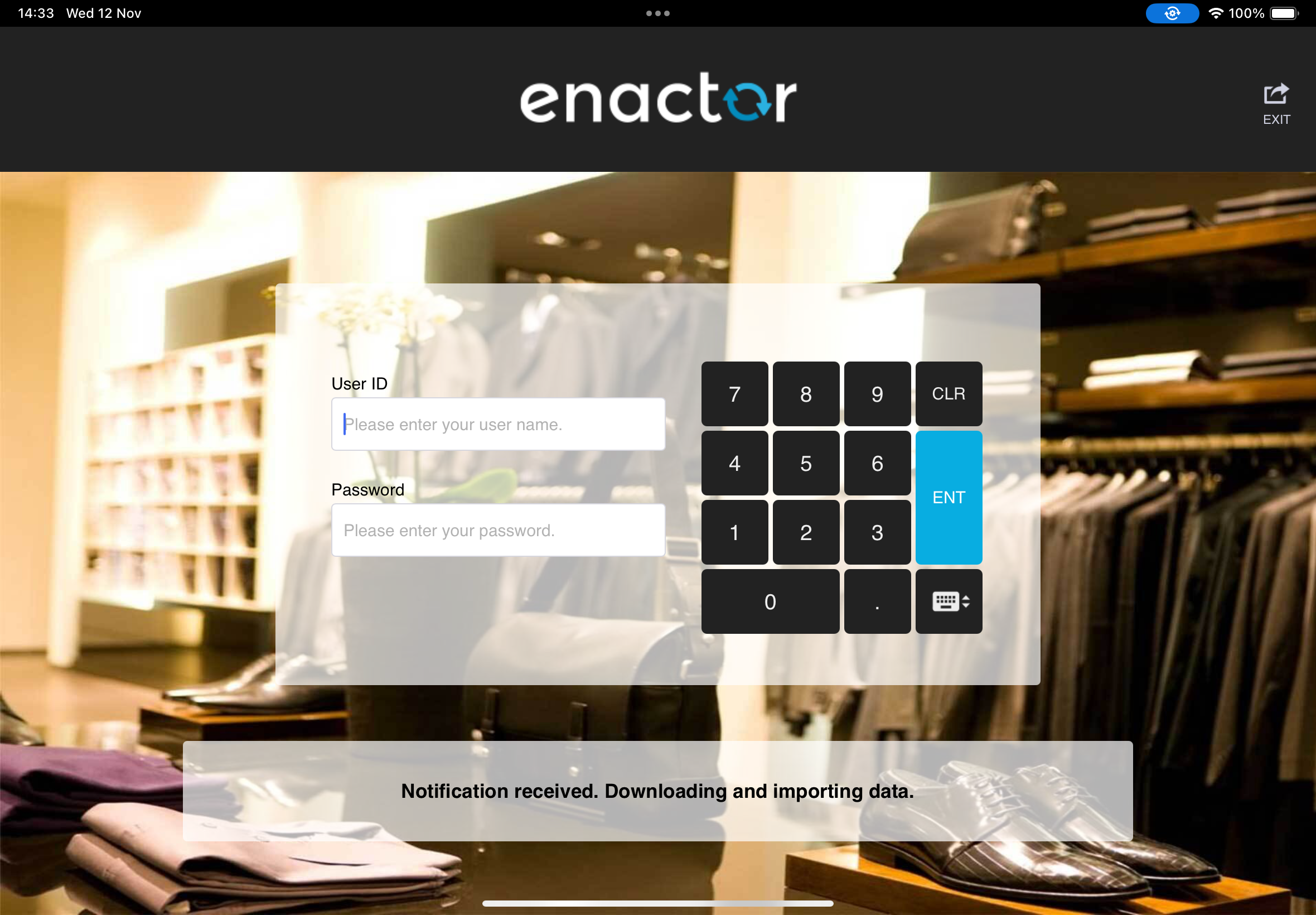
Once the initial broadcast has been successfully imported, a final message appears: 'Data fully received and ready to use.'
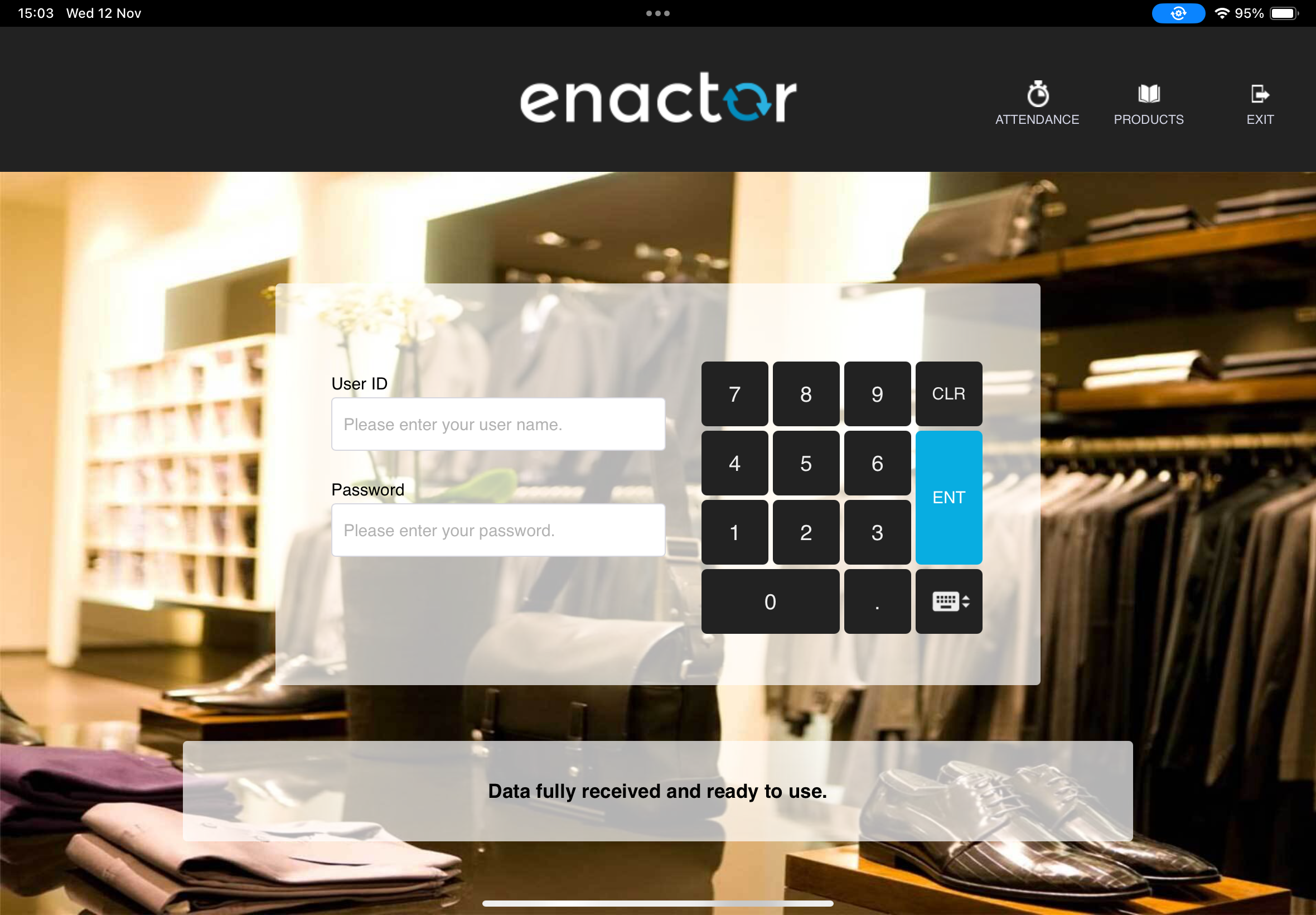
The message disappears after a few seconds, and the POS is then ready for use.