How To Configure German Fiscal Compliance with Fiskaly
Fiscal Overview
For shared background on Enactor fiscal compliance, see Fiscal Overview.
Introduction
The fiscal approach in Germany can use either a physical TSE on premises or a cloud-based service. This implementation covers Fiskaly, which serves as a Technical Security Device (TSE) in compliance with German fiscal regulations (KassenSichV). Unlike hardware-based TSE devices, Fiskaly is a service-based solution that securely signs and stores each transaction in an immutable format.
Receipts generated for transactions must be offered to customers. While the receipt format is flexible, certain mandatory fields must be included - one of these is the signature provided by the Fiskaly service.
In the event that the Fiskaly service is temporarily unavailable, the POS system can continue to operate. Receipts during this period must clearly indicate that the Fiskaly service is offline, and all transactions must be fiscalised once the service is restored.
To minimise disruption during a Fiskaly outage, Enactor recommends switching to an alternate POS that has a functioning connection to the Fiskaly service until the issue is resolved.
Certification of the POS software is not required - only the Fiskaly service itself requires certification to meet legal requirements.
The purpose of this guide is to demonstrate the steps required to configure the Enactor POS and Estate Manager for German fiscal compliance using the Fiskaly cloud-based TSE service.
Notes
Currently, the Enactor solution is fully integrated with the Fiskaly cloud-based TSE service. As Fiskaly is a service-based solution, there is no physical hardware to manage, simplifying the deployment and maintenance process.
The interface for the Fiskaly service is standardised according to the requirements set by the authorities. This ensures that any future enhancements or additional features related to Fiskaly integration can be implemented with minimal complexity.
Enactor is committed to ongoing development and is exploring further enhancements to the Fiskaly integration, such as supporting multiple store locations and POS systems through a single Fiskaly account.
Configuration Overview
The following configuration changes are required and should be broadcast to all German devices in preparation for go-live.
Group
Create a new Region group, Tax Region, and Price group for Germany as shown below.
| Group Type | Group ID | Group Name |
|---|---|---|
| Region | DE | Germany |
| Tax Region | DE | Germany |
| Price | DE | Germany |
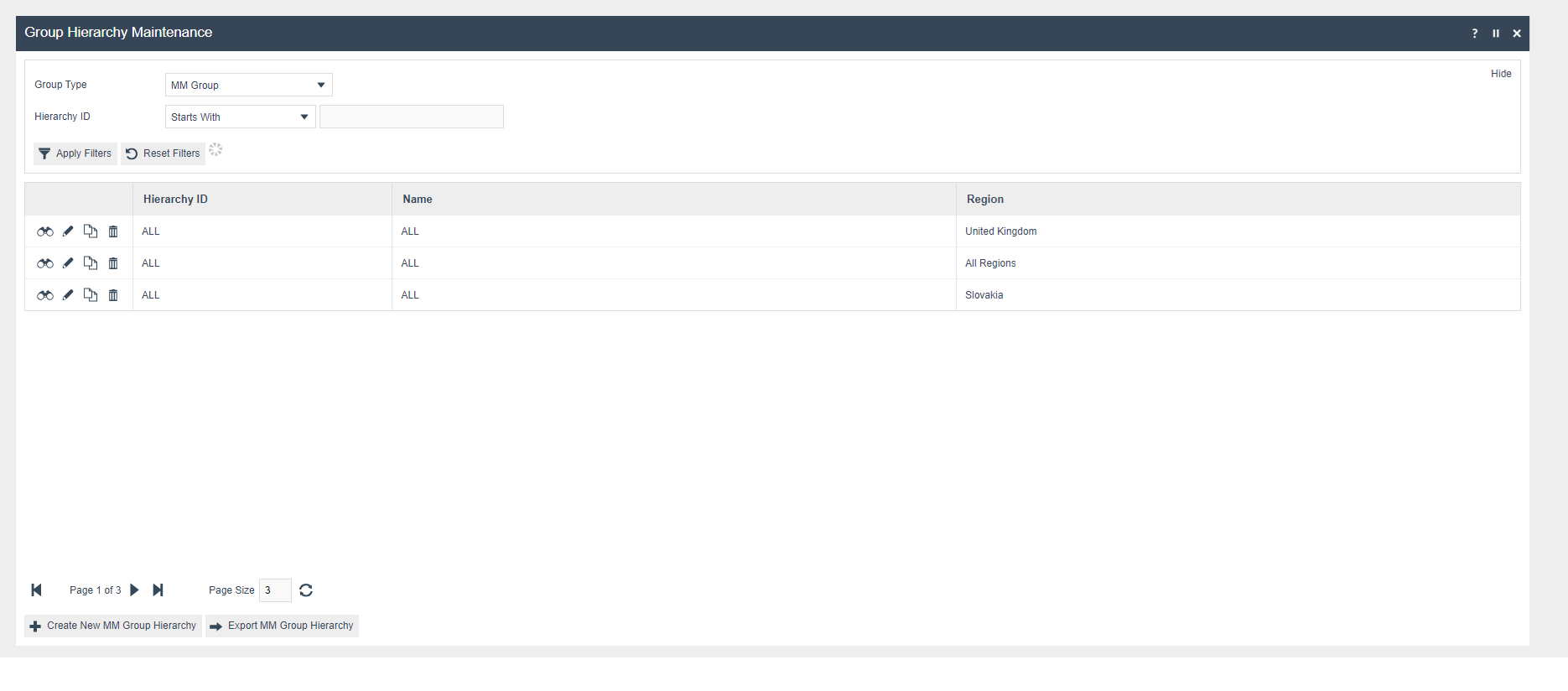
Region Group

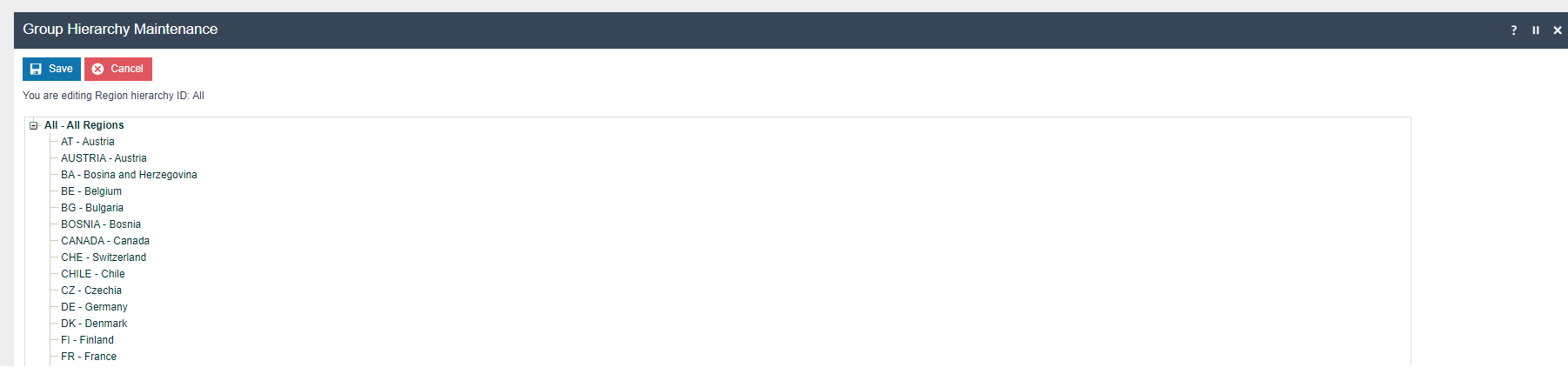
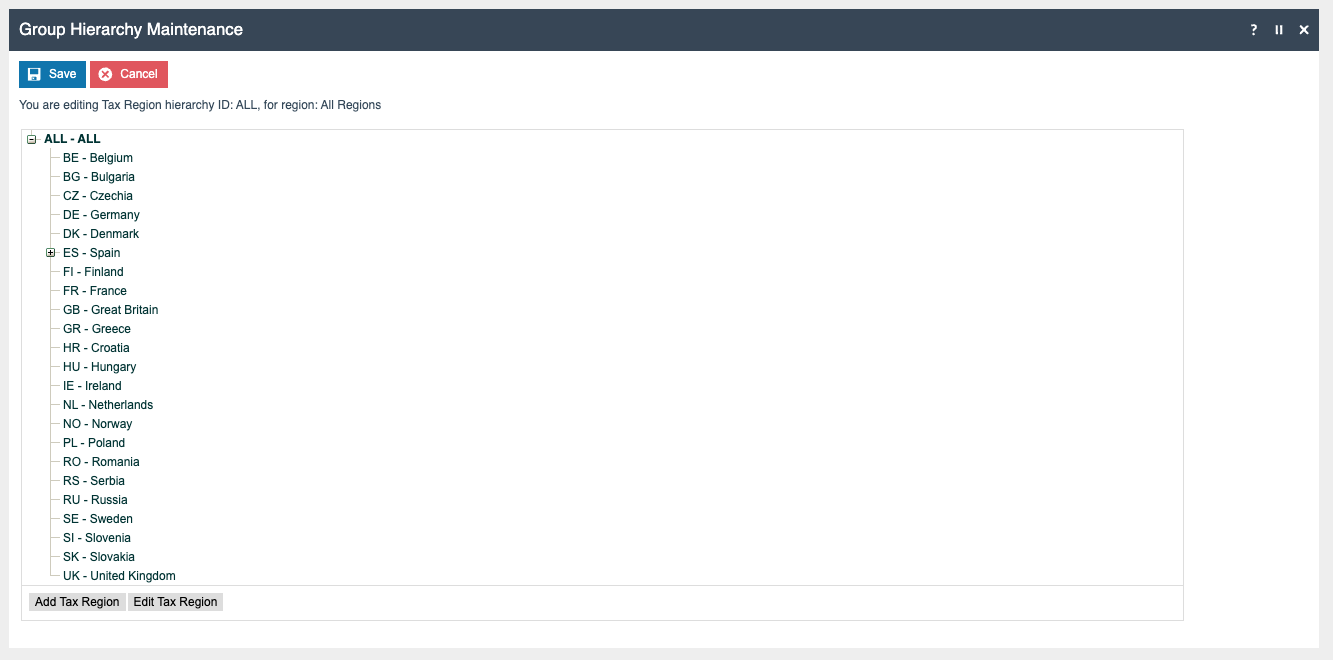
Tax Region Group
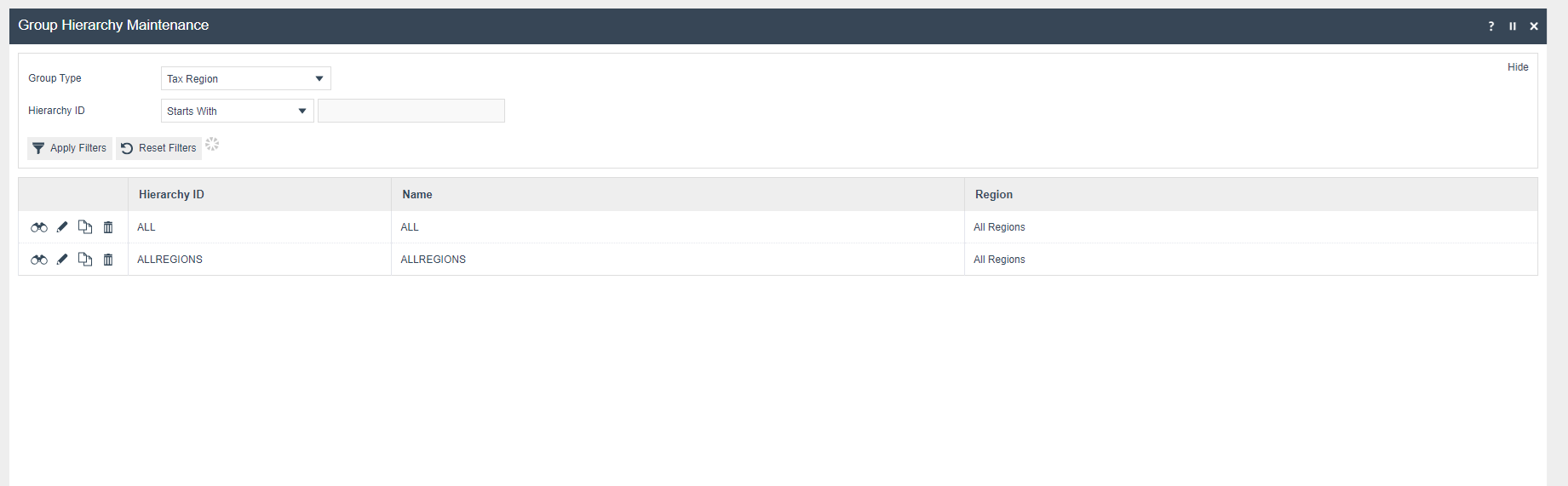
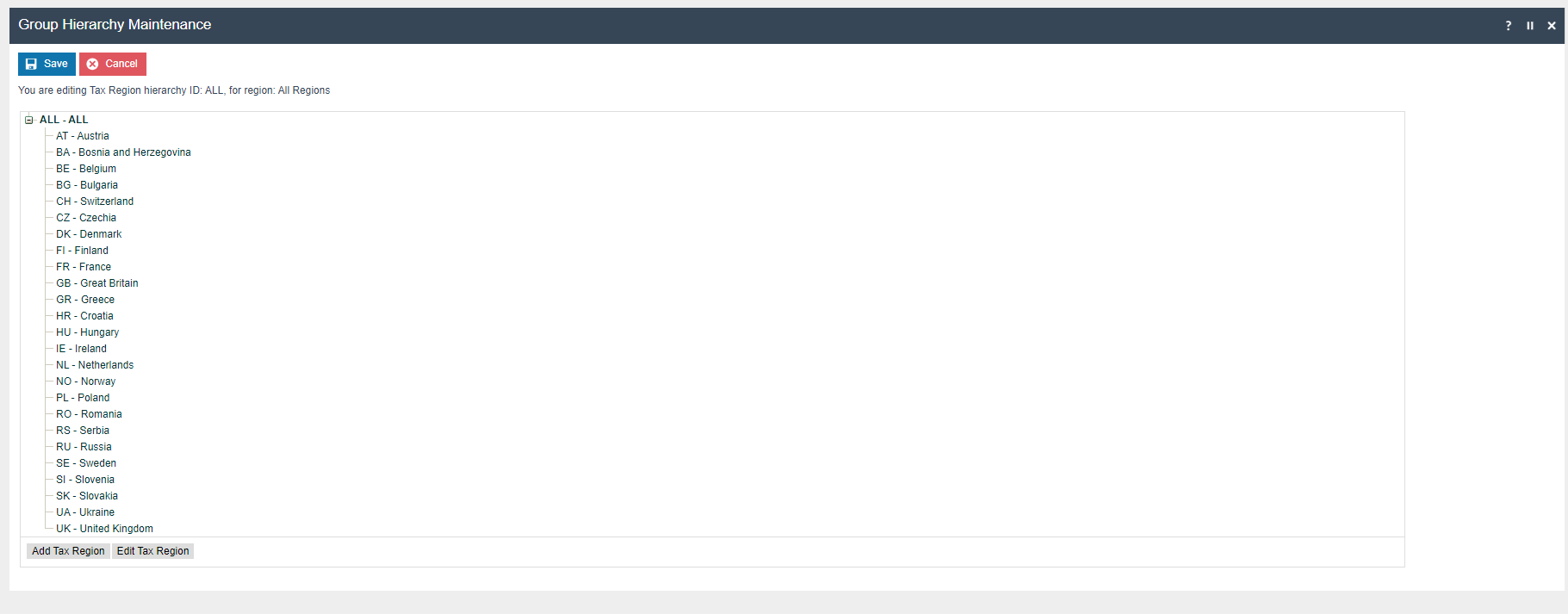
Price Group
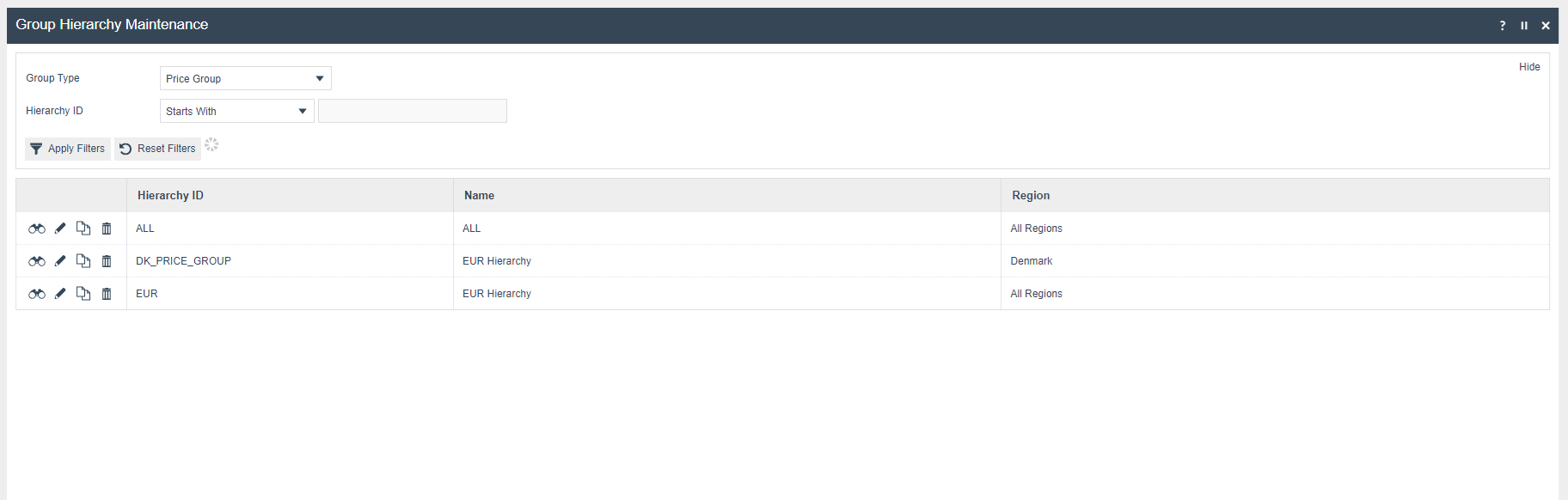
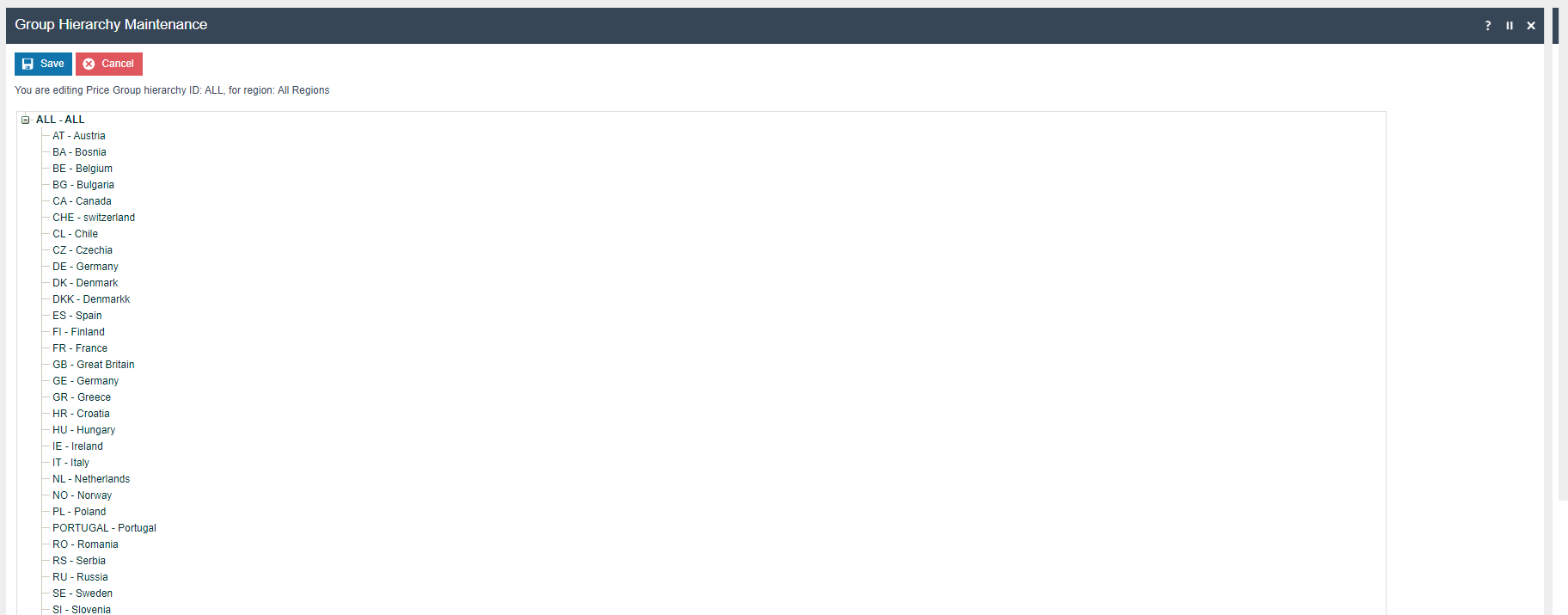
Location
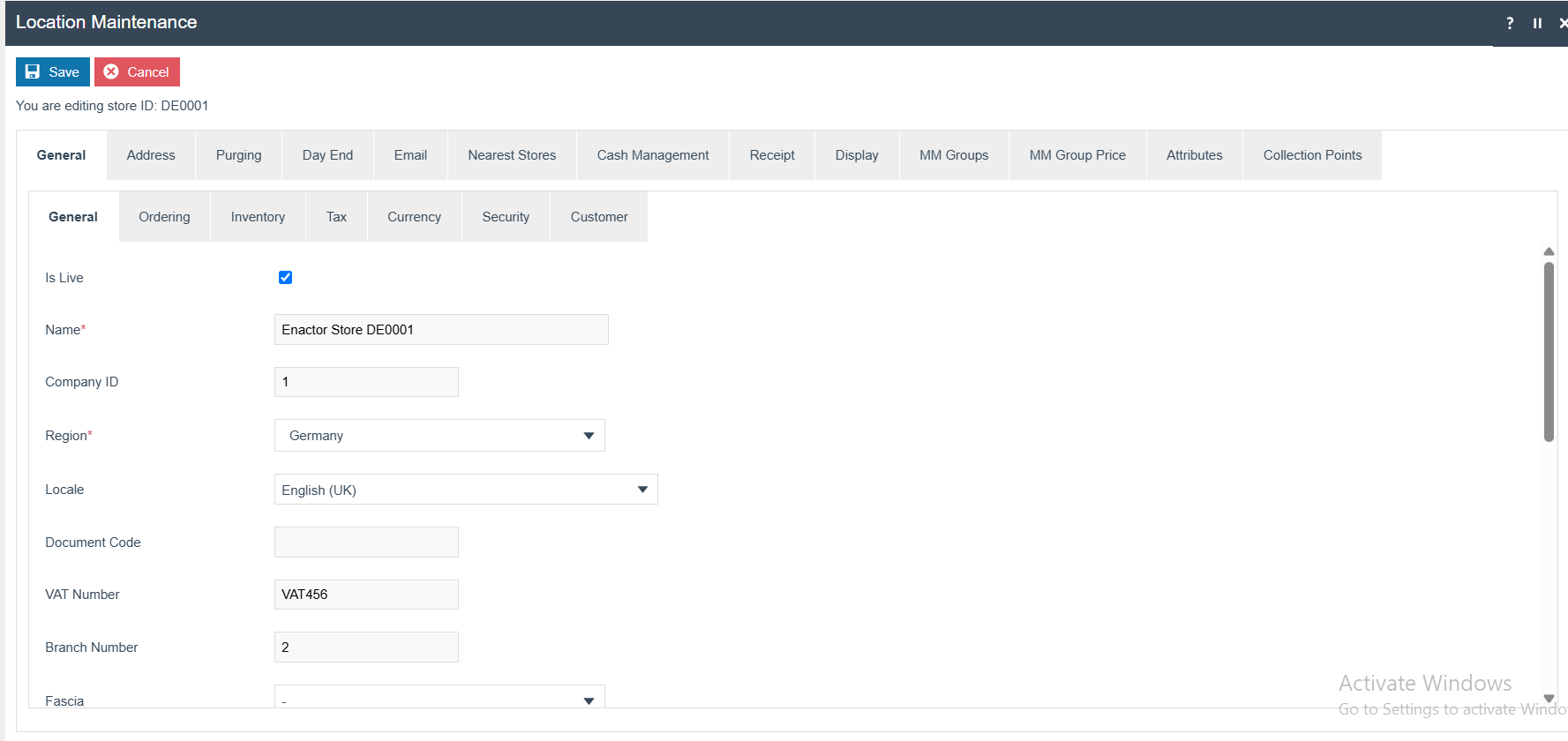
Each location in Germany should be created from Location Maintenance within the Estate Manager and broadcast to the appropriate German devices.
Create a Company using Company Maintenance and include that Company ID in the Location > General > General > Company ID field. This configuration is required to generate the CSV files without errors.
Tax Groups
The following tax groups should be configured and broadcast to the appropriate German devices.
| Tax Group ID | Description |
|---|---|
| DE1 | DE Tax Group A |
| DE2 | DE Tax Group B |
| DE3 | DE Tax Group C |
Tax Scheme
The following tax scheme should be configured and broadcast to the appropriate German devices.
| Tax Scheme ID | Description | Price Include Tax |
|---|---|---|
| DE | DE VAT | TRUE |
Tax Rates
The following tax rates should be configured and broadcast to the appropriate German devices.
| Tax Rate ID | Description | Display Code | Percentage | Fiscal Tax Rate Reference |
|---|---|---|---|---|
| DE_R1 | DE Standard 19% | DE Standard 19% | 19% | 1 |
| DE_R2 | DE Reduced 7% | DE Reduced 7% | 7% | 2 |
| DE_R3 | DE Other | DE Other | 0% | 6 |
Tax Region
If it does not already exist, a Tax Region for Germany should be created within the Tax Region Group Hierarchy. It should have the ID DE and the Name Germany. It is not necessary to configure an External Reference ID.
Tax Group Tax Methods
The following tax group tax methods should be configured and broadcast to the appropriate German devices.
| Tax Group ID | Tax Scheme ID | Description | Tax Rate |
|---|---|---|---|
| DE_1 | DE | DE Standard 19% | DE Standard 19% |
| DE_2 | DE | DE Reduced 7% | DE Reduced 7% |
| DE_3 | DE | DE Other | DE Other |
Products
Products should be created from Product Maintenance and broadcast to the appropriate German devices.
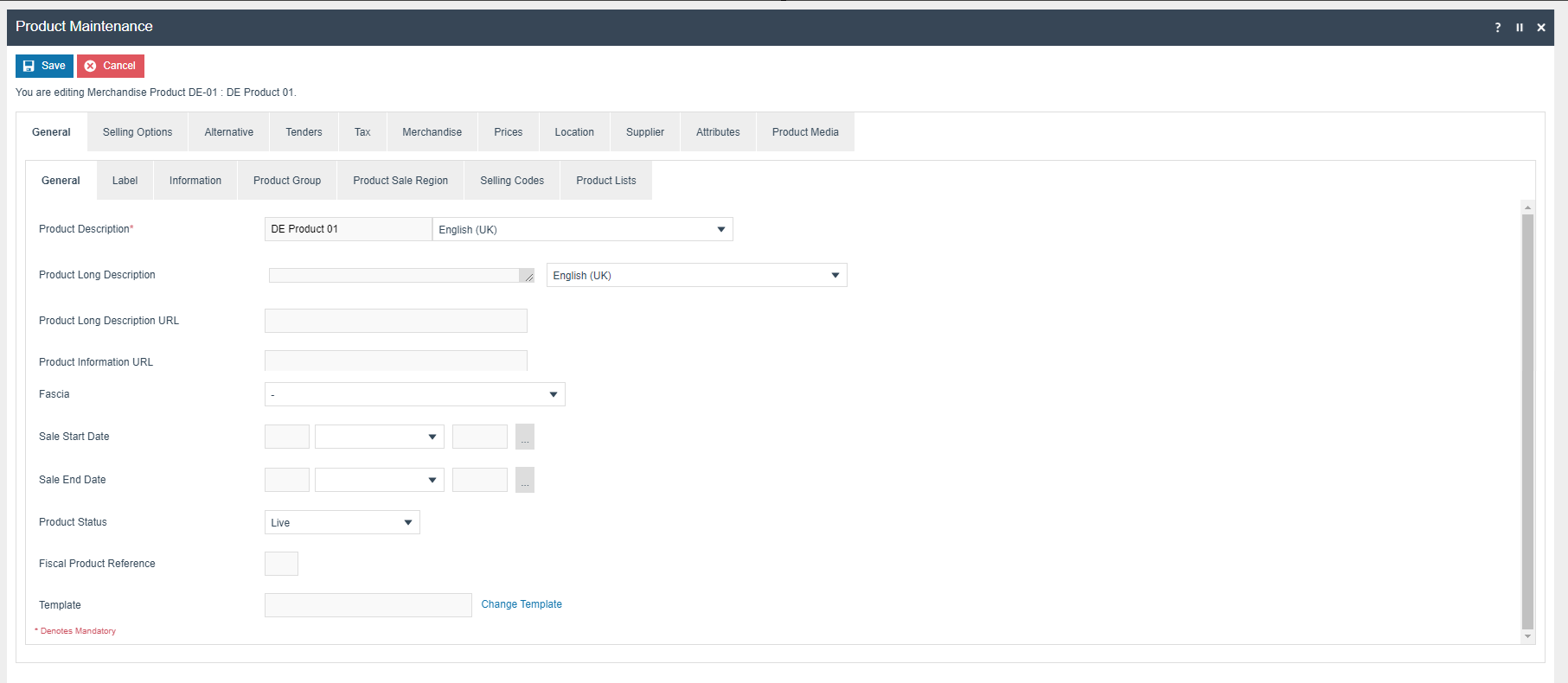
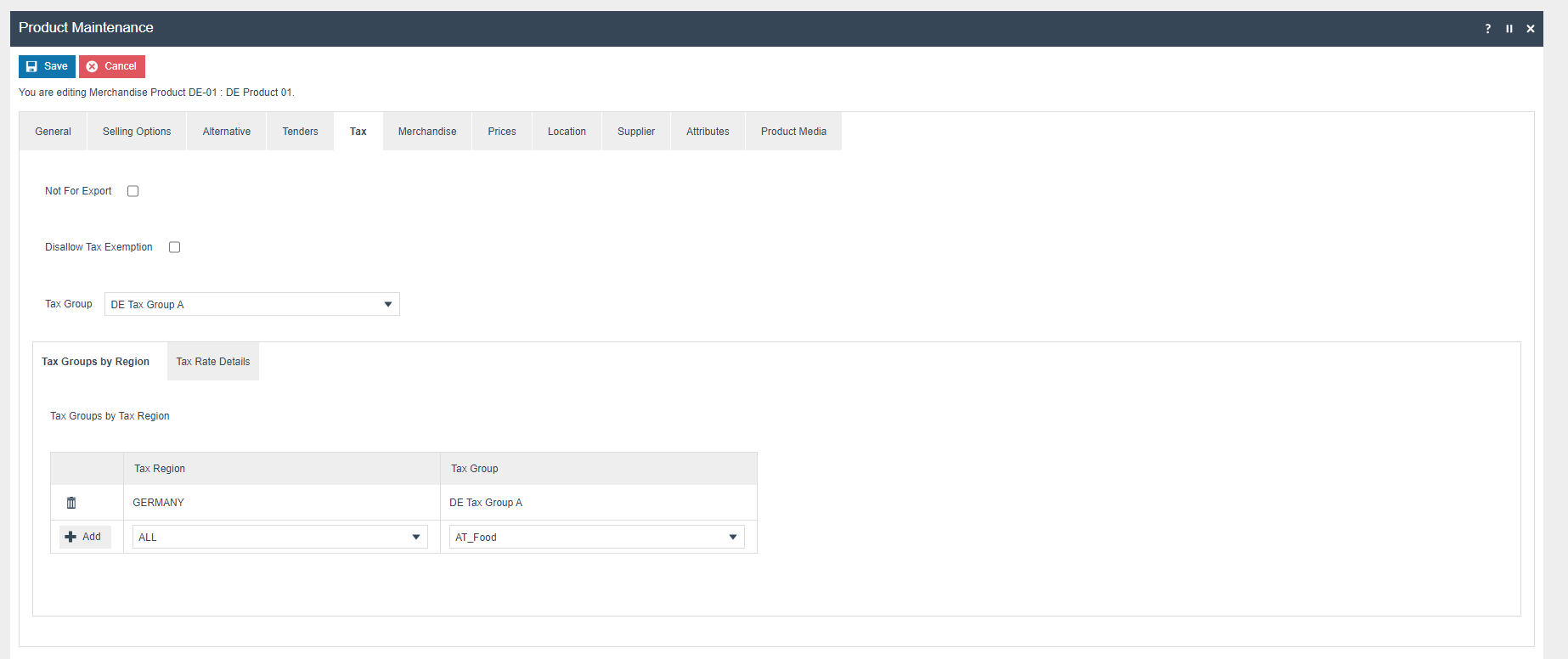
The product Tax Group can be defined to either configure the tax group directly or have a tax group by tax region.
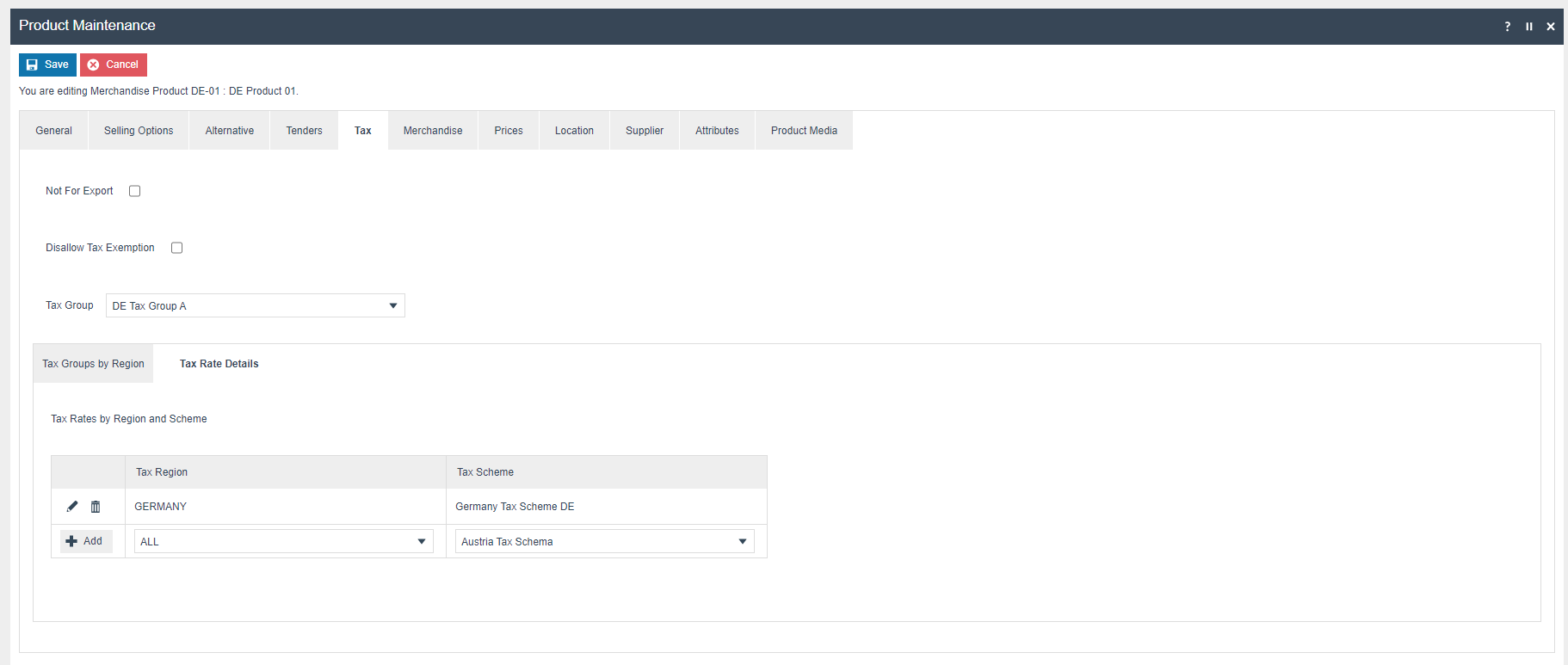
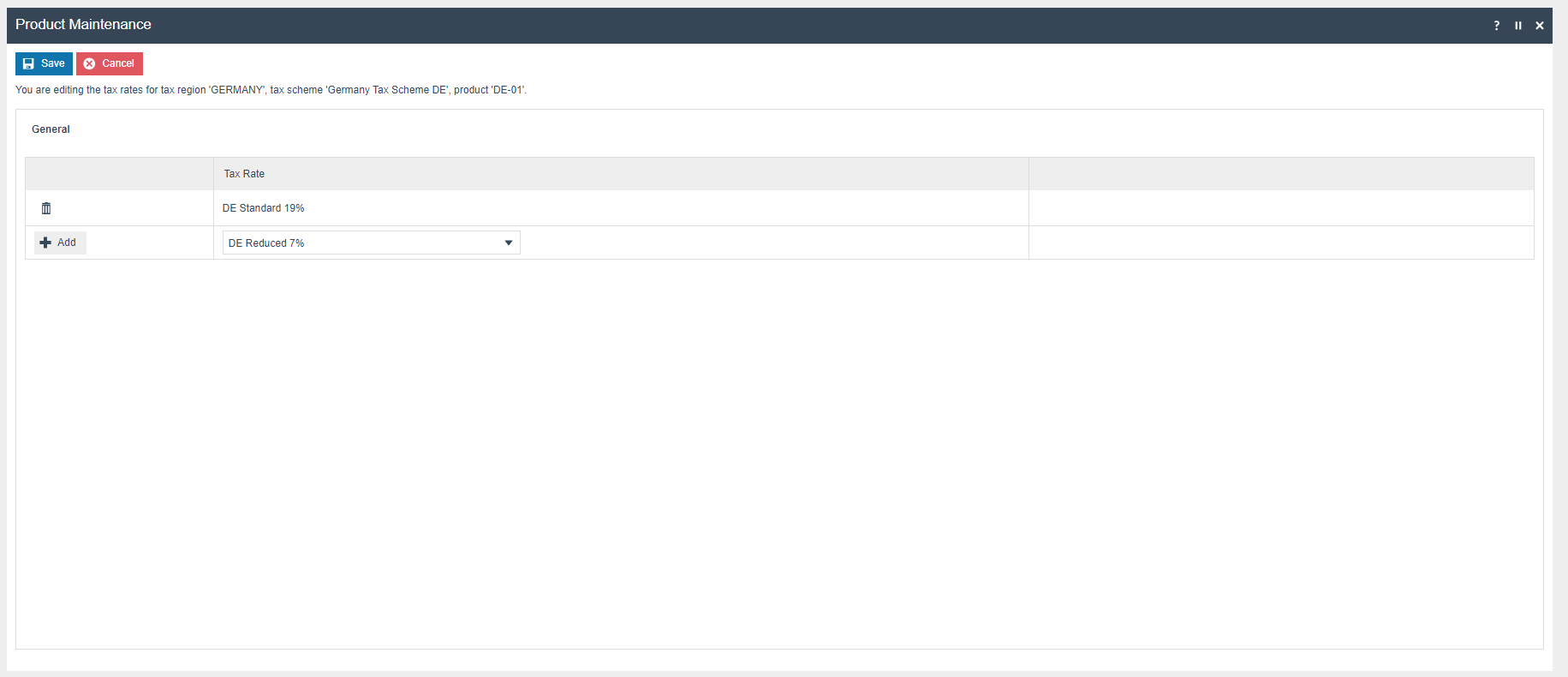
In the Tax Rates by Region and Scheme section, the appropriate tax rate should be defined.
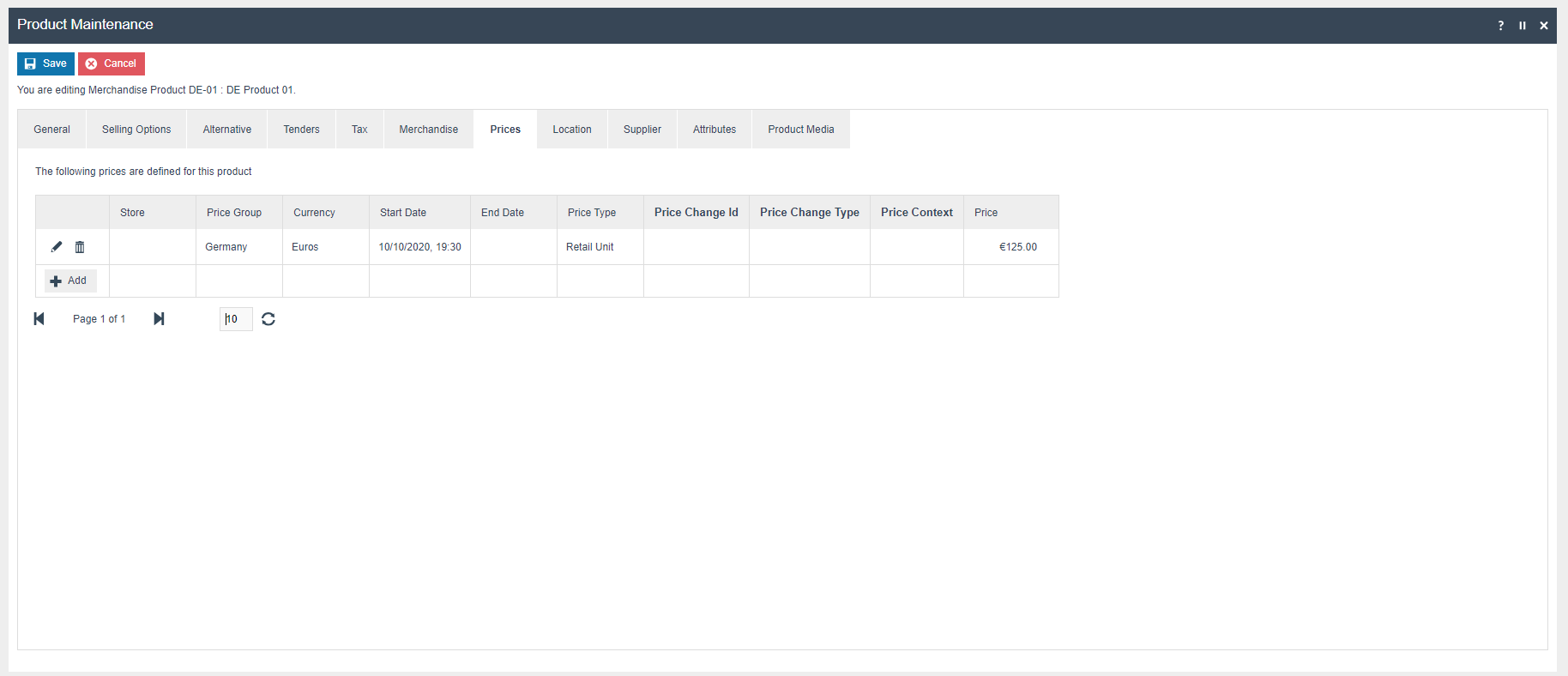
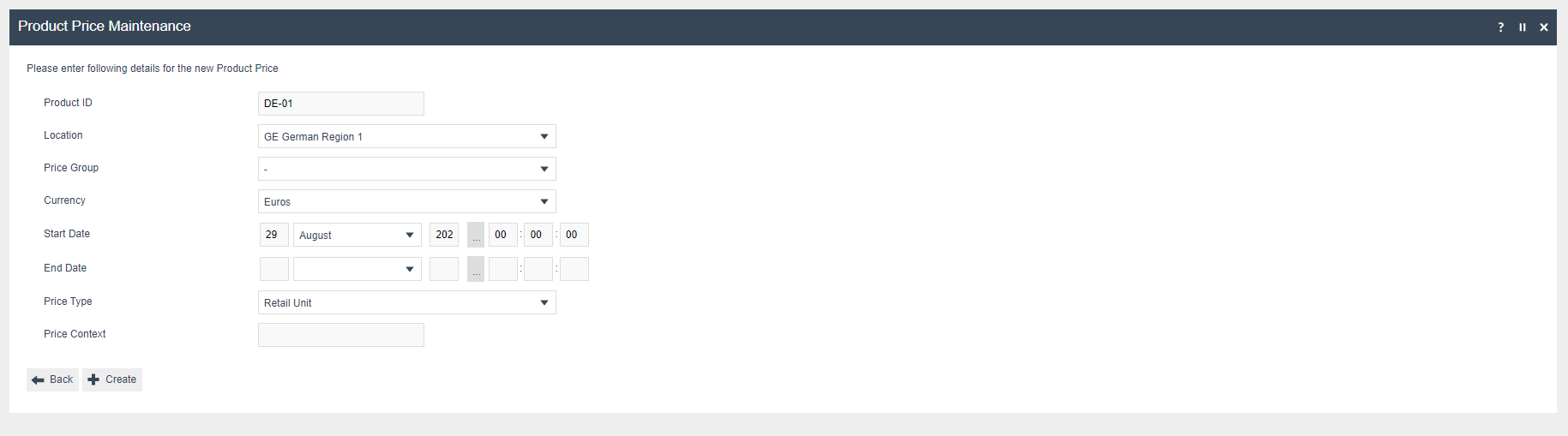
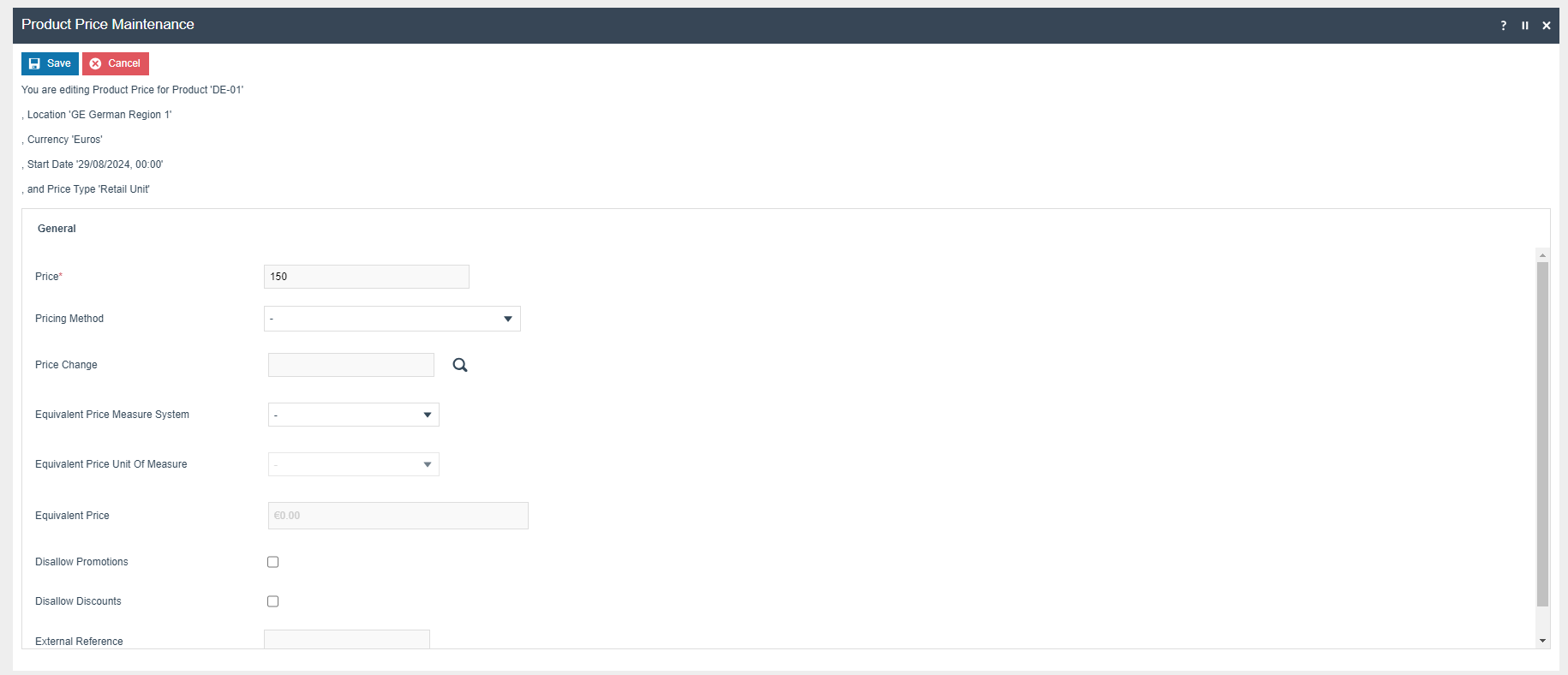
In the Price section, the following price information should be configured for each product.
POS Terminal Template
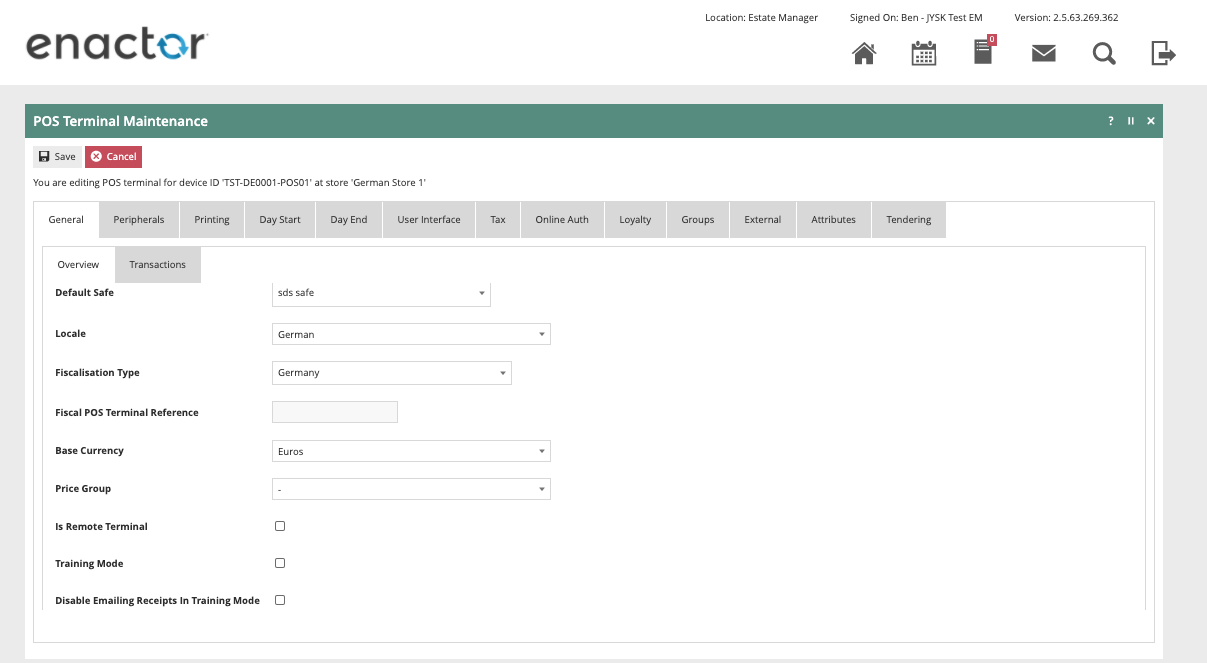
The POS Terminal Template used by all devices in Germany must be configured with the Fiscalisation Type set to Germany. The Currency should be set to Euros and the Locale to German.
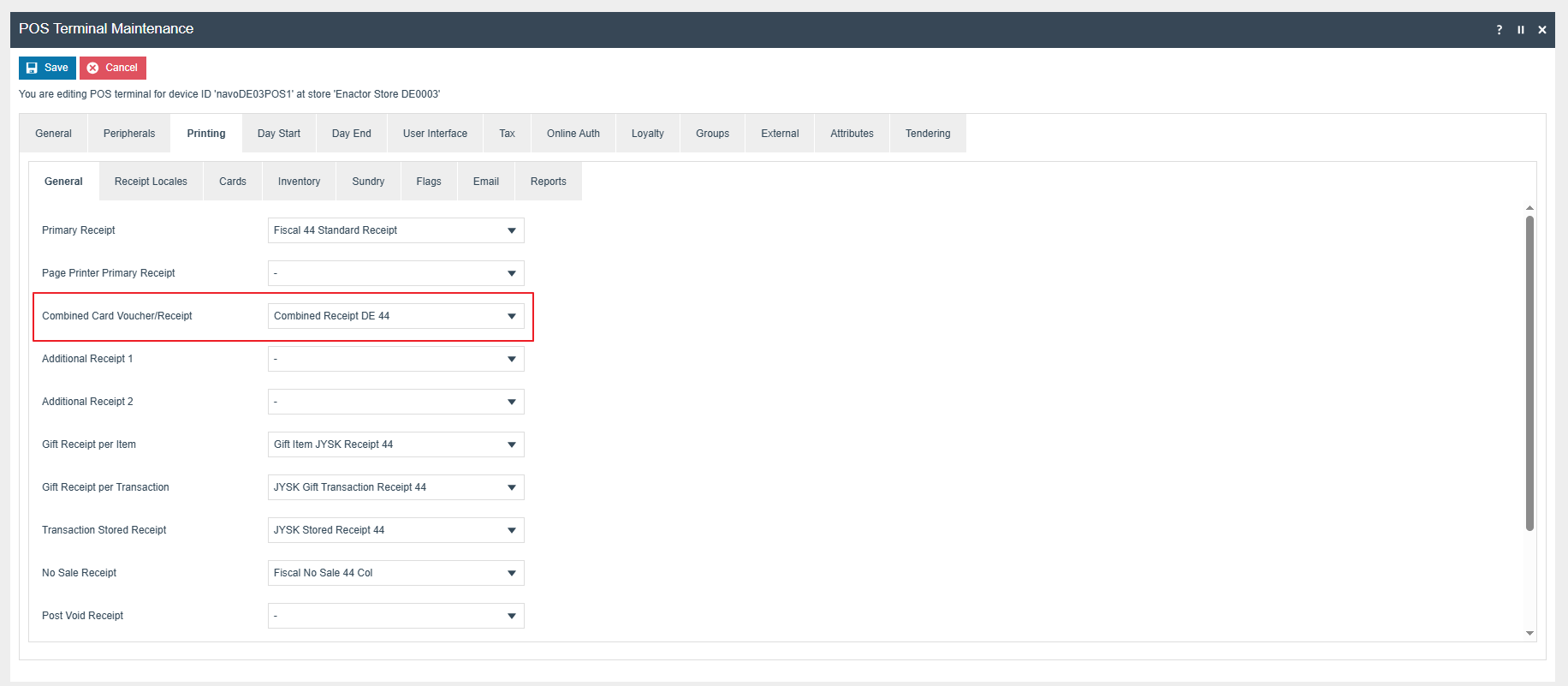
The Primary Receipt should be set to Fiscal 44 Standard Receipt and the No Sale Receipt should be set to Fiscal No Sale 44 Col.
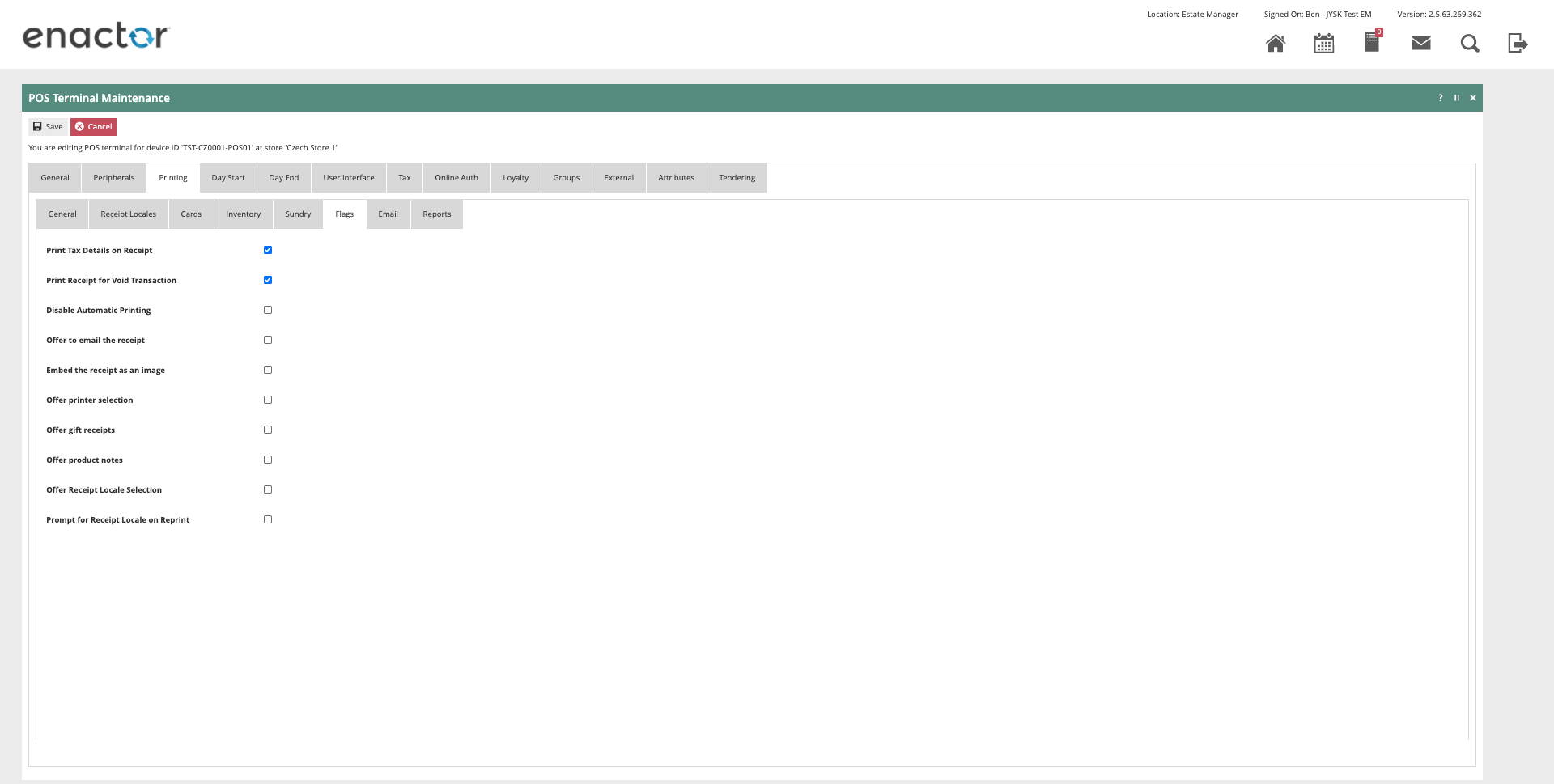
The Print Tax Details on Receipt flag within the Printing > Flags tab should be ticked.
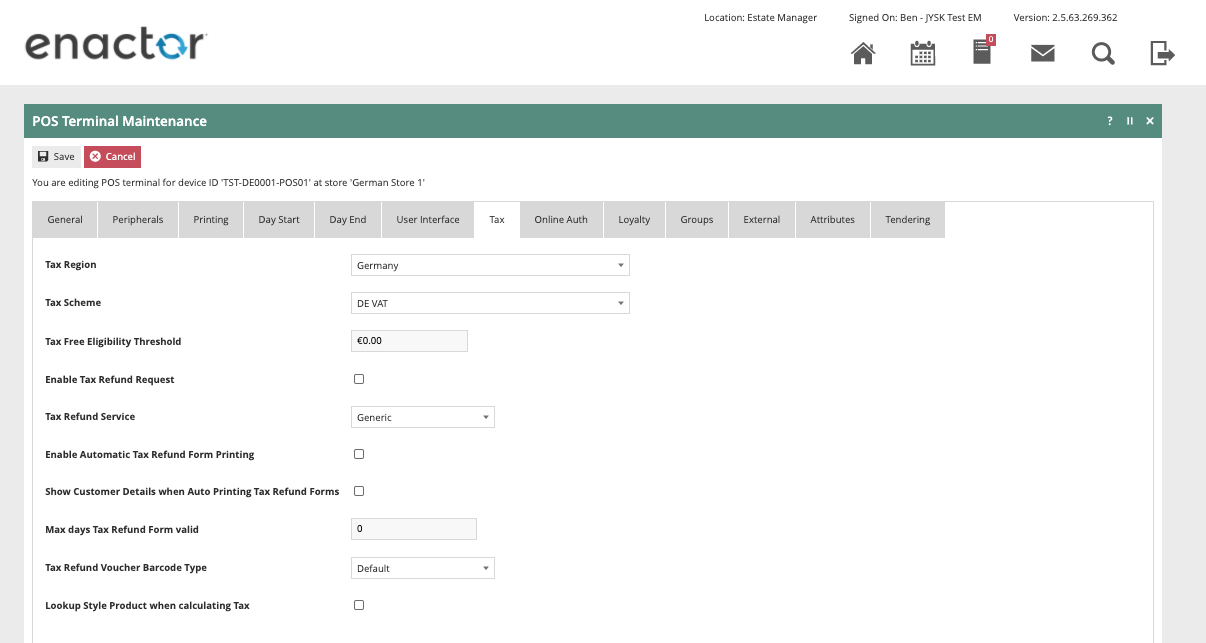
Within the Tax section, the Tax Region should be set to Germany and the Tax Scheme to the German tax scheme configured in the previous section.
Tenders
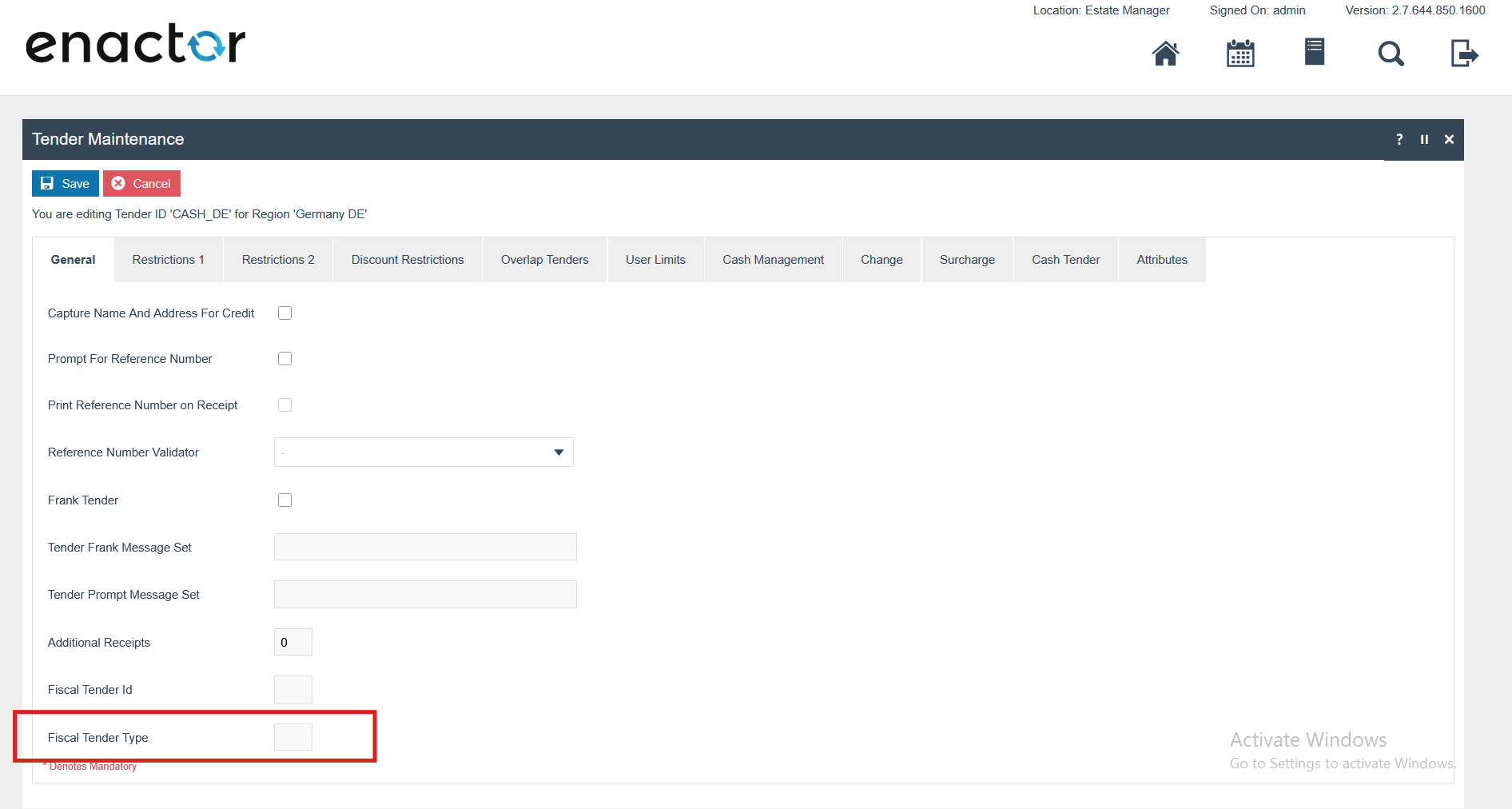
Do not put any value in the Fiscal Tender Type field. Setting a value here will cause missing data in some of the CSV files.
Fiskaly Configuration
Ensure the following fiscal configuration changes are applied to all German devices in preparation for go-live.
Fiskaly Portal Changes
Log in to the Fiskaly Portal: Fiskaly Dashboard - KassenSichV Management Studio
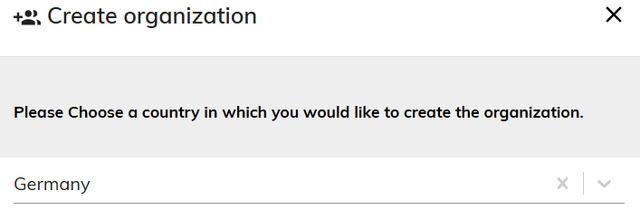
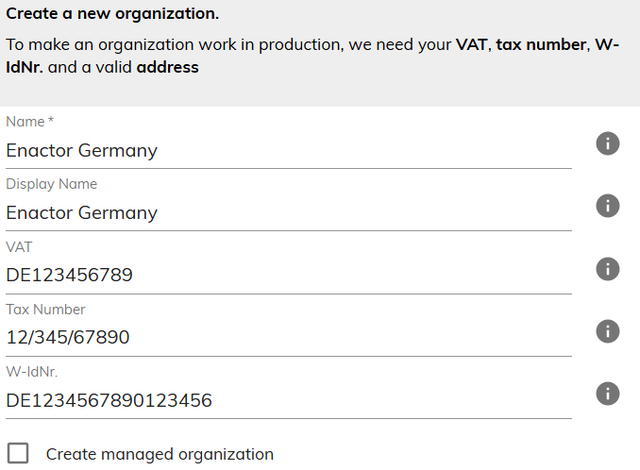
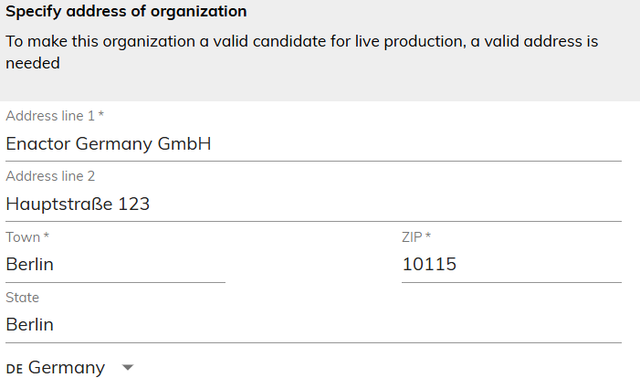
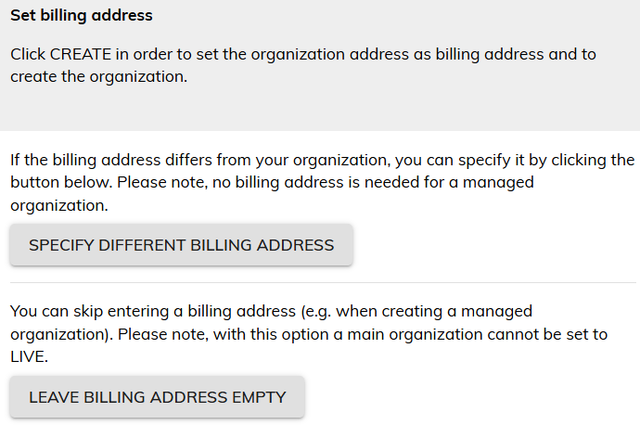
Navigate to: Settings > Organization Management > Create New Organization
Fill in the details in the Organization section (refer to the examples below).
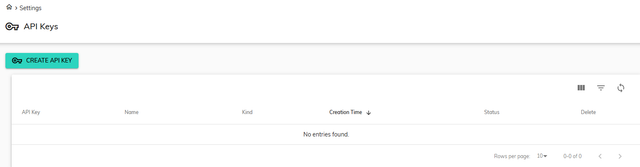
Navigate to: Settings > API Keys > Create API Key
Create a new API Key.
The new API Key and API Secret must be saved before closing this window. The API Secret is only visible immediately after creating a new API Key.
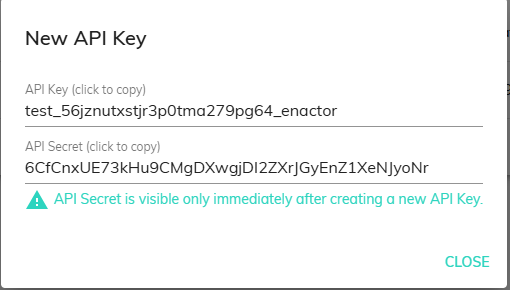
The API Key and API Secret values should be added within Account Credentials as described below.
Account Credentials for TSE Module
A new account credential GERMAN_FISKALY_TSE should be created in Account Credential Maintenance.
Within the General tab, add the following properties:
| Name | Account Type | Is Live |
|---|---|---|
| Fiskaly Account Credentials | Fiskaly | true |
Within the Other Properties tab, add the following properties:
| Property Key | Type | Value | Comments |
|---|---|---|---|
| ADMIN_PWD | String | e.g. 123456 (must be >= 6 characters) | Used to run "Authenticate Admin" TSE Operation Type while registering the fiscal locations |
| API_KEY | String | The API Key of the TSE | Default to TSE Module |
| API_SECRET | String | The API Secret of the TSE | Default to TSE Module |
| url | String | https://kassensichv-middleware.fiskaly.com/api/v2 | Fiskaly endpoint URL |
| Proxy.Enabled | String | true | Enable proxy settings |
| OBLIGATION_URL | String | https://kassensichv.fiskaly.com/submission-api/v1 | Fiskaly endpoint URL for reporting obligations (needed for obligation solution only) |
Option Set Maintenance Changes
Fiscal Type Attributes
Navigate to Attribute / Option Set Maintenance.
Create a new Option Set with the following properties for the Fiscal Type Maintenance type:
| Attribute / Option Set ID | Type | Region |
|---|---|---|
| GERMAN_FISCAL | Fiscal Type Attributes | All |
Users also have the flexibility of exporting the Option Set through File Export Maintenance and uploading via File Import Maintenance in Estate Manager.
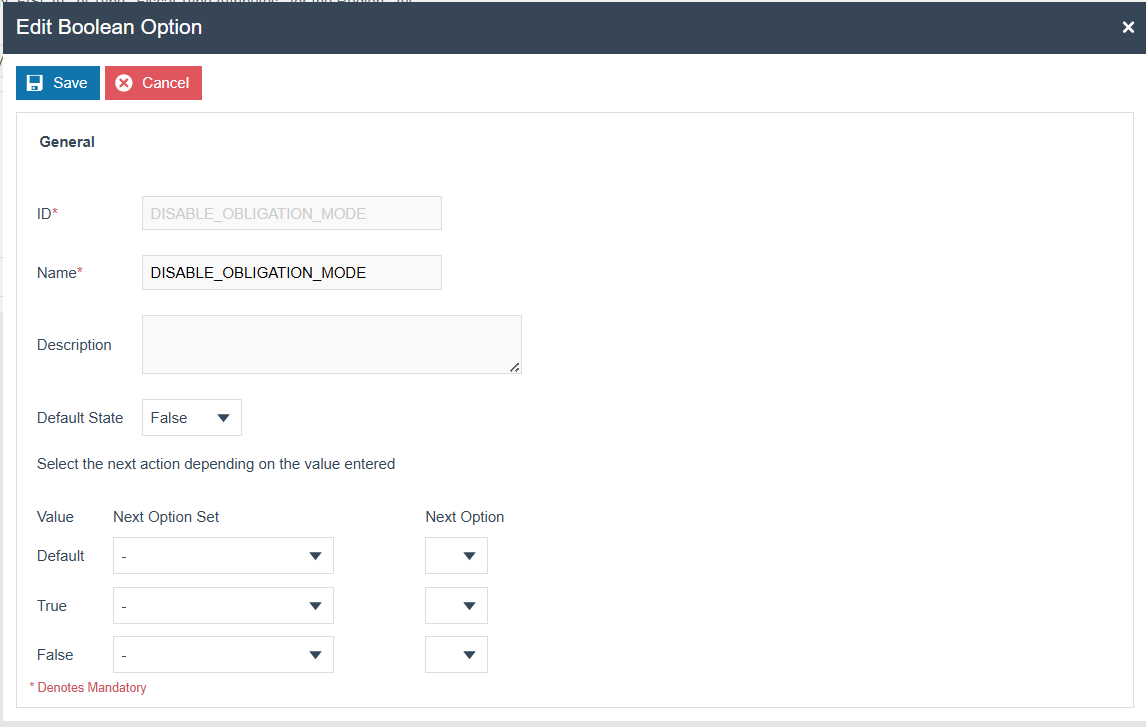
Add a Boolean option using the Add button. Set the option name and ID as DISABLE_OBLIGATION_MODE.
This is a mandatory configuration to turn off obligation mode. The system will work in obligation mode if this flag is not set or is unticked. Tick this flag to turn off obligation mode.
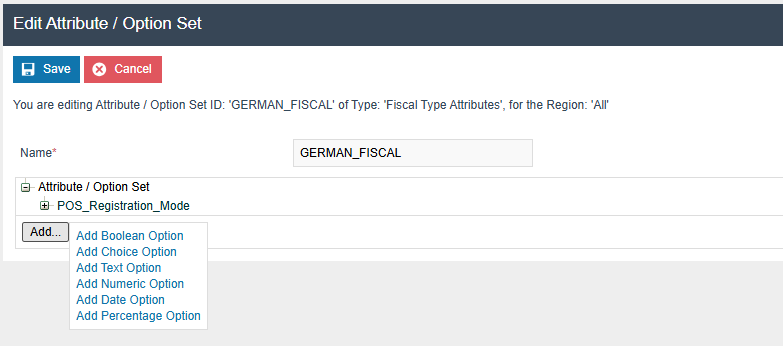
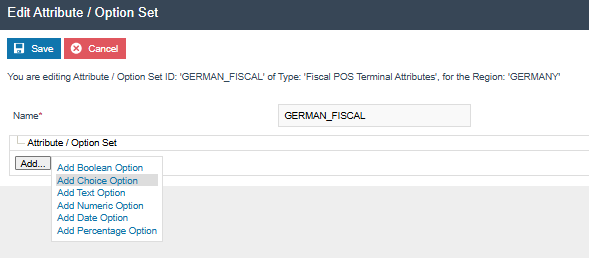
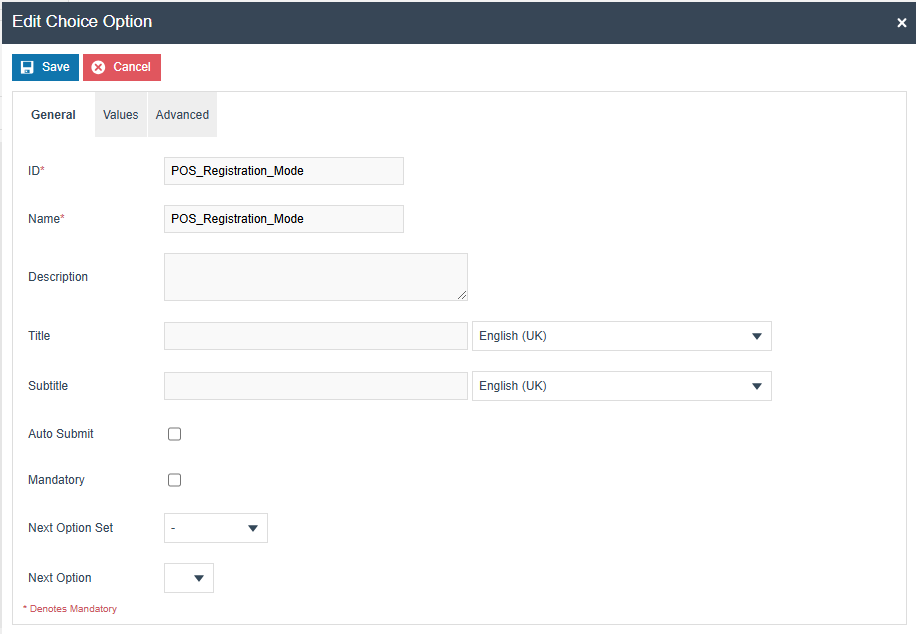
Add a Choice option using the Add button. Set the option name and ID as POS_Registration_Mode.
This is an optional configuration. The system will work in automatic mode if this value is not set.
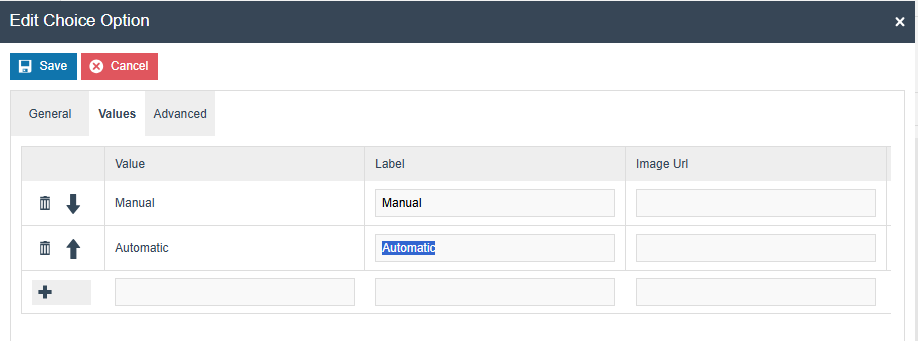
Enter the following Value and Label pairs (Manual and Automatic) and add them using the + button.
Fiscal Location Attributes
Navigate to Attribute / Option Set Maintenance.
Create a new Option Set with the following properties for the Fiscal Location Maintenance type:
| Attribute / Option Set ID | Type | Region |
|---|---|---|
| GERMAN_FISCAL | Fiscal Location Attributes | Region of your POS Location |
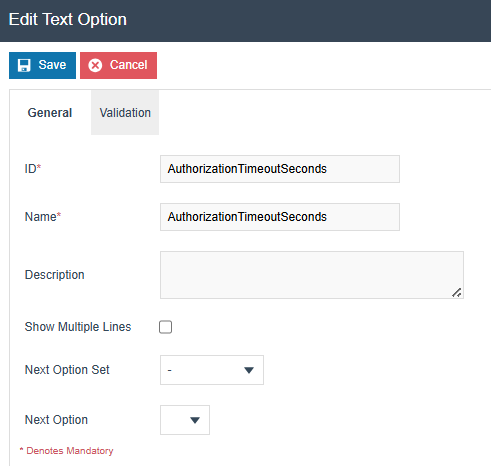
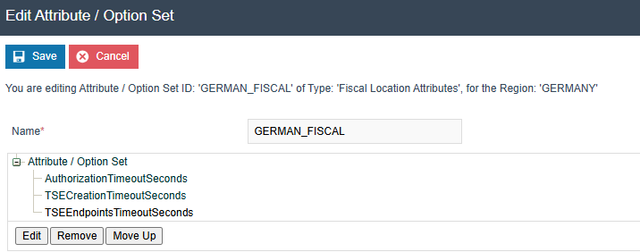
Add three Text options using the Add button. Use the same text for both ID and Name of each option:
AuthorizationTimeoutSeconds(optional - default value is 30)TSECreationTimeoutSeconds(optional - default value is 30)TSEEndpointsTimeoutSeconds(optional - default value is 30)
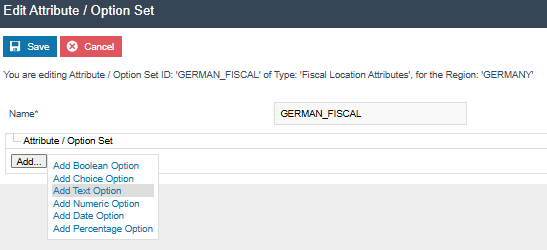
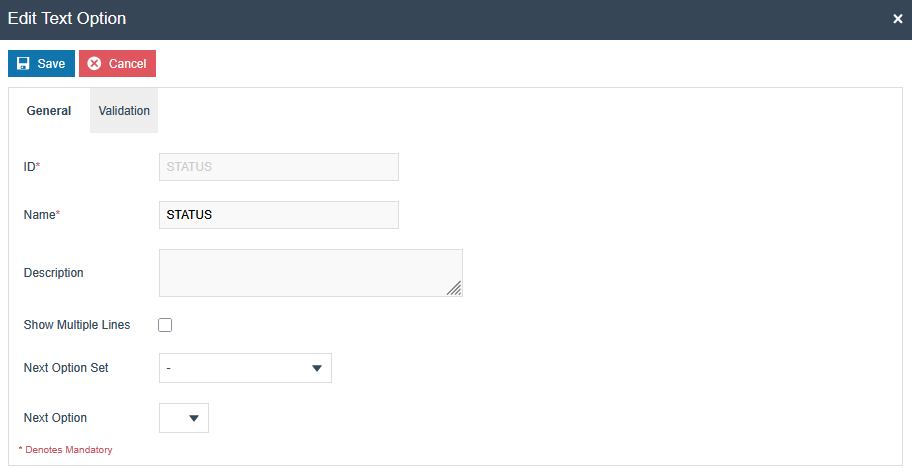
Add a Text option and set the ID and Name as STATUS.
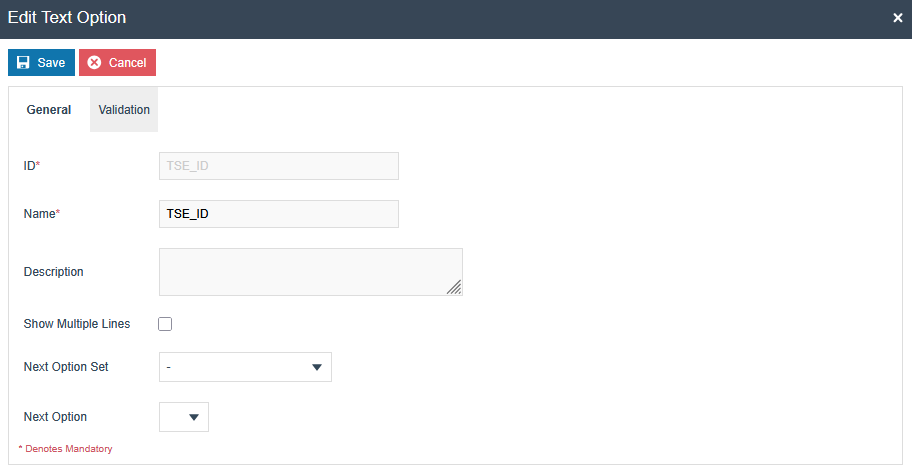
Add a Text option and set the ID and Name as TSE_ID.
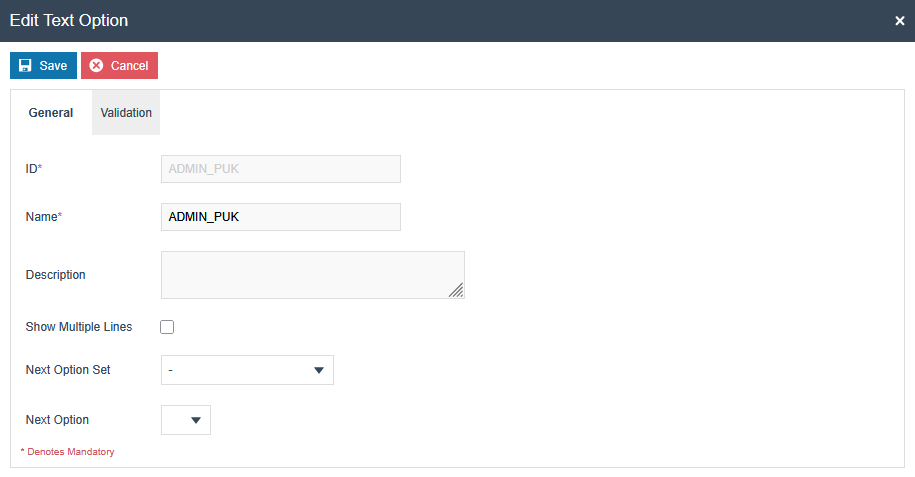
Add a Text option and set the ID and Name as ADMIN_PUK.
Fiscal POS Terminal Attributes
Navigate to Attribute / Option Set Maintenance.
Create a new Option Set with the following properties for the Fiscal POS Terminal Maintenance type:
| Attribute / Option Set ID | Type | Region |
|---|---|---|
| GERMAN_FISCAL | Fiscal POS Terminal Attributes | Region of your POS Location |
Users also have the flexibility of exporting the Option Set through File Export Maintenance and uploading via File Import Maintenance in Estate Manager.
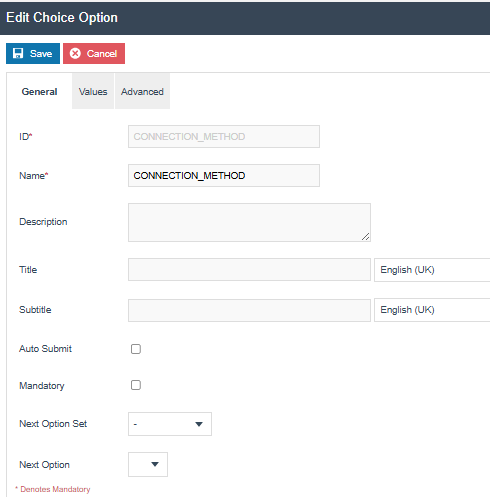
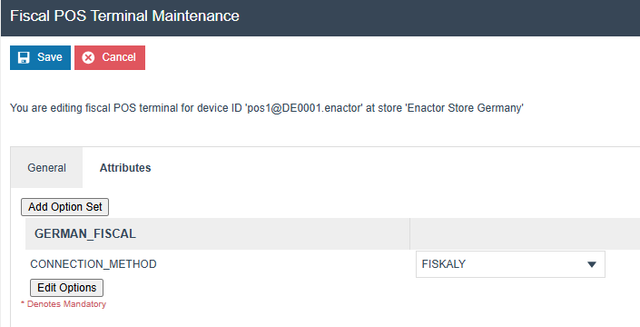
Add a Choice option using the Add button. Set the option name and ID as CONNECTION_METHOD.
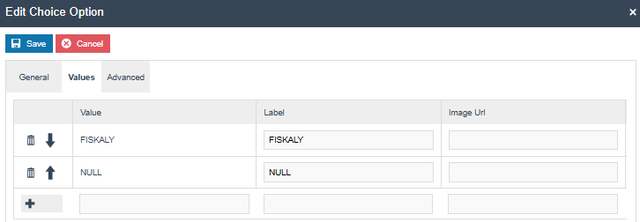
Enter the following Value and Label pairs (FISKALY and NULL) and add them using the + button.
Add a Choice option using the Add button. Set the option name and ID as POS_Registration_Mode.
This is an optional configuration. The system will work in automatic mode if this value is not set. If the TSE is registered but the client is not, the POS checks the POS_Registration_Mode configuration - first precedence is given to the Fiscal POS Terminal attributes, then to the Fiscal Type attributes. If set to Manual, the user is prompted to register; selecting YES proceeds with registration, while NO starts the POS without it. If set to Automatic or not specified, the POS registers the client automatically via the Estate Manager.
Enter the following Value and Label pairs (Manual and Automatic) and add them using the + button.
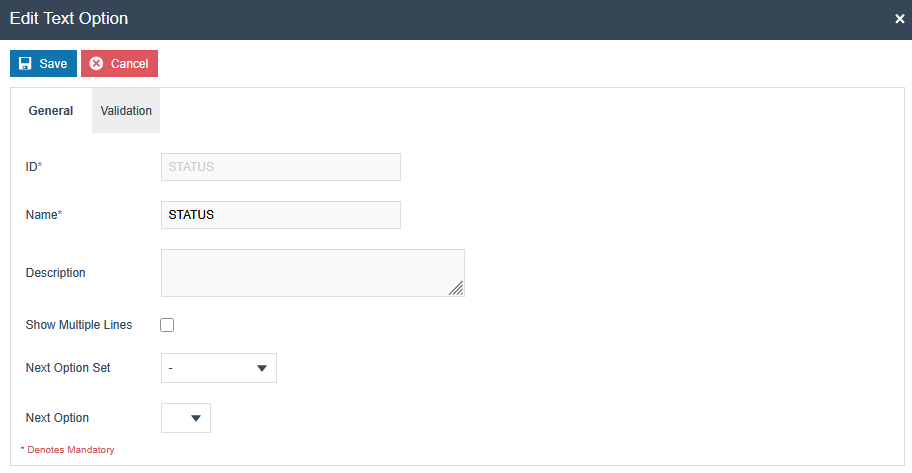
Add a Text option and set the ID and Name as STATUS.
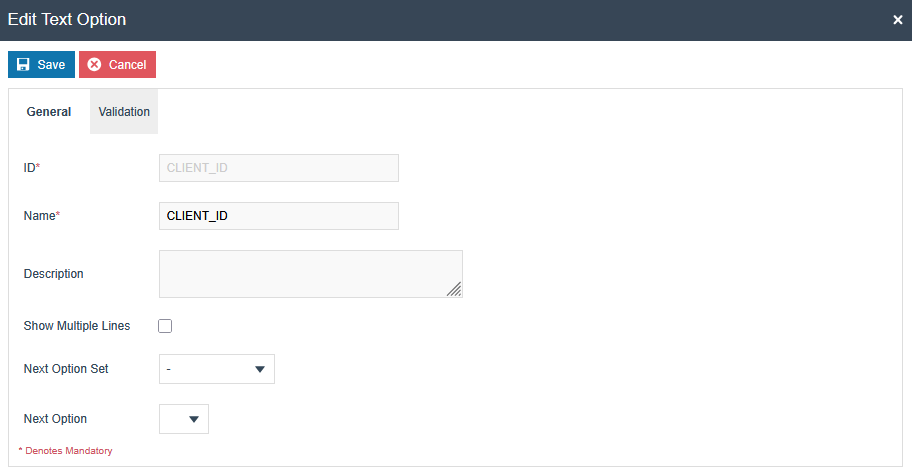
Add a Text option and set the ID and Name as CLIENT_ID.
Menu Changes
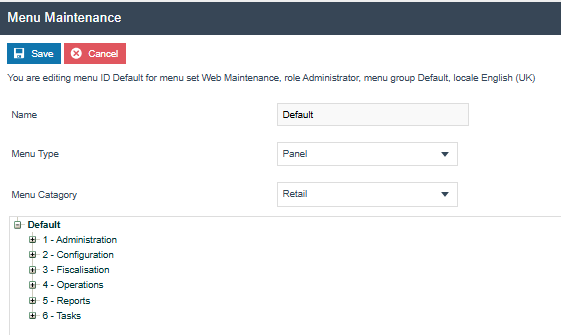
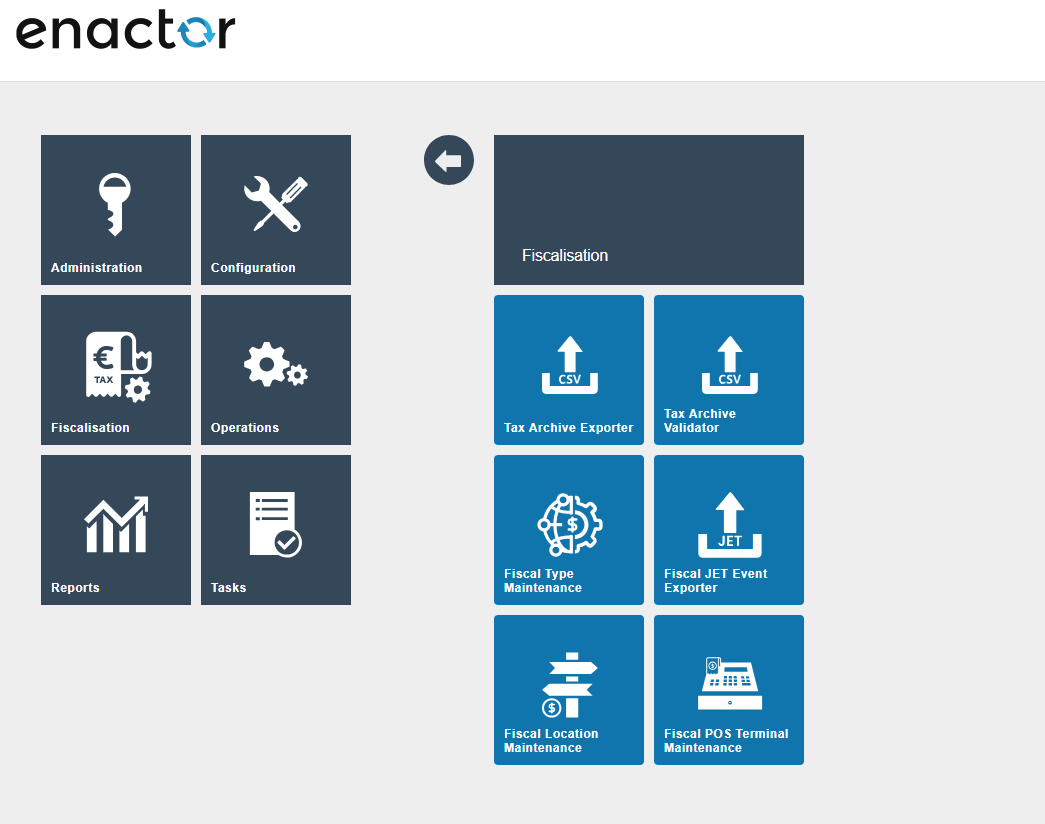
The following menus should be configured within the Fiscalisation folder via Estate Manager.
Fiscal Type Maintenance Menu
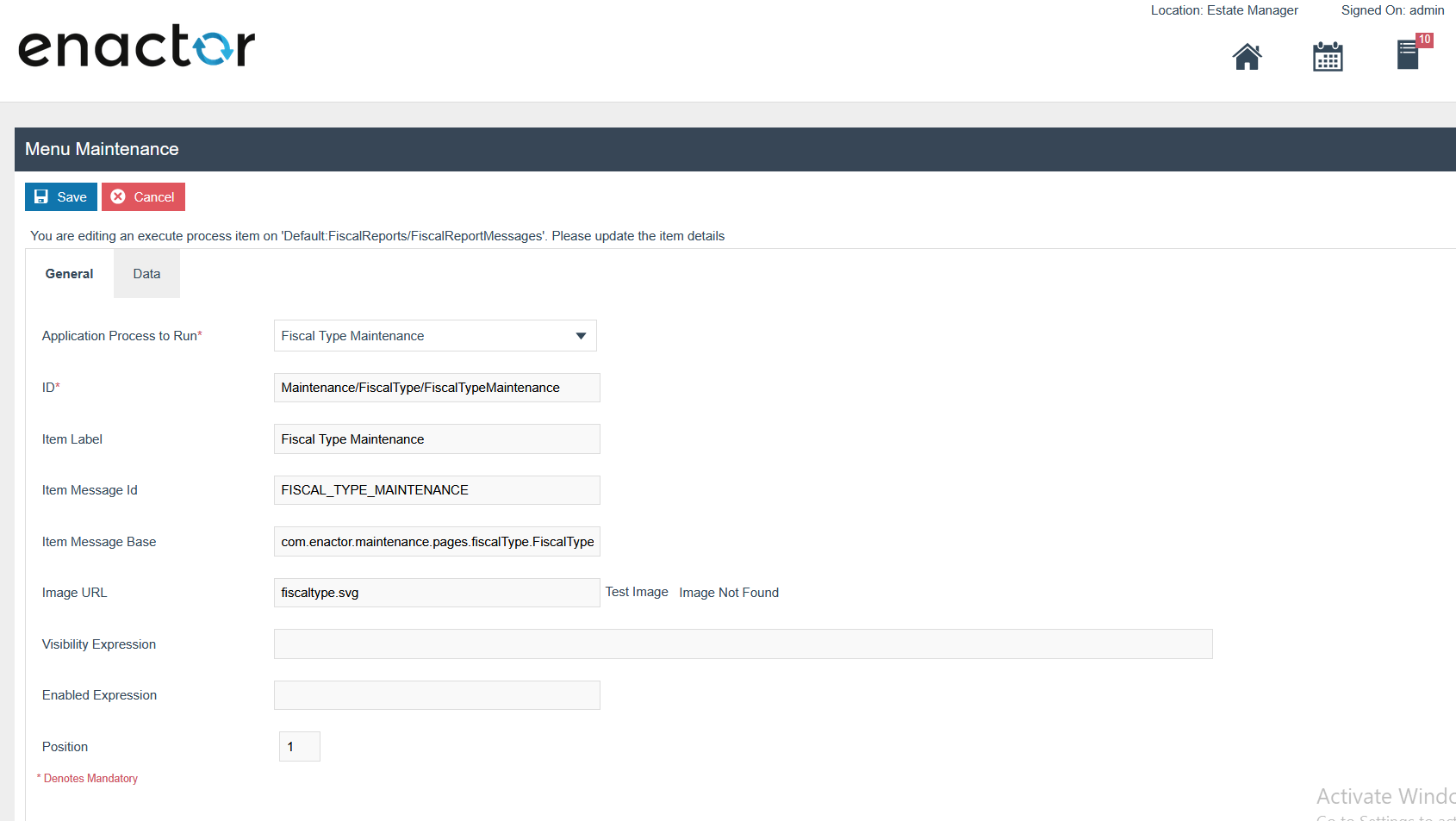
Within the Fiscalisation folder, select Add a new Execute Process Item and add the following configurations.

Within the General tab:
- Application Process to Run -
Fiscal Type Maintenance - ID -
Maintenance/FiscalType/FiscalTypeMaintenance - Item Label -
Fiscal Type Maintenance - Item Message ID -
FISCAL_TYPE_MAINTENANCE - Item Message Base -
com.enactor.maintenance.pages.fiscalType.FiscalTypeMaintenanceMessages - Image URL -
fiscaltype.svg
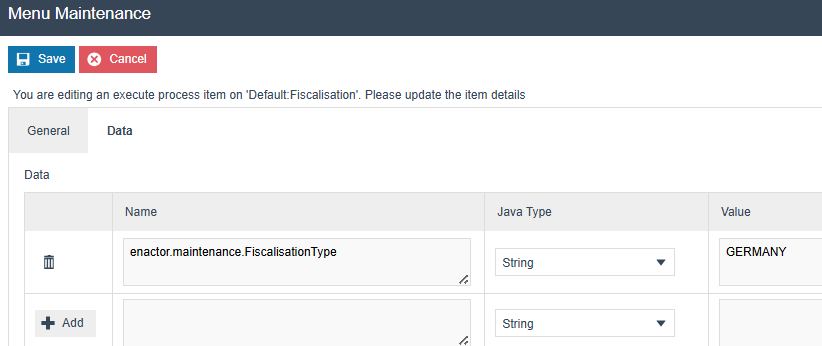
Within the Data tab, enter the name and value:
- Name -
enactor.maintenance.FiscalisationType - Value -
GERMANY(this should be your Fiscalisation Type)
Fiscal Location Maintenance Menu
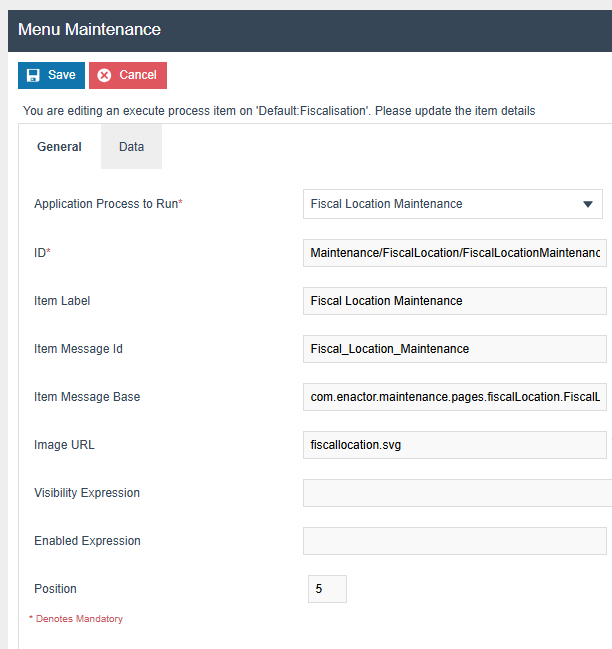
Within the Fiscalisation folder, select Add a new Execute Process Item and add the following configurations:
- Application Process to Run -
Fiscal Location Maintenance - ID -
Maintenance/FiscalLocation/FiscalLocationMaintenance - Item Label -
Fiscal Location Maintenance - Item Message ID -
FISCAL_LOCATION_MAINTENANCE - Item Message Base -
com.enactor.maintenance.pages.fiscalLocation.FiscalLocationMaintenanceMessages - Image URL -
fiscallocation.svg
Fiscal POS Terminal Maintenance Menu
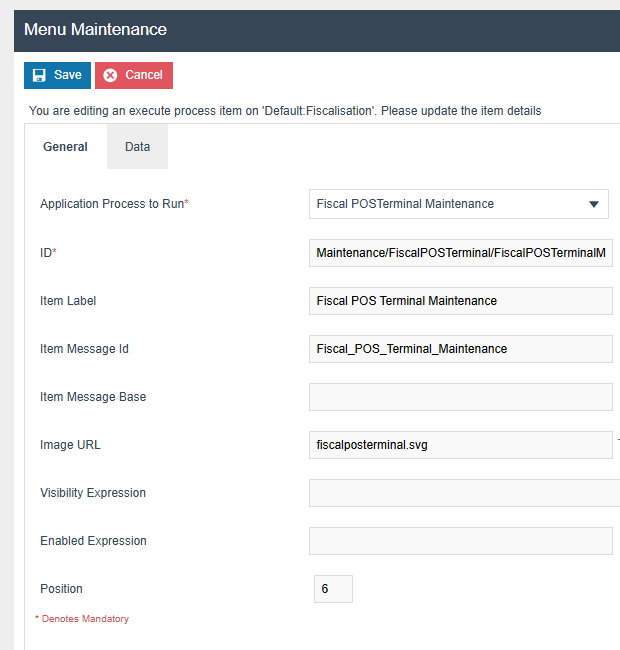
Within the Fiscalisation folder, select Add a new Execute Process Item and add the following configurations:
- Application Process to Run -
Fiscal POS Terminal Maintenance - ID -
Maintenance/FiscalPOSTerminal/FiscalPOSTerminalMaintenance - Item Label -
Fiscal POS Terminal Maintenance - Item Message ID -
FISCAL_POS_TERMINAL_MAINTENANCE - Image URL -
fiscalposterminal.svg
After setting the menu configurations, the Fiscalisation folder should be displayed as shown below.
New Privileges
The following privileges need to be configured against the appropriate roles and broadcast to the German devices. Consideration should be given to whether all operators should have all of these privileges or if some should only be granted to managers.
For more detail on Privileges and Roles, refer to the How To Guide - Configuring Users, User Roles and User Templates.
| Privilege ID | Application Package | Process | Remarks |
|---|---|---|---|
enactor.fiscalLocationMaintenance.Edit | Fiscal Maintenance | Fiscal Location Maintenance | Mandatory |
enactor.fiscalLocationMaintenance.List | Fiscal Maintenance | Fiscal Location Maintenance | Mandatory |
enactor.fiscalLocationMaintenance.New | Fiscal Maintenance | Fiscal Location Maintenance | Mandatory |
enactor.fiscalLocationMaintenance.Remove | Fiscal Maintenance | Fiscal Location Maintenance | Mandatory |
enactor.fiscalLocationMaintenance.View | Fiscal Maintenance | Fiscal Location Maintenance | Mandatory |
enactor.fiscal.fiskaly.RegisterAllUnregisteredLocations | Fiscal Maintenance | Fiscal Location Maintenance | Required for registering all unregistered locations only |
enactor.fiscal.fiskaly.RegisterAllUnregisteredLocationsAndDevices | Fiscal Maintenance | Fiscal Location Maintenance | Required to register all unregistered locations with internal devices |
enactor.fiscal.fiskaly.RegisterLocation | Fiscal Maintenance | Fiscal Location Maintenance | Required to register the selected location only |
enactor.fiscal.fiskaly.RegisterLocationAndDevices | Fiscal Maintenance | Fiscal Location Maintenance | Required to register the selected location with internal devices |
enactor.fiscalLocationMaintenance.DisableTSEAllowed | Fiscal Maintenance | Handle Fiscal Location Operations | Required only for users allowed to disable the TSE |
enactor.fiscal.fiskaly.ClientDeregistrationAllowed | Fiscal Maintenance | Handle FiscalPOSTerminal Operations | Required only for users allowed to deregister the client |
enactor.fiscalPOSTerminalMaintenance.Edit | Fiscal Maintenance | Fiscal POSTerminal Maintenance | Mandatory |
enactor.fiscalPOSTerminalMaintenance.List | Fiscal Maintenance | Fiscal POSTerminal Maintenance | Mandatory |
enactor.fiscalPOSTerminalMaintenance.New | Fiscal Maintenance | Fiscal POSTerminal Maintenance | Mandatory |
enactor.fiscalPOSTerminalMaintenance.Remove | Fiscal Maintenance | Fiscal POSTerminal Maintenance | Mandatory |
enactor.fiscalPOSTerminalMaintenance.View | Fiscal Maintenance | Fiscal POSTerminal Maintenance | Mandatory |
enactor.fiscal.fiskaly.DeregisterEstablishmentAllowed | Fiscal Maintenance | Edit Fiscal Location | Mandatory |
Set Attribute Values
The values below should be configured within Fiscal Location Maintenance, Attributes tab.
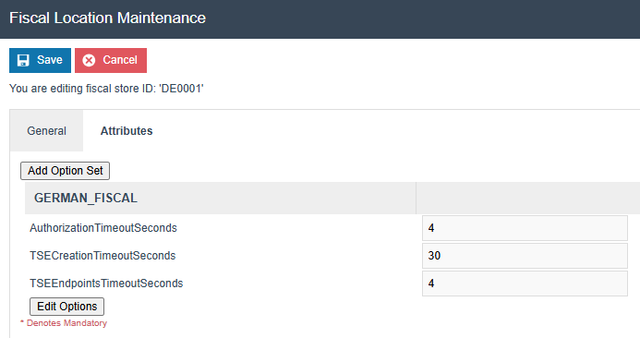
30 seconds is used as the default timeout if the configuration is not set for all three timeout values.
The values below should be set within Fiscal POS Terminal Maintenance, Attributes tab.
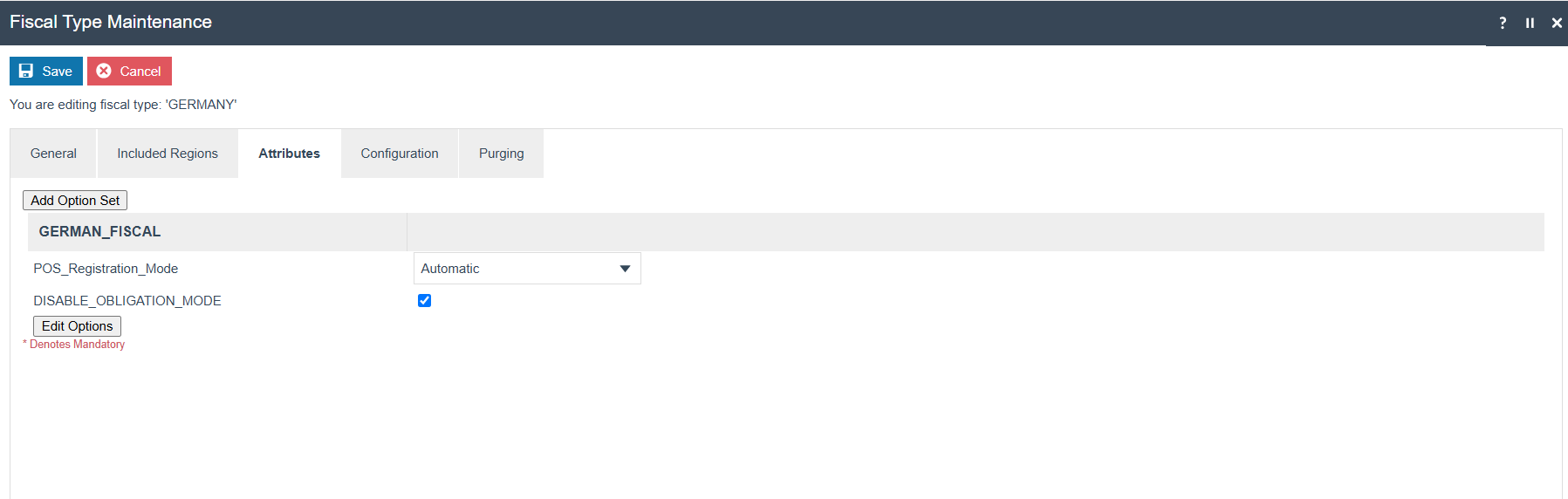
Configure the following changes within the GERMAN_FISCAL attribute set and broadcast the FiscalTypeAttribute to the POS:
- POS Registration Mode - Add
Manualmode if you want a message to appear asking whether to register the POS in Fiskaly at startup. Otherwise, keep it blank or addAutomaticmode. - DISABLE_OBLIGATION_MODE - This flag will turn off the obligation-related operations from Estate Manager and POS.
Fiskaly Estate Manager Maintenance Process Flow
The Fiskaly solution introduces new entities for managing the fiscal devices and locations registered with Fiskaly. This section details how to configure the Estate Manager to enable management of these entities and communicate with the Fiskaly API.
When configuring the maintenance items below, follow the same order as described in this document. Users also have the flexibility of exporting the Fiscal Location and Fiscal POS Terminal data through File Export Maintenance and uploading via File Import Maintenance. These changes should be broadcast to the appropriate German devices.
Fiscal Type Maintenance
You will be directed to Fiscal Type Maintenance based on the fiscalisation type provided within the Fiscal Type Maintenance menu.
In the General tab, enter a description for your fiscal type.

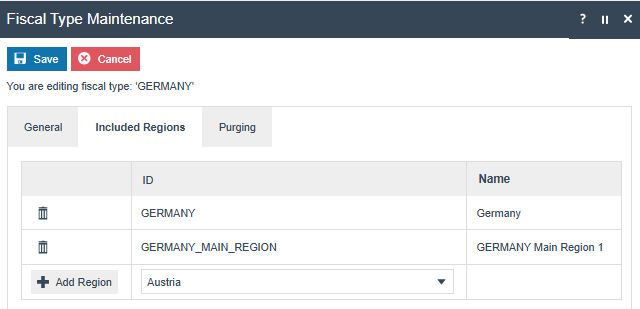
In the Included Region tab, add regions to the fiscal type. Save your changes before exiting.
Configure the following changes within the GERMAN_FISCAL attribute set:
- POS Registration Mode - Add
Manualmode if you want a message to appear asking whether to register the POS in Fiskaly at startup. Otherwise, keep it blank or addAutomaticmode. - DISABLE_OBLIGATION_MODE - This flag will turn off the obligation-related operations from Estate Manager and POS.
Fiscal Location Maintenance
To create a new fiscal location, first create a location from Location Maintenance.
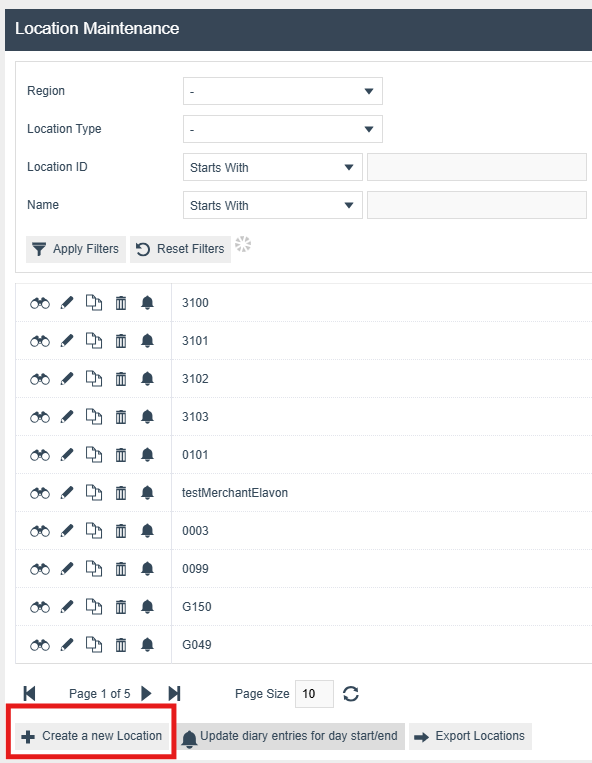
Set the Location Type, Template, and Location ID, then click the Create button.
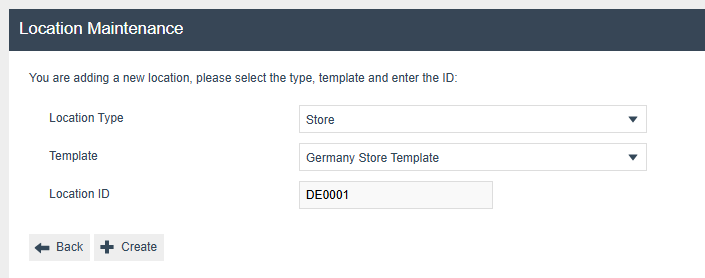
Add details for the location and save.
After creating a location, navigate to Fiscal Location Maintenance and click Create a New Fiscal Location, then select the created location from the dropdown. Press the Create button.
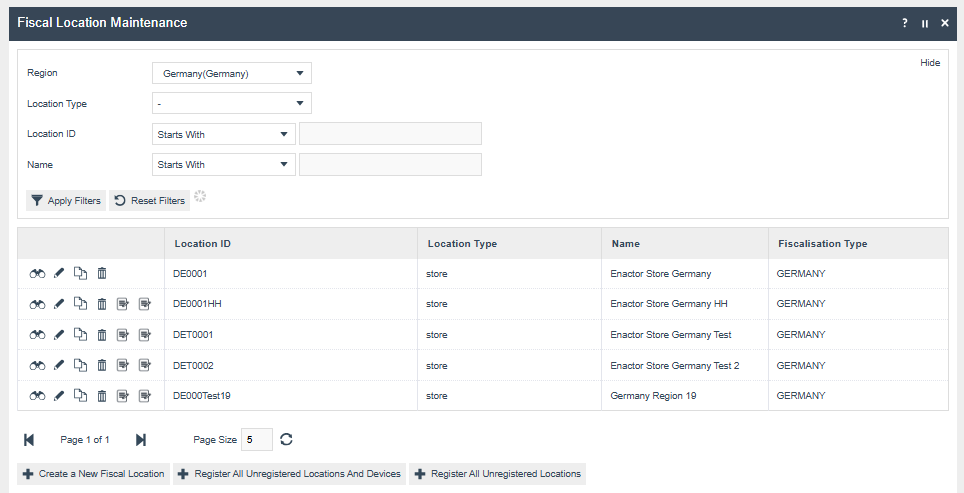

If your location's region has been added to a fiscal type from Fiscal Type Maintenance, that fiscalisation type will be displayed in the Fiscalisation Type column.
Click the Edit button for the location.

Location-level buttons in the Fiscal Location Maintenance entry:

-
Remove - Deletes the fiscal location. This operation is only possible for locations that do not have a TSE (in non-obligation mode). All registered locations will have a TSE. To remove it, the TSE must first be disabled using the Disable TSE button in the Configurations tab. This will deregister all internal clients and disable the TSE, after which the Remove operation becomes available.
-
Register Location - Registers the selected fiscal location with Fiskaly, ensuring that only the TSE for that location is registered without registering the POS devices. This icon is only visible for unregistered live fiscal locations and to users with the
enactor.fiscal.fiskaly.RegisterLocationprivilege. TSE details will be saved within the Fiscal Location attributes with the status asREGISTEREDafter registration. -
Register Location And Devices - Registers the TSE for the selected fiscal location and all associated clients as part of the location registration with Fiskaly. It is only visible for unregistered live fiscal locations and to users with the
enactor.fiscal.fiskaly.RegisterLocationAndDevicesprivilege. TSE details will be saved within the Fiscal Location attributes and client details within the Fiscal POS Terminal attributes with the status asREGISTEREDafter registration.
Bottom buttons in Fiscal Location Maintenance:

- Register All Unregistered Locations - Registers all unregistered fiscal locations with Fiskaly, ensuring that only the TSE for these locations is registered without including the POS devices. It checks the isLive status of the locations before proceeding and is only visible to users with the
enactor.fiscal.fiskaly.RegisterAllUnregisteredLocationsprivilege. TSE details will be saved within the Fiscal Location attributes with the status asREGISTEREDafter registration.

- Register All Unregistered Locations and Devices - Registers the fiscal locations and all associated clients as part of the location registration with Fiskaly. It is only visible to users with the
enactor.fiscal.fiskaly.RegisterAllUnregisteredLocationsAndDevicesprivilege. TSE details will be saved within the Fiscal Location attributes and client details within the Fiscal POS Terminal attributes with the status asREGISTEREDafter registration.
After registration, the Fiskaly TSE details for that fiscal location will be displayed in the Attribute tab. To access this tab, click the edit icon of the registered fiscal location.
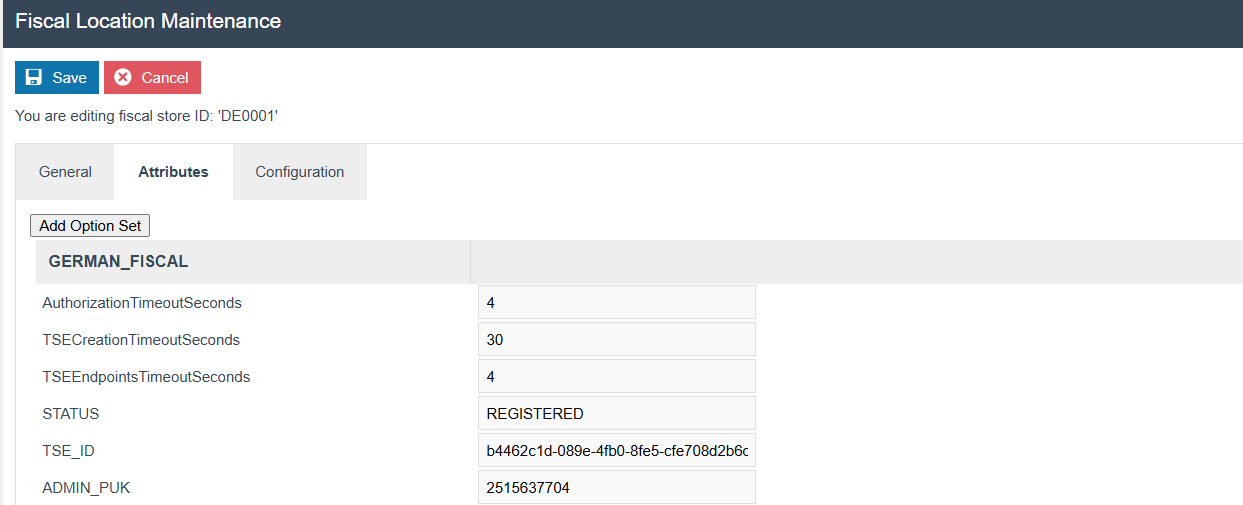
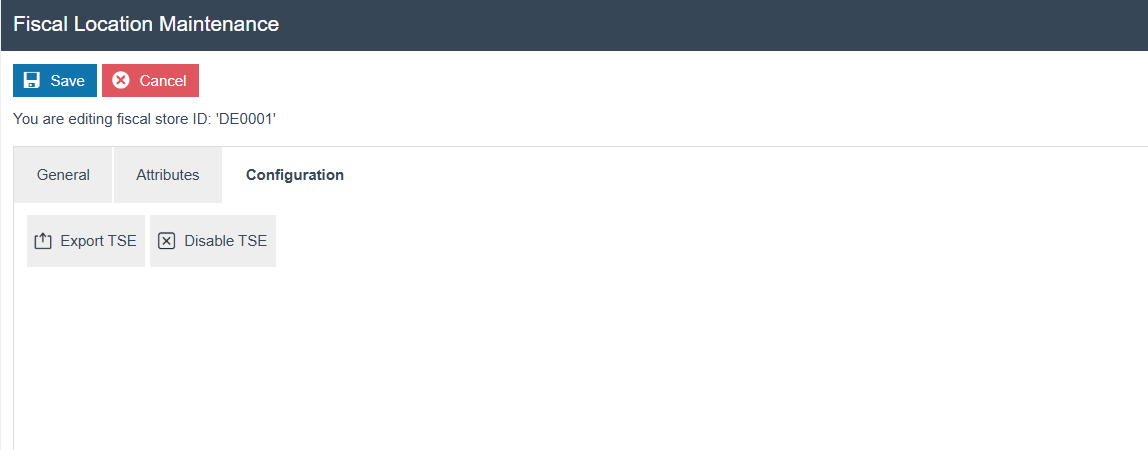
The Export TSE button allows you to export the TSE details. After clicking the icon, select the Period Start Date and Period End Date (or the Device ID), then press Export. The exported file will be available in File Download Maintenance.
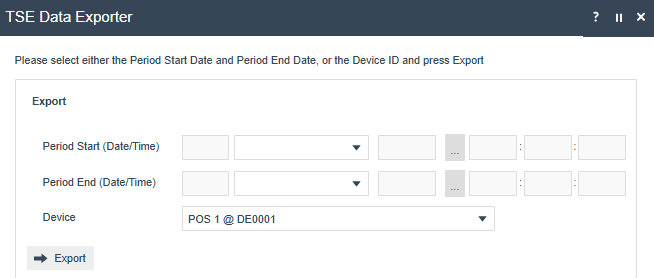
The Disable TSE button deregisters all internal clients, disables the TSE from Fiskaly, and updates the status as DEREGISTERED within the Fiscal Location attributes and Fiscal POS Terminal attributes.
Fiscal POS Terminal Maintenance
To create a new Fiscal POS Terminal, click Create a New Fiscal POS Terminal, then select the desired device ID from the dropdown. Press the Create button.
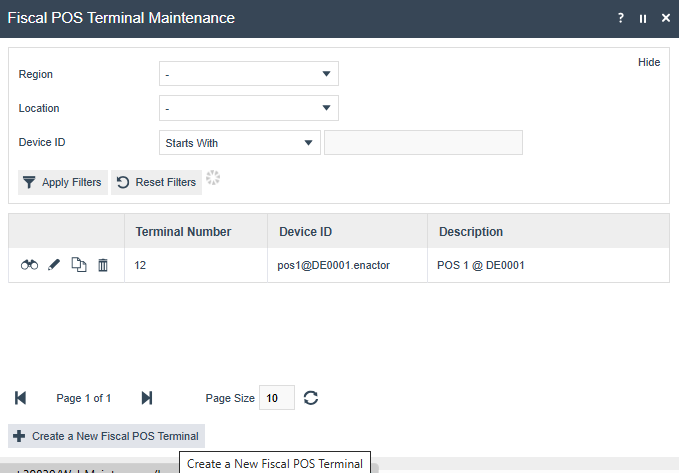

Client Registration:
- When the POS starts up, it checks if the client is registered. If not, it sends a registration request to the Estate Manager using a REST API. Re-registration of clients with the status
DEREGISTEREDalso occurs as part of POS startup. - The Estate Manager processes the request and communicates with Fiskaly to register the client in the Fiskaly cloud.
- Once registered, the Estate Manager saves the TSE details within the Fiscal POS Terminal attributes.
- The Estate Manager returns the registration status to the POS, allowing it to proceed with normal operations if successful.
Client Registration through Fiscal POS Terminal Maintenance:
If there is an unregistered device in Fiscal POS Terminal Maintenance, the Register Device button will be displayed alongside the device. Clicking this button will register that single device with Fiskaly.
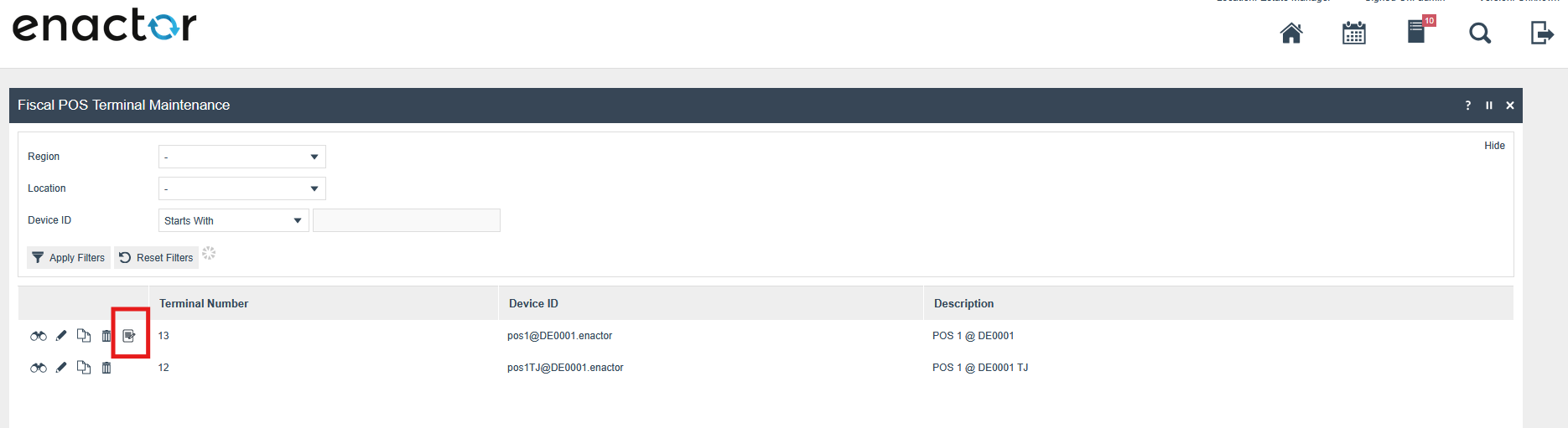
After registering a device during POS startup or using the button in Fiscal POS Terminal Maintenance, the Fiskaly client details will be displayed in the Attribute tab of the registered fiscal POS terminal. Access this tab by clicking the edit icon of the fiscal POS terminal.
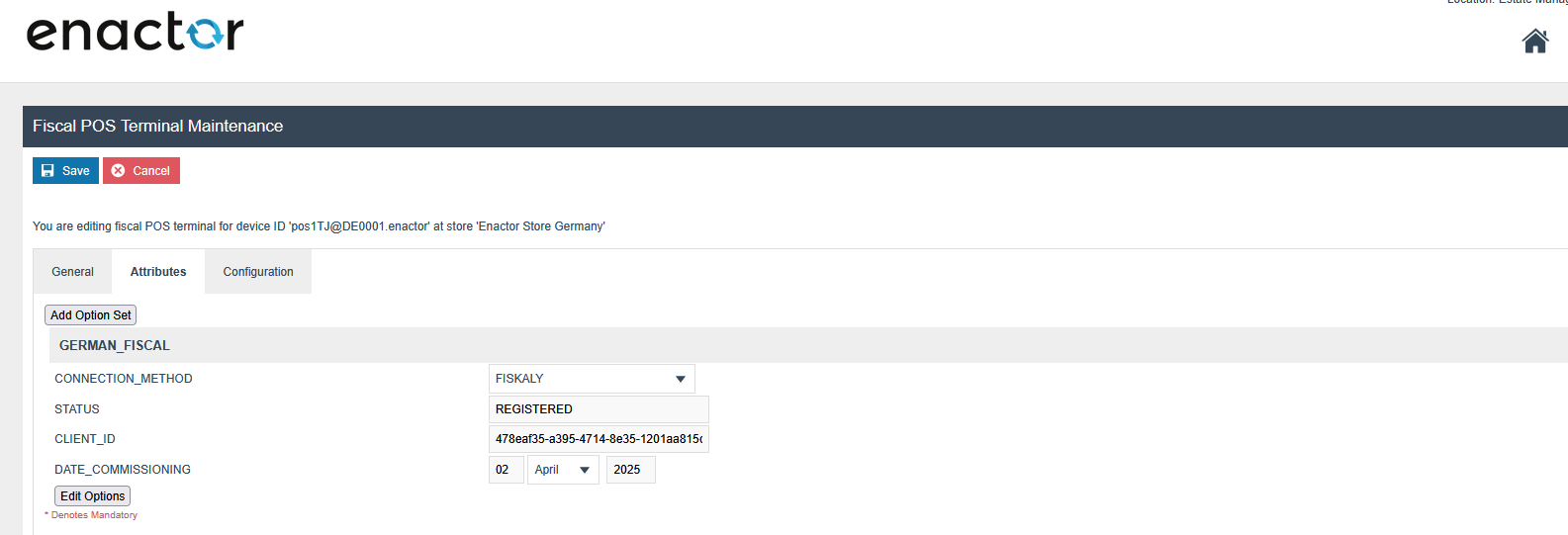
Deregister Client - Deregisters the client from Fiskaly and updates the status as DEREGISTERED within the Fiscal POS Terminal Maintenance attributes.
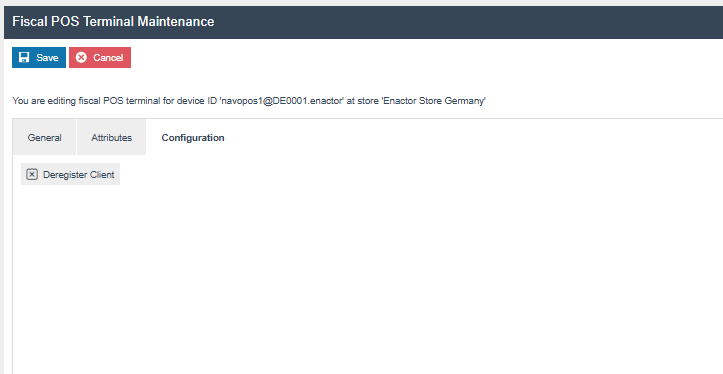
Remove - Deletes the fiscal POS terminal. This operation is only possible for Fiscal POS Terminals that do not have a Client status of REGISTERED. The client must first be deregistered using the Deregister Client button in the Configurations tab, after which the Remove operation becomes available.
Client deregistration through POS admin operation:
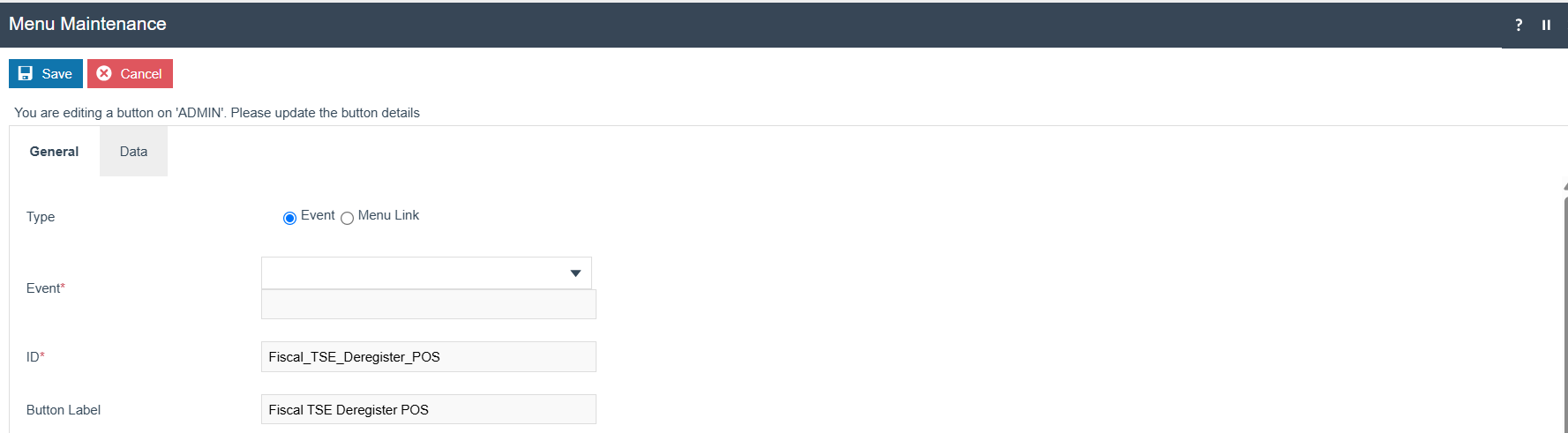
Create the admin menu for client deregistration as shown below and broadcast it to the POS.
To trigger client deregistration from the POS, navigate to: Management > Admin > Fiscal TSE Deregister POS
This action will connect to Fiskaly via the Estate Manager and deregister the client. The updated status will be saved in the Fiscal POS Terminal attributes and sent to the POS. Once deregistration is complete, the POS will automatically shut down.
Schedule Diary Entry
Diary Entry to Deactivate Fiscal POS Terminals/Clients
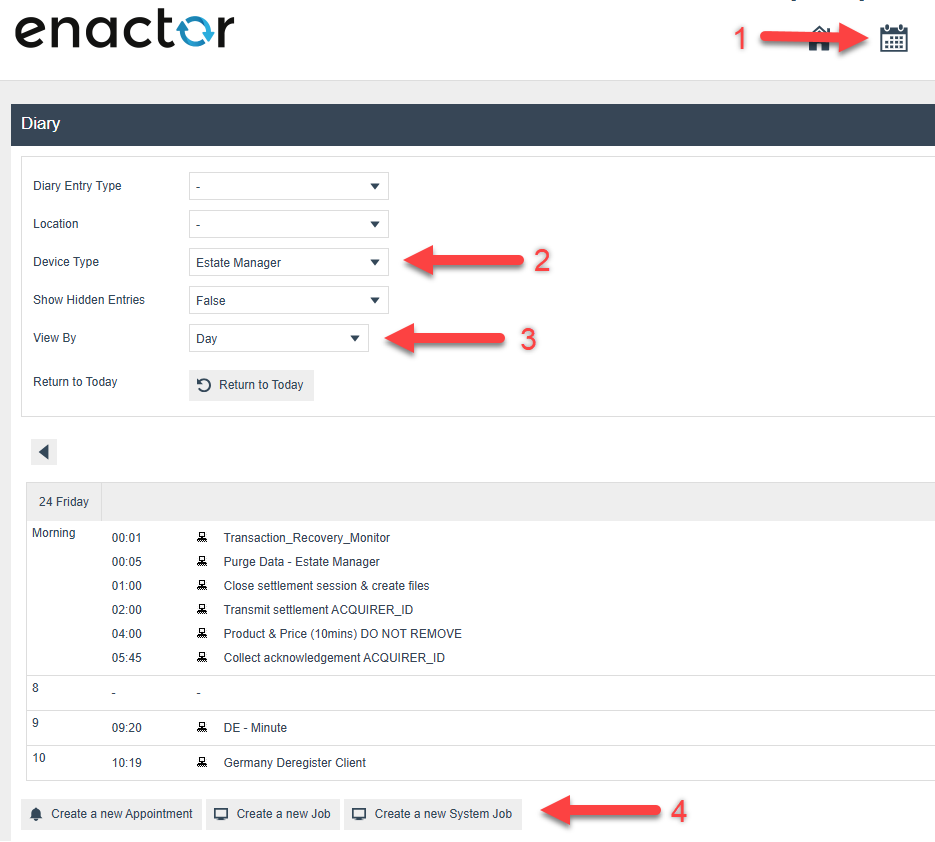
If a POS has not been used for a considerable period (no transactions within X days), these Fiscal POS Terminals/Clients will be deactivated from Fiskaly and details will be updated within the attributes (STATUS as DEREGISTERED). A diary entry needs to be scheduled as follows.
Follow steps 1-4 in the image below to create the diary entry.
Click Create on the view below.
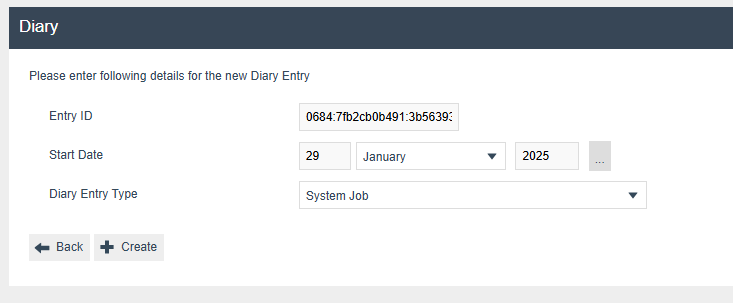
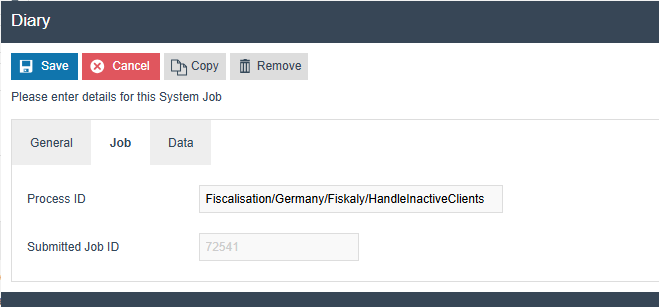
Within the Diary Entry, fill in the General, Job, and Data tabs with the following information.
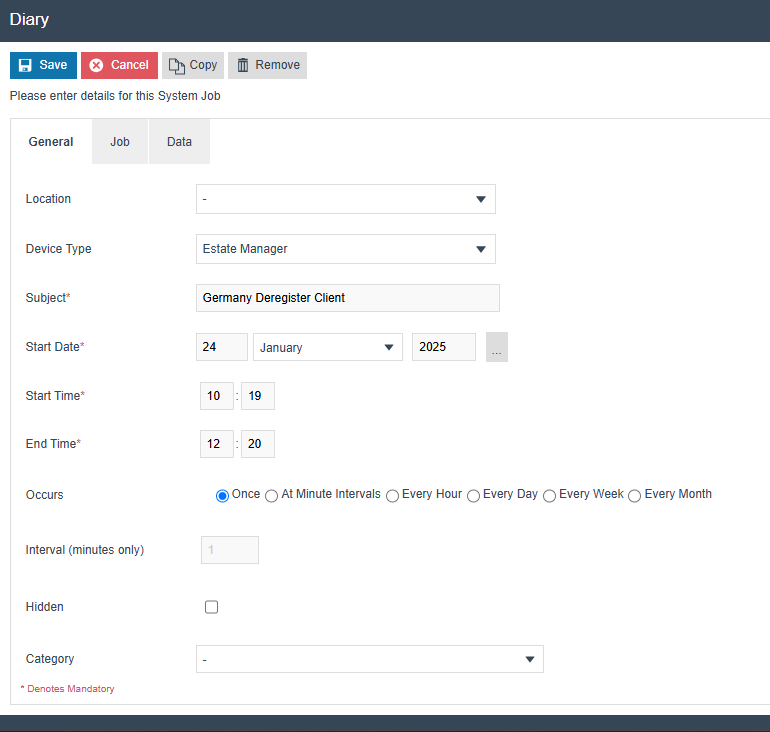
Process ID: Fiscalisation/Germany/Fiskaly/HandleInactiveClients
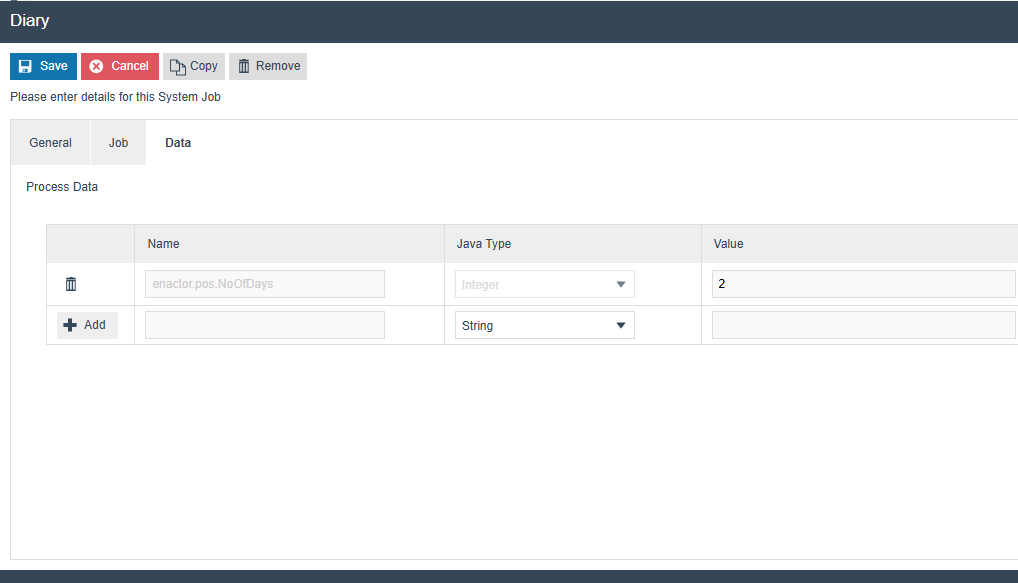
If the difference between the last updated date of the fiscal transaction and the current date is greater than enactor.pos.NoOfDays, that client will be considered for deregistration. The default value is 30 days if this configuration is not set.
In the Data tab:
- Name -
enactor.pos.NoOfDays - Java Type -
Integer
Click Save to save the created diary entry.
Diary Entry to Run Day End from the POS
To export fiscal CSV files from the Estate Manager, the Day End diary task must be run first. Create the appropriate diary entry in the Estate Manager and broadcast it to the POS. Once the diary task has been executed from the POS, you will be able to generate the CSV files via the Estate Manager.
Click Create a New Appointment.
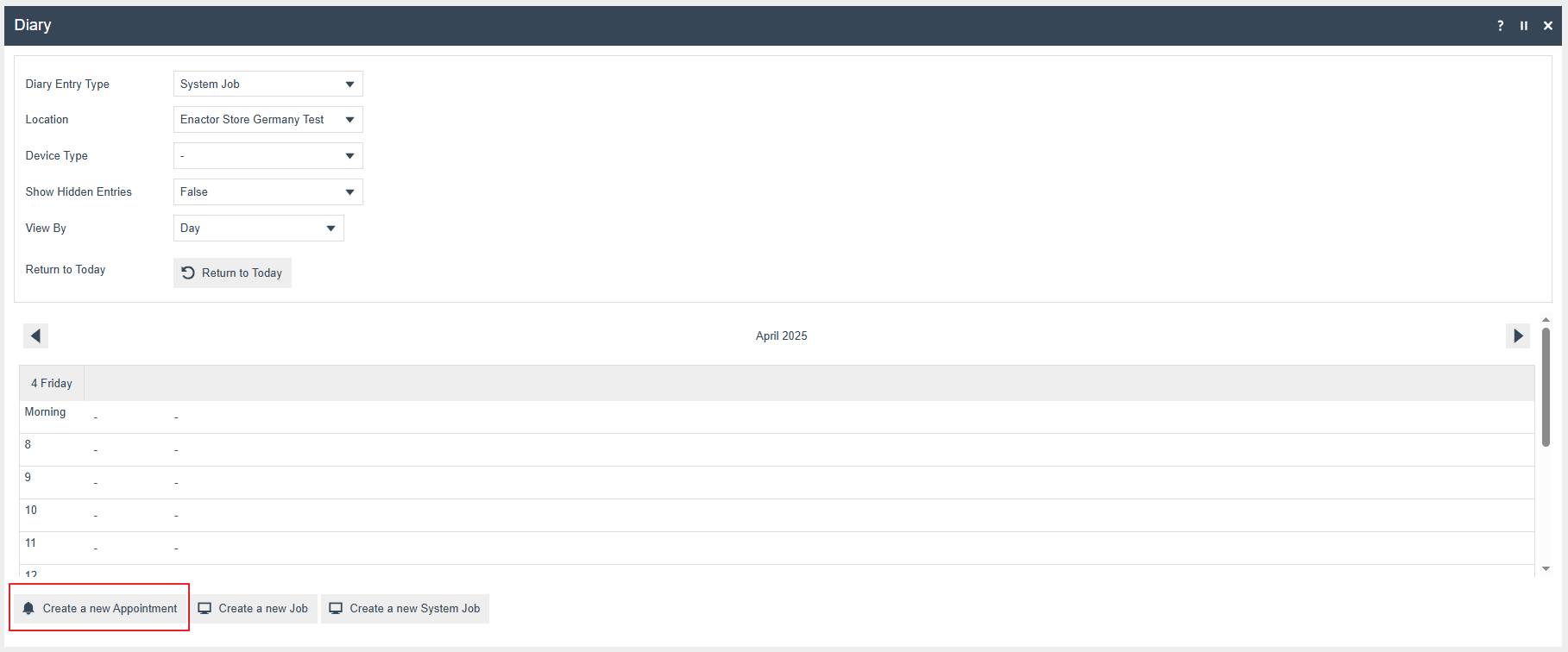
Select System Job from the Diary Entry Type.

Enter data into the General tab:
- Select the respective Location from the dropdown
- Device Type -
POS(for mobile POS, selectMobile Serveras the device type) - Subject - any suitable name
- Start Date - any suitable date
- Start Time and End Time
- Select the preferred occurrence to run this on the POS/PDP Server
If both POS and mobile POS are in the current location, select - as the device type. This will execute for both POS and mobile servers.
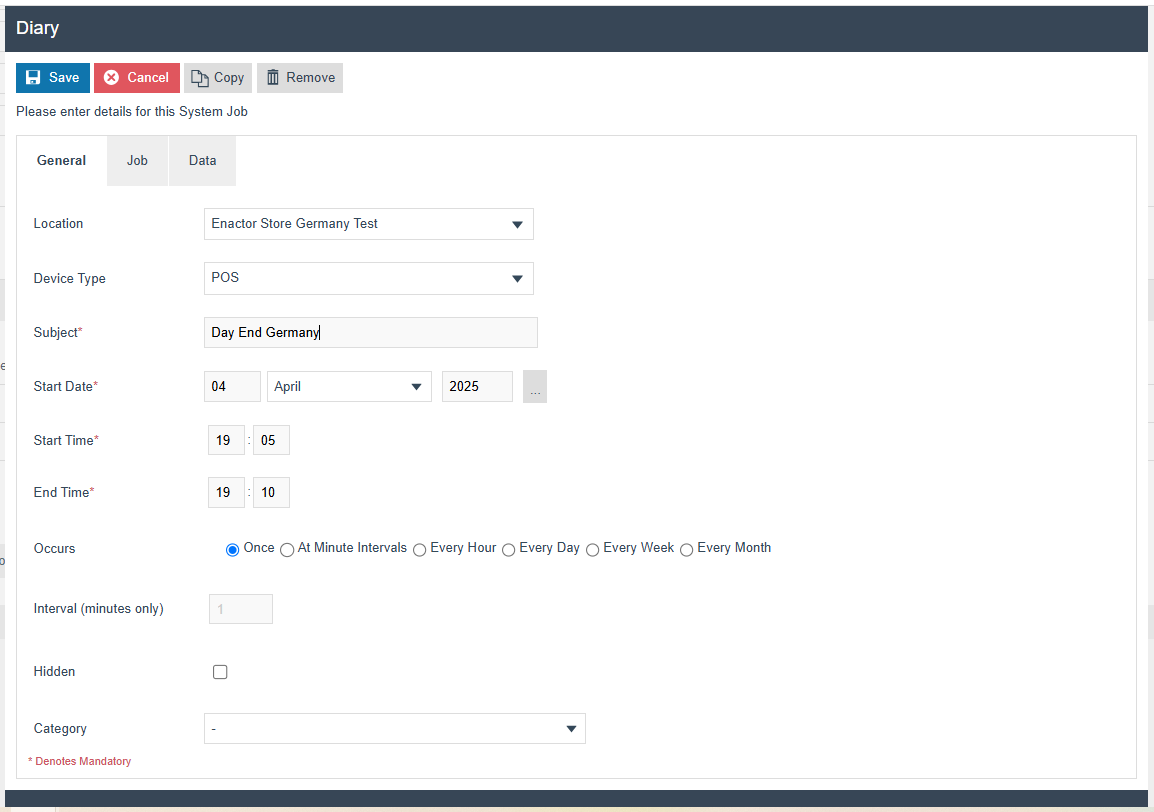
In the Job tab, enter the Process ID:
Pos/Event/Germany/LogDayEndSystemEvent
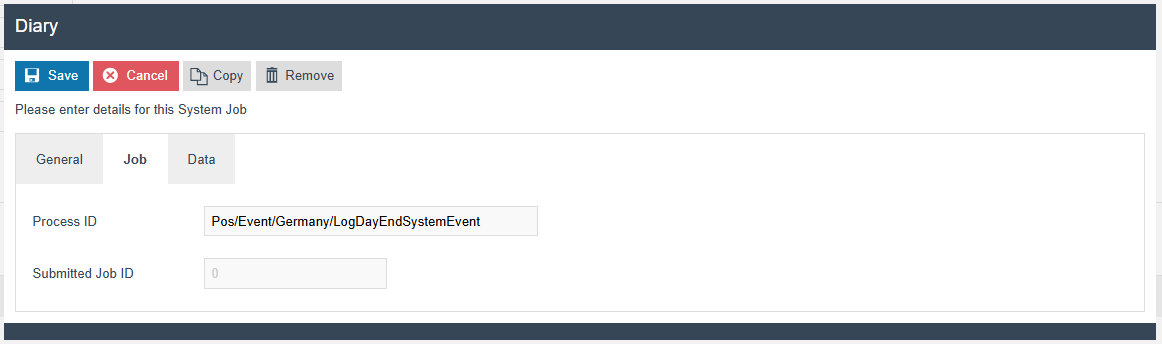
Click Save, then broadcast the diary entry to the POS and PDP Server.
The CSV export will include data for a given day only after the day-end operation has been completed for that day via the diary entry.
CSV Exporter Related Configurations
Log in to the Estate Manager and navigate to the respective menu under Web Maintenance.
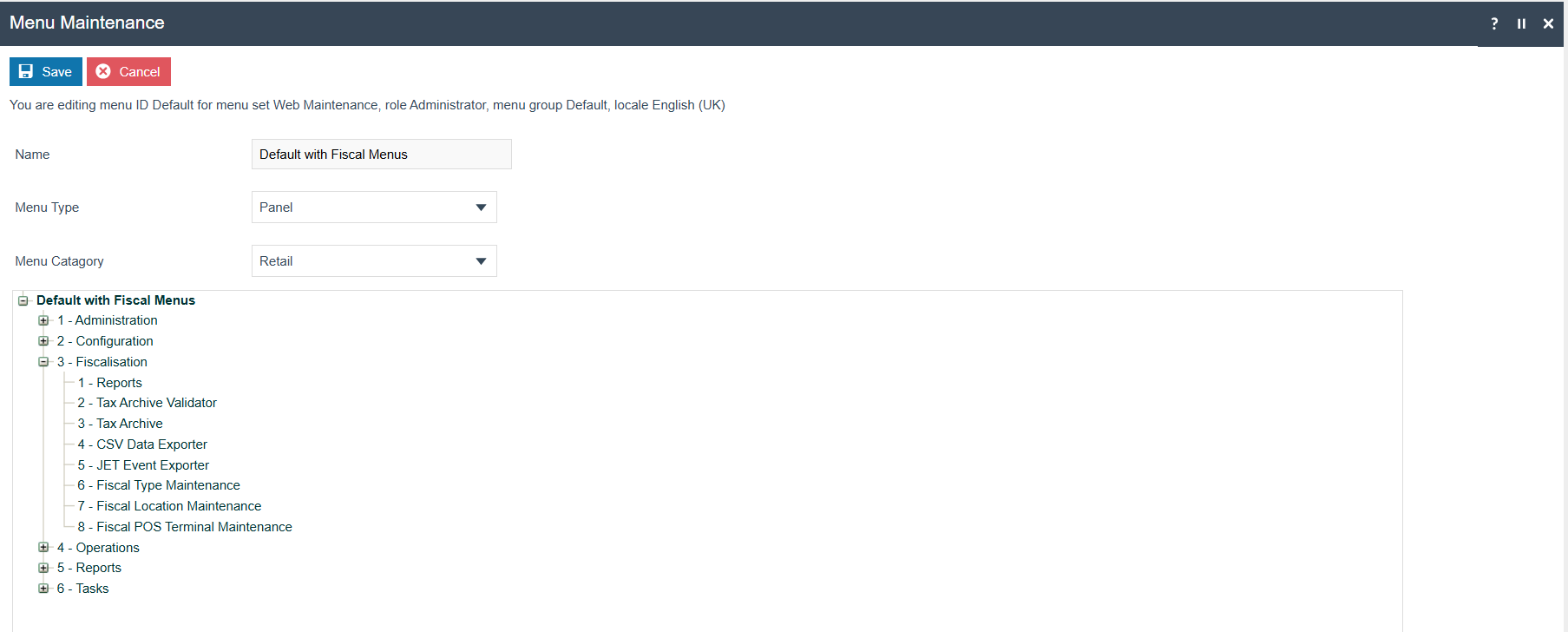
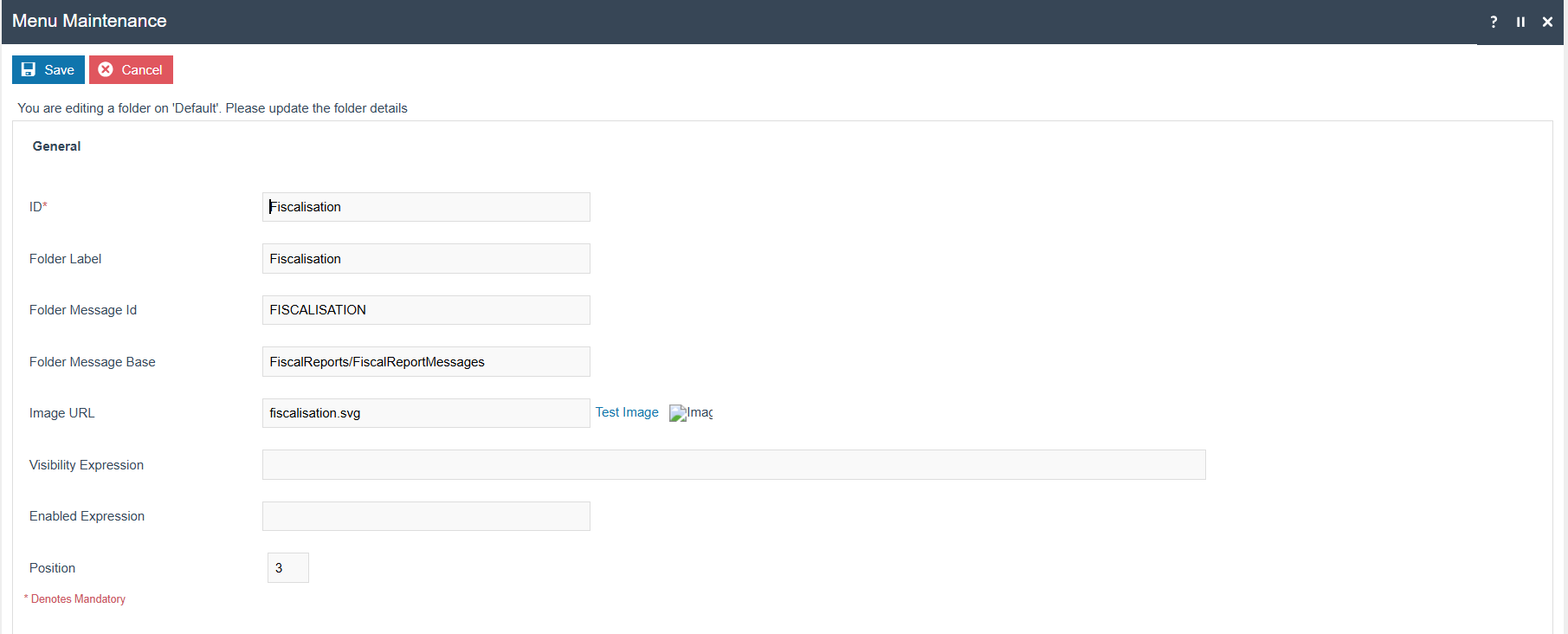
Add a new Execute Process Item into the Fiscalisation Folder with the following configurations:
- Application Process to Run -
CSV Data Exporter - ID -
Maintenance/CSVDataExporter - Item Label -
CSV Data Exporter - Item Message ID -
CSV_DATA_EXPORTER - Item Message Base -
CSVDataExports/CSVDataExportMessages - Image URL -
reports.svg
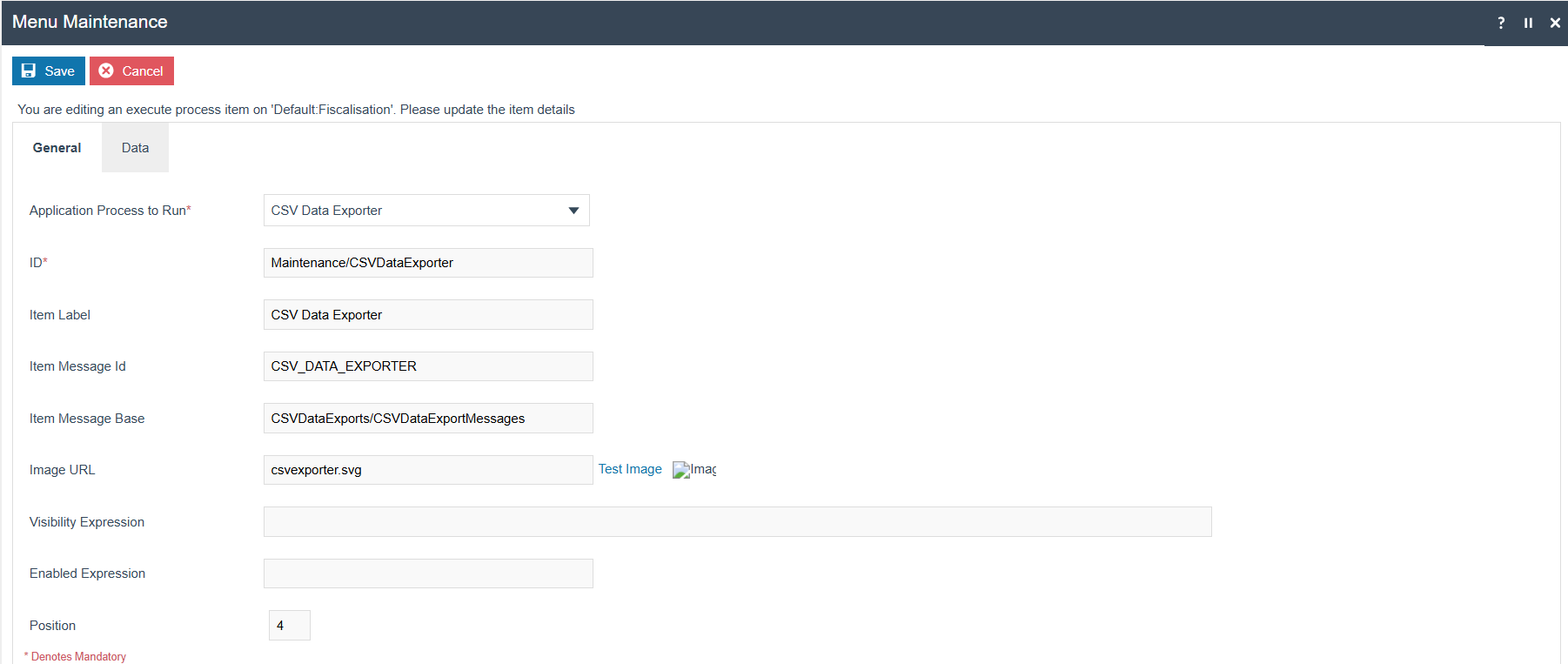
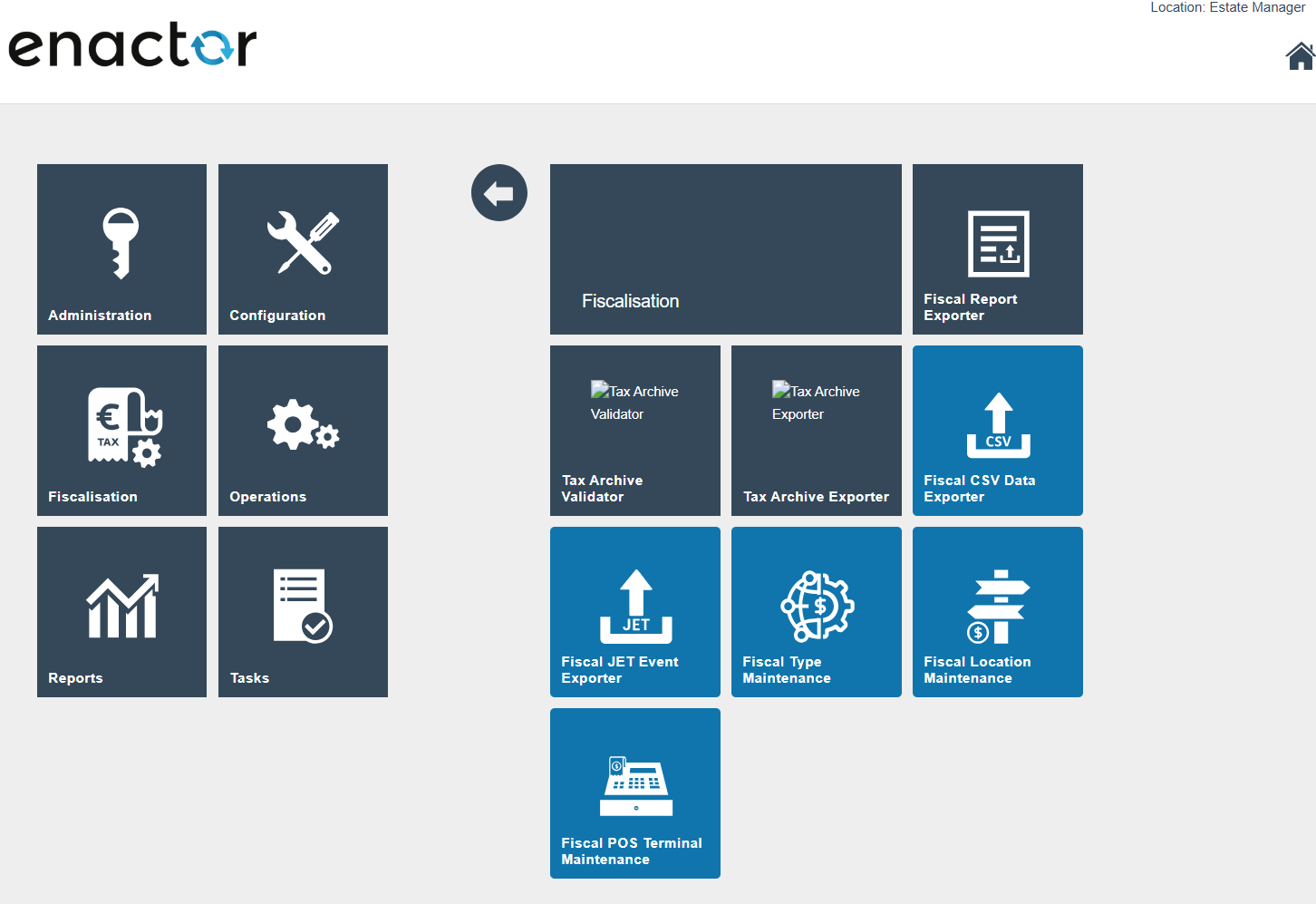
Save the menu changes and verify the menu item in Operations.
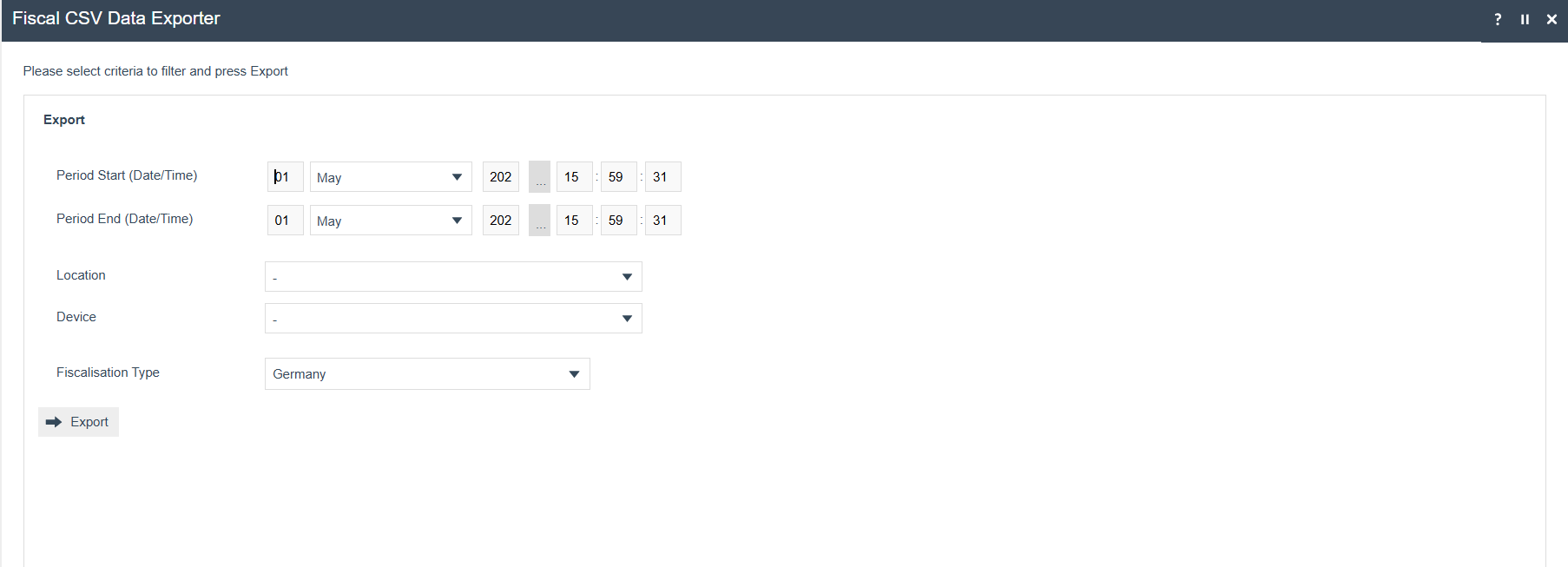
Select the filter criteria and proceed with the export. The CSV export will be available within File Downloads Maintenance.
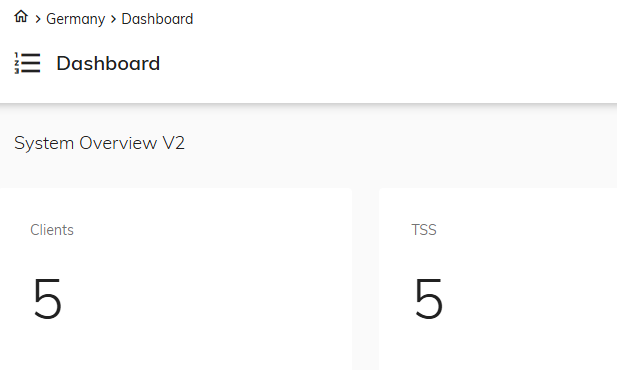
Fiskaly Portal Dashboard Overview
After registering a fiscal location and the associated devices, their TSE and CLIENT details should be displayed on the Fiskaly Portal Dashboard.
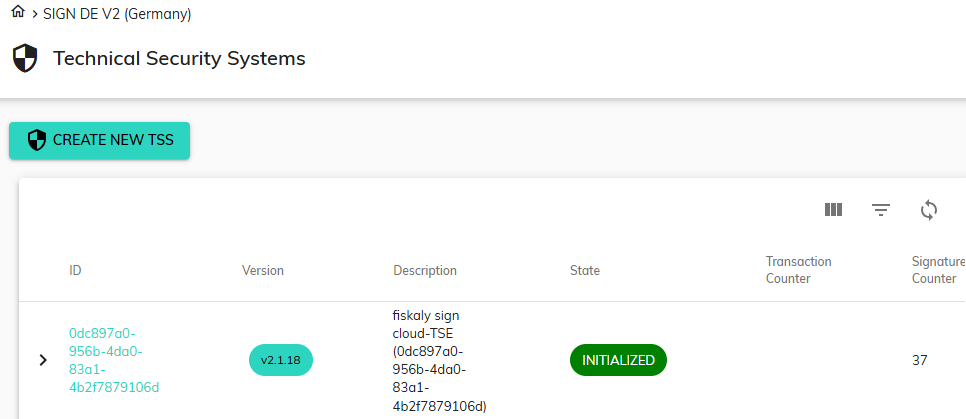
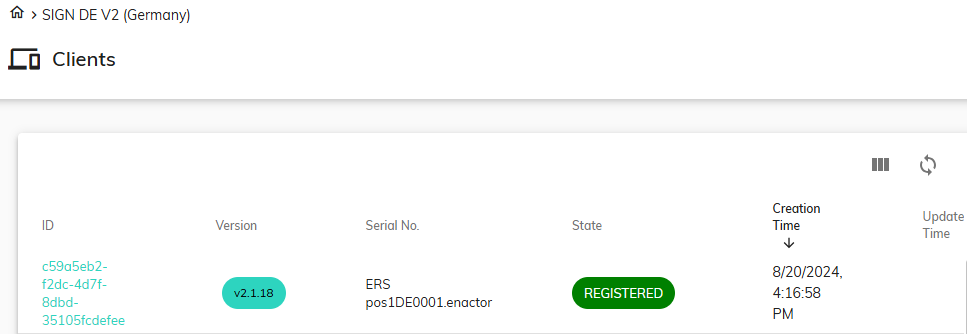
Pre-Conditions for Implementation
The following URLs must be whitelisted for both Estate Manager and POS:
https://kassensichv-middleware.fiskaly.com/api/v2
Network clearance is required for the POS and Estate Manager to communicate with the Fiskaly service.
Obligation Mode - Additional Configurations
Rollout Procedure - Switching from Non-Obligation Mode to Obligation Mode
The following steps must be followed when switching from non-obligation mode to obligation mode:
- Schedule a diary entry to deregister all clients that were registered with Fiskaly (this is also needed when switching back from non-obligation mode to obligation mode).
- Manually create the establishment using Fiscal Location Maintenance for locations registered during non-obligation mode.
Schedule Diary Entry to Deregister All Clients
Create a diary entry to deactivate all REGISTERED Fiscal POS Terminals/Clients.
Follow steps 1-4 in the image below to create the diary entry.
Click Create on the view below.
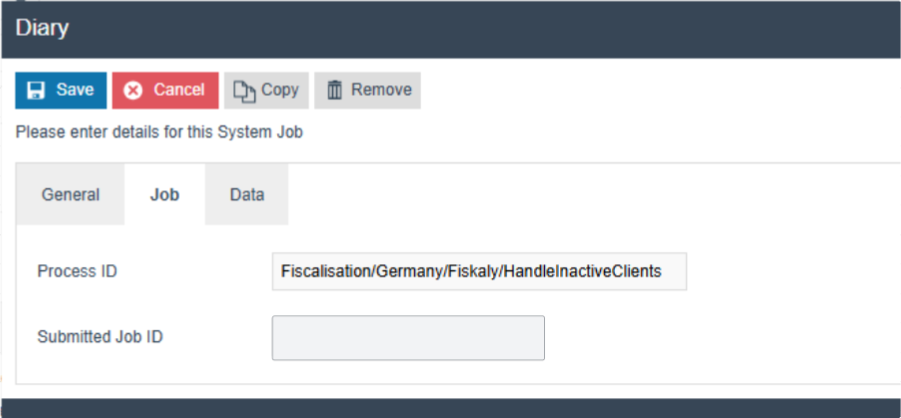
Within the Diary Entry, fill in the General, Job, and Data tabs with the following information.
Process ID: Fiscalisation/Germany/Fiskaly/HandleInactiveClients
In the Data tab:
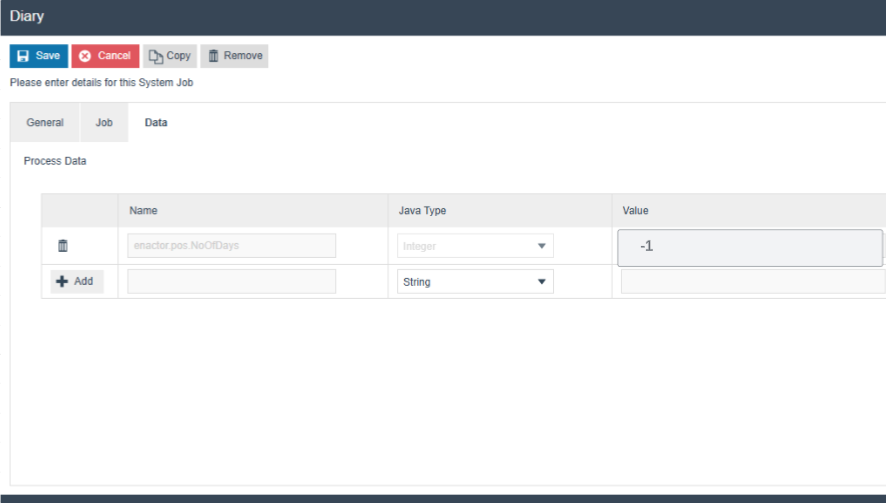
- Name -
enactor.pos.NoOfDays - Set the value of
enactor.pos.NoOfDaysto-1to deregister all active clients from Fiskaly - Java Type -
Integer
Click Save to save the created diary entry.
Manually Create Establishment for Previously Registered Locations
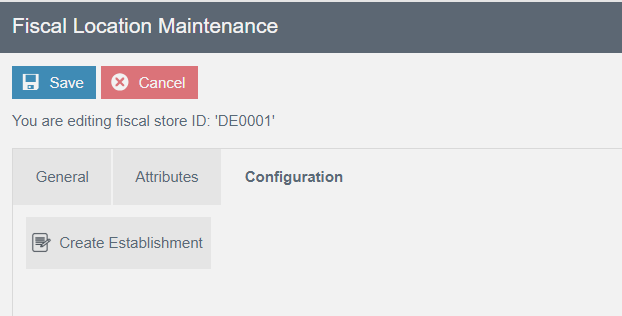
- Navigate to the Configuration tab of Fiscal Location Maintenance.
- Create the establishment for the location by clicking Create Establishment.
- This will create the establishment in Fiskaly and save the
ESTABLISHMENT_IDwithin the Fiscal Location attributes.
Configurations Related to Obligation Mode
The buttons' visibility and functionalities related to Obligation Mode will be available in the Estate Manager and the POS only when the configuration is set to Obligation Mode in the Fiscal Type attributes (i.e. when DISABLE_OBLIGATION_MODE is not configured or is not checked).
Broadcast the Fiscal Type attribute to the POS whenever there is a change in the DISABLE_OBLIGATION_MODE flag within the Attributes tab of Fiscal Type Maintenance.
Only the additional configurations required for Obligation Mode - beyond those needed for Normal Mode - are listed in this section.
Account Credentials for Obligation
Within the account credential GERMAN_FISKALY_TSE, add the following property within the Other Properties tab:
| Property Key | Type | Value | Comments |
|---|---|---|---|
| OBLIGATION_URL | String | https://kassensichv.fiskaly.com/submission-api/v1 | Fiskaly endpoint URL for reporting obligations |
New Privileges for Obligation Mode
| Privilege ID | Application Package | Process | Remarks |
|---|---|---|---|
enactor.fiscal.fiskaly.DeregisterEstablishmentAllowed | Fiscal Maintenance | Edit Fiscal Location | Required only for users allowed to delete the establishment |
Option Set Maintenance Changes for Obligation Mode
Fiscal Type Attributes:
Navigate to Attribute / Option Set Maintenance.
Create a new Option Set with the following properties for the Fiscal Type Attributes type:
| Attribute / Option Set ID | Type | Region |
|---|---|---|
| GERMAN_FISCAL | Fiscal Type Attributes | All |
Users also have the flexibility of exporting the Option Set through File Export Maintenance and uploading via File Import Maintenance in Estate Manager.
Add a Boolean option using the Add button. Set the option name and ID as DISABLE_OBLIGATION_MODE.
This is an optional configuration during obligation mode. The system will work in obligation mode if this flag is not set.
Add a Text option and set the ID and Name as MODEL. This data corresponds to the cash register (Client) used.
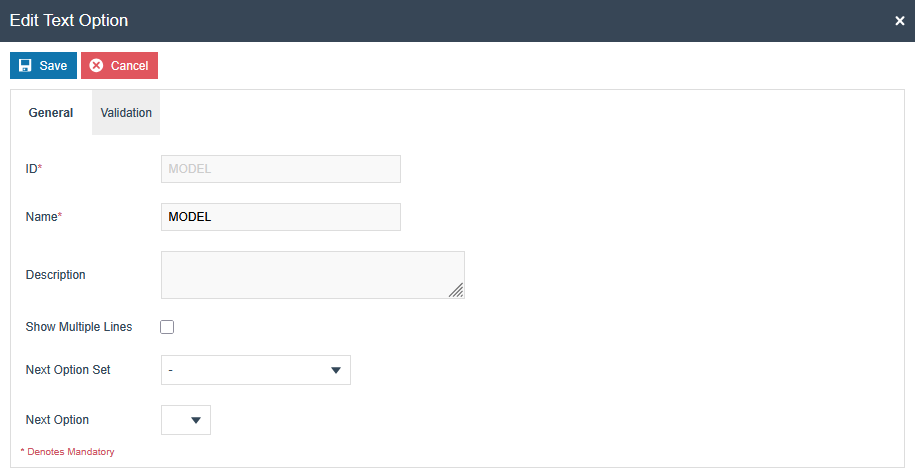
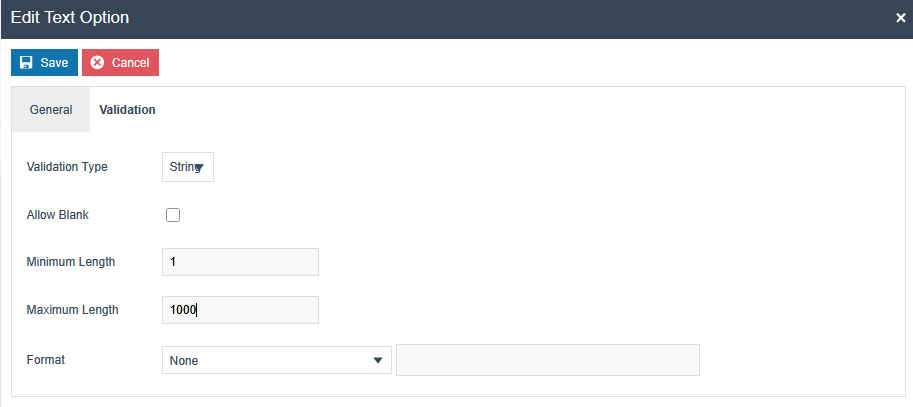
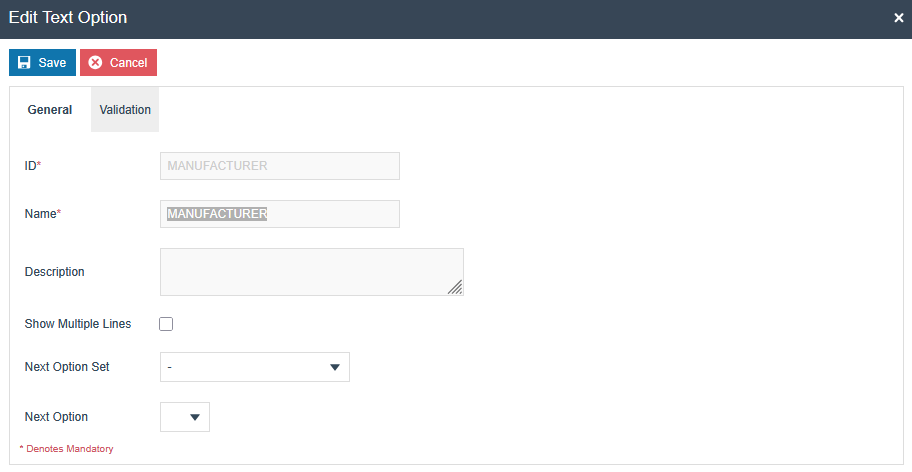
Add a Text option and set the ID and Name as MANUFACTURER. This data corresponds to the cash register (Client) used.
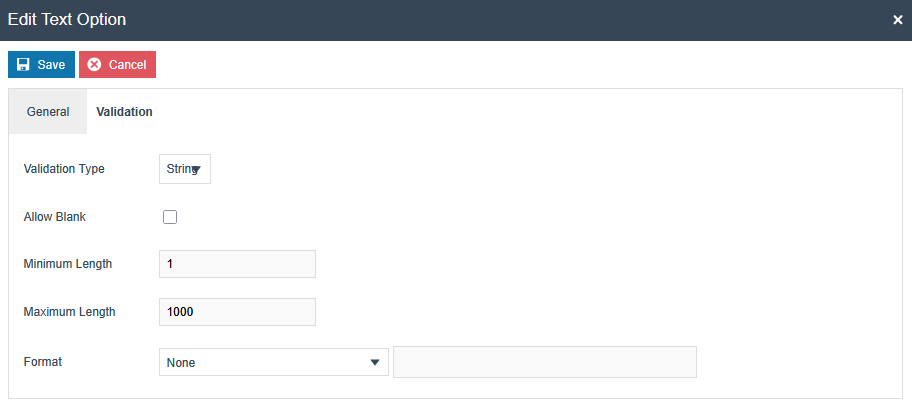
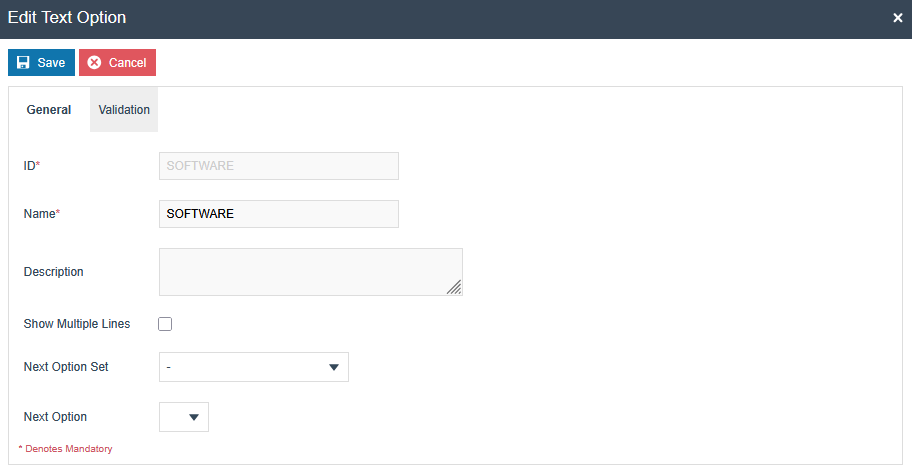
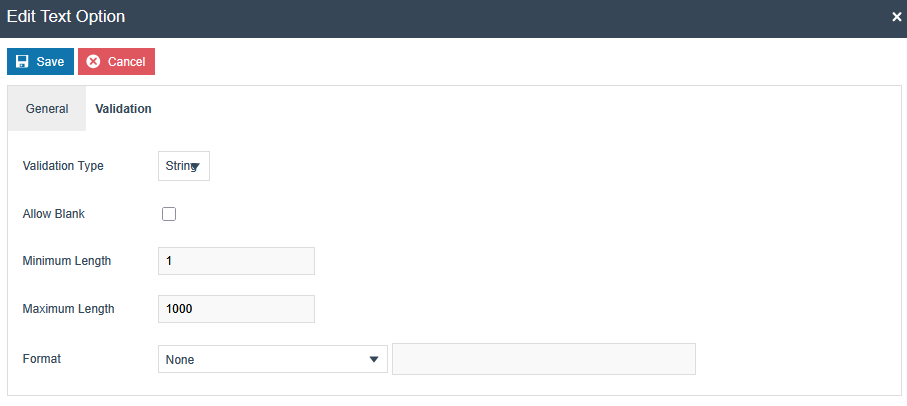
Add a Text option and set the ID and Name as SOFTWARE. This data corresponds to the cash register (Client) used.
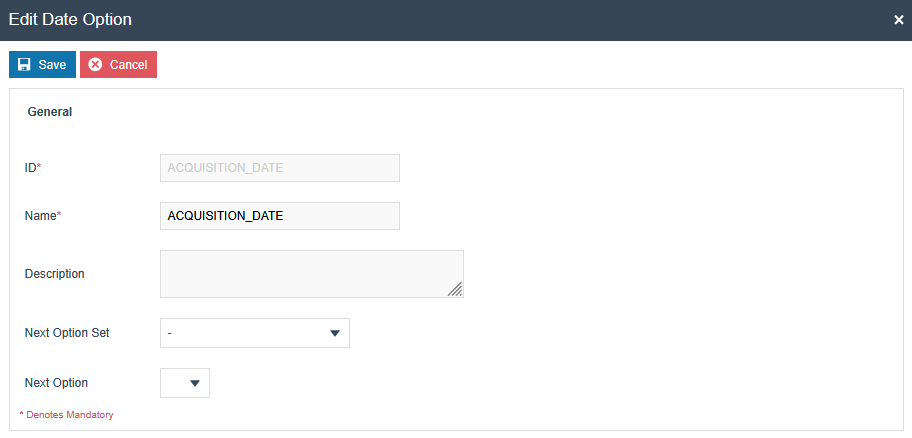
Add a Date option and set the ID and Name as ACQUISITION_DATE. This is the date when the contract was made with Enactor. The date of acquisition can be found on the invoice or delivery note of the electronic recording system or the accounting system (registration date with Fiskaly).
Taxpayer Details Option Set:
Create a new Option Set with the following properties for the Fiscal Type Attributes type to support taxpayer details:
| Attribute / Option Set ID | Type | Region |
|---|---|---|
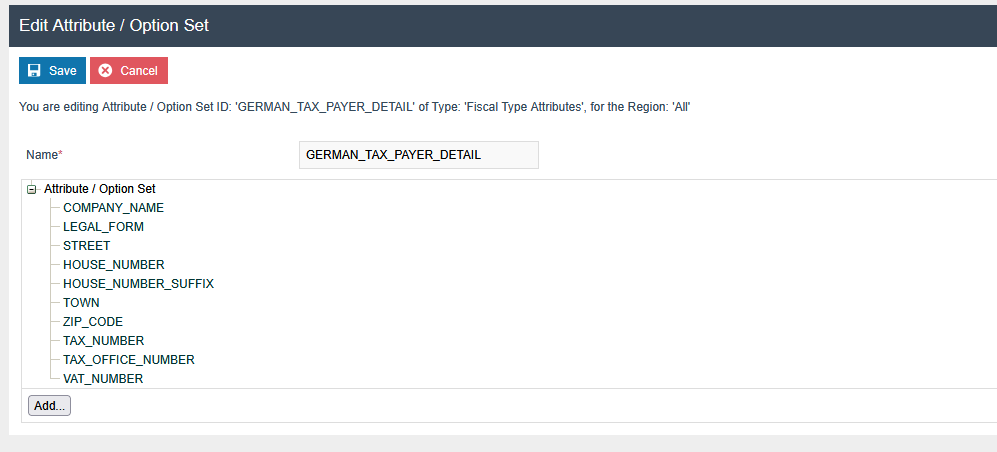
| GERMAN_TAX_PAYER_DETAIL | Fiscal Type Attributes | All |
Add a Text option and set the ID and Name as COMPANY_NAME.
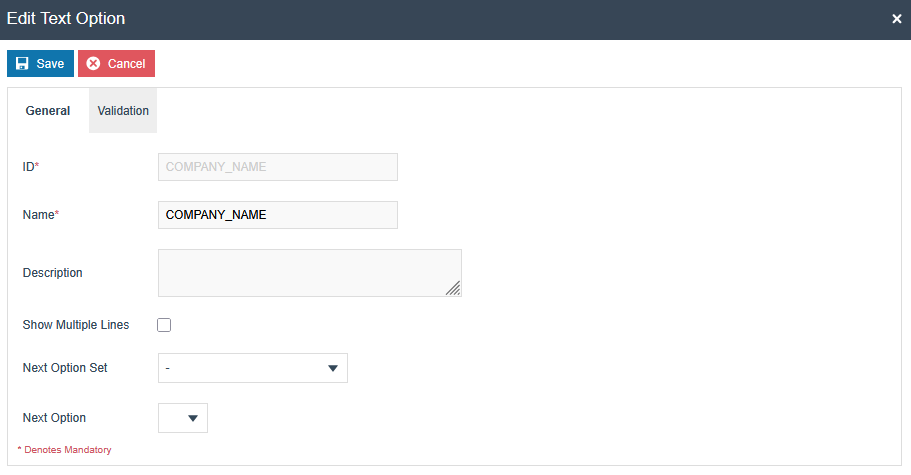
Create text options for the following IDs (the Name field should have the same value as the ID):
LEGAL_FORMSTREETHOUSE_NUMBERHOUSE_NUMBER_SUFFIXTOWNZIP_CODETAX_NUMBERTAX_OFFICE_NUMBERVAT_NUMBER
In the Validation tab of every text option, select String validation type and add the following values:
| Field | Validation | Mandatory |
|---|---|---|
| COMPANY_NAME | 1 to 120 characters | Yes |
| LEGAL_FORM | Valid enum value | Yes |
| STREET | 1 to 72 characters | Yes |
| HOUSE_NUMBER | 1 to 4 numeric characters | Yes |
| HOUSE_NUMBER_SUFFIX | 1 to 20 characters | No |
| TOWN | 1 to 72 characters | Yes |
| ZIP_CODE | Exactly 5 characters | Yes |
| TAX_NUMBER | 13 characters | Yes |
| TAX_OFFICE_NUMBER | 4 characters | No |
| VAT_NUMBER | 11 characters | No |
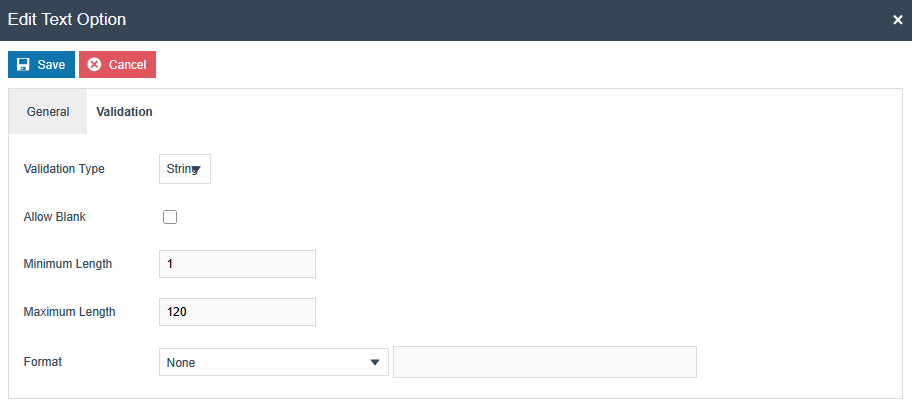
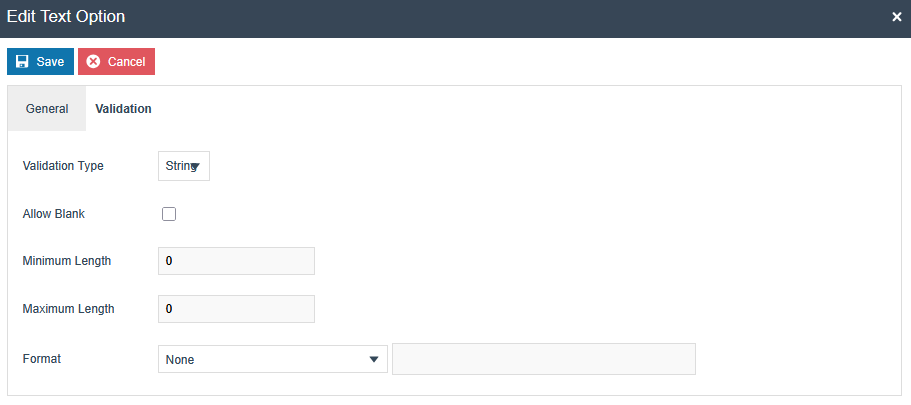
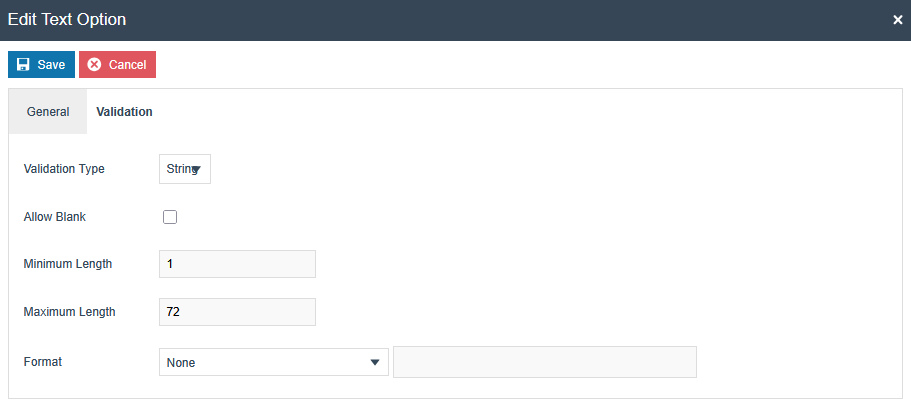
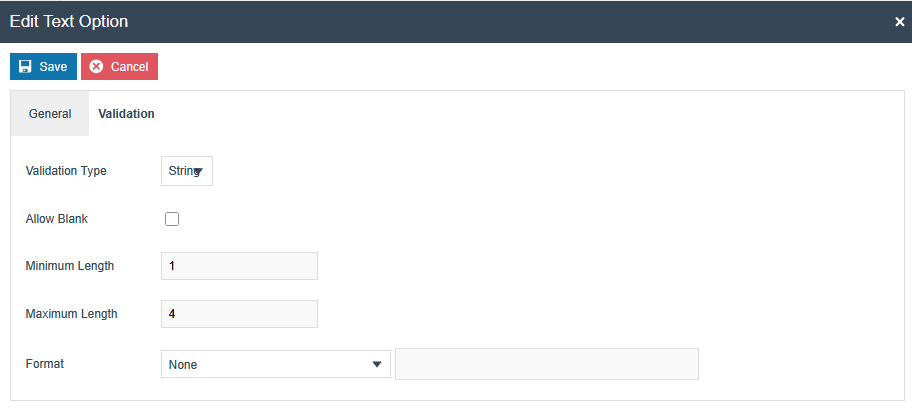
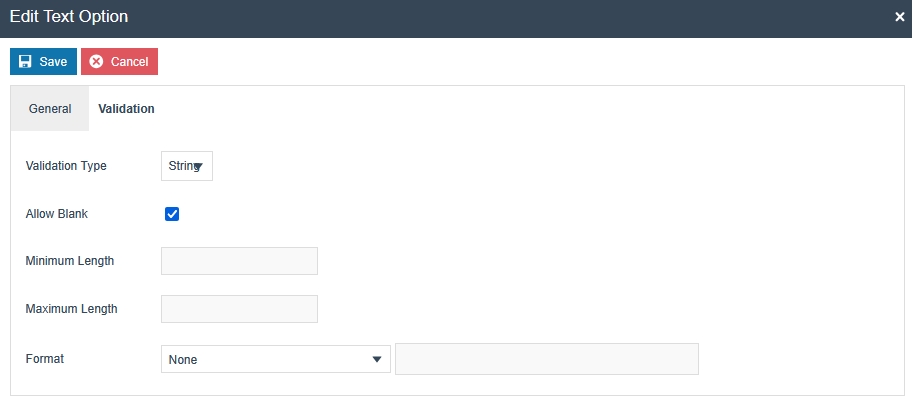
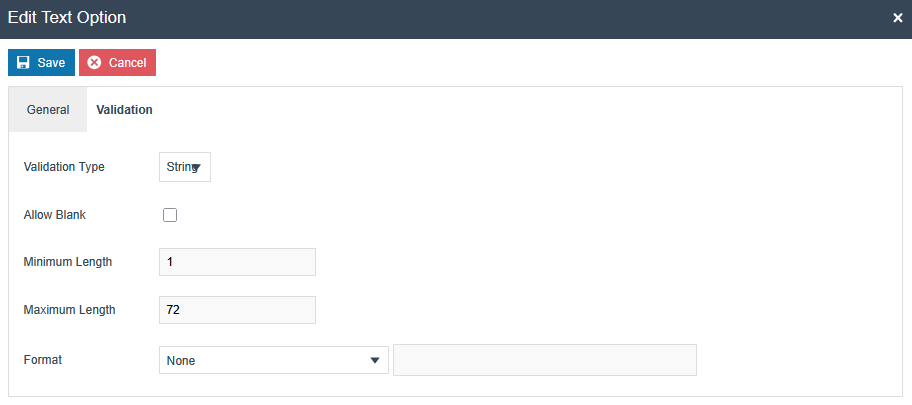
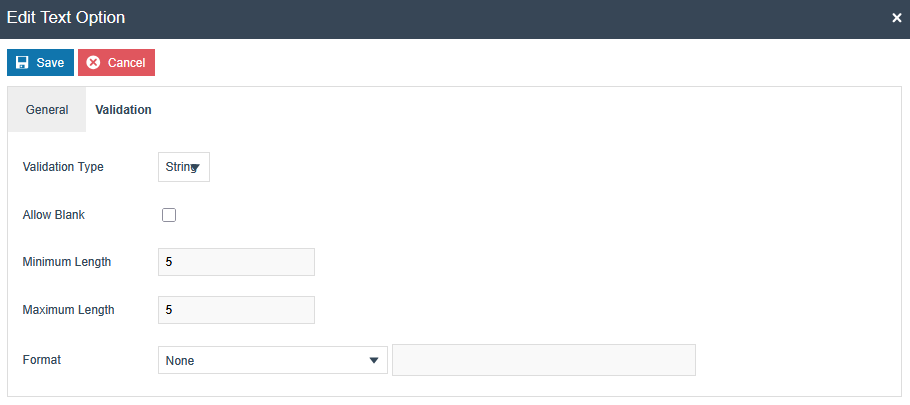
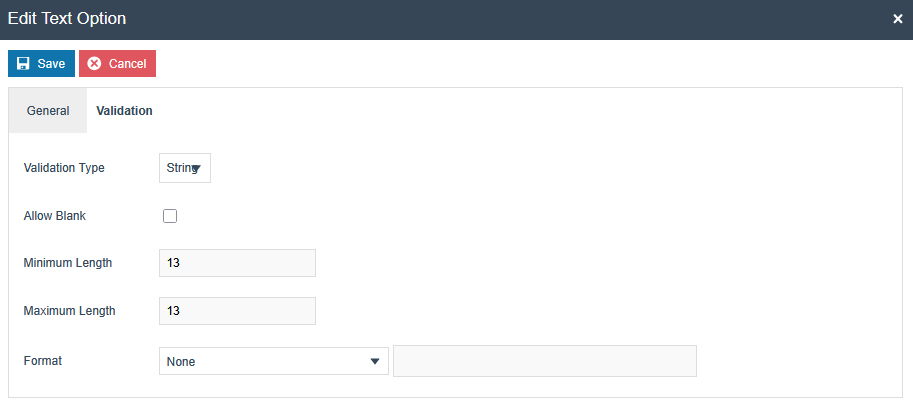
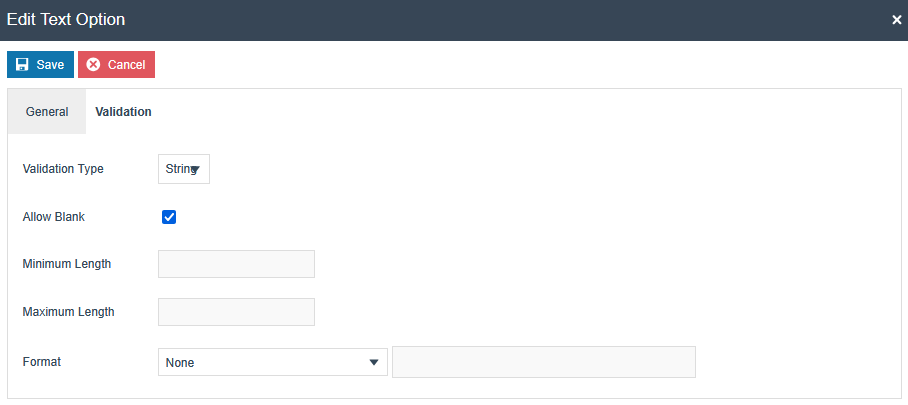
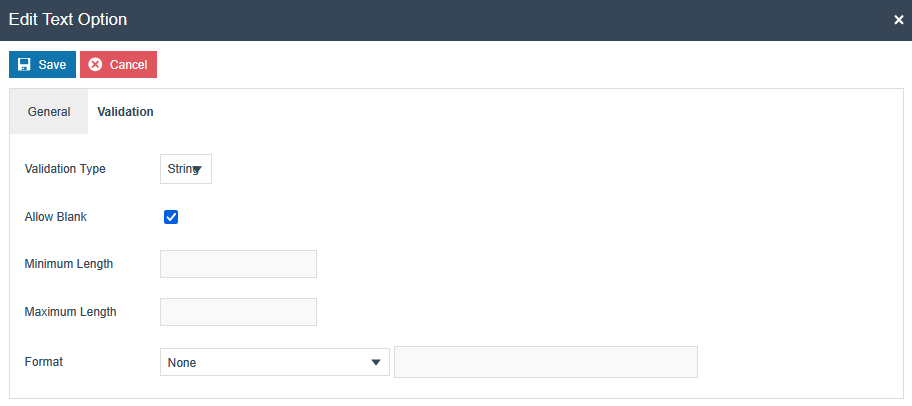
The completed option set should appear as shown below.
Fiscal Location Attributes (Establishment):
Create a new Option Set with the following properties for the Fiscal Location Maintenance type:
| Attribute / Option Set ID | Type | Region |
|---|---|---|
| GERMAN_ESTABLISHMENT | Fiscal Location Attributes | Region of your POS Location |
Add a Text option and set the ID and Name as STREET.
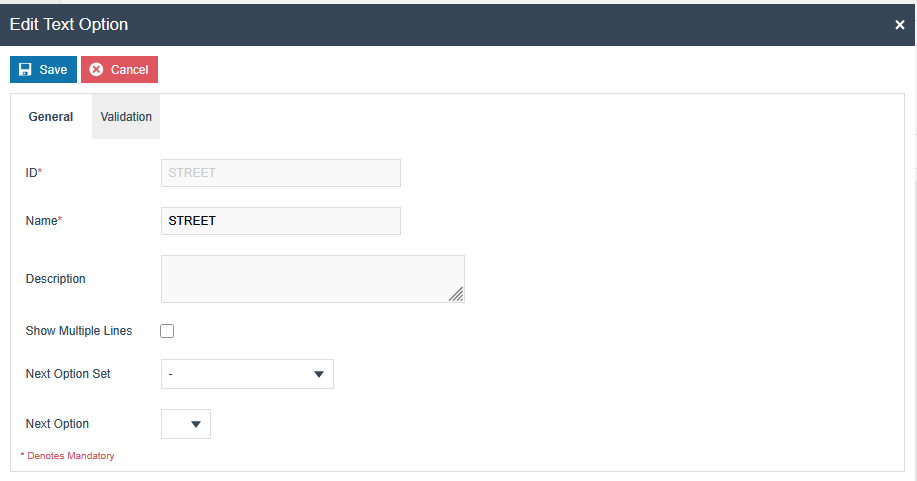
Create text options for the following IDs:
HOUSE_NUMBERHOUSE_NUMBER_SUFFIXTOWNZIP_CODE
In the Validation tab of every text option, select String validation type and add the following values:
| Field | Validation | Mandatory |
|---|---|---|
| STREET | 1 to 72 characters | Yes |
| HOUSE_NUMBER | 1 to 4 numeric characters | Yes |
| HOUSE_NUMBER_SUFFIX | 1 to 20 characters | No |
| TOWN | 1 to 72 characters | Yes |
| ZIP_CODE | Exactly 5 characters | Yes |
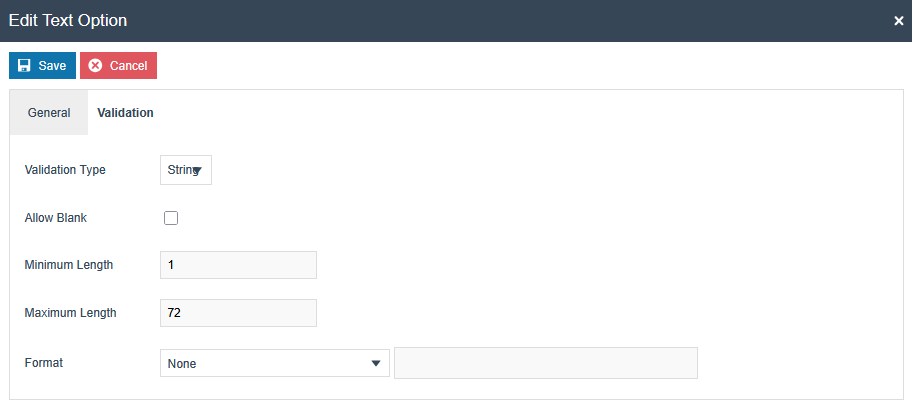
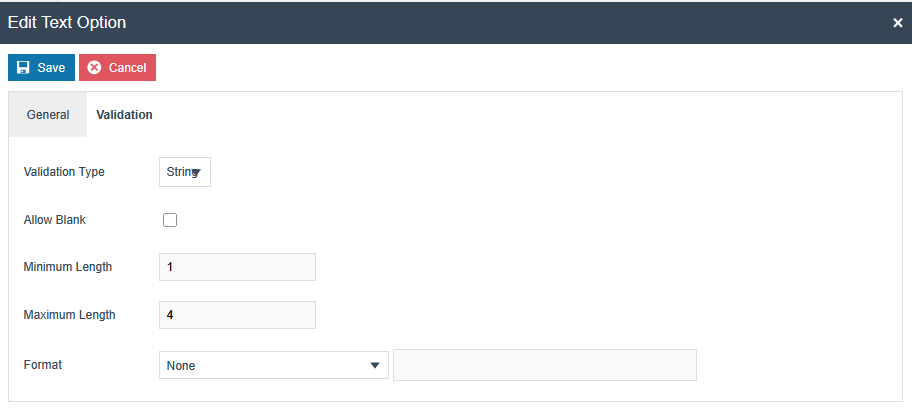
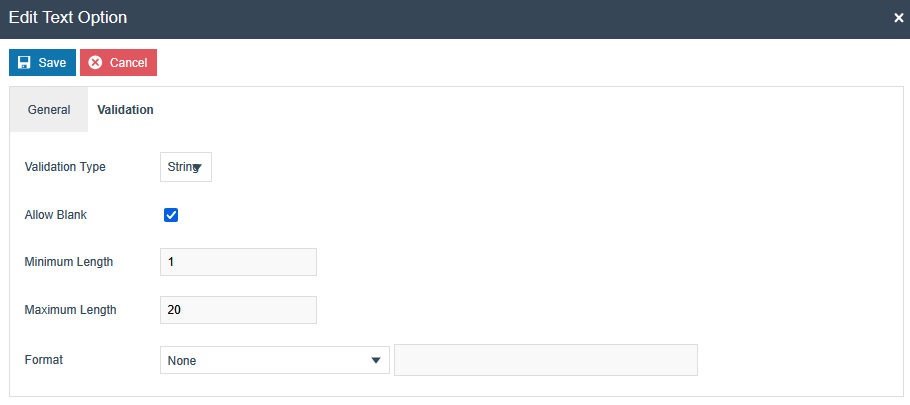
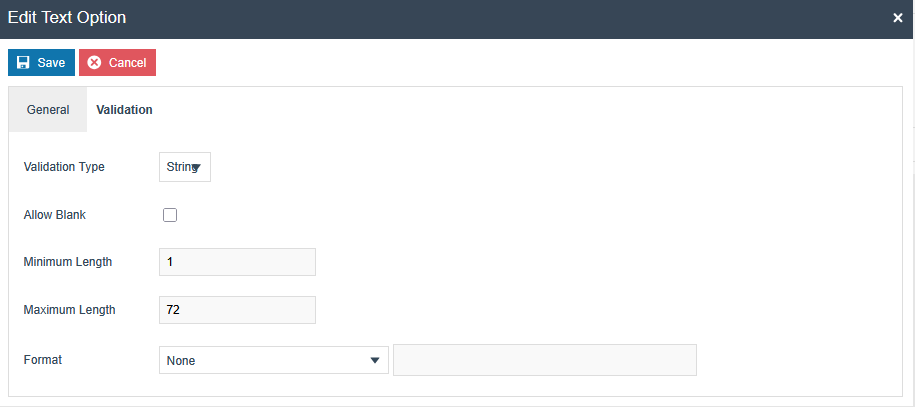
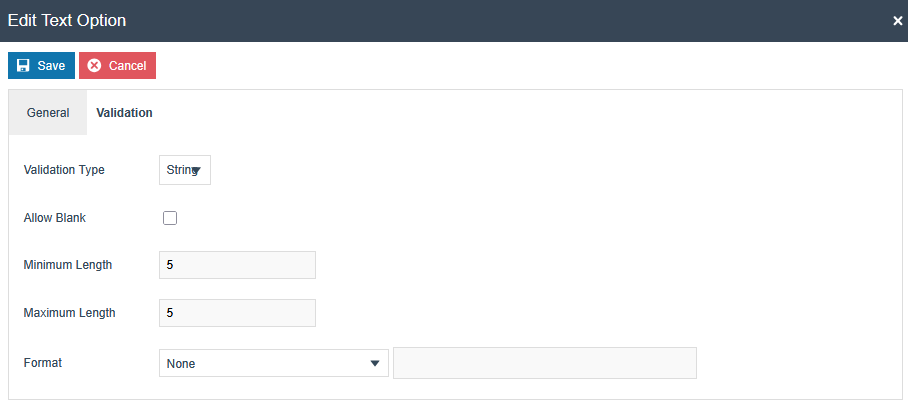
The completed option set should appear as shown below.
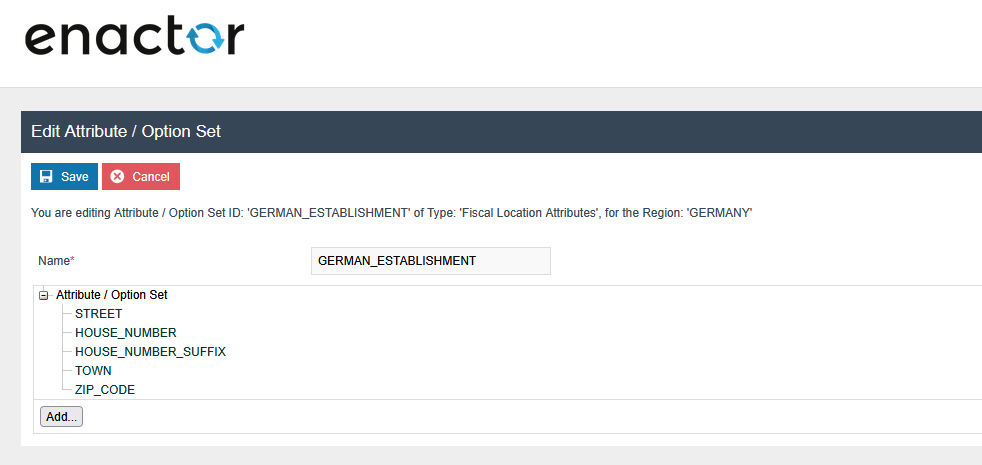
Fiscal POS Terminal Attributes (Obligation Mode):
Create a new Option Set with the following properties for the Fiscal POS Terminal Maintenance type:
| Attribute / Option Set ID | Type | Region |
|---|---|---|
| GERMAN_FISCAL | Fiscal POS Terminal Attributes | Region of your POS Location |
Add a Choice option using the Add button.
Add a Date option and set the ID and Name as DATE_COMMISSIONING.
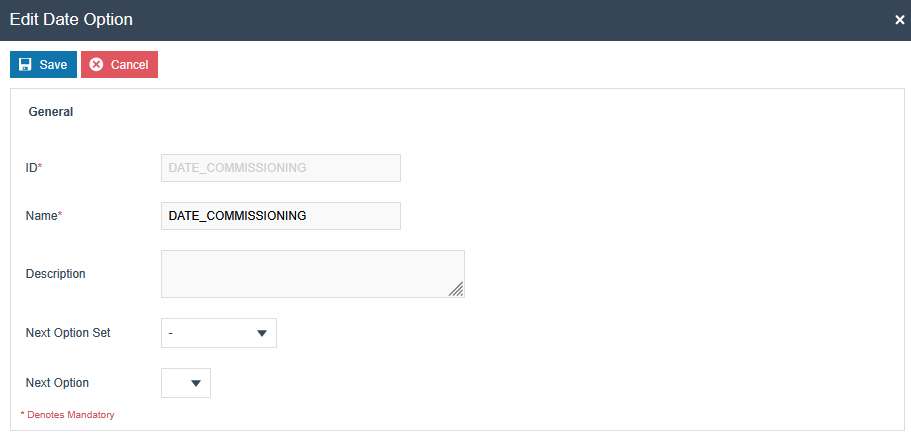
Fiscal Location Attributes (Additional for Obligation):
Create a new Option Set with the following properties for the Fiscal Location Attributes type:
| Attribute / Option Set ID | Type | Region |
|---|---|---|
| GERMAN_FISCAL | Fiscal Location Attributes | Region of your POS Location |
Add the same three text options as described in the earlier Fiscal Location Attributes section.
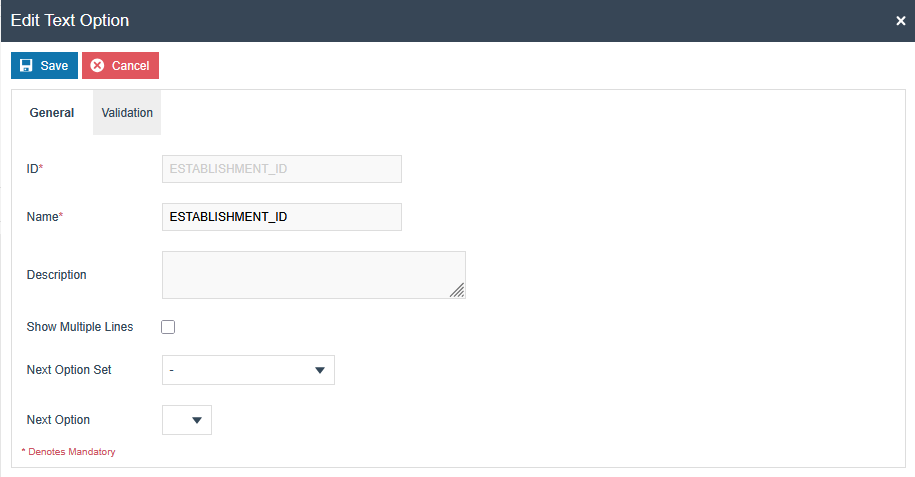
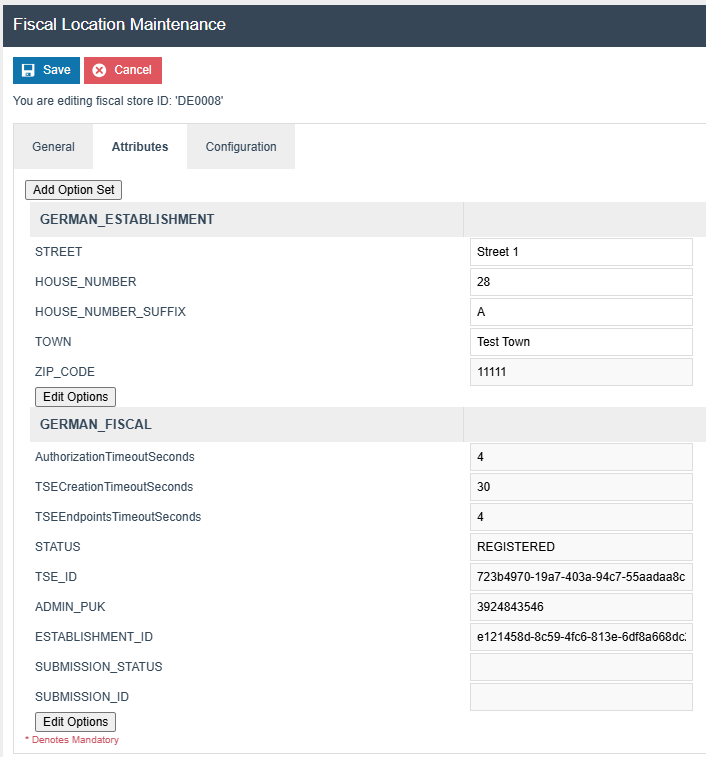
Add a Text option and set the ID and Name as ESTABLISHMENT_ID.
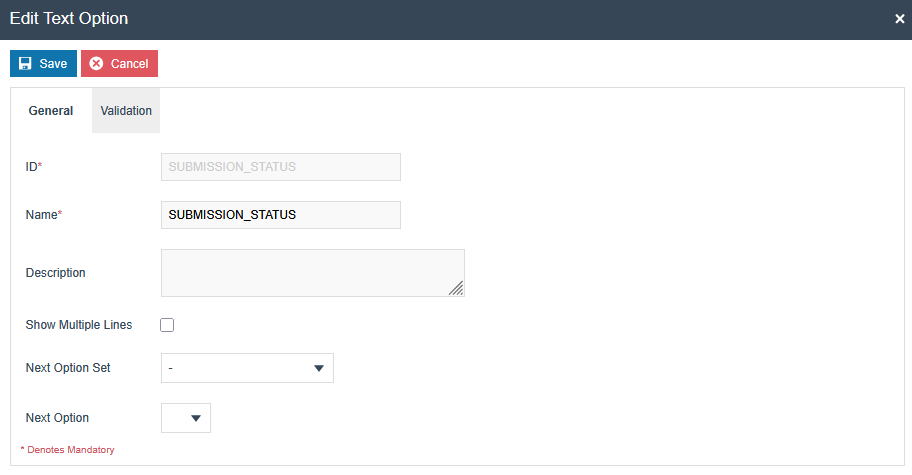
Add a Text option and set the ID and Name as SUBMISSION_STATUS.
Fiskaly Estate Manager Maintenance - Obligation Mode
In addition to the general configuration, make the following changes to continue with obligation mode-related operations.
Fiscal Type Maintenance (Obligation Mode)
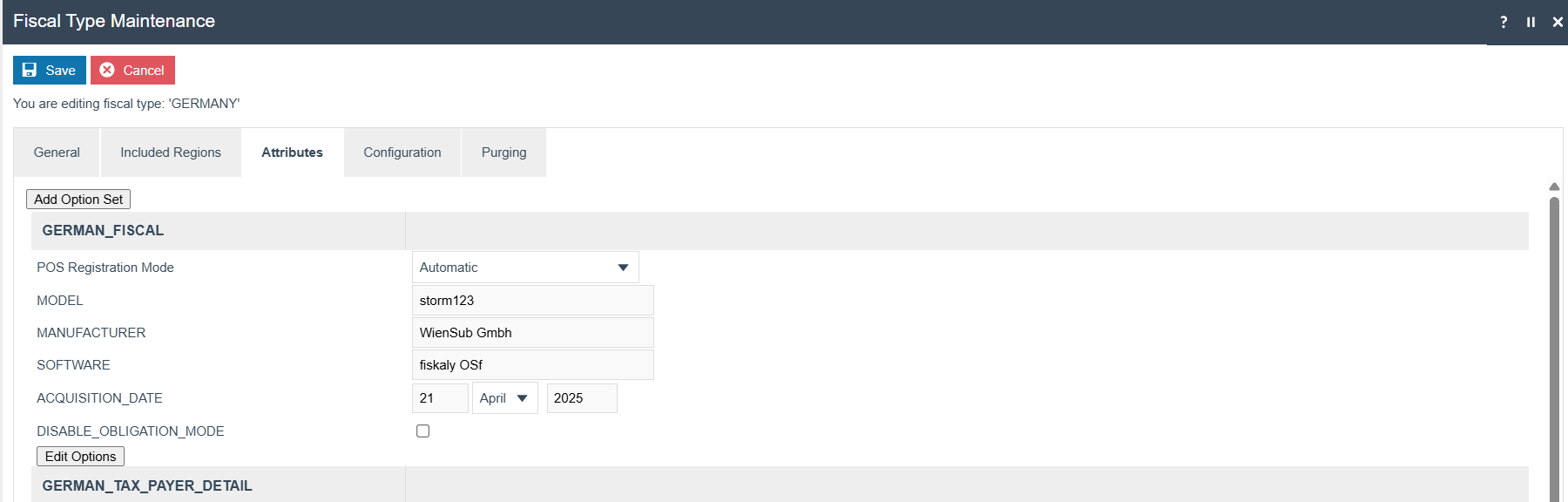
Navigate to the Attributes tab. Configure the following changes within the GERMAN_FISCAL attribute set:
- POS Registration Mode - Add
Manualmode if you want a message to appear asking whether to register the POS in Fiskaly at startup. Otherwise, keep it blank or addAutomaticmode. - DISABLE_OBLIGATION_MODE - Untick this flag to switch to obligation mode.
- MODEL - A string of 1 to 1000 characters
- MANUFACTURER - A string of 1 to 1000 characters
- SOFTWARE - A string of 1 to 1000 characters (these data correspond to the cash register/client used)
- ACQUISITION_DATE - The date when the contract was made with Enactor. The date of acquisition can be found on the invoice or delivery note of the electronic recording system or the accounting system (registration date with Fiskaly).
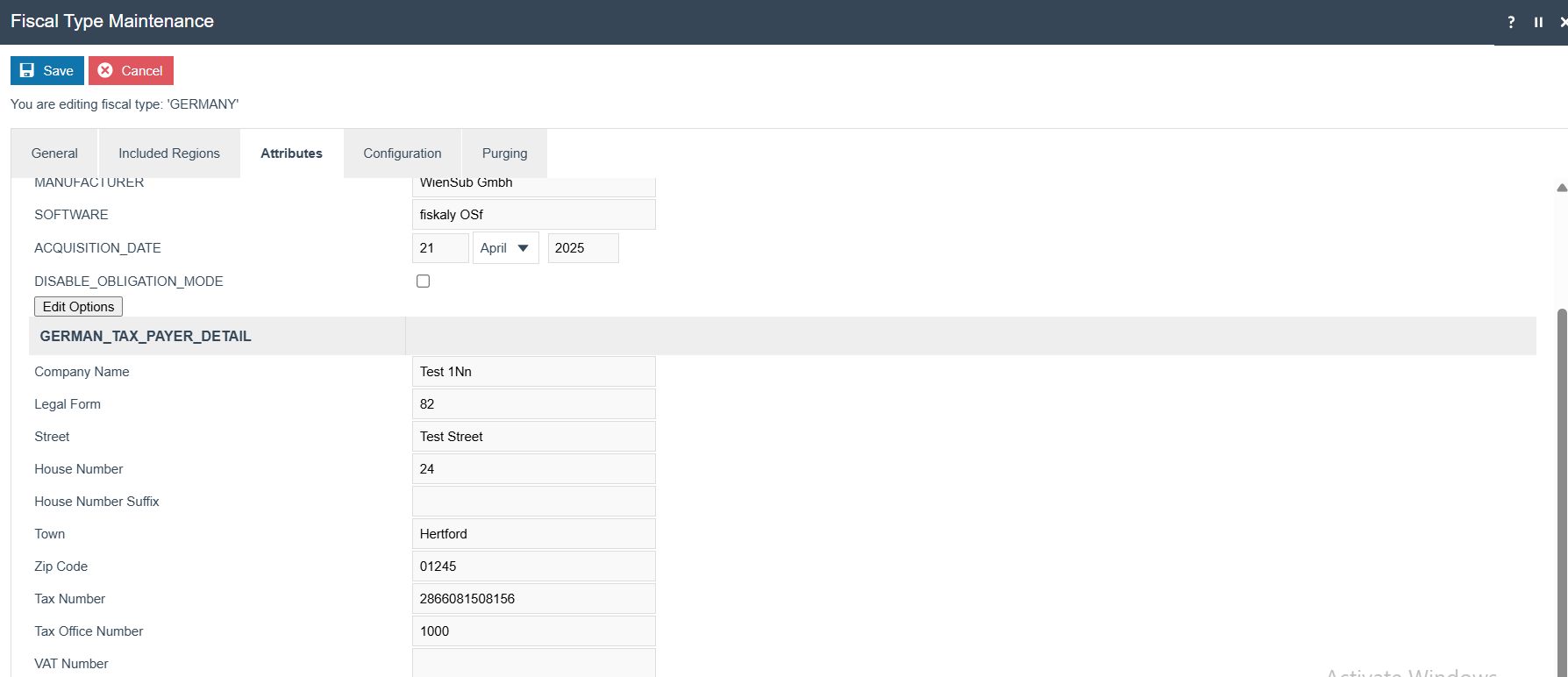
Under the GERMAN_TAX_PAYER_DETAIL attribute set, enter the taxpayer details.
The data must follow the required format as specified below.
| Field | Format | Required |
|---|---|---|
| COMPANY_NAME | 1 to 120 characters | Yes |
| LEGAL_FORM | Valid enum (see list below) | Yes |
| STREET | 1 to 72 characters | Yes |
| HOUSE_NUMBER | 1 to 4 numeric characters | Yes |
| HOUSE_NUMBER_SUFFIX | 1 to 20 characters | No |
| TOWN | 1 to 72 characters | Yes |
| ZIP_CODE | Exactly 5 digits (01000-09999 or 10000-99999) | Yes |
| TAX_NUMBER | 13 characters (4 digits, 0, then 8 digits) | Yes |
| TAX_OFFICE_NUMBER | 4 characters (specific regional codes) | No |
| VAT_NUMBER | 11 characters (DE followed by 9 digits) | No |
Valid Legal Form enums: 31, 25, 26, 49, 20, 91, 92, 34, 36, 28, 81, 27, 35, 23, 24, 33, 22, 32, 41, 43, 61, 21, 72, 82, 74, 16, 44, 45, 99, 59, 83, 39, 73, 29, 79, 71, 37, 51, 42
Tax Office Number pattern: The first two digits must be one of: 10, 11, 21, 22, 23, 24, 26, 27, 28, 30, 31, 32, 40, 41, 51, 52, 53, 54, 55, 56, 91, or 92. The last two digits can be any number from 00 to 99. Fiskaly will use the first four characters from the Tax Number as the default value if not set.
Navigate to the Configuration tab.
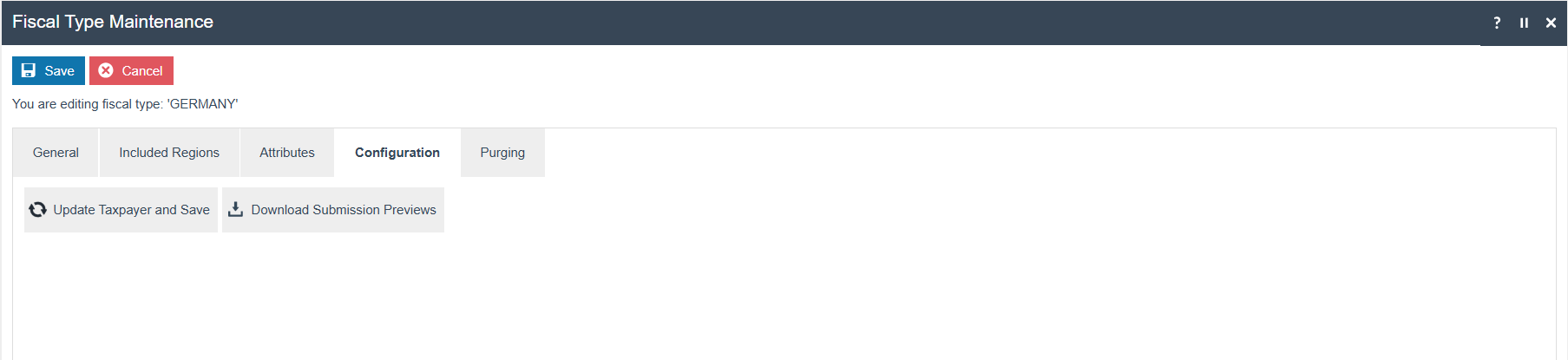
- Register Taxpayer and Save - Registers the taxpayer details with Fiskaly and saves them within the Fiscal Type attributes of the Estate Manager. After registration, this button changes to Update Taxpayer and Save.
- Update Taxpayer and Save - Updates the taxpayer details with Fiskaly and saves them within the Fiscal Type attributes.
- Download Submission Previews - Retrieves all the latest preview PDFs downloaded from the file repository via the diary entry scheduled for submission, packages them into a ZIP file, and makes them available through File Downloads Maintenance.
Fiscal Location Maintenance (Obligation Mode)
Navigate to the Attributes tab. Configure the following changes within the GERMAN_ESTABLISHMENT attribute set. The data should follow this format:
| Field | Format | Required |
|---|---|---|
| STREET | 1 to 72 characters | Yes |
| HOUSE_NUMBER | 1 to 4 numeric characters | Yes |
| HOUSE_NUMBER_SUFFIX | 1 to 20 characters | No |
| TOWN | 1 to 72 characters | Yes |
| ZIP_CODE | Exactly 5 digits | Yes |
ZIP_CODE pattern: Enter a 5-digit number where:
- It starts with 0, followed by a non-zero digit, then any three digits (e.g. 01234, 04567)
- Or it starts with a digit between 1-9, followed by any four digits (e.g. 12345, 98765)
Click Save. A popup will display: "Establishment details changed. Press OK to update the establishment." If you click OK, the establishment will be updated, data will be saved within the Fiscal Location attributes, and a popup will display: "Establishment has been successfully updated."

A popup message "Invalid input fields in Establishment Details" will be displayed when the entered details do not match the expected configuration. The establishment will not be created, and the complete error log can be viewed in the application process logs.

On first use, an establishment will be created and details will be updated to that establishment.
Location-level buttons in Fiscal Location Maintenance (Obligation Mode):
-
Remove - Deletes the fiscal location. This operation is only possible for locations that do not have an Establishment ID (in obligation mode) or do not have a TSE_ID. All registered locations will have an Establishment ID. To remove it, the establishment must first be deleted using the Delete Establishment button in the Configurations tab. Once deleted, the Establishment ID will be removed and the Remove operation becomes available.
-
Register Location - Creates an establishment and registers the selected fiscal location with Fiskaly, ensuring that only the TSE for that location is registered without registering the POS devices. This icon is only visible for unregistered live fiscal locations and to users with the
enactor.fiscal.fiskaly.RegisterLocationprivilege. Establishment details and TSE details will be saved within the Fiscal Location attributes with the status asREGISTEREDafter registration. -
Register Location And Devices - Creates an establishment and registers the TSE for the selected fiscal location and all associated clients. It is only visible for unregistered live fiscal locations and to users with the
enactor.fiscal.fiskaly.RegisterLocationAndDevicesprivilege. Establishment and TSE details will be saved within the Fiscal Location attributes and client details within the Fiscal POS Terminal attributes with the status asREGISTEREDafter registration.
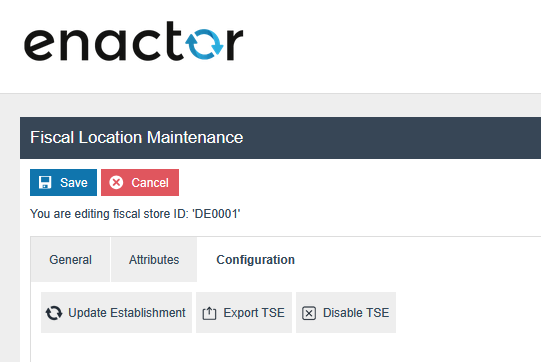
Once you have created an establishment and registered a fiscal location, it cannot be registered again. The Register Location icon will be removed, and new icons named Update Establishment, Export TSE, and Disable TSE will appear within the Configuration tab.
- Update Establishment - Updates establishment details in Fiskaly and saves them within the Fiscal Location attributes.
For unregistered locations, the Configuration tab appears as shown below with the Create Establishment button displayed.
Manually edit the establishment details from the Fiscal Location attributes when there is a change. Do not use file import. This is necessary to properly track changes and trigger the submission for the updated establishment details for that month.
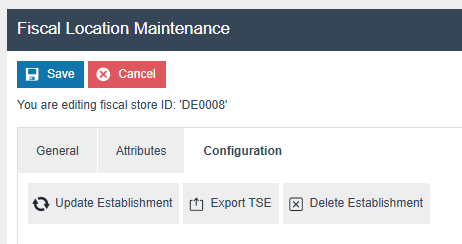
- Delete Establishment - Deletes the created establishment for the location. This button is only visible to users with the
enactor.fiscal.fiskaly.DeregisterEstablishmentAllowedprivilege and only after the establishment has been created for that location.
Submission Workflow
The Enactor solution supports the following submission methods from the Estate Manager:
- Diary Entry - Scheduled monthly to submit locations with changes in commissioned clients, decommissioned clients, or establishment details.
- Manual Submission - Allows previewing the PDF and transmitting data from the Fiscal Location Maintenance screen for each location.
Diary Entry Submission from the Estate Manager
Configure the following diary entry from Diary Entry Maintenance. This will create a separate scheduled job for each location identified with changes for that month.
Process ID: Fiscalisation/Germany/Fiskaly/Obligation/HandleScheduledSubmissions
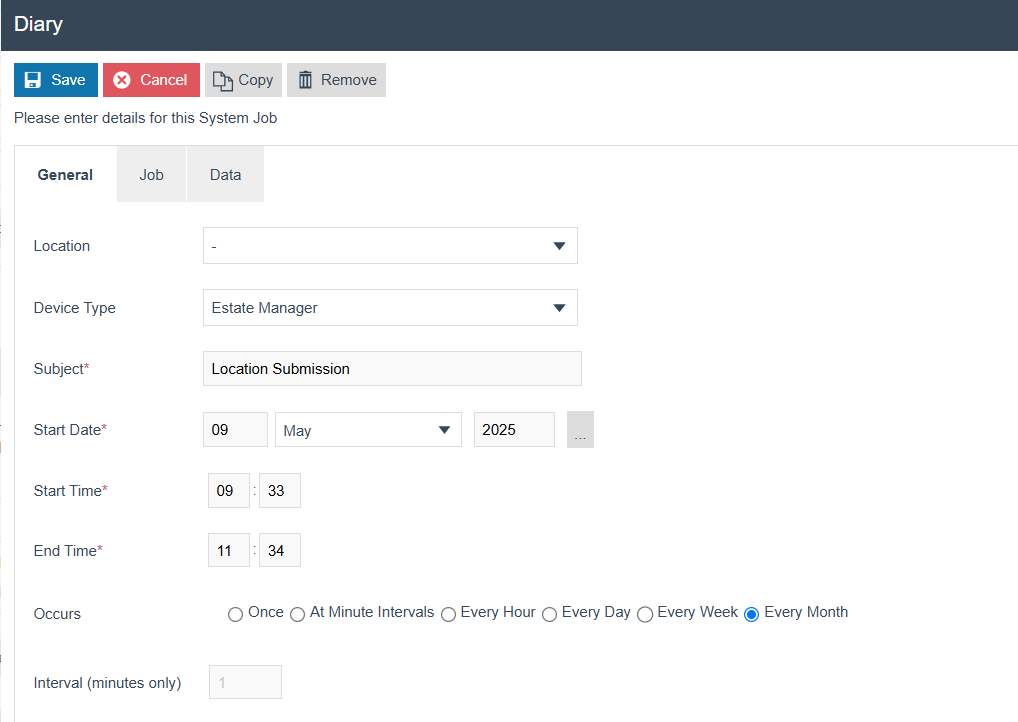
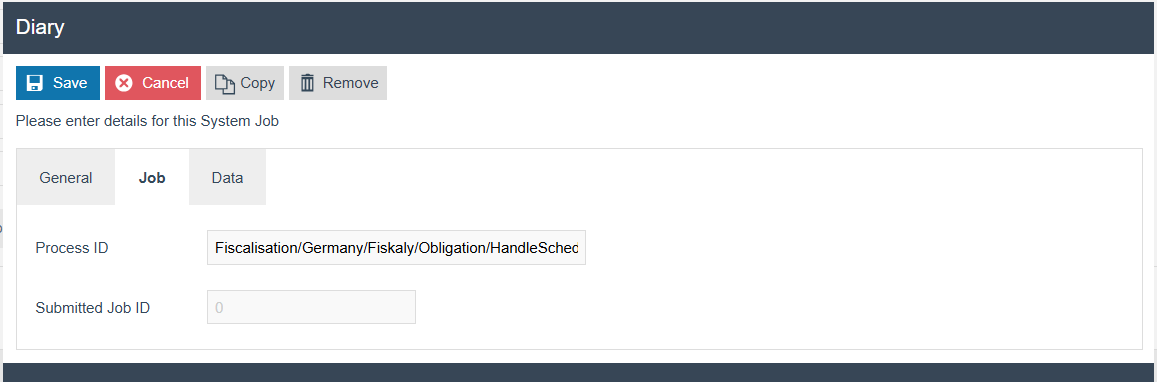
This diary entry will create a separate scheduled job for each selected location for that month's submission (i.e. locations with changes in commissioned clients, decommissioned clients, or establishment details).
Fiscal locations with a SUBMISSION_STATUS of AWAITING will be considered for that month's submission. This status is set to AWAITING when a change is detected for that location.
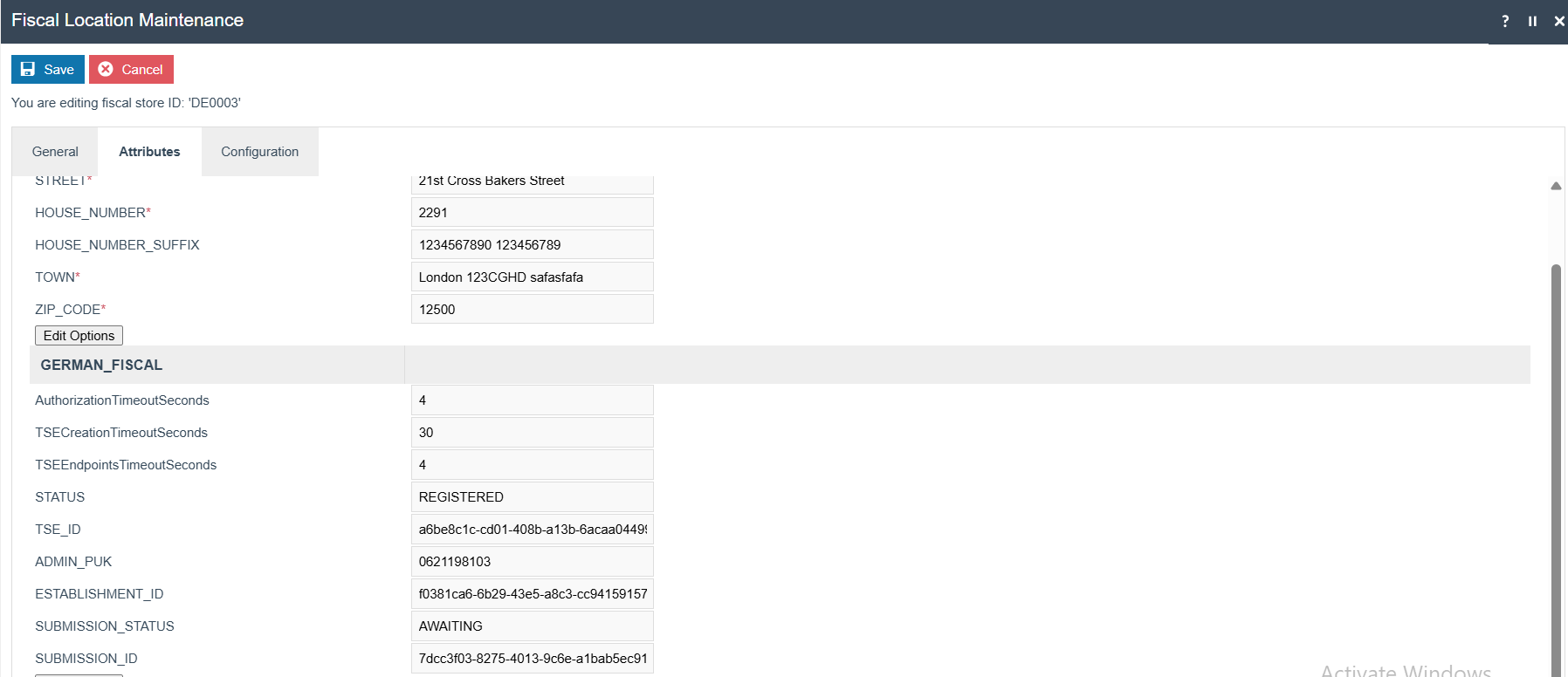
The scheduled job will perform the following internal operations:
- Create the submission in Fiskaly -
SUBMISSION_IDwill be saved within the Fiscal Location attributes. - Download the preview PDF to the internal File Repository at
${Common.ApplicationHome}/FiscalData/Germany/Fiskaly. - Trigger the transmission to the tax authority. The
SUBMISSION_STATUSwill be updated toSUBMITTEDafter a successful transmission, and theSUBMISSION_IDwill be removed from the Fiscal Location attributes, indicating that the process is complete.
In case of submission or transmission failure:
- The user will see the error message in the application log of the Estate Manager.
- The user can reschedule the submission from the diary entry - it will pick only the unsubmitted locations for that month.
- The user can retry the relevant scheduled jobs for the failed locations using the Schedule Job Maintenance screen.
- The user can manually create the submission and trigger the transmission for the failed locations from the Fiscal Location Maintenance screen.
- If the scheduled job failed after creating the submission, the user can trigger the transmission again from Fiscal Location Maintenance using the Trigger Transmission button.
Download Submission Previews:

This retrieves the latest preview PDF files for all fiscal locations from the file repository and makes them available in File Download Maintenance.
The ZIP file will contain the preview PDFs named using the following format:
<locationId>_<first 8 characters of the submission ID>_<current time>
Users can identify the submissions made during the current scheduling by checking the date included in each PDF file name.
Manual Submission from Fiscal Location Maintenance
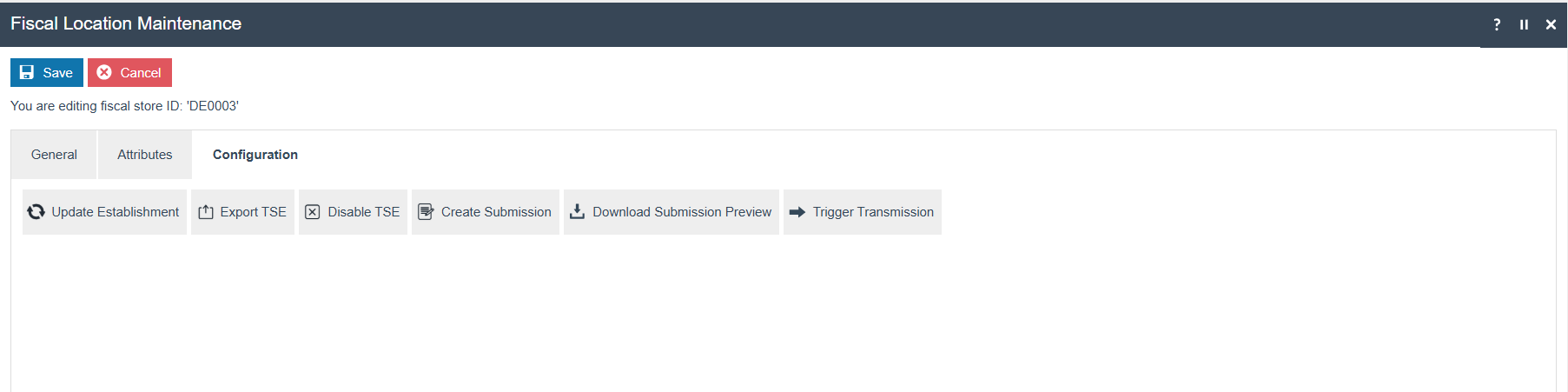
-
Create Submission - Visible once the establishment is registered in Fiskaly for that location (i.e. when the
ESTABLISHMENT_IDis available in the Fiscal Location attributes). This button creates the submission in Fiskaly, saves theSUBMISSION_IDwithin the Fiscal Location attributes, and downloads the preview PDF to the internal File Repository at${Common.ApplicationHome}/FiscalData/Germany/Fiskaly. -
Download Submission Preview - Visible once the establishment is registered in Fiskaly for that location. This retrieves the latest preview PDF file for the selected fiscal location from the file repository and moves it to File Download Maintenance. The preview PDF is named using the format:
<locationId>_<first 8 characters of the submissionID>_<current time>. -
Trigger Transmission - Visible once the submission is created in Fiskaly for that location (i.e. when the
SUBMISSION_IDis available in the Fiscal Location attributes). This triggers the transmission to the tax authority. TheSUBMISSION_STATUSwill be updated toSUBMITTEDafter a successful transmission, and theSUBMISSION_IDwill be removed from the Fiscal Location attributes.
Purging the Fiskaly File Repository
Import the following XML from the Estate Manager File Import Maintenance:
XML Example
<?xml version="1.0" encoding="UTF-8" standalone="yes"?>
<Batch>
  <retail:purgeDirectory xmlns:core="http://www.enactor.com/core"
      xmlns:hta="http://docs.oasis-open.org/ns/bpel4people/ws-humantask/api/200803"
      xmlns:htd="http://docs.oasis-open.org/ns/bpel4people/ws-humantask/200803"
      xmlns:htt="http://docs.oasis-open.org/ns/bpel4people/ws-humantask/types/200803"
      xmlns:ns10="http://www.enactor.com/retail/storedRestaurantSaleTransaction/service"
      xmlns:ns12="http://www.enactor.com/addressLookup/service"
      xmlns:ns13="http://www.enactor.com/crm/customerLoyalty/service"
      xmlns:ns4="http://www.enactor.com/crm"
      xmlns:ns7="http://www.enactor.com/retail/storedRetailTransaction/service"
      xmlns:ns9="http://www.enactor.com/retail/restaurantTableStatus/service"
      xmlns:retail="http://www.enactor.com/retail"
      xmlns:sref="http://docs.oasis-open.org/wsbpel/2.0/serviceref"
      xmlns:tools="http://www.enactor.com/tools"
      xmlns:xsi="http://www.w3.org/2001/XMLSchema-instance">
    <retail:directoryId>GERMAN_FISKALY_PREVIEW_DOWNLOAD</retail:directoryId>
    <retail:directoryPath>${Common.ApplicationHome}/FiscalData/Germany/Fiskaly</retail:directoryPath>
    <retail:description>Directory Path for Fiskaly preview pdf downloads</retail:description>
  </retail:purgeDirectory>
</Batch>
Then select the purge details within the Estate Manager location in Location Maintenance.
Create the diary entry to purge that location following the same standard Enactor purging configuration process.