How To Configure Fiscal Italy RT Printer
Fiscal Overview
For shared background on Enactor fiscalisation, see Fiscal Overview.
Italy Fiscalisation Introduction
In Italy, fiscalisation is a legal requirement for businesses to ensure accurate and transparent financial reporting.
It is important for businesses in Italy to select a certified fiscal solution and ensure proper installation and configuration of the system to meet fiscalisation requirements. Failure to comply with fiscalisation regulations can result in penalties, fines, or legal consequences.
Overall, fiscalisation in Italy aims to enhance transparency, combat tax evasion, and streamline the process of tax collection by leveraging electronic recording and reporting of sales transactions.
The Enactor solution works with the RT printer provided by NCR Voyix, approved by the Italy Tax Authority for fiscalisation. This avoids the need for the solution to be certified, instead relying on the certification obtained by NCR Voyix.
Deployment Overview
Deploy the fiscal module to POS devices using the following steps:
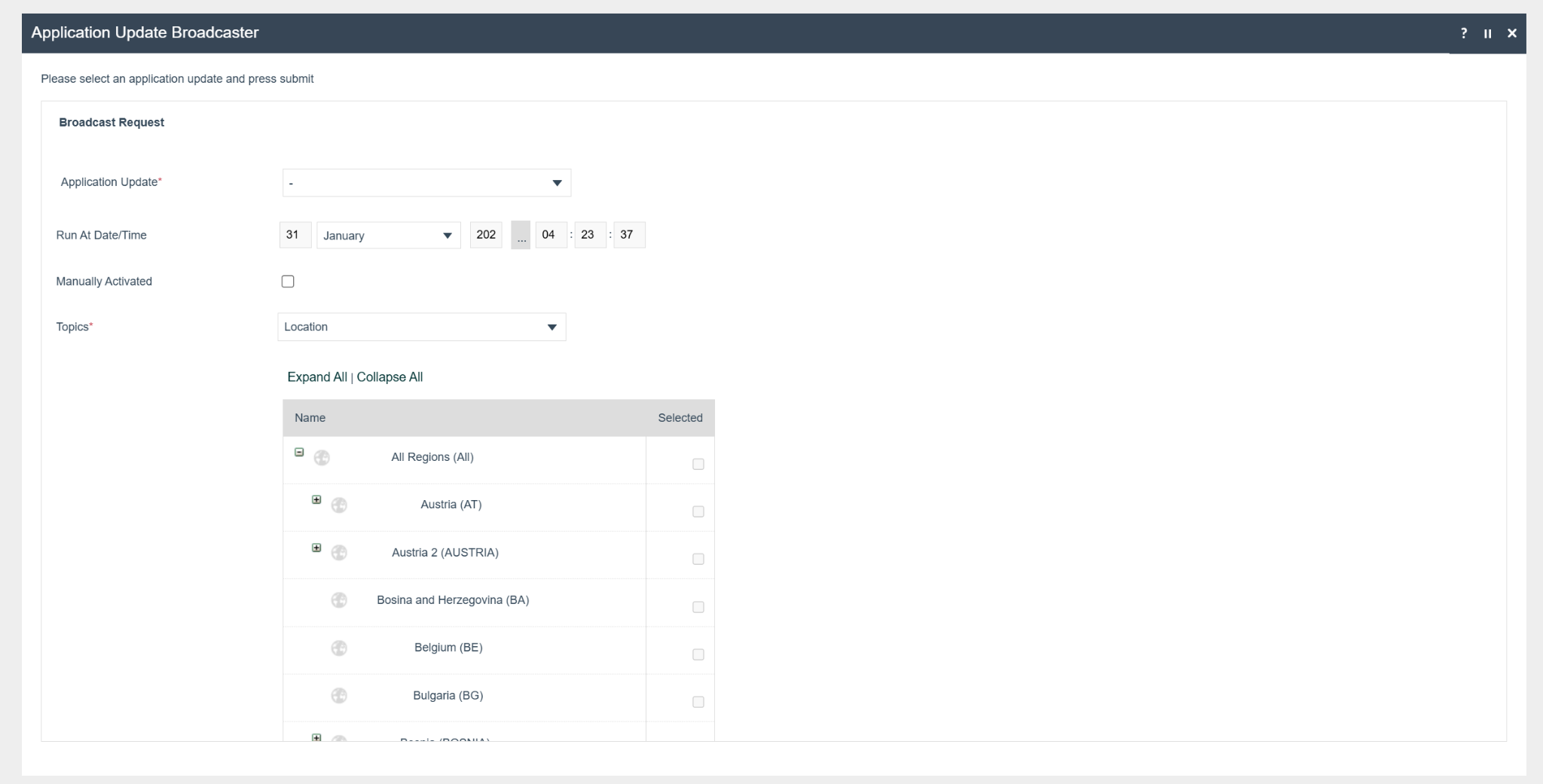
- Using the EM application update broadcaster, first send the application updater update.zip to the devices you wish to deploy the fiscal solution on to.
-
Wait until it succeeds.
-
Then send the update POS min.zip file.
-
Wait until it succeeds.
-
Send the Fiscal Module Update.zip.
-
Then send the PrinterResources-Italy.zip.
-
Once both updates are completed, the POS will be ready with the new POS Fiscal Module.
-
To verify the updates:
-
Check the installation location's
custom-lib(pos/custom-lib) folder for JAR files containing "fiscal" in their names. -
Check the
ext-libfolder for these files:CUSTOMJPOSF-3.10.38.jarjavapos-1.14.3.jarlog4j-1.2.13.jarxercesImpl.jar
-
Check the
binandscriptsfolders to ensure they contain the four required .dll files. -
Check the
configfolder for the jpos.xml file. Ensure that the jpos.properties file is also present inside thejpos/resdirectory.
-
-
Deploy the fiscalisation JARs to the EM using the JAR Deployer maintenance.
Configuration Overview
The following configuration changes are required and must be broadcast to all Italy devices in preparation for go live. Detailed steps for how to do this are contained in supplementary how-to guides available on the Enactor Insights portal, as well as being covered in the Introduction to Enactor training course.
Although steps have been taken to ensure that the POS will not start or perform transactions without a valid configuration, it is the retailer's responsibility to ensure a valid configuration is present and not to try to circumvent any of the requirements of the Italy Fiscal Legislation through misconfiguration of the solution.
Region
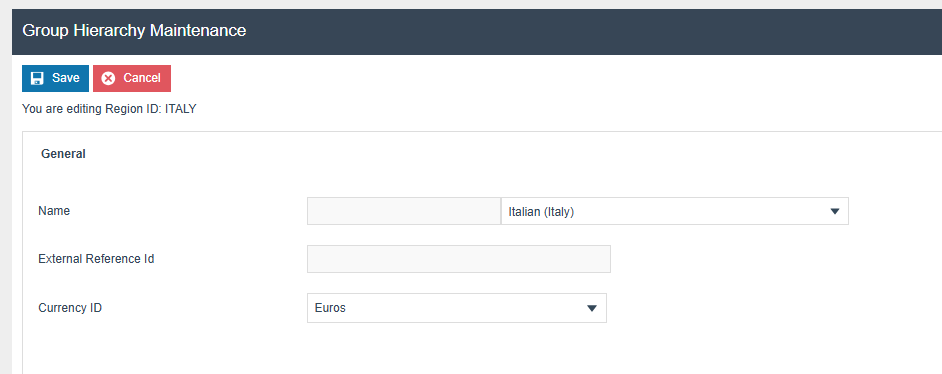
Region must be configured before continuing with the other configurations related to fiscalisation. A region for Italy should be created within the Region Group Hierarchy.

Tax Groups
The following tax groups should be configured and broadcast to the appropriate Italy devices.
| Tax Group ID | Description |
|---|---|
| IT1 | Standard IVA - 22% |
| IT2 | Reduced IVA 1 - 10% |
| IT3 | Reduced IVA 2 - 5% |
| IT4 | Super reduced IVA - 4% |
| IT5 | Special IVA |
| IT6 | IVA Esente - 0% |
| IT7 | Esclusa - 0% |
| IT8 | Non Soggetta - 0% |
| IT9 | Non Imponibile - 0% |
| IT10 | Regime del Margine - 0% |
| IT11 | Operazione Non IVA - 0% |
| IT12 | Ventilazione IVA - 0% |
Tax Rates
The following tax rates should be configured and broadcast to the appropriate Italy devices.
For fiscal tax rate references 1 to 5, setting the percentage to 0% is not permitted.
| Tax Rate Type | Tax Rate ID | Description | Display Code | Percentage | Fiscal Tax Rate Reference |
|---|---|---|---|---|---|
| VAT | IT1 | Standard IVA - 22% | S | 22% | 1 |
| VAT | IT2 | Reduced IVA 1 - 10% | R1 | 10% | 2 |
| VAT | IT3 | Reduced IVA 2 - 5% | R2 | 5% | 3 |
| VAT | IT4 | Super reduced IVA - 4% | SR | 4% | 4 |
| VAT | IT5 | Special IVA | SP | 4% | 5 |
| VAT | IT6 | IVA Esente - 0% | N1 | 0% | 6 |
| VAT | IT7 | Esclusa - 0% | N2 | 0% | 7 |
| VAT | IT8 | Non Soggetta - 0% | N3 | 0% | 8 |
| VAT | IT9 | Non Imponibile - 0% | N4 | 0% | 9 |
| VAT | IT10 | Regime del Margine - 0% | N5 | 0% | 10 |
| VAT | IT11 | Operazione Non IVA - 0% | N6 | 0% | 11 |
| VAT | IT12 | Ventilazione IVA - 0% | N7 | 0% | 12 |
Tax Scheme
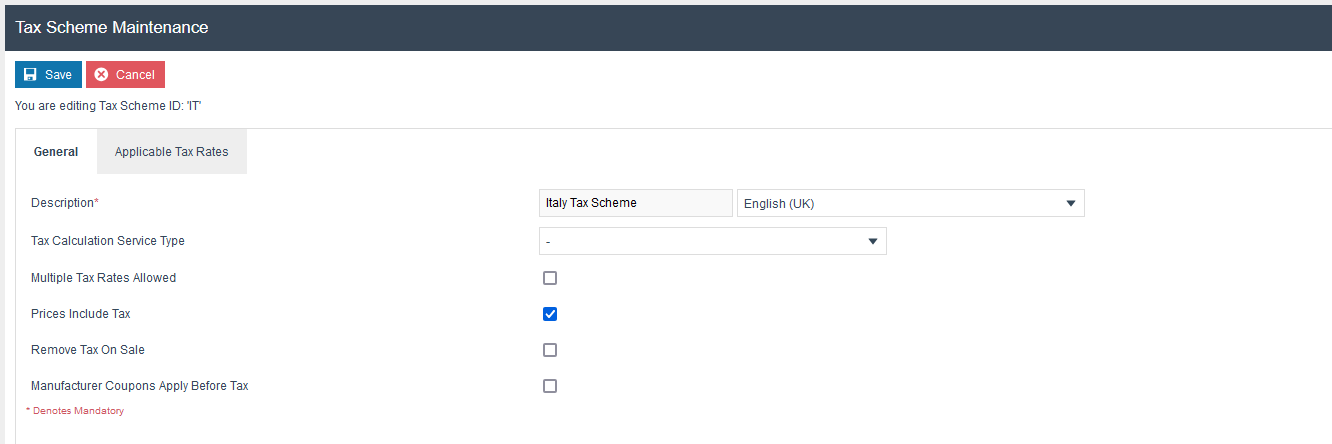
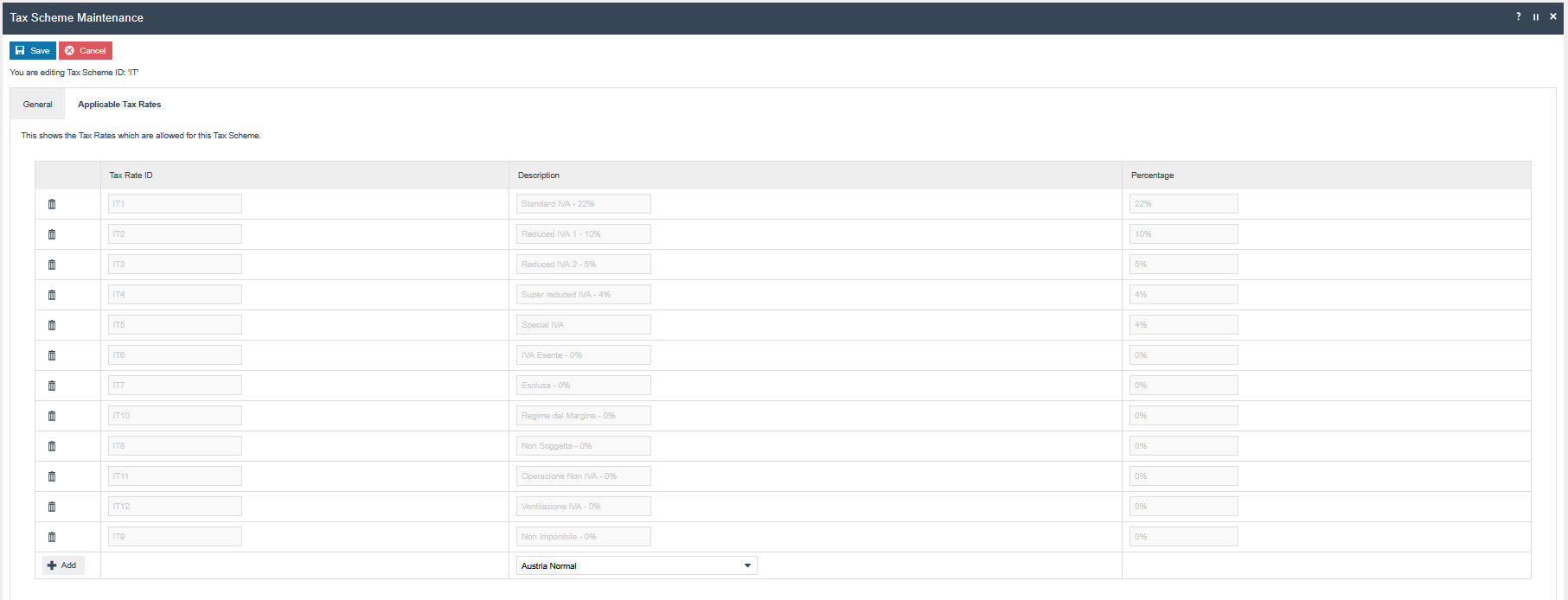
The following tax scheme should be configured and broadcast to the appropriate Italy devices. Make sure to add all the Tax Rates related to Italy as well.
| Tax Scheme ID | Description | Price Include Tax |
|---|---|---|
| IT | Italy Tax Scheme | TRUE |
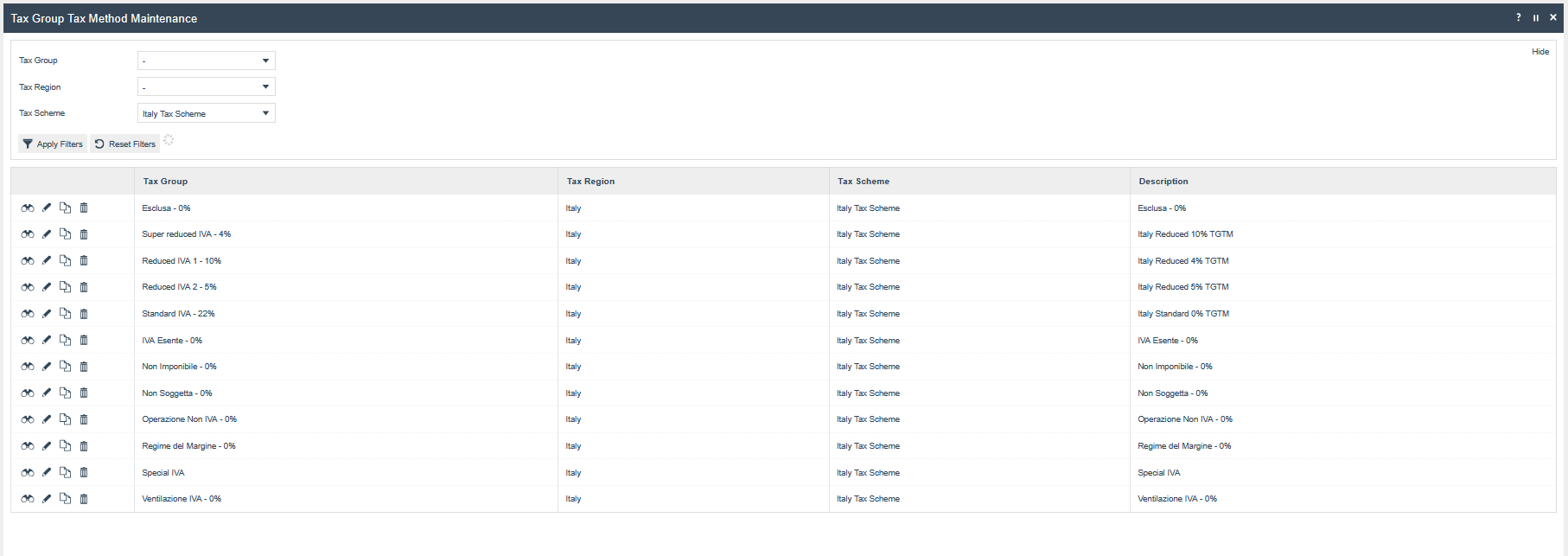
Tax Group Tax Methods
The following tax group tax methods should be configured and broadcast to the appropriate Italy devices.
| Tax Group ID | Tax Scheme ID | Description | Tax Rate |
|---|---|---|---|
| IT1 | IT | Standard IVA - 22% | 22% |
| IT2 | IT | Reduced IVA 1 - 10% | 10% |
| IT3 | IT | Reduced IVA 2 - 5% | 5% |
| IT4 | IT | Super reduced IVA - 4% | 4% |
| IT5 | IT | Special IVA | 4% |
| IT6 | IT | IVA Esente - 0% | 0% |
| IT7 | IT | Esclusa - 0% | 0% |
| IT8 | IT | Non Soggetta - 0% | 0% |
| IT9 | IT | Non Imponibile - 0% | 0% |
| IT10 | IT | Regime del Margine - 0% | 0% |
| IT11 | IT | Operazione Non IVA - 0% | 0% |
| IT12 | IT | Ventilazione IVA - 0% | 0% |
Tender
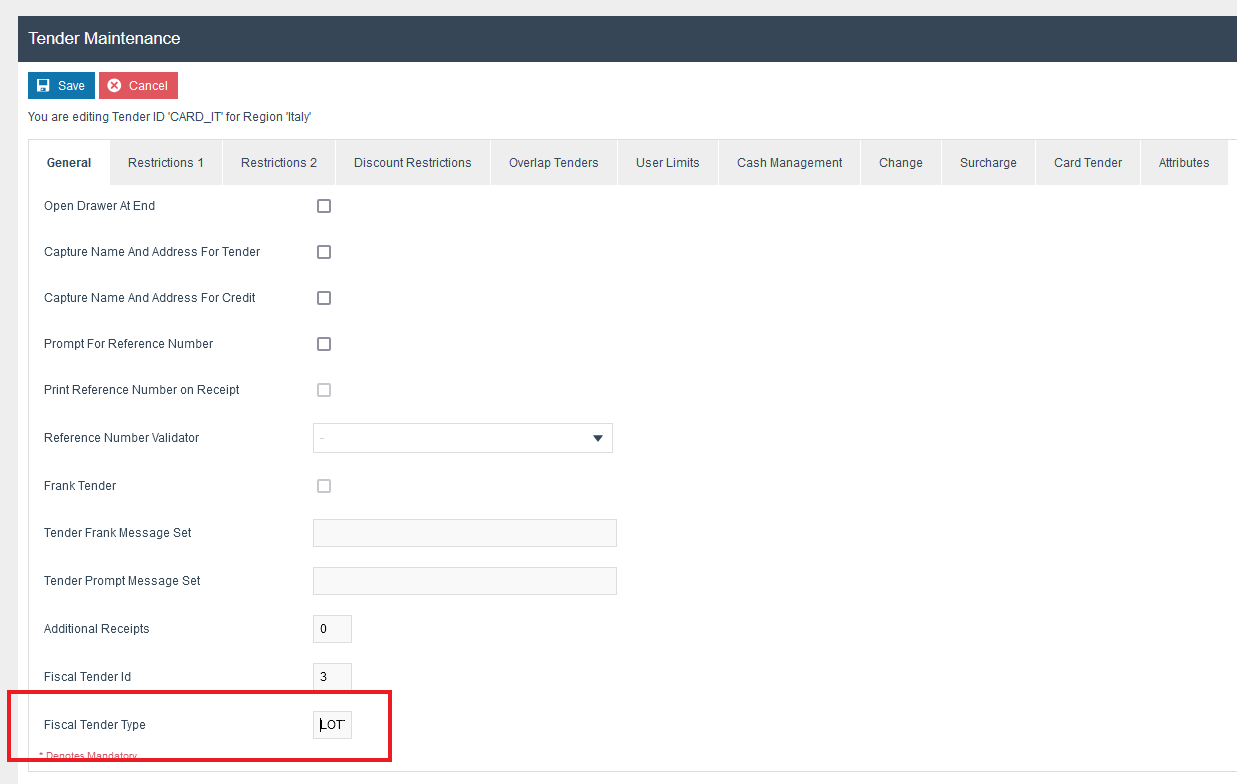
The following tenders should be configured and broadcast to the appropriate Italy devices.
| Tender ID | Description | Region | Currency | Fiscal Tender Type | Fiscal Tender ID |
|---|---|---|---|---|---|
CASH_IT | Cash | Italy | Euros | - | 1 |
CHQ_IT | Cheque | Italy | Euros | - | 2 |
CARD_IT | Card | Italy | Euros | LOTTERY | 3 |
GV_IT | Voucher | Italy | Euros | - | 5 |
BT_IT | Bank Transfer | Italy | Euros | - | 7 |
EGC_IT | Gift Card | Italy | Euros | - | 53 |
Tenders that should support lottery code capturing must have the Fiscal Tender Type set to LOTTERY.
Location
The following locations should be configured and broadcast to the appropriate Italy devices.
| Location ID | Name | Region | Price Group | Base Currency |
|---|---|---|---|---|
IT0001 | Enactor Store Italy | Italy | Italy (All Region) | Euros |
Add the following details which are needed in the receipt header and trailer.
Navigate to Location Maintenance using the path: Location Maintenance > Receipt tab > Receipt Header Lines
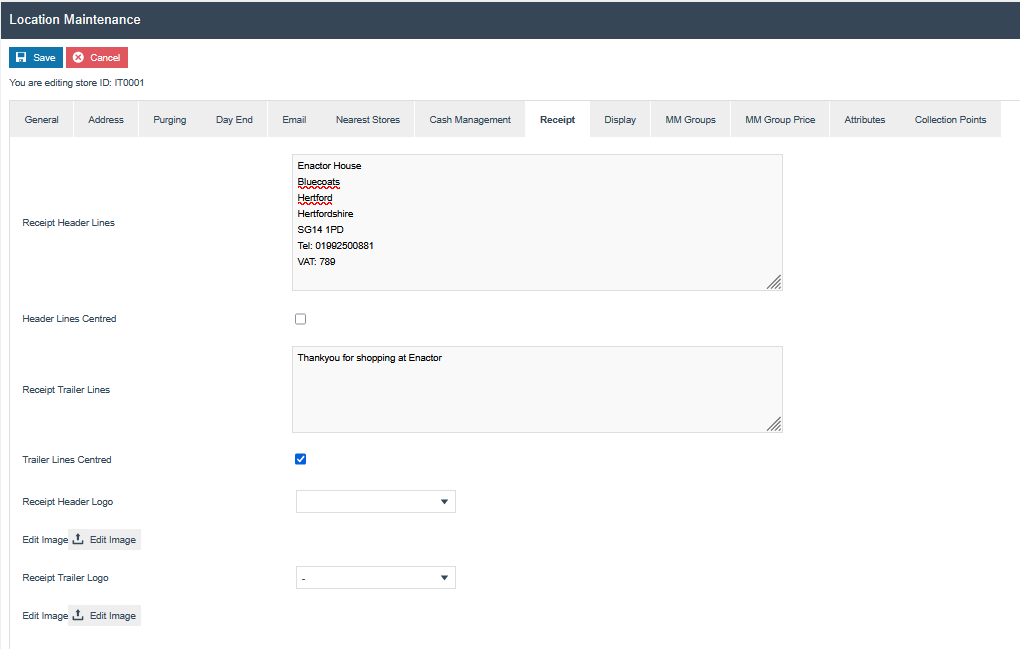
Configure the receipt header logo to be printed on receipts by the printer.
The logo must satisfy the following conditions:
- Width: 400 pixels
- Height: 200 pixels
- Format: Black and white bitmap (.bmp)
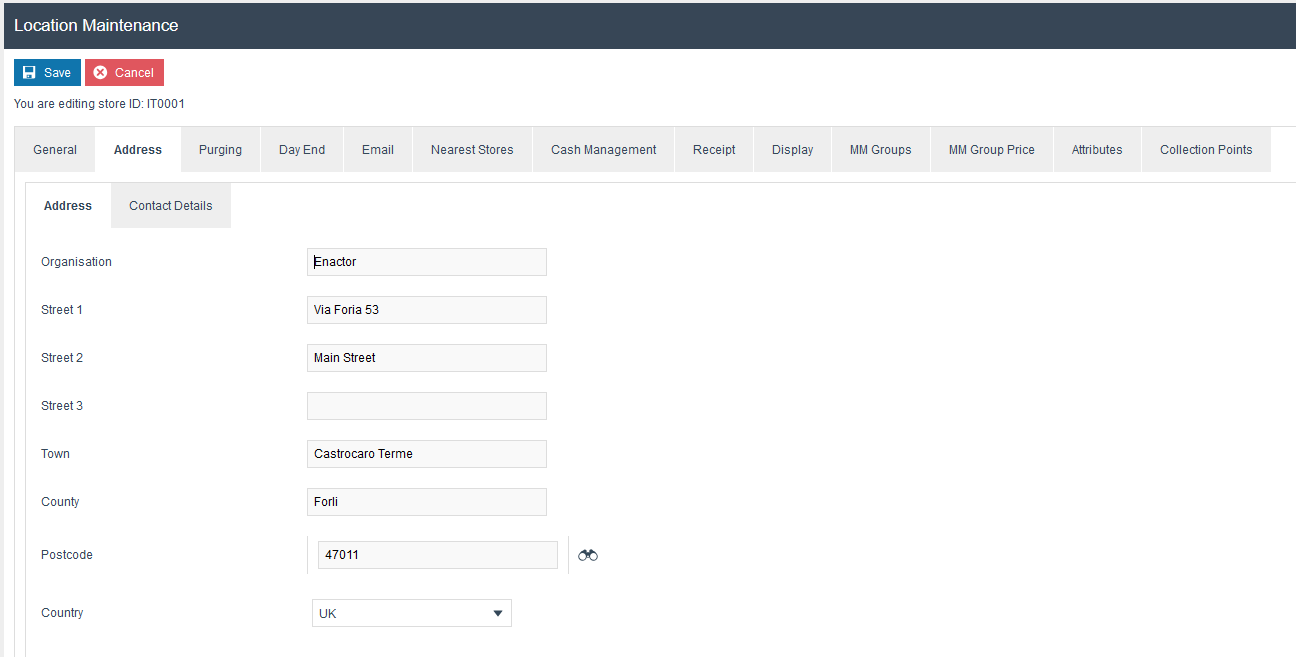
Set the address details in Location Maintenance on the Address tab.
Device
The following device should be configured and broadcast to the appropriate Italy devices.
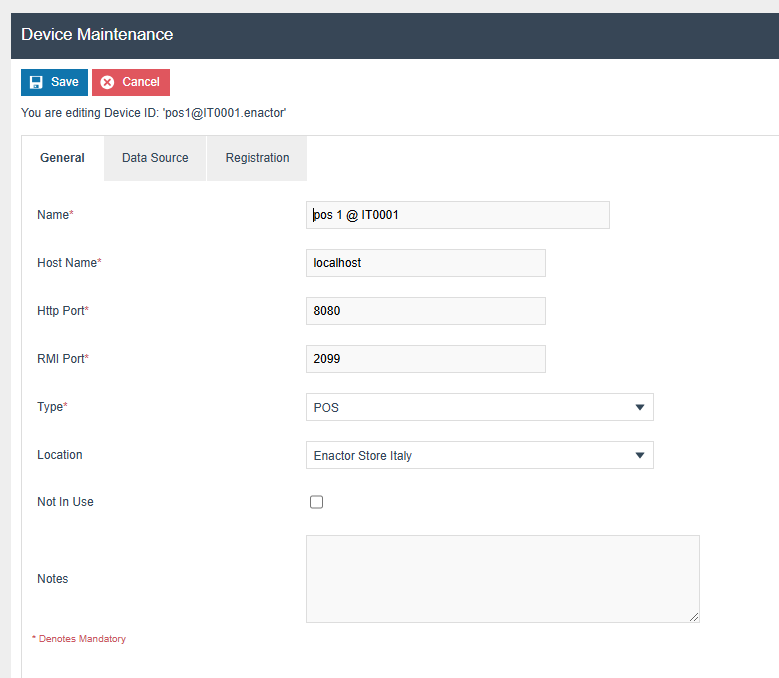
POS Terminal
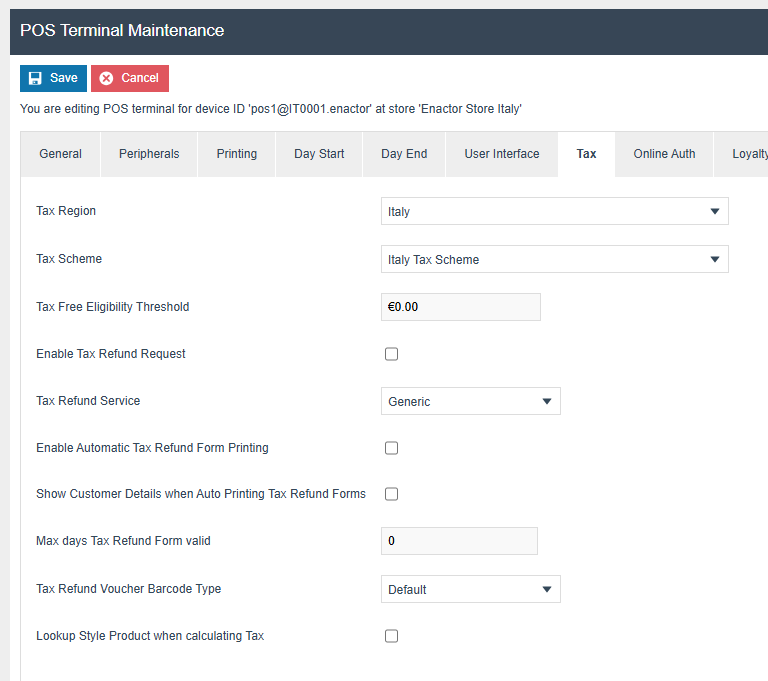
The POS Terminal Template used by all devices in Italy must be configured to have the Fiscalisation Type set to Italy. Currency should be set to Euro and Locale to Italy.
If a POS terminal configuration with the fiscalisation type set to Italy is broadcast to a POS device that does not have the Italy fiscal module installed, the POS will fail to start. Similarly, if a POS device with the Italy fiscal module installed is configured with anything but the Italy fiscalisation type, the POS will also fail to start. This is to ensure that only versions of the Enactor solution that have been certified for use in Italy are used in Italy.
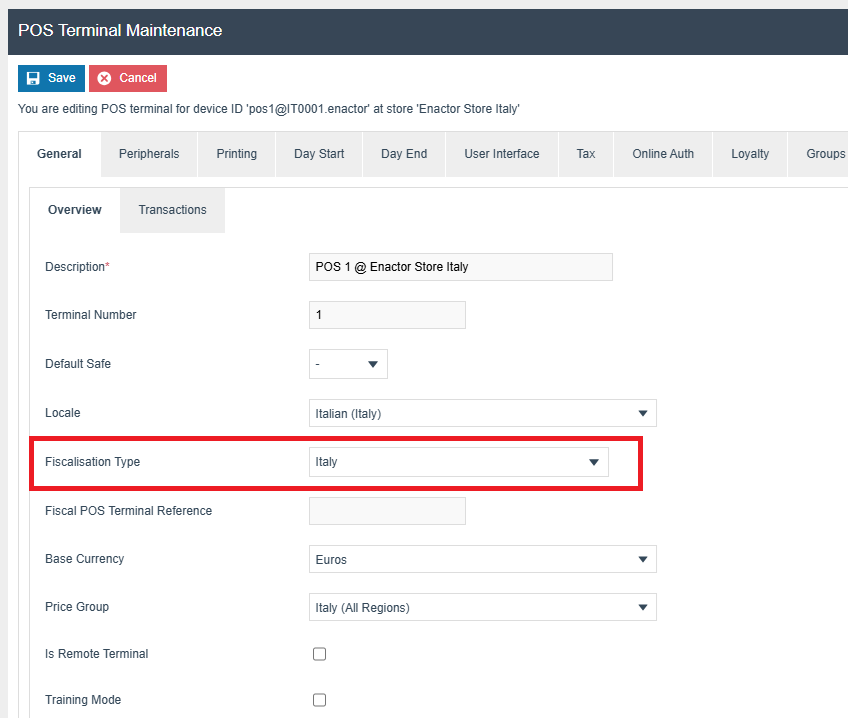
Peripherals Tab
The Peripherals tab should be configured as shown below.
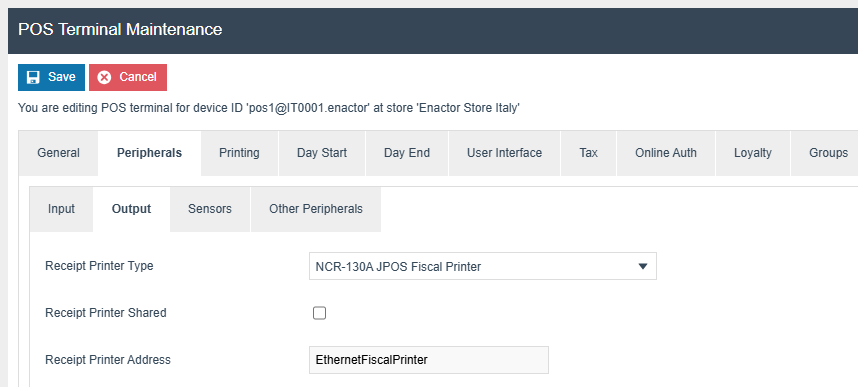
The Receipt Printer Address should be set to the logical name of the JposEntry defined in the jpos.xml file, which must be placed in the config folder.
Example jpos.xml:
JposEntries
<?xml version="1.0" encoding="UTF-8"?>
<!DOCTYPE JposEntries PUBLIC "-//JavaPOS//DTD//EN" "jpos/res/jcl.dtd">
<JposEntries>
  <JposEntry logicalName="EthernetFiscalPrinter">
    <creation factoryClass="com.custom.jpos.services.CustomJposServiceInstanceFactory"
              serviceClass="com.custom.jpos.services.FiscalPrinterService"/>
    <vendor name="Custom, SPA" url="http://www.custom.it"/>
    <jpos category="FiscalPrinter" version="1.7"/>
    <product description="Custom FiscalPrinter from Custom Corporation"
             name="Custom FiscalPrinter Service for JavaPOS(TM) Standard"
             url="http://www.custom.it"/>
    <prop name="deviceBus" type="String" value="Ethernet"/>
    <prop name="portName" type="String" value="172.16.251.124"/>
    <prop name="logStatusCommands" type="String" value="false"/>
    <prop name="deleteEmptyHeaderLines" type="String" value="false"/>
    <prop name="debugDll" type="String" value="true"/>
  </JposEntry>
</JposEntries>
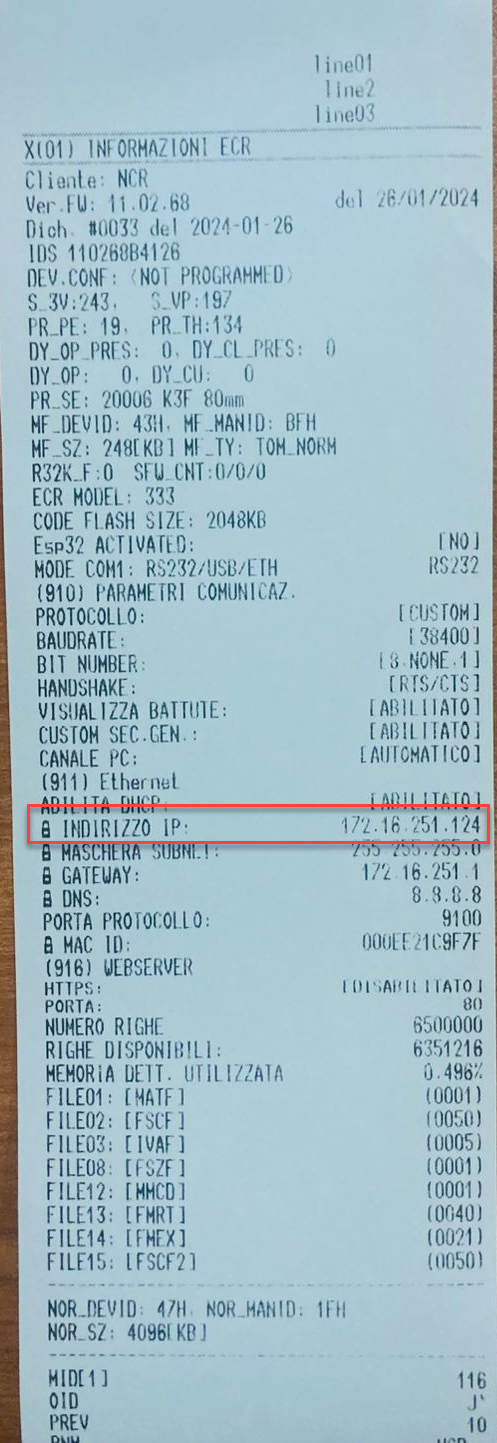
The value of the portName property should be the IP address of the physical printer.
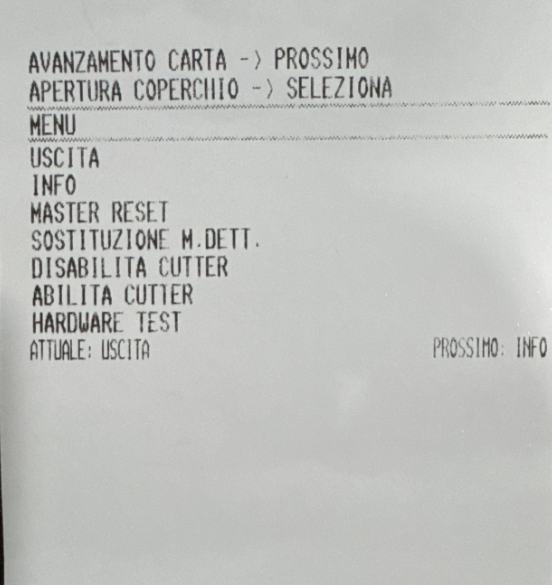
To find the printer IP address, refer to the device manual and follow these steps:
- Turn the printer off and then back on using the power button.
- When the startup beep ends, press and hold both buttons simultaneously until the printer prints a slip.
- Press the Feed button once.
- Press the Open Lid button.
This prints a long receipt containing the IP address and other printer details. Once the receipt is printed, press the Open Lid button again to return the printer to FPU mode.
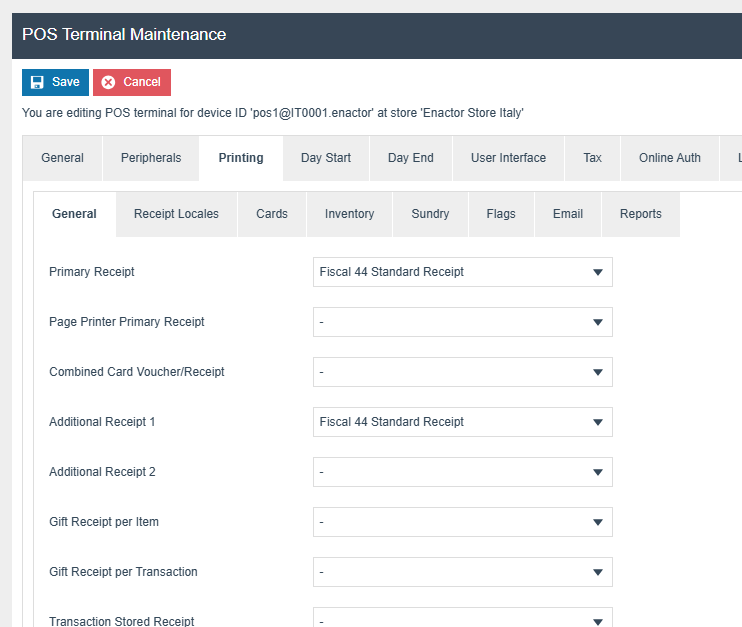
Receipt Configuration
The primary receipt should be set to Fiscal 44 Standard Receipt.
Print Receipt for Void Transaction - Set to false (unchecked). Available under: Printing > Flags
Order Deposit Per Delivery Option - Set to true (checked). Available under: General > Transaction
Receipt Templates
The following receipt templates should be configured under Printing > Cards:
| Voucher Type | Receipt Template |
|---|---|
| Card Voucher, Merchant Copy | Card Mer Copy IT RTP 44 |
| Card Voucher, Customer Copy | Card Cust Copy IT RTP 44 |
| Card Voucher, Merchant Cancelled Copy | Card Cancelled Mer Copy IT RTP 44 |
| Card Voucher, Customer Cancelled Copy | Card Cancelled Cust Copy IT RTP 44 |
| Gift Card Advice Slip | Gift Card Advice Slip IT RTP 44 |
| Customer Signature Slip | Customer Signature Slip IT RTP 44 |
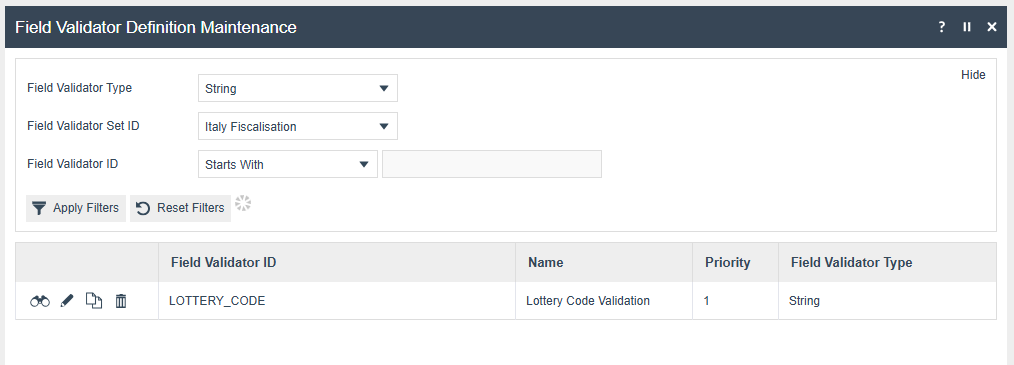
Lottery
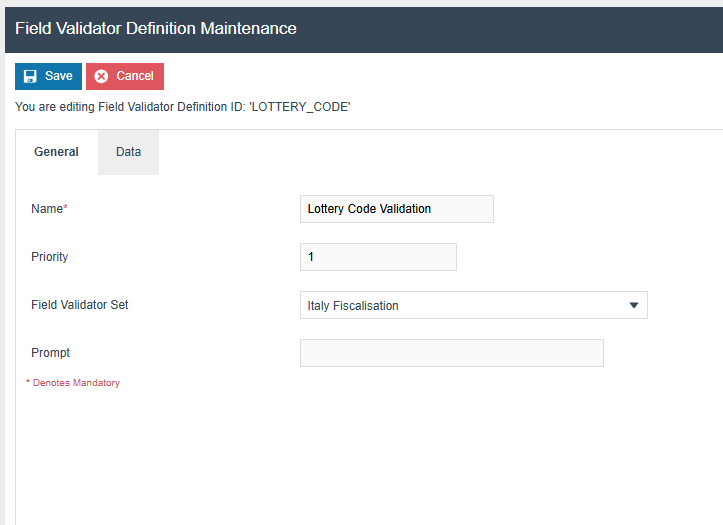
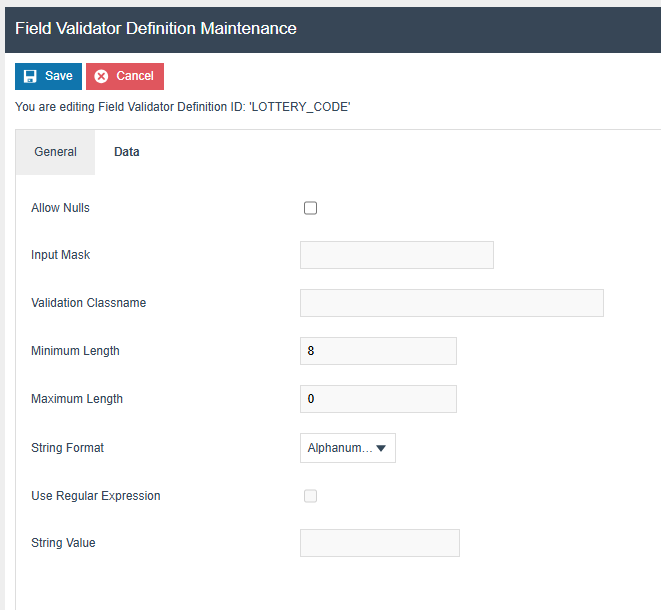
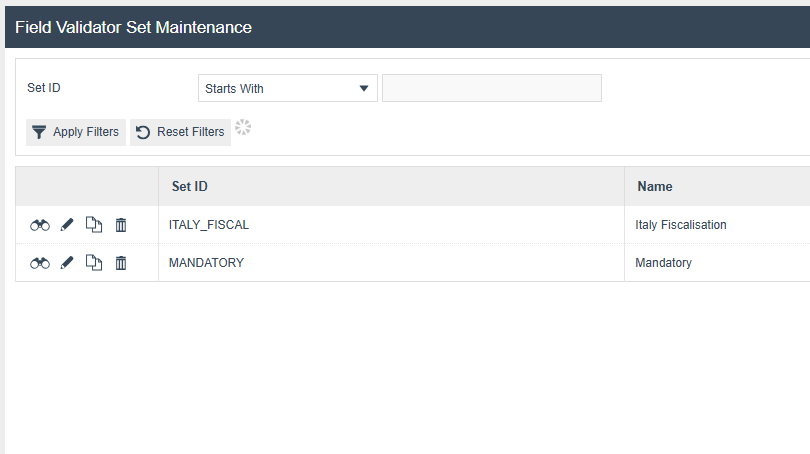
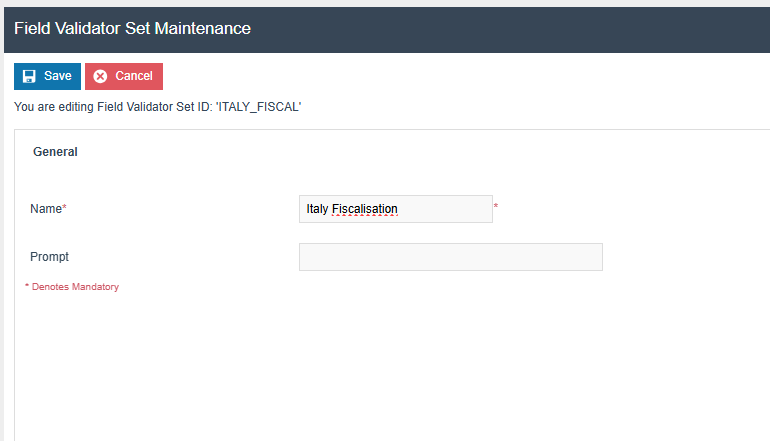
Configure lottery code validation using Field Validator Set Maintenance and Field Validator Definition Maintenance.
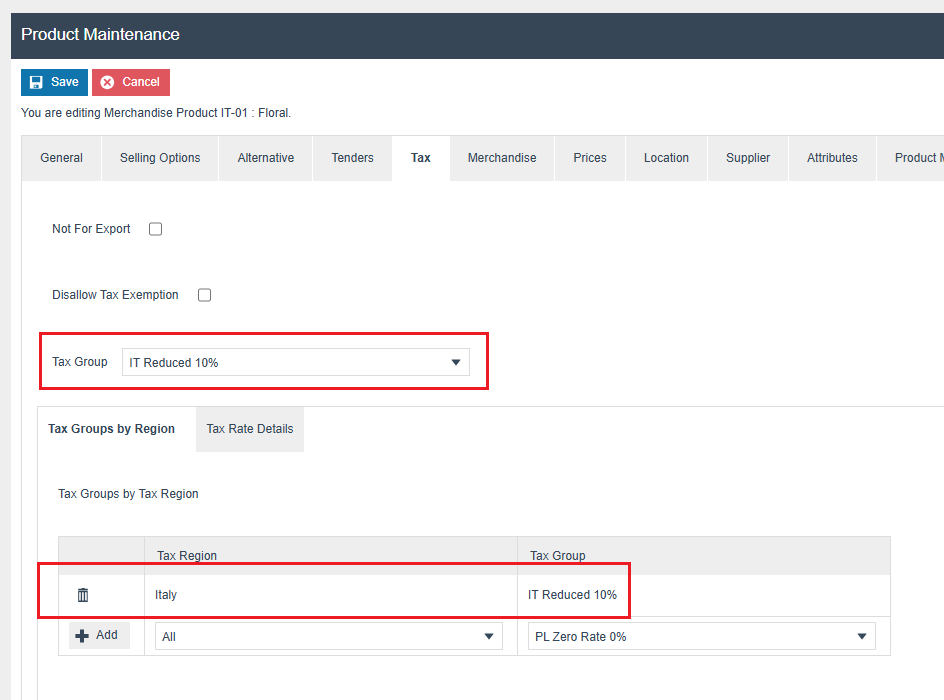
Product Tax
The following tax configurations should be configured against the products and broadcast to the appropriate Italy devices. Tax groups can be either configured to have an Italian tax group or a tax group by tax region.
Privileges
The following privileges need to be configured against the appropriate roles and broadcast to the Italian devices. Consideration should be given to whether it is desirable for all operators to have all of these privileges or if some should only be granted to managers.
For more detail on privileges and roles, refer to the How To Configure Users, User Roles and User Templates guide. Ensure the fiscalisation JAR files are deployed to the EM.
| Privilege ID | Application Package |
|---|---|
enactor.pos.RequestSimpleFiscalInvoiceAllowed | POS Fiscalisation |
enactor.pos.PrintFiscalReportsAllowed | POS Fiscalisation |
enactor.pos.AuthorisesPrintFiscalReports | POS Fiscalisation |
enactor.pos.fiscal.SetHeaderAllowed | POS Fiscalisation |
enactor.pos.fiscal.AuthorisesSetHeader | POS Fiscalisation |
enactor.pos.fiscal.SetLogoAllowed | POS Fiscalisation |
enactor.pos.fiscal.AuthorisesSetLogo | POS Fiscalisation |
enactor.pos.fiscal.SyncTimeAllowed | POS Fiscalisation |
enactor.pos.fiscal.AuthorisesSyncTime | POS Fiscalisation |
enactor.pos.fiscal.SyncVATAllowed | POS Fiscalisation |
enactor.pos.fiscal.AuthorisesSyncVAT | POS Fiscalisation |
Menu Configuration
Sale Menu
Navigate to Menu configuration using the path: Configuration > Systems > Menu
Edit the SALE menu for the Menu Group Standard POS.
Add a folder under Sales > Management > Report called Fiscal Reports.
Add new buttons to the Fiscal Reports folder with the following menu data:
| Event | ID | Button Label | Name | Java Type | Value |
|---|---|---|---|---|---|
Fiscal_PrintReports_X | Fiscal_PrintReports_X | Fiscal X Report | ReportType | String | X |
Fiscal_PrintReports_Z | Fiscal_PrintReports_Z | Fiscal Z Report | ReportType | String | Z |
Fiscal_PrintReports_Periodic | Fiscal_PrintReports_Periodic | Periodic Report | ReportType | String | PERIODIC |
Edit the SALE menu for the Menu Group Standard POS.
Add a new button to Sales > Receipts with the following menu data:
| Event | ID | Button Label |
|---|---|---|
RequestSimpleFiscalInvoice | RequestSimpleFiscalInvoice | Request Simple Fiscal Invoice |
Admin Menu
Navigate to Menu configuration using the path: Configuration > Systems > Menu
Edit the ADMIN menu for the Menu Group Standard POS.
Create a menu folder named Financial and add the following menu buttons:
| Event | ID | Image URL |
|---|---|---|
TerminalCashManagement | TerminalCashManagement | NextGen1024x768/Admin/TerminalCashManagementButton.png |
SafeCashManagement | SafeCashManagement | NextGen1024x768/Admin/SafeCashManagementButton.png |
Add the following fiscal administration buttons:
| Event | ID | Button Label | Name | Java Type | Value |
|---|---|---|---|---|---|
Fiscal_Set_Header | Fiscal_Set_Header | Set Header | ConfigType | String | SET_HEADER |
Fiscal_Set_Logo | Fiscal_Set_Logo | Set Logo | ConfigType | String | SET_LOGO |
Fiscal_Sync_VAT | Fiscal_Sync_VAT | Sync VAT | ConfigType | String | SYNC_VAT |
Fiscal_Sync_Time | Fiscal_Sync_Time | Sync Time | ConfigType | String | SYNC_TIME |
Fiscal_Get_Vat_Rates | Fiscal_Get_Vat_Rates | Get VAT Rates | ConfigType | String | GET_VAT_RATES |
For more detail on menu creation, refer to the POS Functionality guides covering menu configuration.
Operations
Fiscal X Report
The X Report gives a report of the transactions. This does not close the fiscal day.
- The location of this button in the menu structure is configurable.
- The function is privilege controlled.
Fiscal Z Report
The Z Report closes the fiscal day.
- This should be generated at the end of a shift or day.
Set Header
Set Header is used to define and store mandatory business details that are printed on every fiscal receipt or report.
This functionality can only be triggered once the Day End report (Z Report) has been completed.
Set Logo
Set Logo allows businesses to upload and print their company logo on receipts.
- The logo can be updated (bitmap loading) but this operation is permitted only after a Z Report.
- The logo size must be approximately 400 x 200 points.
Sync VAT
Sync VAT synchronises the POS VAT rates with the printer VAT rates.
Sync Time
Sync Time synchronises the POS date and time with the printer.
Get VAT Rates
Get VAT Rates retrieves the VAT rates that are currently synced with the printer.
Functional Overview
Once all configurations have been completed correctly, the first step is to synchronise the VAT rates with the fiscal printer. This can be done by navigating to:
Admin Menu > Fiscalisation > Sync VAT
Upon successful synchronisation, the printer will automatically generate several receipts as confirmation.
After this, the POS is ready for use. You can add an item to the basket, press Total, choose a tender method, and complete the transaction as usual.
To configure receipt headers and synchronise the printer's date and time, use the corresponding options available in the Admin Menu.
It is essential to sync the printer's time with Italian local time to ensure successful submission of the Z report to the server.