How To Configure Fiscal Latvia
Fiscal Overview
For shared background on Enactor fiscal solutions, see Fiscal Overview.
Introduction
In Latvia, the fiscal approach requires the use of a CHD device to ensure compliance with the country's fiscal regulations. The CHD device is a hardware-based solution that securely processes, records, and stores each transaction in a tamper-proof format to prevent fraud and ensure transparency.
Receipts generated by the POS system must be printed and offered to customers. These receipts must include certain mandatory fields, such as a unique fiscal receipt number and a digital signature generated by the CHD device.
This guide assumes that the standard POS has already been deployed and has established a connection with the Estate Manager. For further details on how to do this, refer to the Enactor Insights Portal.
App Update Deployment Overview
The following steps must be completed in order to deploy the fiscal module to a PDP device:
- Send the application updater update.zip file first.
- Wait until it succeeds.
- Then send the update PDP min.zip file.
- Wait until it succeeds.
- Finally, send the Fiscal Module Update.
- Once it has succeeded, the PDP is ready with the new Fiscal Module.
Configuration Overview
The following configuration changes are required and must be broadcast to all Latvia devices in preparation for go live. Detailed steps for how to do this are contained in supplementary how-to guides available on the Enactor Insights Portal, as well as being covered in the Introduction to Enactor training course.
Although steps have been taken to ensure that the POS will not start or perform transactions without a valid configuration, it is the retailer's responsibility to ensure a valid configuration is present and not to try to circumvent any of the requirements of the Latvia Fiscal Legislation through misconfiguration of the solution.
Group
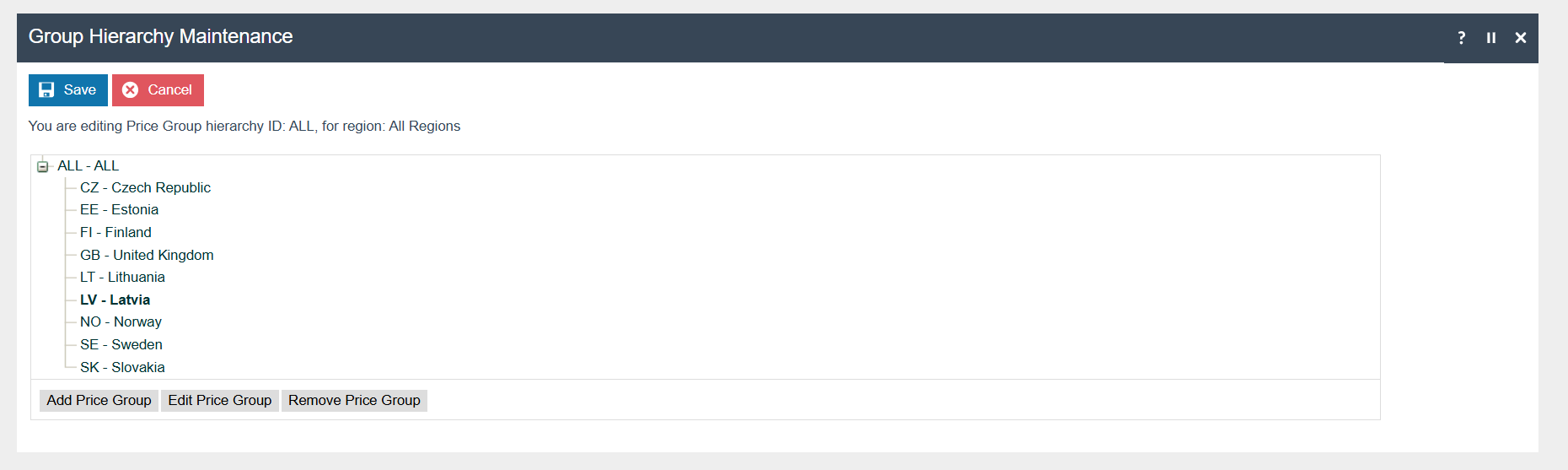
Create a new Region group, Tax Region, and Price group for Latvia as shown below.
| Group Type | Group ID | Group Name |
|---|---|---|
| Region | LV | Latvia |
| Tax Region | LV | Latvia |
| Price | LV | Latvia |
Region Group
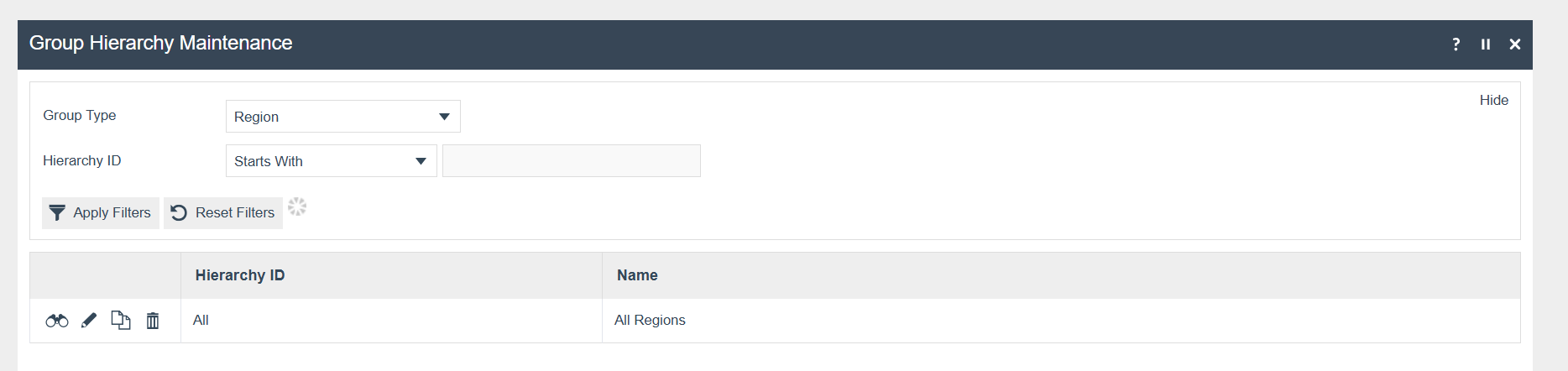
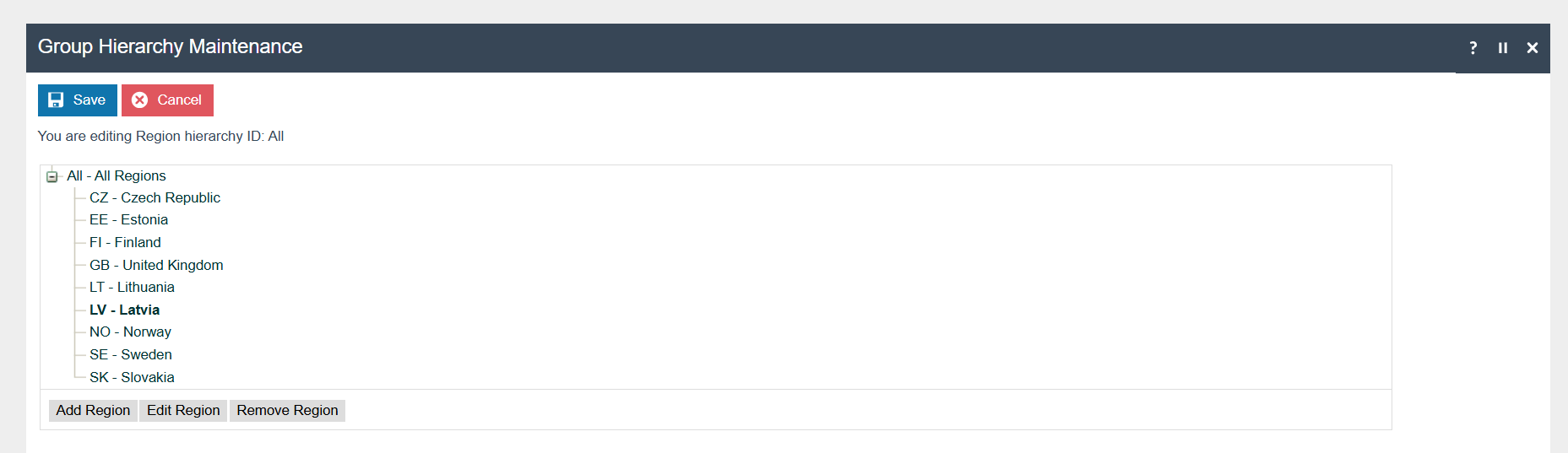
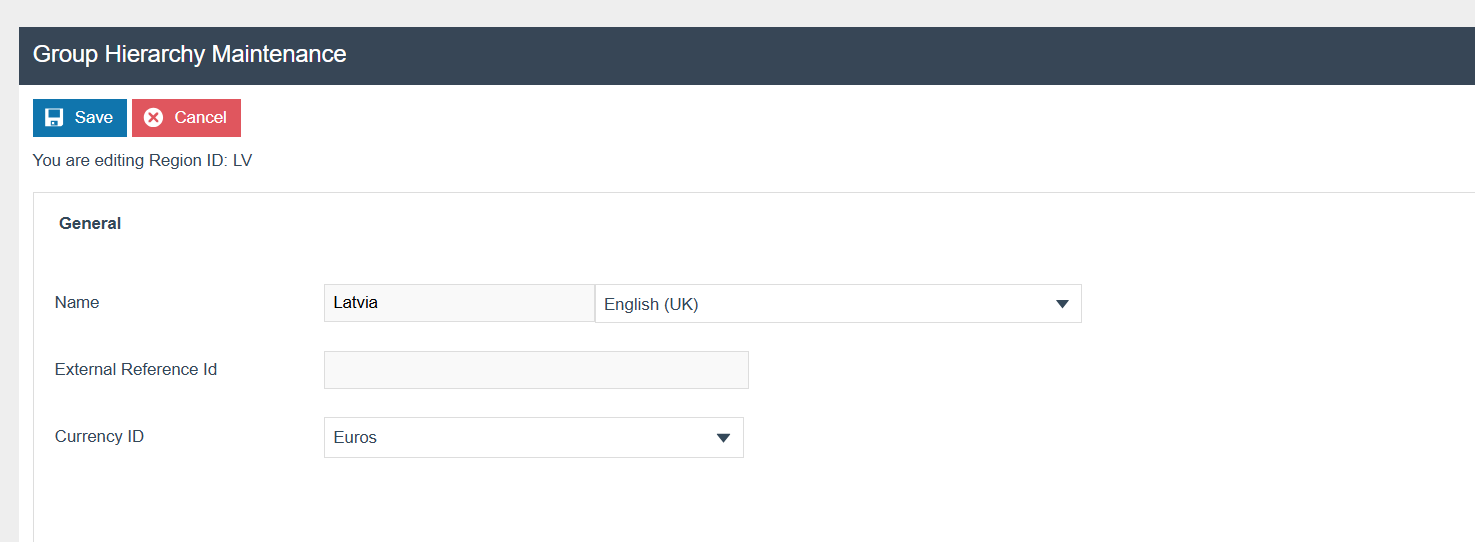
The region must be configured to continue the other configurations related to fiscalisation. A region for Latvia should be created within the Region Group Hierarchy.
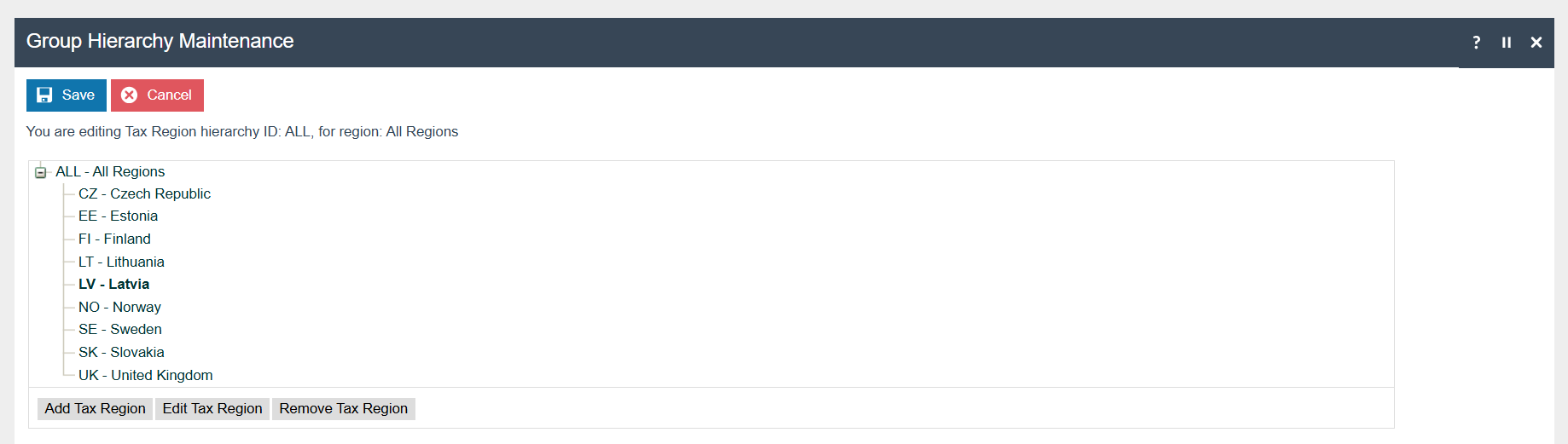
Tax Region Group
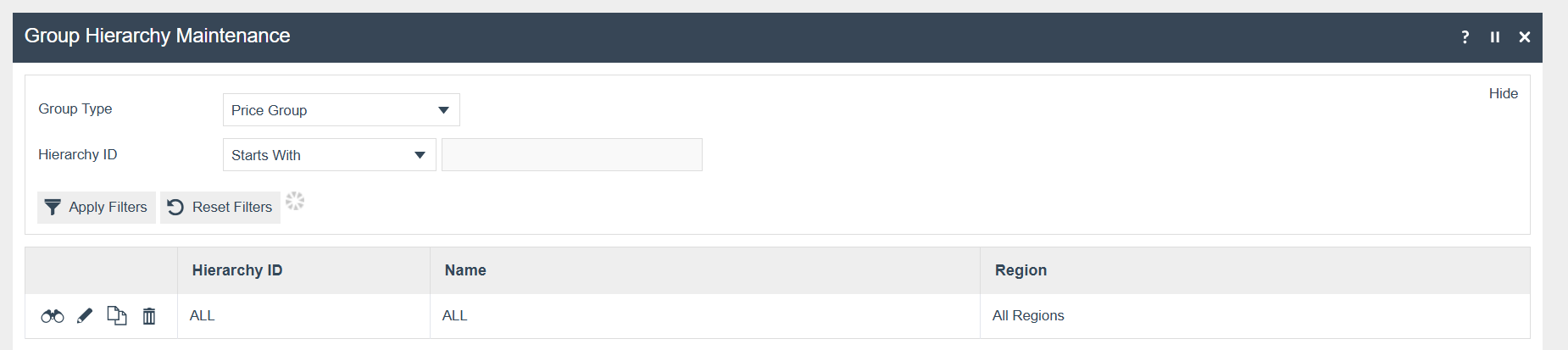
Price Group
Locale
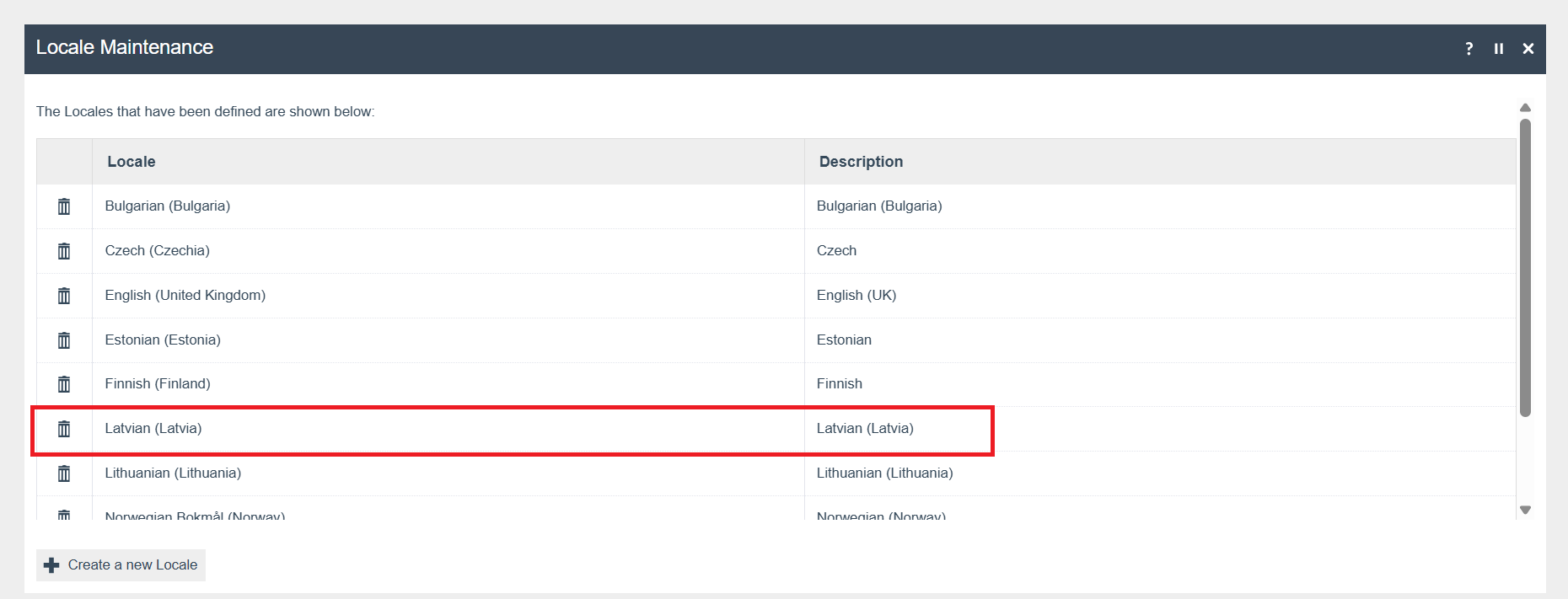
The following Locale should be configured and broadcast to the appropriate Latvia devices.
Location
The following Location should be configured and broadcast to the appropriate Latvia devices.
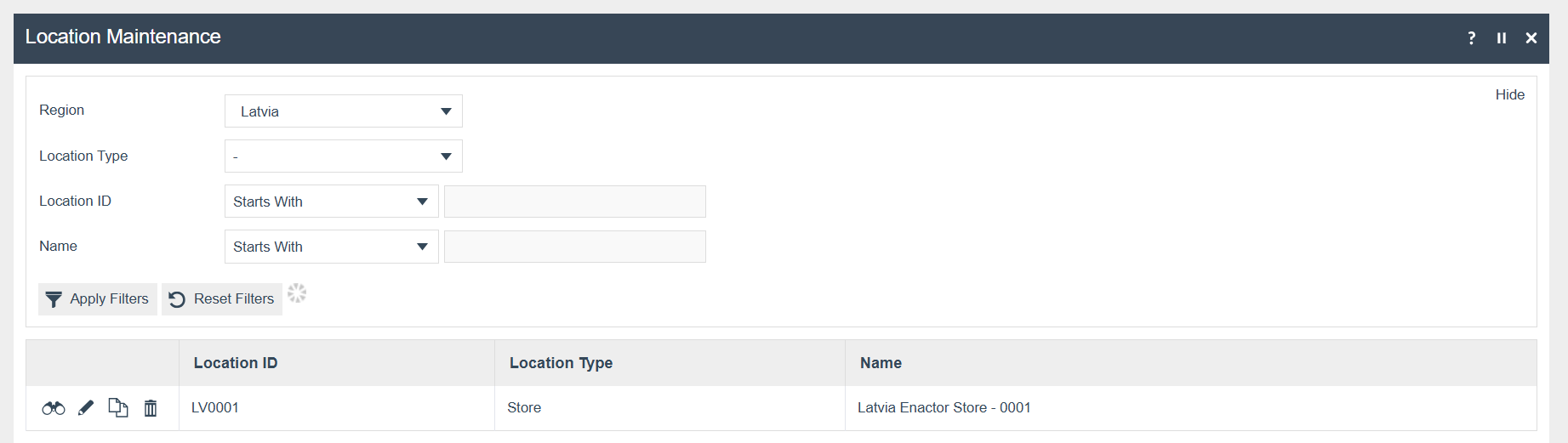
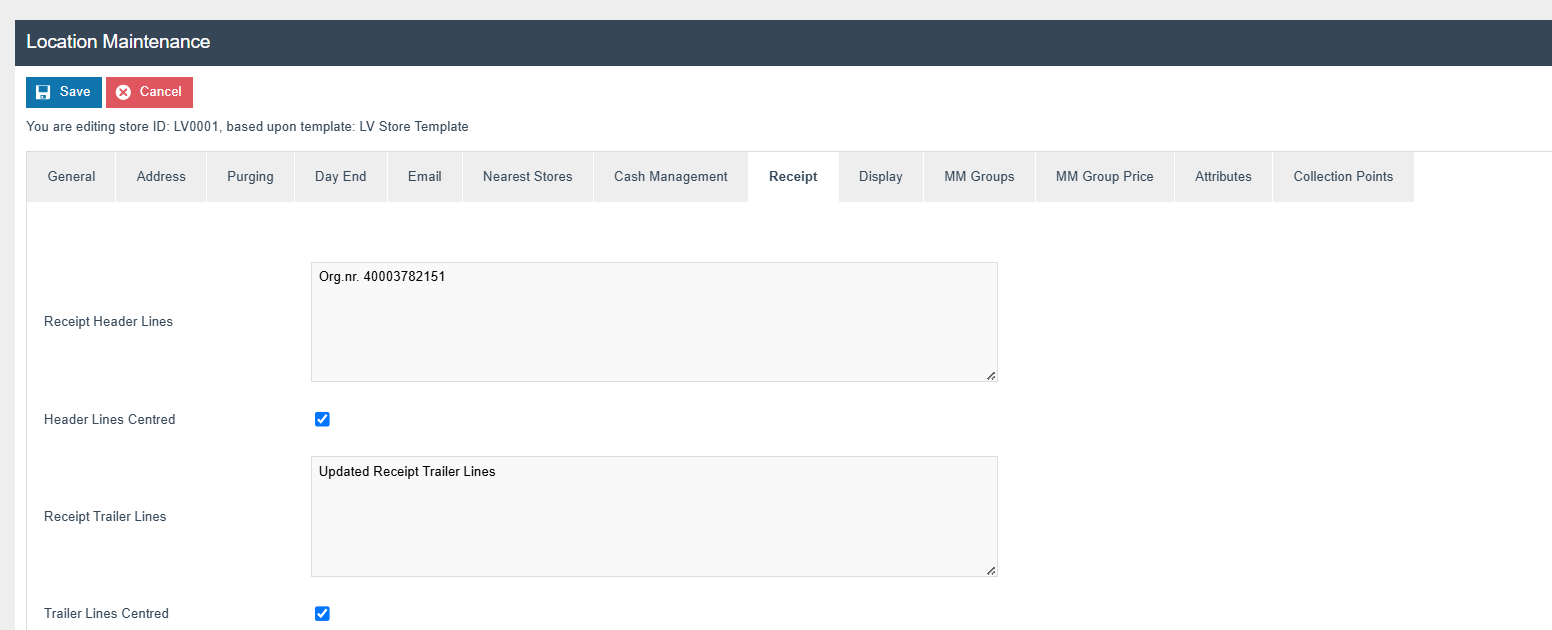
Add the following details which are needed in the receipt header.
Navigate to Location Maintenance > Receipt tab > Receipt Header Lines
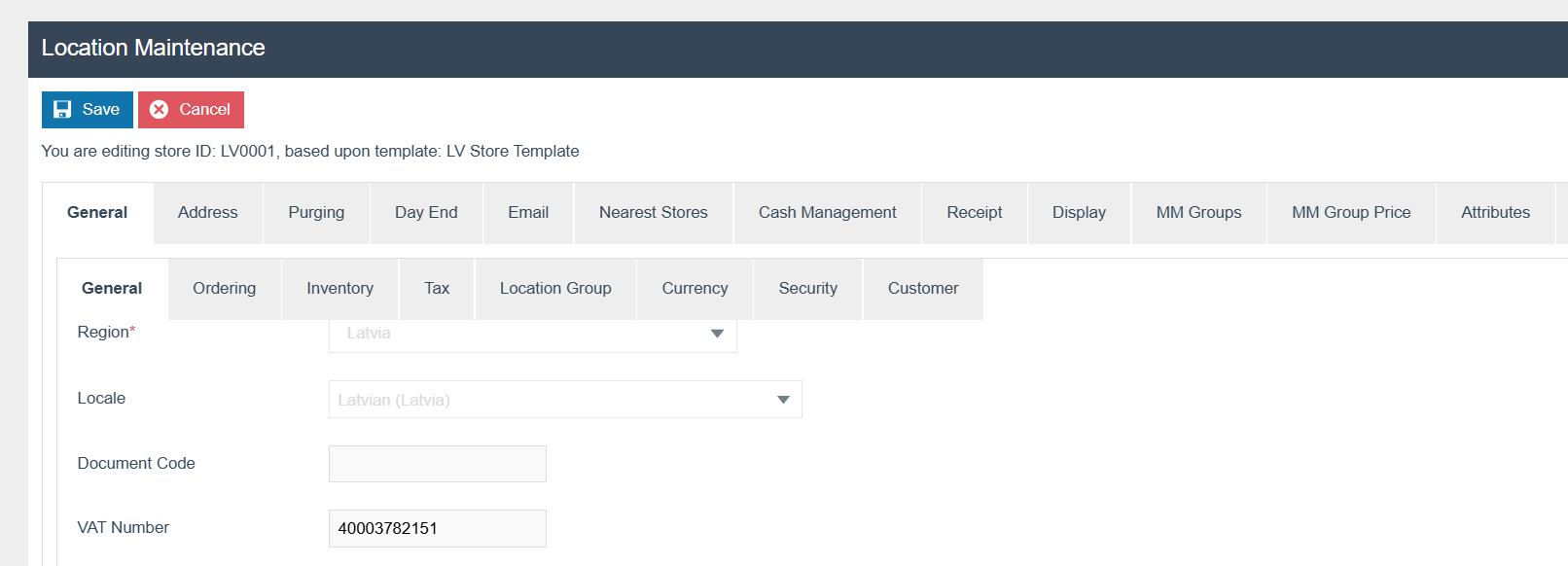
Set the Company Tax ID for the VAT Number in Location Maintenance on the General tab.
Tax Groups
The following tax groups should be configured and broadcast to the appropriate Latvia devices.
| Tax Group ID | Description |
|---|---|
LV-01 | LV Standard VAT 21% |
LV-02 | LV Reduced Rate 5% |
LV-03 | LV Zero Rate 0% |
Tax Rate
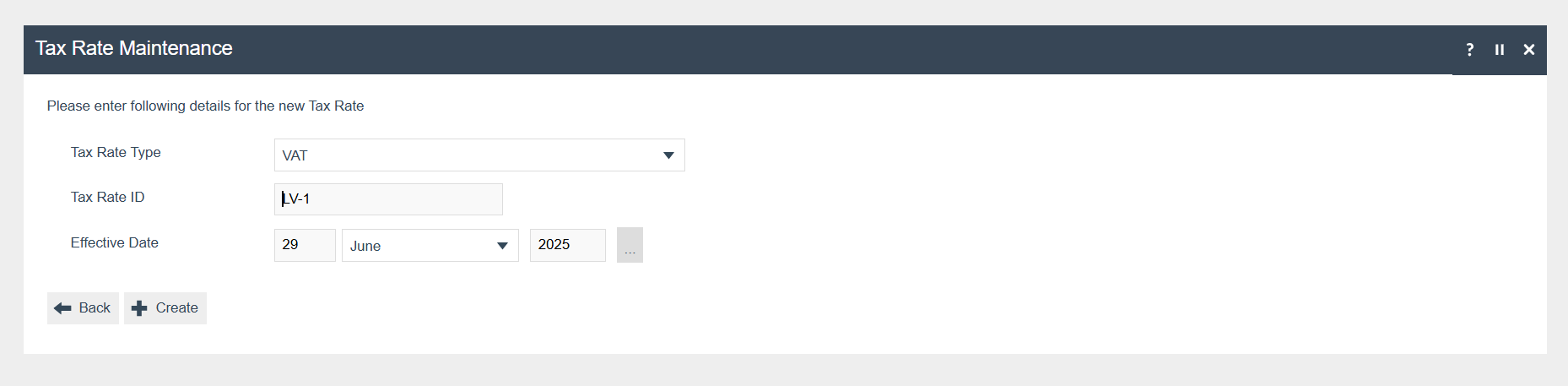
The following tax rates should be configured and broadcast to the appropriate Latvia devices.
| Tax Rate ID | Description | Display Code | Percentage | Fiscal Tax Rate Reference |
|---|---|---|---|---|
LV-1 | LV Standard VAT 21% | A | 21% | A |
LV-2 | LV Reduced Rate 5% | B | 9% | B |
LV-3 | LV Zero Rate 0% | C | 0% | C |
Select VAT as the Tax Rate Type.
Tax Scheme
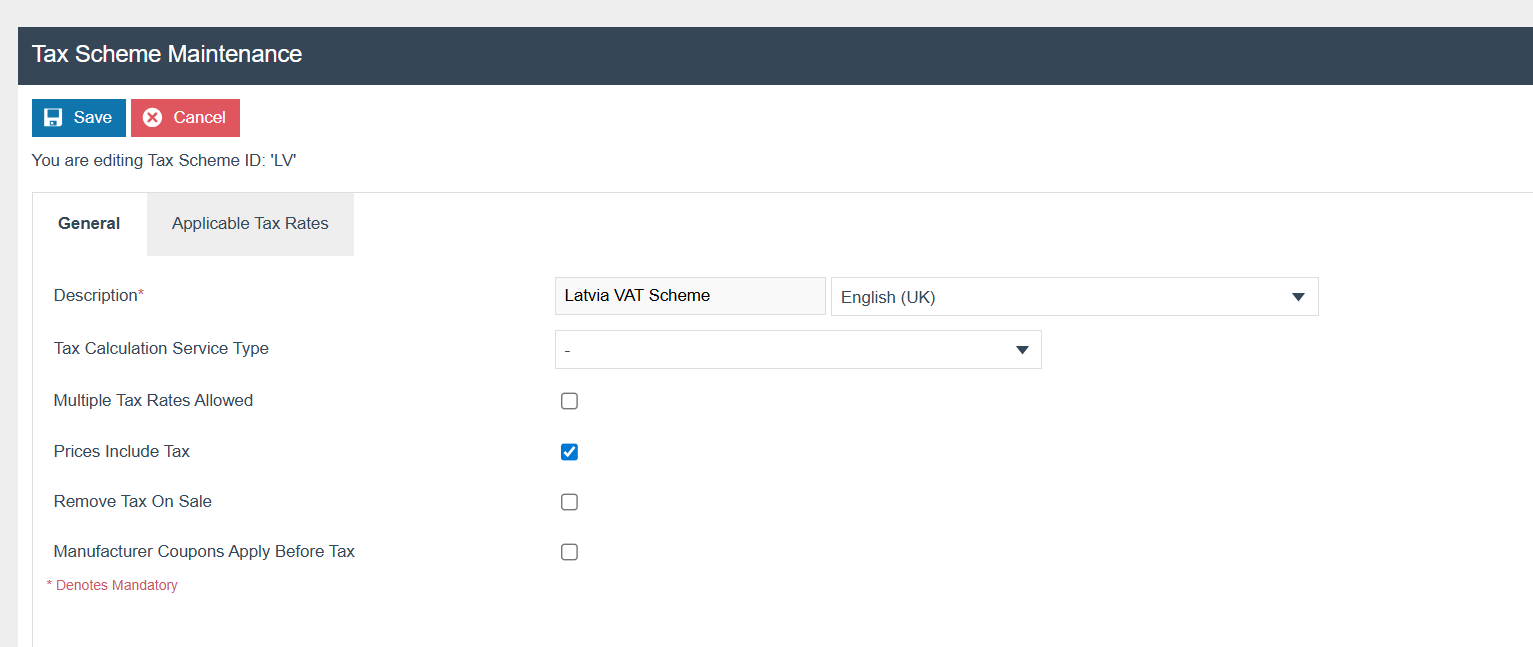
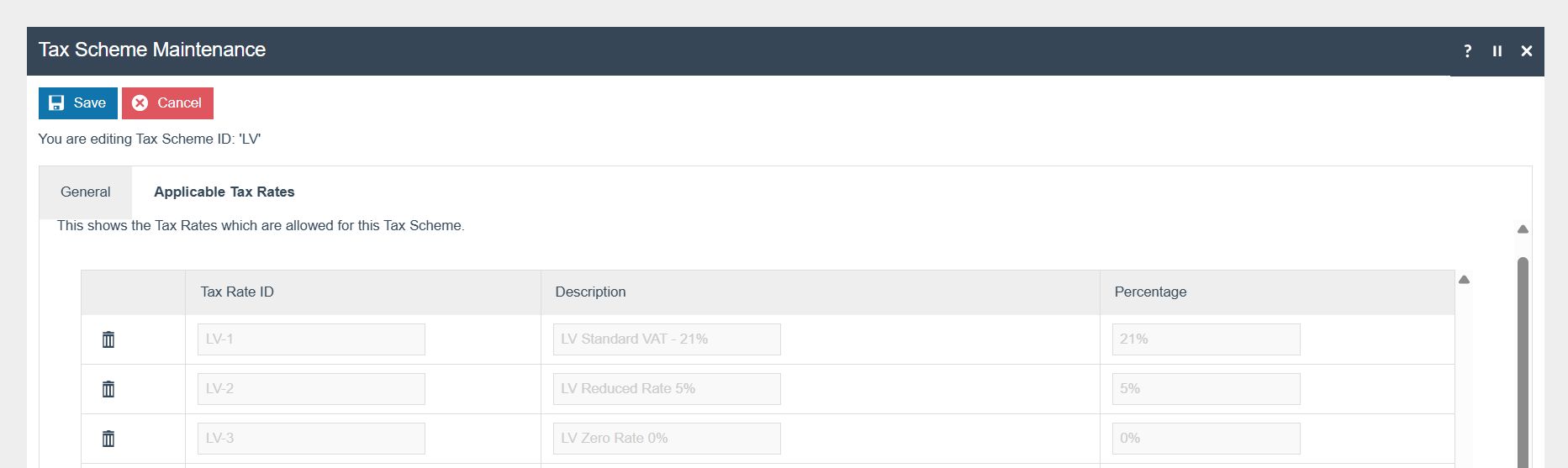
The following tax scheme should be configured and broadcast to the appropriate Latvia devices. Make sure to add all the tax rates related to Latvia in the Applicable Tax Rate tab as well.
| Tax Scheme ID | Description | Price Include Tax |
|---|---|---|
LV | Latvia VAT Scheme | TRUE |
Add all the applicable tax rates (LV-01, LV-02, LV-03) in the Applicable Tax Rates tab.
Tax Region
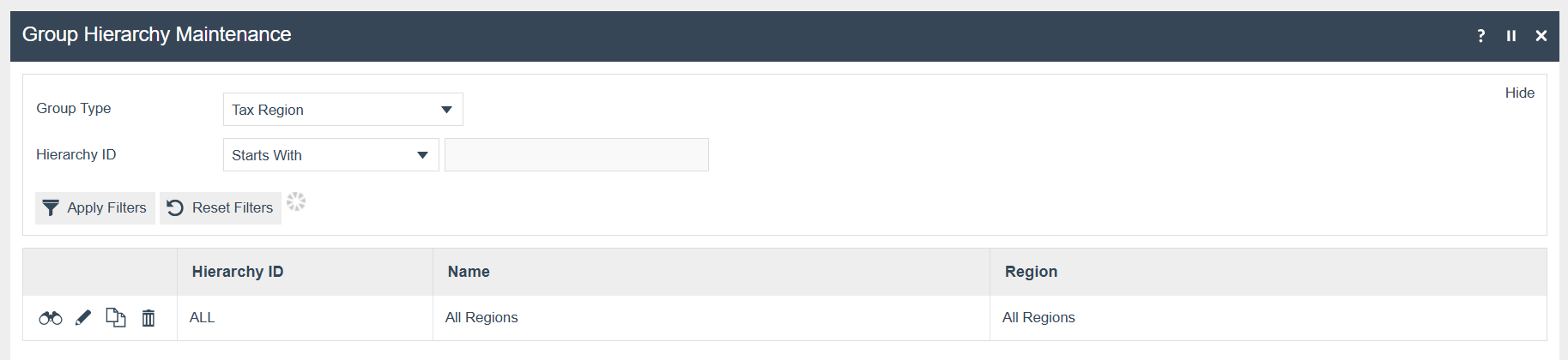
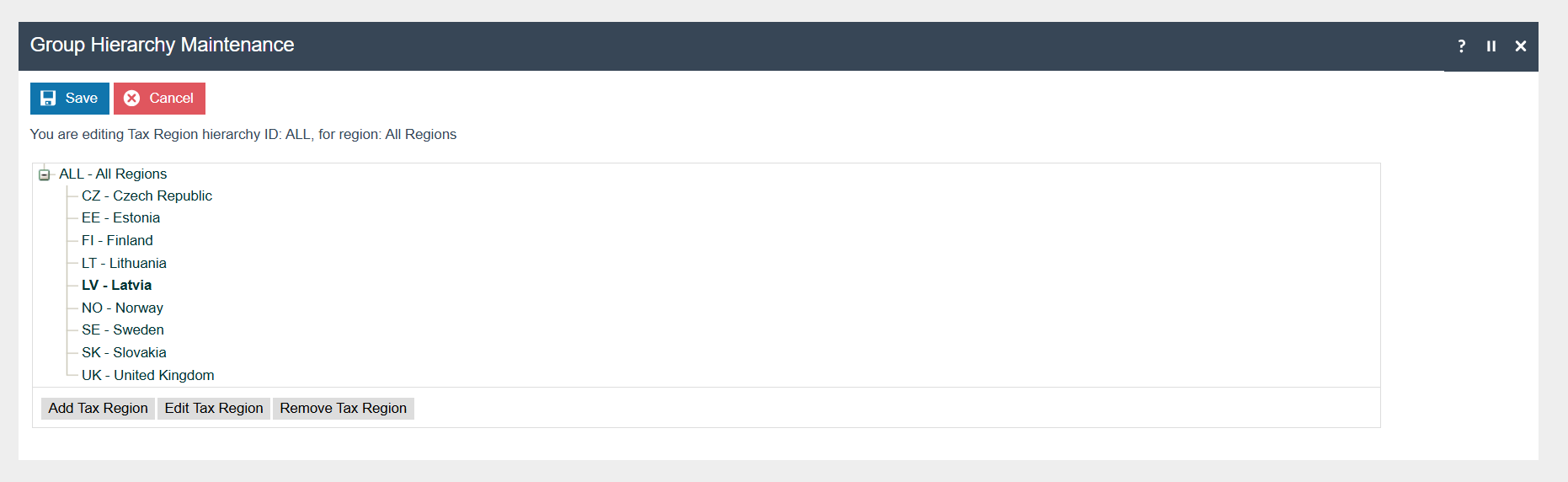
If it does not already exist, a Tax Region for Latvia should be created within the Tax Region Group Hierarchy. It should have the ID set to LV and the Name set to Latvia. It is not necessary to configure an External Reference ID.
Tax Group Tax Methods
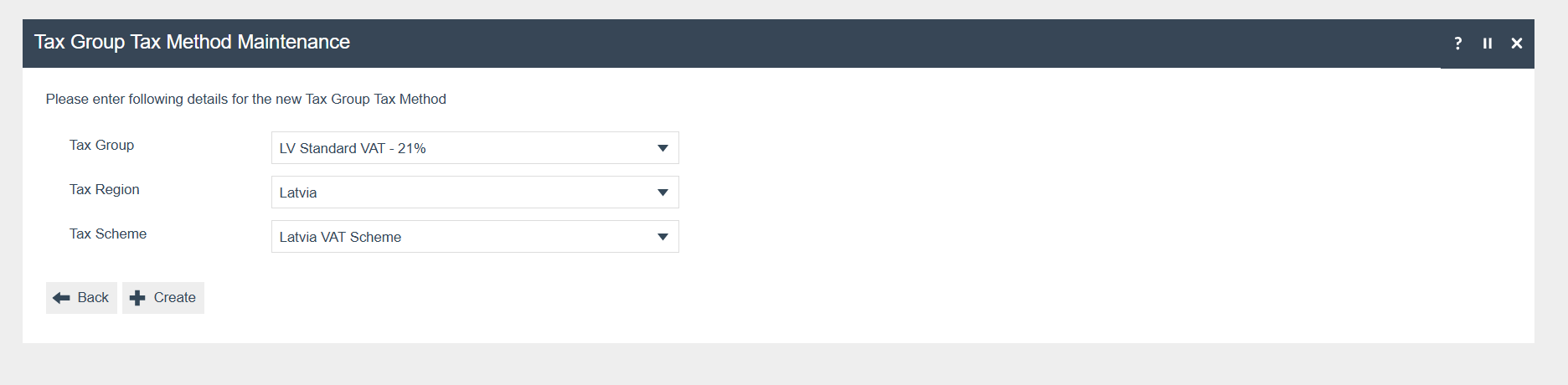
The following tax group tax methods should be configured and broadcast to the appropriate Latvia devices.
| Tax Group ID | Tax Scheme ID | Description | Tax Rate |
|---|---|---|---|
| LV Standard VAT 21% | Latvia | LV Standard VAT 21% | 21 |
| LV Reduced Rate 5% | Latvia | LV Reduced Rate 5% | 5 |
| LV Zero Rate 0% | Latvia | LV Zero Rate 0% | 0 |
Product Tax
The following tax configurations should be configured against the products and broadcast to the appropriate Latvia devices. A tax group can be defined either to configure the tax group itself, associate it with a tax region, or configure only tax rate details.
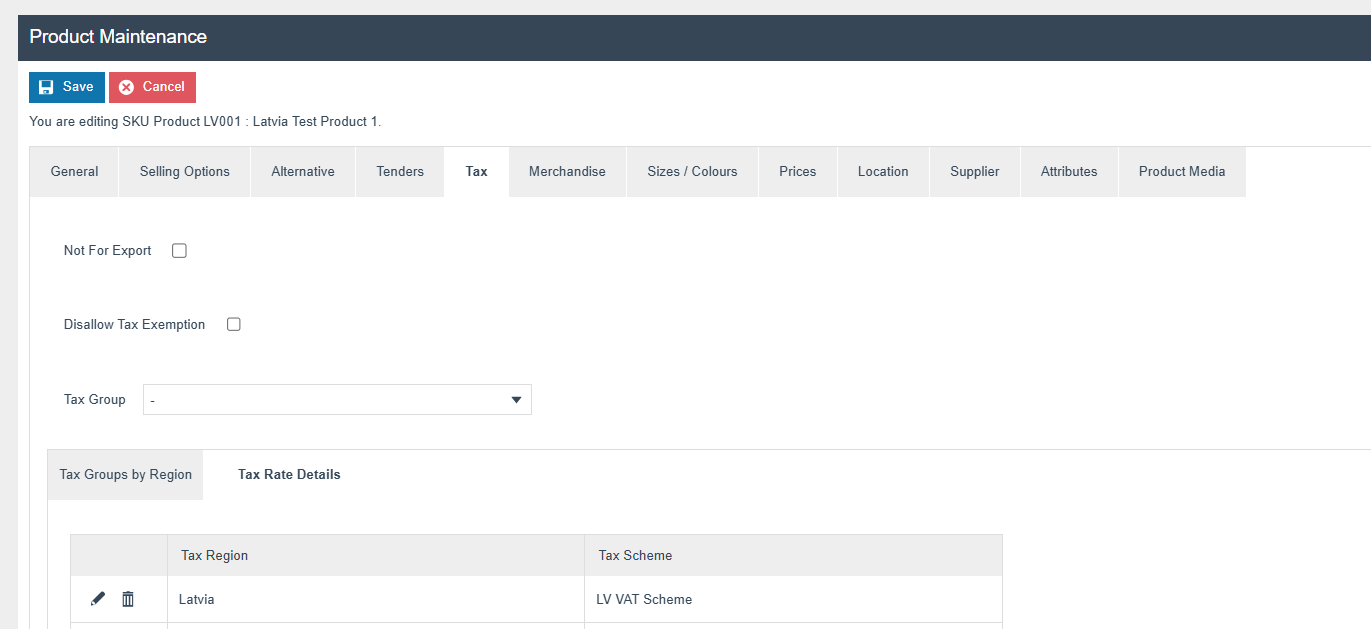
Device
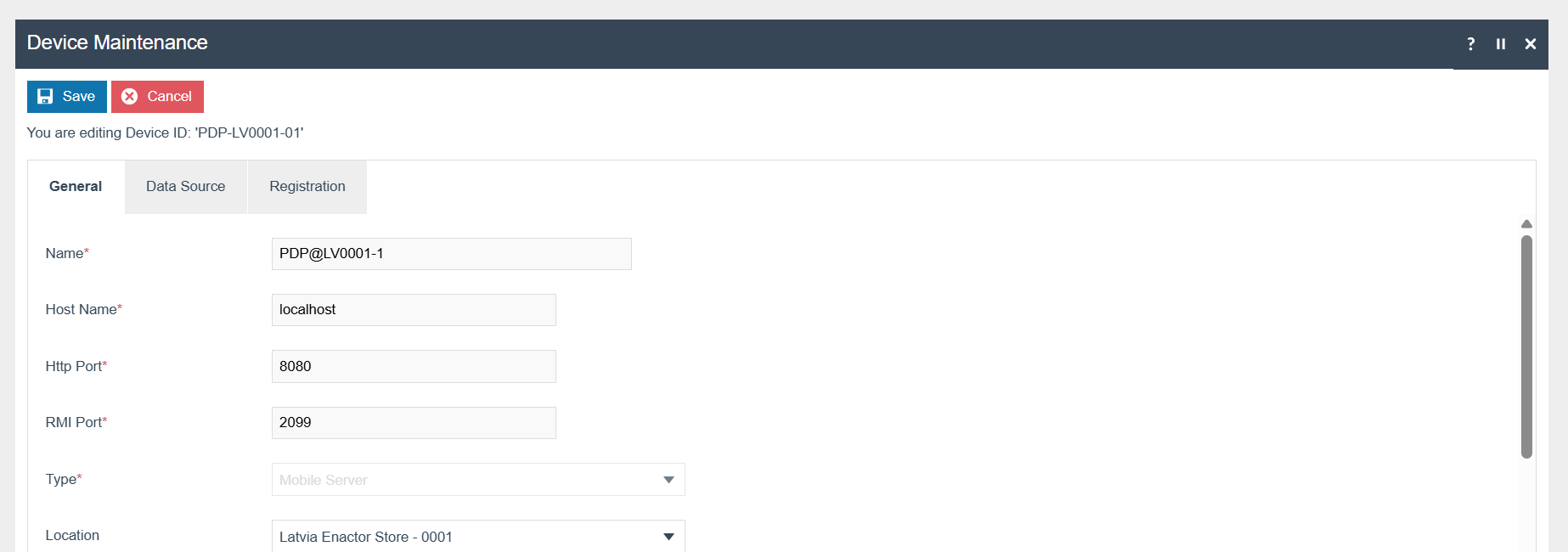
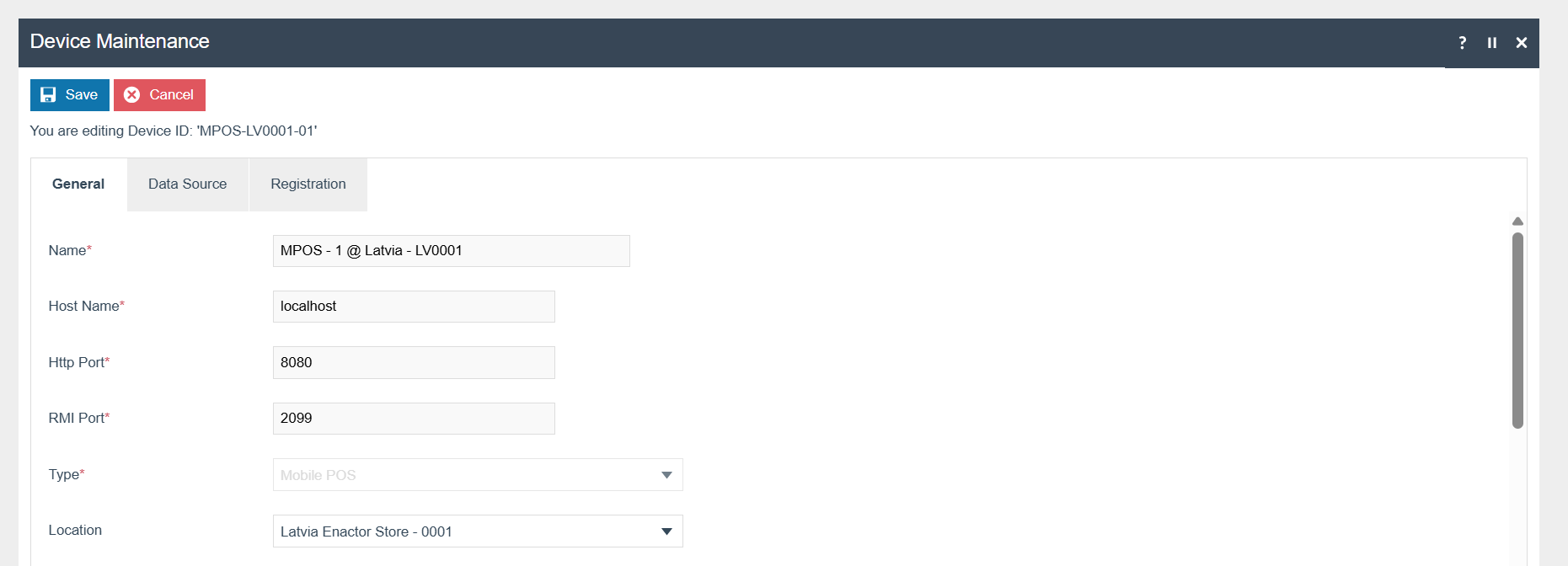
The following devices for PDP Server and Mobile POS should be configured and broadcast to the appropriate Latvia devices.
Select the Device Type as Mobile Server.
Select the Device Type as Mobile POS.
POS Terminal Template
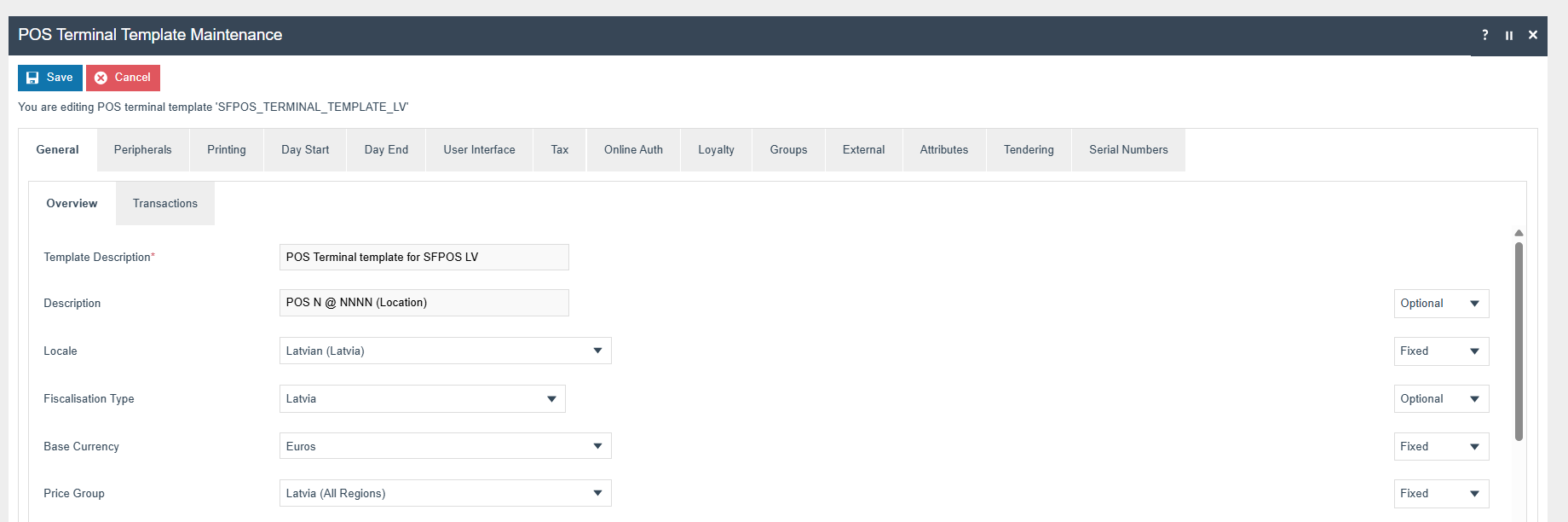
The POS Terminal Template used by all devices in Latvia must be configured to have the Fiscalisation Type set to Latvia. Currency should be set to Euro and Locale to Latvia.
Tick Is Remote Terminal and select Mobile Terminal from the dropdown.
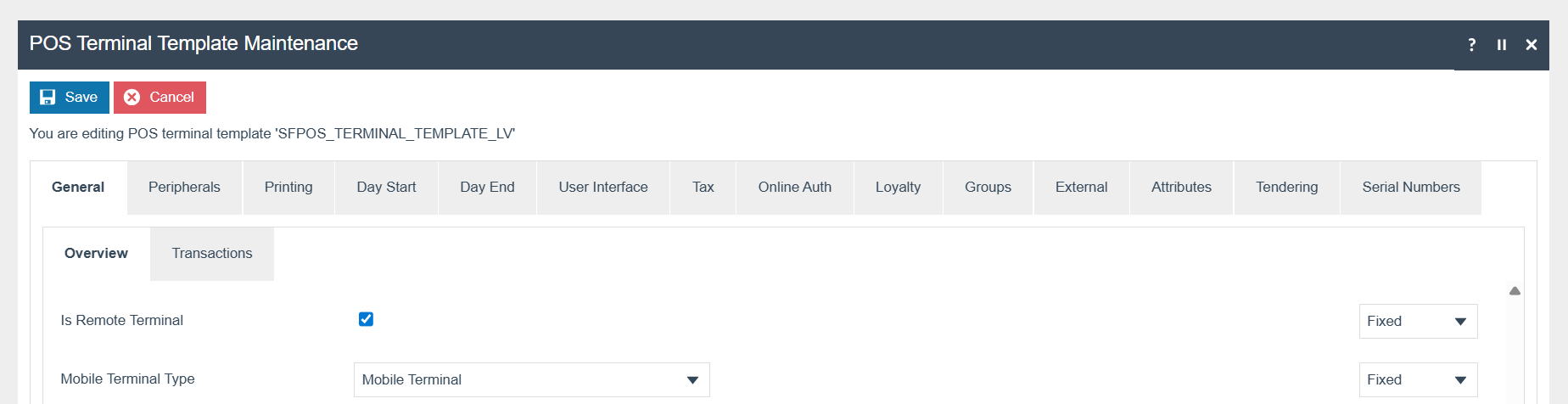
Select CHD Latvian Fiscal Printer from the Receipt Printer Type dropdown.
The CHD printer IP address and port should be configured in the POS Terminal Maintenance under Receipt Printer Address and broadcast to the POS and/or PDP server.
Receipt Printer Shared must NOT be ticked.
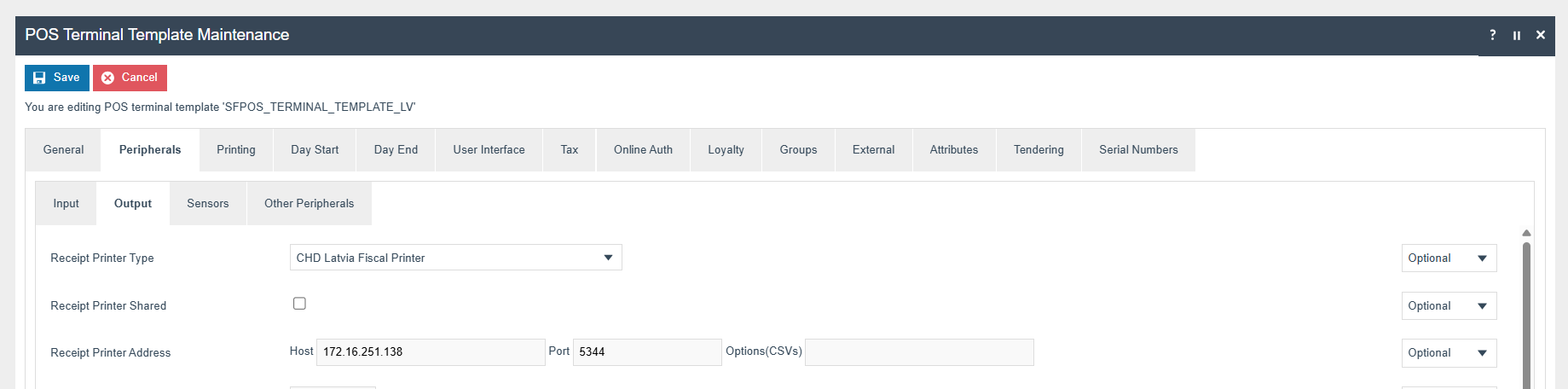
Set the printer IP and port as shown in the image above.
The port may be either 5345 in a test lab or 5344 in a production-like environment. Confirm the correct port with CHD.
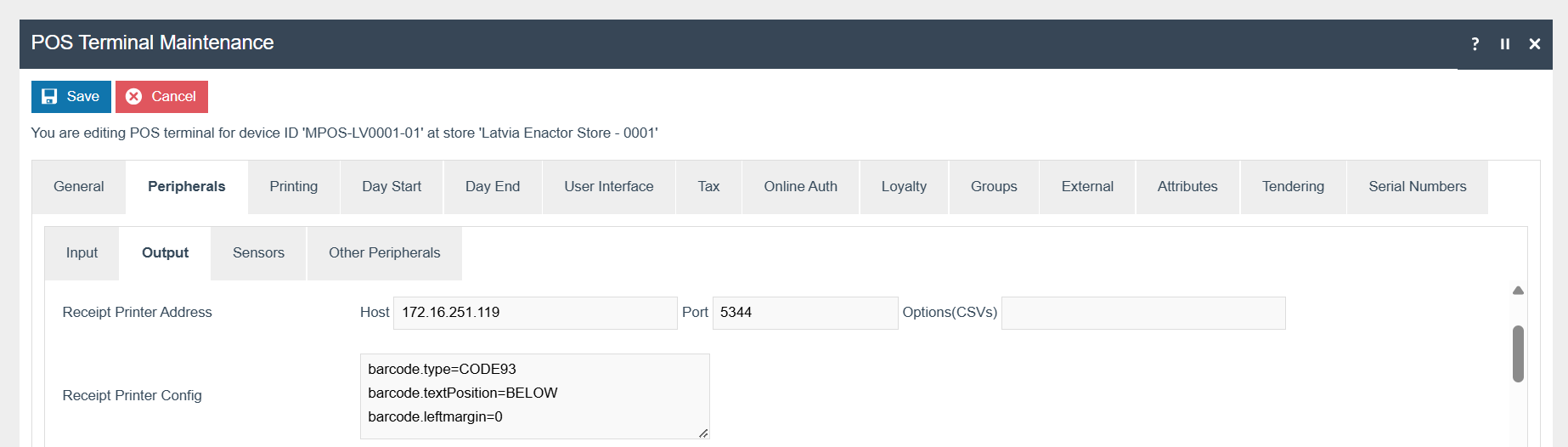
Set the following values in the Receipt Printer Config:
| Configuration | Description |
|---|---|
| barcode.type | Barcode type for receipt printing |
| barcode.textPosition | Text position relative to the barcode |
| barcode.leftmargin | Left margin for barcode alignment |
Select Printer-Attached Cashdrawer from the Cash Drawer Type dropdown.

Disable the following privileges if they are enabled:
| Privilege ID | Application Package |
|---|---|
enactor.pos.ContinueWithDrawerOpen | Enactor POS |
enactor.pos.SignOnWithDrawerOpen | Enactor POS |
enactor.pos.SkipDrawerStatusInitializationChecking | Enactor POS |
Drawer Configuration Parameters
- Navigate to POS Terminal Template Maintenance.
- Edit the relevant POS Terminal Template.
- Navigate to Printing > Output.
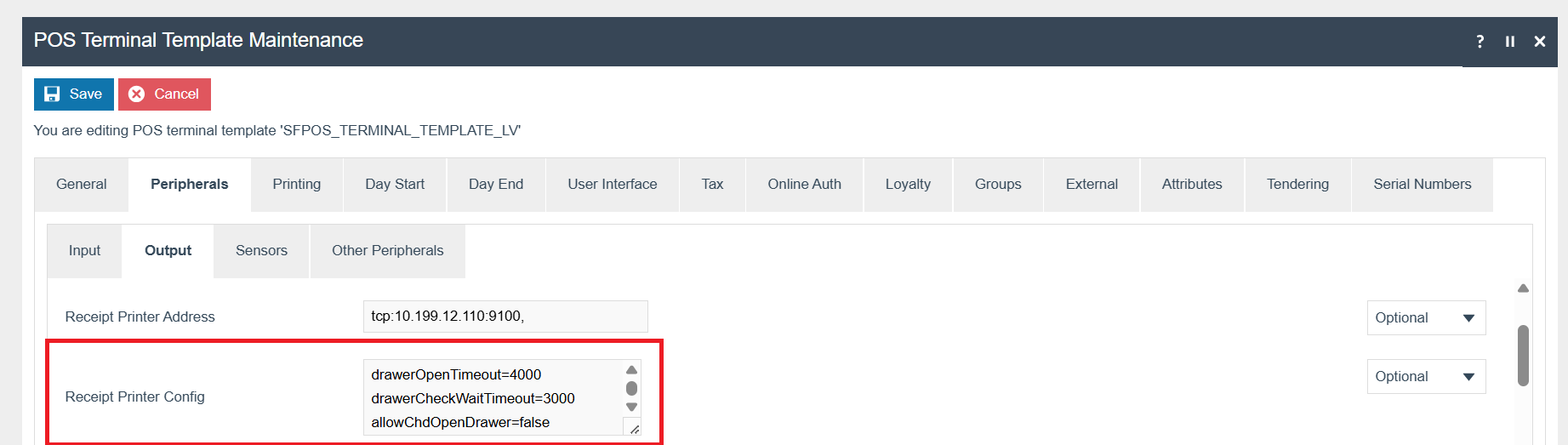
- Add the following configurations if needed in the Receipt Printer Config.
| Configuration | Default Value | Type | Description |
|---|---|---|---|
| drawerOpenTimeout | 4000 | Integer (ms), Optional | Waiting time in milliseconds for processing the drawer open command from Enactor POS. Be cautious when setting unnecessarily high values, as it may cause the POS to remain unresponsive for an extended period. |
| drawerCheckWaitTimeout | 0 | Integer (ms), Optional | Delay in milliseconds before sending the drawer check command (CHECK_DRAWER_CLOSED) to the CHD device. Introduced based on CHD team recommendation, as sending the drawer check command immediately after sale commands may lead to issues. |
| allowChdOpenDrawer | false | Boolean, Optional | Determines whether the drawer should be opened using the CHD-side functionality. When set to true, the drawer opening is triggered from the CHD device instead of Enactor's side. This serves as a fallback mechanism in case the POS-side cash drawer functionality fails. |
Customer Display Configuration
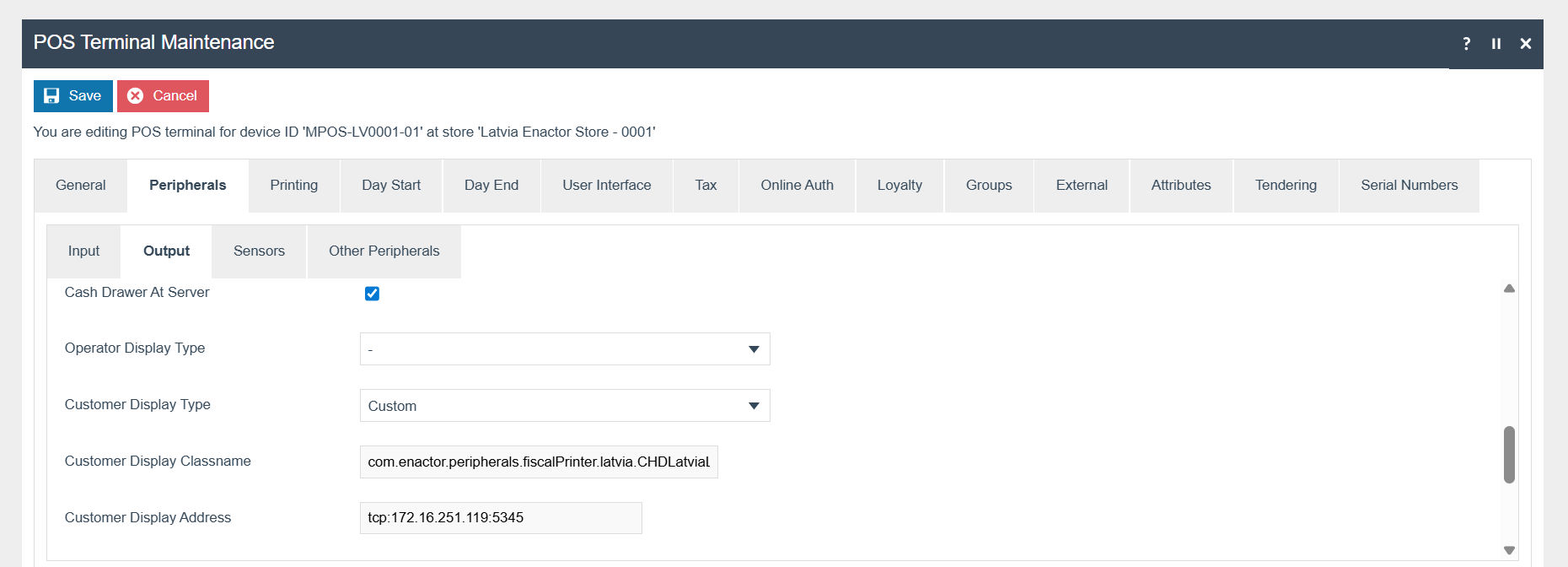
Select Custom as the Customer Display Type.
Add the Customer Display Classname as:
com.enactor.peripherals.fiscalPrinter.latvia.CHDLatviaLineDisplay
Add the Customer Display Address, for example: tcp:172.16.251.119:5345
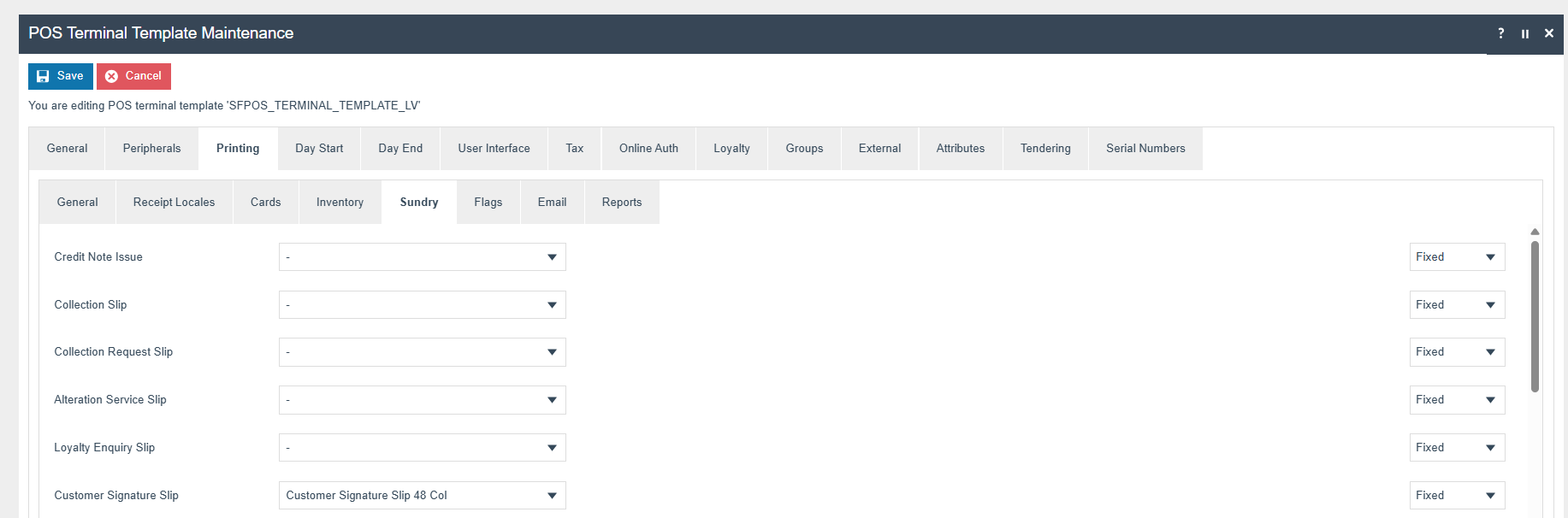
Customer Signature Slip
The Customer Signature Slip should be set to Customer Signature Slip 48 Col.
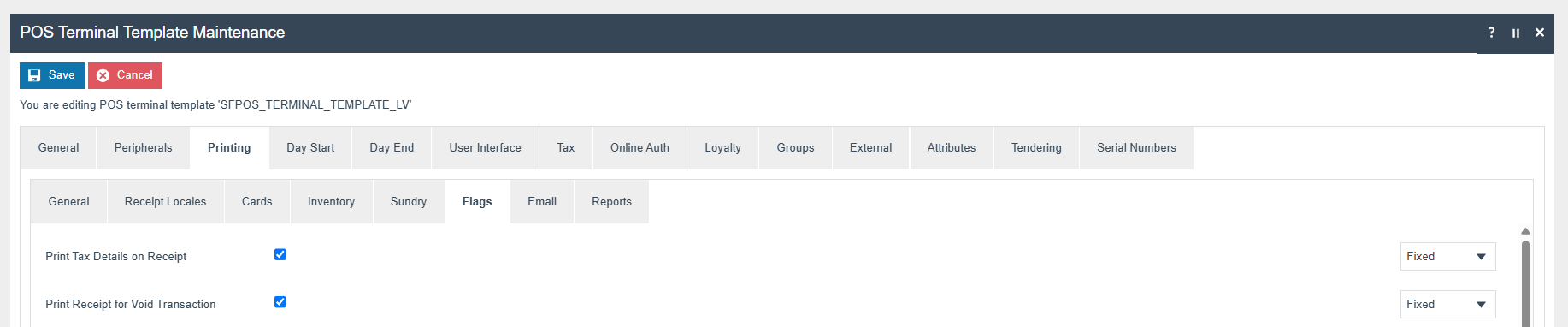
Printing Flags
The Print Tax Details on Receipt flag within the Printing > Flags tab should be ticked.
If printing a receipt for void transactions, the Print Receipt for Void Transaction option should also be ticked.
Tax Configuration
Within the Tax section, the Tax Region should be set to Latvia and the Tax Scheme to the Latvia Tax Scheme configured in the previous section.

POS Terminal
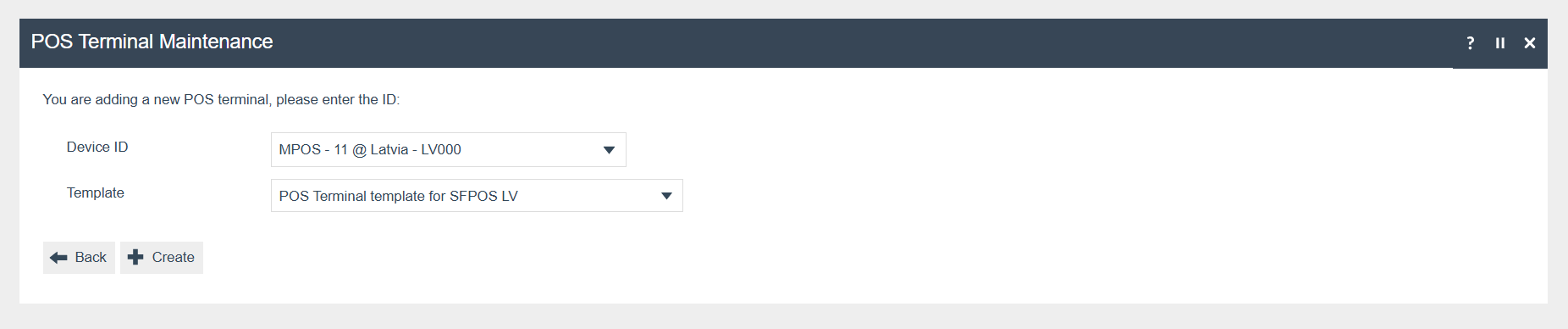
Create a POS Terminal for the device type Mobile POS.
Select the Device ID created for the Mobile POS and select the POS Terminal Template.
Tender
The following tenders should be configured and broadcast to the appropriate Latvia devices. Configure Card and Cash if necessary.
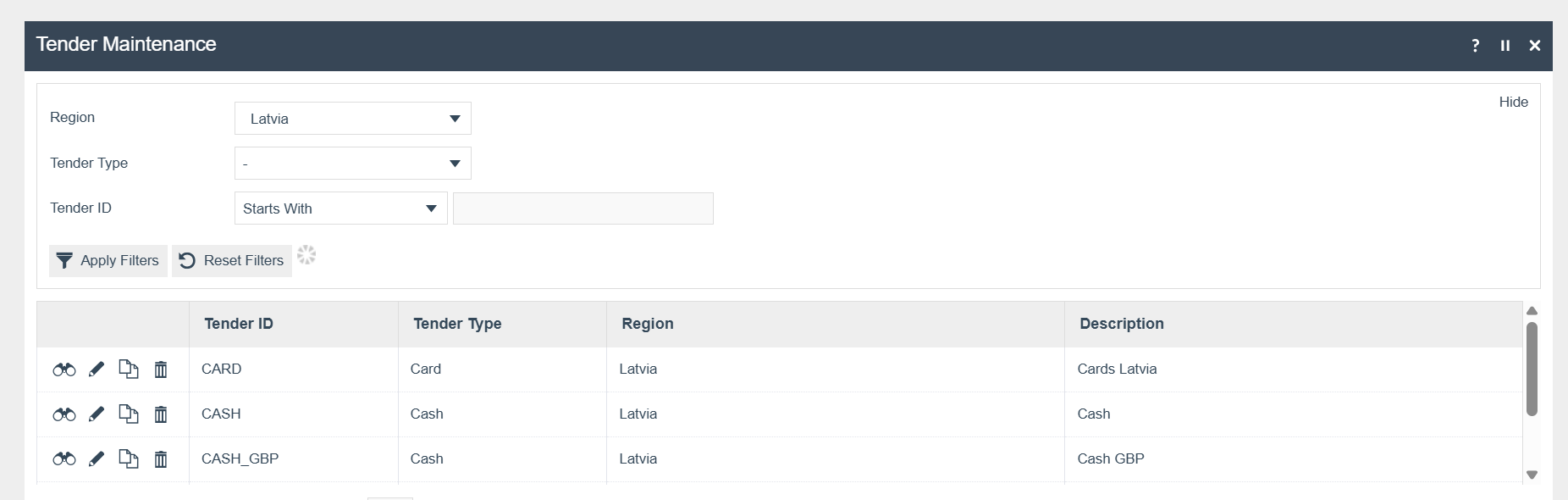
Set the Fiscal Tender ID for the Tender ID.
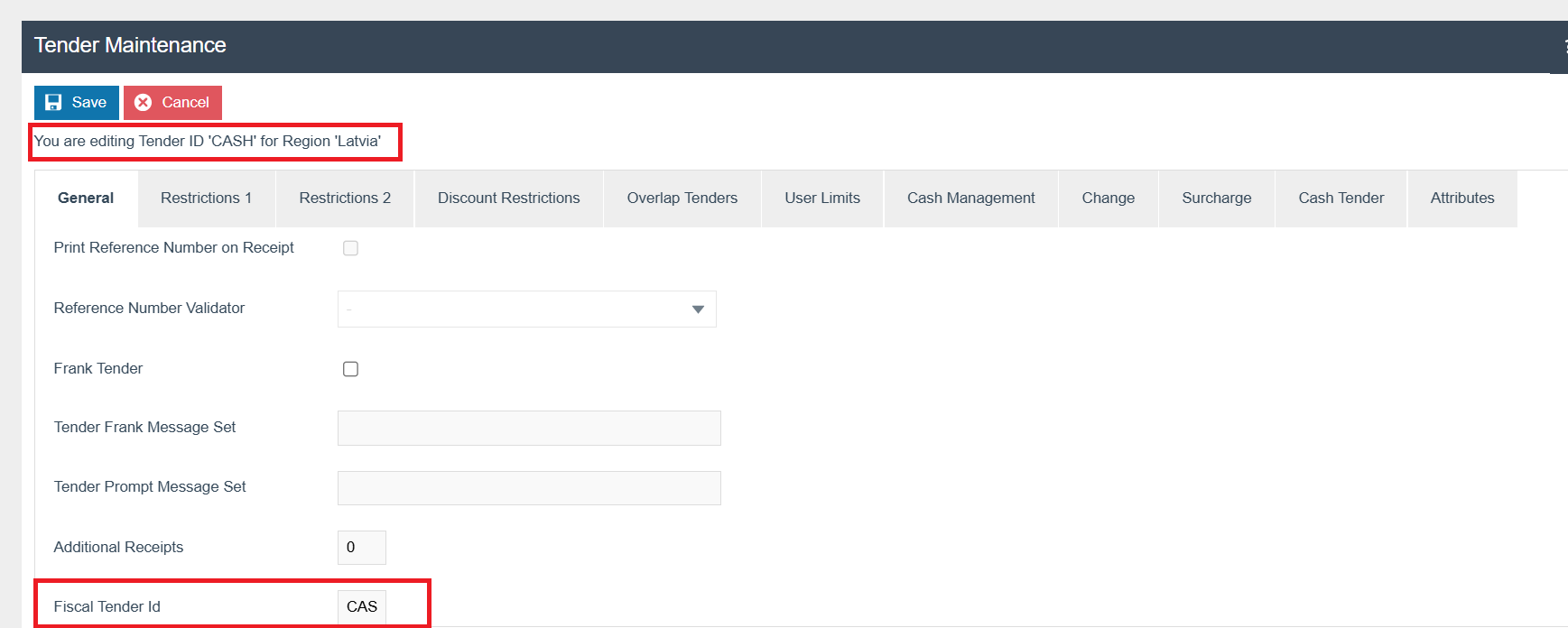
| Tender ID | Tender Type | Fiscal Tender ID |
|---|---|---|
CASH | Cash | CASH |
CARD | Card | CARD |
These values should be set according to the CHD Tender Configurations:

The Fiscal Tender ID maps to TENDERID and TENDERTYPE in CHD. If the values are not set, the default TENDERTYPE of CASH will be sent to the printer. These values will be sent to the CHD printer with each sale.
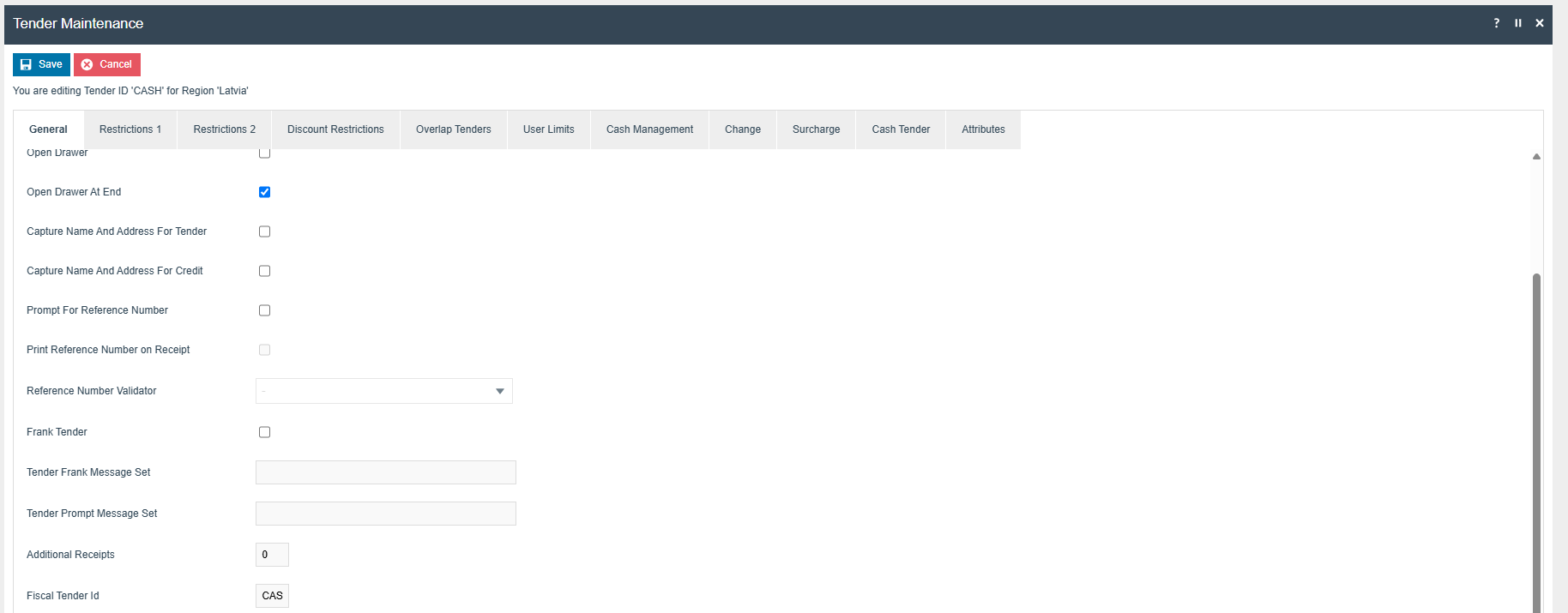
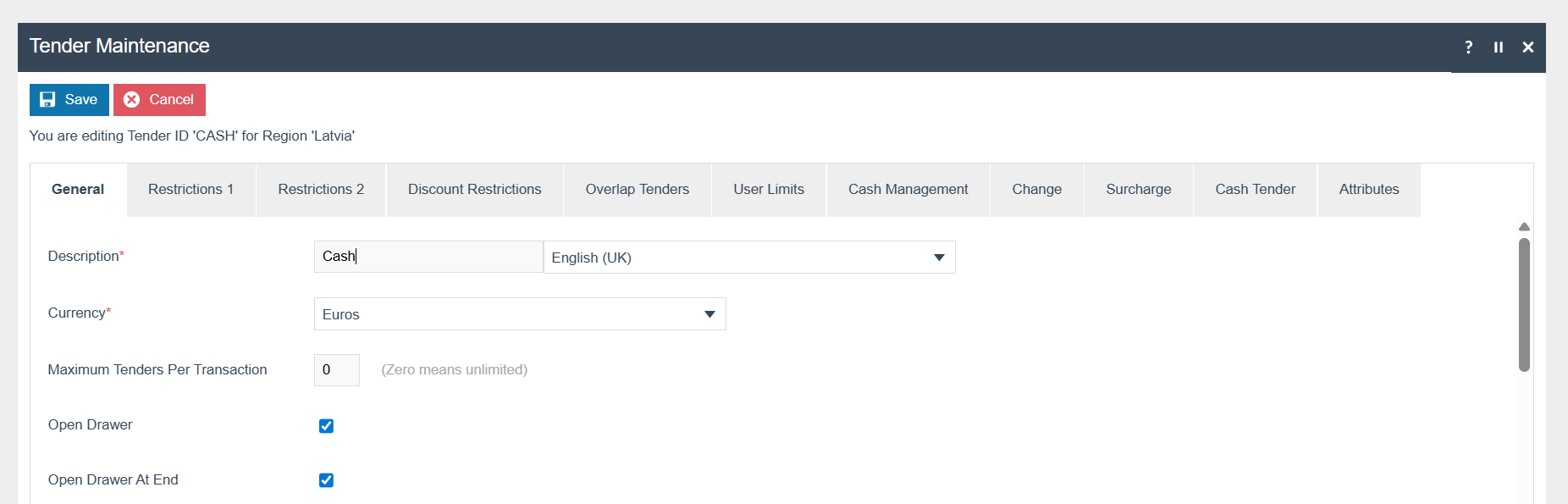
Tick Open Drawer and Open Drawer At End for the tender that needs to open the cash drawer.
Privileges
The following privileges will need to be configured against the appropriate roles and broadcast to the Latvia devices. Consideration should be given to whether it is desirable for all operators to have all of these privileges or if some should only be granted to managers.
For more detail on privileges and roles, refer to the How To Configure Users, User Roles and User Templates.
| Privilege ID | Application Package |
|---|---|
enactor.pos.AllowReturnTaxRefundItemAlreadyRedeemed | Enactor POS |
enactor.pos.AuthorisesReturnItem | Enactor POS |
enactor.pos.ReturnItemAllowed | Enactor POS |
enactor.pos.GiftCardTenderAllowed | Enactor POS |
enactor.pos.VoidTransactionDiscountAllowed | Enactor POS |
enactor.admin.Run | Enactor POS |
enactor.pos.ReprintRecentReturnToTransaction | Enactor POS |
enactor.pos.VoucherRedeemAllowed | Enactor POS |
enactor.pos.ReturnFromReceiptAllowed | Enactor POS |
enactor.pos.AuthorisesVoidCardTenderItem | Enactor POS |
enactor.pos.AuthoriseDayEndBeforeEarliest | Enactor POS |
enactor.pos.AuthorisesVoidTenderItem | Enactor POS |
enactor.pos.CashRefundAllowed | Enactor POS |
enactor.dayStart.AuthorisesDayStart | Enactor POS |
enactor.pos.AllowEmployeeReturnIfUserInvolved | Enactor POS |
enactor.pos.RequestSimpleFiscalInvoiceAllowed | Enactor POS |
enactor.pos.AuthorisesNoSale | Enactor POS |
enactor.pos.NoSaleAllowed | Enactor POS |
enactor.pos.PrintFiscalReportsAllowed | POS Fiscalisation |
enactor.pos.AuthorisesPrintFiscalReports | POS Fiscalisation |
enactor.pos.fiscal.AuthorisesPrintInvoiceFromArchive | POS Fiscalisation |
enactor.pos.fiscal.PrintInvoiceFromArchiveAllowed | POS Fiscalisation |
enactor.pos.fiscal.AuthorisesSetFooter | POS Fiscalisation |
enactor.pos.fiscal.SetFooterAllowed | POS Fiscalisation |
Menu
On the Estate Manager, navigate to Configuration > System > Menu.
- Edit the SALE menu for the Menu Group Standard POS.
- Add a folder under Sales > Management > Report called Fiscal Reports.
- Add new buttons to the Fiscal Reports folder for the following:
| Event | ID | Button Label | Name | Java Type | Value |
|---|---|---|---|---|---|
Fiscal_PrintReports_X | Fiscal_PrintReports_X | Fiscal X Report | ReportType | String | X |
Fiscal_PrintReports_Z | Fiscal_PrintReports_Z | Fiscal Z Report | ReportType | String | Z |
Fiscal_PrintReports_Periodic_ByFiscalNumber | Fiscal_PrintReports_Periodic_ByFiscalNumber | Fiscal Periodic Report By Fiscal Number | ReportType | String | PERIODIC |
For more detail on menu creation, refer to the How-to Guide for configuring POS Behaviour (Menus) on the Enactor Insights Portal.
Translations
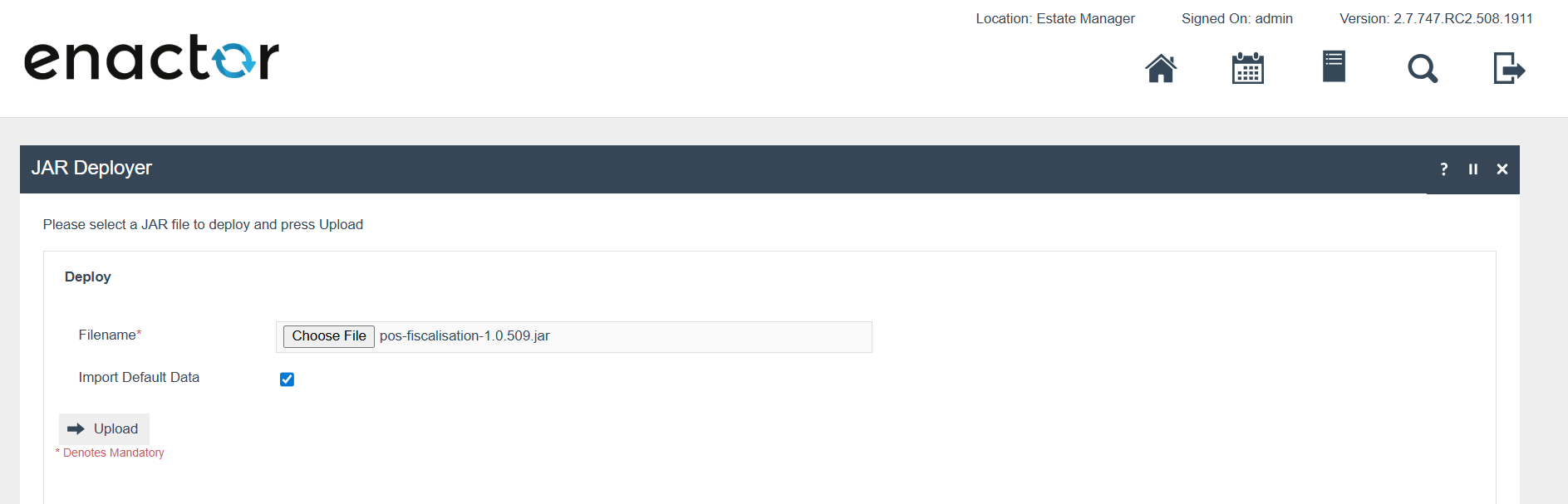
Deploy the pos-fiscalisation JAR using the JAR Deployer.
If the user locale is set to English, the Enactor POS will be displayed in English. If you need to modify any default text in the Enactor POS, navigate to Application Translation, select the Application Package as POS Fiscalisation and select the user locale as English (UK). Then you can edit the relevant message file by clicking the + button. Then broadcast the Message Resource entity.
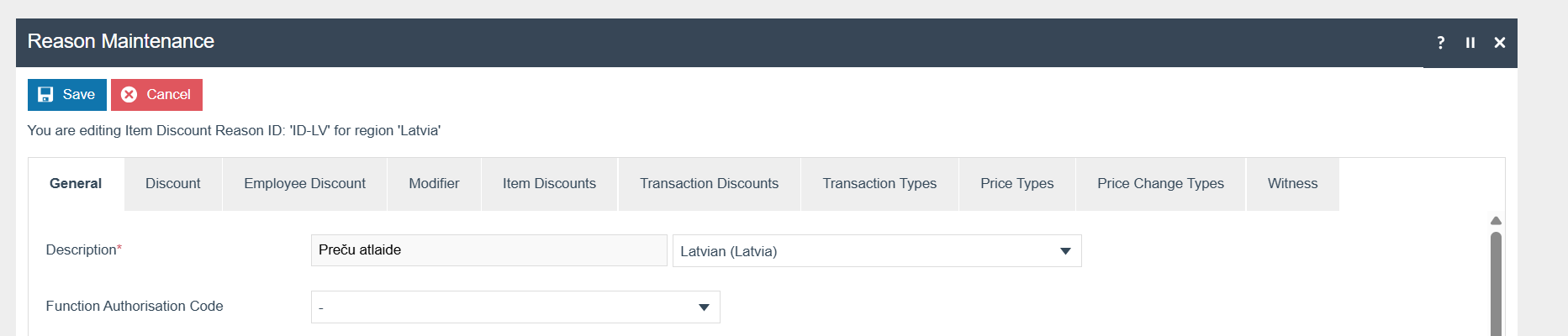
Discounts should have a Latvia translation for the description.
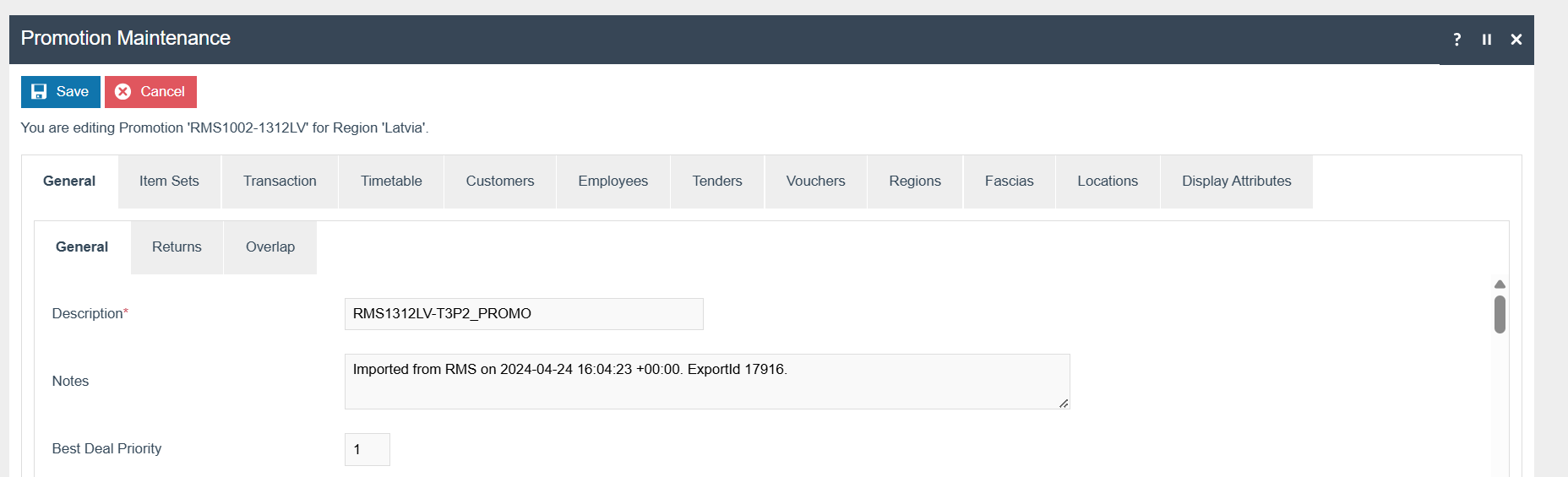
The promotion description should be in Latvian. There is no locale-specific translation for promotions as promotions are expected to be unique to a country.
Document History
| Version | Status | Issue Date | Author | Reason for Issue |
|---|---|---|---|---|
| 1.0 | Initial Draft | 31/05/24 | KG | Initial version |
| 1.1 | Enhanced | 04/06/25 | KE | Added configs |
| 1.2 | Enhanced | 30/07/25 | KE | Added configs |
| 1.3 | Standards | 14/03/26 | Mark Harrison | Applied Enactor documentation standards |