How To Configure Fiscal Norway
Introduction
For shared background on Enactor fiscal compliance, see Fiscal Overview.
The purpose of this guide is to demonstrate the steps required to configure the Enactor POS system for full compliance with Norwegian fiscal legislation. This includes transaction signing, SAF-T file export, tax configuration, tender mapping, X/Z report setup, and ongoing operational considerations.
Norway Description
The fiscal approach in Norway is based around signing transactions. It is not necessary to use an external device for this signing process. Instead each POS manufacturer must declare to the Norwegian Tax Authority that their POS software is compliant and when making this declaration they must supply the public key from the key pair used to sign each transaction.
The POS software must also provide a function to export transactions in the SAF-T file format specified by the Tax Authority. The retailer is then responsible for submitting the SAF-T file to the Tax Authority who can then use the public key provided by the POS supplier to ensure that no records have been modified. This process is described in more detail in the following document supplied by the Norwegian Tax Authority: Requirements and Guidelines for Implementing Digital Signatures in Cash Register Systems (PDF)
As well as the requirement to sign, record, and prevent the modification of transactions, the legislation in Norway places requirements on the POS for functions that must and must not be present. The requirements are well documented in an English translation maintained by the Norwegian Authorities: Norwegian Cash Register System Regulations
The primary required and forbidden functions are described in the following lists.
Required Functions
- The cash register system must be able to register a change float.
- The cash register system must be able to register different means of payment.
- The cash register system must have a clock. The clock must be set to Norwegian standard time and adjusted for summer time during the summer.
- The cash register system must clearly differentiate between positive and negative amounts on all receipts and reports and in the electronic journal.
- Cash register systems intended for use by several enterprises with a bookkeeping obligation must be organised in such a manner that all continuous use, including means of payment, is registered separately for each enterprise with a bookkeeping obligation.
- Each POS must have a cash drawer except where cash is not accepted.
Forbidden Functions
- The software in a cash register system must not include any other functions than those stipulated in the system documentation.
- The software in a cash register system must not be capable of being connected to or integrated with equipment or software that make it possible to alter or delete the electronic journal.
- The software in a cash register system must not include functions that make it possible for the user to remove, alter or add information to registrations. It must not be possible to change pre-programmed text for goods and services during or after registration.
- It must not be possible to conclude a sale without the system printing a sales receipt. The requirement for the cash register system generating a print automatically does not apply if there is a payment solution which is integrated with the cash register system.
- The system must not be capable of printing more than one copy receipt. This does not prohibit tax free stores at airports printing several STEB copies.
- It must not be possible to carry out registrations in the cash register system if the integrated cash box is open.
- It must not be possible to carry out registrations in the cash register system if the storage memory is full.
- It must not be possible to mark particular goods or services in the cash register system so that they are not included in X reports and Z reports.
- A cash register system that is connected to a non-automatic weighing instrument must not be capable of affecting the instrument's measurement properties.
System Description
The Enactor system is distributed. There is a central component called the Estate Manager (EM) where configuration is performed and which is the master data store for the system configuration. Configuration performed on the EM must be broadcast to the POS devices before it takes effect. The system is extremely configurable but only a small subset of this configuration is required to ensure that Norwegian fiscal legislation is complied with. This required configuration is described later in this document and there are further how-to guides available which describe the other configuration options available at Enactor Insights.
The critical configuration option for Norway is the Fiscalisation Type on the POS terminal. When this is set to Norway, the rules of the Norwegian fiscal legislation will be applied on that device. If the EM is used to configure the system in a way that would not be compliant in Norway, the POS will be prevented from starting where its fiscalisation type is set to Norway. Once a POS has been configured as a Norwegian fiscal POS it is not possible to change or remove the fiscalisation type.
As well as being the master data store for configuration, the EM is also the master data store for the transactions that are performed on the POS. Transactions are also stored on the POS and the store server at the time of the sale. However the purging of the data on the store server and the POS databases is usually relatively short (days/weeks rather than the years data would be retained on the EM). Although transaction data is purged from the POS this would not be done until it had been transmitted to the EM and a Z report has been run for any transactions being purged.
At the time transactions are performed on the POS they are signed as described in the Norwegian Tax Authority signing requirements document. These transactions are then stored along with their signature in a commercially available SQL database application. A number of database applications are supported by the solution to account for the different licensing agreements that retailers already have in place. These include Oracle, MySQL, MSSQL and MariaDB. In all cases the standard authentication mechanisms are used to ensure that user access is restricted and that data cannot be deleted or modified by unauthorised users.
The method and structure used to retain and protect data on the store server and the EM is the same as that on the POS. When transactions are transmitted from the POS to the Store Server and then from the Store Server to the EM they are protected by SSL. Data is submitted to the Store Server and then to the EM in near real time and would expect to be processed into the database within minutes in a normally operating system. Queues are used to ensure that data is still retained in the case of abnormal operation, such as network outages. The application also uses a system of sequence numbers to identify situations where transactions are not flowing through the system as expected.
Should an inspection of the data be required in a production environment, Enactor will be able to provide access to the database directly so that the tables containing transactions and their signatures can be inspected. A function is provided within the EM that allows the data to be exported in the SAF-T format as required by the legislation.
As well as sales and returns the POS will also record other events in the database as required to produce the SAF-T file. These are also transmitted to the Estate Manager and its database is the fiscal record.
These events include:
- Receipt Copy
- Floats
- Pickups
- X and Z reports
- Cash Drawer Open/No Sale
Returns are typically performed as receipt returns where the original sale is linked to the return either by scanning the original sale receipt barcode or searching for the original sale on the POS. However it is possible to perform a non-receipted return. This would be used in a couple of scenarios: the customer no longer has the original receipt or remembers enough details about the transaction (Store, Date, Time) to find the transaction with a search, but the retailer still wishes to return the item as a gesture of goodwill. Alternatively, the sale was performed on a system other than Enactor (i.e. web order or sale from the previous POS solution). In these cases the return is signed and recorded as usual but there will not be a reference to the original sale in the return transaction record.
Fiscal Module Version Declarations
| Model | Version | Comment |
|---|---|---|
| ENACTOR | 1.0 | Initial Declaration, not deployed in any production environments. |
| ENACTOR | 1.0.277 | Fixed defect with wrong software version being used in the SAF-T file, released to Lindex. |
| ENACTOR | 1.0.303 | Resolved issues with X and Z report (non-production release). |
Configuration Overview
The following configuration changes are needed and should be broadcast to all Norwegian devices in preparation for go live. IDs below follow the Enactor naming convention, but each retailer is free to use their own naming conventions to match configuration used in other countries.
The following steps are required to configure Norwegian fiscal compliance:
- Tax - Configure tax groups, tax schema, tax rates, and tax group tax methods
- Tenders - Map each tender to a Norwegian fiscal tender type
- Location Terminal Template - Create a template for Norwegian stores with VAT number and locale
- POS Terminal Template - Set fiscalisation type, currency, locale, and peripherals
- Account Credentials - Import the signing key credentials provided by Enactor
- Privileges - Assign the fiscal reports privilege to appropriate roles
- Menus - Configure X report, Z report, and fiscal information menu buttons
- User Role - Enable the Fiscal Information Details process
- Product Tax - Assign tax groups to products for Norwegian devices
- MMGroup to Fiscal Product Group Mapping - Map product groups to Norwegian article group codes
- Broadcasting - Deliver all configuration to Norwegian POS devices
Tax
Tax Groups
The following tax groups should be configured and broadcast to the Norwegian devices.
| Tax Group ID | Description |
|---|---|
NO1 | NO Normal Tax Group |
NO2 | NO Reduced Tax Group 1 |
NO3 | NO Reduced Tax Group 2 |
Tax Schema
The following tax schema should be configured and broadcast to the Norwegian devices.
| Tax Schema ID | Description | Price Include Tax |
|---|---|---|
NO | NO VAT | TRUE |
Tax Rates
The following tax rates should be configured and broadcast to the Norwegian devices.
| Tax Rate ID | Description | Display Code | Percentage |
|---|---|---|---|
NO_R1 | NO Normal | 1 | 25% |
NO_R2 | NO Reduced 1 | 11 | 15% |
NO_R3 | NO Reduced 2 | 12 | 12% |
The Standard VAT code should be configured in the Fiscal Tax Rate Reference.
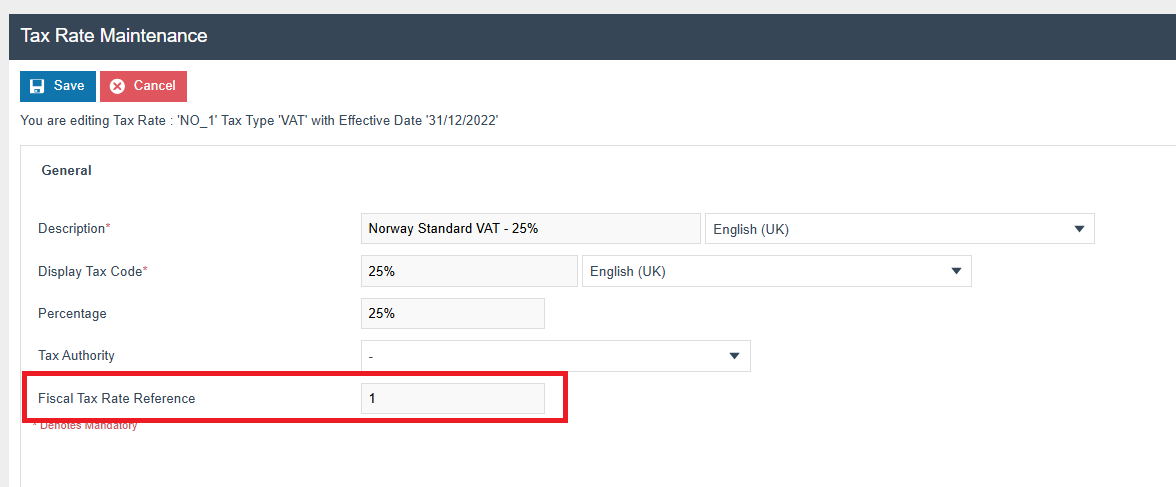
The following table from the Norwegian Tax Authority GitHub repository Skatteetaten SAF-T should be consulted to see what each rate's display code should be. This will be used both for the tax breakdown on the X/Z report and the SAF-T file.
| Code | Description (Norwegian) | Description (English) | Tax Rate | Compensation |
|---|---|---|---|---|
| 0 | Ingen merverdiavgiftsbehandling (anskaffelser) | No VAT treatment | TRUE | |
| 1 | Fradragsberettiget innenlands merverdiavgift | Input VAT deductible (domestic) | Regular rate | TRUE |
| 11 | Fradragsberettiget innenlands merverdiavgift | Input VAT deductible (domestic) | Reduced rate, middle | TRUE |
| 12 | Fradragsberettiget innenlands merverdiavgift | Input VAT deductible (domestic) | Reduced rate, raw fish | |
| 13 | Fradragsberettiget innenlands merverdiavgift | Input VAT deductible (domestic) | Reduced rate, low | TRUE |
| 14 | Fradragsberettiget innforselsmerverdiavgift | Input VAT deductible (paid on import) | Regular rate | TRUE |
| 15 | Fradragsberettiget innforselsmerverdiavgift | Input VAT deductible (paid on import) | Reduced rate, middle | TRUE |
| 20 | Kostnad ved innforsel av varer, ingen merverdiavgiftsbehandling | No VAT treatment | TRUE | |
| 21 | Kostnad ved innforsel av varer | Basis on import of goods | Regular rate | TRUE |
| 22 | Kostnad ved innforsel av varer | Basis on import of goods | Reduced rate, middle | TRUE |
| 3 | Utgaende merverdiavgift | Output VAT | Regular rate | |
| 31 | Utgaende merverdiavgift | Output VAT | Reduced rate, middle | |
| 32 | Utgaende merverdiavgift | Output VAT | Reduced rate, raw fish | |
| 33 | Utgaende merverdiavgift | Output VAT | Reduced rate, low | |
| 5 | Innenlands omsetning fritatt for merverdiavgift | No output VAT | Zero rate | |
| 51 | Innenlandsk omsetning med omvendt avgiftplikt | Domestic sales of reverse charge/VAT obligation | Zero rate | |
| 52 | Utforsel av varer og tjenester | Export of goods and services | Zero rate | |
| 6 | Omsetning utenfor merverdiavgiftsloven | Not liable to VAT treatment, outside the scope of the VAT legislation | ||
| 7 | Ingen merverdiavgiftsbehandling (inntekter) | No VAT treatment - no turnover according to the VAT legislation | ||
| 81 | Grunnlag innforsel av varer med fradragsrett | Importation of goods, VAT deductible | Regular rate | TRUE |
| 82 | Grunnlag innforsel av varer uten fradragsrett | Importation of goods, without deduction of VAT | Regular rate | TRUE |
| 83 | Grunnlag innforsel av varer med fradragsrett | Importation of goods, VAT deductible | Reduced rate, middle | TRUE |
| 84 | Grunnlag innforsel av varer uten fradragsrett | Importation of goods, without deduction of VAT | Reduced rate, middle | TRUE |
| 85 | Grunnlag innforsel av varer uten merverdiavgift | Importation of goods, not applicable for VAT | Zero rate | TRUE |
| 86 | Tjenester kjopt fra utlandet med fradragsrett | Services purchased from abroad, VAT deductible | Regular rate | TRUE |
| 87 | Tjenester kjopt fra utlandet uten fradragsrett | Services purchased from abroad, without deduction of VAT | Regular rate | TRUE |
| 88 | Tjenester kjopt fra utlandet med fradragsrett | Services purchased from abroad, VAT deductible | Reduced rate, low | TRUE |
| 89 | Tjenester kjopt fra utlandet uten fradragsrett | Services purchased from abroad, without deduction of VAT | Reduced rate, low | TRUE |
| 91 | Kjop av klimakvoter eller gull med fradragsrett | Purchase of emissions trading or gold, VAT deductible | Regular rate | TRUE |
| 92 | Kjop av klimakvoter eller gull uten fradragsrett | Purchase of emissions trading or gold, without deduction of VAT | Regular rate | TRUE |
Tax Group Tax Methods
The following tax group tax methods should be configured and broadcast to the Norwegian devices.
| Tax Group ID | Tax Scheme ID | Description | Tax Rate |
|---|---|---|---|
NO_1 | NO | NO Normal | NO Normal |
NO_2 | NO | NO Reduced 1 | NO Reduced 1 |
NO_3 | NO | NO Reduced 2 | NO Reduced 2 |
Tenders
When setting up tenders for use in Norway they need to be configured with a Fiscal Tender ID.
Set the value in Tender Maintenance > General > Fiscal Tender Type to the value that should be shown under Standard Payment Type on the X/Z reports.
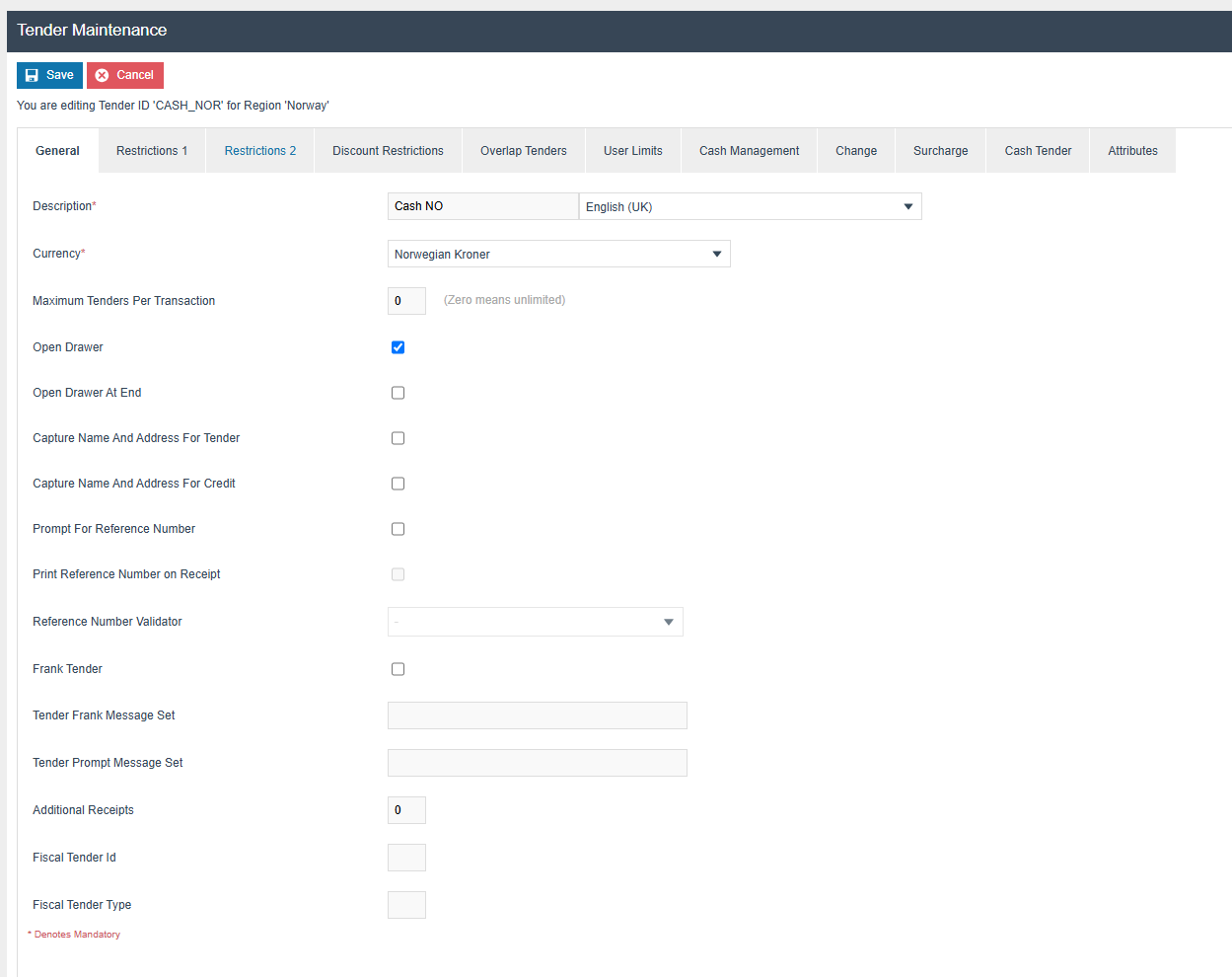
Each tender needs to map to the corresponding PredefinedBasicID-12 from the Norwegian Tax Authority GitHub repository Skatteetaten SAF-T which is shown below for reference.
| PredefinedBasicID-12 | Description (English) | Description (Norwegian) |
|---|---|---|
| 12001 | Cash | Kontant (alle typer valuta) |
| 12002 | Debit card | Bankkort (debet kort) |
| 12003 | Credit card | Kredittkort |
| 12004 | Bank account | Bankkonto |
| 12005 | Gift token | Gavekort |
| 12006 | Customer card | Kundekonto |
| 12007 | Loyalty, stamps | Lojalitetspoeng |
| 12008 | Bottle deposit | Pant |
| 12009 | Check | Sjekk |
| 12010 | Credit note | Tilgodelapp |
| 12011 | Mobile phone apps | Mobiltelefon losninger, ulike betalingsapplikasjoner |
| 12999 | Other | Ovrige |
Location Terminal Template
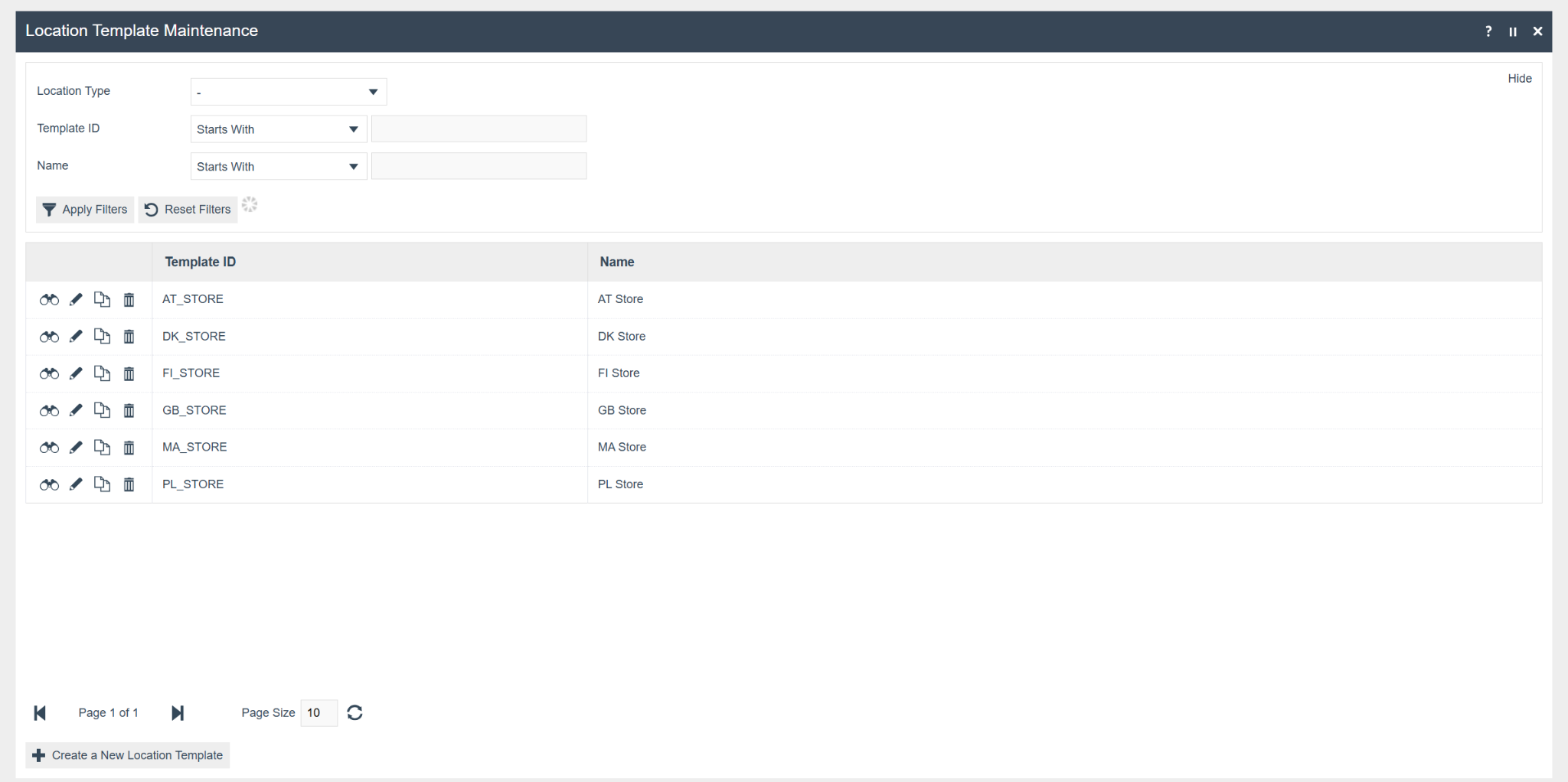
Search for Location Template within the EM and click to edit this entity. From the screen that is shown, create a new template for the Norwegian stores by clicking Create a New Location Template.
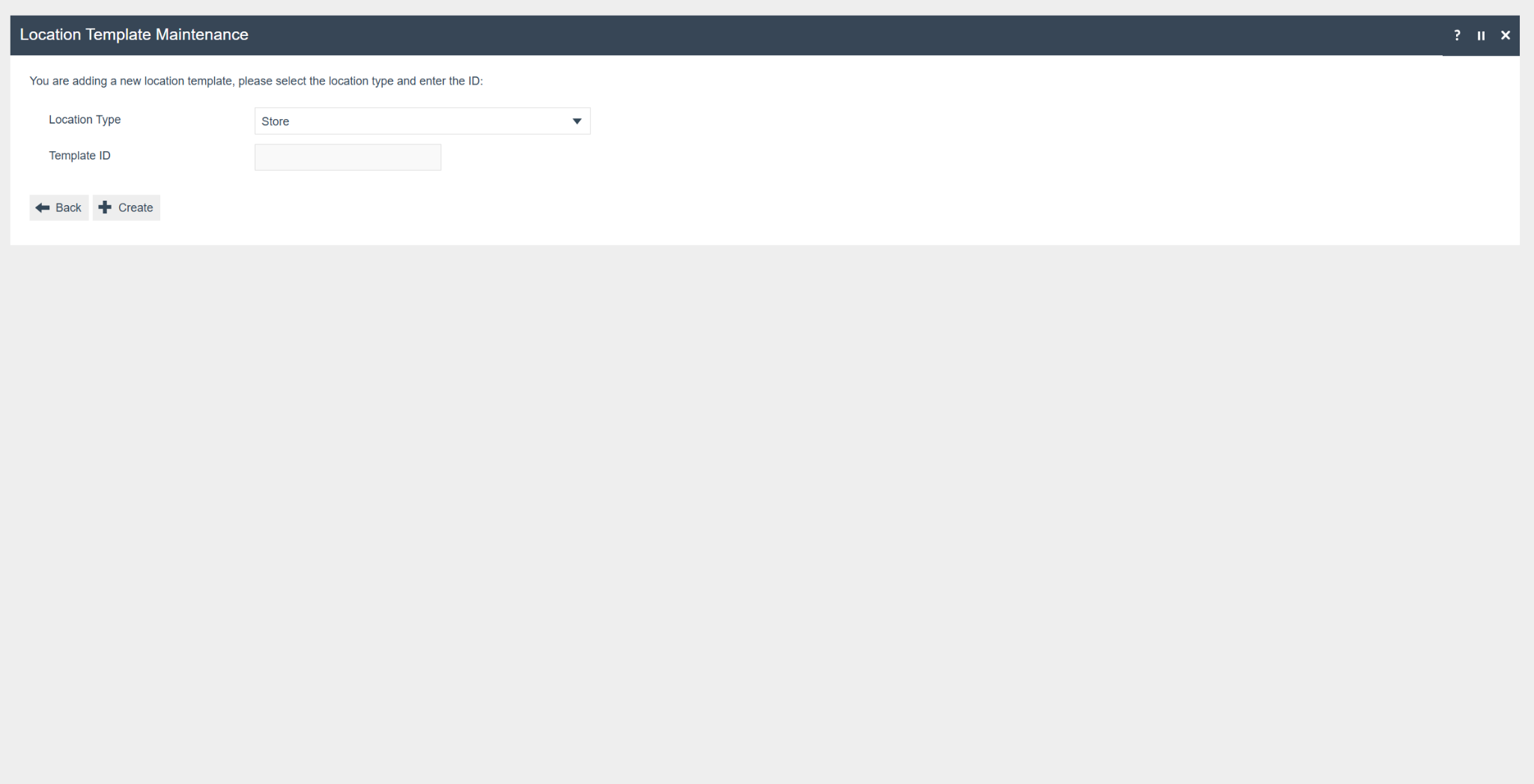
Give the template a sensible name (e.g. NO_Store) and select Store as the location type.
From here you can populate the common values for the Norwegian locations. VAT No should be set to your organisation's Norwegian VAT number as this is used to produce the SAF-T file. The Locale should also be set to Norway. See Enactor Insights for further details on configuring the location template.
Using a location template is recommended rather than configuring each store individually, as it is less prone to error.
POS Terminal Template
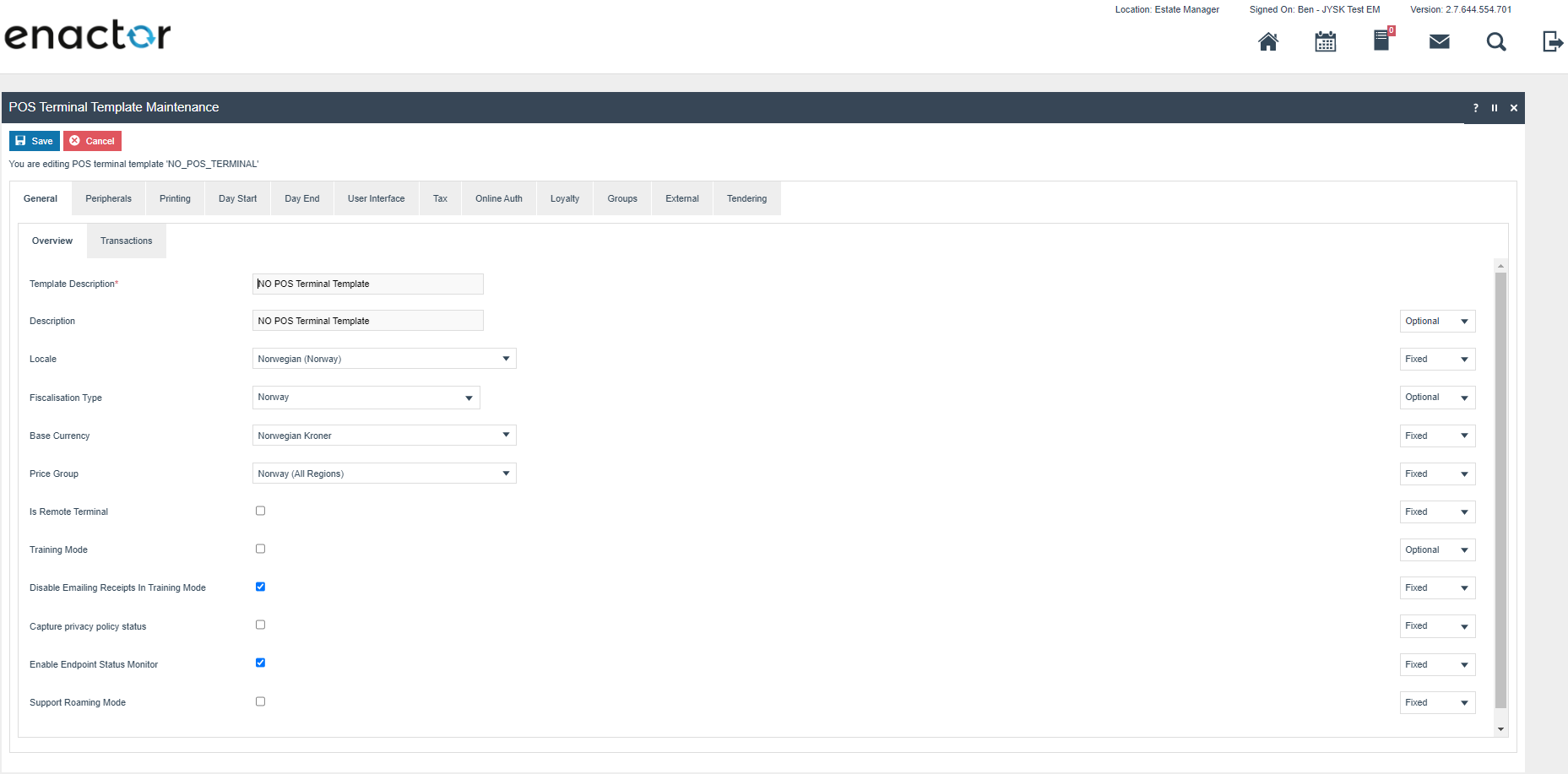
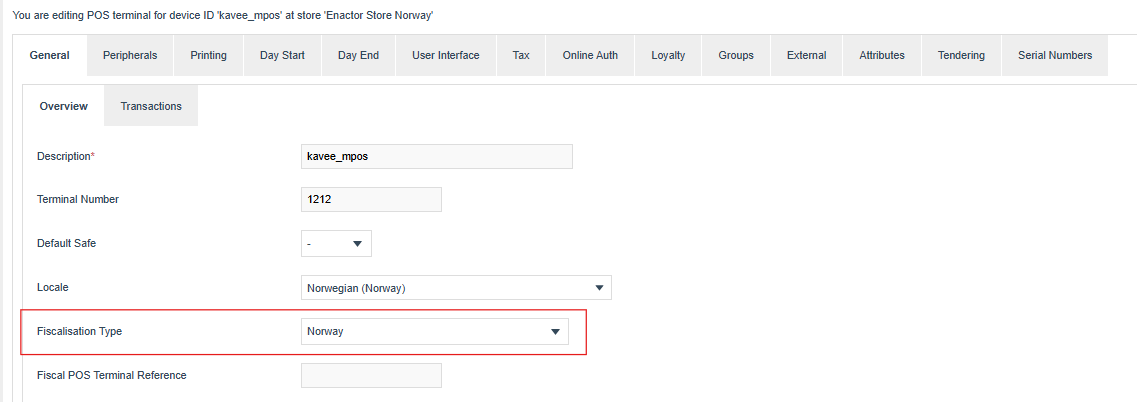
The POS Terminal Template used by all devices in Norway should be configured to have the Fiscalisation Type set to Norway. Currency should be set to Norwegian Kroner and Locale to Norwegian. The Enable End Point Status Monitor should be checked.
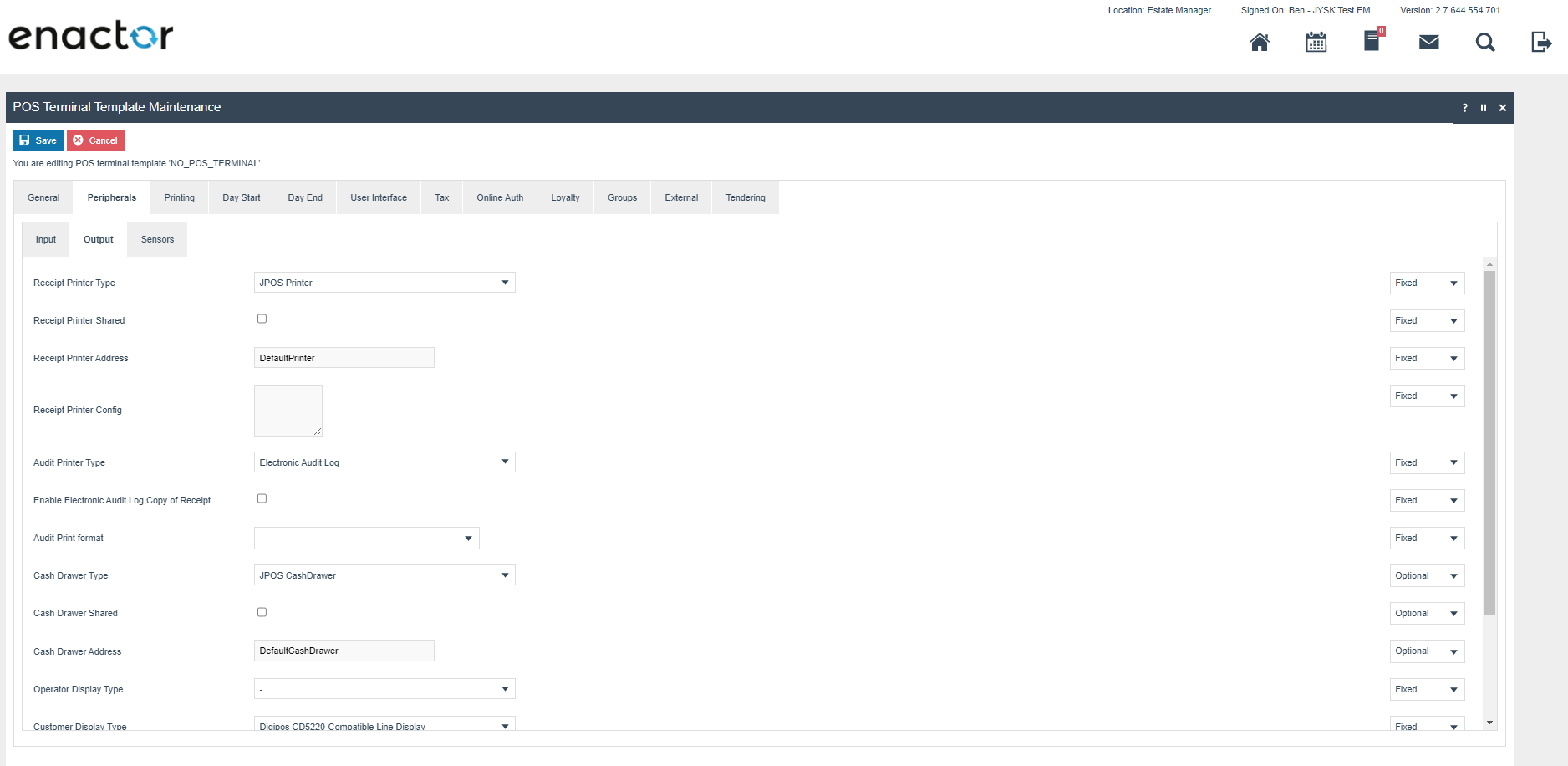
Within the Peripherals tab the Audit Printer Type needs to be set to Electronic Audit Log.
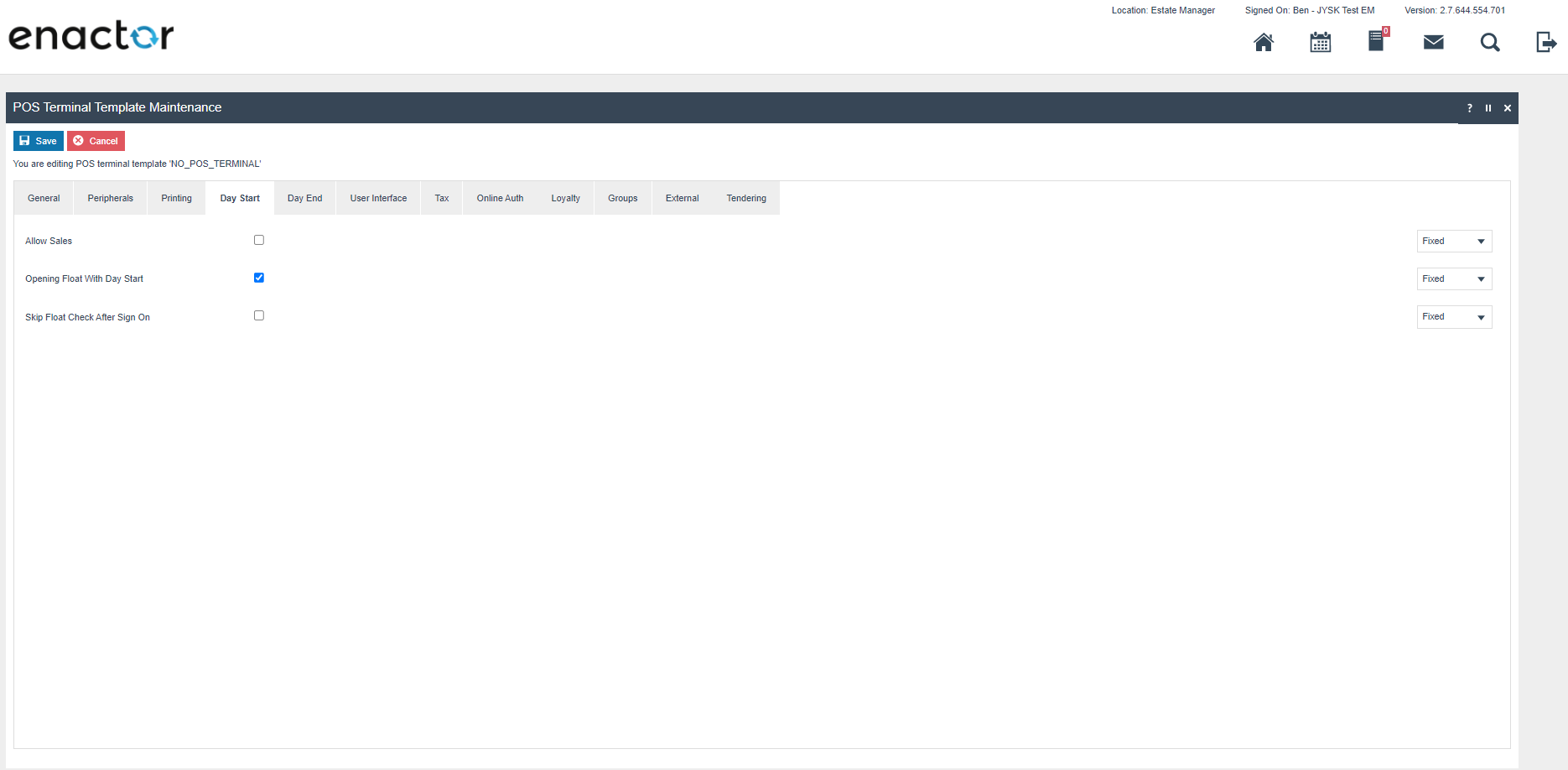
On the Day Start tab the Opening Float With Day Start must be checked.
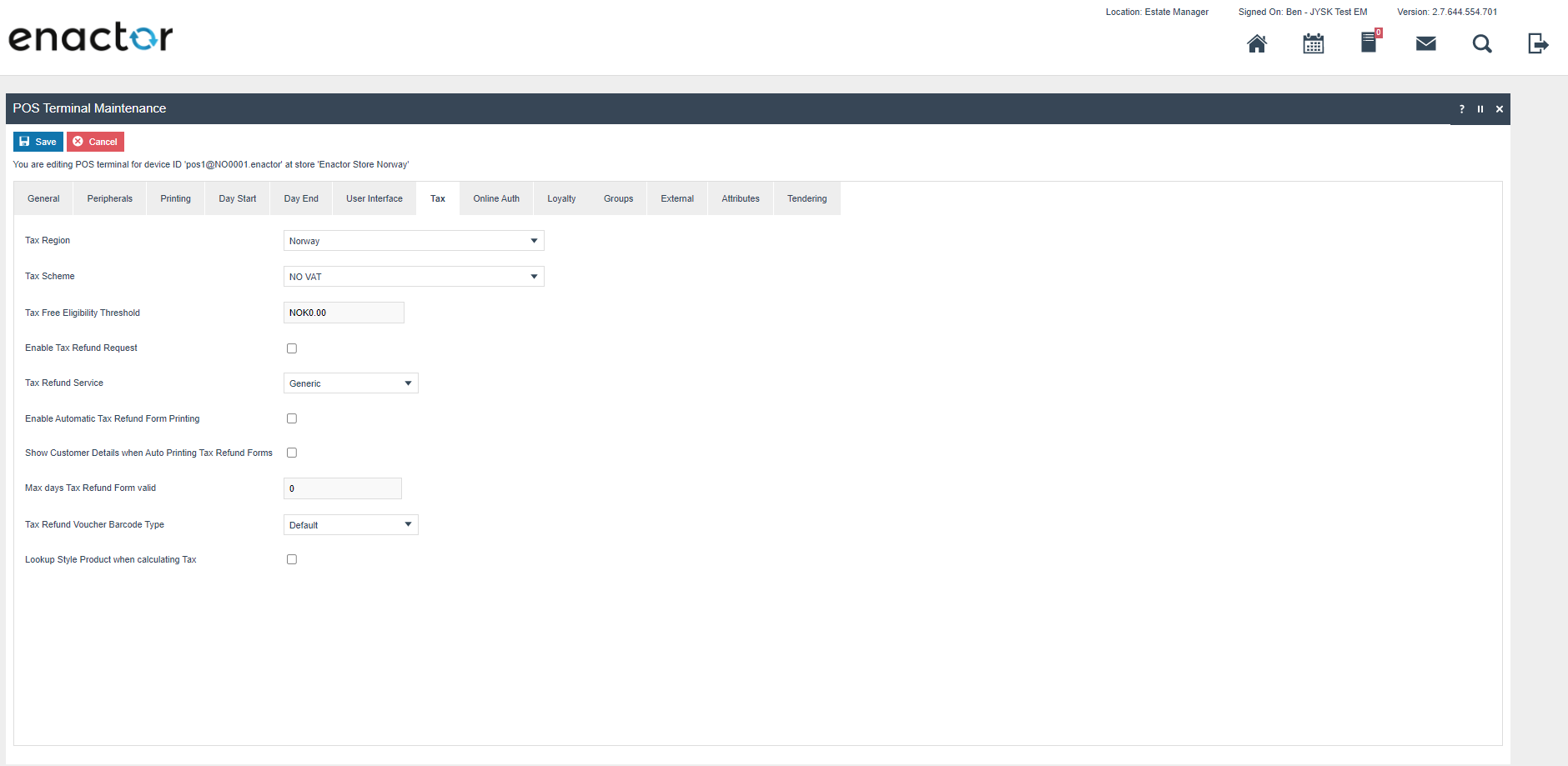
Within the Tax section the Tax Region should be set to Norway and the Tax Scheme to NO VAT.
Fiscalisation Type should be set to Norway.
Location
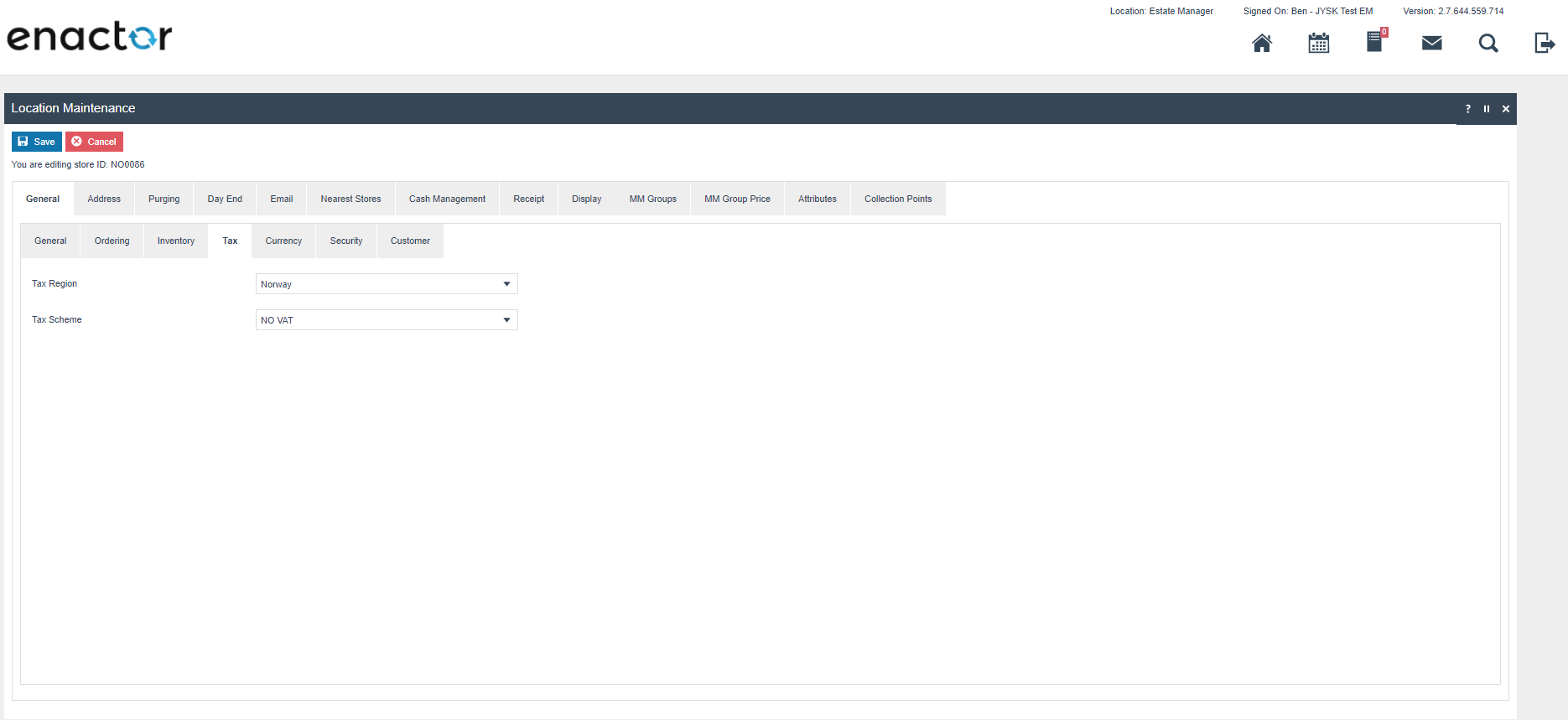
Each location in Norway should have its Tax Region set to Norway and Tax Scheme set to NO VAT, although this should normally be done through the location template.
Account Credentials
It is necessary to import a set of account credentials into the Estate Manager. This configuration will be provided by Enactor since it contains the pre-encrypted key that is used to sign the transactions. This key is encrypted with a symmetric key and provided by Enactor ahead of time since it is a requirement of the legislation that this key is not disclosed to the retailer to ensure they cannot circumvent the signing process. The symmetric key that is used to encrypt the private key is not disclosed to customers and this protects against any end user obtaining the private key used to sign transactions.
Once the account credential has been imported on the EM it must be broadcast to all Norwegian devices.
Privileges
The following privileges will need to be configured and broadcast to the Norwegian devices. Care should be taken to ensure that these privileges are given to the appropriate users of the system to ensure that the functions can be performed at an appropriate time.
It is necessary to run a Z report every day so there should always be a user present in the store at the end of the day with the appropriate privileges to do this.
| Privilege ID | Package |
|---|---|
| Print Fiscal Reports | POS Fiscalisation |
Menus
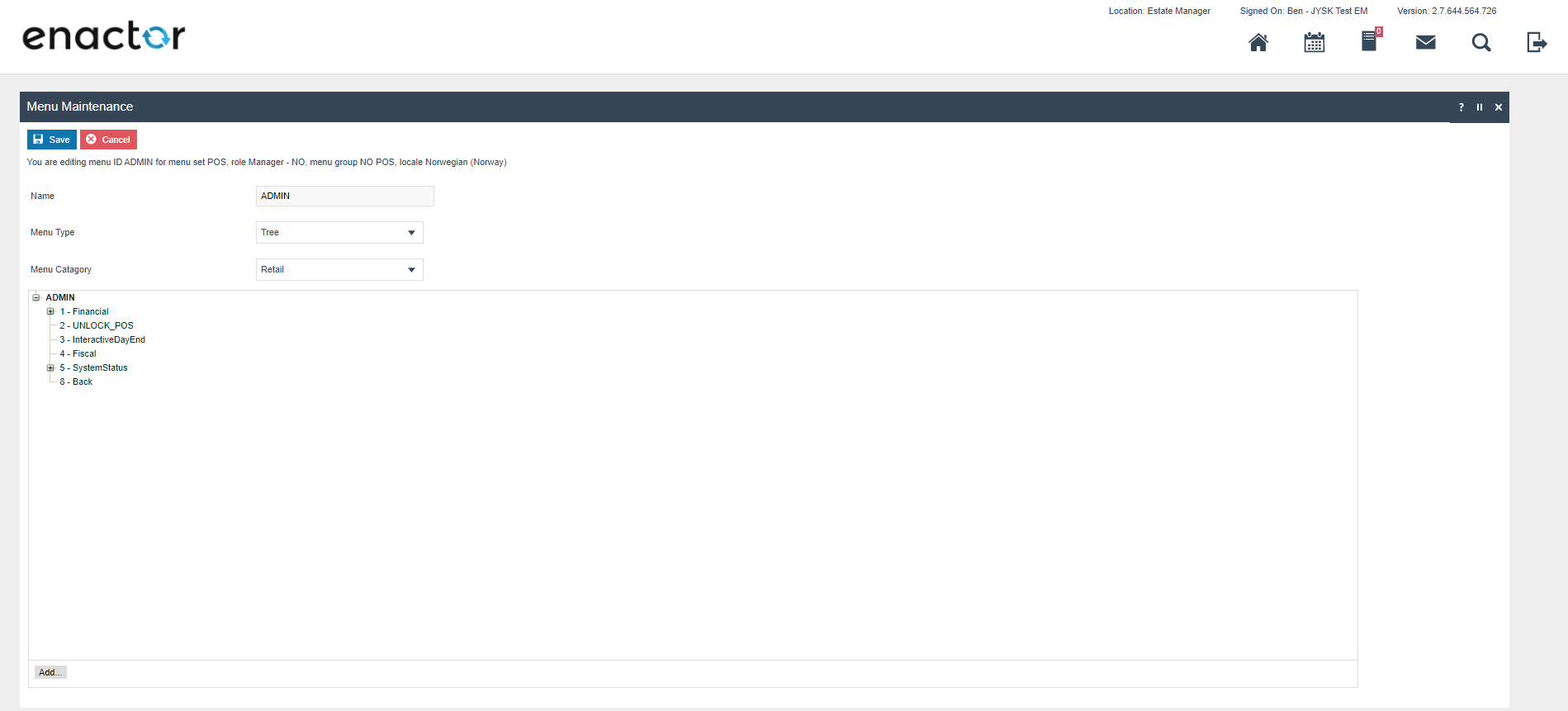
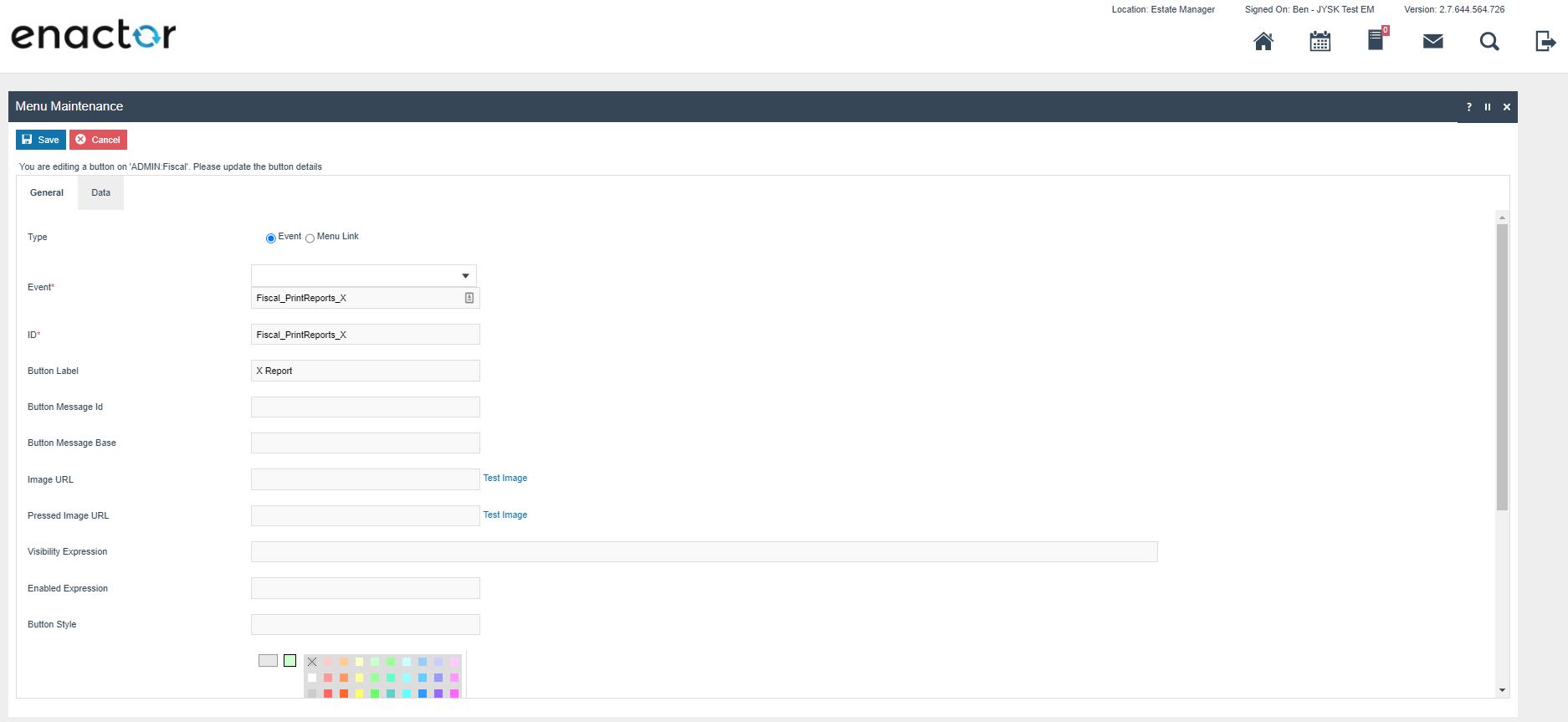
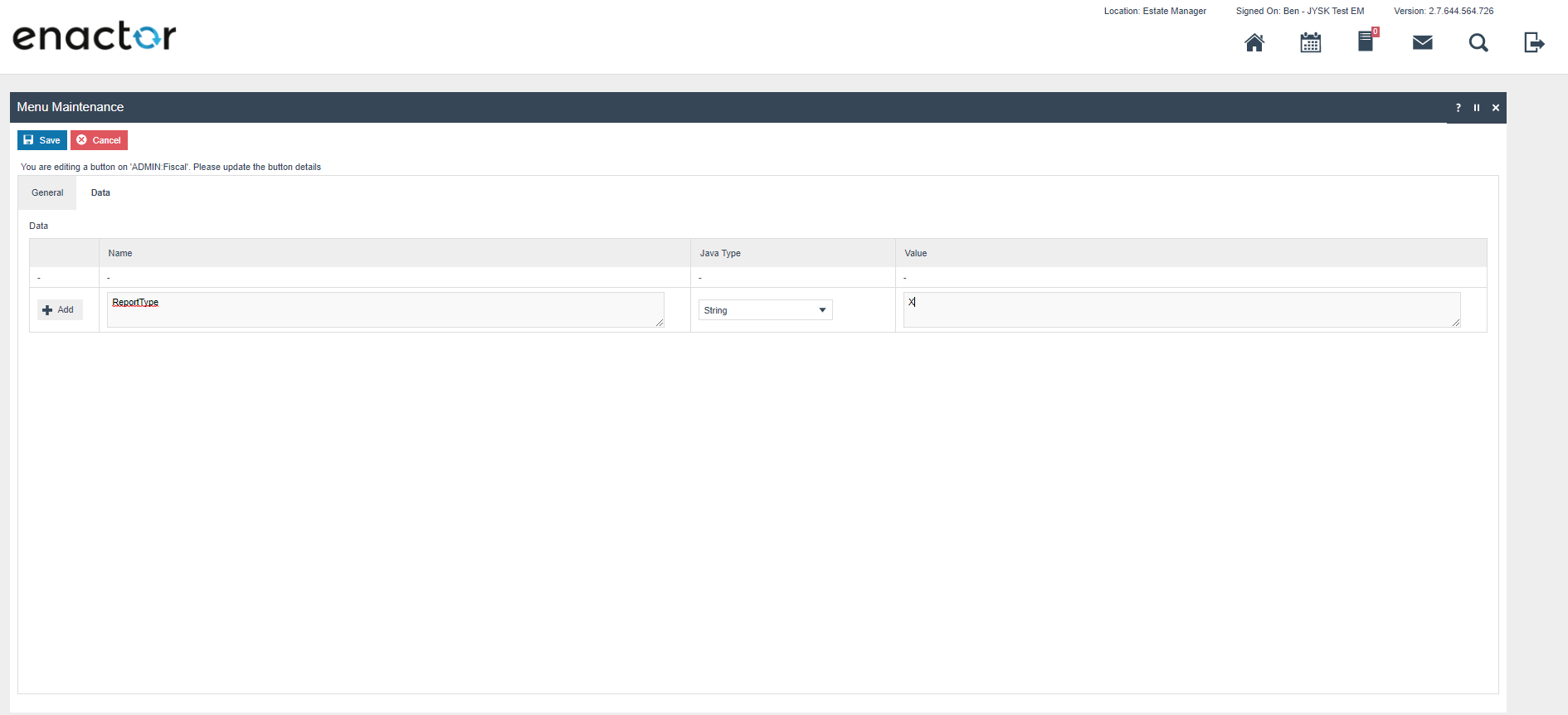
At an appropriate point within the Norwegian POS menu structure (suggested on the Admin menu), a fiscalisation menu with the following items will need to be configured and broadcast to the Norwegian POS devices. This menu will be used for performing X and Z reports. Although access to this report is controlled with the above privilege, it may be beneficial to only configure this button on the menu for the appropriate role (i.e. if a manager will perform this function it is only available on the manager menu).
| Event | ID | Button Label | Data Name | Data Java Type | Data Value |
|---|---|---|---|---|---|
Fiscal_PrintReports_X | Fiscal_PrintReports_X | X Report | ReportType | String | X |
Fiscal_PrintReports_Z | Fiscal_PrintReports_Z | Z Report | ReportType | String | Z |
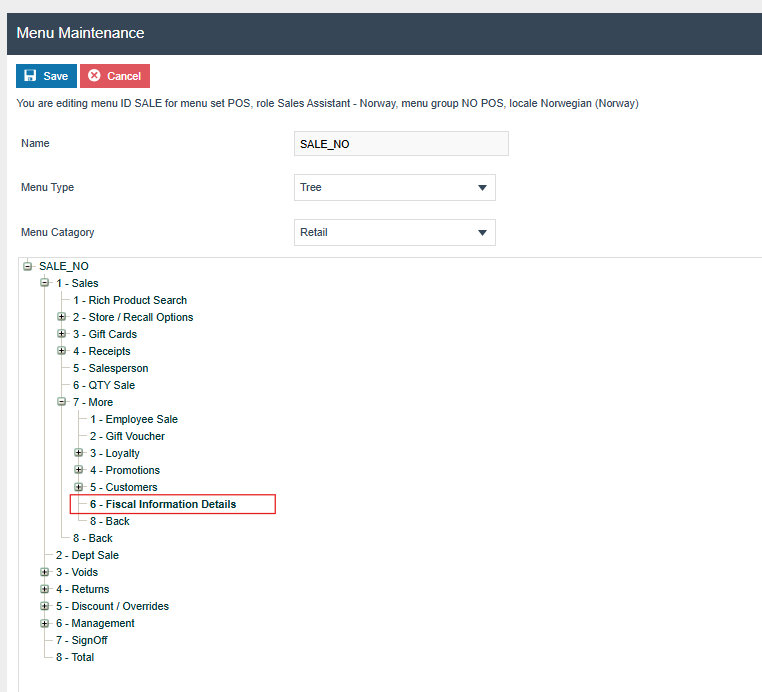
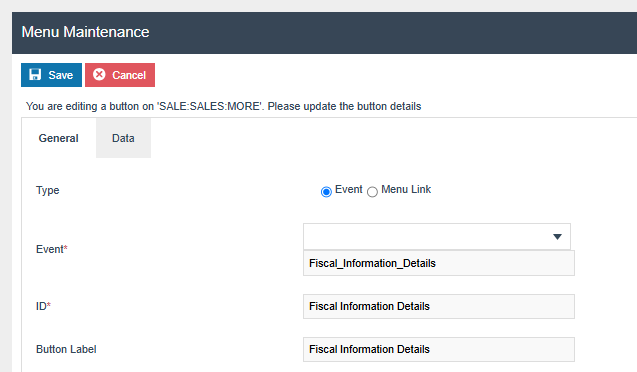
Create a menu button in the SALES menu with event Fiscal_Information_Details.
User Role
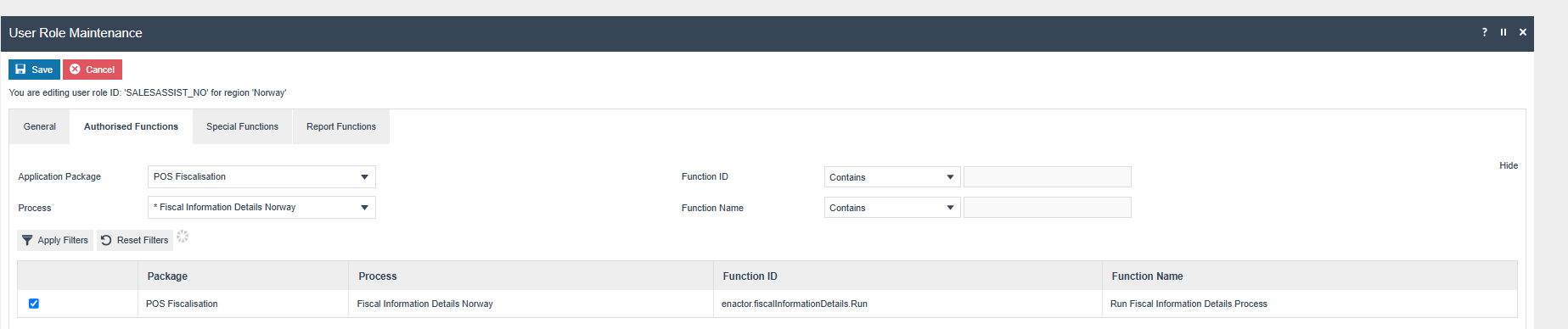
To configure the required settings for the new screen that includes fiscalisation type and Fiscal Module Version, select the relevant User Role ID (such as Sales Assistant). Edit the chosen User Role ID and navigate to the Authorised Functions section. From there, select POS Fiscalisation as the Application Package from the dropdown menu. Next, choose Fiscal Information Details Norway as the Process and enable the Run Fiscal Information Details Process option.
Product Tax
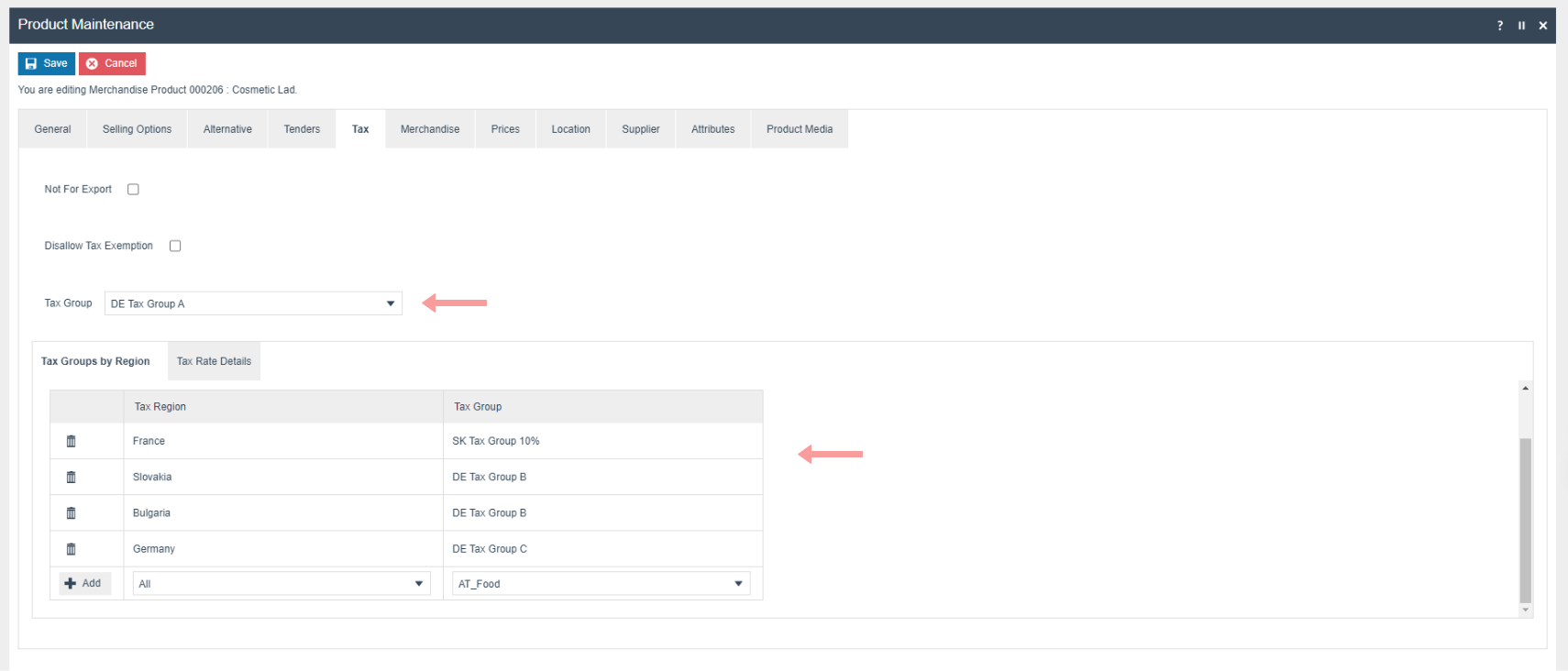
The following tax configurations should be configured against the products and broadcast to the appropriate Norwegian devices. A tax group can be defined to either configure the tax group directly or have a tax group by tax region.
MMGroup to Fiscal Product Group Mapping
In Norway it is necessary to map products to an Article Group Code provided by the Norwegian Tax Authority. Enactor only supports a single MMGroup Hierarchy so to configure this mapping it is necessary to add an attribute to the MMGroups for products sold in Norway with the mapping to the Norwegian Tax Authority article group code.
To map an MM group with a fiscal article group, complete the following configuration:
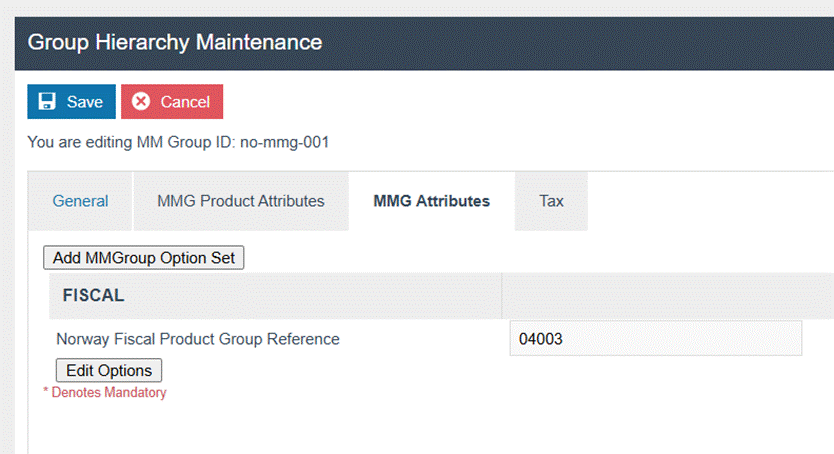
- Go to Group Maintenance > MM Group
- Select the particular MM Group
- Navigate to the MM Group Attributes tab
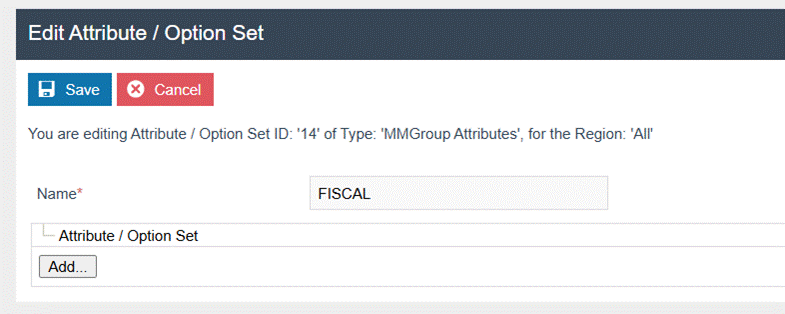
- Create an Attribute / Option Set as follows:
- Set ID -
FISCAL
- Set ID -
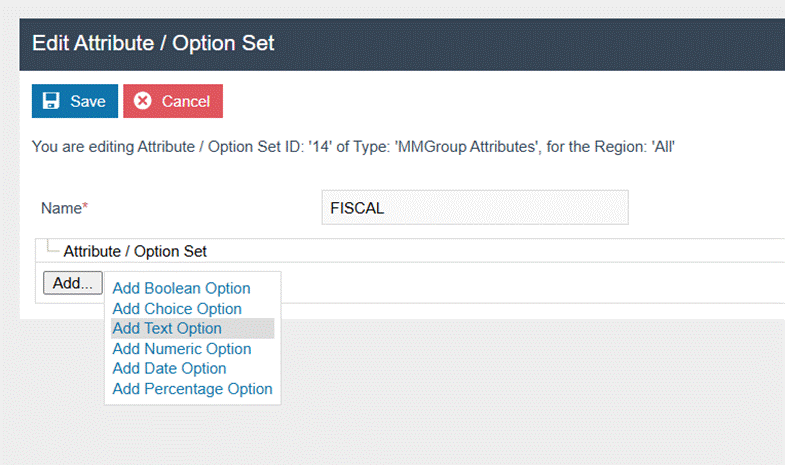
- Add a new text attribute as follows:
- ID -
NO_FISCAL_PROD_GROUP_REF - Name - Norway Fiscal Product Group Reference
- ID -
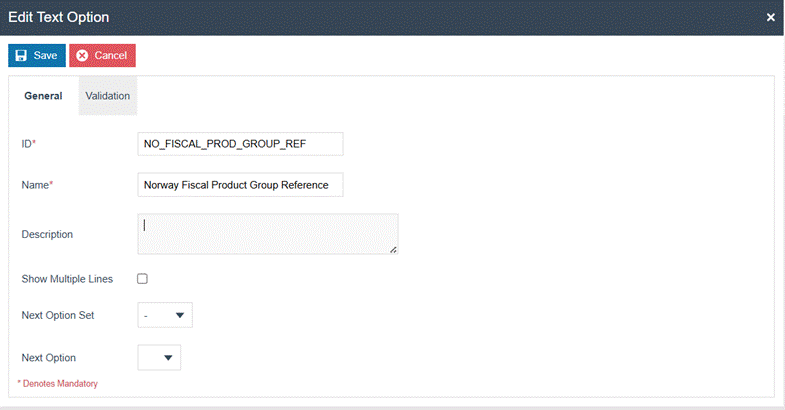
- Save that attribute.
- Go back to the MMG Attributes tab.
- Add the relevant fiscal article group reference value according to the Norway bookkeeping regulations.
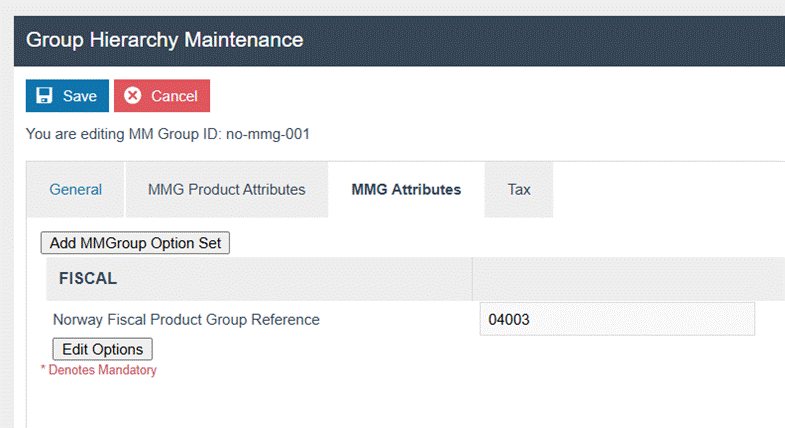
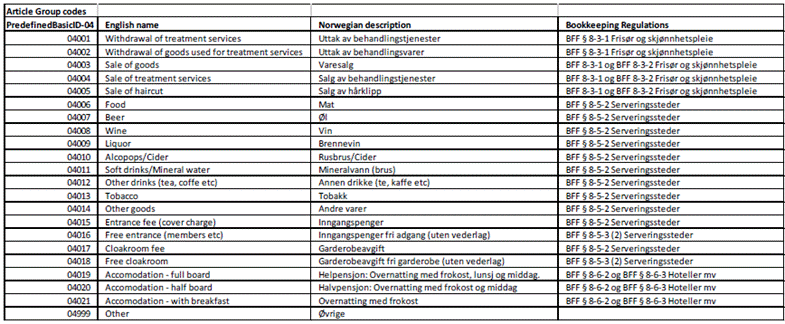
It is possible to provide this configuration for a parent element in the hierarchy. The Tax Authority Article Group Code will be applied to all of its children.
Payment Service CREDIT_DEBIT Mapping
- Navigate to Attribute / Option Set Maintenance
- Click Create a New Option Set with the following values:
- Attribute / Option Set -
CREDIT_DEBIT_MAPPING - Type - Tender Attributes
- Region - Norway
- Attribute / Option Set -

- Click Add under the created Attribute/Option Set
- Select Add Text Option
- Create 3 Text Attributes:

Mapping Property:
- ID -
MAPPING_PROPERTY - Validation - Strings
- Allow blank - Enable
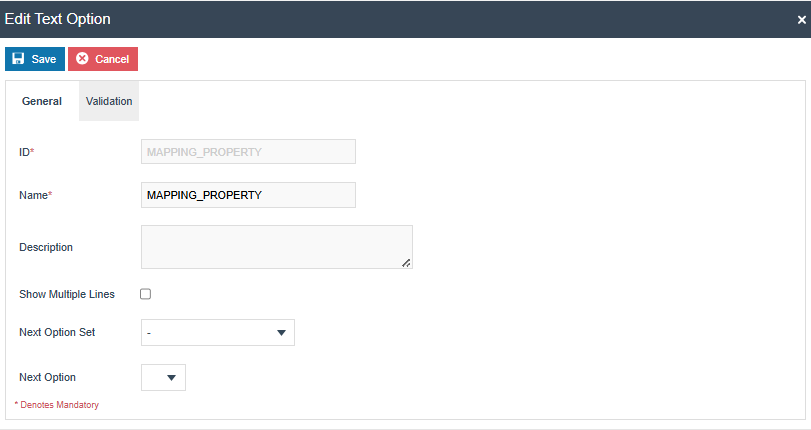

Credit:
- ID -
CREDIT - Validation - Strings
- Allow blank - Enable


Debit:
- ID -
DEBIT - Validation - Strings
- Allow blank - Enable


- Navigate to Tender Maintenance
- Edit the Tender ID related to the Card (Payment Service) tender
- Navigate to Attributes
- Add values to the attributes as follows:
- MAPPING_PROPERTY -
cardDetails.cardDescription - CREDIT -
MC Credit, Visa Credit - DEBIT -
MASTERCARD, Visa Debit
- MAPPING_PROPERTY -
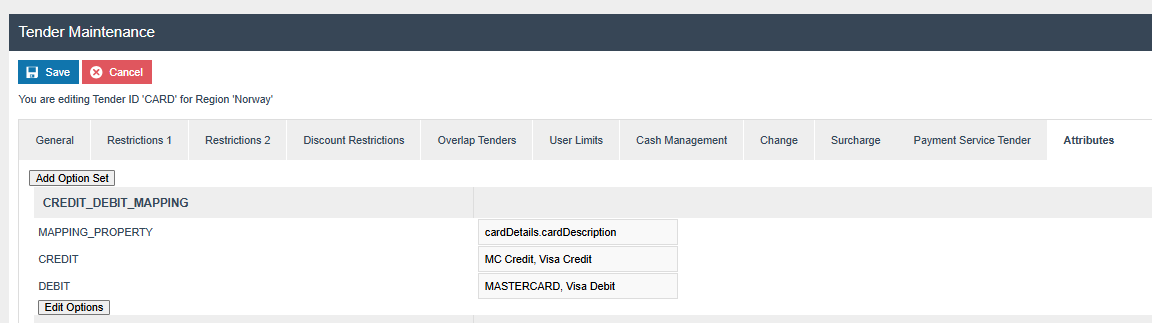
Set MAPPING_PROPERTY to the same value as mentioned above. Add keywords for CREDIT and DEBIT, separating each keyword with a comma. Obtain the possible card description values for credit and debit cards from the payment service provider.
Norway Specific Functions
The operation of both the POS and the Estate Manager is for the most part the same as any other country when the Norwegian fiscal module is being used. This guide does not intend to cover the full operation of the POS - instead the Enactor documentation should be referred to at Enactor Insights.
This section covers Norwegian specific operations as well as considerations that should be taken with regard to maintaining a compliant solution in Norway.
Z Report
The configuration section above detailed the setup for a menu from which to trigger the Z report as well as a set of permissions to enable a member of store staff to trigger this report on the POS. Staff should be trained to run this report every day and retain the printed Z report that it will produce in accordance with the fiscal regulations. Running the Z report closes the fiscal day and will contain adjusted grand totals to account for that day's trade.
X Report
The X report is configured and runs in the same way as the Z report. However its operation is different; it is a purely informational report and does not close the day or affect grand totals, although the data it contains is very similar to the Z report. It is not necessary to run the X report but it is provided to allow a member of staff to see what the Z report position would be at present if the day were closed by running the Z report.
Enabling X/Z Report Printing
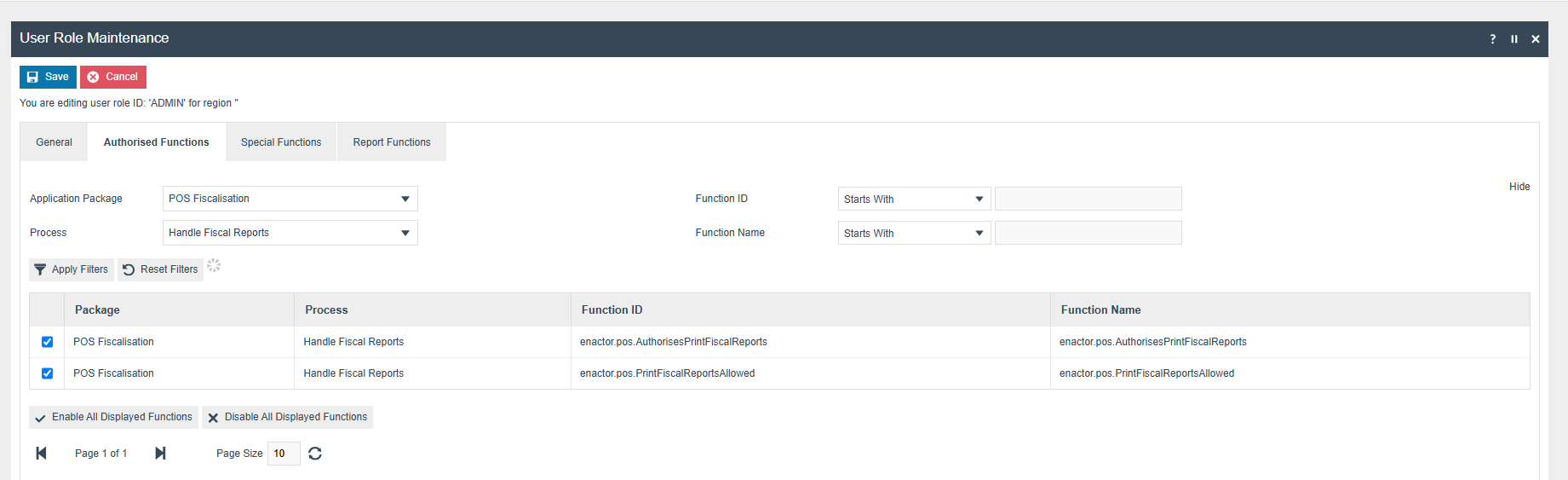
Both X/Z report printing functionalities are now privilege-controlled. To print X/Z reports, you must first enable the following privileges:
enactor.pos.AuthorisesPrintFiscalReportsenactor.pos.PrintFiscalReportsAllowed
Unless these privileges are enabled, printing X/Z reports will not be allowed.
To configure this, go to User Role Maintenance in the Estate Manager (EM). Based on your Role ID, navigate to the Authorised Functions tab, select POS Fiscalisation as the Application Package, and set the Function ID to enactor.pos.AuthorisesPrintFiscalReports. Then enable the function.
Repeat the same steps for enactor.pos.PrintFiscalReportsAllowed.
Once these privileges are enabled for the relevant roles, X/Z report printing will be permitted.
SAF-T File Export
From the Estate Manager it is possible to trigger the production of a SAF-T file. This should only be required if requested by the Tax Authorities at the time of an audit. However, it would be pragmatic to produce this report on a regular schedule to maintain a second record of transactions along with the database and its backups in the event of a total loss of the Enactor database and its backups also failing.
First select the SAF-T Generator report from Reports > Fiscal.
Populate the required date ranges, location, and device from the screen shown below and click Generate.
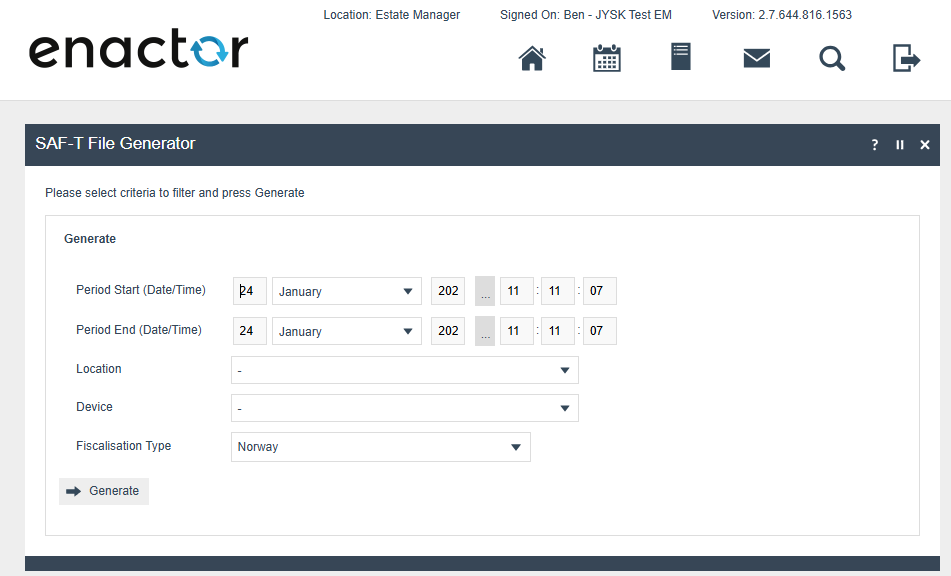
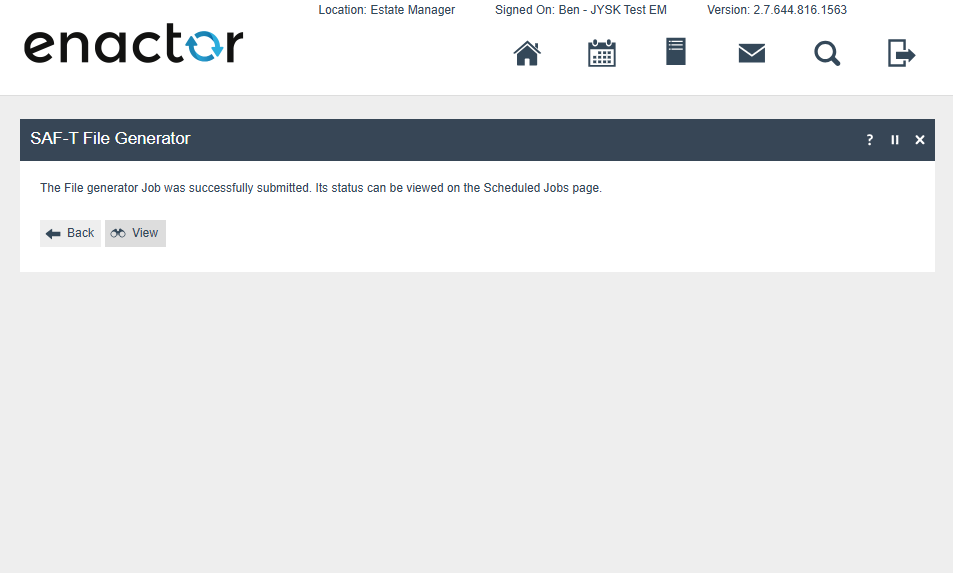
This will trigger a scheduled job in the background which can be monitored from the scheduled jobs page as usual. Once the job has completed it will be possible to download the generated XML file from File Downloads on the EM.
Generated SAF-T files are no longer located in /FiscalData/Norway/SAF-T. They are currently available at the following path:
/var/lib/docker/volumes/enactor-data-emp-home/_data/Exports/<USER>/<yyyymmdd>
Fiscal Tables
Estate Manager
It is important that all data contained in the EM is backed up in a manner that ensures data will not be lost in the event of a disk or server failure. Strategies for doing this vary and each retailer will have their own approach depending on their particular situation. However, the following list of tables comprises the fiscal archive. It is critical that data contained in these tables is not removed either intentionally or otherwise before the mandated retention period for transaction data is over, as this will result in invalid SAF-T files with signature chains that have breaks within them.
- Fiscal Transactions
- Retail Transaction Archive
- Products
- Product Groups
- Location
POS/PDP
Data held on the POS/PDP is less critical than the Estate Manager since the fiscal data store is the Estate Manager and the data about transactions held on the POS is temporary. However one special consideration needs to be given when recovering from a disaster on a POS or PDP server since the signature for each transaction contains the signature of the prior transaction as part of the data that is signed.
The normal disaster recovery process for a POS or a PDP is to rebuild and install it and then schedule a broadcast of the required configuration from the EM to the new device. Commonly the same device ID is used for the new device even in the event of total hardware failure since retailers like to keep consistency in their POS naming conventions. If this process is followed in Norway without adaptation this will result in a new signature chain being started for that POS which will appear in a SAF-T audit as a break in the signature chain for the device.
Instead, when recovering from a POS or PDP disaster in Norway an extra step is required to discover the last signature the failed device produced. This signature will then need to be reseeded to the new POS. In the case of a PDP it will be necessary to reseed the signature of each device hosted by the PDP.
This is an advanced and extraordinary procedure. The first time you perform this you should contact support@enactor.zendesk.com to arrange for a member of the fiscal team to walk through the procedure with you. The following instructions are not intended to be sufficient for you to perform this procedure without help.
First check on the Estate Manager that there are no inbound documents waiting to be processed from the failed device. It will then be necessary to find within the EM SQL database the last transaction processed from the failed device in the Fiscal Transactions table and extract the signature from the XML column. After building the new POS but before logging in, it will be necessary to populate this value to the appropriate table on the POS.