How To Configure Fiscal Poland
Fiscal Overview
For shared background, see Fiscal Overview.
Introduction
The fiscal approach in Poland is based around the use of Fiscal Printers. Enactor has already integrated the UPOS FP-20 and FP-T88 FVA devices in this market. These fiscal printers contain a write-once-read-many fiscal memory, which is used to store the values for each transaction.
The fiscalisation approach recently changed in Poland. Presently it is possible to use either the old system where transactions are recorded only on a fiscal memory in the printer or the new system where transactions must also be submitted to the authorities online. It will be possible to purchase the old style of offline printer until the end of 2022, after which time only the new online version will be available. It will be possible to use old-style printers until their fiscal memory is exhausted.
UPOS offers an online version of both the FP-20 and the FP-T88 FVA, and since the online communication is handled solely by the printer, Enactor's interface to the printer is the same across the models.
In Poland the fiscal printers must be certified but there is no requirement to certify the POS or the overall solution.
The fiscal printer memory has several limits, and once one of these is reached the printer is at the end of life and will need to be replaced:
- 2,100 Closed Fiscal Days
- 30 Tax Rate Changes
- 350,000 Unique Products Ever Sold
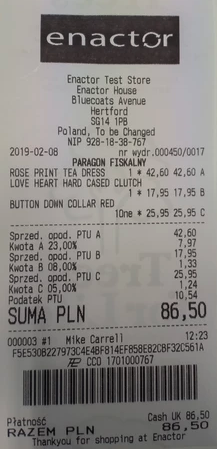
Each fiscal transaction on the POS will result in the printing of a fiscal receipt which must contain the fiscal mark. The format of the receipt is defined in the legislation and can only be altered in limited ways by including custom headers, footers, and a logo at the start of the receipt. The receipt must contain an identifier for the operator, although this can be an ID rather than their name; this should be considered when setting up Polish users.
The total of the receipt must always be positive. Returns and like-for-like exchanges are handled as non-fiscal receipts. The accounting of tax for returns must be manually handled by the retailer's accounting department.
As well as printing fiscal receipts, the printer can also be used to print non-fiscal receipts in the same way as any normal thermal receipt printer. The only requirement of a non-fiscal receipt is that it must not contain the fiscal mark and it has text in Polish (NIEFISKALNY) to announce that it is a non-fiscal receipt at the beginning and the end. These non-fiscal receipts can be used for things like printing cash management slips since cash management transactions are non-fiscal in Poland. Receipt copies are also non-fiscal receipts and must not contain the fiscal mark.
It is necessary to be able to print X, Y and Periodic reports. The production of these reports is handled by the printer but triggered by the POS. In the case of the Periodic report, the POS also supplies the from and to dates to the printer after capturing them from the operator.
The Z report must be produced at least once every 24-hour period and the report receipt must be kept by the retailer for 5 years. It is recommended to link the production of this report to the day end process.
In the case of an invoice being issued, the fiscal receipt must contain the tax ID of the customer, which will be captured on the POS when requesting an invoice. An invoice number must also be generated either by the POS or some retailer-specific backend process, which will be passed to the printer and included on the receipt. The layout of fiscal invoice receipts is managed by the printer and contains a more detailed tax breakdown than normal fiscal receipts. The retailer may also print an additional non-fiscal invoice document as well as the fiscal invoice receipt. These optional additional receipts can be printed on either the fiscal printer or some other printer, for example an A4 laser printer.
When taking a deposit for an item, a fiscal receipt must be issued for the value of the deposit. When the customer returns and pays the balance, a second fiscal receipt should be issued for the full amount but with a discount of the original amount paid as a deposit.
Deployment Overview
Using the Estate Manager application update broadcaster, deploy the fiscal solution as follows:
- Send the application updater update.zip to the devices you wish to deploy the fiscal solution on.
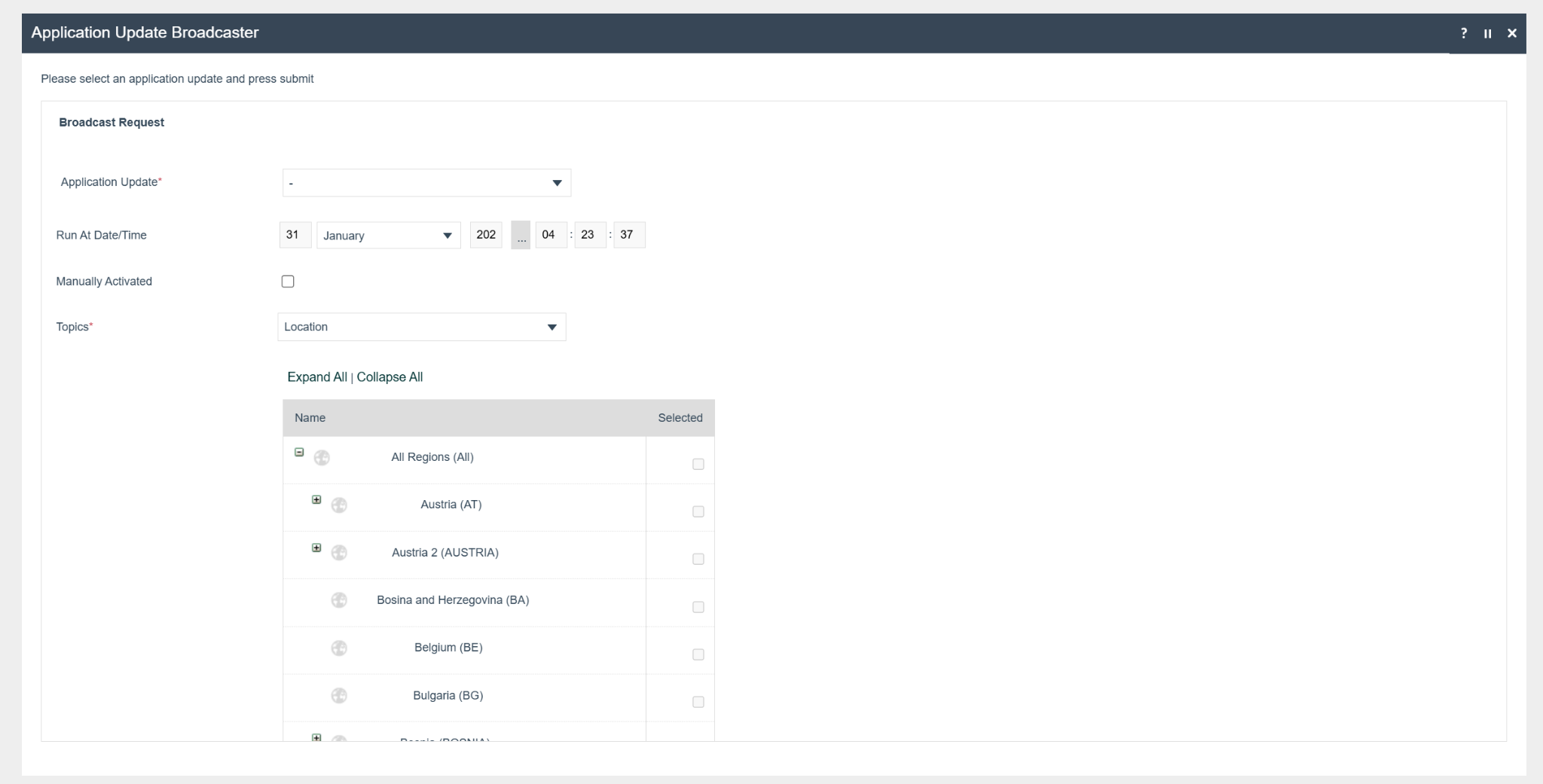
- Wait until the update succeeds.
- Send the update POS min.zip file.
- Wait until it succeeds.
- Send the Fiscal Module Update.
- Send the Poland printer resources update.
- Once both updates are completed, the POS will be ready with the new POS Fiscal Module.
- To verify the updates:
- Check the installation location's
pos/custom-libfolder for JAR files containing "fiscal" in their names. - Check the
ext-libfolder for these files:commons-lang-2.6.jarjSerialComm-2.10.4.jarjavapos-1.14.3.jarjcl.jarlog4j-api-2.19.0.jarlog4j-core-2.19.0.jarlog4j-slf4j2-impl-2.19.0.jarslf4j-api-2.0.6.jarupos-jpos-pl.jarxercesImpl-2.12.2.jarxml-apis-1.4.01.jar
- Check the
configfolder for thejpos.xmlfile. Ensure that thejpos.propertiesfile is also present inside thejpos/resdirectory.
- Check the installation location's
Configuration Overview
The following configuration changes are required and must be broadcast to all Poland devices in preparation for go live. Detailed steps for how to do this are contained in supplementary how-to guides available on the Enactor Insights portal, as well as being covered in the Introduction to Enactor training course.
- Region - Create a Poland region within the Region Group Hierarchy
- Location - Configure receipt header, footer and logo
- Tax Groups - Set up Polish tax groups
- Tax Scheme - Configure the Polish VAT tax scheme
- Tax Rates - Define Polish VAT rates with fiscal tax rate references
- Tax Region - Create a Poland tax region
- Tax Group Tax Methods - Link tax groups to the tax region and scheme
- POS Terminal Template - Set fiscalisation type, peripherals, receipts and tax
- Privileges - Configure fiscal-related privileges
- Menus - Add fiscal menu items to the POS
- Product Tax - Configure tax groups against products
Region
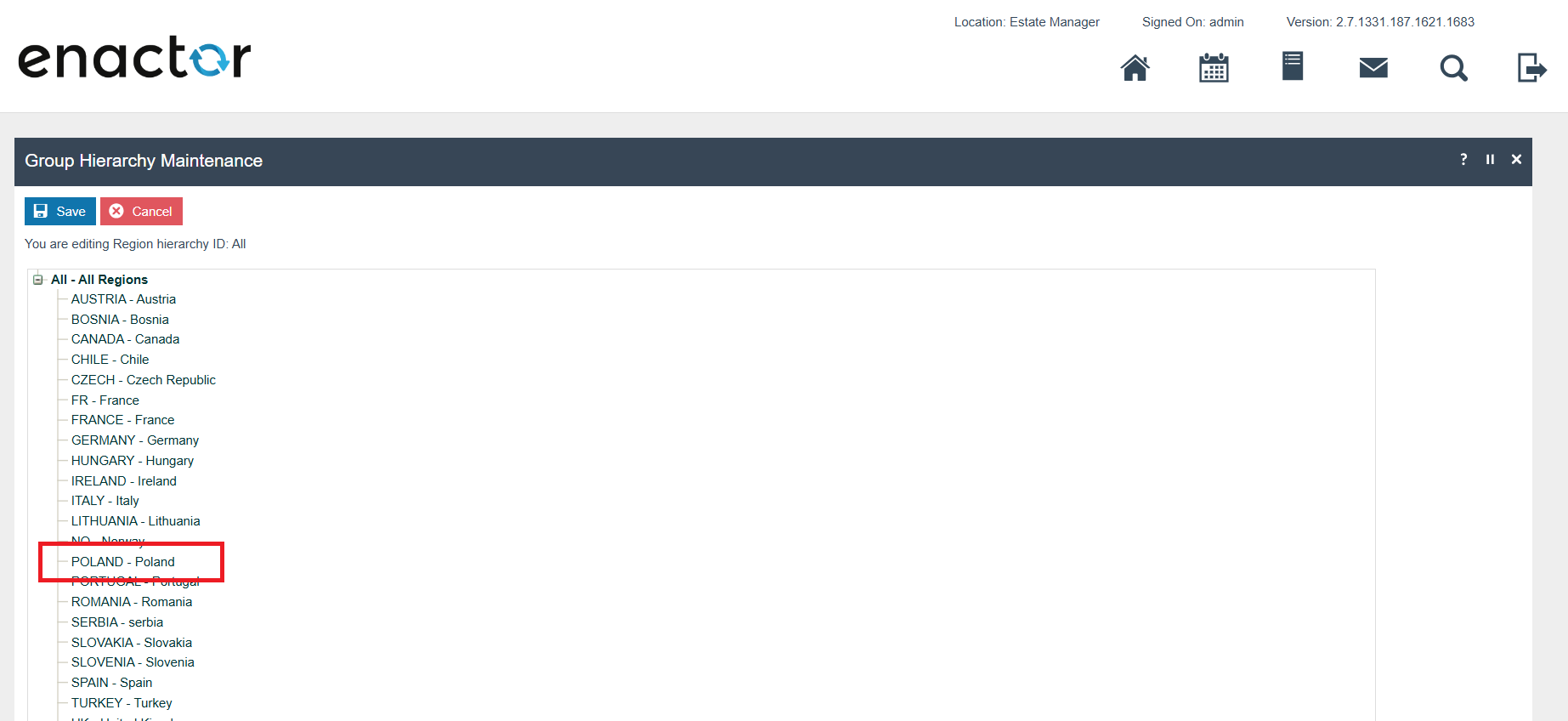
The region must be configured to continue the other configurations related to the fiscalisation. A region for Poland should be created within the Region Group Hierarchy.
Location
There are no required configurations for the location, but the header, footer and logo for the receipt will be picked up from here if they are configured.
In line with your procedures, it may be desirable to set these at the location template level rather than the location level. A possible exception to this would be situations where you have footers for each location.
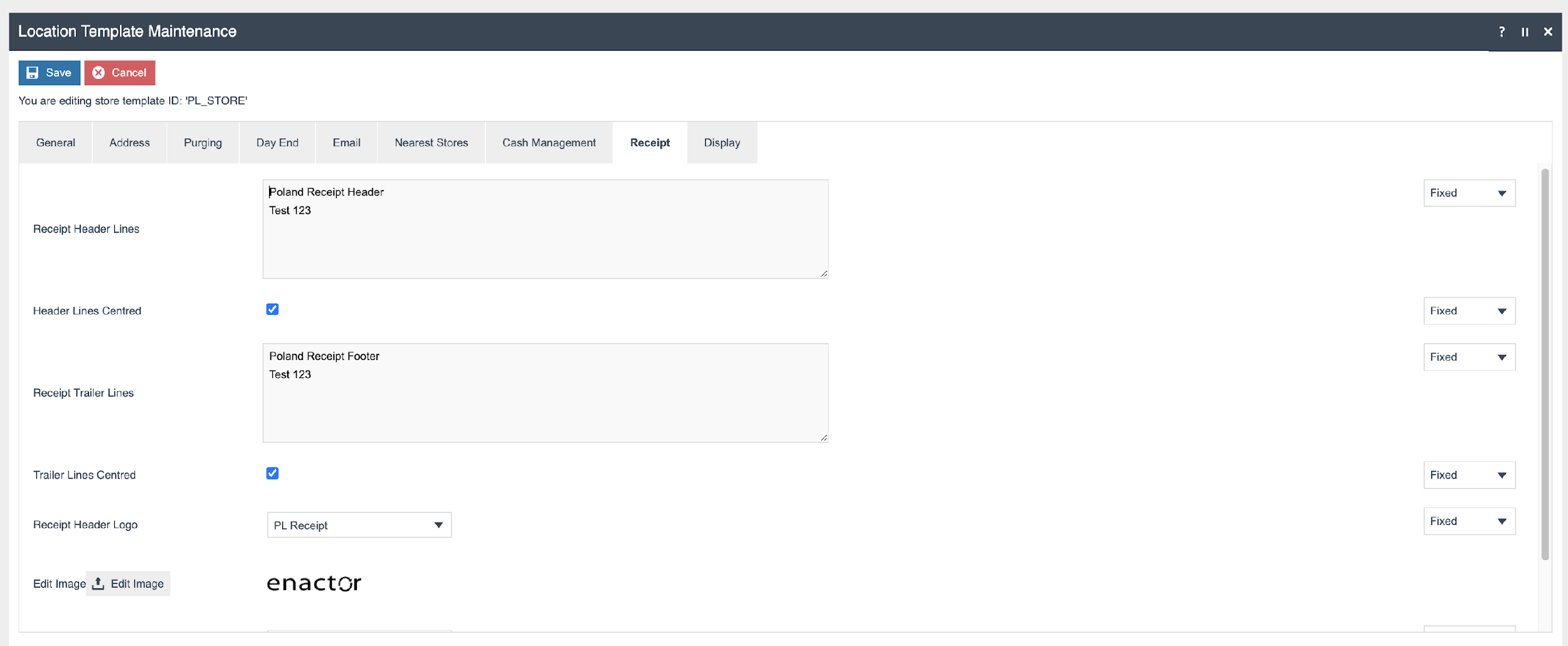
The logo must satisfy the following conditions:
- Width - maximum of 360 pixels
- Height - maximum of 256 pixels
- Width and Height both divisible by 8
- The image must be a monochrome bitmap
Tax Groups
The following tax groups should be configured and broadcast to the appropriate Polish devices.
| Tax Group ID | Description |
|---|---|
PL_0 | Liable for no tax |
PL_1 | Liable for full tax |
PL_2 | Liable for reduced tax |
PL_3 | Liable for reduced tax |
Tax Scheme
The following tax scheme should be configured and broadcast to the appropriate Polish devices.
| Tax Scheme ID | Description | Price Include Tax |
|---|---|---|
PL | PL VAT | TRUE |
Tax Rates
The following tax rates should be configured and broadcast to the appropriate Polish devices. Products to be sold in Poland should have the relevant tax rate configured against them.
| Tax Rate Type | Tax Rate ID | Effective Date | Description | Display Code | Percentage | Fiscal Tax Rate Reference |
|---|---|---|---|---|---|---|
| VAT | PL_0 | Date the VAT rate became effective in PL | Liable for no tax | D | 0% | 0 |
| VAT | PL_1 | Date the VAT rate became effective in PL | Liable for full tax | A | At time of writing 23% | 1 |
| VAT | PL_2 | Date the VAT rate became effective in PL | Liable for reduced tax | B | At time of writing 8% | 2 |
| VAT | PL_3 | Date the VAT rate became effective in PL | Liable for reduced tax | C | At time of writing 5% | 3 |
Tax Region
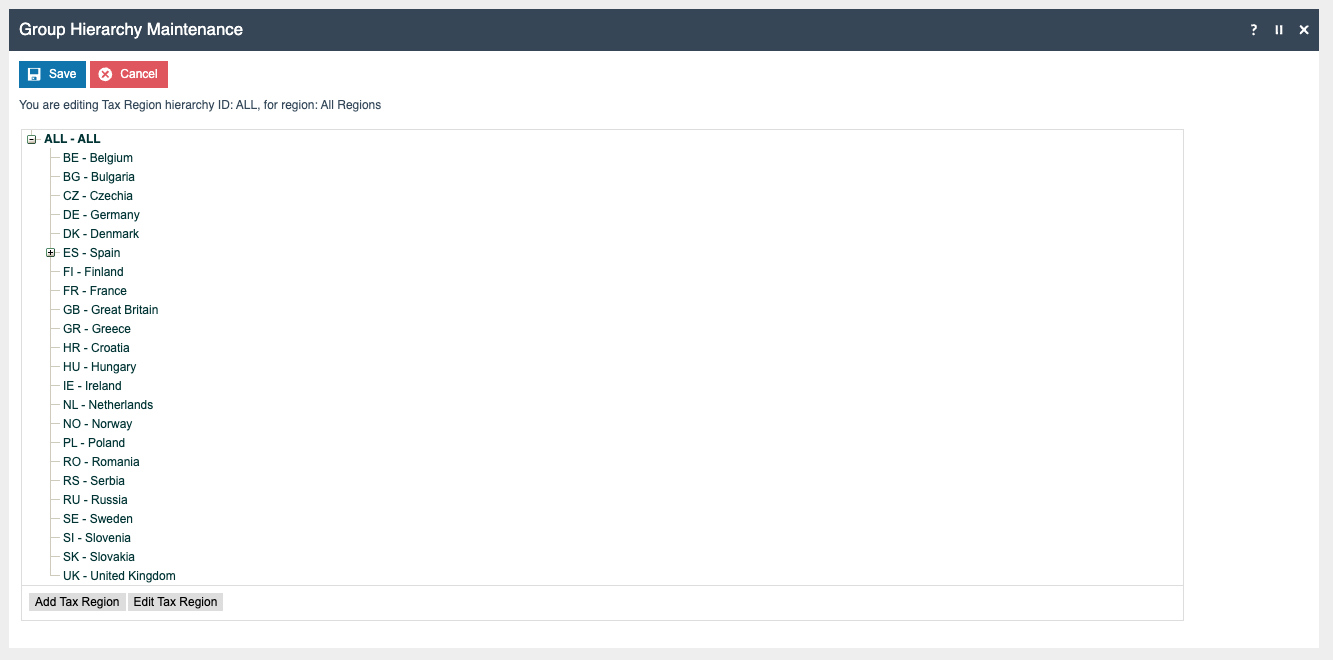
If it does not already exist, a Tax Region for Poland should be created within the Tax Region Group Hierarchy. It should have the ID PL and the Name Poland. It is not necessary to configure an External Reference ID.
Tax Group Tax Methods
The following tax group tax methods should be configured and broadcast to the appropriate Polish devices.
| Tax Group | Tax Region | Tax Scheme | Tax Rate |
|---|---|---|---|
| PL Liable for no tax | Poland | PL VAT | Liable for no tax |
| PL Liable for full tax | Poland | PL VAT | Liable for full tax |
| PL Liable for reduced tax | Poland | PL VAT | Liable for reduced tax |
| PL Liable for reduced tax | Poland | PL VAT | Liable for reduced tax |
POS Terminal Template
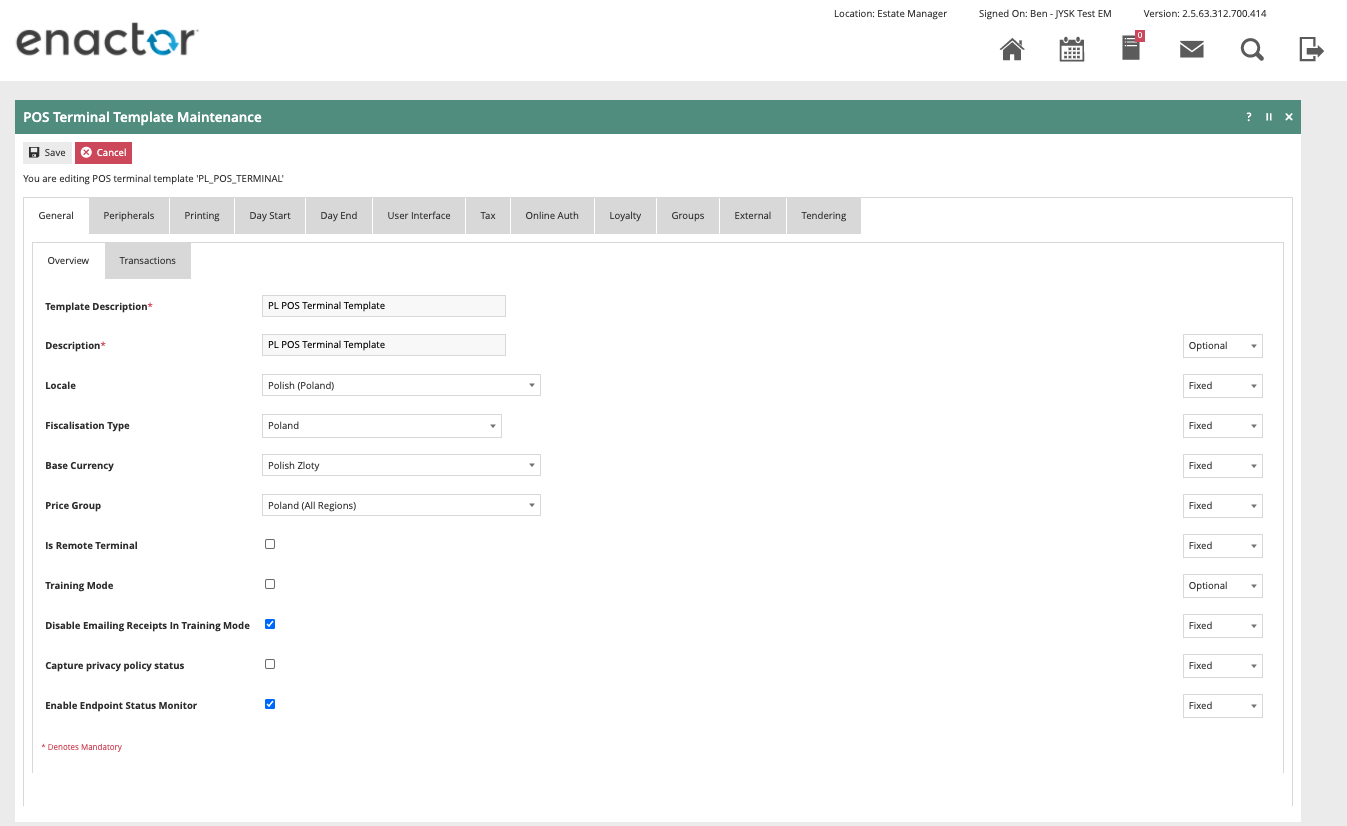
The POS Terminal Template used by all devices in Poland should be configured to have the Fiscalisation Type set to Poland. Currency should be set to Polish Zloty and Locale to Polish (Poland). Also add the POS Terminal Reference as well.
The POS Terminal Reference helps to identify the receipts when using the shared printer functionality.
Peripherals Tab
The Peripherals tab should be completed as follows.
| Field | Detail |
|---|---|
| Receipt Printer Type | FP-T88 FVA Polish Fiscal Printer |
| Fiscal Printer Address | UPOSFPPL, or name defined in jpos.xml |
| Customer Display Type | FPT88 FVA Line Display |
| Customer Display Config | lineDisplayWaitSecs = 1 |
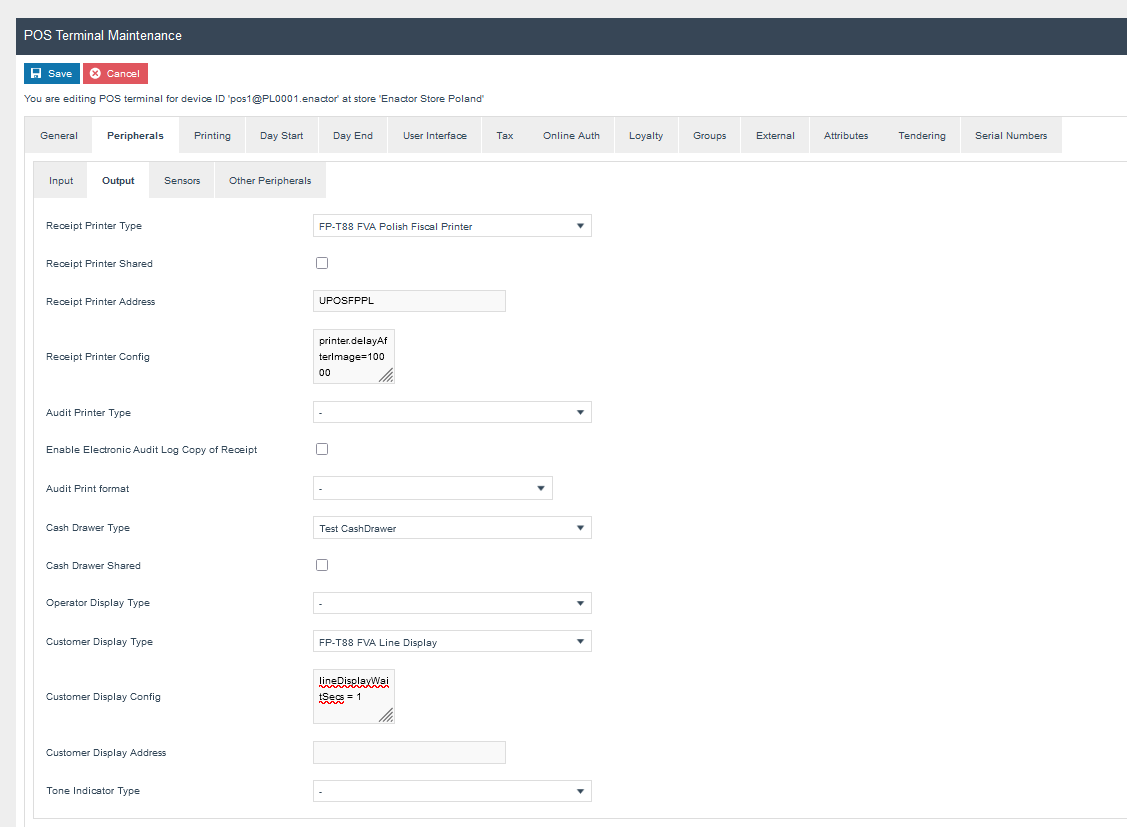
The Receipt Printer Address should be defined in the jpos.xml file, which must be placed inside the config folder. The value of the address property should be the IP address of the physical printer.
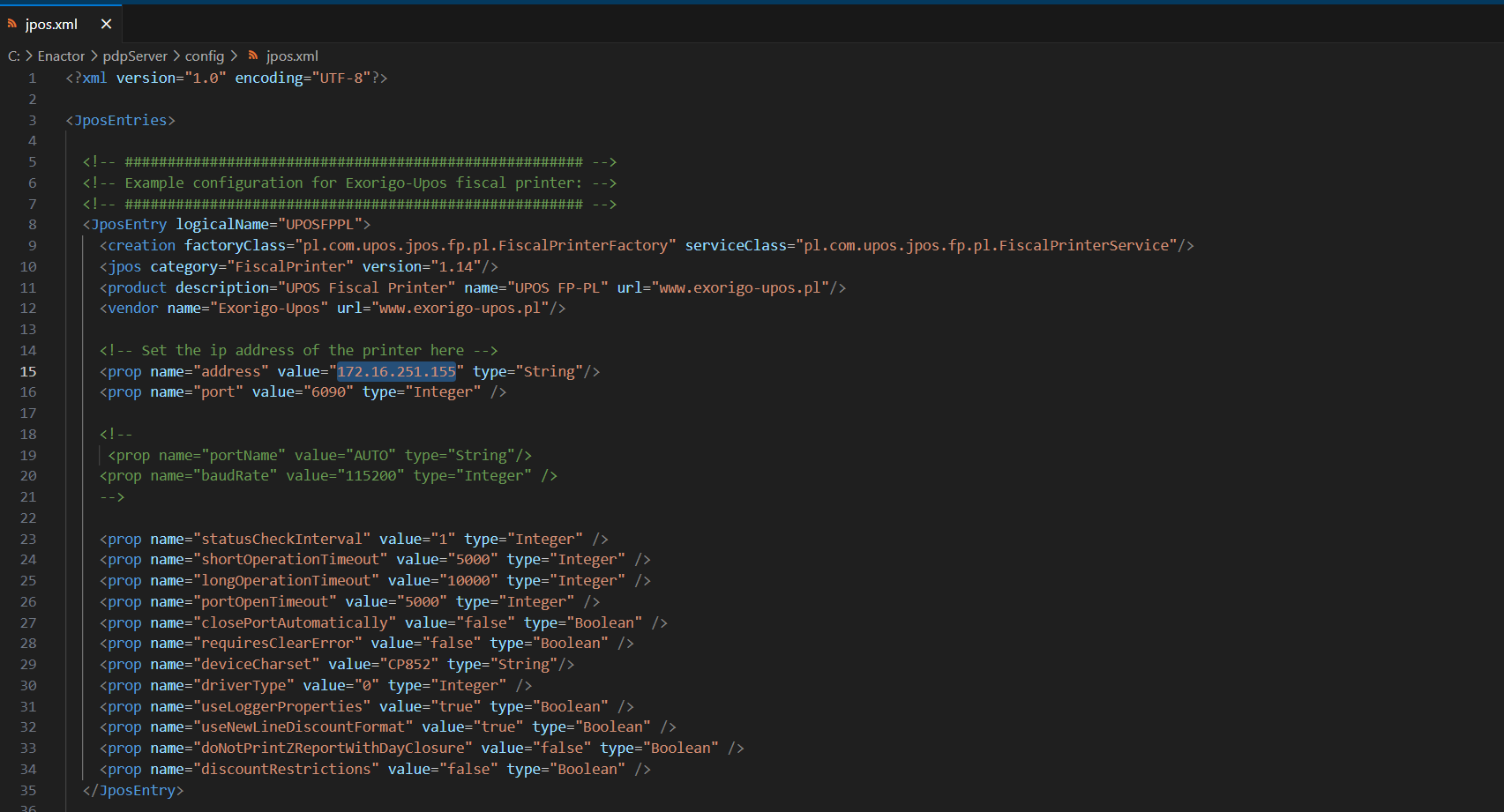
jpos.xml structure. Set the address property to the IP address of the physical printer.
Receipts Tab
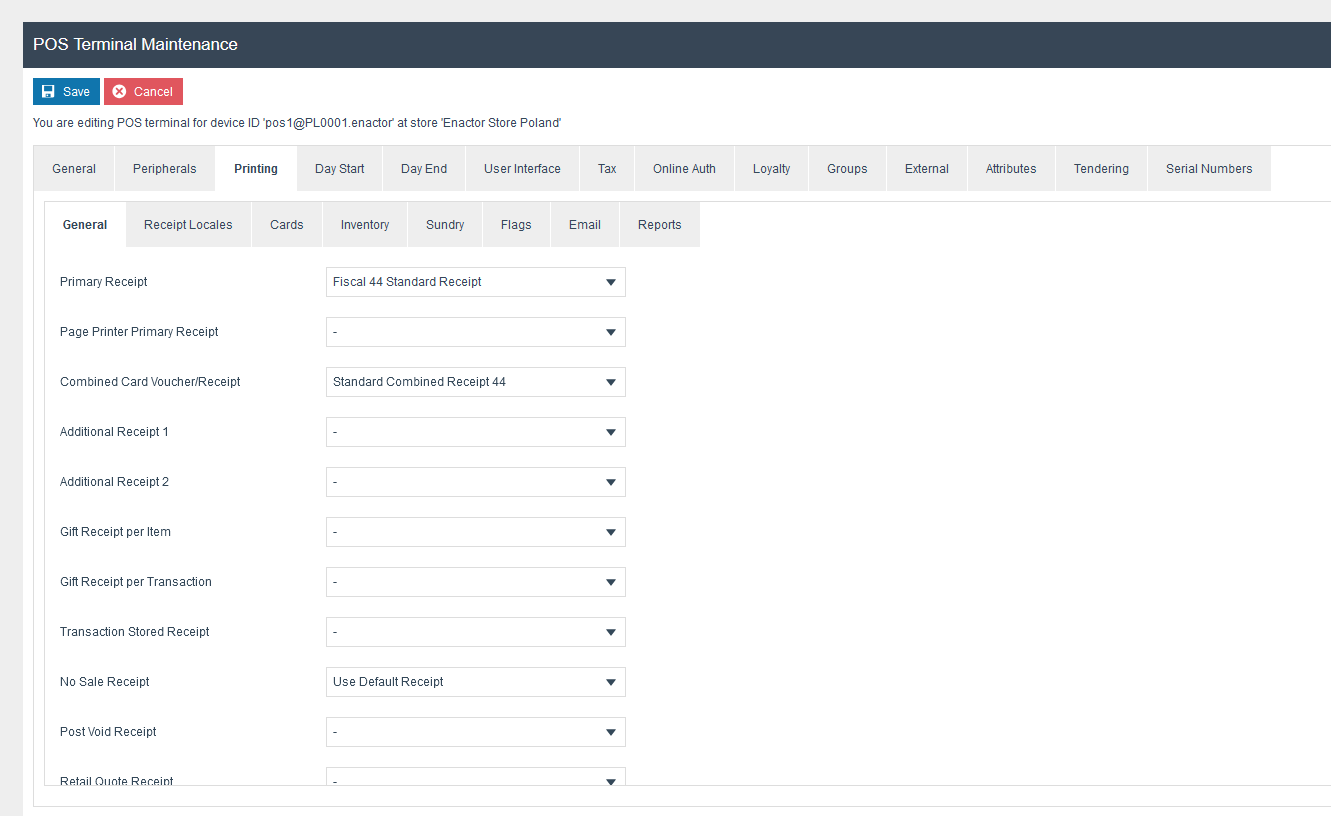
The primary receipts should be set to the fiscal standard 44-column width versions. Customer Signature Slip should be set to Customer Signature Slip 44 Col.
Tax Tab
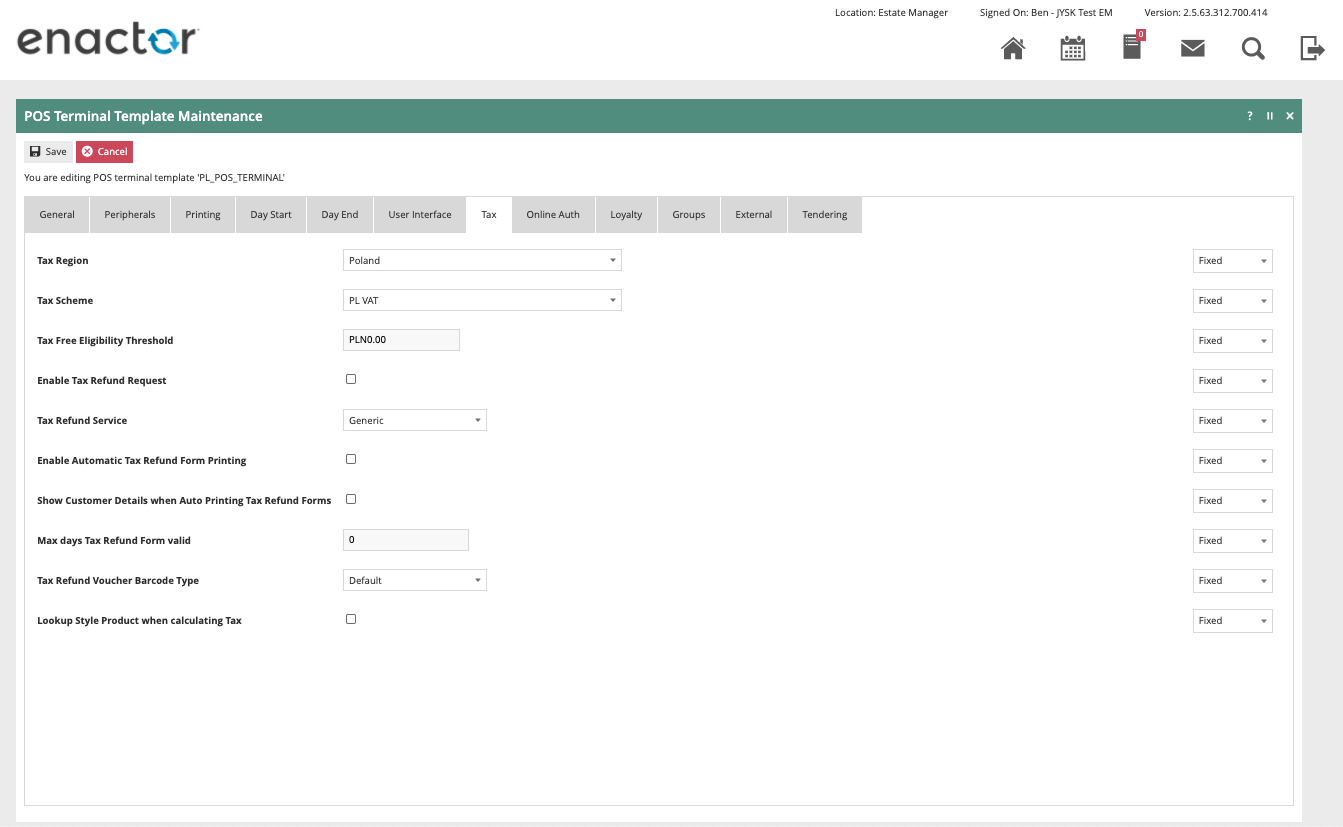
Within the Tax section, the Tax Region should be set to Poland and the Tax Scheme to the Polish tax scheme.
Privileges
The following privileges will need to be configured and broadcast to the appropriate Polish devices.
For more detail on privileges and roles, refer to the How To Configure Users, User Roles and User Templates.
| Privilege ID | Package |
|---|---|
enactor.pos.fiscal.SetHeaderAllowed | POS Fiscalisation |
enactor.pos.fiscal.AuthorisesSetHeader | POS Fiscalisation |
enactor.pos.fiscal.SetFooterAllowed | POS Fiscalisation |
enactor.pos.fiscal.AuthorisesSetFooter | POS Fiscalisation |
enactor.pos.fiscal.SetLogoAllowed | POS Fiscalisation |
enactor.pos.fiscal.AuthorisesSetLogo | POS Fiscalisation |
enactor.pos.PrintFiscalReportsAllowed | POS Fiscalisation |
enactor.pos.fiscal.SyncVATAllowed | POS Fiscalisation |
enactor.pos.fiscal.AuthorisesSyncVAT | POS Fiscalisation |
enactor.pos.fiscal.SyncTimeAllowed | POS Fiscalisation |
enactor.pos.fiscal.AuthorisesSyncTime | POS Fiscalisation |
enactor.pos.RequestSimpleFiscalInvoiceAllowed | Enactor POS |
enactor.pos.ChangeFiscalInvoiceNumberAllowed | POS Fiscalisation |
Menus
At an appropriate point within your Polish POS menu structure (suggested on the Admin menu), a fiscalisation menu with the following 5 items will need to be configured and broadcast to all the Polish POS devices.
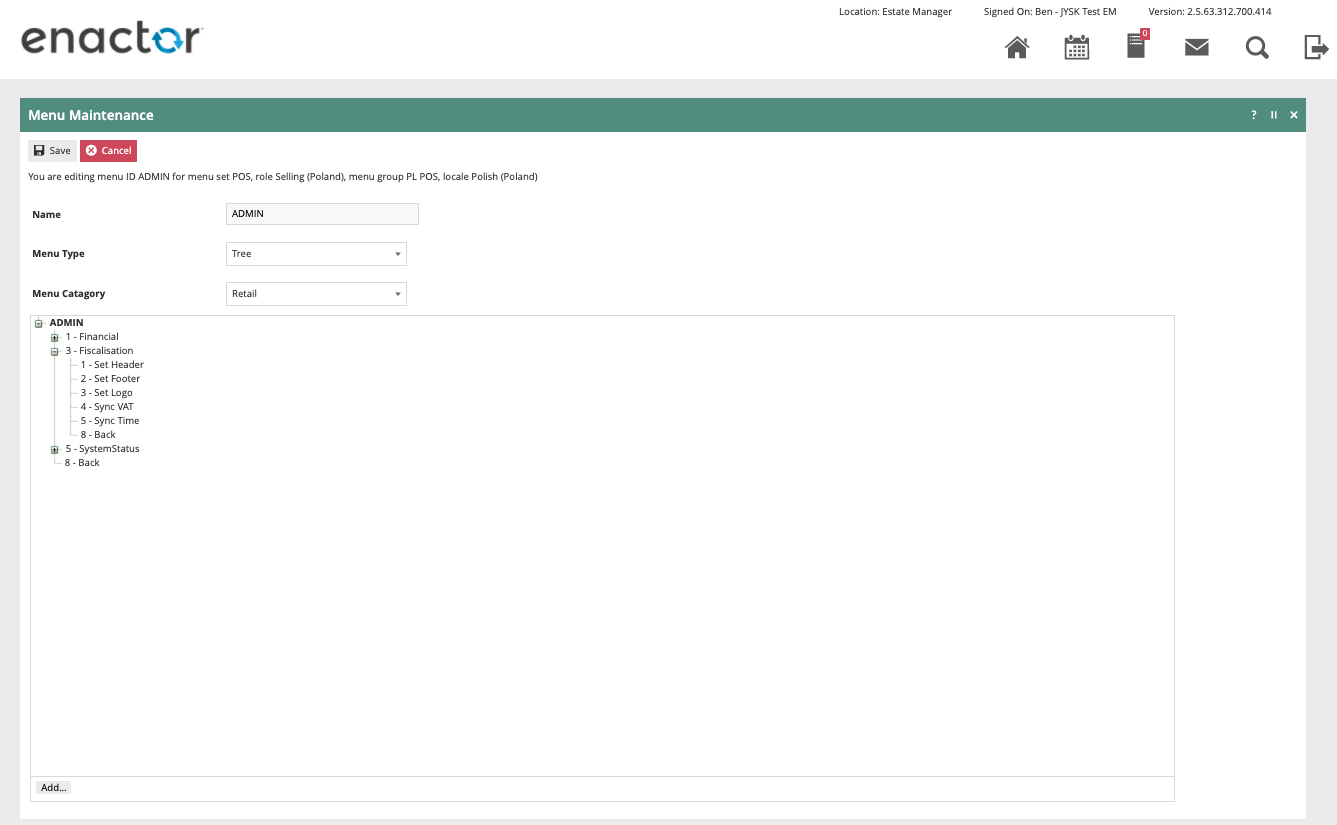
| Event | ID | Button Label | Data Name | Data Type | Data Value |
|---|---|---|---|---|---|
Fiscal_Set_Header | Fiscal_Set_Header | Set Header | ConfigType | String | SET_HEADER |
Fiscal_Set_Footer | Fiscal_Set_Footer | Set Footer | ConfigType | String | SET_FOOTER |
Fiscal_Set_Logo | Fiscal_Set_Logo | Set Logo | ConfigType | String | SET_LOGO |
Fiscal_PrintReports_X | Fiscal_PrintReports_X | X Report | ReportType | String | X |
Fiscal_PrintReports_Z | Fiscal_PrintReports_Z | Z Report | ReportType | String | Z |
The following items also need to be configured at a convenient point in the sales menu.
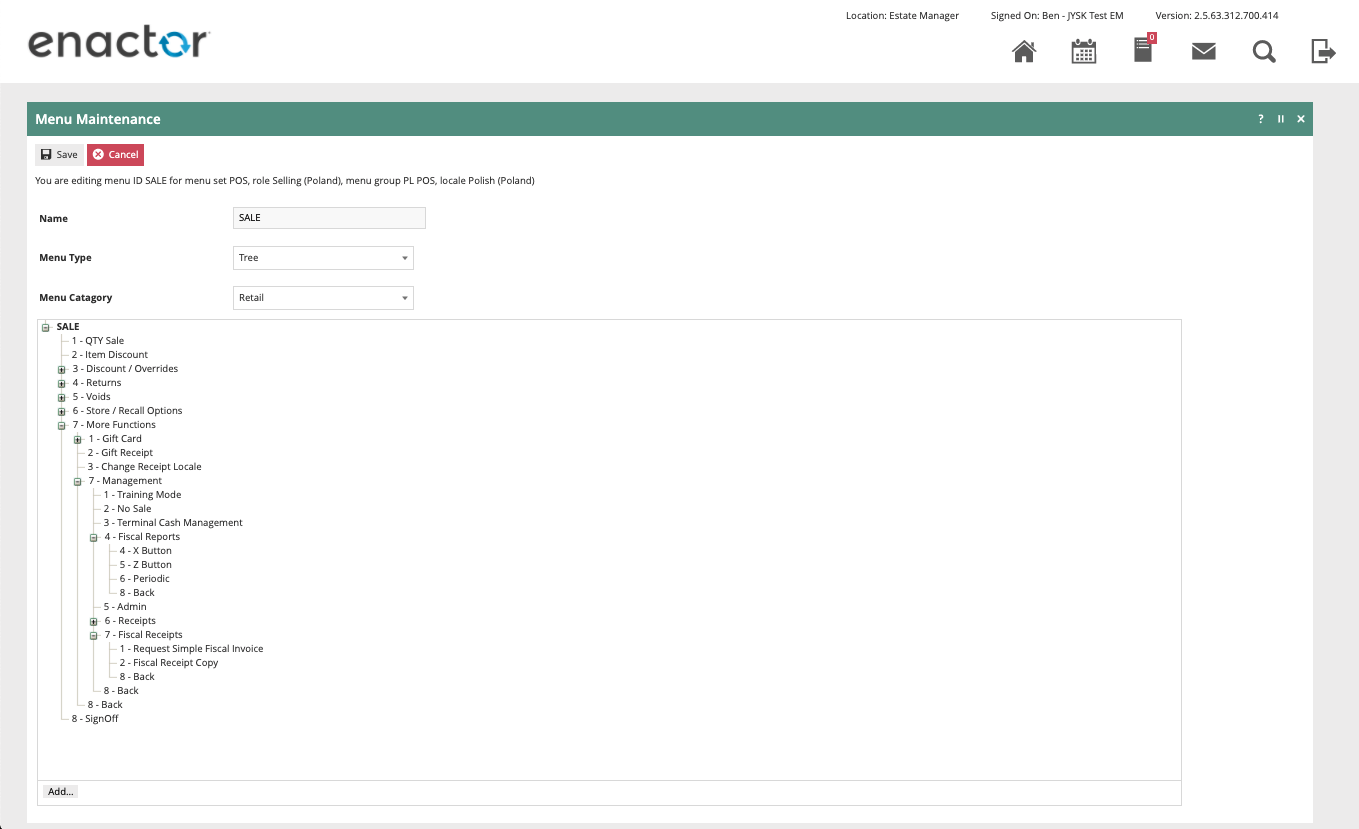
| Event | ID | Button Label | Data Name | Data Type | Data Value |
|---|---|---|---|---|---|
RequestSimpleFiscalInvoice | RequestSimpleFiscalInvoice | Request Simple Fiscal Invoice | - | - | - |
Fiscal_Print_Receipt_Copy | Fiscal_Print_Receipt_Copy | Fiscal Receipt Copy | - | - | - |
Fiscal_PrintReports_X | Fiscal_PrintReports_X | Fiscal X Report | ReportType | String | X |
Fiscal_PrintReports_Z | Fiscal_PrintReports_Z | Fiscal Z Report | ReportType | String | Z |
Fiscal_PrintReports_Periodic | Fiscal_PrintReports_Periodic | Fiscal Periodic Report | ReportType | String | Periodic |
For more detail on menu creation, refer to the How To Configure POS Behaviour (Menus).
Product Tax
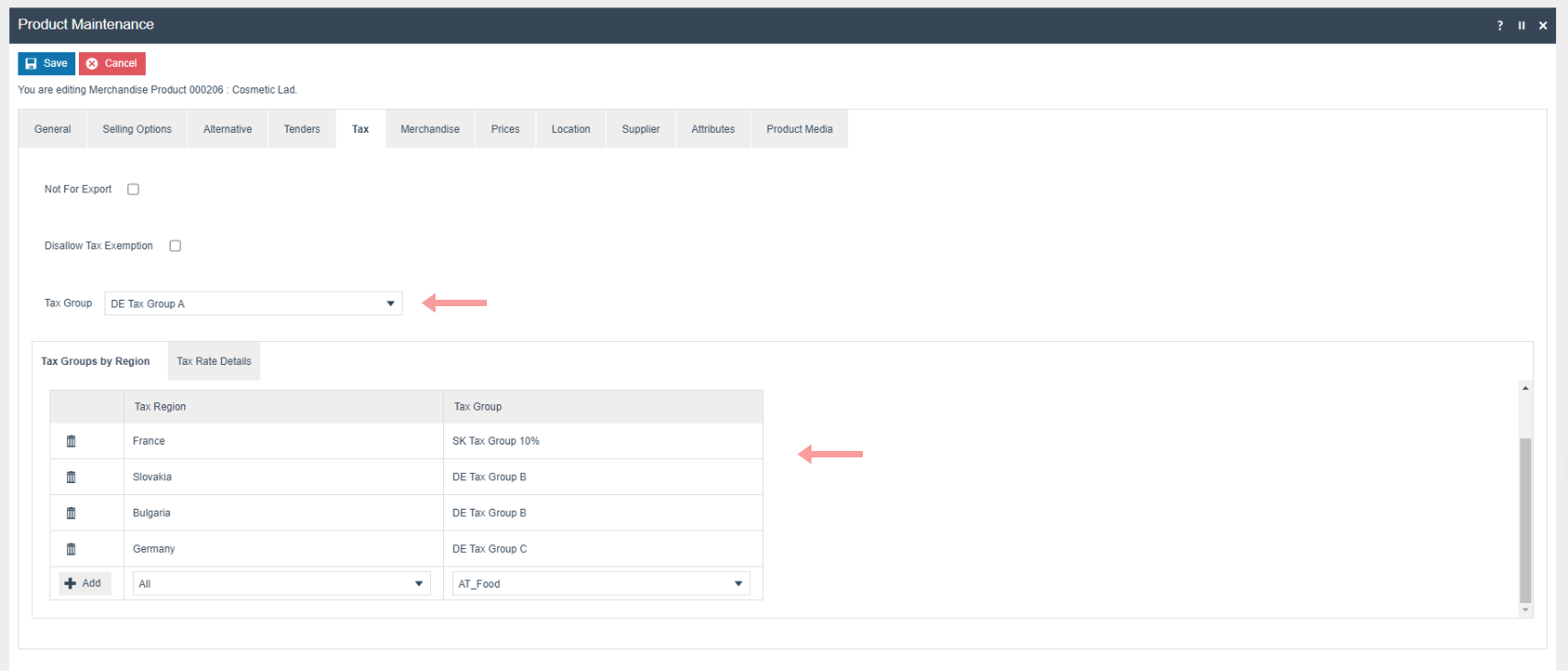
The following tax configurations should be configured against the products and broadcast to the appropriate Poland devices. The tax group can be defined to either configure the tax group directly or have a tax group by tax region.
Shared Printer Configurations
This configuration should only be added when sharing the printer between MPOS devices.
POS Terminal
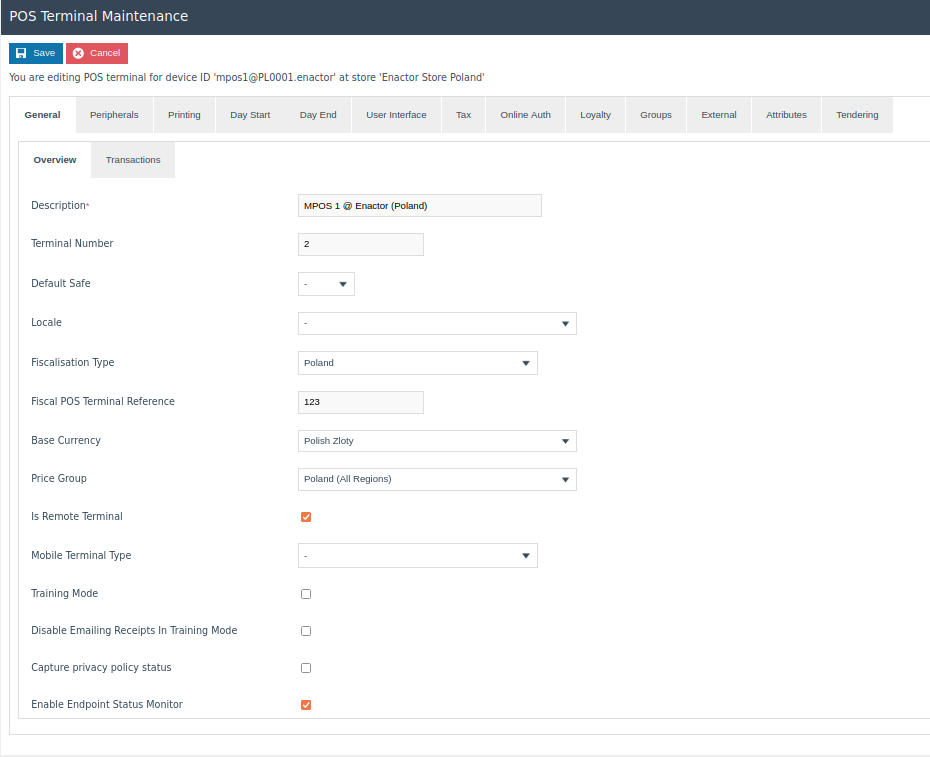
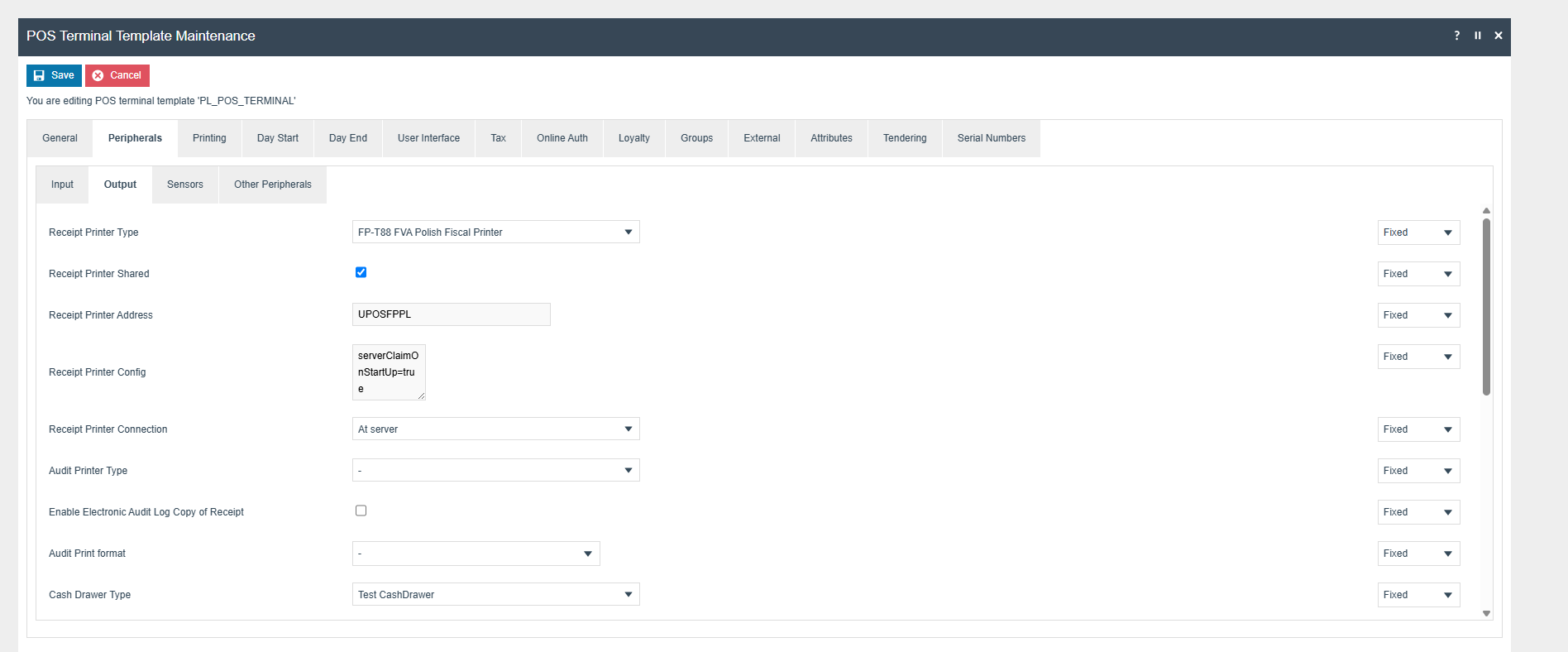
Configure the following for the POS Terminal of thin clients and PDP Server. For a production environment this should be done using a POS Terminal Template to ensure consistency and simplify management.
| Field | Value |
|---|---|
| Is Remote Terminal | true |
| Receipt Printer Connection | At Server |
| Receipt Printer Shared | true |
| Customer Display At Server | true |
| Receipt Printer Config | serverClaimOnStartUp = true |
| Customer Line Display | FPT88 FVA LineDisplay |
| Receipt Printer Type | FP-T88 FVA Polish Fiscal Printer |
| Receipt Printer Address | UPOSFPPL |
| Customer Display Config | lineDisplayWaitSecs = 1 |
Printer Commissioning
Production printers as delivered by UPOS will be in a non-fiscalised state. Before they can be used in production, they will need to be fiscalised. This operation is performed by a service person authorised to do so and involves use of the service tool as well as setting a hardware jumper on the printer to make the change. At the time of fiscalisation, certain parameters are burned to the printer memory and cannot be modified. All subsequent transactions will be fiscal, stored in the fiscal memory and included in the submissions to the tax authority.
Prior to fiscalisation it is possible to perform test transactions on the printer which will not be fiscalised or committed to the fiscal memory and will not contain the fiscal mark on the receipts printed.
The configuration and broadcast of printer settings from the Estate Manager will not automatically submit them to the printer. The printer will only permit these parameters to be changed when it is in a neutral state - that is, when it has completed a Z report and no new transactions have been started. An operator must trigger the submission to the printer from the POS after running a Z report.
Set Footer
The printer can include a footer after the main body of the receipt. This can be used to include promotional information or a message to your customers, for example warranty and returns information. This is configured in the Location or Location Template as described in the configuration section.
To submit the footer to the printer:
- Configure the footer text on the Estate Manager and broadcast the location to the POS.
- An operator must run a Z report.
- Click the Set Footer menu button on the appropriate POS menu (suggested Admin).
Set Header
The printer can include a header before the main body of the receipt. This should include details of the store such as the address as required by the fiscal legislation. This is configured in the Location or Location Template as described in the configuration section.
To submit the header to the printer:
- Configure the header text on the Estate Manager and broadcast the location to the POS.
- An operator must run a Z report.
- Click the Set Header menu button on the appropriate POS menu (suggested Admin).
This operation is not possible with the later online models of printer. Instead, the service person will set the header at the time of fiscalisation, and it cannot be changed after this time.
Sync VAT
From time to time the VAT rates in Poland may change. When this happens, the rates can be updated in the Estate Manager and broadcast to the POS. It will then be necessary for an operator to run a Z report and click the Sync VAT menu button on the appropriate POS menu (suggested Admin).
The printers have a limited number of VAT rate changes permitted before they are end of life. To limit the risk of accidental updates rendering an otherwise functional printer end of life, the sync process will first compare the current VAT rates on the printer to the new rates and only perform the update if there are differences.
Sync Time
It is necessary for the time on the printer to match the system time on the POS. If the printer and POS lose time synchronisation for some reason (for example, the printer has been powered off for a long time), the Sync Time button on the Admin menu can be used to resolve this issue. Again, this can only be performed after running a Z report.
The time will be set on the printer according to the system time on the POS. Ensure that the POS OS time is set correctly prior to performing this operation. This is especially important with the online models of printers where the time should also match the time at the tax authority during the online communication between the tax authority and the printer.
Set Logo
The printer can include an image logo at the start of the receipt. This would usually be used to include the company logo on the receipt. This is configured in the Location or Location Template as described in the configuration section.
To submit the logo to the printer:
- Configure the logo on the Estate Manager and broadcast the location and image entities to the POS.
- An operator must run a Z report.
- Click the Set Logo menu button on the appropriate POS menu (suggested Admin).
Operations
Fiscal X Report
- The X Report gives a report of the transactions. This does not close the fiscal day.
- The location of this button in the menu structure is configurable.
- The function is privilege controlled.
Fiscal Z Report
- The Z Report closes the fiscal day.
- This should be generated at the end of a shift or day.