How To Configure Fiscal Slovakia
Fiscal Overview
For shared background, see Fiscal Overview.
Slovakia Fiscalisation Introduction
In Slovakia, POS fiscalisation is a legal requirement for businesses to ensure accurate and transparent financial reporting.
It is important for businesses in Slovakia to select a certified fiscal solution and ensure proper installation and configuration of the system to meet fiscalisation requirements. Failure to comply with POS fiscalisation regulations can result in penalties, fines, or legal consequences.
Overall, POS fiscalisation in Slovakia aims to enhance transparency, combat tax evasion, and streamline the process of tax collection by leveraging electronic recording and reporting of sales transactions.
Deployment Overview
The following steps deploy the fiscal module and printer resources to the PDP Server.
-
Initiate the
application updater update.zipfile first. -
Wait until it succeeds.
-
Then send the
update PDP min.zipfile. -
Wait until it succeeds.
-
Then send the
update Fiscal Module.zipfile. -
Wait until it succeeds.
-
Finally send the
Printer resources-Slovakia.zipfile. -
Once it has succeeded, the PDP is ready with the new Fiscal Module.
-
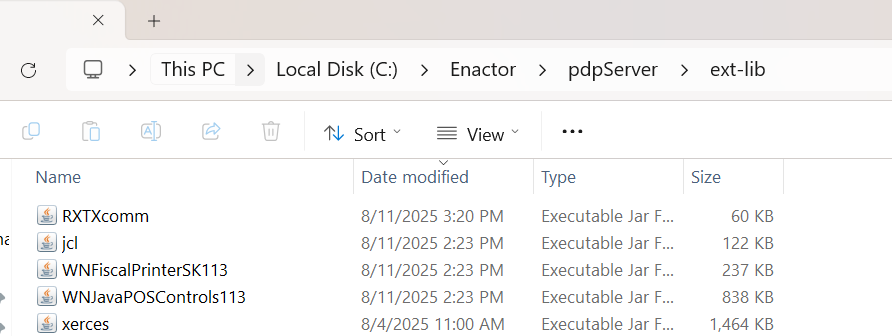
After the successful deployment, the following JARs should be updated in the Enactor > PDP Server > ext-lib folder.

- Remove the following JAR files from the Enactor > PDP Server > ext-lib folder.

-
Unzip the
PrinterResources_Manual.zipfile and copy the JAR files inside it to the Enactor > PDP Server > ext-lib folder. -
The following files should be available in the ext-lib folder now.
- Copy the
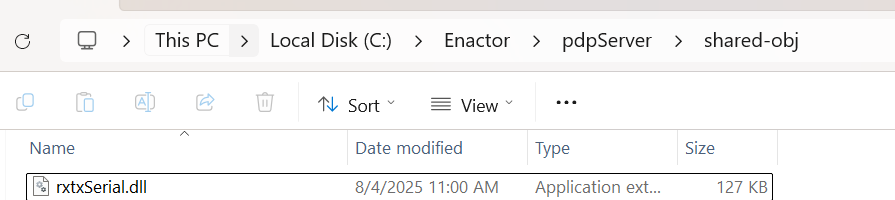
rxtxSerial.dllfile inside thePrinterResources_Manualfolder into the Enactor > PDP Server > shared-obj folder.
- Edit the
jpos.xmlfile in the Enactor > PDP Server > config folder.
Updating jpos.xml
-
Update the fiscal printer versions from 1.12 to 1.13 as displayed in the sample below.
-
Make sure the factoryClass and serviceClass properties have the correct JPOS library version (
jpos113).
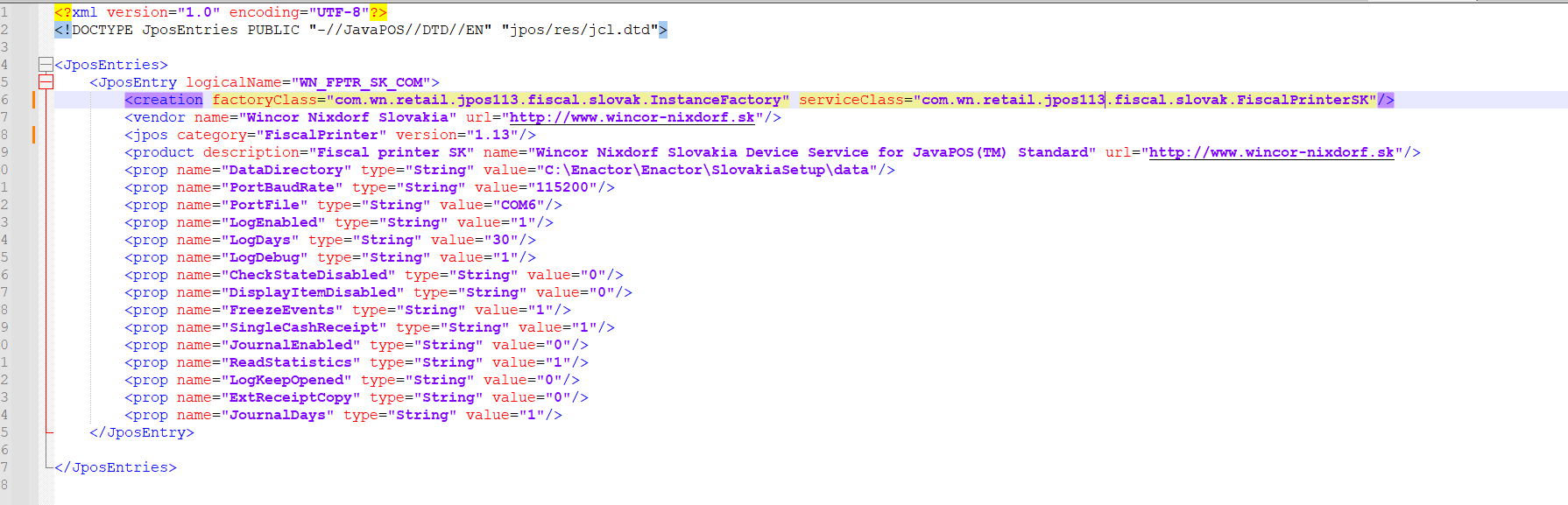
- Update the PortFile property value to the correct COM port according to the printer COM port you are using.
Configuration Overview
The following configuration changes are required and must be broadcast to all Slovakia devices in preparation for go live. Detailed steps for how to do this are contained in supplementary How-to Guides available on the Enactor Insights portal, as well as being covered in the Introduction to Enactor training course.
Although steps have been taken to ensure that the POS will not start or perform transactions without a valid configuration, it is the retailer's responsibility to ensure a valid configuration is present and not to try to circumvent any of the requirements of the Slovakia Fiscal Legislation through misconfiguration of the solution.
Group
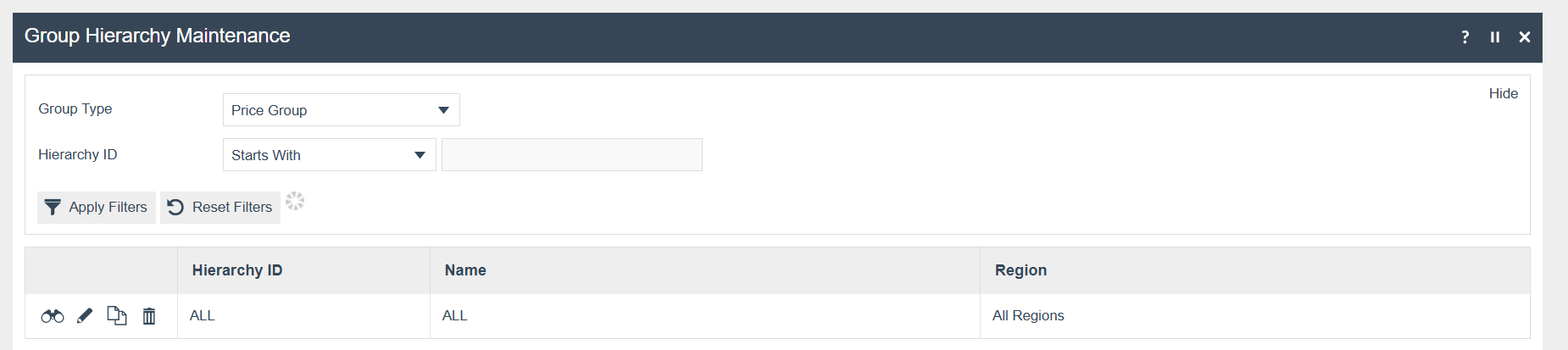
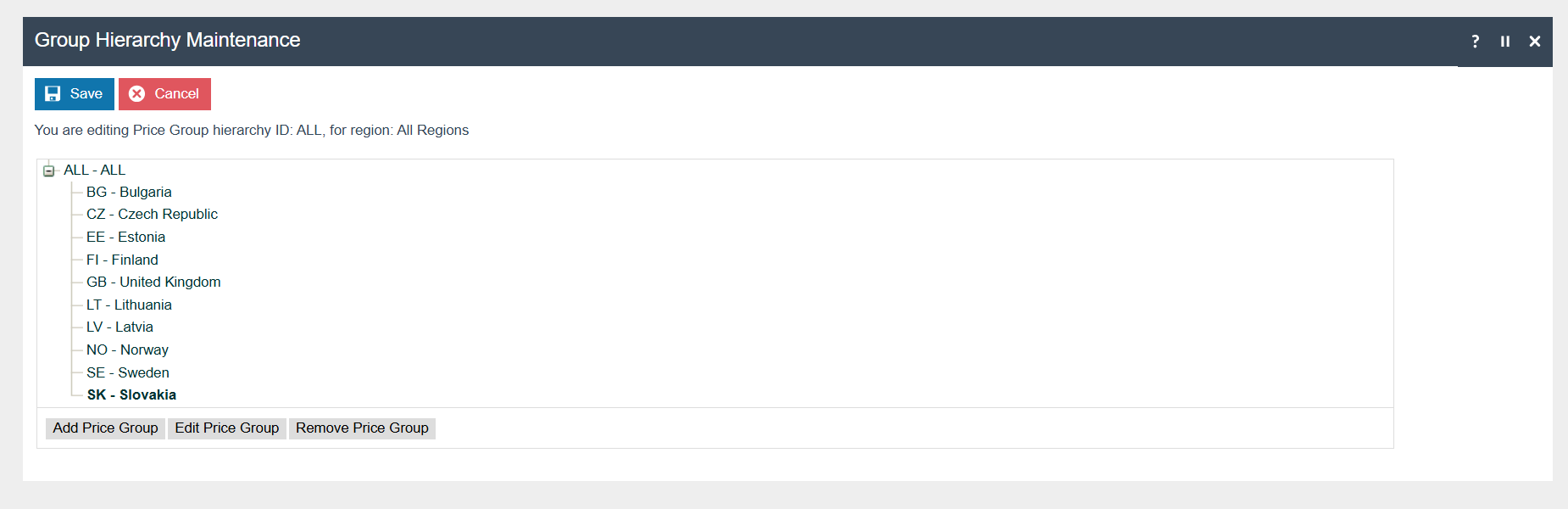
Create a new Region group, Tax Region, and Price group for Slovakia as shown below.
| Group Type | Group ID | Group Name |
|---|---|---|
| Region | SK | Slovakia |
| Tax Region | SK | Slovakia |
| Price | SK | Slovakia |
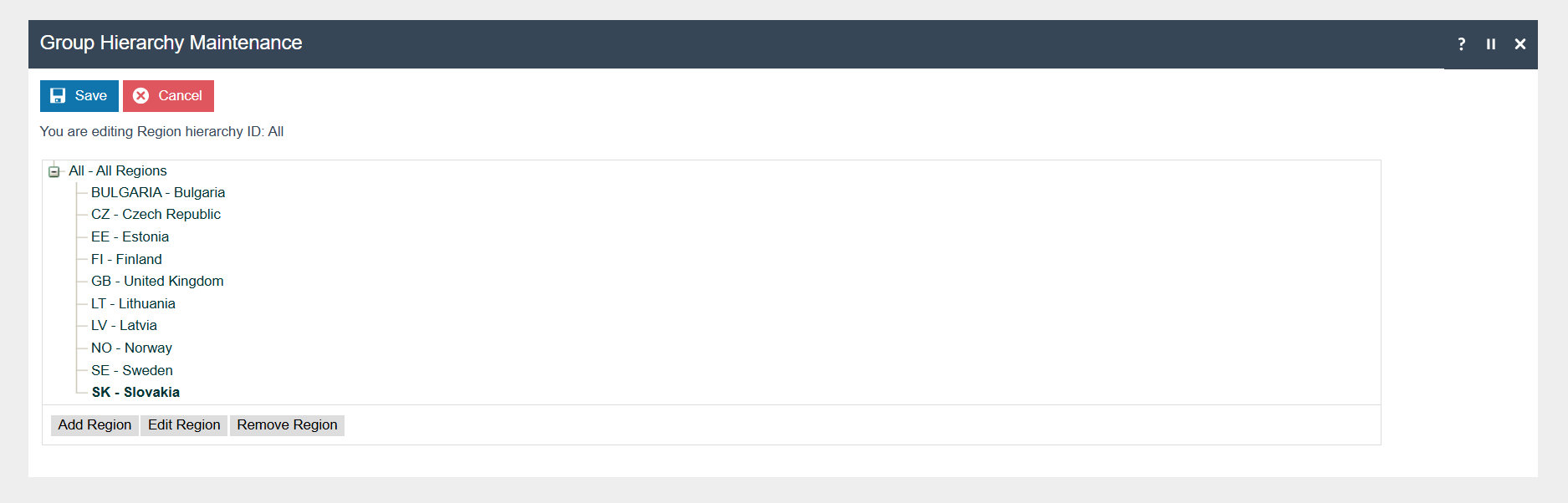
Region Group
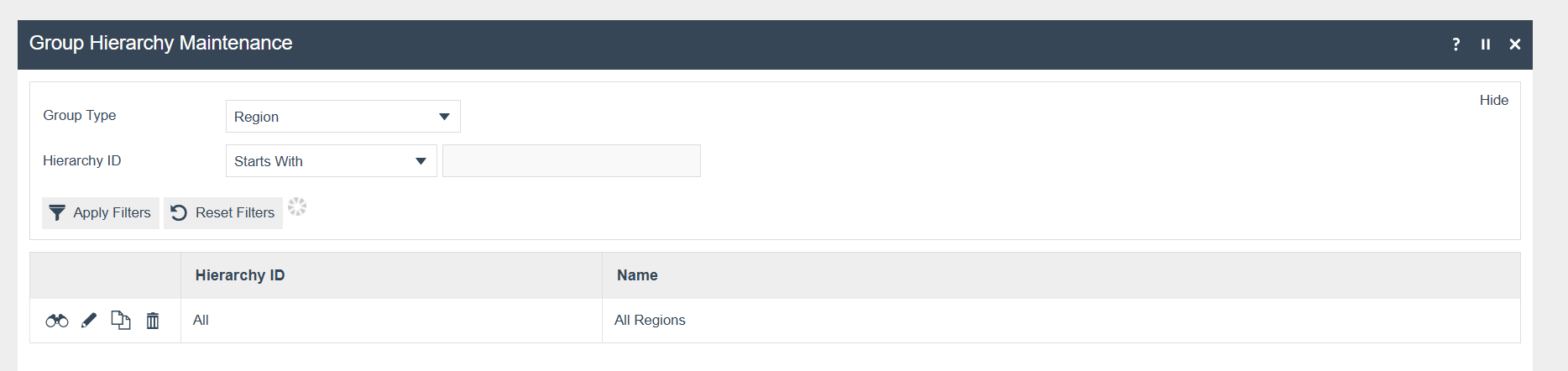
The region must be configured before continuing with the other configurations related to fiscalisation. The region for Slovakia should be created within the Region Group Hierarchy.
Tax Region Group
Price Group
Locale
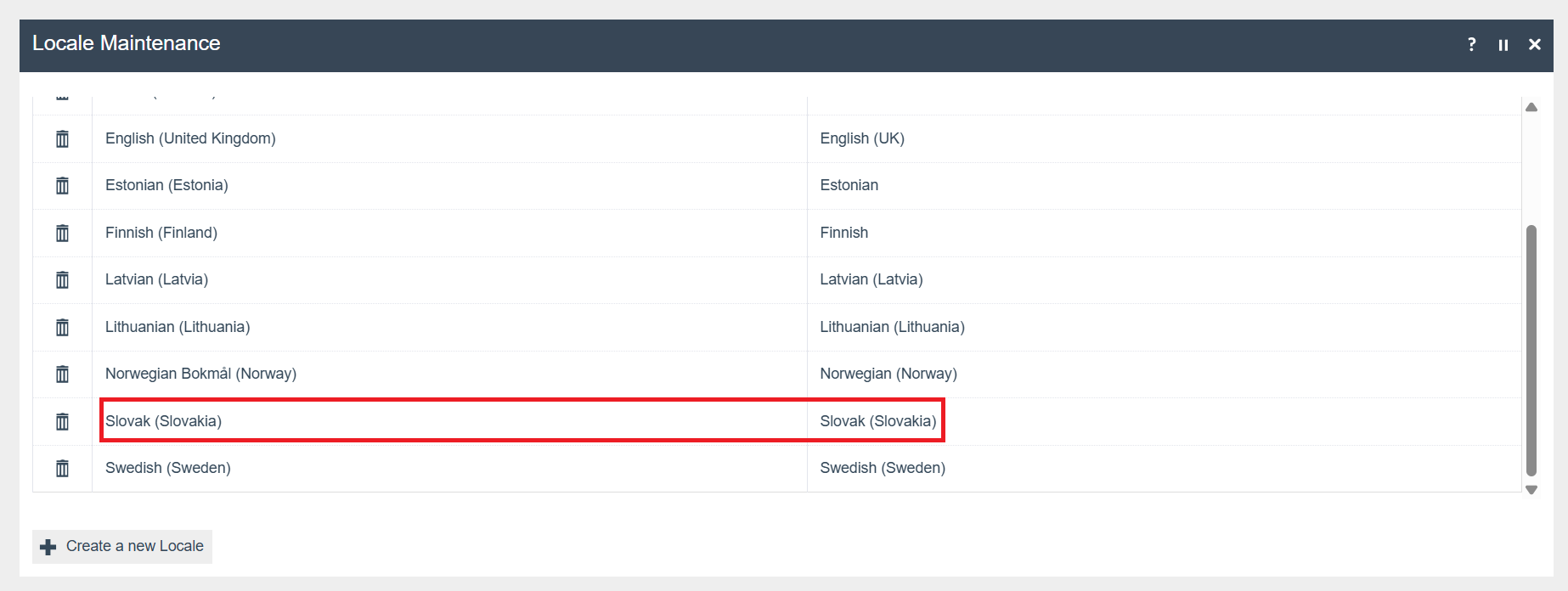
The following Locale should be configured and broadcast to the appropriate Slovakia devices.
Location
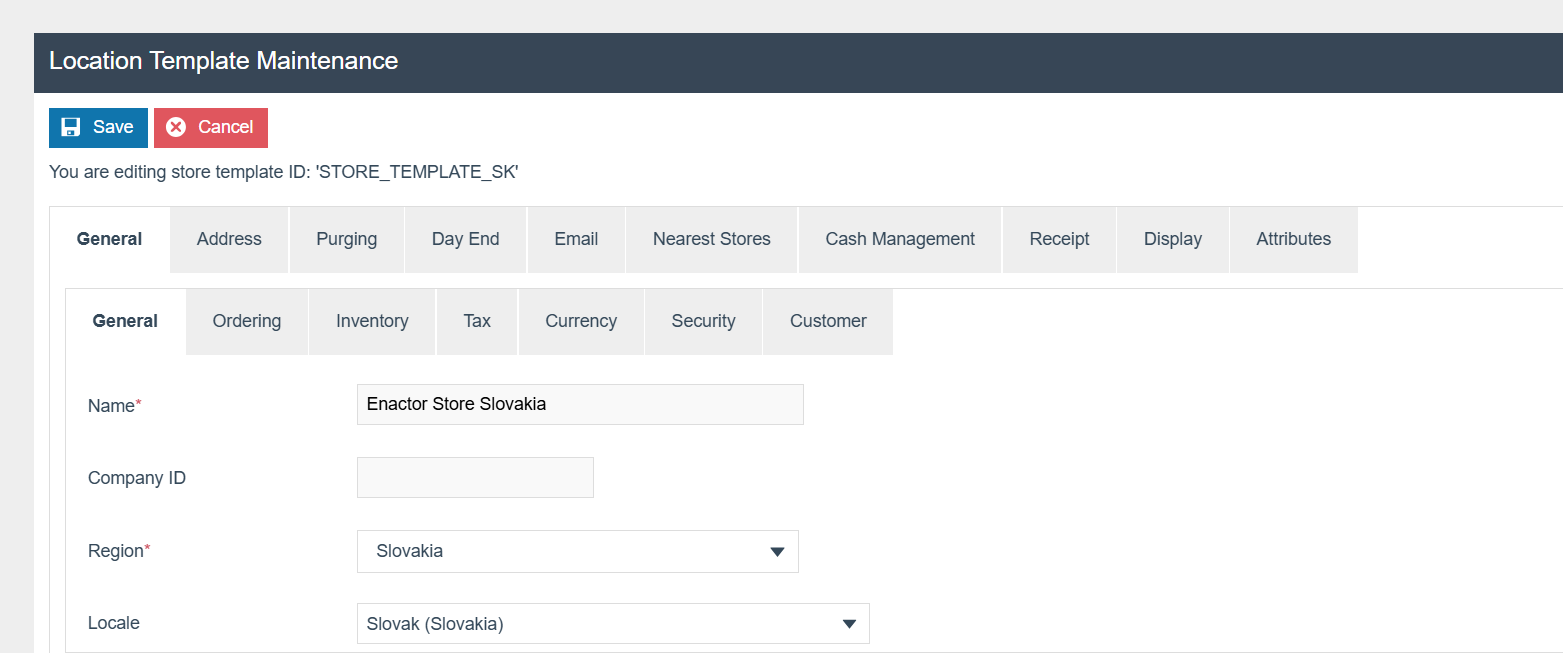
The following Location should be configured and broadcast to the appropriate Slovakia devices.
| Location ID | Name | Region | Base Currency |
|---|---|---|---|
SK0001 | Enactor Store Slovakia | Slovakia | Euros |
Tax Groups
The following are sample tax rates. Follow this structure for the tax configurations.
| Tax Group ID | Description |
|---|---|
SK1 | SK Standard VAT 23% |
SK2 | SK Reduced Rate 10% |
SK3 | SK Zero Rate 0% |
Tax Rates
The following tax rates should be configured and broadcast to the appropriate Slovakia devices.
| Tax Rate ID | Description | Display Code | Percentage | Fiscal Tax Rate Reference |
|---|---|---|---|---|
SK1 | SK Tax Rate 23% | A | 23% | 1 |
SK2 | SK Tax Rate 10% | B | 10% | 2 |
SK3 | SK Tax Rate Zero | C | 0% | 3 |
Select VAT as the Tax Rate Type.

Tax Scheme
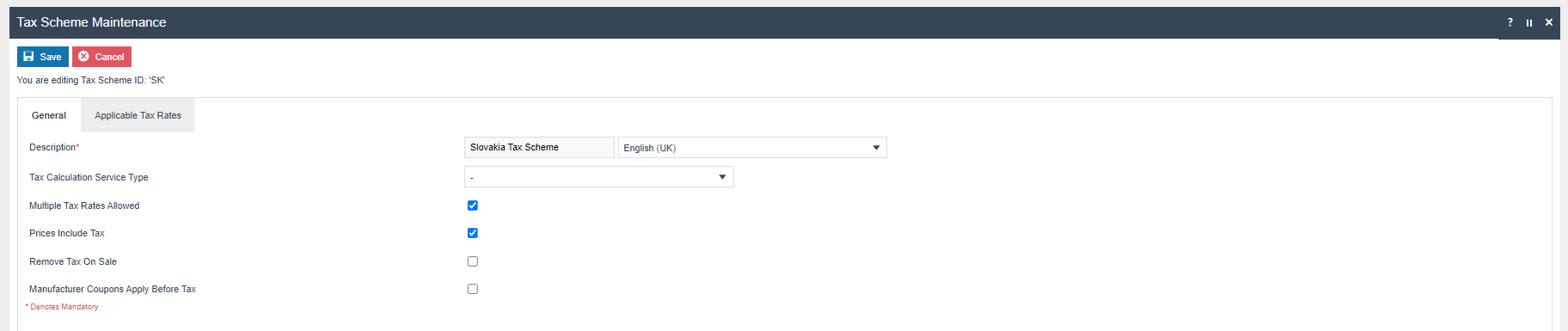
Create a new Tax Scheme with the following details. Add all the above-mentioned tax rates inside the Applicable Tax Rates.
| Tax Scheme ID | Description | Price Include Tax |
|---|---|---|
SK | Slovakia Tax Scheme | TRUE |

Tax Region
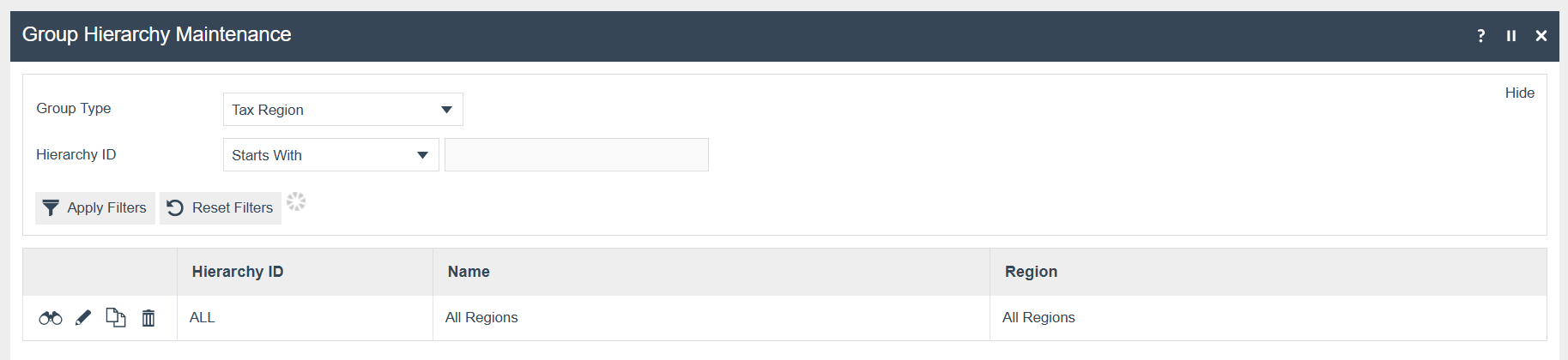
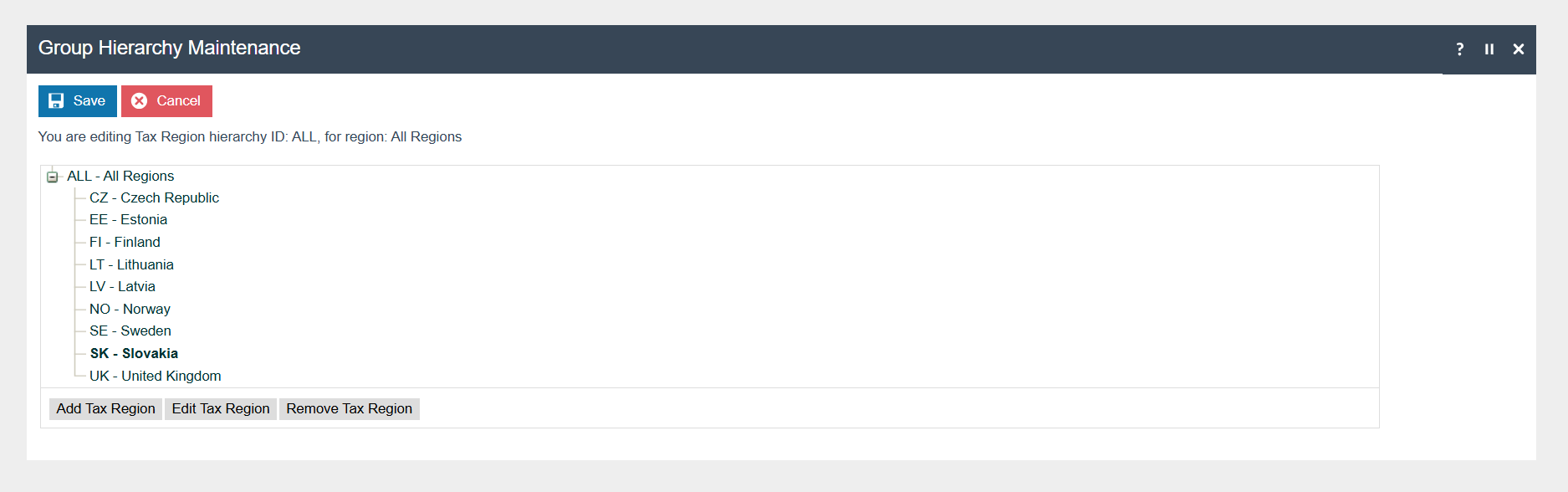
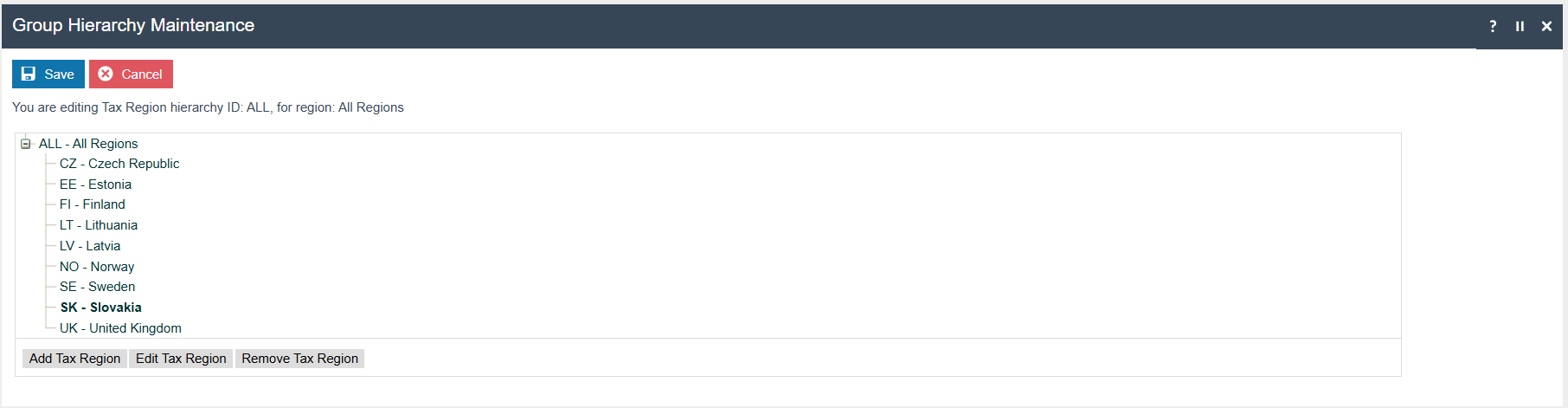
If it does not already exist, a Tax Region for Slovakia should be created within the Tax Region Group Hierarchy. It should have the ID SK and the Name Slovakia. It is not necessary to configure an External Reference ID.
Tax Group Tax Methods
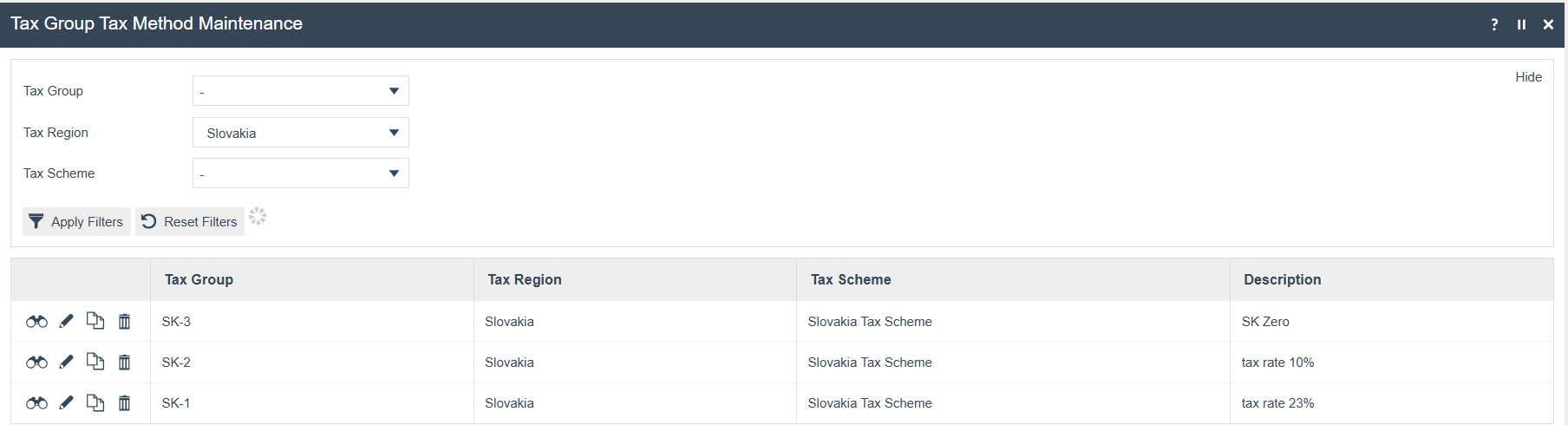
The following tax group tax methods should be configured and broadcast to the appropriate Slovakia devices.
| Tax Group | Tax Scheme | Description | Tax Rate |
|---|---|---|---|
| SK Standard VAT 23% | Slovakia Tax Scheme | tax rate 23% | SK Tax Rate 23% |
| SK Reduced Rate 10% | Slovakia Tax Scheme | tax rate 10% | SK Tax Rate 10% |
| SK Zero Rate 0% | Slovakia Tax Scheme | SK Zero | SK Tax Rate Zero |
Product Tax
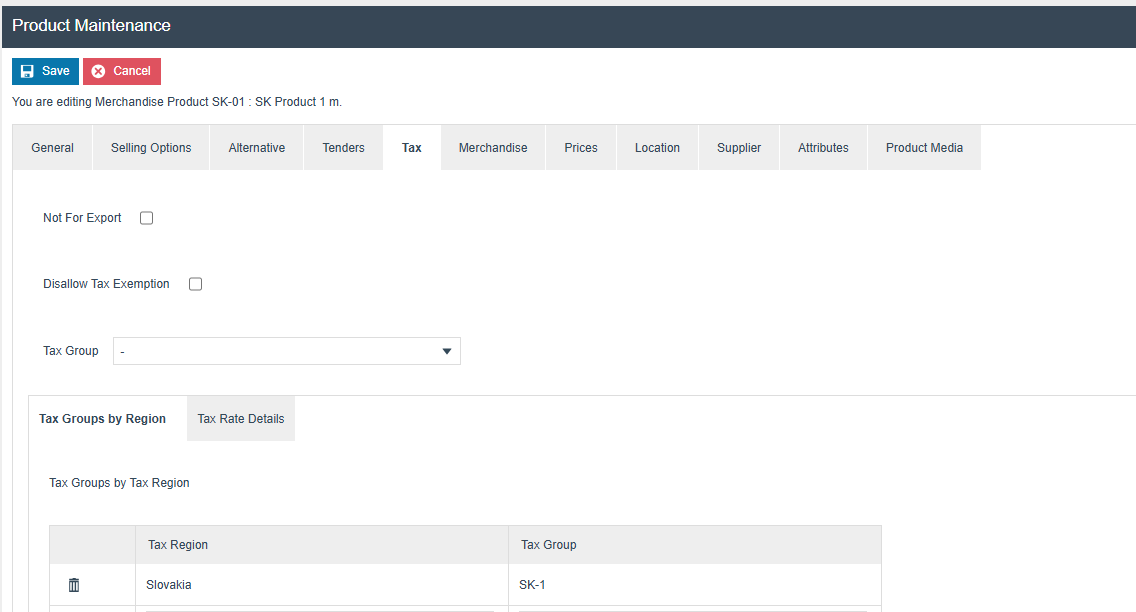
The following tax configurations should be configured against the products and broadcast to the appropriate Slovakia devices. A tax group can be defined either to configure the tax group itself, associate it with a tax region, or configure only tax rate details.
Unknown Product Tax Configuration
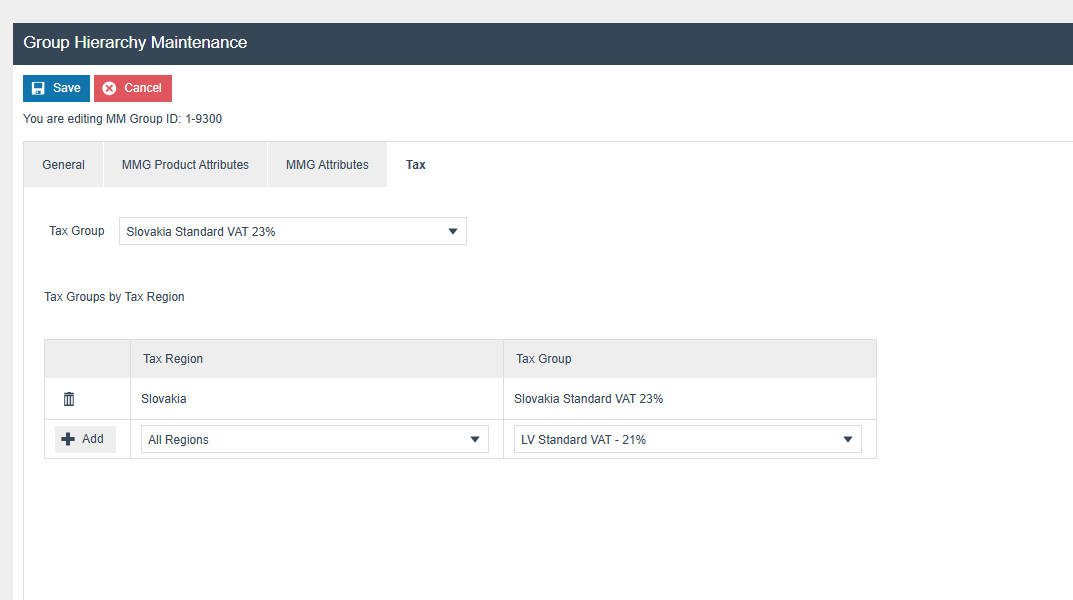
Unknown products must be assigned to a merchandise management group with configured tax rates. You cannot sell unknown products through merchandise management groups without tax configuration. This requires the privilege enactor.pos.AllowUnknownProductSale.
Device
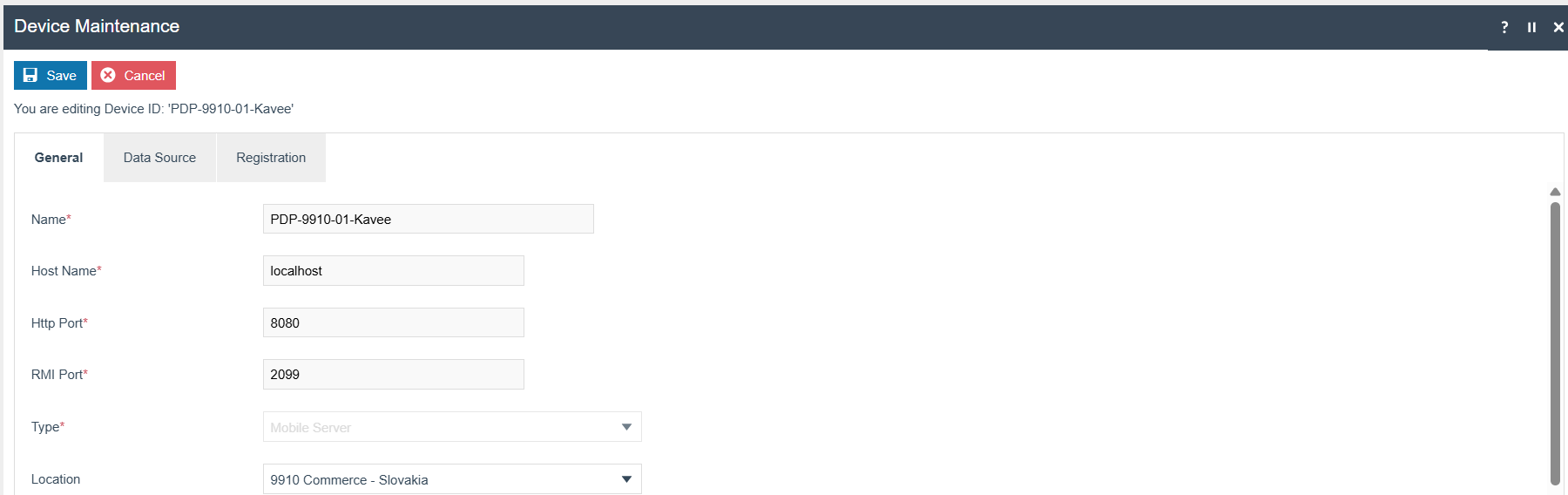
The following Devices for PDP Server and Mobile POS should be configured and broadcast to the appropriate Slovakia devices.
Select the Device Type as Mobile Server.
Select the Device Type as Mobile POS.
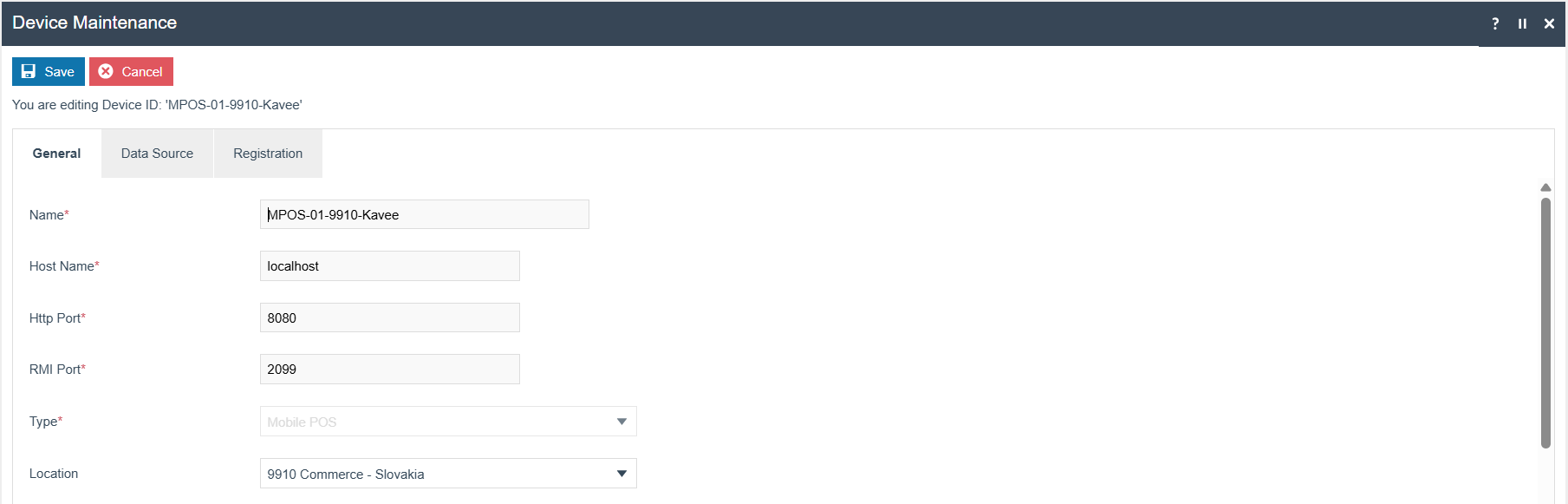
For more detail on device creation, refer to the How-to Guide Configuring A New Store.
POS Terminal Template
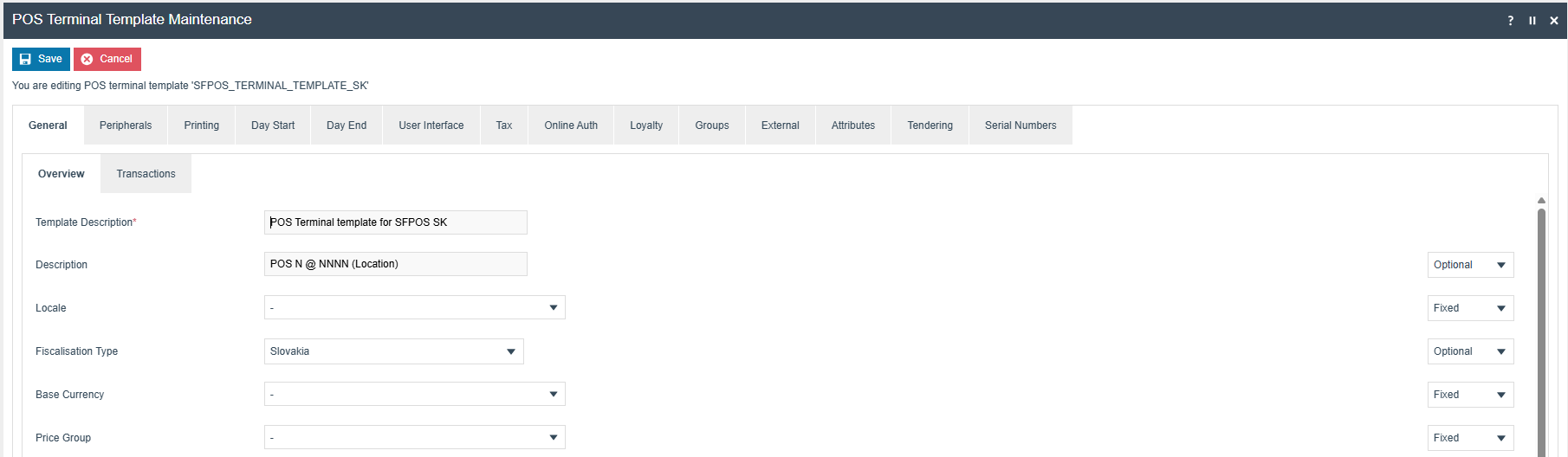
The POS Terminal Template used by all devices in Slovakia must be configured to have the Fiscalisation Type set to Slovakia.
Currency should be set to Euro and Locale to Slovakia.
Operator View Parent Theme and Operator View Theme under POS Terminal > User Interface > Branding / Style tab should be set according to the enactor.xml theme configurations.
Menu Group and Default Menu Group under User Interface > General tab should be set according to the original menu group.
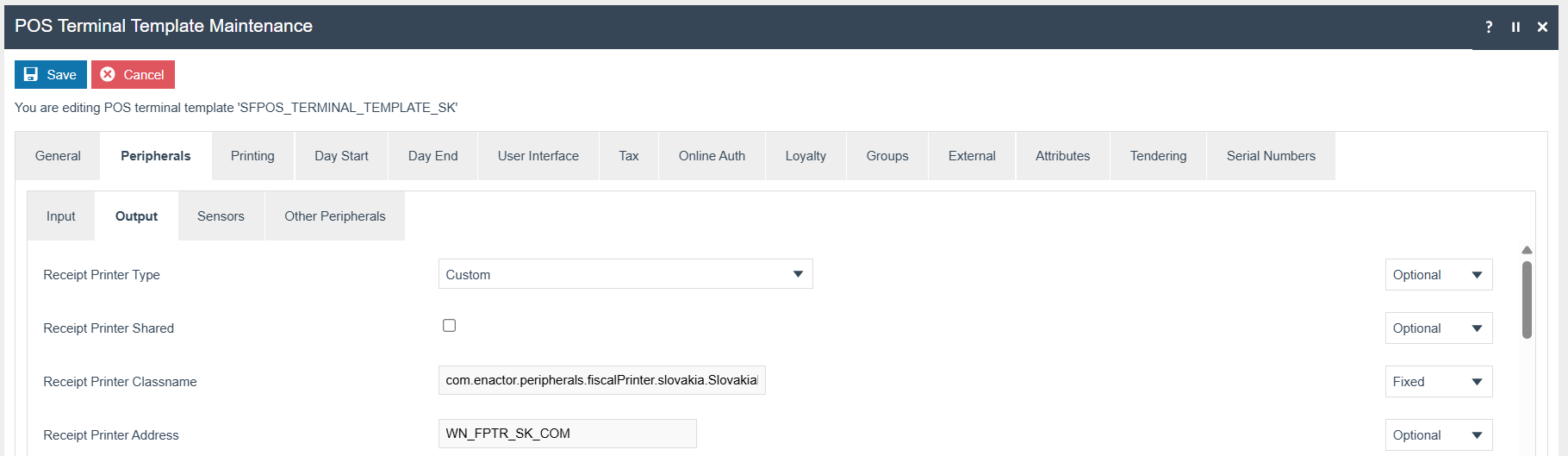
| Field Description | Value | Comment |
|---|---|---|
| Fiscalisation Type | Slovakia | General Tab, select from dropdown menu |
| Receipt Printer Type | Custom | Peripherals Tab - Output sub-tab, select from dropdown menu |
| Receipt Printer Classname | com.enactor.peripherals.fiscalPrinter.slovakia.SlovakiaFiscalPrinter | Peripherals Tab - Output sub-tab |
| Receipt Printer Address | WN_FPTR_SK_COM | Peripherals Tab - Output sub-tab |
| Print Tax Details on Receipt | true | Printing Tab - Flags sub-tab |
| Tax Region | Slovakia | Tax Tab, select from dropdown menu |
| Tax Scheme | Slovakia Tax Scheme | Tax Tab, select from dropdown menu |
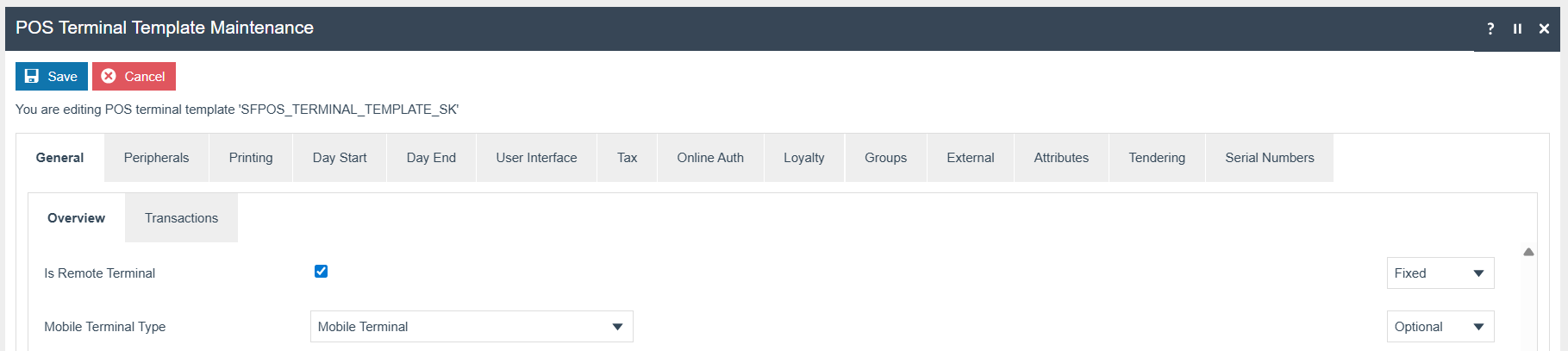
Tick Is Remote Terminal and select Mobile Terminal from the dropdown.
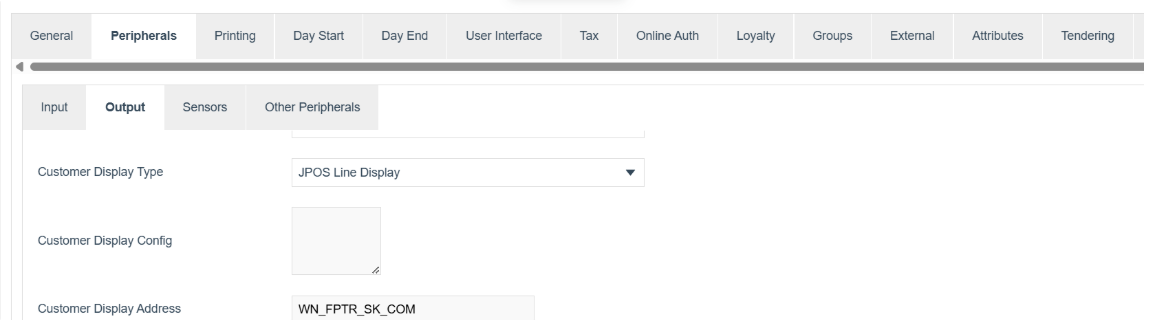
Line Display Configuration Parameters
-
Navigate to POS Terminal Template Maintenance.
-
Edit the relevant POS Terminal Template.
-
Navigate to Peripherals > Output.
-
Add the following configurations:
Select JPOS Line Display as the Customer Display Type.
Set the Customer Display Config to WN_FPTR_SK_COM.
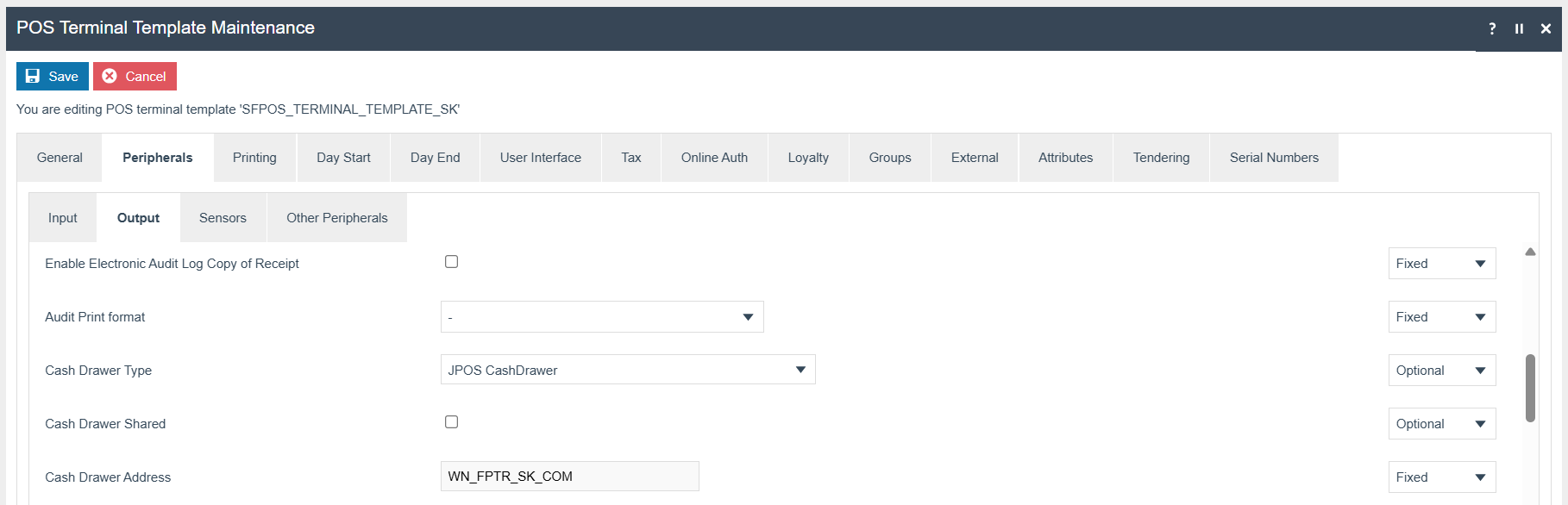
Cash Drawer Configuration Parameters
-
Navigate to POS Terminal Template Maintenance.
-
Edit the relevant POS Terminal Template.
-
Navigate to Peripherals > Output.
-
Add the following configurations:
Select JPOS CashDrawer as the Cash Drawer Type.
Set the Cash Drawer Address Config to WN_FPTR_SK_COM.
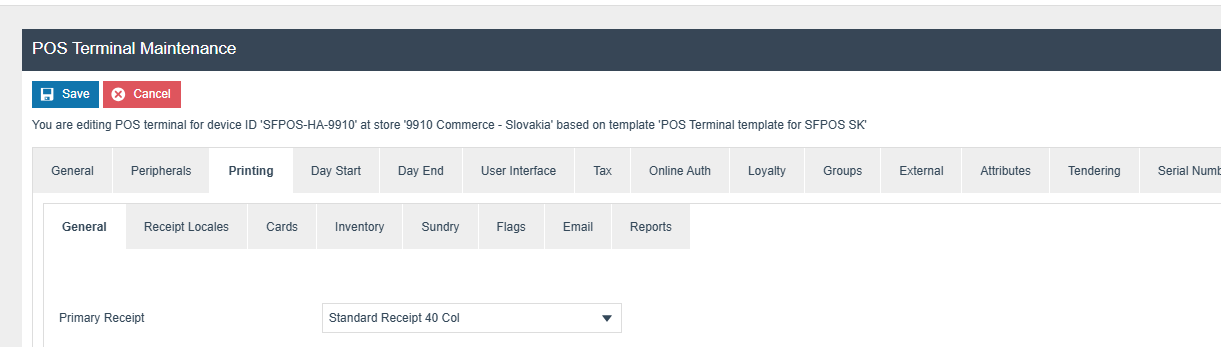
The primary Receipt should be set to Standard Receipt 40 Col.
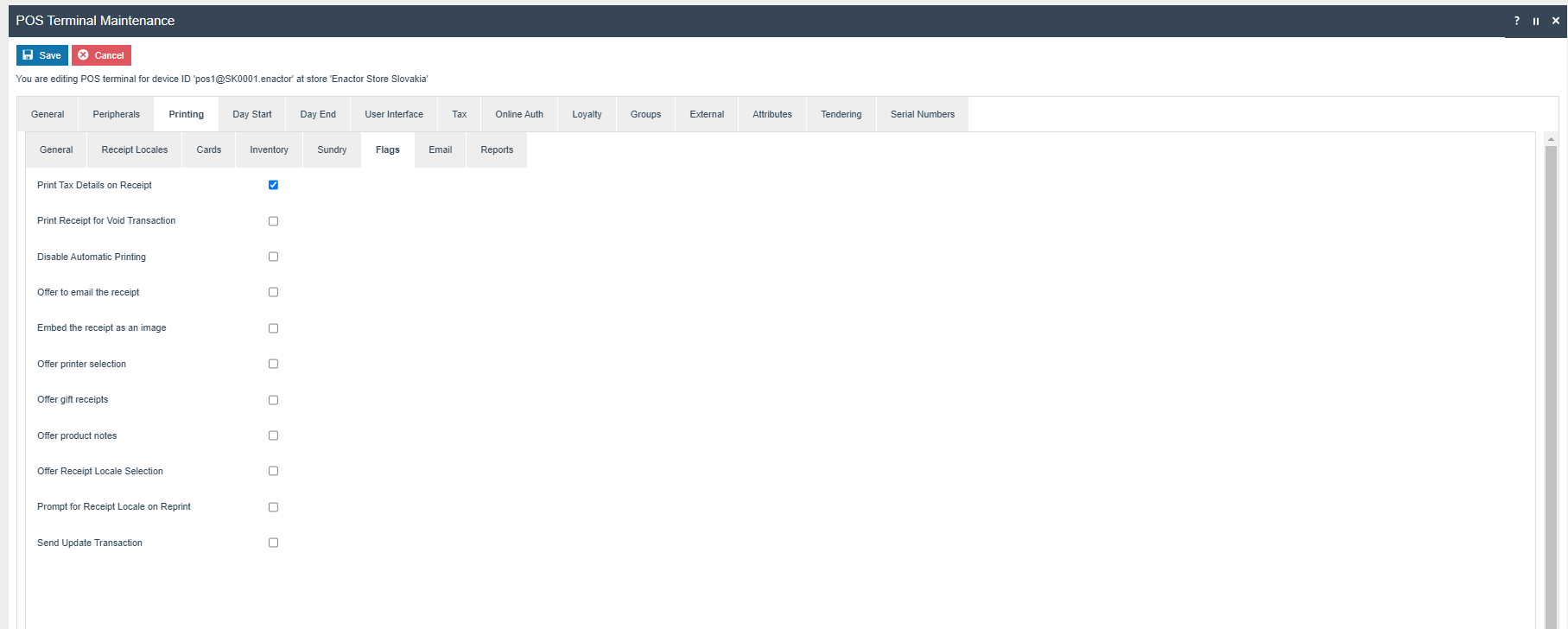
The Print Tax Details on Receipt flag within the Printing > Flags tab should be ticked.
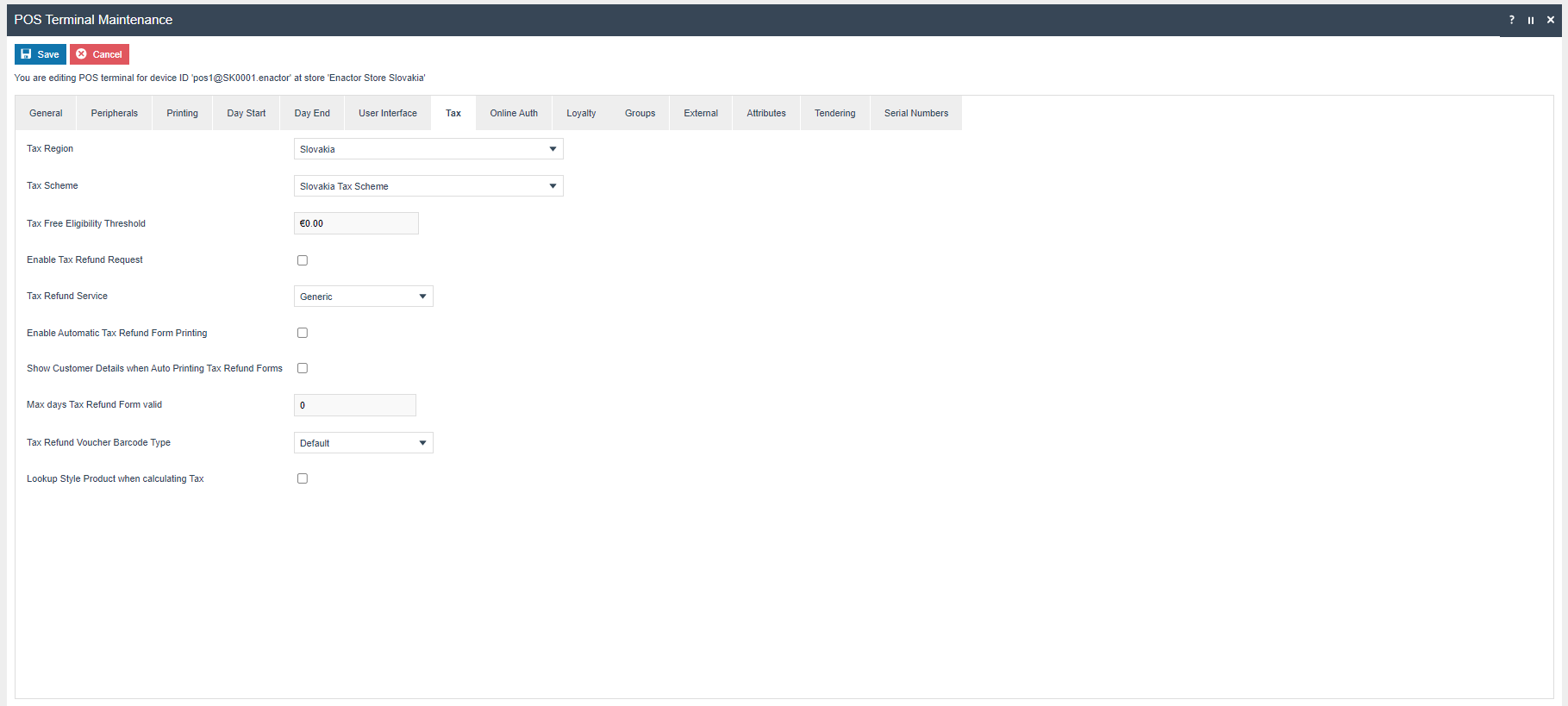
Within the Tax section, the Tax Region should be set to Slovakia and the Tax Scheme to the Slovakia Tax Scheme configured in the previous section.
Customer Signature Slips
In the POS Terminal Template, select Customer Signature Slip 40 Col as the signature slip template.
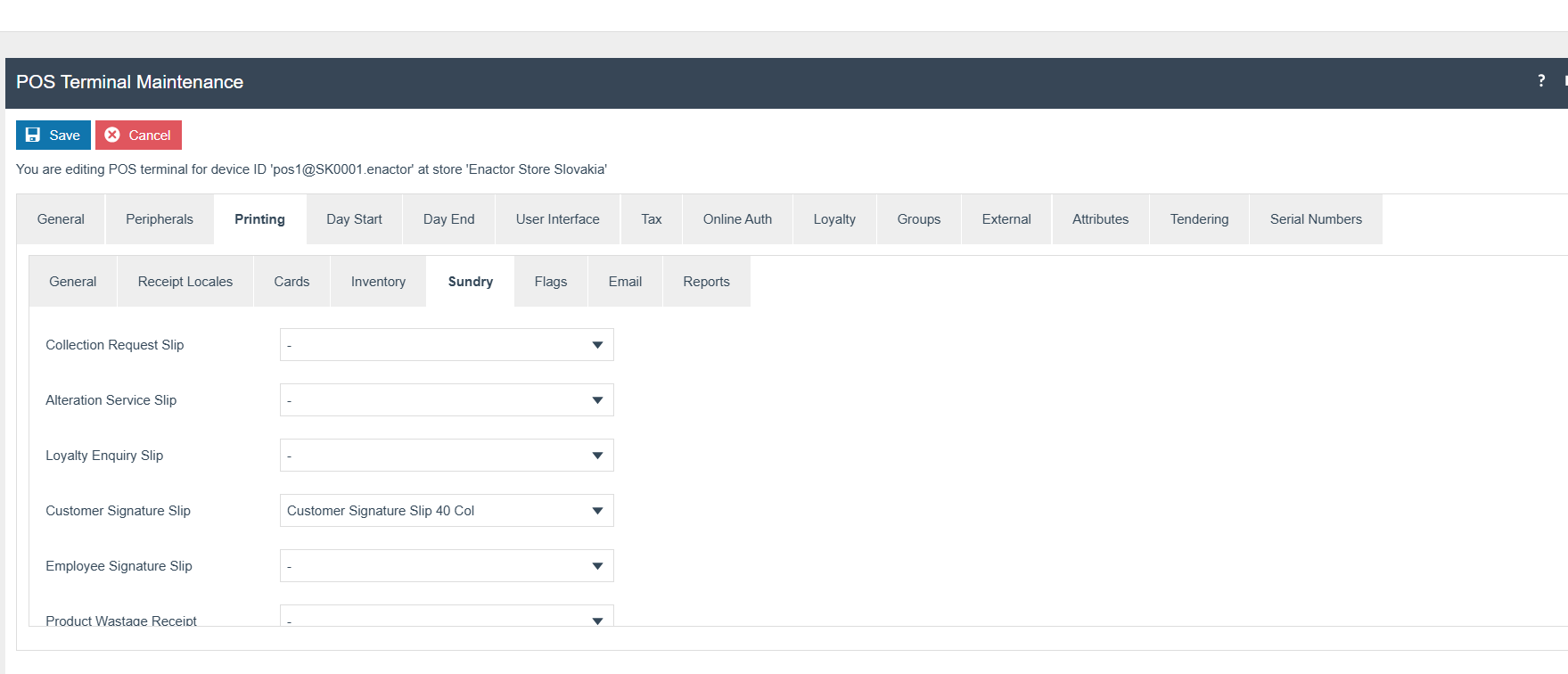
Navigate to POS Terminal Maintenance > Printing tab > Sundry tab and set Customer Signature Slip 40 Col for the Customer Signature Slip location.
POS Terminal
Create a POS Terminal for the Device Type Mobile POS.
Select the Device ID created for the Mobile POS.
Select the POS Terminal Template.

Tenders
Configuration
The Fiscal Tender ID will be set as required by Slovakia fiscal legislation.
| Tender ID | Description | Region | Currency | Fiscal Tender Type |
|---|---|---|---|---|
CASH | Cash SK | Slovakia | Euros | CASH |
CARD | Cards SK | Slovakia | Euros | CARD |
Minimum Denomination Restriction
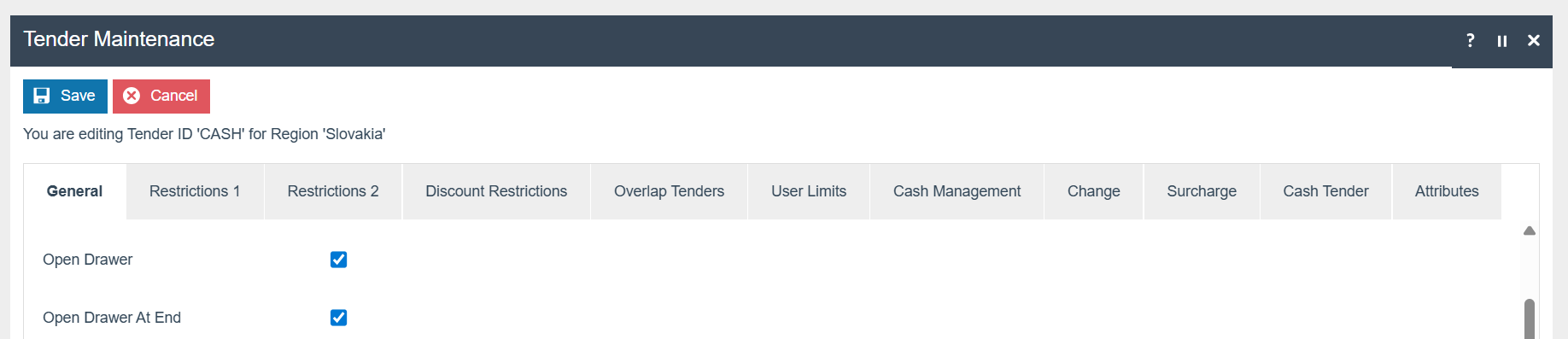
To enforce the minimum denomination restriction, navigate to Tender Maintenance > Restrictions 1 tab and set the following values:
- Minimum Accepted Denomination = 0.05
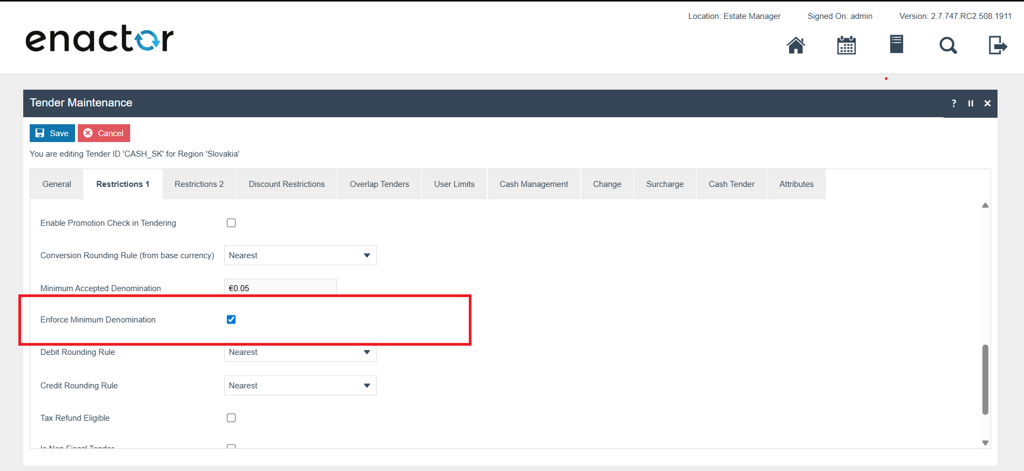
Tick Enforce Minimum Denomination to prevent cashiers from entering tender amounts that do not comply with Slovakia's 5-cent minimum denomination requirement. This ensures all tender values end in either 0 or 5 cents only.
Cash Drawer Settings
Tick Open Drawer and Open Drawer At End for any tender that needs to open the cash drawer.
Privileges
The following privileges will need to be configured against the appropriate roles and broadcast to the Slovakia devices. Consideration should be given to whether it is desirable for all operators to have all of these privileges or if some should only be granted to managers.
For more detail on privileges and roles, refer to the How-to Guide Configuring Users, User Roles and User Templates.
| Privilege ID | Application Package |
|---|---|
enactor.pos.AllowReturnTaxRefundItemAlreadyRedeemed | Enactor POS |
enactor.pos.AuthorisesReturnItem | Enactor POS |
enactor.pos.ReturnItemAllowed | Enactor POS |
enactor.pos.PrintFiscalReports | Enactor POS |
enactor.pos.VoidTransactionDiscountAllowed | Enactor POS |
enactor.admin.Run | Enactor POS |
enactor.pos.ReprintRecentReturnToTransaction | Enactor POS |
enactor.pos.VoucherRedeemAllowed | Enactor POS |
enactor.pos.ReturnFromReceiptAllowed | Enactor POS |
enactor.pos.AuthorisesVoidCardTenderItem | Enactor POS |
enactor.pos.AuthoriseDayEndBeforeEarliest | Enactor POS |
enactor.pos.AuthorisesVoidTenderItem | Enactor POS |
enactor.pos.CashRefundAllowed | Enactor POS |
enactor.dayStart.AuthorisesDayStart | Enactor POS |
enactor.pos.ContinueWithDrawerOpen | Enactor POS |
enactor.pos.AllowEmployeeReturnIfUserInvolved | Enactor POS |
enactor.pos.AllowUnknownProductSale | Enactor POS |
Products
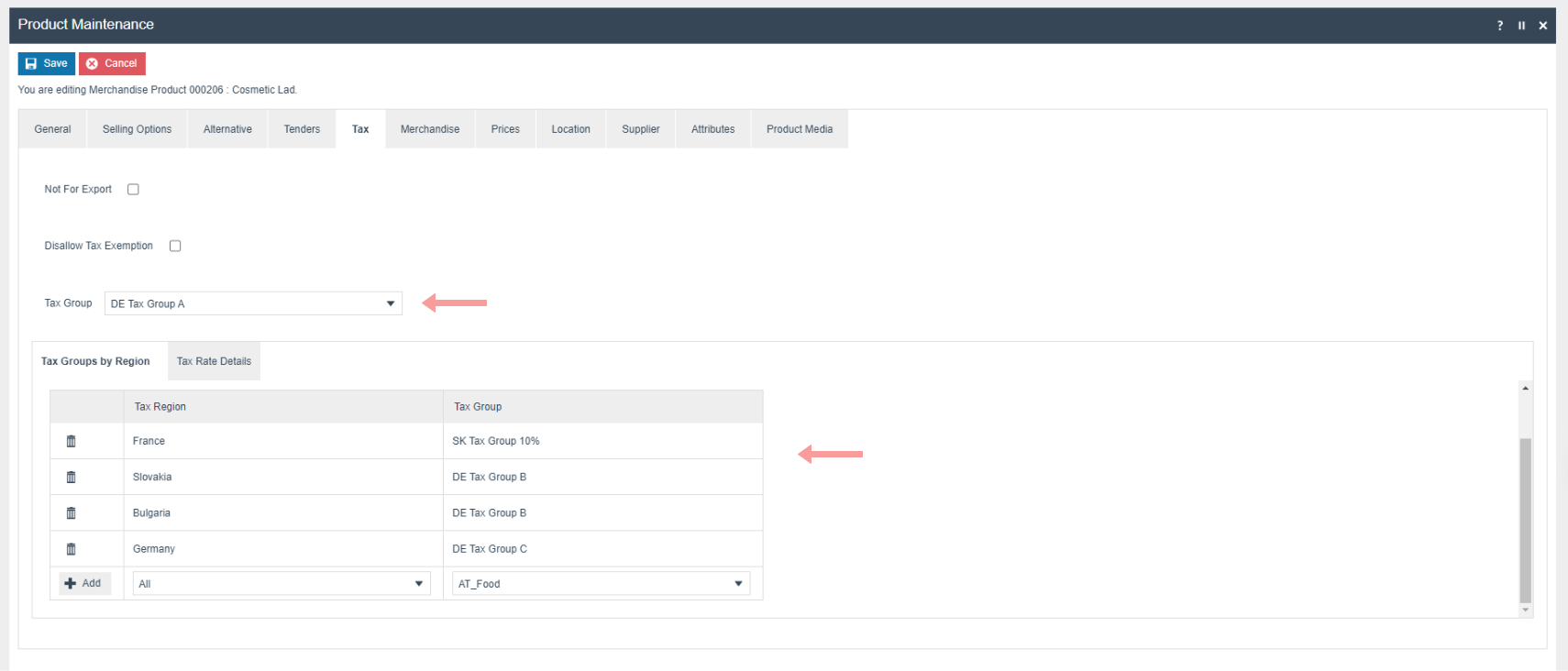
Set the Tax Group and Price for each product (Currency: EUR).
For more detail on product creation, refer to the How-to Guide Configuring a Merchandise Product and the How-to Guide Configuring Product Prices.
Product Tax
The following tax configurations should be configured against the products and broadcast to the appropriate Slovakia devices. A tax group can be defined to either configure the tax group directly or have a tax group by tax region.
Menu
Navigate to menu configuration using the path: Configuration > System > Menu
-
Edit the SALE menu for the Menu Group Standard POS.
-
Add a folder under Sales > Management > Report called Fiscal Reports.
-
Add new buttons to the Fiscal Reports folder for the following:
| Event | ID | Button Label | Name | Java Type | Value |
|---|---|---|---|---|---|
Fiscal_PrintReports_X | Fiscal_PrintReports_X | Fiscal X Report | ReportType | String | X |
Fiscal_PrintReports_Z | Fiscal_PrintReports_Z | Fiscal Z Report | ReportType | String | Z |
For more detail on menu creation, refer to the How-to Guide Configure POS Behaviour (Menus).
Reason
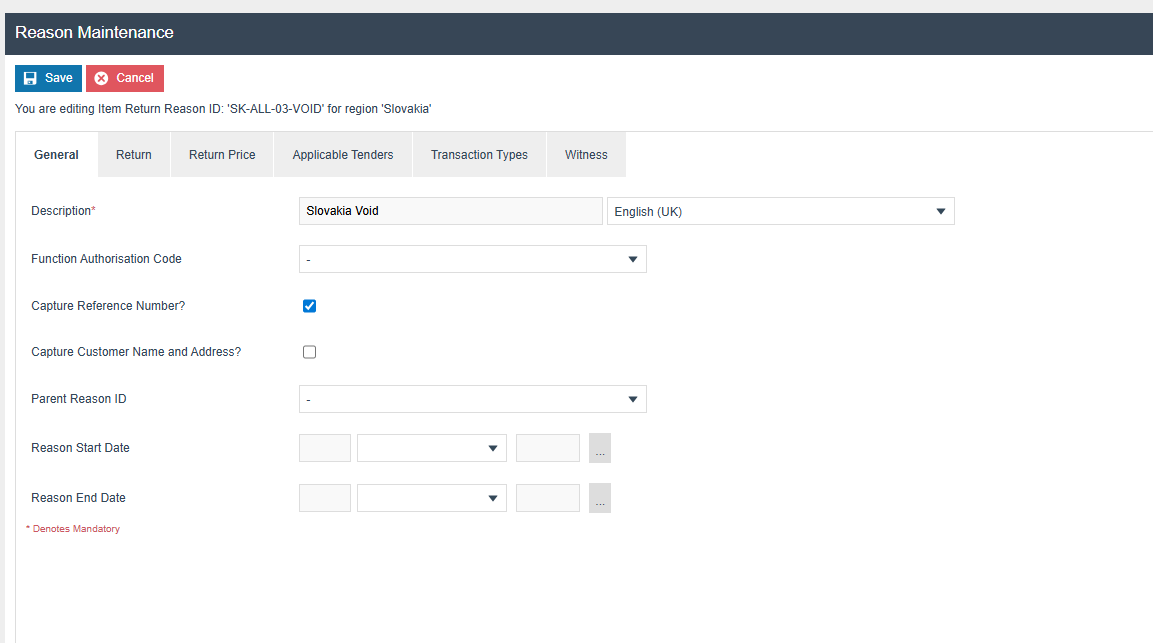
For item return type reasons, the Capture Reference Number option must be ticked in the particular reason configuration.
Translations
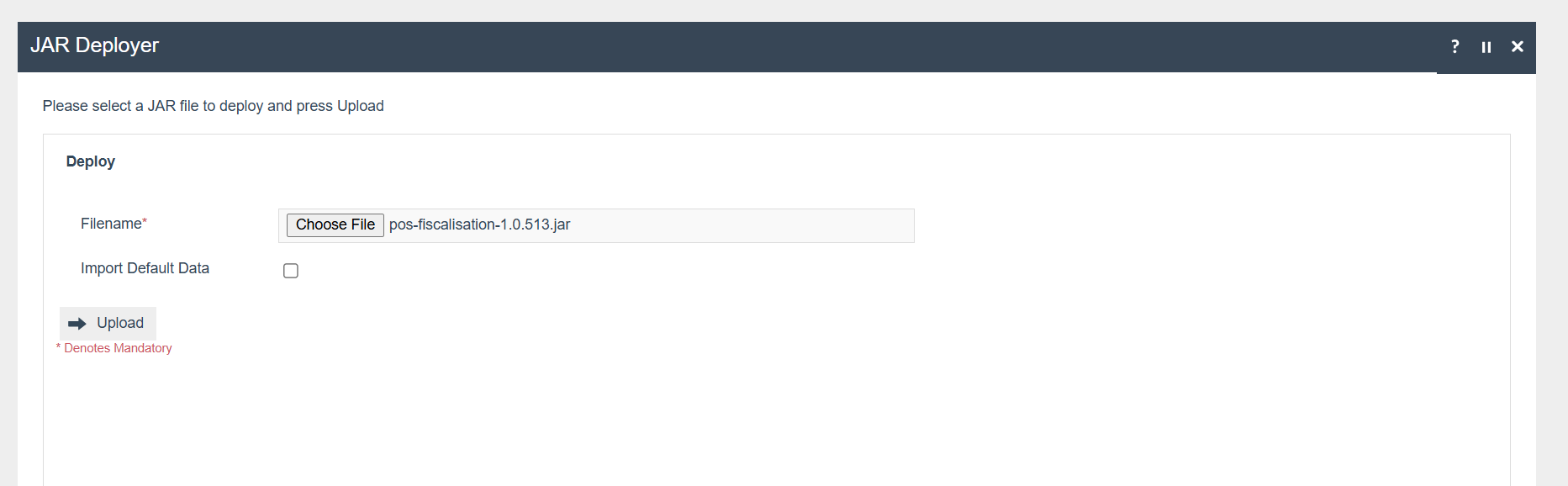
Deploy the pos-fiscalisation JAR using the JAR Deployer.
If the User Locale is set to English, the Enactor POS will be displayed in English. If you need to modify any default text in the Enactor POS, navigate to Application Translation, select the Application Package as POS Fiscalisation and select the User Locale as English (UK). Then edit the relevant message file by clicking the + button. Then broadcast the Message Resource entity.