How To Configure Fiscal Slovenia
Fiscal Overview
For shared background, see Fiscal Overview.
Slovenia Fiscalisation Introduction
In Slovenia, POS fiscalisation is a legal requirement for businesses to ensure accurate and transparent financial reporting.
It is important for businesses in Slovenia to select a certified fiscal solution and ensure proper installation and configuration of the system to meet fiscalisation requirements. Failure to comply with POS fiscalisation regulations can result in penalties, fines, or legal consequences.
Overall, POS fiscalisation in Slovenia aims to enhance transparency, combat tax evasion, and streamline the process of tax collection by leveraging electronic recording and reporting of sales transactions.
Deployment Overview
- Initiate the application updater update.zip file first.
- Wait until it succeeds.
- Send the update POS min.zip file.
- Wait until it succeeds.
- Send the Fiscal Module Update.
- Once it succeeds, the POS is ready with the new POS Fiscal Module.
Configuration Overview
The following configuration changes are required and must be broadcasted to all Slovenia devices in preparation for go live. Detailed steps for how to do this are contained in supplementary How to Guides available on the Enactor Insights portal, as well as being covered in the Introduction to Enactor training course. Although steps have been taken to ensure that the POS will not start or perform transactions without a valid configuration it is the retailer's responsibility to ensure a valid configuration is present and not to try to circumnavigate any of the requirements of the Slovenia Fiscal Legislation through misconfiguration of the solution.
If a POS terminal configuration with the fiscalisation type set to Slovenia is broadcast to a POS device that does not have the Slovenia fiscal module installed, the POS will fail to start. Similarly, if a POS device with the Slovenia fiscal module installed is configured with anything other than the Slovenia fiscalisation type, the POS will also fail to start. This is to ensure that only versions of the Enactor solution that have been certified for use in Slovenia are used in Slovenia.
Region
Region must be configured to continue the other configurations related to the fiscalisation.
For more detail on region creation refer to the How To Configure a Base Organisation Structure.
Location
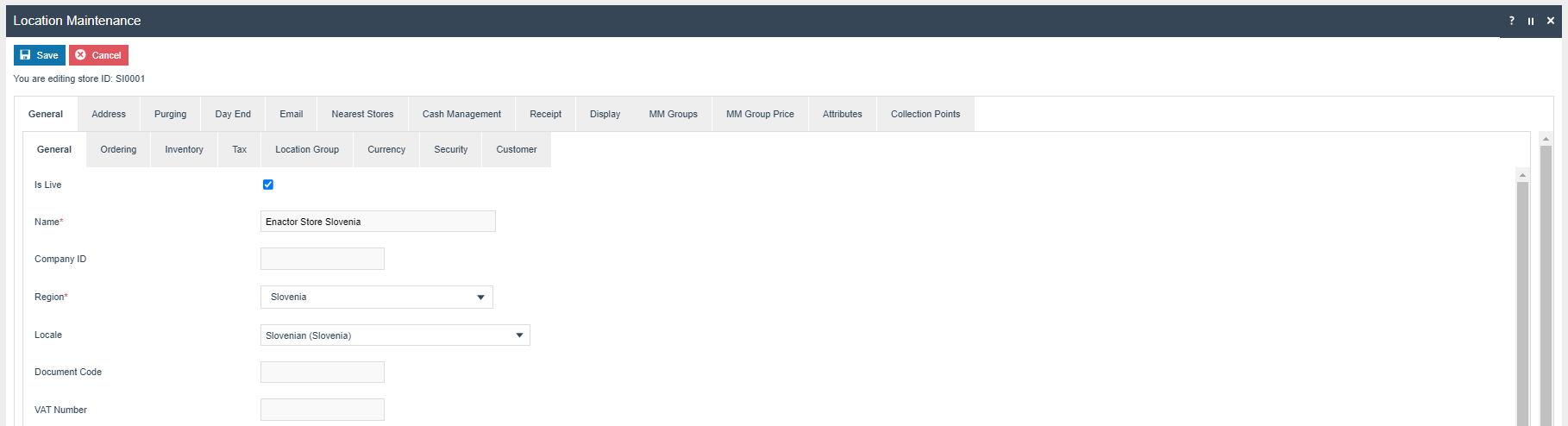
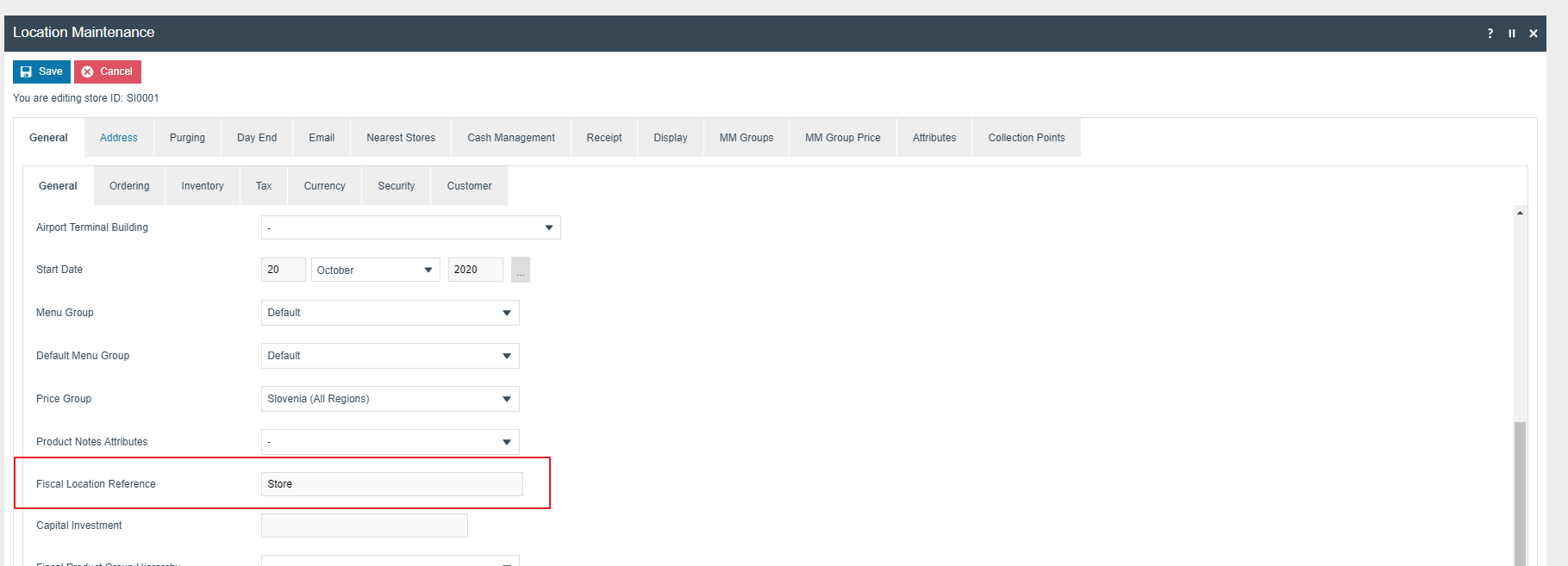
| Location ID | Name | Region | Base Currency | Fiscal Location Reference |
|---|---|---|---|---|
| SI0001 | Enactor Store Slovenia | Slovenia | Euros | Store |
Privileges
The following privileges will need to be configured against the appropriate roles and broadcast to the Slovenia devices. Consideration should be given to whether it is desirable for all operators to have all of these privileges or if some should only be granted to managers.
For more detail on Privileges and roles refer to the How To Configure Users, User Roles and User Templates.
| Privilege ID | Application Package |
|---|---|
| enactor.pos.RequestSimpleFiscalInvoiceAllowed | Enactor POS |
| enactor.pos.SavePagePrinterReceiptToFile | Enactor POS |
| enactor.pos.SKipPagePrinterReceiptPrint | Enactor POS |
Do not enable the enactor.pos.SKipPagePrinterReceiptPrint privilege if
you are using an actual location printer address in Location Printer
Maintenance.
User
| Field Description | Value | Comment |
|---|---|---|
| Fiscal User Reference | OIB Operator Number | General Tab, update field |
The OIB Operator Number should be retrieved from the certificate Subject section.
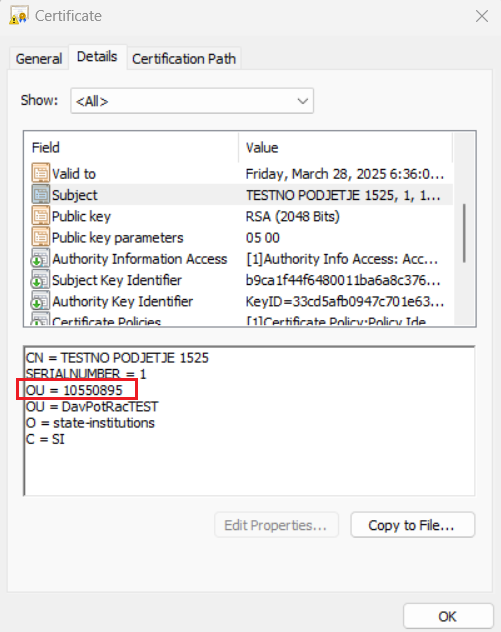
The above represents a demo certificate details section.
OIB Operator Number: 10550895
Group
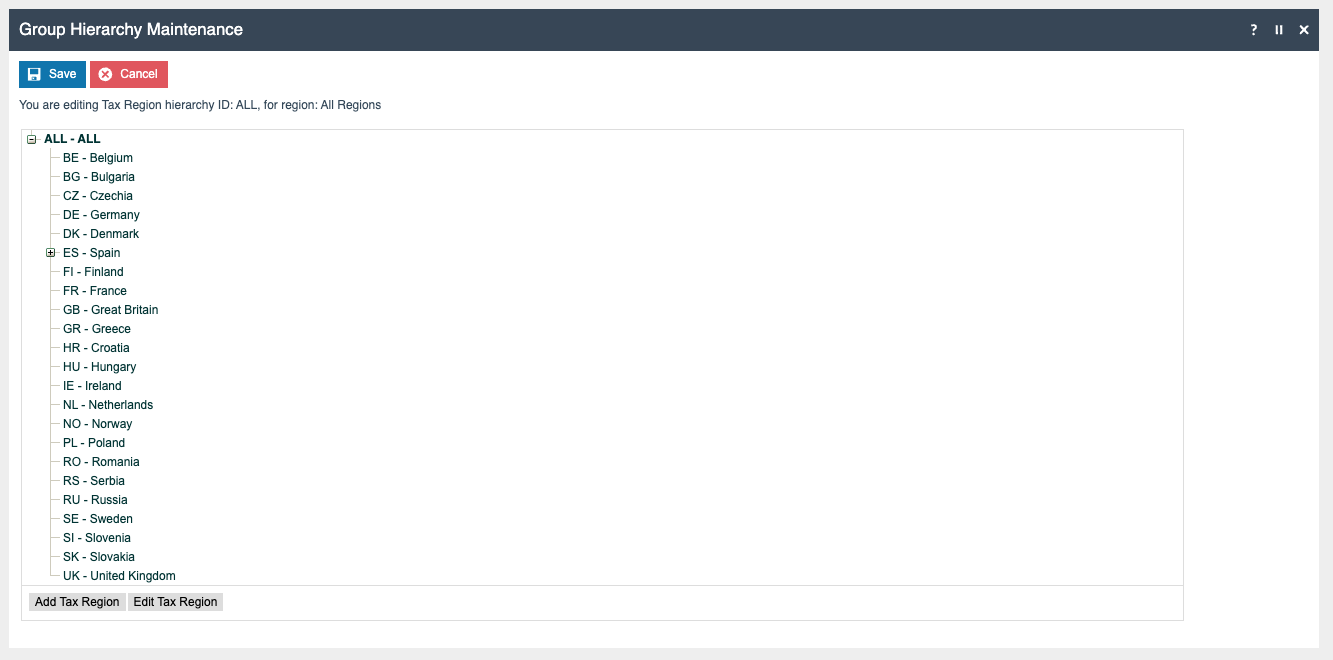
Create new Price Group, Region and Tax Region for Slovenia.
Price Group
Navigate to Groups > Group Type = Price Group > Hierarchy ID = All:
- Group Id: SLOVENIA
- Name: Slovenia
It is not necessary to configure an External Reference ID.
Region
Navigate to Groups > Group Type = Region > Hierarchy ID = All:
- Group Id: SLOVENIA
- Name: Slovenia
- Currency ID: Euros
Tax Region
Navigate to Groups > Group Type = Tax Region > Hierarchy ID = All:
- Group Id: SLOVENIA
- Name: Slovenia
- Currency ID: Euros
Tax Groups
The following tax groups should be configured and broadcast to the appropriate Slovenia devices.
| Tax Group ID | Description |
|---|---|
| SI-01 | SI Standard 22% |
| SI-02 | SI Reduced 9.5% |
| SI-03 | SI Zero 0% |
Tax Scheme
The following tax scheme should be configured and broadcast to the appropriate Slovenia devices.
The PriceIncludeTax flag must be set to true.
| Tax Scheme ID | Description | Price Include Tax |
|---|---|---|
| SI | Slovenia Tax Scheme | TRUE |
Tax Rates
The following tax rates should be configured and broadcast to the appropriate Slovenia devices.
Three main VAT rates: 22%, 9.5%, and 0%.
Tax Rate Type: VAT
| Tax Rate Type | Tax Rate ID | Effective Date | Description | Display Code | Percentage |
|---|---|---|---|---|---|
| VAT | SI-1 | Date the VAT rate became effective in SI | Standard 22% | A | 22% |
| VAT | SI-2 | Date the VAT rate became effective in SI | Reduced 9.5% | B | 9.5% |
| VAT | SI-3 | Date the VAT rate became effective in SI | Zero 0% | C | 0% |
Tax Group Tax Methods
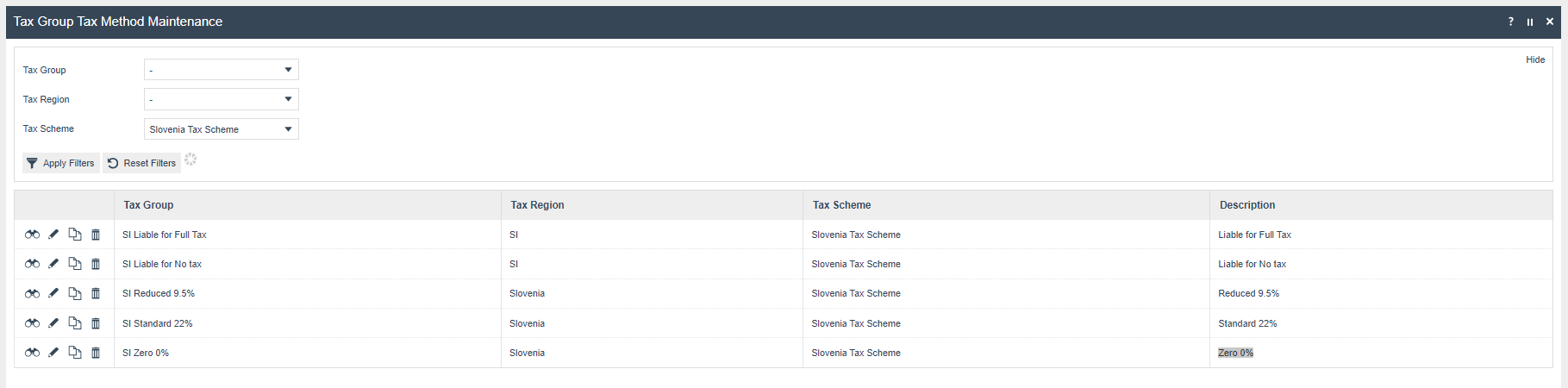
The following tax group tax methods should be configured and broadcast to the appropriate Slovenia devices.
| Tax Group ID | Tax Scheme ID | Description | Tax Rate |
|---|---|---|---|
| SI Standard 22% | Slovenia Tax Scheme | Standard 22% | Standard 22% |
| SI Reduced 9.5% | Slovenia Tax Scheme | Reduced 9.5% | Reduced 9.5% |
| SI Zero 0% | Slovenia Tax Scheme | Zero 0% | Zero 0% |
Device
Devices must be created in the Slovenia location to add them to the POS terminal.
For more detail on device creation refer to the How To Configure a Base Organisation Structure.
POS Terminal
The POS Terminal Template used by all devices in Slovenia must be configured to have the fiscalisation Type set to Slovenia.
Currency should be set to Euro and Locale to Slovenia.
Operator View Parent Theme and Operator View Theme under POS Terminal > User Interface > Branding / Style tab should be set according to the enactor.xml theme configs.
Menu Group and Default Menu Group under the User Interface > General tab should be set according to the original menu group.
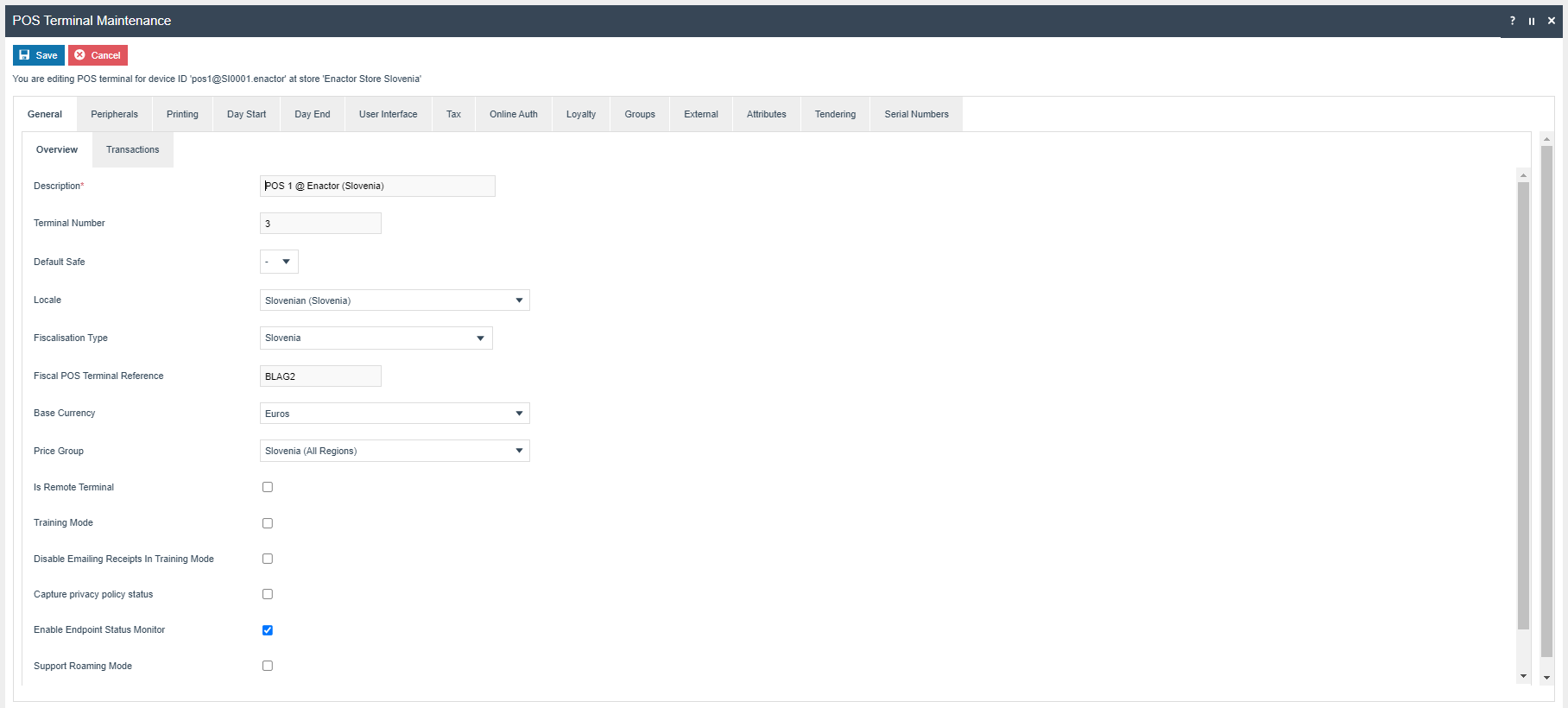
| Field Description | Value | Comment |
|---|---|---|
| Fiscalisation Type | Slovenia | General Tab, select from dropdown menu |
| Base Currency | Euros | General Tab, select from dropdown menu |
| Receipt Printer Type | Test Printer | Peripherals Tab - Output sub-tab, select from dropdown menu |
| Customer Display Type | Test Line Display | Peripherals Tab - Output sub-tab, select from dropdown menu |
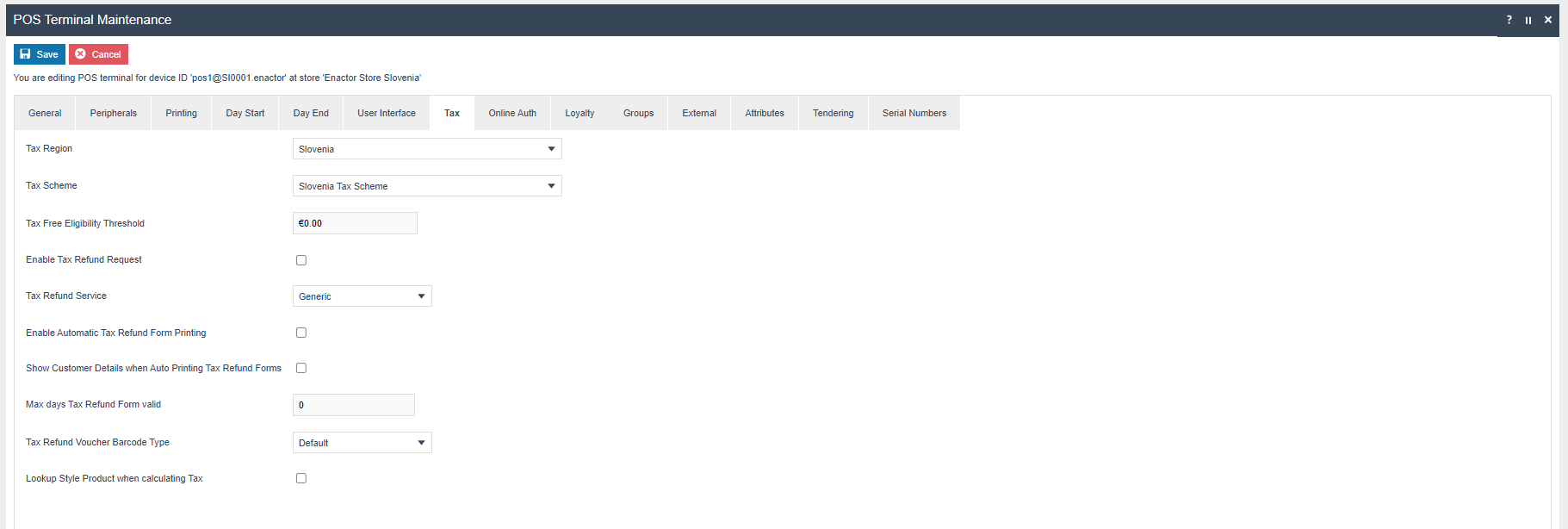
| Tax Schema | Slovenia Tax Scheme | Tax Tab, select from dropdown menu |
| Tax Region | Slovenia | Tax Tab, select from dropdown menu |
| Fiscal POS Terminal Reference | BLAG2 | General Tab, Overview, update the field |
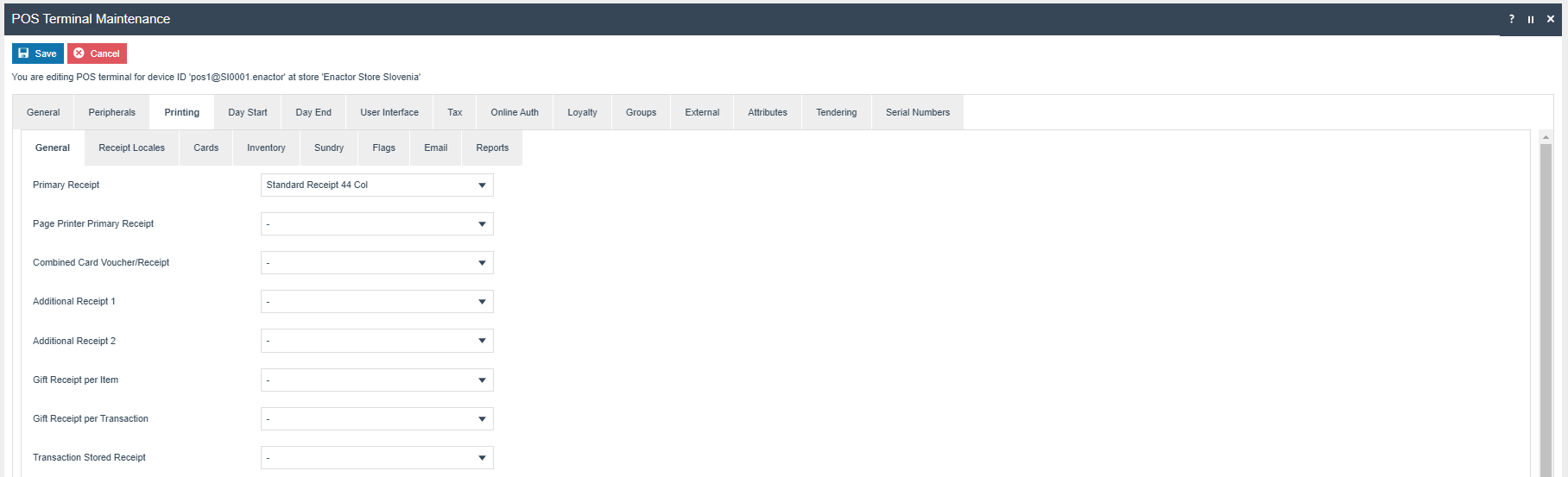
The primary Receipt should be set to Fiscal Standard Receipt 44.
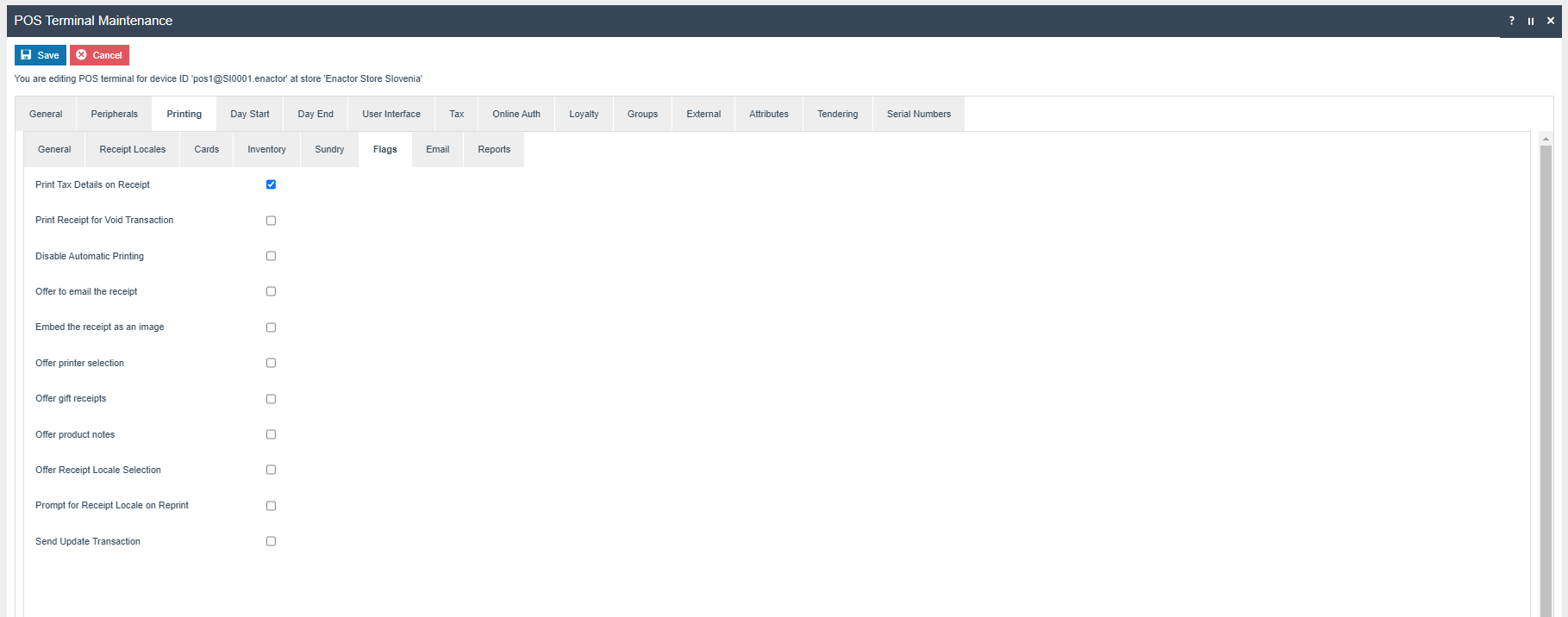
The Print Tax Details on Receipt flag within the Printing > Flags tab should be ticked.
Within the Tax section the Tax Region should be set to Slovenia and the Tax Scheme to the Slovenia Tax Scheme configured in the previous section.
Products
Set the Tax Group and Price for each product (Currency: EUR).
For more detail on product creation refer to the How To Configure a Merchandise Product and How To Configure Product Prices.
Product Tax
The following tax configurations should be configured against the products and broadcast to the appropriate Slovenia devices. Tax group can be defined to either configure the tax group or have a tax group by tax region.
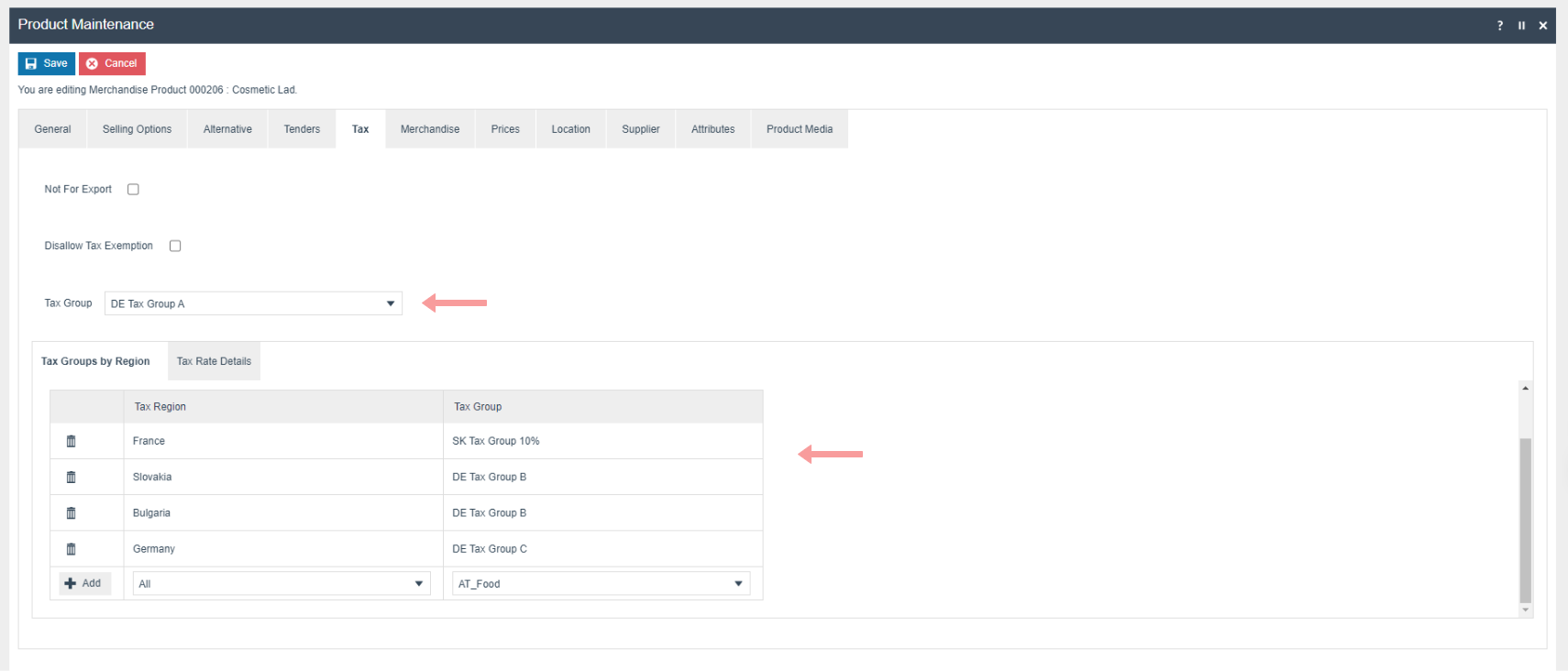
Menu
Sale Menu
Navigate to Configuration > System > Menu.
- Edit the SALE menu for the Menu Group Standard POS.
- Add a folder under Sales > Receipts called Fiscal Receipts.
- Add new buttons to the Fiscal Receipts folder for the following:
| Event | ID | Button Label |
|---|---|---|
| RequestSimpleFiscalInvoice | RequestSimpleFiscalInvoice | Request Simple Fiscal Invoice |
| Fiscal_Request_Invoice | Fiscal_Request_Invoice | Fiscal Invoice Requested |
| Fiscal_Post_Issue_Invoice_Print | Fiscal_Post_Issue_Invoice_Print | Print Post Issue Invoice |
For more detail on menu creation refer to the How To Configure POS Behaviour (Menus).
Tenders
Configuration
FiscalTenderId will be set as the above legal requirement for Slovenia.
| Tender Id | Description | Region | Currency |
|---|---|---|---|
| CASH_SI | Cash | Slovenia | Euro |
| CARD_SI | Card | Slovenia | Euro |
Exchange Rates
| From Currency | To Currency | Buy Rate | Sell Rate | Tender ID | Region |
|---|---|---|---|---|---|
| EUR | GBP | 0.9 | 0.9 | Card | All |
| GBP | EUR | 1.11 | 1.11 | Card | All |
Configure A4 Receipt
Document Function
Create Document Function as PrintReceipt via EM Document Function Maintenance.

Document Printer Mapping
In Document Printer Mapping Maintenance, create a printer mapping for PrintReceipt.

Location Printer
Create a Location Printer for the Slovenia POS Location:
- Set Printer Category to A4 Document Printer
- Set Printer Type to System (Named) Printer
- Set Printer Address to OneNote

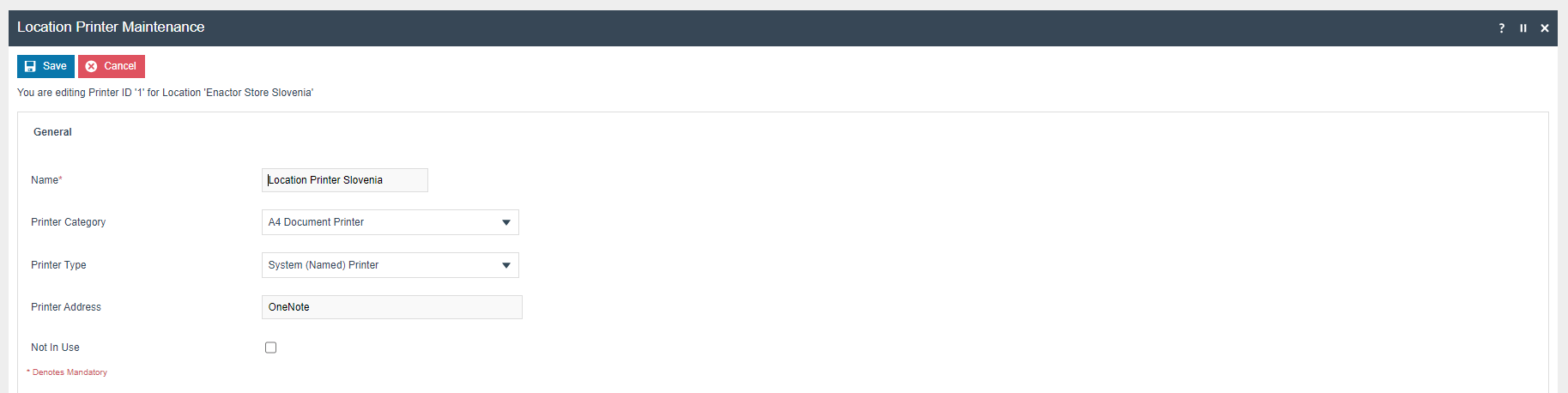
Enable Print Page Printer Receipt user privileges for the POS user:
enactor.pos.SavePagePrinterReceiptToFile and
enactor.pos.SKipPagePrinterReceiptPrint.
Do not enable the enactor.pos.SKipPagePrinterReceiptPrint privilege if
you are using an actual location printer address in Location Printer
Maintenance.
Printed A4 Receipts (.pdf) are saved to the temp folder in the POS application home directory.
Account Credentials
Add a new Credential for retrieving the Slovenia Tax Authority Certificate. Create a new Account Credentials entry as follows.
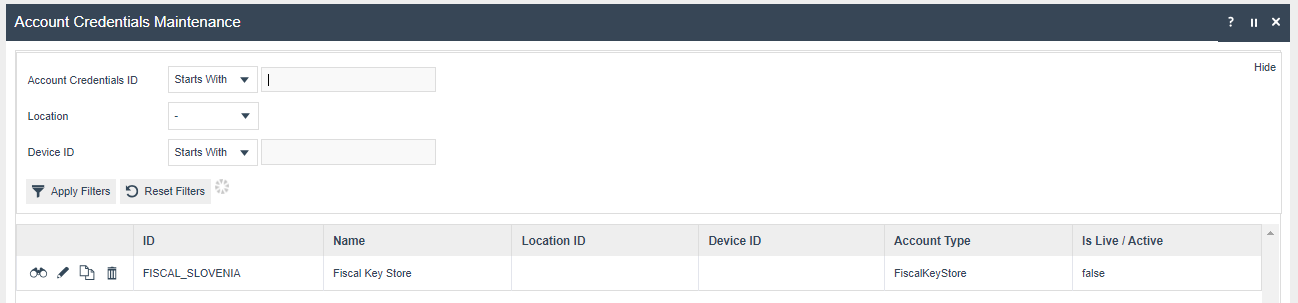
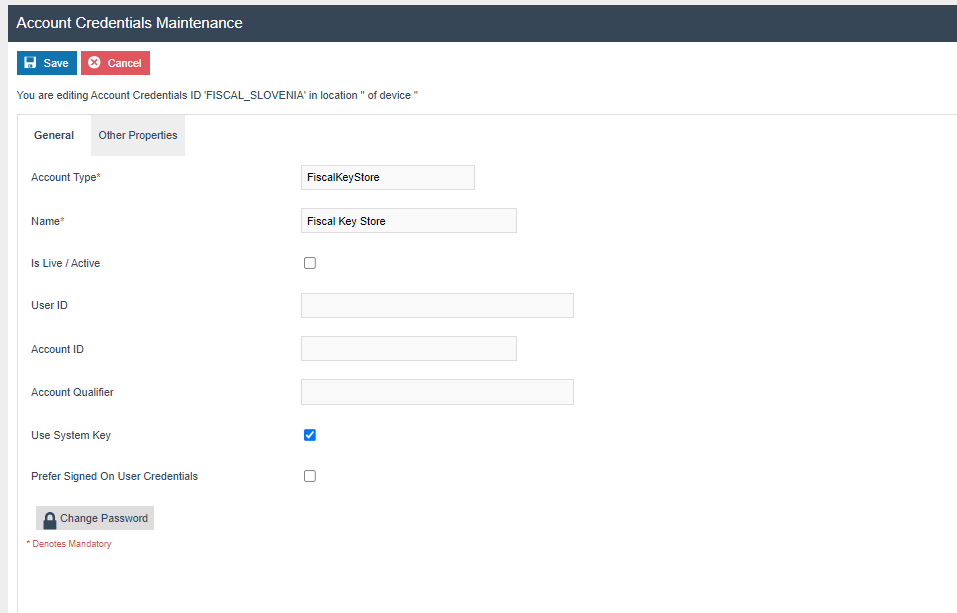
Update the following in the General tab:
| Field Description | Value | Comments |
|---|---|---|
| Account Type | FiscalKeyStore | Update field |
| Name | Fiscal Key Store | Update field |
| Use System Key | true | Tick the check box |
Update the following in the Other Properties tab:
| Property Name | Type | Value |
|---|---|---|
| CERT_OIB | String | Tax payer OIB number (e.g. 10550895) |
| PRIVATE_KEY | String | Private key from the certificate |
| X509_CERT | String | X509 certificate value |
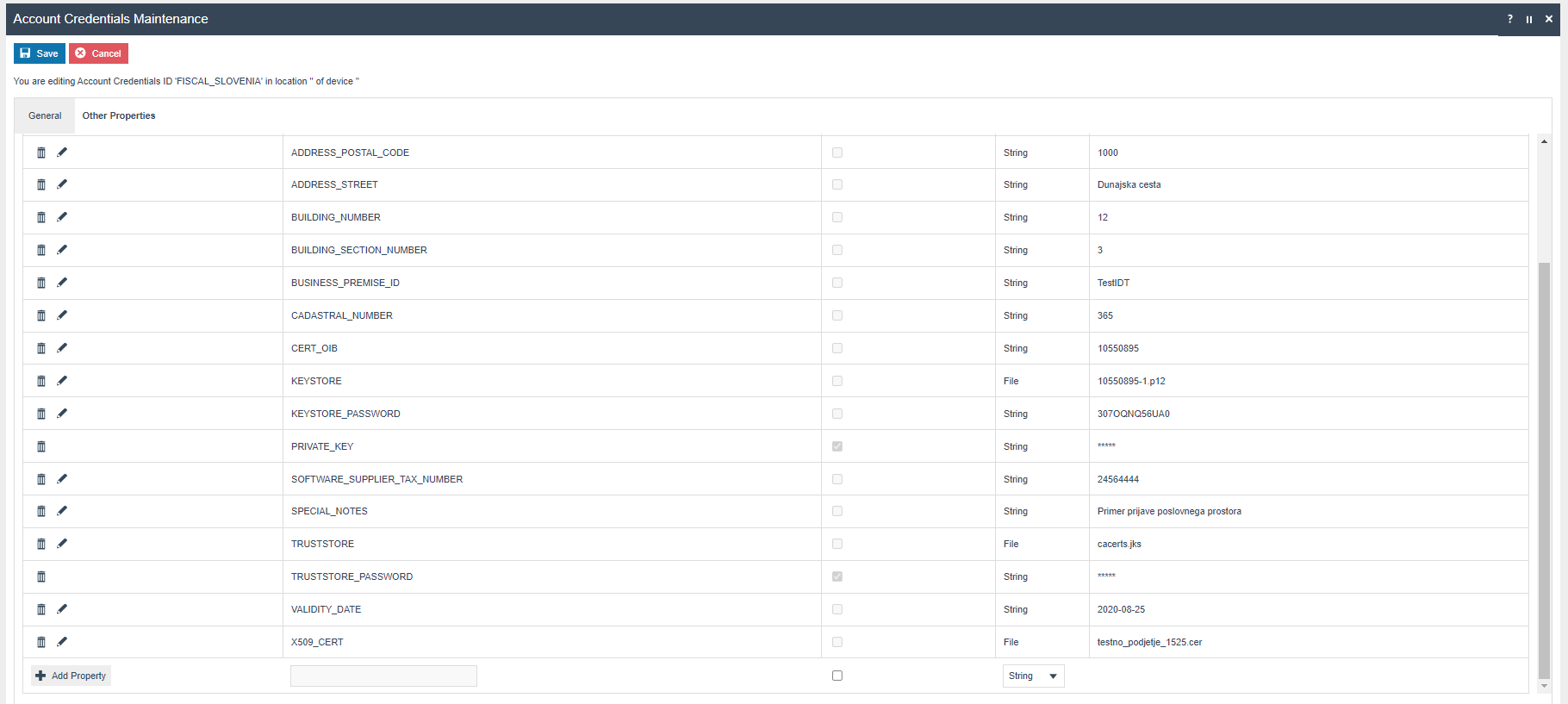

The CERT_OIB, PRIVATE_KEY and X509_CERT values must be extracted from the fiscal certificate provided by the Slovenia tax authority. For demo environments, use the values from the demo certificate.
Store Registration
After all configuration is complete, the store must be registered with the Slovenia tax authority.

Store Registration must be completed before the POS can process fiscal transactions. Ensure all configuration steps above are completed and broadcast before attempting registration.