How To Set Up Adyen MPOC App with PDC
Introduction
The Adyen MPOC (Mobile Point of Care) app transforms an Android mobile device into a card payment terminal, allowing customers to tap or dip their card directly on the merchant's device. In the Enactor system, the Payment Device Controller (PDC) acts as the integration layer between the Enactor POS and the Adyen MPOC app, managing communication, onboarding, and transaction flow.
The Adyen Agent app is a companion application installed on the same Android device as the Adyen MPOC app. It provides the PDC with the Installation ID needed to identify the device, and exposes diagnostic logs for troubleshooting.
The purpose of this guide is to demonstrate the steps required to configure the Adyen MPOC app with the PDC to perform payment transactions via POS using an Android mobile device.
Overview
The following steps are required to enable Adyen MPOC payments:
- Adyen Portal Configuration - Generate API keys, HMAC key, and PED encryption key in the Adyen Web Configuration dashboard
- Install Adyen MPOC App - Download and install the Adyen MPOC app on the Android device
- Install Adyen Agent App - Download and install the Adyen Agent app and obtain the Installation ID
- Estate Manager Configuration - Configure account credentials, tender, menus, payment device, device, payment device host, POS terminal, and user roles
- Broadcasting the App Update - Download and broadcast the Adyen integration update to the PDC host
- Onboarding the Adyen MPOC App - Allow the PDC to complete the onboarding process for the Adyen MPOC app
- Offboarding the Adyen MPOC App - Revoke an Adyen MPOC app (for theft or loss scenarios)
- Exporting Adyen Agent App Logs - Download diagnostic logs from the Adyen Agent app
Prerequisites
Before starting, the following components must be properly set up:
- Thin Client POS (APK version Trunk.4 and above, 27.3.2 and above) or Thick POS
- Payment Device Controller (PDC version: 2.7.1824 and above, 2.7.1331.256 and above, 2.7.644.936 and above)
- Estate Manager (EM)
- PDP (required only for thin client POS)
- Payment Device Management Service (PDMS)
- Admin access to the Adyen Portal
Configuration Steps - Adyen Portal Configuration
This setup is performed once per merchant account in the Adyen Portal and may already be configured for existing merchant accounts.
The following tasks must be performed on the Adyen Web Configuration dashboard. For the test environment, log in at ca-test.adyen.com.
Follow the setup steps listed in the Adyen MPOC build documentation.
| Task | Description |
|---|---|
| Generate an API Key | See the "Step 4: Get API credentials" section under "Set up your test account" in the Adyen Getting Started documentation. |
| Generate a HMAC Key | See the "Enable HMAC signatures" section of the Verify HMAC Signatures documentation in Adyen. |
| Configure a PED encryption key | See the "Set up a shared key" section of the Protect Local Communications documentation in Adyen. There are no Enactor restrictions on the key identifier, version, or passphrase. |
Record the API Key, HMAC Key, Key Identifier, Key Passphrase, and Key Version generated in this step. They are required when configuring Account Credentials in Estate Manager.
This completes the Adyen Portal Configuration.
Configuration Steps - Install Adyen MPOC App
Download the Adyen MPOC app from the Google Play Store and install it on the Android device that will be used as the payment terminal.
The app is available at the Google Play Store.
When installed from the Play Store, the Adyen MPOC app must complete an onboarding process before it can accept payments. The PDC manages this process automatically. See the Onboarding the Adyen MPOC App section for details.
This completes the Adyen MPOC App installation.
Configuration Steps - Install Adyen Agent App
The Adyen Agent app must be installed on the same Android device as the Adyen MPOC app. It provides the PDC with the Installation ID used to identify the device.
Download the latest release APK from the Enactor Adyen Agent SharePoint page.
After installation, open the Adyen Agent app and tap Check Board Status from the menu. The app displays the Installation ID for the device.
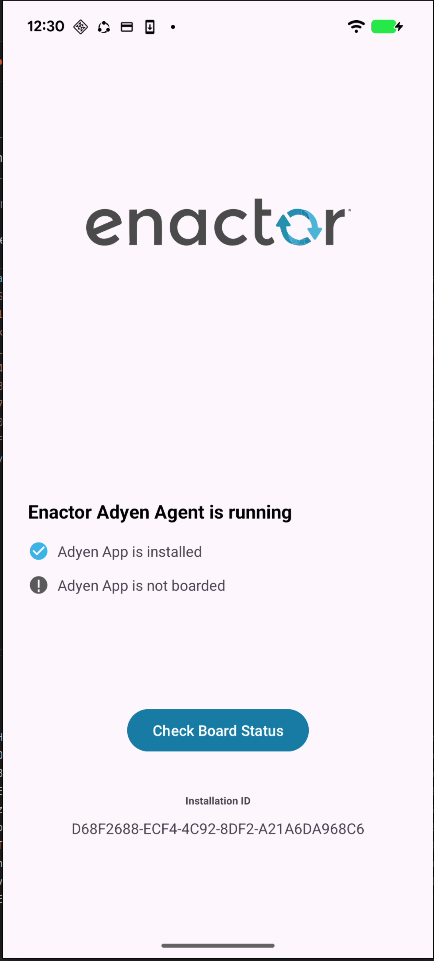
Save the Installation ID shown in the Adyen Agent app. This value is used as the POIID in the Payment Device Maintenance configuration in Estate Manager.
This completes the Adyen Agent App installation.
Configuration Steps - Estate Manager Configuration
The following sub-sections must be completed in Estate Manager for each Adyen MPOC device.
Account Credentials
Account Credentials store the Adyen API keys and certificates used by the PDC to communicate with Adyen.
Sign in to Estate Manager and navigate to Account Credential Maintenance using the Search or the path:
Main Menu > Configuration > Financial > Account Credentials
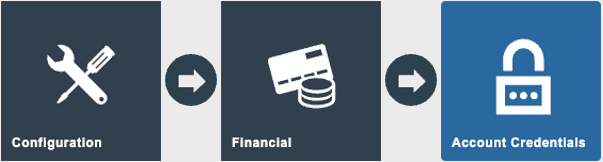
Create a new Account Credential and set the following fields:
General Tab
| Field | Value |
|---|---|
| Account Credential ID | Enter an appropriate unique ID for this credential |
| Account Type | Adyen Payment Service |
| Name | Adyen Payment Service |
| Is Live | Set to true for a live Adyen environment; false for test |
| Use System Key | Set to true |
Other Properties Tab
| Property Name | Write Only | Type | Value |
|---|---|---|---|
| APIKey | Yes | String | Enter the API Key generated in the Adyen Web Configuration dashboard |
| Certificate | No | File | Download the Adyen public root certificate from the Adyen root certificate documentation and upload the PEM file |
| Environment | No | String | Enter LIVE or TEST depending on the Adyen environment |
| HMACKey | Yes | String | Enter the HMAC Key generated in the Adyen Web Configuration dashboard |
| KeyIdentifier | No | String | Enter the Key Identifier of the encryption key created in the Adyen Portal |
| KeyPassphrase | Yes | String | Enter the Key Passphrase of the encryption key |
| KeyVersion | No | String | Enter the Key Version of the encryption key |
| MerchantAccount | No | String | Enter the name of the Merchant Account from the Adyen Portal |
| PortalBaseURL | No | String | Enter the Adyen portal base URL |
The KeyIdentifier, KeyPassphrase, and KeyVersion must match the values configured in the Adyen Portal under: In-Person Payments > Terminals > [Select terminal] > Integrations > Terminal API > Encryption
This completes the Account Credentials configuration.
Tender Maintenance
Follow the How To Integrate and Set Up Adyen at the PDC to create a new tender for Adyen payments.
When selecting the currency for the tender, use the currency configured for the merchant account in the Adyen Portal. The currency set for the merchant account in the Adyen Portal applies to the Adyen MPOC app.
This completes the Tender Maintenance configuration.
Menu Set Maintenance
Follow the How To Integrate and Set Up Adyen at the PDC to create a new menu set if one is not already available.
This completes the Menu Set Maintenance configuration.
Menu Maintenance
Follow the How To Integrate and Set Up Adyen at the PDC to:
- Create a new button for the POS
- Create a new credit tender button for the POS
For a thin client POS setup, broadcast the menu changes to the PDP server after saving. For a thick POS setup, broadcast the changes to the POS device.
This completes the Menu Maintenance configuration.
Payment Device Maintenance
This step must be completed for every Adyen MPOC app installed. Each physical device requires its own Payment Device record.
Sign in to Estate Manager and navigate to Payment Device Maintenance:
Main Menu > Configuration > Financial > Payment Device Maintenance
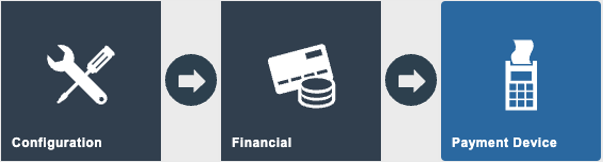
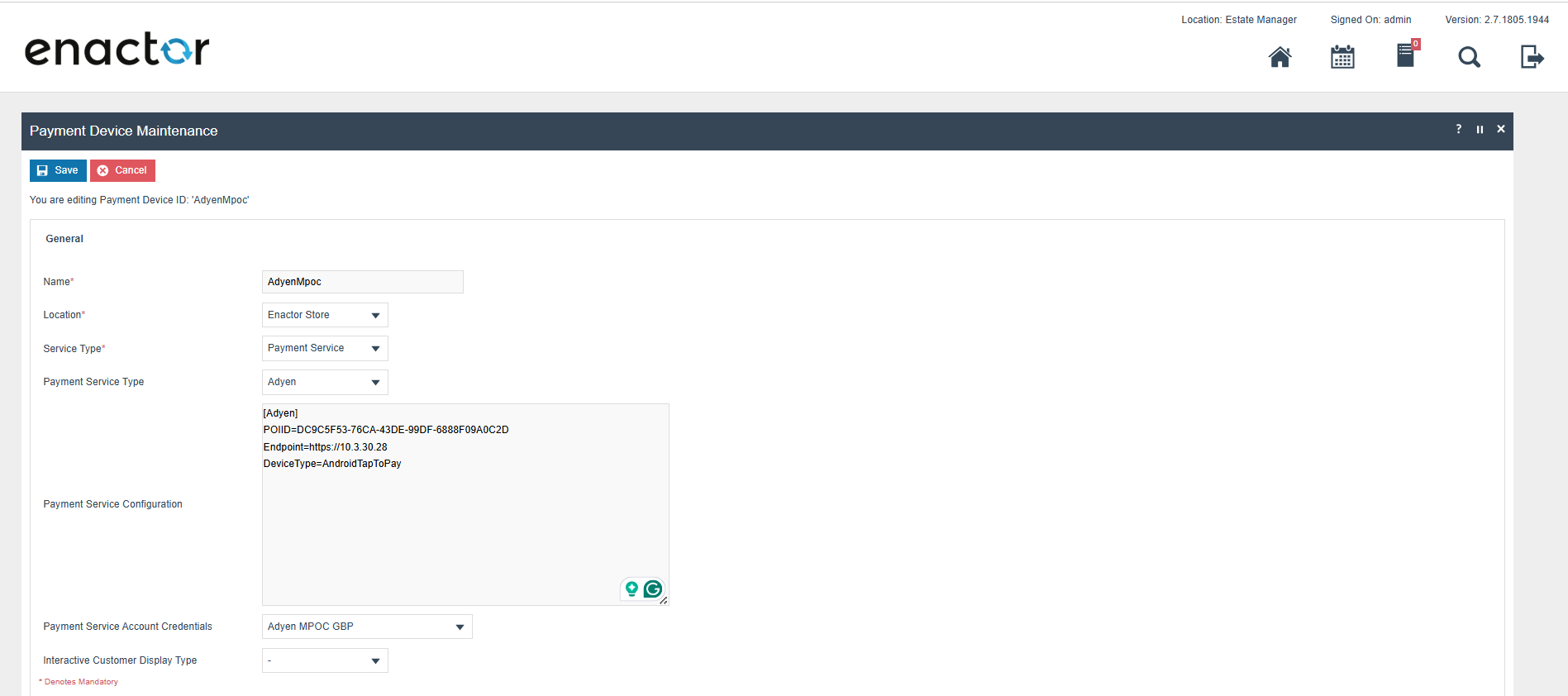
Create a new Payment Device record and set the following fields:
| Field | Value |
|---|---|
| Payment Device ID | Enter an appropriate unique ID |
| Name | Adyen MPOC |
| Location | Select the store location (must match the Payment Device Host location) |
| Service Type | Payment Service |
| Payment Service Type | Adyen |
Under Payment Service Configuration [Adyen], enter the following:
| Parameter | Value |
|---|---|
POIID | The Installation ID shown in the Adyen Agent app |
Endpoint | https://{ip address of the mobile device} |
DeviceType | AndroidTapToPay |
Set Payment Service Account Credentials to the Account Credential created in the Account Credentials step.
This completes the Payment Device Maintenance configuration.
Device Maintenance
Follow the How To Integrate and Set Up Adyen at the PDC to create a Device record for the POS.
This completes the Device Maintenance configuration.
Payment Device Host Maintenance
Follow the How To Integrate and Set Up Adyen at the PDC to create a Payment Device Host record.
This completes the Payment Device Host Maintenance configuration.
POS Terminal Maintenance
Follow the How To Integrate and Set Up Adyen at the PDC to create a POS Terminal record.
For a thin client POS setup, broadcast the changes to the PDP server after saving.
This completes the POS Terminal Maintenance configuration.
User Role Maintenance
Follow the How To Integrate and Set Up Adyen at the PDC to grant the required user privileges.
For a thin client POS setup, broadcast the changes to the PDP server after saving.
This completes the User Role Maintenance configuration.
Configuration Steps - Broadcasting the App Update
The Adyen integration must be deployed to the PDC host machine as an application update.
Download the latest Adyen app update ZIP from the Enactor Adyen integration releases page.
Sign in to Estate Manager and navigate to Application Update Maintenance:
Main Menu > Administration > DataManagement > Broadcasts > Application Update Maintenance
- Create a new Application Update record
- Set Storage Type to File Repository
- Click Upload
- Browse to the downloaded
adyen-x.x.x-update.zipfile and click Upload - Click Extract Content
- Click Save
To broadcast the update to the target device, navigate to:
Main Menu > Administration > Data Management > Broadcasts > Application Update Broadcaster
- Select the Application Update from the dropdown list
- Select the POS device hosted on the same PC as the Payment Device Host that integrates with Adyen
- Click Submit
When the app update is received on the target device, it triggers a restart of the PDC. After the PDC restarts, it copies the jar files to the PDC/custom-libs folder.
This completes the Broadcasting the App Update configuration.
Configuration Steps - Onboarding the Adyen MPOC App
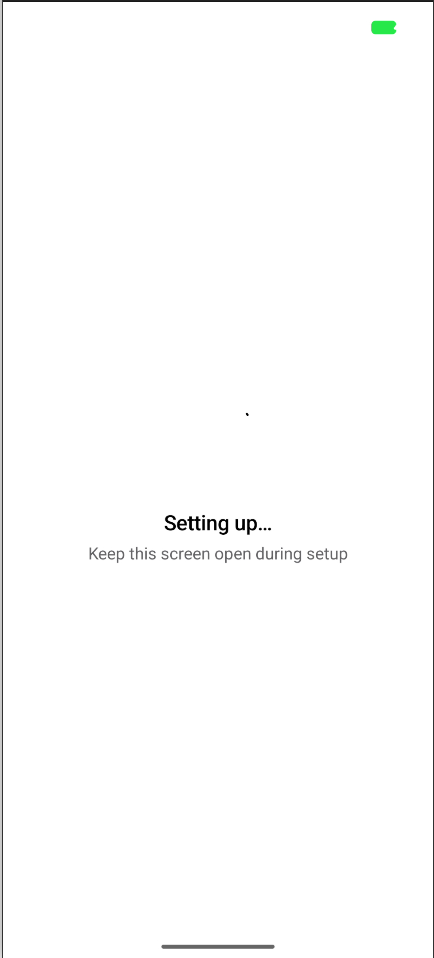
After the app update broadcast succeeds, the PDC automatically detects that the Adyen MPOC app has not been onboarded and starts the onboarding process.
To enable the PDC to complete onboarding successfully:
- In a thin client POS setup, the thin client must be running in the foreground.
- In a thick POS setup, the Adyen Agent app must be running in the foreground.
During onboarding, the Adyen MPOC app comes to the foreground and displays the following screen:
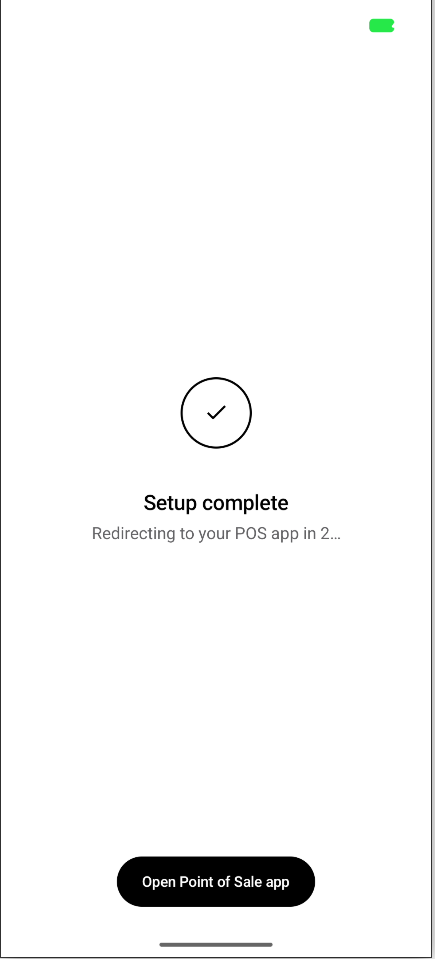
Once onboarding is complete, the Adyen MPOC app displays a confirmation screen:
This completes the Onboarding configuration.
Configuration Steps - Offboarding the Adyen MPOC App
In the event of device theft or loss, use this procedure to revoke an Adyen MPOC app. This feature is available in version 2.7 after build 2.7.1799, and in 2.7.1784 after build 2.7.1784.24.
The POIID of the lost device can be found by invoking a GET request to the Get a list of Payments Apps - merchant level or Get a list of Payments Apps - store level REST endpoints by providing the required storeId or merchantId. Alternatively, if you know the Enactor Payment Device ID of the lost device, you can find the corresponding POIID by navigating to Payment Device Maintenance in Estate Manager.
One Adyen MPOC app instance can be offboarded per System Job. Create a separate job for each device to be offboarded.
Sign in to Estate Manager and navigate to Diary Entry Maintenance:
Main Menu > Operations > CRM > POS > Diary Entry Maintenance

Click Create new System Job and configure the following fields:
General Tab
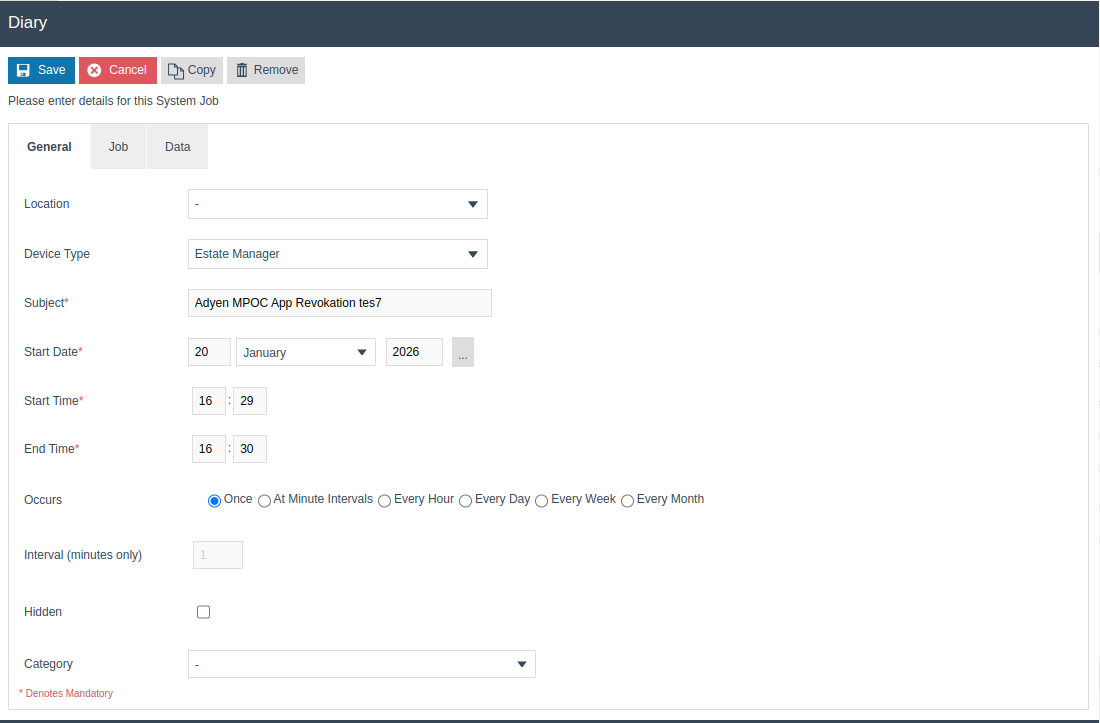
| Field | Value |
|---|---|
| Device Type | EstateManager |
| Subject | Adyen MPOC Revocation Job |
| Start date / Start time / End time | Set appropriate date and time for the job |
| Occurs | once |
Job Tab
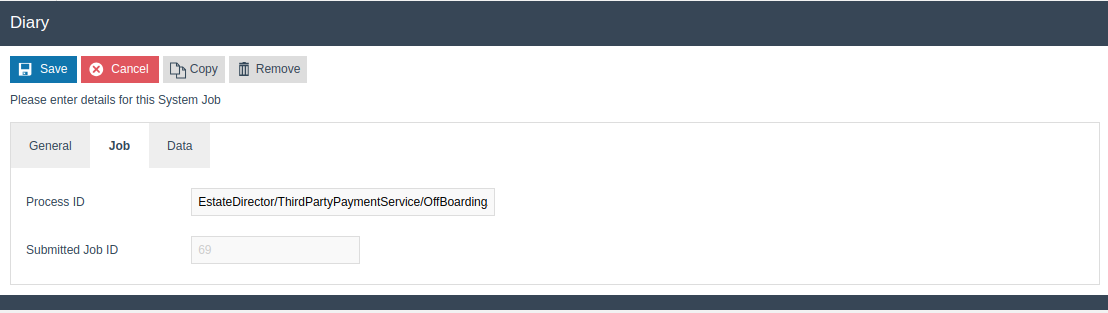
| Field | Value |
|---|---|
| Process ID | EstateDirector/ThirdPartyPaymentService/OffBoardingAdyenMPOCAp |
Data Tab
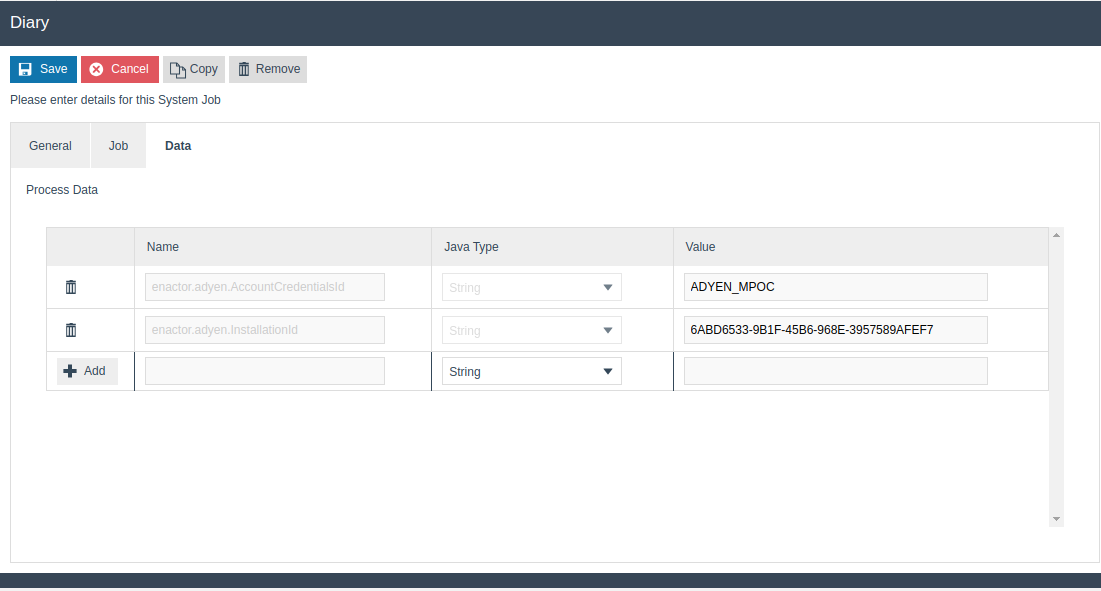
Create two String type process data entries on the Data tab:
| Name | Value |
|---|---|
enactor.adyen.AccountCredentialsId | The Account Credentials ID configured in the Account Credentials step |
enactor.adyen.InstallationId | The POIID / Installation ID of the Adyen MPOC app to be revoked |
Click Save to save the job.
After the job runs, navigate to Schedule Job Maintenance to check the job status. If the job is successful, the Adyen MPOC app is offboarded.
To offboard multiple devices, copy the existing job and update the Subject and enactor.adyen.InstallationId value for each device.
This completes the Offboarding configuration.
Configuration Steps - Exporting Adyen Agent App Logs
Available from Adyen Agent app version 1.0.16, diagnostic logs can be downloaded directly from the app.
Step 1: Enable debug logs
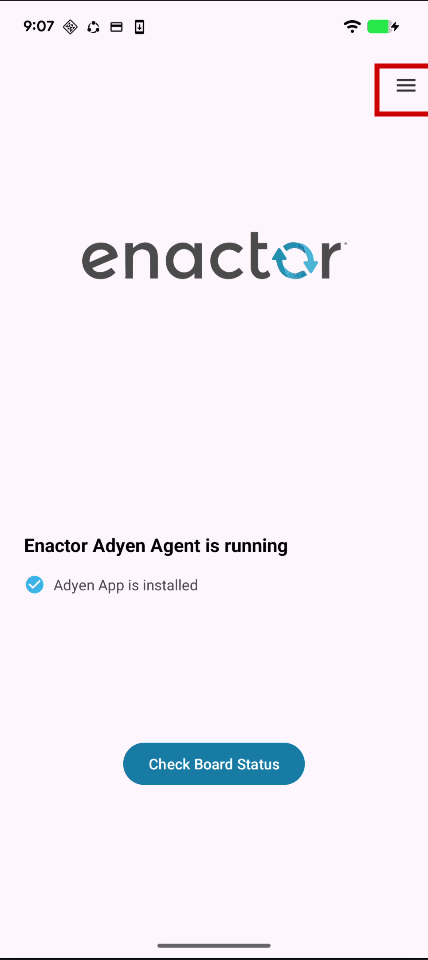
Tap the menu icon (three horizontal lines) in the top right corner of the Adyen Agent app home screen:
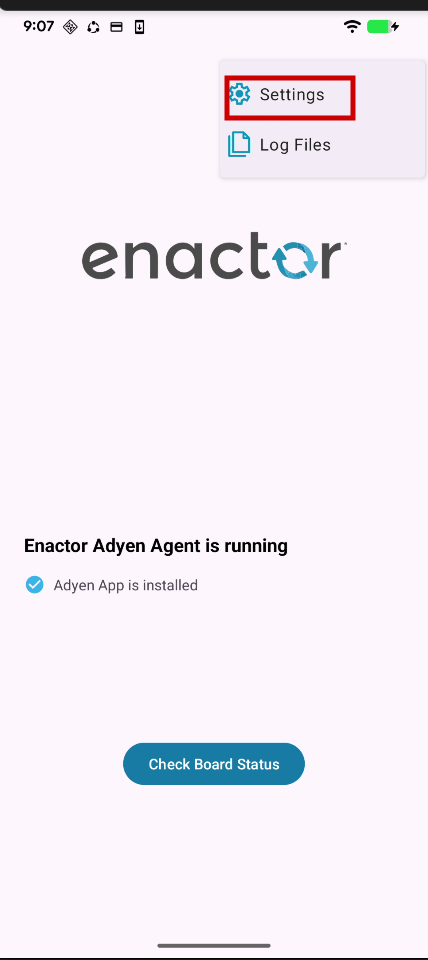
From the dropdown menu, tap Settings:
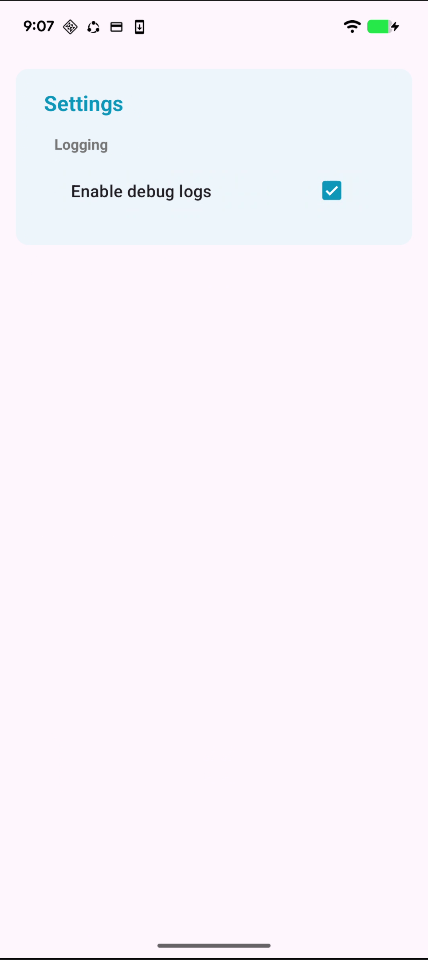
On the Settings screen, tick the Enable debug logs checkbox:
Step 2: Clear existing logs
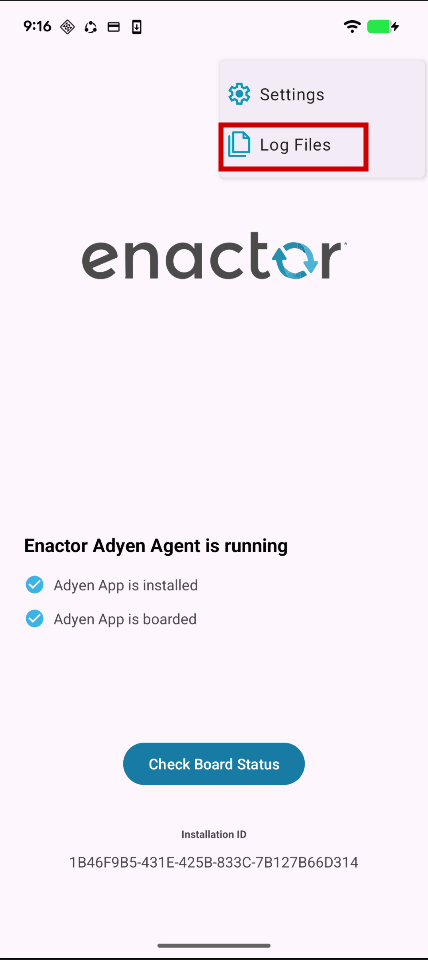
Return to the home screen. Open the dropdown menu and tap Log Files:
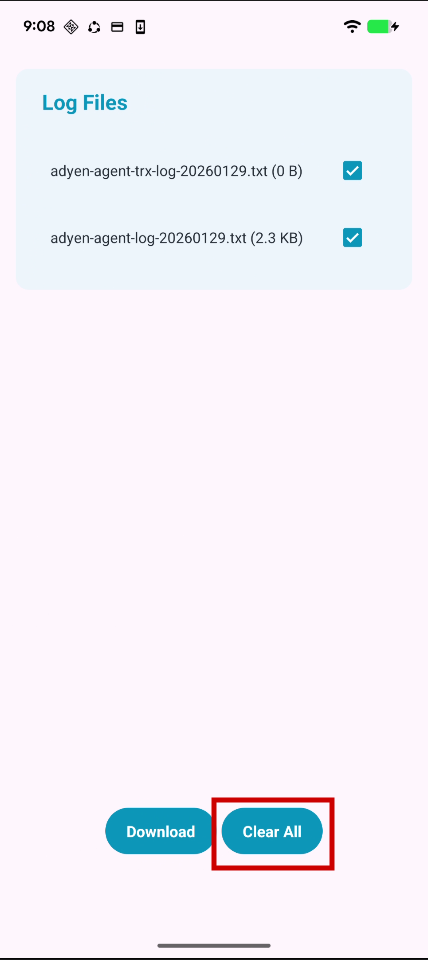
Select all log files and tap Clear All to remove any existing logs before the test transaction:
Step 3: Initiate a payment and download logs
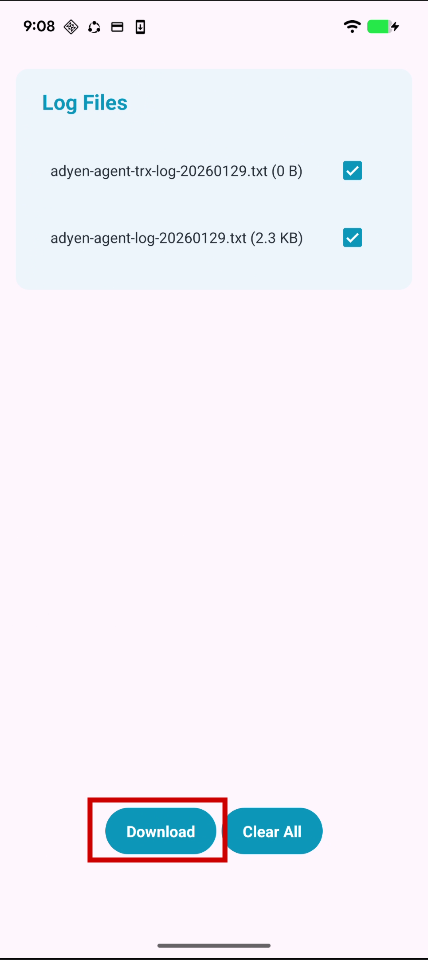
Return to the home screen and initiate a payment from the POS. Once the payment is complete, return to the Log Files screen, select the adyen-agent-trx-log and adyen-agent-log files, and tap Download:
This completes the Adyen Agent App Log Export procedure.
PIN Transactions
For transactions exceeding the Cardholder Verification Method (CVM) required limit, the Adyen MPOC app prompts the customer to enter their PIN.
Refer to the Adyen cardholder verification methods documentation for details on finding the CVM required limit for each currency.
Limitations
The following known limitations apply to the Adyen MPOC app integration:
Brief white screen during app switching
When both the POS and the Adyen MPOC app are running on the same Android device, intent-based communication is used to switch between the apps. Due to limitations in intent-based communication, a brief white screen may appear at the start of the switching process. This is expected behaviour.
Adyen Agent app auto-start setting
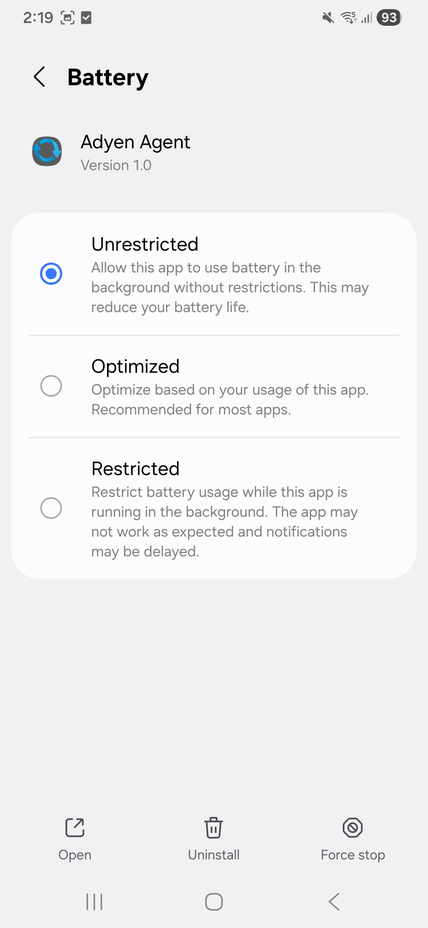
The Adyen Agent app does not automatically prompt the user to configure the settings required for it to auto-start after a device restart. The following steps must be performed manually when setting up the Adyen Agent app on a mobile device for the first time:
- Press and hold the Adyen Agent app icon and select App Info
- Select Battery from the menu
- Choose the Unrestricted option
Payment device deletion does not offboard the MPOC app
When deleting a payment device from Estate Manager, the Adyen MPOC app instance will not be offboarded automatically. Therefore, offboard the Adyen MPOC app first using the procedure in the Offboarding the Adyen MPOC App section, and then delete the payment device from Estate Manager.
About This Document
(c) 2026 Enactor Ltd
All documents produced by Enactor Ltd are supplied to customers subject to Copyright, commercial confidentiality, and contractual agreements and must not be copied or transferred without permission.
Document Context
This document is part of the Enactor Product Documentation Series. All Enactor products include a comprehensive documentation set designed to improve understanding of the product and facilitate ease of use.
Document Inquiries
If you find that a document is inaccurate or deficient in any way, please contact:
Email: documentation@enactor.co.uk
Document History
| Version | Status | Issue Date | Author | Reason for Issue | Software Version |
|---|---|---|---|---|---|
| 1.0 | Initial Draft | Amal Silva | Initial Version | ||
| 2.0 | Docusaurus Migration | 15 May 2026 | Shenol Silva | Updated to latest documentation standards, including front matter and AI metadata | 2.7.1795.1940 |
| 3.0 | Content Update | 21 May 2026 | Shenol Silva | Added navigational path images to Account Credentials, Payment Device Maintenance, Application Update Maintenance, Application Update Broadcaster, and Diary Entry Maintenance sections; corrected navigation menu paths | 2.7.1795.1940 |