Colour Preferences
The Enactor Development Environment can automatically apply colours that are suitable for the active Eclipse light or dark theme. Alternatively, users can disable automatic theme colours and configure the editor colours manually.
Colour preferences are available for the Process Editor, Connected Process Editor, and Business Process Editor.
When Follow Eclipse theme colours is selected for an editor, its colours change automatically when the active Eclipse theme changes. If this option is cleared, the editor continues to use its configured custom colours.
Changing the Eclipse theme
- From the Eclipse menu, select Window > Preferences.
- Select General > Appearance.
- Select the required light or dark theme from the Theme list.
- Select Apply and Close.
- Restart Eclipse if requested.
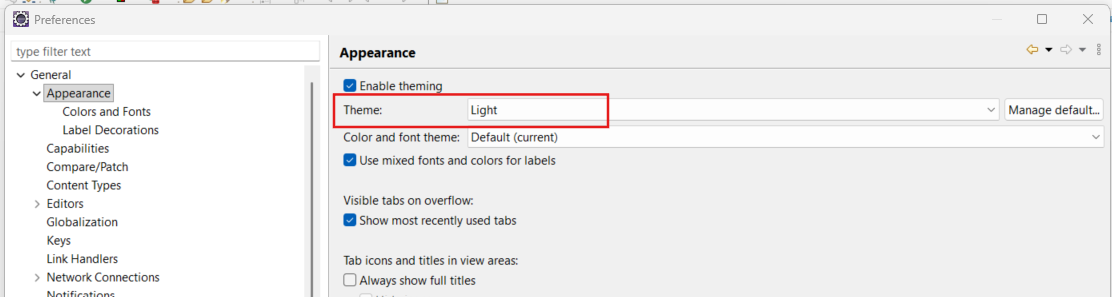
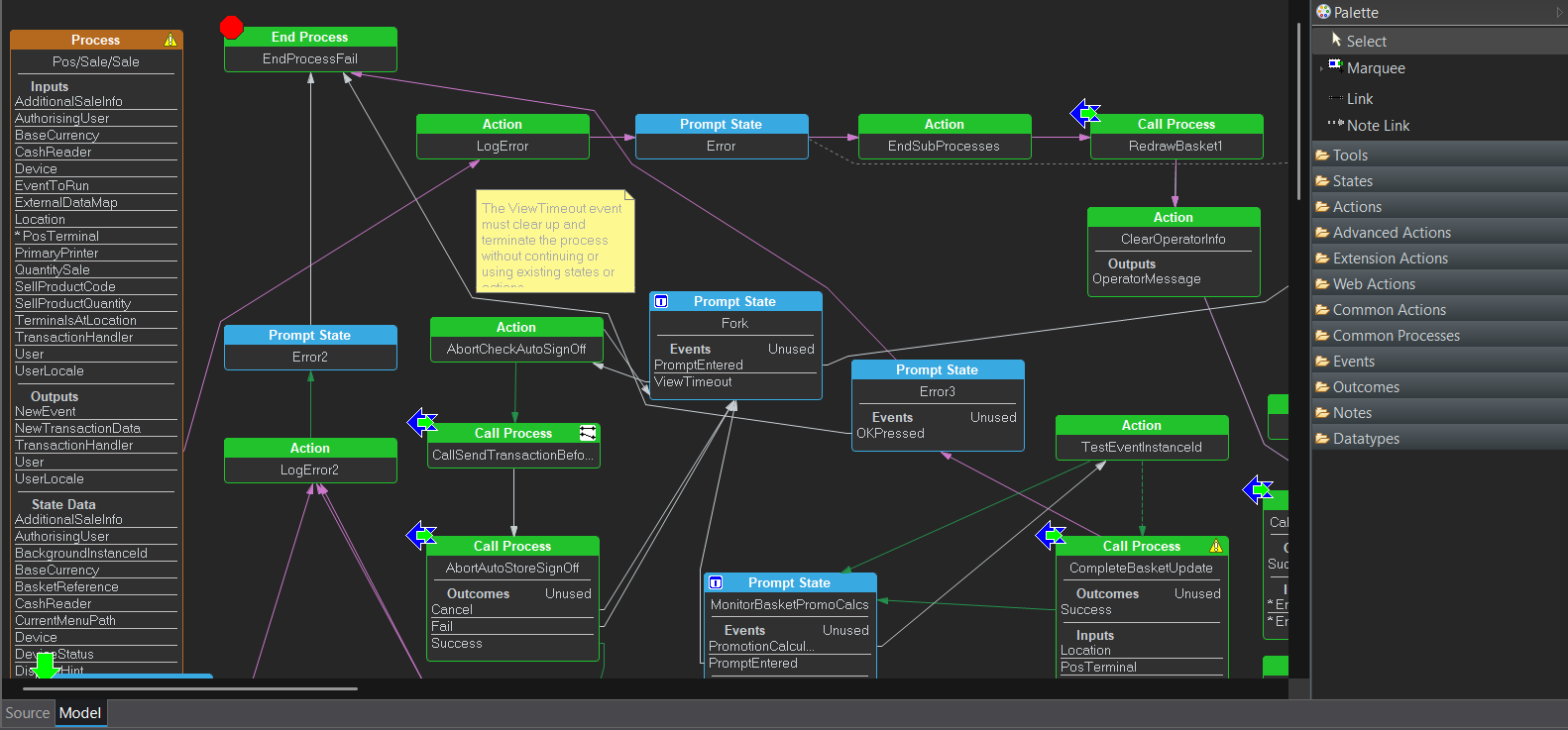
With Follow Eclipse theme colours enabled, changing the theme automatically updates the canvas, node body, node headers, text, links, and palette appearance. Changing back to a light theme restores suitable light-theme colours.
Opening the colour preferences
- From the Eclipse menu, select Window > Preferences.
- Expand Enactor Development > Editor Preferences.
- Select Process Editor, Connected Process Editor, or Business Process Editor.
- Locate the colour options on the selected preference page.
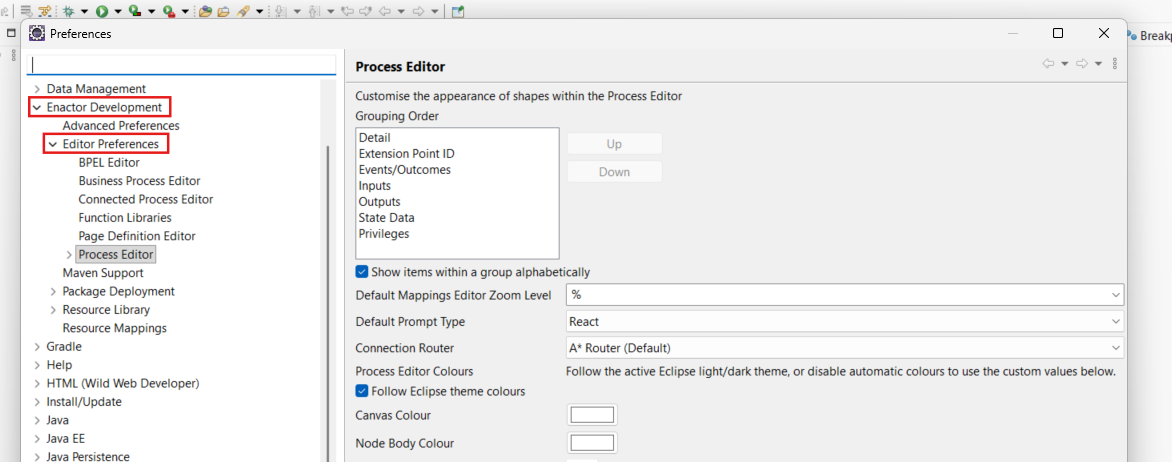
Using custom colours
Clear Follow Eclipse theme colours to configure the diagram using the values displayed on the preference page.
To change a colour:
- Select the colour swatch beside the required option.
- Choose a colour from the colour selection dialog.
- Select OK.
- Select Apply or Apply and Close.
Custom settings remain in use when the Eclipse theme changes while Follow Eclipse theme colours is cleared. Select the option again to return to colours derived from the active Eclipse theme.
Process Editor colours
Open Enactor Development > Editor Preferences > Process Editor to configure Process Editor diagrams.
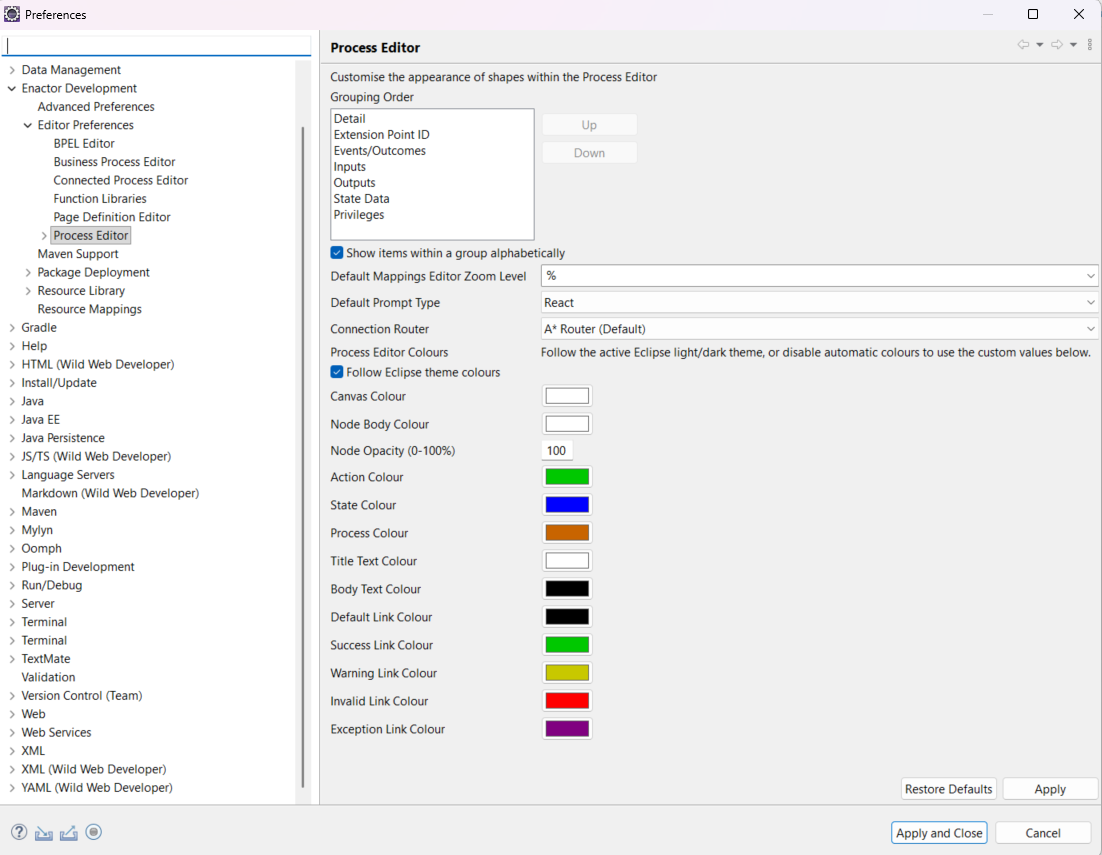
To use custom colours, clear Follow Eclipse theme colours, select the colour swatch beside the required option, choose a colour, and select Apply or Apply and Close.
Connected Process Editor colours
Open Enactor Development > Editor Preferences > Connected Process Editor to configure Connected Process diagrams.
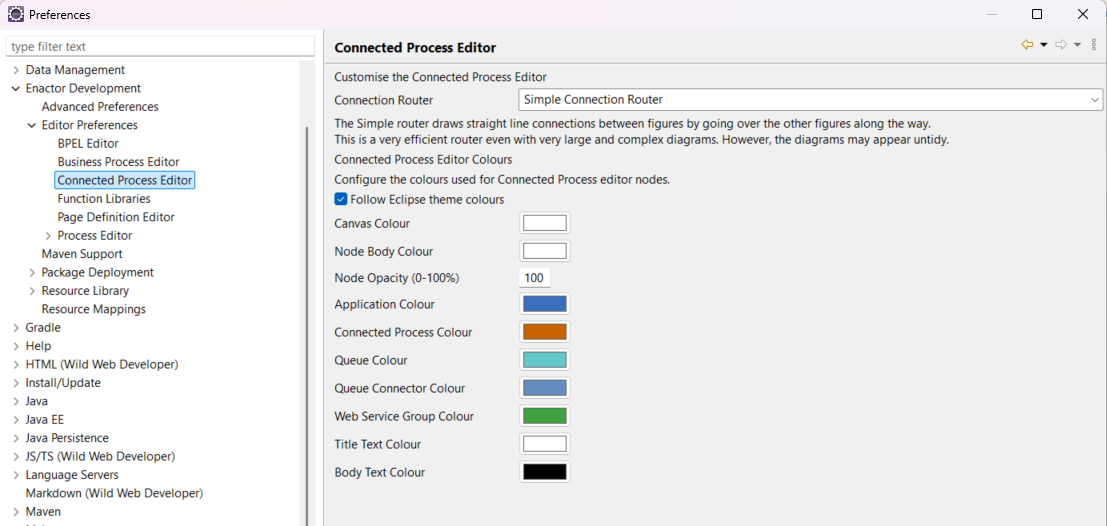
To use custom colours, clear Follow Eclipse theme colours, select the colour swatch beside the required option, choose a colour, and select Apply or Apply and Close.
Business Process Editor colours
Open Enactor Development > Editor Preferences > Business Process Editor to configure Business Process diagrams.
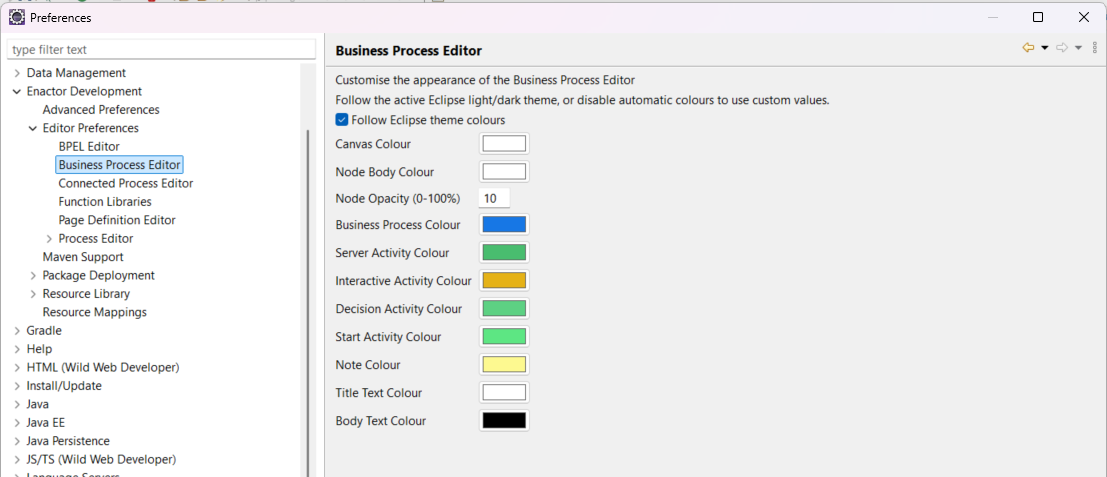
To use custom colours, clear Follow Eclipse theme colours, select the colour swatch beside the required option, choose a colour, and select Apply or Apply and Close.
Following the Eclipse theme
Select Follow Eclipse theme colours, then select Apply or Apply and Close. The custom values shown on the page are not used while automatic theme colours are active.
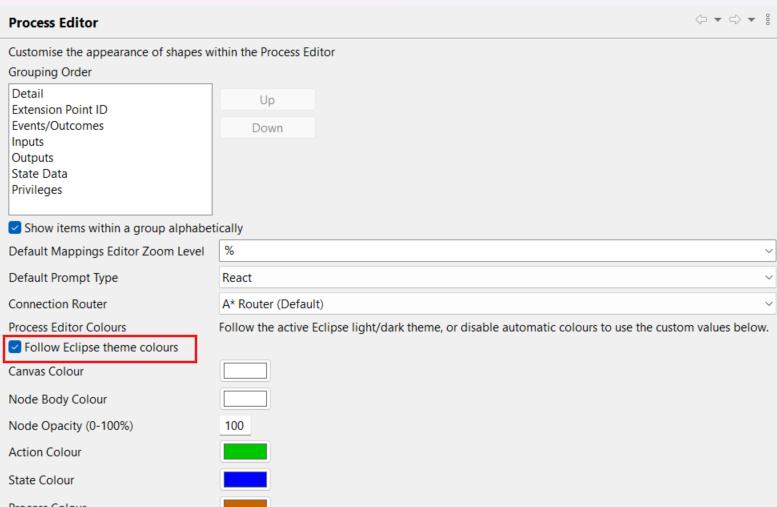
Follow Eclipse theme colours must be selected separately for each editor that should change automatically.
The editor palette follows the active Eclipse theme independently of this setting.
Available colour options
Process Editor
| Option | Description |
|---|---|
| Canvas Colour | Diagram canvas background. |
| Node Body Colour | Background inside process nodes. |
| Node Opacity (0-100%) | 0% is transparent; 100% is opaque. |
| Action Colour | Action header and border. |
| State Colour | State header and border. |
| Process Colour | Process header and border. |
| Title Text Colour | Node titles and section headings. |
| Body Text Colour | Values and normal node content. |
| Default Link Colour | Standard links. |
| Success Link Colour | Success links. |
| Warning Link Colour | Warning links. |
| Invalid Link Colour | Invalid links. |
| Exception Link Colour | Exception links. |
Connected Process Editor
| Option | Description |
|---|---|
| Canvas Colour | Diagram canvas background. |
| Node Body Colour | Background inside nodes. |
| Node Opacity (0-100%) | Node body opacity. |
| Application Colour | Application nodes. |
| Connected Process Colour | Connected-process nodes. |
| Queue Colour | Queue nodes. |
| Queue Connector Colour | Queue-connector nodes. |
| Web Service Group Colour | Web-service group nodes. |
| Title Text Colour | Node titles and section headings. |
| Body Text Colour | Values and normal node content. |
Business Process Editor
| Option | Description |
|---|---|
| Canvas Colour | Diagram canvas background. |
| Node Body Colour | Background inside nodes. |
| Node Opacity (0-100%) | Node body opacity. |
| Business Process Colour | Business-process node. |
| Server Activity Colour | Server activity nodes. |
| Interactive Activity Colour | Interactive activity nodes. |
| Decision Activity Colour | Decision activity nodes. |
| Start Activity Colour | Start activities. |
| Note Colour | Note figures. |
| Title Text Colour | Node titles and section headings. |
| Body Text Colour | Values and normal node content. |
Restoring the defaults
Select Restore Defaults, followed by Apply or Apply and Close. If theme following is enabled, the editor uses colours suitable for the active Eclipse theme.
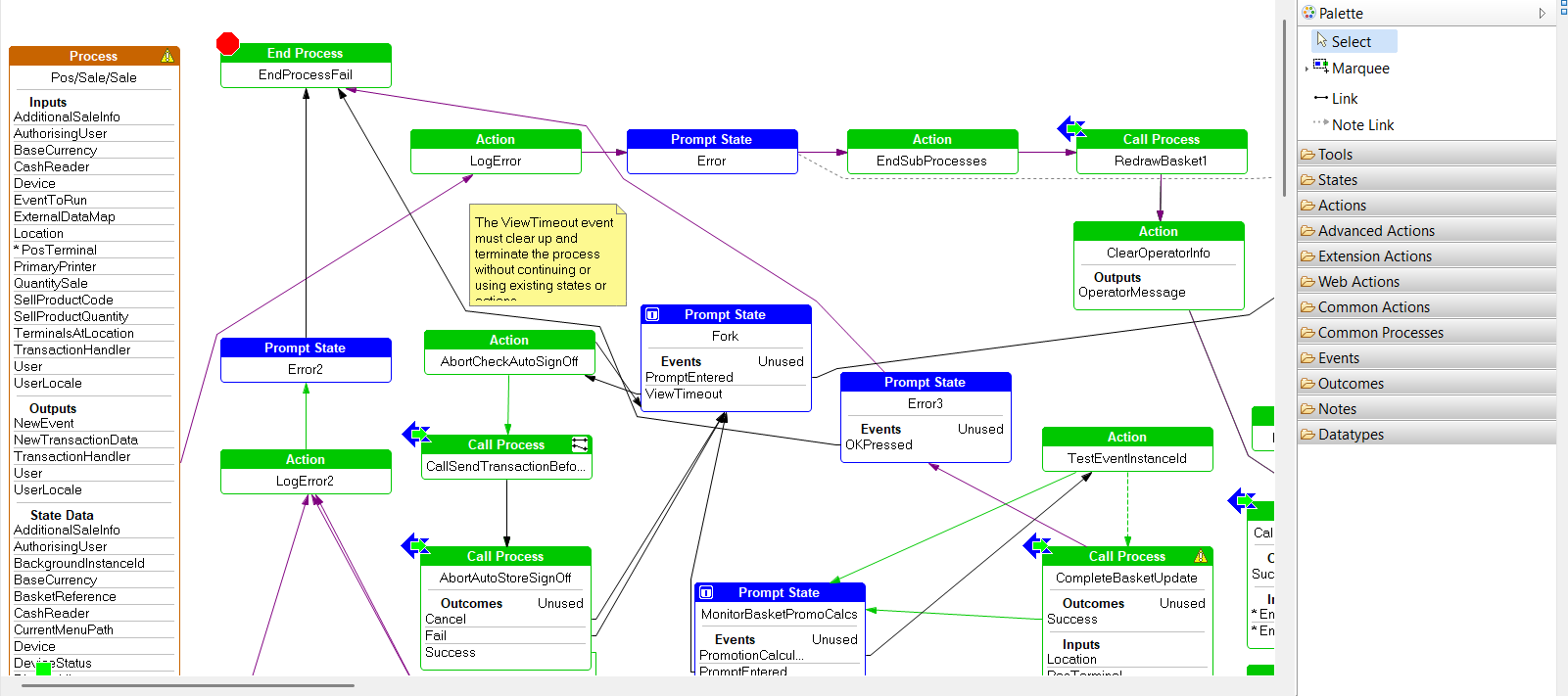
Example results
Troubleshooting
- If a diagram does not update, select Apply, close the editor, and reopen it.
- If custom colours are not visible, confirm that Follow Eclipse theme colours is cleared.
- If automatic colours are not visible, confirm that theme following is selected and the expected Eclipse theme is active.
- If the node body appears unchanged, use a colour different from the canvas and increase its opacity.