Enactor Tools - 1.3.404
Overview
This release mainly includes enhancements/bug fixes related to React Component Support for Enactor Tools, Support Reference Search for Page Definitions, React Components and bug fixes.
Deliverables and Versions
| Enactor Tools | Version: 1.3.404 |
|---|---|
| Eclipse | 2023-9 |
| Java (Eclipse Launch)   | 17 |
| OS | Mac 13.0.1,   Ubuntu 18.04.6 LTS,   Windows 11 |
IMPORTANT
- Add the following parameter to eclipse.ini if it does not exist:
--add-opens=java.base/java.lang=ALL-UNNAMED
IMPORTANT
-
If you are using Ubuntu 22 or above and have issues with Enactor Tools not working properly Go to /etc/gdm3/custom.conf and uncomment below line.
-
WaylandEnable=false
Changes
| Ref | Summary |
|---|---|
| DT-355 | Flag certain Editors/Wizards as Experimental |
| DT-366 | Workspace Preference for Prompt Type (React/Page Definition) |
| DT-367 | Rename: rcmp to r: in the Resource Library |
| DT-368 | Support reference search for the react components |
| DT-369 | Support reference search for the page definitions |
| DT-371 | Remove enactor maven console |
| DT-372 | Remove BPEL capabilities from the context menu |
| DT-374 | Remove showing labels next to the links in process editor |
| DT-375 | Process Editor Toolbar - Remove Expand and Contract tools |
| DT-378 | Tools Indexing - Supporting multiple route files |
Bug Fixes
| Ref | Summary |
|---|---|
| DT-363 | "Location" displayed as "Lacation" in Page Definition Information View in Resource Library |
| DT-365 | Show in Resource Library doesn't work for React Components |
| DT-373 | Tracing slider - Doesn't remember the slider value on restart |
| DT-398 | Process validation markers does not appear in the problems view |
Notes
Select Preferred Prompt Type
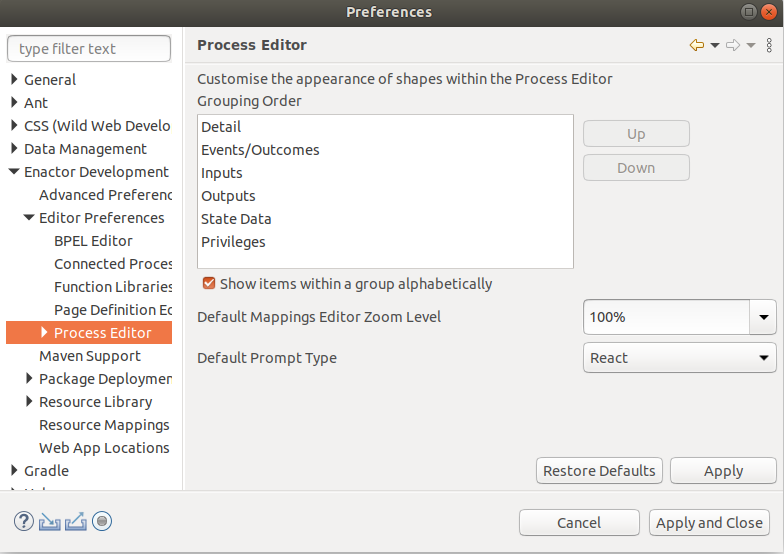
You can set the preferred prompt type in Eclipse → Preferences → Process Editor → Default Prompt Type as either React or Page Definition. Default will be Page Definition.
Based on the Prompt Type that you select you will be navigated to the Page Definition/React Component when you double click a prompt in the Application Process Editor.
Select Multiple React Routes
You can add multiple react routes following the same steps as Enactor Tools - Version 1.3.368 | Navigate to React Components
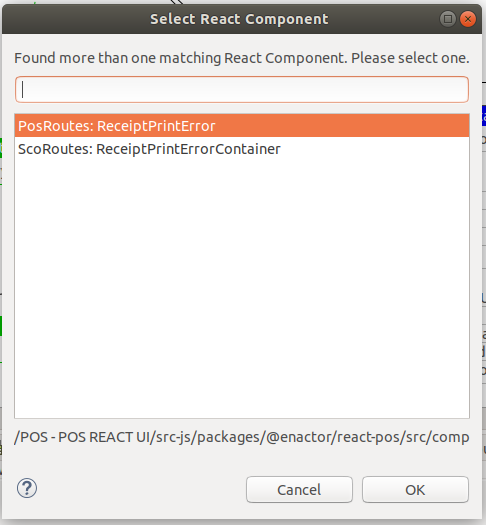
When you double click on a prompt having multiple react component , you can select the component from the selection wizard and move to the appropriate one.
Support Reference Search for Page Definitions
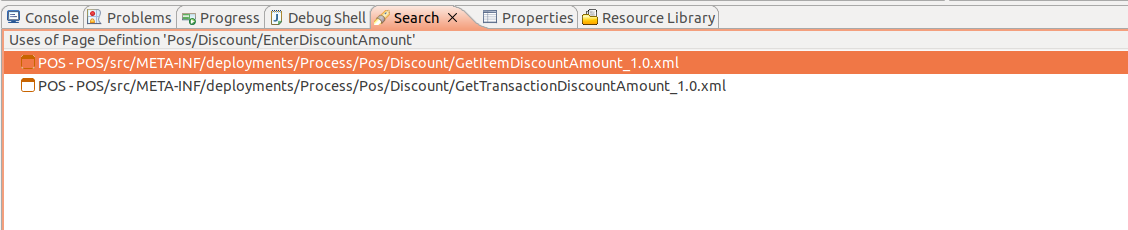
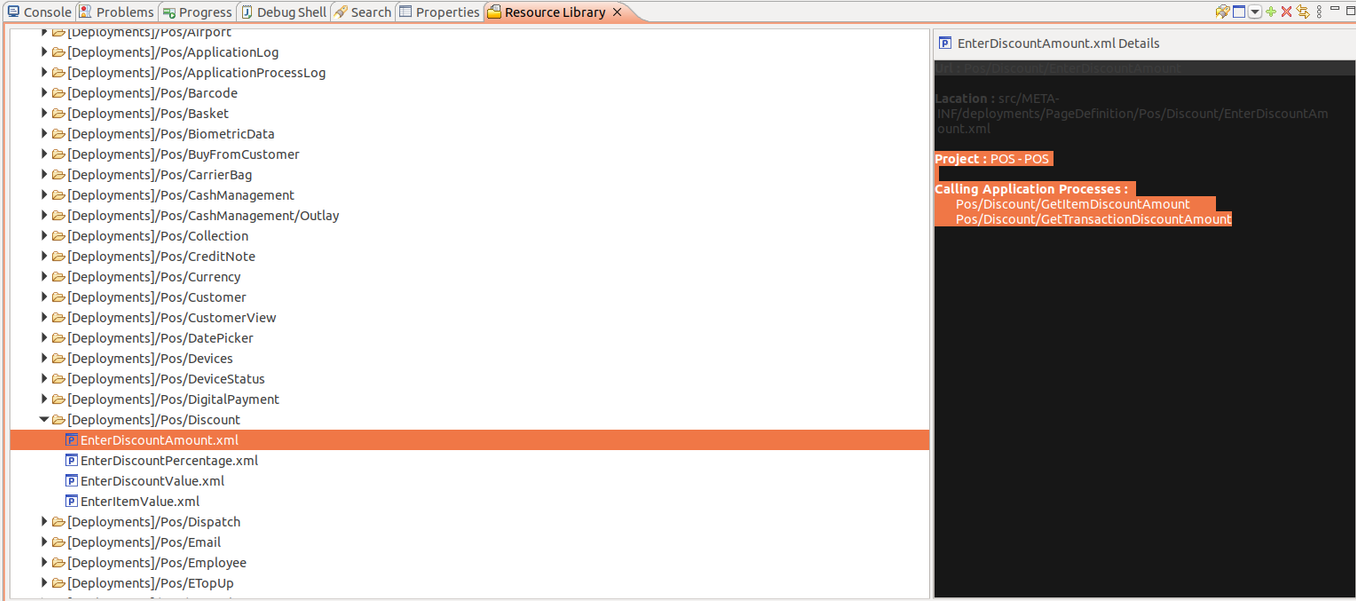
You can find application processes that uses a given page definition
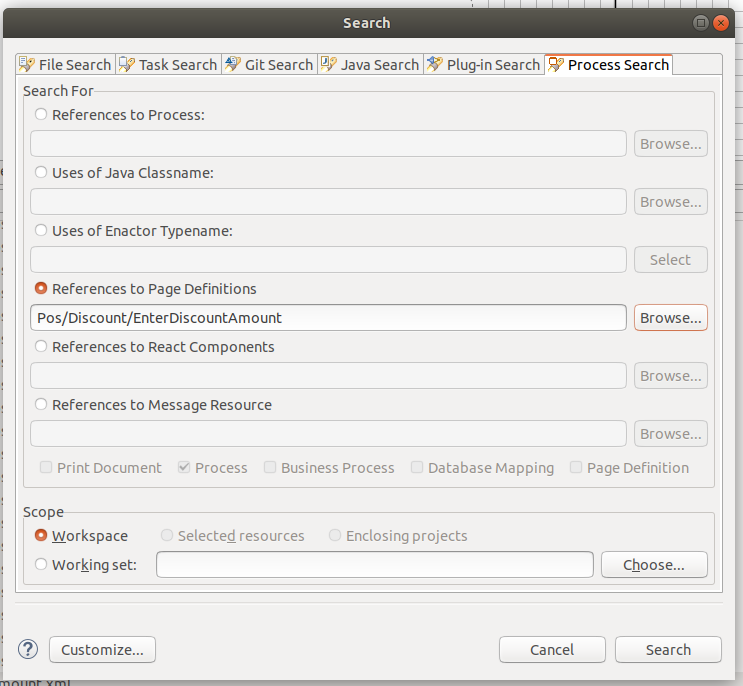
- Go to Search → Process Search → Browse Page Definition → Search
-
Open the Page Definition with Page Definition Editor Right Click → References.
-
Open the Page Definition using Resource Library. Click on the Resource Library Search Result and Observe the Information View
Support Reference Search for React Components
You can find application processes that uses a given page definition
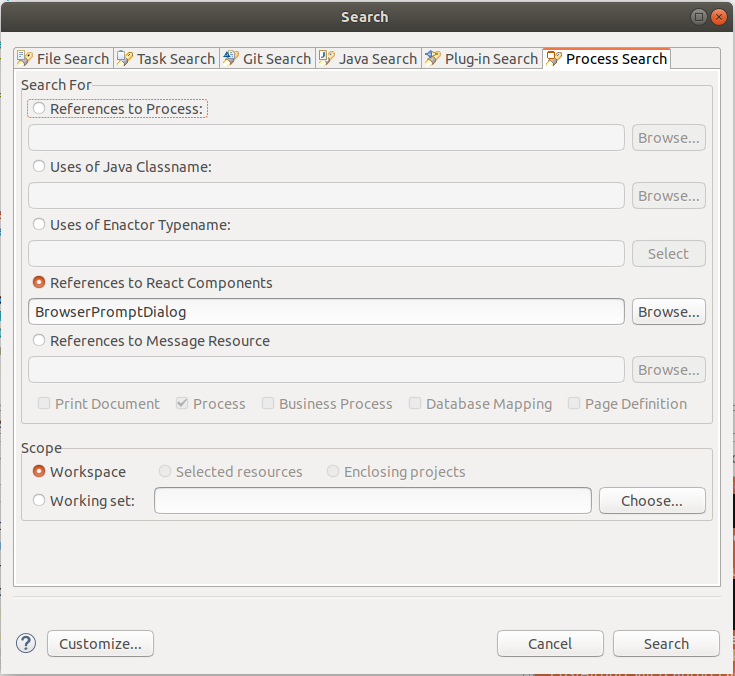
- Go to Search → Process Search → Browse React Components → Search
-
Open React Component Right Click → Enactor → Find References
-
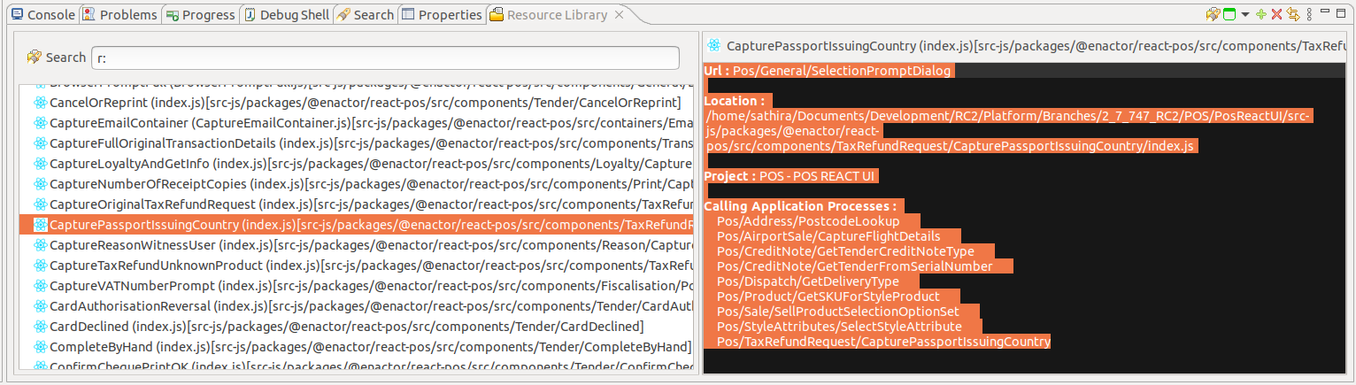
Open the React Component using Resource Library. Click on the Resource Library Search Result and Observe the Information View
Enable Experimental Features in Enactor Tools
Some Enactor Editors/ Wizards are flagged and experimental and they can only be make available to use by enabling them using eclipse.ini setting.
eg. Entity Relationship Editor
To Enable experimental Editors/Wizards you need to add below param to the eclipse.ini setting
-Denactor.editors.enableExperimentalFeatures=true