Estate Manager

Estate Manager

Slide 15


Estate Manager - Objectives and Exercises

Objectives

At the end of this session, you will be able to:

  • Log on to the Estate Manager UI
  • Navigate to required screens, using the menus or search functions
  • Use selection screens to find data
  • View detailed data
  • Carry out simple configuration changes
  • Understand how to use the interactive help pages

Practical Exercises

  • Estate Manager Logon and Navigation exercise
  • Simple configuration exercise

Estate Manager - Topics

  • Estate Manager User Interface
  • Overview of Estate Manager Functions - Configuration, Operations, Integration and Data Management, Reporting, System Administration and Monitoring

Estate Manager - User Interface

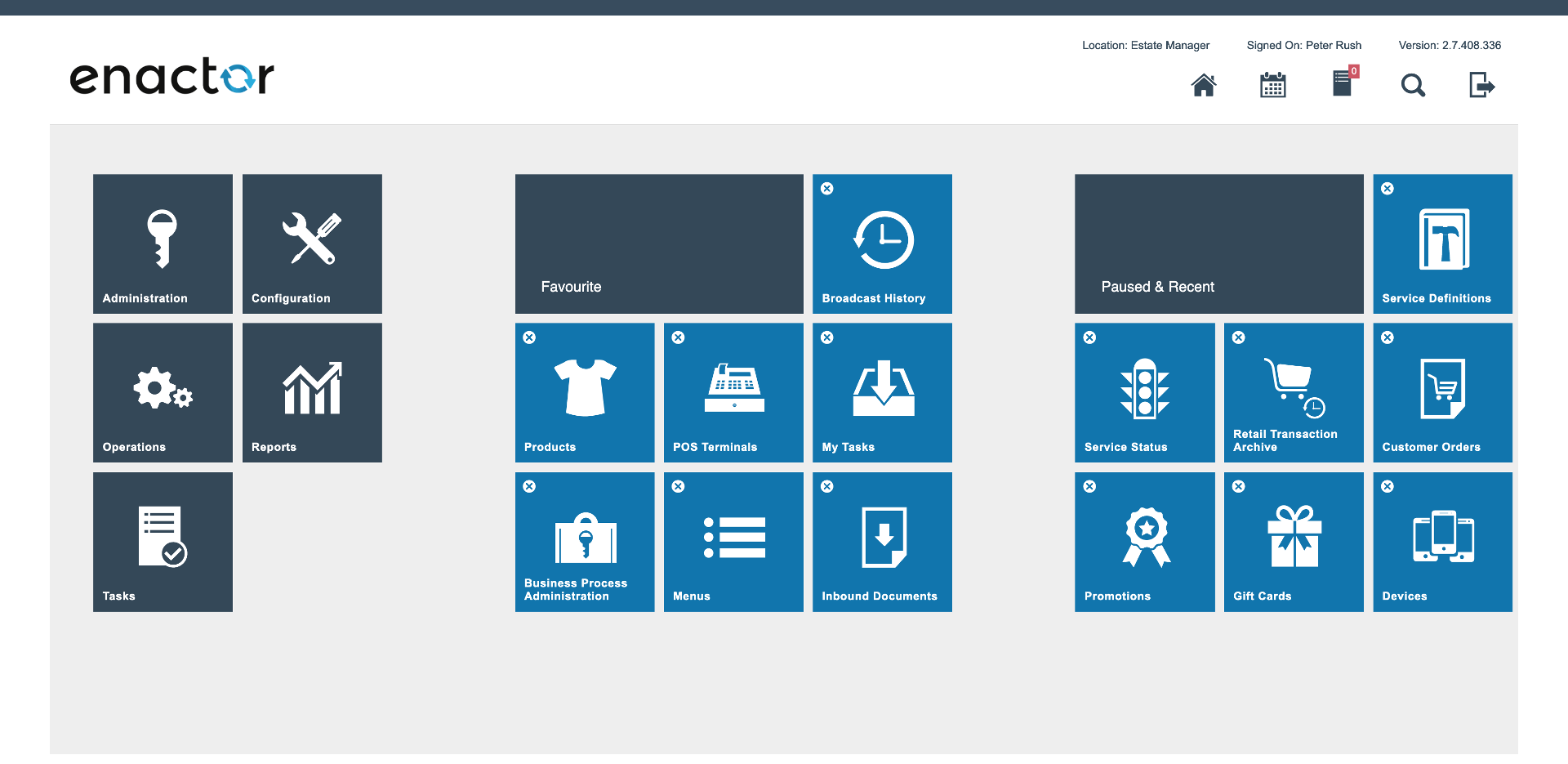
Estate Manager Home Screen


Estate Manager - Exercise 1: Logon and Navigation

  1. Open the Estate Manager UI in Chrome or Firefox using the provided URL (please note this is case sensitive)
  2. Register your browser using the following data: User ID - see separate Document; Password - see separate Document (please note the password is lower case); Device: estateManager.enactor (should be default)
  3. You should now be logged in to the Estate Manager.
  4. Navigate to the following pages using the menu and/or search: Configuration - Merchandise - Products; Operations - Cash Management - Terminal Cash Management - Cash Management History; Retail Transaction Archive; File Import
  5. Check what effect this has had on the main menu page

Estate Manager - Exercise 2: Simple Configuration

  1. From the Estate Manager UI, navigate to the User Maintenance page (Configuration - Human Resources - Users)
  2. From the User Selection Screen, find the user record for your user (e.g. TRAIN1). View the User details, then return to the User Selection Screen.
  3. Copy your TRAINx User. Set the ID and Name details of the new user, using your own name. The template for the User ID is JBLOGGS, for a name of Joe Bloggs. Check the other tabs of the copied user record, but do not make any further changes. Save the new user and create a new Password for it.
  4. Log out and try logging back on with the new user's credentials.
  5. What has happened to the main menu page?

Further Reading

For additional information and further reading on signing onto Estate Manager, please see the following guide:

DocumentDescription
How to: Navigate Estate ManagerNavigating the Enactor Estate Manager application