Estate Manager
Estate Manager

Estate Manager - Objectives and Exercises
Estate Manager - Topics
Estate Manager - User Interface
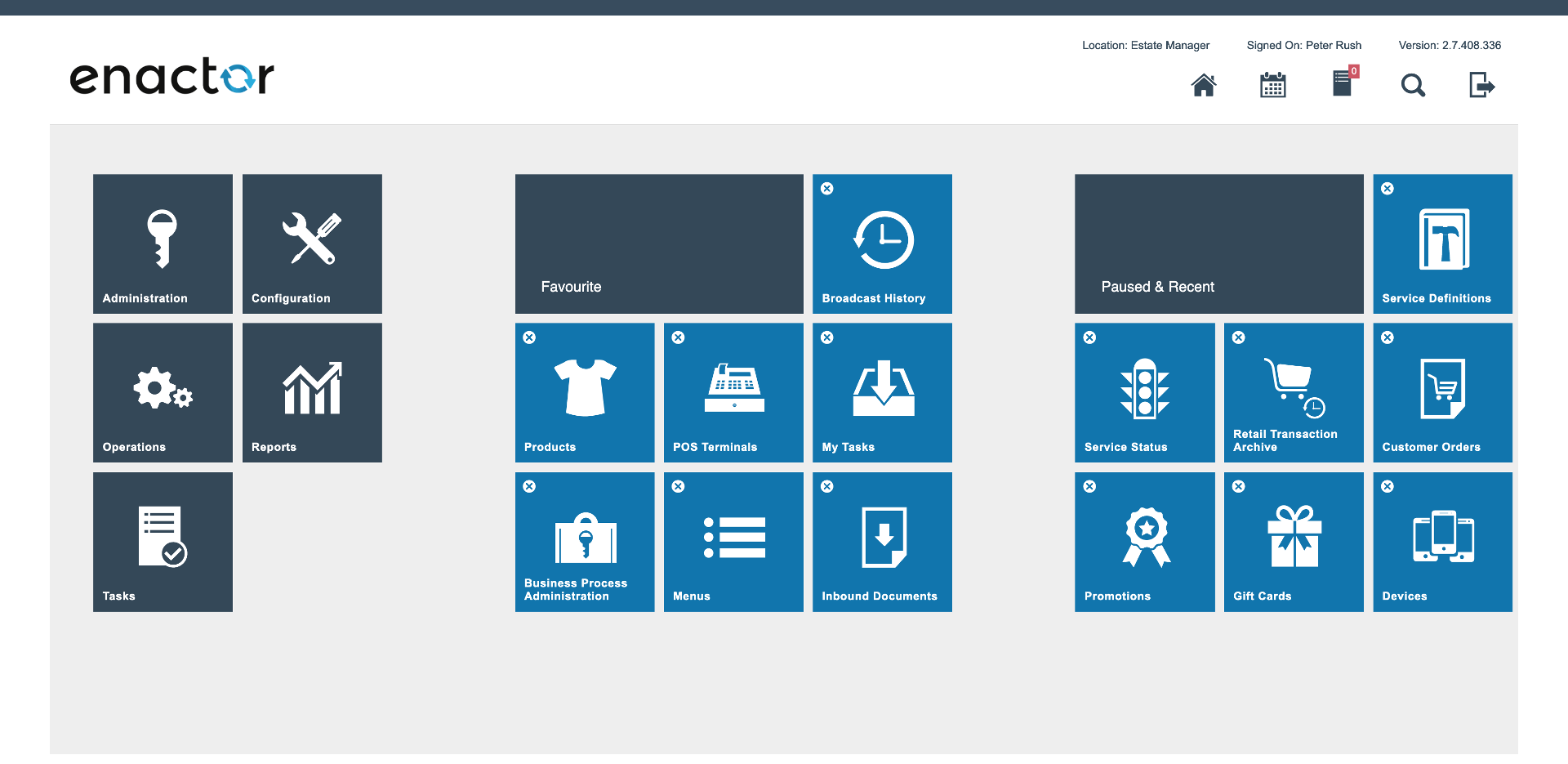
Exercise 1 - Estate Manager Logon and Navigation
- Open the Estate Manager UI in Chrome or Firefox using the provided URL (case sensitive)
- Log in using the data provided for you: User ID - see separate Document; Password - see separate Document; Device - estateManager.enactor (default, do not change)
- You should now be logged in to the Estate Manager.
Navigate to:
Configuration > Merchandise > Products Operations > Cash Management > Terminal Cash Management > Cash Management History
 Operations > Retail Transaction Archive
 Administration > Data Management > Imports > File Import
- Discussion: What effect has this had on the main menu page?
Exercise 2 - Estate Manager Simple Configuration
Navigate to User maintenance:
Configuration > HR > Users
- Find the user record for your user (e.g. TRAIN1)
- View the User details using the view icon (binoculars)
Select Back to return to the User list page.
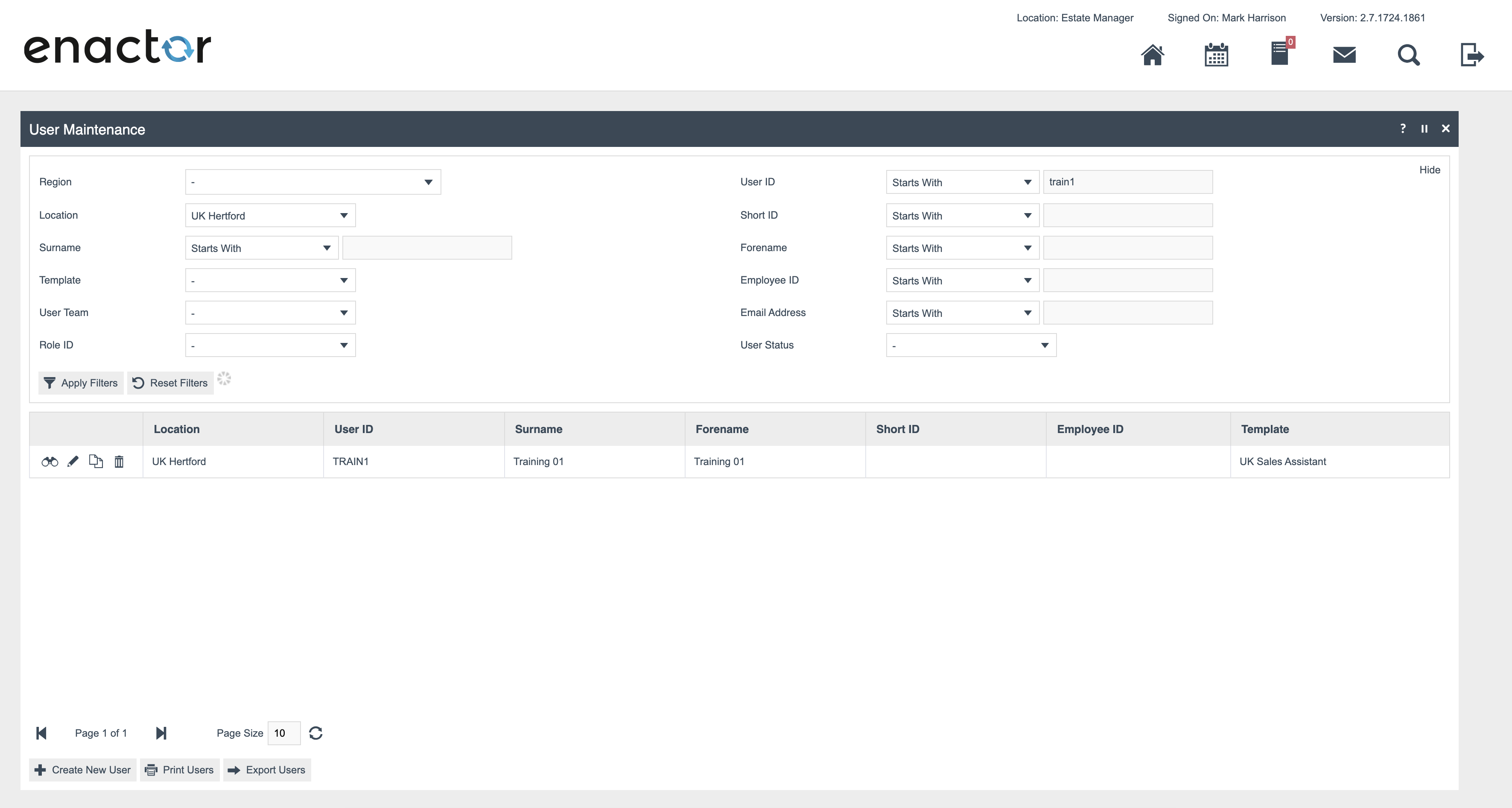
- Copy your TRAINx User using the copy icon (2 overlapping document icons)
- Enter a new User ID using your first initial and last name - e.g. JBLOGGS
- Select Create
Enter: Display Name - Your given name and initial - e.g. Joe B; Surname - Your surname; Forename - Your given name
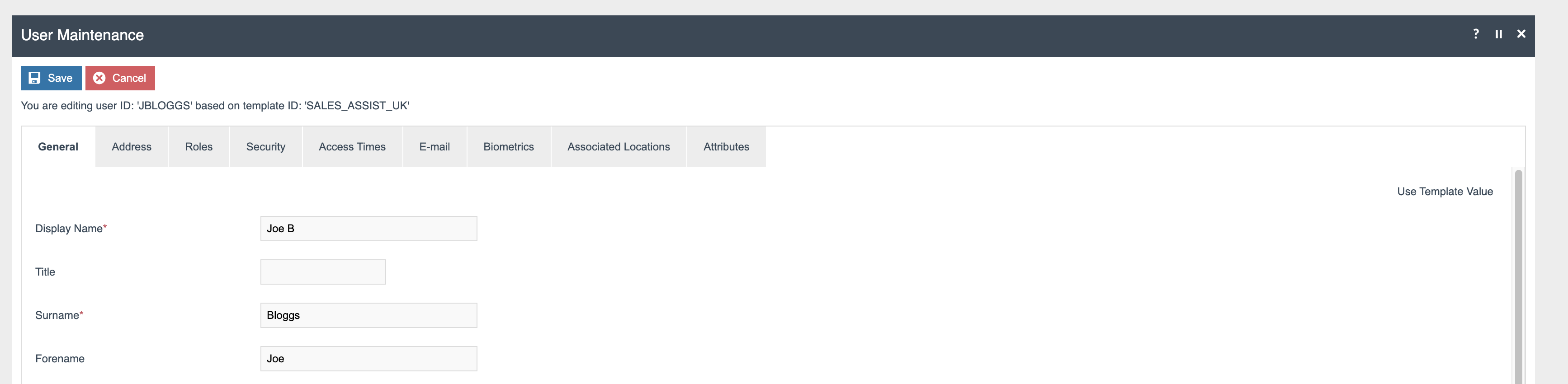
- Review the other tabs but do not make further changes.
- Save the new user
Set the user's password
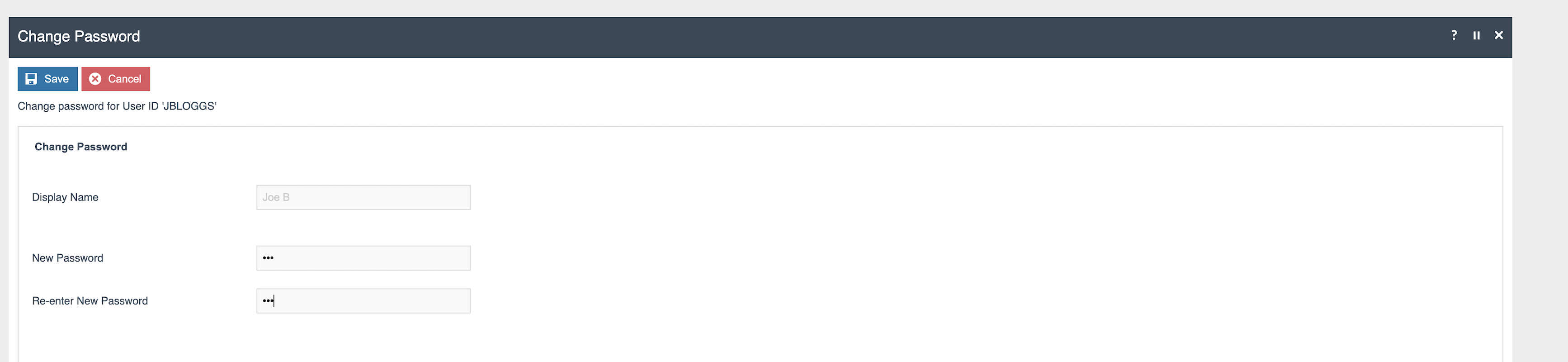
- Log out and try logging back on with the new user's credentials.
- Discussion: What has happened to the main menu page?
Further Reading
For additional information and further reading on signing onto Estate Manager, please see the following guide:
| Document | Description |
|---|---|
| How to: Navigate Estate Manager | Navigating the Enactor Estate Manager application |