Promotions

Promotions

Slide 19


Objectives

Objectives

At the end of this session, you will be able to:

  • Understand what Item Sets are and how they are used in promotions
  • Understand the key promotion settings and overlapping promotion rules
  • Configure a percentage discount promotion
  • Configure a fixed value discount promotion
  • Configure a 3-for-2 promotion
  • Configure bundle promotions

Practical Exercise

  • Promotion Configuration Exercise

Configuration Topics

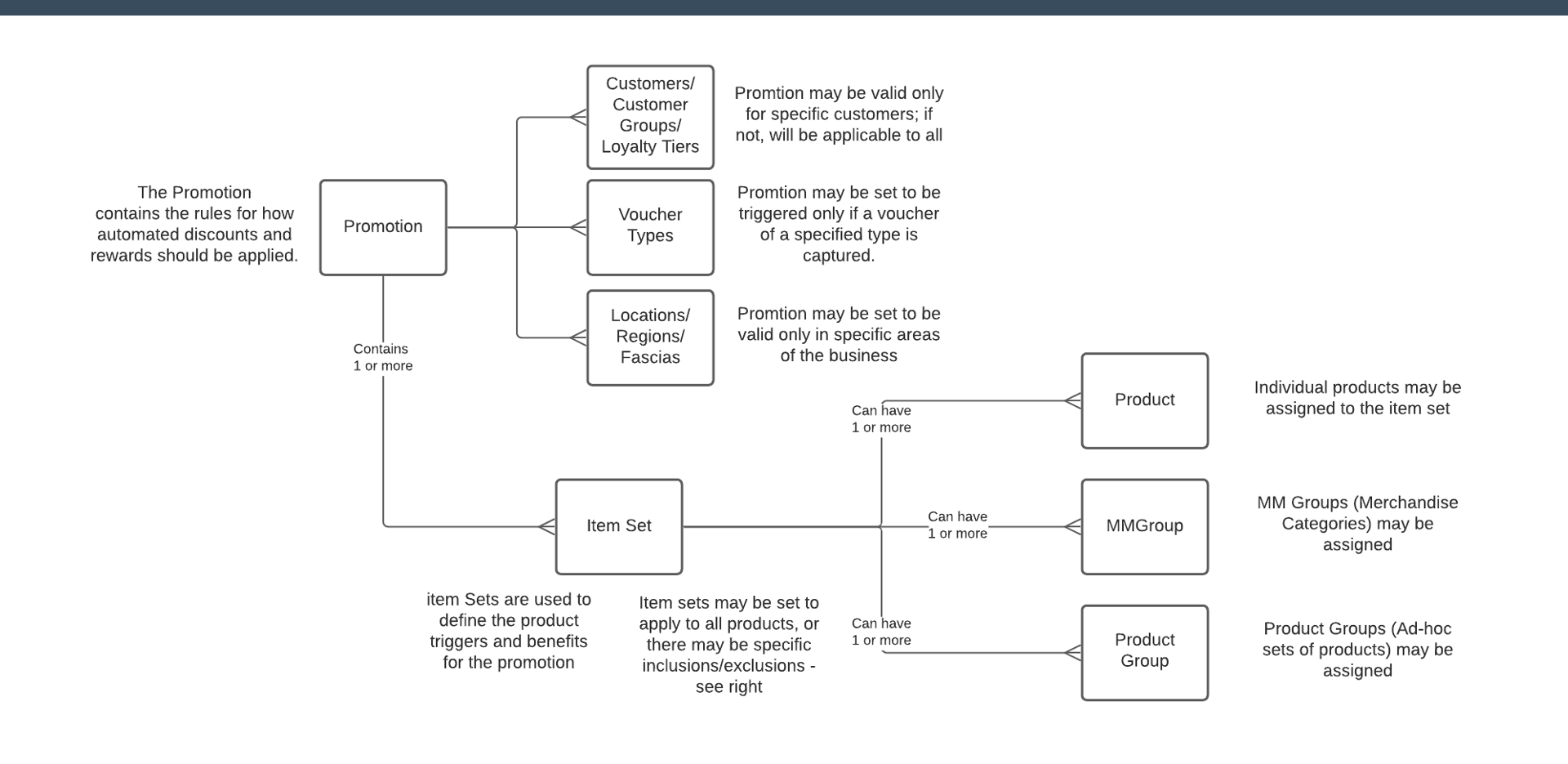
  • Promotion with Item Sets - the core promotion entity and its item set relationships
  • Customers / Customer Groups - targeting promotions to specific customers or groups
  • Regions / Locations / Fascias - scoping promotions to specific locations or fascias
  • Voucher Types - using vouchers as promotion triggers or outputs
  • Products - individual products included in item sets
  • Product Groups - groups of products included in item sets
  • MM Groups - merchandise management groups included in item sets

Promotion Data Relationships

Promotion Data Relationships


Exercise 1 - Percentage Discount Promotion

  1. Create a new promotion with an ID of PERCENT-x (use your TRAINx ID); create it in the All Regions region
  2. Name your promotion (make it identifiable as yours)
  3. Set the Date range - start from today, valid for a month
  4. Set the Region validity to the United Kingdom region
  5. Set the location validity to your location
  6. Set the Overlap rules - check that it is set not to overlap with other promotions
  7. Add an Item Set: Name the item set; Set the Discount type to % Discount; Set the Discount %age to 20%; Set the Threshold to Count = 1; Add your Merchandise products (created above) to the products tab; Save the Item Set
  8. Save the promotion
  9. Broadcast to your POS (check that Promotion is included in your predefined broadcast) and test.

Exercise 2 - 3 for 2 Promotion

  1. Create a new promotion with an ID of 3FOR2-x (use your TRAINx ID)
  2. Name your promotion (make it identifiable as yours)
  3. Set the Date range - start from today, valid for a month
  4. Set the Overlap rules - set it not to overlap with other promotions
  5. Add an Item Set: Name the item set; Set the Discount type to Closest Products Free; Set the Number of Free products to 1; Set the Threshold to Count = 3; Add your Style product (created above) to the products tab; Save the Item Set
  6. Save the promotion
  7. Broadcast to your POS and test.

Further Reading

For additional information and further reading on Promotions, please see the following guides:

DocumentDescription
How to: Configure PromotionsConfiguring promotions, item sets, and promotion rules