User Access and Authorisation

User Access and Authorisation
Slide 11


Objectives

Objectives

At the end of this session, you will be able to:

  • Understand and explain the purposes of and relationships between Users, User Templates, Roles and Privileges
  • Configure users and User Templates, including defining business functions and setting security requirements
  • Configure roles for POS and Estate Manager functions, including searching for and selecting privileges
  • Configure menus for POS and Estate Manager, including menu folders and function buttons, and setting embedded data in the menu item

Practical Exercises

  • Role Configuration Exercise
  • User and User Template Configuration Exercise
  • Menu Configuration Exercise

Configuration Topics

This session covers the following configuration topics:

  • Users - individual user accounts
  • User Templates - templates representing job functions (e.g. Sales Associate)
  • Roles - sets of privileges for related functionality
  • Menus - POS and Estate Manager menus and menu groups

Architecture

User Access Architecture


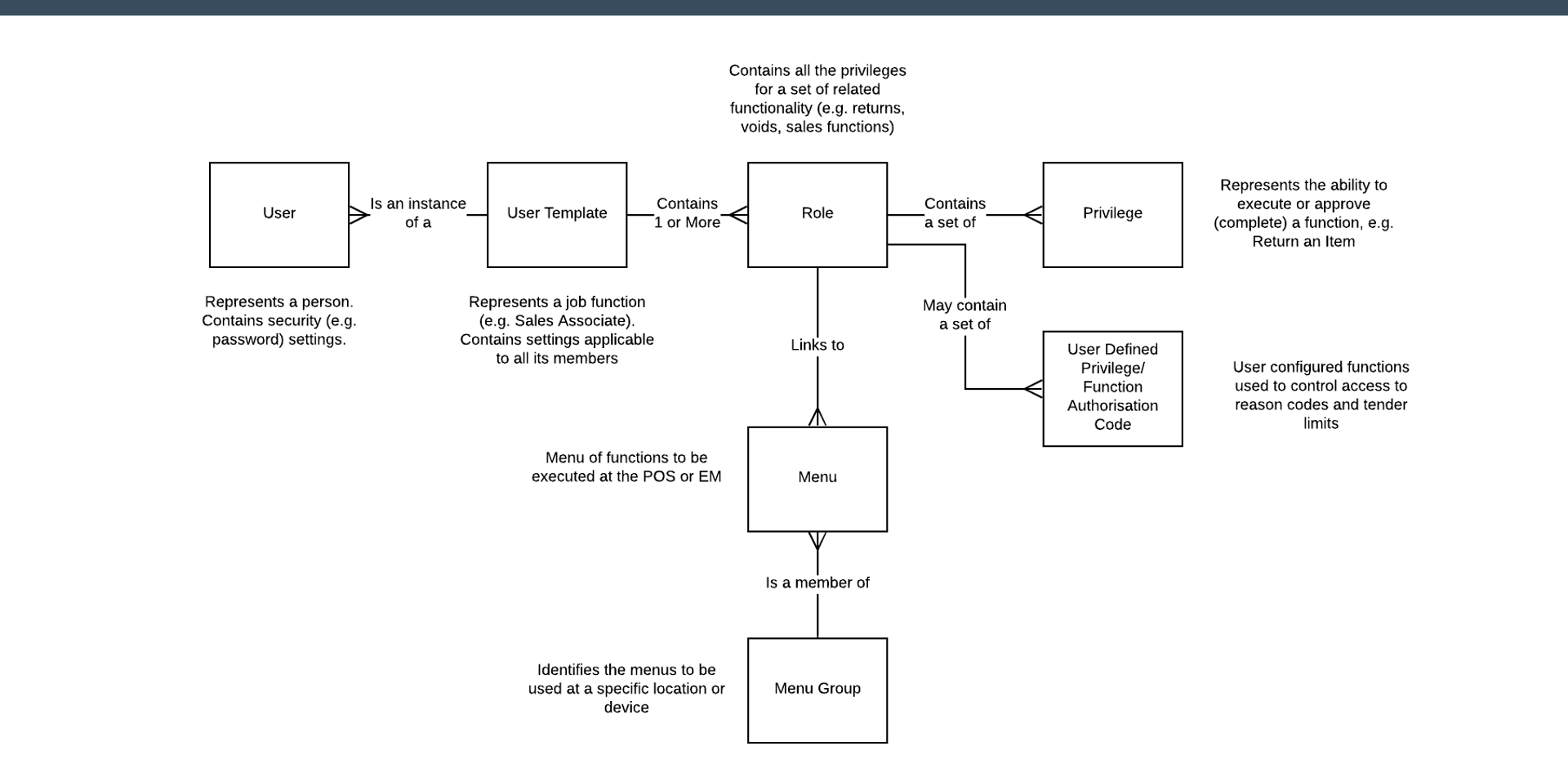
User, Role and Menu Relationships
User, Role and Menu Relationships

EntityDescription
UserRepresents a person. Contains security settings such as password configuration. Is an instance of a User Template.
User TemplateRepresents a job function (e.g. Sales Associate). Contains settings applicable to all its members. Contains one or more Roles.
RoleContains all the privileges for a set of related functionality (e.g. returns, voids, sales functions). Links to a Menu.
PrivilegeRepresents the ability to execute or approve a function, e.g. Return an Item.
User Defined Privilege / Function Authorisation CodeUser-configured functions used to control access to reason codes and tender limits.
MenuMenu of functions to be executed at the POS or EM. Is a member of a Menu Group.
Menu GroupIdentifies the menus to be used at a specific location or device.

Exercise 1 - Users, Roles and Templates

  1. Explain the following Enactor concepts: Privilege, Role, User Template
  2. Create a new Role with the following privileges; give the role an ID of ROLE-TRAINx and a descriptive Name. Add the following privileges: Enactor POS - Price Override - Price Override Allowed; Enactor POS - Price Override - Authorises Price Override; enactor.pos.IssueGiftCardAllowed (how can you find this privilege?)
  3. Copy the user template SALES_ASSIST_UK and save it as a new User Template called USER_TEMPL_TRAINx. Give it a descriptive name and assign these roles: Your new role (created above); SALES_ASSISTANT_UK (Sales Assistant UK); MANAGER (Manager)
  4. Create a new User with your template. Save it as Trainx.2 and give it a password.

Exercise 2 - Menus

  1. Create a new Menu Group with an ID of TRAINx (make it a child of the "All-Default" Group) - use the Groups maintenance utility.
  2. In Menu Maintenance, choose POS - Sales Assistant UK - Default Standard POS.
  3. Copy the SALE Menu from the Default Standard POS Group to your new Menu Group.
  4. Amend your SALE Menu: Remove the existing "SellUnknownProduct" menu item at the top level; Add a new Product Sales Folder at the top level at position 2; Add a Back button in position 8 of the new folder; Add a button in position 1 to execute a product sale (Event - "Sell Product"); Label the button as Sell Dress; On the Data tab, set the following: Name = enactor.mfc.ProductCode (data type), Value = RC6IDH1-11 (Product ID); Save your new menu
  5. How would you test your new menu?

Further Reading

For additional information and further reading on User Access and Authorisation, please see the following guides:

DocumentDescription
How to: Configure Users, Roles & TemplatesConfiguring users, user templates, roles and privileges
How to: Configure Menu GroupsSetting up menu groups in the organisation hierarchy
How to: POS Menu Layout GuideReference guide for POS menu layouts and structure
How to: Configure MenusConfiguring POS menus, buttons, and events