Pos Automation - Capture Screenshot
Overview
This tutorial will provide guidance on capturing the screenshots of the pages/windows while automating a feature.
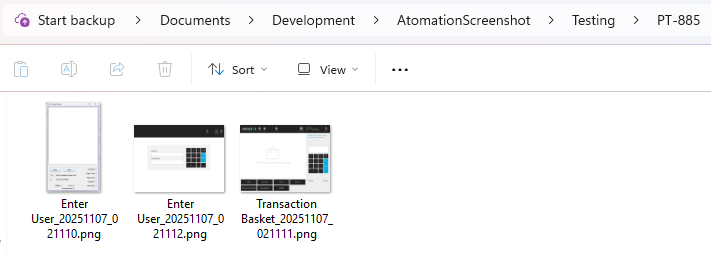
For each step that includes the page shown part, a screenshot will be automatically captured and saved in a folder named after the PT tag, inside the directory specified by autScreenshotURLBase.
What you will learn
How to enable capturing the window screenshots option in automation.
Pre-requisites
-
Should have a POS Setup and Automation Workspace Setup
-
Should have followed Tutorial -Sign On
Exercises
If you are running tests using Cucumber, add the following two properties to the Launcher.properties file. If you are running them using Maven, add the same properties to the launcher configuration.
| Parameter | Value |
|---|---|
autScreenshotURLBase | Path to the directory where screenshots should be saved |
captureScreen | true |
Run the test again.
Screenshots will be saved in a folder named after the PT tag inside the directory specified by autScreenshotURLBase.